Entfernung und Fahrzeit in einem Flow berechnen
Die flair Aktion Distance Calculation gibt die Fahrstrecke oder die Luftlinienentfernung in Kilometern sowie die Fahrzeit in Minuten zwischen zwei Orten zurück. Sie können die Aktion zu Ihren eigenen Salesforce Flows hinzufügen, um diese Entfernung zu speichern oder darauf zu reagieren – zum Beispiel, um ein Feld zu befüllen oder abhängig davon zu verzweigen, wie weit zwei Adressen voneinander entfernt sind.
Salesforce-Admins, die Flows im Flow Builder von Salesforce erstellen. Das flair Managed Package muss installiert sein.
Bevor Sie beginnen
- Das flair Managed Package ist in Ihrer Org installiert.
- Sie sind berechtigt, in Salesforce Setup Flows zu erstellen und zu aktivieren.
Aktion Distance Calculation zu einem Flow hinzufügen
Fügen Sie die Aktion dort hinzu, wo Ihr Flow eine Entfernung benötigt – zum Beispiel in einem datensatzausgelösten Flow, nachdem die relevanten Adressen gesetzt wurden.
- Öffnen Sie in Setup die Seite Flows und öffnen Sie Ihren Flow, oder klicken Sie auf New Flow, um einen Flow zu erstellen.
- Klicken Sie auf der Flow-Arbeitsfläche auf das + an der Stelle, an der die Berechnung ausgeführt werden soll, und wählen Sie dann Action aus.
- Geben Sie in der Aktionssuche
Distance Calculationein und wählen Sie die Aktion aus. - Geben Sie ein Label für die Aktion ein. Der API Name wird aus dem Label übernommen.
- Legen Sie die Eingabewerte für die Aktion fest (siehe Eingabewerte festlegen).
- Schließen Sie den Aktionsbereich. Die Aktion bleibt auf der Arbeitsfläche; klicken Sie auf Save, um den Flow zu speichern.
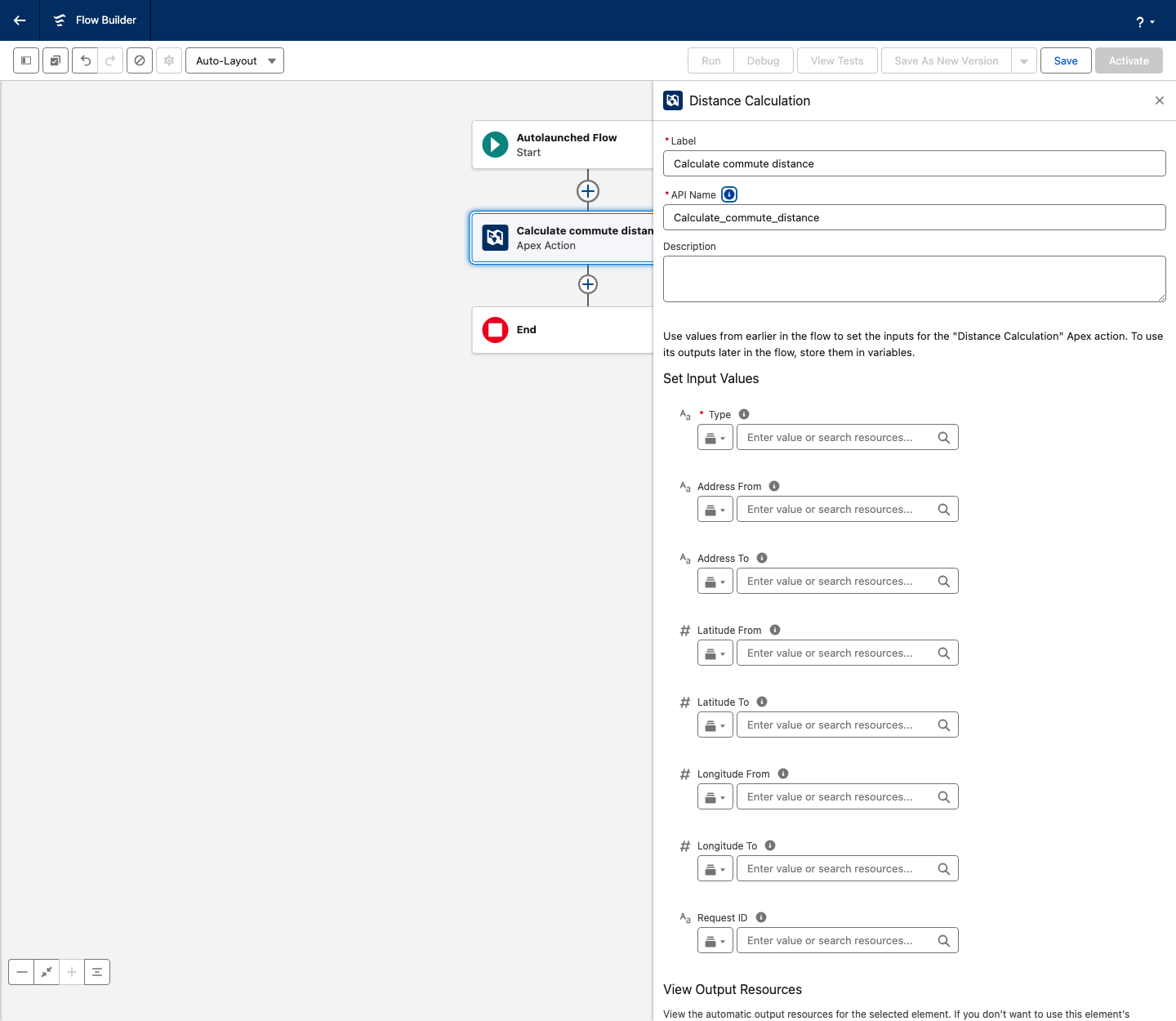
Eingabewerte festlegen
Geben Sie die beiden Orte entweder als Adressen oder als Koordinaten an und wählen Sie die Berechnungsart. Type ist erforderlich.
| Eingabe | Funktion |
|---|---|
| Type | Die Berechnungsmethode. Geben Sie DRIVING für die Fahrstrecke über Straßen oder DIRECT für die Luftlinienentfernung ein. Erforderlich. |
| Address From | Der Startort als Adresse. |
| Address To | Der Zielort als Adresse. |
| Latitude From, Longitude From | Der Startort als Koordinaten. |
| Latitude To, Longitude To | Der Zielort als Koordinaten. |
| Request ID | Optionale Kennung für die Anfrage. Wenn Sie das Feld leer lassen, erzeugt flair eine. |
Geben Sie jeden Ort auf die eine oder die andere Weise an: Setzen Sie Address From und Address To, oder setzen Sie für jeden Ort das Paar aus Breiten- und Längengrad. Um einen Wert aus dem auslösenden Datensatz zu übernehmen, wählen Sie das Feld aus der Datensatzvariablen aus – zum Beispiel $Record und dann das Adressfeld.
Ergebnisse verwenden
Die Aktion gibt diese Ausgaben zurück, die Sie in Variablen speichern oder in späteren Flow-Elementen referenzieren können:
| Ausgabe | Inhalt |
|---|---|
| distanceInKm | Die Entfernung zwischen den beiden Orten in Kilometern. |
| durationInMinutes | Die Fahrzeit zwischen den beiden Orten in Minuten. |
| error | Eine Meldung, die beschreibt, warum die Berechnung fehlgeschlagen ist, falls sie fehlgeschlagen ist. |
- Fügen Sie nach der Aktion das Flow-Element hinzu, das das Ergebnis verwendet – zum Beispiel ein Element Update Records oder Assignment.
- Referenzieren Sie in diesem Element die Ausgabe distanceInKm oder durationInMinutes der Aktion.
- Optional: Fügen Sie ein Element Decision hinzu, das prüft, ob error leer ist, bevor das Ergebnis verwendet wird, damit der Flow fehlgeschlagene Berechnungen abfängt.
- Klicken Sie auf Save und dann auf Activate, um den Flow auszuführen.