Calculate distance and travel time in a flow
The flair Distance Calculation action returns the driving or direct distance in kilometres and the travel time in minutes between two locations. You can add it to your own Salesforce Flows to store or act on that distance — for example, to populate a field or branch on how far apart two addresses are.
Salesforce Admins building flows in Salesforce Flow Builder. The flair managed package must be installed.
Before you begin
- The flair managed package is installed in your org.
- You have permission to create and activate flows in Salesforce Setup.
Add the Distance Calculation action to a flow
Add the action wherever your flow needs a distance — for example, in a record-triggered flow after the relevant addresses are set.
- In Setup, open Flows and open your flow, or click New Flow to create one.
- On the flow canvas, click the + where you want the calculation to run, then select Action.
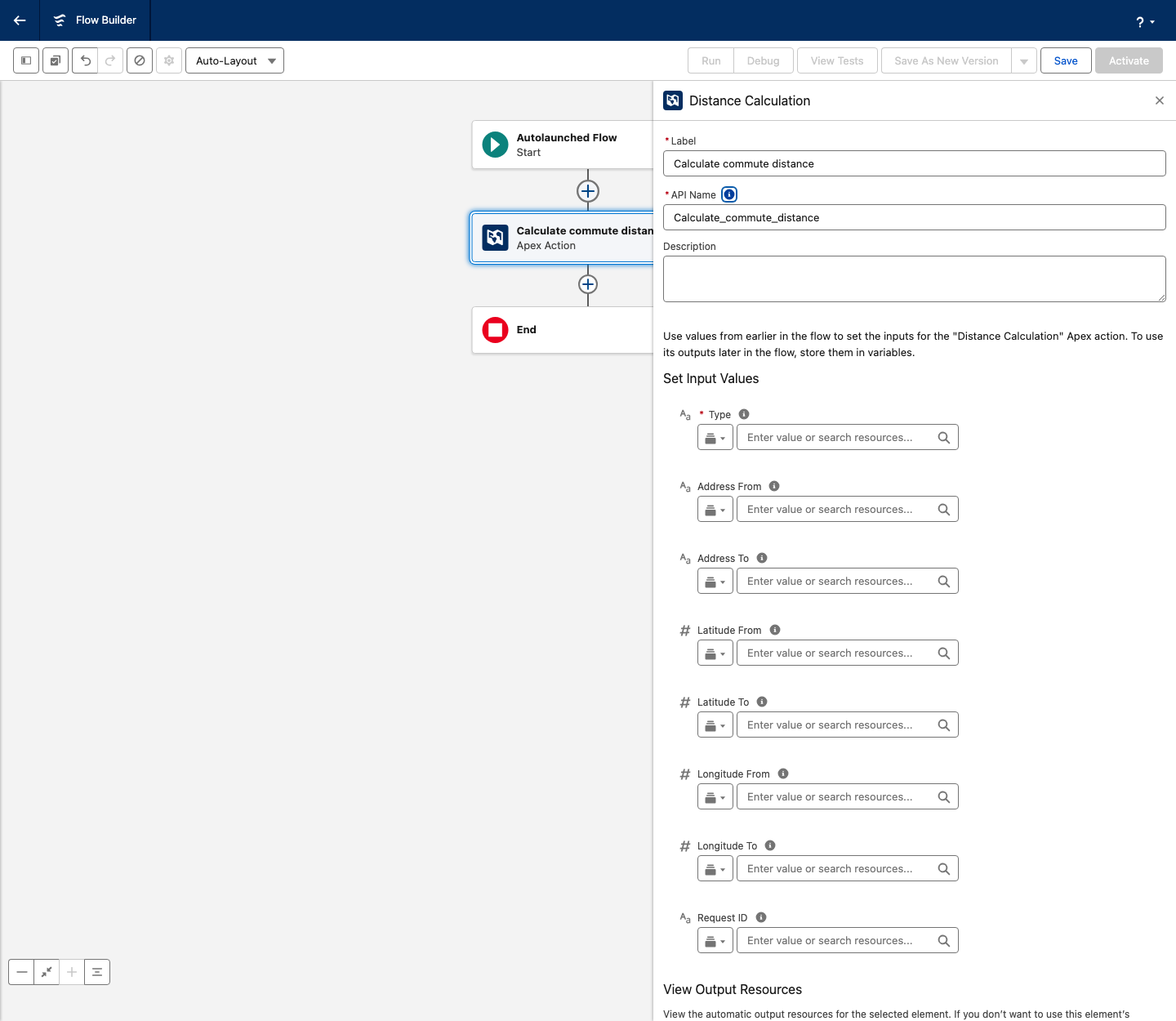
- In the action search, enter
Distance Calculationand select it. - Enter a Label for the action. The API Name fills in from the label.
- Set the input values for the action (see Set the input values).
- Close the action panel. The action stays on the canvas; click Save to save the flow.
Set the input values
Provide the two locations as either addresses or coordinates, and choose the calculation type. Type is required.
| Input | What it does |
|---|---|
| Type | The calculation method. Enter DRIVING for the driving distance along roads, or DIRECT for the straight-line distance. Required. |
| Address From | The start location as an address. |
| Address To | The end location as an address. |
| Latitude From, Longitude From | The start location as coordinates. |
| Latitude To, Longitude To | The end location as coordinates. |
| Request ID | Optional identifier for the request. If you leave it empty, flair generates one. |
Provide each location one way or the other: set Address From and Address To, or set the latitude and longitude pair for each end. To pull a value from the triggering record, select the field from the record variable — for example, $Record and then the address field.
Use the results
The action returns these outputs, which you can store in variables or reference in later flow elements:
| Output | What it contains |
|---|---|
| distanceInKm | The distance between the two locations, in kilometres. |
| durationInMinutes | The travel time between the two locations, in minutes. |
| error | A message describing why the calculation failed, if it did. |
- After the action, add the flow element that uses the result — for example, an Update Records or Assignment element.
- Reference the action's distanceInKm or durationInMinutes output in that element.
- Optional: add a Decision element that checks whether error is empty before using the result, so the flow handles failed calculations.
- Click Save, then click Activate to run the flow.