Datumsbasierte Alarmregeln
Überblick
Eine Alarmregel überwacht ein Datumsfeld und benachrichtigt Personen, wenn dieses Datum näher rückt. Typische Beispiele sind:
- Das Ende einer Probezeit
- Das Ablaufen eines Vertrags
- Das Ablaufen eines Zertifikats
Sie definieren die Regeln selbst; nichts ist fest einprogrammiert. Jede Regel legt fest, welche Datensätze sie überwacht, von welchem Datum sie ausgeht, wie weit vor oder nach diesem Datum der Alarm ausgelöst wird und wer benachrichtigt wird.
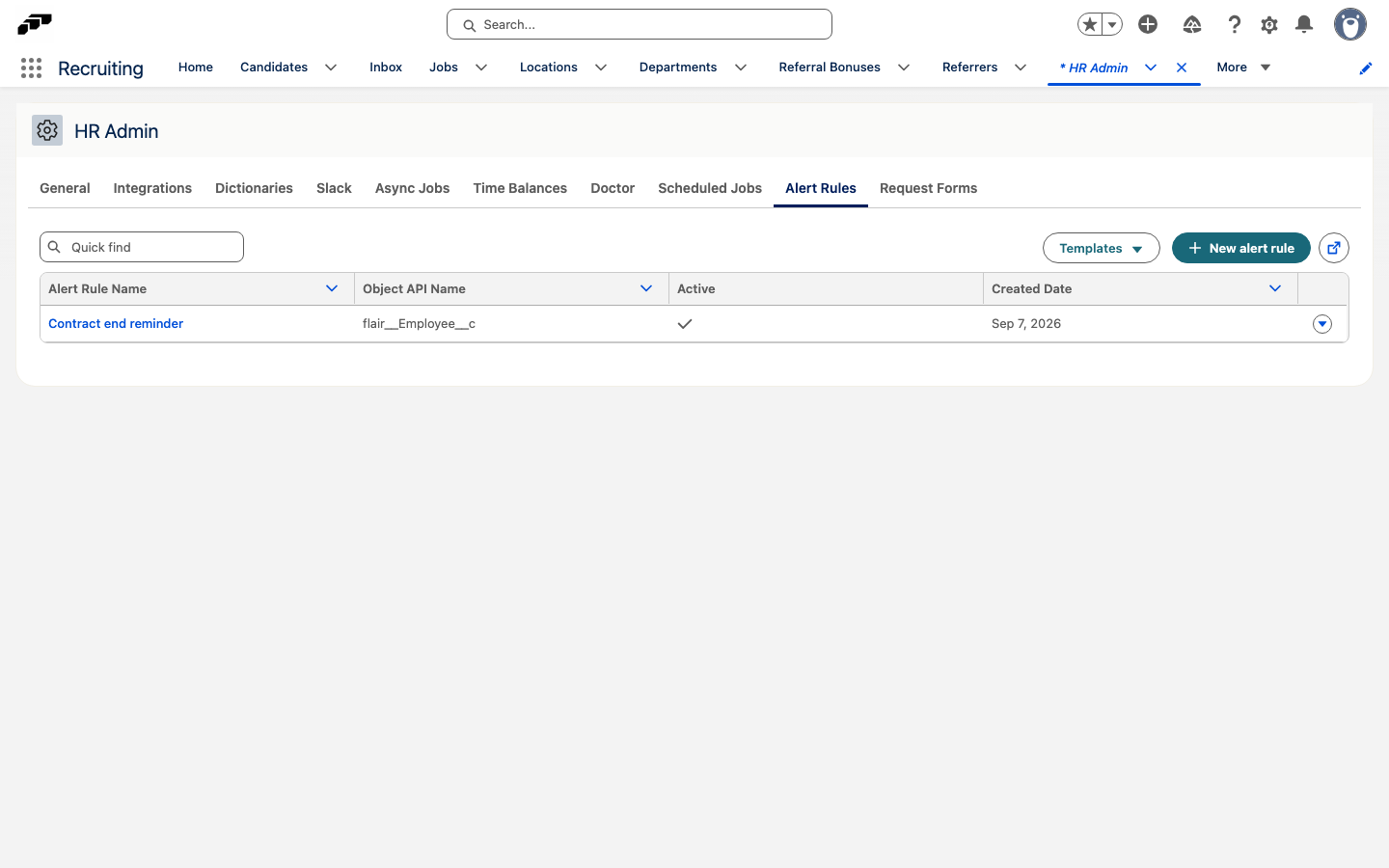
Warnregeln finden
Auf der Registerkarte HR Admin in Salesforce gibt es den Eintrag Warnregeln. Öffnen Sie ihn, um Alarmregeln zu erstellen und zu verwalten.
Eine Regel erstellen
Der Alarmtyp ist Datumsbasiert. Für eine Regel konfigurieren Sie die folgenden Einstellungen:
| Einstellung | Funktion |
|---|---|
| Name und Beschreibung | Identifizieren die Regel. |
| Objekt-API-Name | Legt fest, welchen Datensatztyp die Regel überwacht. |
| Datumsfeld | Das Datum des Datensatzes, von dem die Regel ausgeht. |
| SOQL-Filter | Optionale zusätzliche SOQL-Bedingungen, die ein Datensatz erfüllen muss, bevor er die Regel auslöst. Lassen Sie das Feld leer, um jeden Datensatz des ausgewählten Objekts zu berücksichtigen. |
| Versatzwert, Versatzeinheit, Versatzrichtung | Legen fest, wie weit vor oder nach diesem Datum der Alarm ausgelöst wird. |
| Empfängerkonfiguration | Legt fest, wer benachrichtigt wird, beispielsweise der Mitarbeiter, sein Manager, der HR-Manager oder ein Mitarbeitersegment. Die verfügbaren Empfängertypen hängen vom Triggerobjekt ab. |
| Benachrichtigungsbetreff-Vorlage und Benachrichtigungstext-Vorlage | Legen den Wortlaut der Benachrichtigung fest. |
| Aufgabe erstellen | Erstellt zusätzlich zur Benachrichtigung eine Aufgabe. |
| Status | Gibt an, ob die Regel Aktiv oder Inaktiv ist. |
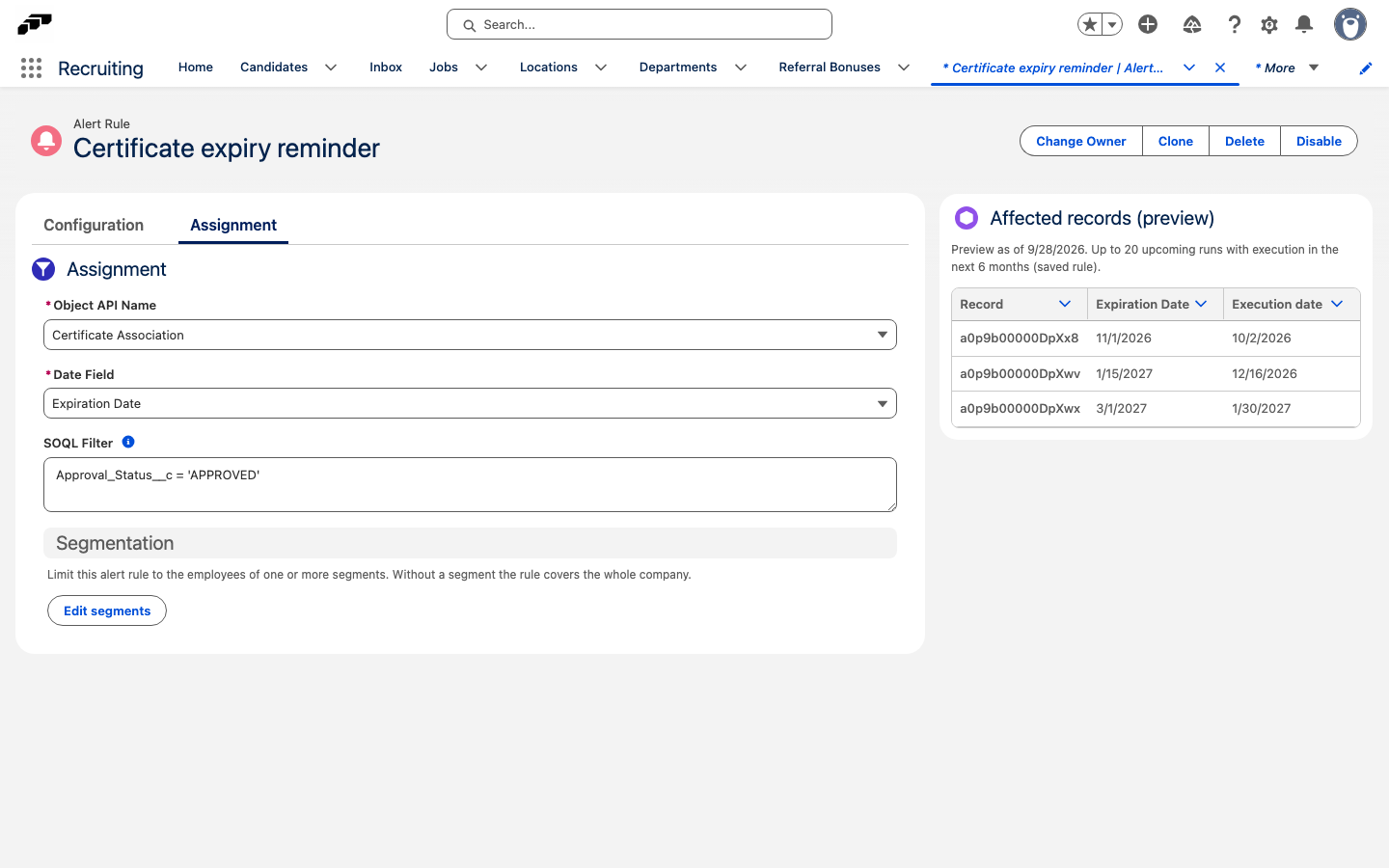
Objekt und Datumsfeld auswählen
Objekt-API-Name bestimmt, welchen Datensatztyp die Regel überwacht. Warnregeln können neben den anderen unterstützten Objekten auch Absence-Datensätze überwachen. Datumsfeld ist das Datum des Datensatzes, von dem die Regel ausgeht — zum Beispiel Enddatum einer Abwesenheit, das Ende einer Probezeit, das Ablaufdatum eines Vertrags oder das Ablaufdatum eines Zertifikats. Wählen Sie den Datensatztyp mit dem gewünschten Datum und anschließend dieses Datum aus.
Datensätze filtern
Verwenden Sie SOQL-Filter, um die Datensätze einzuschränken, die die Regel auslösen können. Geben Sie eine SOQL-Bedingung ohne das Schlüsselwort WHERE ein, zum Beispiel flair__Approval_Status__c = 'APPROVED'. Die Bedingung wird mit der Datumsbedingung kombiniert, sodass nur Datensätze verarbeitet werden, die beide Bedingungen erfüllen. Lassen Sie SOQL-Filter leer, um jeden Datensatz des ausgewählten Objekts zu berücksichtigen.
Der Filter wird beim Speichern der Regel geprüft. Wenn die Bedingung für das ausgewählte Objekt ungültig ist, blockiert Salesforce das Speichern und zeigt Der SOQL-Filter ist für das ausgewählte Objekt nicht gültig. an.
Verschiebung festlegen
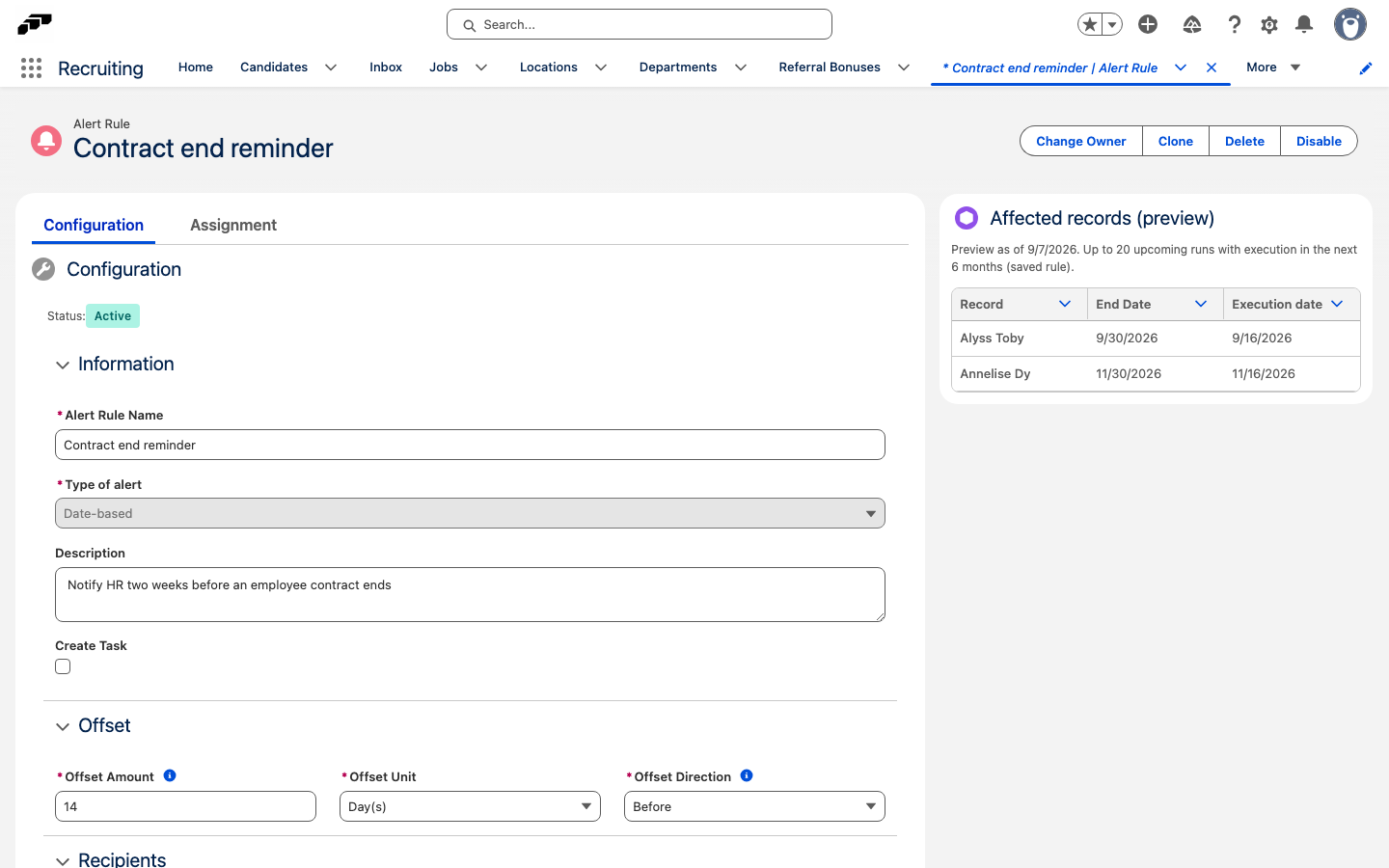
Versatzwert, Versatzeinheit und Versatzrichtung wirken zusammen. Betrag und Einheit legen fest, wie weit das Alarmdatum vom Ausgangsdatum entfernt ist; die Richtung bestimmt, ob der Alarm davor oder danach ausgelöst wird. Verwenden Sie den Versatz, um Personen früh genug zum Handeln aufzufordern — zum Beispiel vor dem Ende einer Probezeit statt am Tag ihres Endes.
Empfänger auswählen
Empfängerkonfiguration legt fest, wer benachrichtigt wird. Wählen Sie einen oder mehrere Empfängertypen aus, zum Beispiel Mitarbeiter, Manager, HR-Manager oder Segment. Die angebotene Liste hängt vom Triggerobjekt ab.
Wortlaut der Benachrichtigung festlegen
Benachrichtigungsbetreff-Vorlage und Benachrichtigungstext-Vorlage legen den Wortlaut der Benachrichtigung fest. Wenn Sie zusätzlich zur Benachrichtigung eine Aufgabe erstellen möchten, aktivieren Sie Aufgabe erstellen.
Regelstatus verwalten
Öffnen Sie die Registerkarte Konfiguration, um Name, Beschreibung, Verschiebung, Empfänger, Benachrichtigungsvorlagen und Aufgabeneinstellung der Regel zu bearbeiten. Öffnen Sie die Registerkarte Zuweisung, um Triggerobjekt, Datumsfeld und SOQL-Filter auszuwählen. Das Panel Betroffene Datensätze (Vorschau) bleibt auf beiden Registerkarten verfügbar.
Der aktuelle Status wird als Aktiv oder Inaktiv angezeigt. Um eine Regel zu pausieren, ohne ihre Konfiguration zu löschen, klicken Sie auf Deaktivieren. Um sie erneut zu starten, klicken Sie auf Aktivieren.
Eine Regel prüfen, bevor Sie sich darauf verlassen
Die Regel zeigt ein Panel Betroffene Datensätze (Vorschau) mit den Datensätzen, auf die sie angewendet wird. Das Panel enthält drei Spalten:
- Datensatz
- Ereignisdatum
- Ausführungsdatum
Solange die Regel nicht vollständig ausgefüllt und gespeichert ist, zeigt das Panel „Vervollständigen und speichern Sie die Alarmregel, um passende Datensätze zu sehen.“ an. Nach dem Speichern der Regel fasst das Panel das angezeigte Zeitfenster zusammen. Wenn keine Datensätze übereinstimmen, zeigt es „In diesem Fenster (nächste 6 Monate) wurden keine anstehenden Verarbeitungstermine gefunden.“ an.
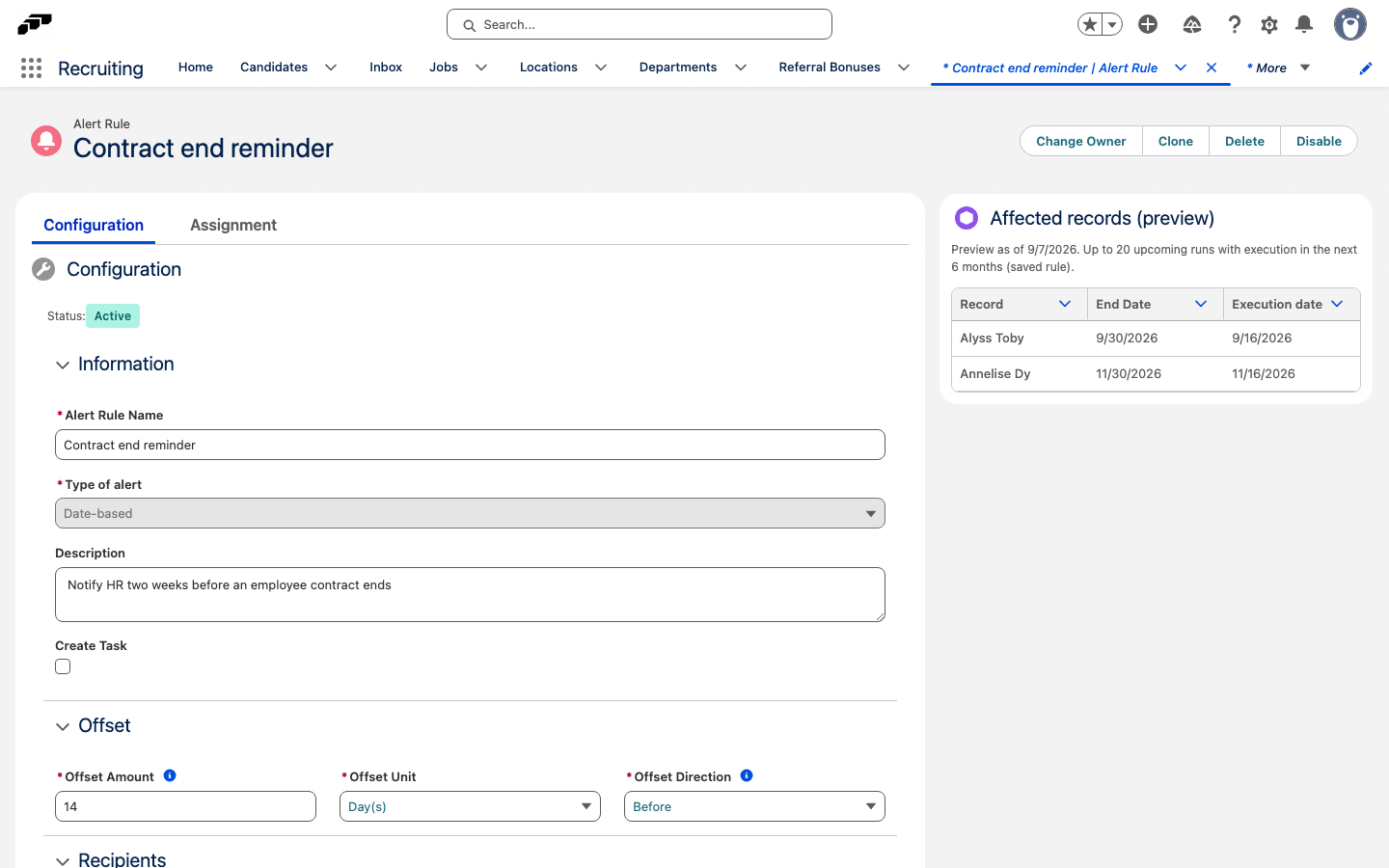
Prüfen Sie dieses Panel, bevor Sie sich auf eine Regel verlassen. Es zeigt genau, auf welche Datensätze die Regel angewendet wird, welches Ereignisdatum sie verwendet und an welchem Ausführungsdatum sie auf die einzelnen Datensätze angewendet wird.
Anwendungsfälle
Ende der Probezeit
Überwachen Sie das Datum, an dem eine Probezeit endet. Legen Sie die Verschiebung so fest, dass der Alarm vor diesem Datum ausgelöst wird, und benachrichtigen Sie den Manager — oder den Mitarbeiter und seinen Manager —, damit genügend Zeit für die Vorbereitung des Gesprächs bleibt.
Ablauf eines Vertrags
Überwachen Sie das Datum, an dem ein Vertrag abläuft. Eine Benachrichtigung vor dem Ablaufdatum mit dem Mitarbeiter und seinem Manager als Empfängern gibt Ihnen Zeit, die Verlängerung zu besprechen, bevor der Vertrag endet.
Ablauf eines Zertifikats
Überwachen Sie das Datum, an dem ein Zertifikat abläuft. Benachrichtigen Sie den Mitarbeiter — und optional seinen Manager — früh genug, damit das Zertifikat vor seinem Ablauf erneuert werden kann.
Verwandte Dokumentation
- Benutzerdefinierte Mitarbeiternachrichten – Erstellen Sie benutzerdefinierte Benachrichtigungen mit Aktionsschaltflächen und Task-Flags.