Date-Based Alert Rules
Overview
An alert rule watches a date field and notifies people as that date approaches. Typical examples:
- A probation period ending
- A contract expiring
- A certificate running out
You define the rules yourself; nothing is hard-coded. Each rule states which records it watches, which date it counts from, how far from that date the alert fires, and who gets notified.
Where to Find Alert Rules
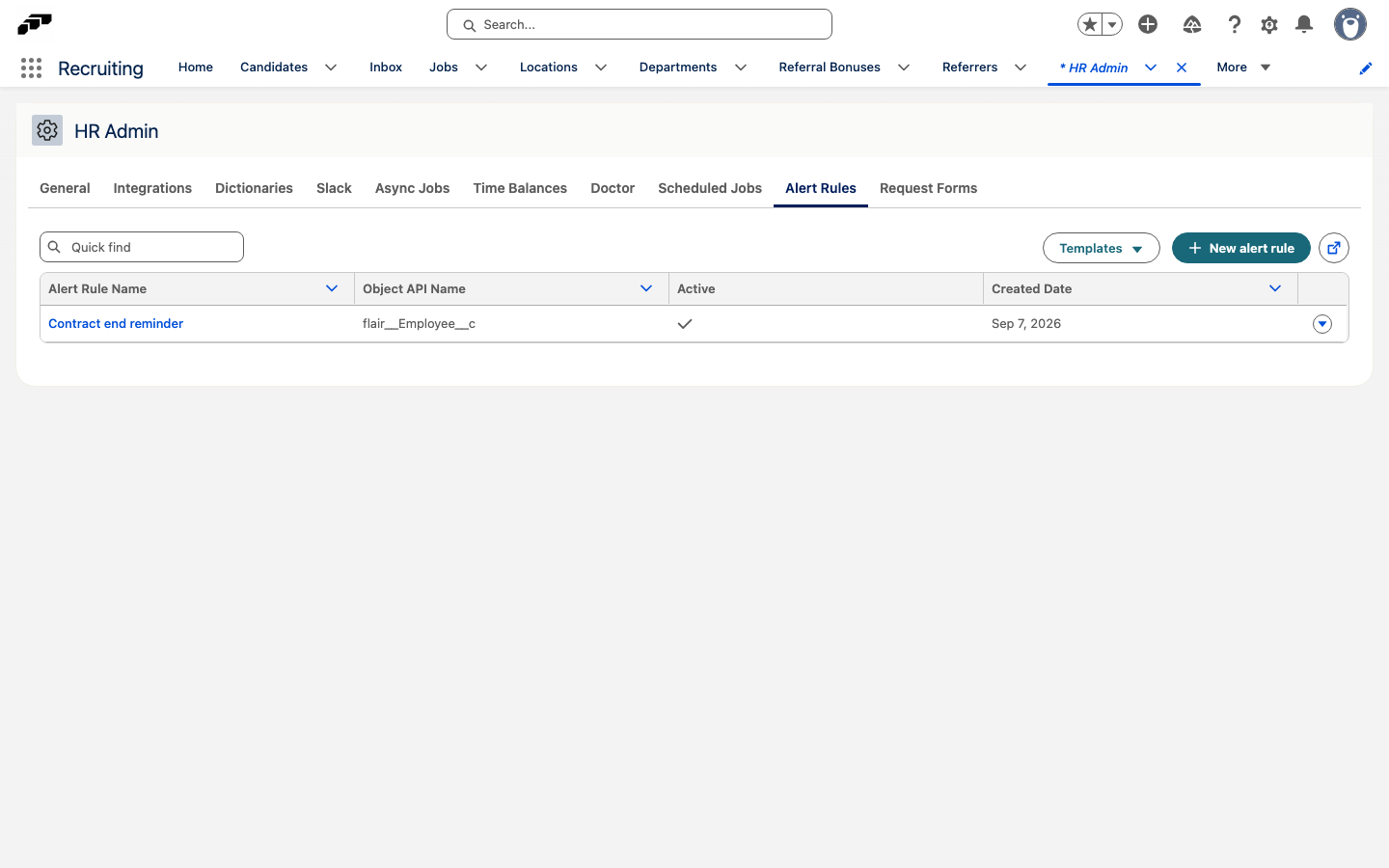
The HR Admin tab in Salesforce has an Alert Rules entry. Open it to create and manage your alert rules.
Creating a Rule
The alert type is Date-based. You configure the following settings on a rule:
| Setting | What it does |
|---|---|
| Name and Description | Identify the rule. |
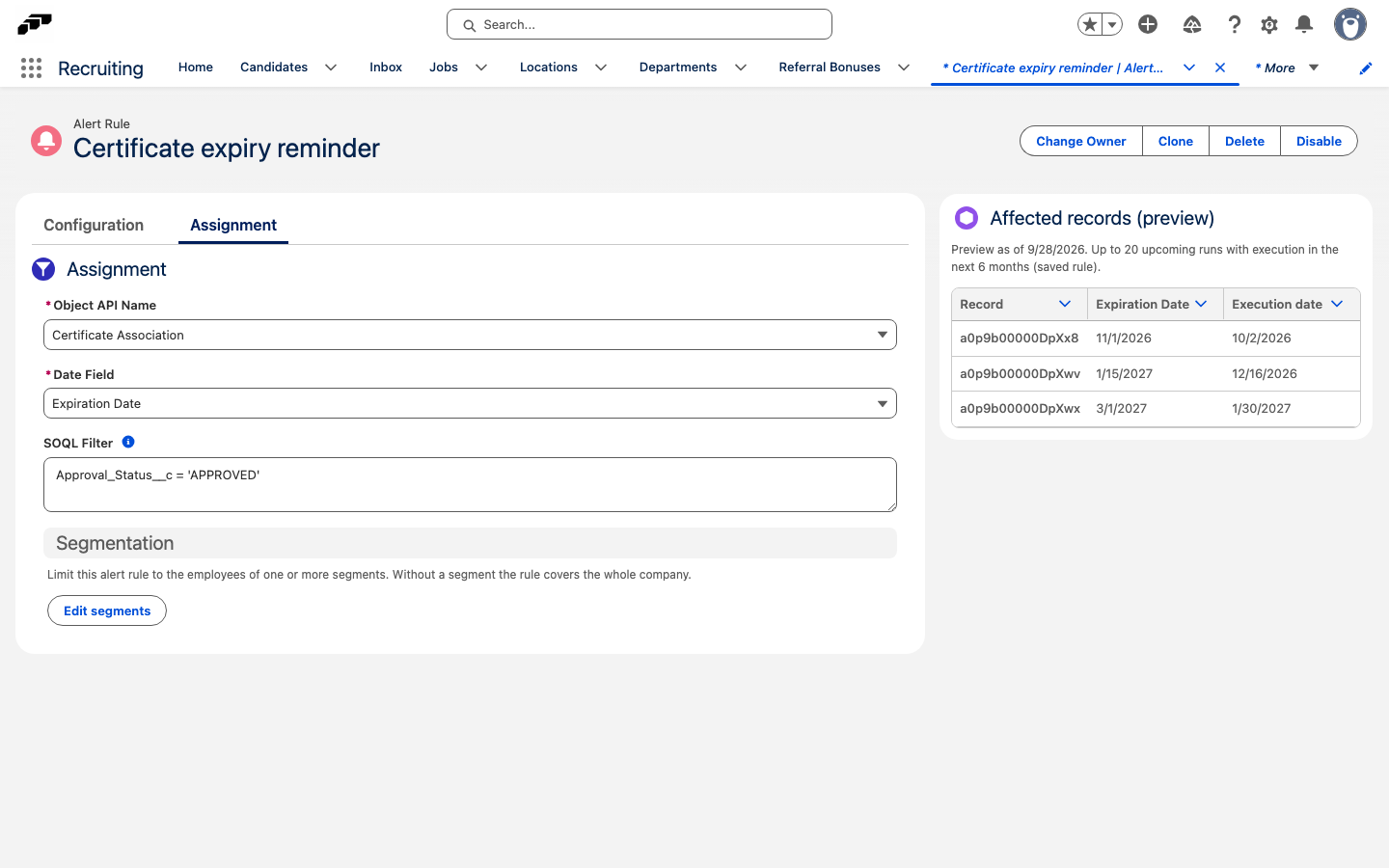
| Object API Name | Which record type the rule watches. |
| Date Field | The date on that record the rule counts from. |
| SOQL Filter | Optional additional SOQL conditions that a record must match before it triggers the rule. Leave it empty to match every record of the selected object. |
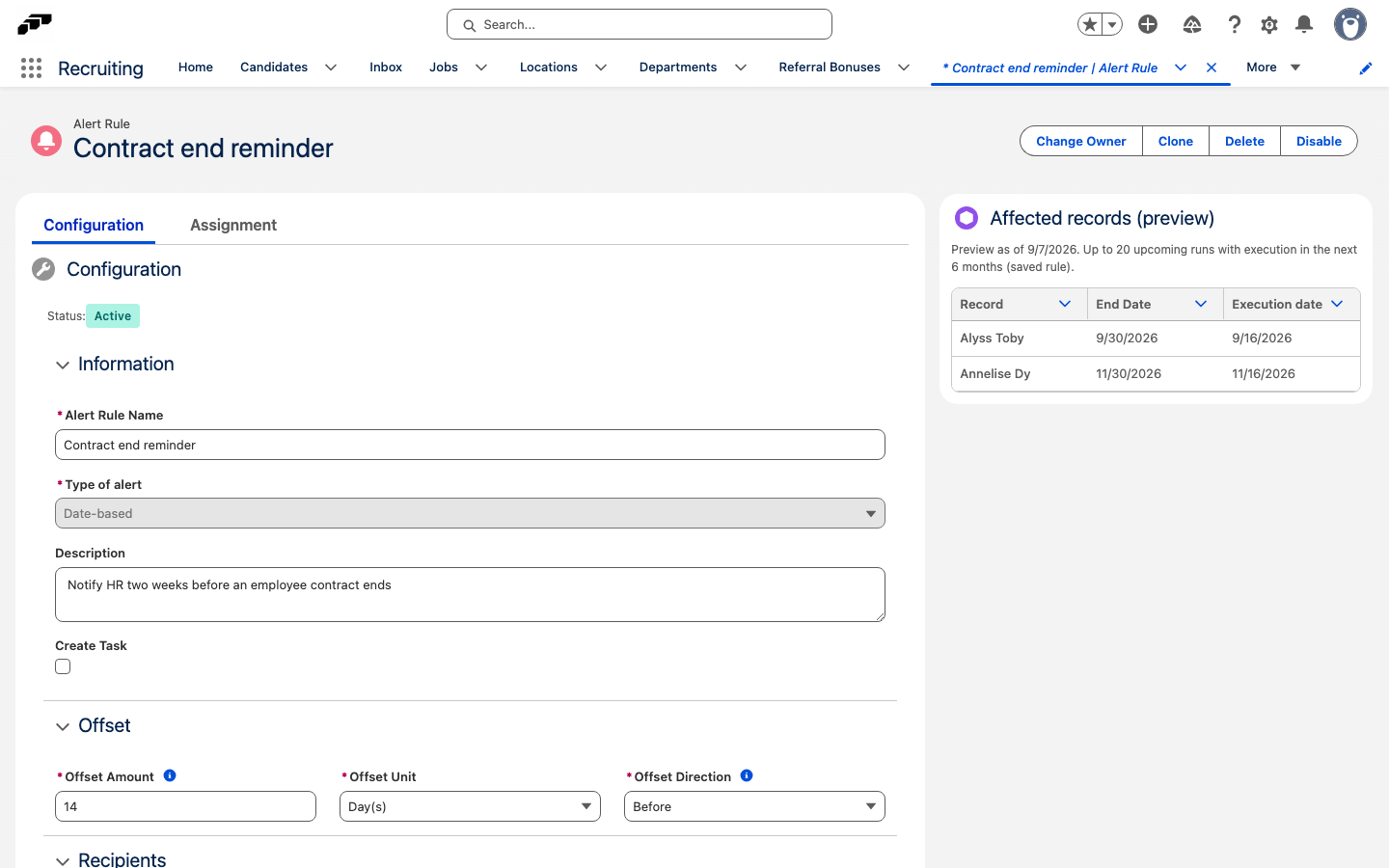
| Offset Amount, Offset Unit, Offset Direction | How far from that date the alert fires, and whether before or after it. |
| Recipients Config | Who gets notified, for example the employee, their manager, the HR Manager, or an employee segment. The available recipient types depend on the trigger object. |
| Notification Subject Template and Notification Body Template | The wording of the notification. |
| Create Task | Also create a task alongside the notification. |
| Status | Whether the rule is Active or Inactive. |
Choosing the Object and Date Field
Object API Name decides which record type the rule watches. Alert Rules can watch Absence records as well as the other supported objects. Date Field is the date on that record the rule counts from — for example, End Date on an absence, the date a probation period ends, a contract expires, or a certificate runs out. Pick the record type that holds the date you care about, then pick that date.
Filtering the records
Use SOQL Filter to limit which records can trigger the rule. Enter a SOQL condition without the WHERE keyword, such as flair__Approval_Status__c = 'APPROVED'. The condition is combined with the date condition, so only records that satisfy both are processed. Leave SOQL Filter empty to match every record of the selected object.
The filter is checked when you save the rule. If the condition is not valid for the selected object, Salesforce blocks the save and displays The SOQL filter is not valid for the selected object.
Setting the Offset
The Offset Amount, Offset Unit, and Offset Direction work together. The amount and unit define how far from that date the alert fires, and the direction defines whether it fires before or after that date. Use the offset to alert people early enough to act — for example, before a probation period ends rather than on the day it ends.
Choosing Recipients
Recipients Config decides who gets notified. Select one or more recipient types, such as Employee, Manager, HR Manager, or Segment. The list offered depends on the trigger object.
Wording the Notification
The Notification Subject Template and the Notification Body Template define the wording of the notification. If you also want a task alongside the notification, enable Create Task.
Managing the rule status
Open the Configuration tab to edit the rule name, description, offset, recipients, notification templates, and task setting. Open the Assignment tab to choose the trigger object, date field, and SOQL Filter. The Affected records (preview) panel remains available from both tabs.
The current status appears as Active or Inactive. To pause a rule without deleting its configuration, click Disable. To start it again, click Enable.
Checking a Rule Before You Rely on It
The rule shows an Affected records (preview) panel listing what it will act on. The panel has three columns:
- Record
- Event date
- Execution date
Until the rule is complete and saved, the panel says "Complete and save the alert rule to see matching records." Once the rule is saved, the panel summarises the window it is showing. When nothing matches, it says "No upcoming processing dates found in this window".
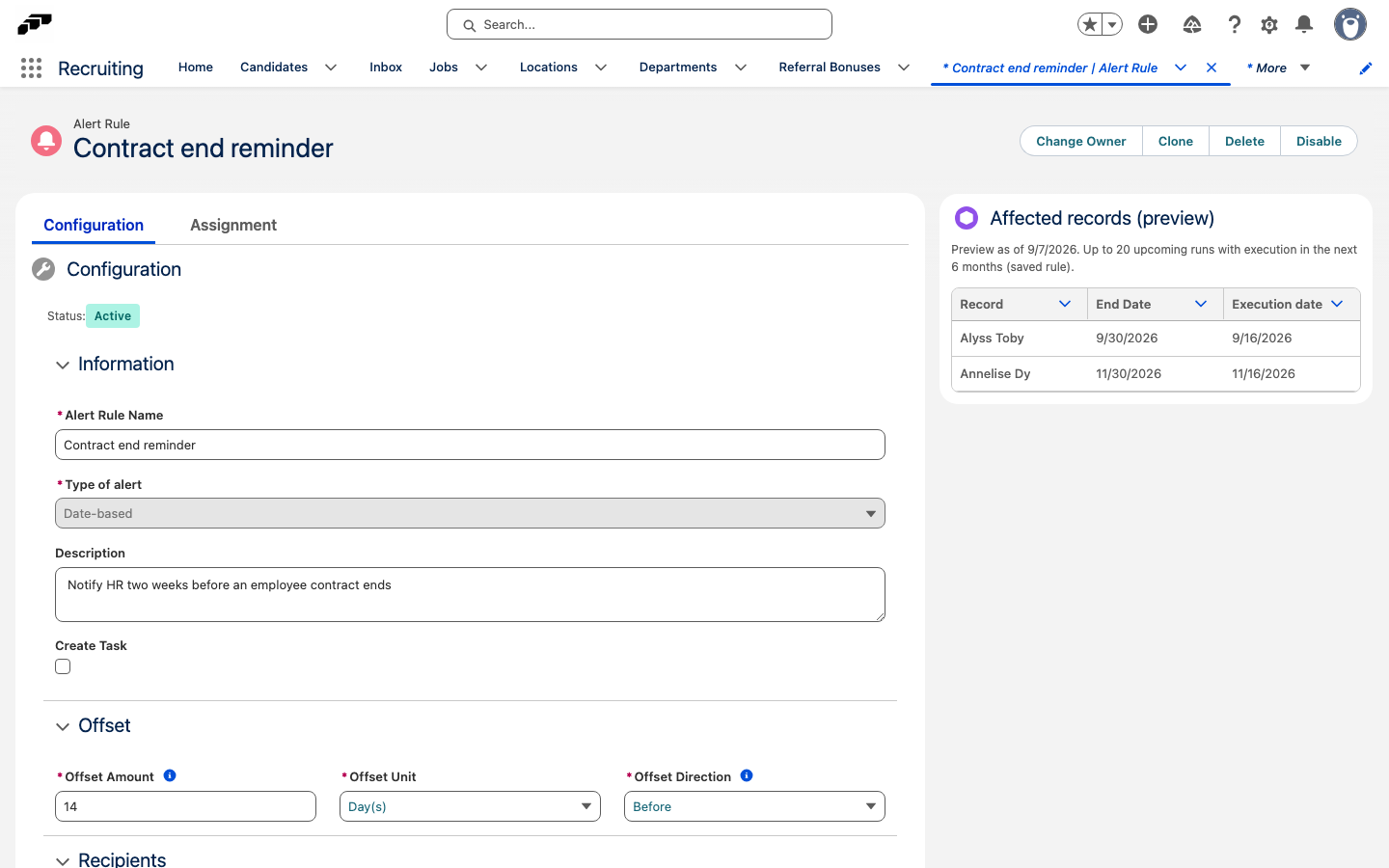
Check this panel before you rely on a rule. It shows exactly which records the rule will act on, the event date it counts from, and the execution date — when the rule will act on each record.
Use Cases
Probation Period Ending
Watch the date a probation period ends. Set the offset so the alert fires before that date, and notify the manager — or the employee and their manager — so there is time to prepare the review.
Contract Expiring
Watch the date a contract expires. Alerting before the expiry date, with the employee and their manager as recipients, gives you time to discuss the renewal before the contract runs out.
Certificate Running Out
Watch the date a certificate runs out. Notify the employee — and optionally their manager — far enough in advance that the certificate can be renewed before it expires.
Related Documentation
- Custom Employee Notifications - Create custom notification messages with action buttons and Task flags