Submit and manage HR Helpdesk tickets
Submit an HR Helpdesk ticket from the Employee Hub, control who can see it, and attach supporting documents. HR teams open, review, and update the same ticket in Salesforce.
Employees and managers in the Employee Hub. HR teams work tickets in Salesforce. HR Helpdesk is an optional feature that can be added to your flair package.
Submit a ticket
- In the Employee Hub, open HR Help Desk.
- Click New Ticket.
- Select a category, and click Next.
- If you opened HR Help Desk in the manager view, in the Employee field, search for the employee you're submitting the ticket for.
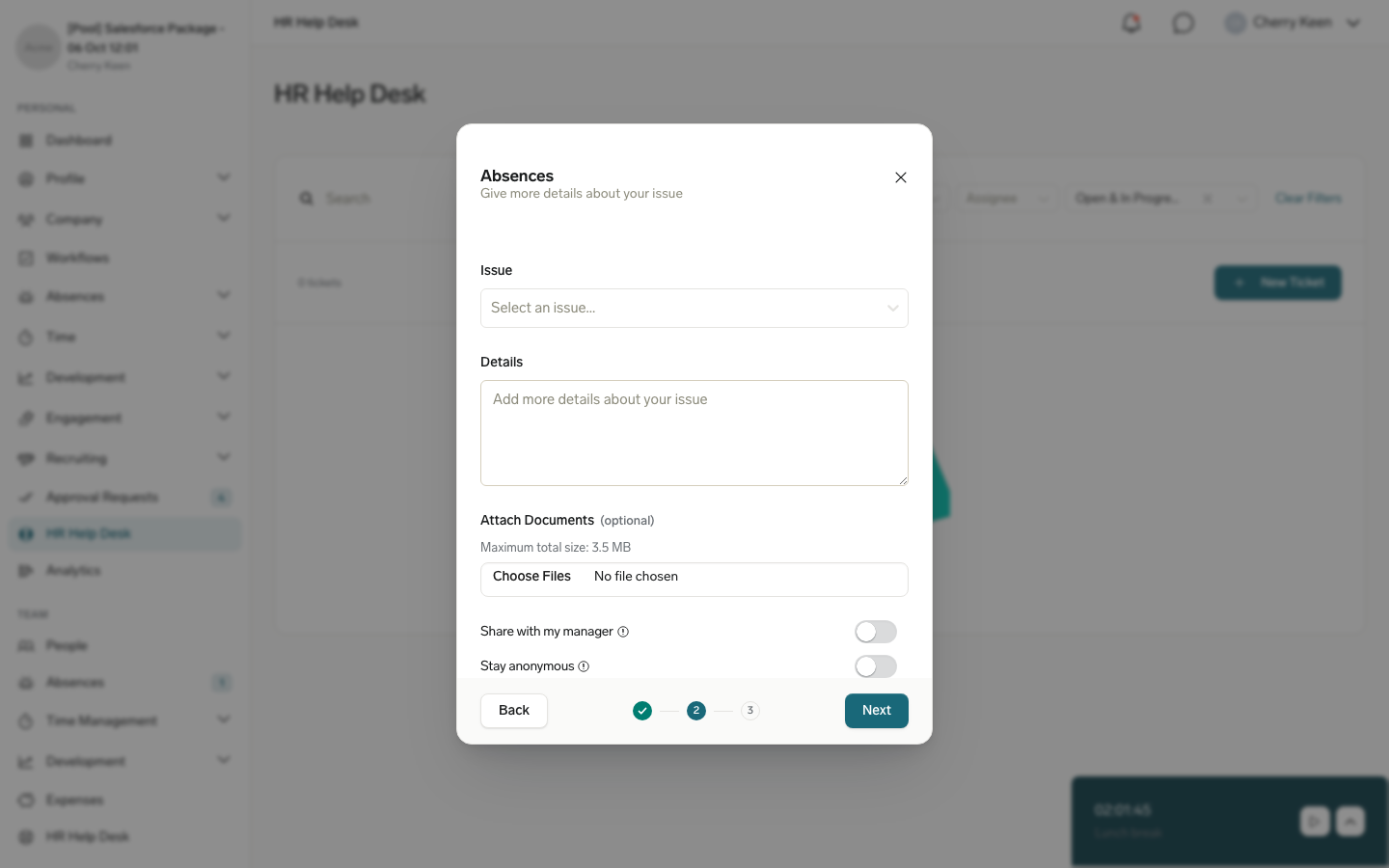
- Select an Issue.
- Enter Details about the request.
- Optional: Under Attach Documents, add one or more files. Combined attachments can't exceed 3.5 MB.
- Optional: If your organization allows it, select Share with my manager to give your manager access to the ticket, or select Stay anonymous to hide your identity from HR, including from your manager.
- Click Next to review the ticket.
- Click Open Ticket. flair creates the ticket and adds it to your ticket list.
Review who can see your ticket
A ticket's visibility depends on how it was submitted:
| Situation | Who can see the ticket |
|---|---|
| You submitted without sharing with your manager | You and HR. An additional manager with HR Manager selected for you can also see it. |
| You selected Share with my manager, or a manager submitted the ticket for you | You, HR, your direct manager, and additional managers with HelpDesk Manager or HR Manager selected for you. |
| You selected Stay anonymous | Nobody sees your identity, including HR. |
- In the Employee Hub, open HR Help Desk.
- Select the ticket from your ticket list.
- On Information, check Visibility. flair shows one of Your manager can see this ticket, Your manager can't see this ticket, or Anonymous: your identity is hidden for everyone.
Track a submitted ticket
An anonymous ticket is only visible in the browser you used to submit it. If you switch browsers or devices, you lose access to it.
- In the Employee Hub, open HR Help Desk.
- Select the ticket from your ticket list.
- On Information, review Status, Assignee, Category, and Attachments.
- To open a document you attached, click it under Attachments.
- Optional: On Comments, add a comment or review the discussion.
Close a ticket in the Employee Hub
Close a ticket when your request is resolved.
- In the Employee Hub, open HR Help Desk.
- Select the open ticket from your ticket list.
- On Information, click Close Ticket.
- Optional: Enter a reason for closing the ticket.
- Click Close Ticket. The ticket's Status changes to Closed. If you entered a reason, it appears under Close Reason.
Review your team's tickets
Managers see the tickets their team members share with them in the Employee Hub manager view.
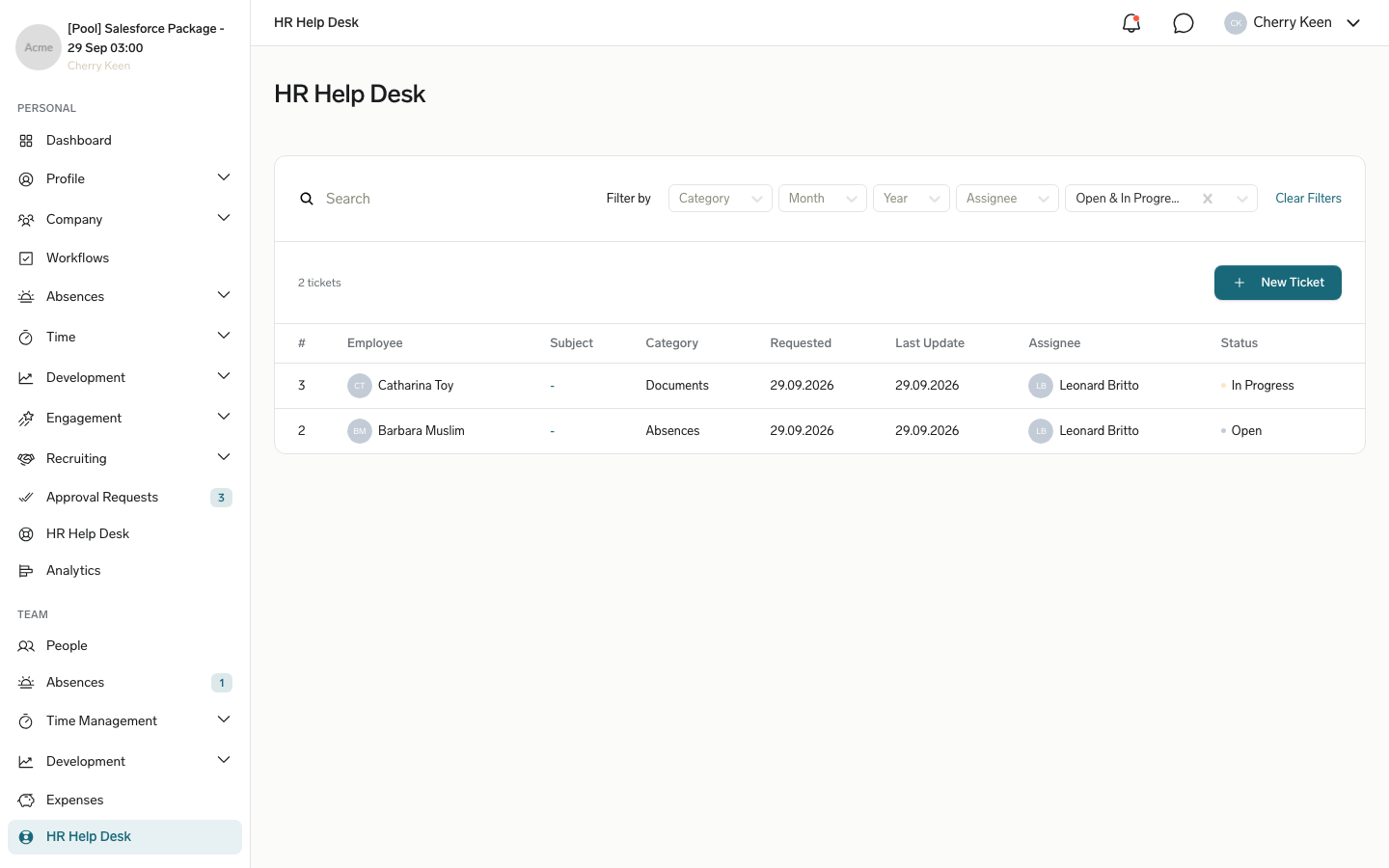
- In the Employee Hub, switch to the manager view, and open HR Help Desk. The list shows tickets with the Open & In Progress status by default.
- Optional: To see other tickets, change the Status filter, or filter by Category, Assignee, Month, or Year.
- Select a ticket to review its Information and Comments.
- Optional: To close the ticket, click Close Ticket, and confirm with Close Ticket.
Which tickets appear depends on your role for each employee:
| Your role for the employee | Tickets you see |
|---|---|
| Direct manager, or additional manager with HelpDesk Manager | Tickets with HR+Manager+Employee visibility, that is, tickets the employee shared with their manager and tickets a manager submitted for them. |
| Additional manager with HR Manager | Tickets with HR+Manager+Employee or HR+Employee visibility. |
Anonymous tickets never appear in the manager view. Tickets you submit from the manager view are shared with the employee's manager, unless your organization makes every ticket anonymous.
Manage tickets in Salesforce
HR teams review and open tickets from the Tickets tab in Salesforce.
- In Salesforce, open the App Launcher (⋮⋮ grid icon), and select Tickets.
- Review tickets under Unassigned, Assigned, My Cases, or Closed.
- To open a ticket directly for an employee, in My Cases, click Create a New Ticket.
- Under Employee, use Select Employees to find the employee.
- Under Issue, select a category and subject.
- Enter Details.
- Click Open Ticket. flair sets the ticket's Visibility to HR+Manager+Employee.
A ticket's Visibility field controls who can see it in the Employee Hub. In Salesforce, every user with access to tickets sees all tickets, whatever their visibility. flair assigns it automatically when the ticket is created, and it isn't editable afterward. Visibility is independent of a ticket's anonymity: an anonymous ticket can still carry HR+Manager+Employee visibility.
| Visibility | Who can see the ticket |
|---|---|
| HR | HR only. The ticket doesn't appear in the Employee Hub. |
| HR+Manager+Employee | HR, the employee, their direct manager, and additional managers with HelpDesk Manager or HR Manager. Default value when HR creates a ticket. |
| HR+Manager | HR only. The Employee Hub shows these tickets to neither the employee nor their manager. |
| HR+Employee | HR, the employee, and additional managers with HR Manager. The direct manager can't see it. |
Review attached documents
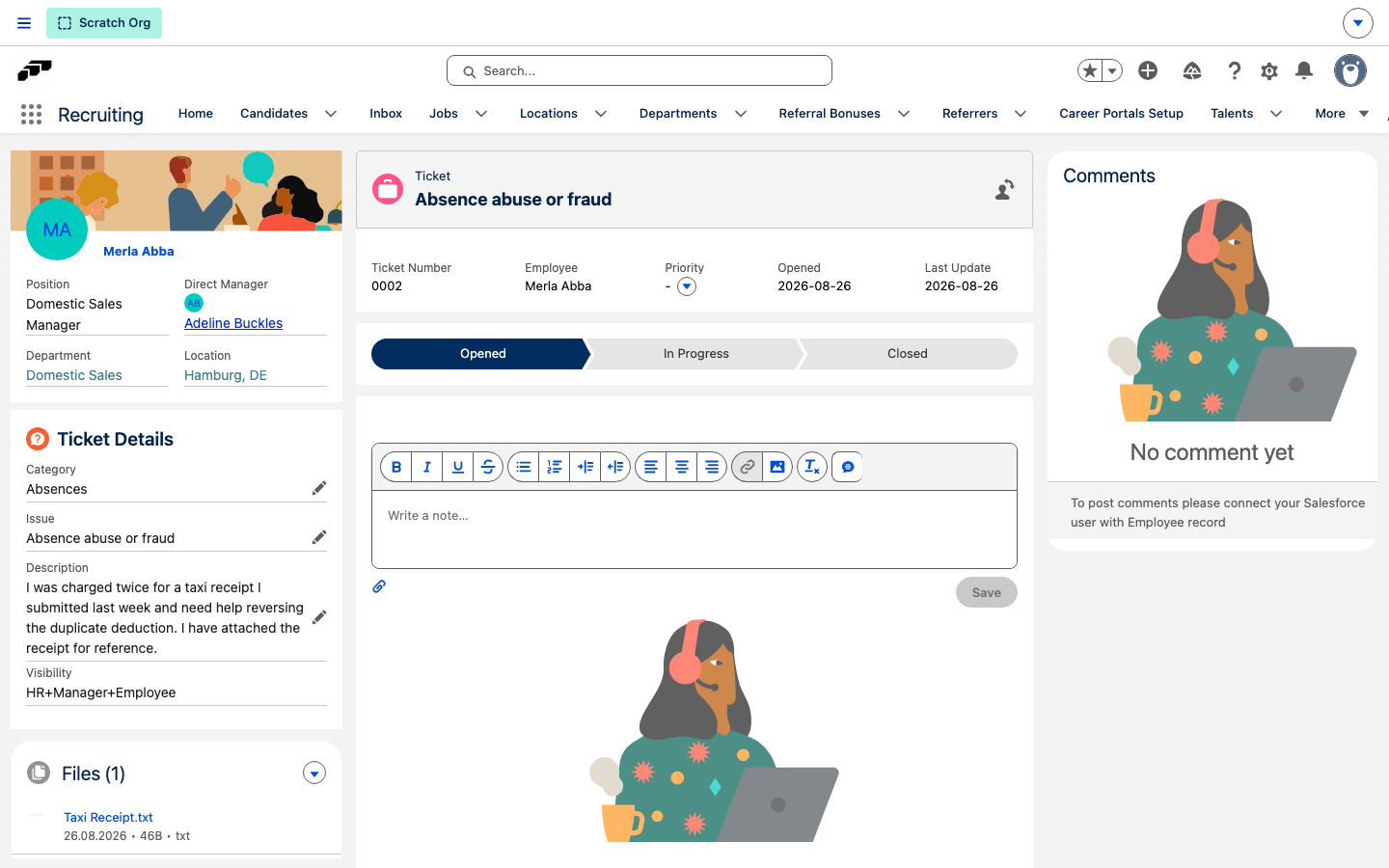
- On the ticket record, open the Files related list under the Related tab to review or download documents the employee attached at submission.
Work a ticket in Salesforce
HR teams assign each ticket, set its priority, and move it through its status until it's closed.
Assign a ticket
You can assign a ticket to any employee who has an active Salesforce user.
- In the Tickets tab, open Unassigned.
- In the ticket's row, choose who works it:
- To take the ticket yourself, click Self Assign. This button is available only when your Salesforce user is linked to an employee record.
- To assign someone else, click Assign, search for the employee under Select Assignee, and click Assign.
The ticket moves to Assigned. To change the assignee later, on the ticket record, click the change-owner icon next to the ticket's subject, and select a new assignee.
Set the priority
- Open the ticket record.
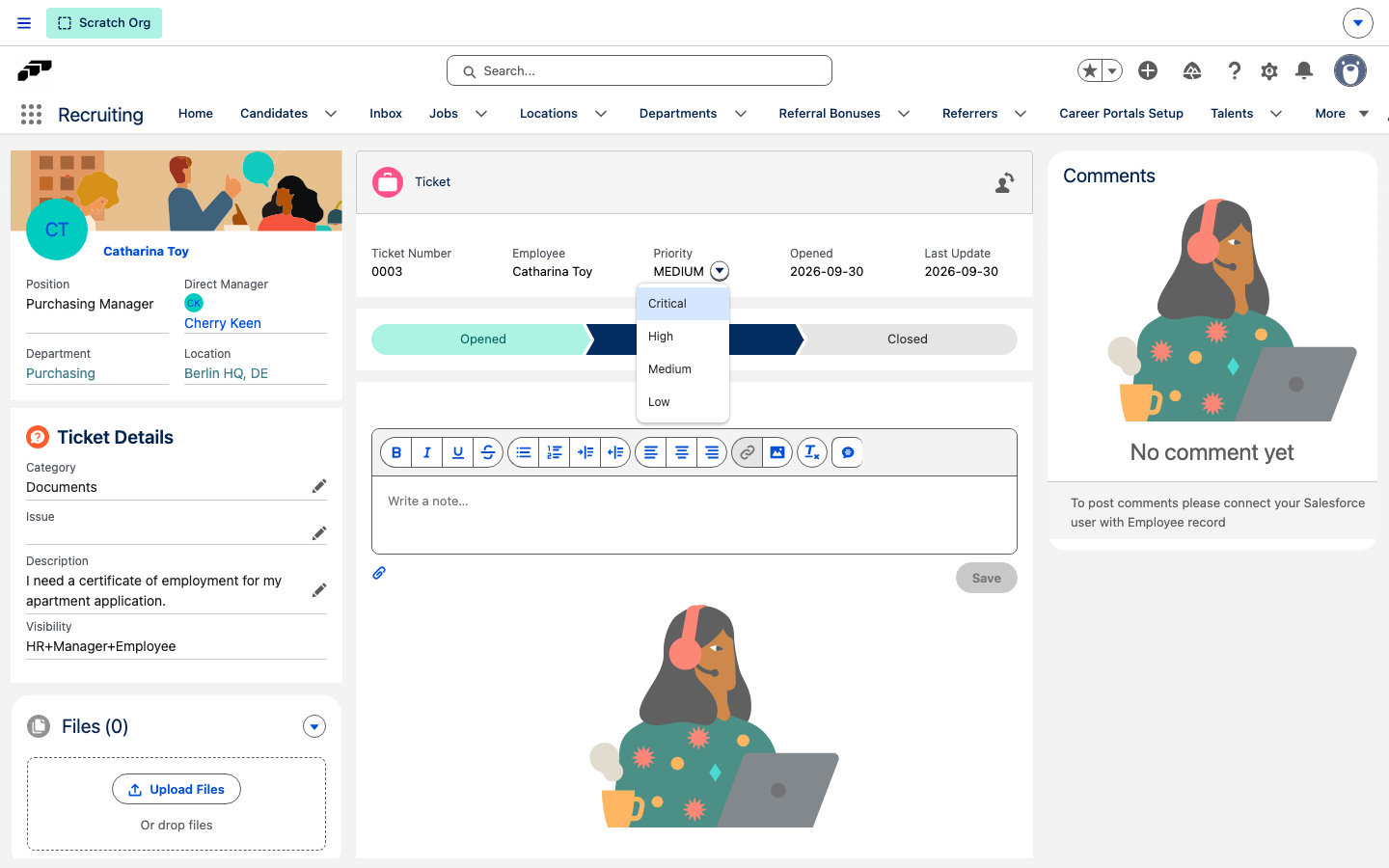
- Next to Priority, open the menu, and select Critical, High, Medium, or Low.
Update the status
A ticket moves through Opened, In Progress, and Closed. The status path on the ticket record shows the current stage.
- Open the ticket record.
- On the status path, click In Progress when you start working the ticket.
- To close the ticket, click Closed.
- In the Add a Reason dialog, enter why you're closing the ticket. A reason is required.
- Click Confirm. The employee sees the reason under Close Reason in the Employee Hub.
To reopen a closed ticket, click Opened or In Progress on the status path.