Create and manage Open Shifts
Create an unassigned Open Shift so eligible employees can request it in the Employee Hub or the flair mobile app. A Manager must approve a request before flair assigns the shift.
Managers with Flair Scheduler Admin or Flair Scheduler Manager in Salesforce. Employees request eligible shifts in the Employee Hub or the flair mobile app. flair activates Shift Planner for your organization.
Before you begin
- Create and configure a Shift Planner.
- Confirm that employees can see Shift Planner in the Employee Hub.
Create an Open Shift
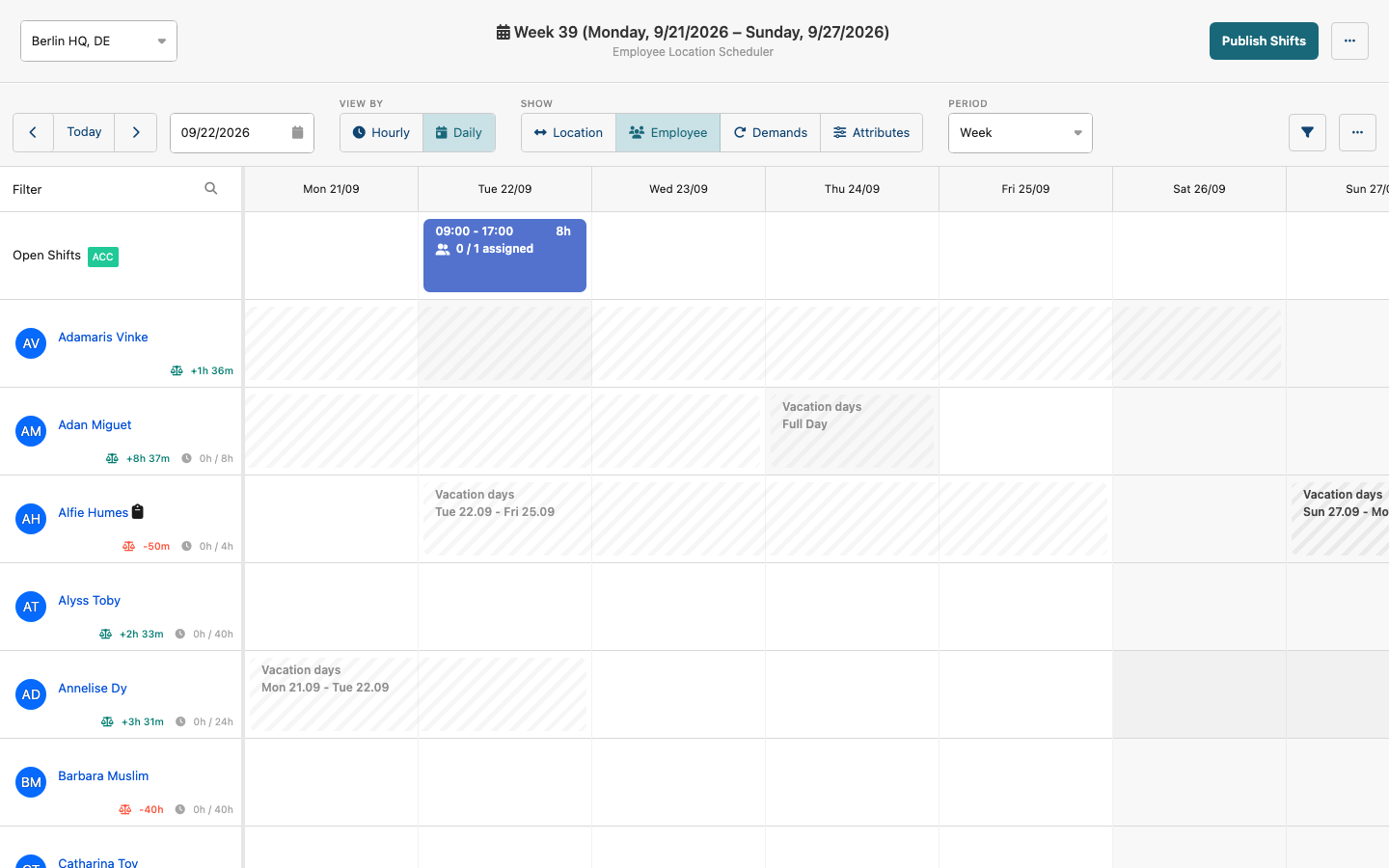
- Open the Shift Planner planning view.
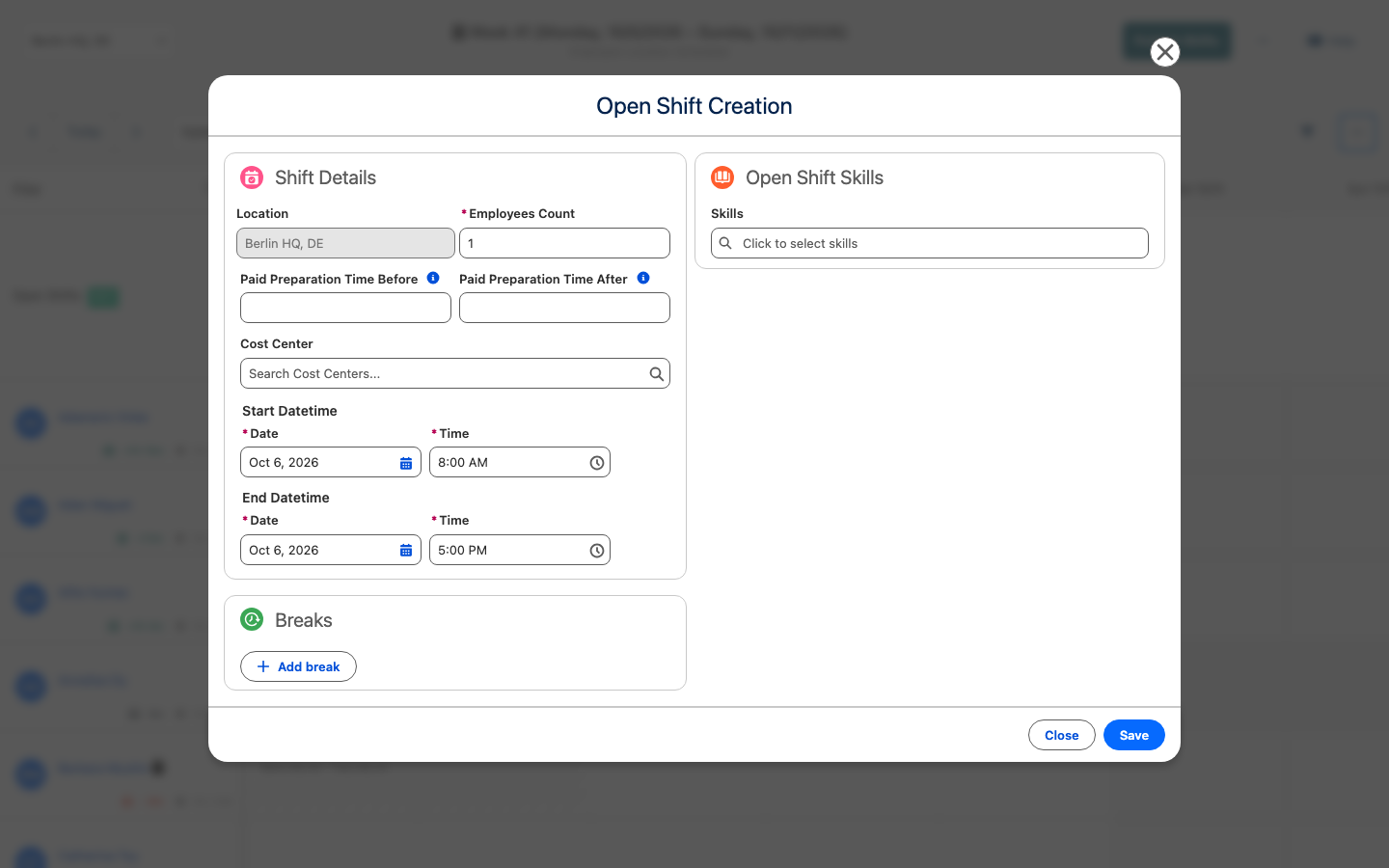
- In the Open Shifts row, right-click the day for the new shift and select Create Open Shift — or open the toolbar's overflow menu (…) and select Create Open Shift. The Open Shift Creation modal opens.
- Set the date and time under Start Datetime and End Datetime. Optional: click Add break to add a break.
- Optional: Select Open Shift Skills values so only employees with matching skills can see the shift.
- Click Save. The unassigned shift appears in the Open Shifts row.
Publish an Open Shift
- Publish the period that contains the Open Shift. Until publication, employees cannot see it.
Request an Open Shift
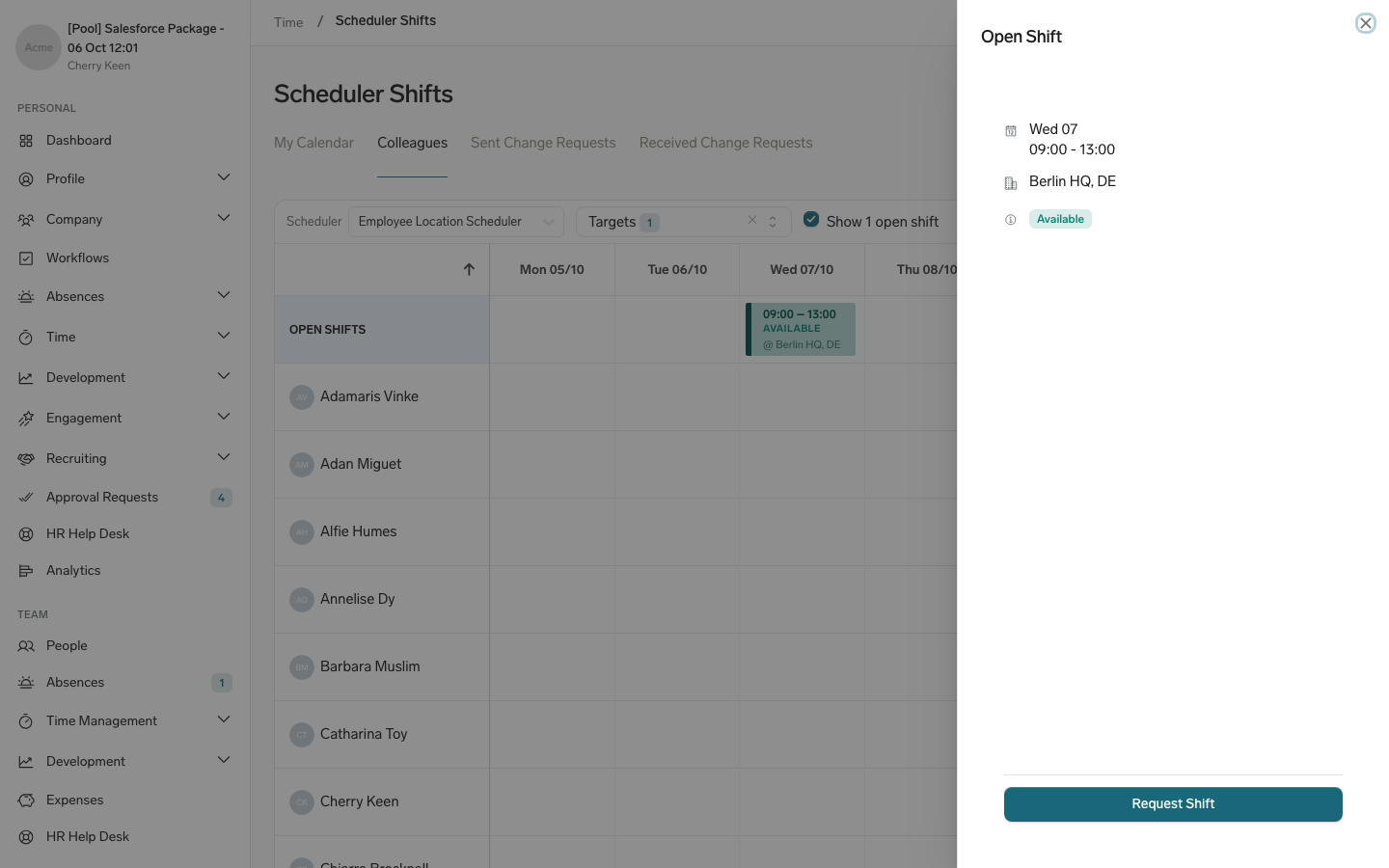
- In the Employee Hub, open Time → Scheduler Shifts, and then the Colleagues tab.
- Select the open shift checkbox, for example Show 1 open shift. Open Shifts appear in their own row above your colleagues.
- Select an available Open Shift to see its details.
- Click Request Shift. flair creates an
Open_Shift_Assignment_Request__crecord and notifies the Manager.
Until approval, the Open Shift stays available to other eligible employees. Its Employee Hub state progresses through Available, Requested, and then Confirmed or Not available.
Request an Open Shift on mobile
In the flair mobile app, Open Shifts appear as cards inside the employee's own shift calendar, not on a separate screen. Under the week strip, the employee enables Show open shifts (N) to show cards marked Open Shift in state Available, Requested, or Not available, then opens one and taps Request shift. Cancel request replaces it once the request is pending. Once a Manager confirms the request, the shift moves into the employee's own shifts and the Open Shift no longer offers Cancel request. See Use Shift Planner on mobile for the full walkthrough.
Approve an Open Shift request
- As a Manager, open the Open Shift request.
- Review the employee and shift details.
- Confirm the request. flair creates an assigned shift, removes the Open Shift from the pool, and notifies other requesters that it is unavailable.
Requesting an Open Shift never assigns it directly. Manager confirmation is always required.
Edit an Open Shift
- In the planning view, open the Open Shift, edit its details, and save it. For a published shift, the change appears in the Employee Hub after the next refresh.
After a Manager confirms a request, the Open Shift becomes a regular assigned shift that a Manager can edit or reassign.
Delete an Open Shift
- Before a request is confirmed, open the Open Shift in the planning view, select the delete action, and confirm the deletion.
Control Open Shift eligibility
Eligibility combines two filters:
| Filter | Effect |
|---|---|
| Shift Planner Target | Limits visibility to employees in the Shift Planner scope, such as a Department__c, Location__c, Project, or custom target. An Open Shift has no separate Department or Location filter. |
| Per-shift Skill | Limits visibility through Open_Shift_Skill_Association__c to employees with one or more selected skills. |
For example, an Open Shift with the Forklift skill in a Shift Planner targeted to the Logistics department appears only to eligible Logistics employees with that skill.
Open Shifts work with every Shift Planner target. A shift is open because it has no employee assignee, not because it uses a special record type.