Shift Planner overview
Shift Planner is flair's successor to the Legacy Shift Planner for complex scheduling. Managers can run independent schedules over any time range, while employees review shifts and use self-service tools in the Employee Hub and mobile app.
Managers in Salesforce and employees in the Employee Hub and flair mobile app. flair must activate Shift Planner for your organization.
What you can do
Managers can create multiple Shift Planners, configure each Resource and Target, filter employees, use Predefined Shifts, plan recurring or Open Shifts, copy prior periods, borrow employees, approve Shift Transfer requests, and publish schedules.
Employees can review My Shifts and visible colleagues, request eligible Open Shifts, request or respond to Shift Transfers, and receive published updates.
Where it happens
Managers configure and plan Shift Planners in Salesforce. Employees use Shifts in the Employee Hub or the flair mobile app. The mobile app supports personal schedules, Open Shift requests, and Shift Transfer; the colleagues view remains in the Employee Hub.
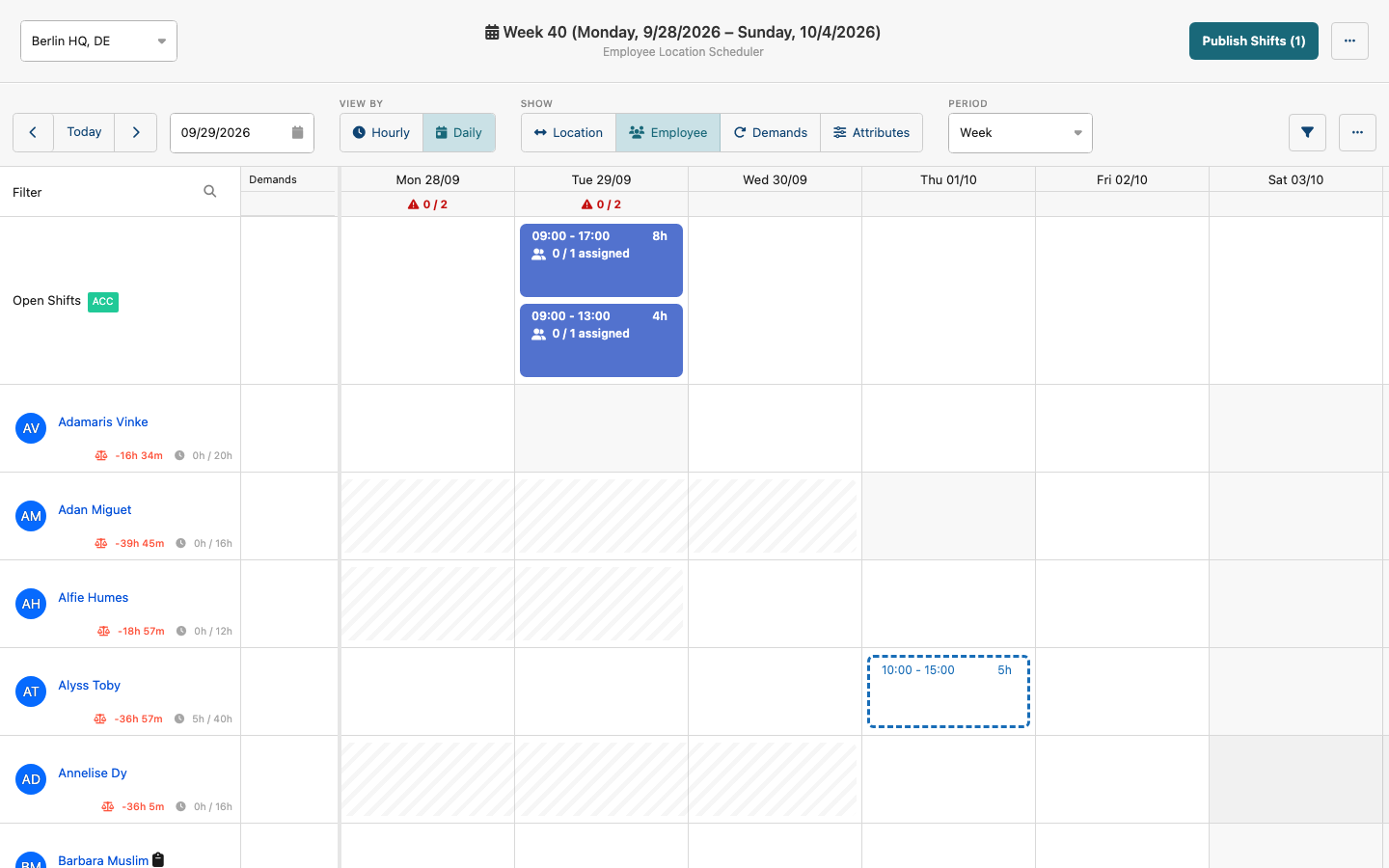
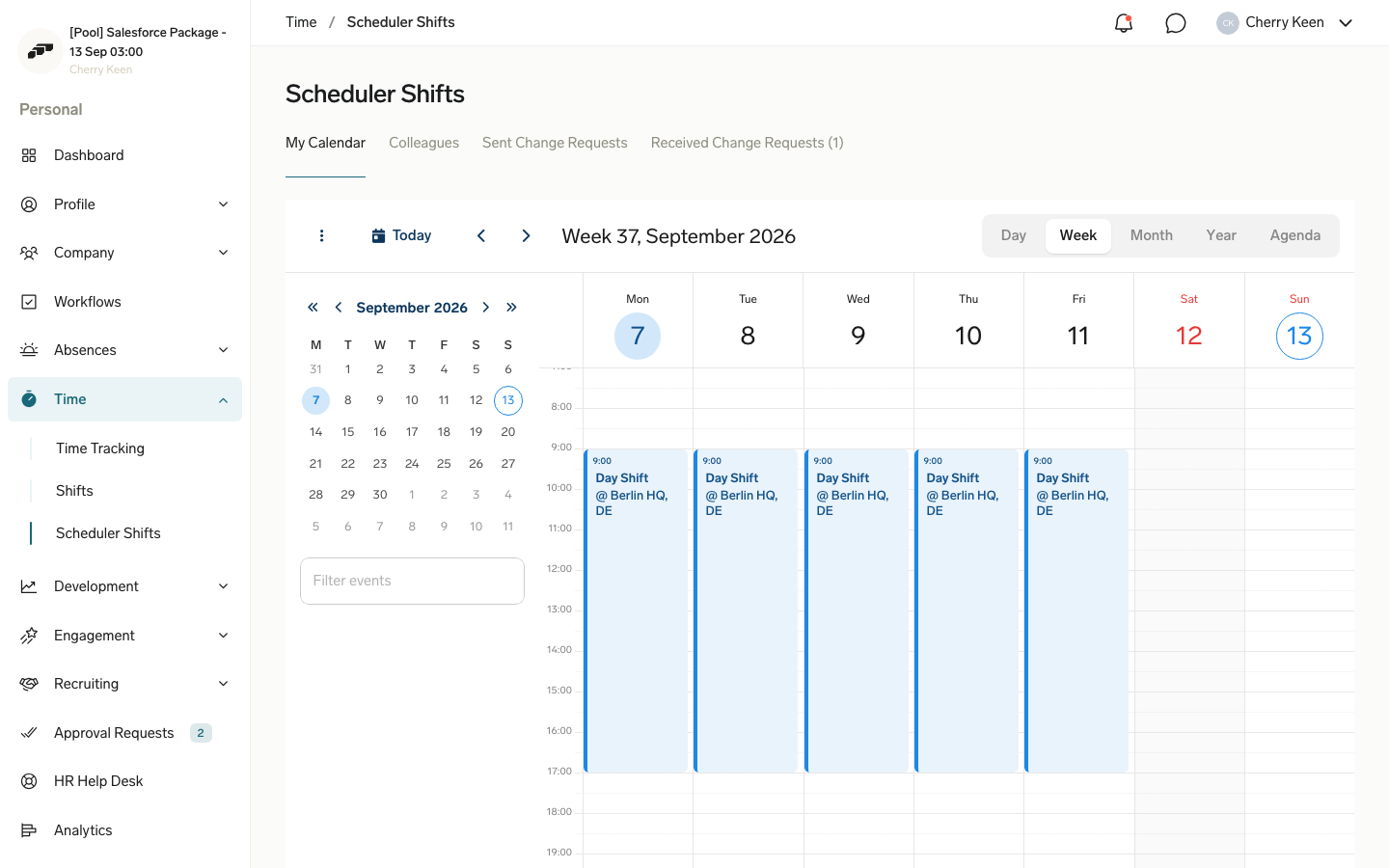
Compare Shift Planner with the Legacy Shift Planner
Shift Planner replaces the Legacy Shift Planner, but both can run during migration.
| Capability | Legacy Shift Planner | Shift Planner |
|---|---|---|
| Schedules | One global view per Location. | Any number of independent Shift Planners. |
| Planning axes | Employee × Location. | Configurable Resource × Target, including custom objects. |
| Time range | Week or month. | 1 week, 2 weeks, 4 weeks, 1 month, or an unlimited Custom range. |
| Filters | Limited. | Employee, department, skill, and raw-query filters per Shift Planner. |
| Open Shifts | Supported. | Target- and skill-scoped Open Shifts. |
| Shift Transfer | Not supported. | Employee request, colleague response, and Manager approval. |
| Predefined Shifts | Basic. | Filterable templates for one-click creation. |
| Recurrence | Supported. | Supported with per-occurrence editing. |
| Copying | Previous week. | Any previous period. |
| Publishing | Synchronous for small and asynchronous for large batches. | Synchronous for small and asynchronous for large batches. |
| Employee Hub | Read-only My Shifts. | My Shifts, Colleagues, Open Shift requests, and Shift Transfer requests. |
| Permissions | Manage Shifts. | Flair Scheduler Admin and Flair Scheduler Manager. |
Understand the core concepts
| Concept | Meaning |
|---|---|
| Shift Planner | A Salesforce record with its own Resource rows, Target context, filters, and Predefined Shifts. |
| Resource | The planning rows, typically Employee. |
| Target | The parent context, such as Location, Department, Project, or a custom object. |
| Shift | A scheduled work block in Shift__c with a start, end, and assignee. Every Shift has an assignee. |
| Open Shift | An unassigned offer stored separately as Open_Shift__c that eligible employees can request. |
| Predefined Shift | A reusable time template such as Morning 06:00–14:00. |
Independent Shift Planners let different Managers plan separate areas at the same time.
Start here
- Set up Shift Planner in Salesforce
- Create and configure Shift Planners
- Plan and publish shifts
- Use Shift Planner in the Employee Hub