Use Shift Planner in the Employee Hub and mobile app
Use Shift Planner Shifts in the Employee Hub and the flair mobile app to review your published schedule and coordinate with colleagues. You can also request eligible Open Shifts and manage Shift Transfer requests. Shift Planner support started in app version 4.1.60 on June 18, 2026, and expanded in versions 4.1.63 on July 2, 2026 and 4.1.67 on August 18, 2026.
Employees and Managers in the Employee Hub, and Employees in the flair mobile app, at organizations where Shift Planner is active.
Before you begin
- An Admin has enabled Employee Hub visibility for Shift Planner.
- Your organization uses Shift Planner, and a Manager has assigned you to a Shift Planner.
- Your Manager has published your shifts. Draft planning never appears in the app.
Choose a Shifts tab
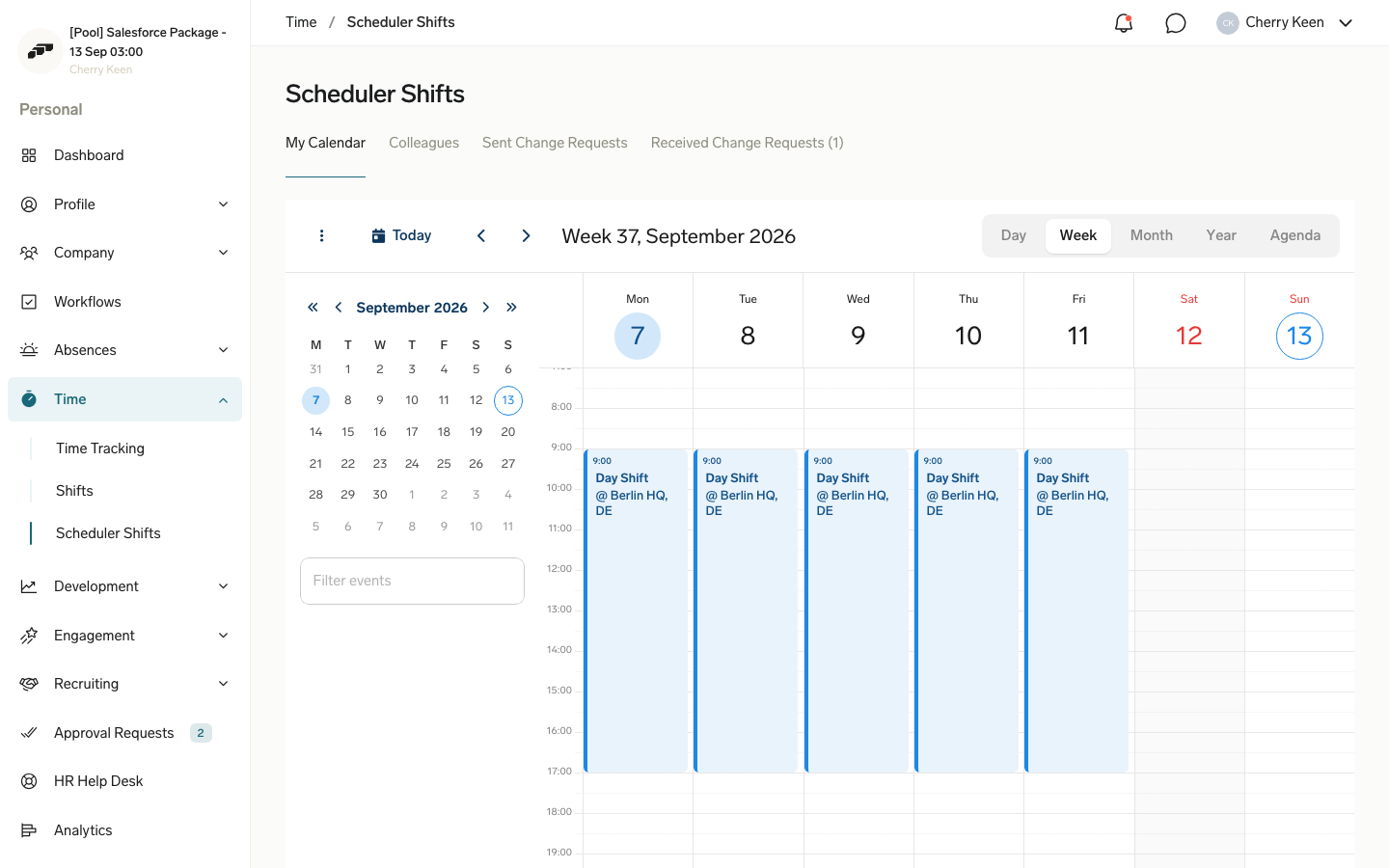
In the Employee Hub, open Time → Shift Planner Shifts, then choose a tab:
| Tab | What it shows |
|---|---|
| My Calendar | Your shifts in week or day format. |
| Colleagues | A read-only view of visible colleagues and eligible Open Shifts. |
| Sent Change Requests | Shift Transfer requests that you sent and their status. |
| Received Change Requests | Shift Transfer requests that colleagues sent to you. |
Review your Calendar
In My Calendar, you can switch between week and day views, move through past and future periods, and refresh published changes. Select a shift to review its date and time, target, breaks, labels, and employee notes.
If the Shift Planner allows Shift Transfer, you can start a request from the shift details.
Review colleagues' shifts
In Colleagues, you can review visible colleagues' shifts, select a Shift Planner, and filter by its Targets. When eligible Open Shifts exist, select Show n open shifts to display them on the same calendar.
The Colleagues view follows Salesforce sharing, segments, and the Shift Planner's Hub Targets Query. It does not expose employees or teams that you cannot otherwise see.
Request an Open Shift
- Open Shift Planner Shifts → Colleagues.
- Select Show n open shifts.
- Select an eligible Open Shift.
- Review its details.
- Click Request Shift. The request waits for Manager confirmation.
Eligibility comes from the Shift Planner target and any per-shift skill filters.
Manage sent transfer requests
Open Sent Change Requests to see the offered shift, selected colleague, and request status. Statuses include Pending Colleague Approval, Pending Managers Approval, Approved, Rejected by Colleague, Rejected by Managers, and Cancelled By Requester.
- To withdraw a pending request, click Cancel Request in its row, then confirm with Cancel Request.
Respond to received transfer requests
- Open Received Change Requests.
- Review the shift and the colleague in Requested By.
- Click Accept to send it to Manager approval, or click Decline to leave the original assignment unchanged.
A new request can trigger Employee Hub, email, or push notifications according to your notification settings.
Check Shift Planner notifications
flair notifies you when a Manager publishes a new or changed shift, you receive a Shift Transfer, a colleague responds to your transfer, a Manager decides a transfer, or a Manager confirms or rejects your Open Shift request.
Notification channels follow your standard flair preferences.
Control Shift Planner visibility
An Admin can select Hide flair Scheduler on the Employee HUB Feature record to hide Shift Planner from every employee without deleting shifts or preventing Manager work in Salesforce.
An Admin can use Show In Hub on an individual Shift Planner to hide only that Shift Planner. Hide Shift Planner controls the legacy tool independently, so both tools can appear during a migration. They use separate Employee Hub routes.
Open your next shift
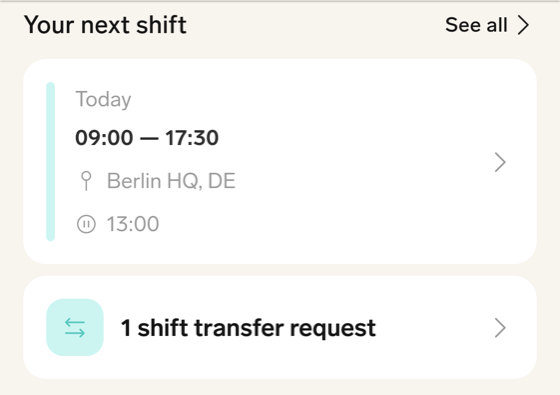
On the dashboard, Your next shift displays your next scheduled shift. Tap See all to open the shift calendar.
If nothing is scheduled, the card displays No upcoming shifts. You can still tap it to open the calendar.
Browse My shifts
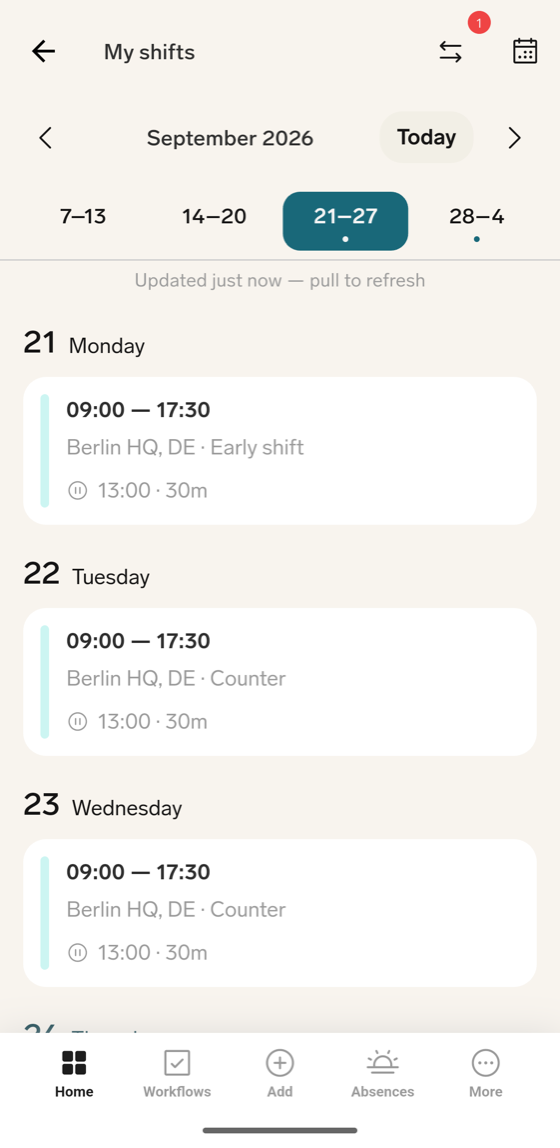
- Open My shifts.
- Swipe left or right to move between weeks, or tap a week in the week strip.
- To return to the current day, tap Today.
- To refresh, pull down on the agenda.
- Tap a shift or approved absence to open its details.
Days without a shift display Day off. An empty week displays No shifts this week and the message Your manager hasn't scheduled anything yet. Pull to refresh or jump to another week.
Jump to another week or month
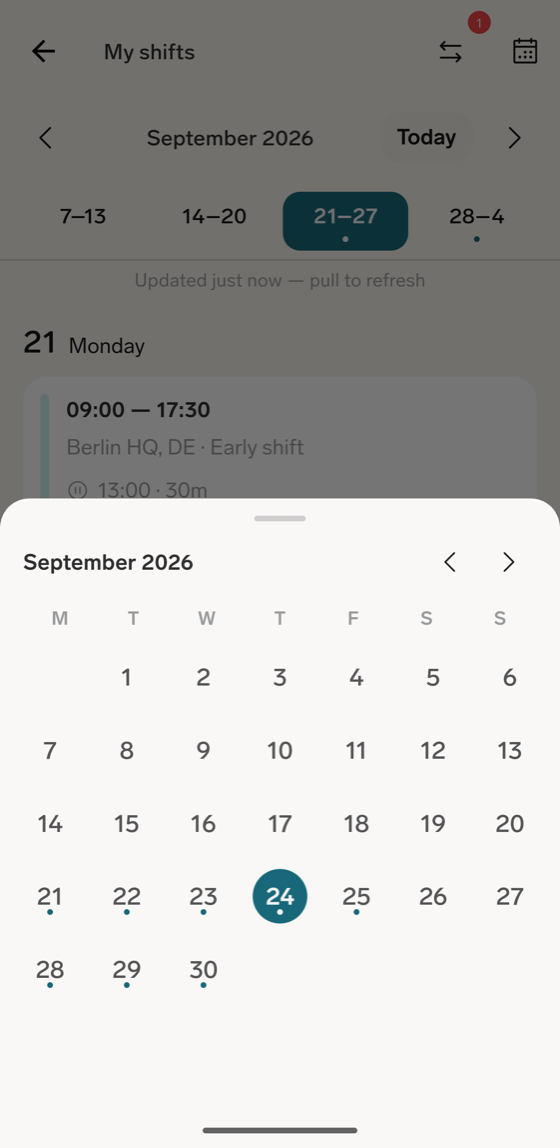
- Tap the calendar icon to open the month picker, then tap a day. A dot identifies each day with a shift.
Review shift details
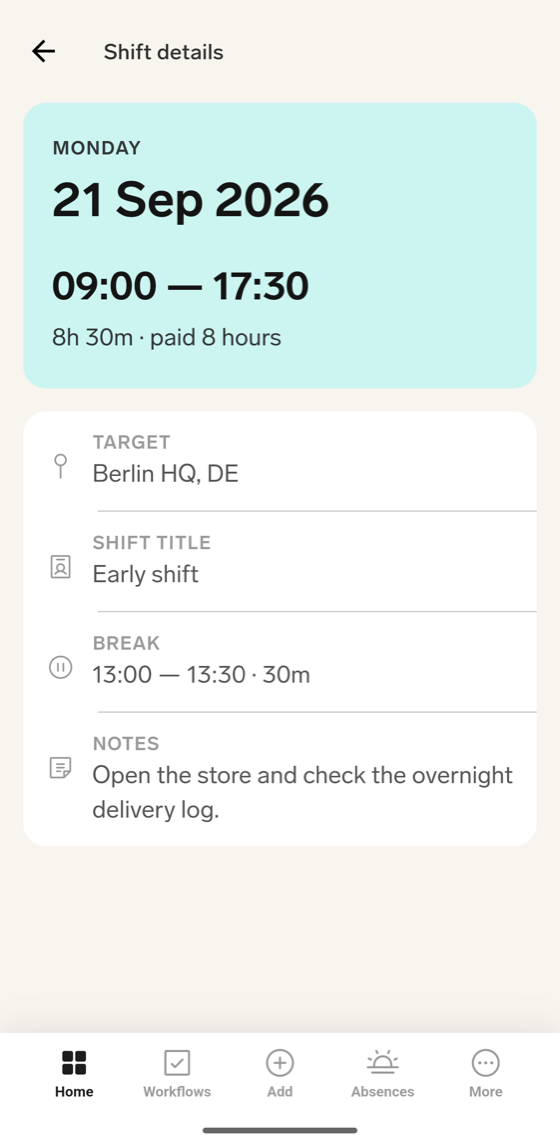
Tap a shift to open Shift details. It shows the time range, paid duration, Shift title, Target, Break, Notes, shift color, and any source Predefined Shift. A Target can be a location, project, or another configured Shift Planner target.
You can also start an eligible Shift Transfer from this page.
Read shifts offline
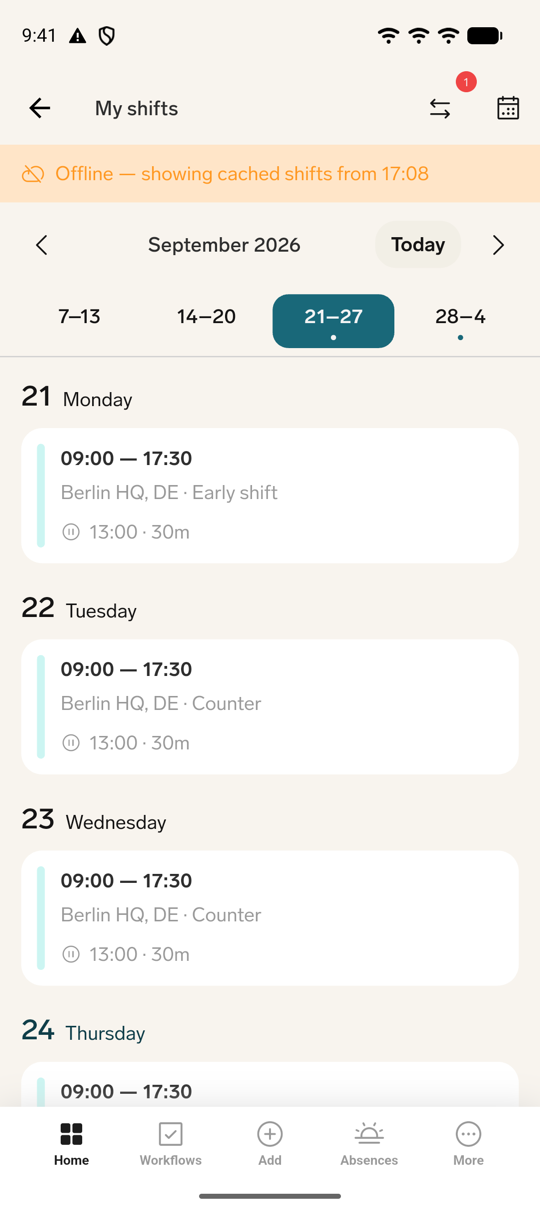
Cached shifts remain readable without a connection. Offline — showing cached shifts from … identifies the cache date. When no cache exists, the app displays Offline — pull to refresh once you are back online.
When you are online, the week strip shows the data age, such as Updated just now — pull to refresh or Updated 5 min ago — pull to refresh.
Request an Open Shift
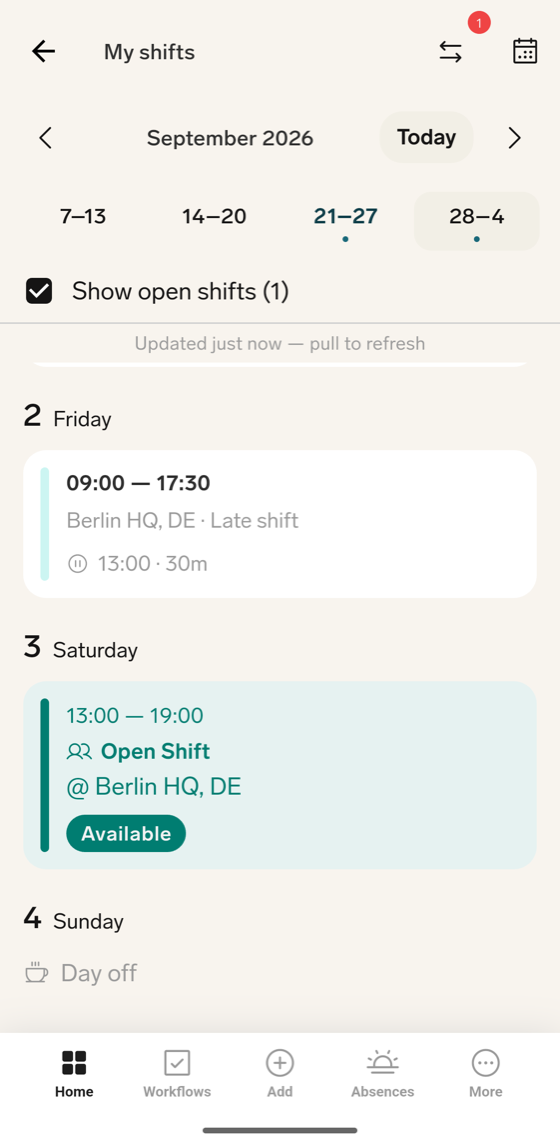
- Under the week strip, enable Show open shifts (N). Eligible shifts appear in start-time order on the agenda.
- Select a card marked Open Shift. Its state is Available, Requested, or Not available.
- Review People needed and the breaks.
- Tap Request shift.
- At Request this shift? Your manager will review your request., confirm the request.
After submission, Cancel request becomes available.
Transfer a shift
From Shift details, tap Transfer to colleague to offer an eligible shift to a colleague. Requests you send and receive are listed in the shift transfers inbox: on My shifts, tap the two-arrows icon in the top-right corner. Its badge counts the received requests that are waiting for your response.
For the full steps, including accepting or declining a received request and what each status means, see Request, accept, or decline a transfer on mobile.
Troubleshooting
The Shifts page is missing
Shift Planner may not be active on the license, an Admin may have hidden it for the organization or Shift Planner, or your first published shift may not exist yet.
Shift Transfer is unavailable
The Shift Planner may have Allow Shift Transfer disabled, or the shift may be inside its Min Days Before Shift Transfer notice period.
An Open Shift is missing
Confirm that the shift is published and Show n open shifts is selected. The Shift Planner target or skill requirement may exclude you, or a Manager may have confirmed another employee's request.
You are not assigned to any Shift Planner yet
Ask your Manager or Admin to add you to a Shift Planner.
This week's shifts are missing
The shifts may still be drafts, or the week may be empty. After your Manager publishes, pull down to refresh.
Shift editing is unavailable
The mobile app supports viewing shifts, requesting Open Shifts, and transferring shifts. Managers plan and publish in Salesforce, and the colleagues view remains in the Employee Hub.