Transfer a shift
Shift Transfer lets an employee offer an assigned shift to an eligible colleague. The colleague must accept it, and a Manager must approve it, before flair reassigns the shift.
Employees in the Employee Hub or the flair mobile app, and Managers with Flair Scheduler Admin or Flair Scheduler Manager in Salesforce. flair activates Shift Planner for your organization.
Configure Shift Transfer
Each Shift Planner has its own transfer settings:
| Field | What it does |
|---|---|
| Allow Shift Transfer | Enables Shift Transfer for shifts in the Shift Planner. It is off by default. |
| Min Days Before Shift Transfer | Sets the minimum number of days before a shift when an employee can request a transfer. |
- In the App Launcher (⋮⋮ grid icon), open Shift Planners.
- Select the Shift Planner.
- Select Allow Shift Transfer.
- In Min Days Before Shift Transfer, enter the notice period, such as
2for 48 hours. - Click Save. Shifts in the Shift Planner inherit the settings.
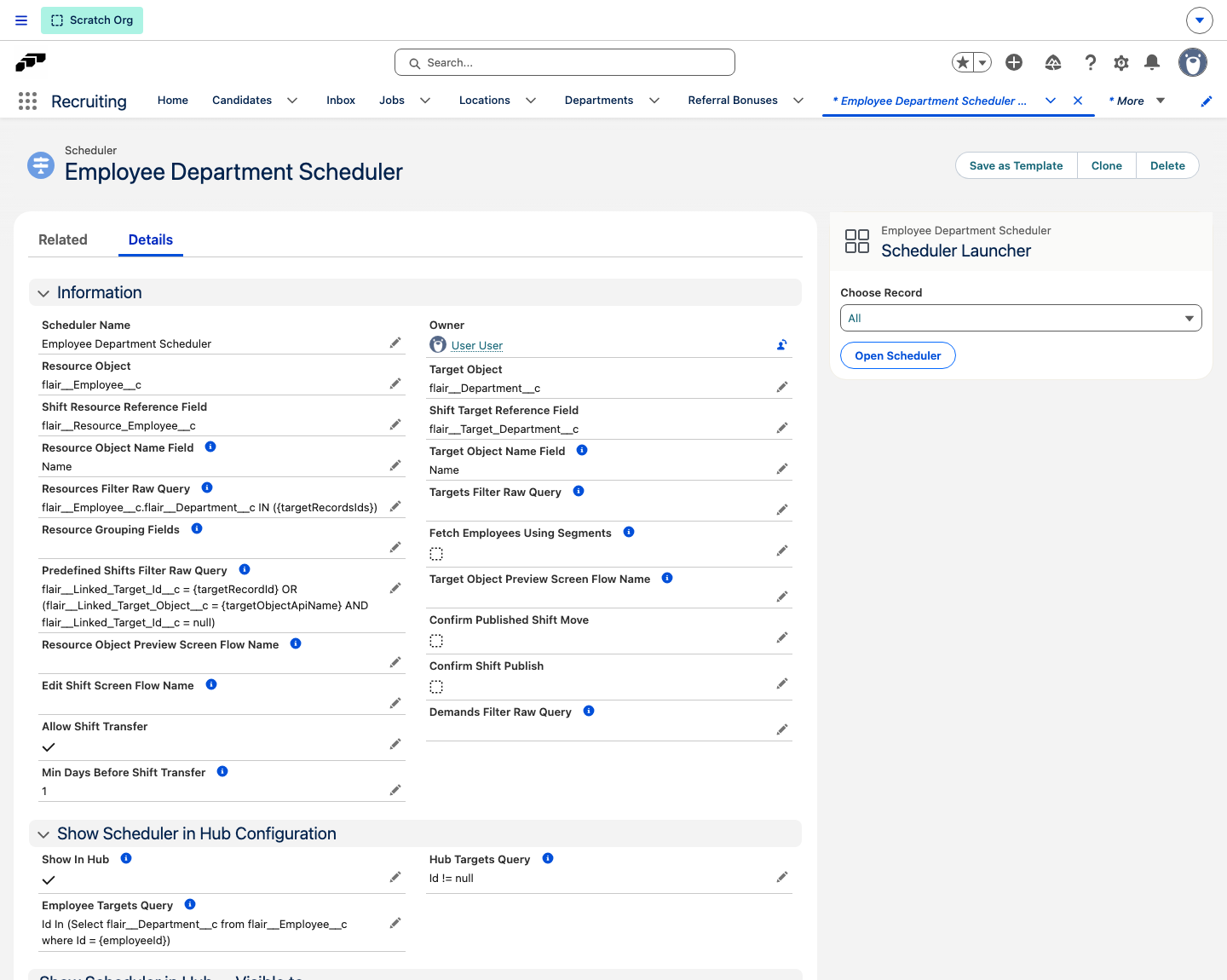
You can override Allow Shift Transfer and Min Days Before Shift Transfer on an individual shift, such as a critical shift that employees must not transfer.
Request a transfer
- In the Employee Hub, open Time → Shift Planner Shifts.
- Select the shift to transfer.
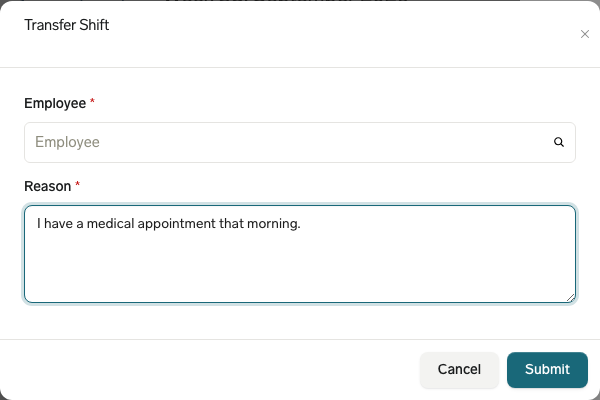
- Click Transfer Shift.
- In Employee, select a colleague.
- In Reason, enter the reason for the transfer.
- Click Submit. The colleague receives an Employee Hub notification and, according to notification settings, an email or push notification.
Accept or decline a transfer
- As the receiving colleague, open the notification or Shift Planner Shifts → Received Change Requests.
- Review the shift and the colleague who requested the transfer.
- Click Accept or Decline.
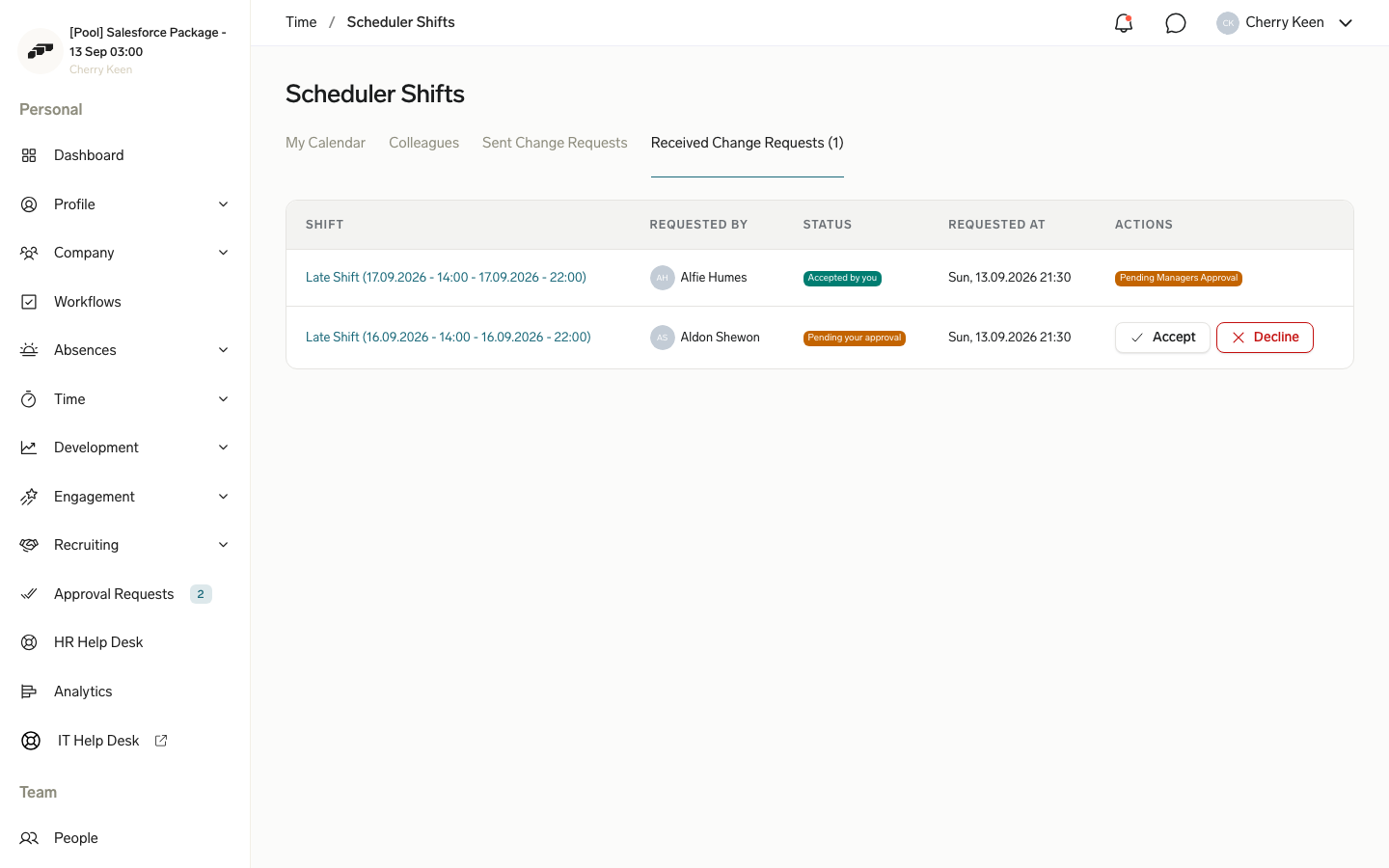
If the colleague declines, flair notifies the original employee and keeps the original assignment. If the colleague accepts, the request moves to Manager approval.
Request, accept, or decline a transfer on mobile
Employees can also send, accept, decline, and cancel Shift Transfer requests from the flair mobile app.
Send a transfer request
- Open My shifts and tap the shift. Shift details opens.
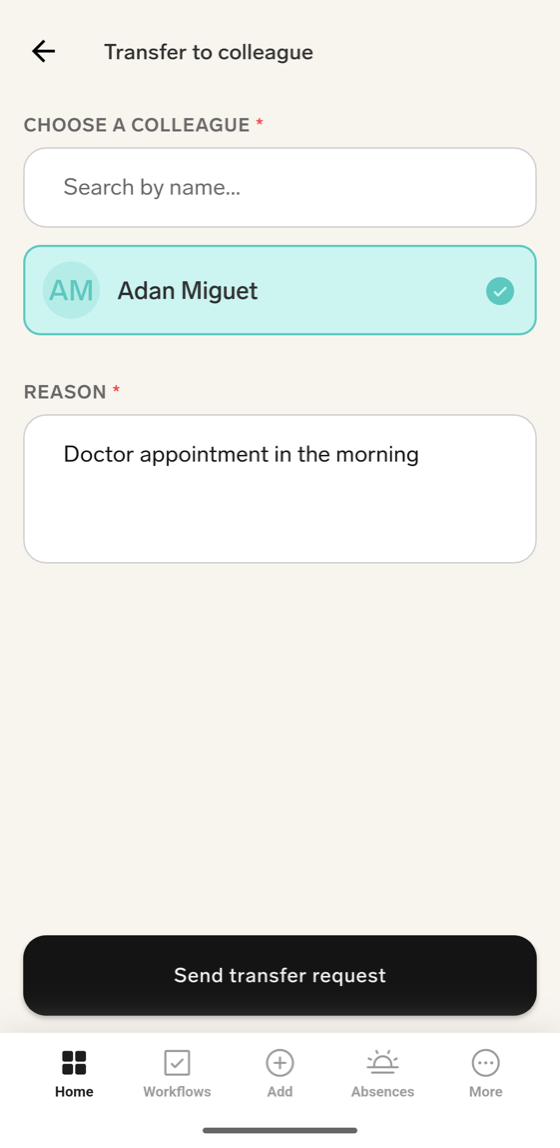
- Tap Transfer to colleague.
- In Choose a colleague, select an eligible colleague.
- Enter a Reason. The app requires one before it enables Send transfer request.
- Tap Send transfer request. The app displays Transfer request sent.
A shift that already has a request in flight shows Transfer pending on its details screen instead of the transfer action. If transfer settings or the notice period block a request, the app displays This shift can't be transferred. or the required number of days. If no colleague is eligible, the screen displays No colleagues available.
Open the shift transfers inbox
Received and sent requests are listed in the shift transfers inbox, on its Sent and Received tabs. Open it in one of these ways:
- On My shifts, tap the two-arrows icon in the top-right corner. A badge shows how many received requests are waiting for your response.
- On the Home screen, tap the shift transfer requests row below your next shift, such as 1 shift transfer request. The row appears only when a received request is waiting for your response.
- Tap a Shift Transfer push notification. The app opens the request in the inbox.
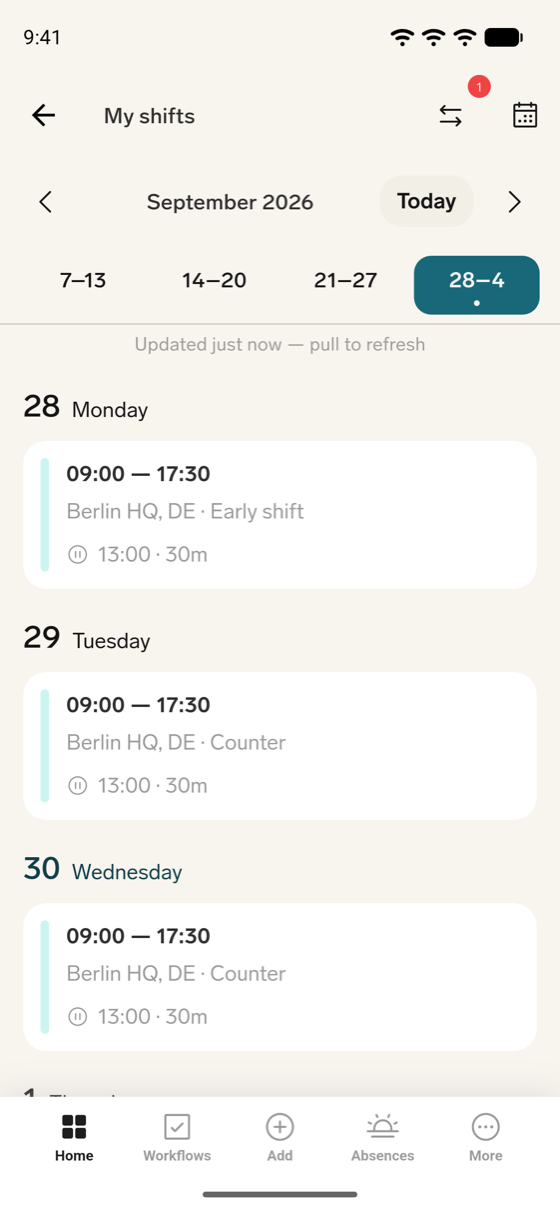
The inbox opens on the Received tab. Switch to Sent to see the requests you offered. Tap a request to open Transfer request, which shows the Shift and the Reason with the same actions as the list.
Accept or decline a received request
- Open the shift transfers inbox. Received lists each request as From plus the colleague's name, with the shift date and time.
- On a request that is waiting for your response, tap Accept or Decline. The app displays Transfer request accepted or Transfer request declined. You can also tap the request first to check it; its details show Pending your approval and the same buttons.
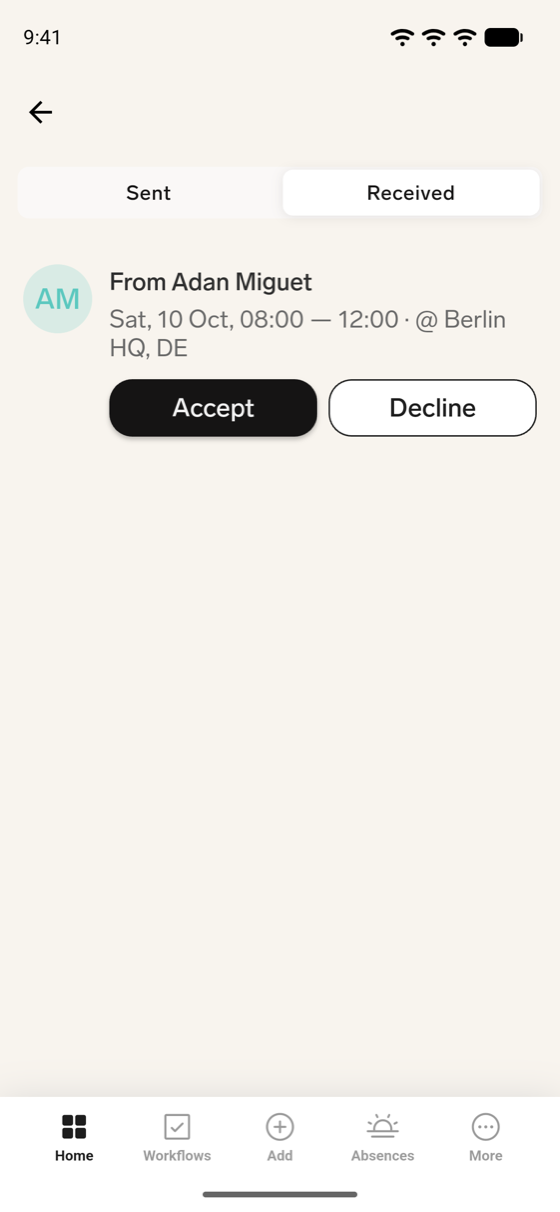
If you accept, the request moves to Manager approval. If you decline, the shift stays with the colleague who offered it. In the Employee Hub, use Accept or decline a transfer instead.
Cancel a sent request
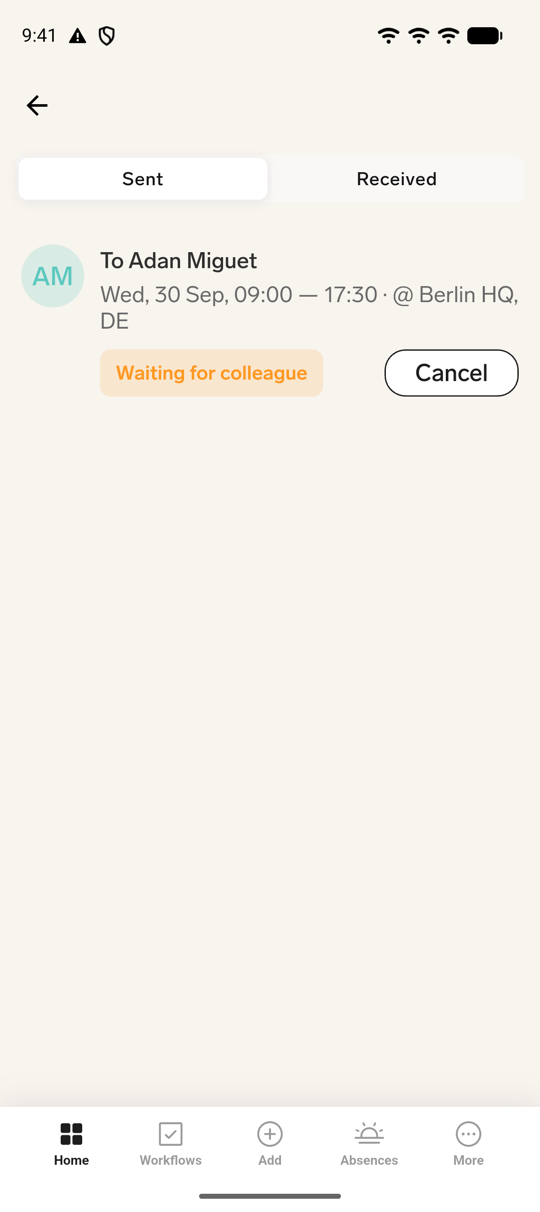
- Open the shift transfers inbox, then tap Sent.
- On a request that is still waiting for the colleague or the Manager, tap Cancel.
- In Cancel transfer request?, tap Cancel. The app displays Transfer request cancelled.
Read transfer statuses
Each request shows a status badge, except a received request that is waiting for your response, which shows Accept and Decline in the list. Some statuses read differently depending on whether you sent or received the request:
| Status on Sent | Status on Received | Meaning |
|---|---|---|
| Waiting for colleague | Pending your approval | The colleague hasn't accepted or declined yet. |
| Waiting for manager | Waiting for manager | The colleague accepted, and the request waits for Manager approval. |
| Approved | Approved | The Manager approved, and flair reassigned the shift. |
| Declined by colleague | Declined by you | The colleague declined the request. |
| Declined by manager | Declined by manager | The Manager rejected the request. |
| Cancelled | Cancelled | The employee who sent the request withdrew it. |
Approve a transfer in the Employee Hub
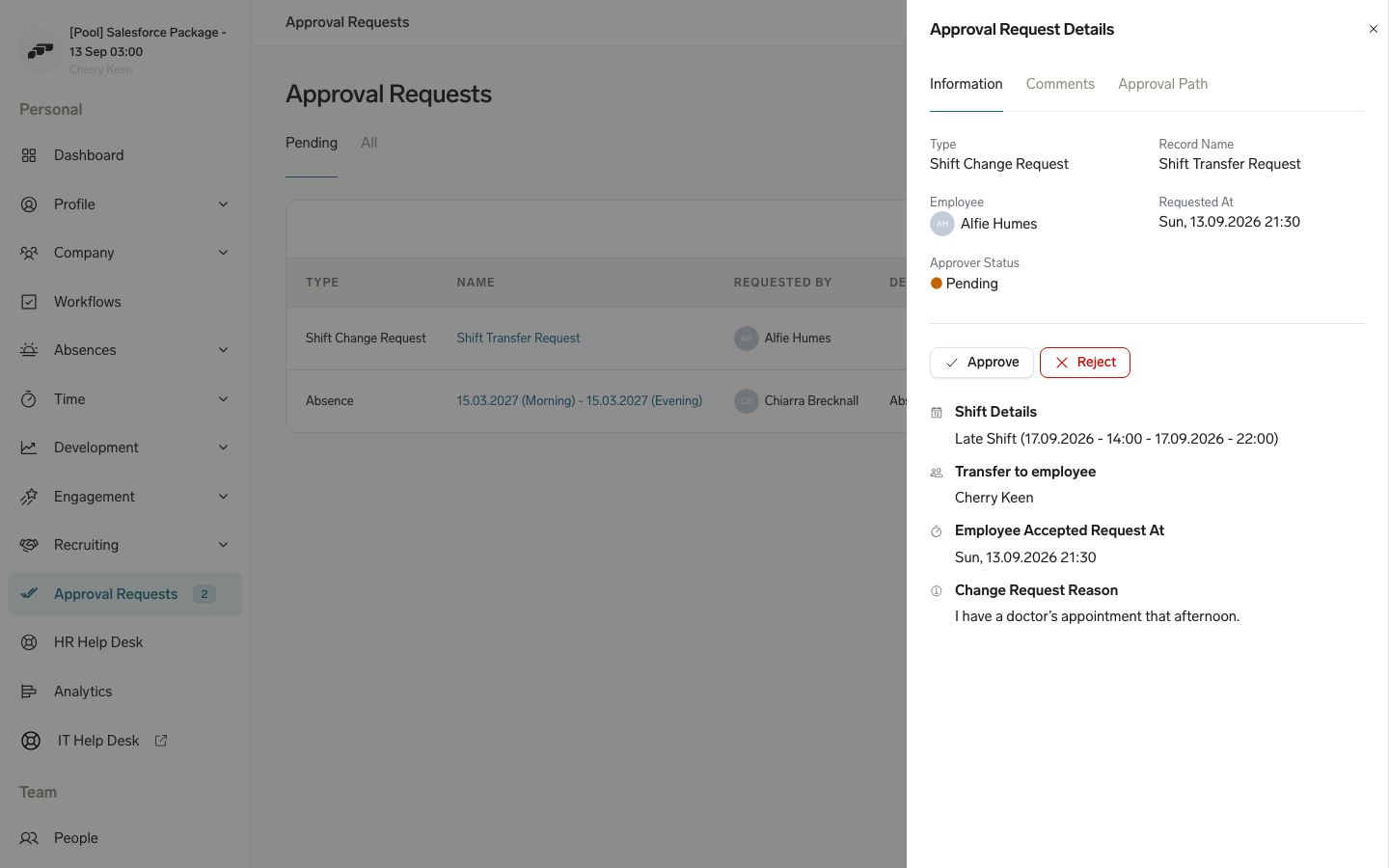
After the colleague accepts, flair creates approval requests for the transfer. The Shift Planner in Salesforce has no approval action for Shift Transfer, so approvers review the request in the Employee Hub.
- As a Manager, open Approval Requests.
- Select the Shift Transfer Request.
- Review the Shift Details, the colleague in Transfer to employee, and the Change Request Reason.
- Click Approve or Reject.
Check the result
After Manager approval, flair updates the shift assignee from the original employee to the receiving colleague. The shift moves between their calendars, both employees receive a confirmation, and calendar sync, time tracking, and payroll integrations receive the new assignment.
If the Manager declines, the shift stays with the original employee and flair notifies both employees. A decline at either approval stage leaves the original assignment unchanged.
Cancel a transfer request
- Before Manager approval, cancel the outgoing request in the Employee Hub under Sent Change Requests or in the mobile app's shift transfers inbox. After approval, the shift is reassigned and requires a new transfer request to move it again.
Review the transfer audit trail
Each transfer creates a Shift_Change_Request__c record in Salesforce with this information:
| Data | Stored value |
|---|---|
| Original and new assignee | The employees before and after the requested transfer. |
| Approver | The Manager who reviews the request. |
| Status | Approval_Status__c, Colleague_Approval_Status__c, and Approval_Status_Detailed__c. |
| Timestamps | The time of each workflow step. |
| Messages | Messages exchanged during the request. |
The audit trail supports compliance checks and payroll reconciliation.