Create an inventory asset
Create an inventory asset for a model or type of company equipment. You can also add manufacturers that are missing from the default list.
HR teams with Inventory access in the flair HR app in Salesforce.
Add a manufacturer
flair includes a default manufacturer list. Add another manufacturer individually, or import a larger list with a CSV file in Salesforce. For how dictionaries work in general, see Manage dictionaries.
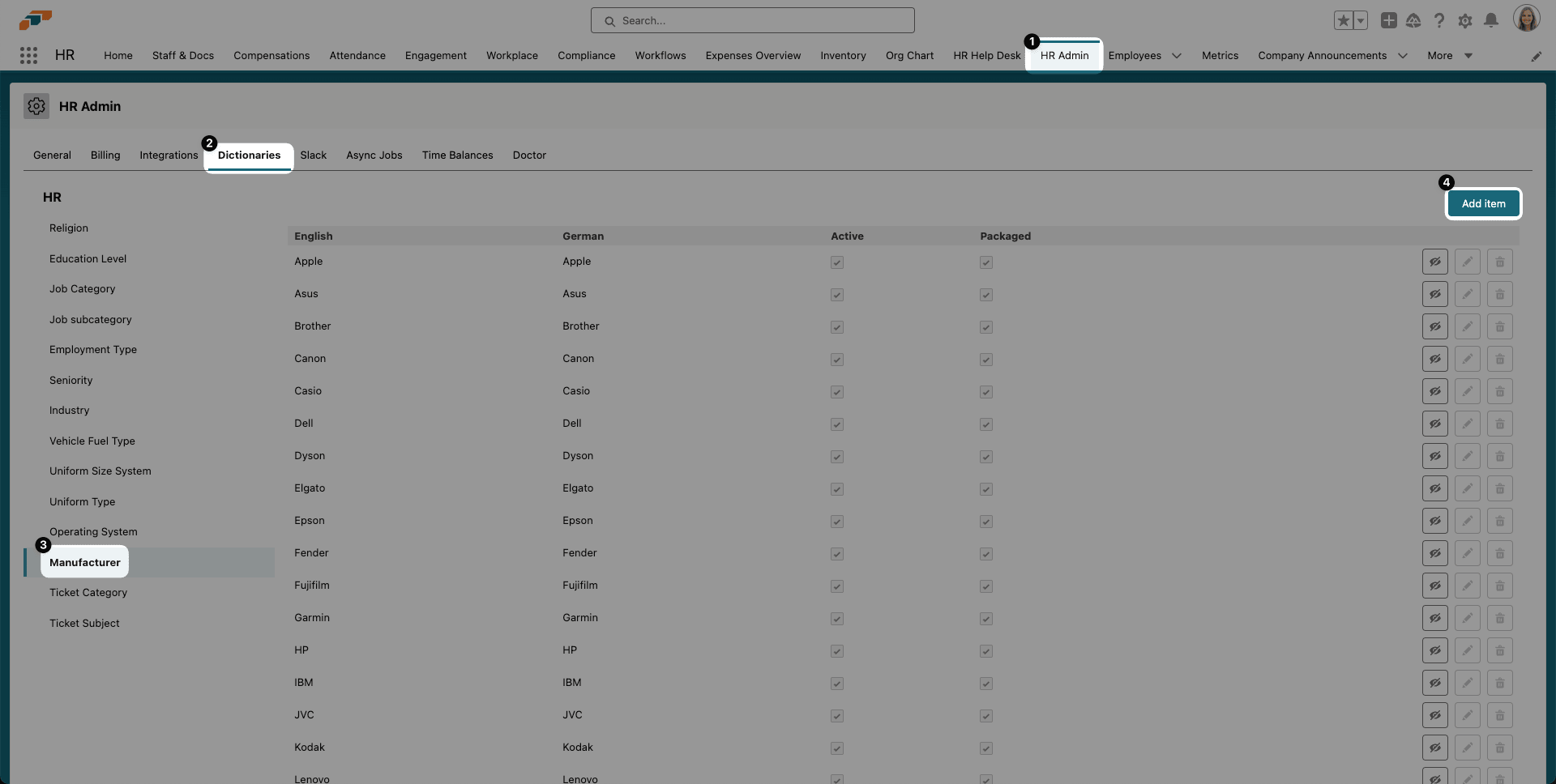
- In the flair HR app, open HR Admin → Dictionaries.
- In the left list, select Manufacturer.
- Click Add Item.
- Enter the manufacturer's name, including the language fields.
- Click Add. The manufacturer becomes available for inventory assets.
Create an inventory asset
-
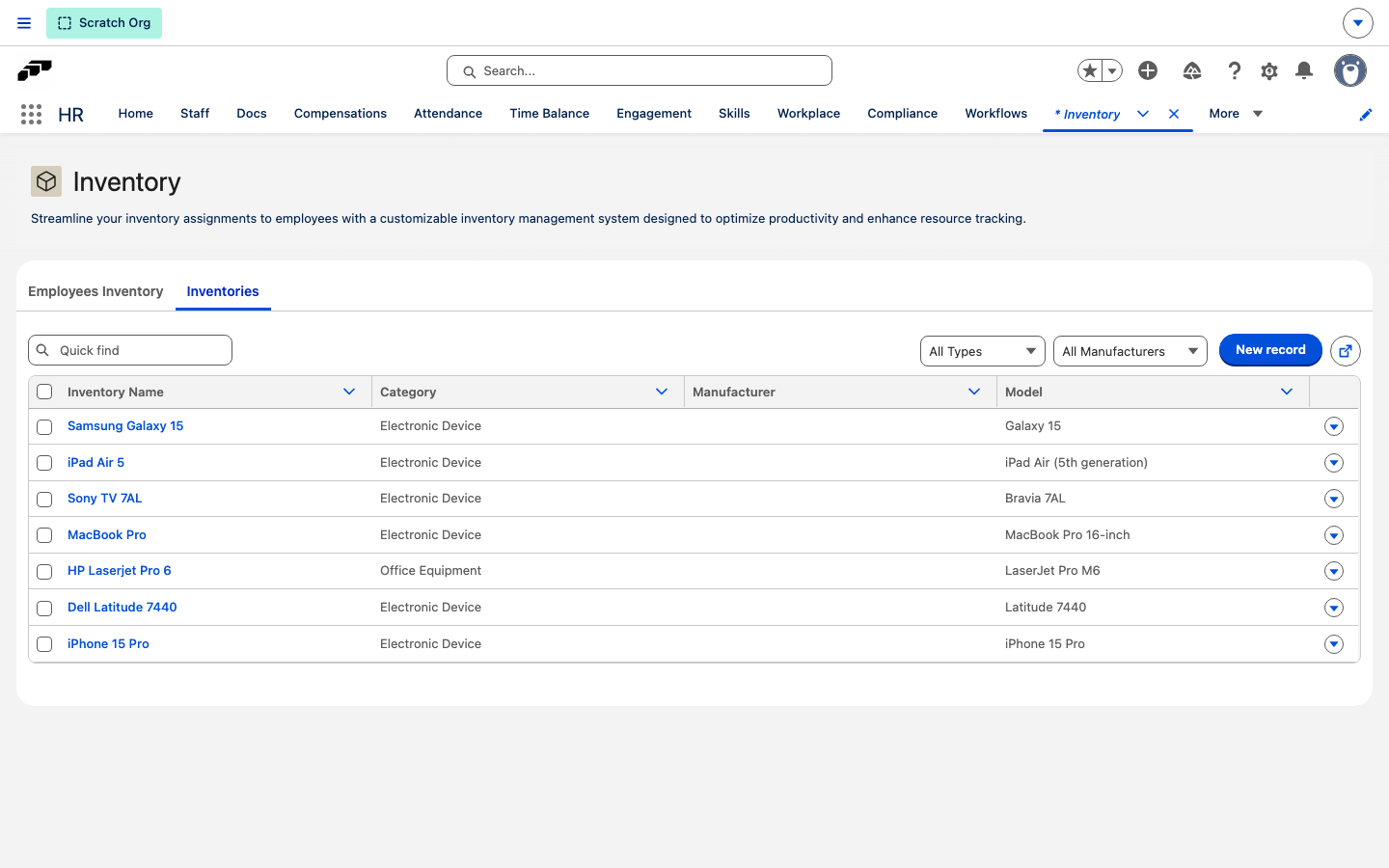
In the flair HR app, select Inventory in the navigation bar or find it in the App Launcher (⋮⋮ grid icon).
-
On the lower Inventories tab, click New record.
-
On the Category step, select the category that fits the asset:
Category Use it for App & Software Applications, licenses, and software subscriptions Electronic Device Laptops, phones, monitors, and other hardware Office Equipment Furniture and other office equipment Uniforms & Workwear Uniforms, protective clothing, and other workwear Vehicle Company cars and other vehicles Other Anything that doesn't fit another category 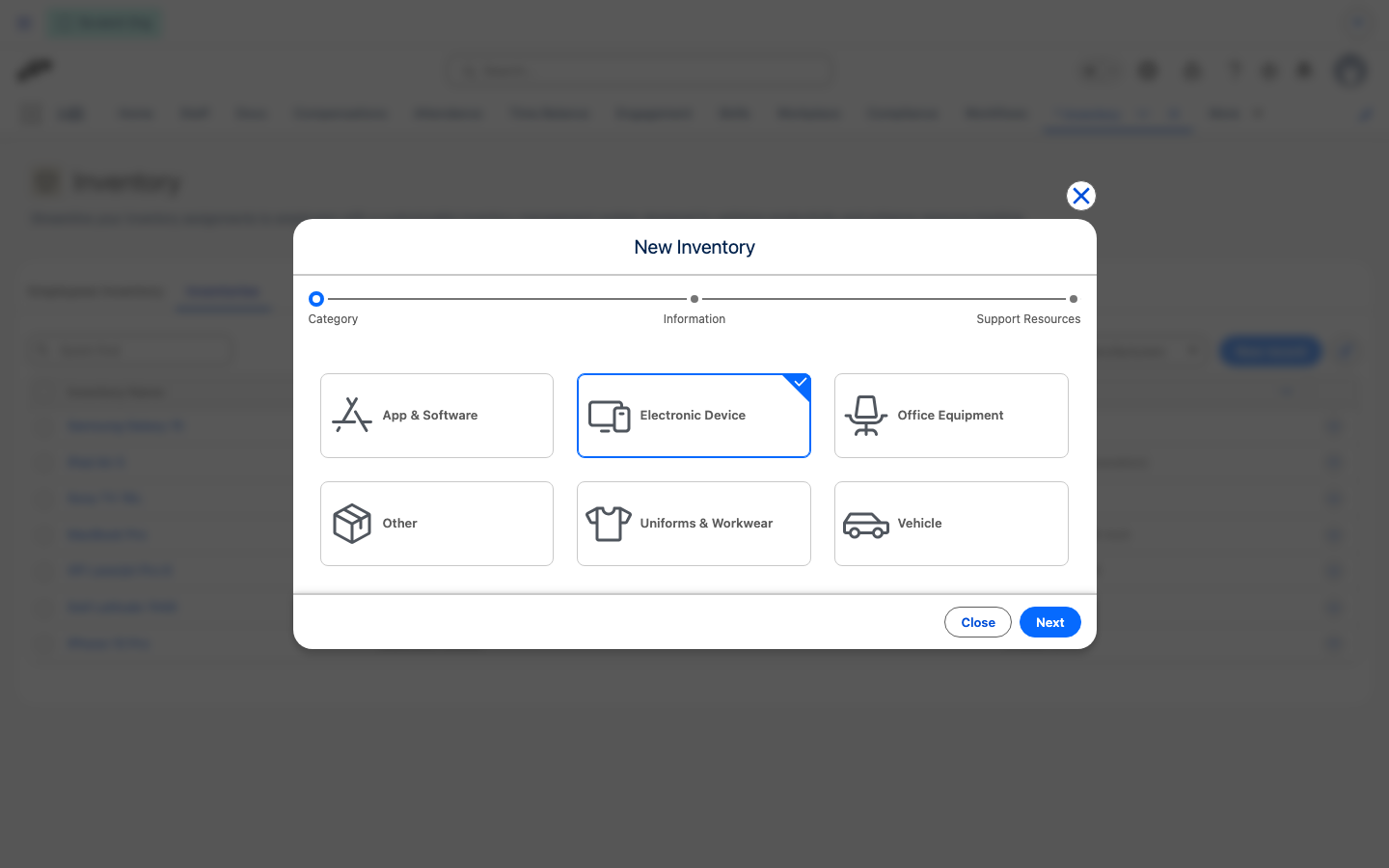
-
Click Next.
-
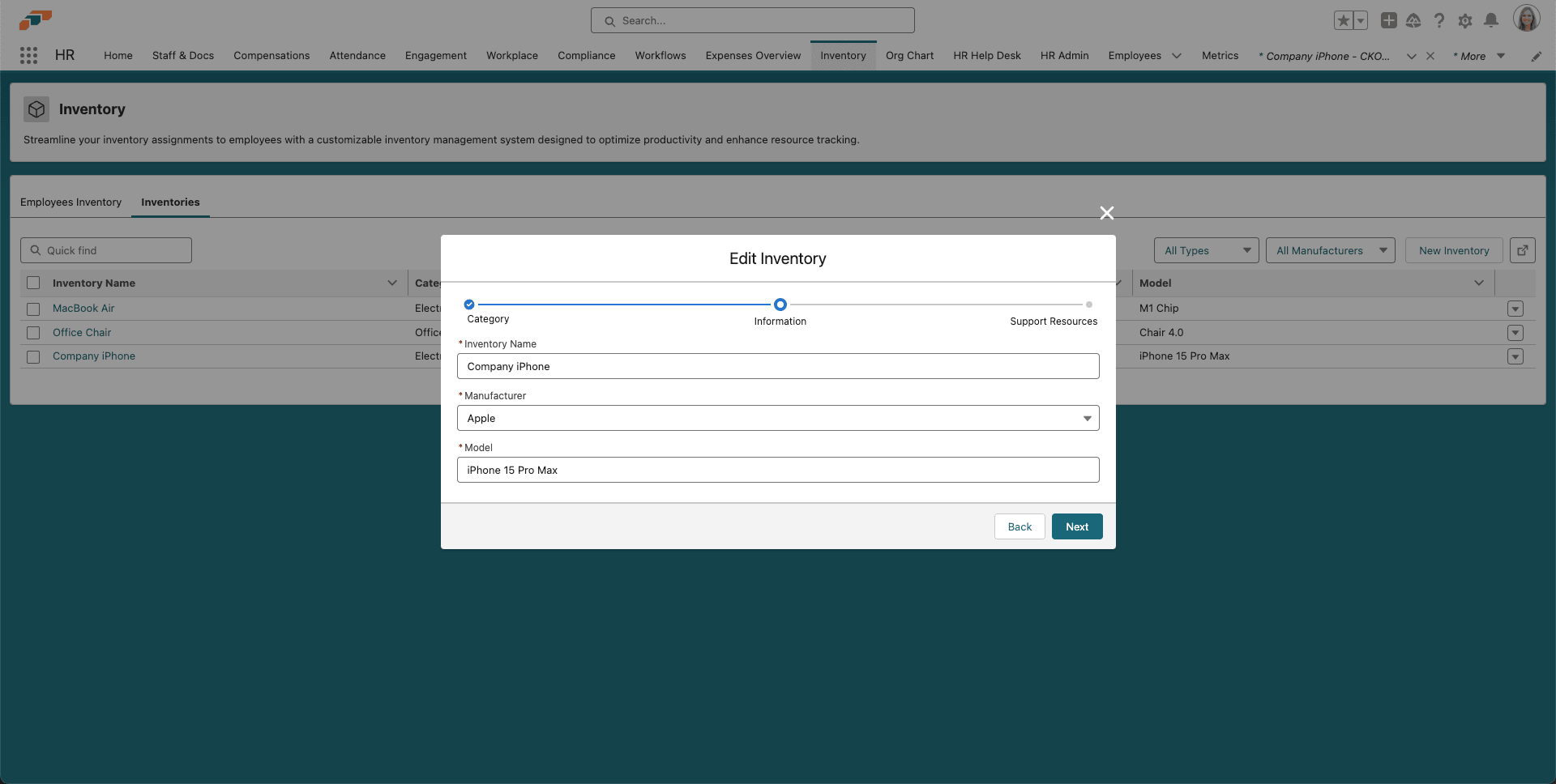
In Inventory Name, enter a recognizable name for the asset.
-
Select a manufacturer, and enter the full model name.
-
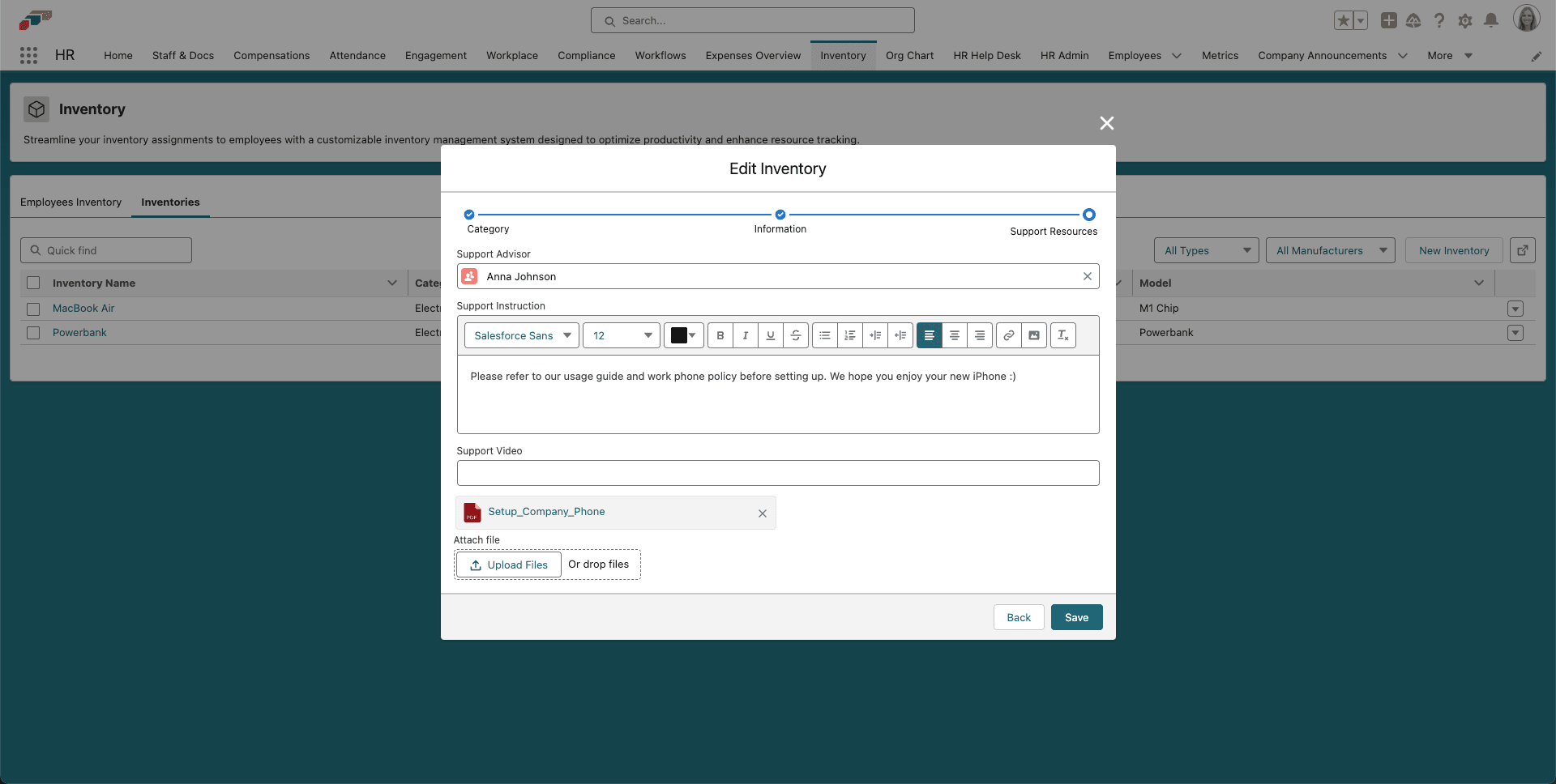
Optional: Select a Support Advisor who employees can contact with questions.
-
Optional: Enter Support Instructions, link a Support Video, or attach helpful files.
-
Click Save. The inventory asset is ready for individual items.
New items that you create from the asset start with the asset's category. The Category step shows only the categories whose Inventory Item record type is available to you. If a category is missing, ask your Salesforce admin to make its record type available in your profile or permission set.