Manage permissions and access control
Control which flair features and Salesforce records each user can access. This guide covers flair permission sets, permission set groups, visibility scopes, targeted permission sets, custom permissions, and Admin Monitoring.
Salesforce Admins who manage users, licenses, permission sets, objects, and sharing access in Salesforce Setup.
Before you begin
- Assign each user a flair license.
- Review the user's Salesforce profile and existing permission sets before adding access.
- Use flair's maintained permission sets or permission set groups when they cover the required role.
Review flair permission sets
flair provides permission sets for different HR and Recruiting roles. Each set grants View or Modify access to selected Salesforce objects.
- In Salesforce Setup, open Permission Sets.
- Find sets with the
Flairprefix. - Read each description to understand its intended role.
To inspect the exact object access in a set:
-
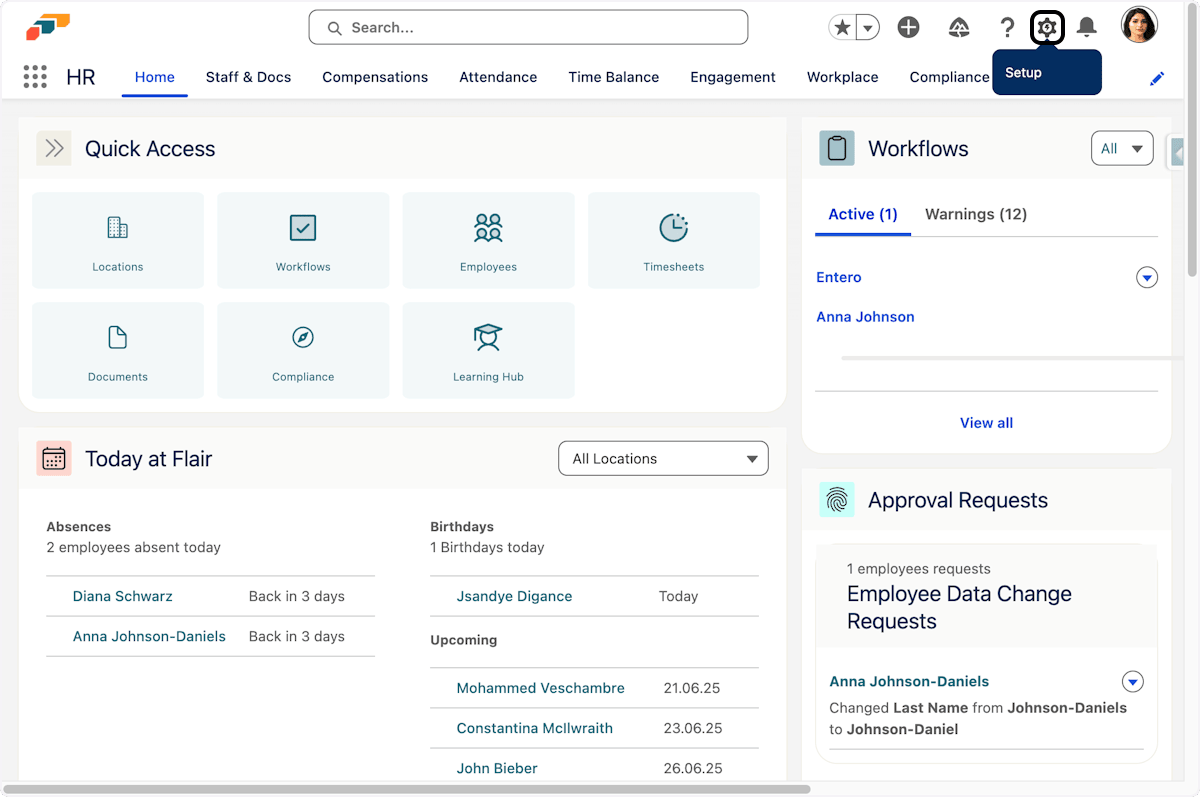
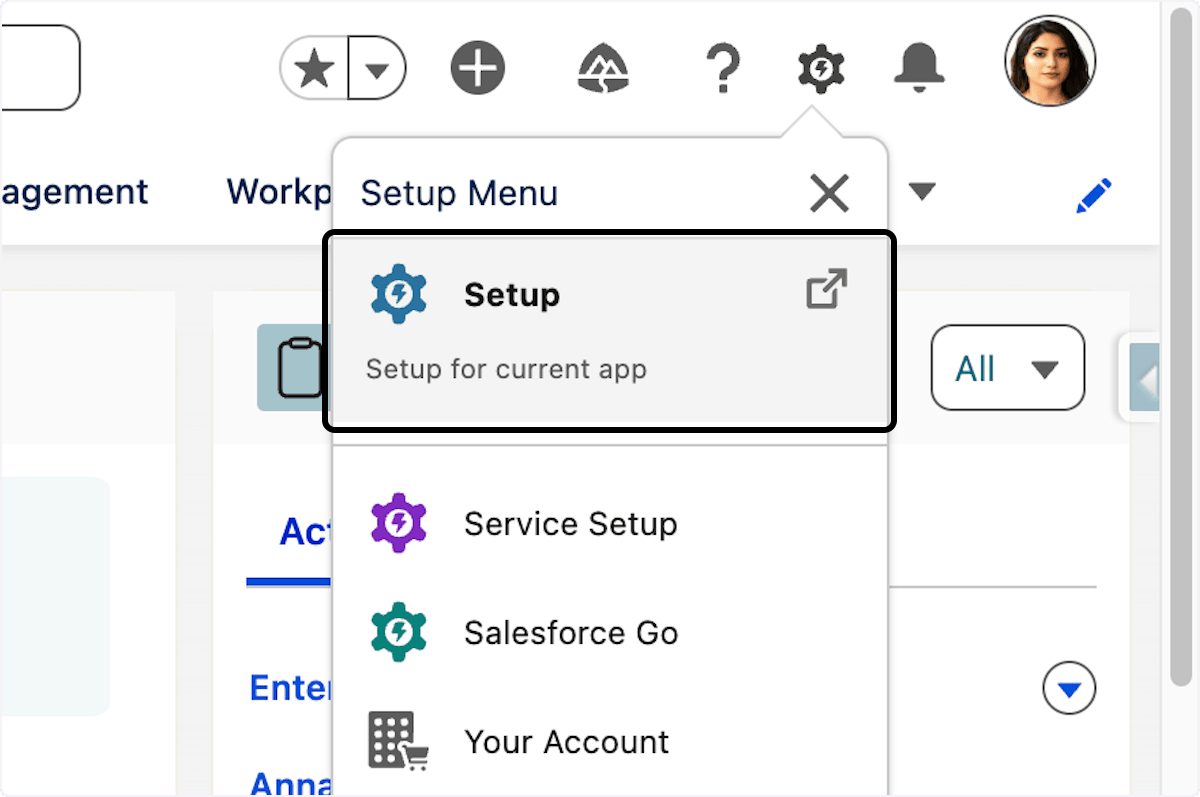
In Salesforce, open Setup.
-
In Quick Find, enter
Permission.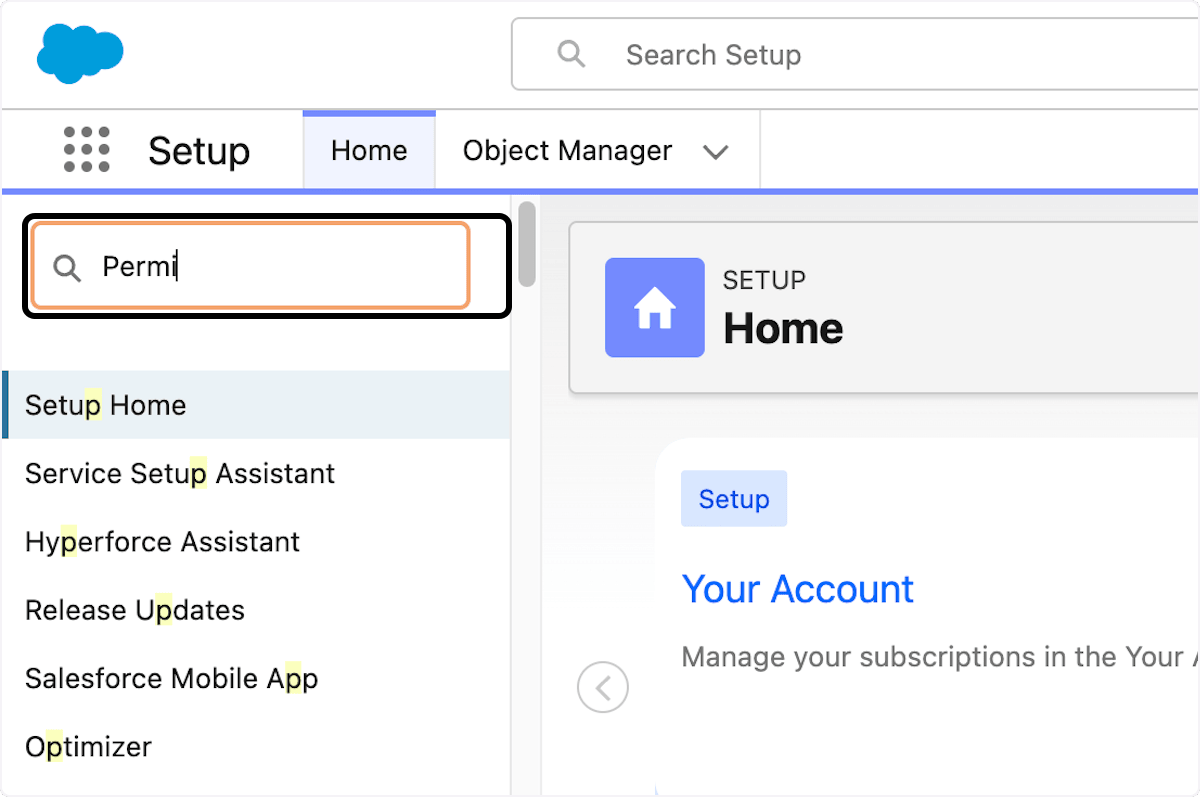
-
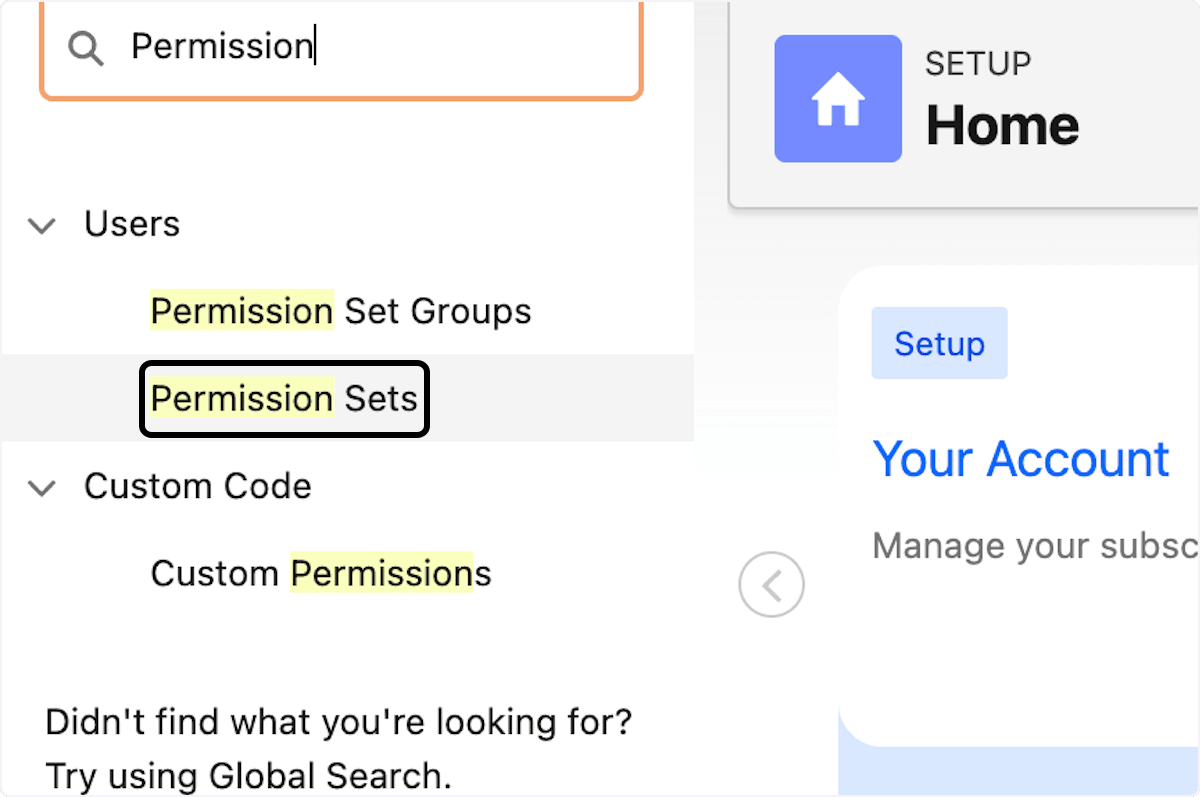
Open Permission Sets.
-
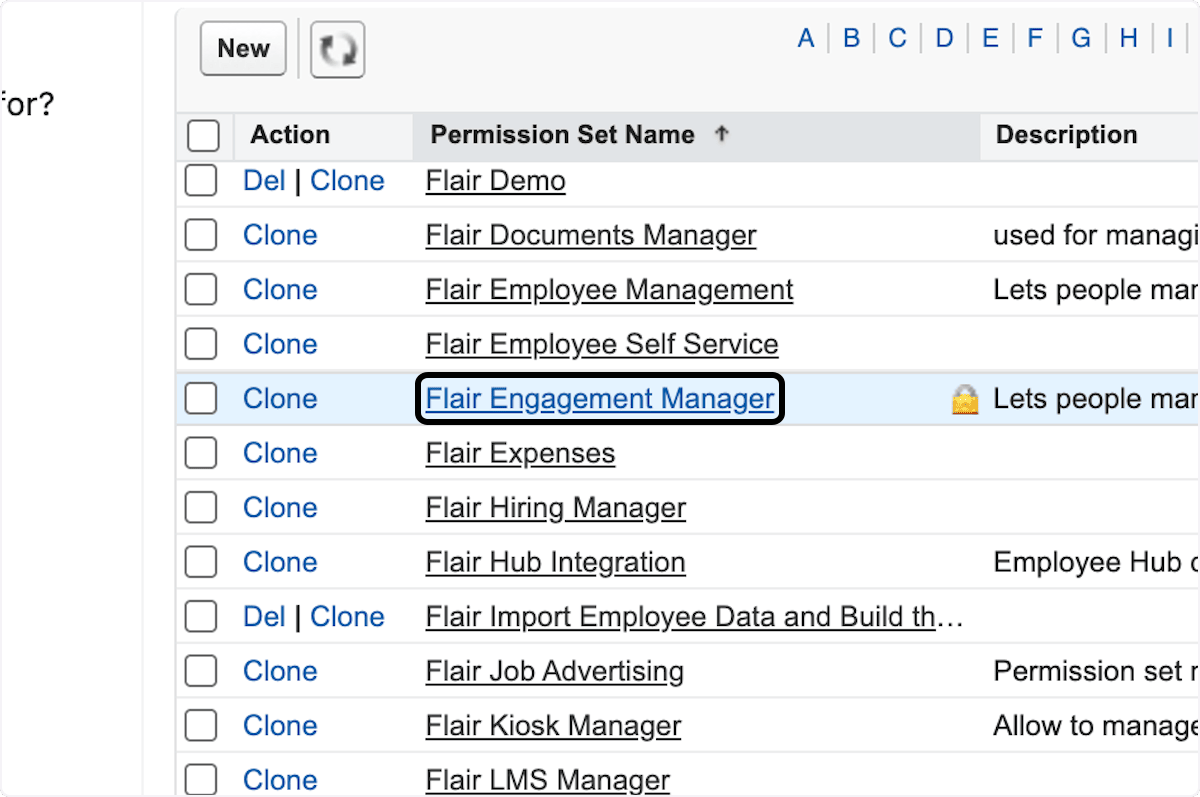
Select a set, such as Flair Engagement Manager.
-
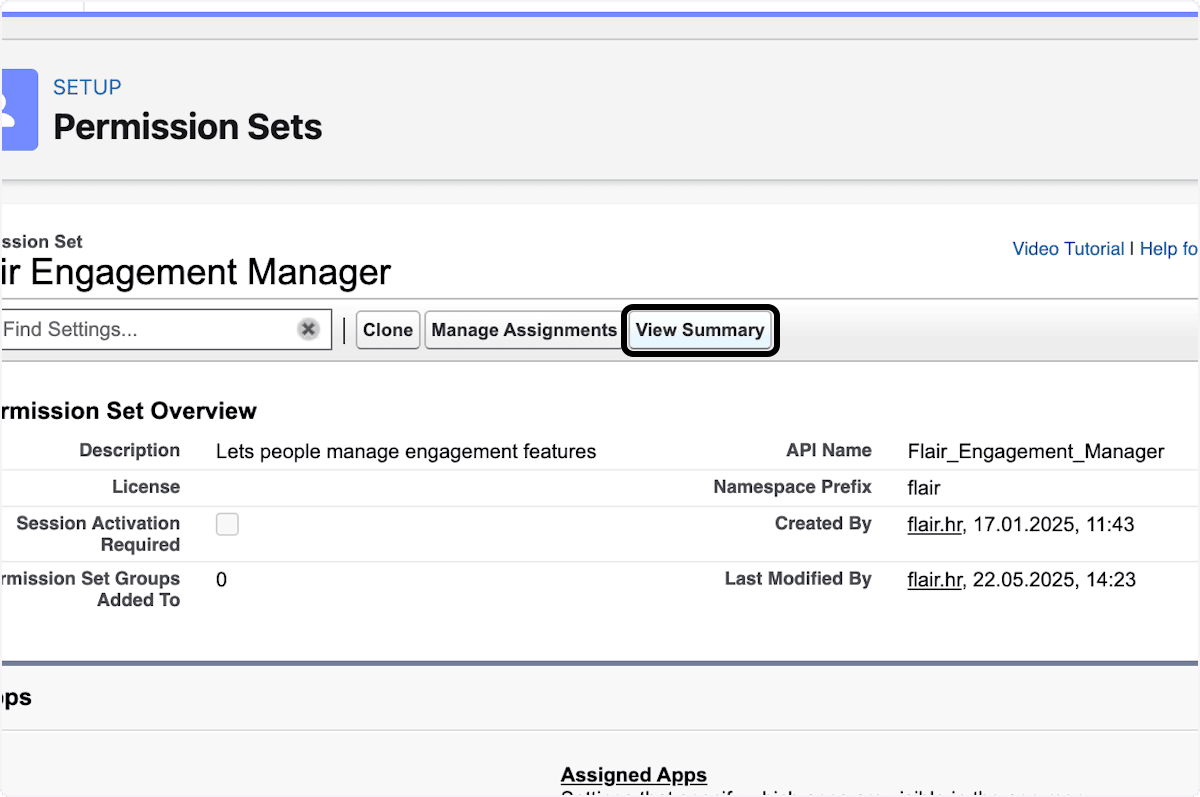
Click View Summary.
-
Click Object Permissions.
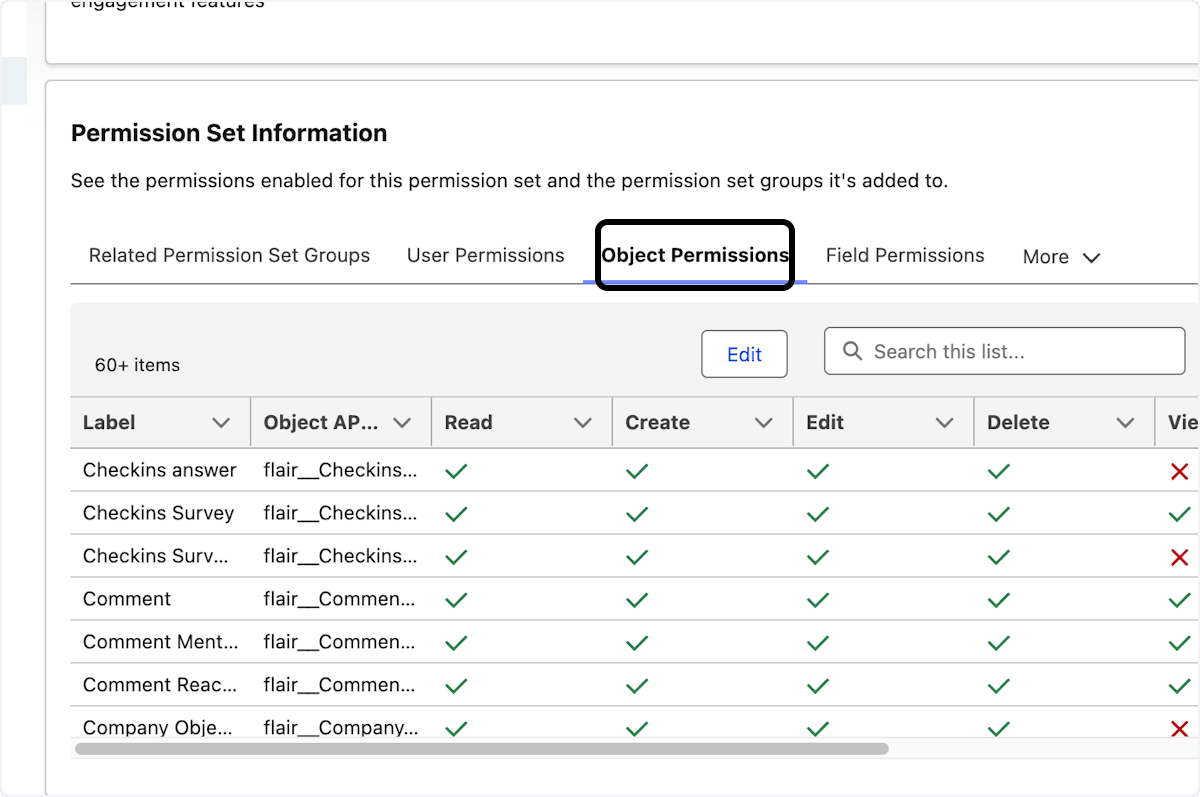
The summary shows Read, Create, Edit, Delete, View All, and Modify All access. Use it to review assignments, troubleshoot access, plan changes, or document your security configuration.
Create and assign a permission set group
Permission set groups combine modular permission sets for a role or persona. For example, a group for an HR manager who also handles payroll can combine Flair Manager and Flair Payroll Manager.
flair is moving new features to new modular permission sets and permission set groups. Existing permission sets remain unchanged for backward compatibility. Assign permission set groups for future feature access; a user can receive more than one group when roles overlap.
Permission set groups have these Salesforce constraints:
- Permission set groups must be enabled before a subscriber installs or uninstalls a package that contains them.
- Groups installed from managed packages do not count against the maximum number of groups created. Limits for created and installed groups vary by Salesforce edition.
- Some Salesforce editions cannot create or customize groups, but they can install and use groups from managed packages.
- A managed-package group uses the package namespace to avoid a naming collision with a local group.
- To delete a group from a managed package, uninstall the package.
- You can add and remove local permission sets in a group installed from a managed package.
Do not duplicate and modify a maintained flair permission set. The copy does not receive flair permission updates and can become outdated.
Salesforce provides more information about permission set groups, and this video demonstrates the workflow:
Create the group
-
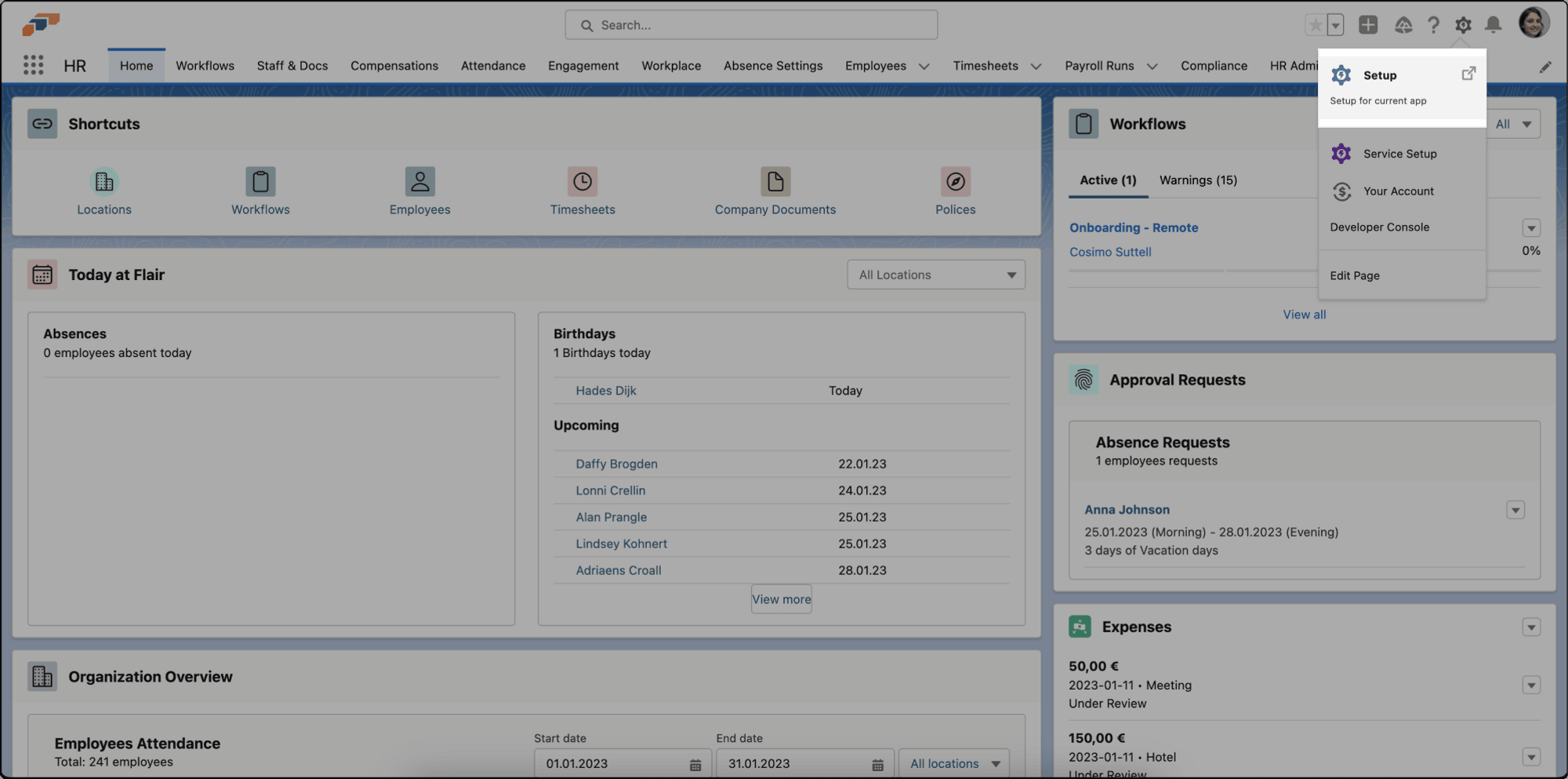
In Salesforce, click the setup gear.
-
Select Setup.
-
In Quick Find, enter
permission set groups. -
Open Permission Set Groups.
-
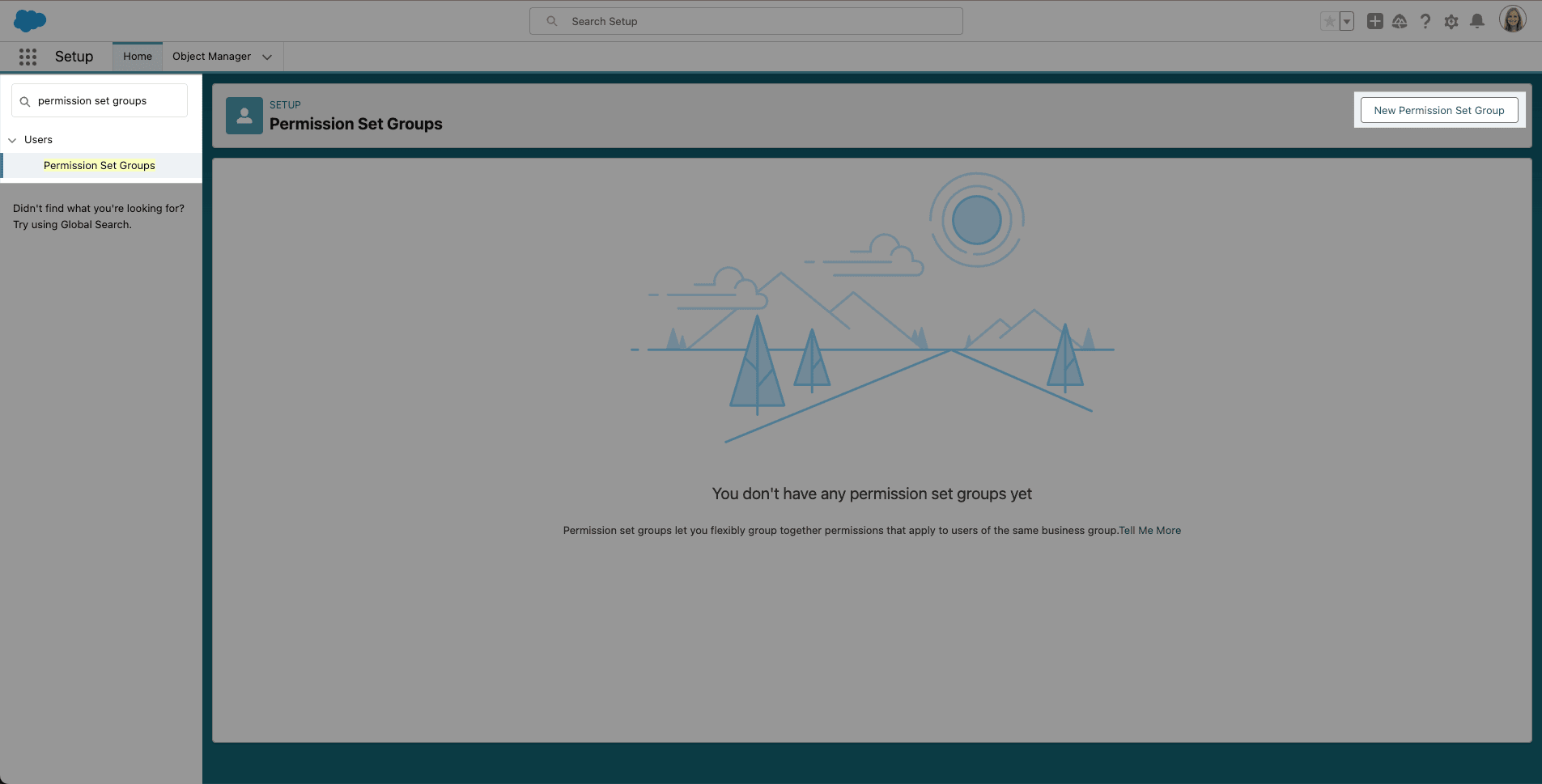
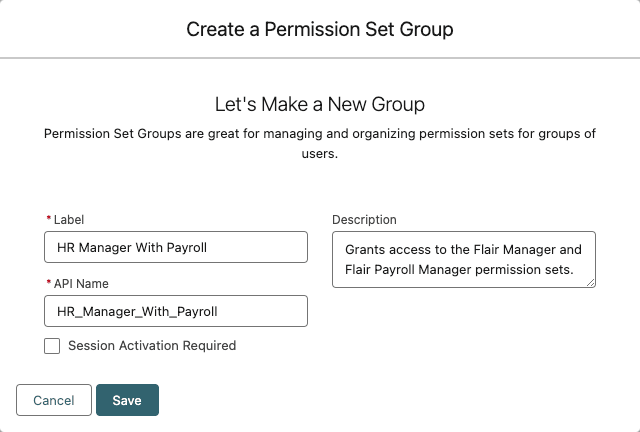
Click New Permission Set Group.
-
Enter a Label and Description.
-
Click Save.
Add permission sets to the group
-
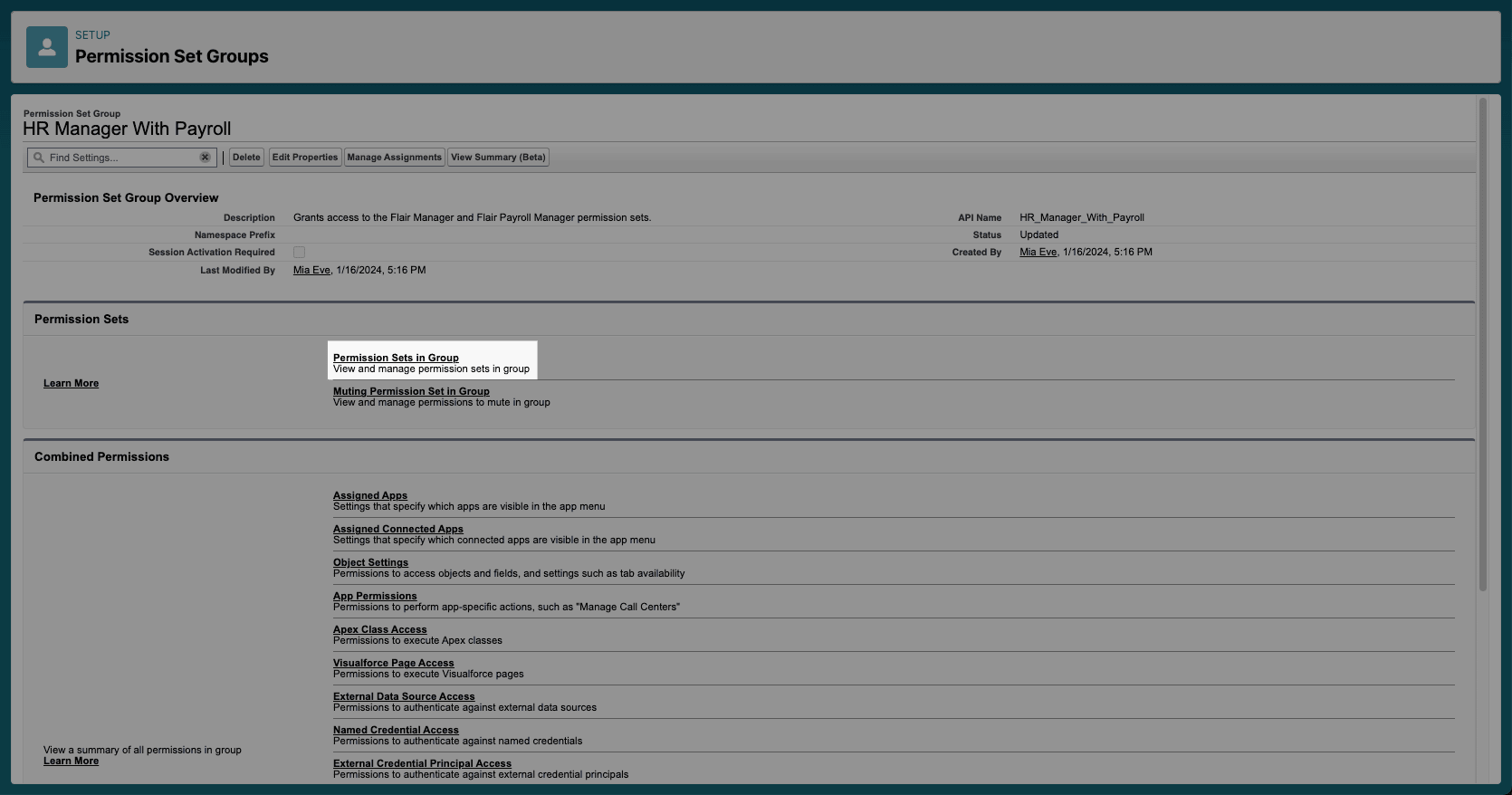
In the group, click Permission Sets in Group.
-
Click Add Permission Set.
-
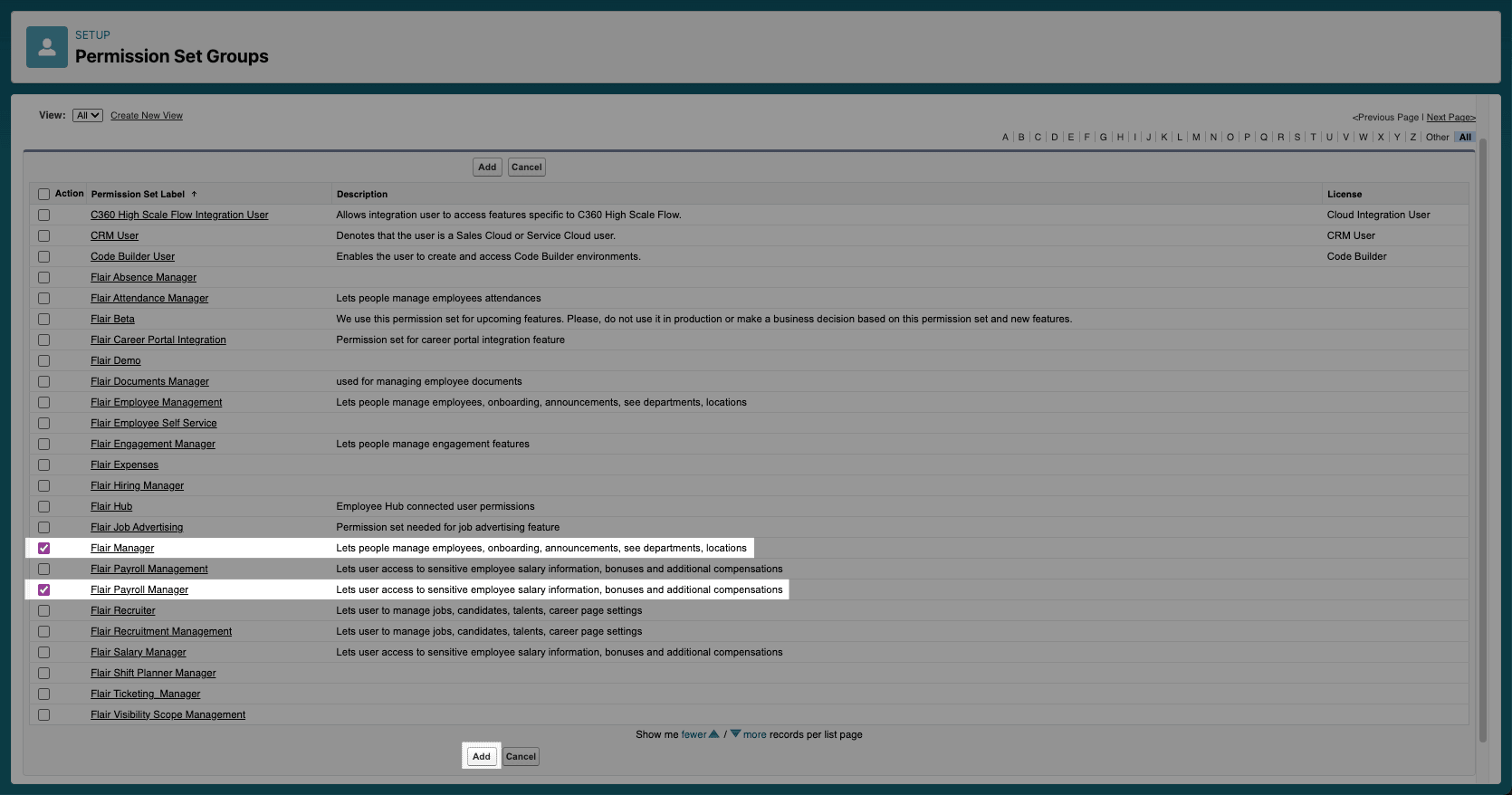
Select the permission sets to include.
-
Click Add.
Assign the group
-
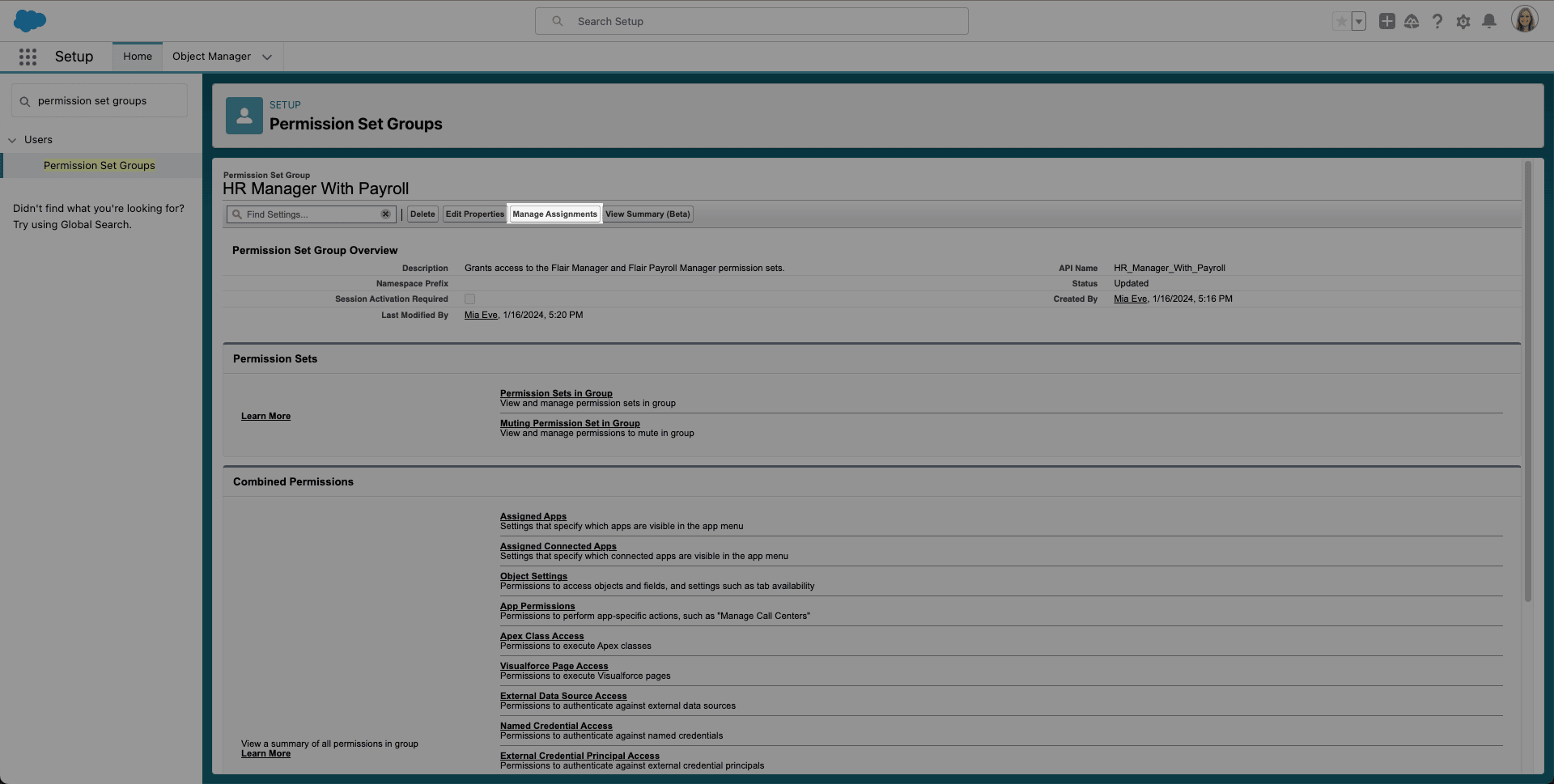
In Permission Set Groups, select the group.
-
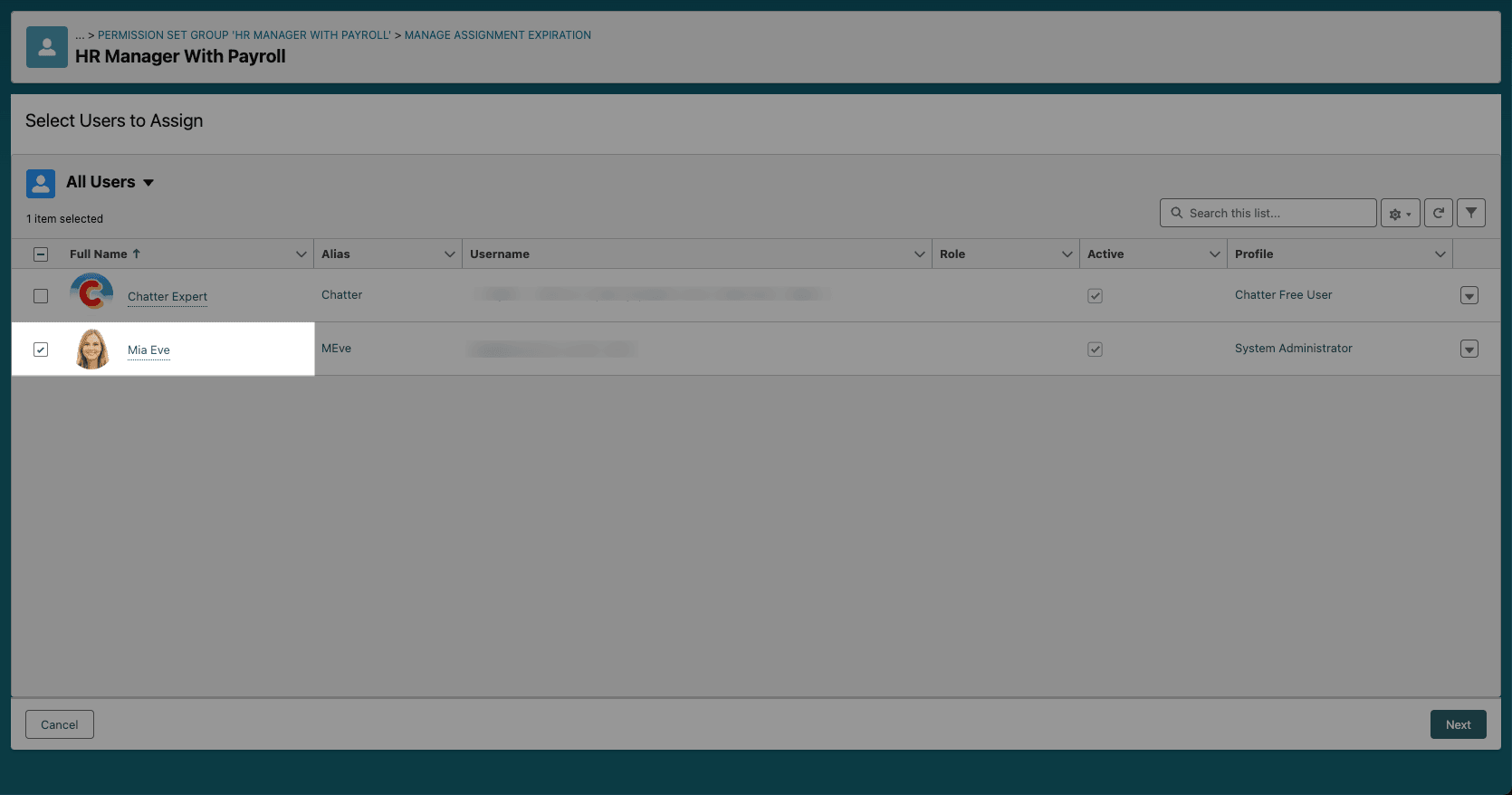
Click Manage Assignments.
-
Click Add Assignment.
-
Select the user.
-
Click Next.
-
Choose whether the assignment expires.
-
Click Assign.
Create a muting permission set
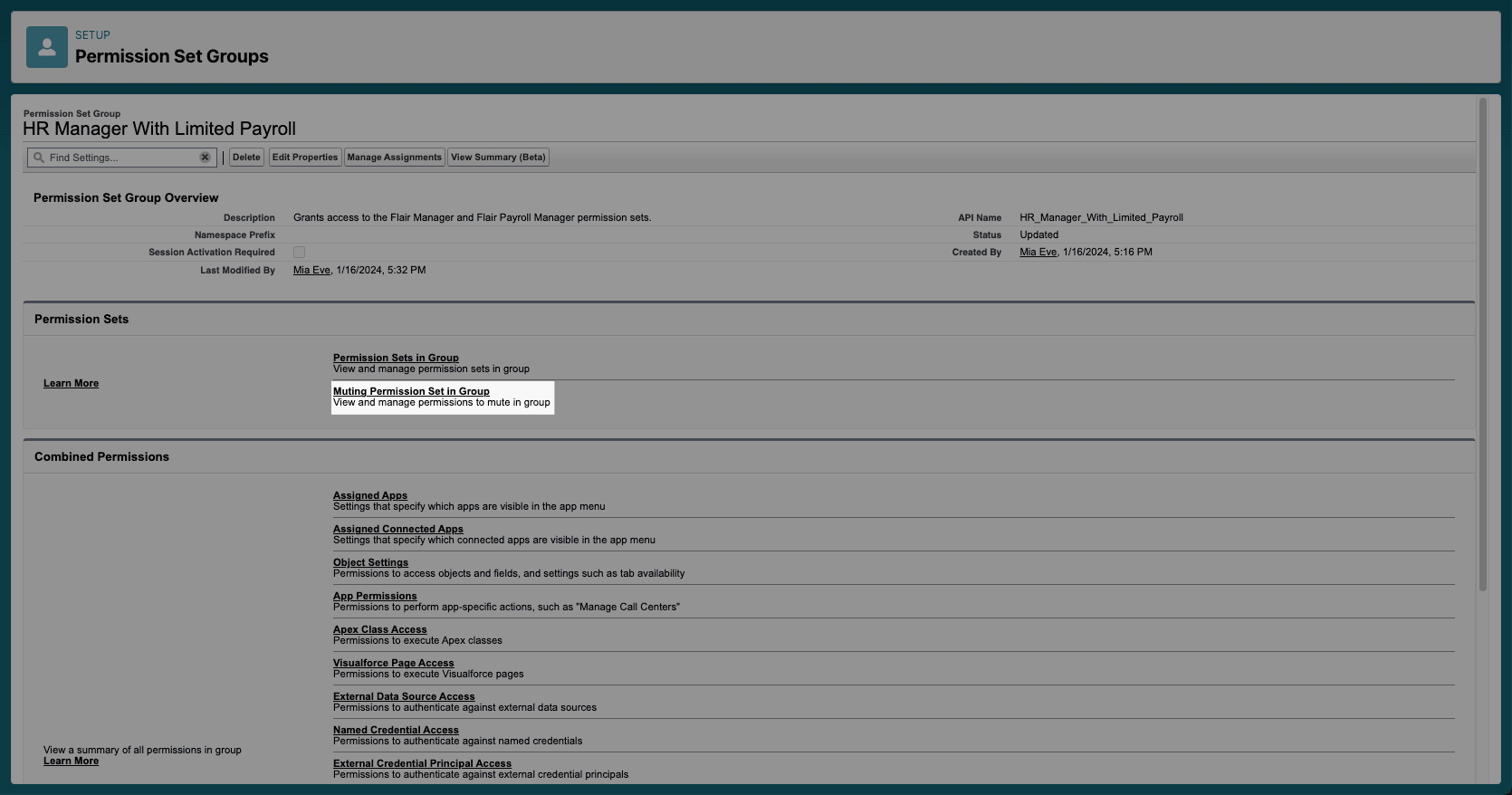
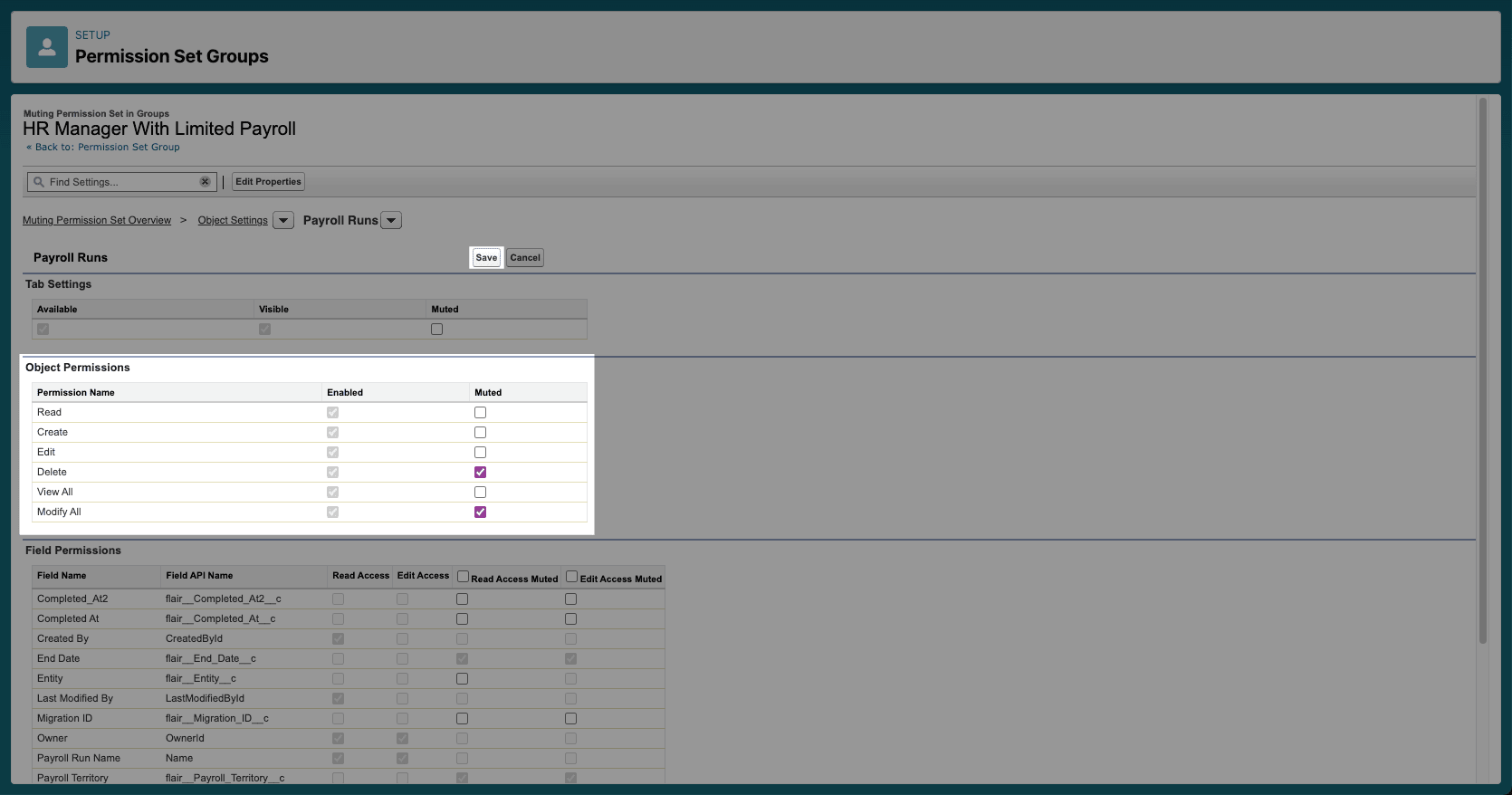
A muting permission set removes selected access only within one permission set group. It does not change the individual sets. For example, mute Delete access when HR managers can view payroll details but must not delete them.
-
Open the permission set group.
-
Click Muting Permission Sets in Group.
-
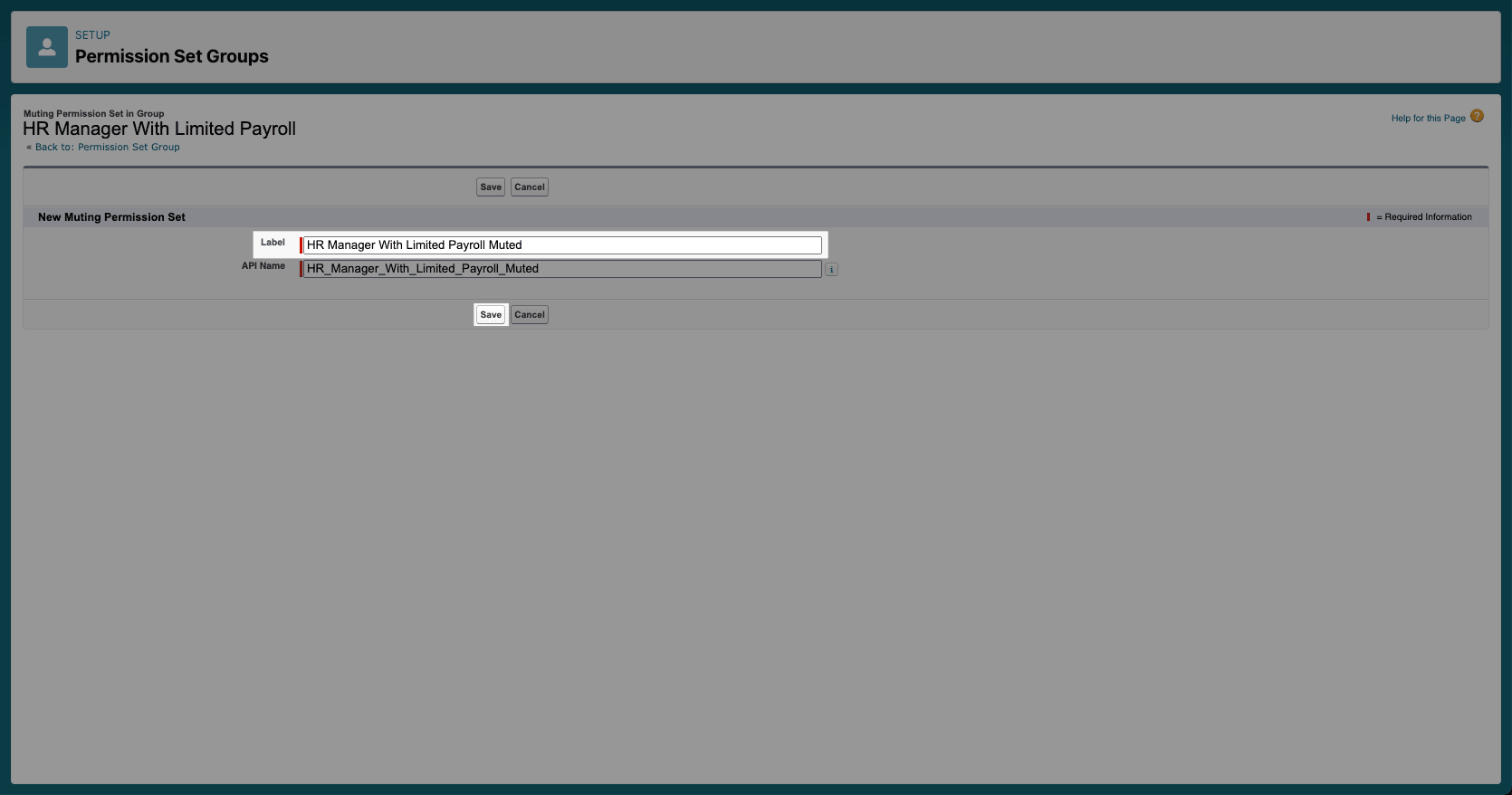
Click New.
-
Enter a Label.
-
Click Save.
Choose permissions to mute
-
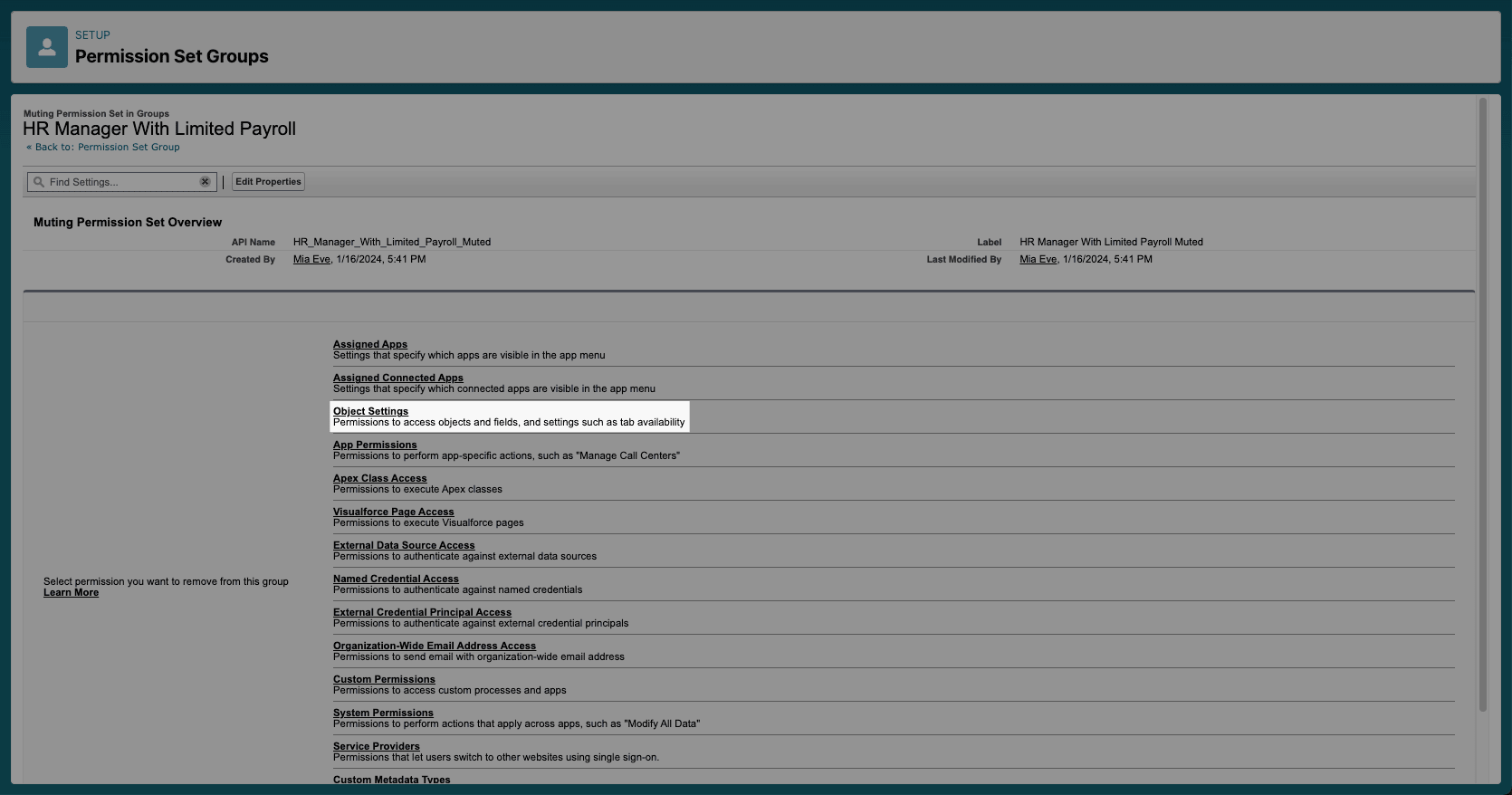
Open the muting permission set.
-
Click Object Settings.
-
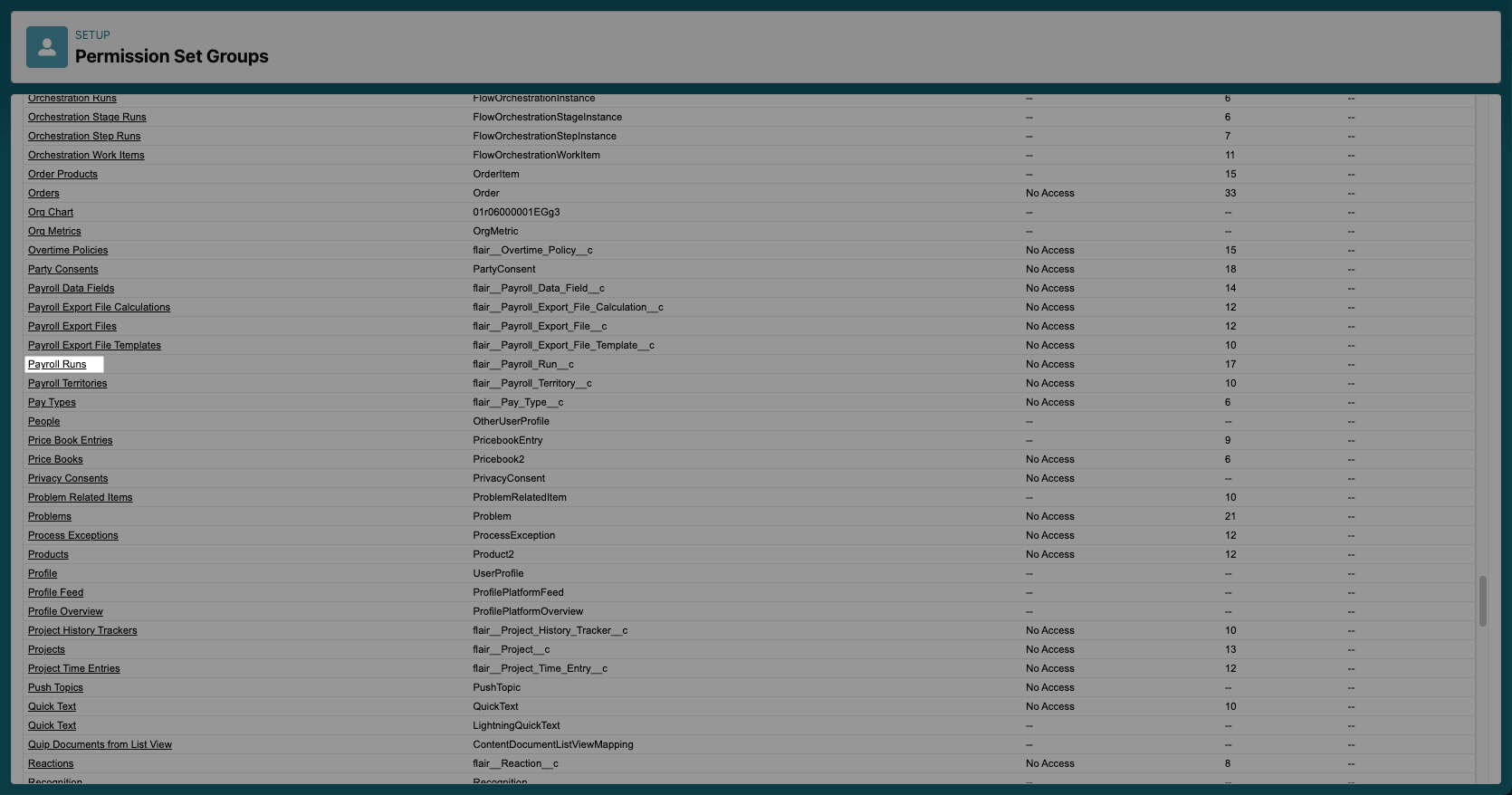
Select the object to restrict.
-
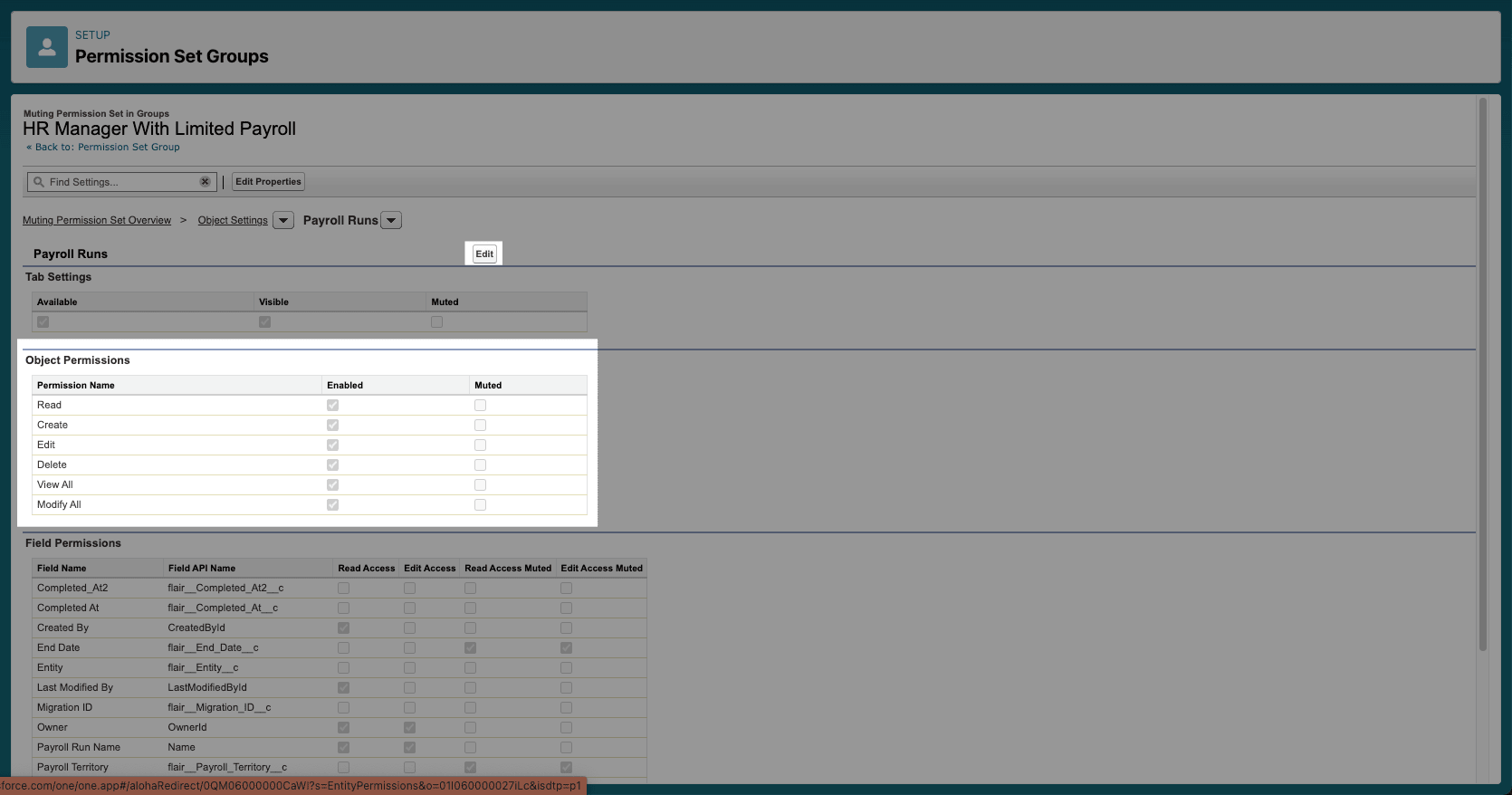
Review Tab Settings, Object Permissions, and Field Permissions.
-
Click Edit.
-
Select Muted next to each permission to restrict.
-
Click Save.
-
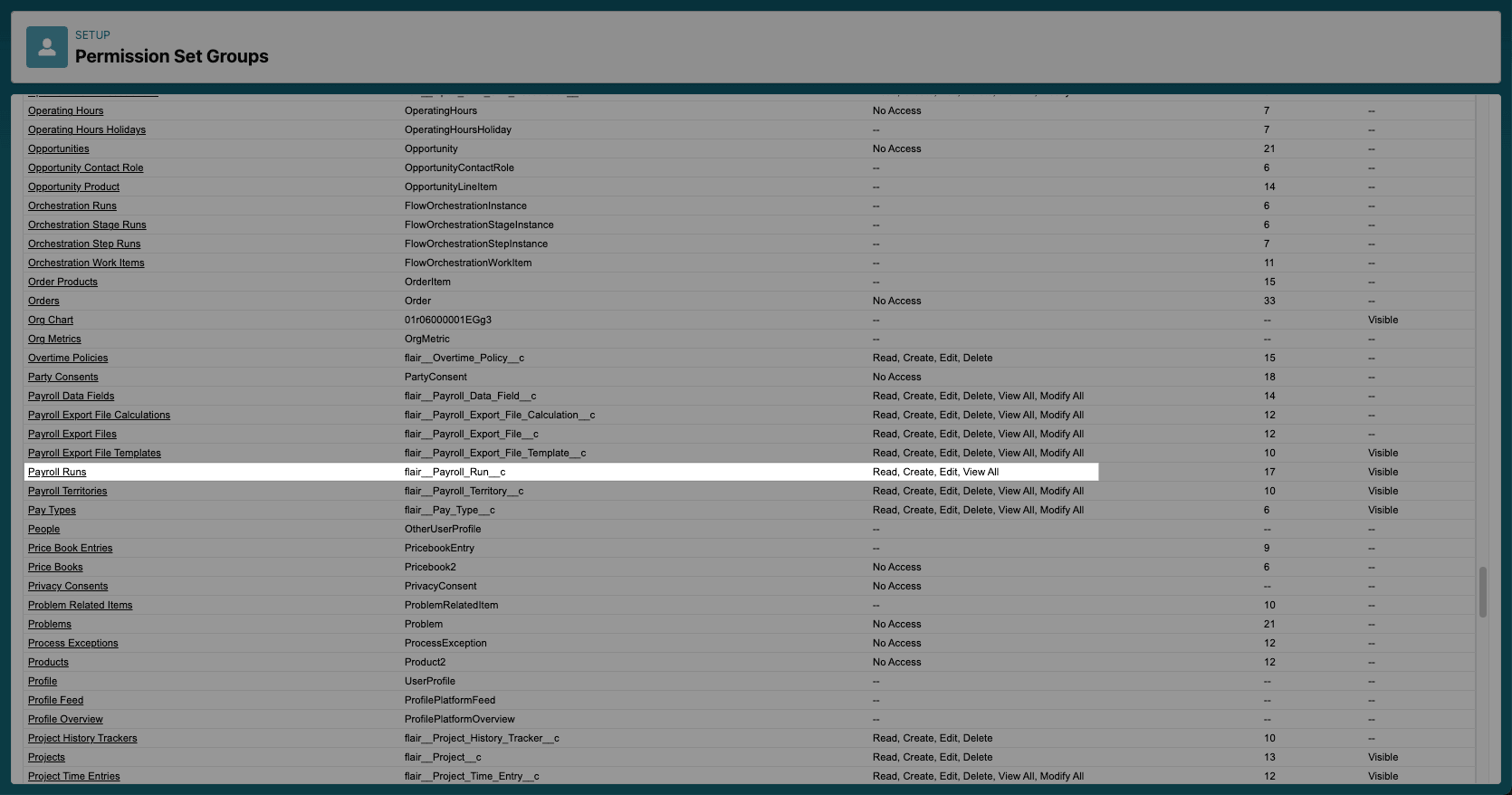
In the permission set group, open Object Settings to confirm that the muted access overrides the original permission.
Configure visibility scopes
Visibility scopes restrict records by department, location, or entity after permission sets grant object access.
Visibility scopes do not restrict users with View All or Modify All access. This includes Flair Manager, Flair Payroll Manager, Flair Recruiter, and users with the System Administrator profile.
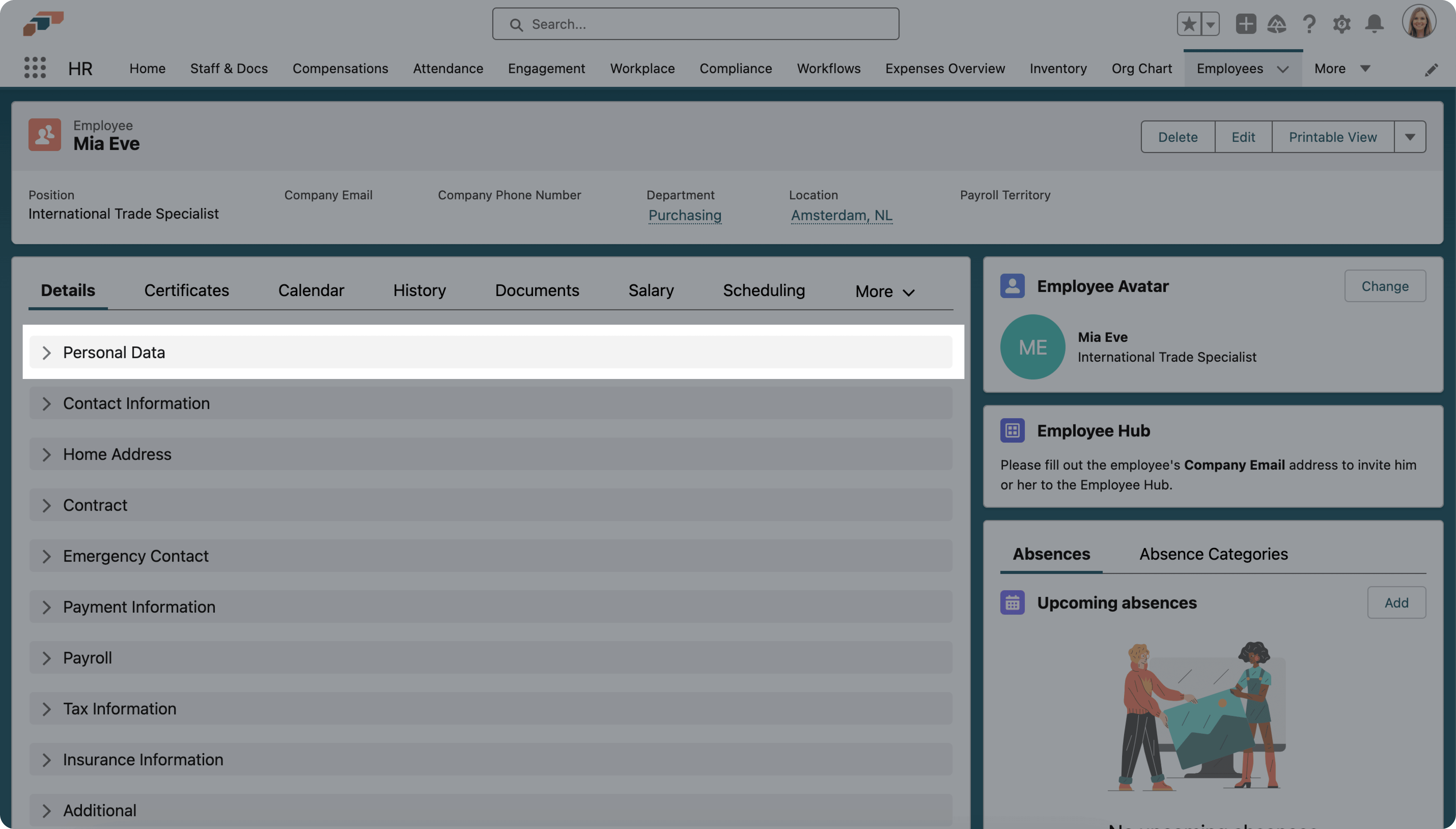
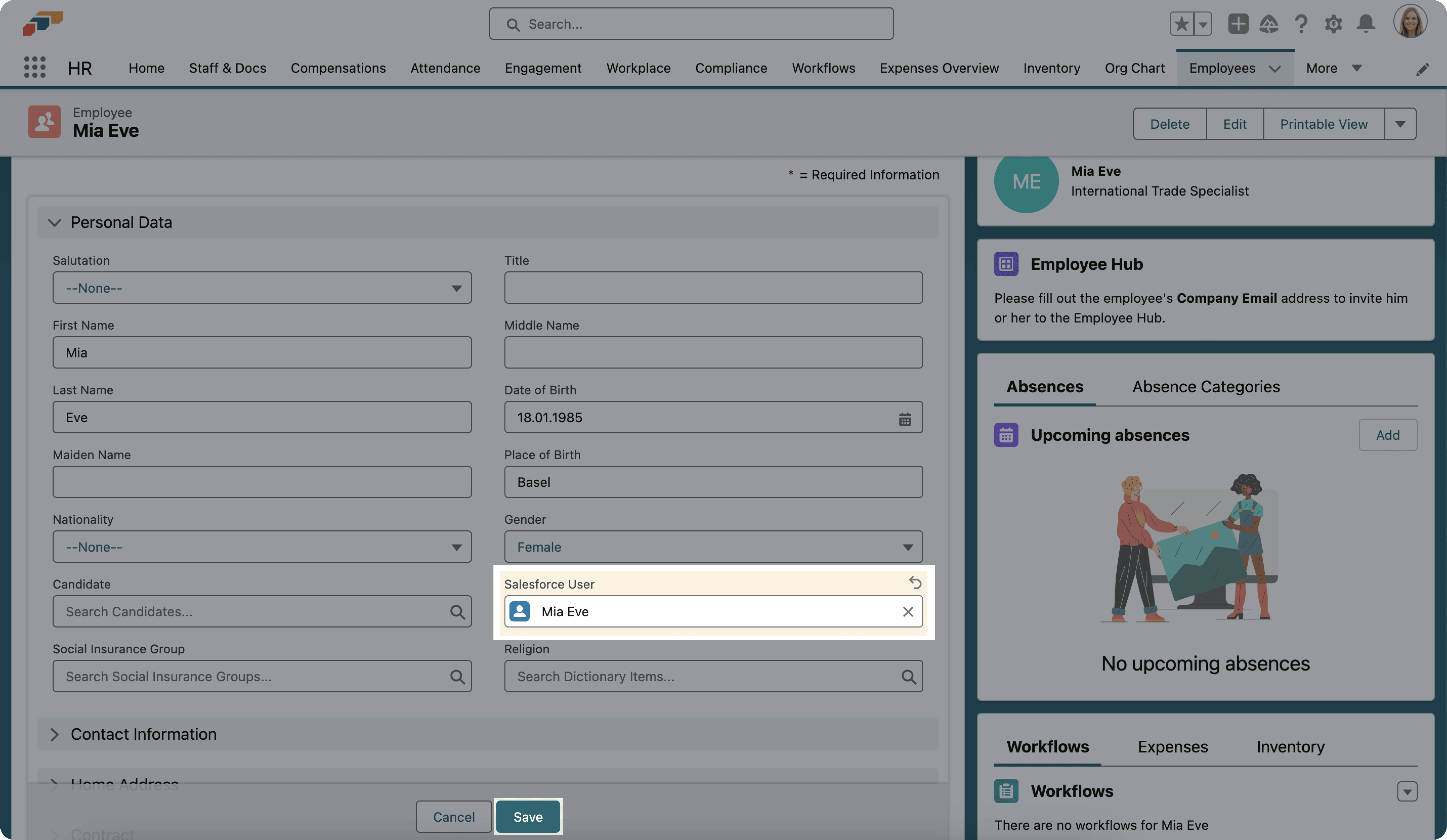
Connect a Salesforce user to an employee
-
In Staff or Employees (or the legacy Staff & Docs tab), open the employee record.
-
In Salesforce User, select the matching Salesforce user.
-
Click Save.
Create and assign an entity
An entity can represent a division or another employee group.
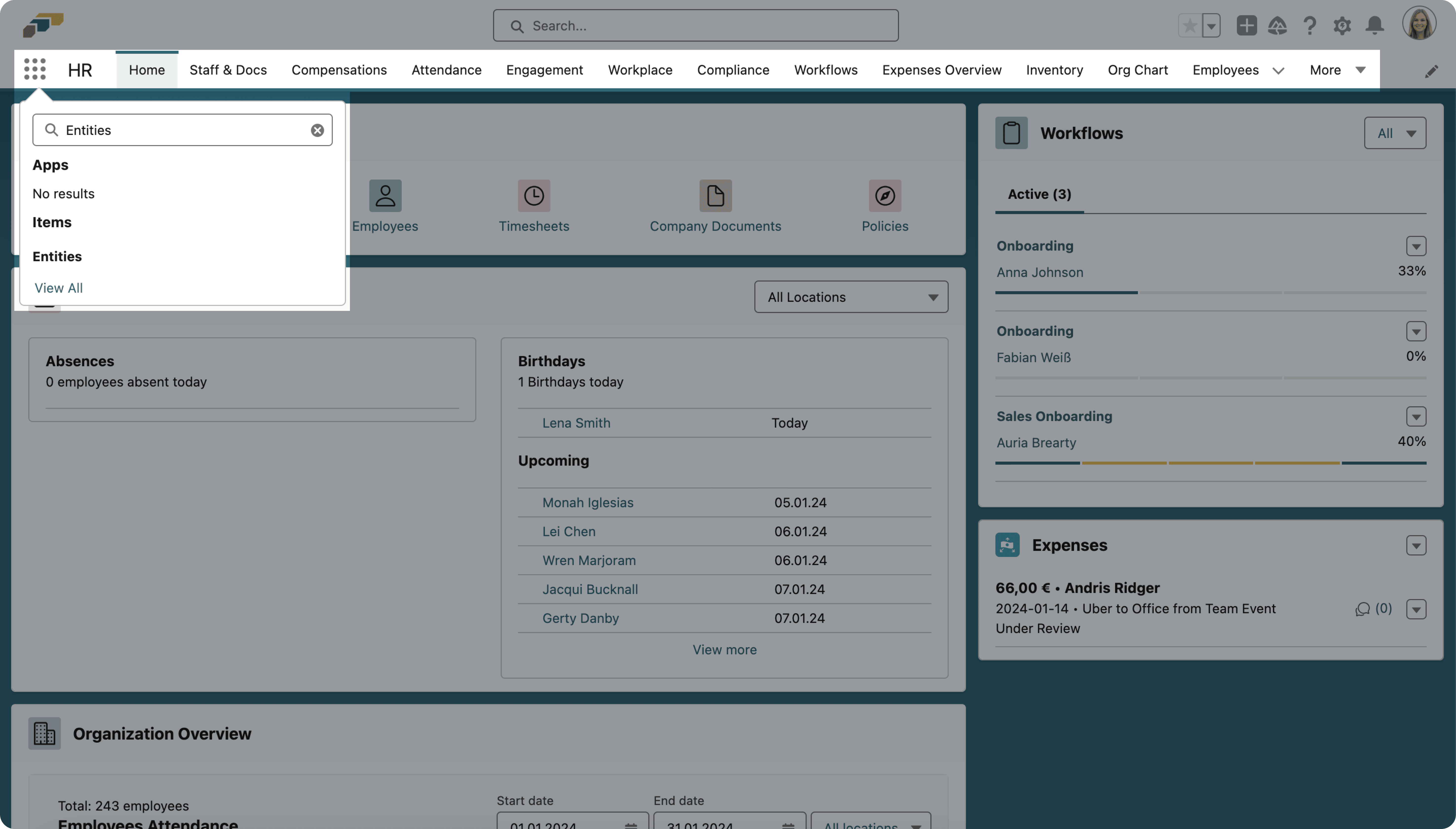
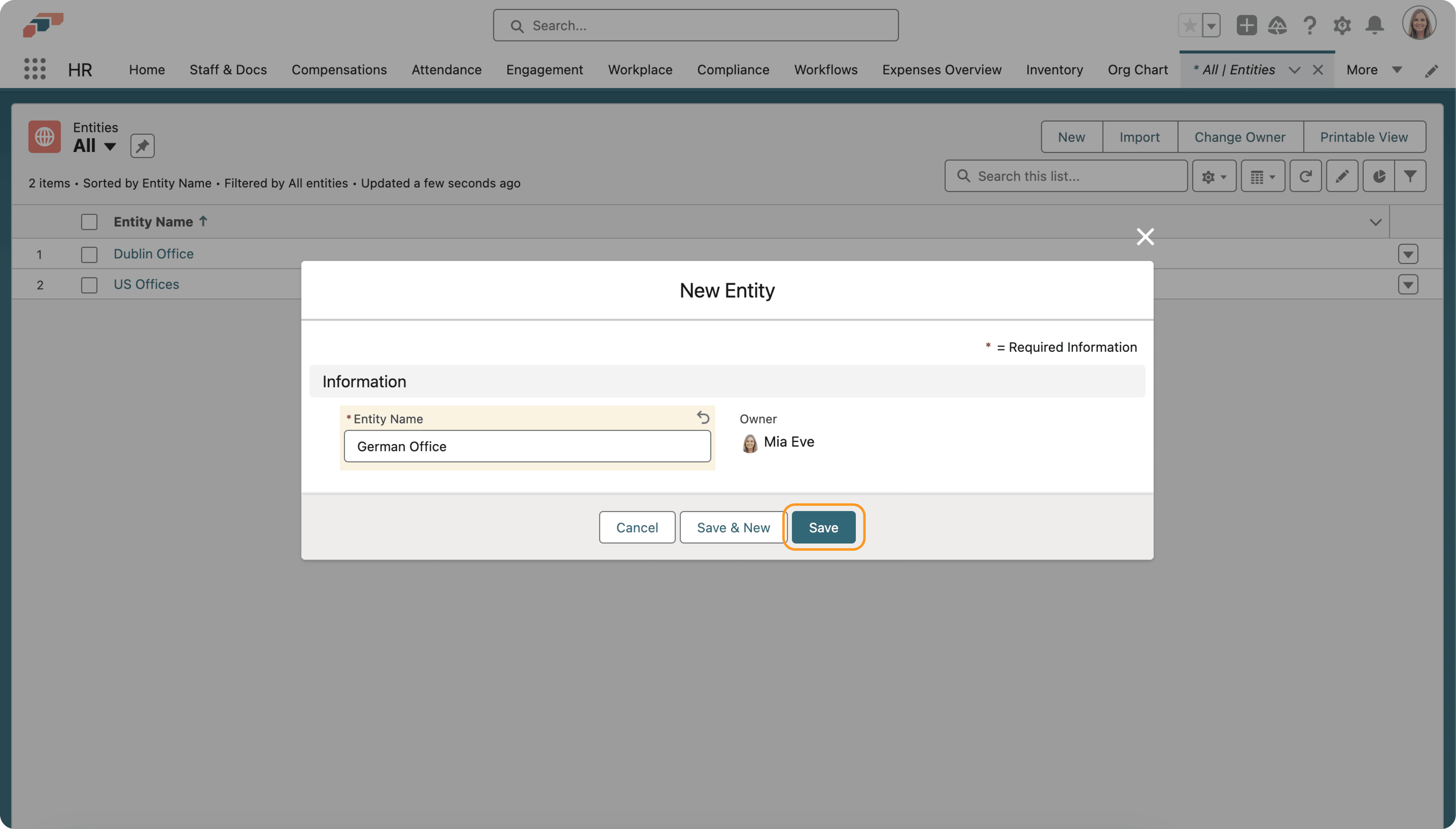
-
In the App Launcher (⋮⋮ grid icon), open Entities.
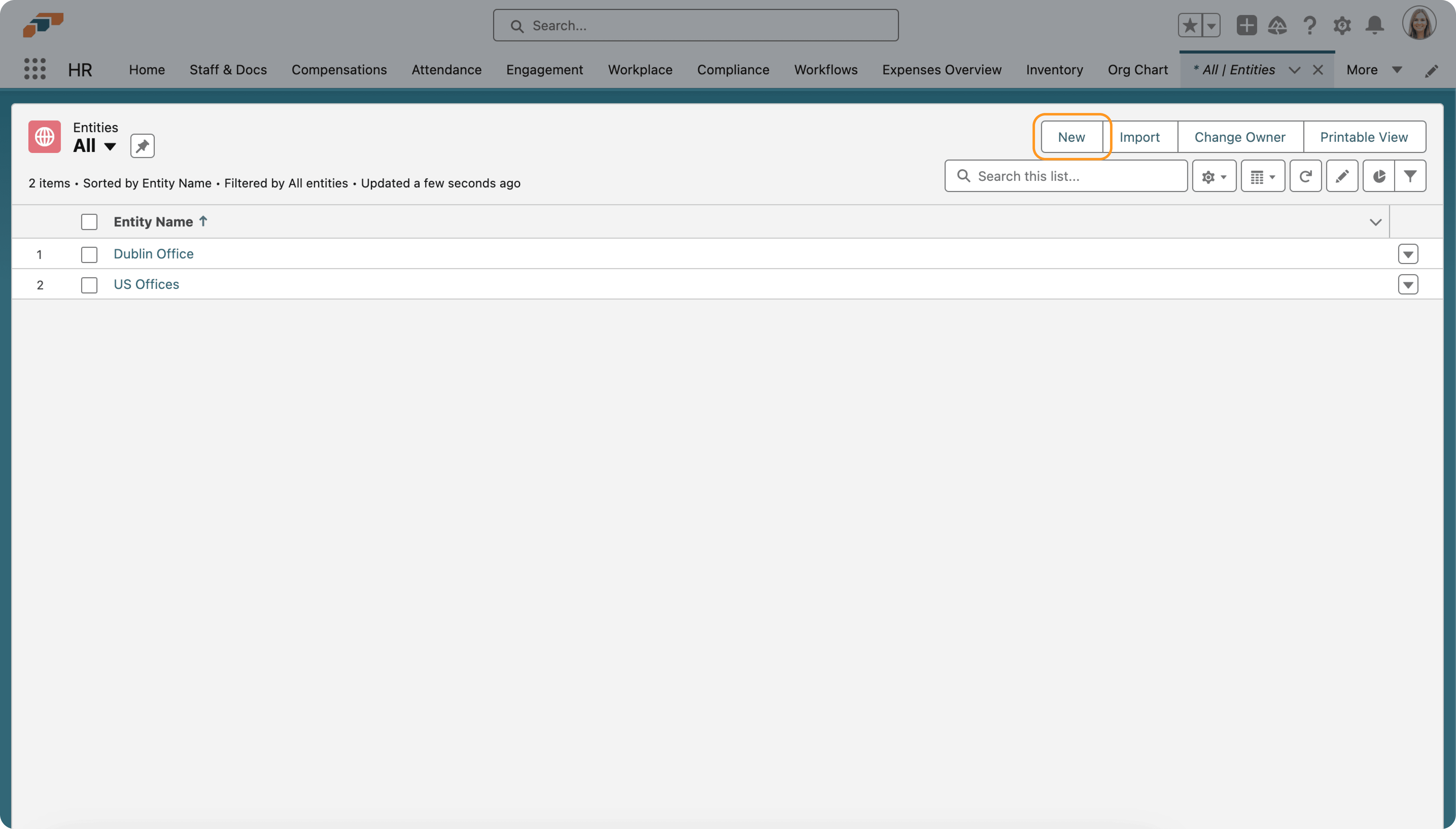
-
Click New.
-
Enter a name.
-
Click Save.
-
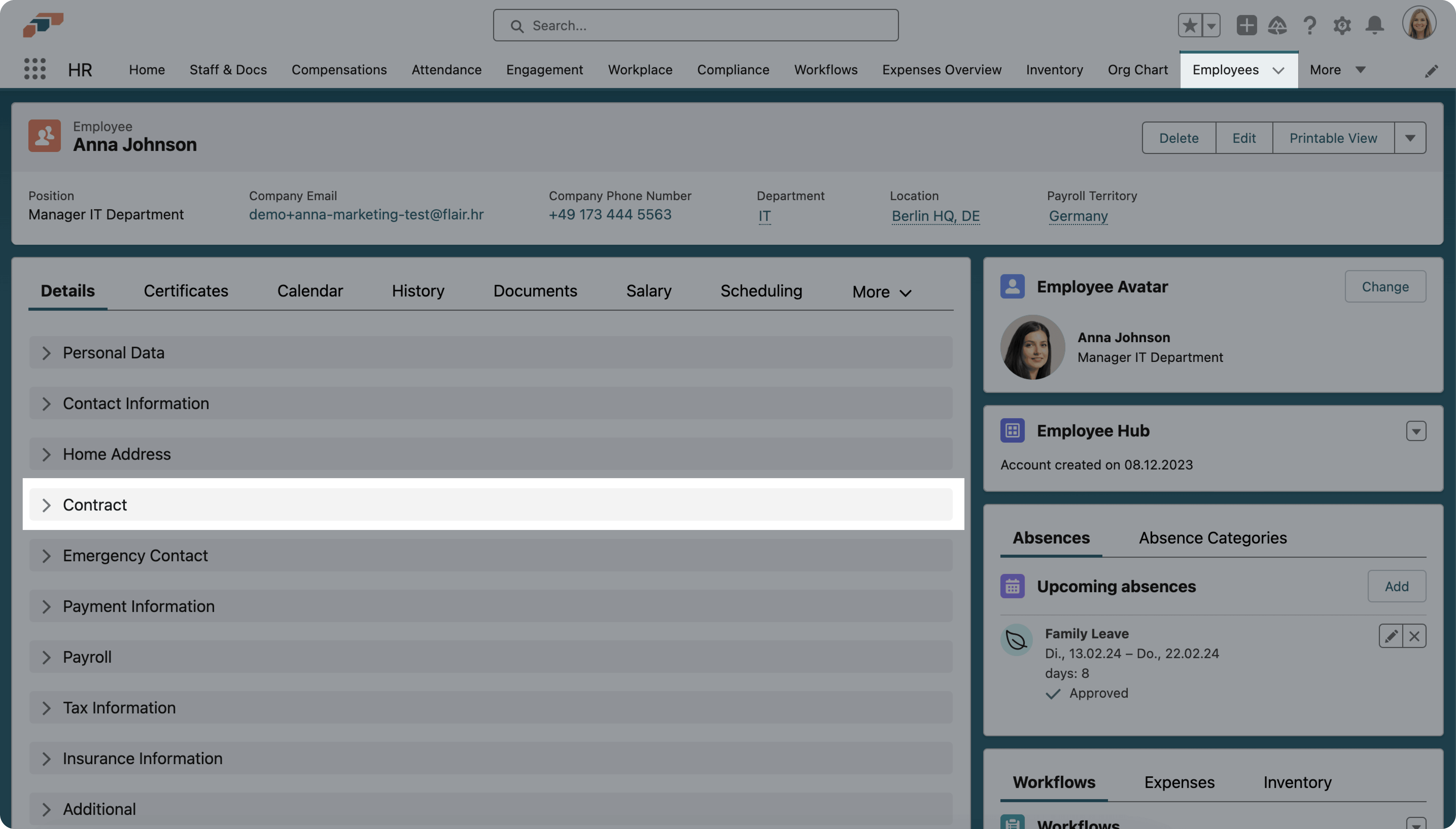
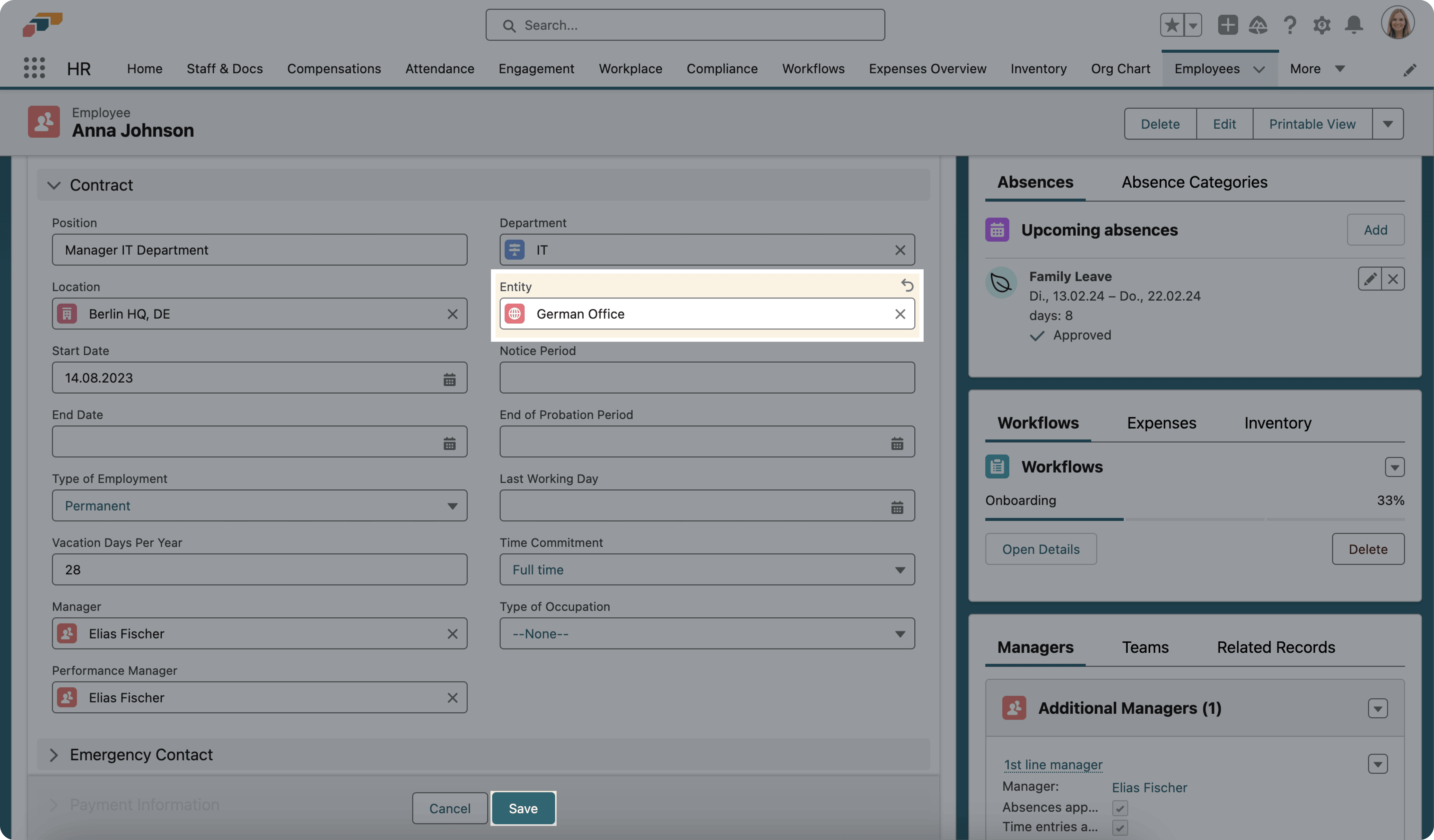
Open an employee record.
-
In the contract section, select the entity in Entity.
-
Click Save.
-
Optional: Assign jobs and candidates to the entity.
Create the visibility scope
-
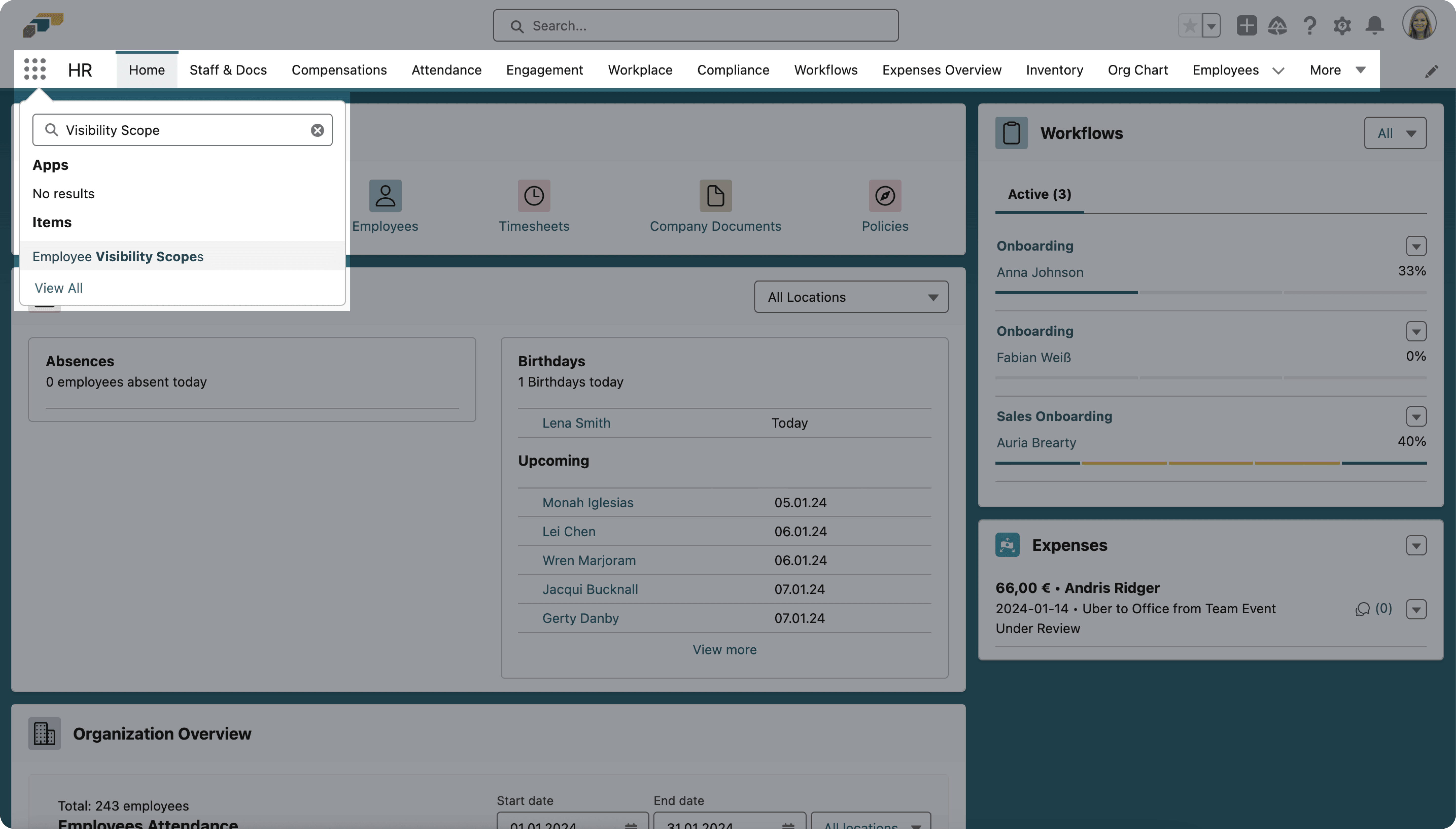
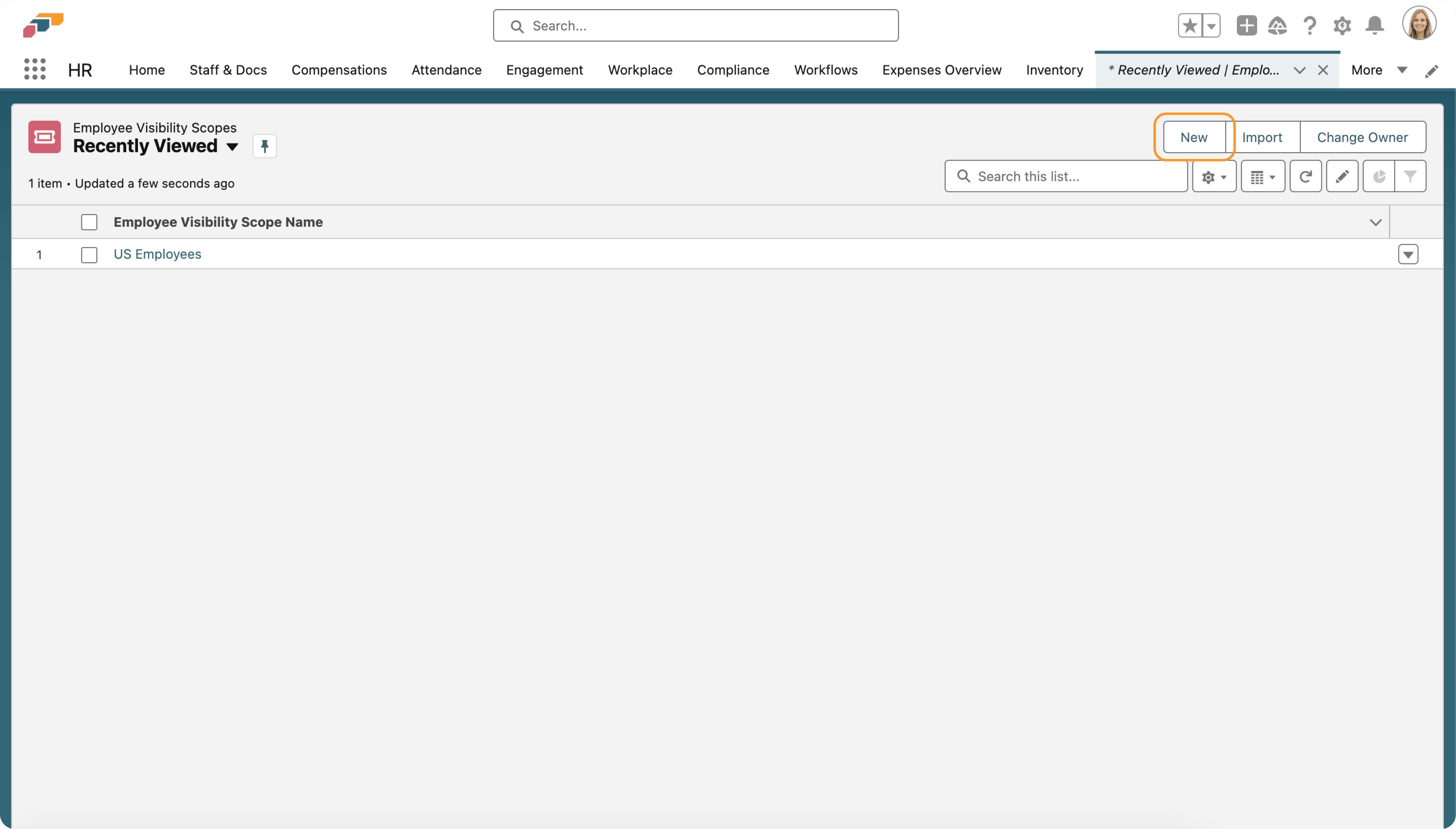
In the App Launcher (⋮⋮ grid icon), open Employee Visibility Scopes.
-
Click New.
-
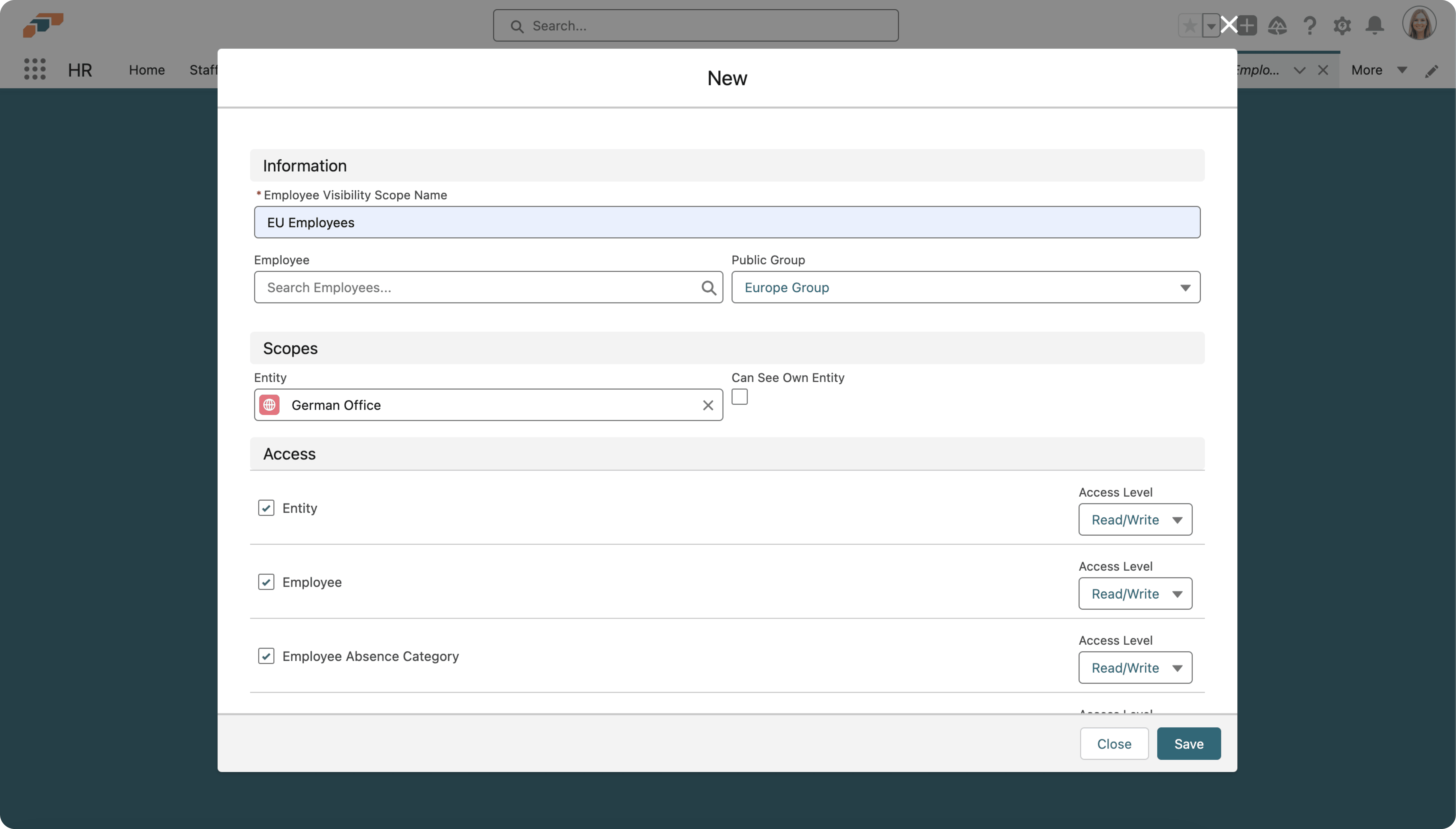
Enter a name.
-
Select the employee or employee group that receives the scope.
-
Under Scopes, select the entity to share.
-
Optional: Select Can See Own Entity to give a user access to their own entity and another selected entity. For example, a manager can access company headquarters and their work location.
-
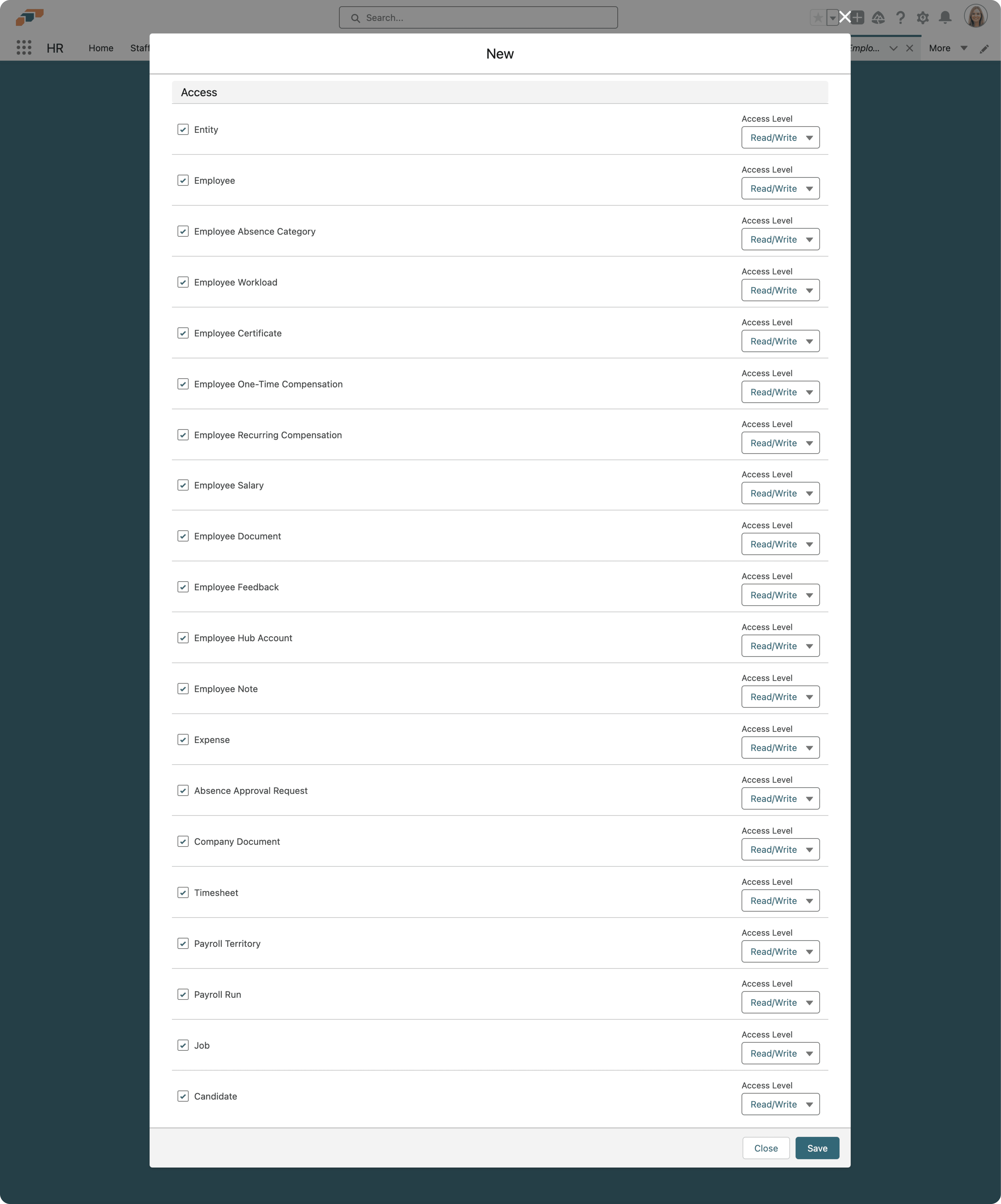
Under Access, select the objects in the scope.
-
For each object, select Read/Write or Read Only. Clear an object to hide it entirely.
-
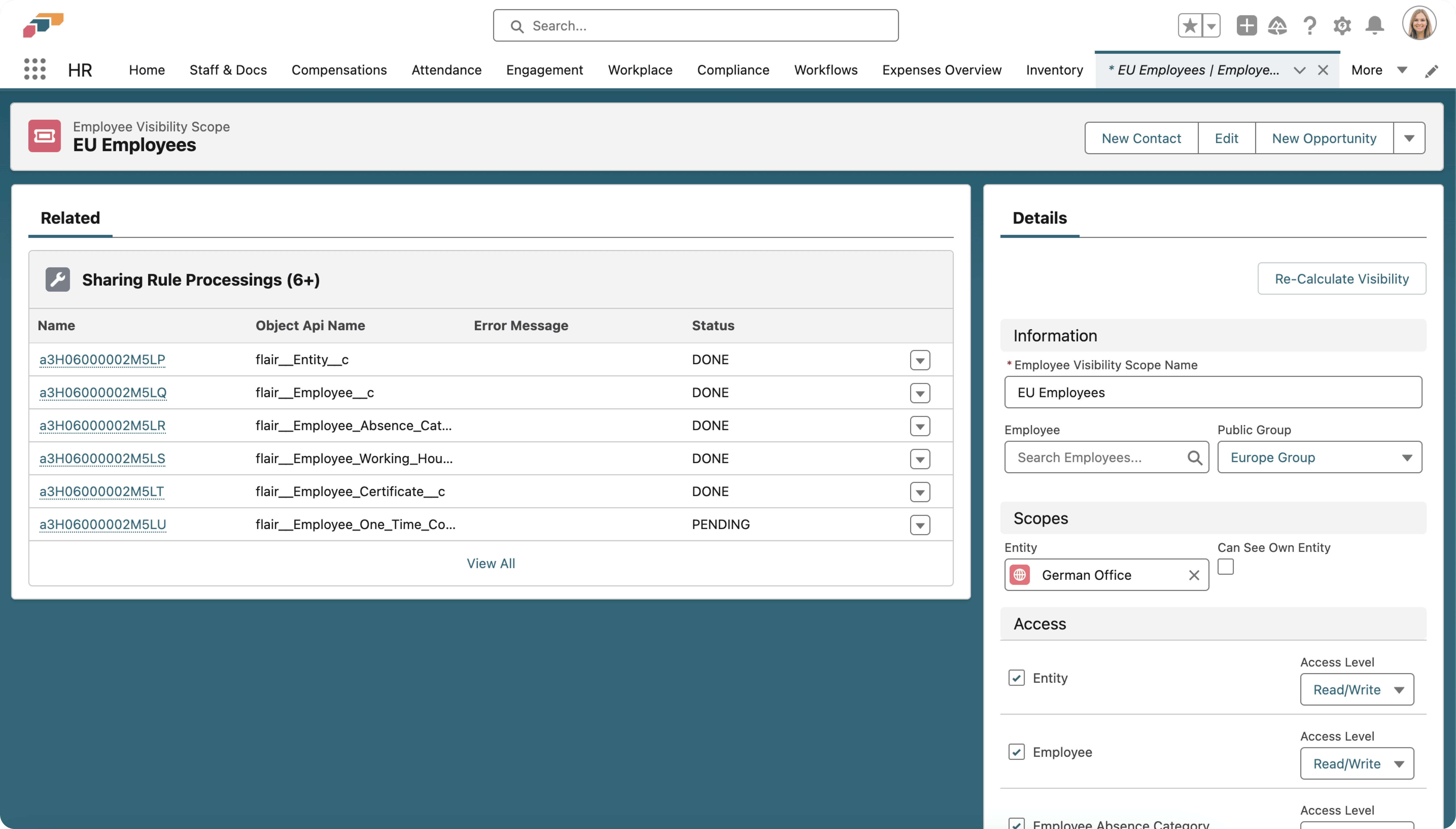
Click Save. An Apex batch job creates the sharing records.
-
To review or edit the scope, open its name and check the sharing-rule processing status.
Grant a scope access to any employee for signatories, hiring managers, and evaluators
Selecting a signatory for an e-signature request, or a hiring manager or default evaluator for a job, normally requires the same record-level read access as viewing that employee anywhere else in flair. A visibility scope that hides an employee also removes them from these pickers. Three checkboxes on the Employee Visibility Scope record let a user search for and select any employee for one of these actions, without widening their general visibility scope.
- Open or create an Employee Visibility Scope record.
- Under Scopes, next to Can See Own Entity, select the checkbox for the picker to open up:
- Can Create Sign Request for Any Employee — search for and select any employee as a signatory when creating an e-sign request.
- Can Add Any Employee as Hiring Manager — search for and select any employee as a job's hiring manager.
- Can Add Any Employee as Evaluator — search for and select any employee as a job's default evaluator.
- Click Save.
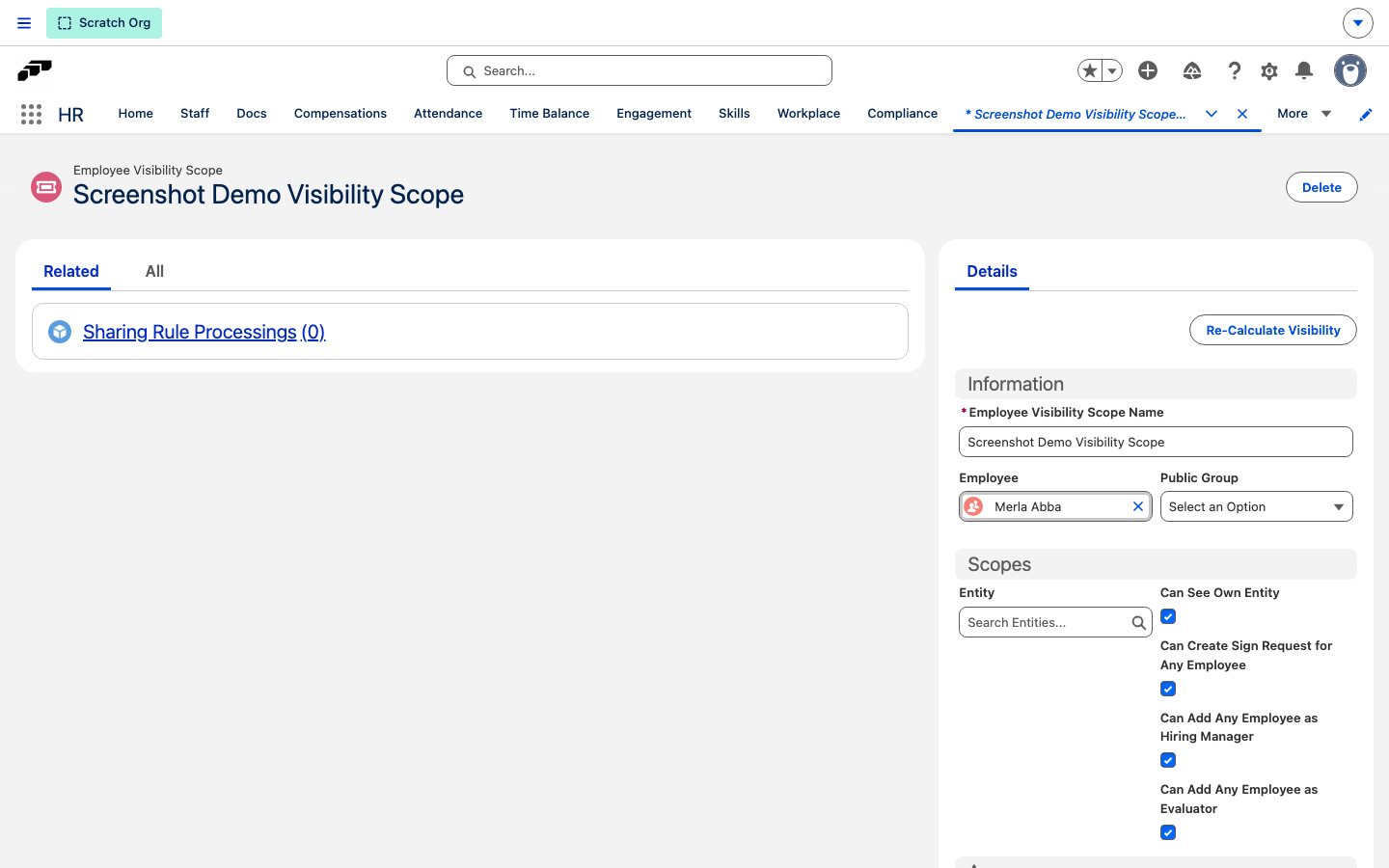
Each checkbox is cleared by default and affects only the matching search and selection step — it does not grant the user general read access to the employee record elsewhere in flair.
Share employee records with managers automatically
Two separate flair mechanisms share an employee's record with a manager's Salesforce user, independent of visibility scopes. Both grant Edit access, and both share only with a manager whose Salesforce user is active.
- Additional Manager sharing is always on. When an employee has an entry in their Additional Managers related list with HR Manager selected, flair shares the employee record with that additional manager's Salesforce user. Clearing HR Manager or removing the additional manager removes the share.
- Direct Manager sharing shares the employee record with the Salesforce user of the employee's direct manager — the Manager field on the employee record. It's off by default; turn it on per organization.
Turn on direct manager sharing
- In Salesforce Setup, in Quick Find, enter
Custom Settings. - Open Custom Settings.
- Next to Flair Employee Settings, click Manage.
- Click New, or click Edit if an organization-level default already exists.
- Select Enable Direct Manager Sharing.
- Click Save.
flair shares each employee with Edit access to their direct manager's Salesforce user, and updates the share when the Manager field changes or is cleared. Additional Manager sharing does not use this setting and cannot be turned off per organization.
Limit a user to company documents
Combine a visibility scope with Flair Employee Management when a user must see company documents but no other HR data.
- Assign Flair Employee Management to the user.
- Create or edit an Employee Visibility Scope.
- Under Access, clear every object except Company Document.
- Click Save.
The user can see company documents only within the assigned scope.
Create an Inventory Manager permission set
Create a dedicated permission set when a user needs access only to these Inventory objects:
- Inventory.
- Inventory Attachments.
- Inventory Items.
- Inventory Templates.
- Inventory Template Associations.
Create the permission set
-
Open Salesforce Setup.
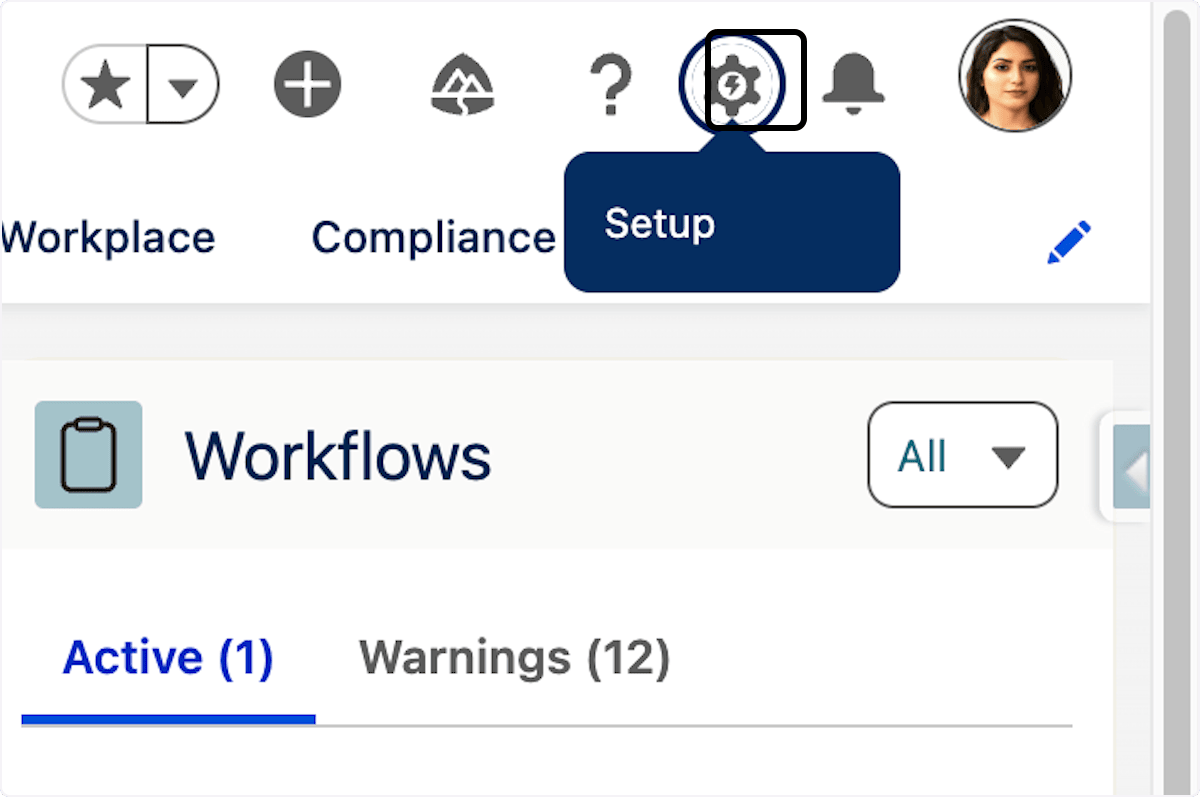
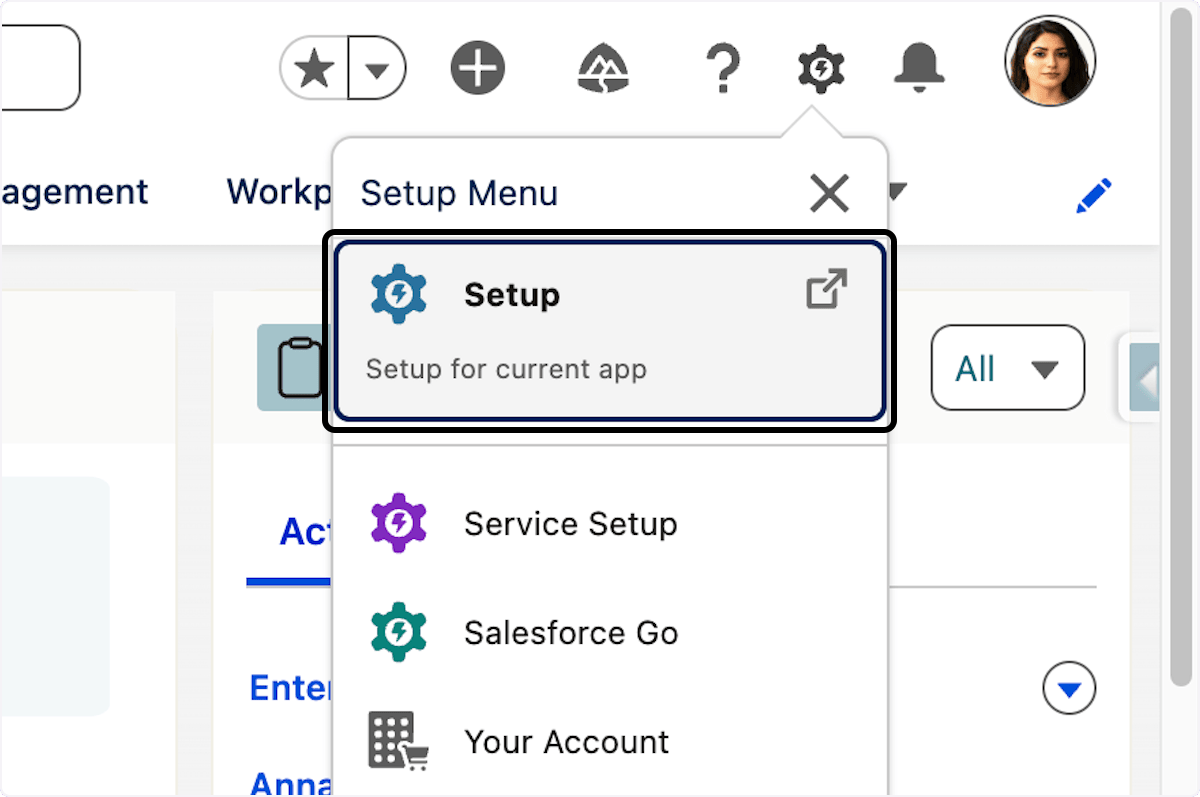
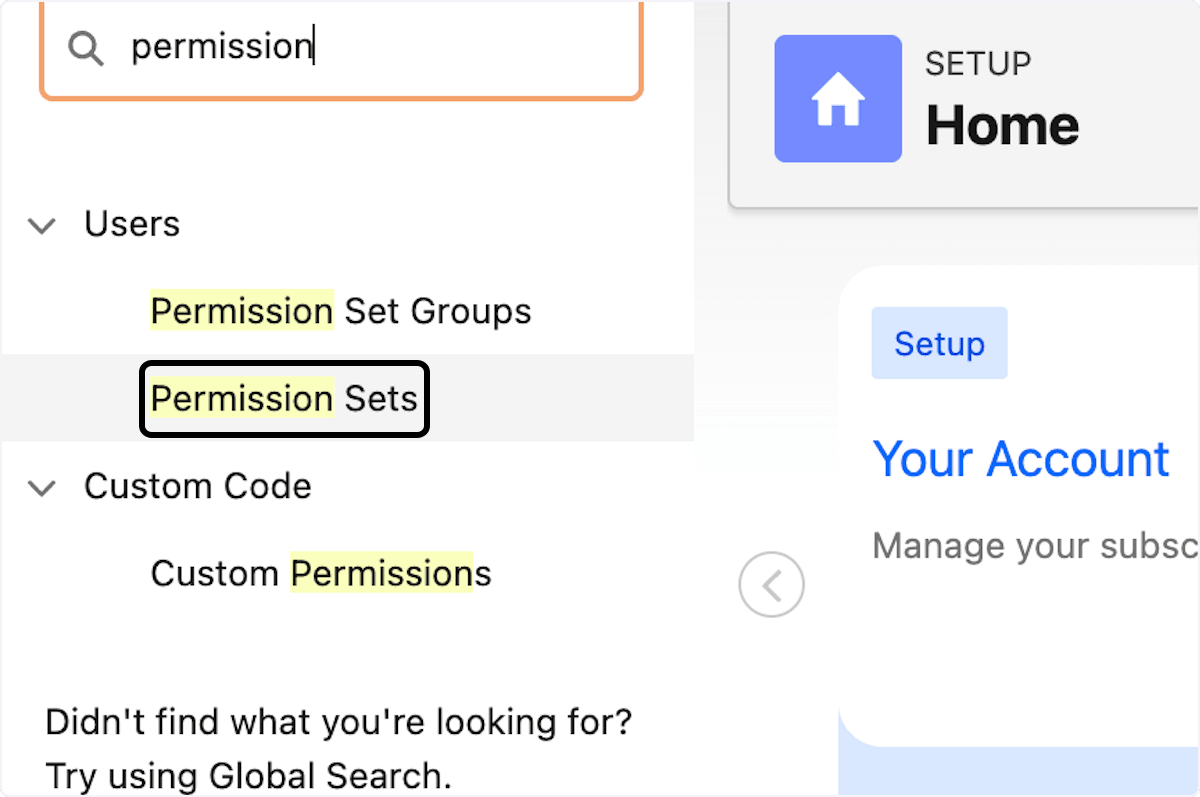
-
In Quick Find, enter
permission.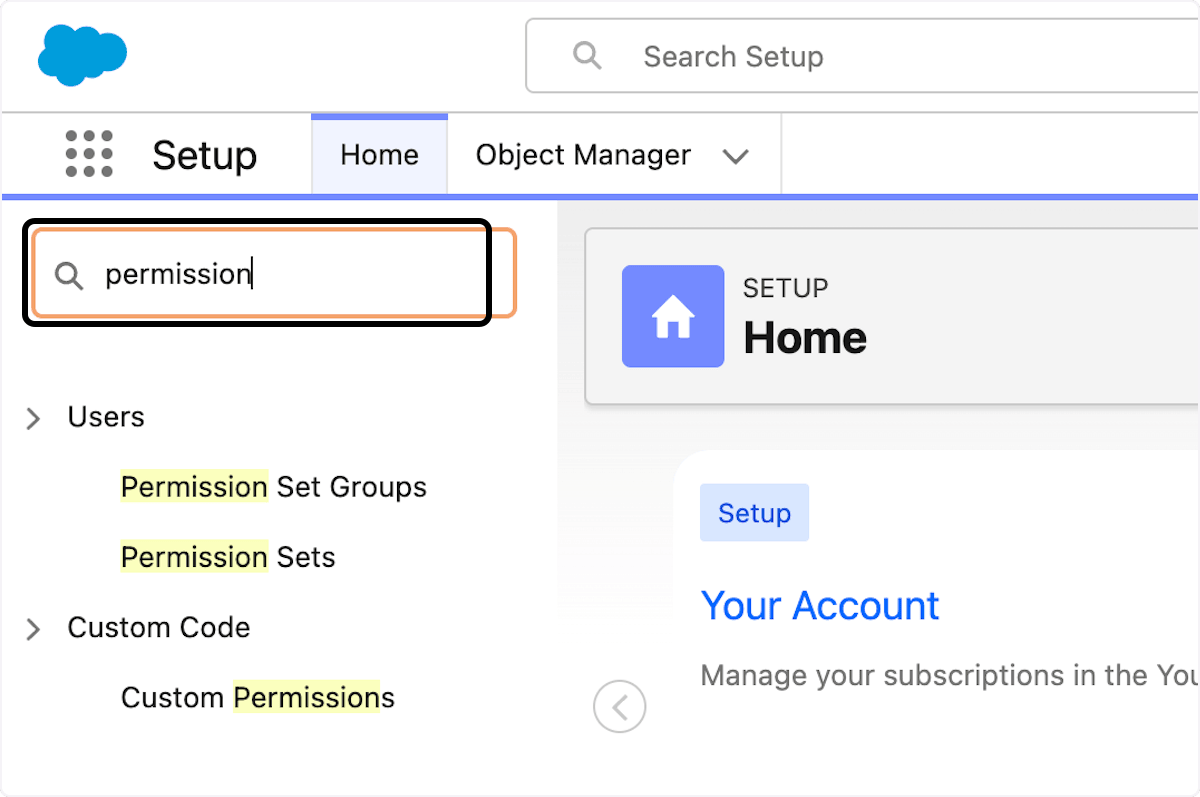
-
Open Permission Sets.
-
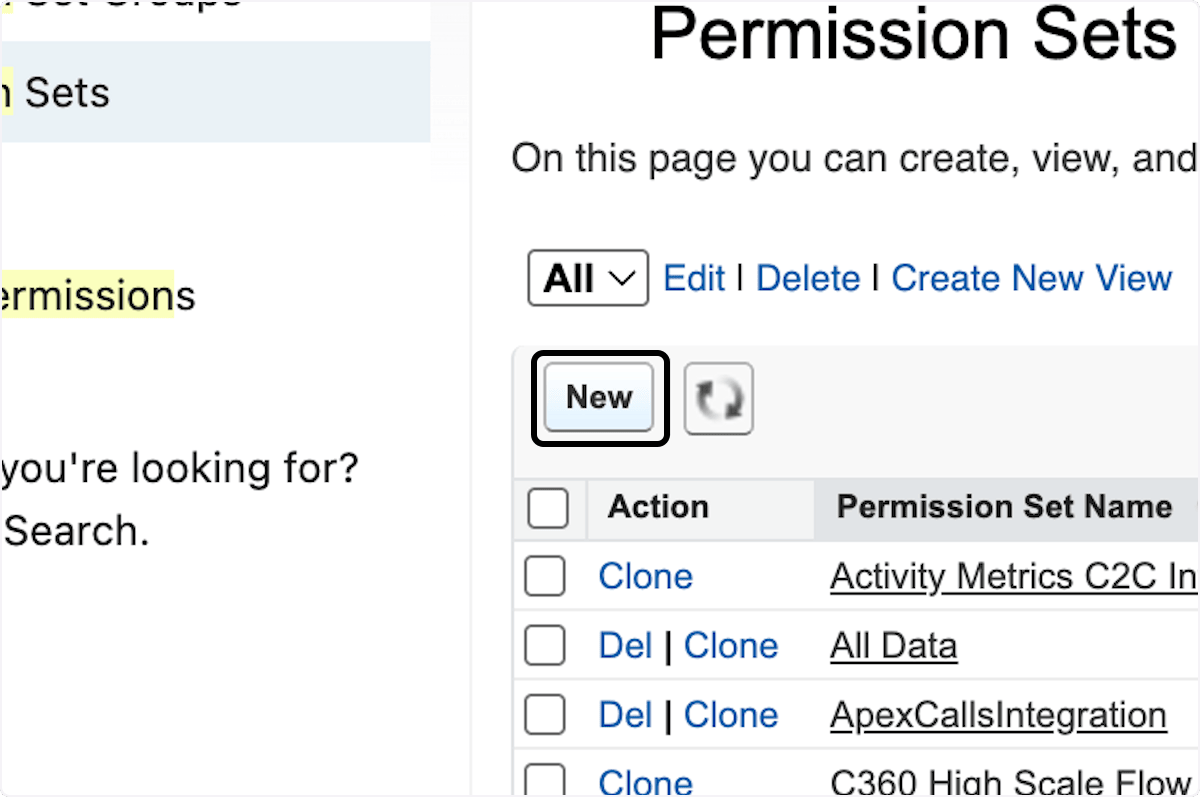
Click New.
-
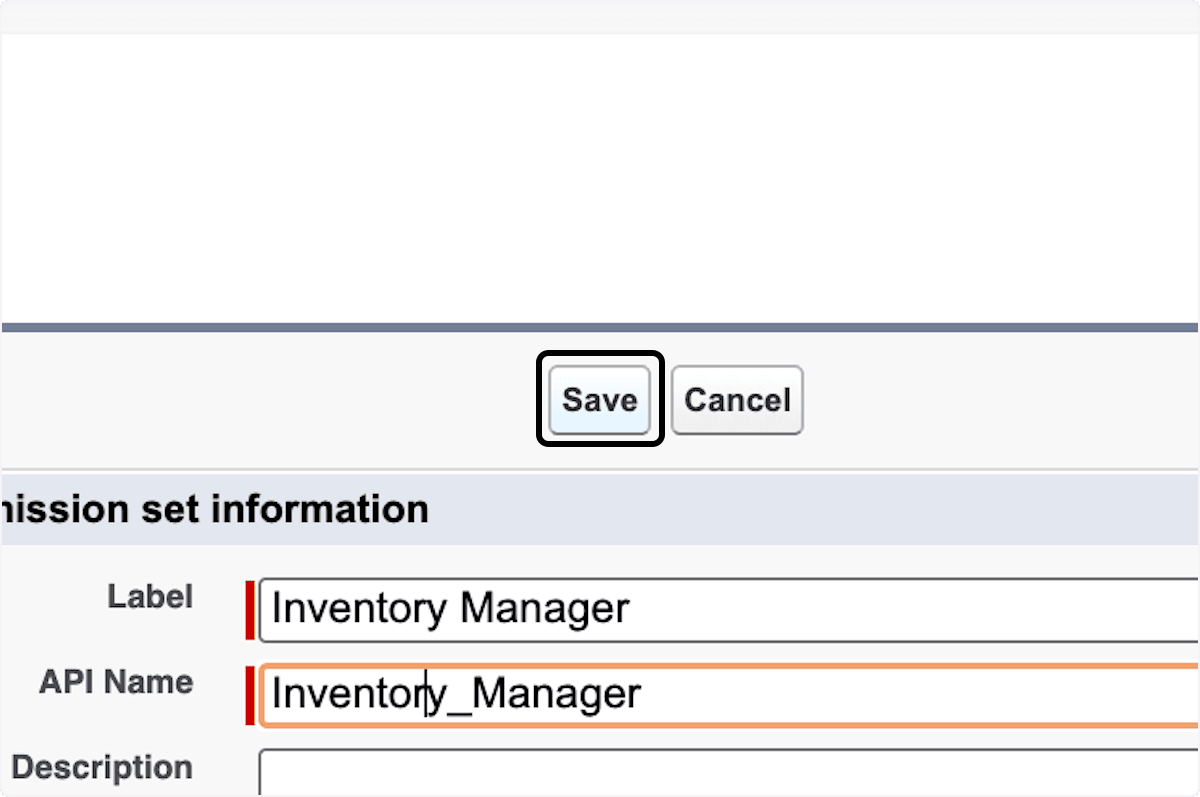
In Label, enter
Inventory Manager.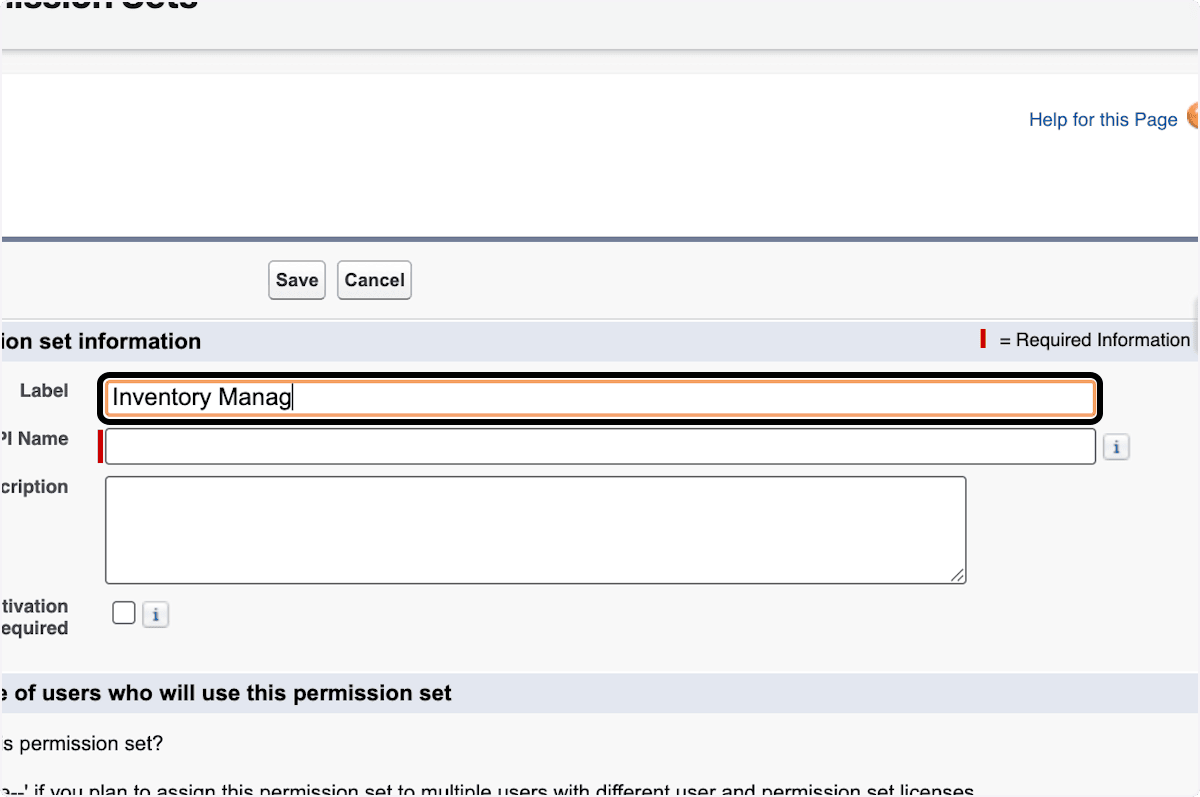
-
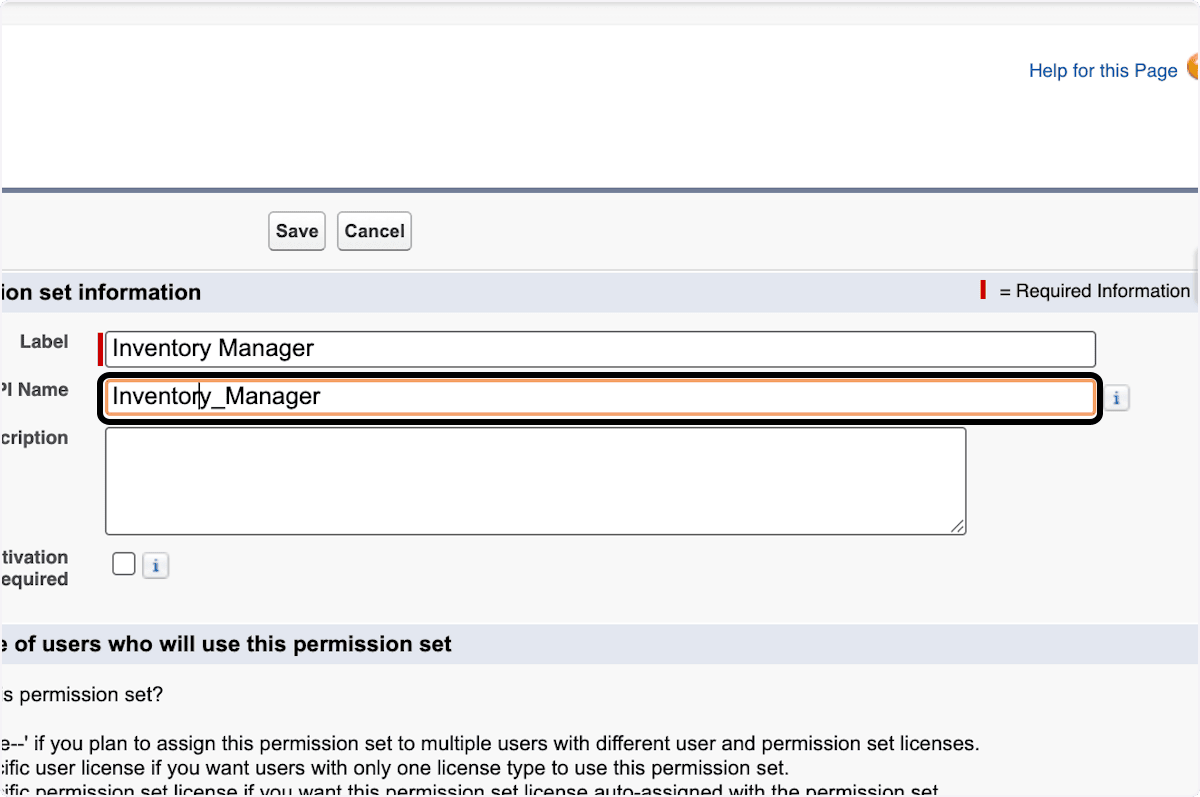
Select API Name to fill it automatically.
-
Click Save.
Configure Inventory access
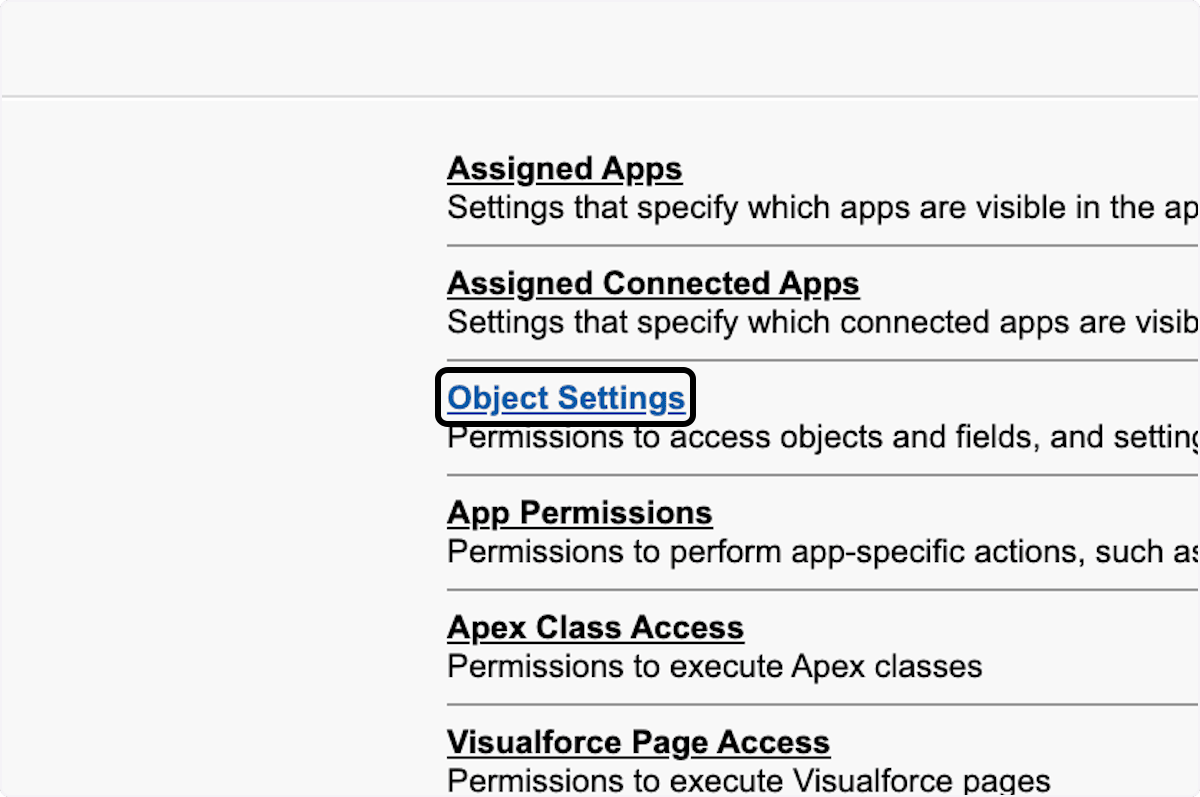
-
In the permission set, click Object Settings.
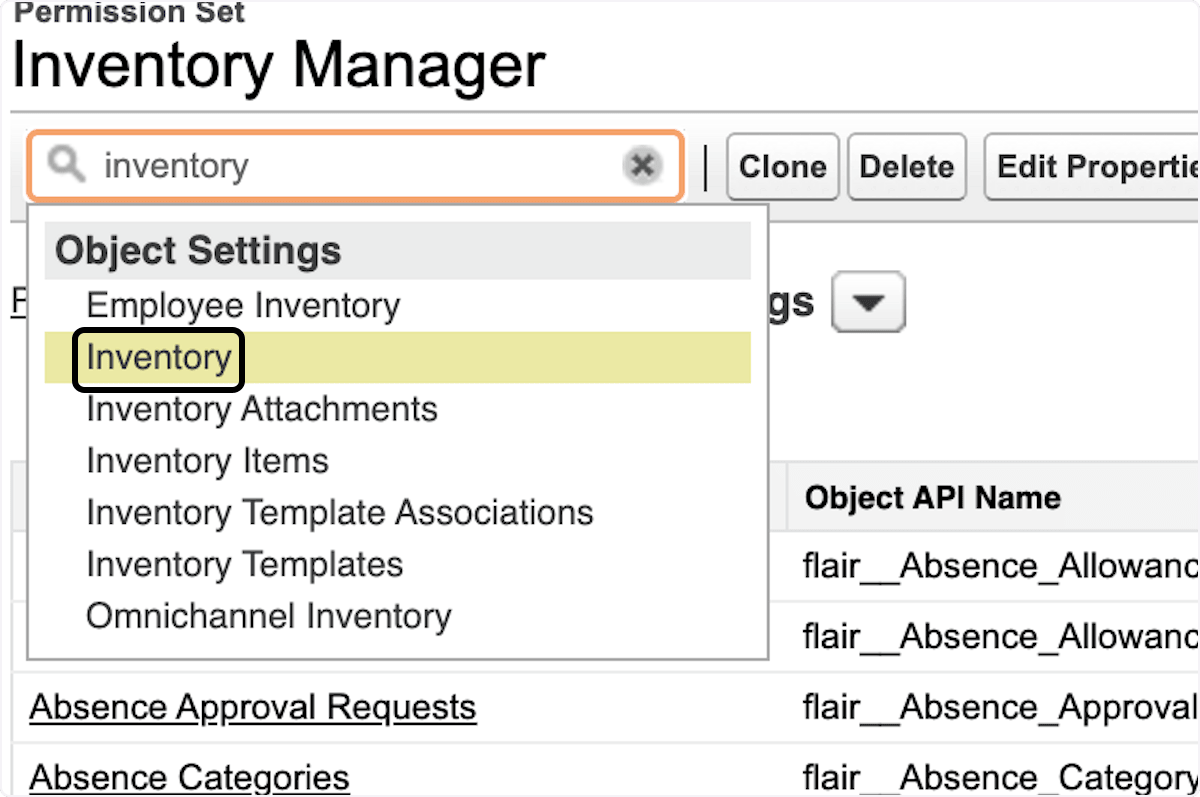
-
Search for and select Inventory.
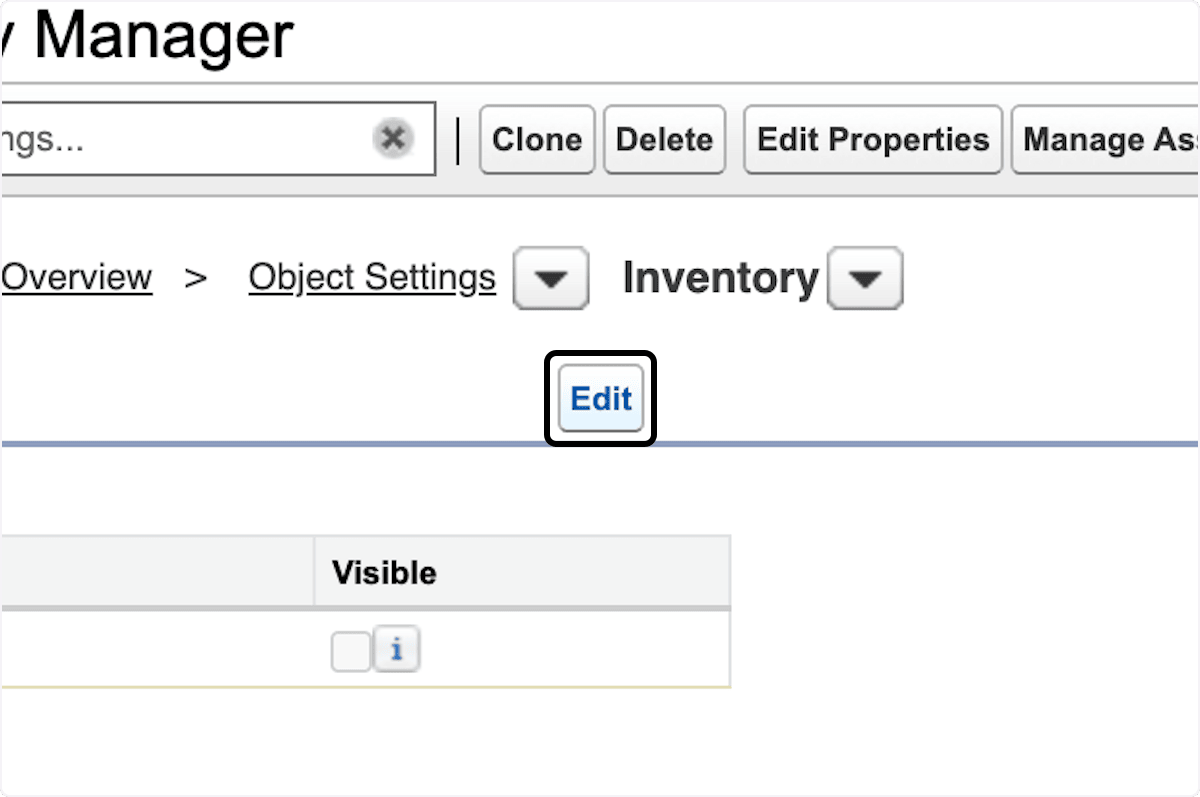
-
Click Edit.
-
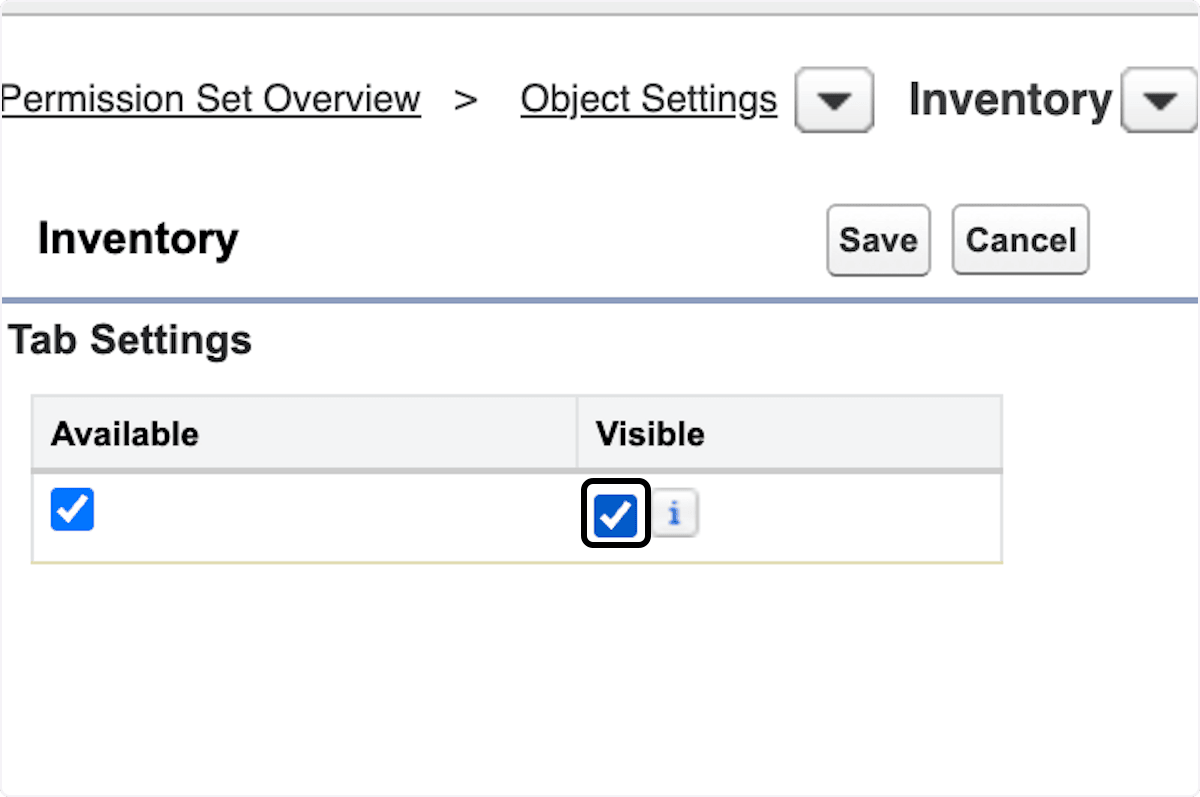
Under Tab Settings, select Visible.
-
Configure Read, Create, Edit, Delete, View All, and Modify All access as required.
-
Configure the required field permissions.
-
Click Save.
-
Repeat the object and field setup for Inventory Attachments, Inventory Items, Inventory Templates, and Inventory Template Associations.
-
For Inventory Items, make the tab available and configure record-type assignments when required.
Assign the permission set
-
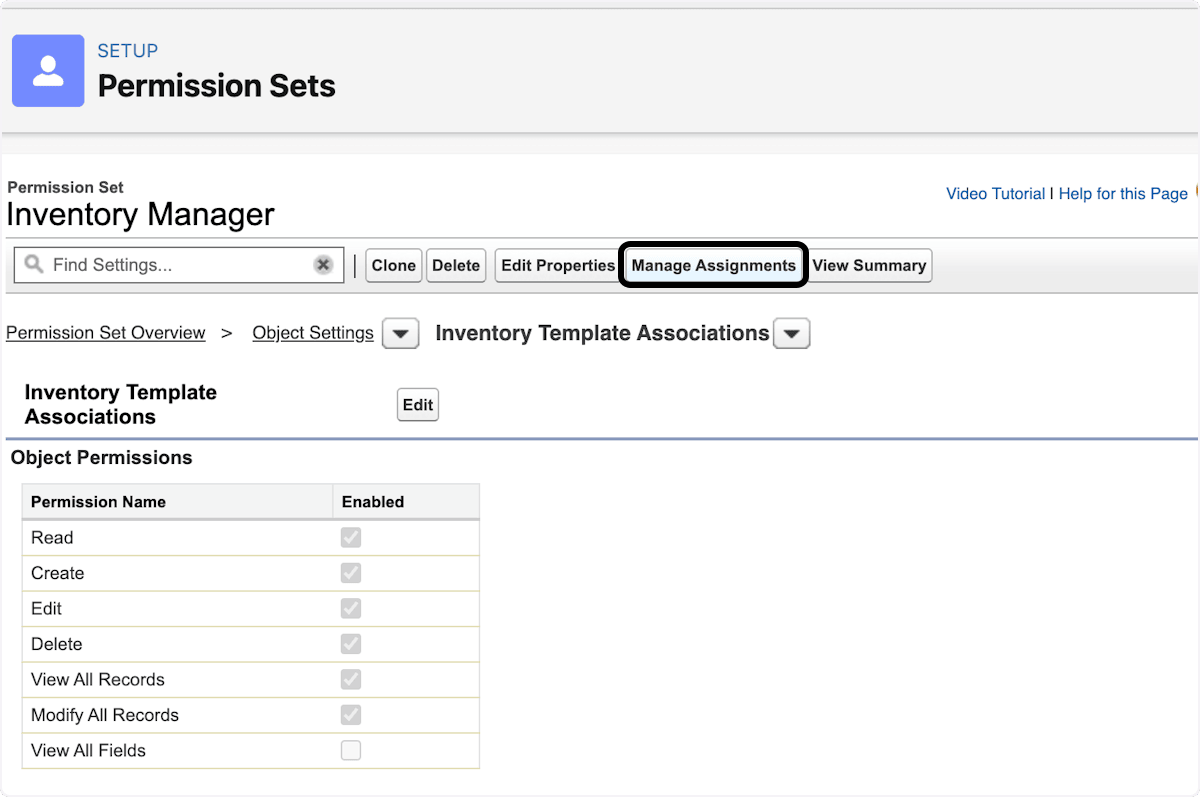
In the permission set, click Manage Assignments.
-
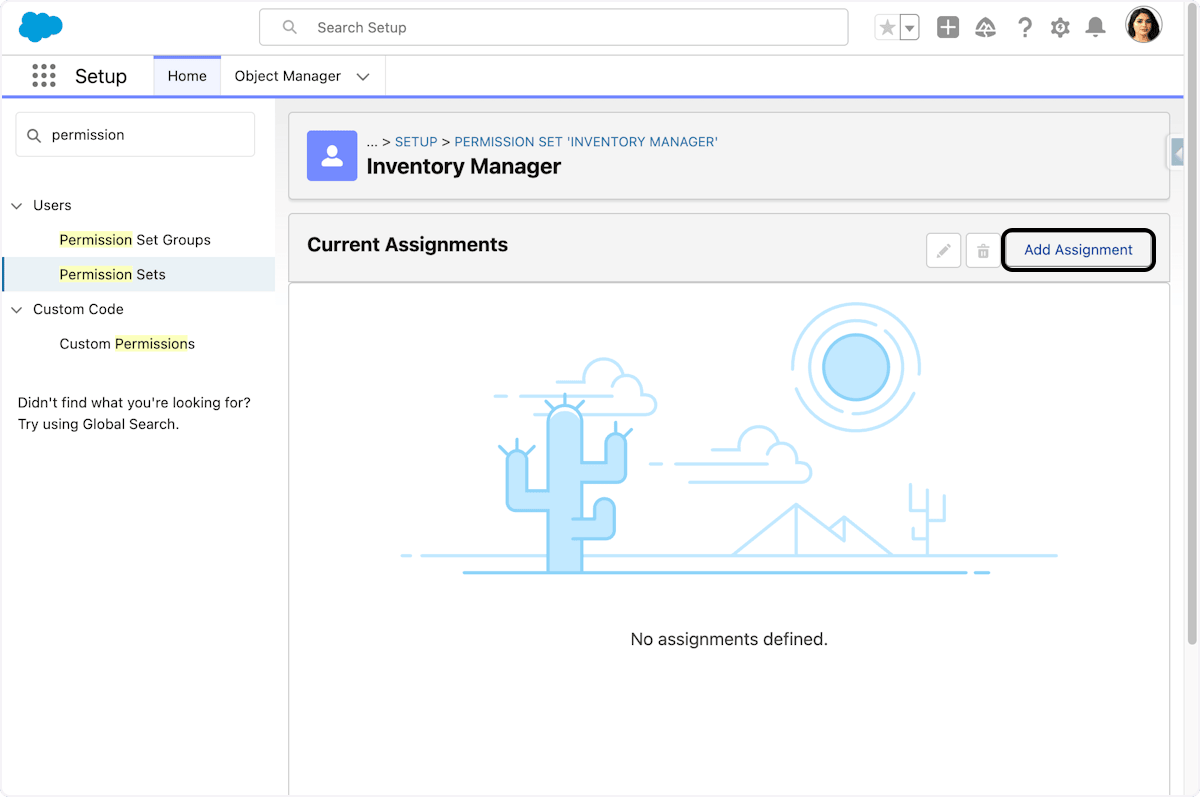
Click Add Assignment.
-
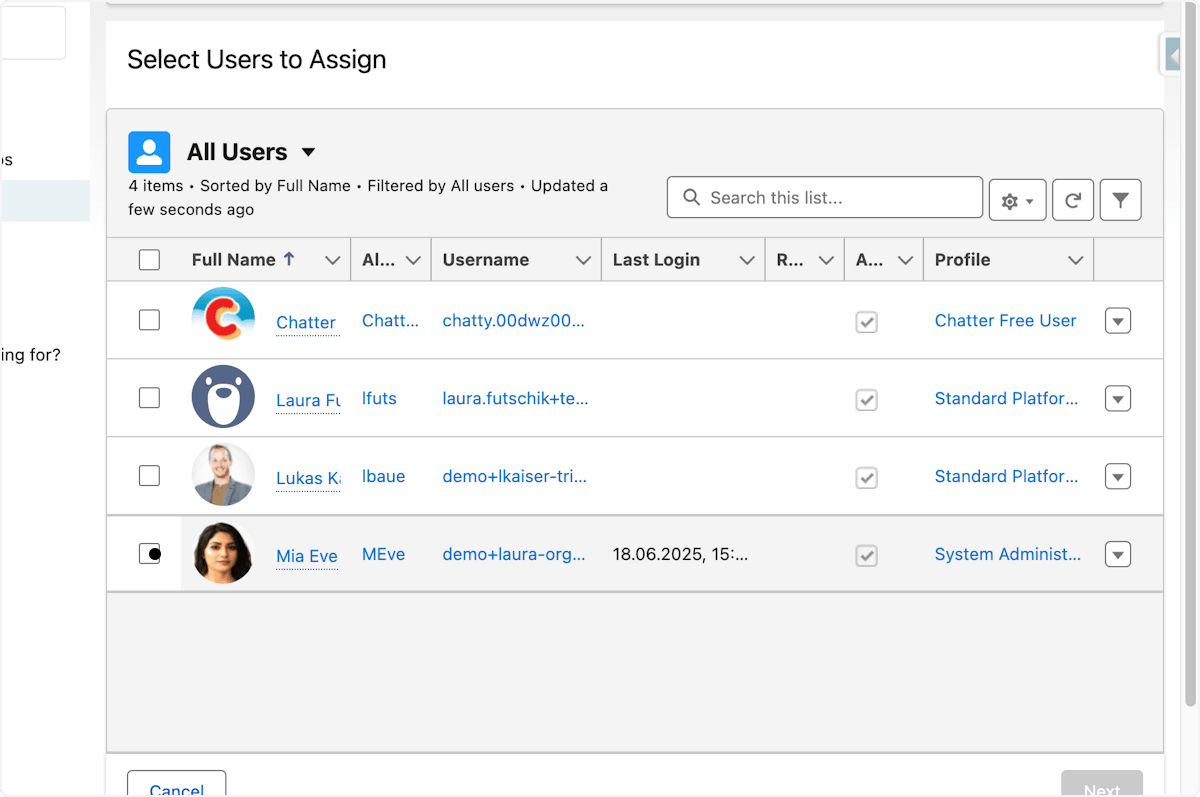
Select the users.
-
Click Next.
-
Click Assign.
-
Click Done.
Enable Developer Console access
Developer Console gives a user access to debug, test, and develop Salesforce code or applications.
Create the permission set
-
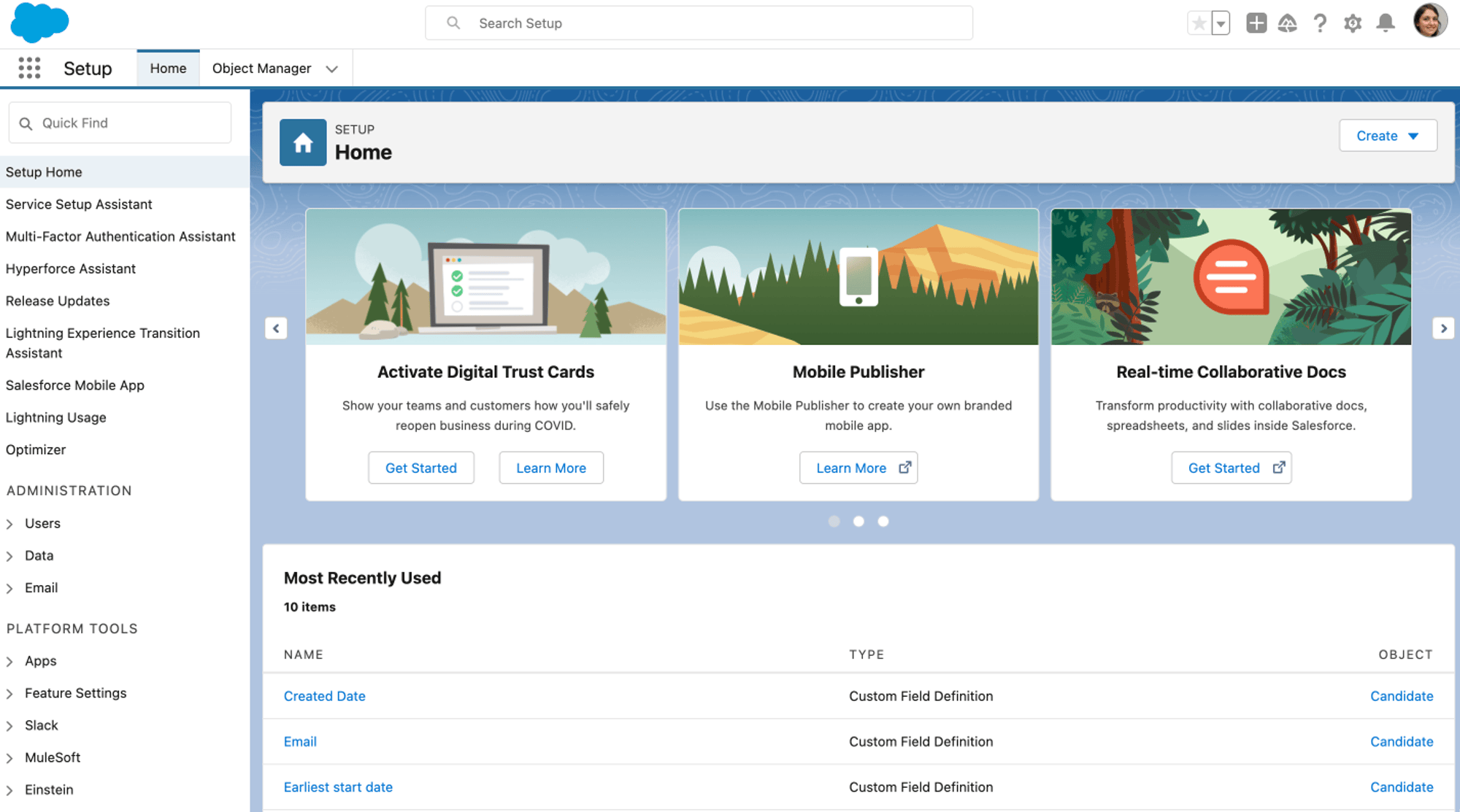
Open Salesforce Setup.
-
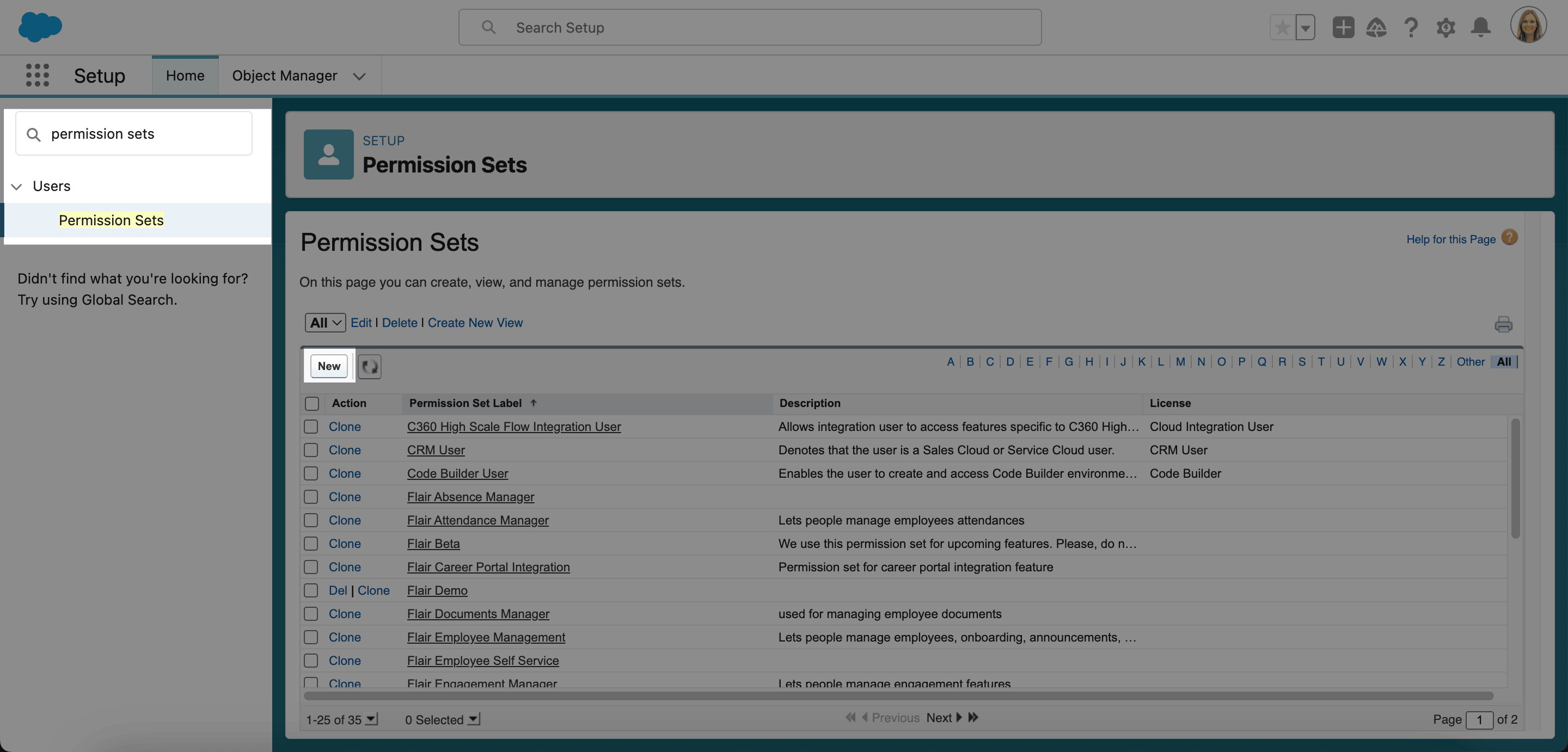
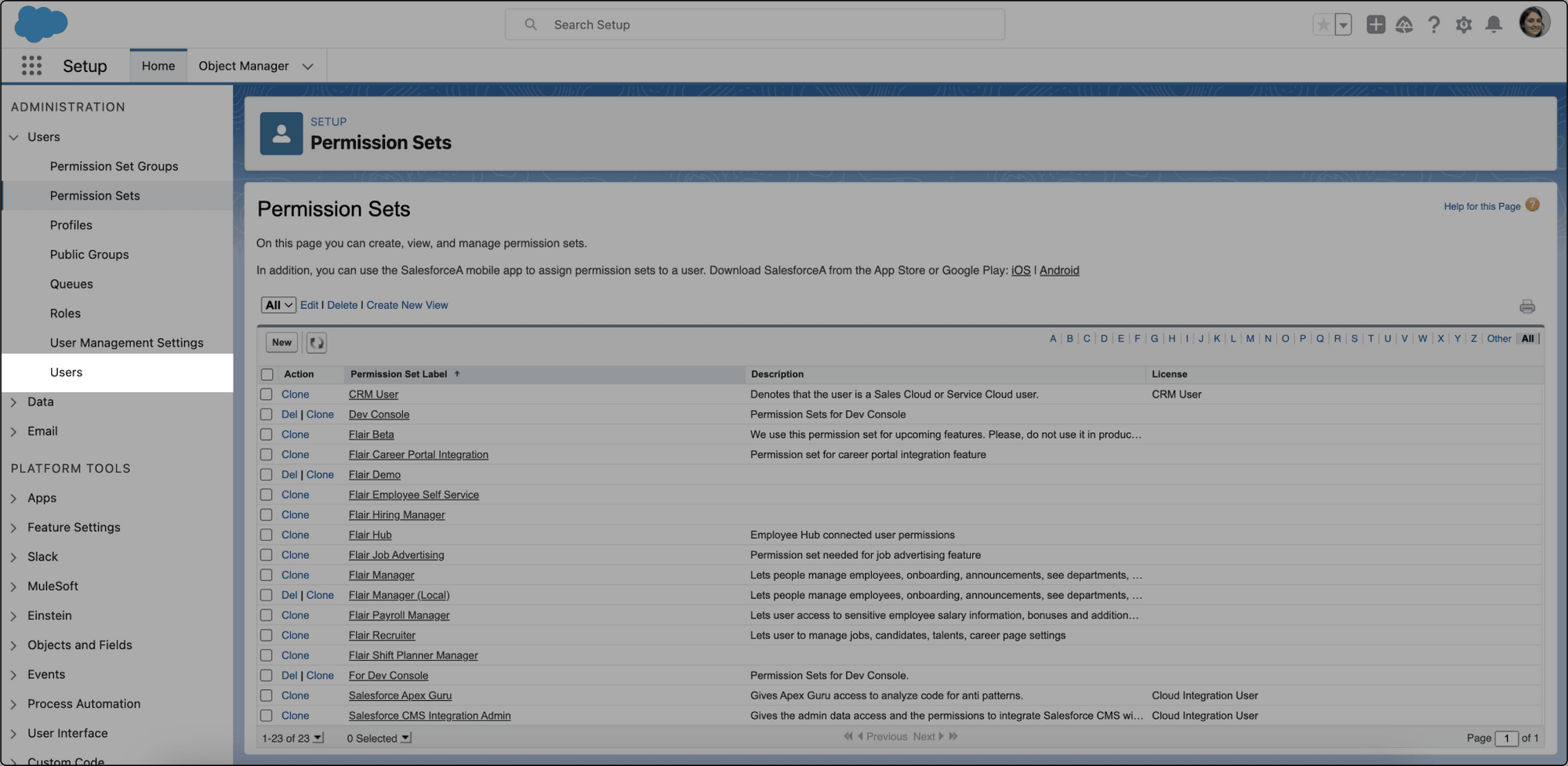
Under Users, open Permission Sets.
-
Click New.
-
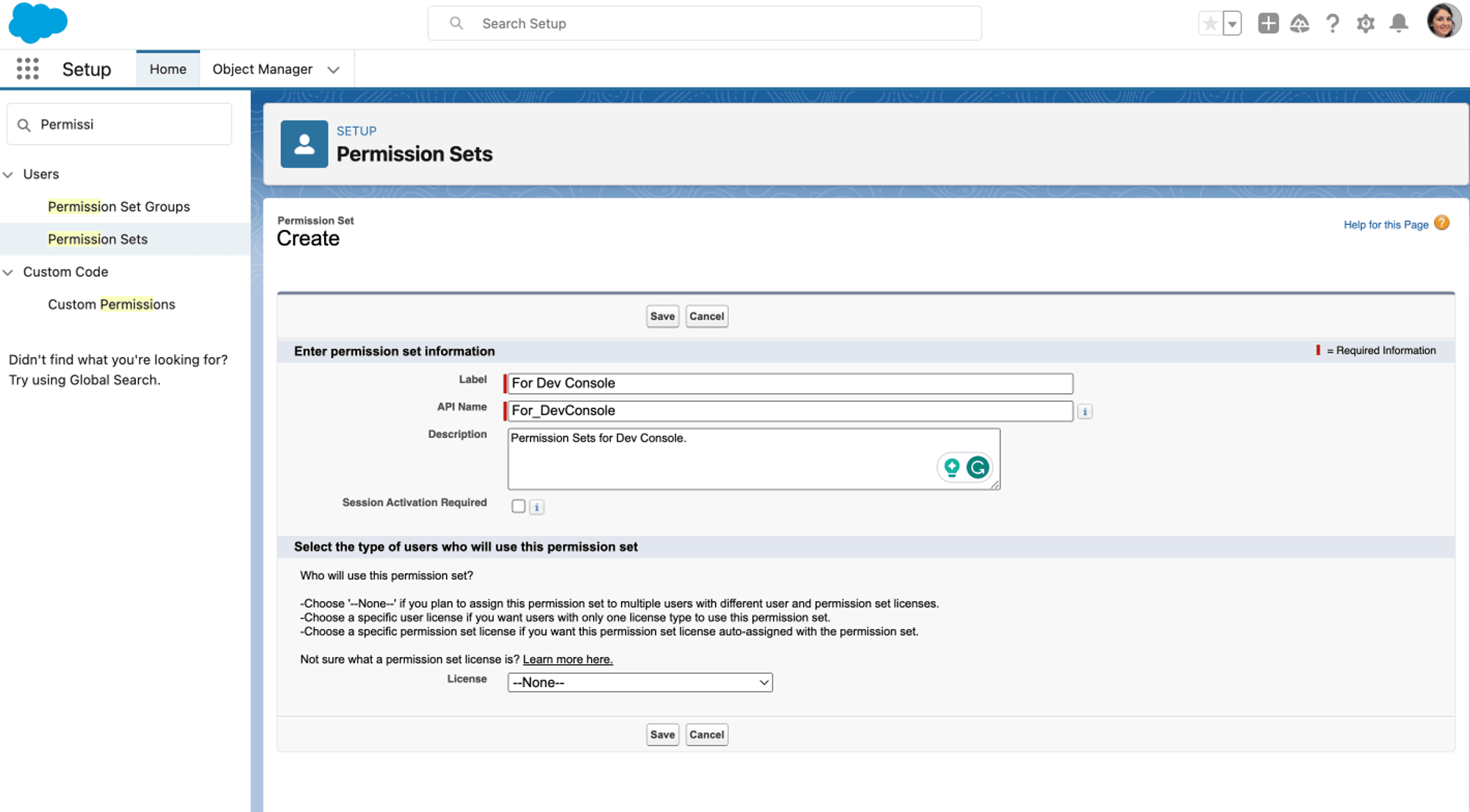
Enter a Label, API Name, and Description.
-
Click Save.
-
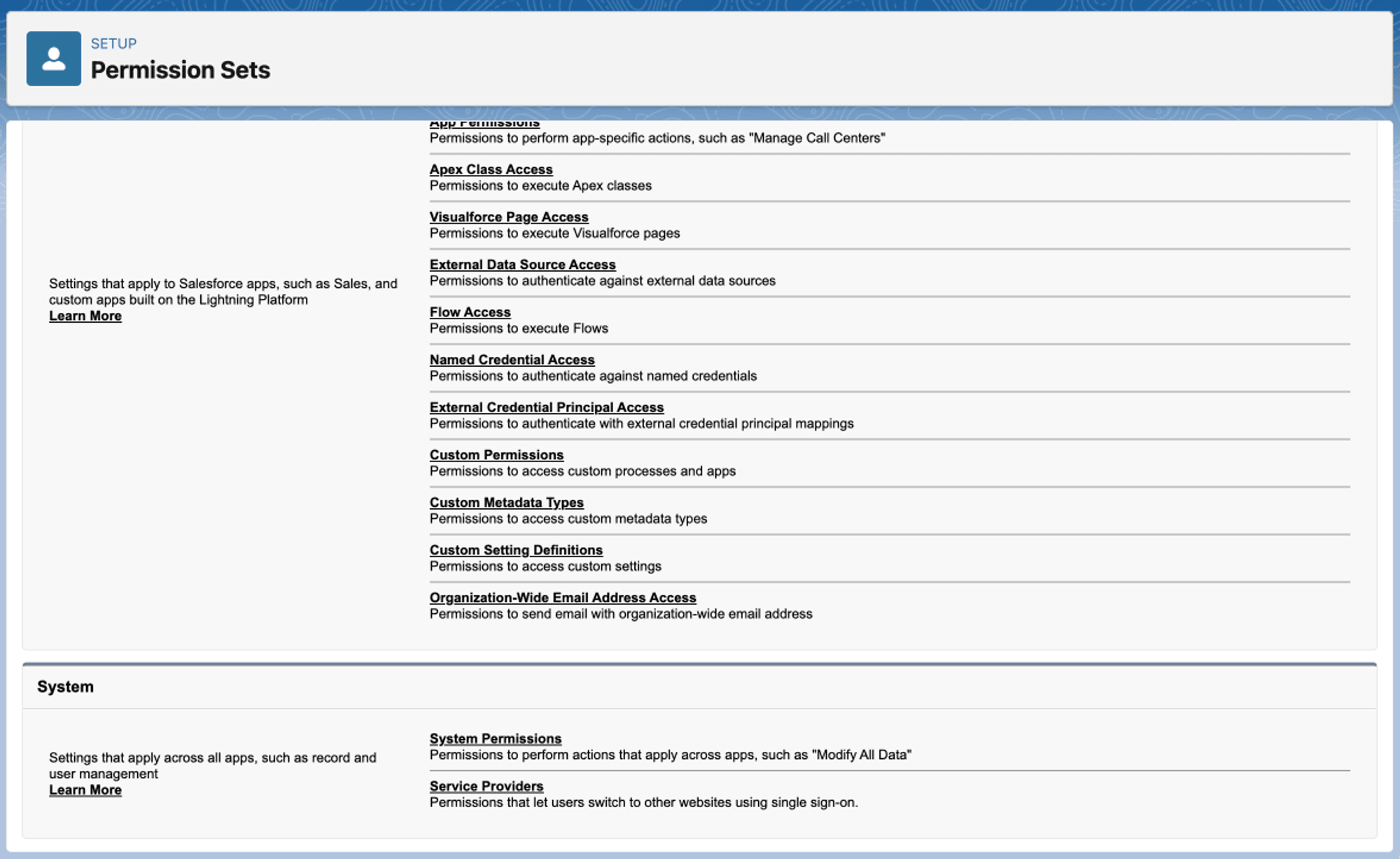
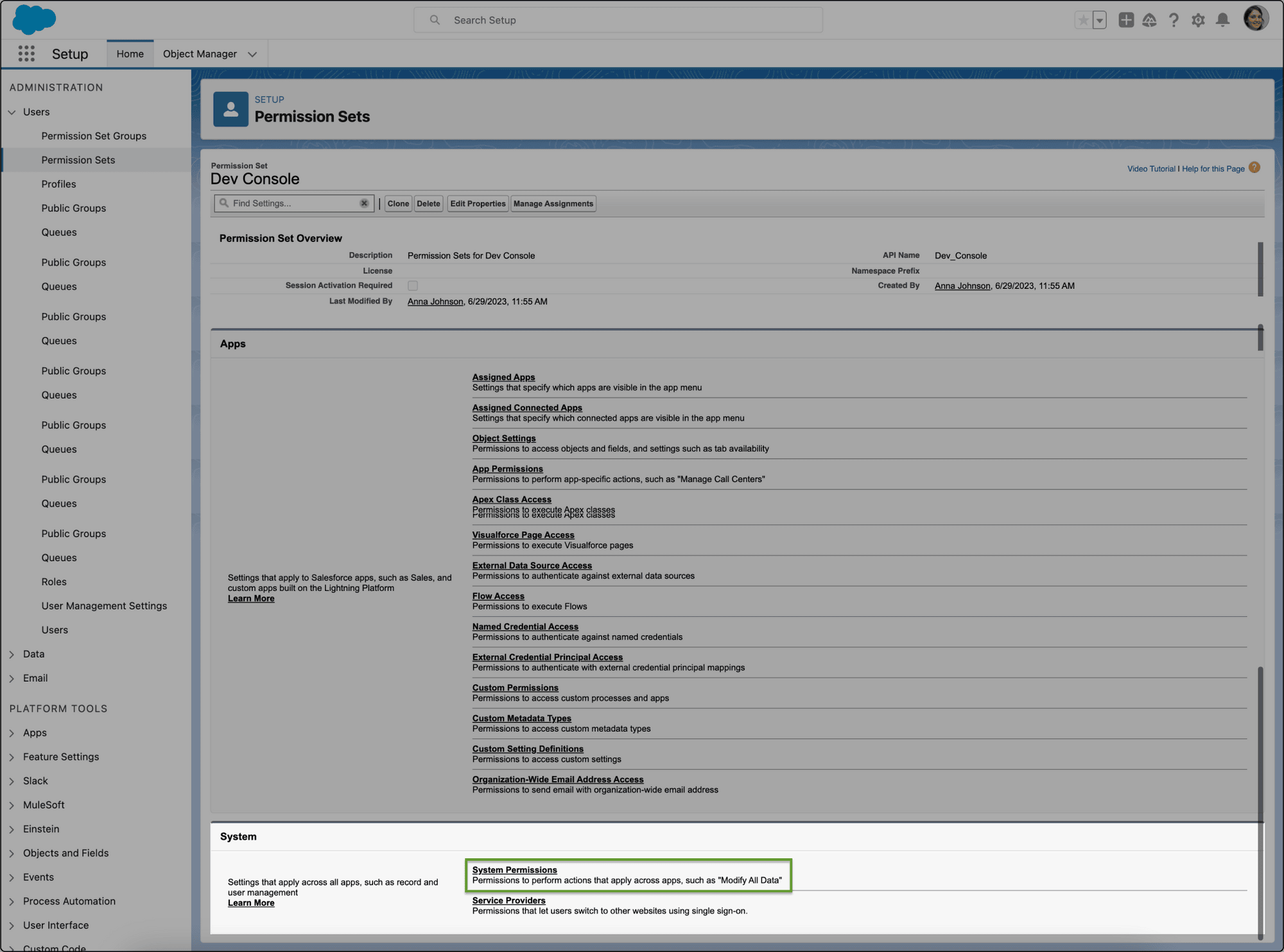
Under System, click System Permissions.
-
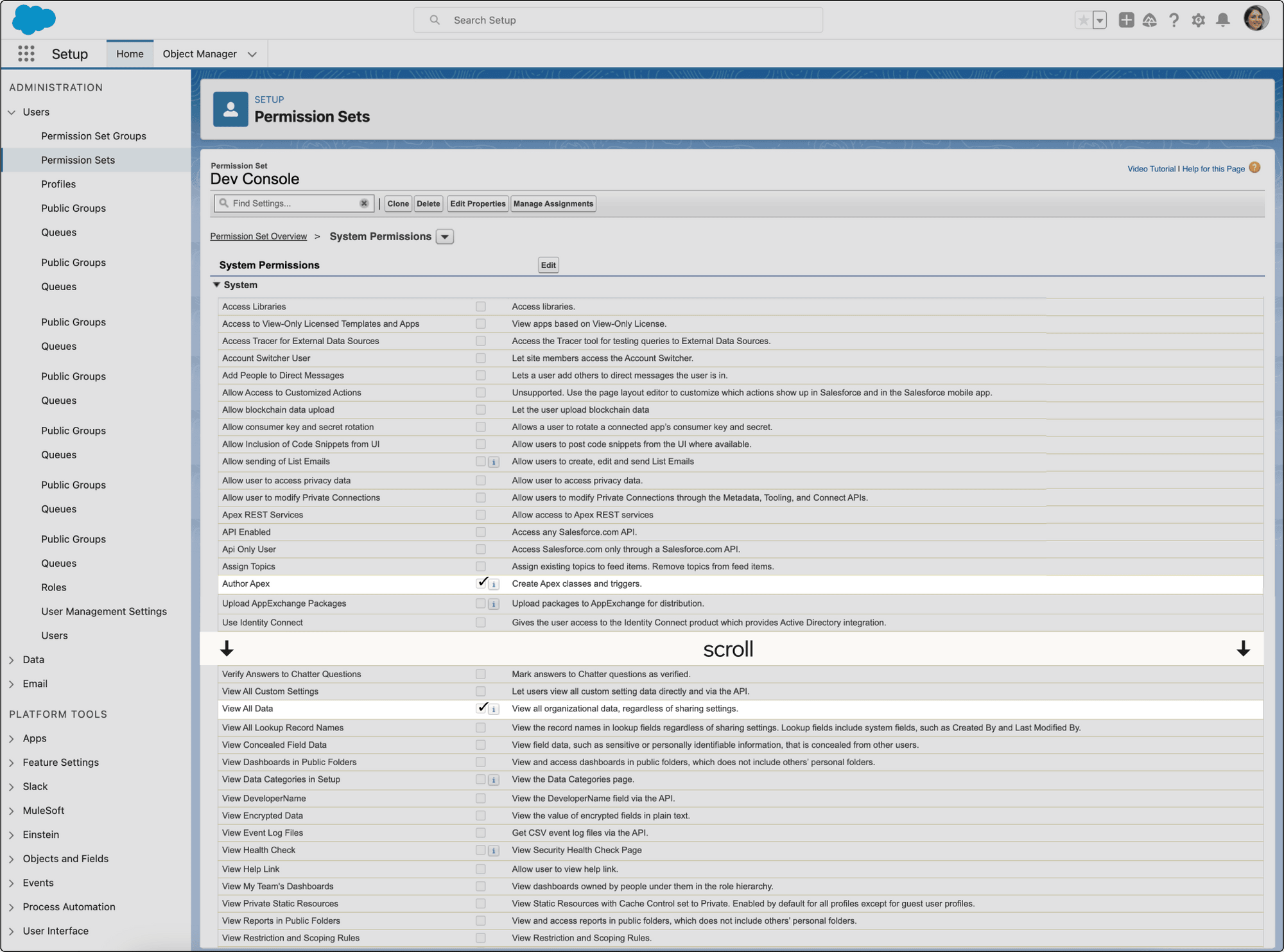
Click Edit.
-
Enable Author Apex and View All Data.
-
Click Save.
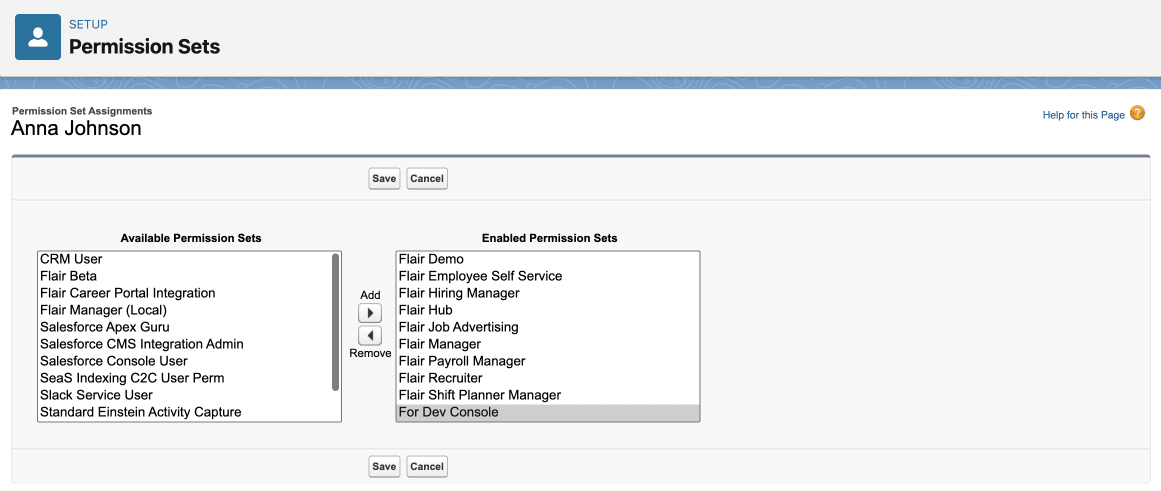
Assign the permission set
-
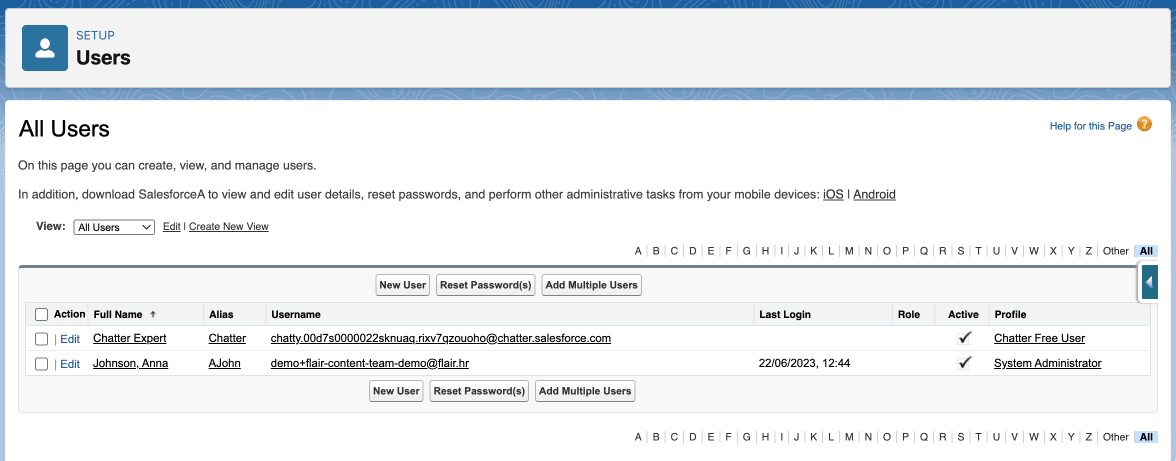
In Salesforce Setup, open Users.
-
Select the user.
-
Click Edit Assignments.
-
Add the new set, such as
For Dev Console, from Available Permission Sets. -
Click Save. The user can open Developer Console.
Assign custom permissions
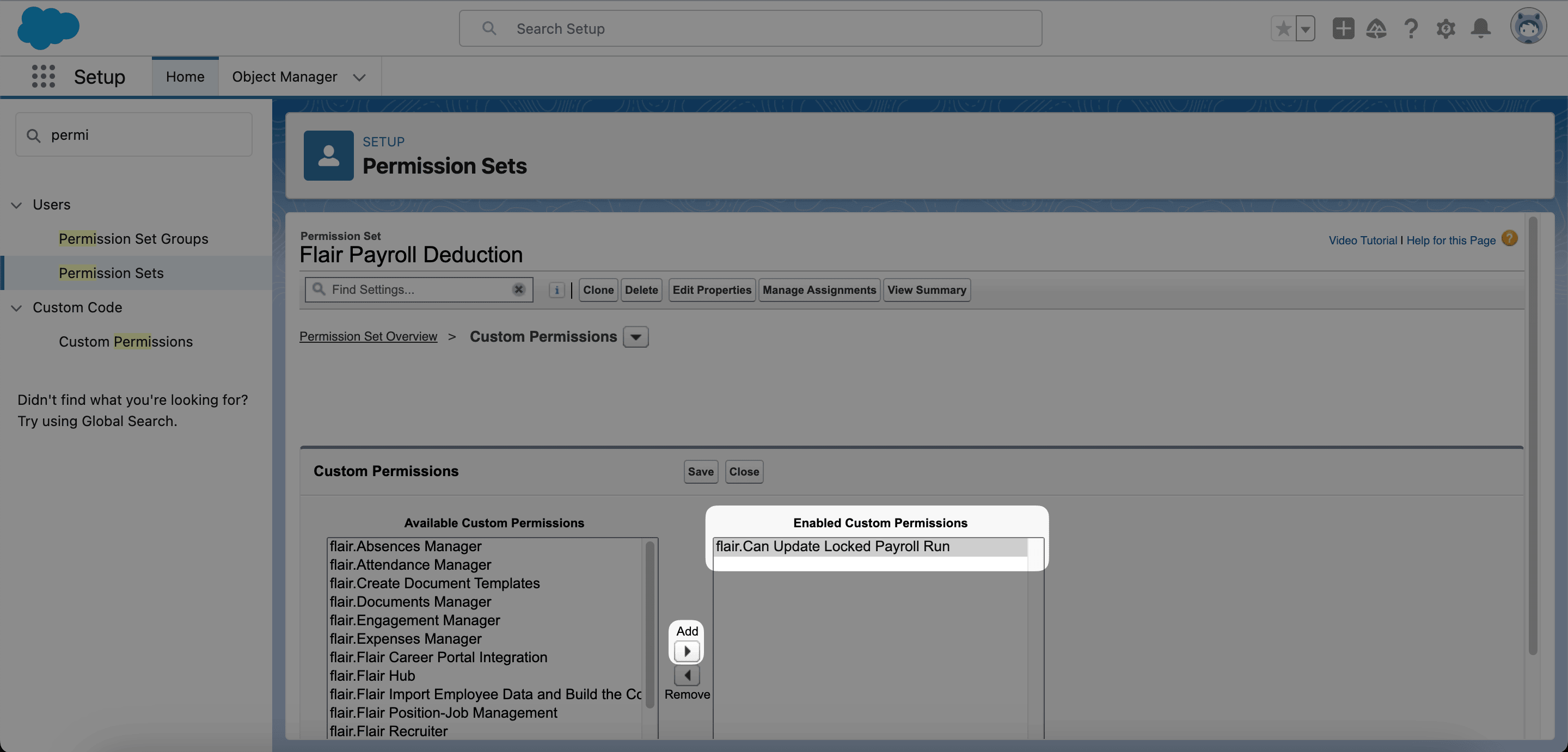
Assign flair.Can Update Locked Payroll Run to the payroll integration user so an external payroll system can add deductions when a Payroll Run is locked in a status such as Submitted.
Add the locked Payroll Run permission
-
In Salesforce Setup, enter
Permission Setsin Quick Find. -
Open Permission Sets.
-
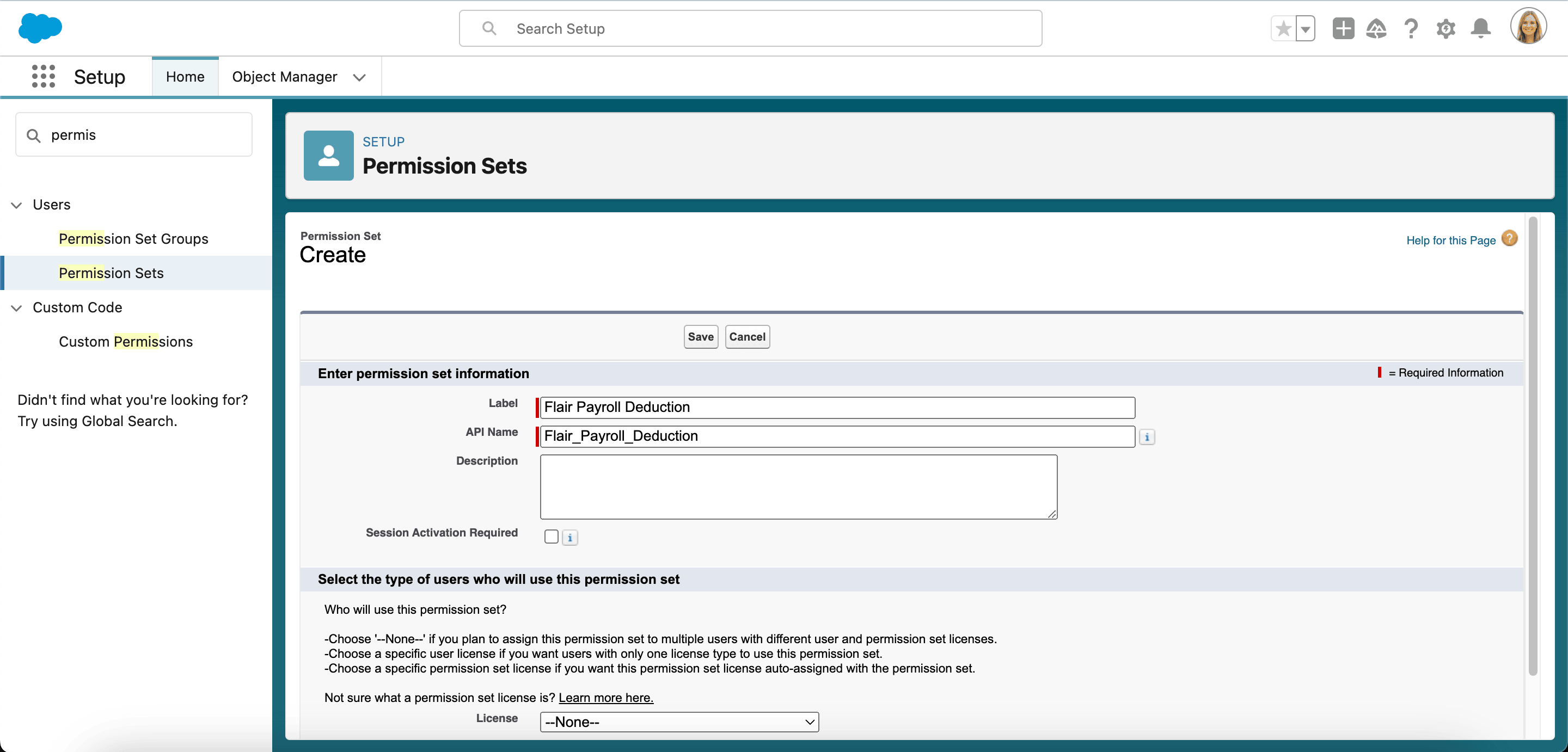
Click New. If the payroll integration user already has a custom permission set, open that set instead.
-
In Label, enter a name such as
Flair Payroll Deduction. -
Keep the generated API Name.
-
Click Save.
-
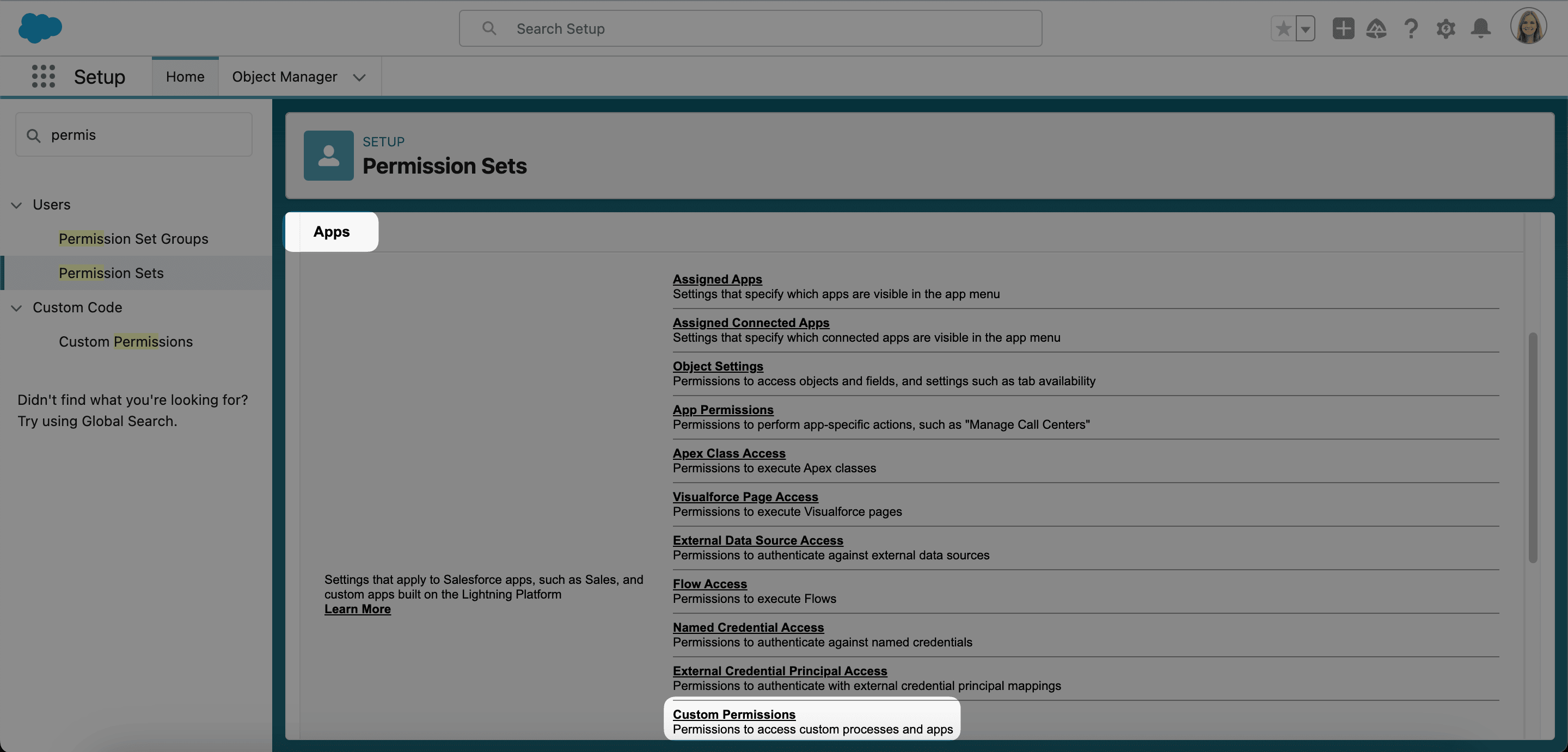
Under Apps, click Custom Permissions.
-
Click Edit.
-
Move
flair.Can Update Locked Payroll Runfrom Available Custom Permissions to Enabled Custom Permissions. -
Click Save.
Assign the permission set to the integration user
-
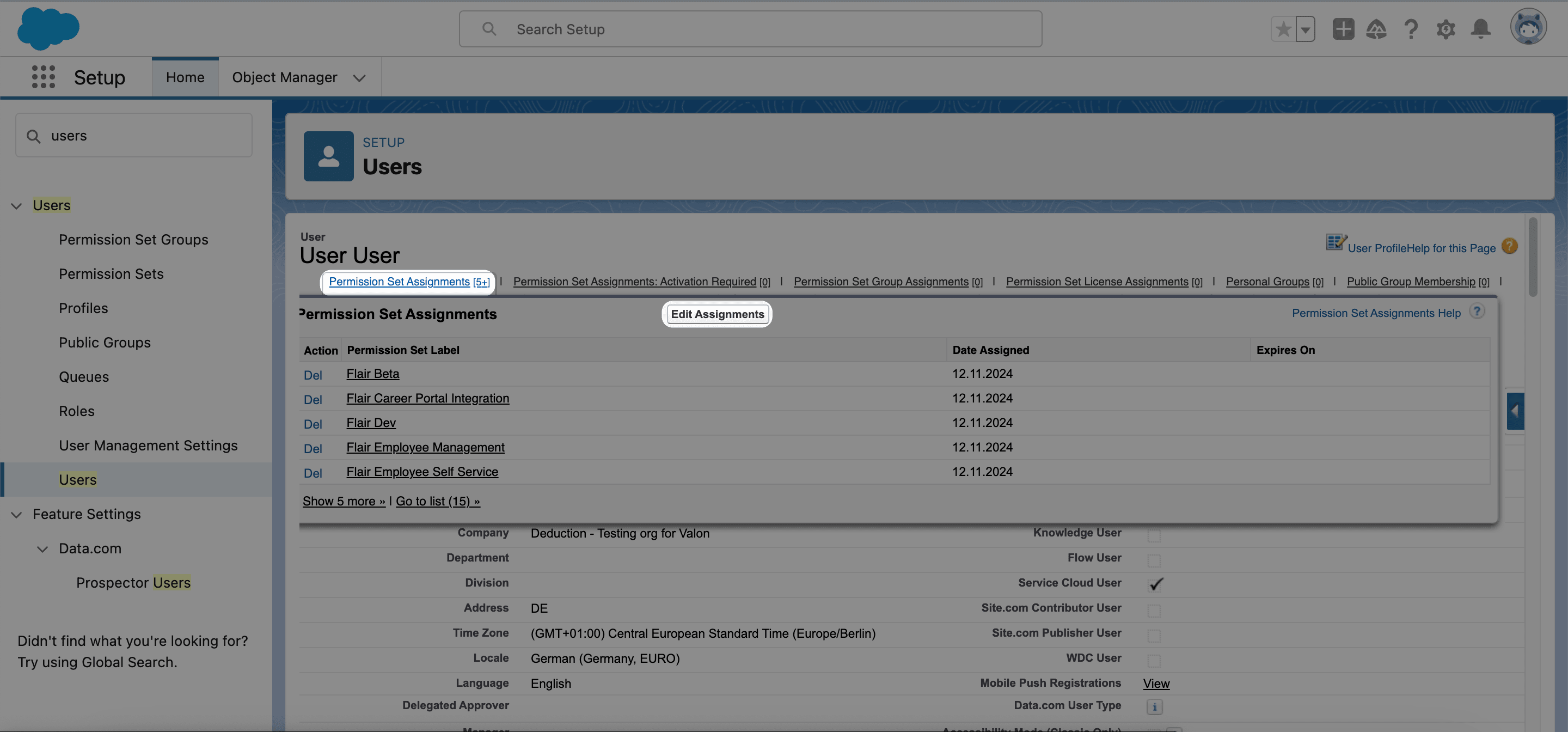
In Salesforce Setup, find the payroll integration user.
-
Under Permission Set Assignments, click Edit Assignments.
-
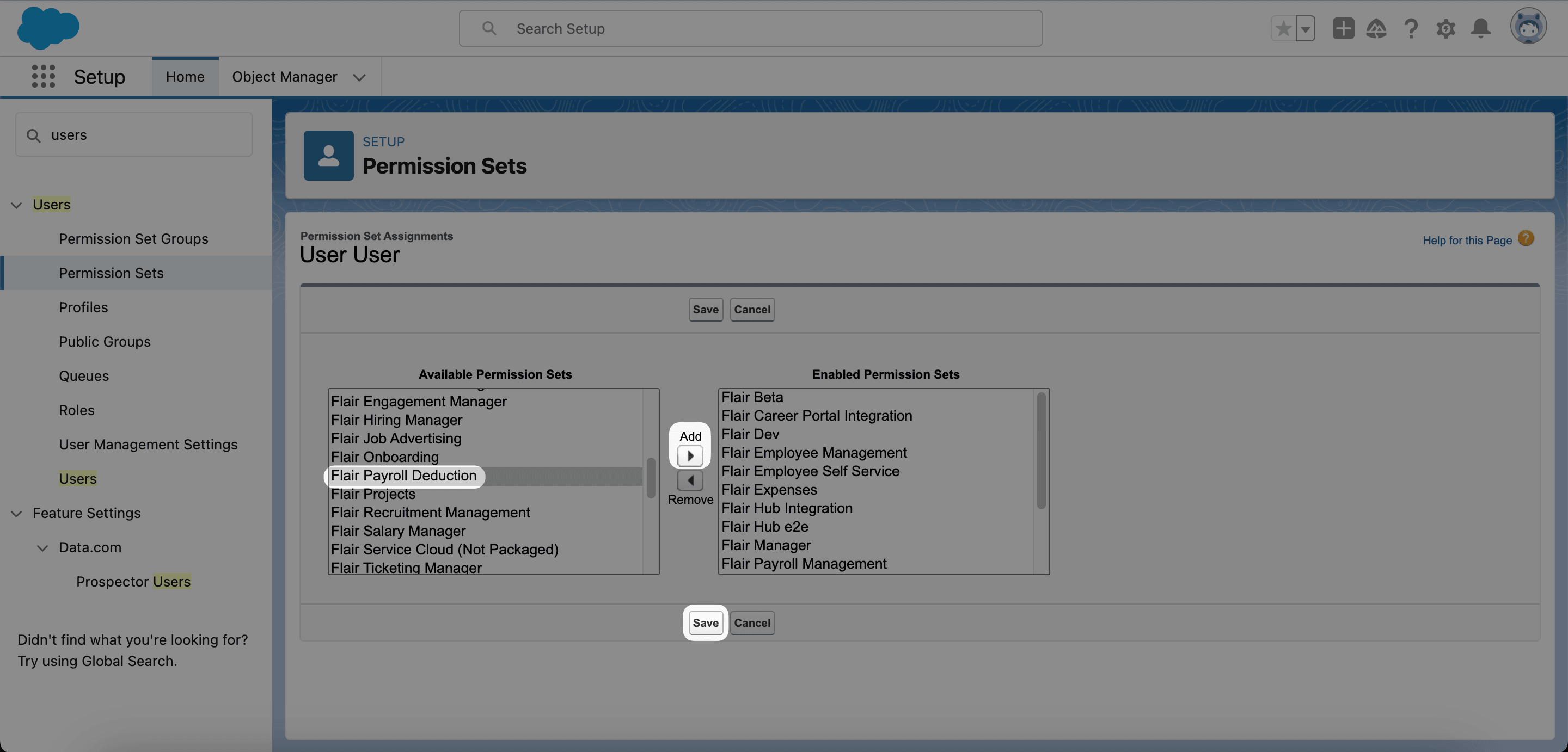
Move the permission set from Available Permission Sets to Enabled Permission Sets.
-
Click Save.
Control who can log in as an employee
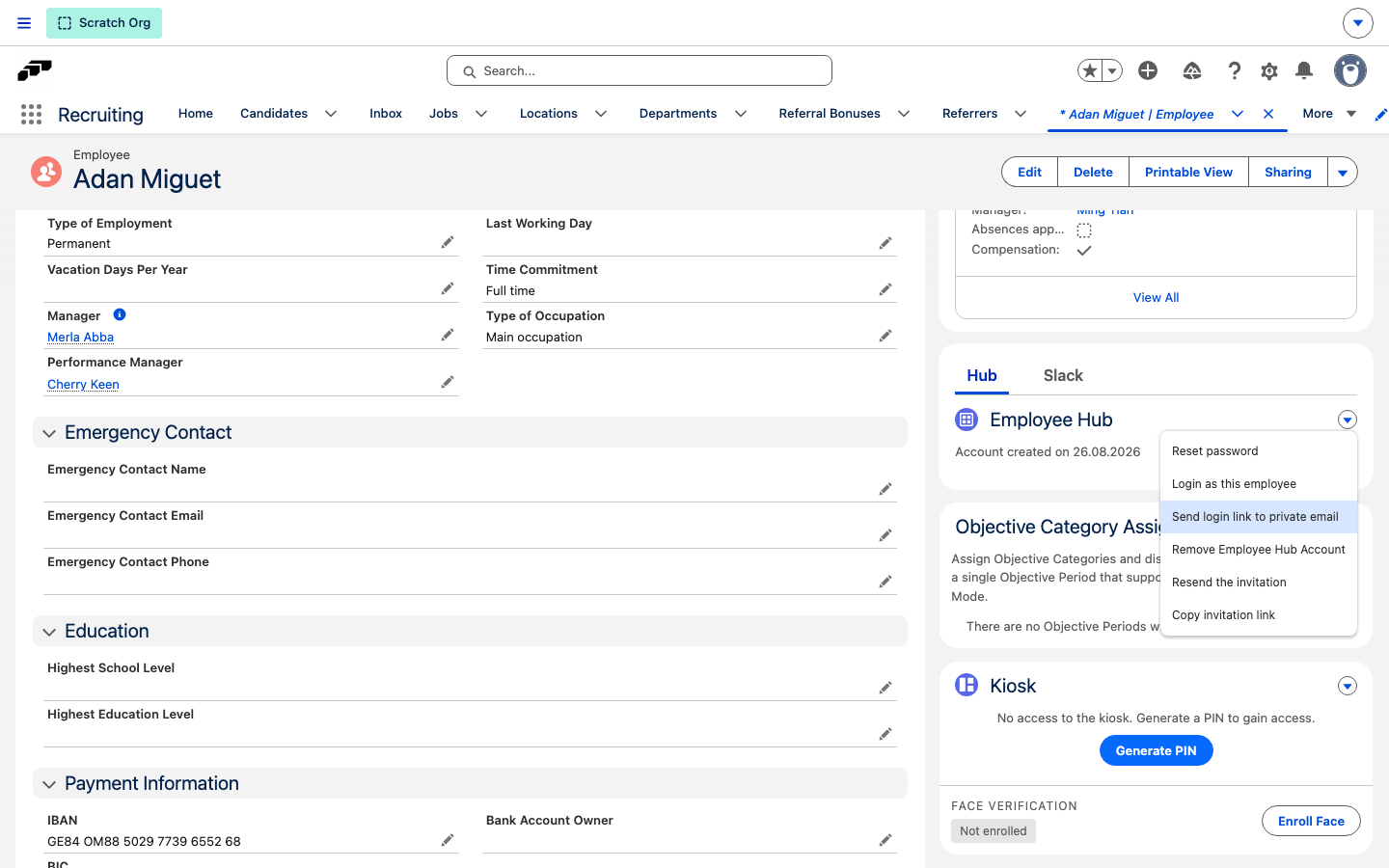
The Employee Hub card on an Employee record shows Login as this employee and Send login link to private email in its actions menu. Login as this employee opens the employee's Employee Hub session directly; Send login link to private email emails the employee a Hub login link. The flair.Flair Manager Hub Login custom permission enforces Login as this employee on the server, so a user without it cannot open another employee's Hub session. For Send login link to private email, the custom permission only controls whether the button appears in the actions menu — removing it hides the button but does not by itself prevent the underlying action, so it should not be relied on as the sole control for that action.
The Flair Manager permission set enables flair.Flair Manager Hub Login by default, so assigning Flair Manager already enables Login as this employee and shows the Send login link to private email button. To grant the same access without assigning the full Flair Manager permission set:
- In Salesforce Setup, enter
Permission Setsin Quick Find. - Open Permission Sets.
- Click New, or open an existing permission set for the user.
- Under Apps, click Custom Permissions.
- Click Edit.
- Move
flair.Flair Manager Hub Loginfrom Available Custom Permissions to Enabled Custom Permissions. - Click Save.
- Assign the permission set to the user.
flair.Flair Manager Hub Login grants Employee Hub impersonation for every employee record the user can already open, not only their own reports. Grant it only to roles that need to log in as employees for support.
Configure Admin Monitoring
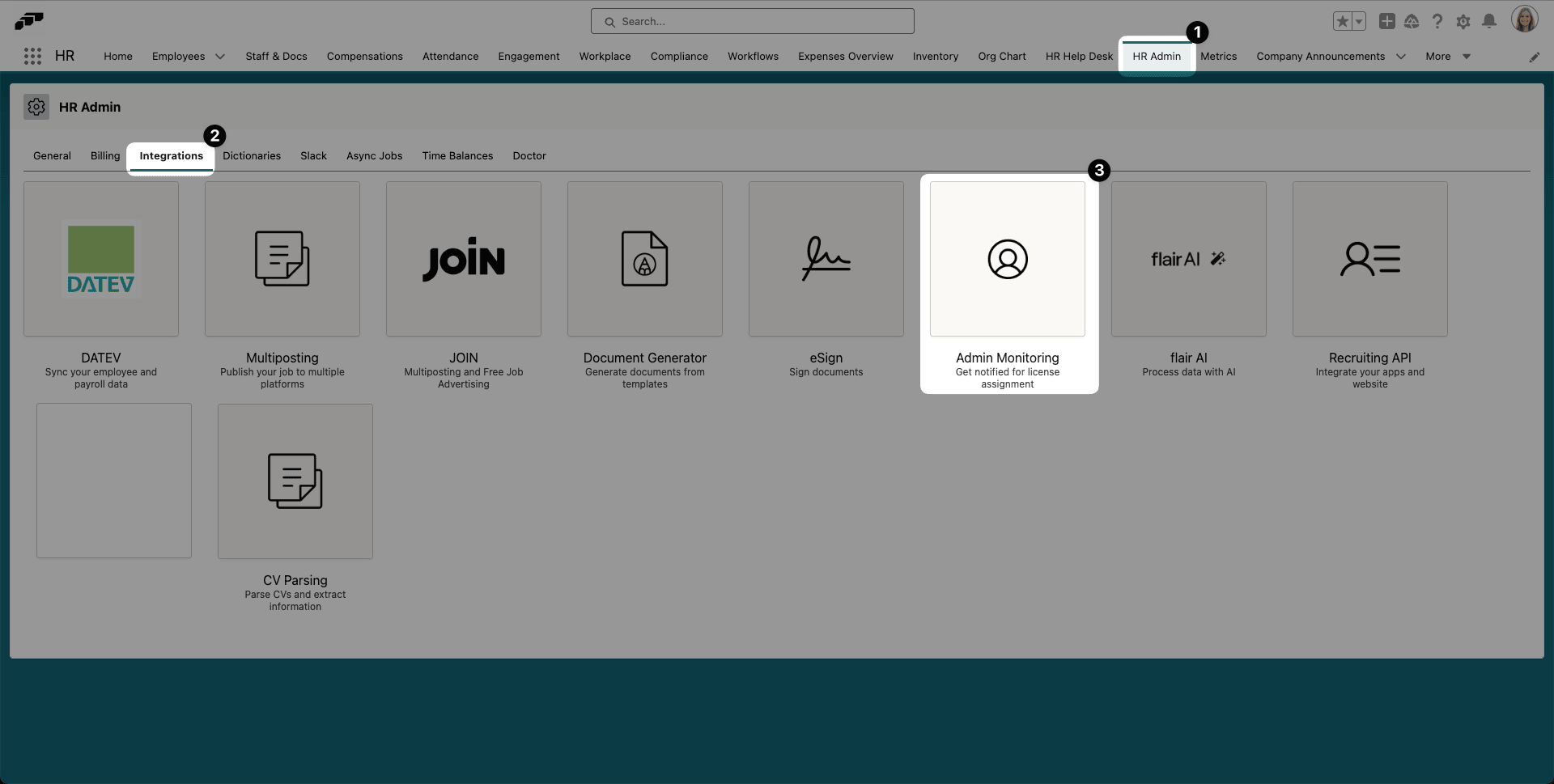
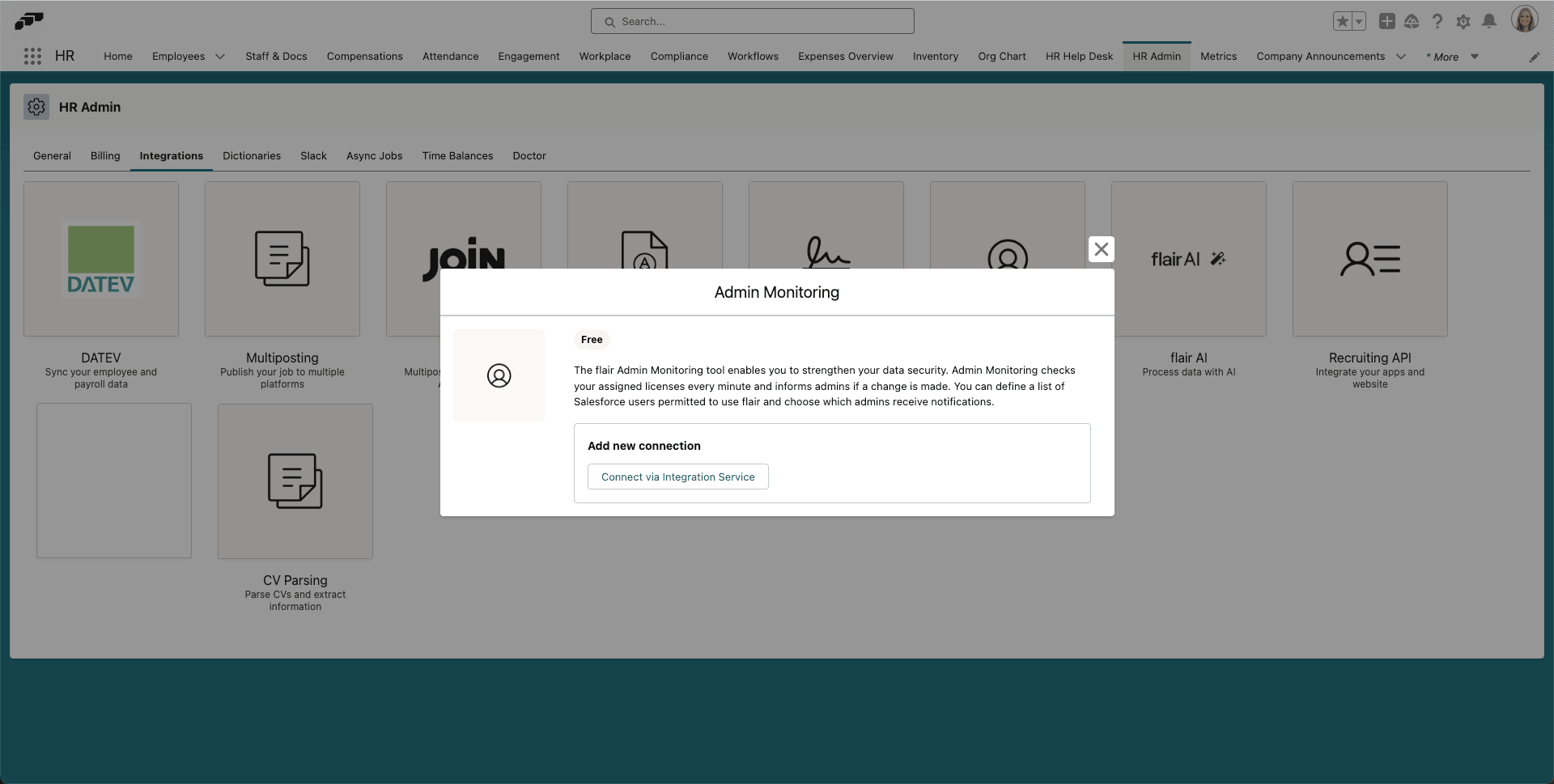
Admin Monitoring is a free flair integration. It continuously checks assigned licenses, lets you allow or block Salesforce users, and alerts administrators about license changes or unauthorized access attempts.
-
In the flair HR app, open HR Admin → Integrations.
-
Select Admin Monitoring.
-
Click Connect Via Integration Service.
-
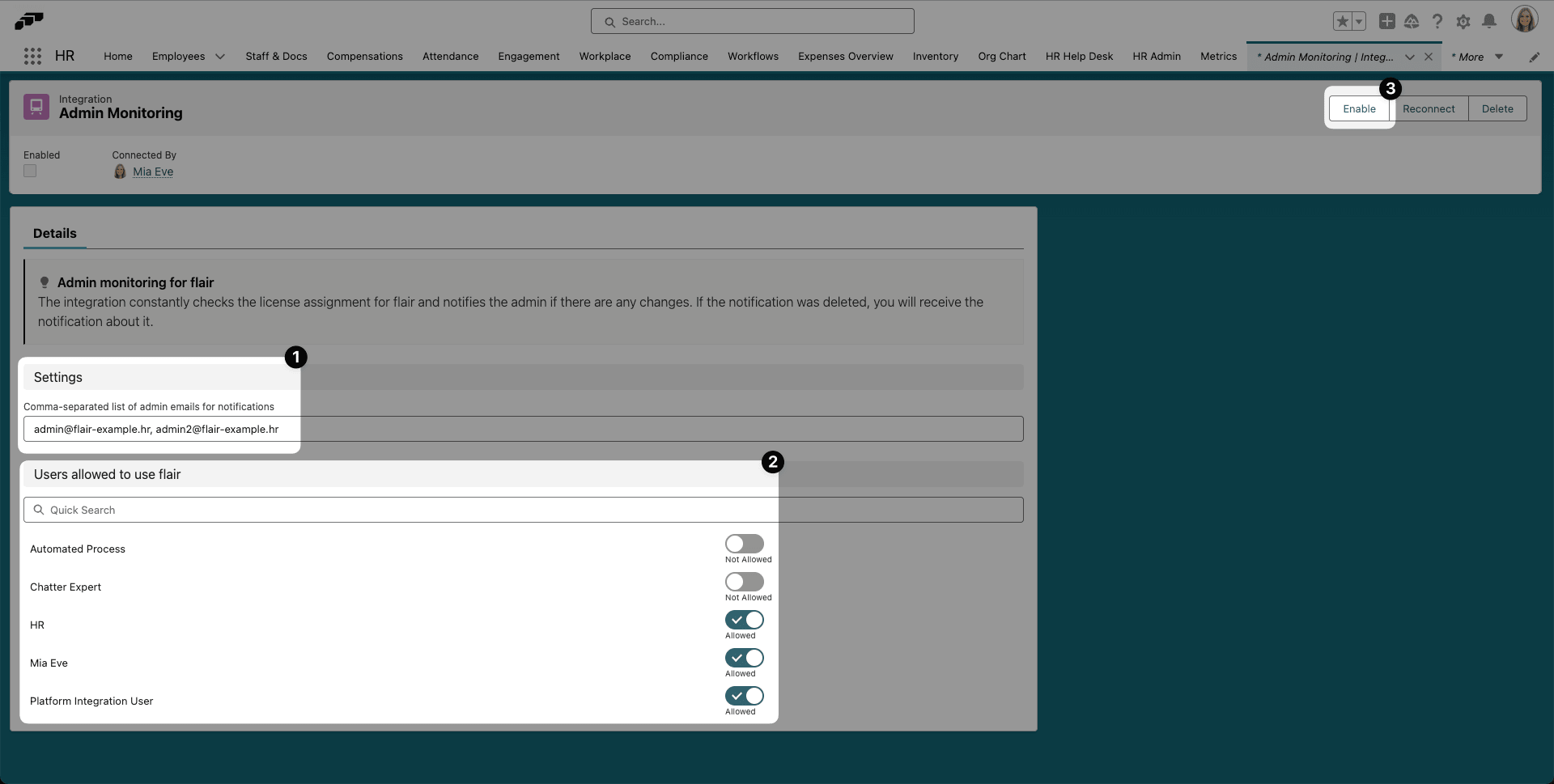
Under Settings, enter each notification email address. Separate multiple addresses with commas.
-
Under Users allow to use flair, use the toggles to allow or block users.
-
Use the search field to find a user who is not listed.
-
Click Enable.
Troubleshooting
A user cannot see Employee Documents or Employee Visibility Scopes
- In Salesforce Setup, open the user.
- Confirm that the user has a flair license.
- Review the user's profile and default organization permissions.
- Confirm that a permission set grants Read access to Employee Documents.
- Confirm that the user can view and manage Employee Visibility Scopes.
- Confirm that the Employee Visibility Scope object is enabled and accessible in the Salesforce organization.