Configure Approval Policies
Configure who approves a request, in which order, and under which conditions. Approval Policies can route requests through managers, Additional Managers, Employee Segments, or a custom employee lookup field.
HR Admins who configure the Approval Framework in Salesforce.
Before you begin
- You can access the flair HR app and Approval Policy records in Salesforce.
- Identify the target object, employee field, approval-status field, and approvers for the workflow.
Open Approval Policies
-
In Salesforce, open the App Launcher (⋮⋮ grid icon), and search for
Approval Policies.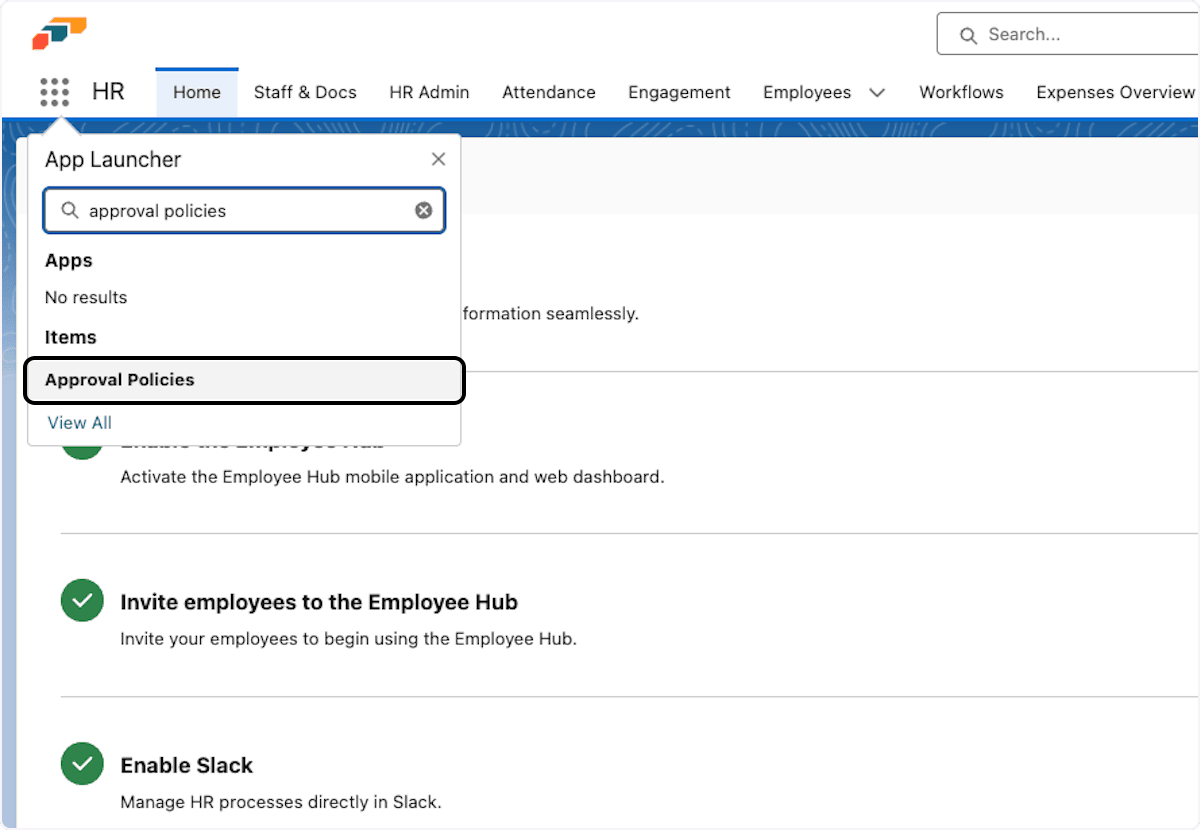
-
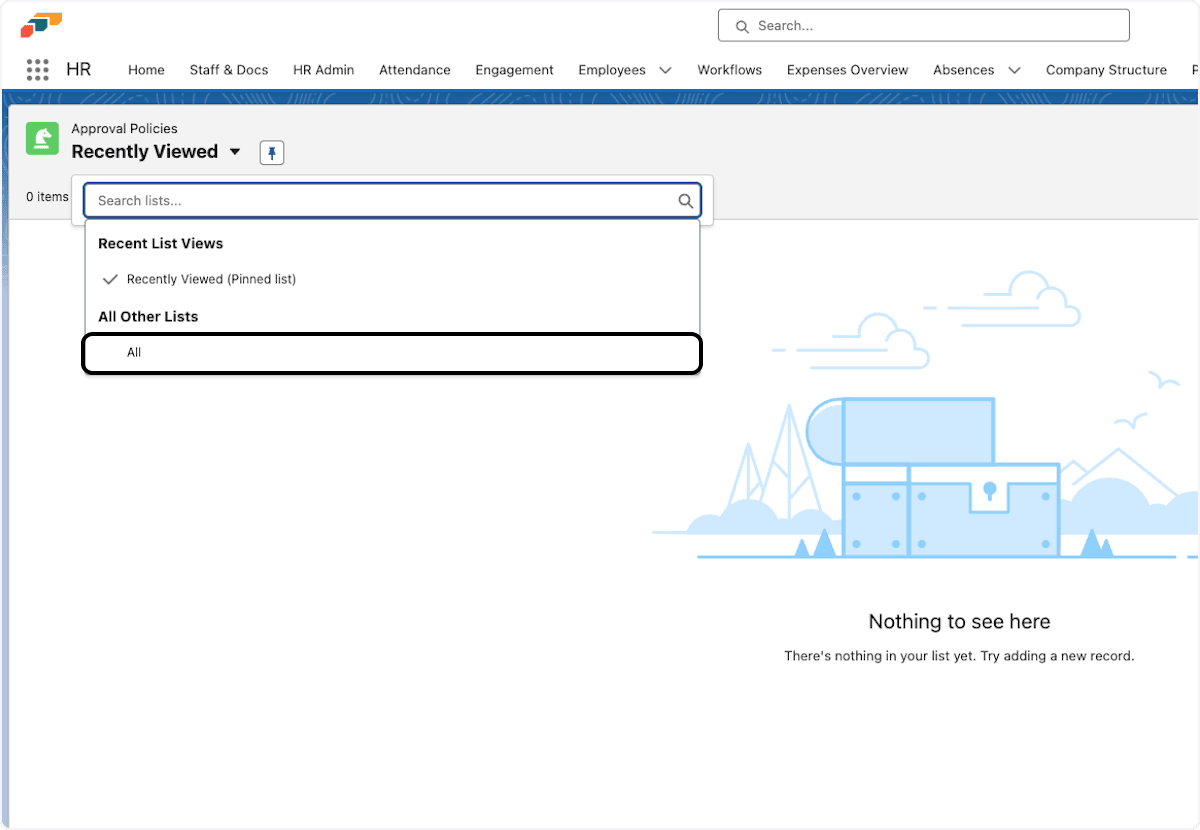
In the list-view selector, choose All instead of Recently Viewed.
-
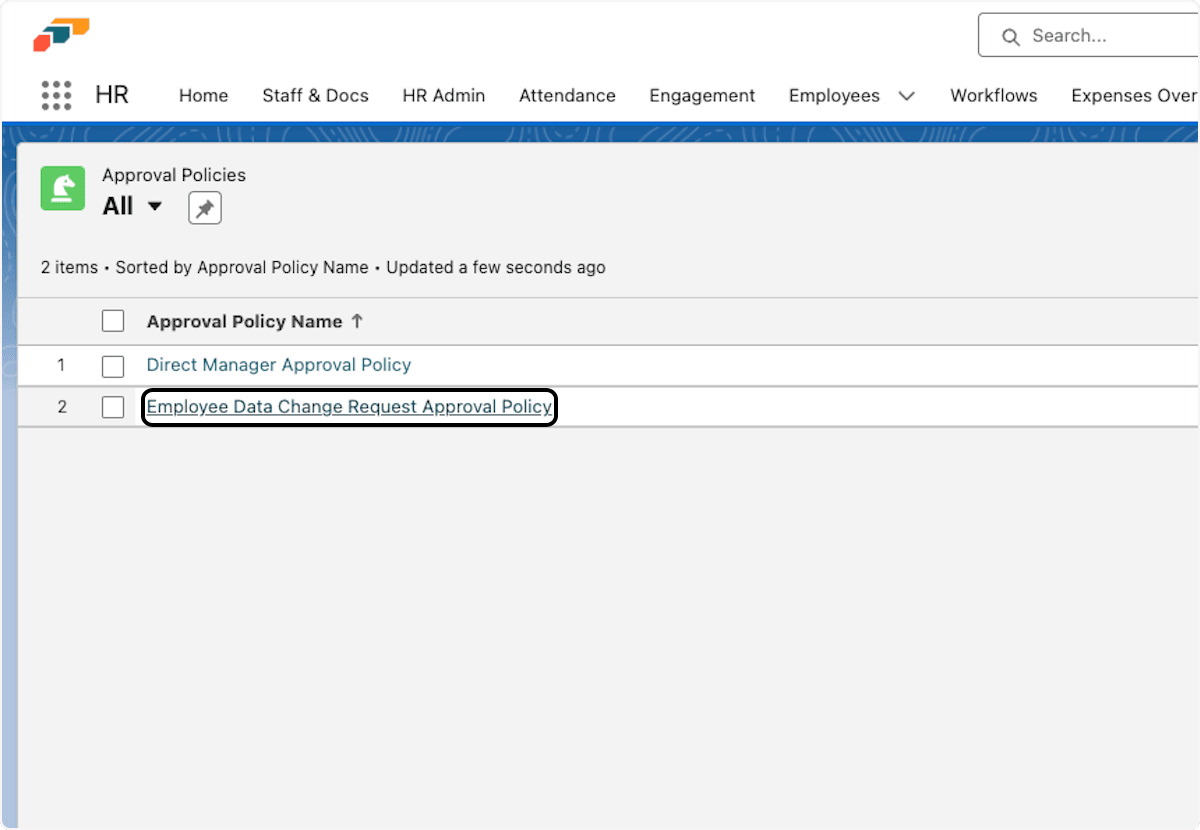
Click the policy name.
Understand default Approval Policies
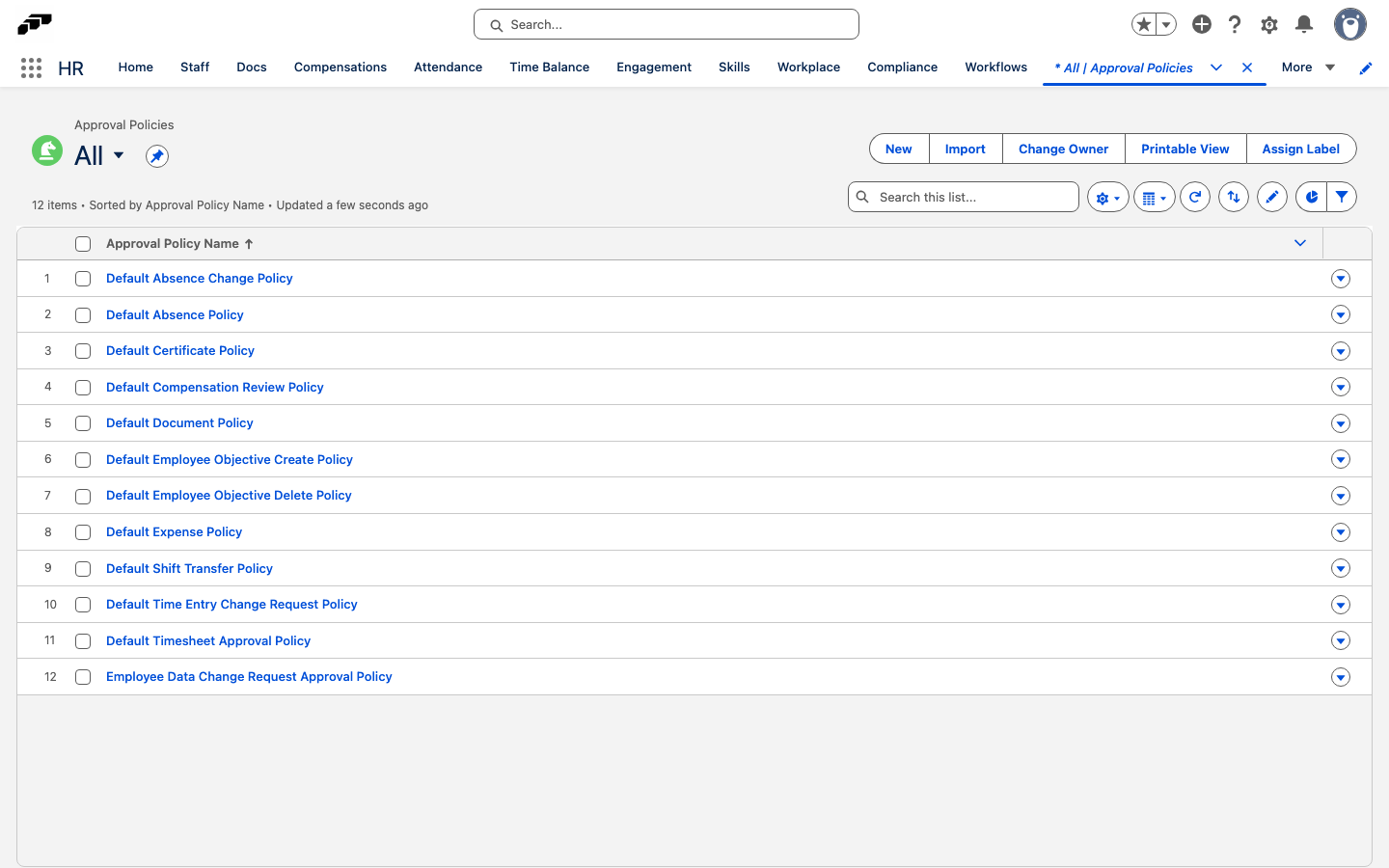
flair creates 12 default policies during installation or upgrade. They are view-only and cannot be deleted, but you can disable them when using custom policies. A new default policy starts enabled; an upgrade keeps the enabled or disabled state you set.
Each default policy targets all employees and has one step:
| Policy | Applies to | Approvers |
|---|---|---|
| Default Absence Policy | Pending absences | Manager or Absence manager; the first approval completes the step. |
| Default Absence Change Policy | Pending Employee Data Change Requests for an absence | Manager or Absence manager; the first approval completes the step. |
| Default Certificate Policy | Pending self-uploaded certificates with HR+Manager+Employee visibility | Manager |
| Default Compensation Review Policy | Submitted Compensation Reviews | Manager of the review's assessing manager |
| Default Document Policy | Pending self-uploaded Employee Documents with HR+Manager+Employee visibility | Manager |
| Employee Data Change Request Approval Policy | Pending Employee Data Change Requests | Manager |
| Default Employee Objective Create Policy | Employee Objectives pending creation approval | Manager of the responsible employee |
| Default Employee Objective Delete Policy | Employee Objectives pending deletion approval | Manager of the responsible employee |
| Default Expense Policy | Pending expenses outside an Expense Group, and pending Expense Groups | Manager |
| Default Shift Transfer Policy | Shift Change Requests waiting for manager approval | Manager or Shift manager; the first approval completes the step. |
| Default Time Entry Change Request Policy | Pending Time Entry Change Requests | Manager or Time entry manager; the first approval completes the step. |
| Default Timesheet Approval Policy | Pending timesheets, from the day the timesheet period starts | Manager or Time entry manager; the first approval completes the step. |
Manager is the direct manager of the employee on the request. The other approver types are that employee's Additional Managers with the matching responsibility. Employee Data Change Requests from a request form that doesn't require approval don't match either change-request policy.
Enable or disable a policy
- Open the Approval Policy.
- Click Enable or Disable. The policy state changes without deleting its configuration.
Disable a policy to test a replacement, bypass its requirements temporarily, or switch workflows for a period.
Matching Priority belongs to each policy assignment, not to the policy. When assignments of several enabled policies match a request, flair uses the assignment with the lowest Matching Priority number and routes the request through that assignment's policy. If the numbers are equal, the newer assignment wins. For example, priority 1 for a management segment takes precedence over priority 2 for everyone else.
Configure approval steps
-
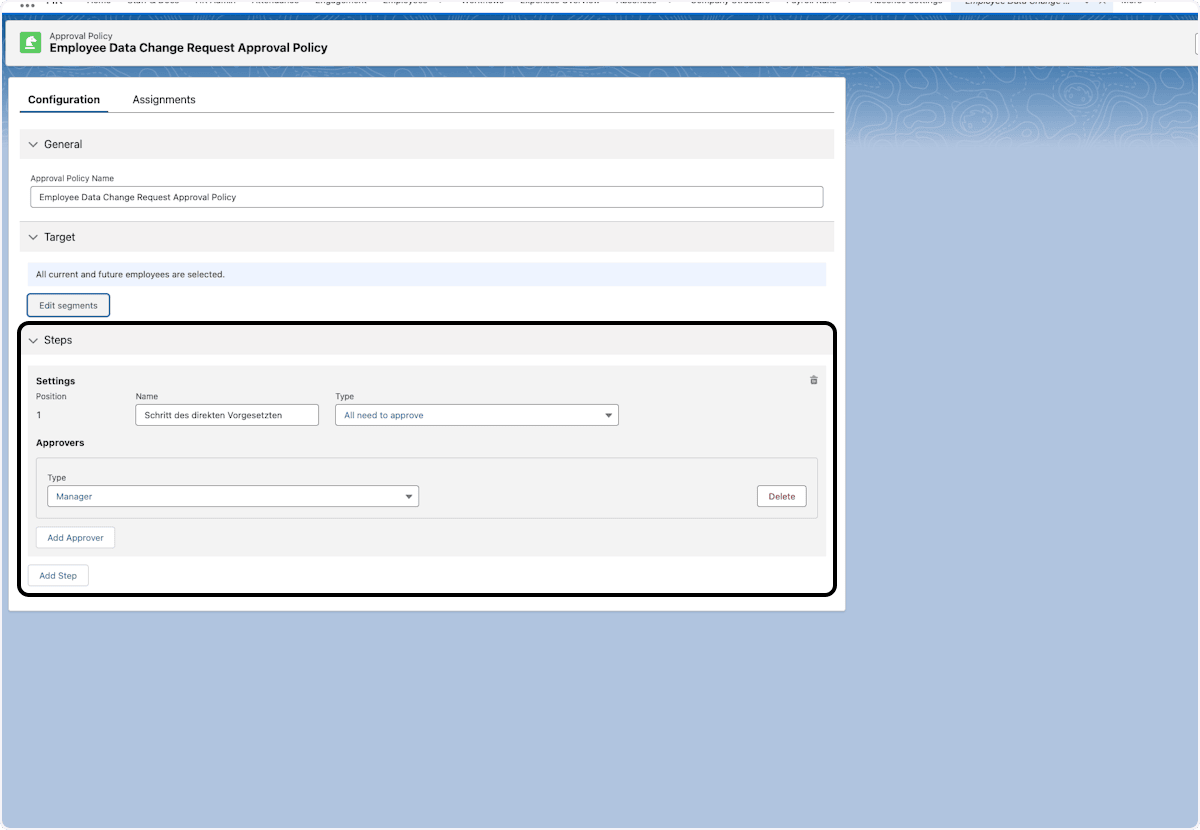
On the Approval Policy, open Steps.
-
Configure the step fields:
Setting What it does Position Shows where the step sits in the sequence in which flair processes steps. The field is read-only. Name Identifies the step, such as Department Head Review.Approval Type Sets how many approvals complete the step: All need to approve, First approves the step, Specific number of approvers, Quorum (at least 2/3 of approvers), or Employee hierarchy (one level after another up the employee's management line; see Route approvals up the employee hierarchy). Rejection Type Sets when a rejection ends the step. First rejects the step is the available option. 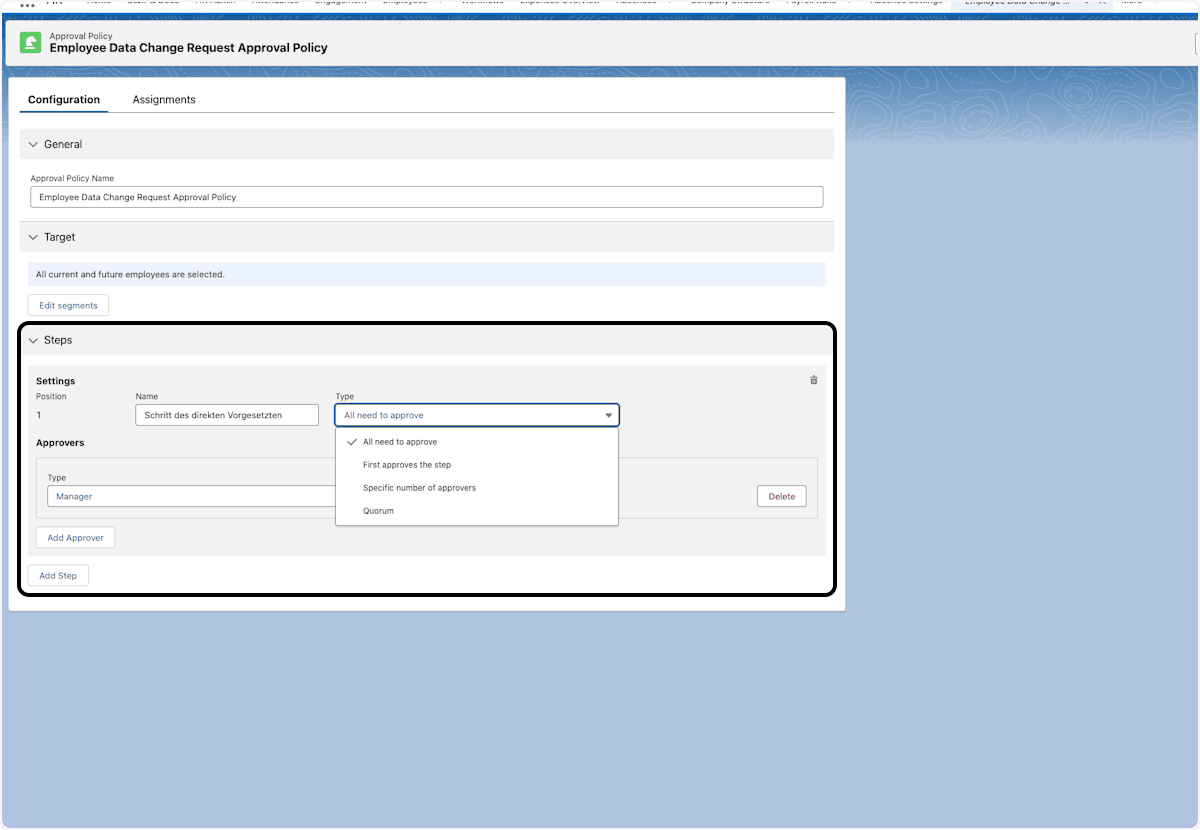
-
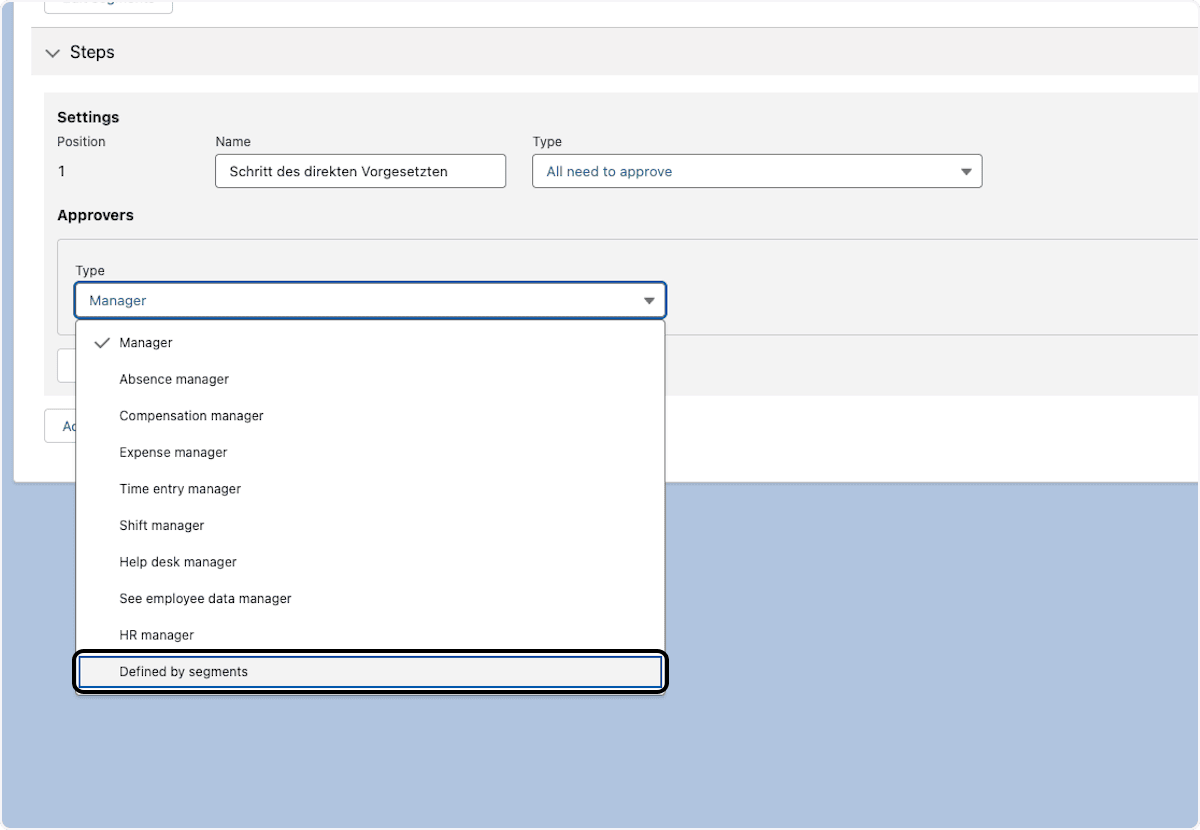
Under Approvers, select the approver Type:
Approver type Source Manager The employee's direct manager. Absence manager, Compensation manager, Expense manager, Time entry manager, Shift manager, Help desk manager, See employee data manager, HR manager The employee's Additional Managers with that responsibility. Defined by segments Employees, positions, departments, entities, or other segment criteria. Custom Employee Lookup An employee lookup field on the request record, entered in Employee Lookup Field API Name. 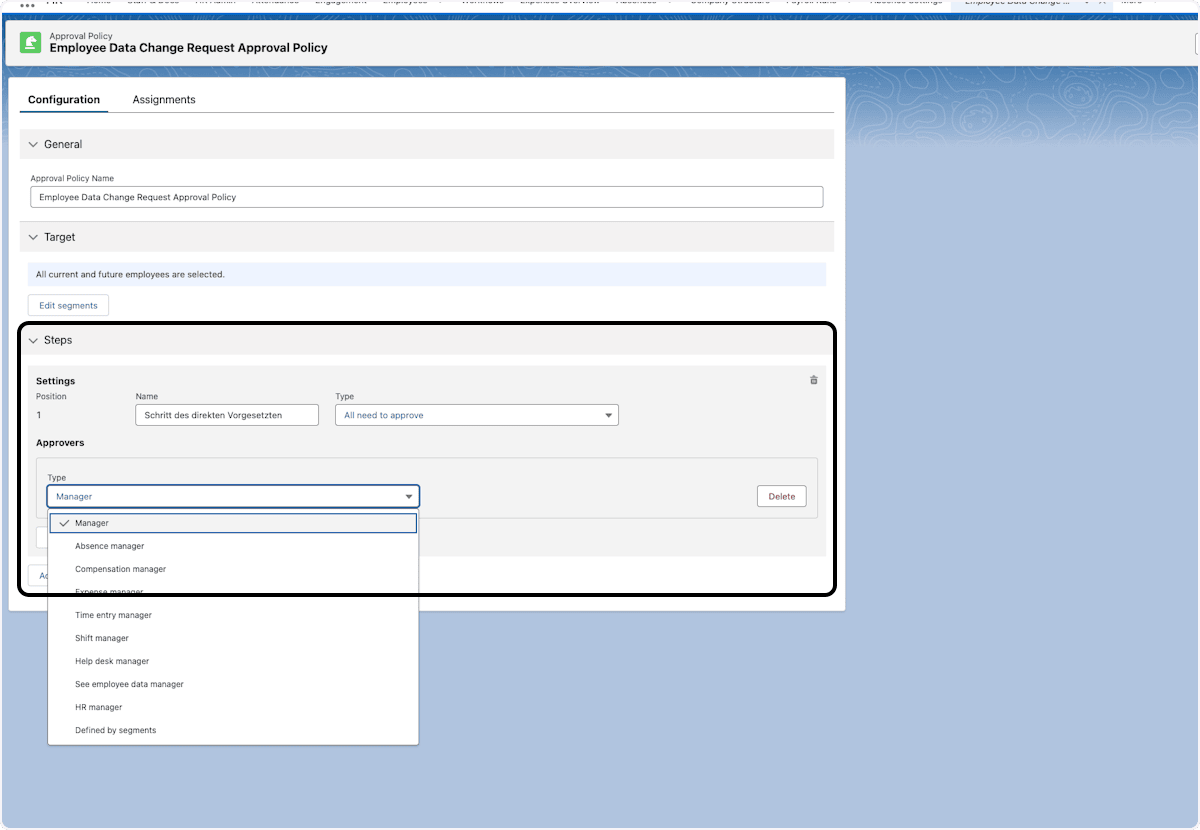
-
Save the step.
Route approvals up the employee hierarchy
With the Employee hierarchy approval type, a step asks one person after another up the employee's management line, such as the direct manager, then that manager's manager. Each request gets as many approval levels as its employee's hierarchy is deep.
- On the approval step, in Approval Type, select Employee hierarchy. The approver list is replaced by the hierarchy settings.
- In Hierarchy, select the line to follow: Manager, an Additional Manager type such as Absence manager, or Custom Employee Lookup. Defined by segments is not available here.
- If you selected Custom Employee Lookup, enter the API name of an employee lookup field on the Employee object in Employee Lookup Field API Name on Employee, for example
Manager__c. - Select Employee on the record approves first if the assignment's employee field holds an approver. Leave it cleared if the field holds the record's owner or submitter, so the hierarchy starts with their manager.
- Save the step.
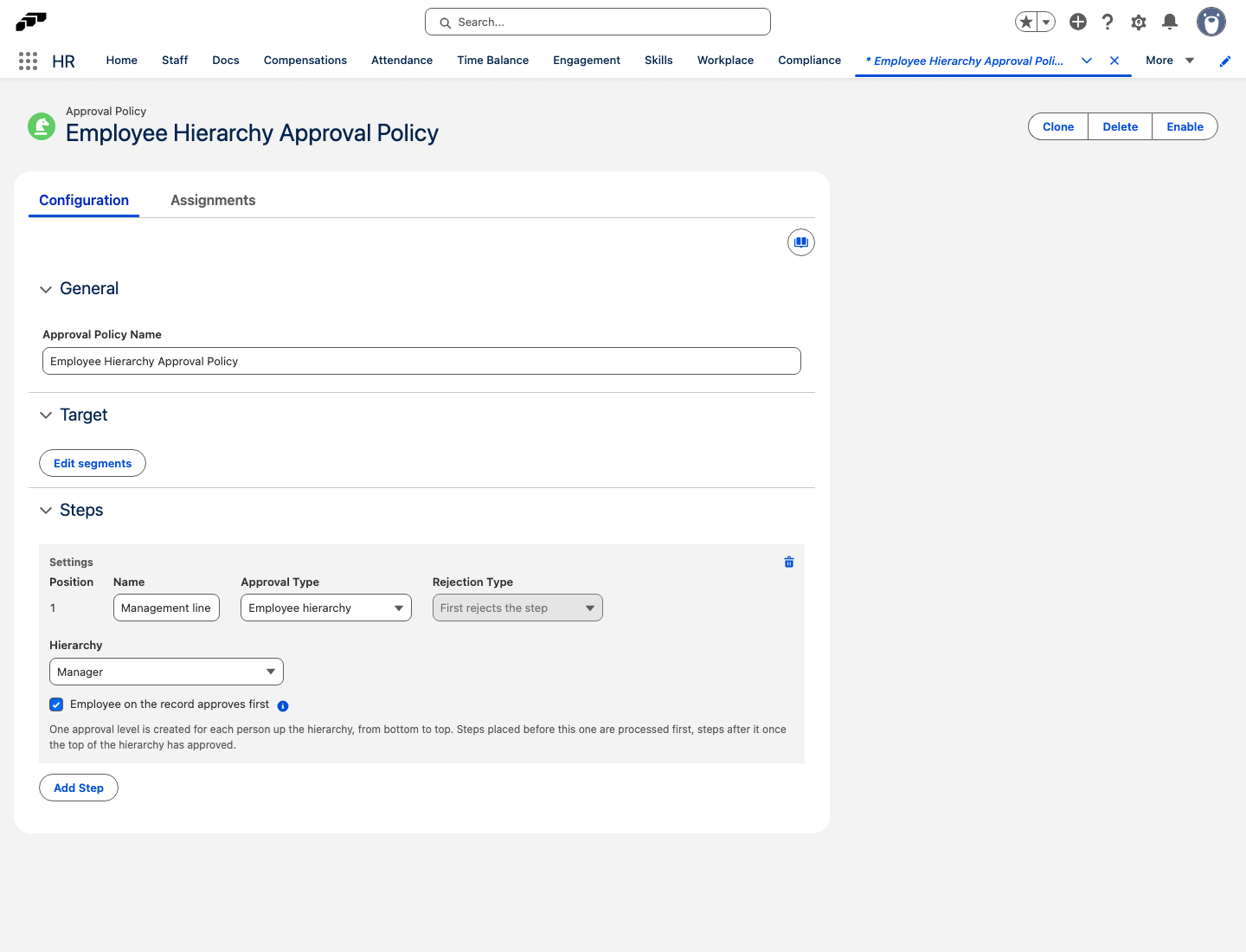
How flair processes the step:
- The hierarchy starts at the employee in the assignment's Related Object Employee Field.
- flair asks one level at a time, and the first approval completes that level. The next level is the person above whoever approved. When nobody is above, the step is complete, and flair moves on to the next step or approves the request.
- Steps before the hierarchy step are processed first, and steps after it once the top of the hierarchy has approved.
- A rejection on any level rejects the request.
- flair skips anyone already asked on the step and the employee on the record, so a hierarchy that loops back still ends.
- If flair finds nobody to ask on the first level, for example because the employee has no manager, flair treats the step like a step whose approver of the selected type is missing.
- In Salesforce, Approval Path shows the levels in order under Up the hierarchy. It lists only the levels asked so far, because flair resolves each next level when the previous one approves.
Define approvers with Employee Segments
-
On the approval step, select Defined by segments.
-
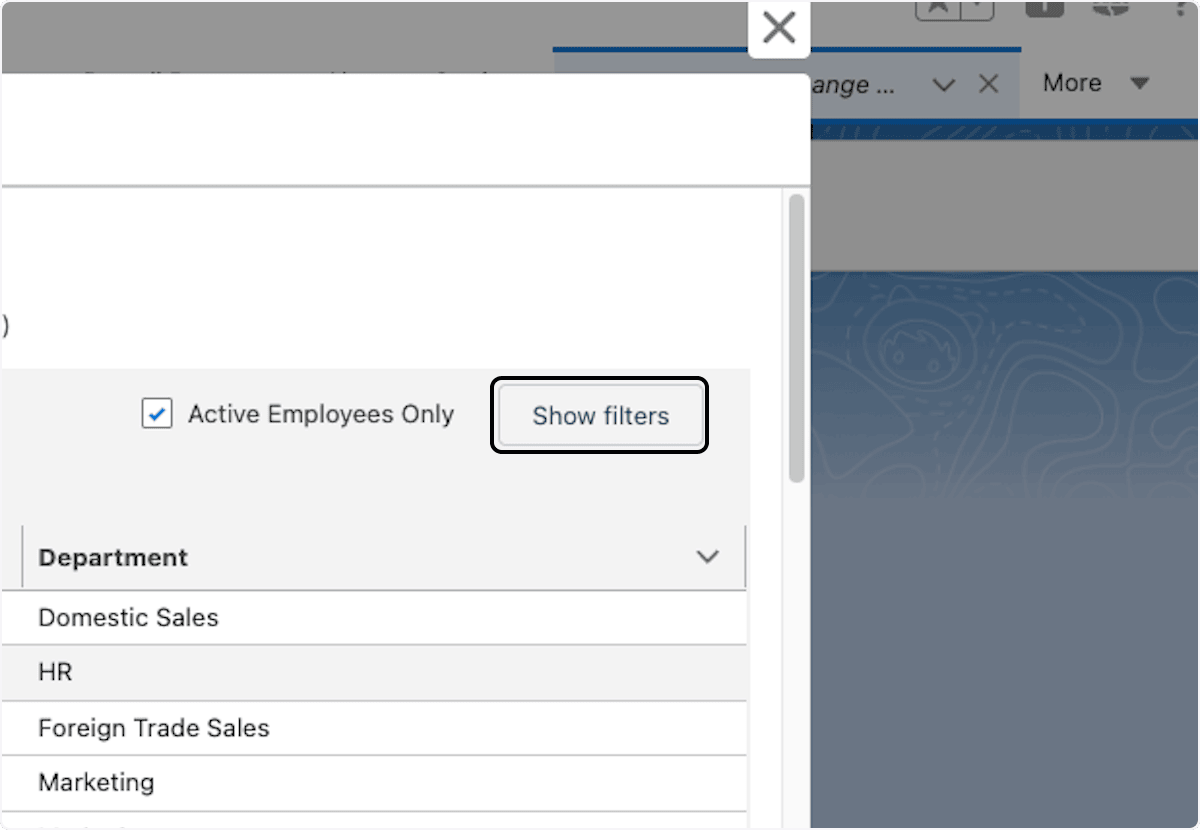
Click Edit Segment.

-
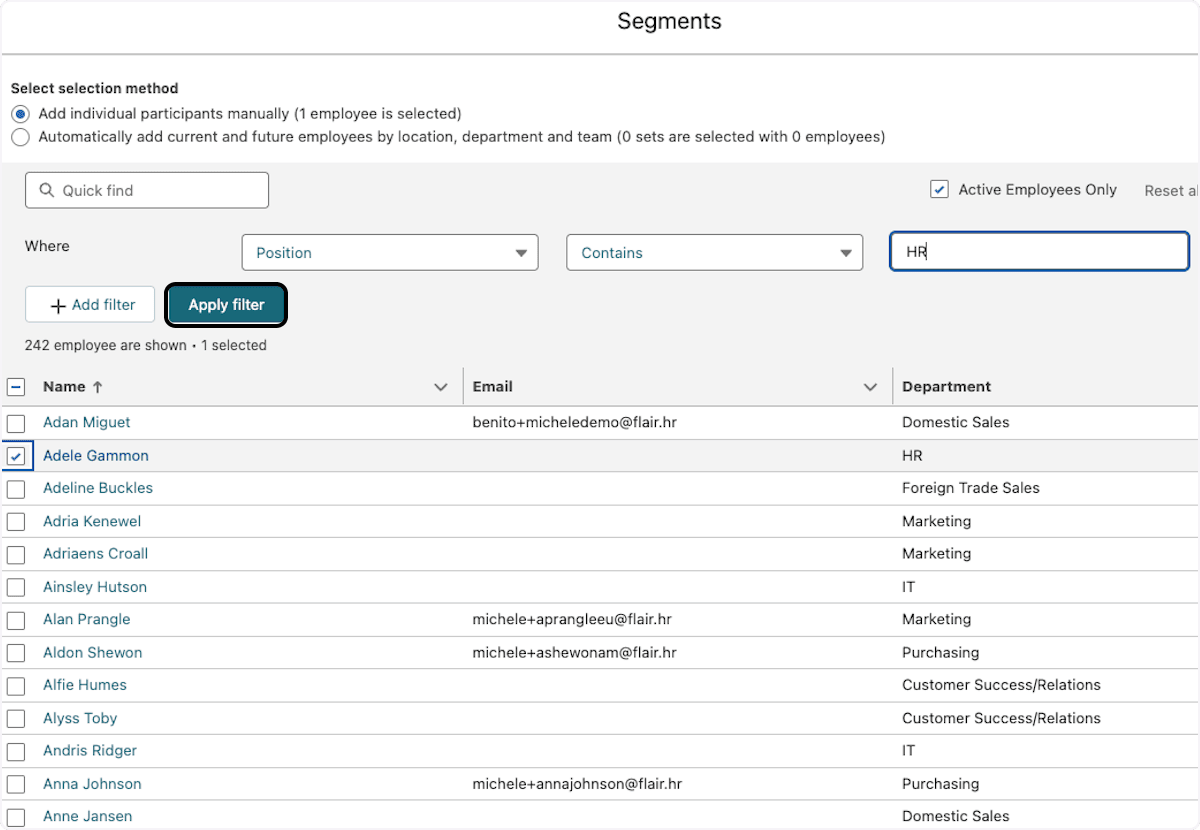
Filter by department, position, location, entity, employment status, or a custom employee field. Entity filters by the employee's assigned legal entity, so one policy can cover an entire entity instead of every location inside it.
-
Define the criteria, and click Apply filter.
-
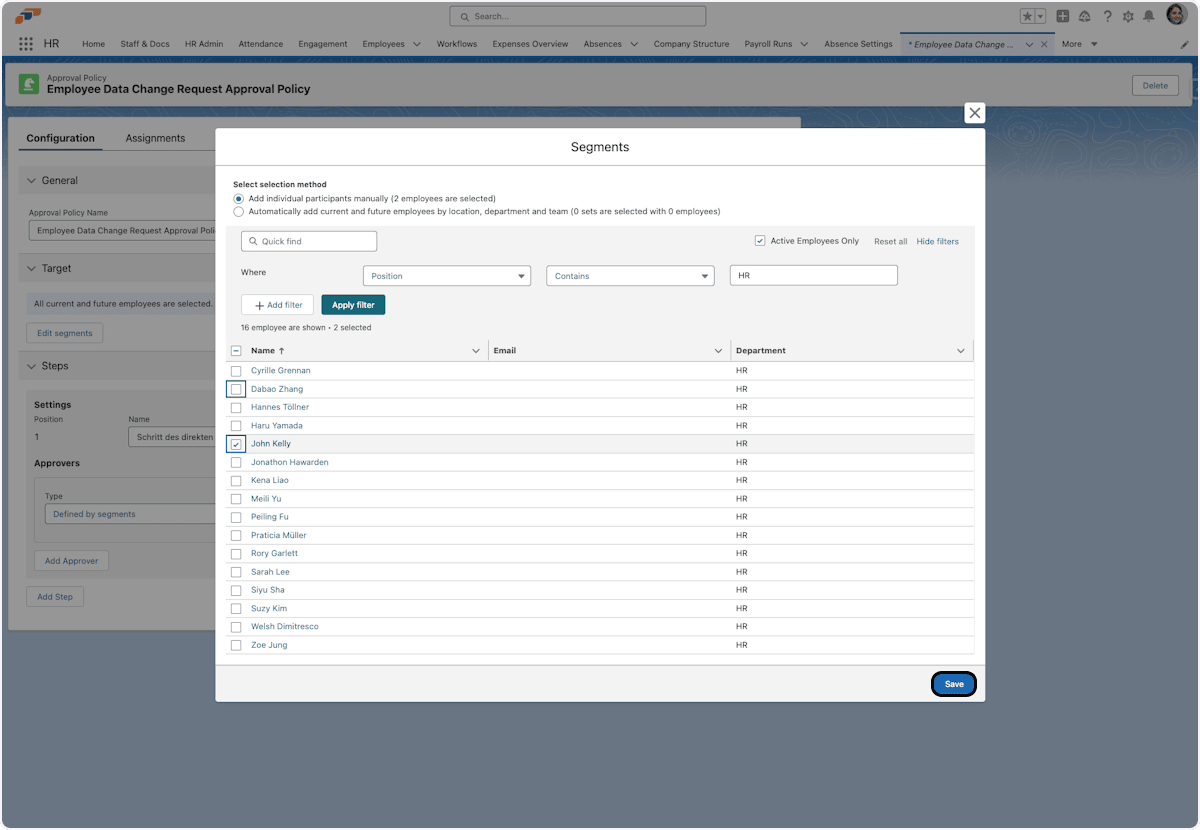
Select the approvers.
-
Click Save. The selected people can approve this step.
Add multiple approvers to a step
- On the step, click Add Approver to add another approver.
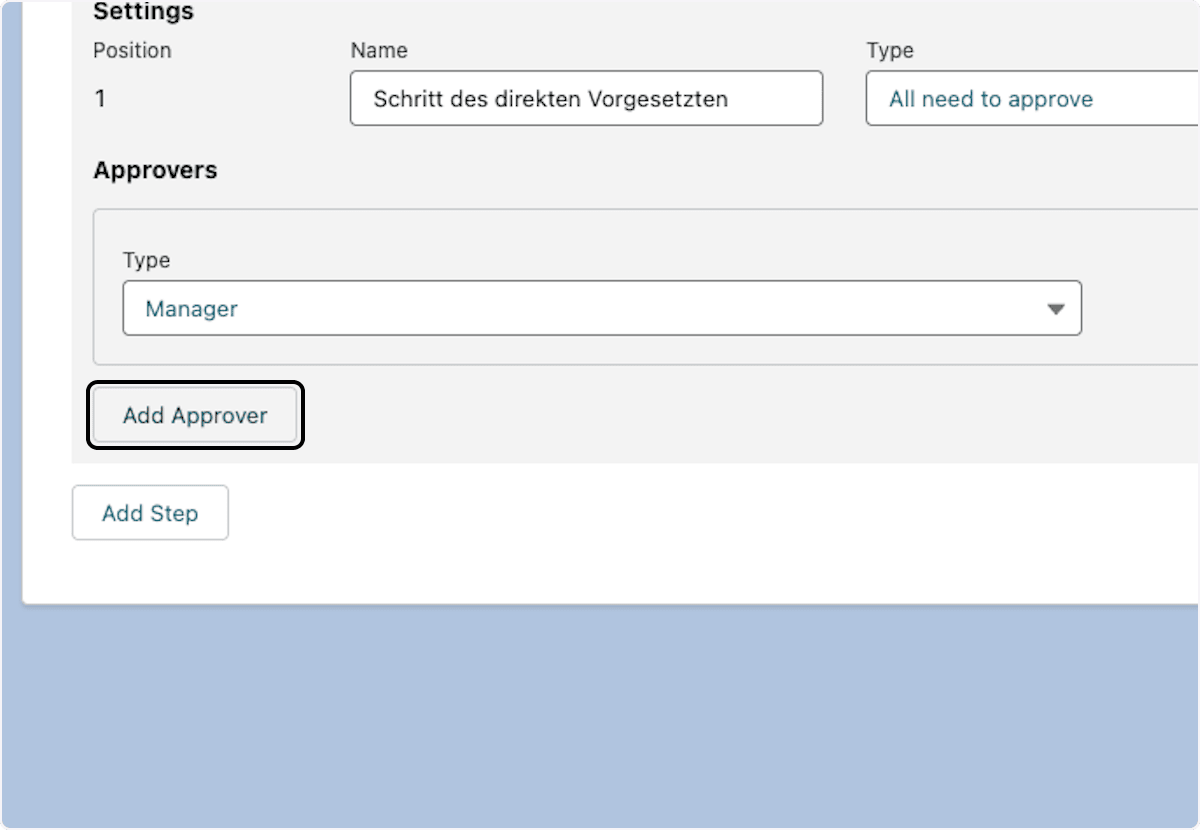
Depending on the step configuration, the first response can advance the request, all approvers can be required, or several approvers can review in parallel. Multiple approvers can also provide a backup when someone is unavailable.
Configure policy assignments
-
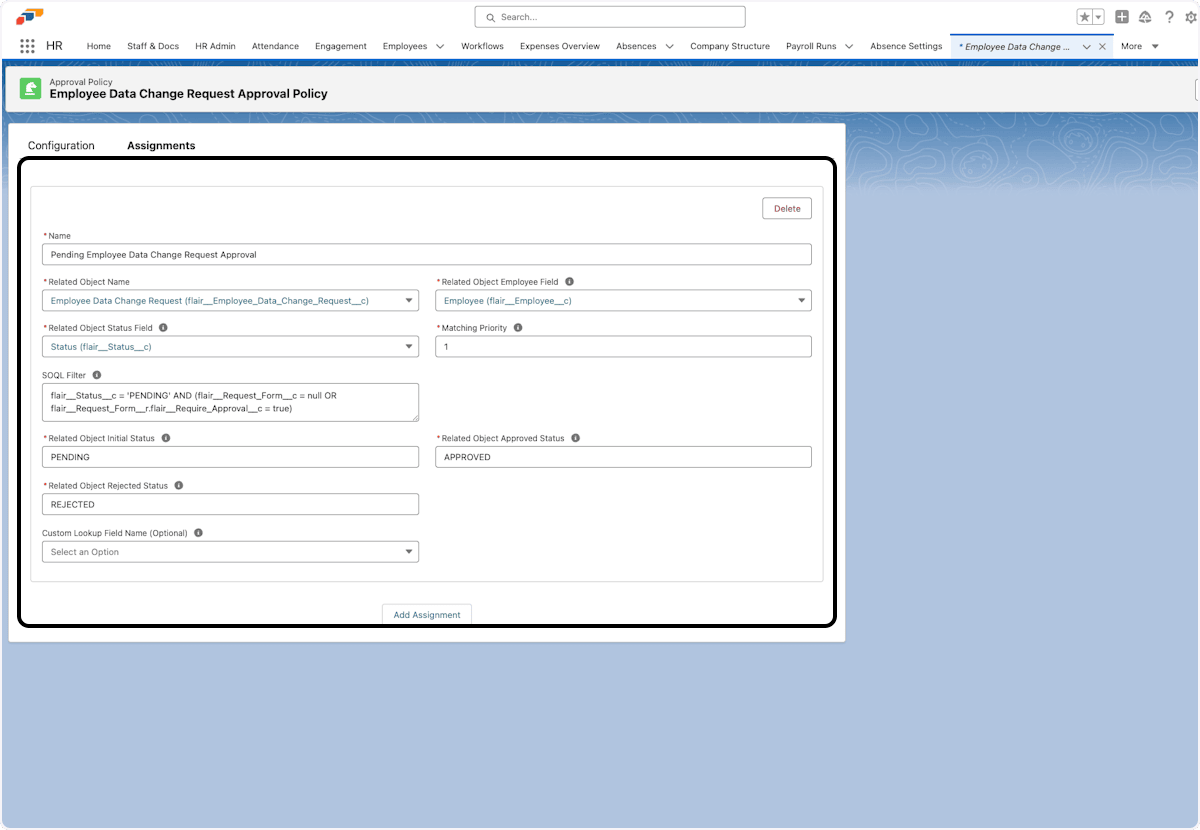
On the Approval Policy, open Assignments.
-
Configure the assignment fields:
Setting What it does Related Object Name Selects the Salesforce object, such as Absences or Employee Documents. Related Object Employee Field Identifies the employee the request belongs to. Related Object Status Field Stores the request status. SOQL Filter Optionally limits when the policy matches. Matching Priority Decides which assignment wins when several match; the lowest number wins.
Example SOQL filters include:
-- Only pending absences
flair__Approval_Status__c = 'PENDING'

-- Only vacation requests
flair__Employee_Absence_Category__r.flair__Absence_Category__r.Name = 'Vacation'

-- Only self-uploaded documents visible to HR, the manager, and the employee
flair__Visibility__c = 'HR_MANAGER_EMPLOYEE' AND flair__Self_Uploaded__c = true
Test an Approval Policy
- Submit a test absence or Employee Document.
- Confirm that flair routes it to the intended approvers.
- Confirm that approvers receive the enabled email, Slack, Employee Hub, and mobile notifications.
- In the request, review Approval Path to confirm the steps.
- Repeat the test for multiple managers, matching Employee Segments, and fallback priorities.
Understand manager transfers
When an employee's manager changes during a pending workflow, flair performs these actions:
- Marks the old manager's pending Approval Request as Skipped.
- Creates an Approval Request for the new manager.
- Notifies the new manager.
- Records the transfer in Approval Path.
The workflow continues with the current manager and keeps the prior assignment in its audit history.
A pending level of an Employee hierarchy step is not transferred. Later levels follow the hierarchy as it is when each level approves.
Troubleshooting
Requests route to the wrong approver
- Confirm that the policy is enabled.
- Confirm that the SOQL Filter matches the request.
- Compare Matching Priority across matching policies.
- Confirm that the approver matches the configured Employee Segment.
Several people receive the same request
- Check for Additional Managers.
- Review the approvers on the step.
- Check for overlapping enabled policies with the same priority.
You cannot edit a default policy
- Create a custom policy.
- Disable the default policy when you want the custom policy to handle requests.