Review and track Approval Requests
Review requests as an approver and track submitted requests as an employee. This guide covers notifications, request details, Approval Path, comments, multiple approvers, and manager transfers.
Employees and approvers in the Employee Hub, mobile app, Slack, or email. HR Admins and authorized approvers can also review records in Salesforce.
Understand Approval Request routing
When an employee submits an absence, Employee Document, or another supported record, flair processes it in this order:
| Stage | What happens |
|---|---|
| Policy matching | flair selects the matching Approval Policy. |
| Request creation | flair creates an Approval Request for each applicable step. |
| Notification delivery | Approvers receive notifications through enabled channels. |
| Deep linking | Each notification links to the specific request. |
| Decision and update | Approvers approve or reject with an optional comment, and flair updates the workflow. |
Review Approval Request notifications
Notifications contain the context and a direct link to the request:
| Channel | Available actions and details |
|---|---|
| Shows request type, requester, key details, submission time, and a direct link. | |
| Slack | Shows details and Approve and Reject actions when the flair Slack integration is enabled. |
| Employee Hub | Opens the request details in a side panel with actions, history, and comments. |
| Mobile app | Sends a push notification and opens Approval Request Details with record-specific context, decisions, and approval history. |
An email can use this format:
Subject: You have a new approval request from [Employee Name] for [Object Type]

- Request details
- Link to review and approve
- Submission date and time
View record-specific details on mobile
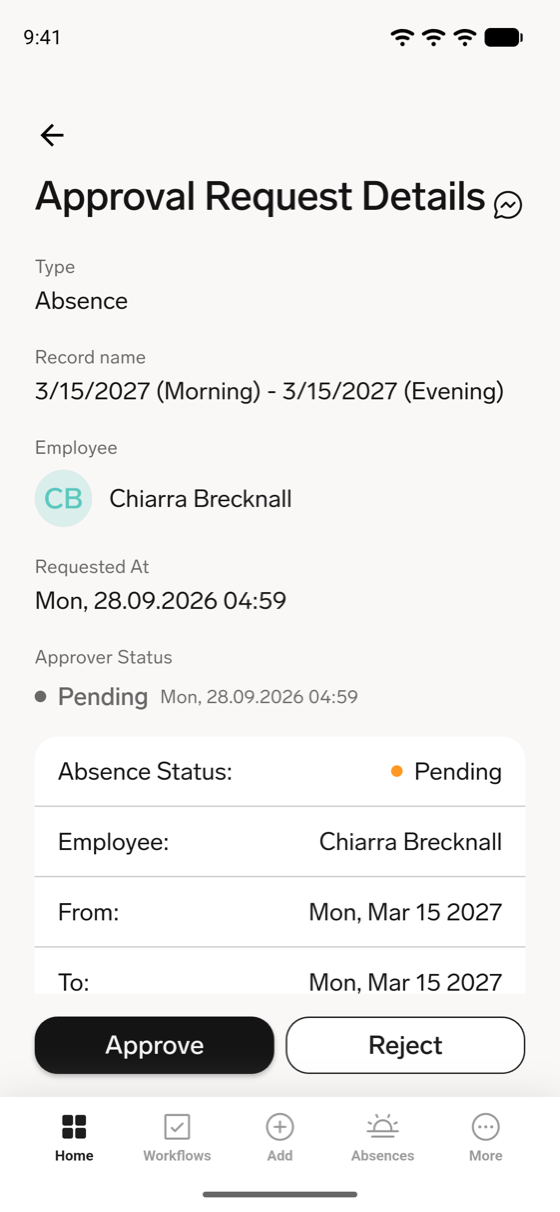
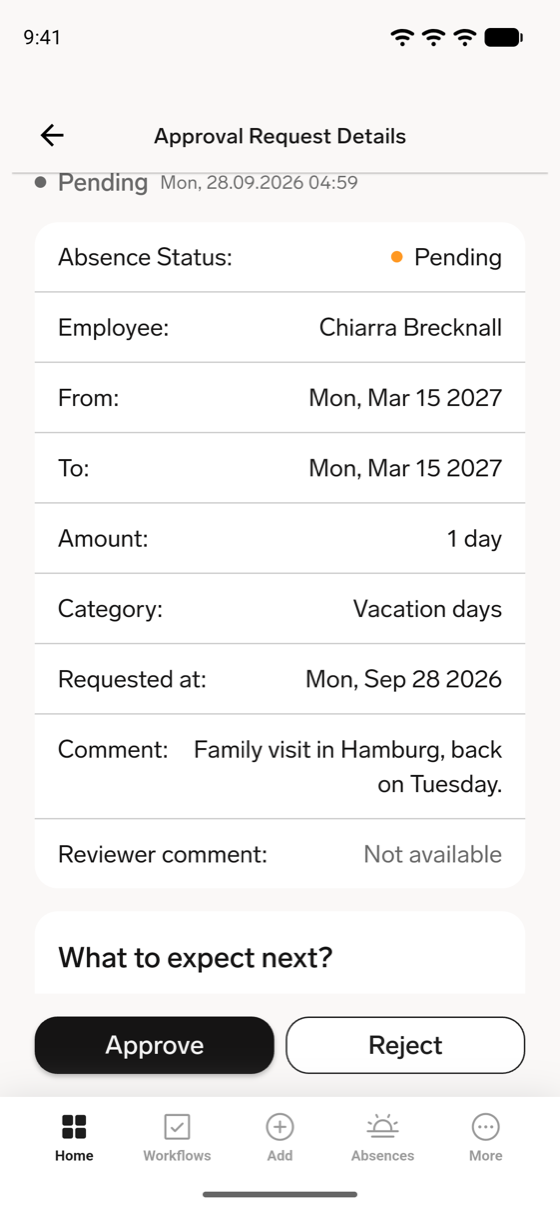
In the mobile app, tap a request in Approval Requests or a push notification to open Approval Request Details. The top of the screen shows Type, Record name, Employee, Requested At, and Approver Status. Below that, a card shows fields that depend on the request type, and What to expect next? shows the Added step for the requester and the Review step for the approver, with Pending or Completed. Your own steps show You instead of your name. For absence and expense requests, a comments button in the header opens the record's comments.
| Request type | Details shown |
|---|---|
| Absences | Absence Status, Employee, From, To, Amount, Category, Requested at, Comment (the employee's note), and Reviewer comment, which shows Not available until the approver adds one. |
| Expenses | For a single expense: Description, Amount, Category, Date From, Project, and Attachments. For an expense report: Total Amount, Start Date, End Date, and each expense in the report with its amount and attachments. |
| Shift changes | Request Type (for example, Shift Transfer), Shift Details (the shift's title with its date and time range), Transfer To (the colleague who takes over the shift), Change Reason, and Colleague Responded At. |
| Certificates | Issued By, Status, Issue Date, and Expiration Date. |
| Employee data changes | Status, Change Reason, and each changed field with its label and new value. Editing an existing record also shows the previous value, struck through. |
| Documents | A View Details button that opens the document. |
For absences, every field is always shown. For the other request types, flair shows only the fields that have a value for that request; empty fields are omitted.
Review Approval Request details
Open a deep link or select a request. Approval Request Details shows the following information:
| Group | Details |
|---|---|
| Request | Requester, submission time, current status, dates, amounts, and other object-specific values. |
| Description | A short summary of the request, generated from the matching Approval Policy's configuration. flair shows it only when the policy provides one. |
| Approval Path | Every step, status, approver, action, and time. |
| Context | Requester comments, documents, related records, history, and overlapping absences. |
| Actions | Approve and Reject for the active approver. |
| Tabs | Information, Comments, and Approval Path. |
| Status | Current step, your role, and actions already taken. |
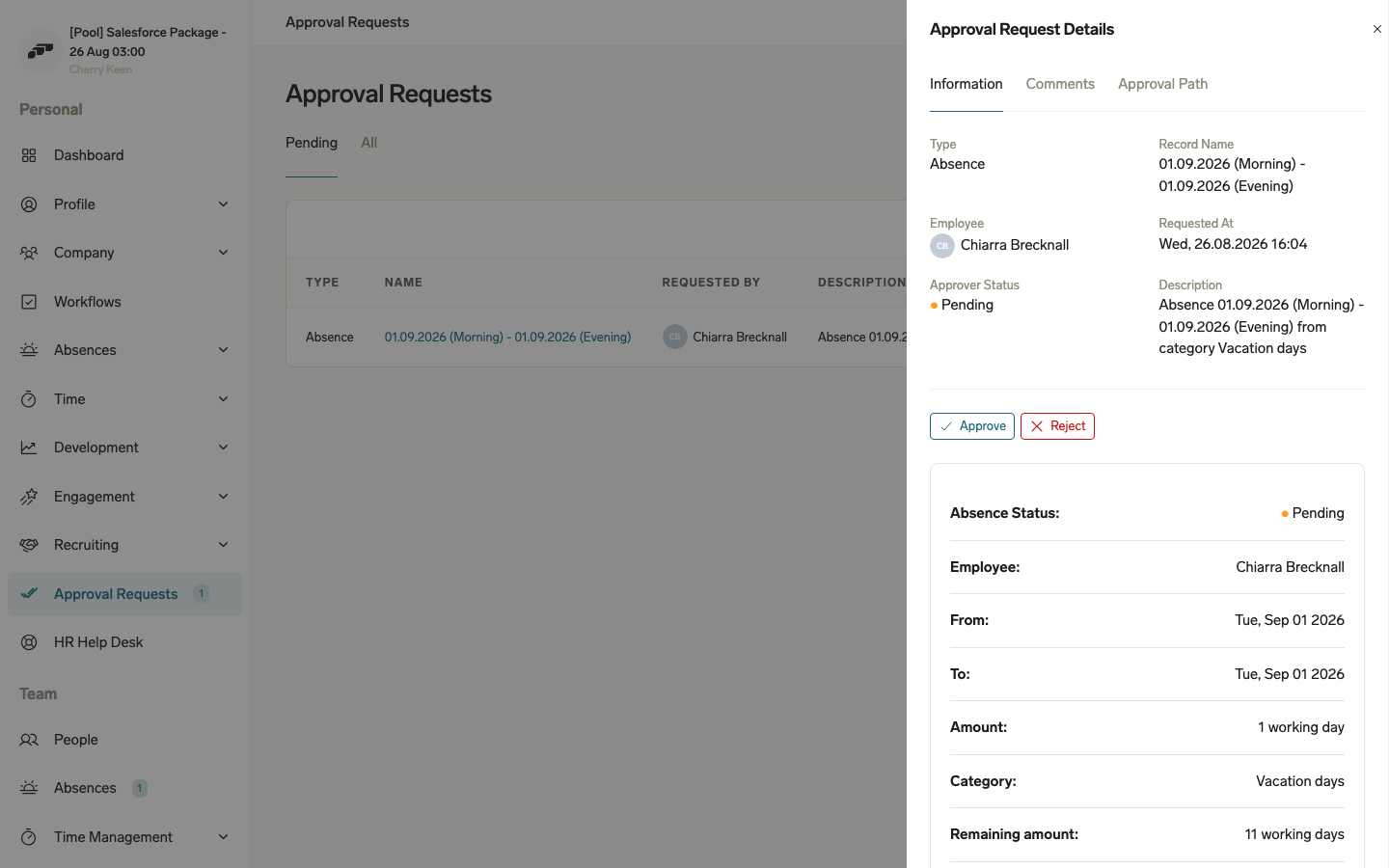
Deep links from email, Slack, and Employee Hub notifications open the specific request with its actions and context.
Approve or reject a request
Approve a request
- Open the Approval Request.
- Review its details and Approval Path.
- Click Approve. flair records the time and advances to the next step or completes the workflow.
If another step remains, flair notifies the next approver. Otherwise, the request becomes fully approved. The requester sees the new status, and applicable parties receive a notification.
Reject a request
- Open the Approval Request.
- Click Reject.
- Optional: Enter a comment that explains the decision.
- Submit the rejection. flair records it, stops the workflow, marks other pending requests as Skipped, and notifies the requester.
Approve or reject in the mobile app
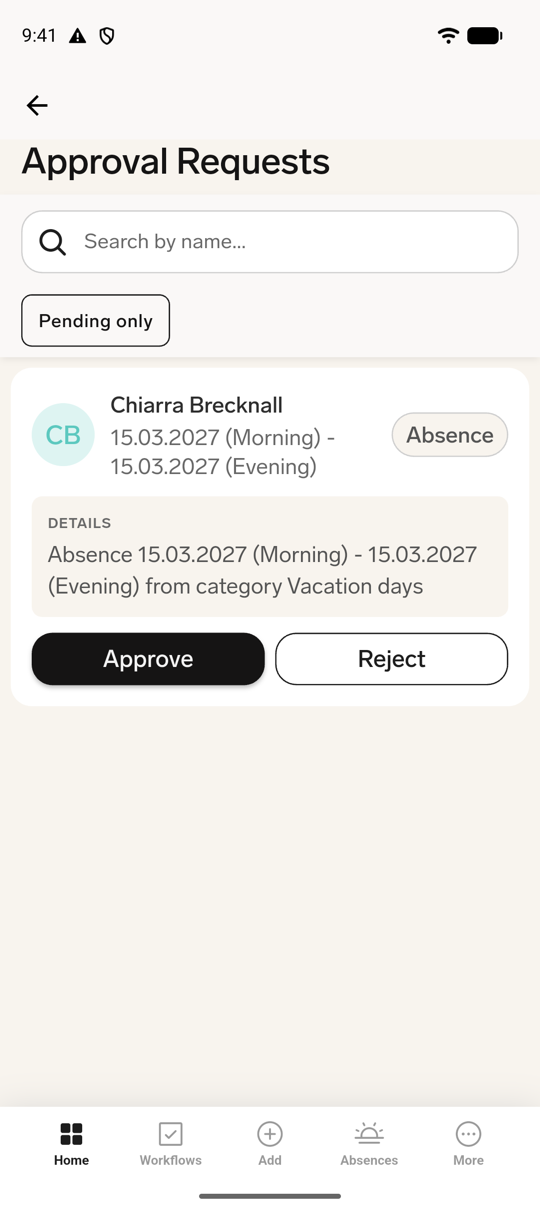
The mobile app lists every Approval Request assigned to you, whatever record it belongs to, for example absences, expenses, expense reports, Employee Documents, certificates, shift change requests, and employee data change requests.
- On the mobile home screen, tap Approval Requests. The number in parentheses is how many requests are waiting for you.
- Optional: Search by employee or record name in Search by name.... To hide approved, rejected, and skipped requests, select Pending only. The filter is off by default, so the list also shows your past decisions with their status.
- Review the request. Each item shows the employee, the record name, the record type, and, when the Approval Policy provides one, a DETAILS summary.
- Tap Approve, or tap Reject, optionally add a note, and tap Submit. flair confirms with Approval request has been approved or Approval request has been rejected.
To see the full record before deciding, tap the request. Approval Request Details has the same Approve and Reject buttons. See View record-specific details on mobile.
The Approval Requests section is hidden when Hide Approval Processes is selected in the employee's Employee Hub feature set. See Configure the Employee Hub. If nothing is assigned to you, the list shows No approval requests.
Managers can also approve absence requests from Absences → Absence Requests in the mobile app. See Request and approve absences.
Identify an auto-approved request
Requests can be auto-approved when a policy requires no approval, an absence type allows automatic approval, or the requester matches a configured Employee Segment.
Auto-approved requests show Auto-Approved in the approval column and remain in approval history. They have no action buttons.
Find Approval Requests
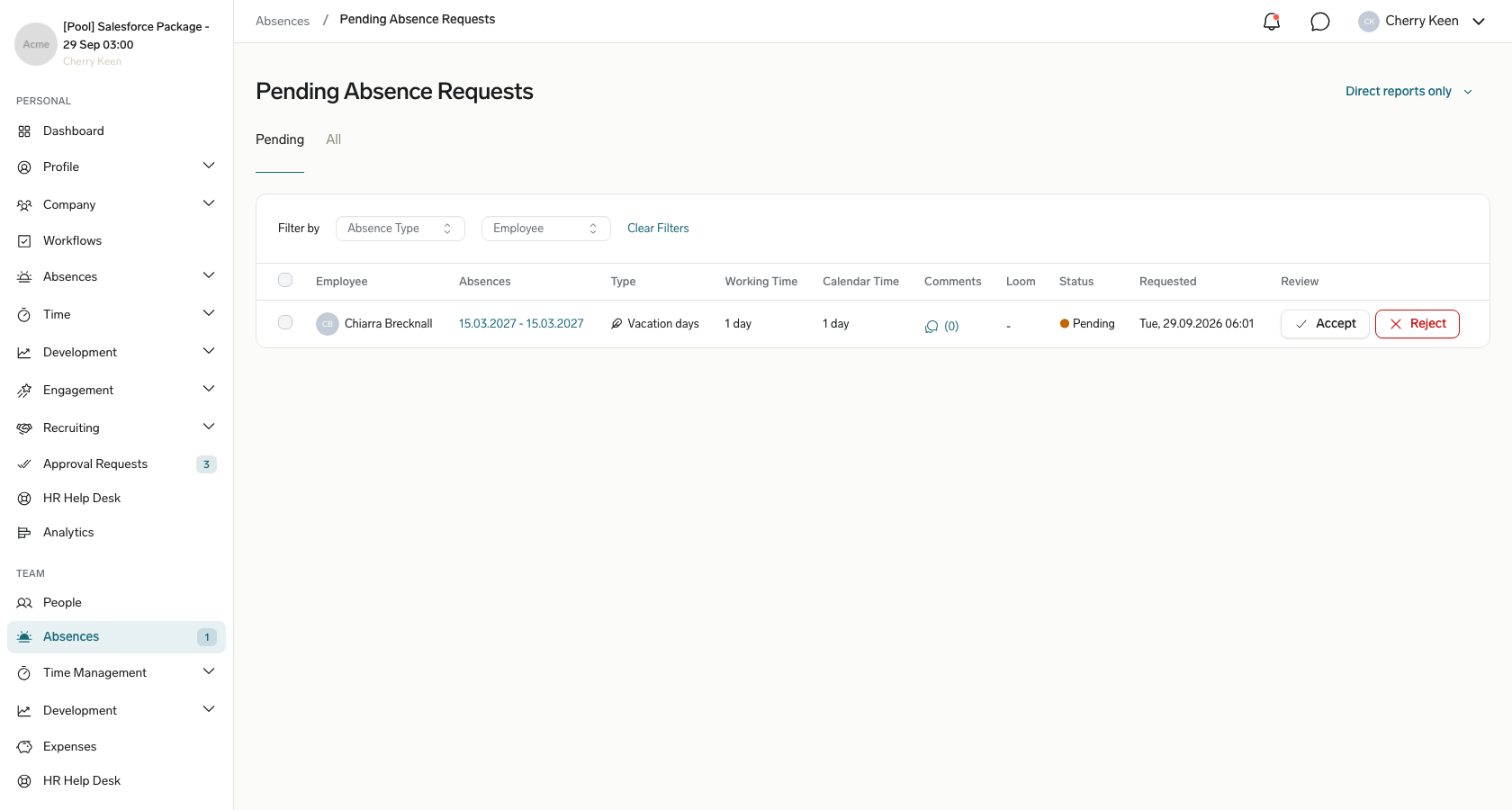
Find team requests in the Employee Hub
- In the Employee Hub, open Team.
- Select Absences or the relevant area.
- Review pending requests for your team.
- Optional: Filter by Pending or All, request type, date range, employee, or approval status.
- To decide from the list, click Accept or Reject.
- To see full details and multiple-approver avatars, open the request.
Find your submitted requests
- In the Employee Hub, open your personal absence or document area.
- Open a submitted request.
- Review its status, completed approvers, and pending approvers.
Find requests in Salesforce
- In Salesforce, open the App Launcher (⋮⋮ grid icon), and select Approval Requests. You can also open requests from related Absences or Employee Documents.
- Open a pending request.
- On Related, review approvers, status, action date, comments, and the full path.
- If you have permission, change the approval status.
On People, pending indicators identify employees with requests and provide direct links and filters.
Decide requests from HR Home
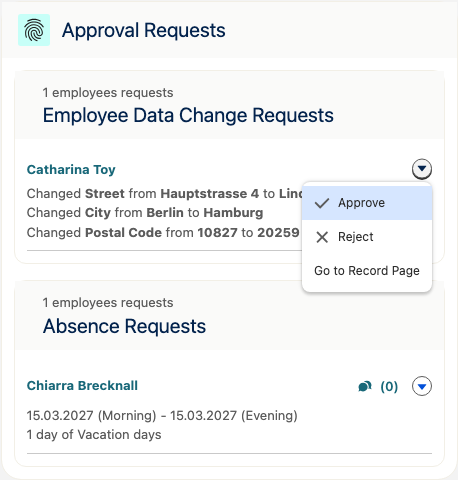
The Approval Requests card on HR Home, the home page of the HR app in Salesforce, collects pending requests so you can decide them without opening each record.
The card shows up to two sections, depending on your permissions:
| Section | Shows | Who sees it |
|---|---|---|
| Absence Requests | Pending absence Approval Requests you have access to, with the absence, amount, category, and comment count. | Users with the Absences Manager custom permission, for example through Flair Absence Manager, Flair Manager, or Flair Employee Management. |
| Employee Data Change Requests | Pending changes to employee data, with the old and new values. | Users with the HR Manager custom permission, for example through Flair Manager or Flair Employee Management. |
A section appears only when it has pending requests, and the card is hidden when both sections are empty.
- In Salesforce, open the HR app. HR Home opens.
- In Approval Requests, find the request. If a section has more than three requests, click View all to see the rest.
- Click the request's action menu, and select Approve or Reject. To review the full record first, select Go to Record Page.
View the Approval Path
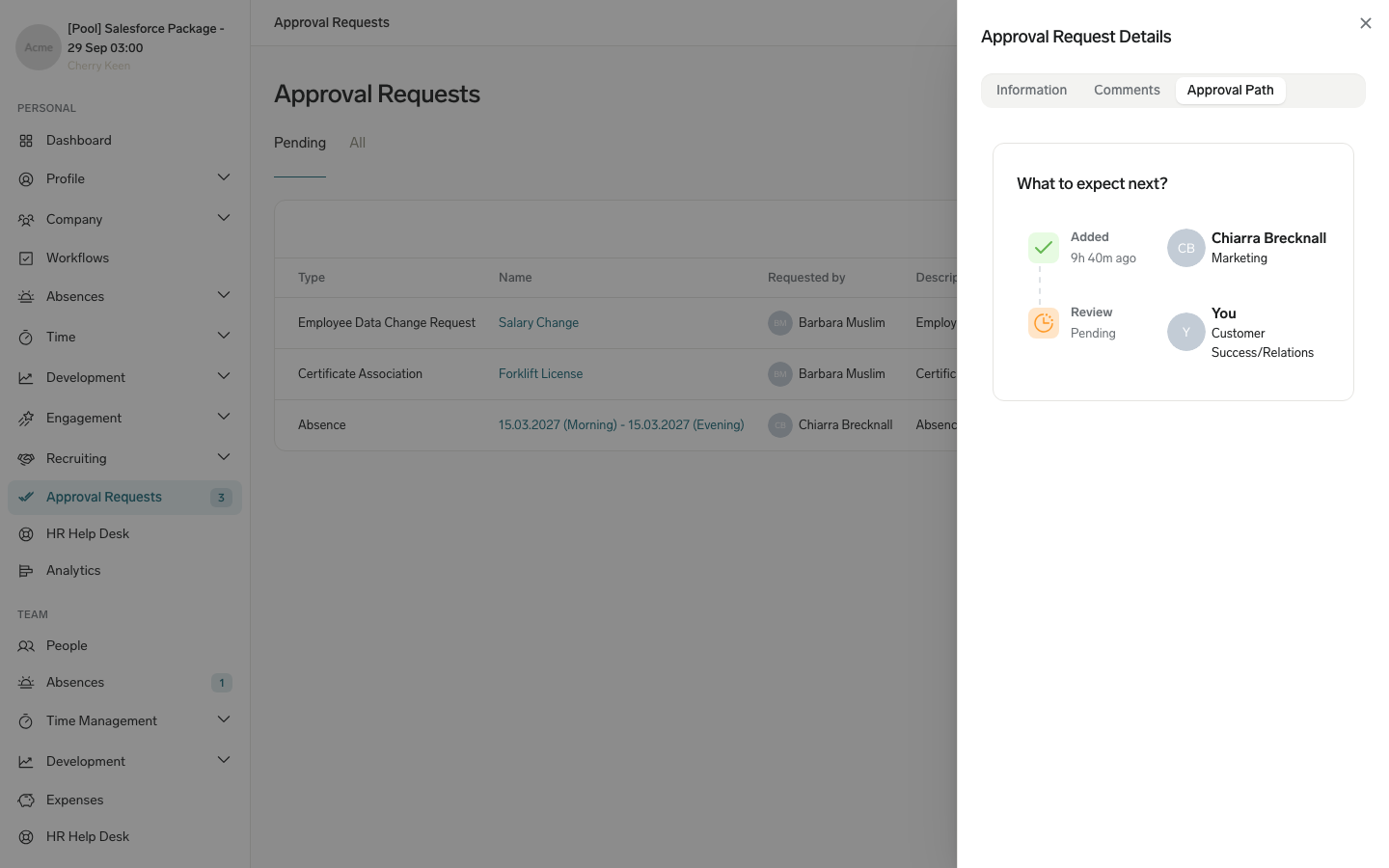
View the path as an approver
- In the Employee Hub, open Approval Requests.
- In Pending or All, select a request.
- In Approval Request Details, open Approval Path.
- Under What to expect next?, review each step in order.
View the path as a requester
- Open your request. Approval Path appears when approval is required and shows completed, pending, and skipped steps. Requests without approval do not show the path.
Interpret path statuses
| Status | Meaning |
|---|---|
| Completed | The participant finished the step; the path shows Added just now or the action time. |
| Review Pending | The step awaits a decision. |
| Rejected | The approver rejected the request, with a reason when provided. |
| Skipped | flair bypassed the step because the workflow changed or another action made it unnecessary. |
The requester appears first with Added just now. The current step is highlighted; completed steps show timestamps, and future steps remain pending.
The path updates without a page refresh after a decision. It shows the new status, skipped downstream requests when applicable, and overall progress.
A request can become Skipped after a manager transfer, earlier rejection, policy change, updated auto-approval rule, or another approver's sufficient decision.
Understand multiple approvers
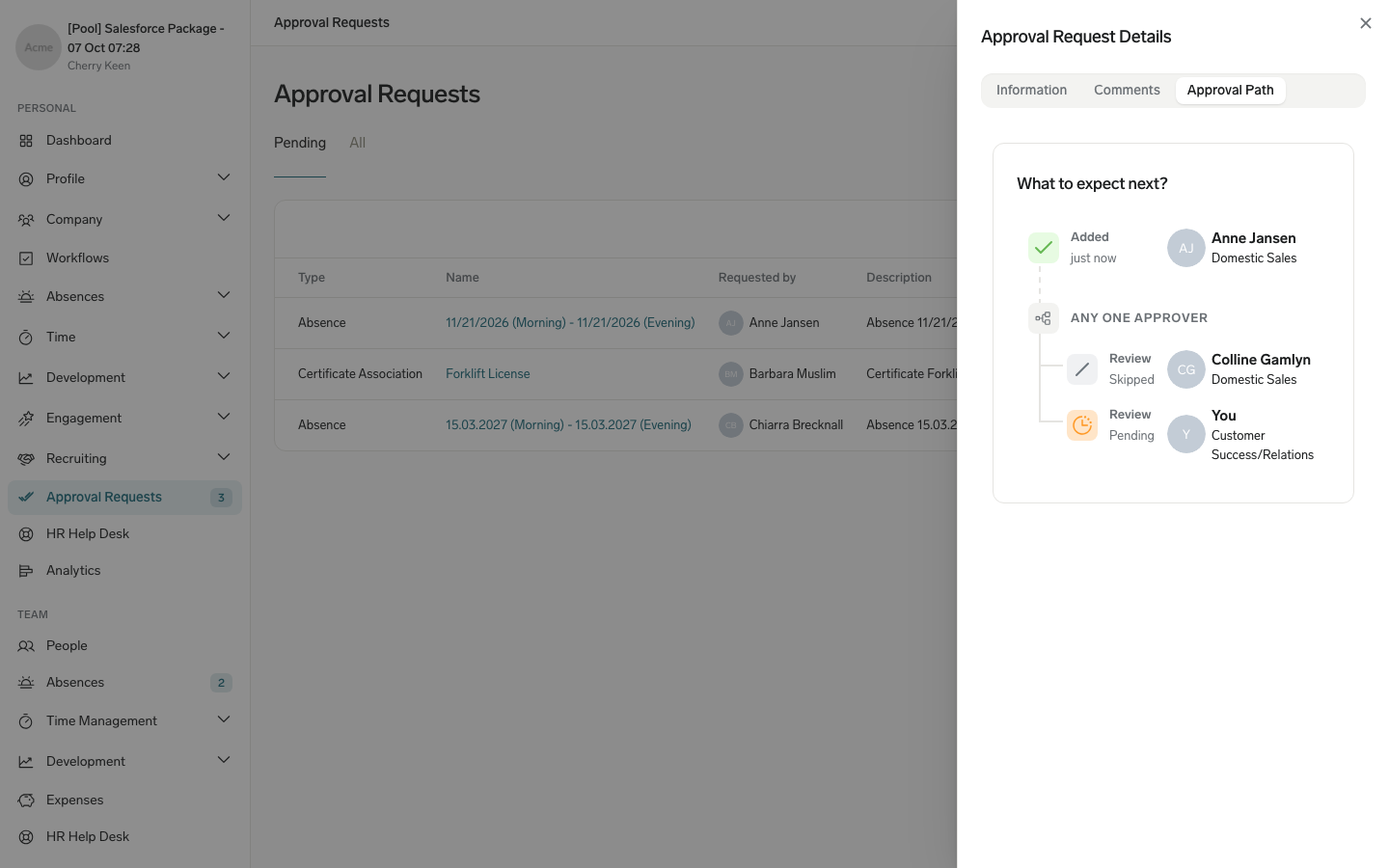
Avatar indicators show multiple approvers for one step. Hover over an avatar to see the approver's status; Action date shows when the person approved.
The policy can use one of these behaviors:
| Behavior | Result |
|---|---|
| Any one approver | The first approval advances the workflow. |
| All approvers required | Every approver must approve before the next step. |
| Parallel approval | Several approvers review at the same time. |
Approval Path shows who has acted and who remains pending.
Review overlapping absence requests
For an absence, the side panel shows the absence type, duration, date range, remaining allowance, team coverage, historical patterns, and team members absent on overlapping dates.
Use the overlapping-absence context to identify coverage gaps before making a decision.
Comment on an Approval Request
- Open the Approval Request.
- Open Comments.
- Enter a question, rejection reason, supporting context, special circumstance, or alternative.
- Submit the comment. flair adds it to the chronological audit history and notifies the relevant people.
Understand manager transfers
When an employee's manager changes during a pending workflow, flair performs these actions:
- Marks the old manager's request as Skipped.
- Creates an Approval Request for the new manager.
- Notifies the new manager.
- Updates Approval Path with the transfer.
For example:
Before: Manager A (Pending) → Manager B (Pending)
After:  Manager A (Skipped) → Manager C (Pending) → Manager B (Pending)
The path keeps the original approver's Skipped request next to the new approver's request as an audit trail. The skipped request comes first, followed by the new approver's request for the same step.
Troubleshooting
You do not receive notifications
- Check your notification settings in the Employee Hub.
- Confirm that your email address is correct.
- Confirm that the Slack integration is connected.
- Check the email spam folder.
You cannot see Approval Requests
- Confirm that the Approval Policy assigns you as an approver.
- Confirm that you have the required Salesforce permissions.
- Confirm that the policy is enabled and matches the request.
- In the mobile app, check whether Hide Approval Processes is selected in your Employee Hub feature set. It hides the Approval Requests section.
Approval actions do not appear
- In Approval Path, confirm that you are the current approver.
- Confirm that the request is not already approved or rejected.
- Confirm that you are not viewing a historical request.
- Check whether the policy changed after submission.
An approval transfers unexpectedly
- Check the employee's current manager.
- In Approval Path, review the transfer history and the old Skipped assignment.