Manage flair licenses
Manage Salesforce, Employee Hub, and administrator licenses for your organization. You can also transfer the integration-user role and control security alerts for license assignments.
HR Admins in the flair HR app and Salesforce Admins who manage users, permission sets, and subscriptions.
Before you begin
- Confirm how many Salesforce, Employee Hub, and administrator licenses your organization needs.
- To assign managed-package licenses to Salesforce users, follow Install and update flair in Salesforce.
- If flair cannot reach external services, activate the flair API remote site.
Understand flair license types
flair uses these license types:
| License | Who needs it |
|---|---|
| Salesforce license | Users who access flair features in Salesforce. |
| Employee Hub license | Employees who access the Employee Hub. |
| Administrator license | Users who administer flair. |
Add Salesforce licenses
-
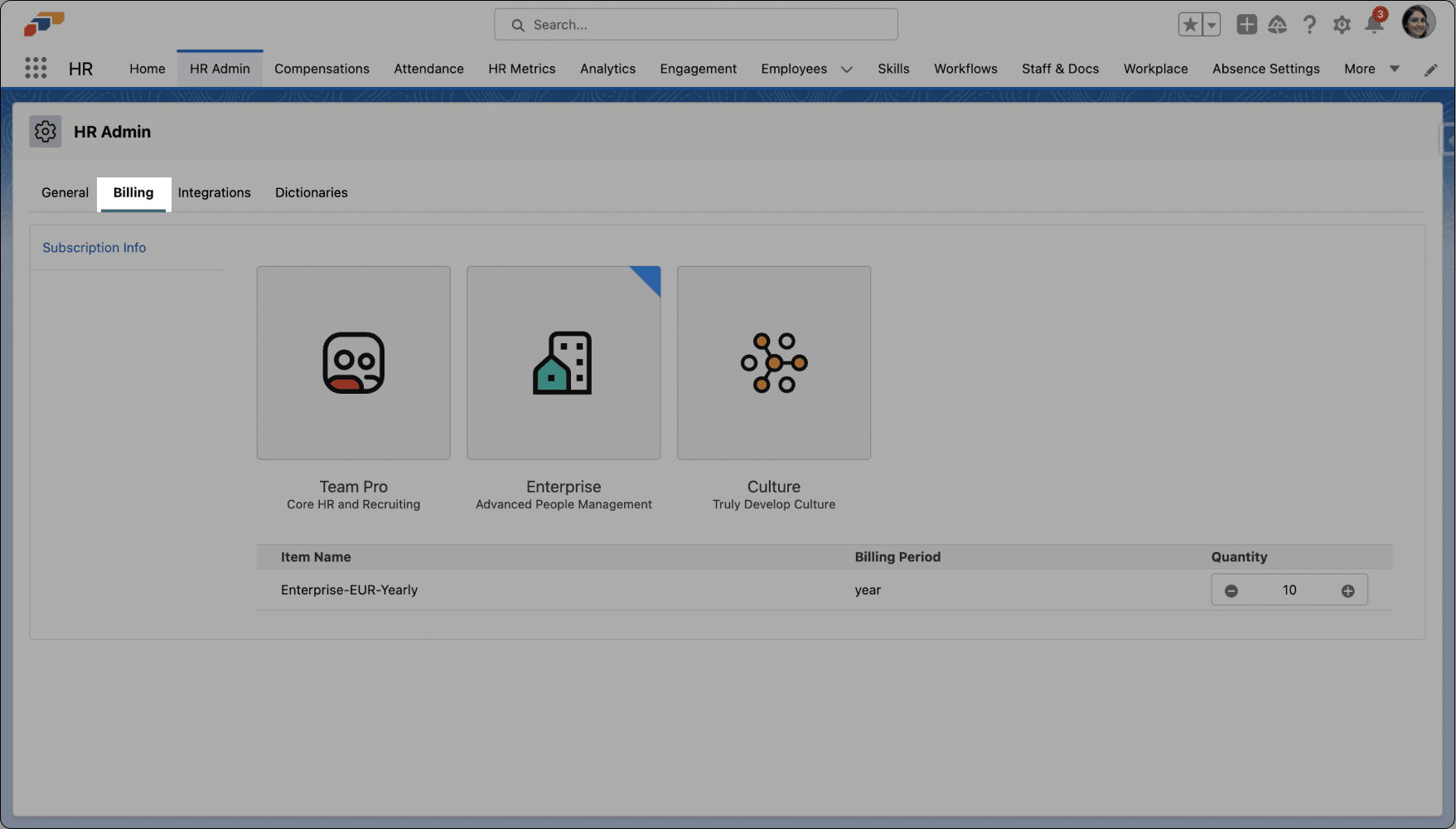
In the flair HR app, open HR Admin → Billing.
-
Find the required plan. A blue corner identifies your purchased plan.
-
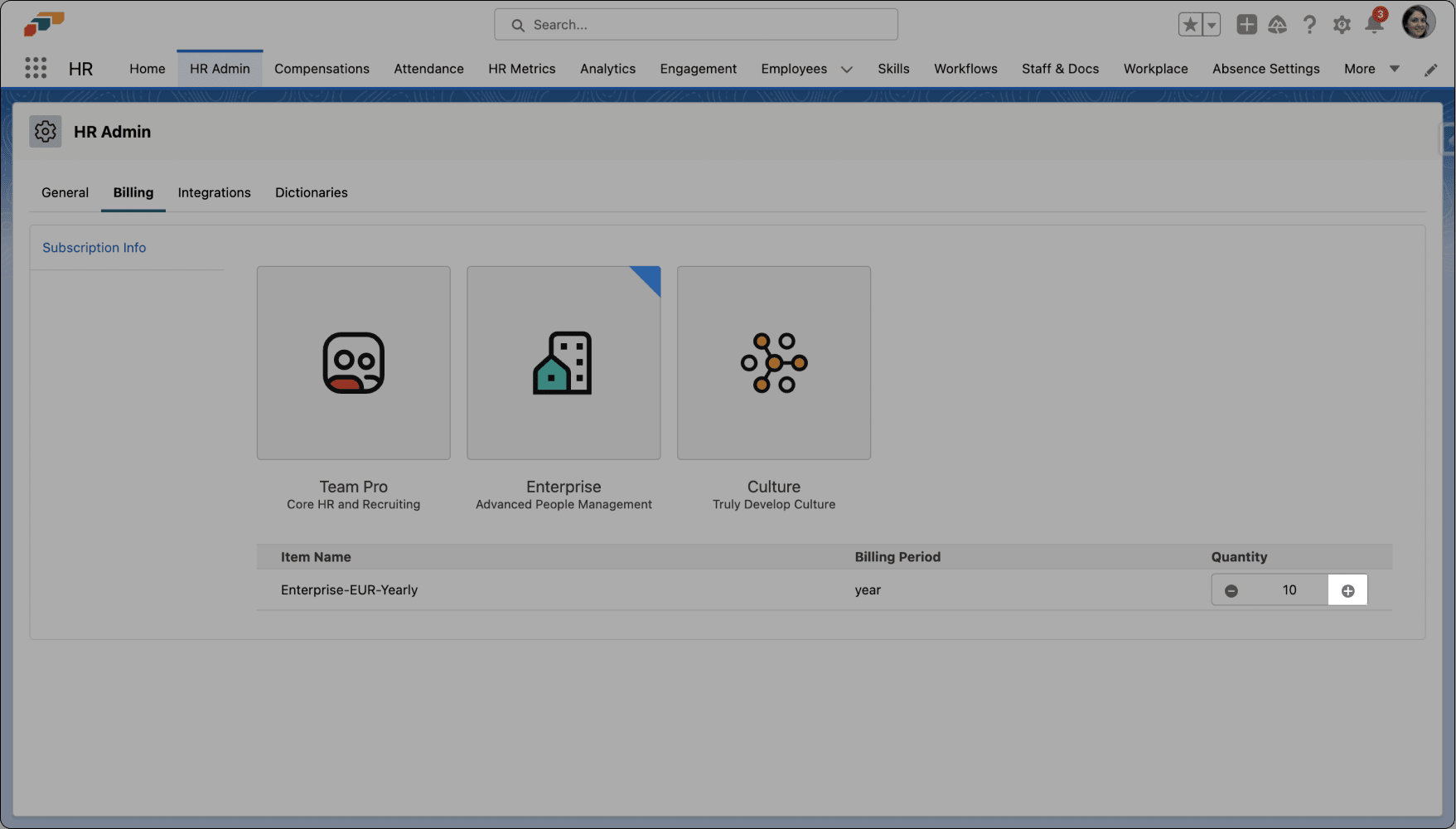
Under Quantity, click +.
-
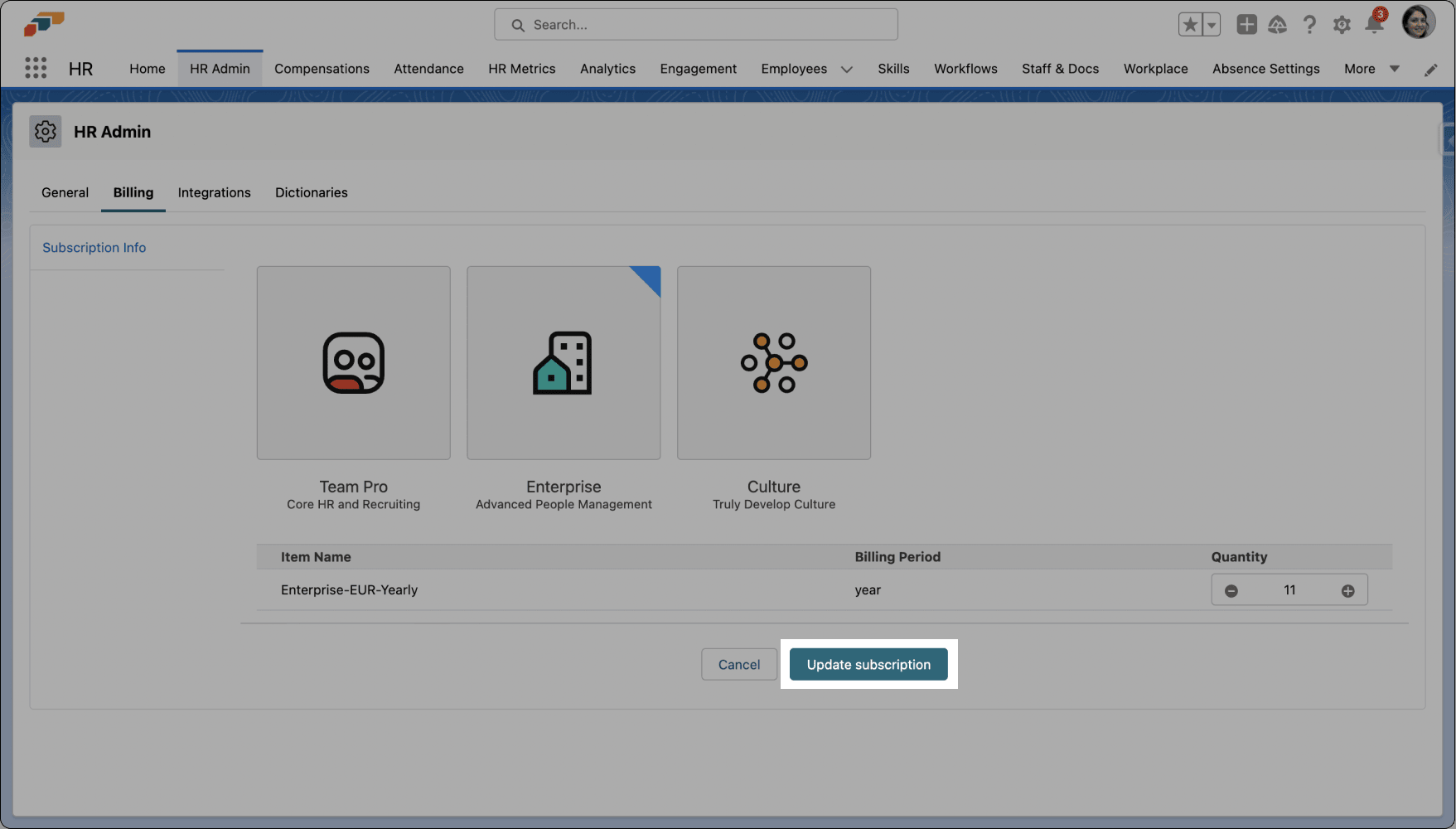
Click Update Subscription. The additional license is added to your subscription.
Add Employee Hub licenses
- In the flair HR app, open HR Admin → Billing.
- Under Quantity, click + to add an Employee Hub license.
New licenses are charged automatically through the end of your contract period. flair sends invoices automatically; no additional action is required.
Assign administrator licenses
- Give a user with Salesforce access the flair HR Admin License.
- Give a user without Salesforce access the flair.force Admin License.
Transfer an administrator license
- Keep the former employee or user record when you need it for historical or administrative purposes.
- Set the former employee's termination date to a date in the past. The administrator license is released for another user.
- Assign the released license to the new administrator.
Assign an integration user
The integration user is the person who activates the Employee Hub. Although this is not a standard Salesforce role, the assigned user is required to maintain Employee Hub access. Transfer the role before the current integration user leaves your organization.
-
Sign in to Salesforce as the new integration user.
-
Click the setup gear.
-
Select Setup.
-
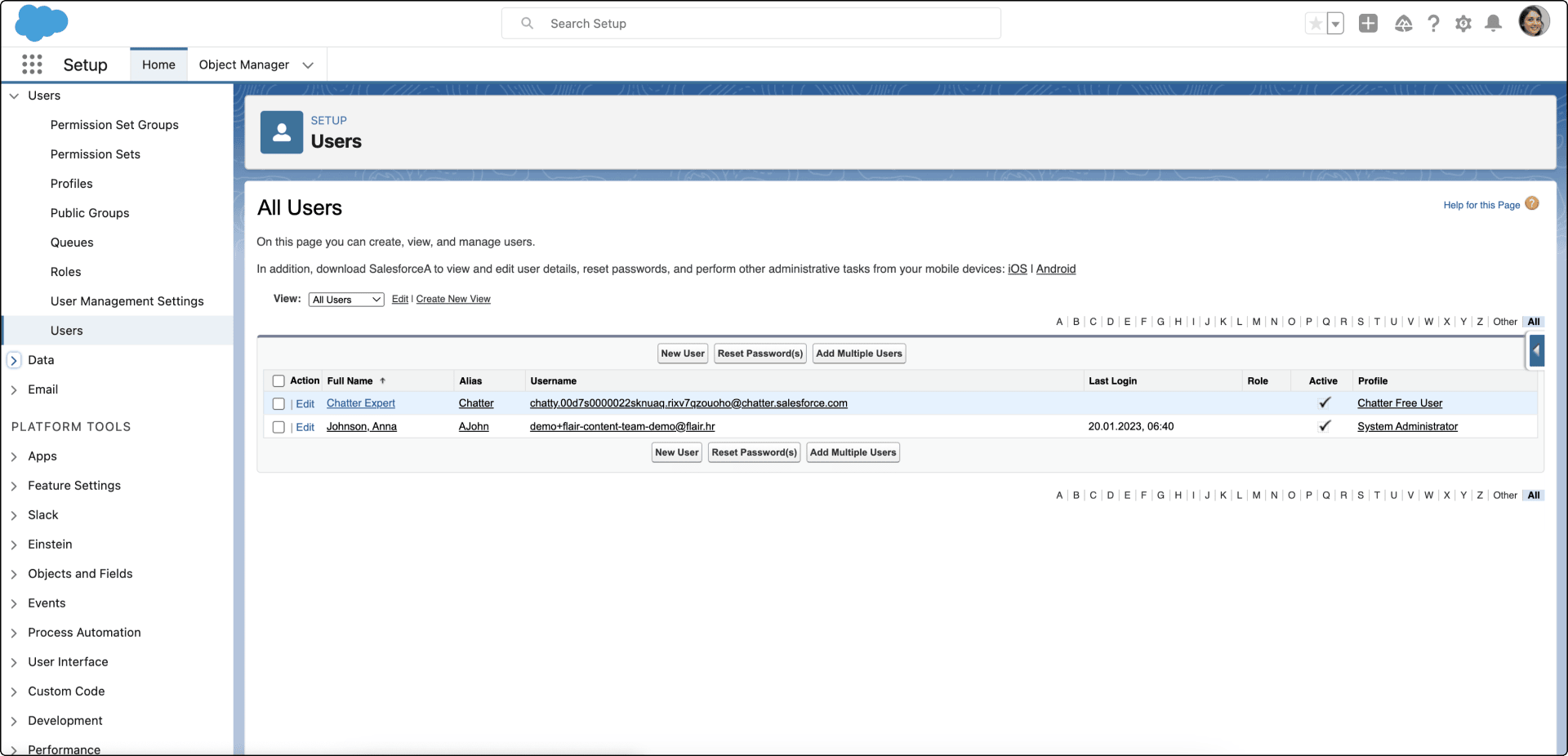
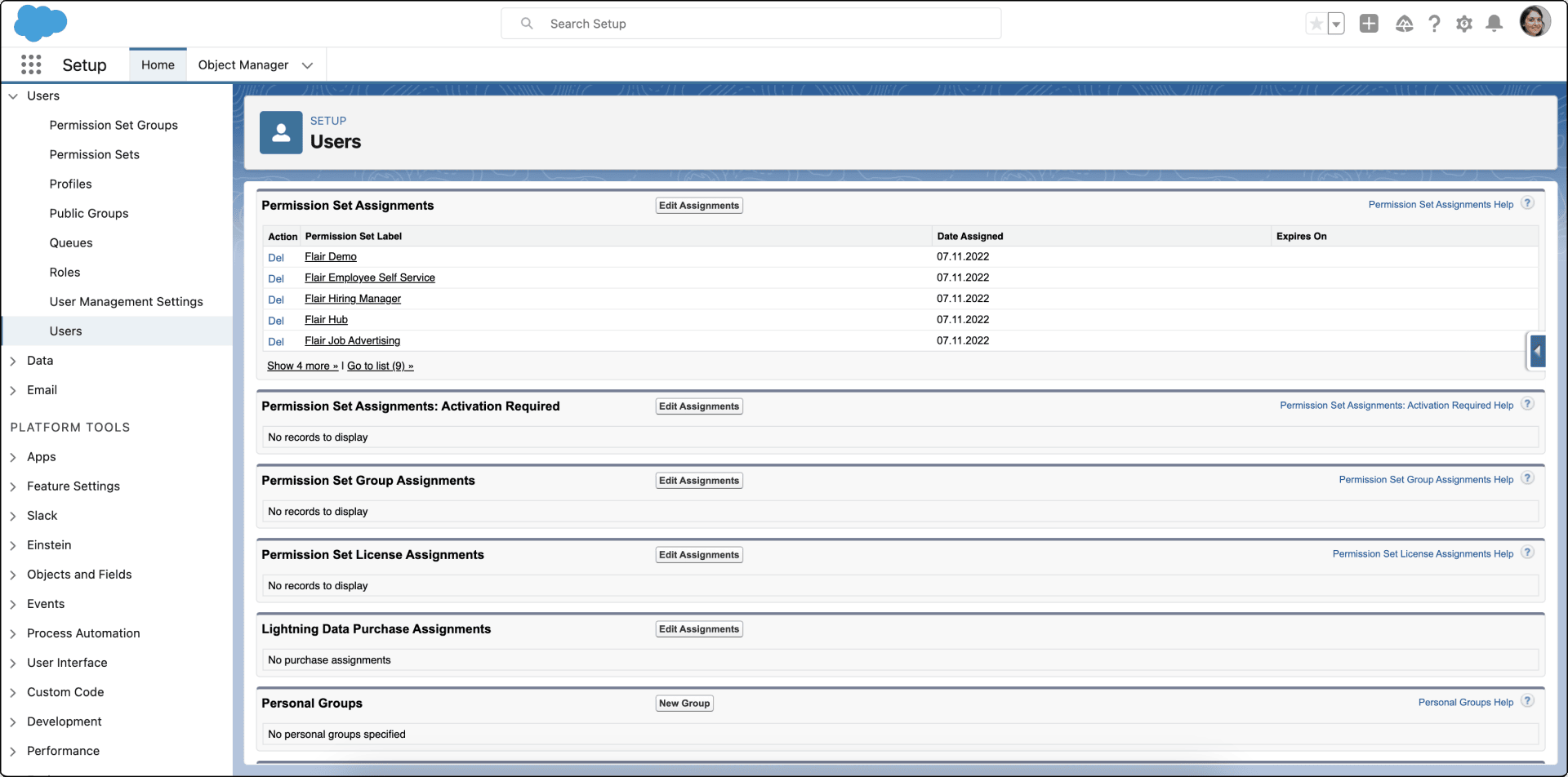
Open Administration → Users → Users.
-
Select the new integration user.
-
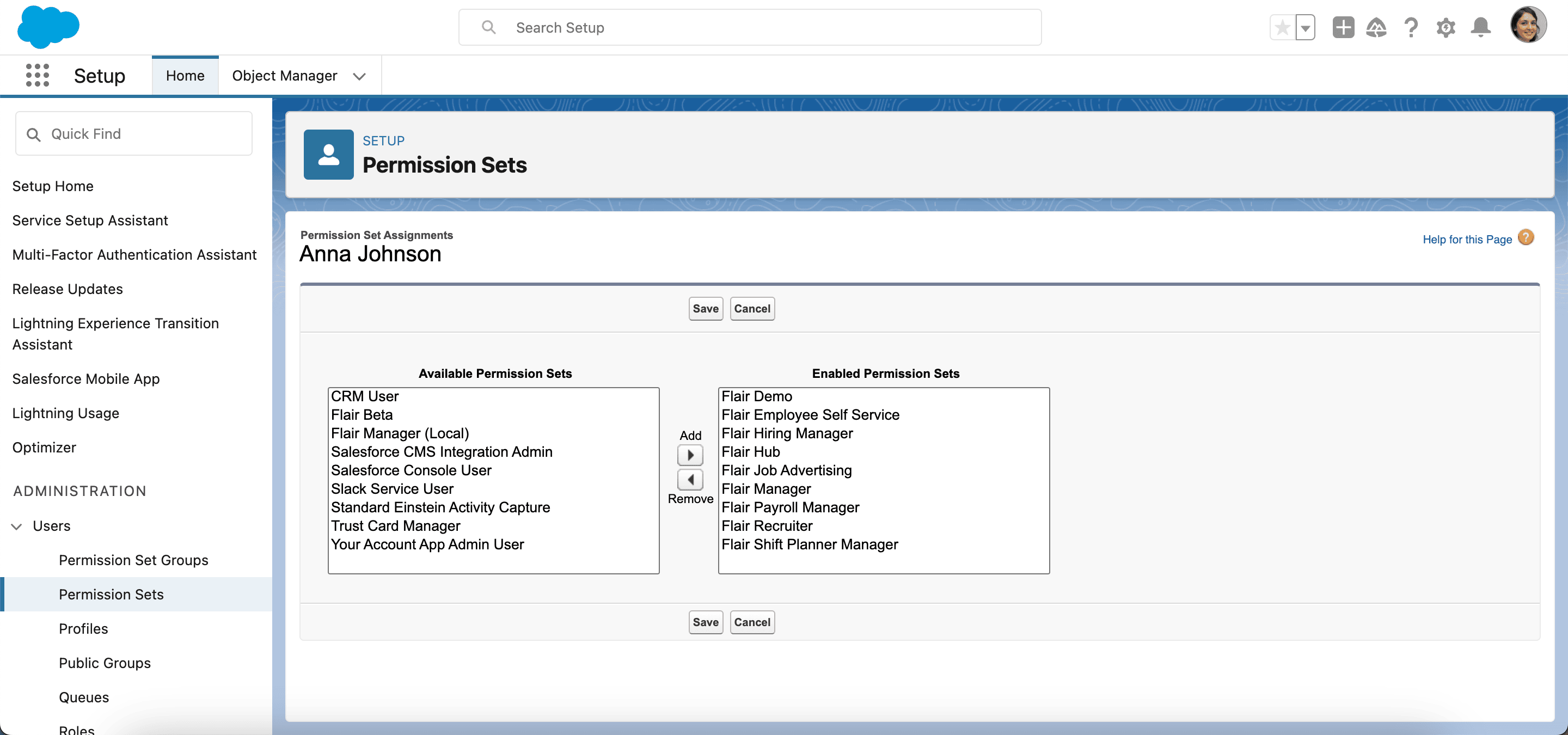
Under Permission Set Assignments, click Edit Assignments.
-
Add Flair Manager and Flair Hub to Enabled Permission Sets.
-
Click Save.
-
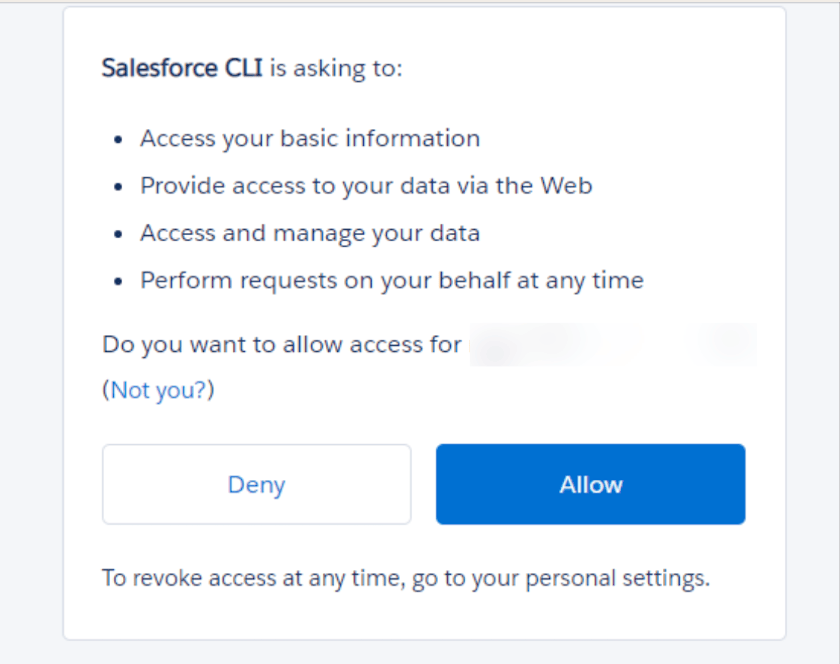
Open
https://hub.flair.hr/_auth/salesforce. -
Click Allow.
Start employees with the Setup Assistant
The integration user can prepare Employee Hub access from the Setup Assistant on the flair HR app home page.
- Use Add Employees to import employee details, including email addresses, into the Employee Hub.
- Click Enable the Employee Hub to activate the Employee Hub mobile app and web dashboard.
- Click Invite Employees to send sign-in invitations.
- Ask employees to open the invitation link and create a password.
- Optional: Click Enable Slack, and then select Allow. The flair app in Slack supports notifications, time tracking, and absence requests.
Cancel licenses
- At least two weeks before the end of the month, email flair Support.
- State how many licenses you want to cancel.
- flair reduces the license count at the end of the current month. The next yearly subscription and invoice reflect the reduced amount automatically.
Troubleshooting
Administrators receive license-assignment emails every 30 minutes
When Monitoring Integration is active in flair HR Admin, administrators receive an email every 30 minutes after a flair license is assigned. Alerts cover licenses assigned to another user or to the administrator and help detect unauthorized assignments.
To stop or reduce the alerts:
- Disable Monitoring Integration in flair HR Admin.
- Restrict who can assign licenses by adjusting permissions.
We recommend keeping Monitoring Integration active for security. If alerts continue after deactivation, reply to the notification email or open a flair Support ticket.