Offboard an employee
Set the employee's end dates in flair HR so remaining absence balances and partial-period salary are calculated correctly. This procedure covers every record that needs an end date.
HR Admins who manage employee, absence, and compensation records in Salesforce.
Set the employee record end date
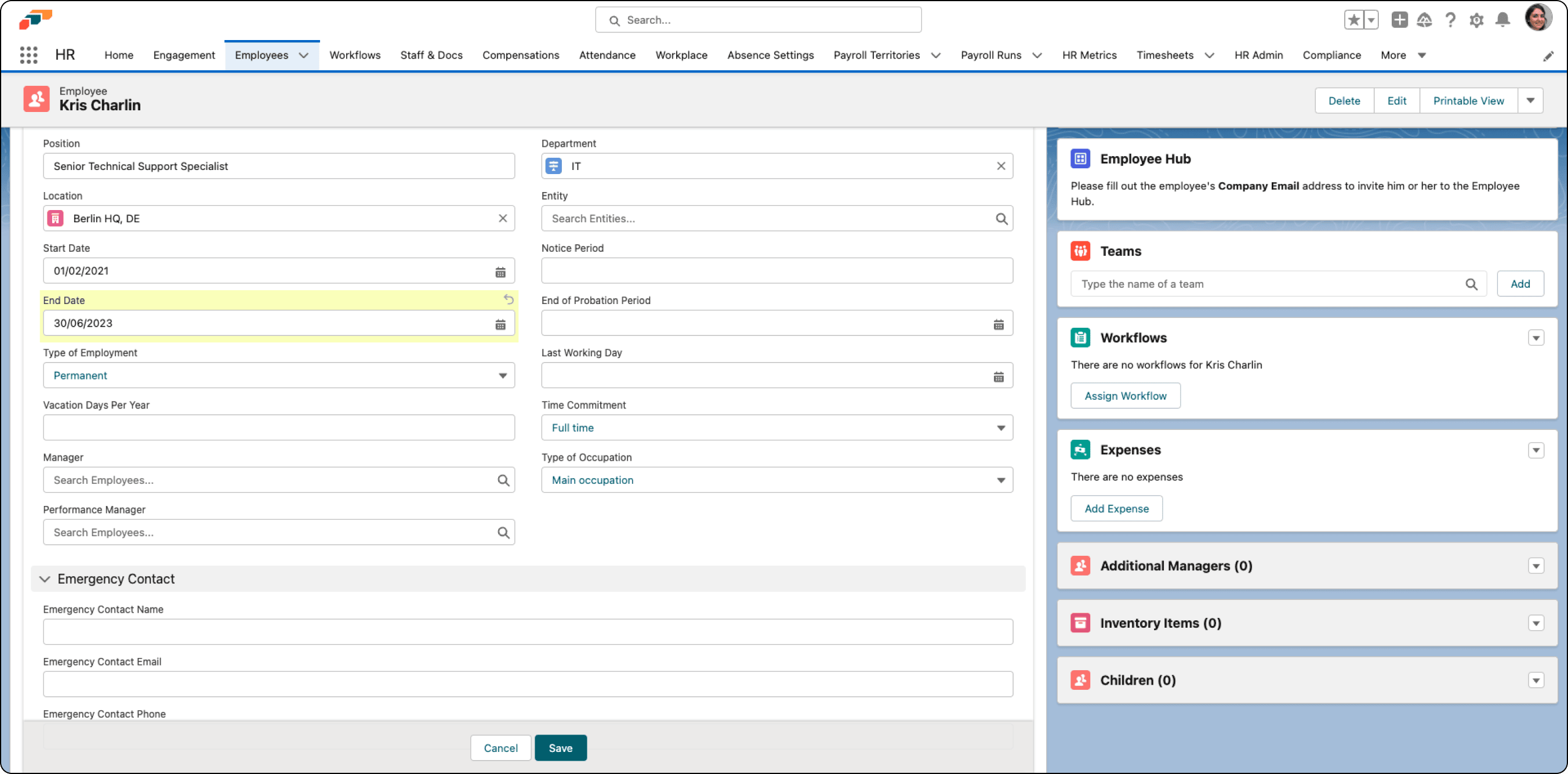
- In flair HR, open the leaving employee's record.
- Under Contract, enter the employee's last working day in End Date.
- Click Save. The employee record reflects the end of employment.
Set the workload end date
-
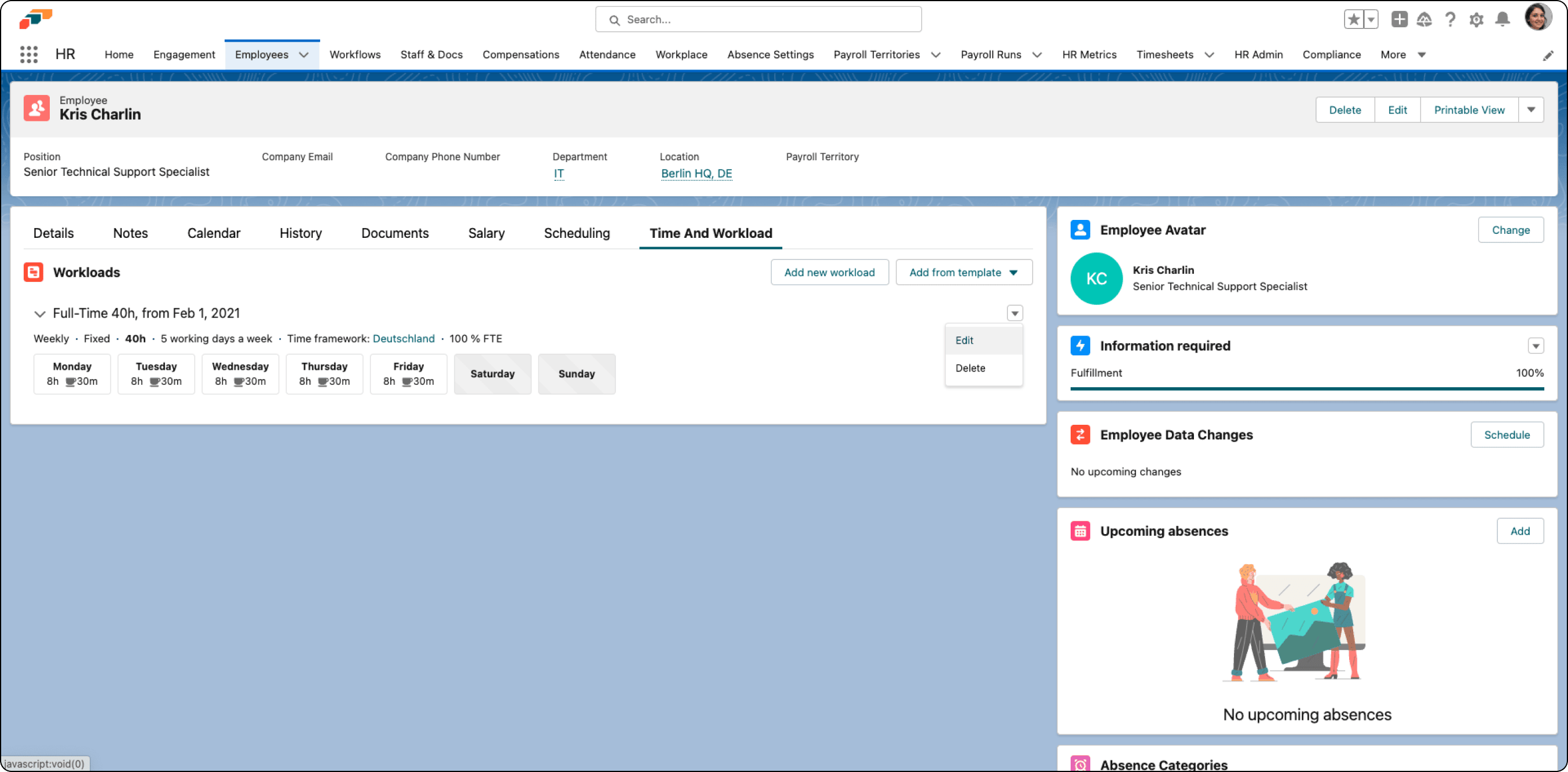
On the employee record, open Time and Workload.
-
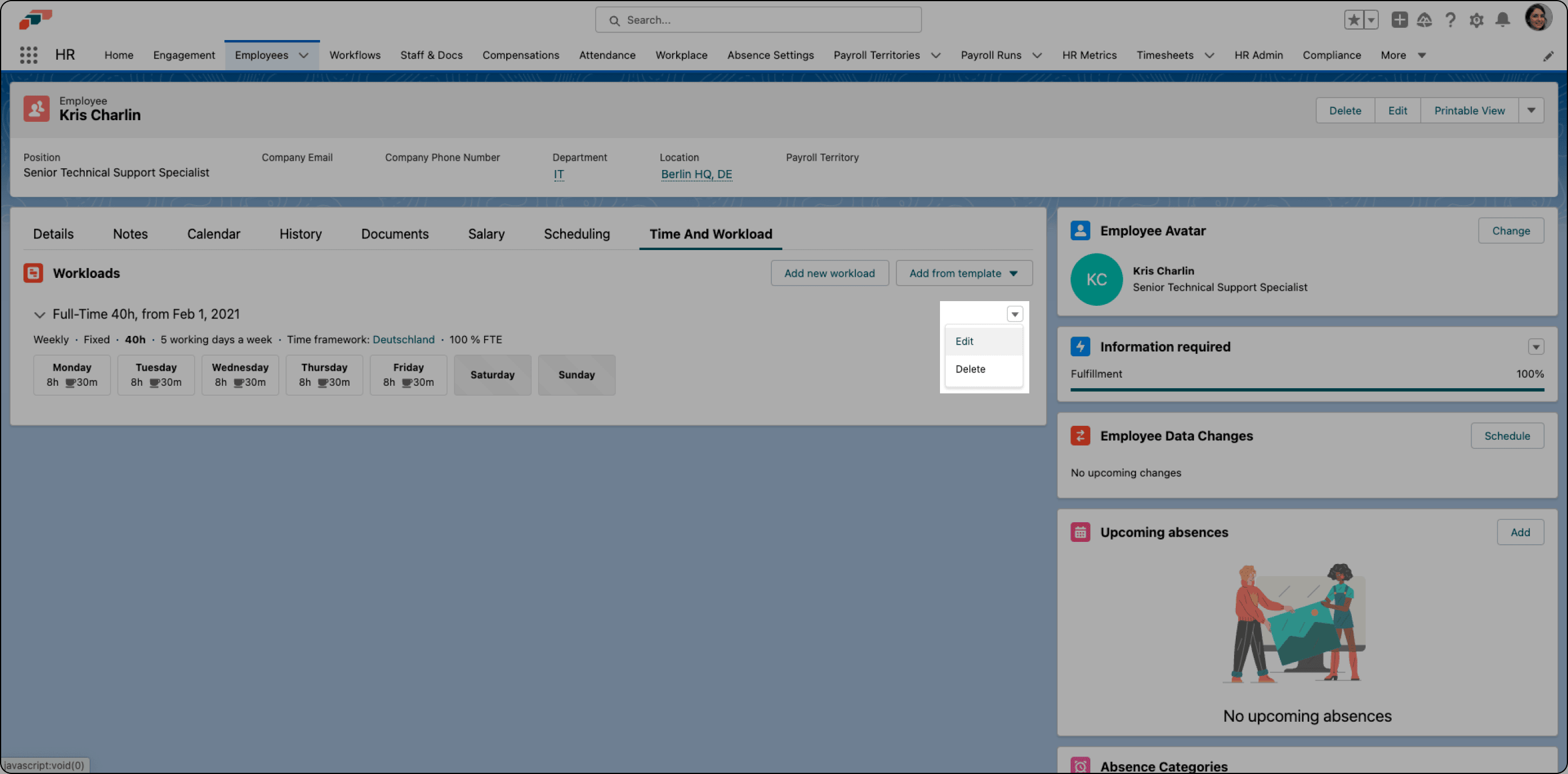
Next to the employee's workload, click the down arrow.
-
Click Edit.
-
In End Date, enter the employee's last working day.
-
Click Save. The workload ends on the selected date.
Set absence-policy end dates
Set an end date for every limited absence category assigned to the employee. This includes each vacation policy when the employee has more than one.
- On the employee record, find Absence Categories.
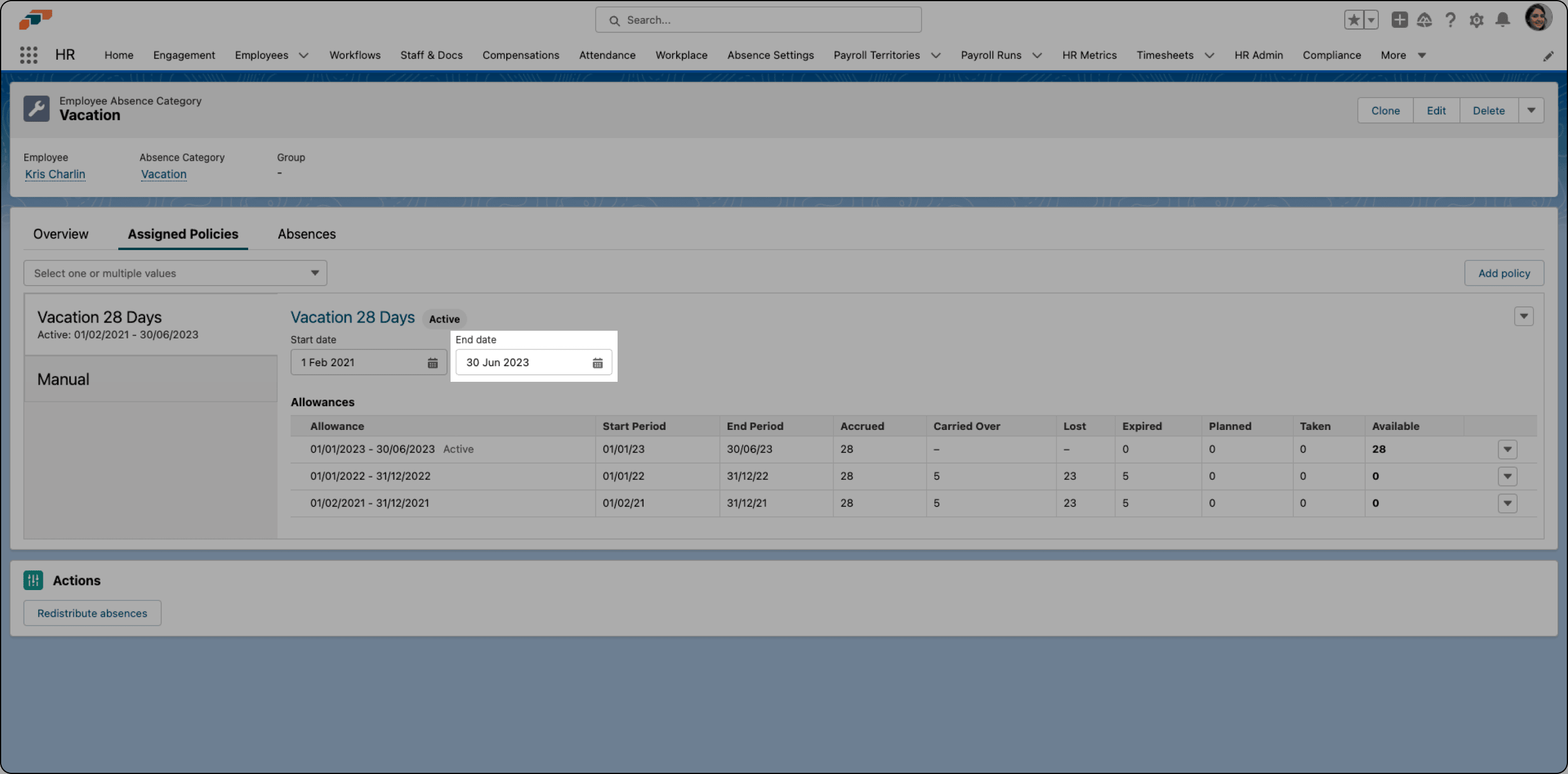
- Open an active category, such as Vacation.
- Open Assigned Policies.
- Edit End Date to match the employee's last contract day.
- Click Save. flair recalculates the remaining absence balance.
- Repeat the procedure for each limited absence category.
Set salary and compensation end dates
Ending salary and recurring compensation records supports prorated calculations when an employee leaves during a payment period, such as on the 15th.
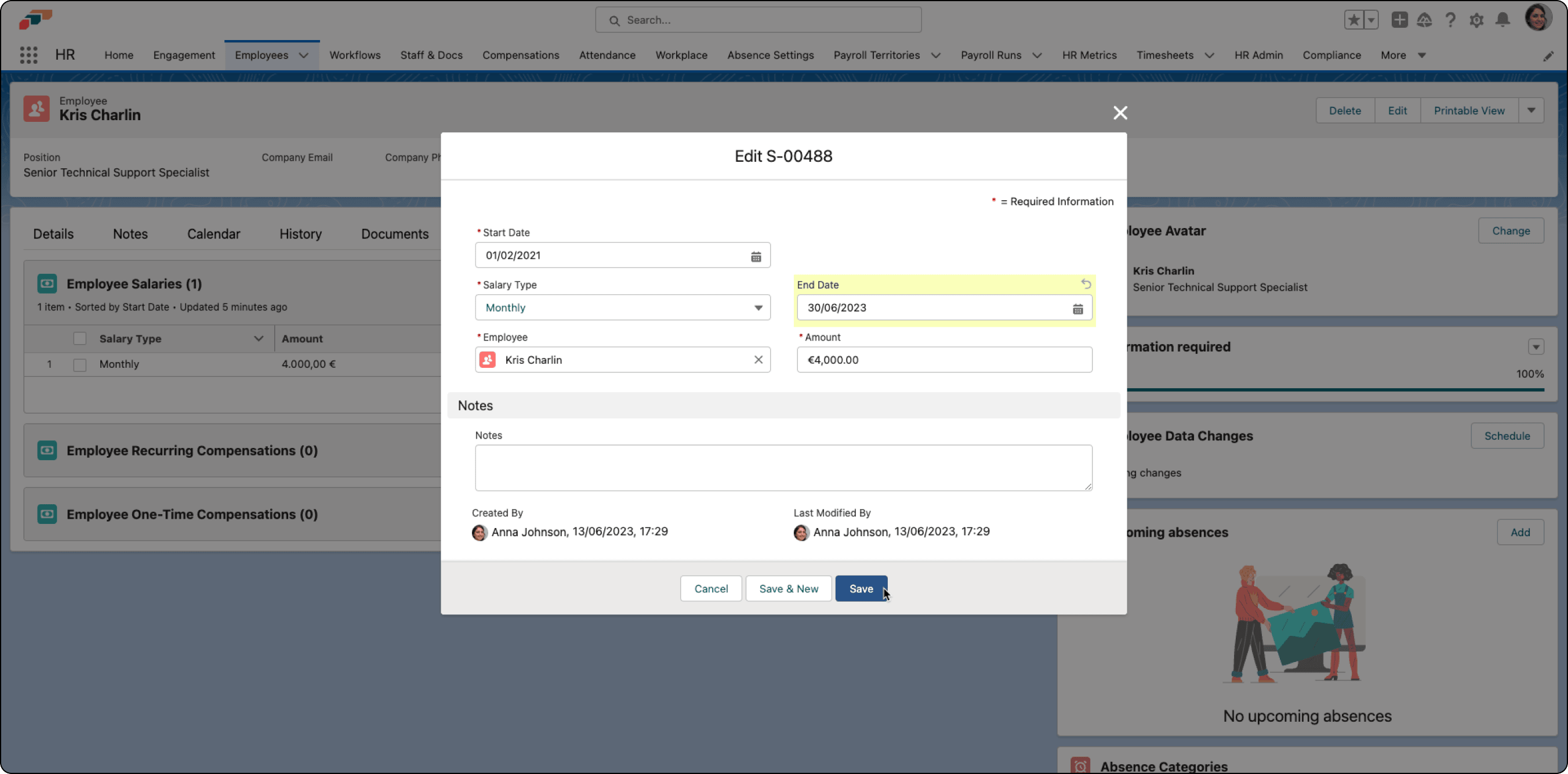
- On the employee record, open Salary.
- Next to an Employee Salary, click the down arrow.
- Edit End Date to match the employee's last contract day.
- Click Save.
- Repeat the procedure for each Recurring Compensation. The records can now be calculated pro rata.