Manage employees and team structure
Manage employee records and the reporting structures that control visibility and approvals in flair. This guide also covers team overviews, employee notes, employee list views, employee history, data imports and exports, version details, and record deletion.
HR Admins and Salesforce Admins manage employee records in Salesforce, and users with the HR Manager custom permission record HR notes there. Managers view their teams and keep private notes in the Employee Hub.
Understand team structure
flair uses three structures for different purposes:
| Structure | What it controls |
|---|---|
| Company Structure | Manager assignments control who sees whom in the Employee Hub and provide the hierarchy for approval processes. Managers see their direct reports. |
| Teams | Salesforce Team records group people for workflow tasks, approvals, automations, and reports. |
| Departments | Department values support employee filtering, segmentation, analytics, and reports. |
Employee Hub widgets such as Anniversaries and Birthdays use the manager hierarchy. Their visibility includes direct reports and siblings, meaning employees who share the same manager.
Review your team in the Employee Hub
- In the Employee Hub, open Team → People. The list shows the people you manage, with columns such as Status, Position, and Joined.
- Optional: To find a person, enter a name in Search employee.
- Optional: In Status, select Current, Future, Past, or a combination. The list shows Current by default. Future hires are marked Not started yet, and people whose end date has passed are marked Past employee.
- Optional: In Skills, select skills to show only people who hold them.
- Select a team member. Their Overview tab opens.
- Review the right pane for timesheets, expenses, and absence requests that need your approval.
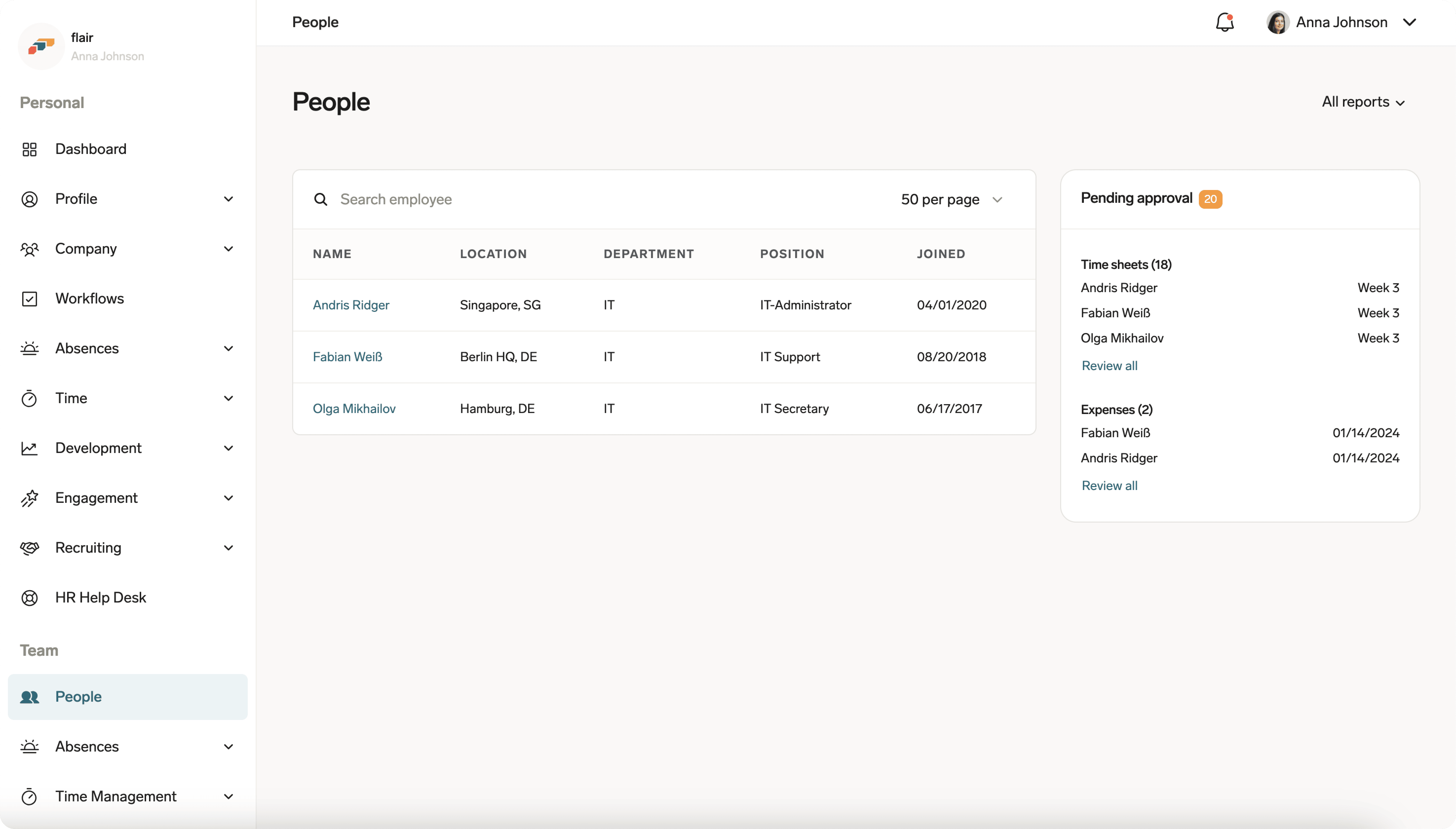
The Status column shows the value of the employee's Status field, such as Preonboarding, Onboarding, Probation, Employed, On Leave, Garden Leave, or Inactive.
Review a team member's overview
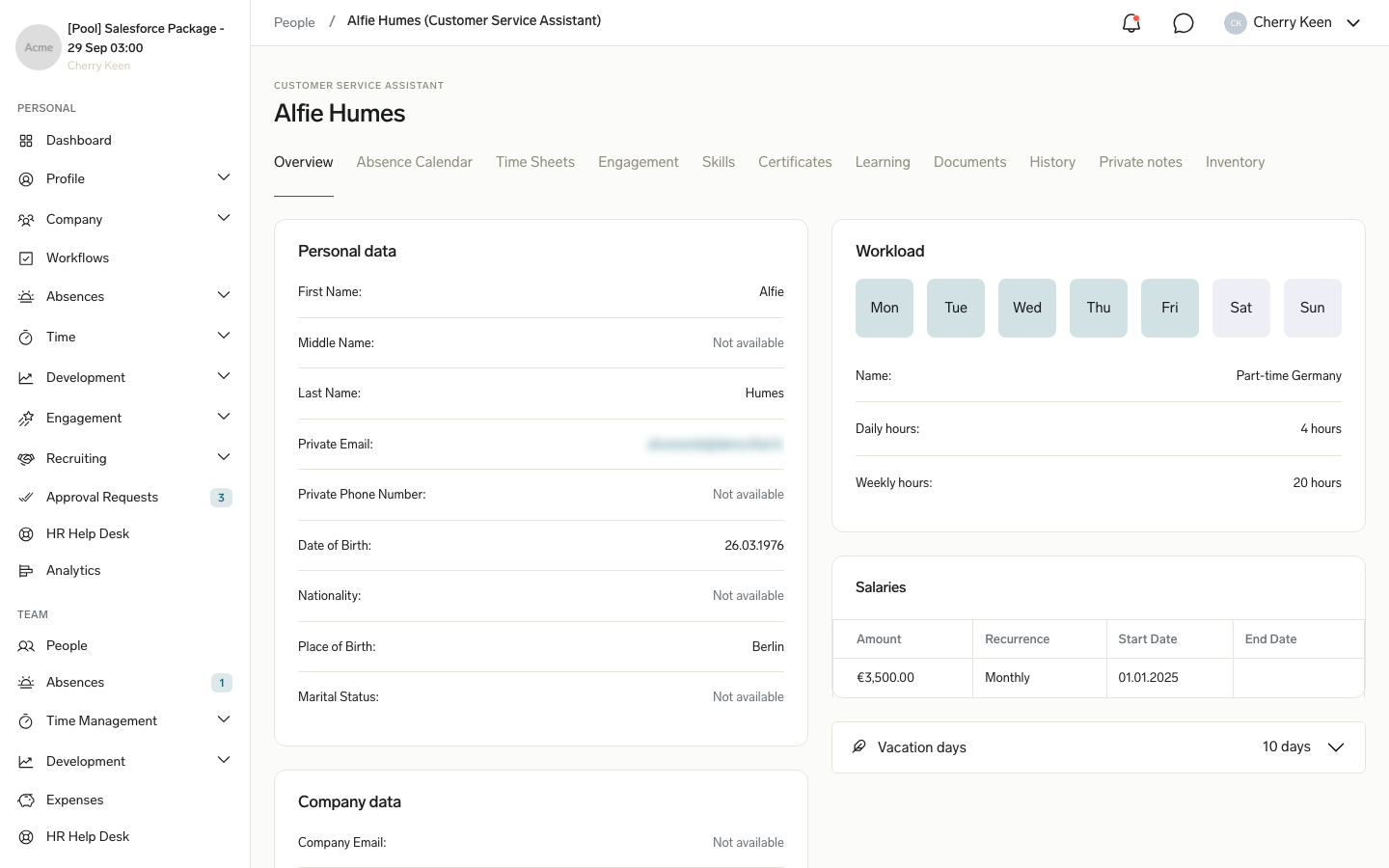
The Overview tab of a team member includes these areas:
| Area | What it shows |
|---|---|
| Personal data sections | The employee fields and sections defined in your organization's Employee Hub Manager data layout. |
| Workload | The name of the employee's current workload, its daily hours, and its weekly or monthly hours. |
| Salaries | Salary amounts, their recurrence, and start and end dates. |
| Additional Compensations | Recurring compensation with its type, amount, recurrence, and dates. |
| One-Time Compensations | Single payments with their type, amount, compensation date, and status. |
| Top similar matches by skills | Colleagues whose skills most closely match this employee's. |
Cards appear only when the employee has matching records. Admins can hide the workload and compensation cards from managers. See Control manager visibility and Restrict profile changes and manager visibility. To change the personal data sections, see Configure Employee Hub data layouts.
Keep private notes about a team member
Managers can keep private notes about the people they manage in the Employee Hub, for example to prepare feedback conversations. HR Managers record HR notes about employees in Salesforce. The two are separate: Salesforce notes do not appear in the Employee Hub, and Employee Hub private notes do not appear on the Salesforce Notes tab.
Add a private note in the Employee Hub
Only the manager who wrote a private note can read it. flair encrypts the note text with a key that belongs to the author, so other managers, HR, and Salesforce users cannot read it. The note's author, employee, date, and polarity are stored in Salesforce without encryption. The Private notes tab is available to managers, feedback managers, absence and time approvers, compensation managers, and HR managers of the employee, unless an admin selected Hide Private Notes for them.
- In the Employee Hub, open Team → People.
- Select a team member.
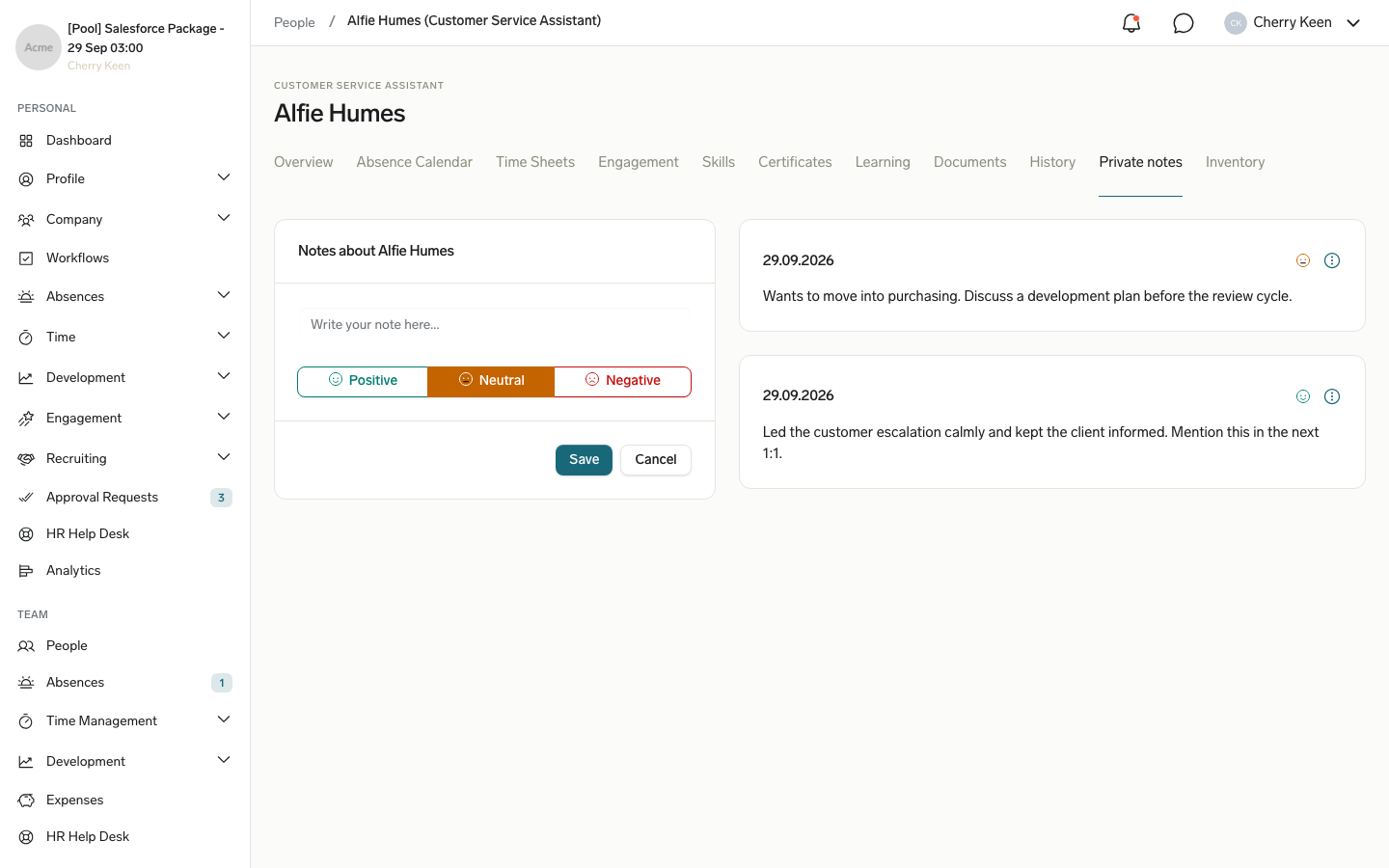
- Open the Private notes tab.
- In the Notes about card for the employee, enter your note.
- Select Positive, Neutral, or Negative to classify the note. Neutral is selected by default.
- Click Save. The note appears next to the form with its date and a colored polarity icon.
- Optional: To delete a note, open the note's actions menu (three-dots icon), and click Delete.
Add an HR note in Salesforce
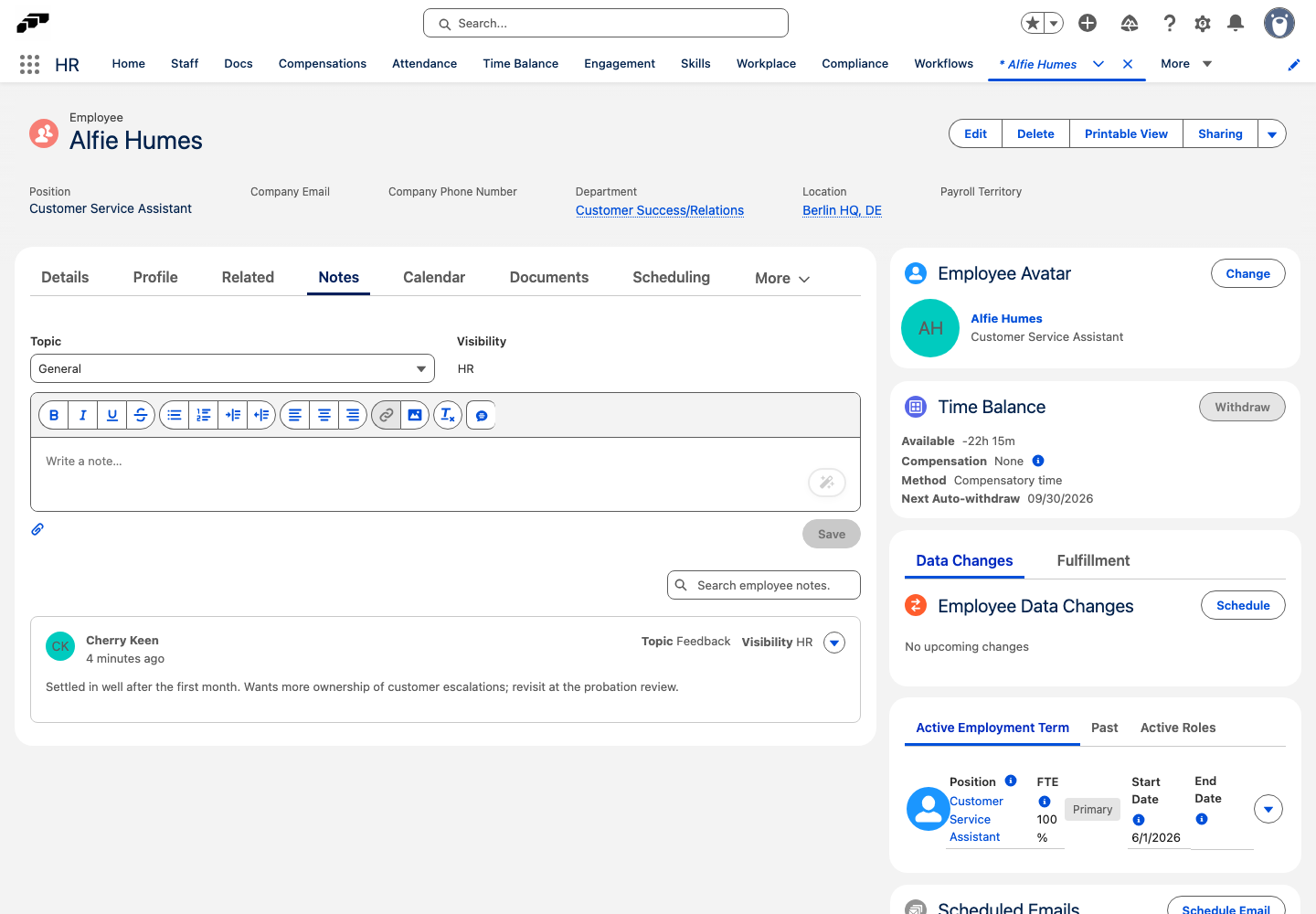
The Notes tab shows notes only to users with the HR Manager custom permission; other users see a missing-permission message instead. Each note has a Topic and a Visibility of HR.
- In flair HR, open Employees, and select an employee.
- Open the Notes tab.
- In Topic, select the note's topic.
- Enter the note in the text editor. flair saves a draft while you type.
- Optional: To attach a file, click the paperclip icon, and add the file in Attach files to the note.
- Optional: To reuse text, click the templates icon in the editor toolbar, and select a template. To keep the current text as a template, click Save this note as template.
- Click Save. The note appears in the list with its author, topic, and visibility.
- Optional: To find a note, enter a term in Search employee notes…. To change or remove a note, open its menu, and click Edit or Delete.
Filter and save views of the employee list
The Employees tab of the Staff page lists your organization's employees. Filter the list, choose its columns, and save the combination as a view to reuse it. Saved views are personal: other users don't see them.
Filter the employee list
- In flair HR, open Staff. The Employees tab opens with the All Employees view.
- Optional: In Department, Location, or Entity, select one or more values. The list shows employees who match the selection.
- Optional: Use Show Only Active Employees and the Employee Hub filter, such as Connected to Hub or Without company email, to narrow the list further.
Save a view
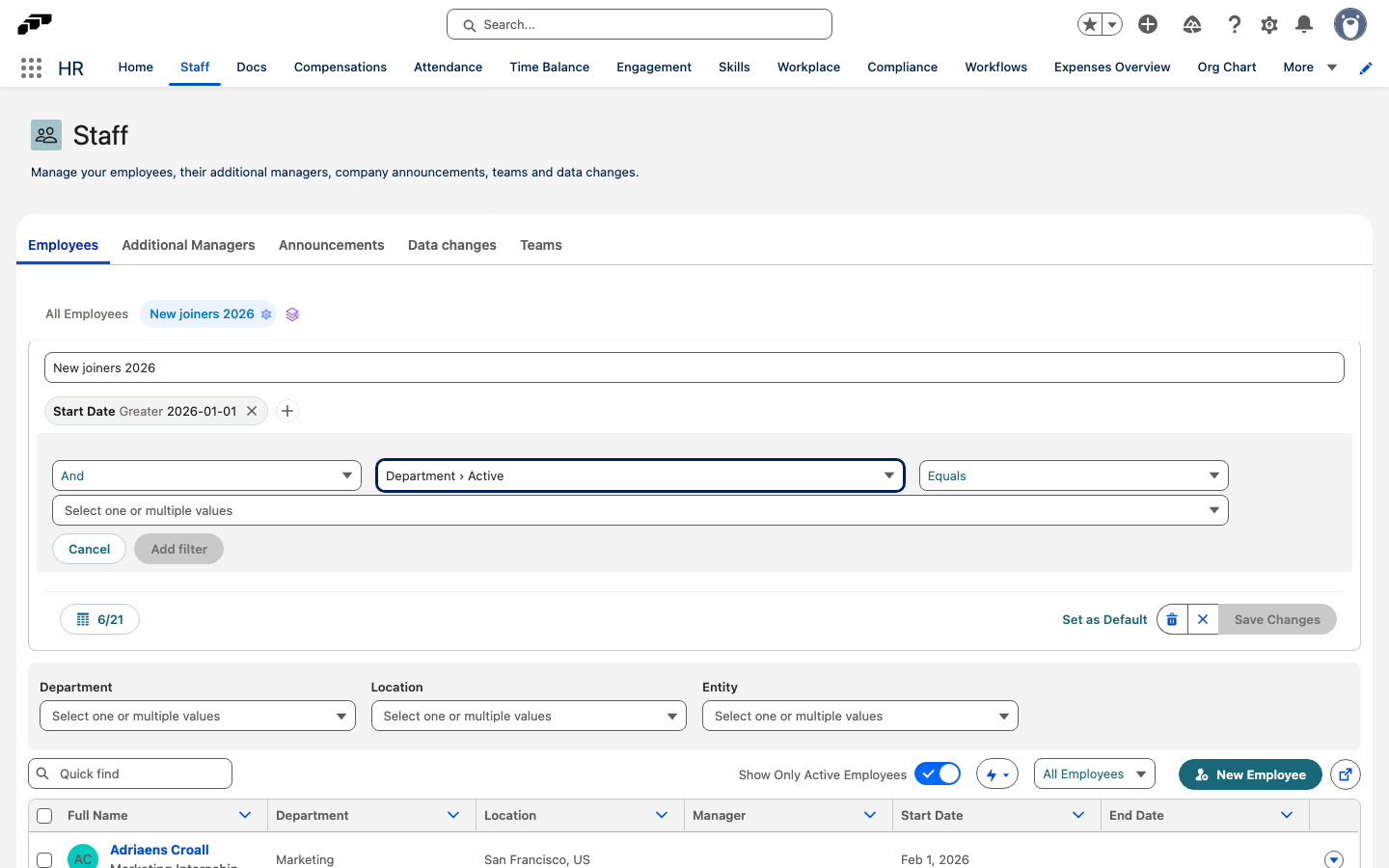
- Next to the view tabs, click the add-view icon (Save View). The view settings open.
- In View Name, enter a name for the view.
- Optional: To filter by any employee field, click Add filter, select the field, and set its condition. Lookup fields such as Department or Manager let you filter by the related record's fields.
- Optional: To choose the columns, click the column button, which shows how many columns are selected, such as
6/21. In Configure Columns, select and order the columns, and click Save. Reset to Default restores the default columns. - Click Save Changes. The view appears as a tab and stores its filters, columns, Show Only Active Employees, and Employee Hub filter.
Manage a saved view
- Select the view's tab.
- Click the settings (cog) icon on the tab. The view settings open.
- Choose what to change:
- To rename the view, change View Name, and click Save Changes.
- To open the view by default, click Set as Default.
- To delete the view, click the delete icon (Delete View).
Admins control which fields are available as columns with Flair Table Column custom metadata. See Configure flair table columns.
Create an employee
To add a new employee, including their Employment Term and position, see Create an employee and their Employment Term.
Set a preferred name
Set a Preferred Name to display a different name for the employee, such as a nickname, instead of the automatic combination of First Name and Last Name.
- On Employees, open the employee record.
- Click Edit.
- In Preferred Name, enter the name to display, and click Save. flair uses this value as the employee's Name wherever flair displays it.
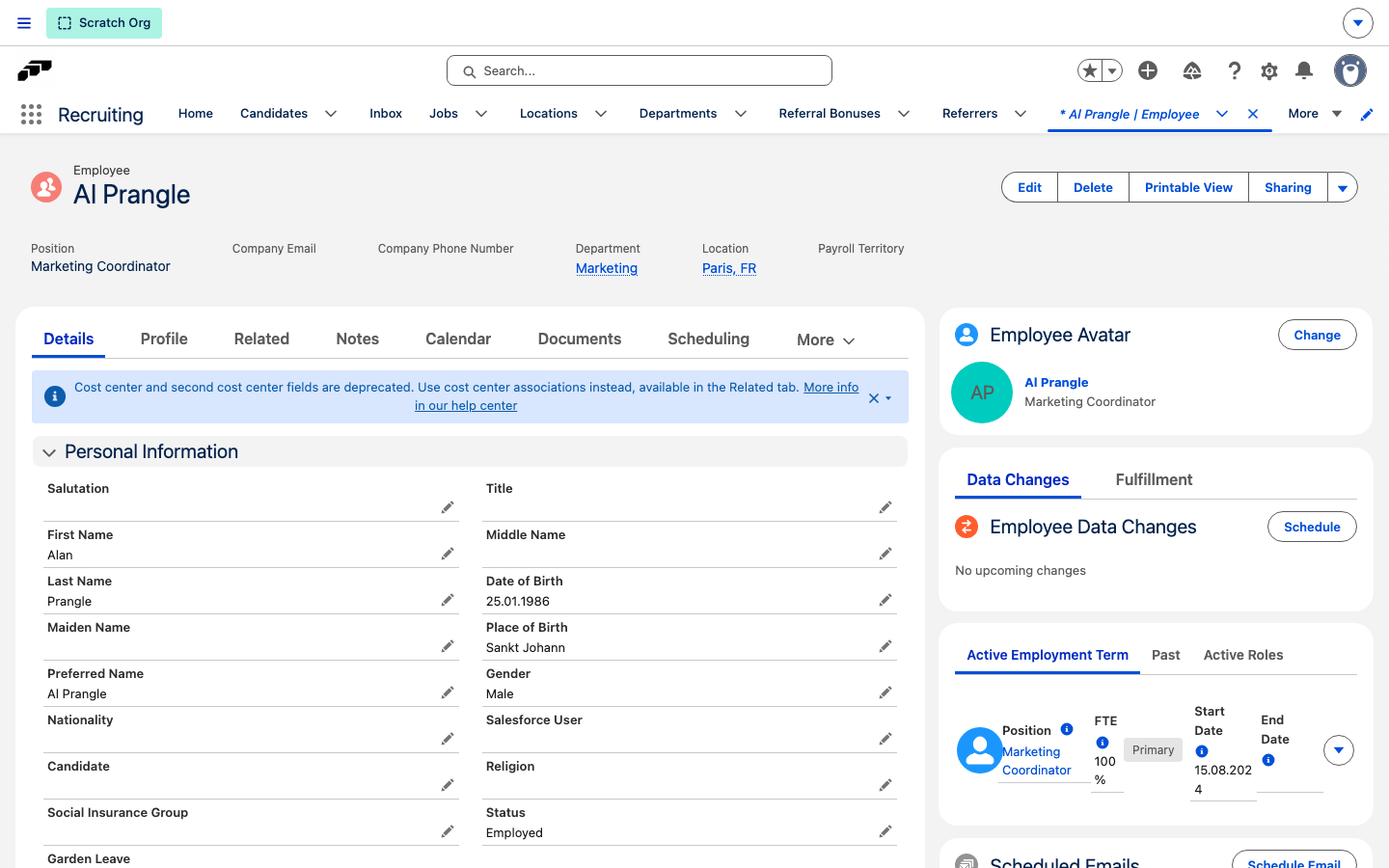
Clear Preferred Name and save the record to return the employee's Name to the automatic combination of First Name and Last Name. HR Admins and Salesforce Admins set Preferred Name on the employee record in Salesforce; employees cannot set it themselves in the Employee Hub.
View employee history
Employee History records changes to salary, position, contact details, manager, and other employee data.
View history in the Employee Hub
- In the Employee Hub, open My Team.
- Select a team member.
- In the top navigation, select History. Events appear from newest to oldest.
- Optional: Use the filter menu to show event types such as manager, salary, or absence changes.
View history in Salesforce
- In flair HR, open Employees.
- Select an employee.
- Open History.
- In View, select the vertical list or horizontal timeline.
- In the vertical view, select an event to compare its previous and new data and see who changed it.
- In the horizontal view, drag the blue slider to move through the timeline.
Change an employee's manager
Change the Parent Position or assign another employee to the existing parent position.
-
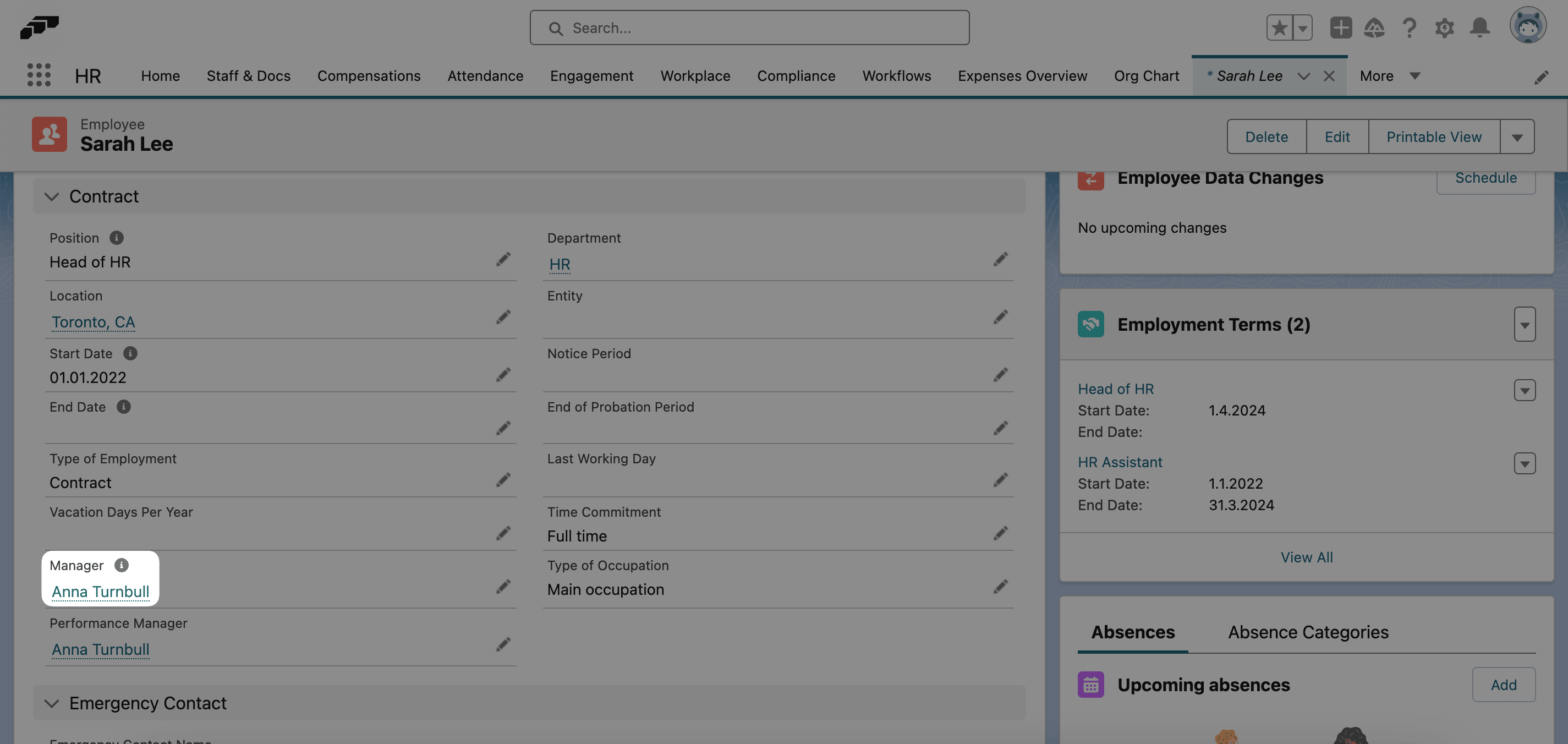
On the employee record, identify the current manager and position.
-
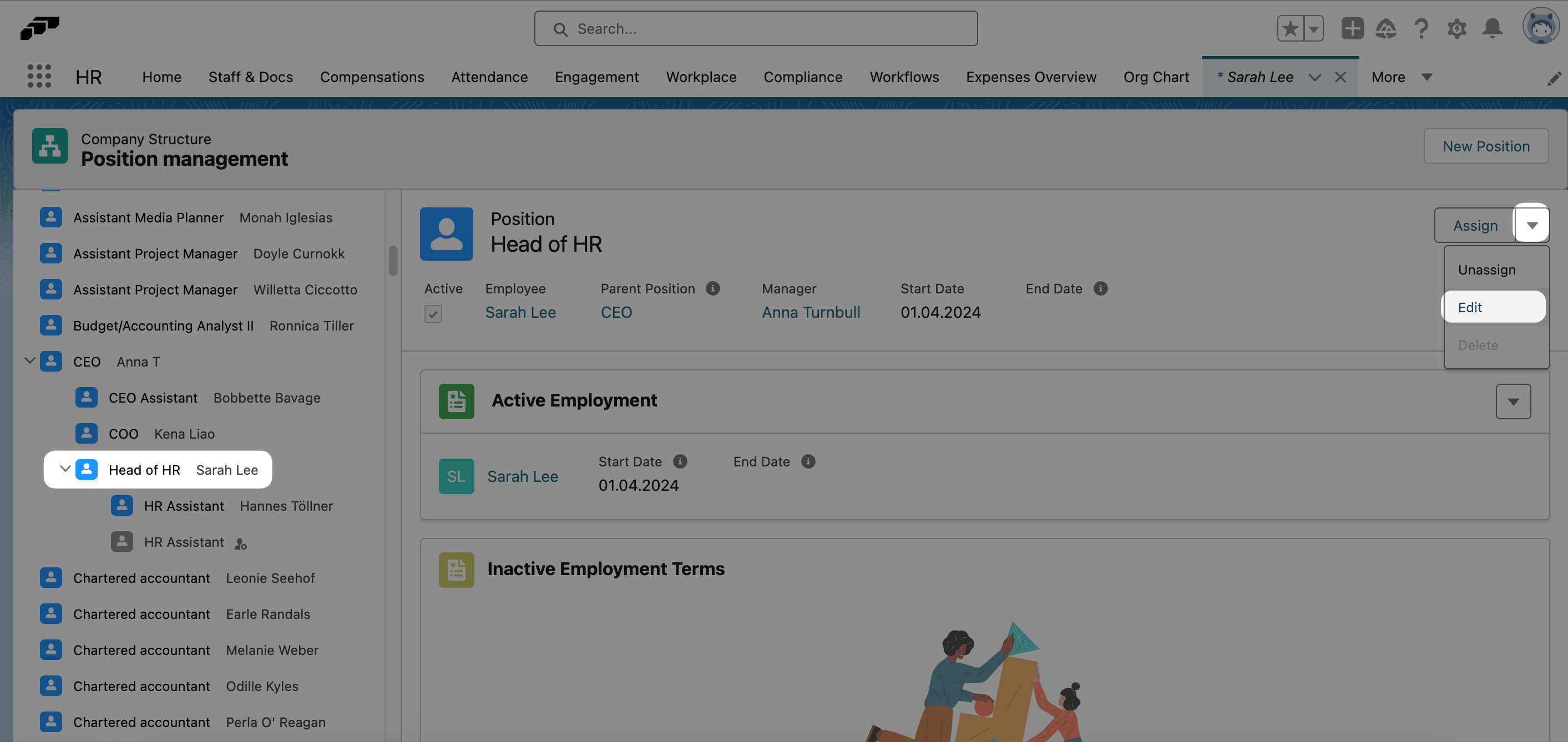
On Company Structure, select the employee's position.
-
Click Edit.
-
Change Parent Position to the new manager's position.
-
Click Save. The company structure and Hub visibility use the new reporting line.
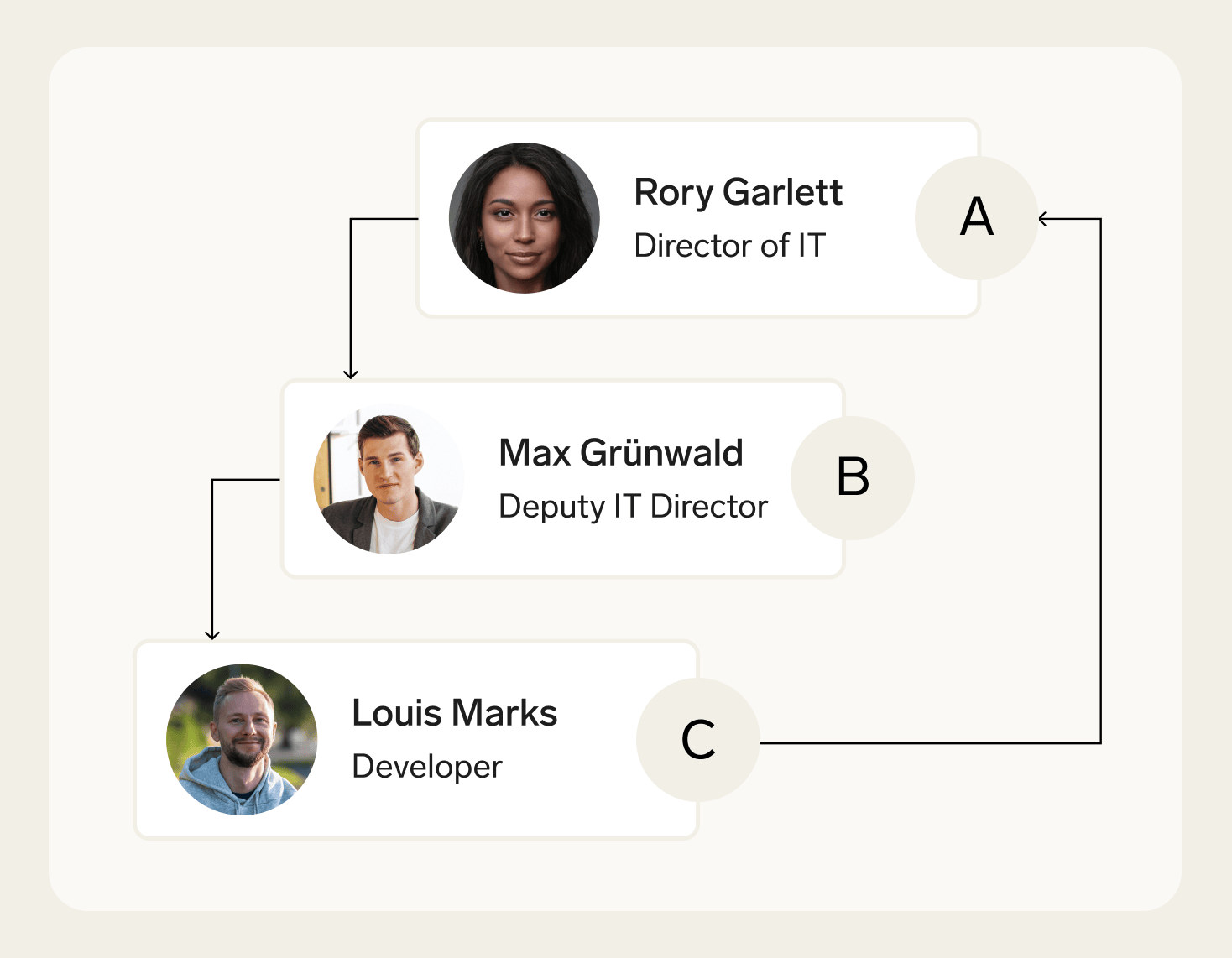
Fix an invalid reporting structure
Positions with invalid reporting lines appear at the bottom of the left pane on Company Structure. A reporting loop occurs when a chain of managers eventually reports back to one of its own members. All connected positions then become invalid.
- On Company Structure, enable Display positions with invalid reporting structure.
- Select a position in the invalid group.
- Change Parent Position so the reporting chain no longer contains a loop.
- Click Save. The positions return to the valid company structure.
Update employee data in bulk
Use the Salesforce Data Import Wizard to update employee records from a CSV file.
You cannot update Manager, Start Date, or End Date directly on the employee record. Change the related Position or Employment Term instead.
Upload the employee data
- In Salesforce, open Setup.
- In Quick Find, enter
Data Import. - Open Data Import Wizard.
- Click Launch Wizard.
- Select Custom objects → Employees.
- Click Update existing records.
- Under Match by, select Salesforce ID for the most accurate match or Name for a simpler match.
- If the CSV excludes relationship fields such as Cost Center or Feedback Manager, keep the other matching fields set to --None--.
- Upload the CSV file.
- Click Next.
Map and import the data
- Review the automatic field mapping and its examples.
- To correct a mapping, click Change, find the field, and click Map.
- Click Next.
- Click Start Import. Salesforce opens the import job overview and identifies failed records.
Export employee data
Export selected data with a report
flair includes reports such as Working Time Report for working times and absences. Create a custom Salesforce report when the included reports do not contain the fields you need.
- Create a report with the Absences with Absence Days and Employee report type.
- Add these columns: Employee: Full Name, Absence: Absence Name, Employee Absence Category, Absence Day: Absence Day Name, and Amount.
- Filter the report by absence category if needed.
- Click Run.
- Export the report data.
Export all flair data
- In Salesforce, open Setup.
- In Quick Find, enter
Data Export. - Open Data Export.
- Click Export Now.
- Under Export File Encoding, select Unicode (UTF-8).
- Select Include images, documents, and attachments.
- Select the data to export. Select all data for a complete backup.
- Click Start Export. When the export is ready, Salesforce adds its download link under Action.
Find the Salesforce API and flair package versions
- In Salesforce, open Setup.
- In Quick Find, enter
API. - Open API.
- Click Generate Enterprise WSDL.
- Click Generate. The generated page shows the Salesforce API version and installed flair package version.
Delete an employee
For an employee who leaves, set End Date on the employee record instead of deleting the record. The employee becomes inactive, while your organization retains data that may be subject to legal retention periods.
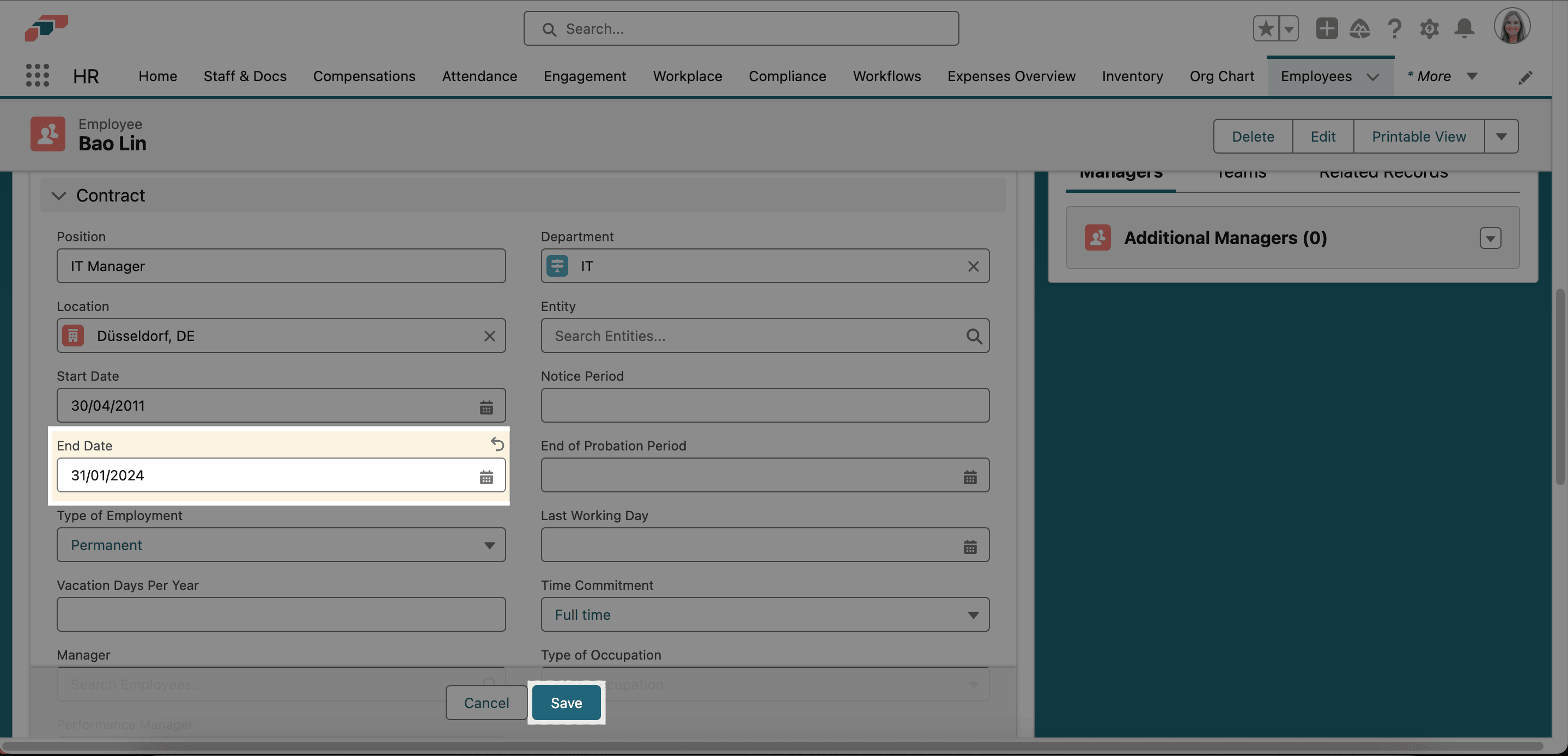
Delete an employee only when the record should not be retained, such as a duplicate or test employee, or a new hire who withdraws before starting. Deleting an employee in Salesforce fails while other records still reference the employee. You can delete the employee together with those records in one action, or delete the related records manually first.
Deleting an employee and the records linked to that employee is irreversible. Confirm your organization's data-retention requirements before continuing.
Delete an employee with related records
The Delete with Related Records action deletes the employee and the records that belong to them, such as employments, absences, time entries, shifts, salaries, documents, notes, feedback, objectives, and Employee Hub data. Records where the employee only appears as an approver or as the holder of an inventory item are kept, and the employee is removed from them. Some records the employee created for others are deleted too, such as manager notes they wrote, feedback they gave, objectives they own, and celebrations they sent.
The action requires the Delete Employee with Related Records custom permission. No flair permission set includes it, so a Salesforce Admin adds it to a permission set and assigns that set to you. You also need the Flair Manager permission set, which grants access to the Apex class the action uses. We recommend removing the assignment after the deletion. The action appears on the employee record page that flair ships. If your organization uses a customized employee record page, a Salesforce Admin adds the action to it in Lightning App Builder.
- On Employees, open the employee record.
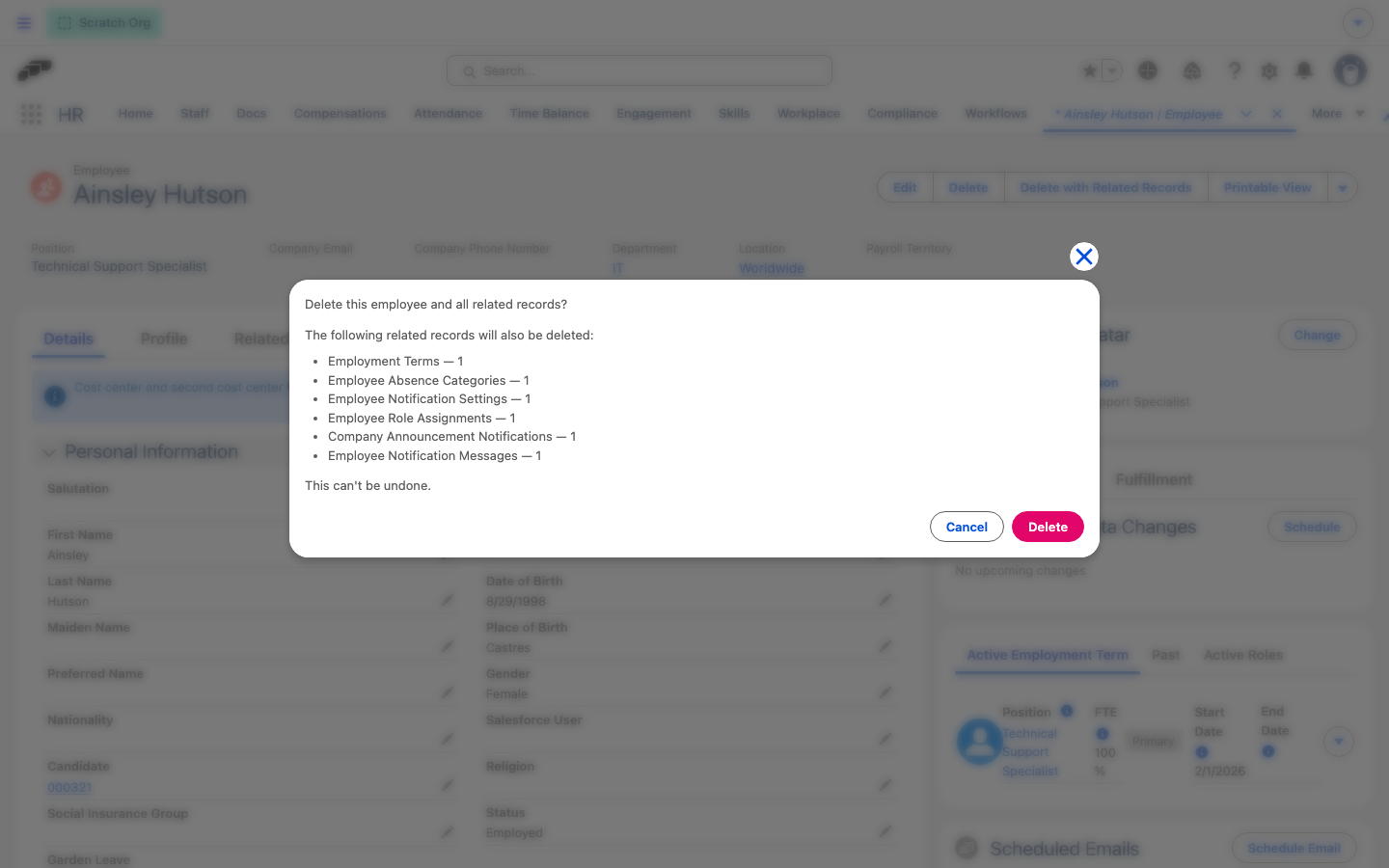
- Click Delete with Related Records. The dialog lists the types and number of related records that will also be deleted.
- Review the list, and then click Delete. flair deletes the records in the background and opens the employee list.
- If the employee record still exists after a few minutes, open Setup → Apex Jobs and check for failed jobs.
The deletion runs as a chain of background jobs. If one of them fails, the chain stops: records deleted in earlier jobs stay deleted, and the employee record remains.
If the employee has records in a completed or locked payroll run, the dialog shows that the employee can't be deleted, and Delete is unavailable. Records in completed or locked payroll runs are never deleted.
Delete related records manually
Without the Delete Employee with Related Records custom permission, delete the related records yourself before you delete the employee. flair doesn't let you delete an employment that has already started without that permission, so this works only for an employee whose employments haven't started yet. For anyone else, use Delete with Related Records.
-
On Employees, open the employee record.
-
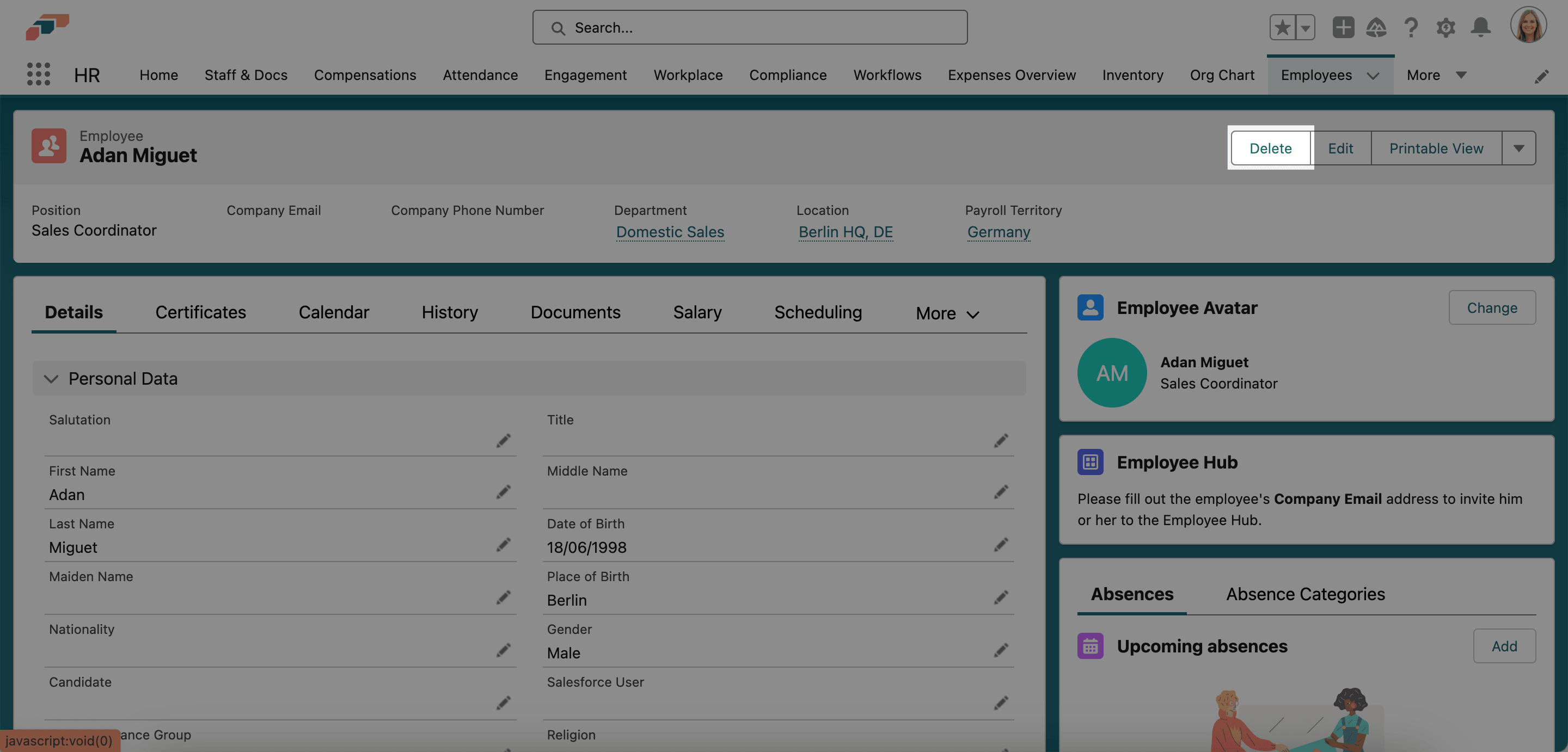
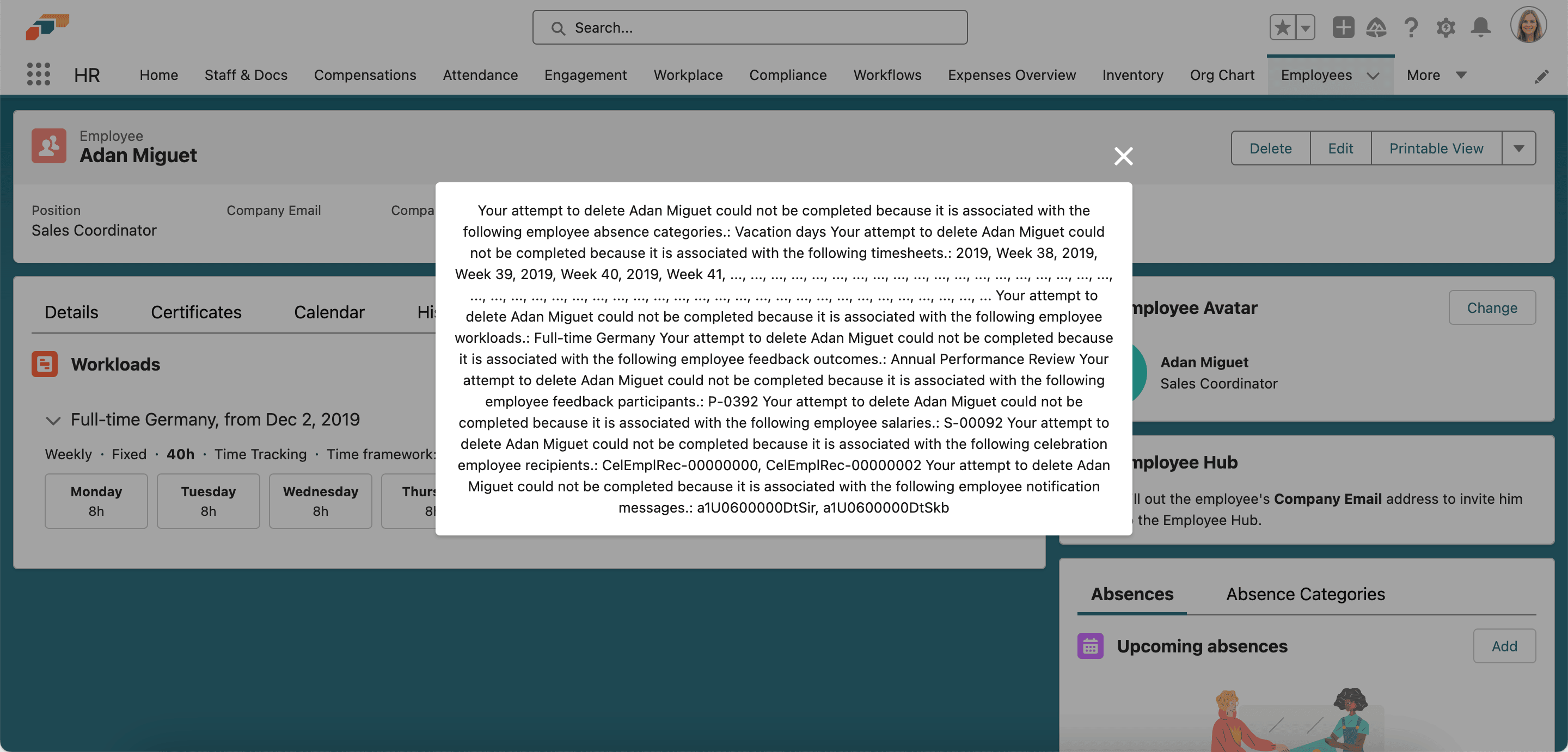
Click Delete next to the employee's name.
-
If Salesforce lists related records, record their types and names. Common related records include timesheets, workloads, absence allowances, and performance reviews.
-
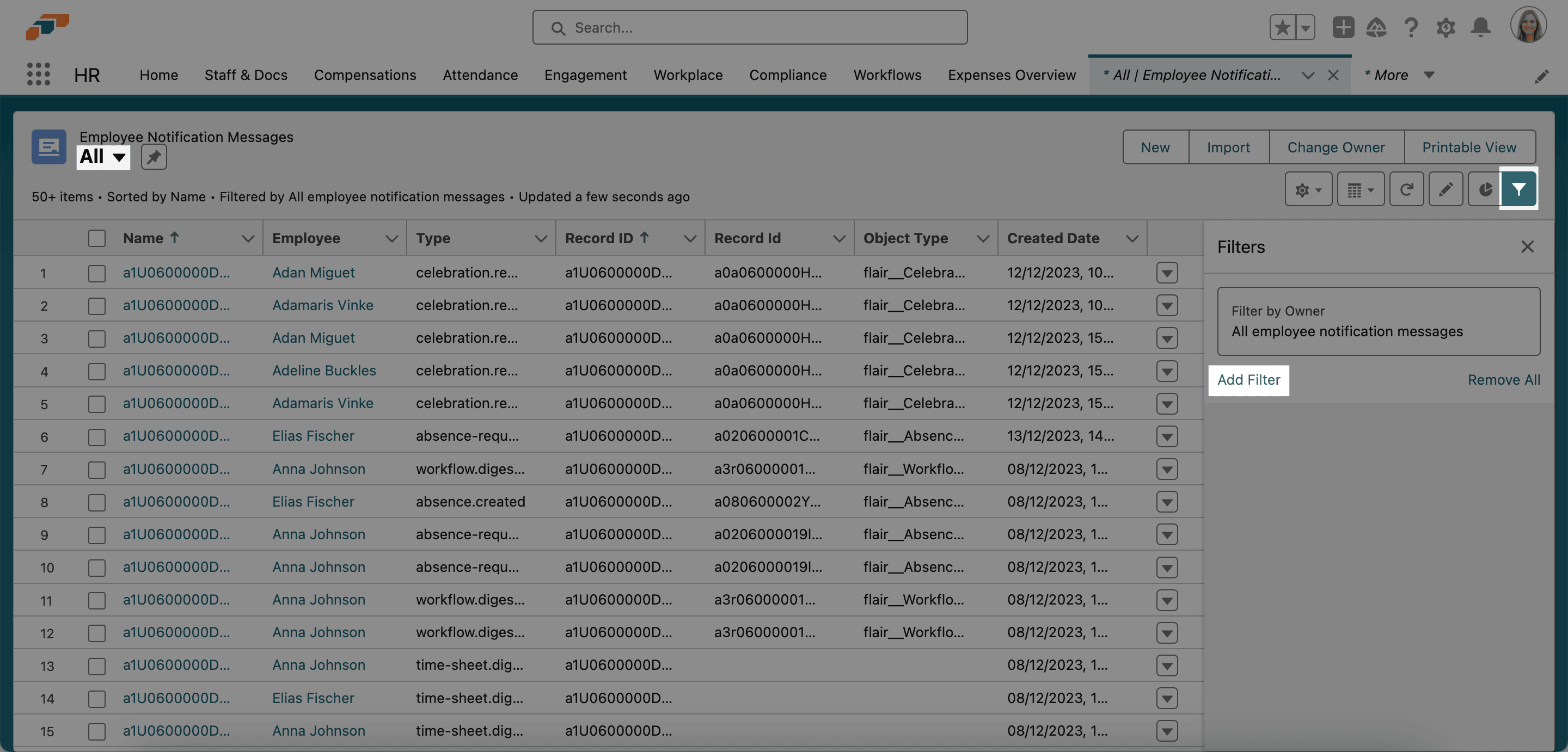
In the App Launcher (⋮⋮ grid icon), search for the first related-record type, such as
Employee Notification Messages. -
Open the record type, and select All.
-
Click the funnel icon, and then click Add Filter.
-
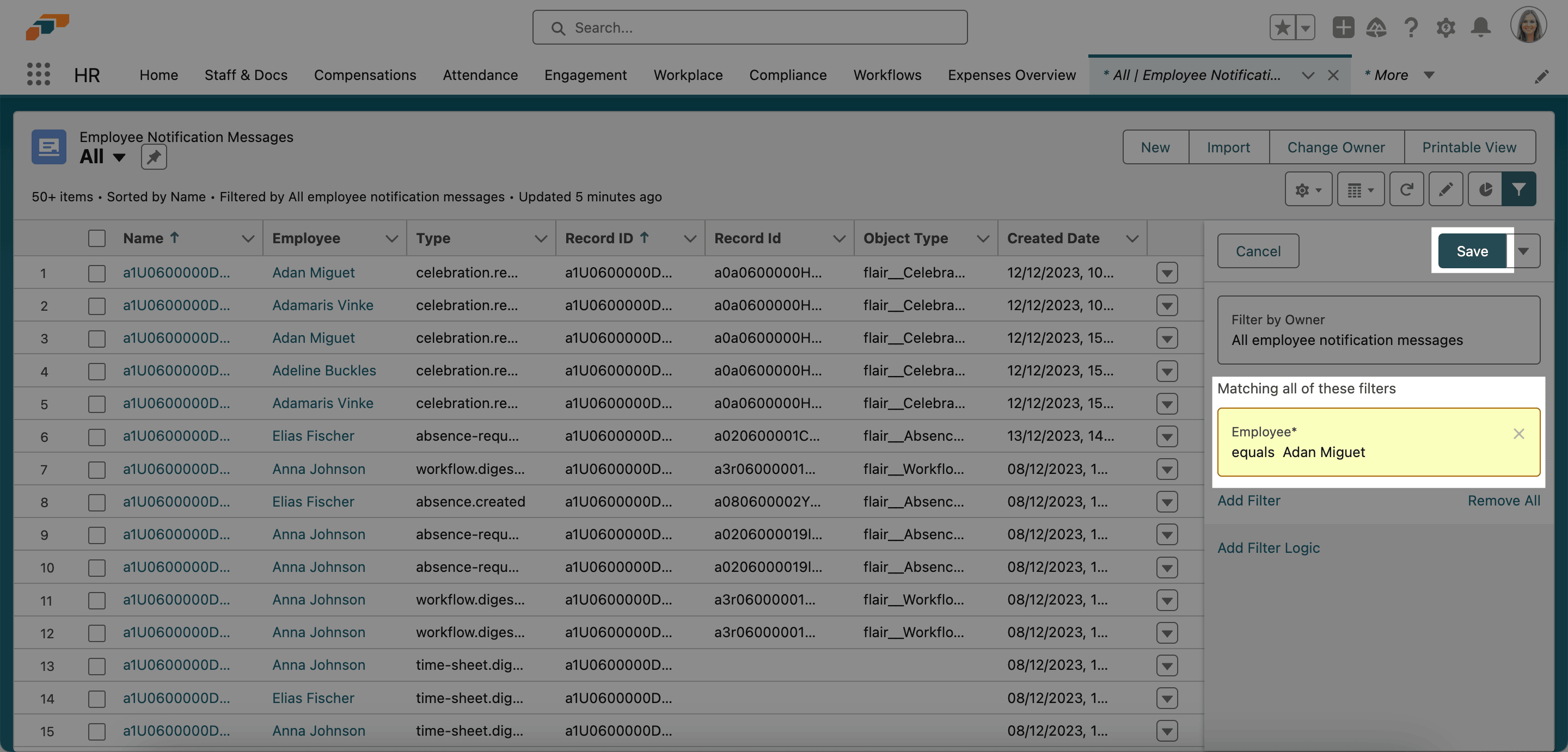
Filter by the exact record name from the error or by the employee's name.
-
Delete each related record returned by the filter.
-
Repeat the search and deletion for every related-record type.
-
Return to the employee record, and click Delete. Salesforce deletes the employee after no related records remain.
Troubleshooting
An employee is missing from Company Structure
Check these conditions:
- The employee has an active Employment Term.
- The Employment Term's Start Date has passed, and its End Date has not passed.
- The reporting structure has no loop.
- An active position is available under HR → Positions → Empty.
If no suitable position exists, create a position and assign its parent position. For Employment Term details, see Update Employment Terms.