Create and manage workflows
Use workflows to give an employee a repeatable series of tasks for onboarding, offboarding, or another process. This guide covers templates, task routing, assignments, automation, and completion.
HR Admins create and assign workflows in Salesforce. Employees, Managers, and assigned HR Managers complete and monitor tasks in the Employee Hub or mobile app. Signature tasks require the paid flair eSign add-on.
Before you begin
- Enable the Employee Hub and invite each workflow assignee.
- Add a Company Email to each assignee's employee record.
- To use Signature tasks, enable the flair eSign integration under HR Admin → Integrations → eSign.
Create a Workflow Template
-
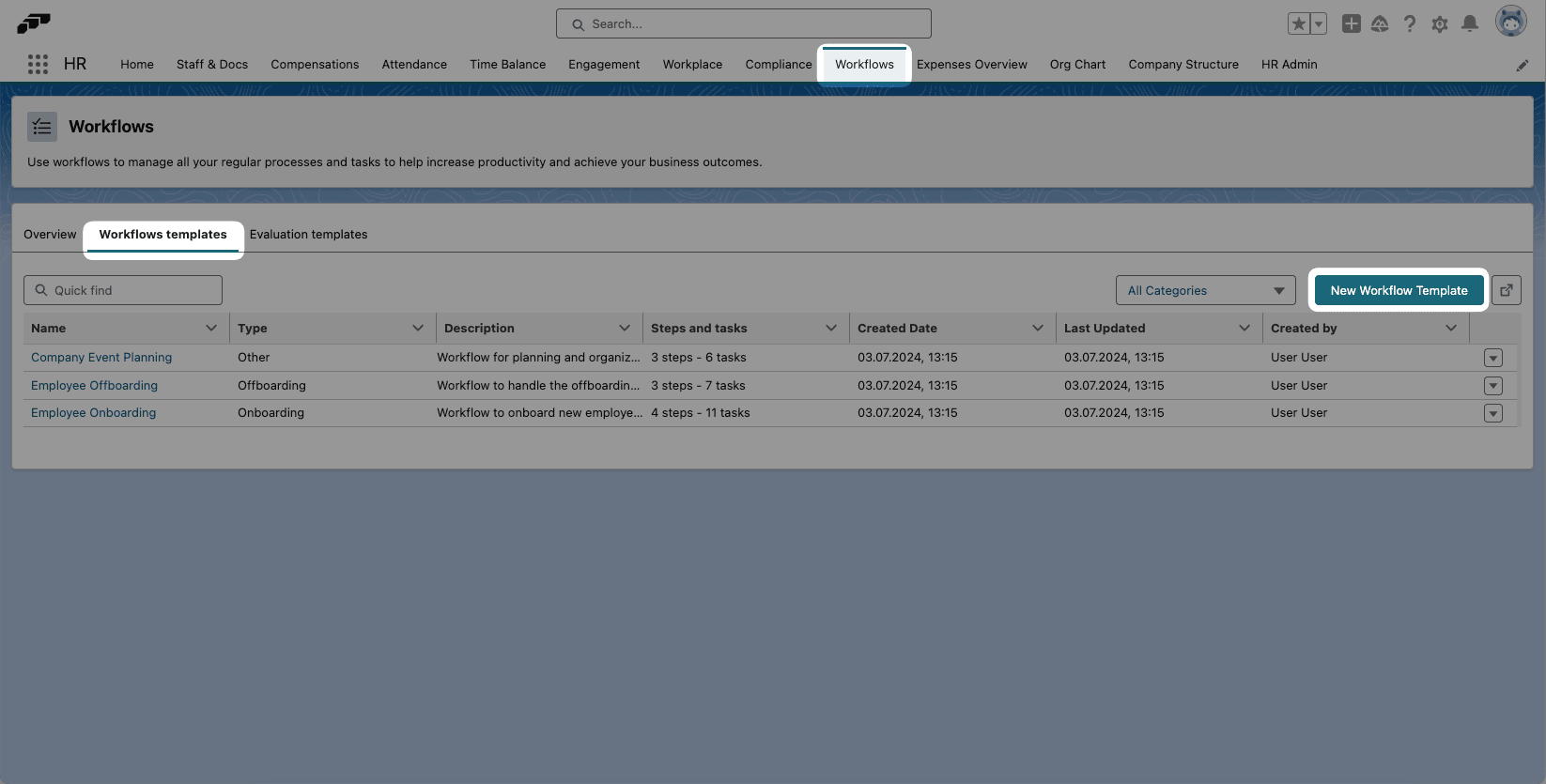
In flair HR, open Workflows from the navigation bar or the App Launcher (⋮⋮ grid icon).
-
Open Workflow Templates.
-
Click New Workflow Template.
-
Enter a name.
-
In the type field, select Onboarding, Offboarding, or Other.
-
Optional: For an Onboarding template, enable the onboarding widget. The new employee sees it on the Employee Hub dashboard. In the flair mobile app, it appears as a Welcome! card at the top of the Home screen while the onboarding workflow is not started or in progress, with Start Onboarding or Continue Onboarding to open the workflow.
-
Optional: Enter a Description.
-
Save the template. You can now add steps and tasks.
Add steps and tasks
A step is a workflow phase that contains one or more tasks. A step can start after the previous step's mandatory tasks or relative to a date.
Add a step
- Open the Workflow Template.
- Click Create the First Step.
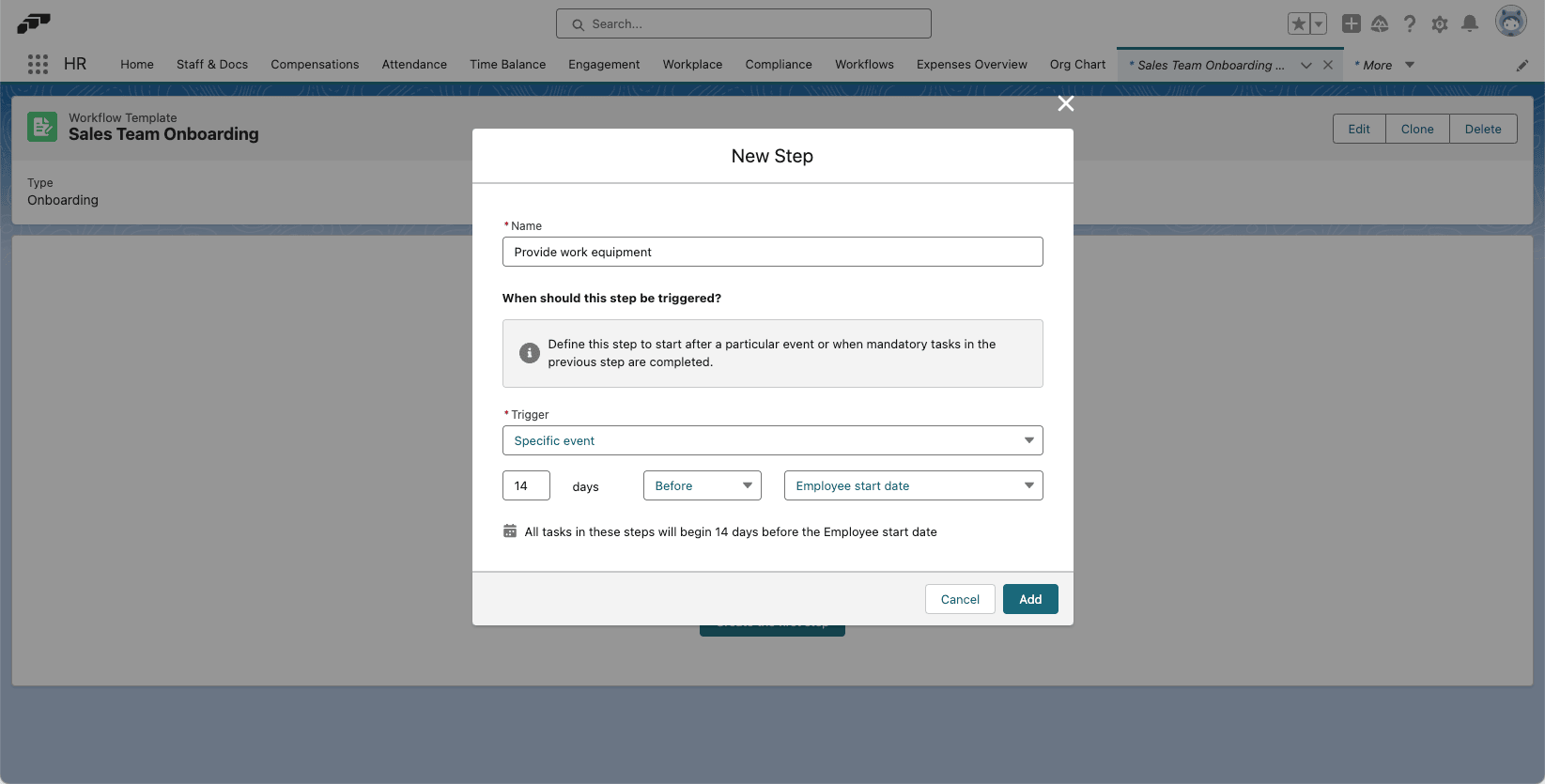
- Enter a step name.
- Select a trigger after the previous mandatory tasks, or relative to Workflow Start Date, Employee Start Date, or another supported event.
- Click Add. The step appears in the template.
Add a task
-
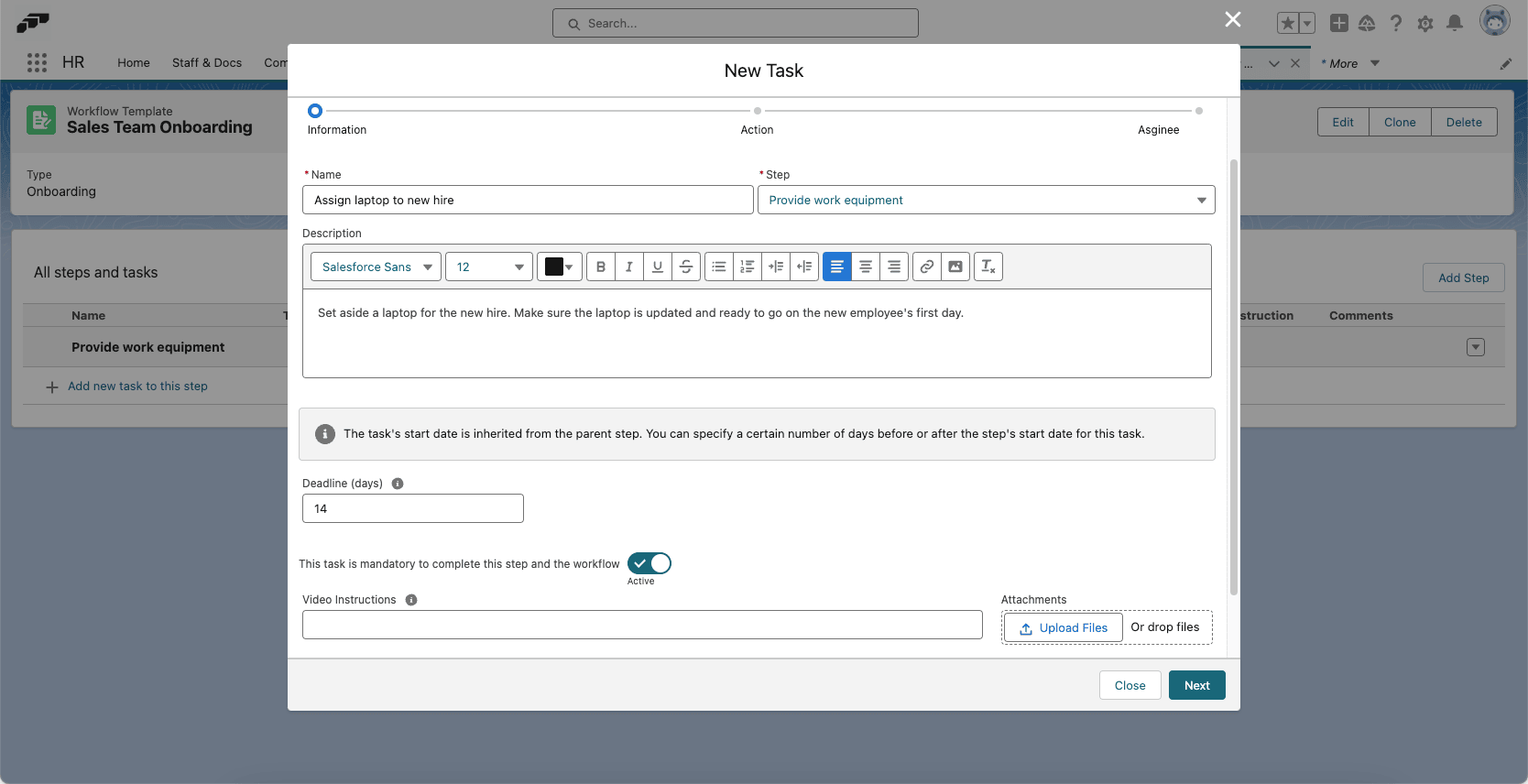
Under the step, click Add New Task To This Step.
-
Enter a task name.
-
Select its parent step.
-
Optional: Enter a description.
-
Set a deadline.
-
Choose whether the task is mandatory.
-
Optional: Add a video URL or attach a video file.
-
Click Next.
-
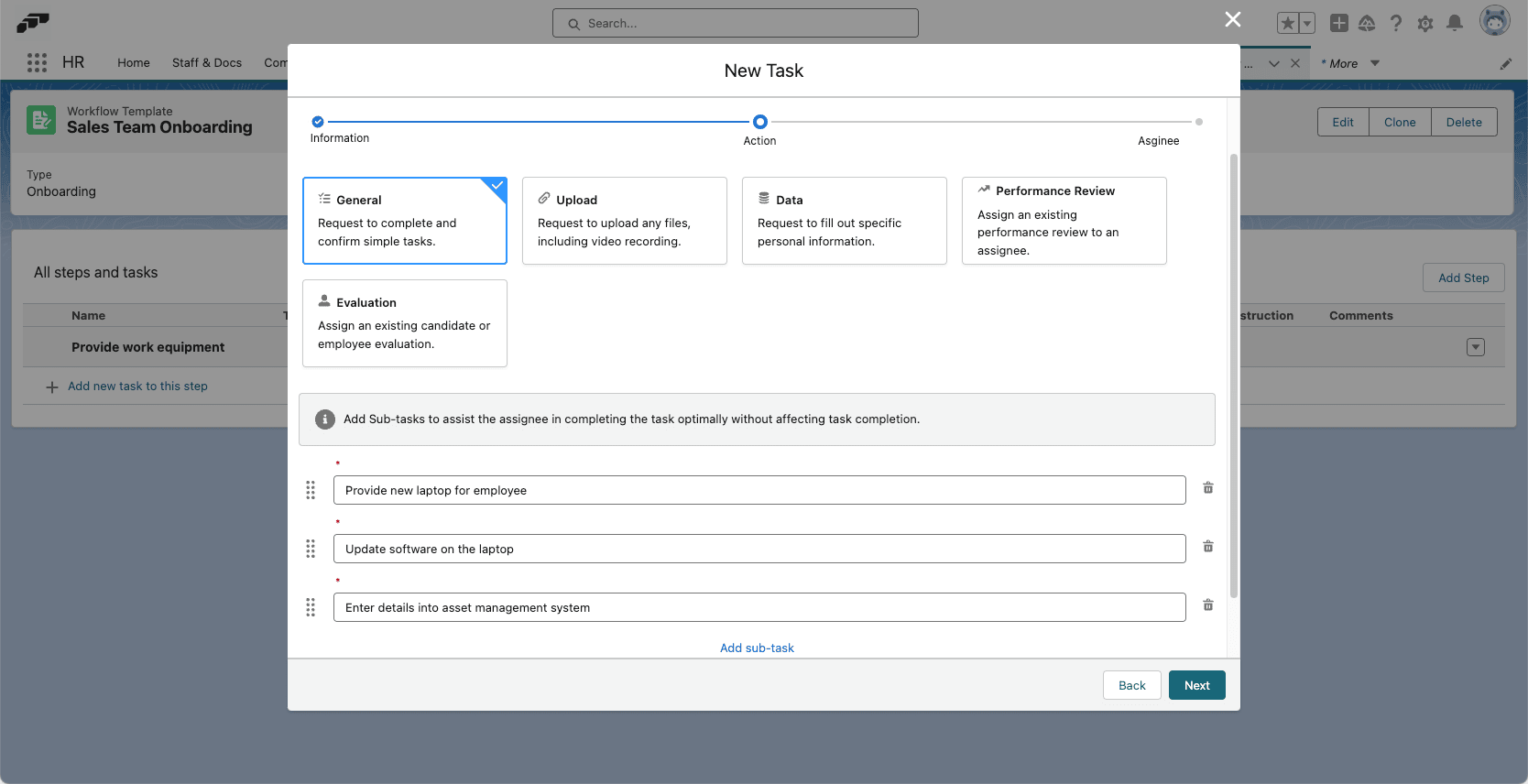
Select a task type and complete its fields:
Task type What it does General Creates a task that the assignee completes by marking it done. Upload Requests a file and defines its Type, Category, and File Format. It supports PDF, PNG, JPG, JPEG, and GIF. Data Requests values for selected data fields in the Employee Hub. Performance Review Assigns an existing performance review and reviewer. Evaluation Assigns an existing evaluation template for an employee or candidate. Signature Requests signatures through the paid flair eSign integration. Email Sends an automated email to the responsible person when the task becomes active. -
Optional: Add subtasks. Subtasks appear as a Hub checklist but are not required to complete the step.
Choose the responsible person and visibility
-
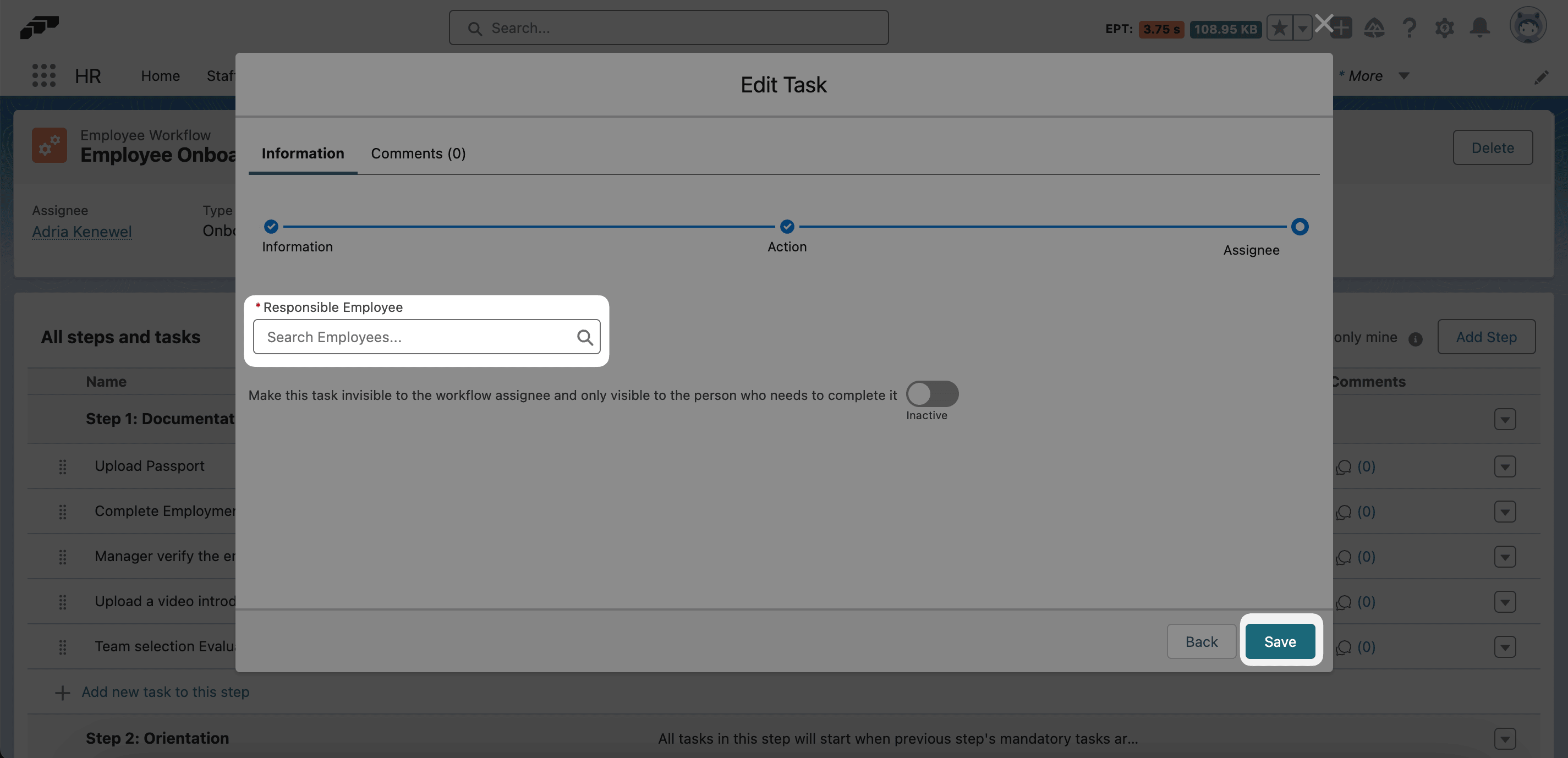
Click Next to open Assignee.
-
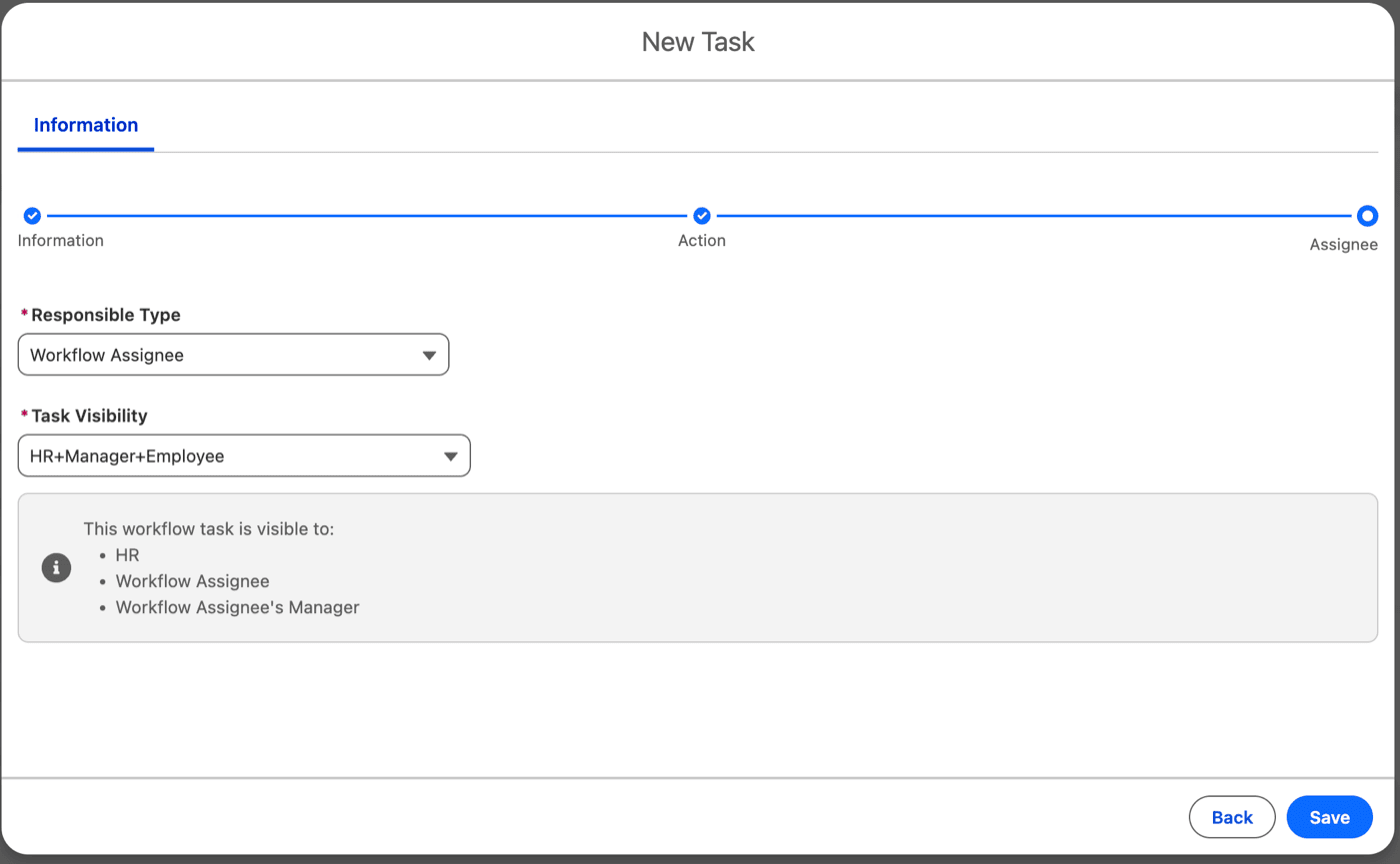
Under Responsible Type, select who completes the task:
Responsible type How flair resolves it Manager Uses the workflow assignee's manager. Performance Manager Uses the workflow assignee's performance manager. Workflow Assignee Uses the person who receives the workflow. Employee Uses a selected employee. Team Uses a selected team. SOQL Filter Resolves employees from the workflow assignee's record when the workflow is assigned. -
Under Task Visibility, select who can see the task. The responsible person always sees it.
Responsible person Available Task Visibility values Workflow assignee and manager HR+Manager+Employee only Workflow assignee HR+Manager+Employee or HR+Employee Workflow assignee's manager HR+Manager+Employee or HR+Manager A specific employee, role, or team HR+Manager+Employee, HR+Manager, HR+Employee, or HR -
Review This workflow task is visible to. It lists HR, Workflow Assignee, Workflow Assignee's Manager, or The Responsible Type, as applicable.
-
Save the task. Managers can view and edit tasks assigned to their employees.
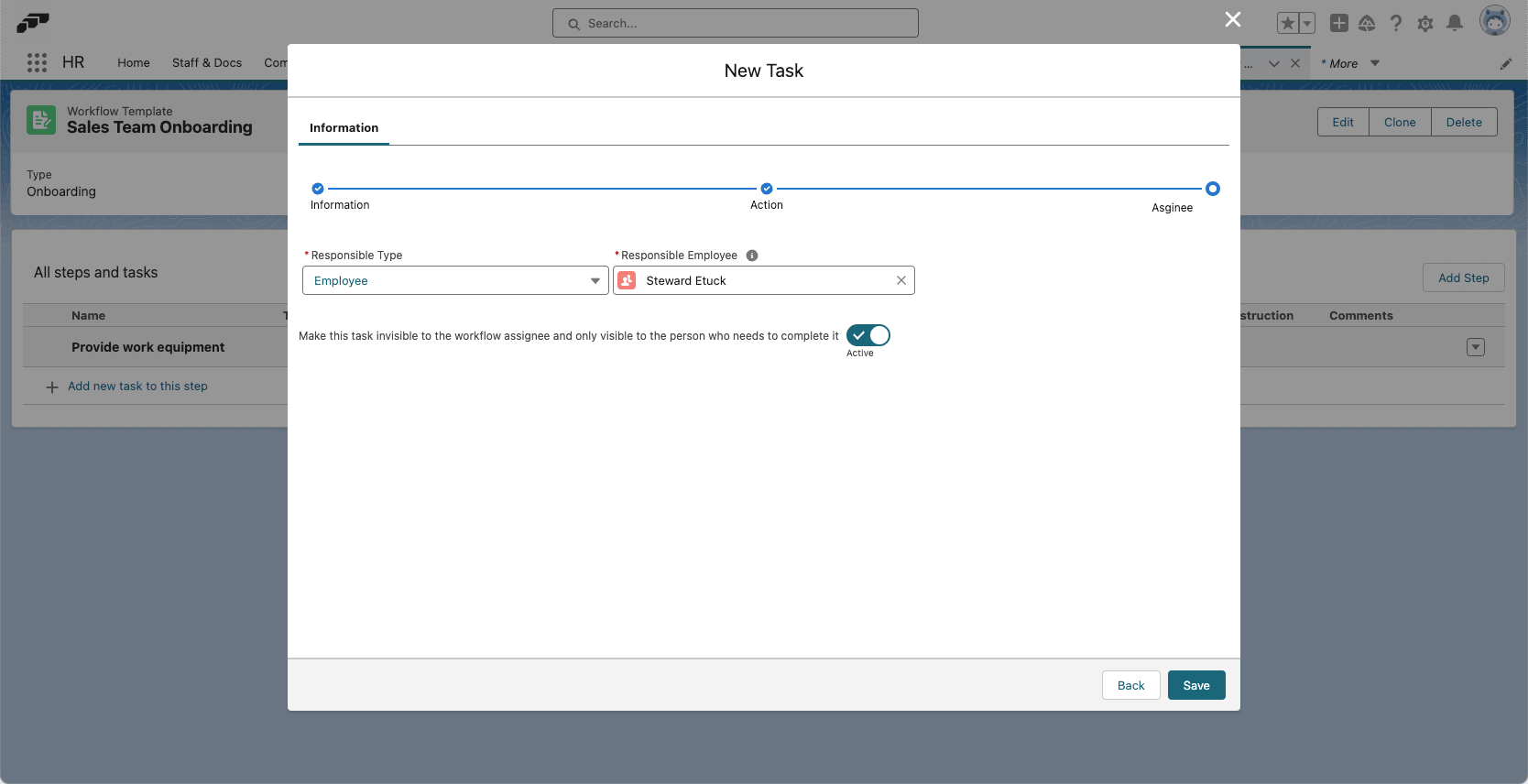
Tasks migrated from the former Hide From Assignee setting keep equivalent visibility. You do not need to reconfigure them.
Assign a responsible person with a SOQL filter
Use SOQL Filter when a task's responsible person comes from data on the workflow assignee's Employee record. flair resolves the responsible employees when the workflow is assigned.
- Under Responsible Type, select SOQL Filter.
- In Context Field, enter the API name of the field on the assignee's Employee record. It defaults to
Id. - In SOQL Filter, enter a SOQL
WHEREclause that queries the Employee object. - Use
:contextFieldValuewhere flair should insert the context field's value.
Wrap :contextFieldValue in single quotes. Id = :contextFieldValue silently resolves no one. Use Id = ':contextFieldValue'. The {contextFieldValue} syntax is not supported.
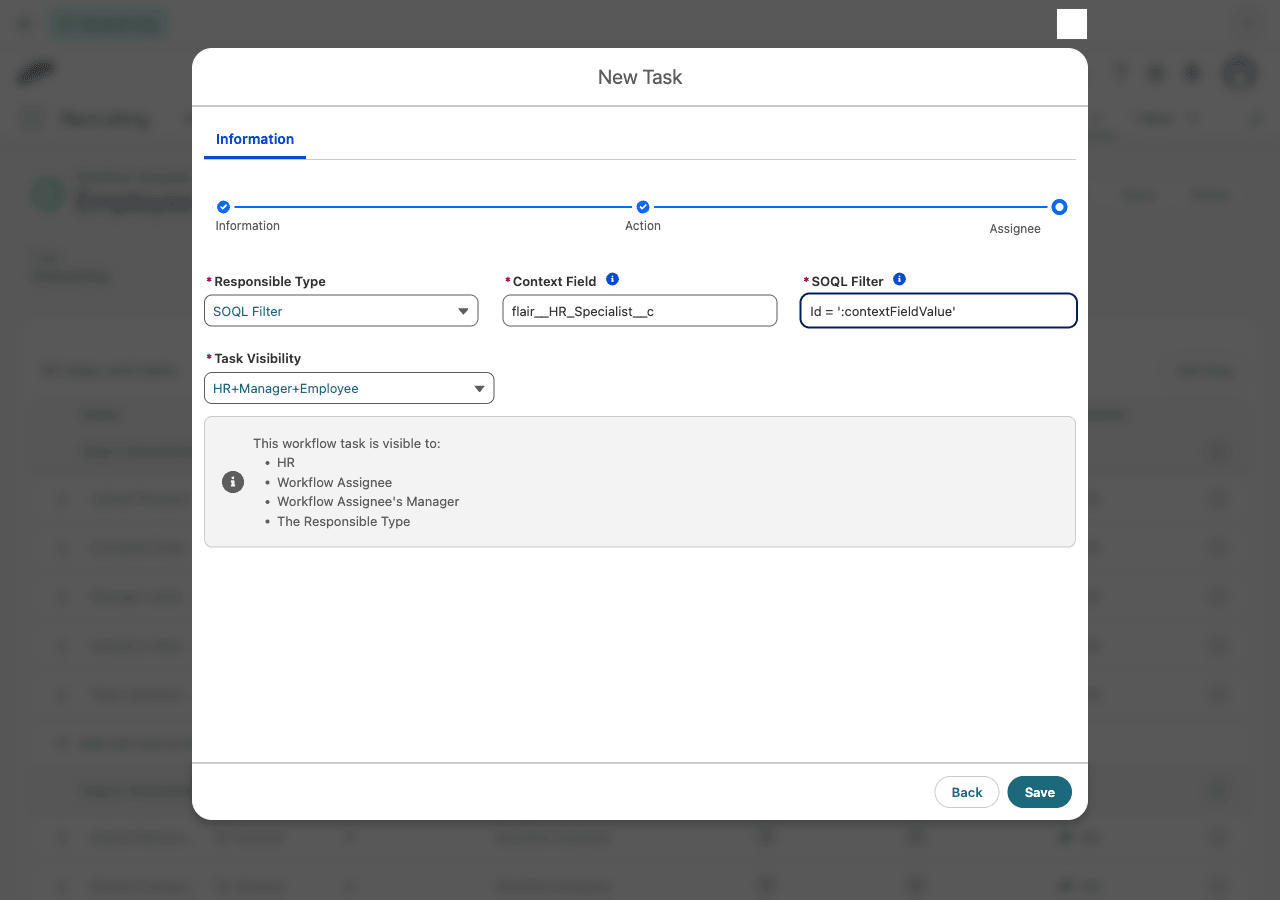
Route a task to an HR specialist
If flair__HR_Specialist__c is a lookup from the assignee to another Employee, enter these values:
| Field | Value |
|---|---|
| Context Field | flair__HR_Specialist__c |
| SOQL Filter | Id = ':contextFieldValue' |
flair reads the assignee's lookup and assigns the task to the Employee whose Id matches it.
The filter can match any Employee field. For example, use Context Field flair__Manager__c and this filter to assign every employee who shares the assignee's manager:
flair__Manager__c = ':contextFieldValue'
The query runs against flair__Employee__c, so use Employee field API names and the flair__ namespace where applicable. If the filter resolves multiple employees, each becomes responsible for the task.
Add an e-signature request
Configure the Signature task
-
On a Workflow Template, add or edit a task.
-
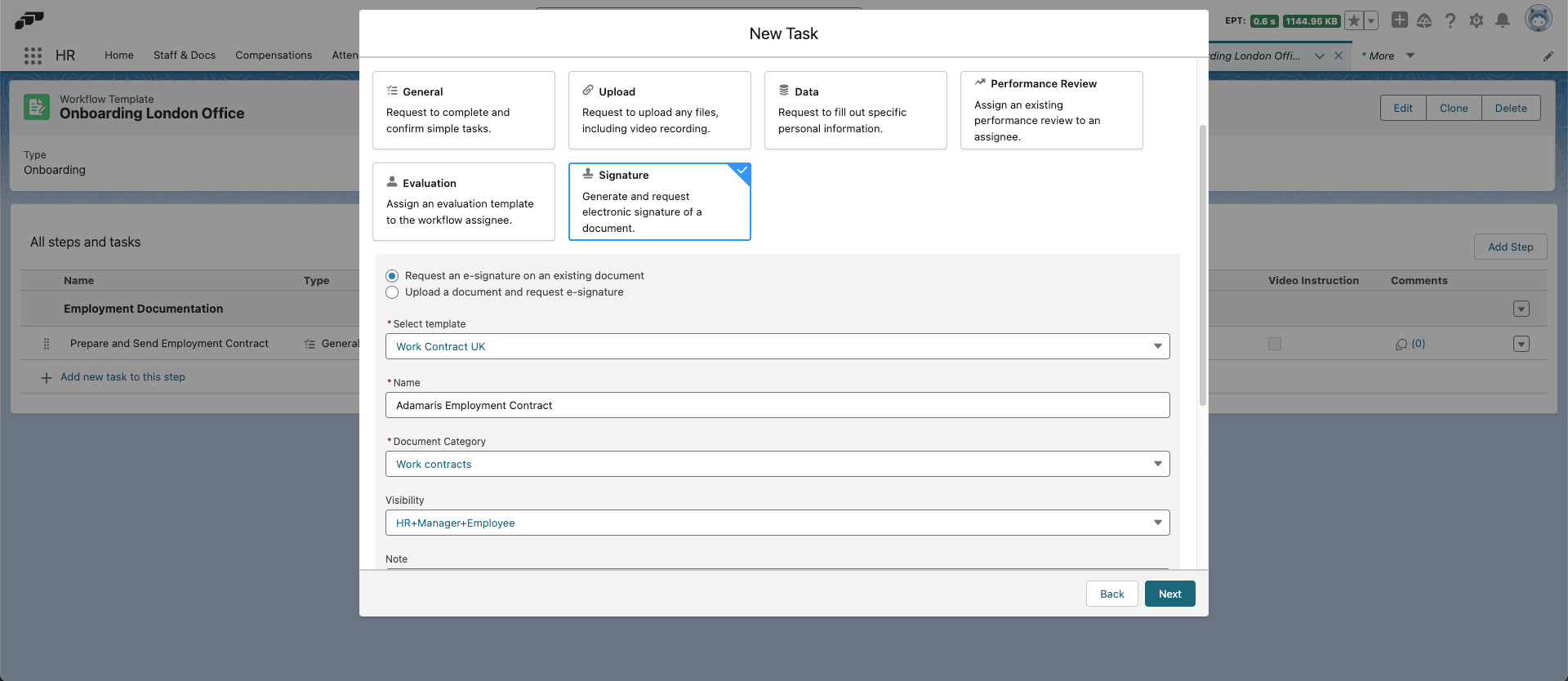
Select Signature.
-
Select an existing Document Template, or click Upload a Document.
-
Enter a task name.
-
Select a Document Category.
-
In Visibility, choose who can see the document.
-
Optional: Add notes and subtasks.
-
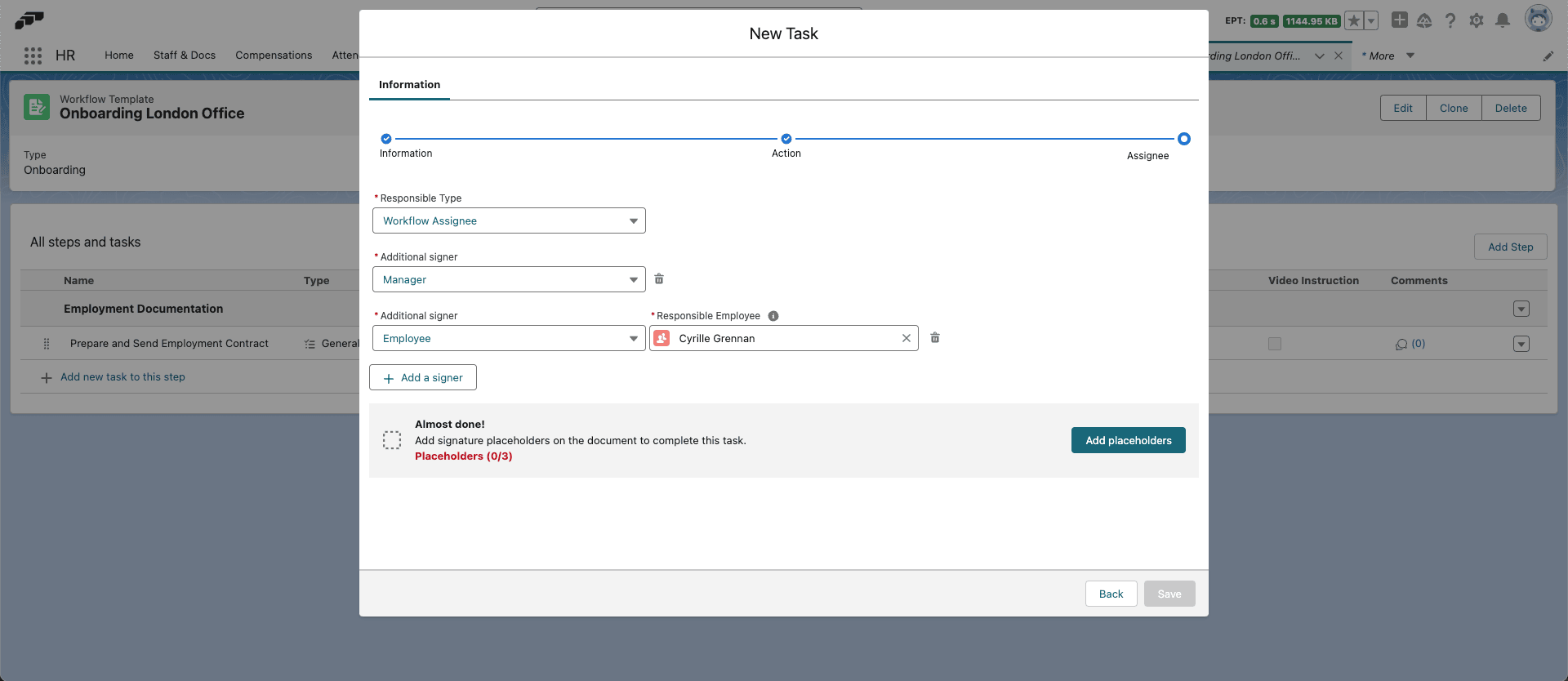
Select the primary signer as the responsible person.
-
Optional: Click Add a Signer for each additional signer.
Place the signatures
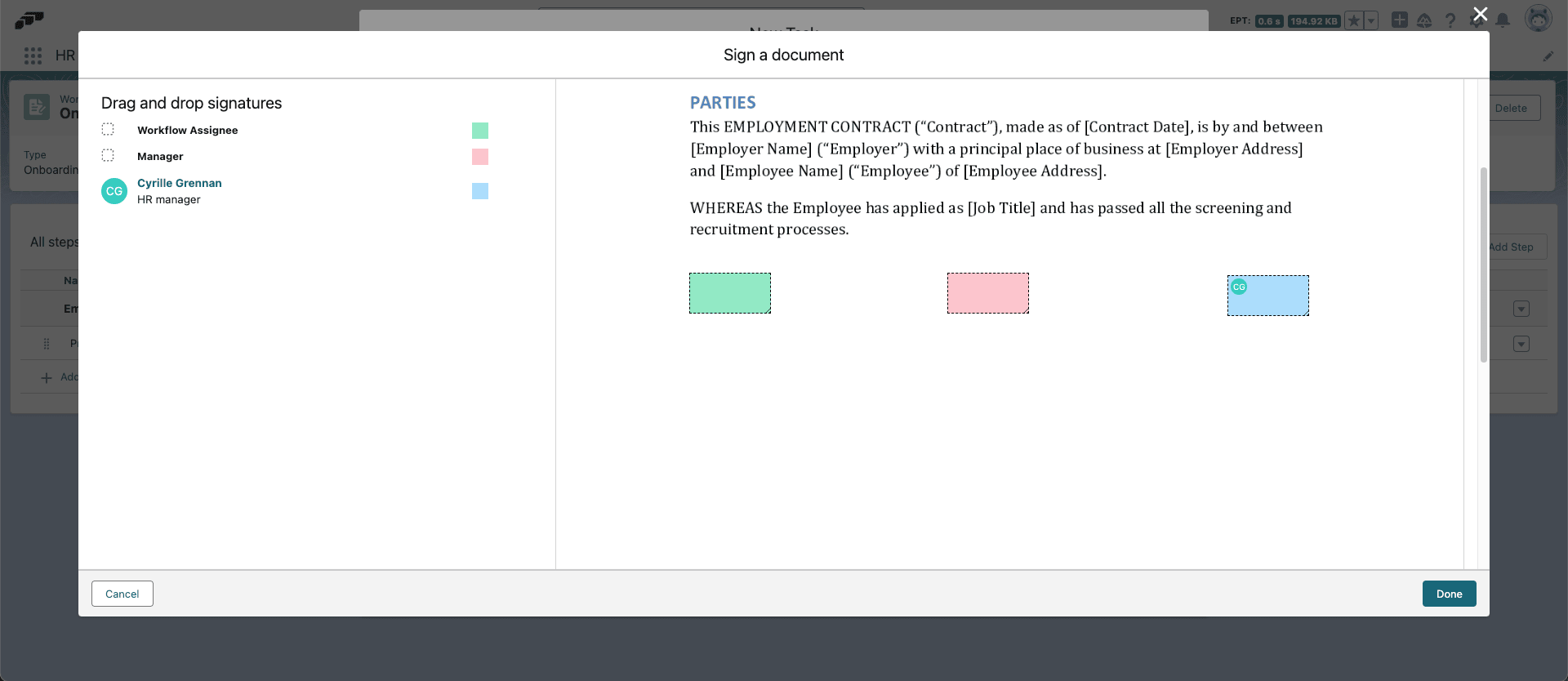
- Click Add Placeholders.
- In the preview, drag a signature placeholder to the document for each signer.
- Click Done.
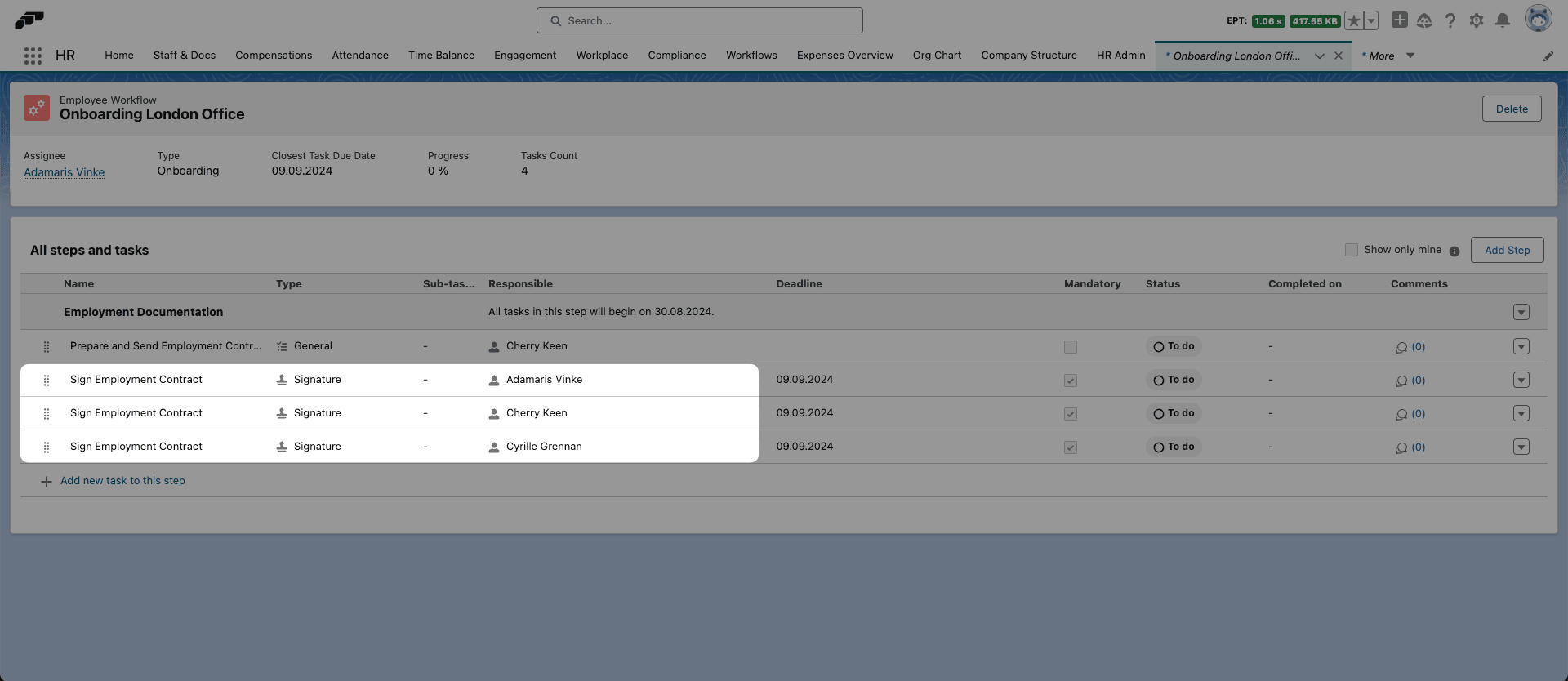
- Click Save. When you assign the workflow, each signer receives a separate signature task.
Sign a workflow document
- In the Employee Hub, open the signature task.
- Click Sign Document. The document opens in a new browser tab.
- Review the document.
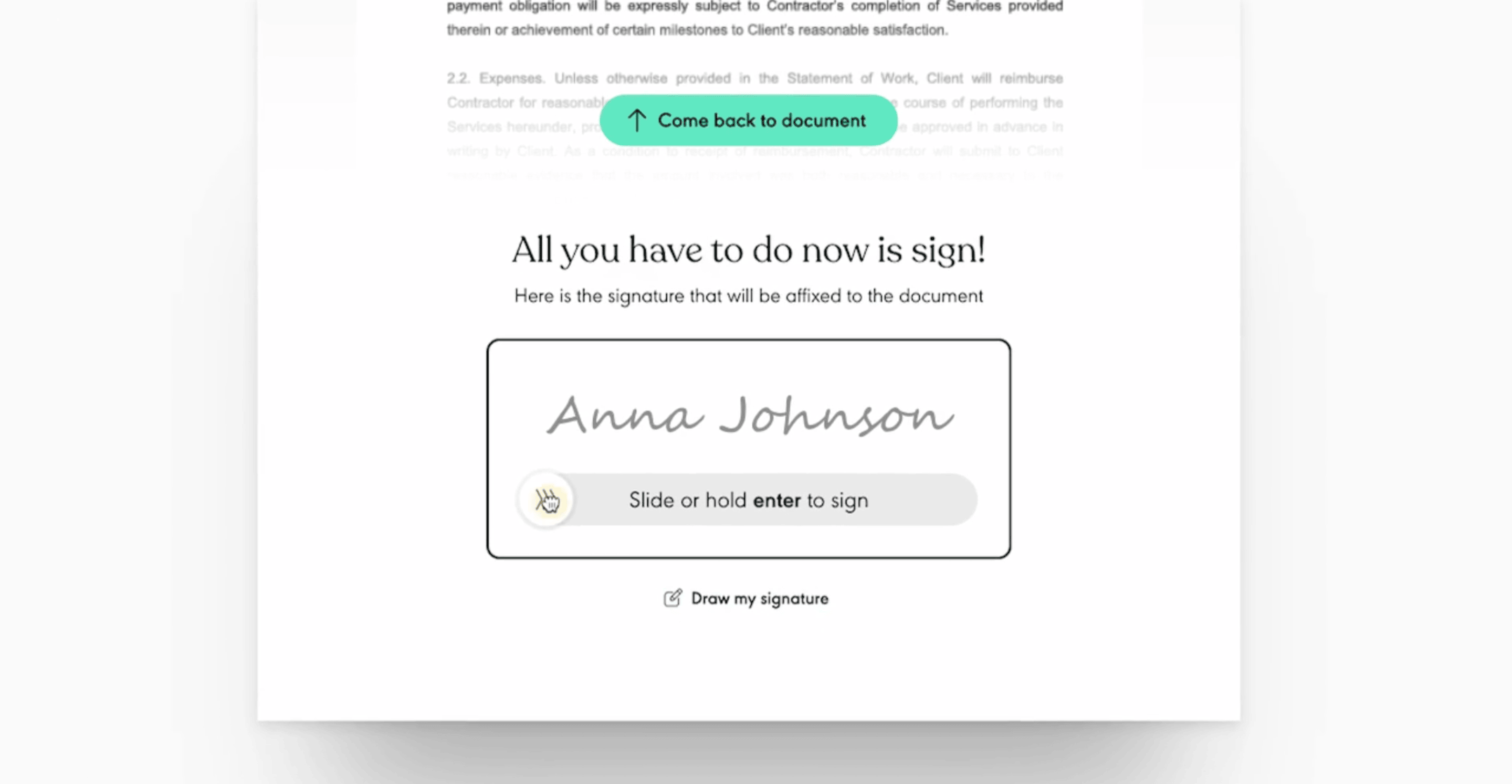
- Insert a standard signature with your full name or draw a signature.
- Finish the signing flow. The workflow records the completed signature task.
Add an Email task
An Email task sends a message to the responsible person's Company Email when the task becomes active.
-
Add a task, and select Email.
-
Complete the email fields:
Field What it does Email Subject Sets the email subject. Email Body Sets the message content. Email Button Name Sets the label for an optional call-to-action. Email Button Link Sets the call-to-action URL. -
Save the task. If the button name and link are empty, the email includes a default link to the workflow in the Employee Hub.
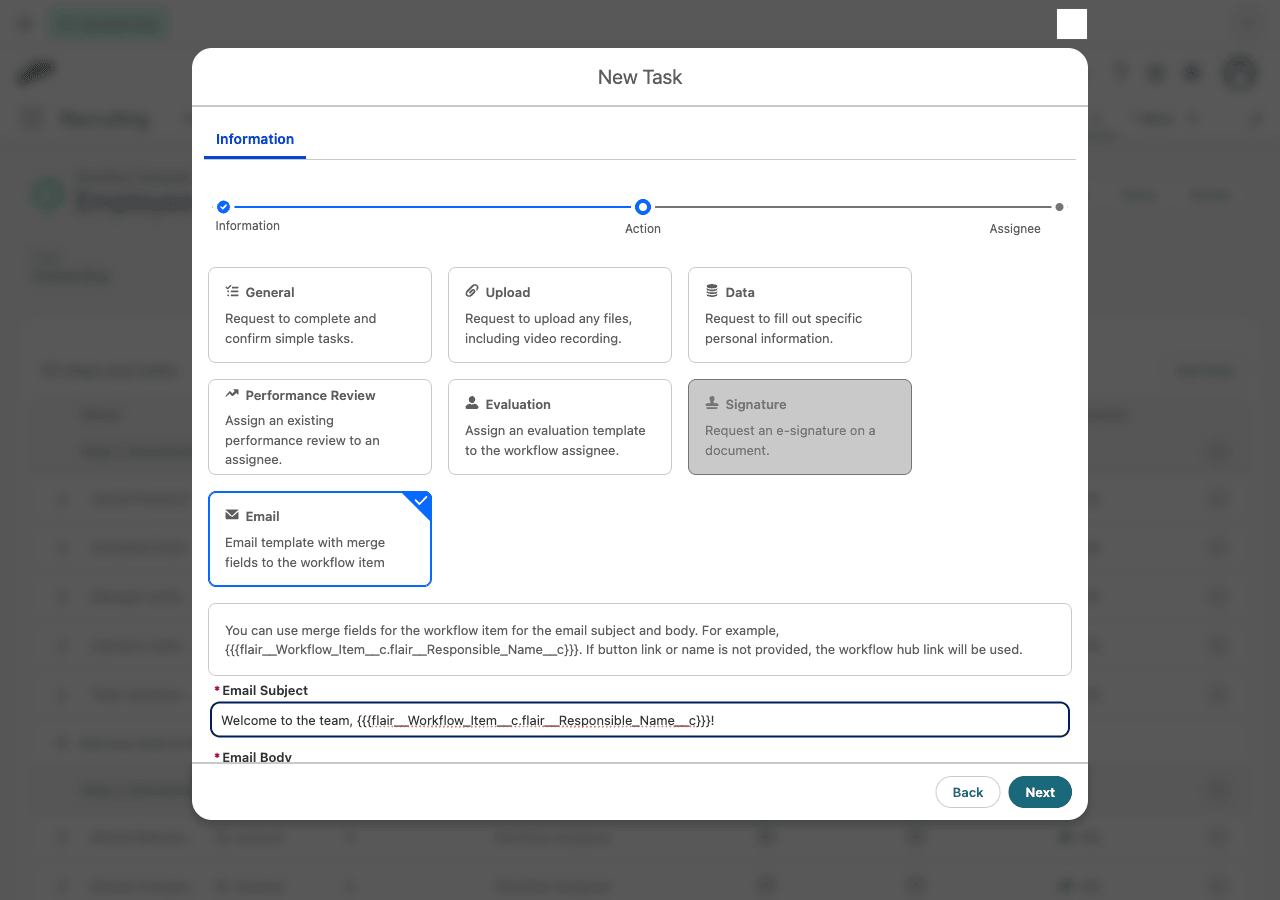
Use merge fields
Merge fields add values from the workflow item, such as the responsible person's name, to the email. Email Subject and Email Body each have an Insert Merge Field button. Email Body is a rich-text editor.
-
In the Email task, place the cursor in Email Body where the value should appear.
-
Click Insert Merge Field below the field.
-
Search for a field by its label, and select it.
-
Click Insert.
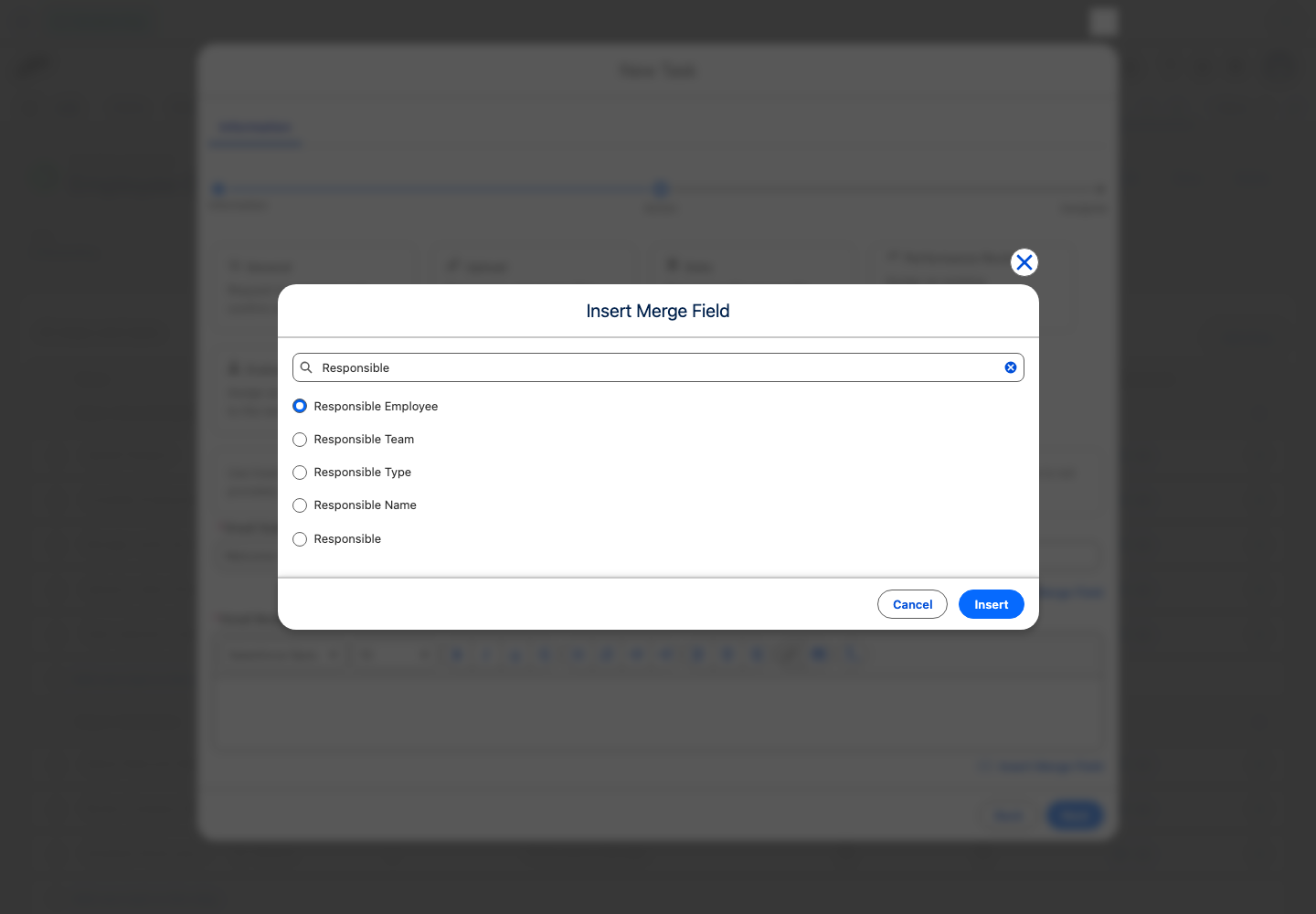
In Email Body, flair inserts the merge field at the cursor. In Email Subject, flair adds it to the end of the subject. The picker lists Workflow Item fields, and a merge field looks like this:
{{{flair__Workflow_Item__c.flair__Responsible_Name__c}}}
When the email is sent, flair replaces the merge field with the value from the workflow item, for example the responsible person's name.
Add video instructions
- On a workflow task, attach a video file under Attachments, or paste a YouTube, Loom, or Wistia URL into Video Instructions.
- Save the task. After assignment, the Employee Hub embeds the video in the workflow item.
Assign a workflow
You can assign only a Workflow Template that contains at least one task.
-
In flair HR, open Workflows → Overview.
-
Click Assign Workflows.
-
Under Template, select a type from All Categories.
-
Search for and select the template.
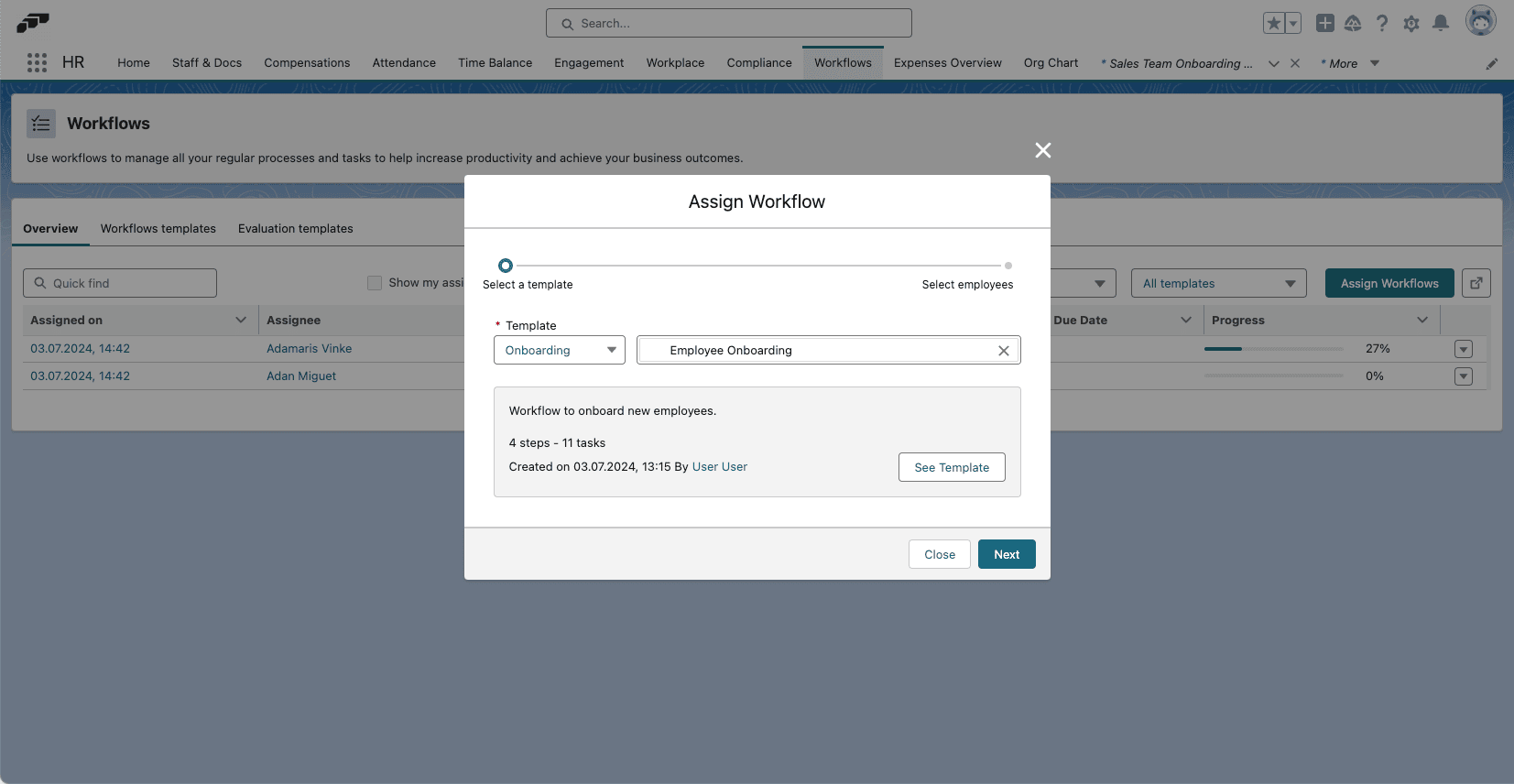
-
Click Next.
-
Select an individual or choose multiple employees by location, department, or team.
-
Finish the assignment. The employees receive the workflow in the Employee Hub and may receive Slack or email notifications based on their settings.
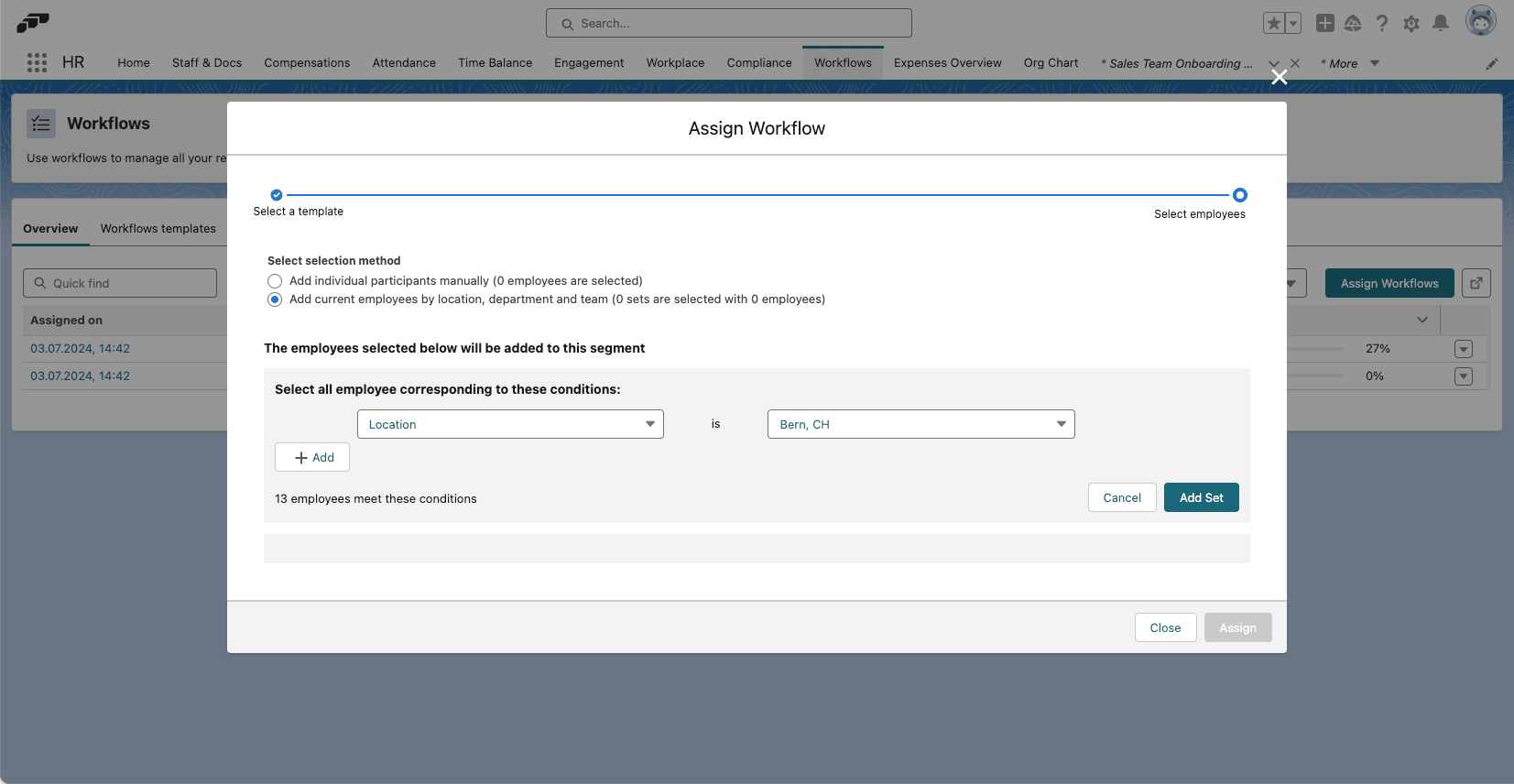
On Overview, you can review assignees, categories, progress, the nearest task due date, and the source template. Use the down arrow to edit or delete a workflow.
Automate workflow assignment with Salesforce Flow
Use a record-triggered Salesforce Flow to assign a Workflow Template when an employee joins a team.
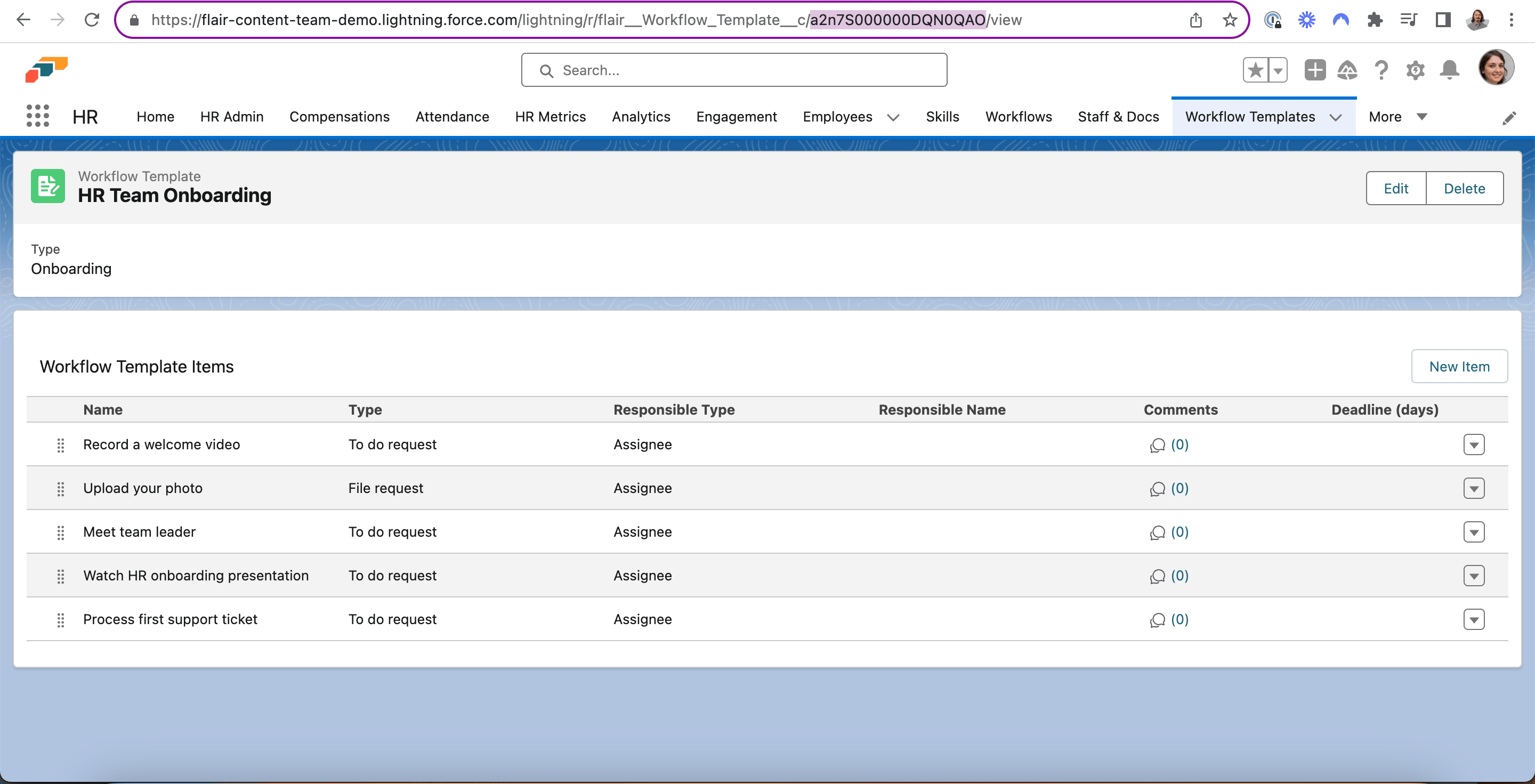
Prepare the team and template
- Create a Workflow Template with at least one task.
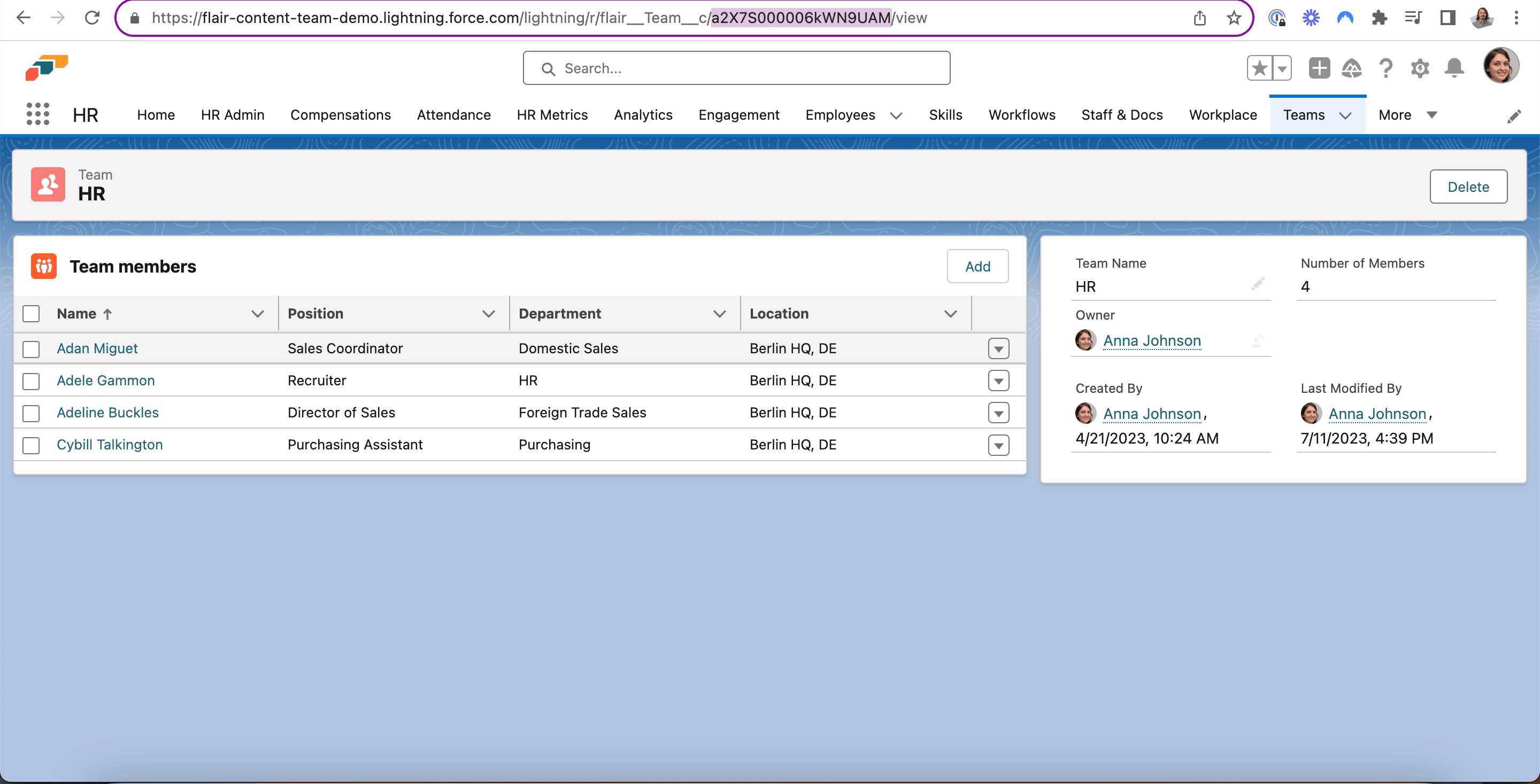
- In flair HR, open Teams.
- Open the team that should trigger the workflow.
- Copy the alphanumeric team ID between
/c/and/viewin the browser URL.
Create the record-triggered flow
-
In Salesforce Setup, open Flows.
-
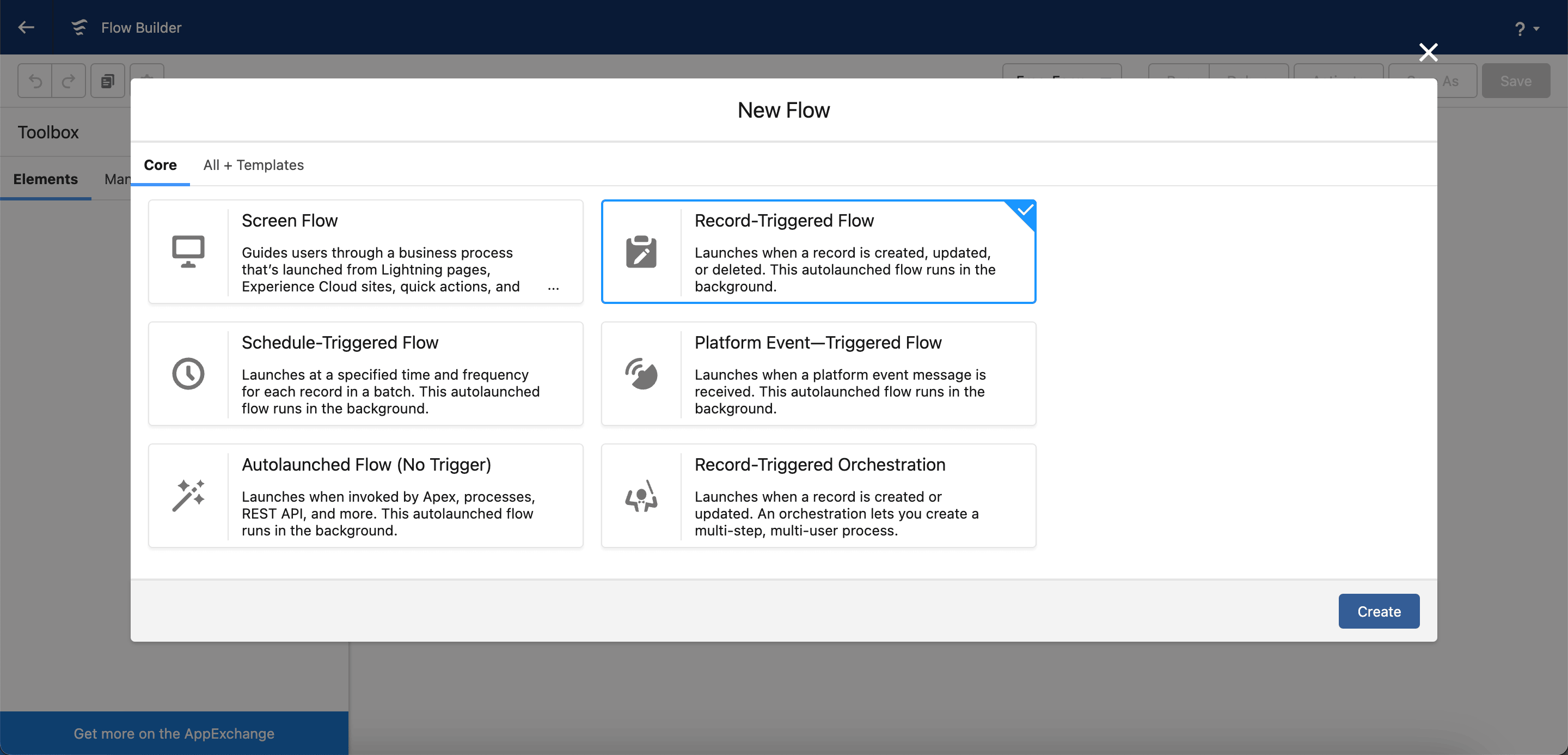
Click New Flow.
-
Select Record-Triggered Flow.
-
Click Create.
-
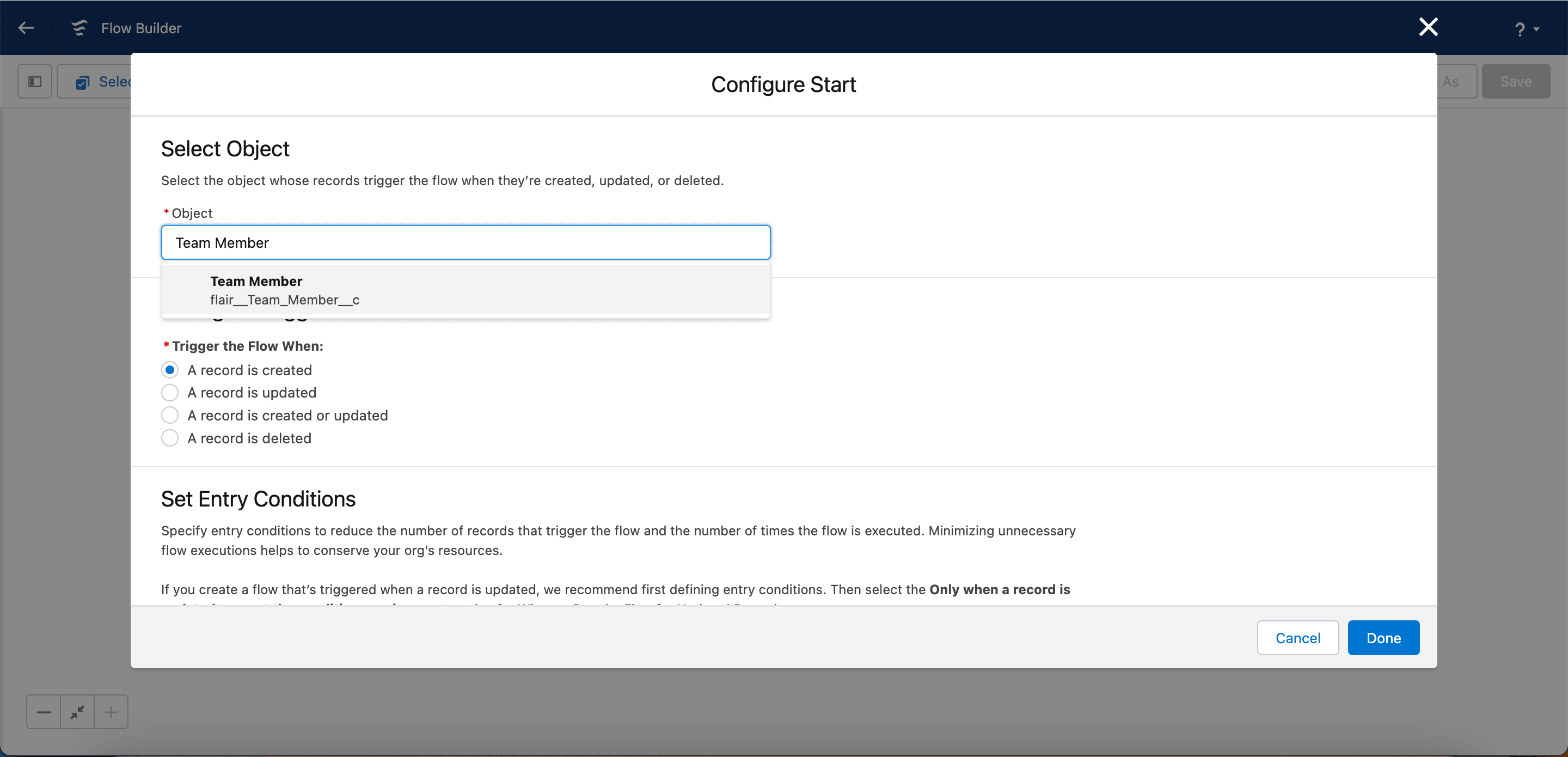
In Object, select Team Member.
-
Select Trigger the flow when a record is created.
-
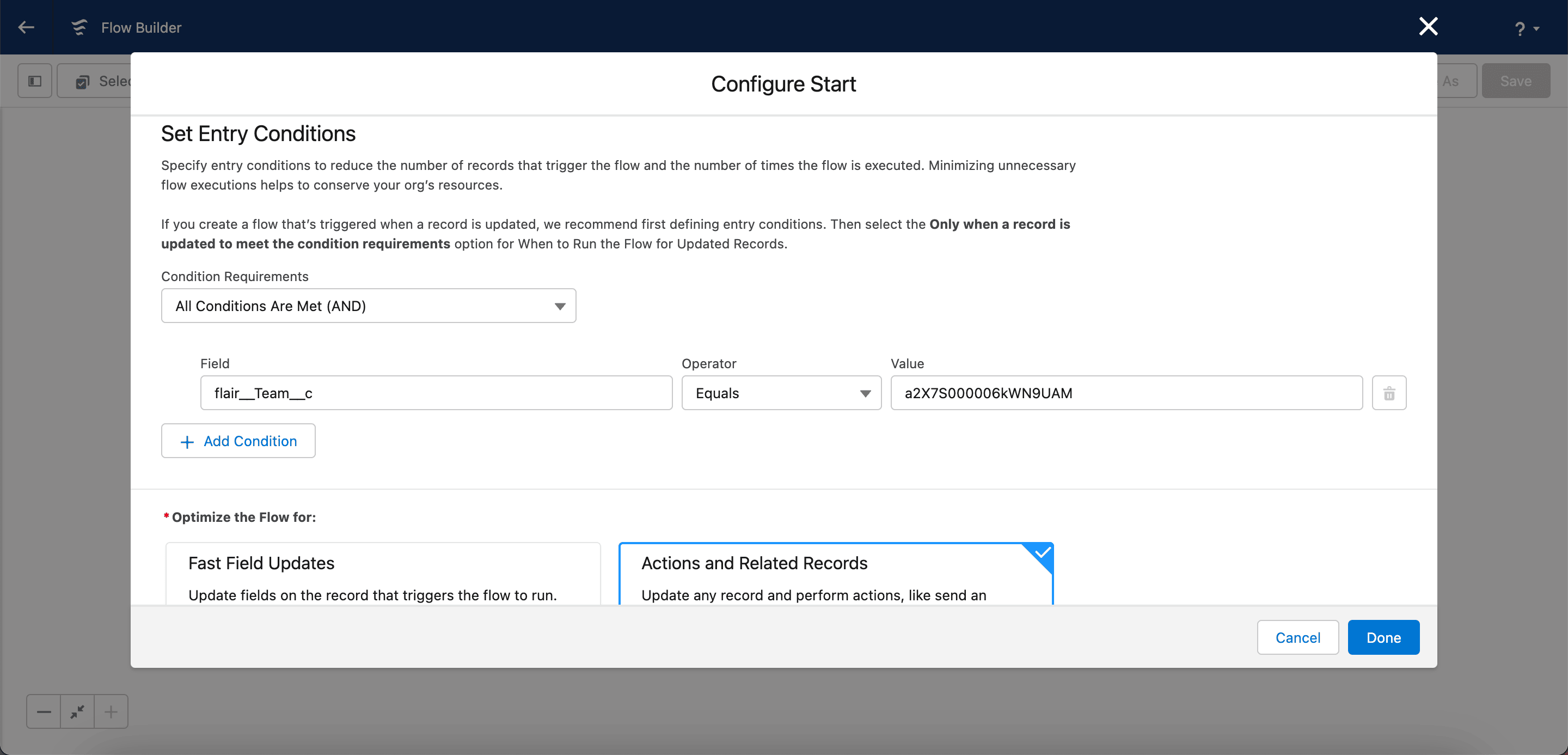
Under Condition Requirements, select All Conditions Are Met (AND).
-
Set Field to
flair__Team__c. -
Set Operator to Equals.
-
Set Value to the team ID, such as
a2X7S000006kWN9UAM, and click Done.
Create the employee ID collection
-
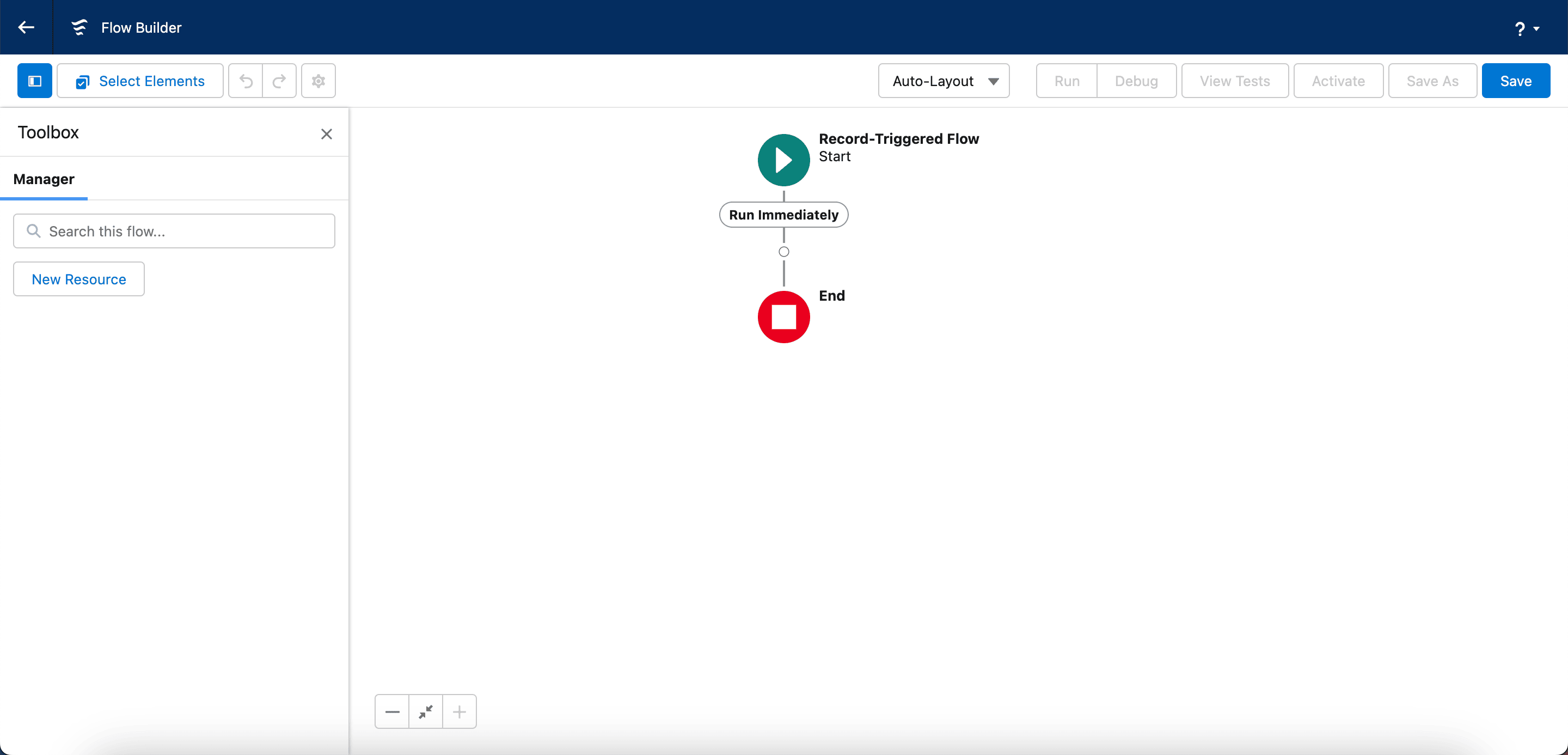
In Flow Builder, click Toggle Toolbox.
-
Click New Resource.
-
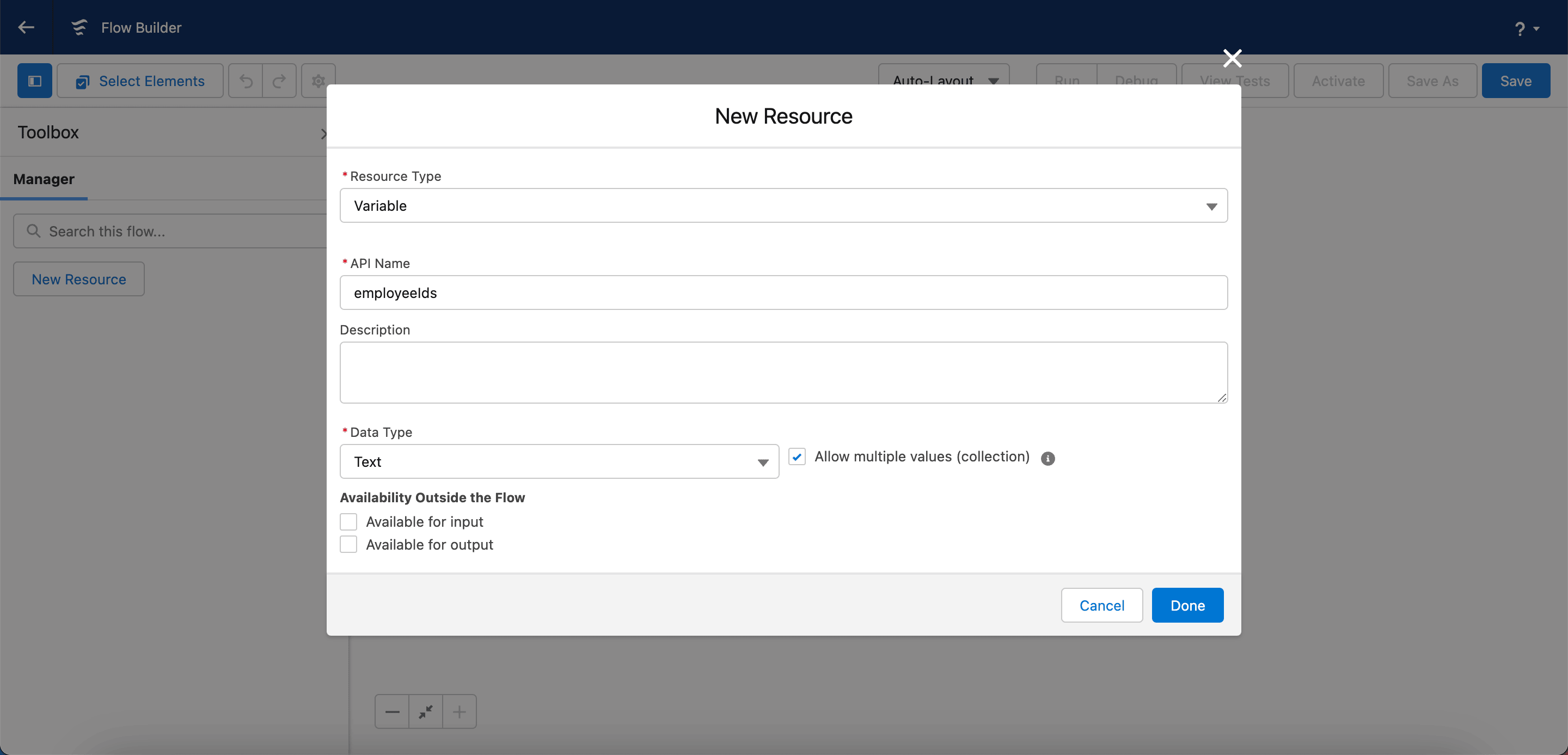
Set Resource Type to Variable.
-
Set API Name to
employeeIds. -
Optional: Enter a Description.
-
Set Data Type to Text.
-
Select Allow multiple values (collection).
-
Click Done.
Add the employee ID assignment
-
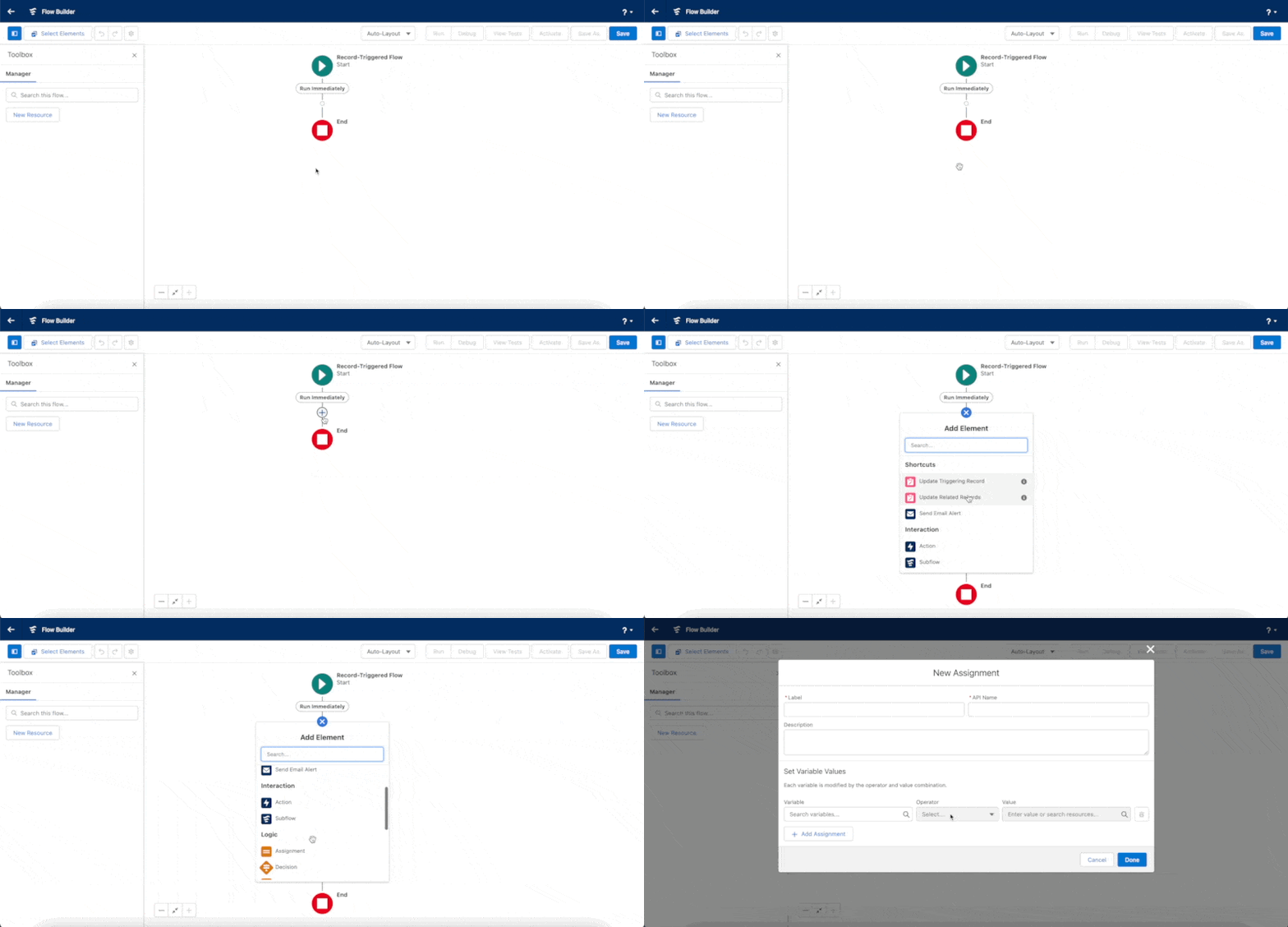
Between Start and End, click the add circle.
-
Add an Assignment.
-
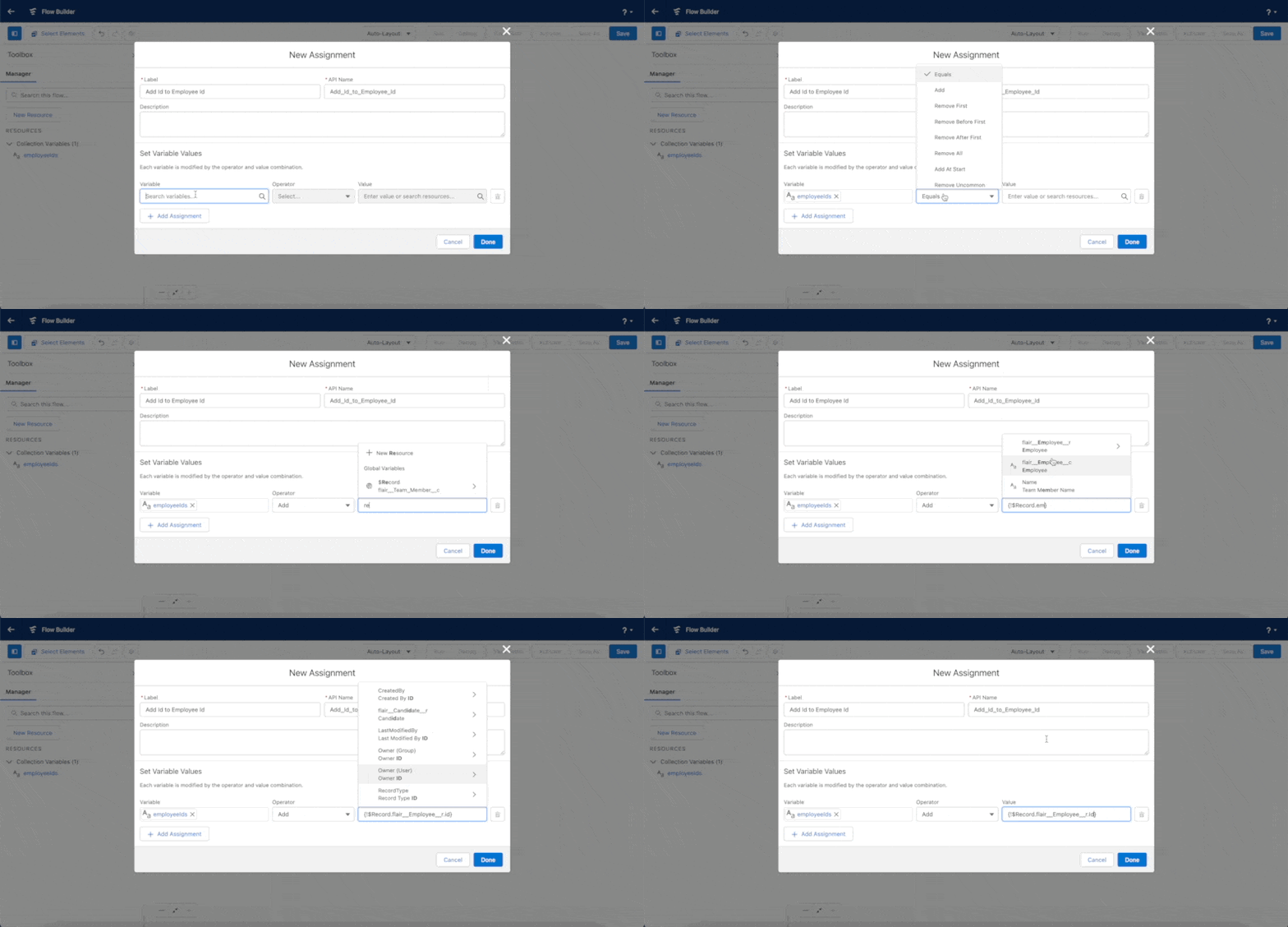
Set Label to
Add Id to Employee Id. -
Set Variable to
{!employeeIds}. -
Set Operator to Add.
-
Set Value to
{!$Record.flair__Employee__r.Id}. -
Click Done.
Add the workflow action
-
Between the Assignment and End, click the add circle.
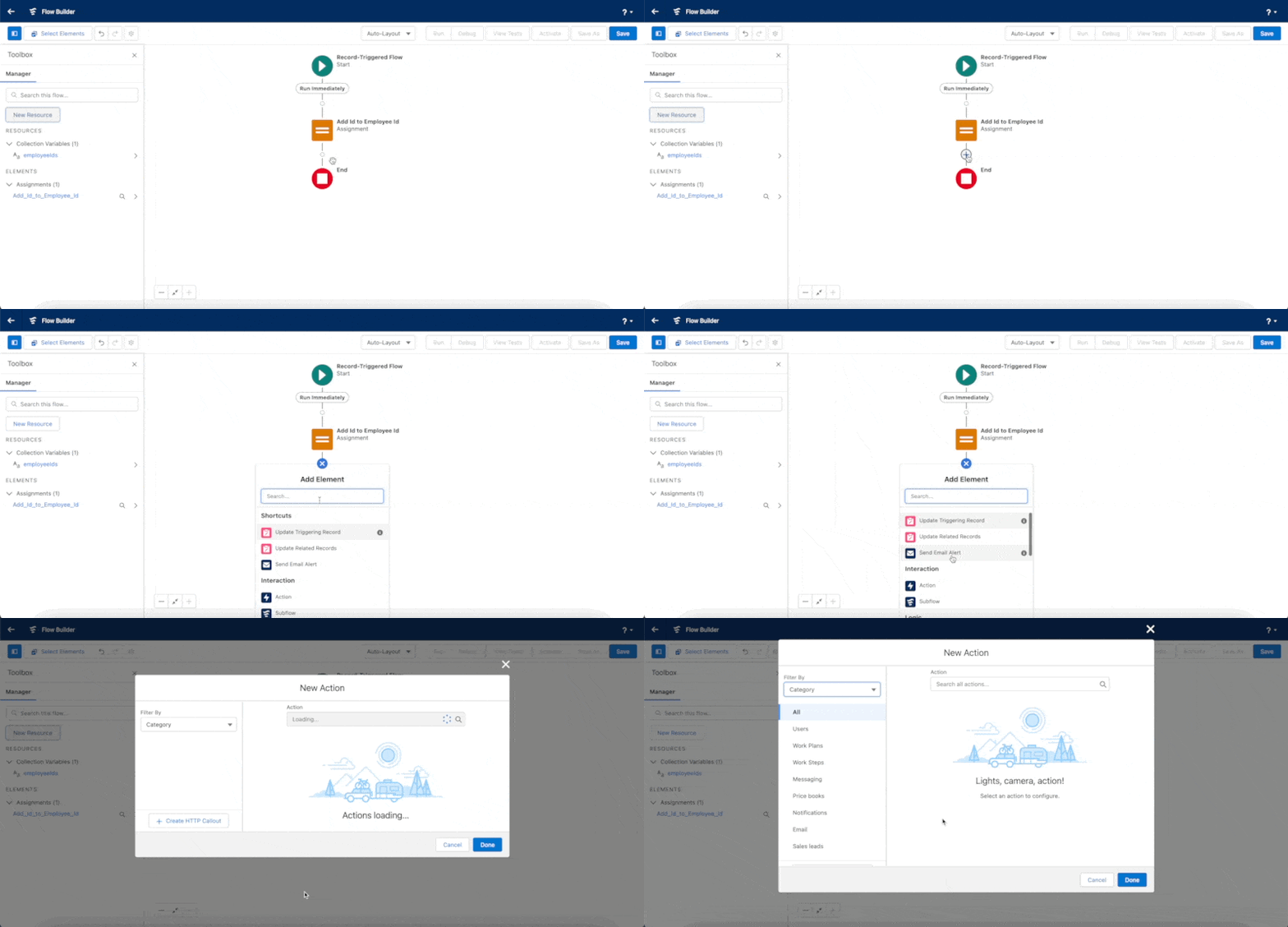
-
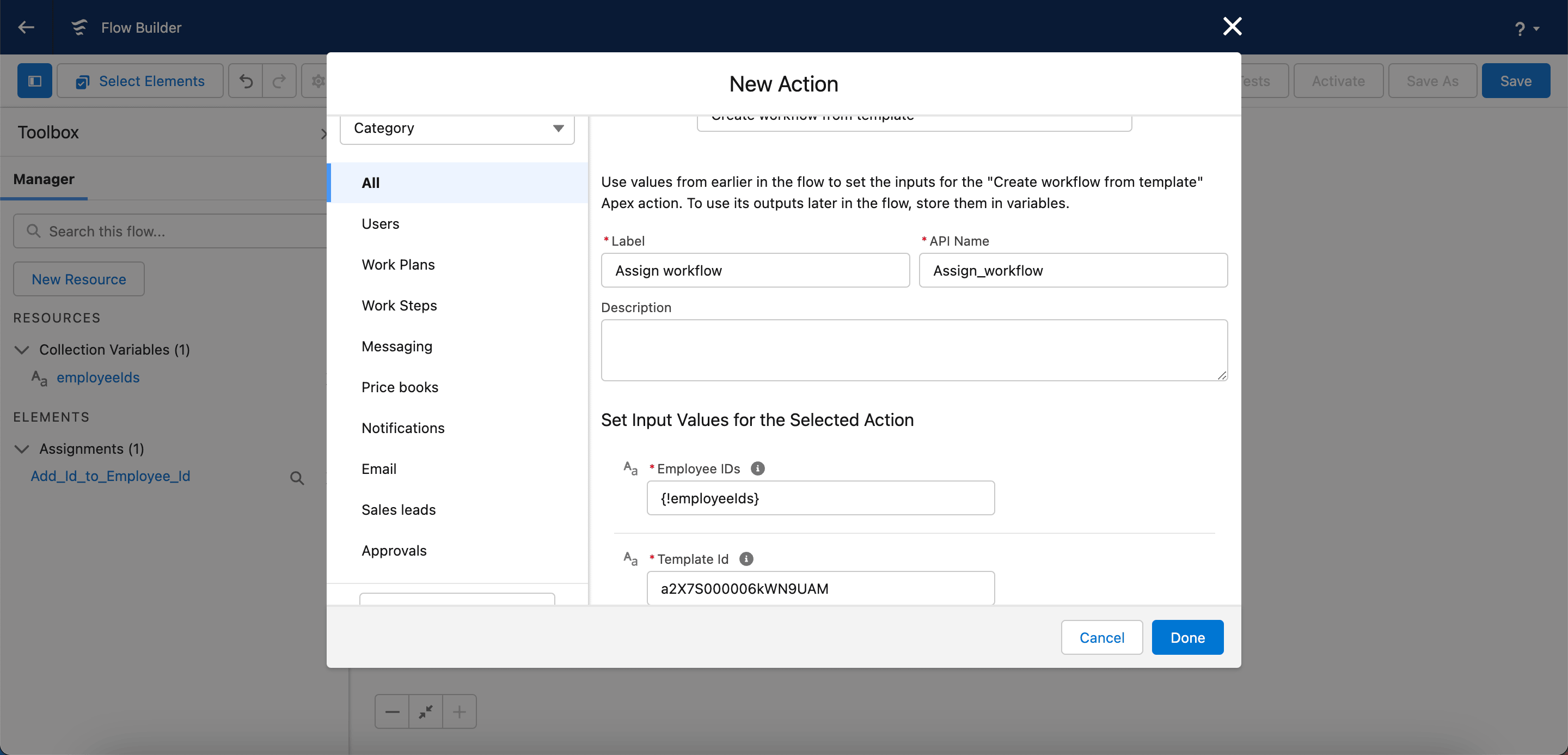
Add an Action.
-
Search for and select Create Workflow From Template.
-
Set Label to
Assign workflow. -
Set API Name to
Assign_workflow. -
Set Employee IDs to
{!employeeIds}. -
In Template Id, enter the Workflow Template ID between
/c/and/viewin its flair HR URL. -
Click Done.
Save and activate the flow
- In Flow Builder, click Save.
- Enter a Flow Label, such as
Auto-assign workflow for HR team members. - Save the flow.
- Click Activate. New members of the selected team receive the Workflow Template automatically.
Update workflow item statuses in bulk
Use a Salesforce data tool, such as Salesforce Inspector or Data Export, to update many workflow items.
-
Export the workflow items with a query such as this one, adjusted for your employee and status:
SELECT Id, Name, flair__Responsible_Name__c, flair__Status__c
FROM flair__Workflow_Item__c
WHERE flair__Responsible_Name__c = 'Employee Name'
AND flair__Status__c = 'NOT_STARTED' -
Copy the exported rows into a spreadsheet.
-
Set
flair__Status__ctoCOMPLETEDfor each item to update. -
In the data tool, use Data Import to paste the rows, map the fields, and run the import.
Complete workflows in the Employee Hub
-
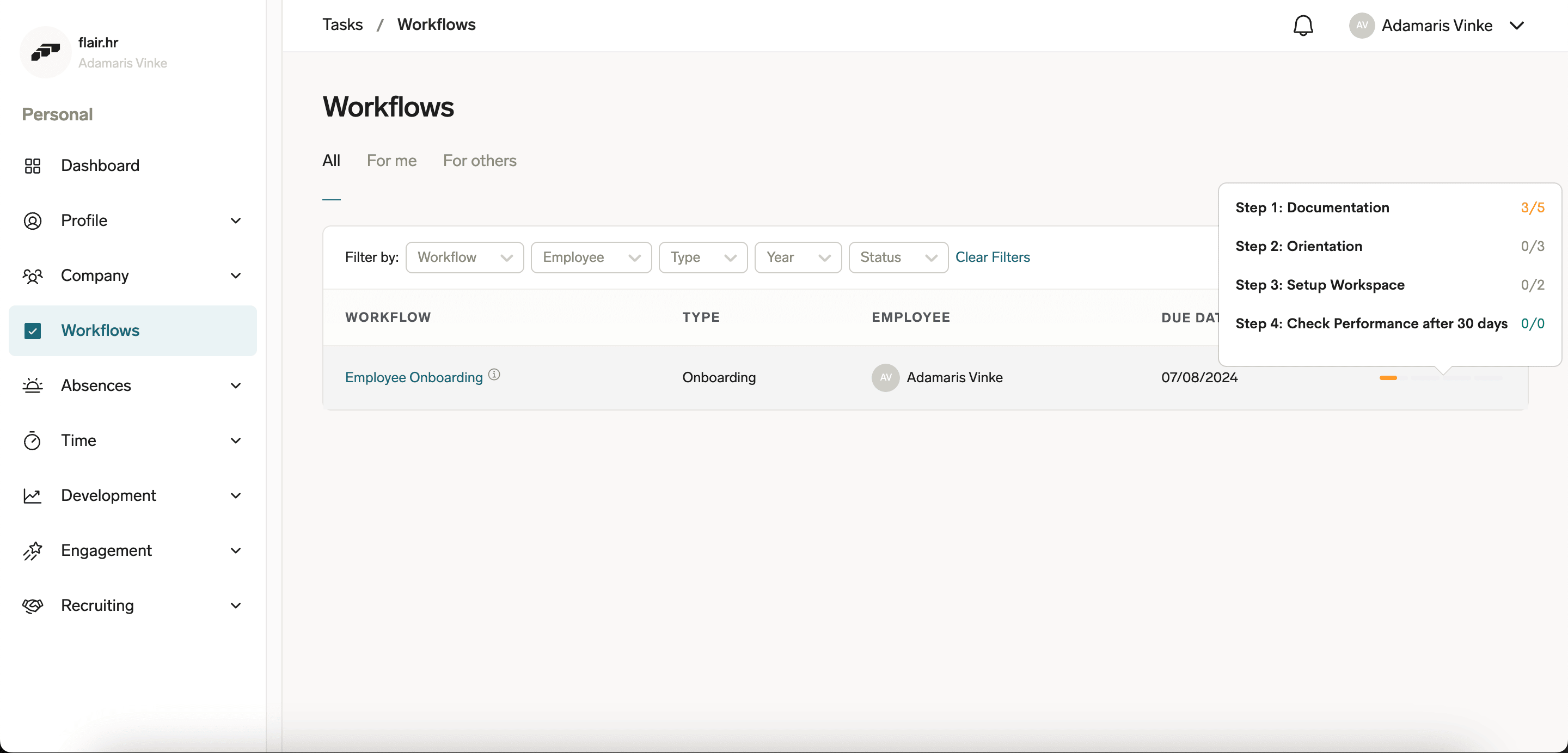
In the Employee Hub, open Workflows. You can also use the link in an assignment email.
-
Filter by workflow name, employee, type, year, or status.
-
To list individual tasks, switch the view from Workflows to Tasks.
-
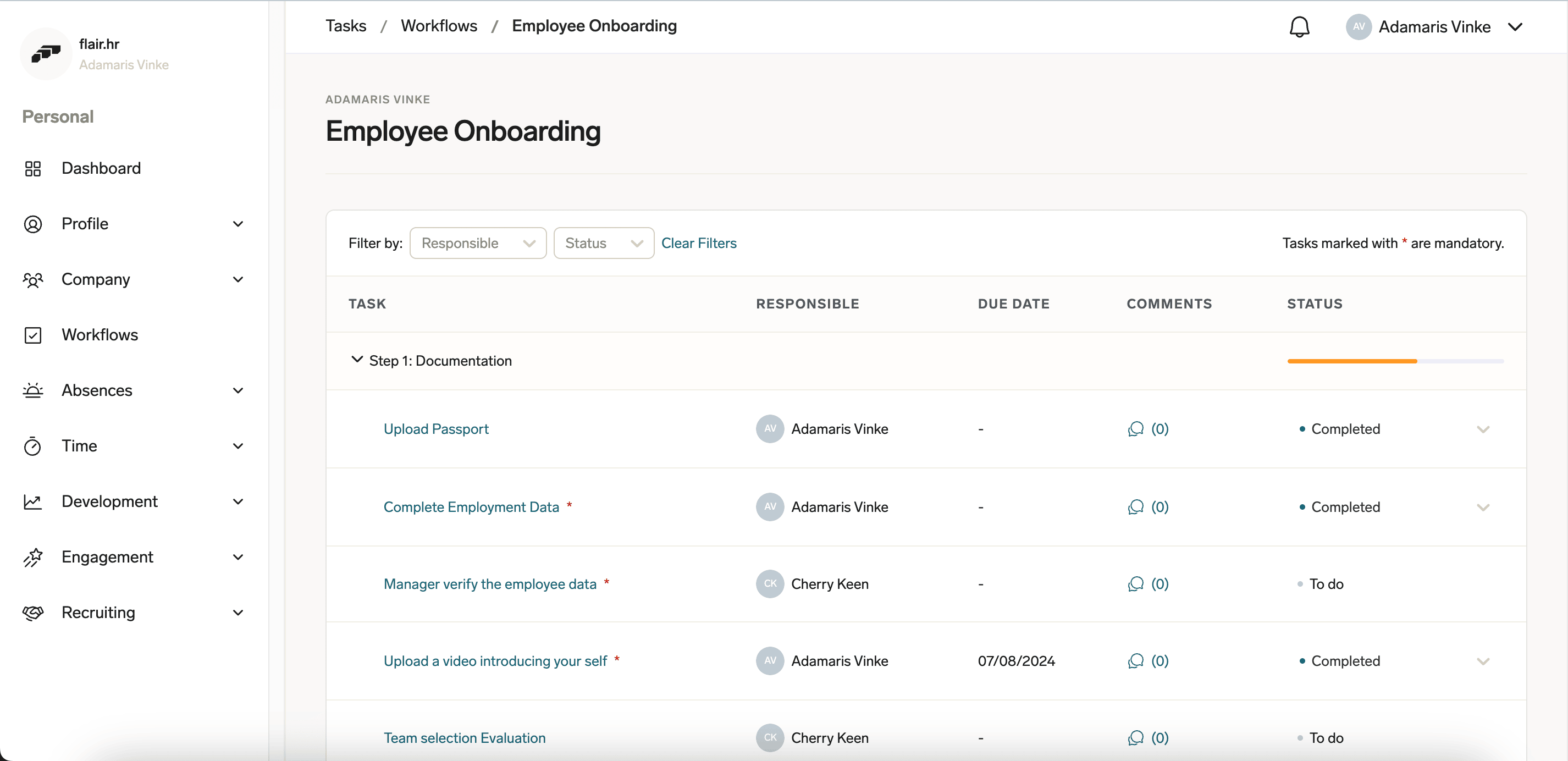
Open a workflow to see its steps, responsible people, due dates, statuses, and comments. Mandatory tasks have an asterisk, and locked tasks depend on earlier tasks.
-
Open a task to see its description, subtasks, requested data, or upload field.
-
Enter requested data or upload the requested document.
-
Optional: Mark a subtask done. Completing a subtask updates the parent task status, but subtasks are not mandatory.
-
Change the task status to In Progress or Completed.
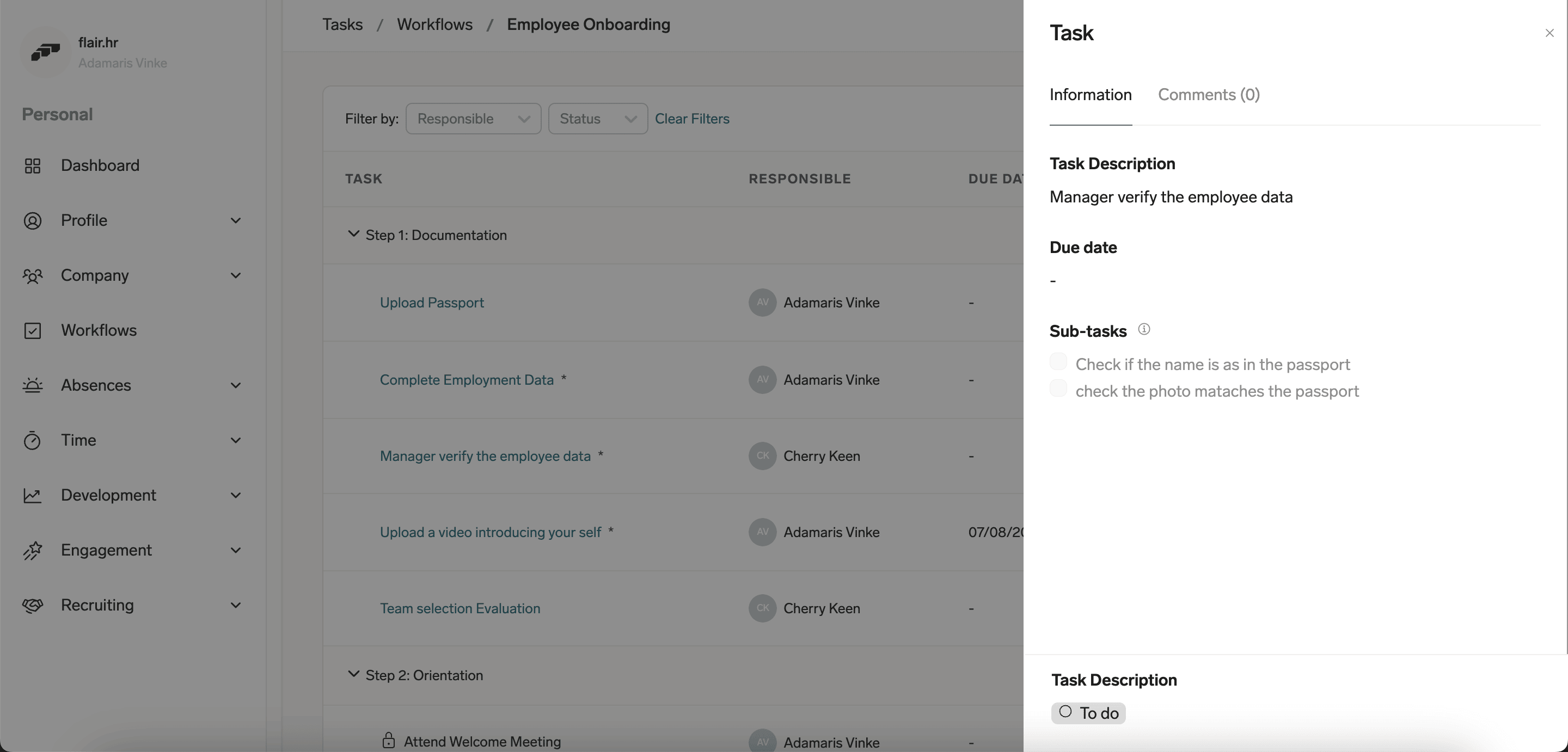
Tasks assigned to other people may be hidden from you. If your mandatory tasks are complete but the next step remains inactive, another responsible person may still have an incomplete mandatory task.
Use the Workflows tab in the mobile app
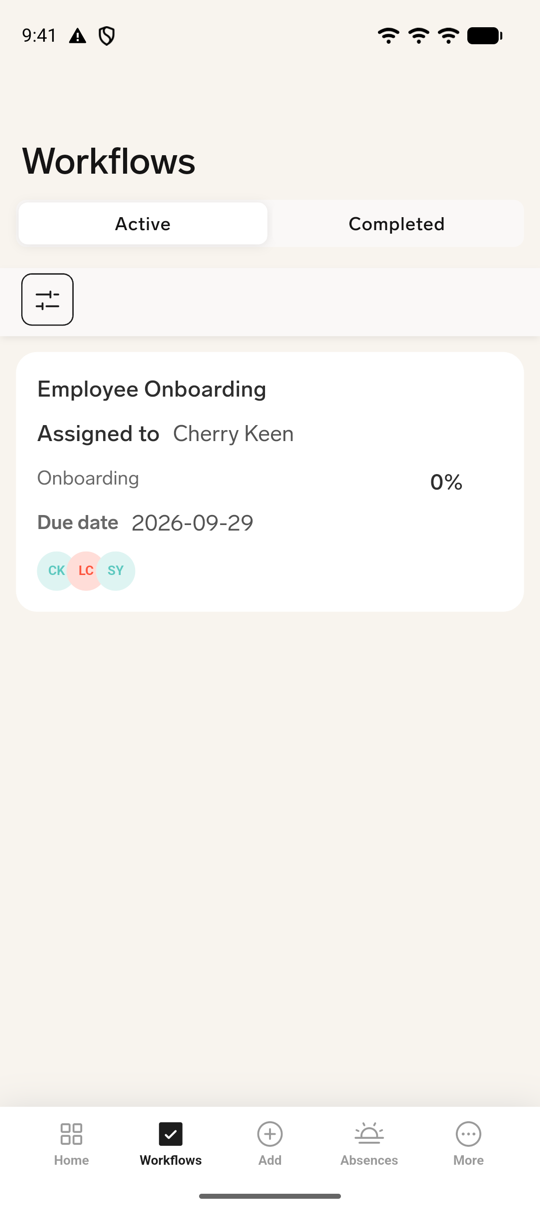
Employees can review assigned workflows in the flair mobile app. Use the filters to find a workflow, then open it to review its steps and tasks.
- In the flair mobile app, tap Workflows.
- To switch between unfinished and finished workflows, tap Active or Completed.
- To narrow the list, use the filter controls and select Workflow, Assignee, Type, Year, or Assignee Type.
- Under Assignee Type, choose My or Other.
- To reload the list, pull down on the Workflows screen and release.
- Tap a workflow to open its steps, tasks, due dates, responsible people, and completion progress.
Complete a workflow task in the mobile app
- In an active workflow, tap an active task. Locked tasks in inactive steps cannot be opened until the step becomes active. A locked step shows a lock icon, and a step that starts on a date shows it after the step name, for example "Active on" followed by the date.
- Optional: Review the task's instructions. Files attached to the task appear under Attachments; tap a file name to open it. If the task has a video URL, tap Link to video under Video instructions to watch it.
- To change the task status, tap Status. In Task Status, select an available status, such as Not started, In progress, Completed, or Rejected. Pending approval appears only while the task is awaiting approval.
- For a data-request task, complete the requested fields and tap Save changes. Saving the fields also moves a not-started task to In progress. If a value has the wrong format, the field shows "The value does not match the data format"; correct it and save again.
- For a task with subtasks, use the checkboxes under Subtasks to mark each subtask complete or incomplete.
- For a file-request task, tap Upload file, then choose Upload file to pick a file from your device, Select from library, or Take photo. The file must be smaller than 3.5 MB. The task holds one file; to replace it, tap the trash icon next to the uploaded file to delete it, then upload the new file.
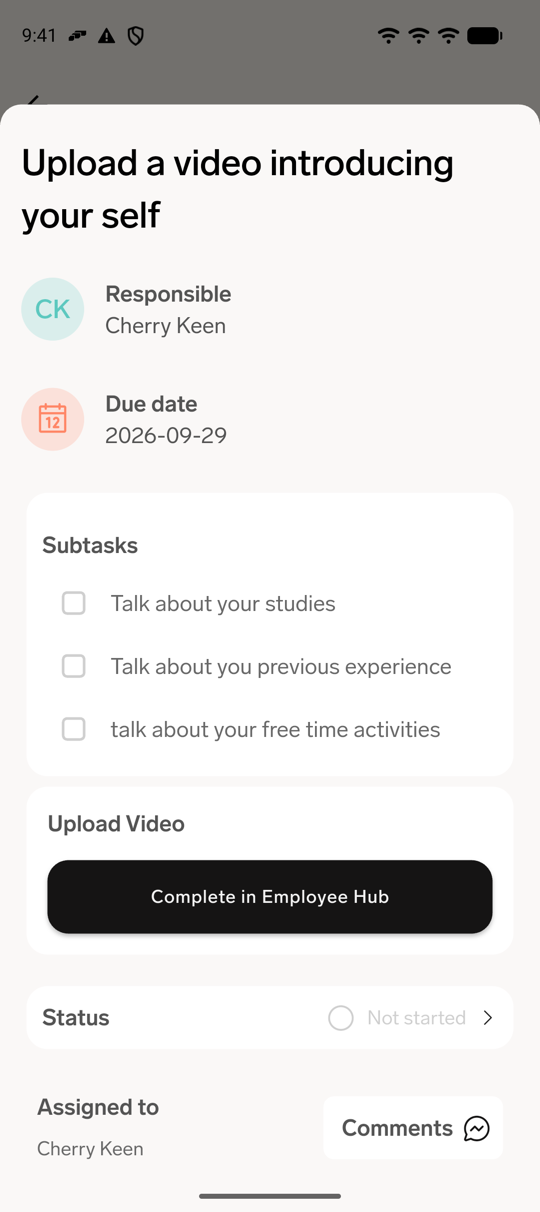
- For a task type the mobile app cannot complete, such as video, account creation, cycle assignment, or evaluation request, tap Complete in Employee Hub to finish it in the Employee Hub.
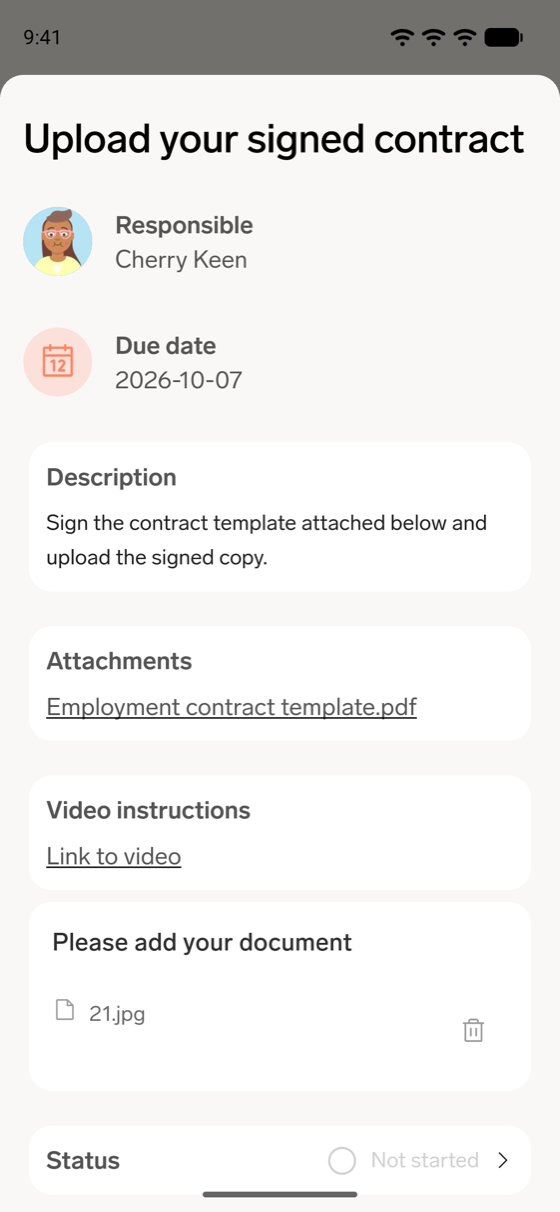
If you can see a task but cannot edit it, its fields and Status are read-only, and tasks that must be completed in the Employee Hub show "No permission to edit this item." instead of Complete in Employee Hub.
Review workflows as an HR Manager
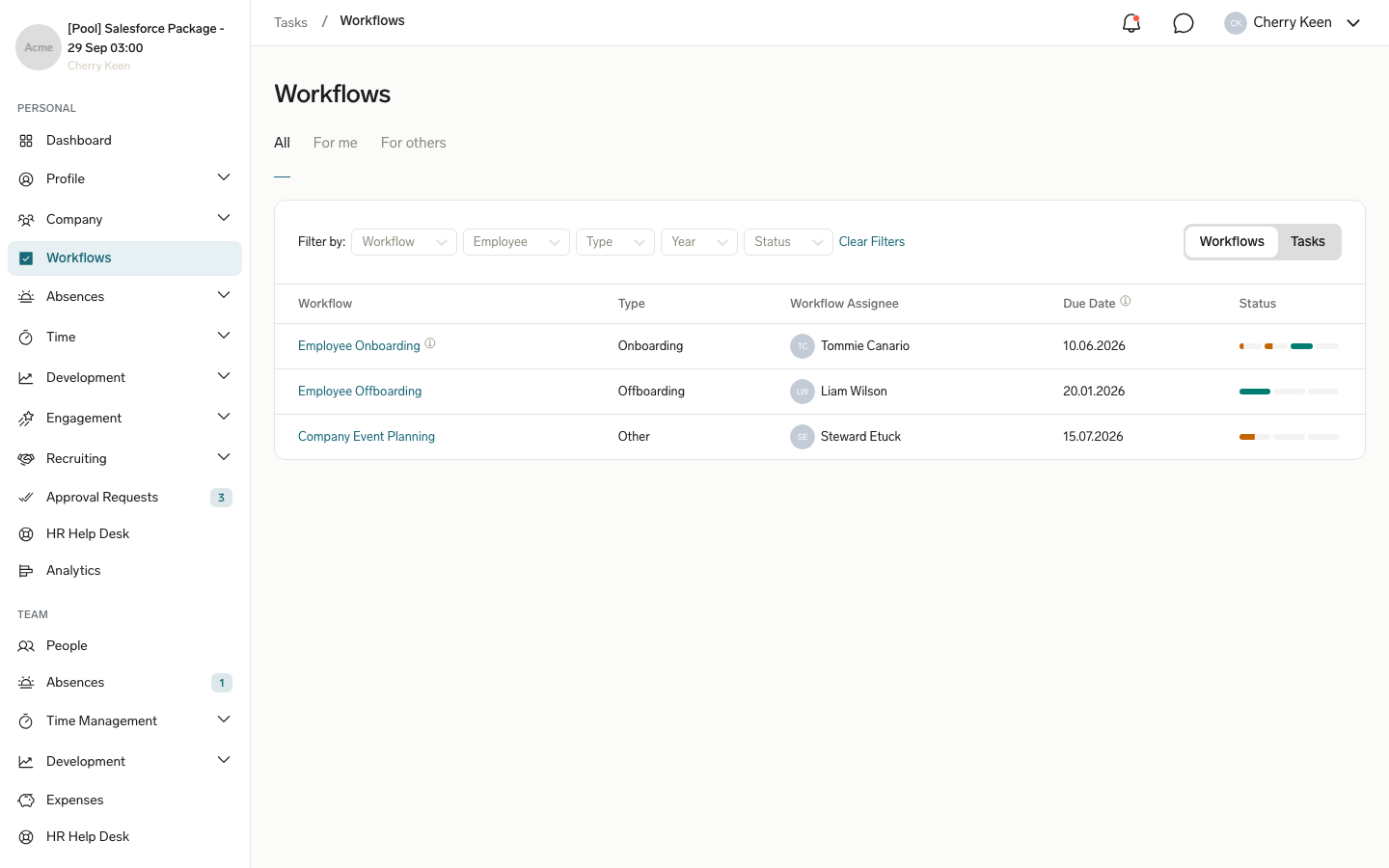
If you are an additional manager with HR Manager for an employee, you can view and update that employee's workflows in the Employee Hub.
- Open Workflows → All to see your workflows and the workflows of all employees you manage as HR Manager.
- Open Workflows → For others to see workflows where you are not the direct assignee.
- Open a workflow item to view its details or update its status.
View evaluation results
When an evaluator submits the evaluation from an Evaluation task, such as a probation review, you can read the results in Salesforce. The results show every answer, including ratings, scorecards, dropdowns, and yes/no questions, together with Overall recommendation and Overall comment. Until the evaluator submits, the results show "Evaluation is pending" instead of the answers.
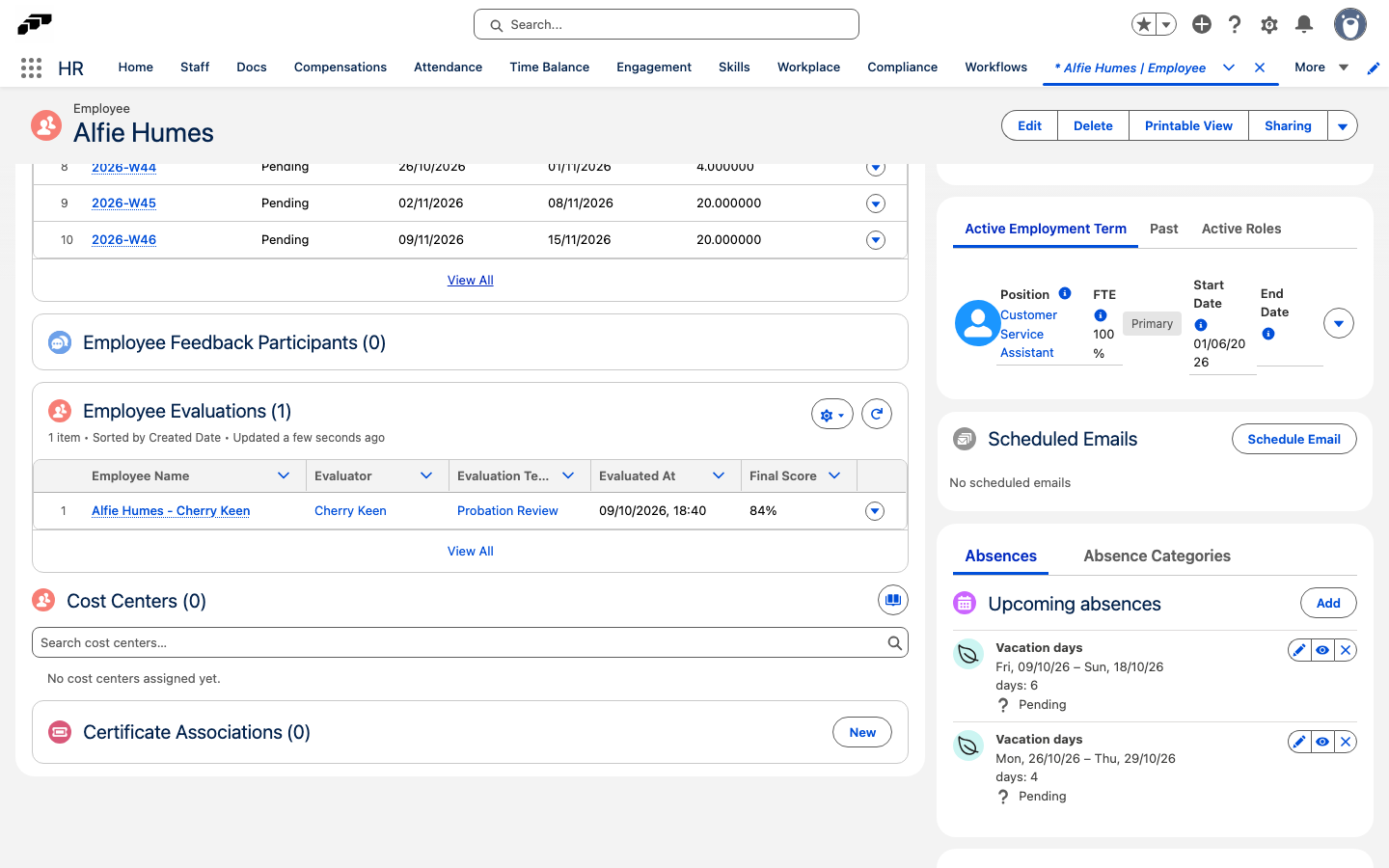
To open the results from the employee record:
- In Salesforce, open the employee record.
- Open the Related tab.
- In Employee Evaluations, click the evaluation. The list also shows the Evaluator, Evaluation Template, Evaluated At, and Final Score of each evaluation.
To open the results from the workflow:
- In Salesforce, open the employee's workflow.
- Open the menu next to the Evaluation task, and click Open Evaluation. Evaluation Overview opens with the answers.
If your organization uses its own Employee record page or overrides the Employee Evaluation view, a Salesforce Admin must add the Employee Evaluations related list and the flair - Evaluation Form component in Lightning App Builder.
Comment on a workflow
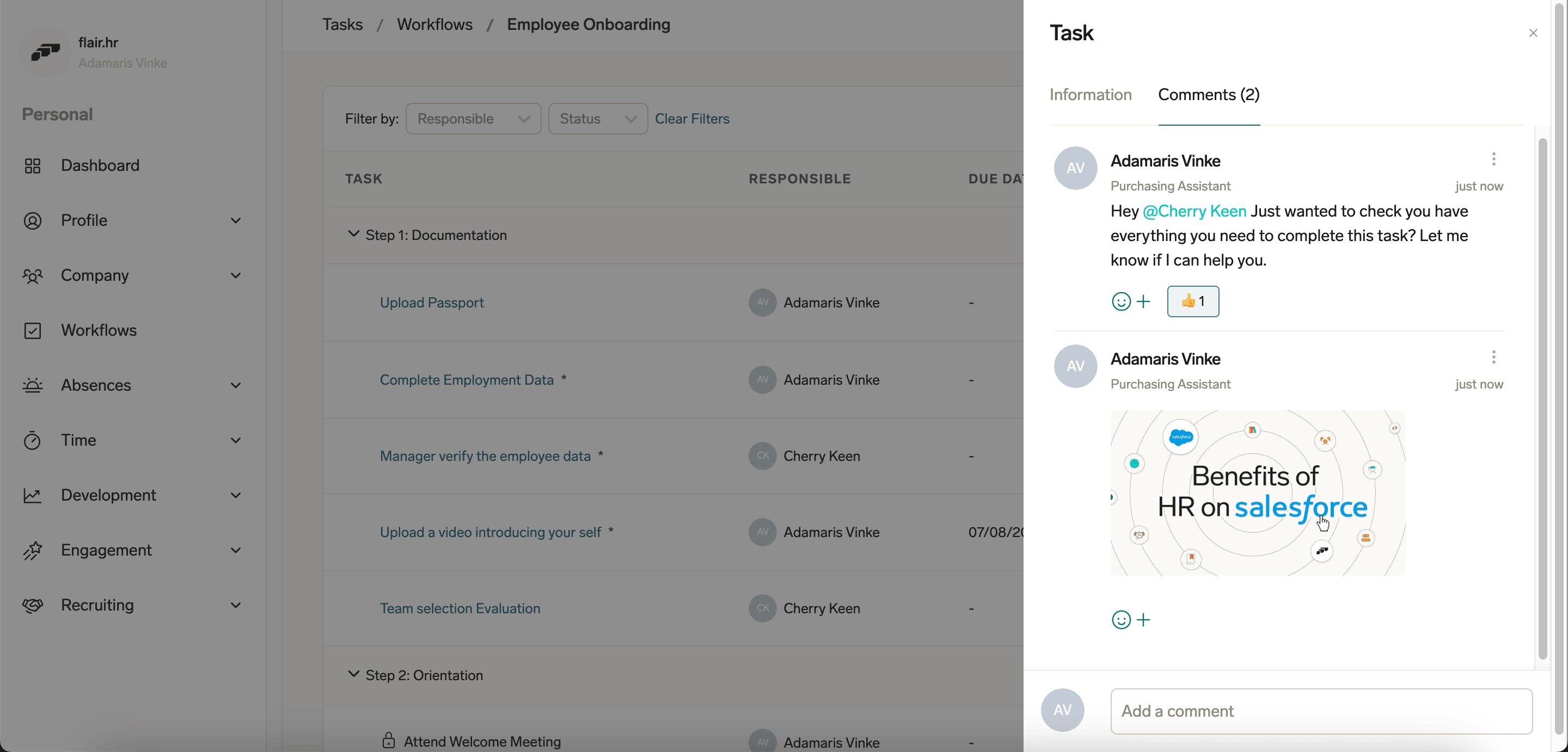
- In the Employee Hub, open Workflows.
- Select a workflow.
- Click the speech-bubble icon in Comments, or open a task and select Comments.
- Enter a comment.
- Optional: Attach a document or image, tag a colleague, or react to a comment.
- Post the comment. Other participants can read it with the workflow.
Update legacy Workflow Templates
When workflow steps were introduced, existing tasks moved into Step 1. Their content remains unchanged, but their start dates and deadlines may need review.
-
Open an existing Workflow Template and review its former task structure.
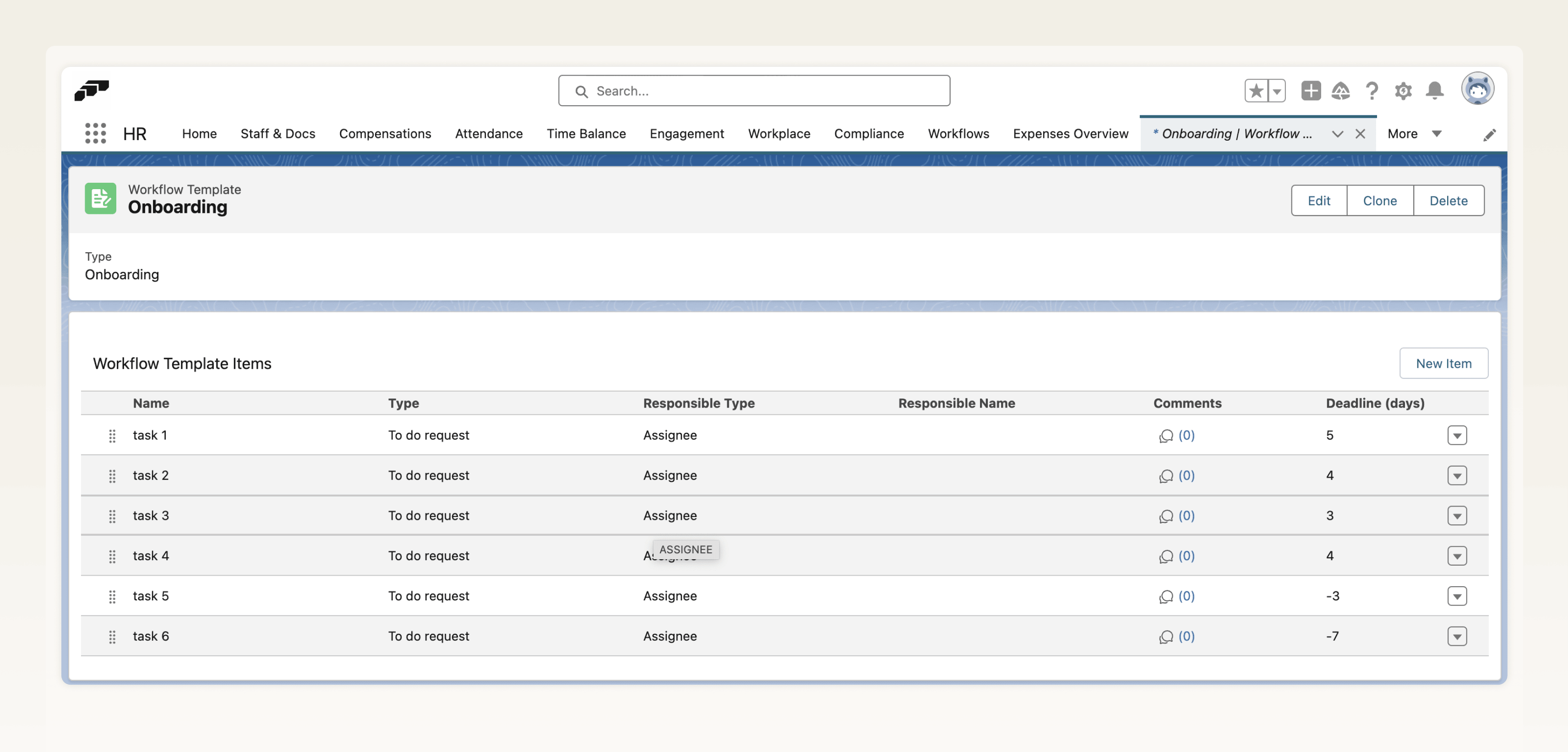
-
Confirm that its existing tasks now appear under Step 1.
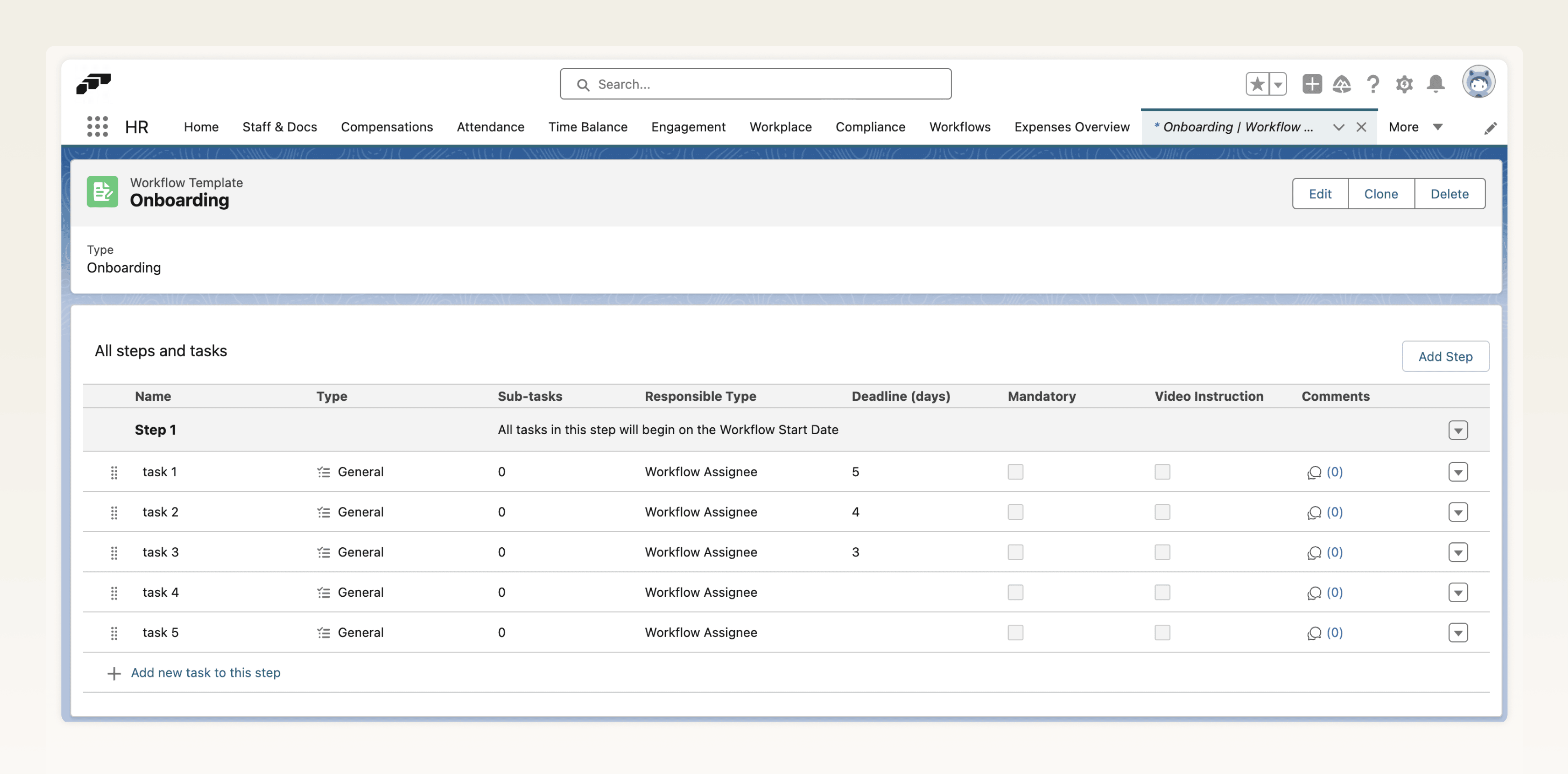
-
Review the former task-level start dates. Start dates now apply to every task in a step.
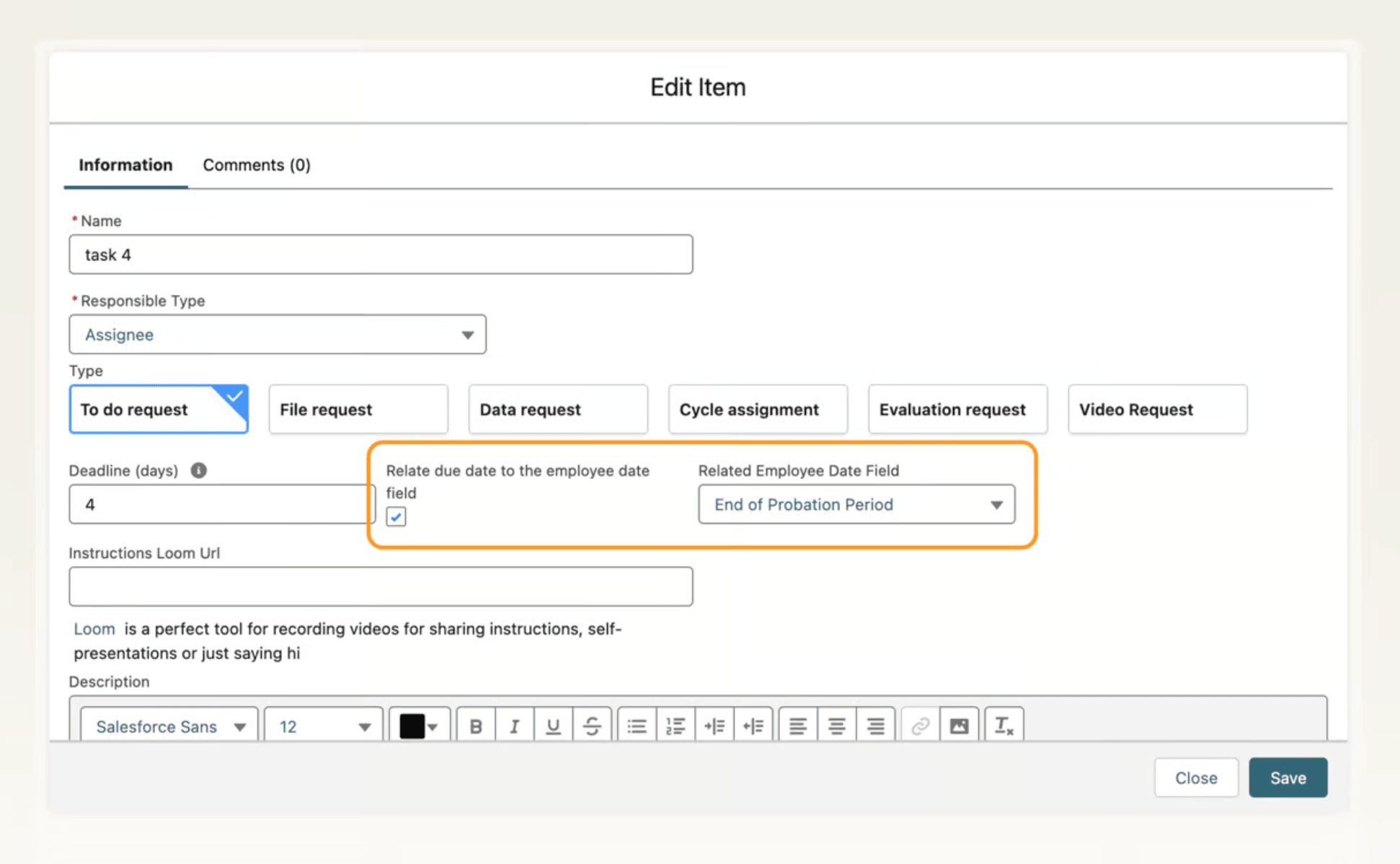
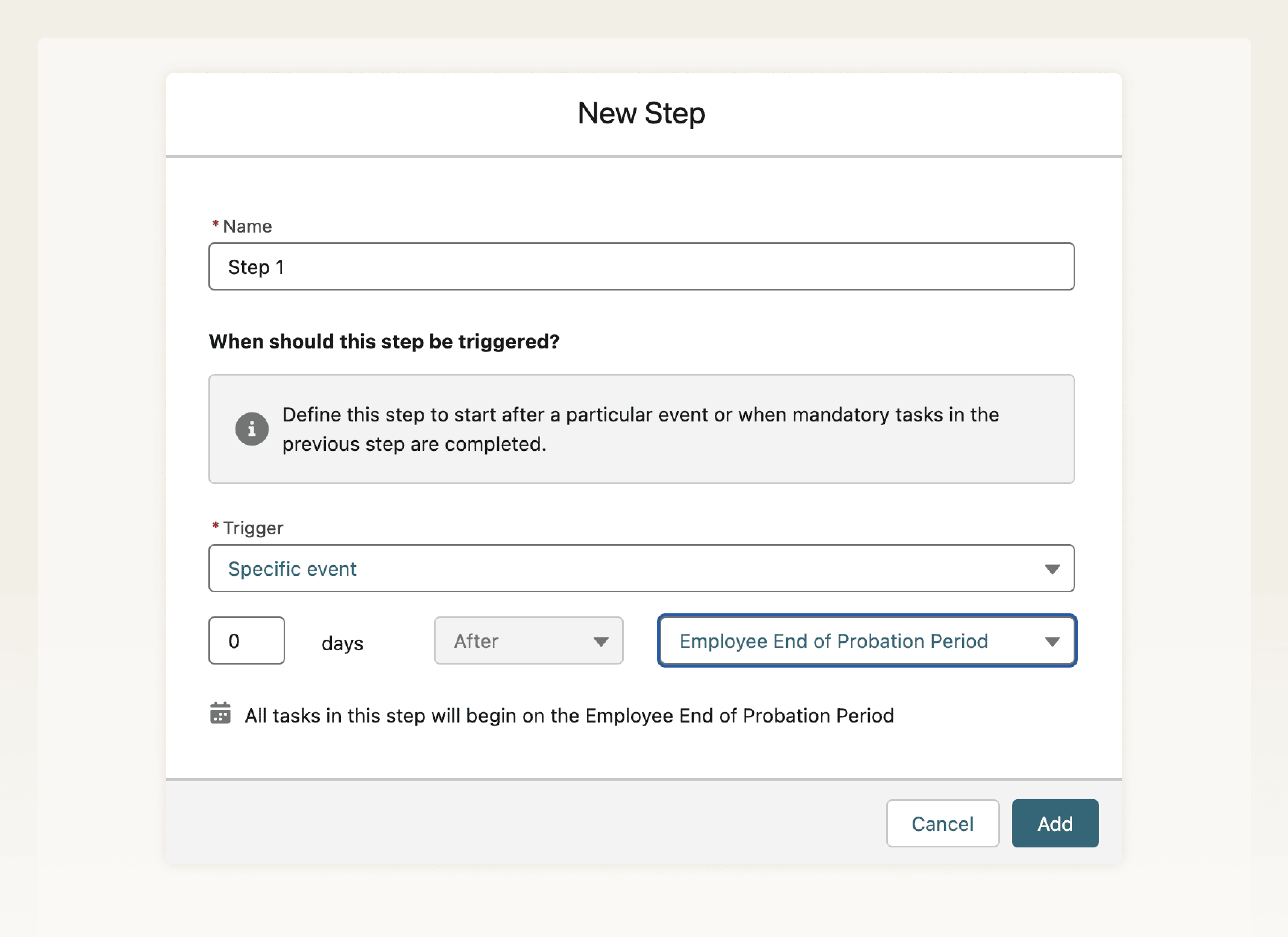
-
If a task previously used a trigger other than Workflow Start Date, create a step for that trigger and move the task into it.
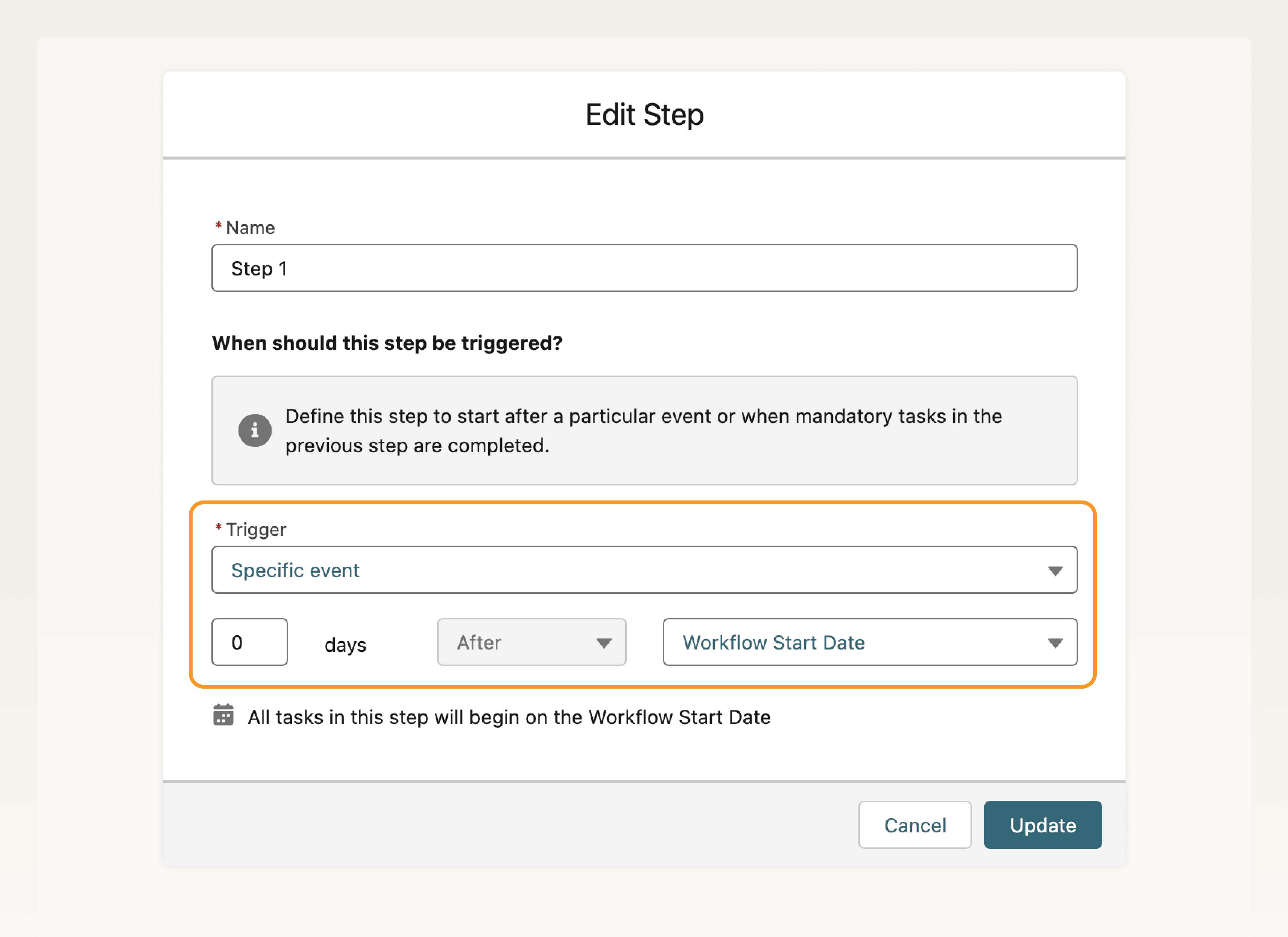
-
Configure the new step and its trigger.
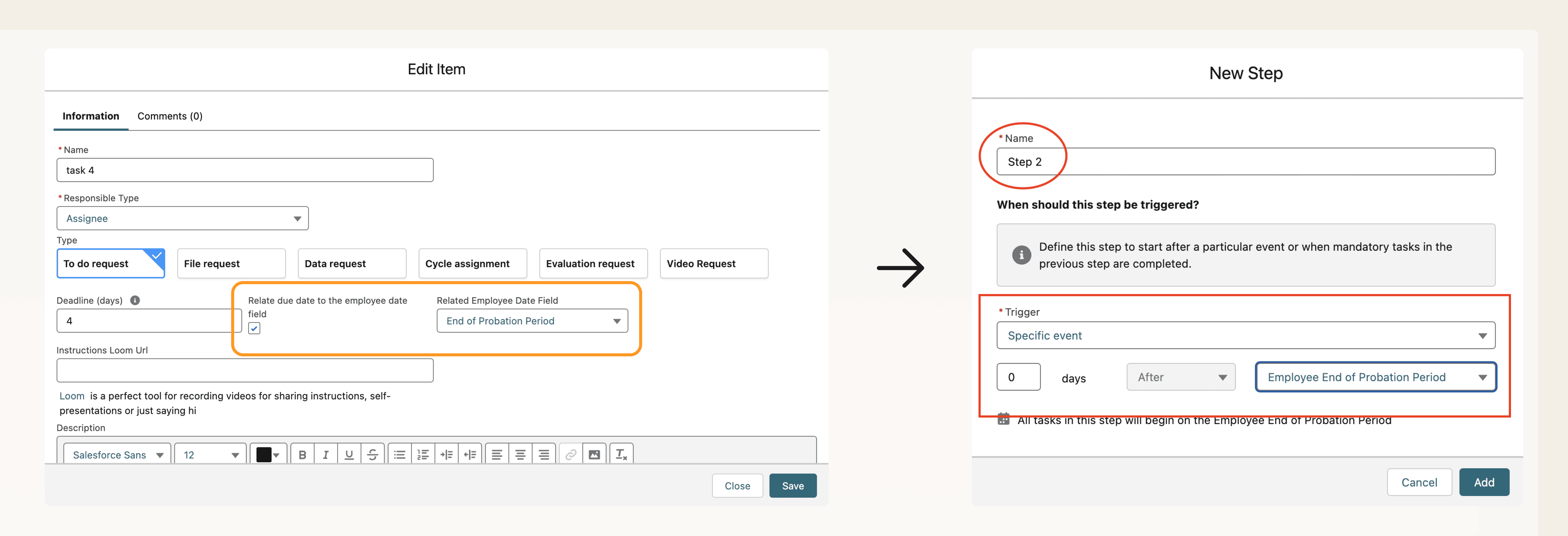
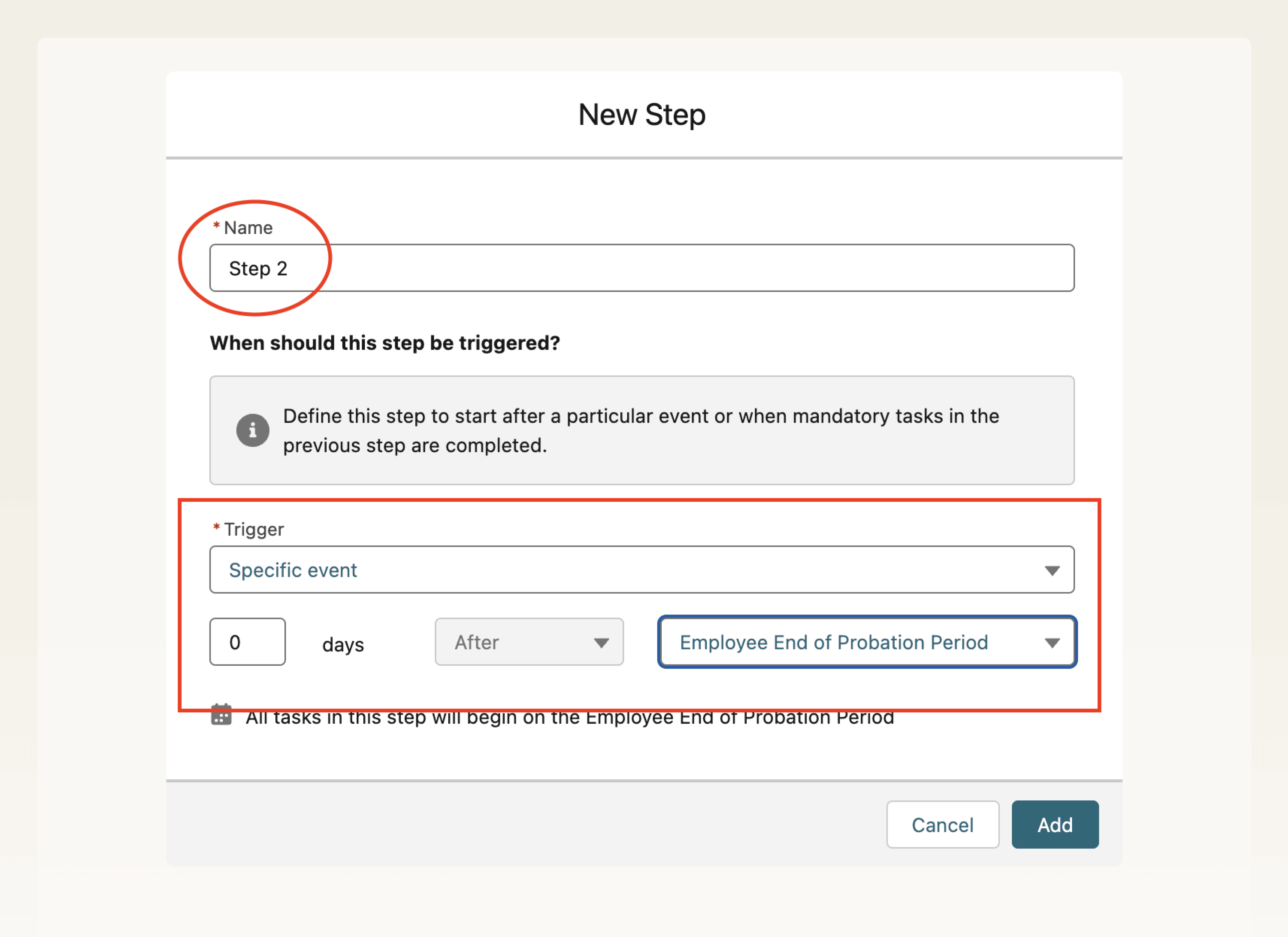
-
Adjust task deadlines for the new step structure, and save the template.
Troubleshooting
A workflow shows an orange warning icon
The workflow may contain a Manager task while its assignee has no manager in flair.
-
On Workflows → Overview, click the down arrow next to the affected workflow.
-
Click Edit.
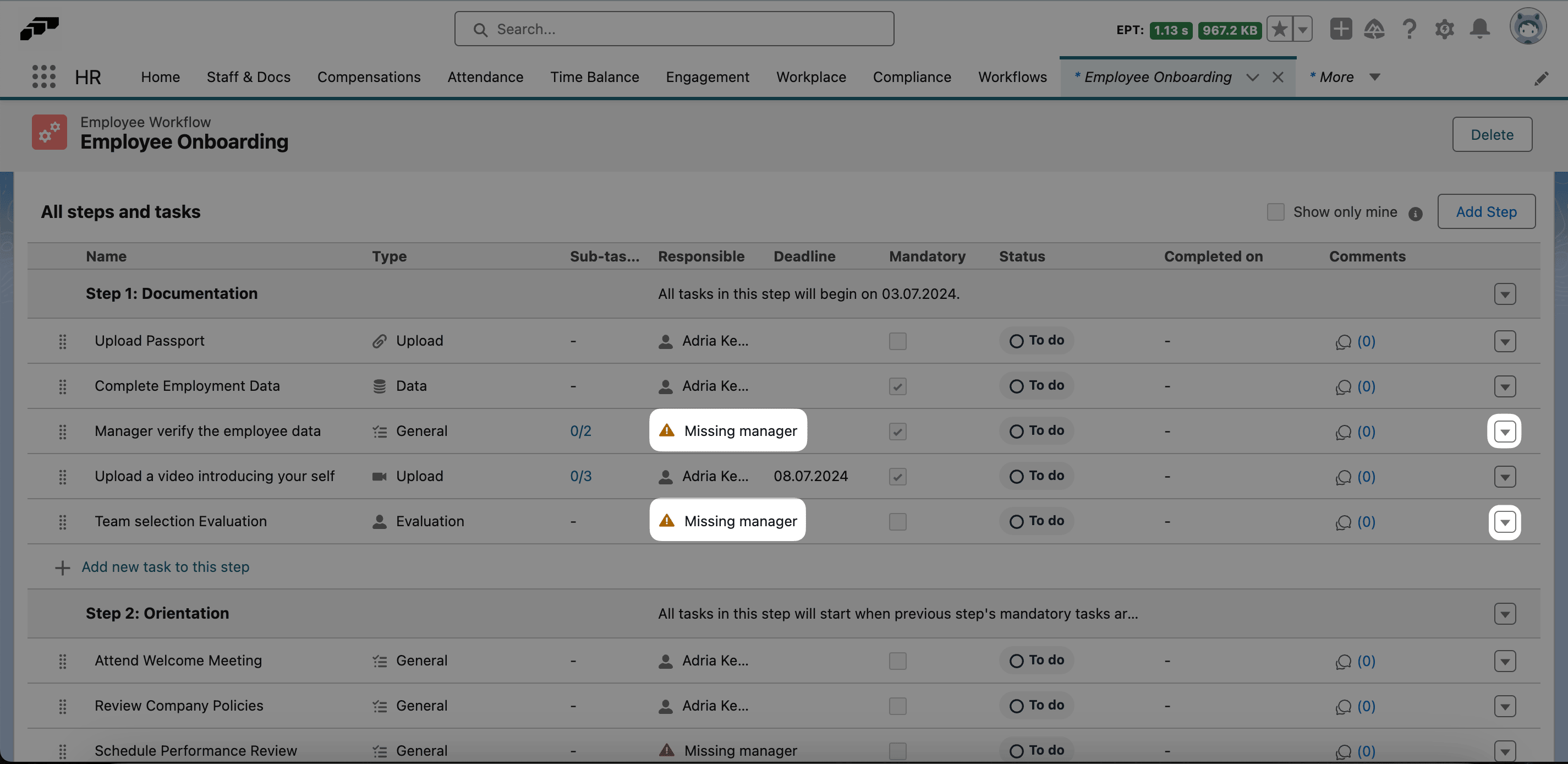
-
Find the task with missing information.
-
Next to the task, click the down arrow.
-
Click Edit.
-
Click Next until Assignee opens.
-
Select a responsible employee.
-
Save the task. The warning clears when the workflow has all required information.
To prevent this error, assign every employee a manager on Company Structure. See Create and manage positions.