View and request employee shifts
Use the Employee Hub to review past and future schedules for yourself and your colleagues. You can also request an open shift for manager approval.
Who can use this?
Employees in the Employee Hub.
View your shifts
warning
The Legacy Shift Planner will be deprecated. Read how to migrate to the new Shift Planner.
- In the Employee Hub menu, click Shifts.
- To see your work schedule, open My Shifts.
- To see your colleagues' schedules, open All Shifts.
- On All Shifts, select another office or region to see its schedule.
Change the calendar view
- Select By Week to see the entire week's schedule.
- Select By Day to see a detailed daily schedule.
Request an open shift
- In Shifts, open All Shifts.
- In the calendar, select a shift marked Open.
- Click Request Shift. Your manager receives the request and can approve or decline it according to staffing needs.
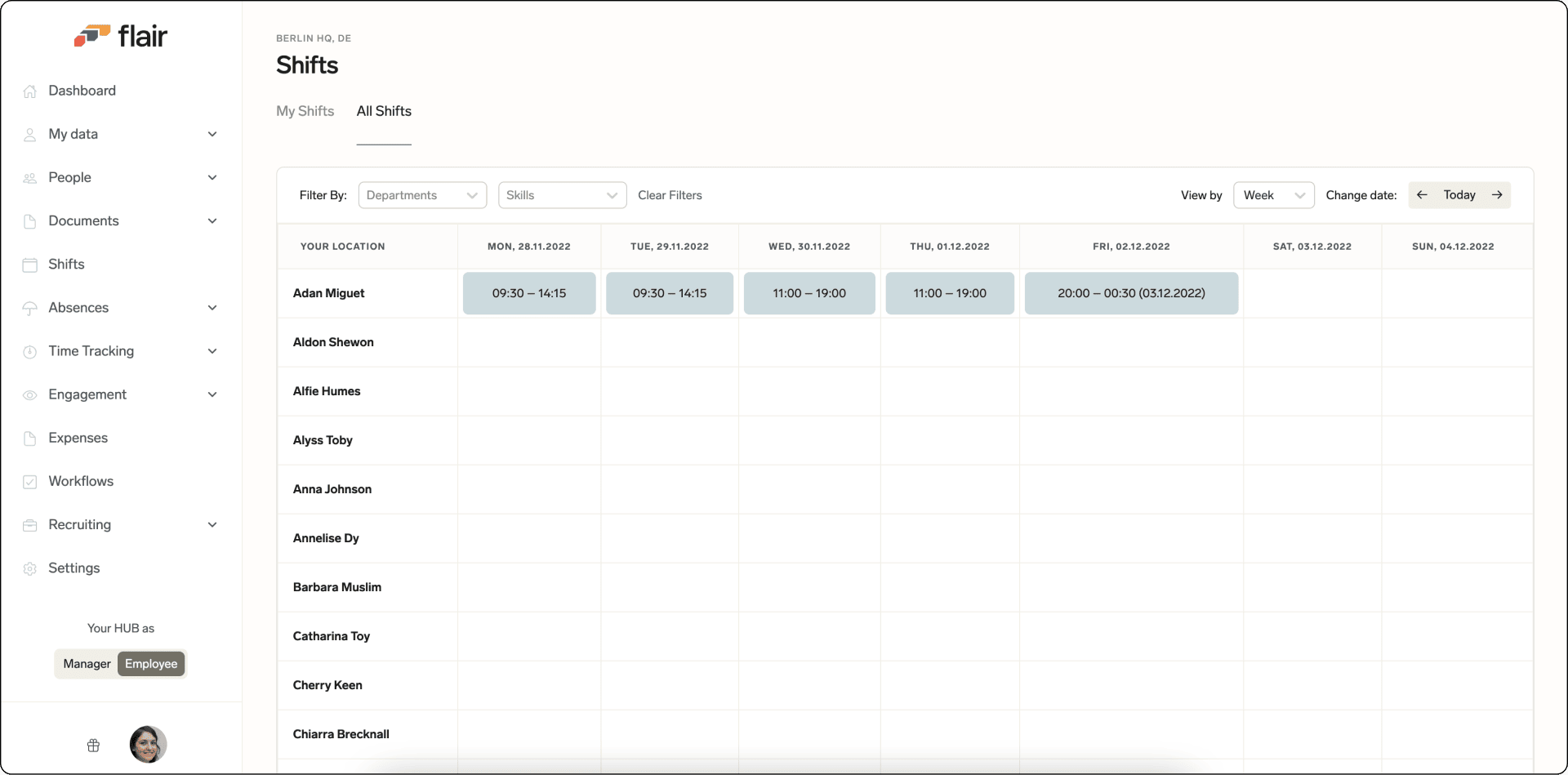
The calendar updates in real time with assigned shifts, approved requests, schedule changes, and your colleagues' availability.