Plan shifts in Salesforce
Build and publish employee schedules with the Legacy Shift Planner in Salesforce. This guide covers filters, planning tools, time balances, synchronized workloads, and recurring shifts.
Managers with access to Attendance and Manage Shifts in the flair HR app in Salesforce.
Open the Legacy Shift Planner
The Legacy Shift Planner will be deprecated. Read how to migrate to the new Shift Planner.
- In the flair HR app in Salesforce, open Attendance.
- Click Shifts to see a summary of company shifts.
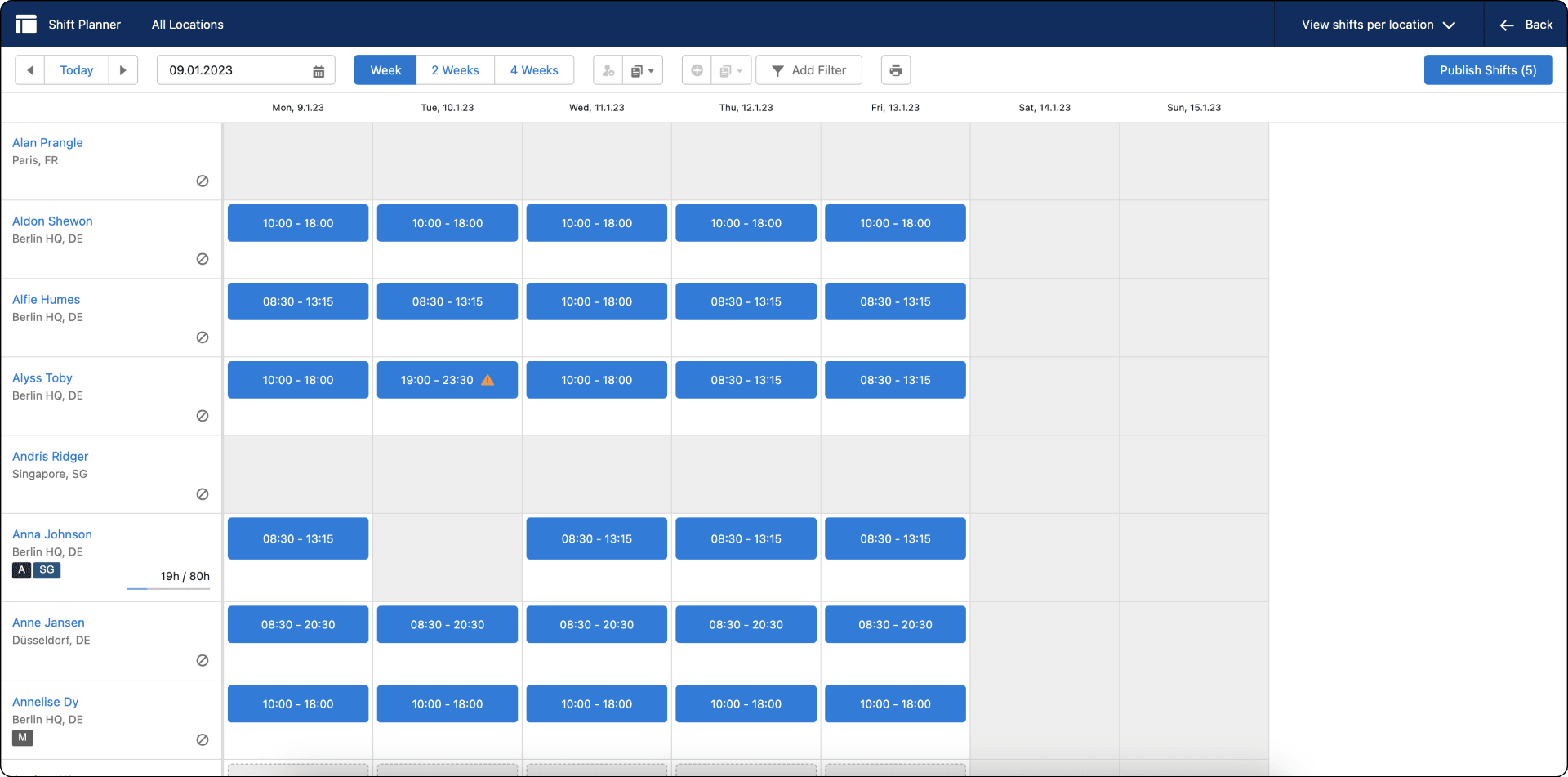
- Click Manage Shifts. The Legacy Shift Planner opens for all locations.
Filter employees and locations
Filter by location
- In Add Filter, select a location. The Legacy Shift Planner displays only shifts for that location.
Filter employees
- In Add Filter, select Skills or Departments, and choose the values to include.

Use the planning tools
The Legacy Shift Planner toolbar provides these tools:
| Tool | What it does |
|---|---|
| Calendar Navigation | Moves between weeks and months. |
| Add Employees | Adds employees from other locations to the schedule. |
| Copy Shifts | Copies a shift pattern from one week to another. |
| Publish Shifts | Makes the schedule visible to employees. |
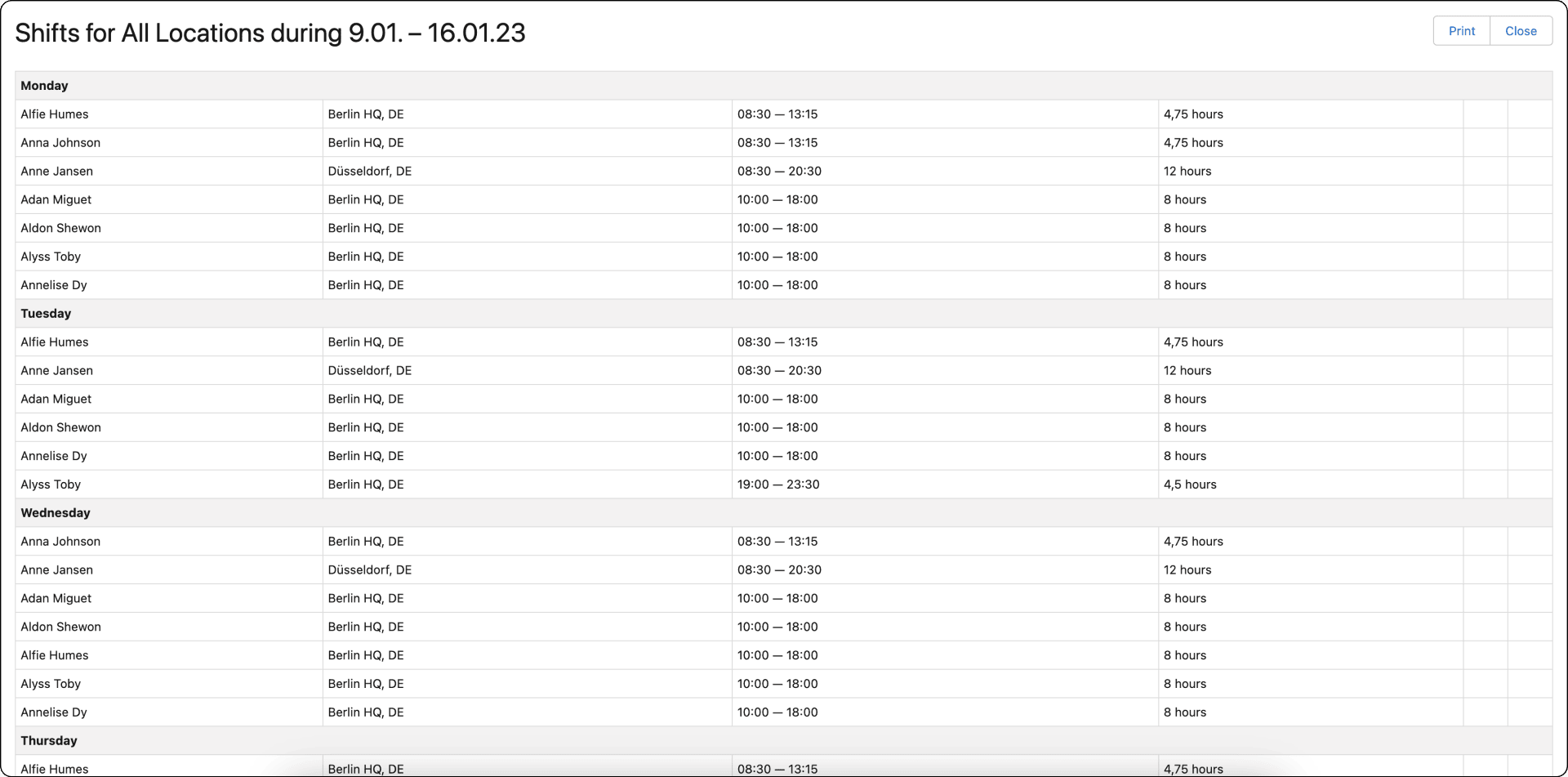
| Print View | Creates a printable schedule. |
Check employee time balances
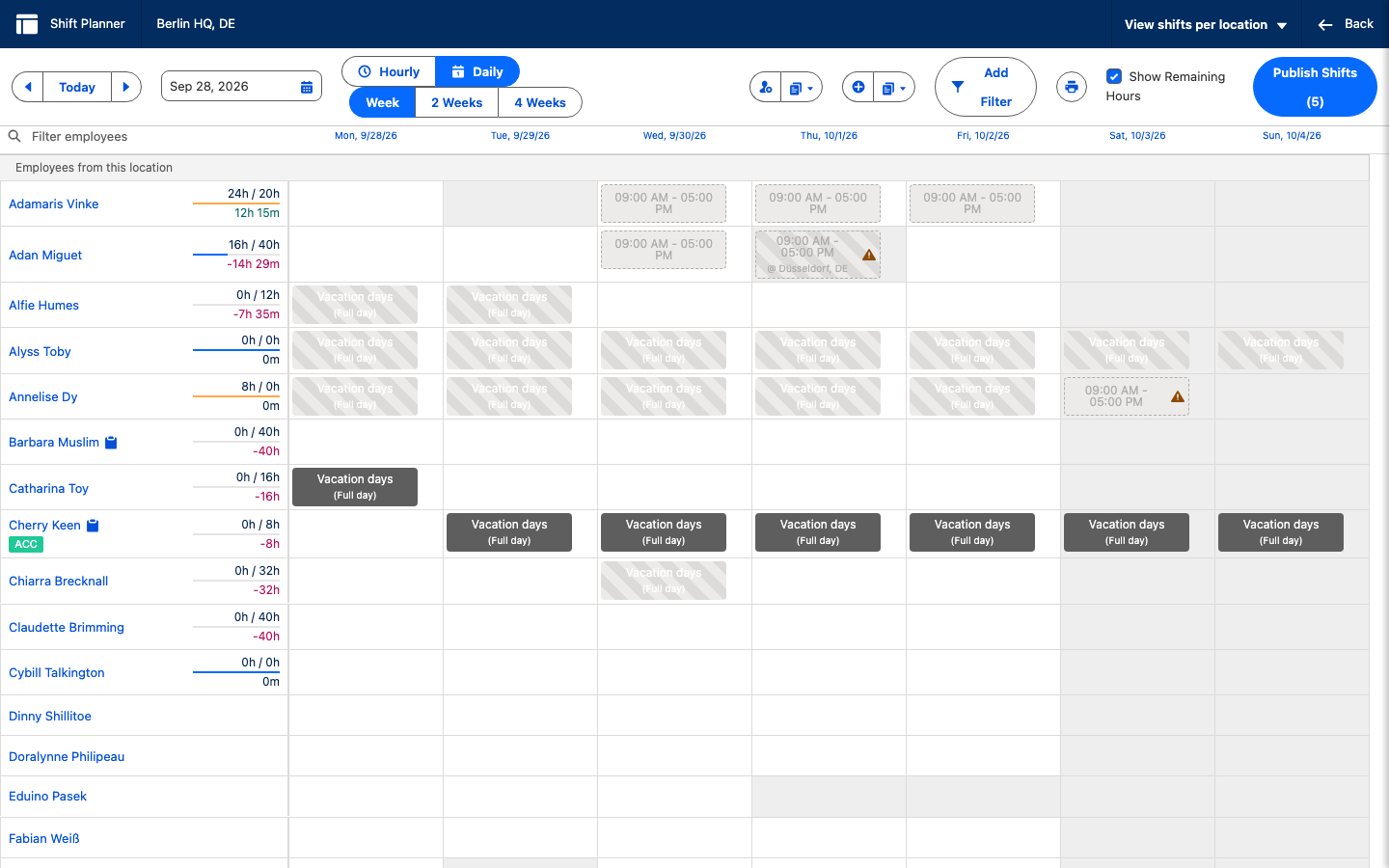
Select Show Remaining Hours in the toolbar. Below the scheduled and target hours, each employee's row then shows their current time balance, which is the difference between worked hours and target hours:
- A green balance indicates that the employee has worked more than their target hours.
- A red balance indicates that the employee has worked fewer than their target hours.
Use the balance to check capacity and avoid adding overtime for an employee who is already above target.
Check shifts at other locations
When you add an employee who works at other locations, their shifts at those locations appear as gray, read-only overlays. Only planners see these overlays, and you cannot edit them from the current board.
Use the overlays to identify cross-location conflicts before you assign a shift. To add an employee from another location, use Add Employees in the toolbar.
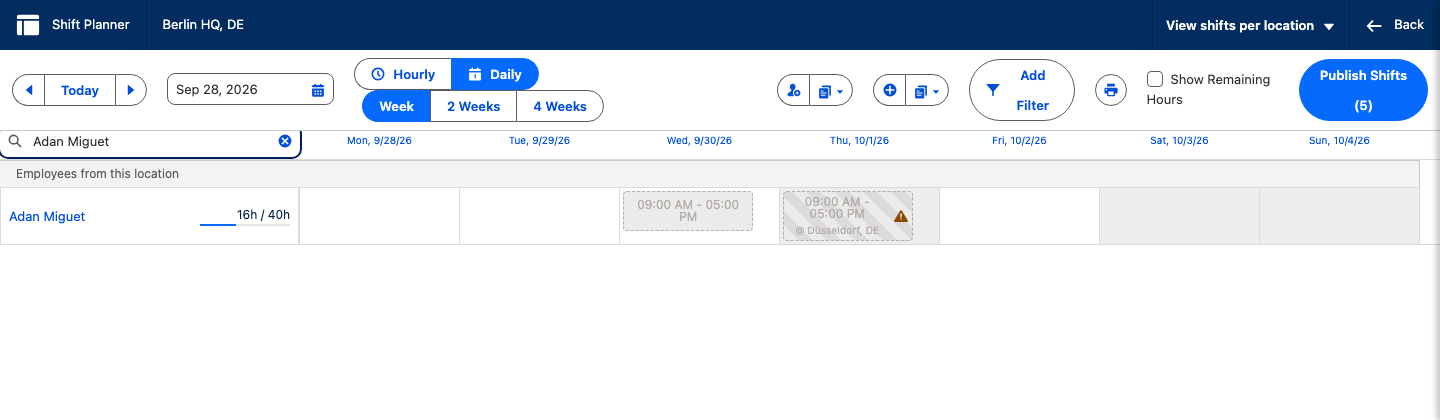
Publish shifts
- Review the schedule and confirm that every shift is covered.
- Click Publish Shifts. Employees can see their assigned shifts in the Employee Hub.
Synchronize employee workloads
Use synchronized workloads when shift schedules vary from week to week. The Legacy Shift Planner then defines working and non-working days without a separate workload adjustment.
Set up a synchronized workload
- When you create an employee workload, select Use Shift Planner.
- Confirm that the workload is flexible. The option is available only for flexible workloads.
- In Full Day Duration, enter the length of a full working day. flair uses this value to calculate absences.
- Save the workload.
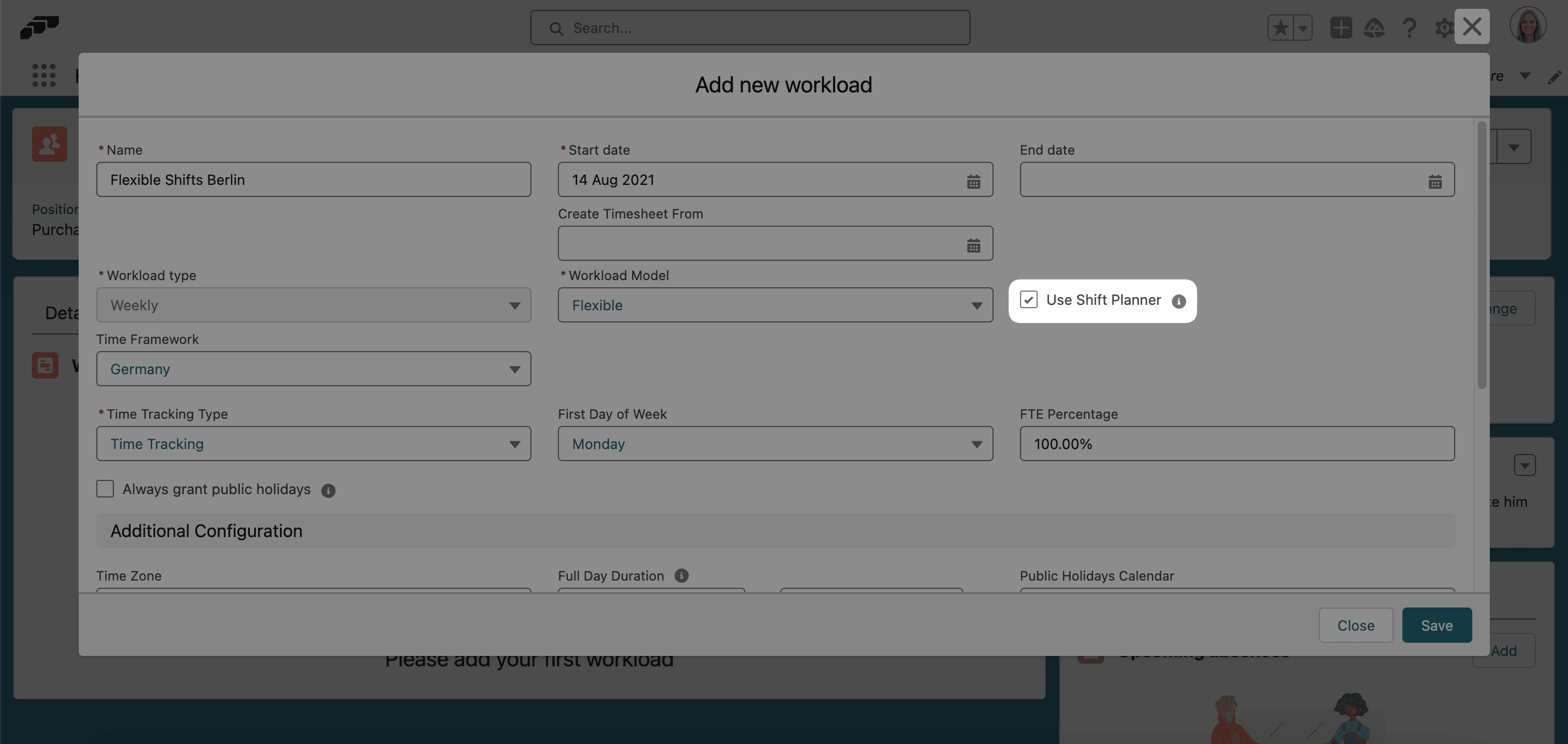
You can edit a synchronized workload only in the Legacy Shift Planner, not on the employee record's Time & Workload tab.
Mark working and non-working days
- For a synchronized workload, select the checkbox in the upper-right corner of a day to switch between a working day and a non-working day. A working day uses Full Day Duration; a non-working day does not require an absence request.
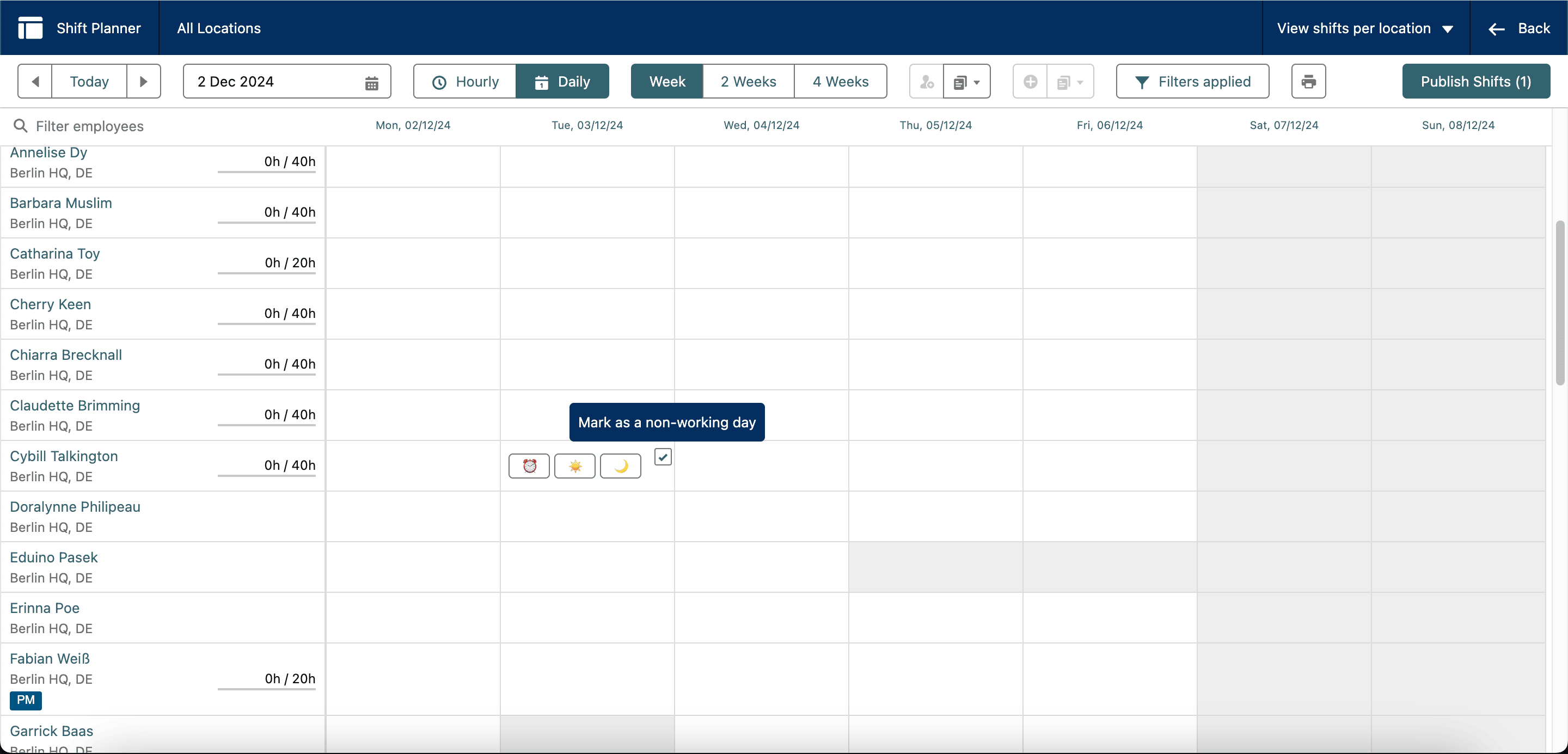
Publish workload changes
- Click Publish Shifts. Until you publish, changes remain drafts and do not affect absence calculations or employee records.
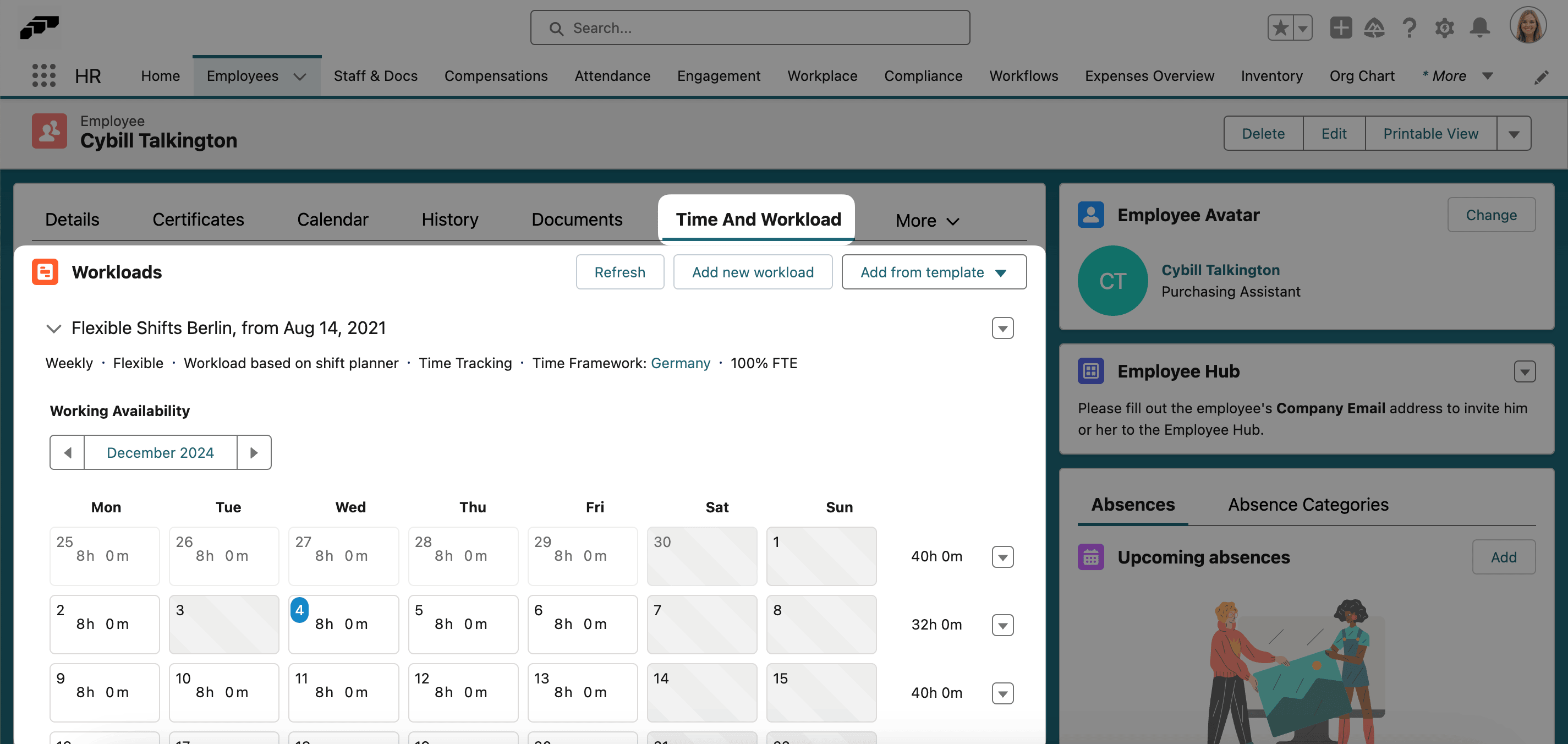
Create recurring shifts
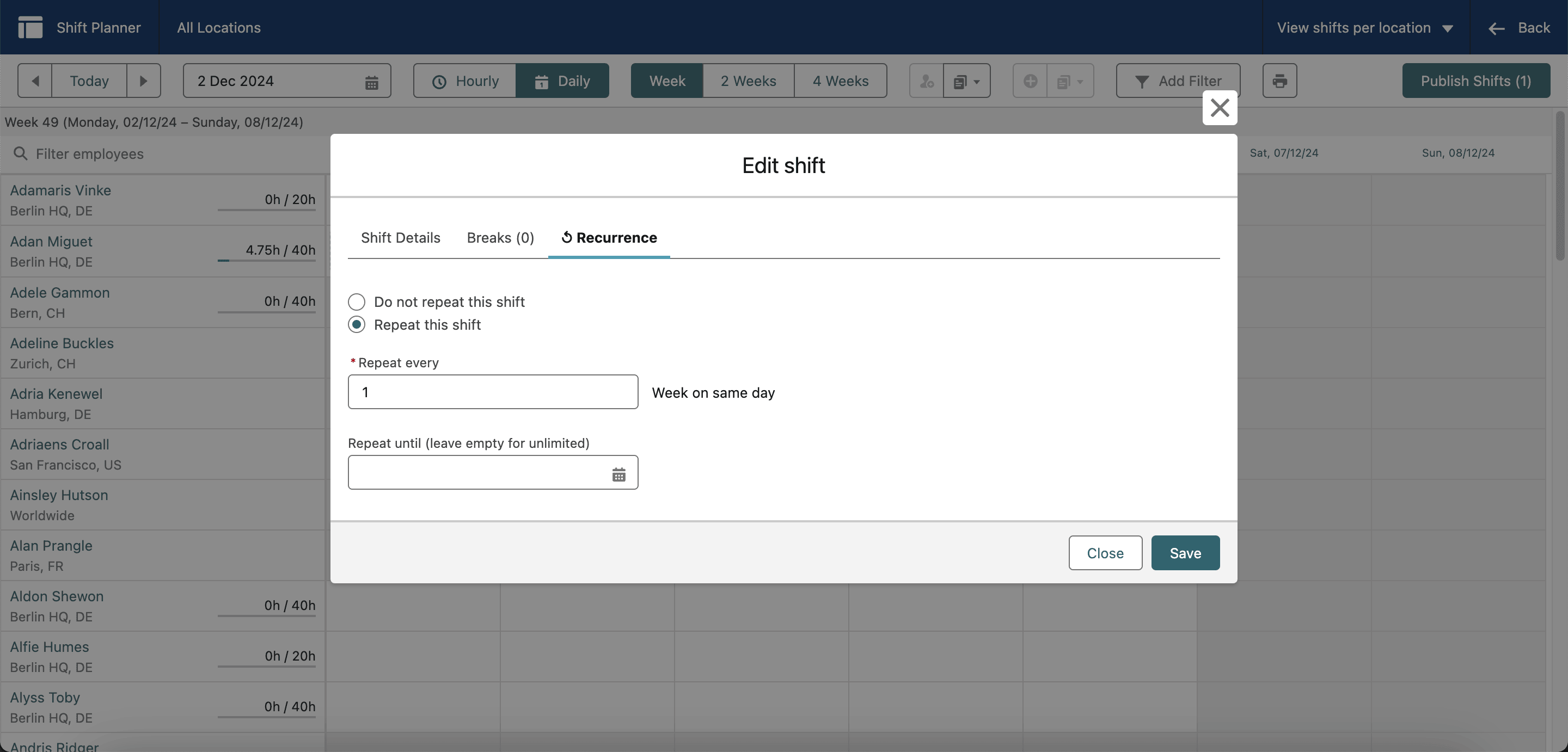
- In the Legacy Shift Planner, click an existing shift. The Edit Shift window opens.
- Open Recurrence.
- Select Repeat This Shift.
- Set how often the shift repeats on the same day.
- In Repeat Until, set the final date or leave the field empty for unlimited repetition.
- Save the shift. A cycle icon identifies it as recurring.
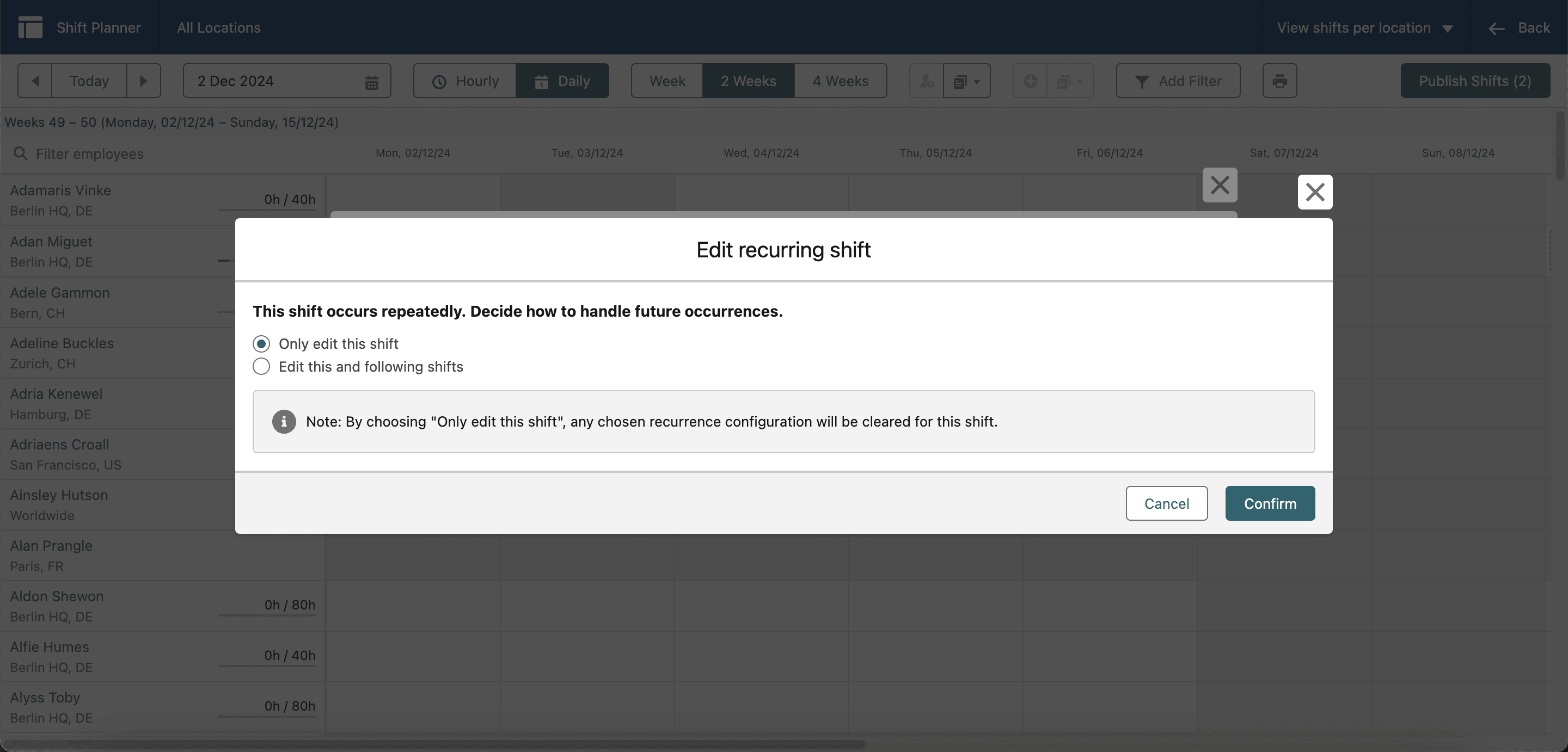
Edit or delete recurring shifts
- In the Legacy Shift Planner, edit or delete a recurring shift.
- Select This shift only to change the selected occurrence, or select This and all future shifts to change every upcoming occurrence.
- Confirm the change. Past occurrences remain unchanged.