Request and approve absences
Request vacation, sick leave, business trips, working-from-home periods, and other configured absences. This guide also covers balances, files, comments, approvers, and manager decisions.
Employees request absences in the Employee Hub or mobile app and see their colleagues' absences in the mobile app. Managers request absences for their employees in the Employee Hub, review their team's absences in the Employee Hub or mobile app, and, with HR Admins, approve or manage requests in the Employee Hub or Salesforce.
Before you begin
- An HR Admin has configured absence categories and assigned applicable policies.
- Your Employee Hub profile has the correct workload and location.
Request an absence in the Employee Hub
Requesting an absence happens in a dialog, in three steps — Type, Days, Details. Until 1 November 2026 it is optional: the first time you click Request Absence, flair asks Try the new absence request?. Choose Try the new form to use it, or Not now to stay on the old side panel and be asked again next time. From 1 November 2026 the dialog is the only way to request an absence.
Start the request from any of these places:
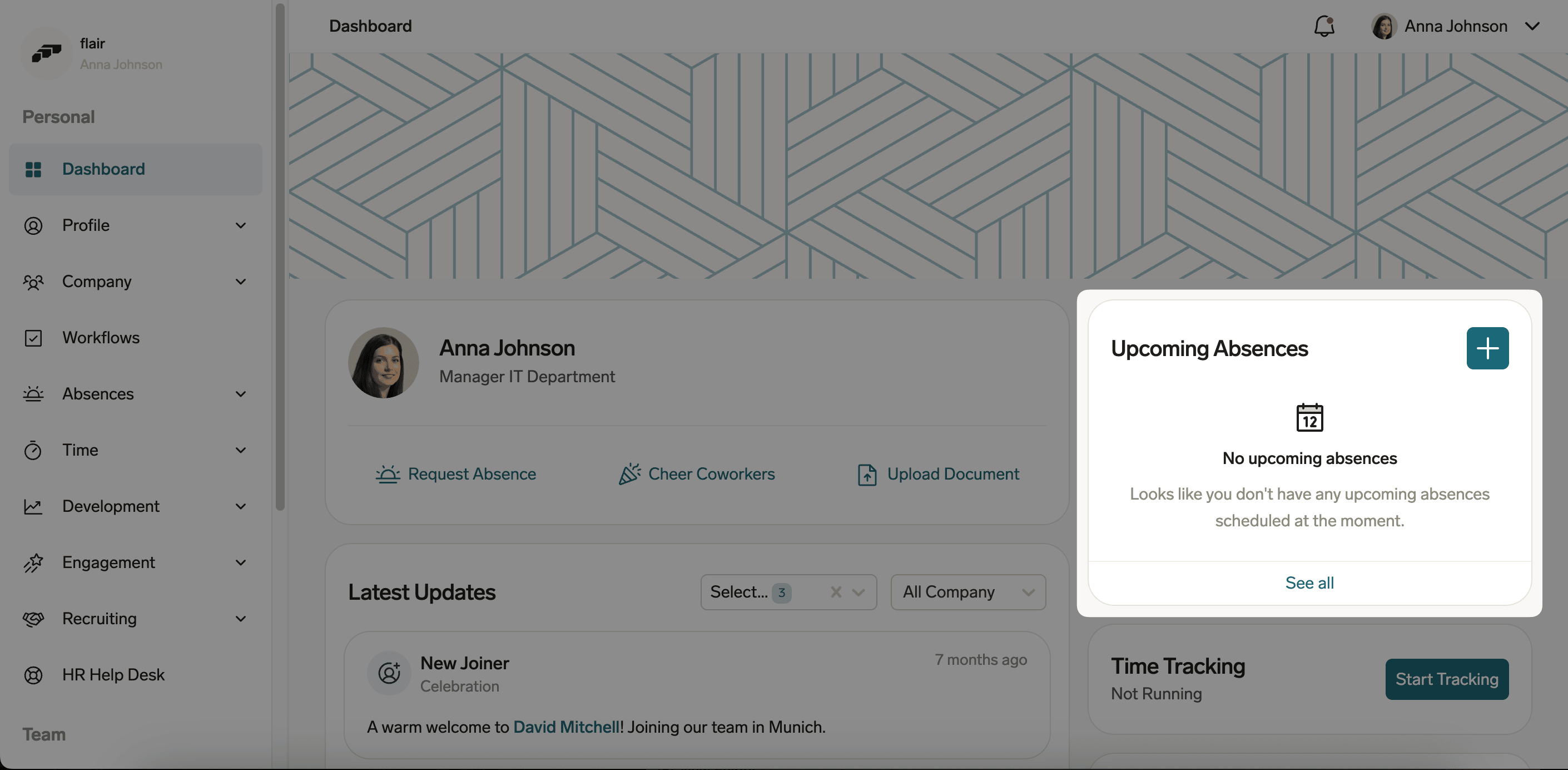
- On the Employee Hub Dashboard, in the upcoming absences widget, click +.
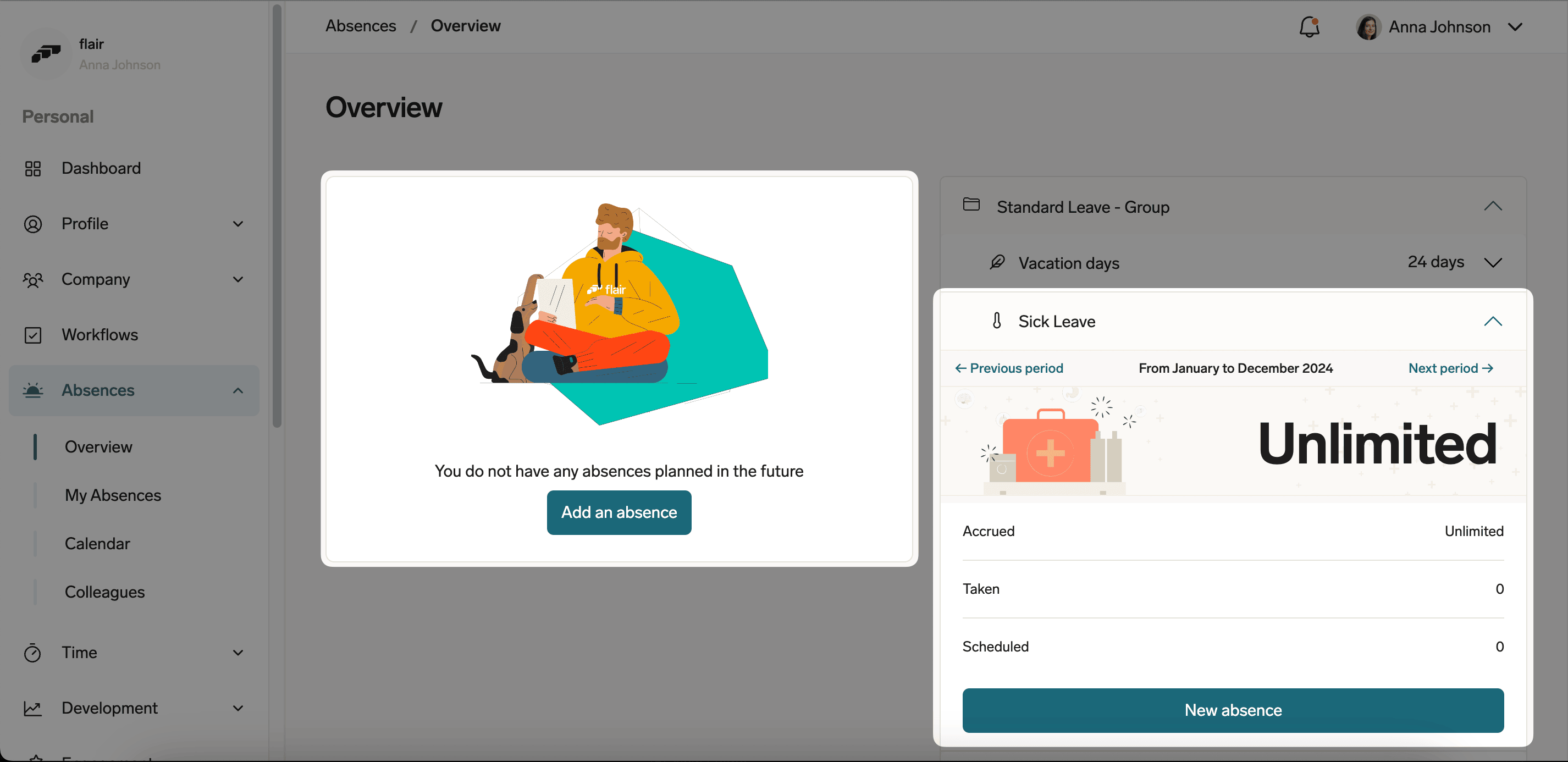
- In Absences, click Add an absence, or select an absence category and click New absence.
Step 1: choose the absence type
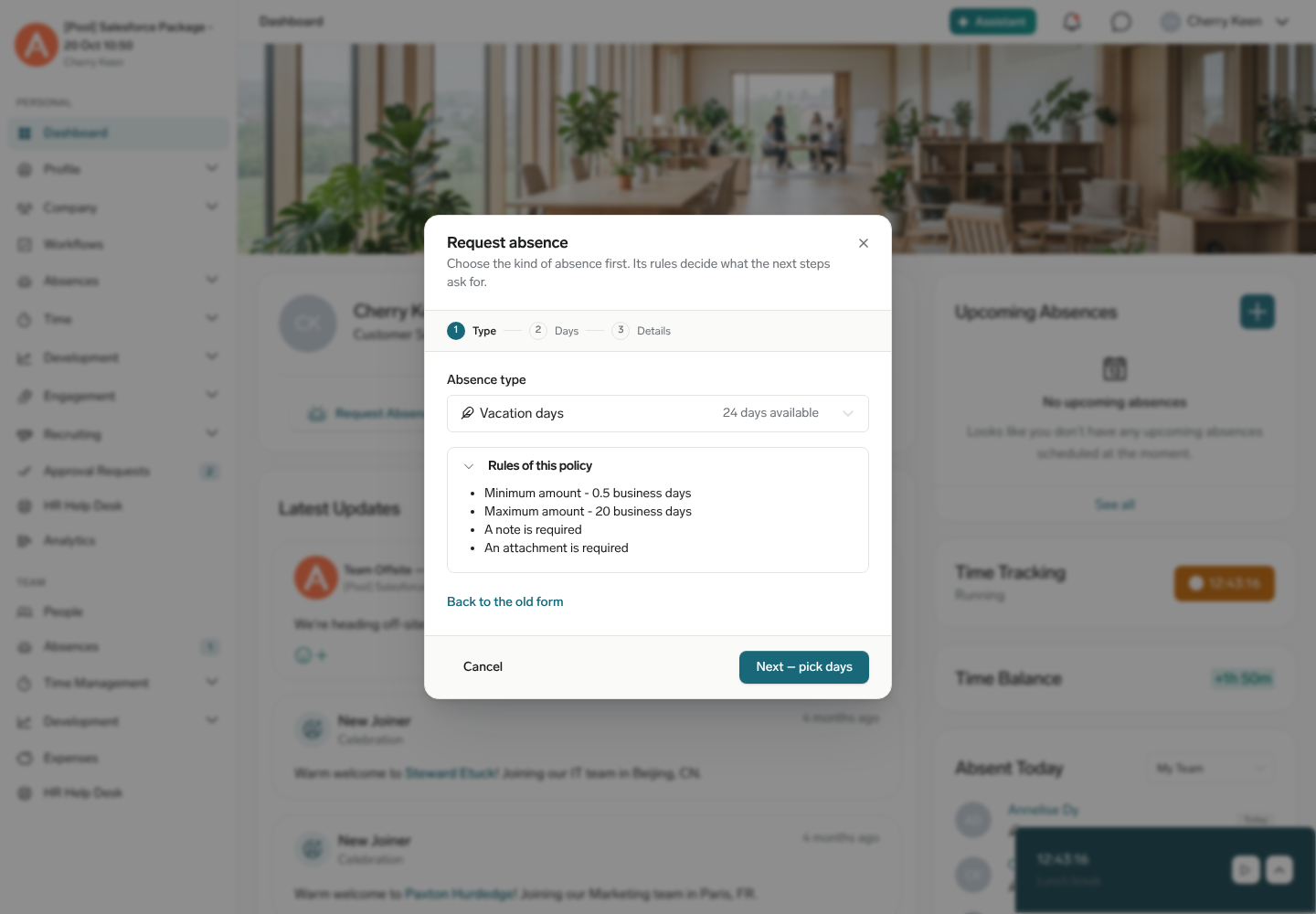
- In Absence type, select the kind of absence. For a type with a limited allowance, flair shows how much you have available.
- If your organization groups its absence types, select a Group first, and a Subgroup where one exists.
- If the type has more than one request policy, select the Request policy that applies to you.
- Optional: expand Rules of this policy to see the minimum and maximum amounts, the notice period, and whether the request needs a note or an attachment. These rules decide what the next two steps ask for.
- Click Next – pick days.
Changing the absence type later empties the days, the note and the file, because a different type can have different rules.
Step 2: pick your days
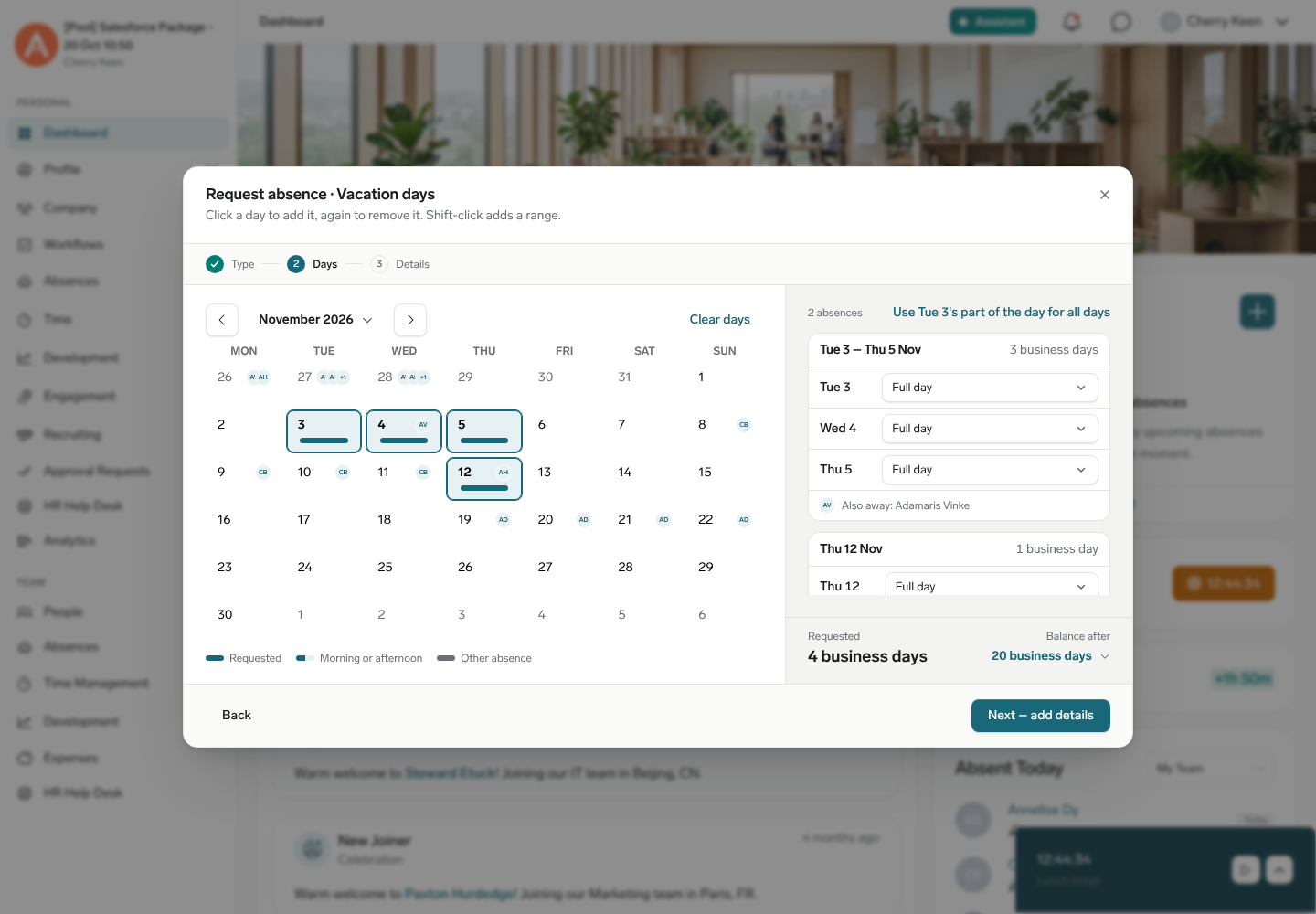
The calendar is on the left and a running summary of your request on the right.
- Click a day to add it, and click it again to remove it. Shift-click adds a range; Ctrl (or ⌘) and click adds a single extra day.
- For each day in the summary, set Part of the day: Full day, Morning only or Afternoon only. A half day shows as half a bar on the calendar.
- To give every day the same part of the day, click Use <day>'s part of the day for all days.
- Check who else is away. Teammates' initials appear on the day in the calendar, and each absence in the summary lists them as Also away: <names>.
- Read Requested and Balance after at the foot of the summary. Days that are not next to each other become separate absences, each with its own amount, and the count appears above them as <n> absences.
- Optional: to start over, click Clear days.
- Click Next – add details.
You can work the calendar from the keyboard alone: arrow keys move, Space or Enter picks the focused day, Shift with the arrow keys picks a range, Home and End jump to the start and end of the week, and Page Up / Page Down change month.
Step 3: add the details and send
- Review Your request. To go back to the calendar, click Change days.
- In Note, enter what your approver needs to know. When the policy requires one, flair shows Your request policy asks for a note.
- Under Attachment, drop a file onto the field or click browse to choose one — a sick note or a medical certificate, for example. Whether you have to depends on your request policy: step 1's Rules of this policy says so, and a required attachment is marked with an asterisk here. The field is hidden altogether when neither the absence category nor its request policy allows uploads. See Require a medical certificate.
- Click Submit for approval. flair creates one absence per unbroken run of days and sends each for approval where the policy requires it.
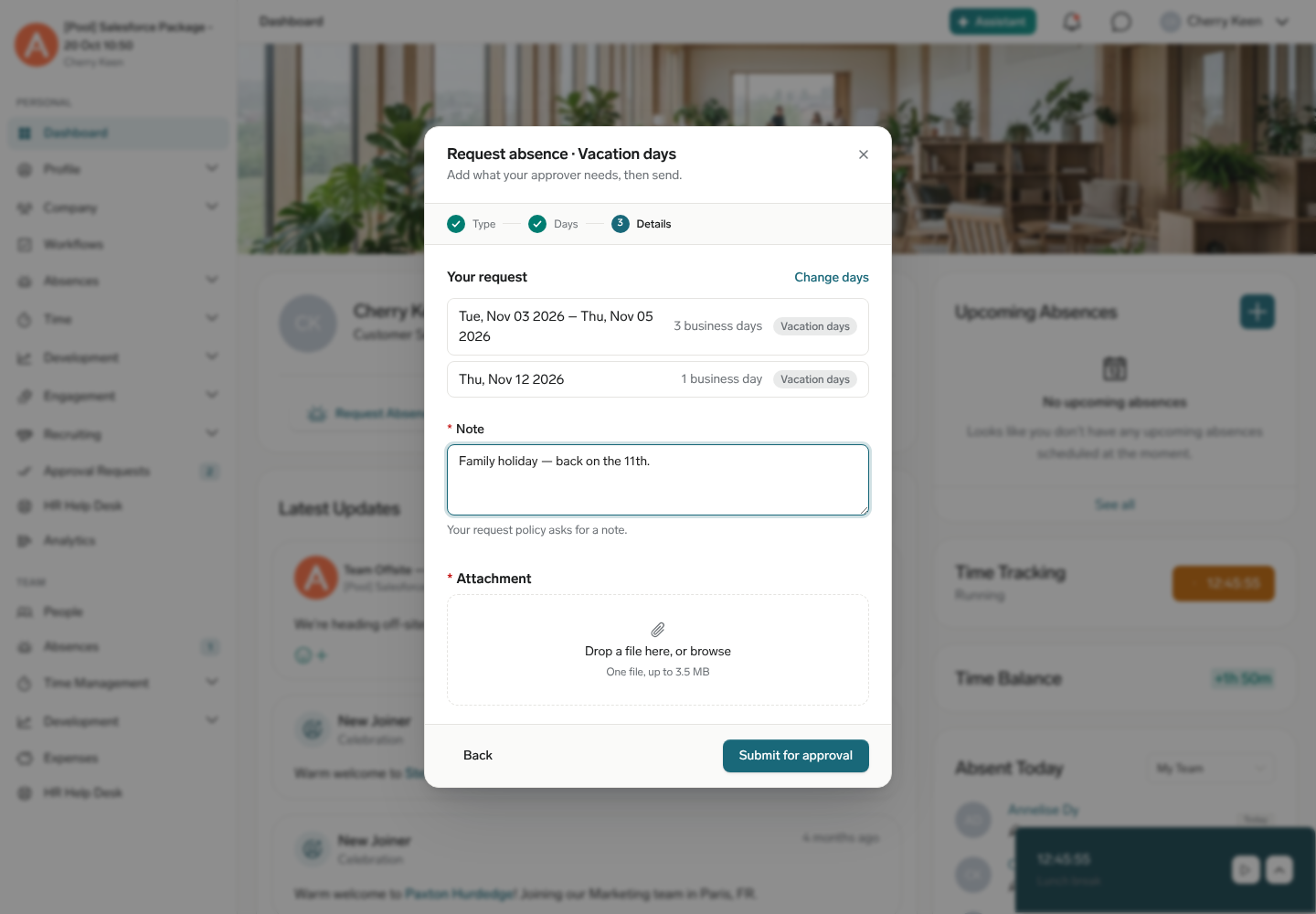
Closing the dialog throws away what you entered: Escape, the backdrop and the × ask Discard changes? first once you have entered anything. Reopening starts empty.
If a day already has another absence, flair marks it on the calendar and, depending on the category, may not let you pick it at all. Non-working days such as weekends and public holidays deduct zero.
After submission, each request appears on the Employee Hub Dashboard and in Absences Overview with its approval status. flair notifies you in the Hub and by email after a decision.
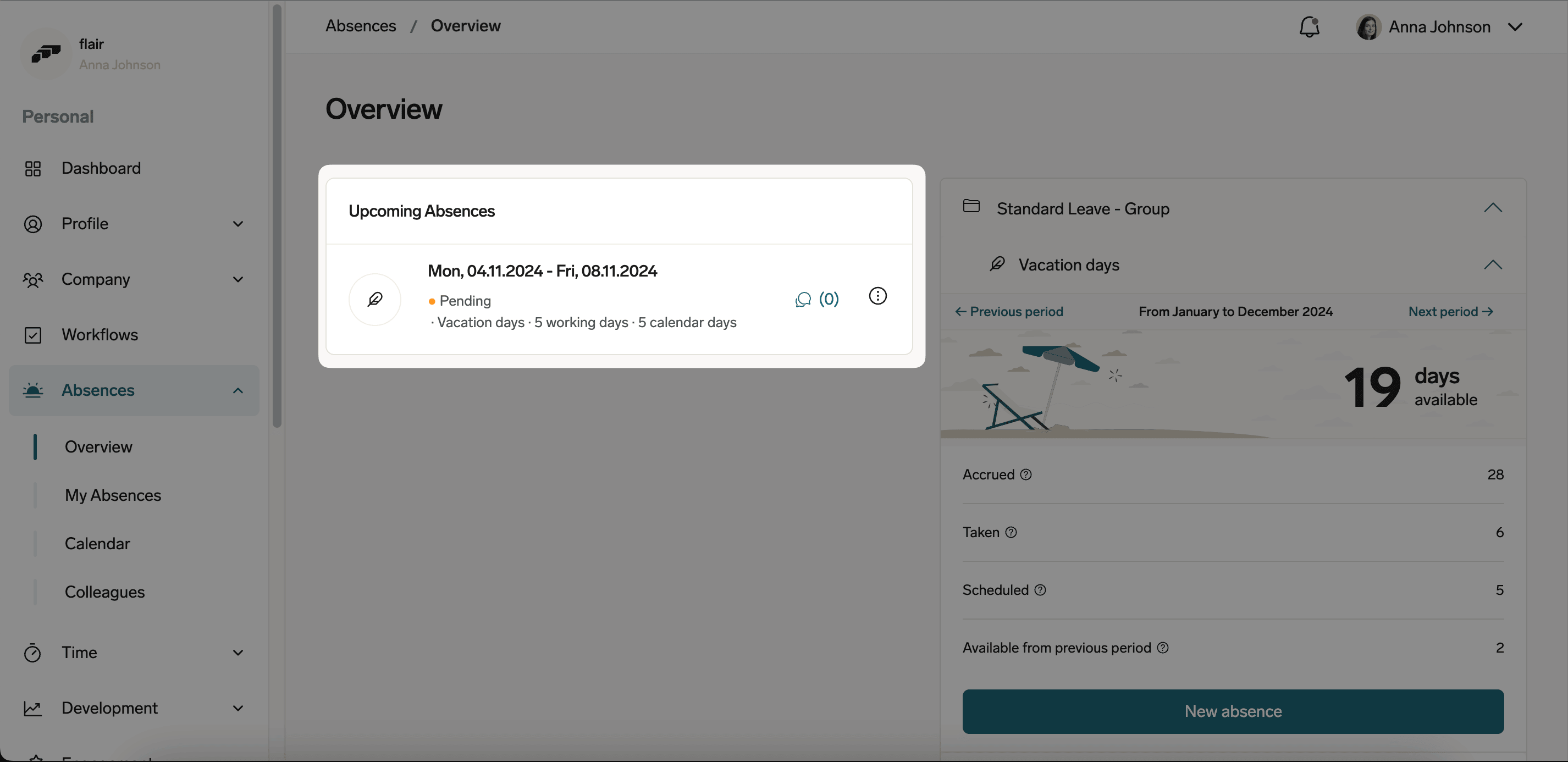
To read or add comments, click the speech-bubble icon. To delete an upcoming absence, see Delete an absence in the Employee Hub.
Request different hours across several days
For an hourly absence category, each day keeps its own start and end time.
- In Absence type, select an hourly absence category, then click Next – pick days.
- Click the days you want. Each chosen day shows its hours in its calendar cell.
- Select a day and set Start time and End time. Duration updates as you type.
- Optional: instead of typing, use the quick picks under Hours of the day — Full day, Morning, Afternoon or Not absent. They follow your working hours for that day, or 09:00–17:00 when none are set. Times you type always win.
- To give every day the same hours, click Apply to all days, or Use <day>'s hours for all days above the summary.
- Check the total in Requested, then click Next – add details and send the request.
After creation, click Variable Times on the absence to see each date, its start and end times and the deducted hours. Variable times appear in the Employee Hub calendar and Colleagues views, the Shift Planner daily and hourly views, absence details, and Salesforce absence records.
Edit variable times in Salesforce
- In Salesforce, open the absence record.
- Click Variable Times.
- Change the start and end times for individual days.
- Optional: Click Apply to All to update every day.
- Click Save. flair validates the updated absence again.
Add a document to a submitted request
If the absence does not require approval and the category allows uploads (or its request policy requires a document), you can add one afterward by editing the request.
- In the left menu, select Absences to open Absences Overview.
- Open the request you want to update.
- Click Edit.
- Under Select File, select the document to add.
- Click Save. flair attaches the document to the request.
Replace a file on an absence
File replacement is available for an absence that does not require approval when the category allows document uploads or the request policy has a document-upload threshold. After approval, Restrict Absence Editing on the category hides the Edit action. The absence remains Approved or Auto-approved, and this edit changes the file only — it does not change the dates or the absence type. To move an absence to different dates, request a change to the absence instead.
- In Absences Overview, open the absence.
- Click Edit. This action appears only for an eligible absence.
- In the enabled file-upload field, upload the replacement.
- Click Save. flair updates the file without changing the absence status.
Request a change to an absence
Once an HR Admin has created the Absence change request form, you can ask for different dates on an absence that already exists instead of deleting it and requesting a new one. The absence keeps its current dates until a manager approves the change.
- In the Employee Hub, open Absences.
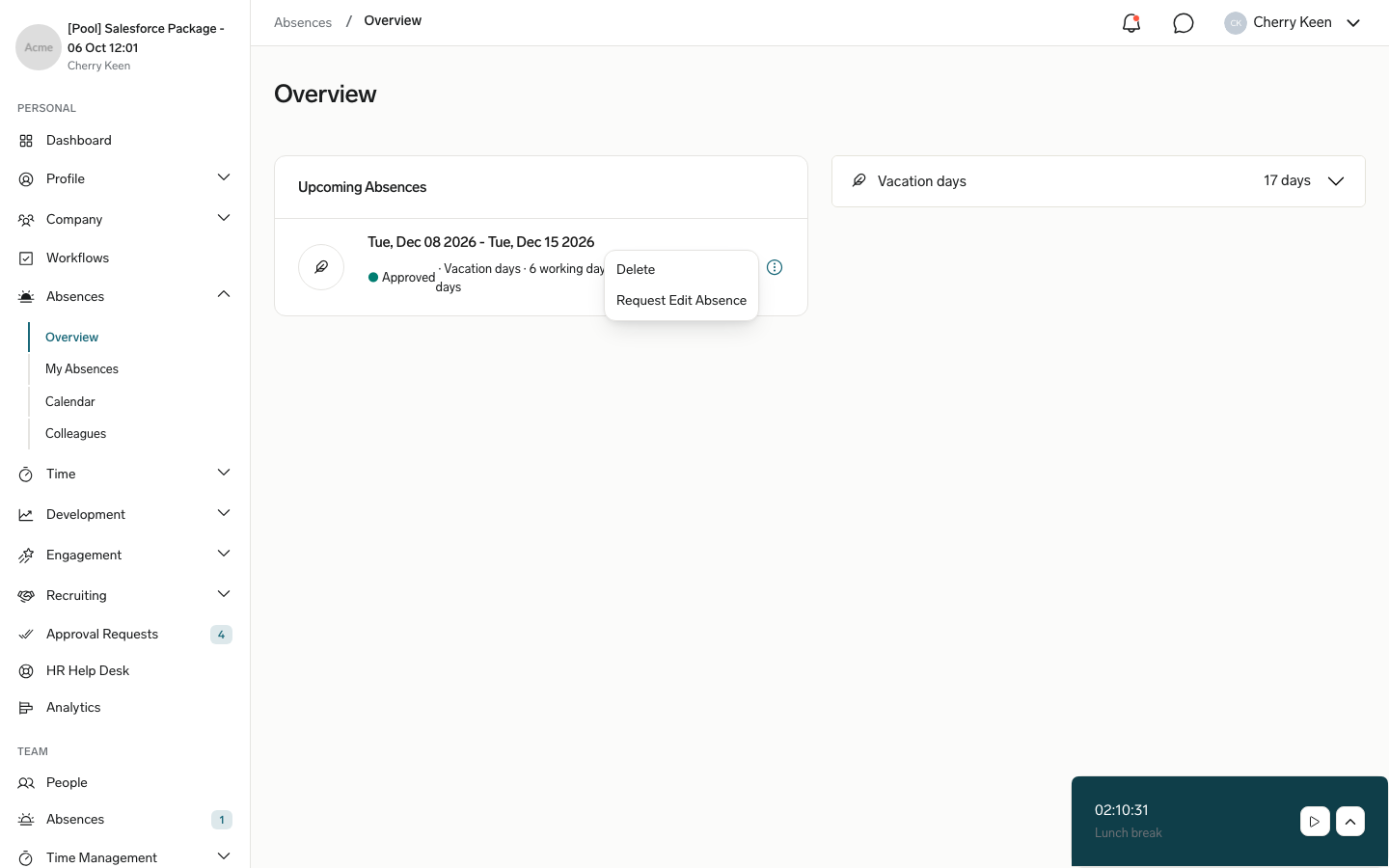
- In the upcoming absences list, open the three-dot menu on the absence.
- Select Request Edit Absence.
- Optional: Under Reason, enter why you need the change, and add files under Attachments. Click Next.
- Change From and To. Each field shows the absence's current value below it. For an hourly absence, change the times as well.
- Click Next, review the request, and click Confirm.
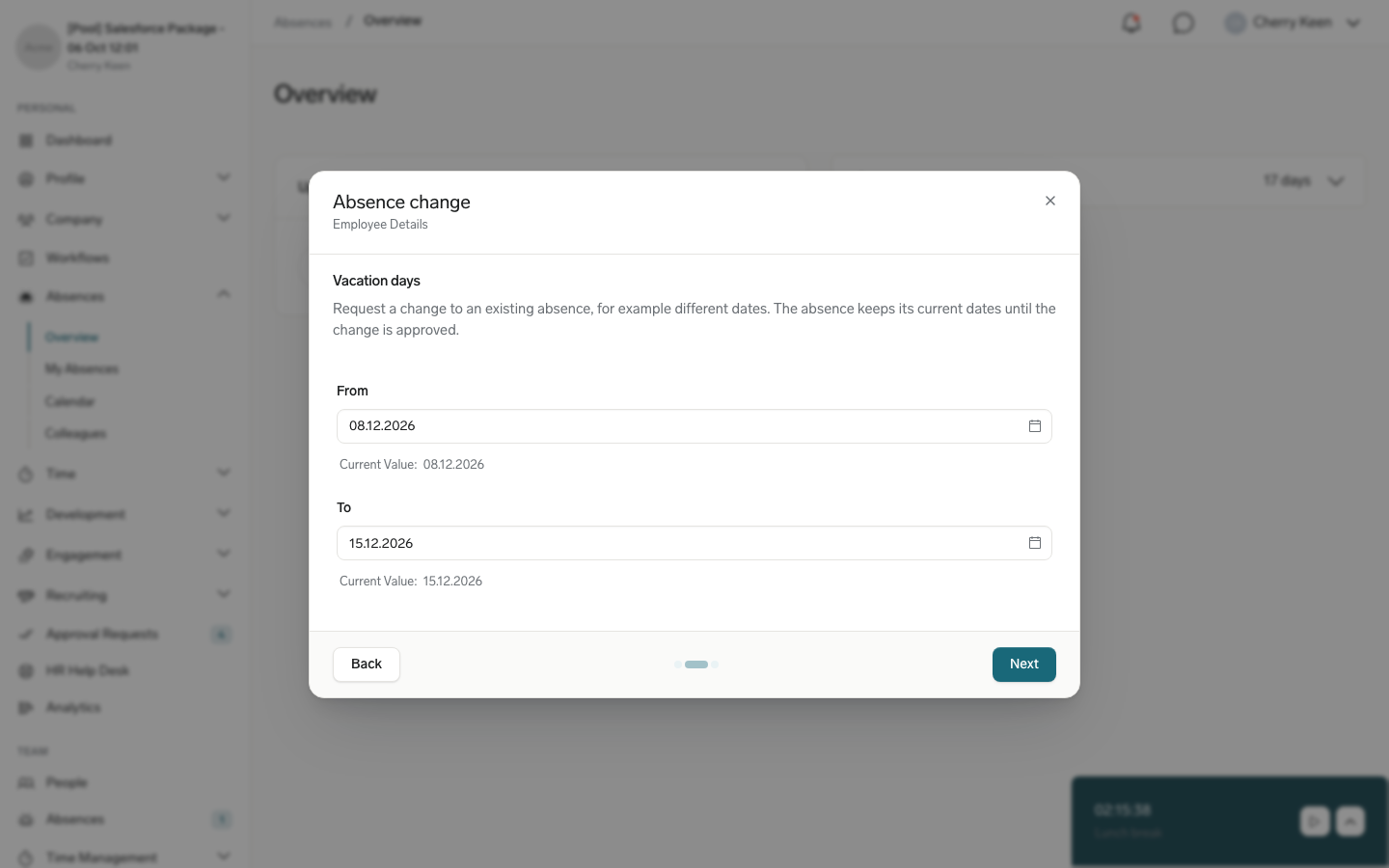
flair submits only the fields you changed. The absence then carries a Change requested badge with the period you asked for, and the request joins your other change requests, where Cancel Request withdraws it while it is still pending. Your approver sees the current and the requested values side by side. Approving applies the new values and leaves the absence's approval status as it was; declining leaves the absence exactly as it was.
The action appears only when your organization has an active Absence change request form. Two absence category settings can restrict it: with Restrict Absence Editing, an approved absence in that category cannot be changed at all; with Restrict Absence Amount Change, you can move the absence but not make it longer or shorter, and flair explains the rejection in the form. See Let employees request absence changes.
Delete an absence in the Employee Hub
You can delete an absence that hasn't started yet. Whether you can delete an approved absence depends on the Absence Deletion setting of its absence category, which your HR team chooses. A pending absence can always be deleted.
- In the Employee Hub, open Absences.
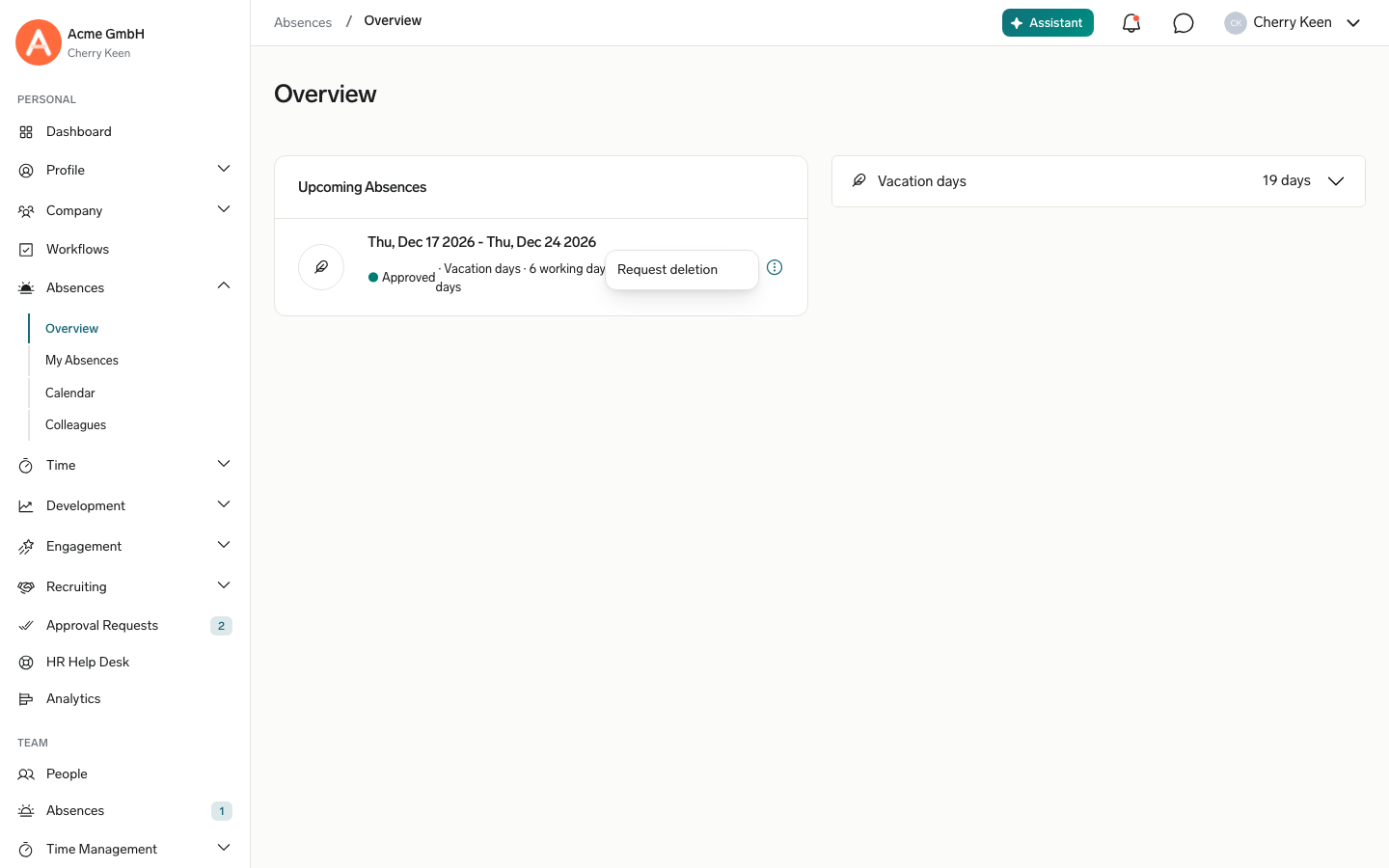
- In Upcoming Absences, open the three-dot menu on the absence.
- Click the action that appears:
- Delete: flair deletes the absence and shows Your absence has been successfully deleted.
- Request deletion: the category requires approval to delete an approved absence. flair sends the request to your approvers and shows Your deletion request has been sent for approval.
If neither action appears for an approved absence, its category doesn't let employees delete approved absences, or a change request for the absence is still pending. Ask HR to delete it, or wait until the change request is decided.
Follow or cancel a deletion request
While the request is pending, the absence stays as it is and shows a Deletion requested badge, and you can't edit it or request a change to it. Your approver sees Absence deletion requested with the absence. Approving deletes the absence; rejecting keeps it.
To withdraw the request, open the three-dot menu on the absence, and click Cancel deletion request. flair withdraws the request and confirms it in a message. You can cancel a pending request even after the absence has started.
Understand your absence balance
In Absences Overview, open the menu on the right to see the allowance for an absence type.
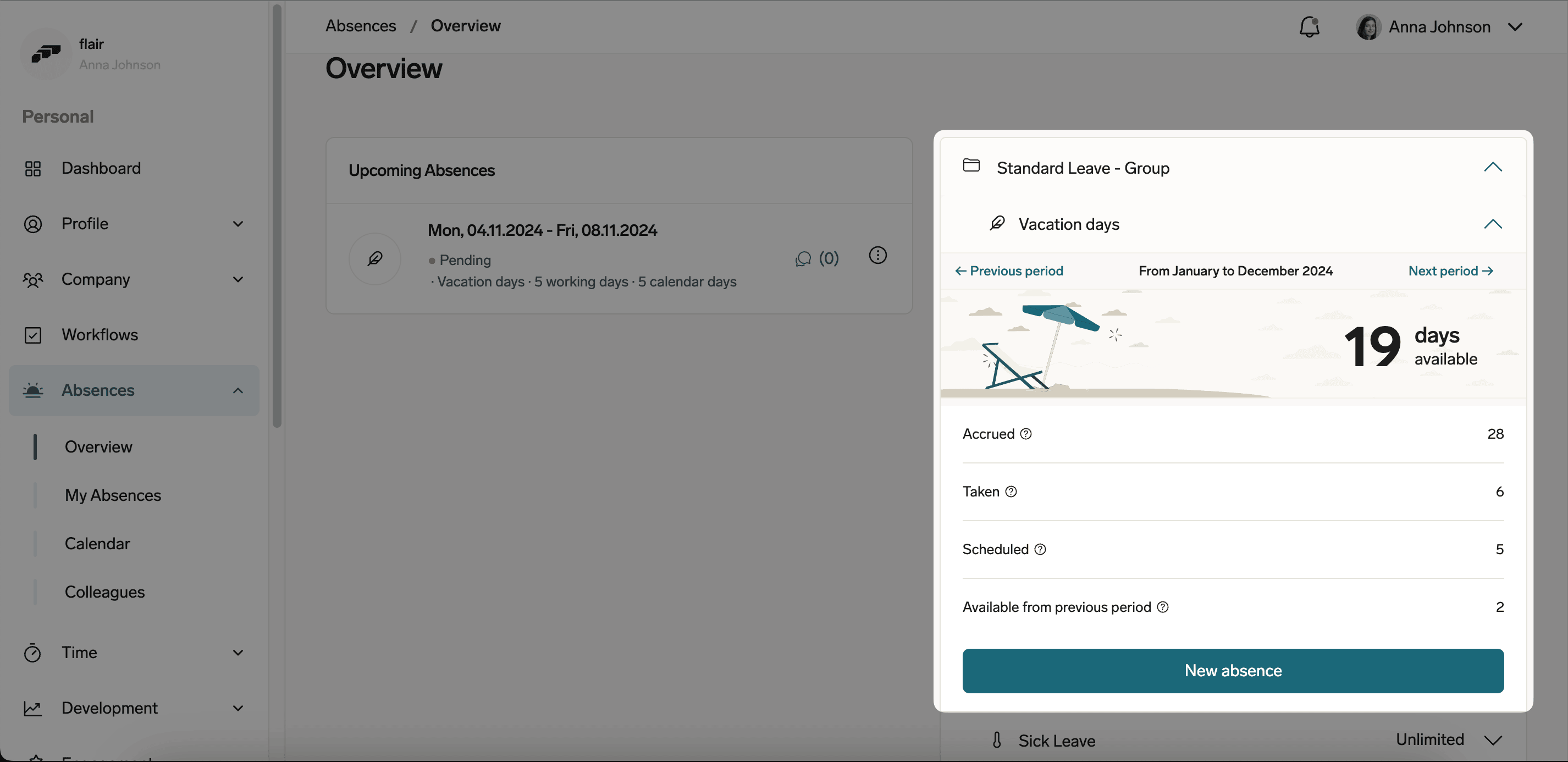
| Field | What it shows |
|---|---|
| Absence Period | The applicable period, commonly a calendar year. Use Previous Period and Next Period to move between periods. |
| Days Available | Remaining days or, for an hourly category, hours. |
| Accrued | Days or hours added during the period. |
| Taken | Days or hours already used. |
| Scheduled | Requested time, including requests awaiting approval. |
| Available From Previous Period | Carryover from the previous period. flair uses this amount first. |
Hover over the question mark beside a value to see its calculation. For carryover, the details also show an expiration date when one applies.
Comment on an absence
- In the Employee Hub, open the absence request.
- Click the speech-bubble icon.
- Enter a comment with an optional document, link, emoji, or image.
- Press Enter. The comment appears on the request.
Request an absence in the mobile app
The mobile home screen shows absent colleagues and their return dates.
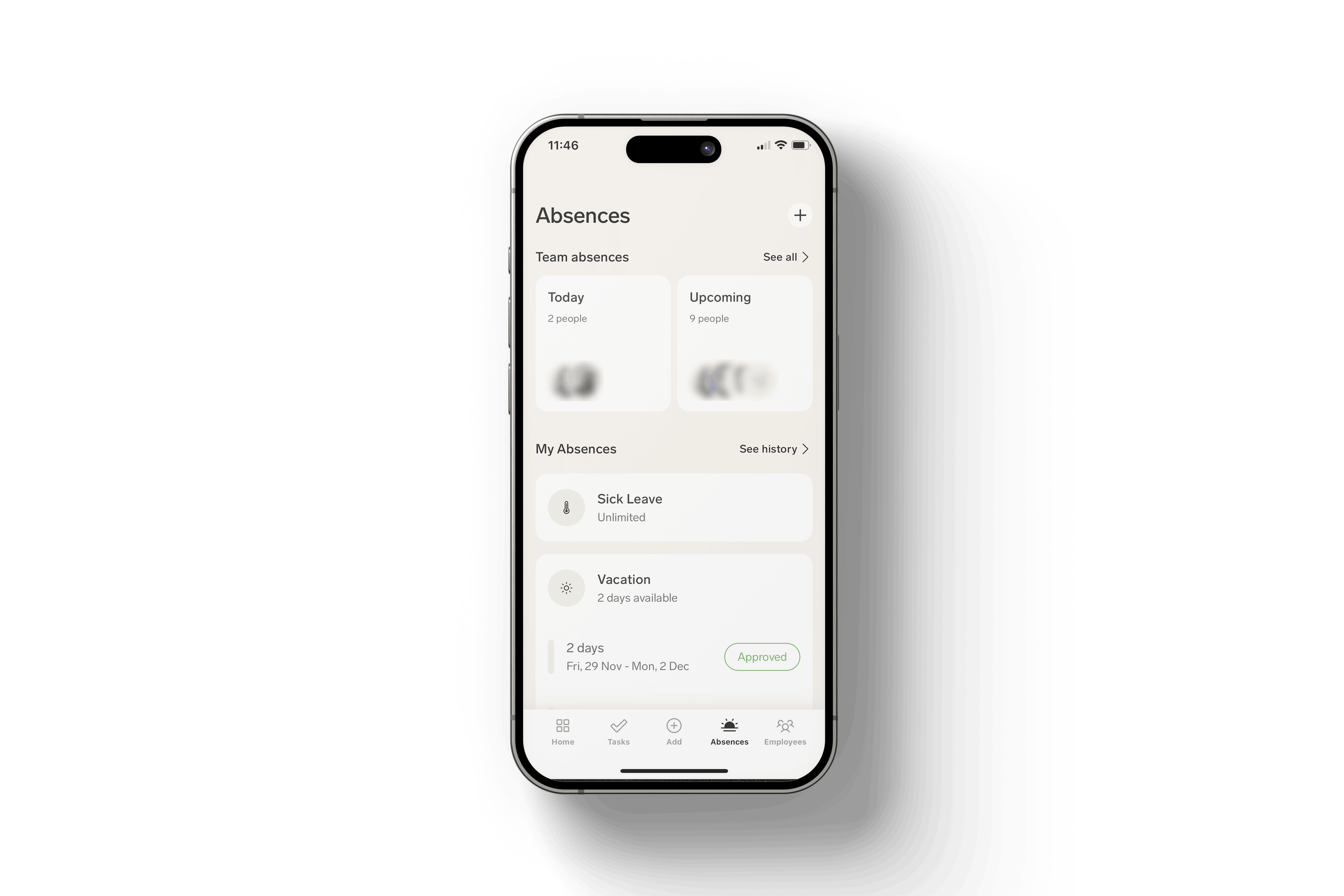
- In the flair mobile app, tap Absences.
- To start the request, tap + next to the Absences title, or select an absence category, and tap Request. For an unlimited category or a category without a balance, tap Add Absence. + opens the form with the first category in your list selected.
- In Category, select the absence category. If your organization groups its categories, expand Group group name to find it. If you already entered dates, a note, or a file, confirm the change: switching the category resets the draft.
- If the category has more than one absence request policy, select a Policy.
- Tap Duration, and set the dates and times. See Set half days or hourly times in the mobile app.
- In Note, enter information for the approver. The field shows Mandatory when the policy requires a note and Optional otherwise.
- If the selected policy requires a document, tap Document, and then tap Upload file, Select from library, or Take photo. Upload file accepts PDF, JPG, and PNG files. The file can be up to 4 MB, and you can't submit the request without a document.
- Complete any additional fields your HR Admin added to the form. Each shows Mandatory or Optional. See Configure Extra Form Fields.
- Optional: Tap See details. Request details shows Available Days, Days Requesting, and Days Remaining (hours for an hourly category). If the time comes from more than one period, tap Days Requesting to see the split. Time taken from a previous period's carryover shows as From year carry over days.
- Tap Submit. flair shows Your absence request has been submitted! and sends the request to the assigned approver.
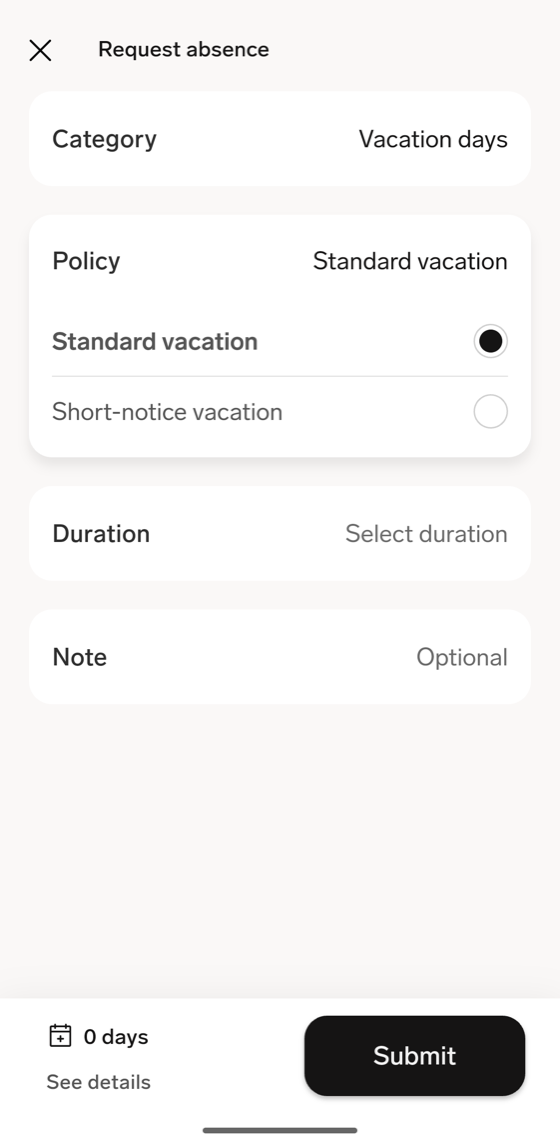
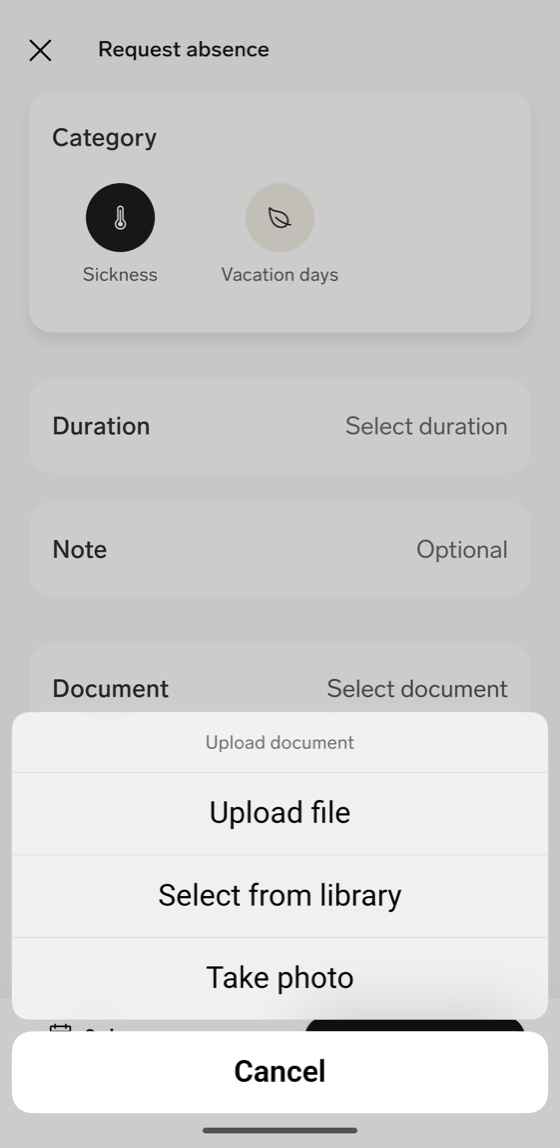
If the app finds a problem with the request, such as an overlap or too little balance, the amount at the bottom of the form turns red, and Submit stays disabled. Tap See details to read the reason. See Troubleshooting.
The app is available for iOS and Android.
Set half days or hourly times in the mobile app
What Duration offers depends on the category's unit. For a daily category:
- Tap Duration.
- Tap Select start (once dates are set, tap the date beside Start or End). In the calendar, select the first and last day, and tap Submit.
- Optional: For a half day at the start, tap the time beside Start, and select Lunch. The default is Morning.
- Optional: For a half day at the end, tap the time beside End, and select Lunch. The default is Evening.
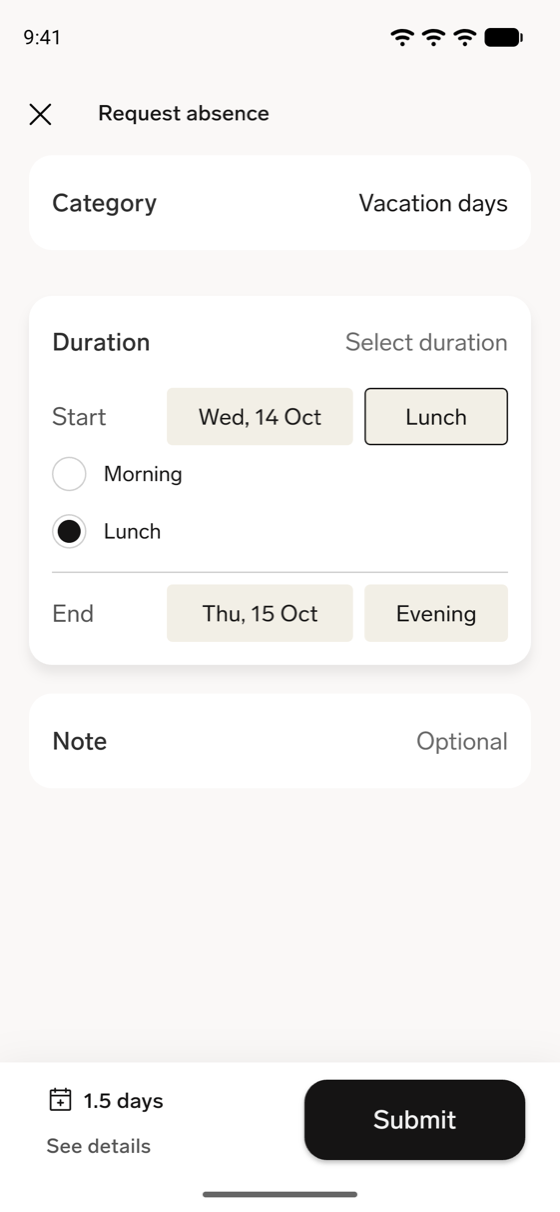
For an hourly category, you can set different times for each day:
- Tap Duration, and then tap Select duration.
- In the calendar, select the first and last day, and tap Submit. The app lists each day with a default time of 9 AM to 5 PM.
- For each day, tap the start or end time, and set the time.
- Optional: To reuse one day's times, tap the three-dot menu on that day, and tap Copy absence time to all periods.
- Optional: To leave a day out of the request, tap the three-dot menu on that day, and tap Delete.
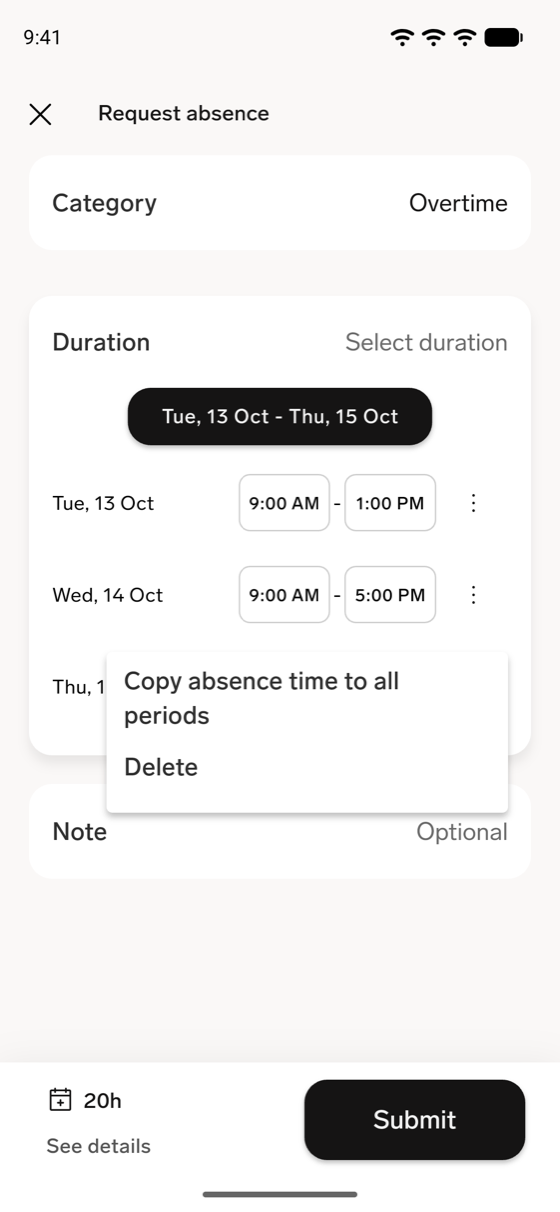
Check your absence balance in the mobile app
In Absences, tap an absence category to see its balance. What the screen shows depends on the category.
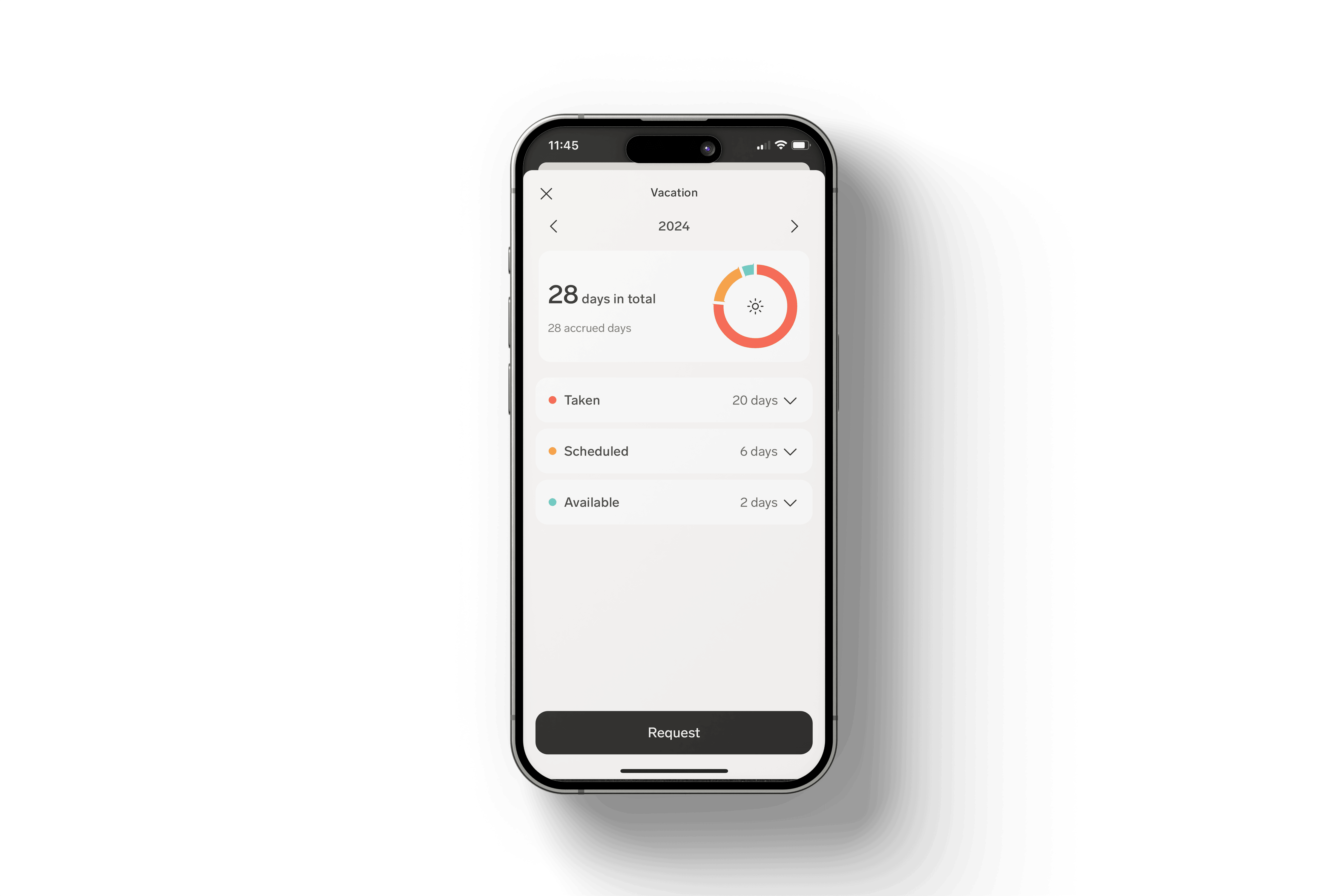
For a category with a limited allowance, the title shows the absence period, such as From start to end year. Swipe, or use the arrows, to move between the previous, current, and next period. Tap a row to see its details, such as accrual dates, taken absences, or carryover expiry:
| Period | What it shows |
|---|---|
| Previous | Taken with a chart, and Taken, Accrued, Carried over, and Lost. |
| Current | The days available with a chart, and Accrued, Taken, Scheduled, and Available from previous period. Tap Available from previous period to see when the carried-over days expire. |
| Next | Upcoming with a chart, and Will accrue and Scheduled during the last period. |
For an unlimited category, the screen shows Unlimited Balance by year, with Taken, Scheduled, Carry Over to next year, and Available. For a category without a balance, it shows Without Balance. In both, tap Add Absence to request time off.
See your past absences
- In Absences, next to My Absences, tap See history. The list shows the current year's absences, grouped by month.
- Optional: To see another year, tap the calendar icon, and select the year.
Delete an absence in the mobile app
You can delete an upcoming absence, one that starts after today, from its details screen.
- In the flair mobile app, tap Absences.
- Under My Absences, tap the absence. You can also tap it under Upcoming time away on the home screen.
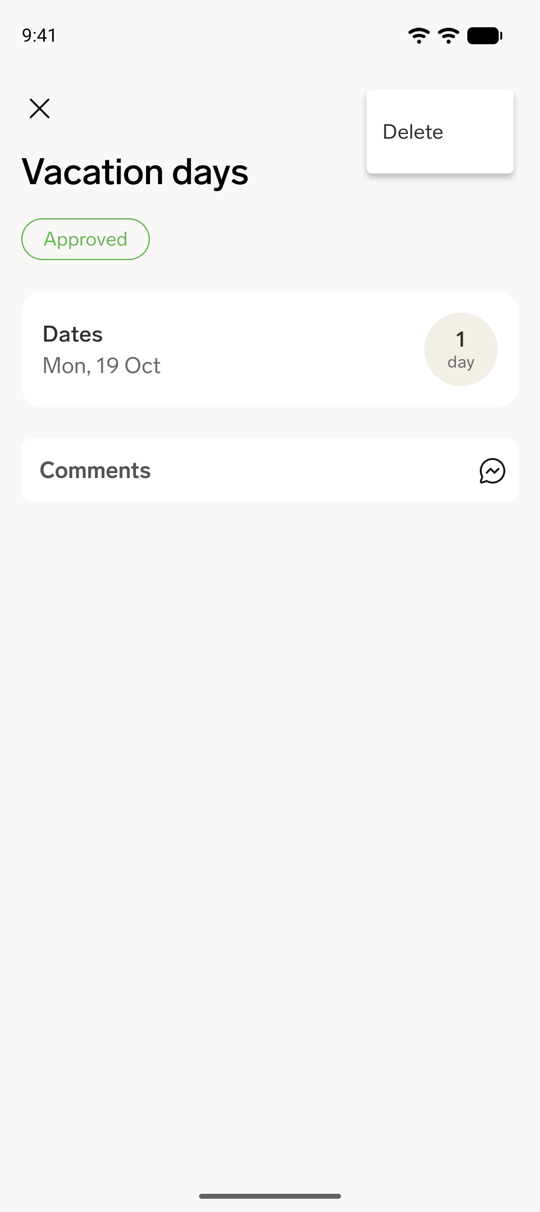
- Tap the three-dot menu, and then tap Delete.
- In the Delete this absence? dialog, tap Delete. flair deletes the absence and shows Your absence has been successfully deleted.
If the absence is approved and its absence category's Absence Deletion setting is Restricted (HR only), the three-dot menu doesn't appear. A pending absence in that category can still be deleted.
The mobile app doesn't show deletion requests yet. If the category's Absence Deletion setting is Only with approval, deleting an approved absence in the app sends a deletion request, even though the app shows Your absence has been successfully deleted. The absence stays until your approver approves the request. To check the request or cancel it, use the Employee Hub. See Delete an absence in the Employee Hub.
View team absences in the mobile app
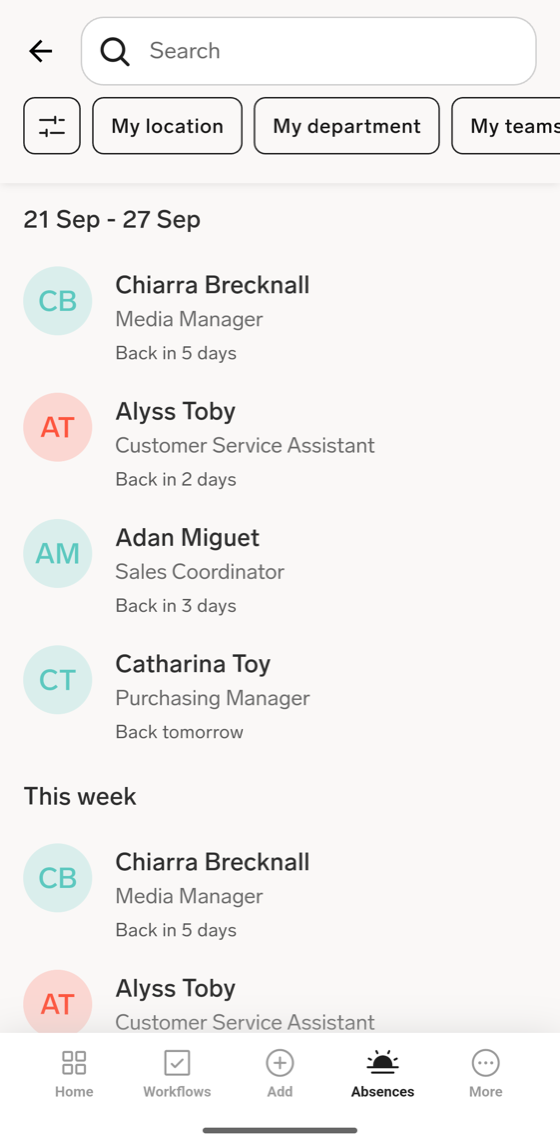
Team absences on the Absences screen shows which colleagues are out today and which absences are coming up.
- In the flair mobile app, tap Absences.
- In Team absences, tap See all. To start with only today's absences, tap the Today card instead.
- Optional: To narrow the list, tap My location, My department, or My teams.
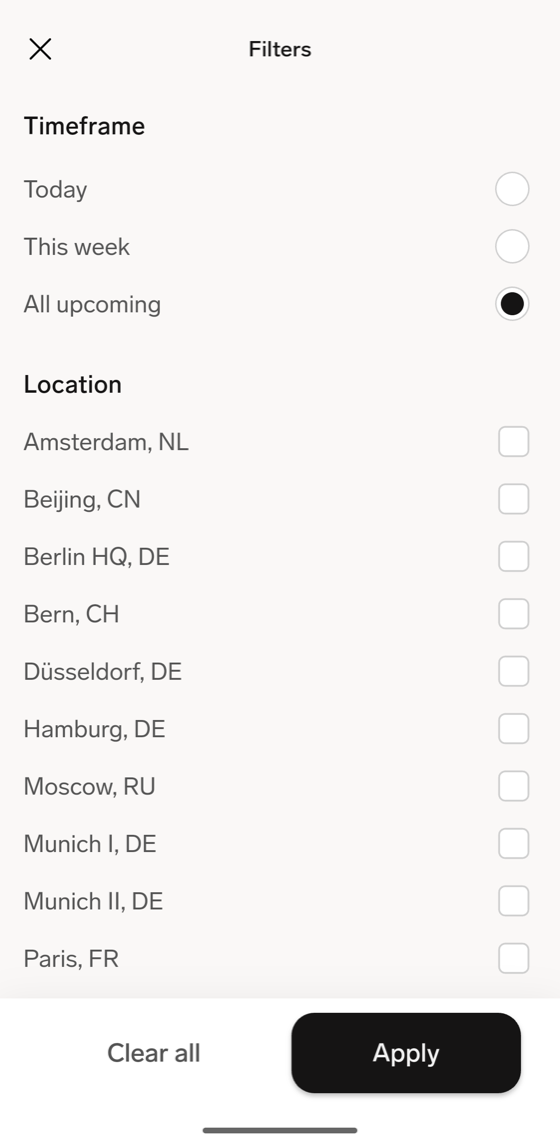
- Optional: Tap the filter icon, and select values under Timeframe (Today, This week, or All upcoming), Location, Department, Category, or Team.
- Tap Apply. The list shows the matching absences. To reset the filters, tap Clear all.
- Optional: Tap a colleague to open their profile.
Review your team's absences as a manager
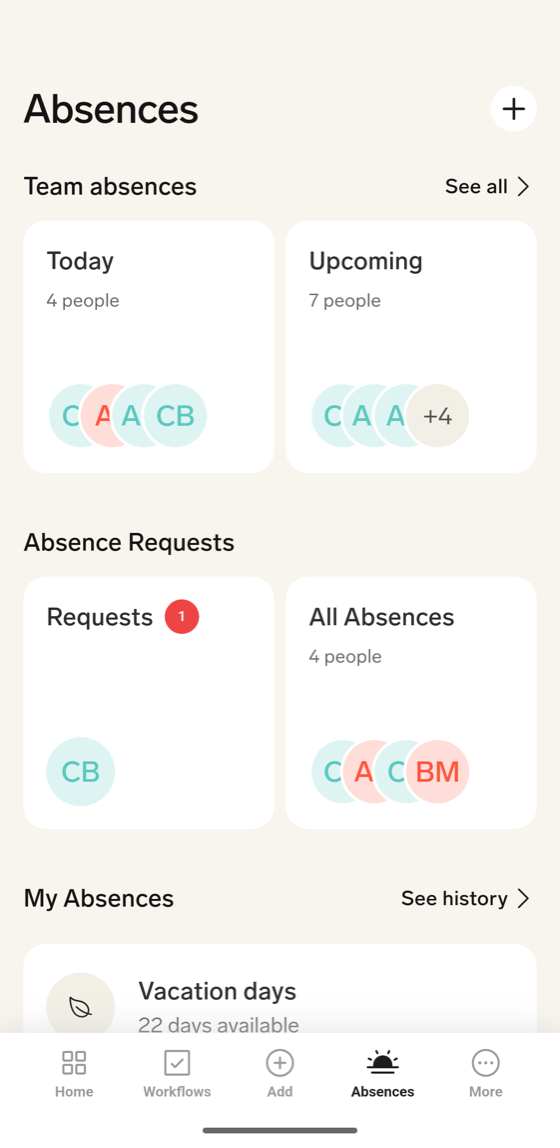
If you can approve absence requests, Absences also shows Absence Requests. Its Requests card lists the requests waiting for your decision (see Approve an absence in the mobile app), and its All Absences card lists every absence of your direct reports and of the employees whose absences you approve, including absences that need no approval, such as sick leave.
- In the flair mobile app, tap Absences.
- In Absence Requests, tap All Absences. The list shows each absence with its approval status, grouped by week. Scroll down to load more.
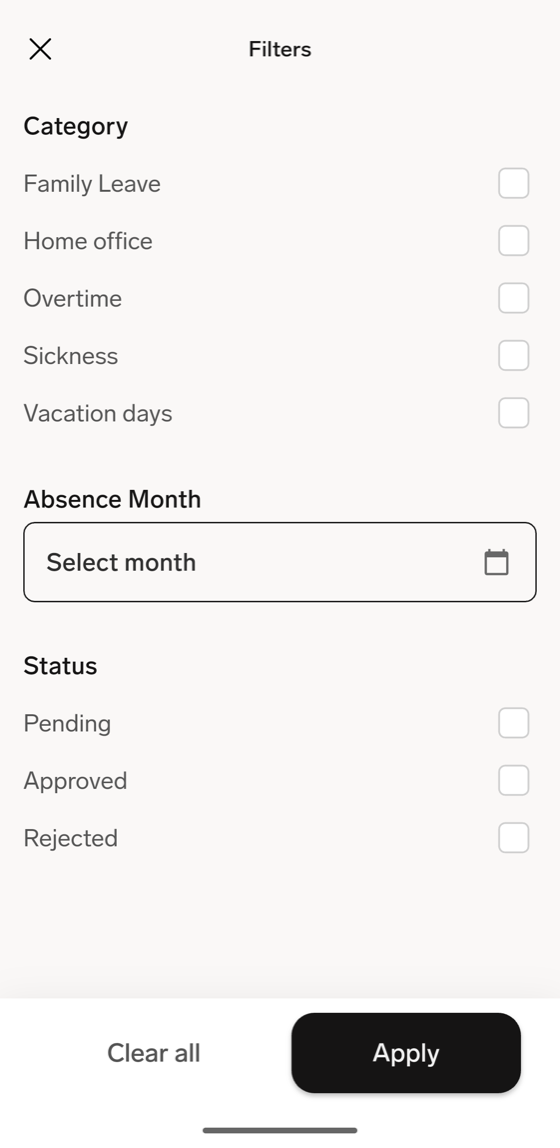
- Optional: Tap the filter icon, and select values under Category, Absence Month, or Status (Pending, Approved, or Rejected).
- Tap Apply. The list reloads with the matching absences.
- Optional: Tap an absence to see its details.
Assign absence approvers
The current Approval Framework supports centralized policies, multiple steps, and segment-based approver assignment. See Approval Framework overview.
For organizations that still use the legacy Additional Managers method, flair sends a request to the employee's manager by default. If the manager changes, flair transfers pending requests to the new manager.
-
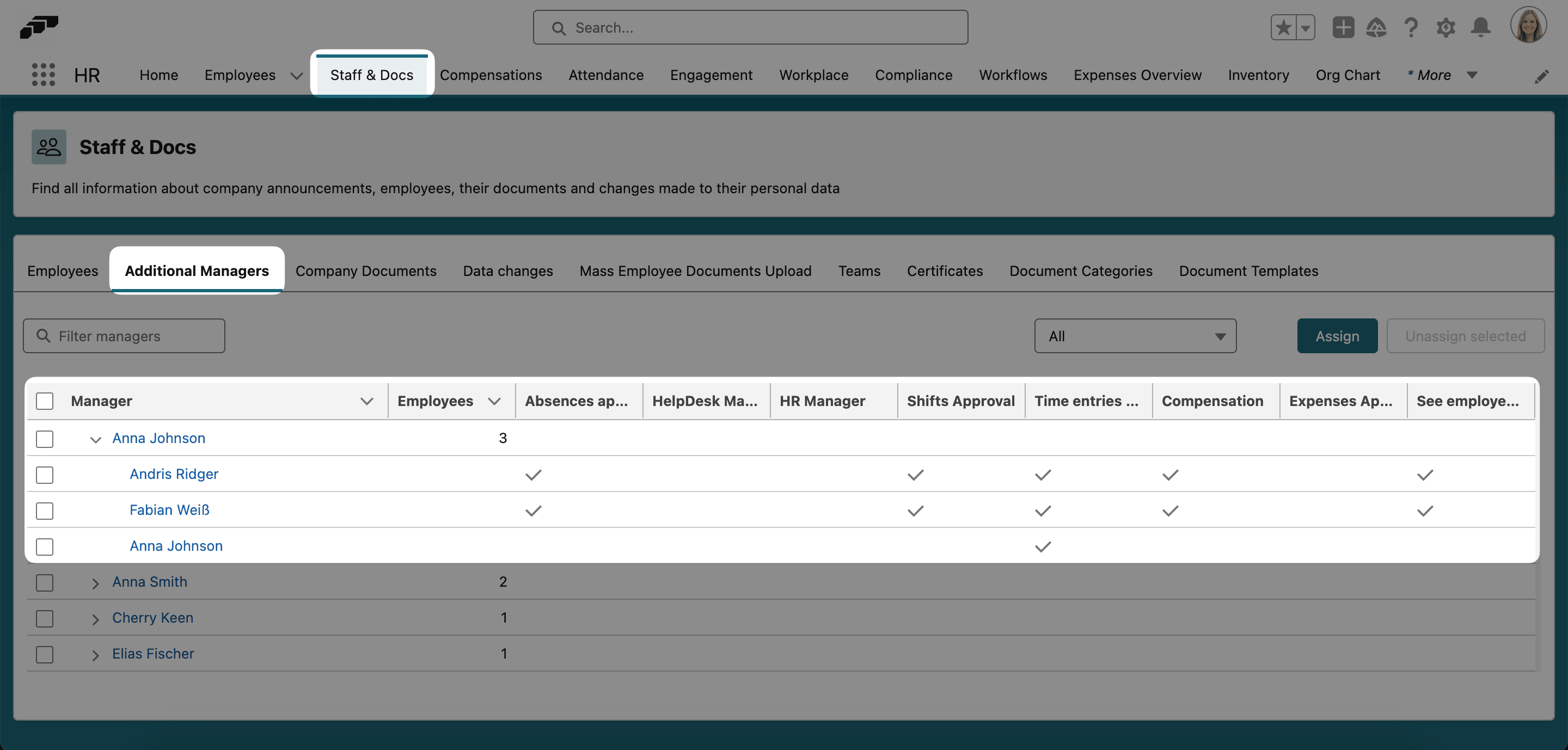
In the flair HR app, open Staff → Additional Managers.
-
Expand a manager to review responsibilities for absences, shifts, time entries, expenses, compensation, and data access.
-
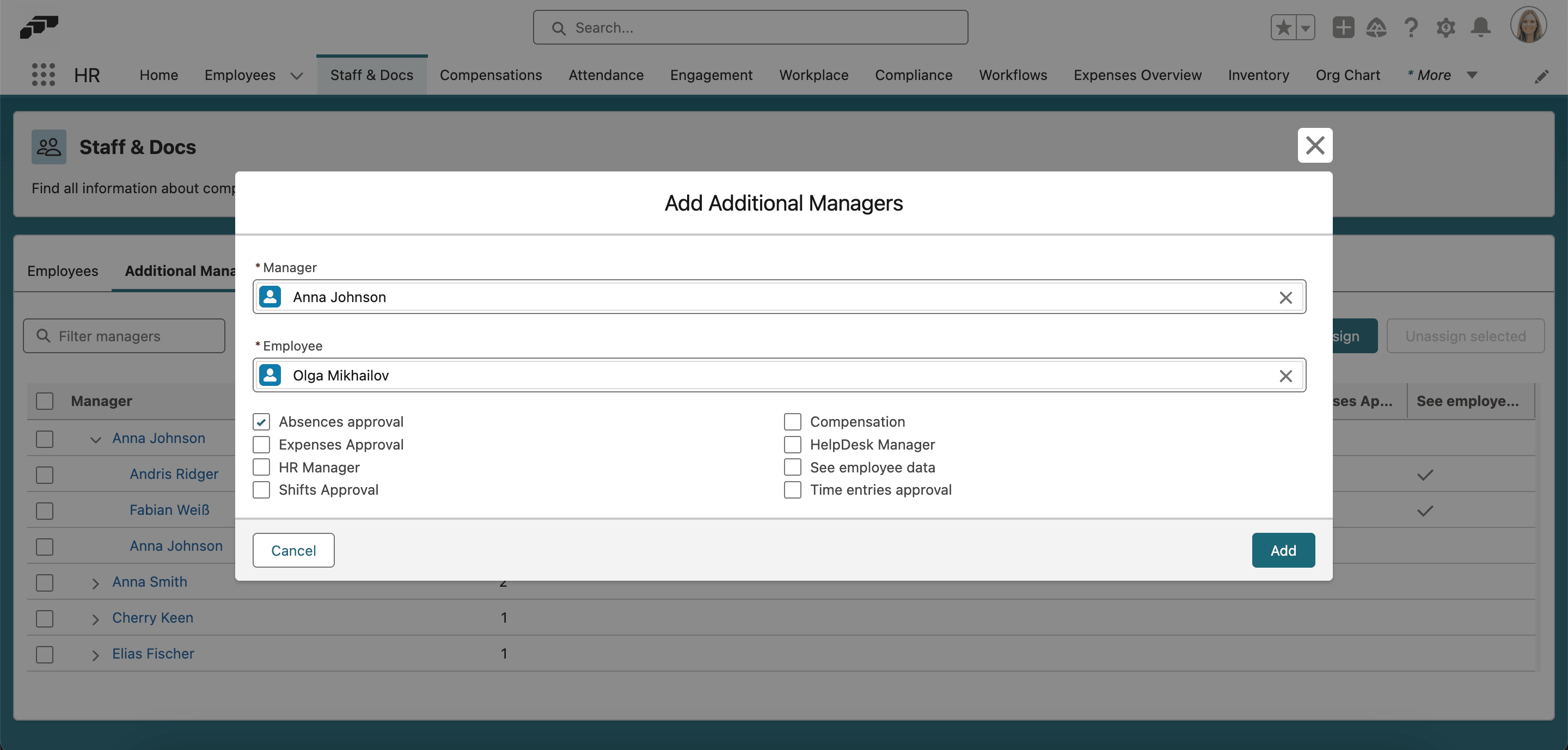
Click Assign.
-
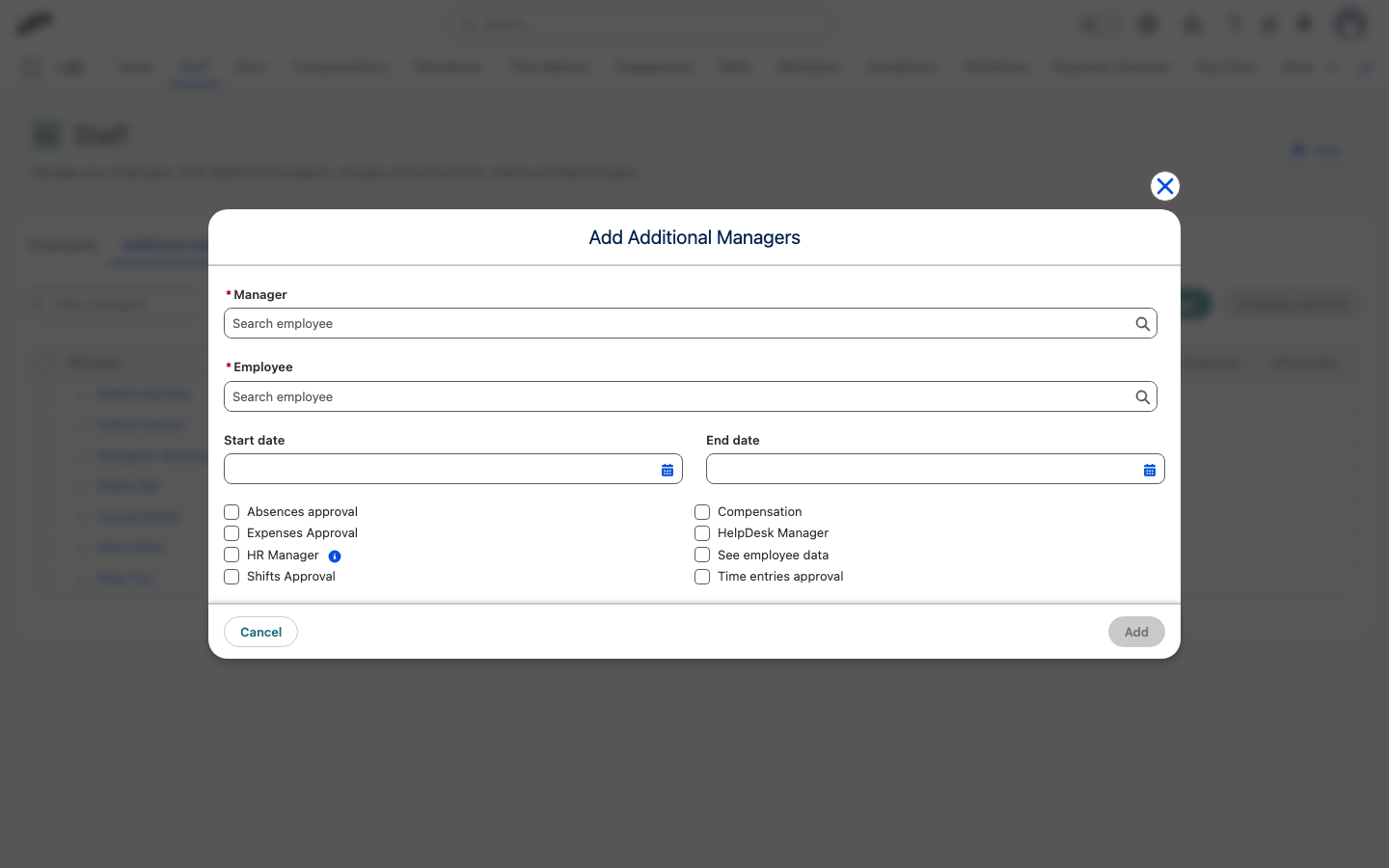
Select the manager and employee.
-
Optional: In Start date and End date, set the period the assignment applies. Leave either date blank for an open-ended start or end.
-
Select Absences approval.
-
Click Add. The additional manager can approve the employee's absences for the dates you set, or with no expiry if you left them blank.
Deactivate an additional manager assignment
Instead of deleting an assignment, set an end date to deactivate it while keeping its history for reporting.
- In Salesforce, open the employee's record.
- Open Related.
- Under Additional Managers, open the assignment.
- Find End Date.
- Enter today's date or an earlier date.
- Click Save. The assignment stops applying to new requests once that date passes, and its history stays on the record.
flair calculates an assignment's active status automatically from its Start Date and End Date: it is active whenever today falls inside that range, or when a date is blank. There is no separate checkbox to activate or deactivate an assignment. Additional Managers lists the assignment's status as Active, Upcoming, or Inactive; use All Statuses to filter by it.
Request an absence for an employee
As a manager, you can request an absence on behalf of an employee, for example, to record sick leave they reported to you. The request uses the employee's absence categories and balances, not yours.
Start the request from the employee's page:
- On Overview, expand an absence category, and click New absence. Overview doesn't list unlimited categories.
- On Absence Calendar, click an absence category, and click New absence.
- In the Employee Hub, open Team → People.
- Select the employee.
- Open Overview or Absence Calendar, and click New absence on an absence category.
- Complete the form as described in Request an absence in the Employee Hub.
- Click Create. flair saves the absence for the employee. If the category requires approval, the absence goes to the employee's approvers, like a request the employee submits.
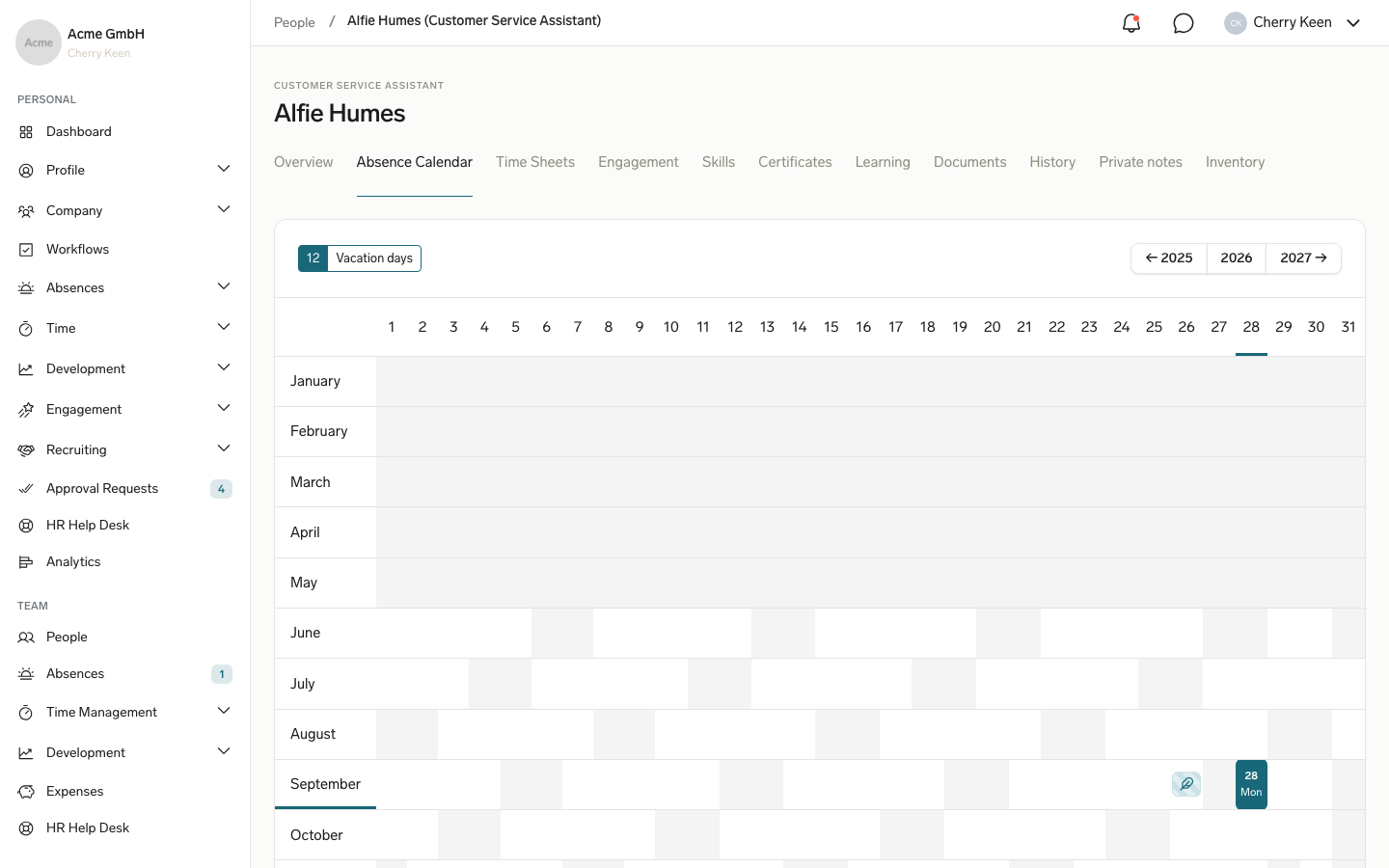
You can request an absence only for an employee whose absences you can access, such as your direct reports or employees you approve absences for.
Approve an absence in the Employee Hub
Approvers receive a direct link by enabled email, mobile, or Slack notifications.
- In the Employee Hub, open Team → Absences.
- In Pending, review requests that need your decision.
- Optional: Filter by absence type, month, employee, or approval status.
- In Review, click Accept or Reject.
- If you reject the request, enter a comment, and click Confirm. flair notifies the employee.
If the absence category requires a rejection reason, the dialog shows a required Reason field, and you can't confirm without one. When you reject several requests at once and any of them requires a reason, the dialog opens once and your reason applies to all of them. See Require a reason for rejected requests.
View auto-approved absences
- In the Employee Hub, open Team → Absences.
- Click All. The list includes requests that do not require approval, such as configured sick leave.
- Click the dates in Absences to see the remaining allowance and overlaps.
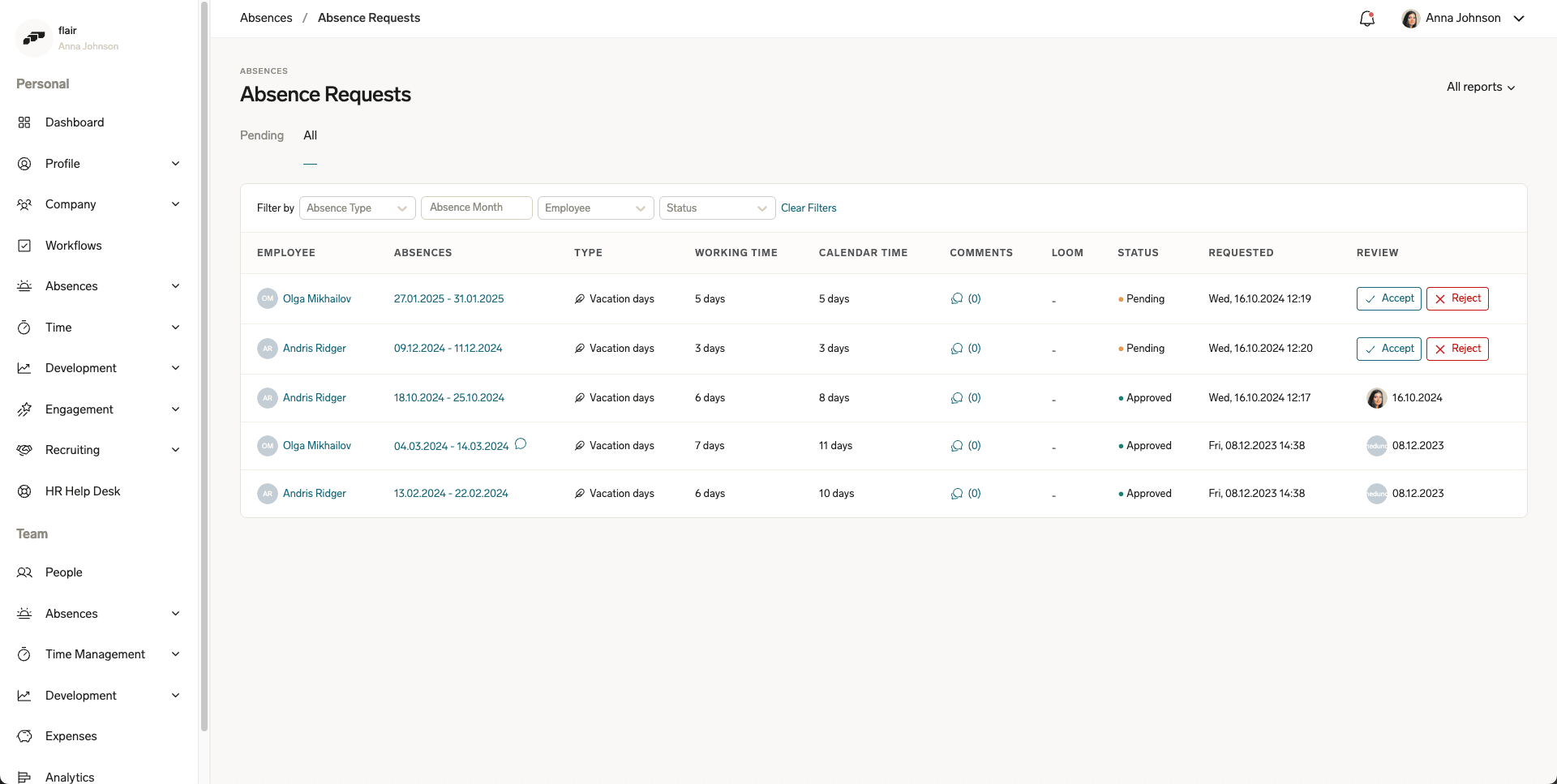
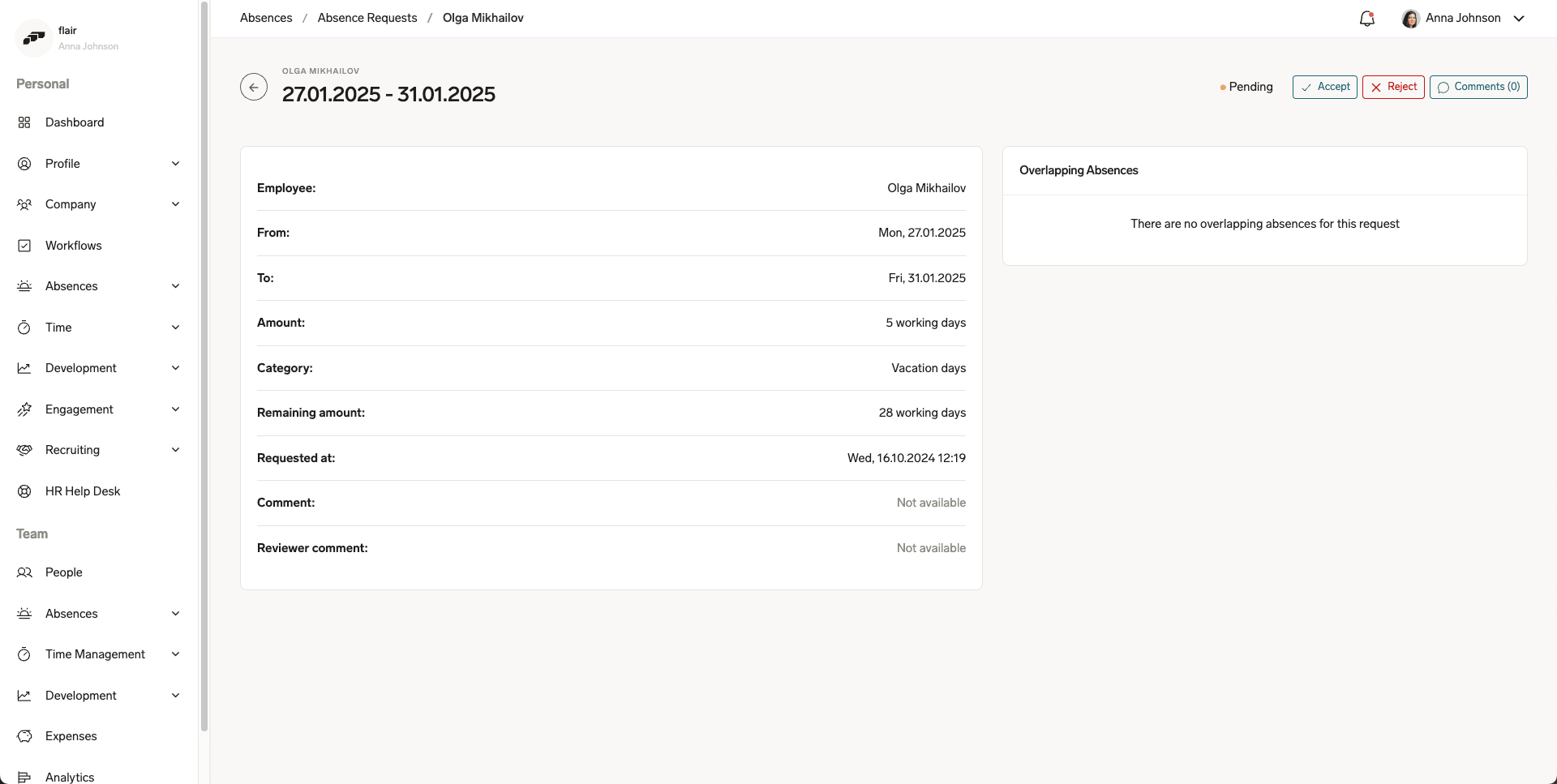
The list shows each request's approval status. For the complete workflow, open the approval path.
Distinguish pending requests visually
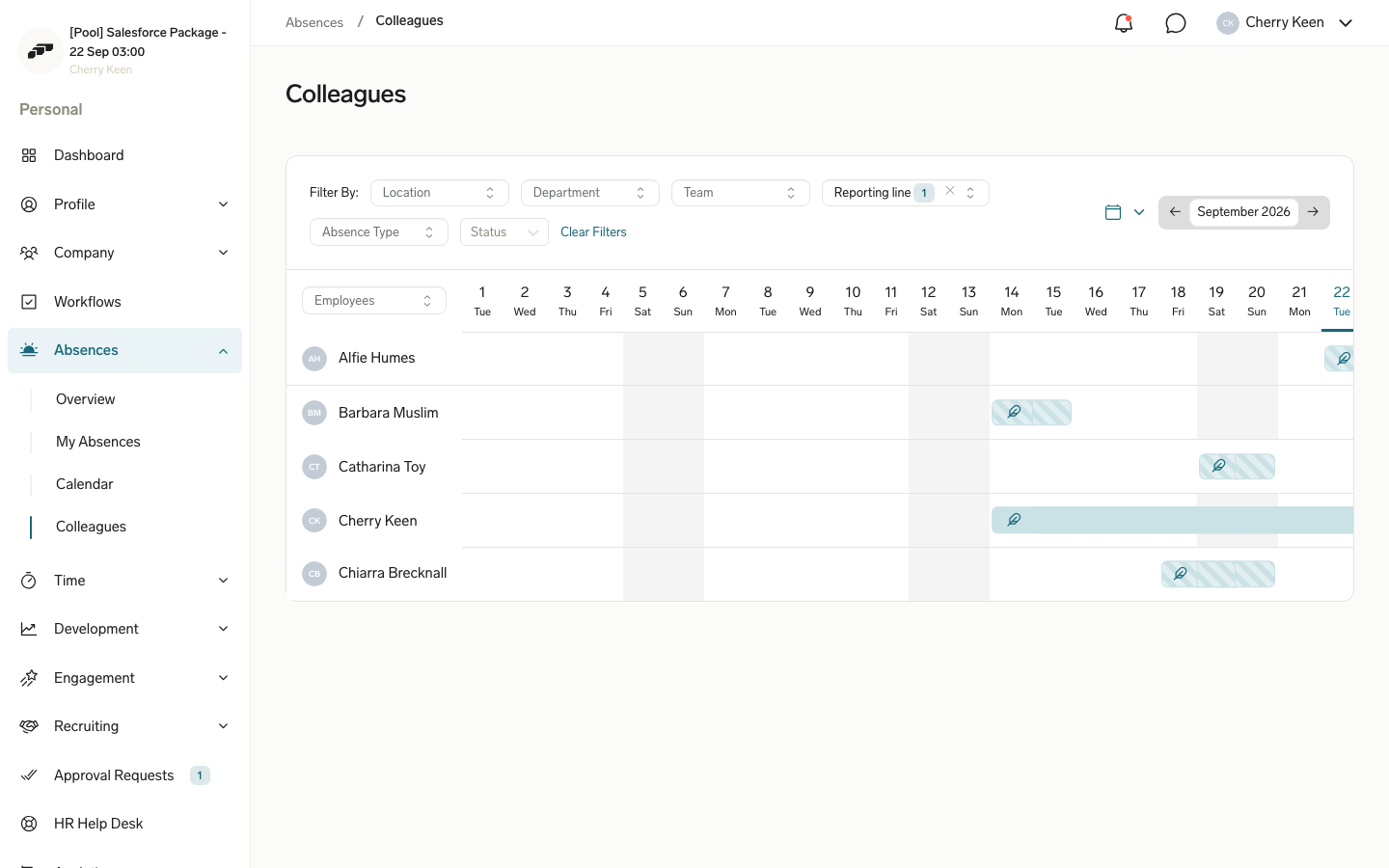
For an absence category with the setting enabled, pending absences use a striped diagonal overlay in employee, team, and manager calendars. Approved absences keep the category's solid color.
- In Salesforce, open the Absence Category record.
- Enable Visually Separate Pending.
- Click Save. The pattern applies to pending requests in that category.
Approve an absence in the mobile app
The Absence Requests block appears on the Absences screen only if you can approve absence requests.
- In the flair mobile app, tap Absences.
- In Absence Requests, tap Requests. Absence Requests lists each pending request with the employee and the requested dates. The same requests appear on the Tasks tab of Notifications, which you open from the notifications icon on the home screen.
- Optional: In Search by name, enter the employee's name.
- To approve without opening the request, tap Approve on its row. flair shows Absence request has been approved.
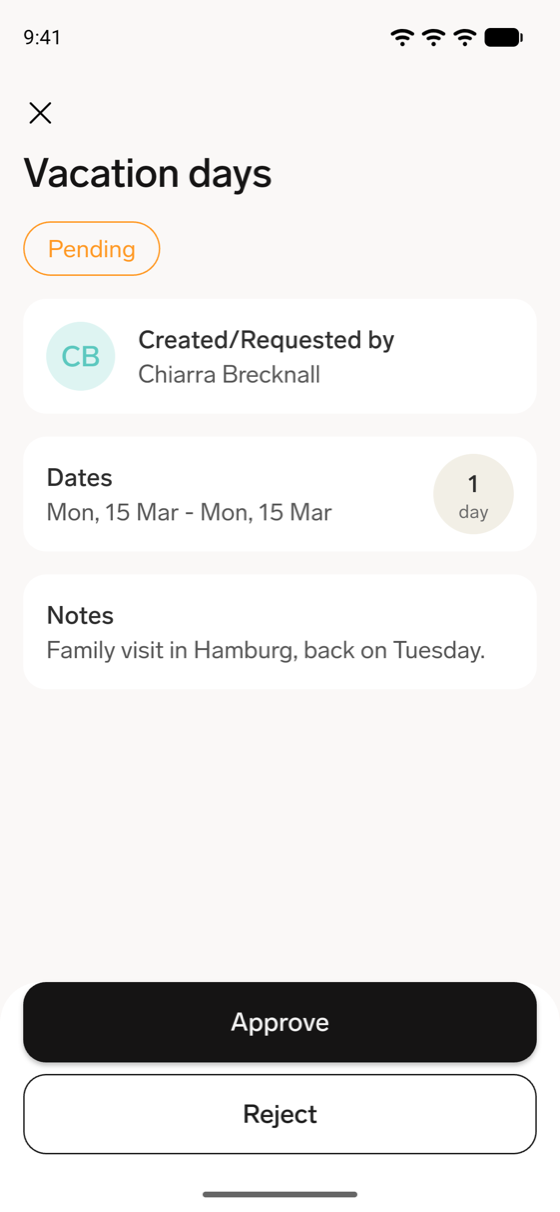
- Otherwise, tap the request. The details show the approval status, the requester, Dates with the number of days, any additional fields, and Notes.
- To approve, tap Approve, and then tap Confirm.
- To reject, tap Reject, optionally enter a note explaining the reason, and tap Submit. flair shows Absence request has been rejected.
If the absence category requires a rejection reason, the app still shows the note as optional, but you must enter one. Without a note, the app shows an error saying that a reason is required for this absence category, and the request stays pending. Open the request again, and reject it with a note.
To read or add comments without opening the request, tap the comment icon on its row. When no requests are waiting, the list shows All caught up.
Manage an absence in Salesforce
-
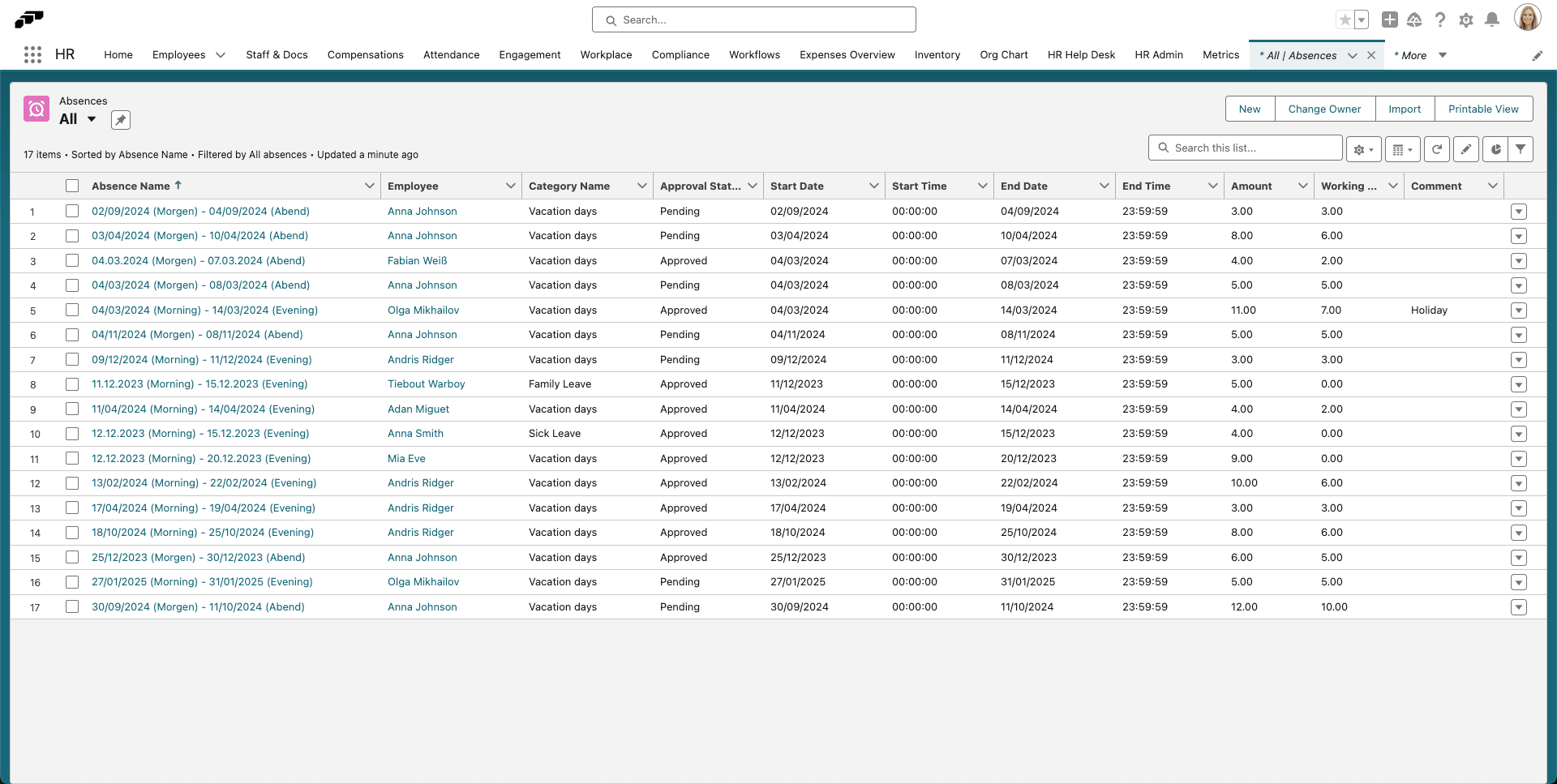
In Salesforce, open Absences from the navigation bar or the App Launcher (⋮⋮ grid icon).
-
Sort by a column, or use search and filters to find the absence.
-
Click the value in Absence Name.
-
To decide the request, click the pencil beside Approval Status.
-
Select Approved or Rejected.
-
Click Save. The record reflects the decision.
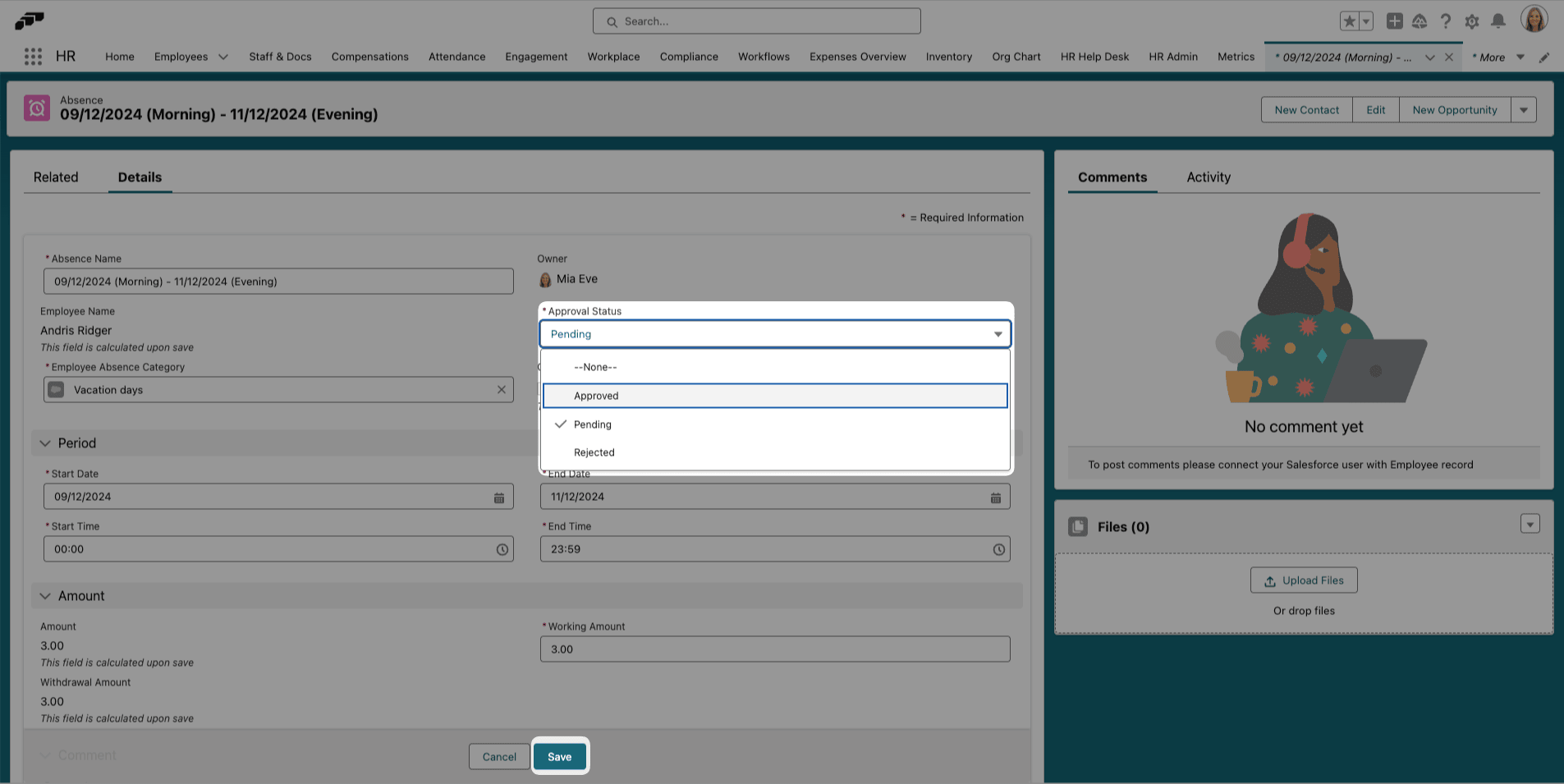
With the required permissions, you can also edit details such as dates. To remove a request, click the down arrow, and select Delete.
Change visibility for an absence
HR Managers can override the visibility inherited from the absence category for one record.
- In Salesforce, open the absence record.
- Find Visibility.
- Select the visibility.
- Click Save. The override applies only to this absence.
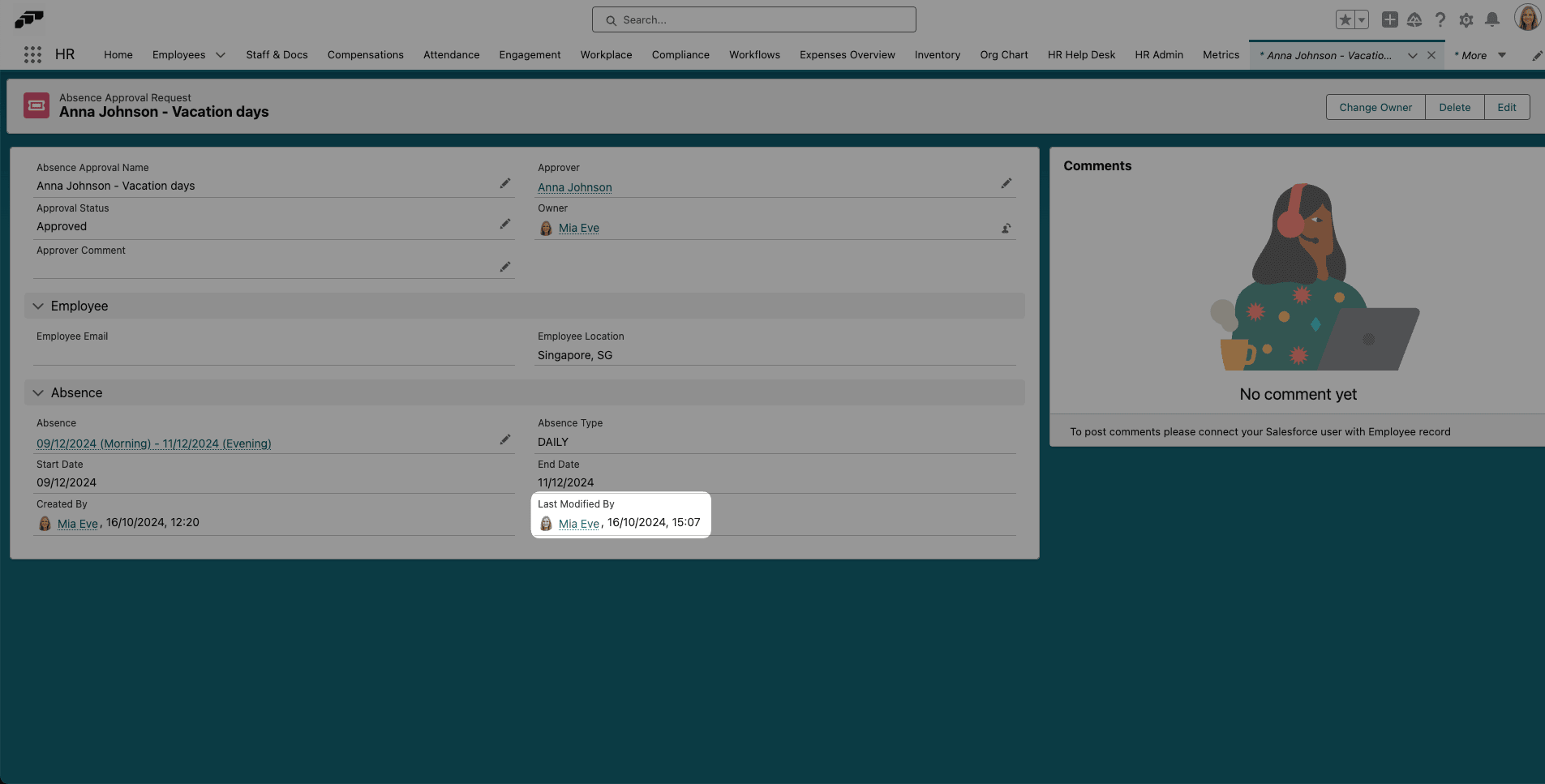
Check an absence approver
- In Salesforce, open Absences, and select the absence.
- Open Related.
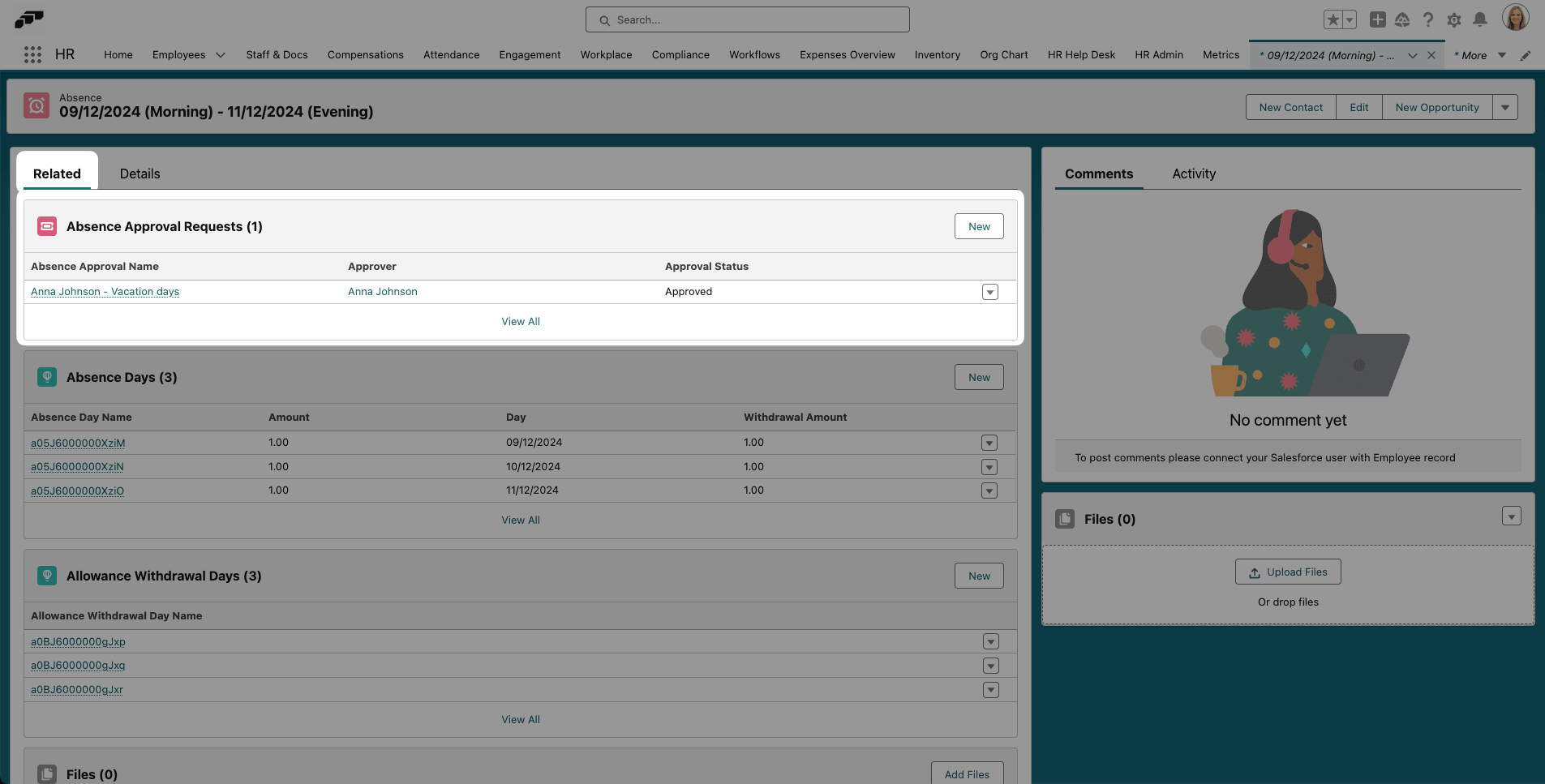
- Under Absence Approval Requests, review the approver and approval status.
- To see more details, click Absence Approval Name.
Last Modified By identifies the last person who changed the absence and can help identify who approved it.
Troubleshooting
Public holidays do not appear for an employee
- In the flair HR app, open Locations.
- Confirm that the applicable holidays are imported for the employee's location.
- In the employee profile, confirm that Location is assigned.
- If both are correct, reimport the holidays from the location's calendar settings.
Submit is disabled because the absence overlaps an existing one
The mobile app shows You are trying to request an absence that overlaps with an existing one. under See details, followed by the overlapping absences.
- Change the dates in Duration, or tap the trash icon on an overlapping absence, and tap Delete to remove it.
The mobile app blocks every overlap. The Employee Hub follows the category's Overlapping Type: it blocks the request only when overlaps aren't allowed, and otherwise shows a warning and lets you submit. To request an overlapping absence in such a category, use the Employee Hub. See Choose how overlapping absences are handled.
The request says you don't have enough credits
The mobile app shows You are requesting amount but you don't have enough credits. The Employee Hub shows a similar message in the request form. The request needs more days or hours than your balance has left.
- Shorten the request, or check your balance in Check your absence balance in the mobile app. If the balance looks wrong, contact your HR Admin.
The request is below the minimum or above the maximum amount
The absence request policy sets a minimum or maximum amount per request, or a cap per period. The mobile app shows one of these messages:
- You are trying to request amount which is less than the minimum amount required to request.
- You are trying to request amount which is more than the maximum amount required to request.
- You are trying to request amount which is more than the maximum amount required to request within start - end. Pending and approved absences you already have in that category during the period count toward the cap; rejected and deleted absences don't.
In the Employee Hub, the request form shows You are requesting amount but the minimum amount is limit, You are requesting amount but the maximum amount is limit, or You are requesting amount for the period period but you have only amount left. Change the dates to fit the limit. HR Admins set these limits on the absence request policy. See Set a minimum, maximum, or notice period for each request and Limit how much employees can request per period.
The absence begins before the required notice
The mobile app shows The absence begins before the required amount of notice. The minimum notice period is amount. The Employee Hub shows a similar message in the request form. The absence request policy requires you to request the absence a set time before it starts.
- Move the start date later. HR Admins set the notice period on the absence request policy. See Set a minimum, maximum, or notice period for each request.
The mobile app says a note is required
When you tap Submit, the mobile app shows Note is required if the absence request policy requires a note. The Note field shows Mandatory in that case. In the Employee Hub, Note is a required field for the same policy.
- In Note, enter information for the approver, and tap Submit again.