Create Compensation Rules and Time Type Rates
Use Compensation Rules and Time Type Rates to assign recurring pay or deductions and add payroll lines for time-type hours in a Payroll Territory.
HR Admins and payroll teams in Salesforce. Salesforce Admin access is required to create formula fields in Object Manager or grant API permissions. A Payroll Territory, the relevant Time Types, and Pay Types must already exist for Time Type Rates.
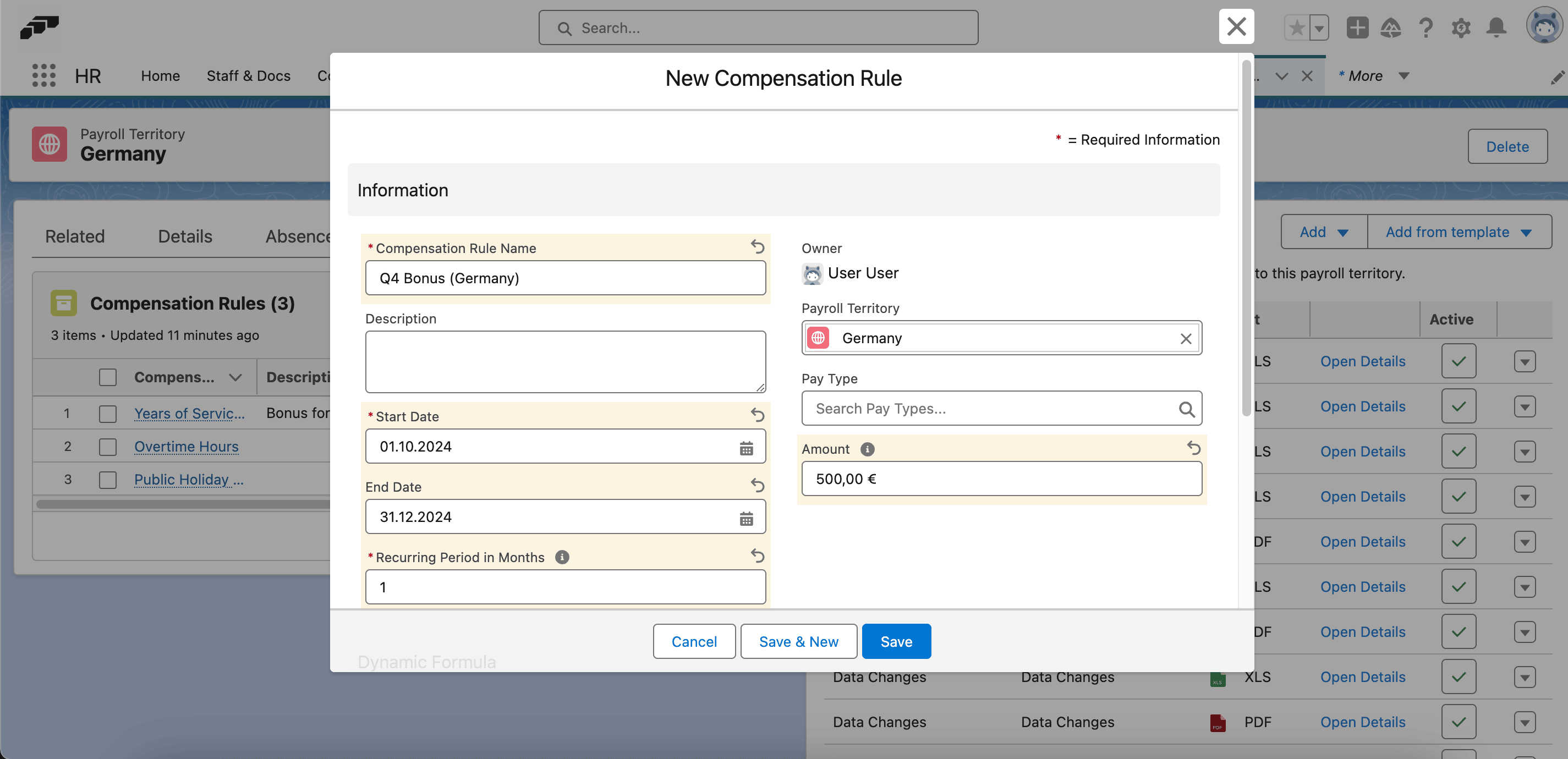
Create a fixed Compensation Rule
- Open the Payroll Territory, then select Compensation Rules.
- Click New. You can also find Compensation Rules in the App Launcher (⋮⋮ grid icon) and click New.
- Enter a rule name.
- Set Start Date and End Date.
- In Recurring Period in Months, enter the interval. Use
1for monthly,2for every two months, or0for every Payroll Run. - In Amount, enter the fixed compensation value.
- Click Save. flair applies the rule to employees in the territory for the defined period.
If Payroll Territory is empty, the rule applies to employees who do not belong to a territory. flair also applies rules when a new employee joins a territory or an employee changes territory.
Review the current Payroll Run or Employee Recurring Compensation – Rules on an employee record to confirm the results. To see how rule-based pay fits with pay bands and pay gap analysis, see Prepare for pay transparency with flair.
Changing the rule's Payroll Territory deletes future compensations and creates replacements for the new territory. Deleting a rule deletes related compensation except line items in locked or completed Payroll Runs.
Create a Pay Type
A Pay Type is a wage type, such as a regular salary, a bonus, or a public-holiday supplement. Its Code is the wage type code your payroll provider expects. Salaries, compensations, Compensation Rules, Time Type Rates, and Payroll Run line items can carry a Pay Type, and the ASCII payroll export uses its Code.
The Pay Types tab is visible to users with the Payroll Manager or Salary Manager custom permission, for example through the Flair Payroll Manager or Flair Salary Manager permission set.
- In the flair HR app, open Compensations → Pay Types.
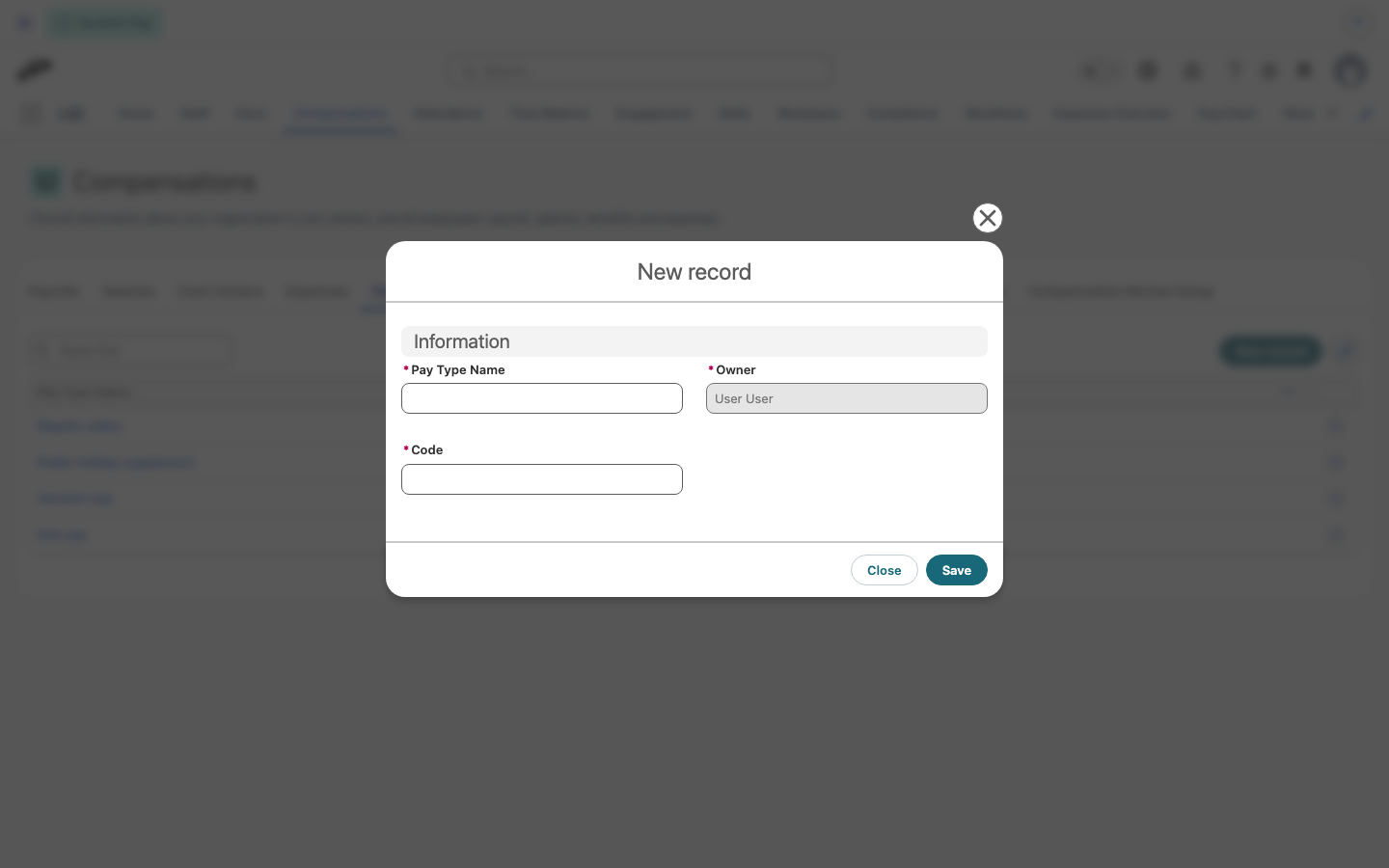
- Click New record.
- In Pay Type Name, enter a name, such as
Public holiday supplement. - In Code, enter the wage type code from your payroll provider.
- Click Save. The Pay Type appears in the list with its Code.
Add a Time Type Rate
Configure a Time Type Rate for each type of work that needs an additional payroll line. Payroll Runs use the employee's contracted hours to calculate the hourly rate, then apply the configured multiplier and Pay Type. To pay supplements (surcharges), such as for public holiday work, see Pay night, Sunday, and public holiday supplements.
- In the flair HR app, open HR Admin → Payroll Territories.
- Open the Payroll Territory where the rate applies, then select Time Type Rates (under More when the tab bar is full).
- Click the add icon (Add Row).
- In the new row, select a Time Type, select a Pay Type, and enter a Salary Multiplier.
- Submit the row with the save icon. The rate appears in the territory's list.
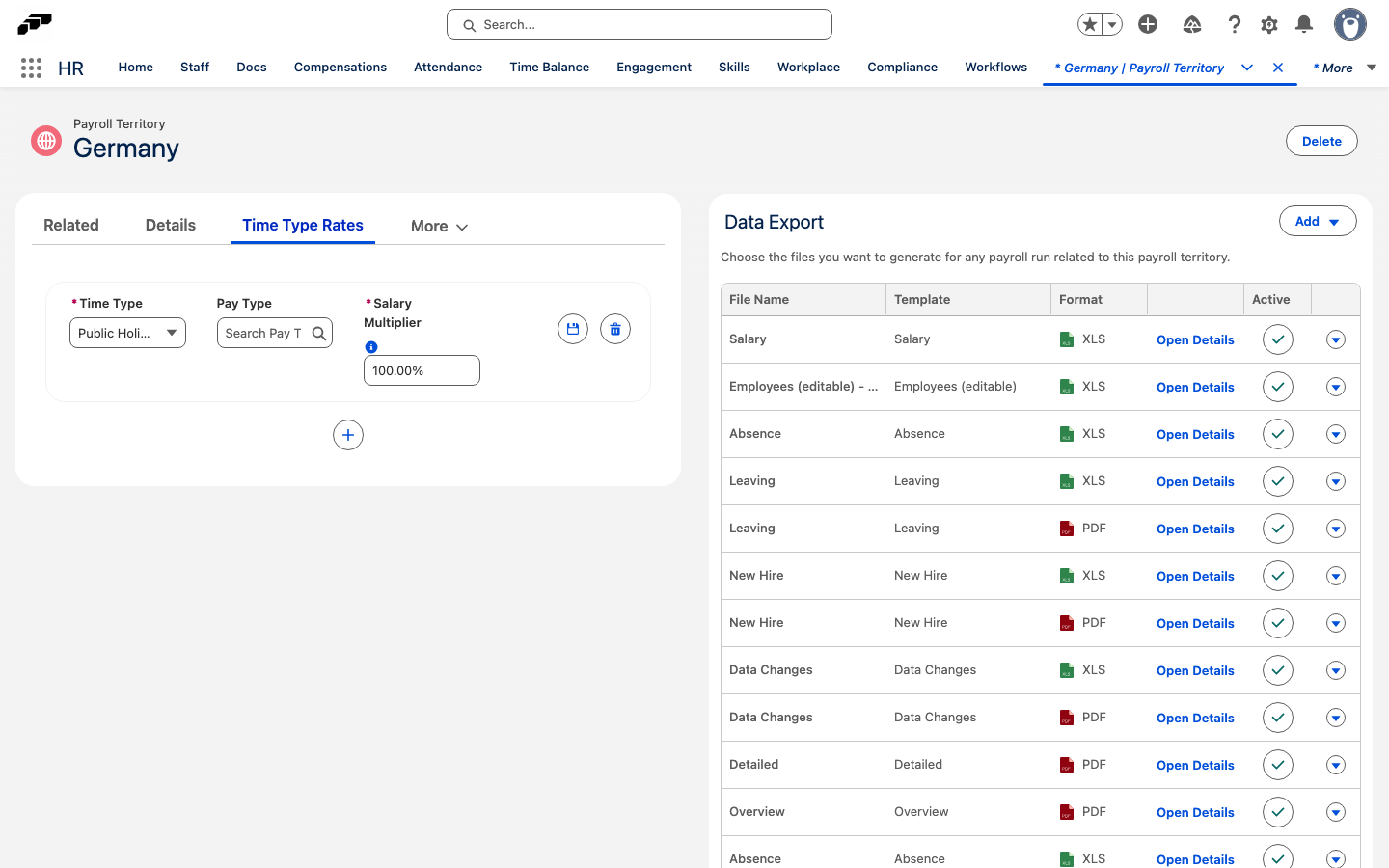
Each Time Type can have one rate in a Payroll Territory. Add a separate row for each Time Type that needs a payroll line.
Understand the Salary Multiplier
The multiplier creates an additional pay line on top of the employee's base pay. Enter the percentage of the employee's hourly salary that the additional line should pay:
| Salary Multiplier | Additional pay line |
|---|---|
50% | Adds half of the employee's hourly salary for the matching hours. |
150% | Adds one and a half times the employee's hourly salary for the matching hours. |
100% | Pays the matching hours a second time at the employee's hourly salary. |
The default is 100%. Change it when you intend to add a different premium.
flair derives the hourly rate from the employee's actual contracted hours. This supports part-time contracts and monthly workloads without assuming a fixed 40-hour week.
If the employee has no workload covering the payroll period, flair falls back to a 5-day, 8-hour work schedule.
Check the Payroll Run result
- Create or open a Payroll Run for the Payroll Territory.
- Include employees whose timesheets contain the configured Time Types.
- Complete the payroll calculation. flair adds a pay line for each configured Time Type worked during the run and assigns the selected Pay Type.
Do not configure the same Time Type through both a Time Type Rate and a Compensation Rule with an Employee Rate. Both paths can add pay for the same hours, which can pay the hours twice.
Set Pay Types for absences and public holidays
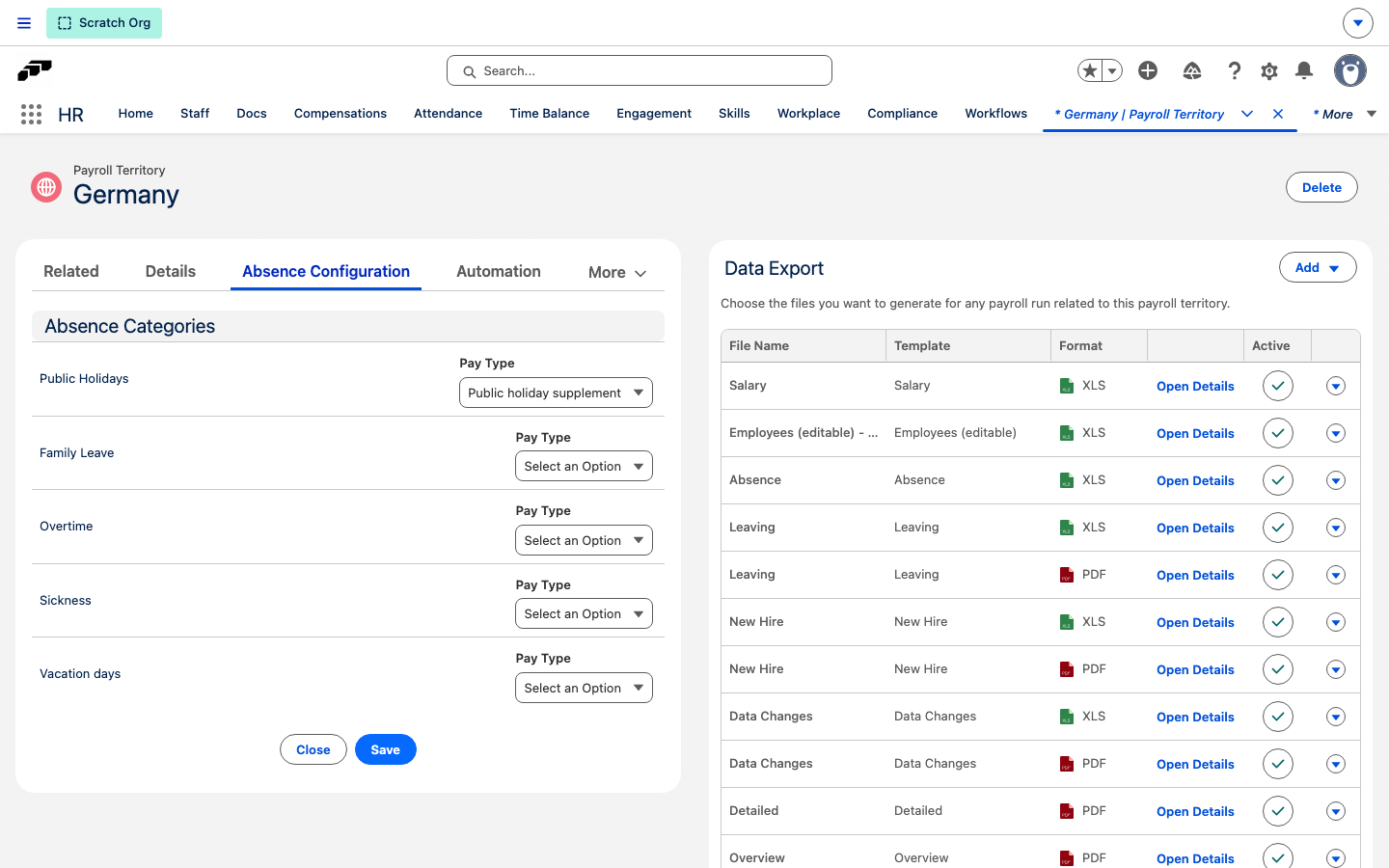
A Payroll Territory's Absence Configuration tab links public holidays and each absence category to a Pay Type. Payroll Runs use these settings to add lines for public-holiday hours and for absence hours in each category that has a Pay Type, for employees whose hourly salary has Compensate absences and public holidays selected. Each absence line carries the Pay Type of its own category, and the public-holiday line carries the Public Holidays Pay Type. See Add an employee salary. ASCII export files can also include the Code of these Pay Types on absence and public-holiday rows.
- In the flair HR app, open HR Admin → Payroll Territories, then open the Payroll Territory.
- Select Absence Configuration.
- Under Absence Categories, in the Pay Type field next to Public Holidays, select a Pay Type.
- For each absence category that should be paid, select a Pay Type next to the category. Leave the field empty for categories that shouldn't add payroll lines. The list shows active absence categories that have Export in Payroll selected.
- Click Save.
Create a dynamic rule from employee data
An employee compensation rule can vary by employee data, such as years of service or performance, instead of using a fixed Amount.
Create the formula field
- In Salesforce Setup, open Object Manager.
- Enter
Employee Recurring Compensationin Quick Find, then open the object. - Open Fields & Relationships, then click New.
- Select Formula, then click Next.
- Enter a Field Label, such as
Years of Service Bonus. - Set Formula Return Type to Currency, then click Next.
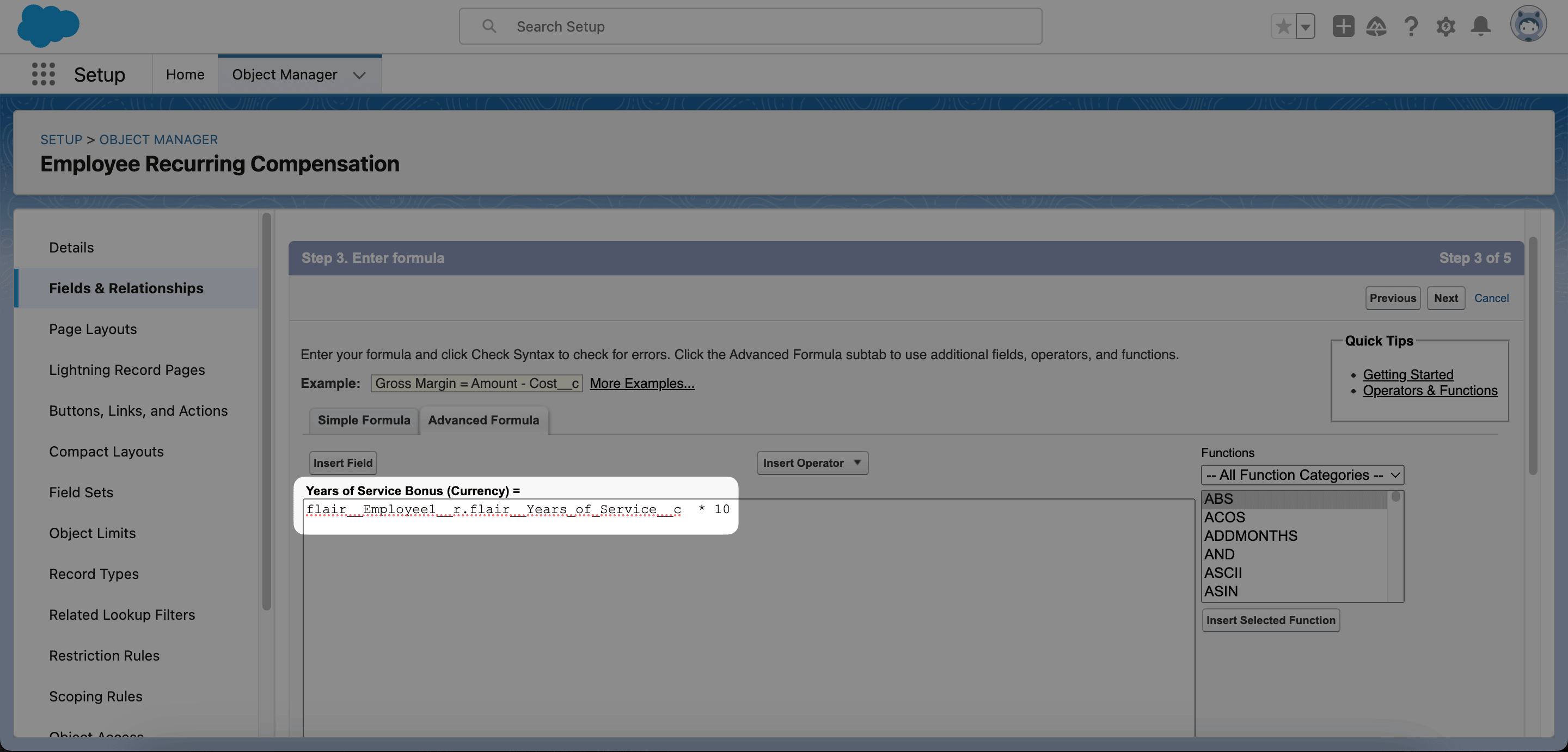
- In Advanced Formula, click Insert Field.
- Select Employee Recurring Compensation → Employee → Years of Service, then click Insert.
- Add the required operator or enter the formula. For a value of 10 per service year, multiply the field by
10. - Click Next, skip the field-level security step if appropriate, then click Save.
Apply the formula to the rule
- In Fields & Relationships, open the formula field and copy Field Name.
- Return to the Compensation Rule.
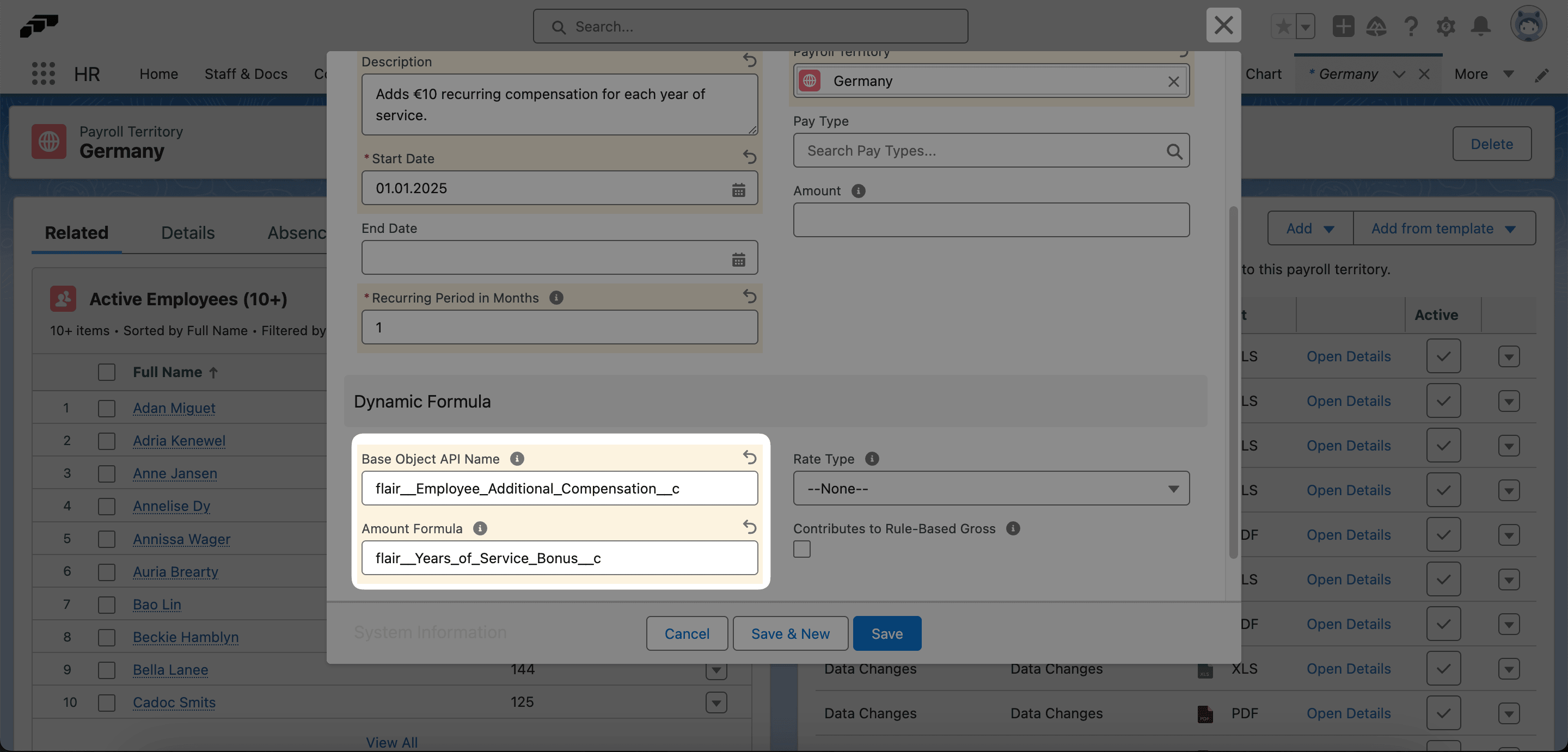
- In Amount Formula, paste the field name.
- In Base Object API Name, enter
flair__Employee_Additional_Compensation__c. - For a rule that does not use Employee Rates, keep Rate Type set to None.
- Click Save.
- Open Related, then review the calculated values in Amount.
If Rate Type is None, the rule applies to all employees in the selected Payroll Territory.
Create a dynamic rule from salary
This example multiplies years of service by one percent of salary. Every affected employee needs an Employee Rate.
Create the Employee Rate
- Open the employee record, then select Salary.
- In Employee Rates, click New.
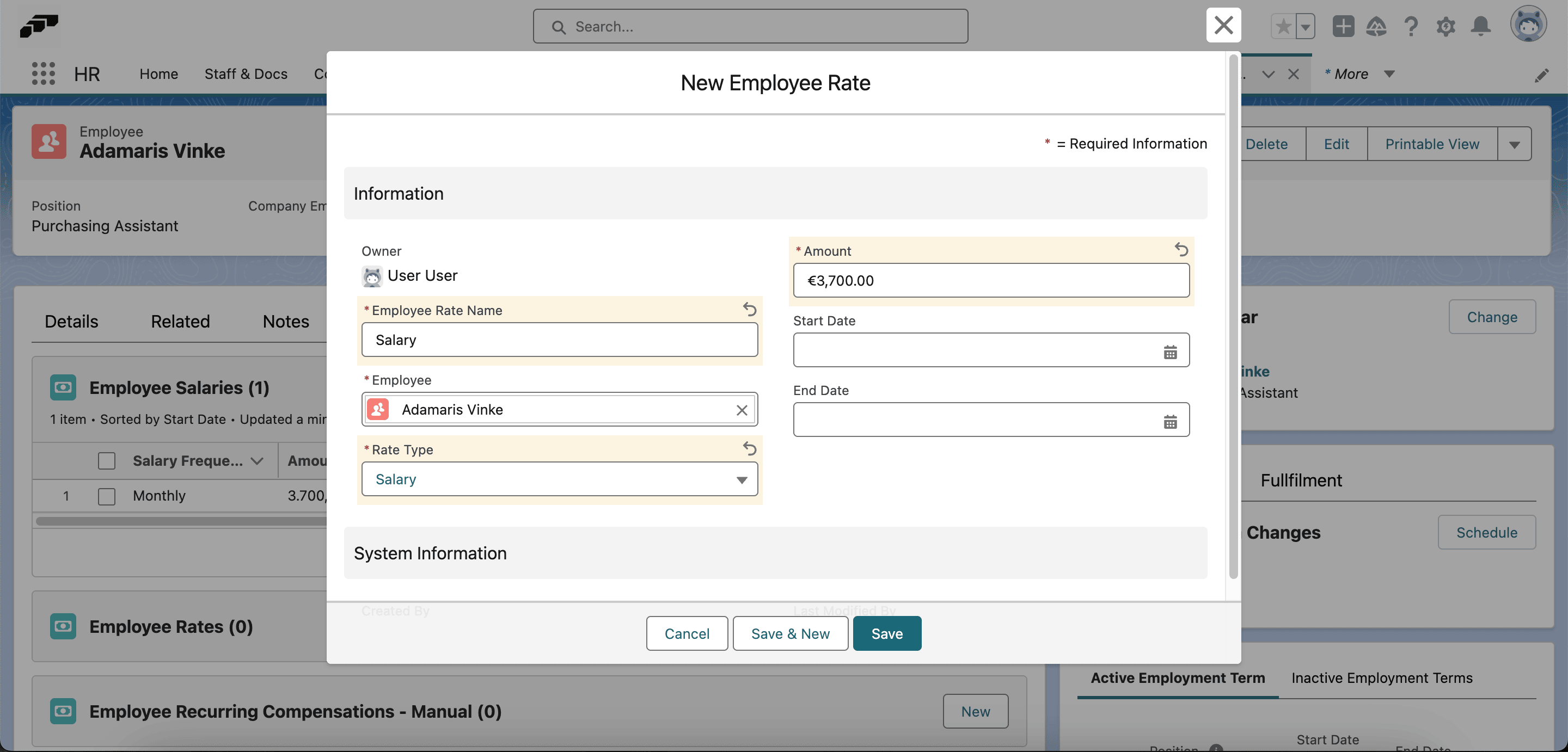
- Enter Employee Rate Name.
- Set Rate Type to Salary.
- In Amount, enter the employee's salary.
- Click Save.
Update the salary formula
- Create or edit the formula field for the rule.
- Add
flair__Employee1__r.flair__Years_of_Service__c. - Click Insert Field, then select Employee Recurring Compensation → Reference Employee Rate → Amount.
- Multiply the reference rate by
0.01. - Confirm that the complete formula is
flair__Employee1__r.flair__Years_of_Service__c * flair__Reference_Employee_Rate__r.flair__Amount__c * 0.01. - Click Save.
- On the Compensation Rule, set Rate Type to Salary.
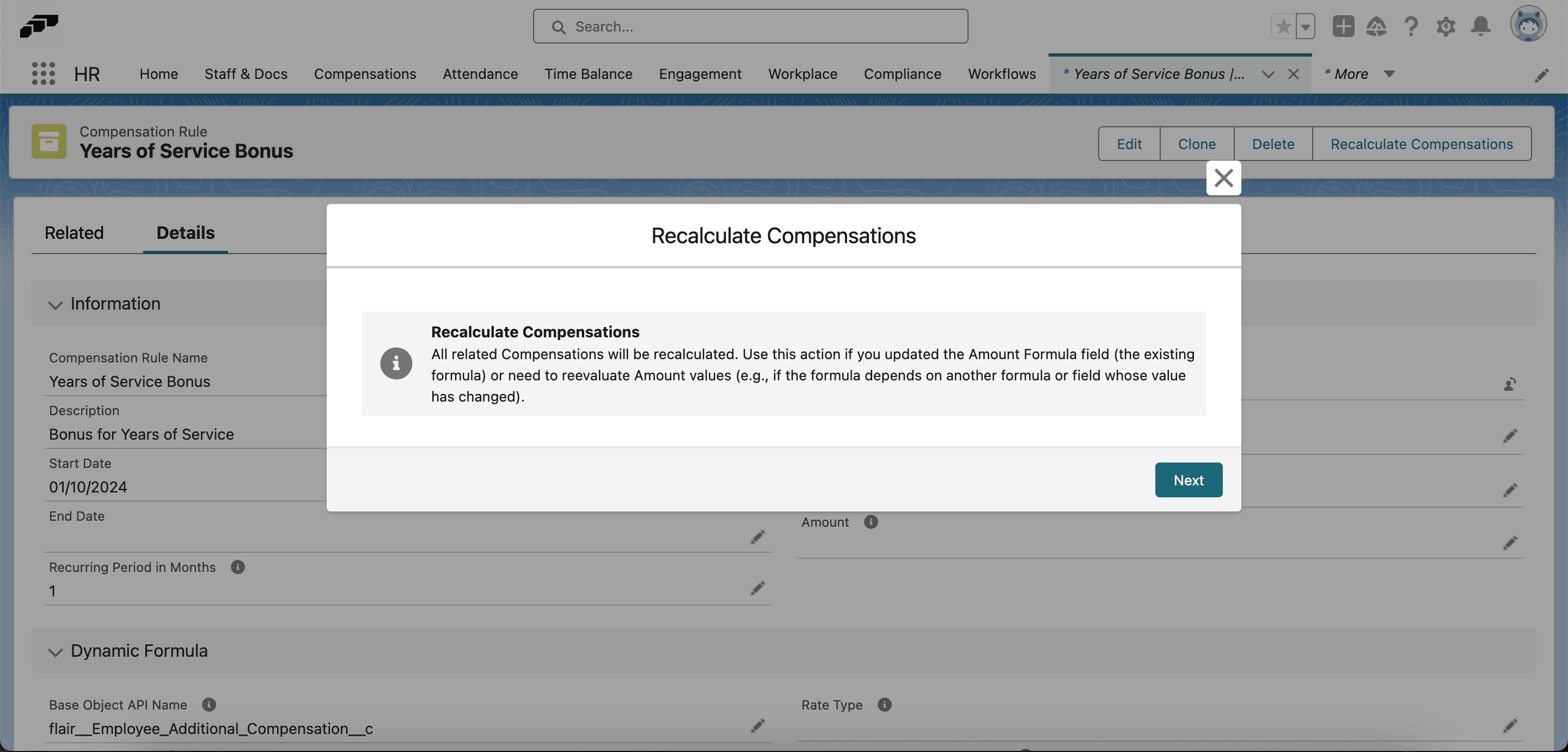
- If you edited an existing formula, click Recalculate Compensation.
Create a Payroll Run Rule
Payroll Run Rules calculate compensation from run-specific data, including standard, overtime, or public-holiday hours.
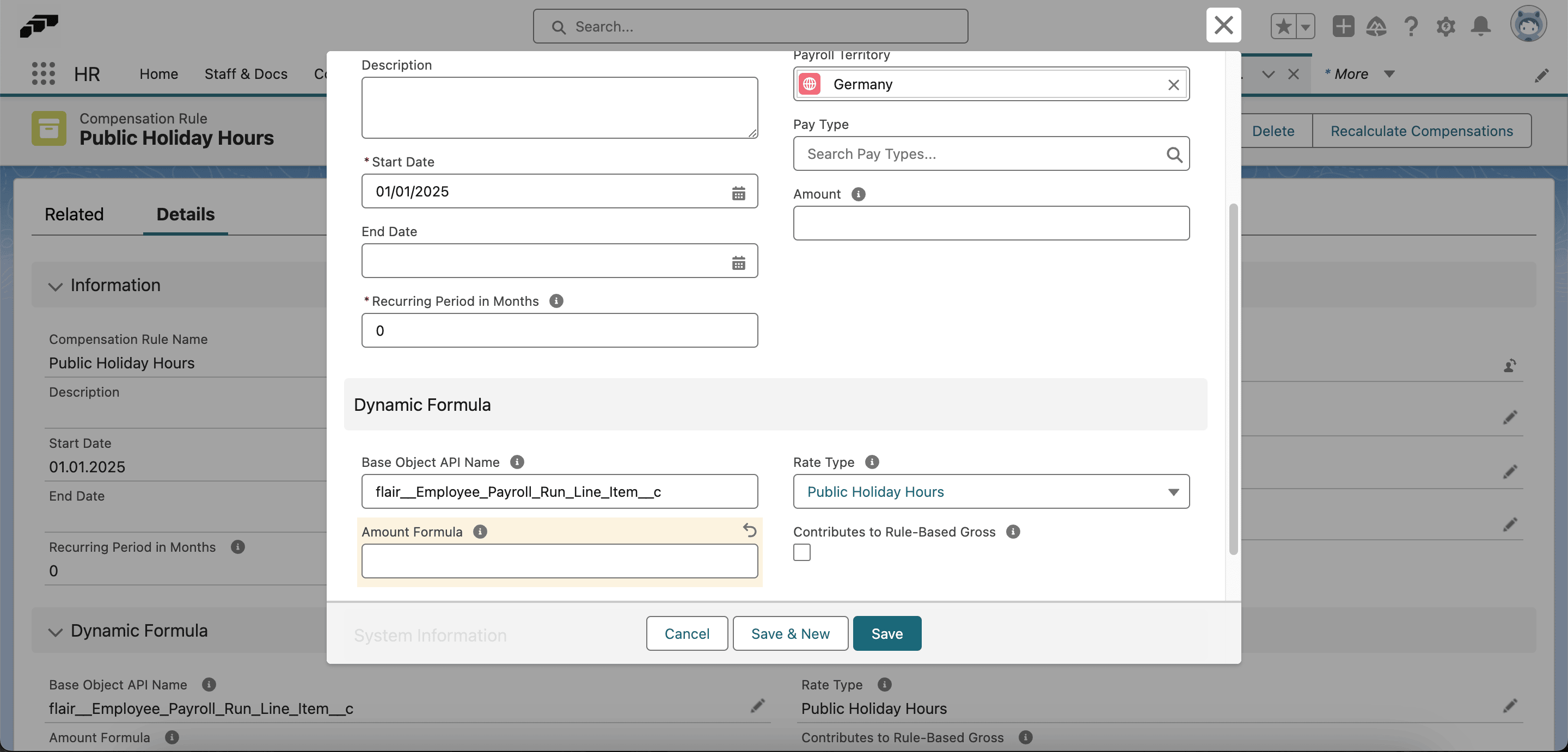
- Create a Compensation Rule with a name and Start Date.
- In Recurring Period in Months, enter
0to apply it to every Payroll Run. - In Dynamic Formula, set Base Entity API Name to
flair__Employee_Payroll_Run_Line_Item__c. - In Rate Type, select Public Holiday Hours, Overtime Hours, or Standard Hours.
- In Salesforce Setup, open Object Manager → Employee Payroll Run Line Item → Fields & Relationships.
- Find the formula field, such as Public Holidays Compensation, then copy Field Name.
- Return to the rule and paste the value into Amount Formula.
- Click Save.
The recurring compensation initially shows 0 because the calculation needs hours from a Payroll Run.
For each affected employee, create an Employee Rate on Salary with the matching Rate Type and hourly Amount. For example, an amount of 30 for Public Holiday Hours pays €30 per public-holiday hour.
Add a deduction
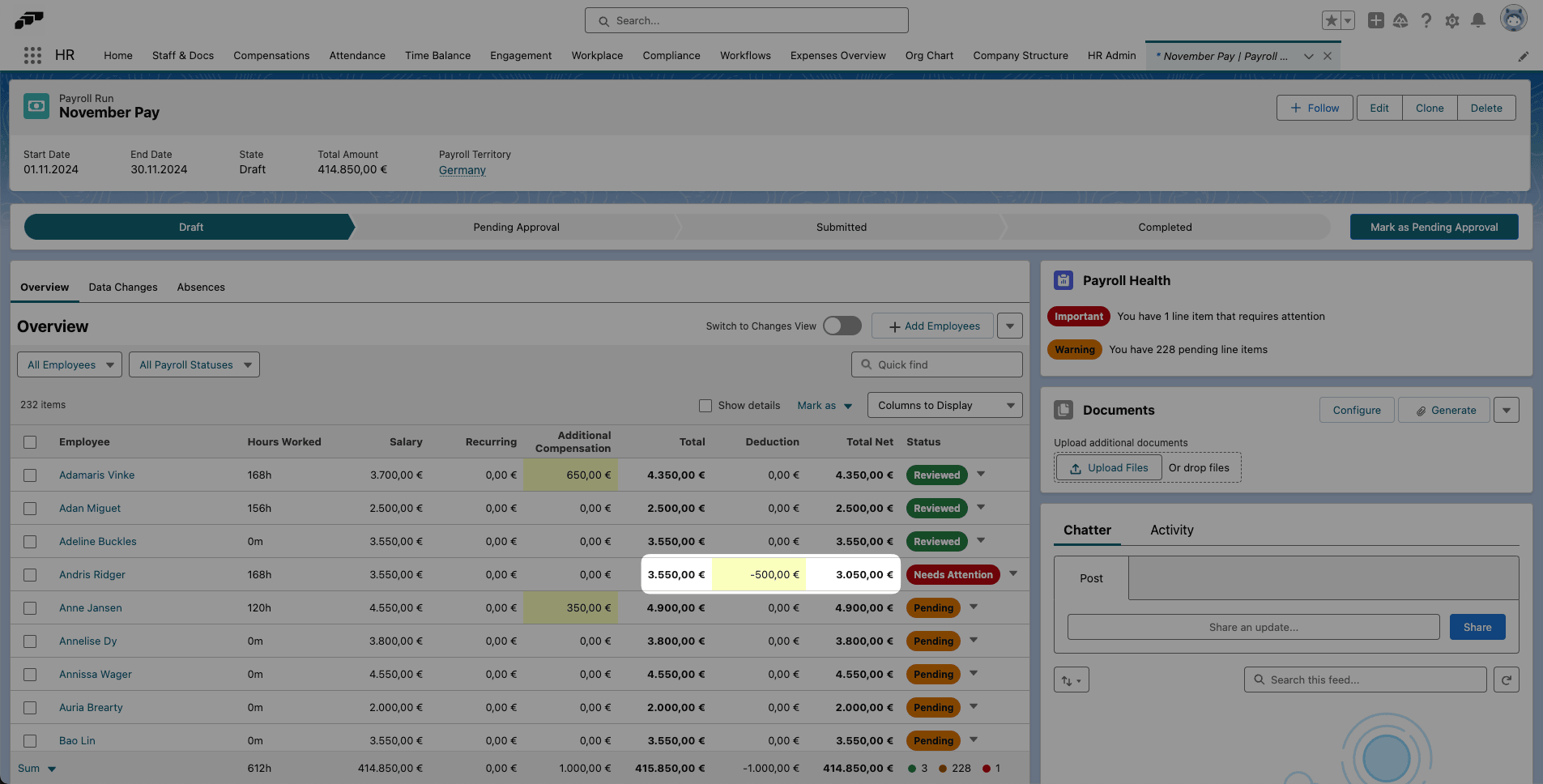
Negative compensation appears in the Deductions column. Total shows compensation before deductions, and Total Net shows the value after deductions.
Add a deduction to one Payroll Run
- Open the Payroll Run and select the employee.
- Under Incomes, click Add new line.
- In the new row under Other compensations, enter a name for the deduction.
- In Amount, enter a negative value, such as
-100. - Click Save. The value appears under Deductions, and Total Net updates.
Add a recurring or one-time deduction
- For a regular deduction, open the employee's Salary tab and create Employee Recurring Compensation with a negative amount.
- For a single deduction, create Employee One-Time Compensation with a negative amount.
Add deductions through an API
- Move the Payroll Run to a locked Submitted stage.
- Assign the custom permission for payroll API access to the integration user.
- Through the API, create compensation line items with negative amounts.
Use the available method based on the deduction:
| Method | When to use it |
|---|---|
| Employee Recurring Compensation | A fixed deduction that repeats, such as a monthly loan repayment. |
| Employee One-Time Compensation | One deduction in a specific period. |
| Payroll Run Line Item | An ad hoc deduction in one run or imported from another system. |
| Compensation Rules | A rule-based deduction for several employees. |