Manage payroll data, documents, and bank details
Set up payroll territories and salaries, manage employee bank details, schedule data changes, and create or export payroll documents in Salesforce. To create and review Payroll Runs, see Create and review Payroll Runs.
HR Admins and payroll teams in the flair HR app in Salesforce. Employees can submit bank details through the Employee Hub when their organization enables those fields. Access to Mass Employee Documents Upload and Employee Documents is required for bulk document uploads.
Create a Payroll Territory
- In the flair HR app, open HR Admin → Payroll Territories.
- Click New.
- Enter the territory name, country, and currency.
- Click Save.
- Open the territory and add its employees. Only assigned employees appear in Payroll Runs for that territory.
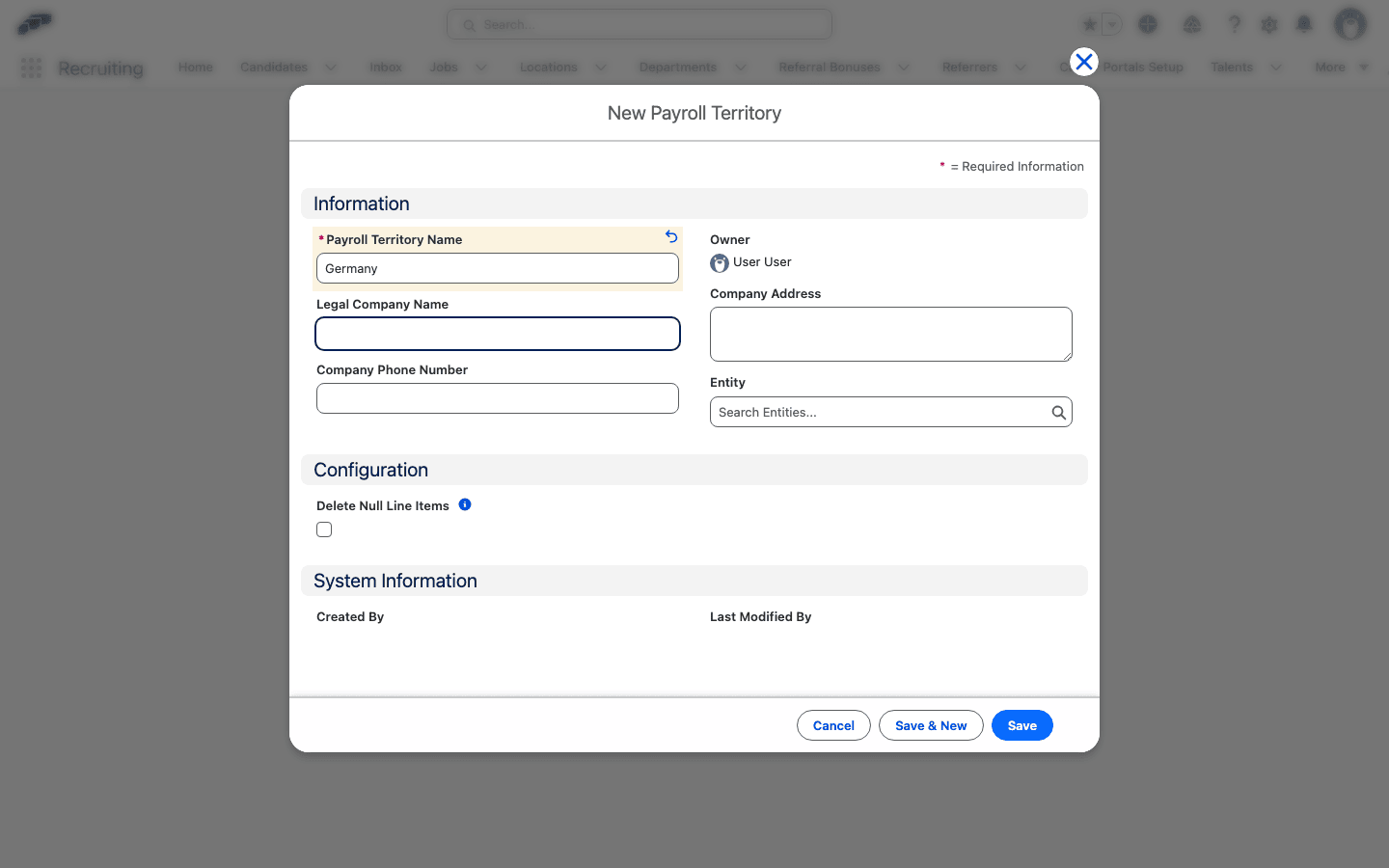
If an employee is missing from a Payroll Run, confirm that the employee belongs to the selected Payroll Territory.
Enter an IBAN in Salesforce
Enter an employee's IBAN for salary payments and let flair validate and normalize it. flair then looks up the Bank Name and BIC asynchronously and shows the lookup status when the result needs attention.
- Open the employee record in Salesforce.
- In Payment Information, enter the employee's IBAN in IBAN.
- Save the employee record. flair removes spaces, converts the IBAN to uppercase, and starts the bank lookup.
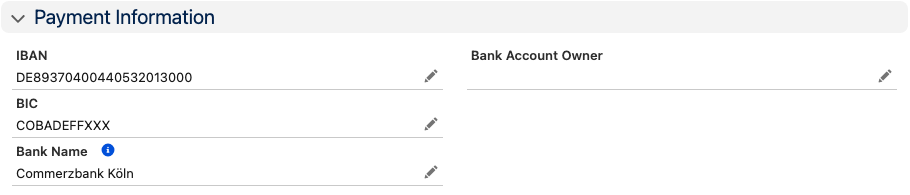
If the IBAN has an invalid country code, length, or check digits, Salesforce rejects the save and shows an error on IBAN. Correct the value before saving again.
Submit an IBAN from the Employee Hub
Enter the IBAN in the employee's profile or onboarding data, then submit the change. flair applies the same format validation and normalization before accepting the submission.
Review the lookup result
Review these fields after the asynchronous lookup runs:
| Field | What it means |
|---|---|
| Bank Name | The bank name returned for the IBAN. |
| BIC | The BIC returned for the IBAN. |
| Bank Lookup Status | The result of the latest lookup. This field is not on the standard Employee page layout; add it to the layout or to a report to see it. |
The status uses these values:
| Status | Meaning |
|---|---|
PENDING | The IBAN changed, and the lookup has not finished. |
FOUND | flair filled Bank Name and BIC from the lookup. |
NOT_FOUND | No bank was found. Lookup supports IBANs from Germany, Austria, Switzerland, the Netherlands, Belgium, Luxembourg, and Liechtenstein. For other countries, or when the provider cannot respond, enter Bank Name and BIC manually. |
ERROR | The lookup service was unavailable. Clear the IBAN and save, then enter it again and save, or enter Bank Name and BIC manually. |
When you change an IBAN, flair clears the derived values and starts a new lookup. Bank Name, BIC, and Bank Lookup Status are read-only in the Employee Hub.
Why Schedule Changes?
This section covers how to schedule future changes, backdate corrections, and use the Apply directly to the employee record option.
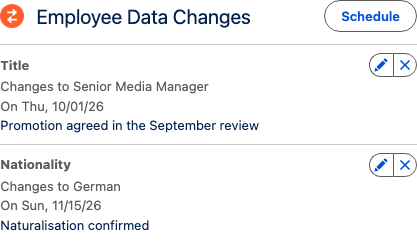
Employee data changes all the time. Instead of editing an employee record the moment something changes, you schedule the change against the date it takes effect — a salary rise from the first of next month, or a new job title from the start of the quarter.
flair records the change in the employee's history with that effective date, so payroll and reporting see the right value for the right period. The history shows not only what a value is, but since when it applies.
An immediate edit updates the value on the record, but it says nothing about when the change took effect. For anything that looks at a period rather than a single moment — payroll and reporting — that timing matters.
Scheduling ties the change to its effective date from the start. A salary rise counts from the date it takes effect, and a correction counts from the date it should have taken effect — not from the day somebody happened to enter it.
Because the change is recorded in the employee's history with its effective date, payroll and reporting always see the right value for the right period, even when the change was entered well before or well after it took effect.
Scheduling a Future Change
Scheduling a future change is the everyday case: you know a change is coming, and you record it now, against the date it becomes effective.
To schedule a future change:
- Open the employee record and find the Employee Data Changes card, which lists any upcoming changes.
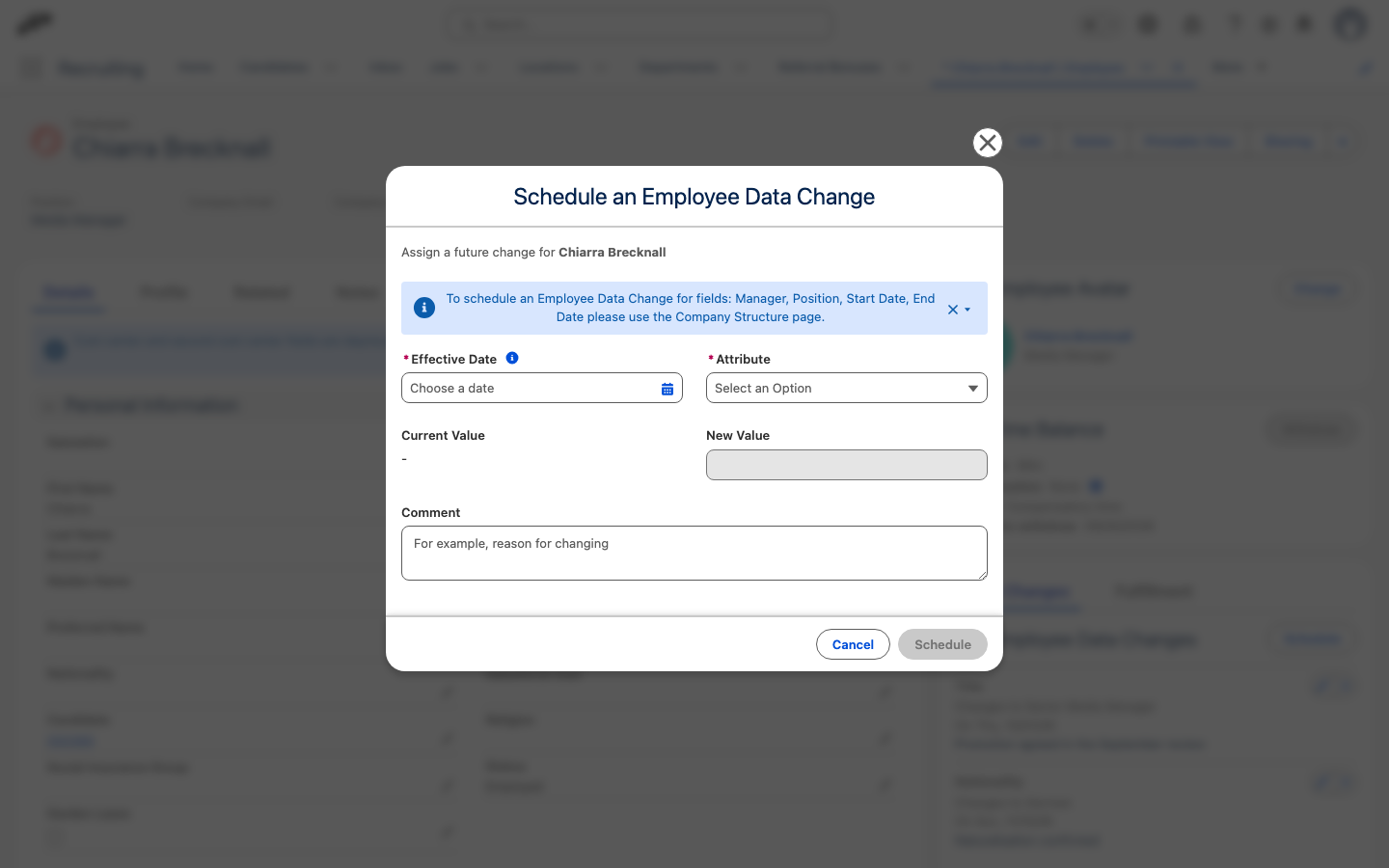
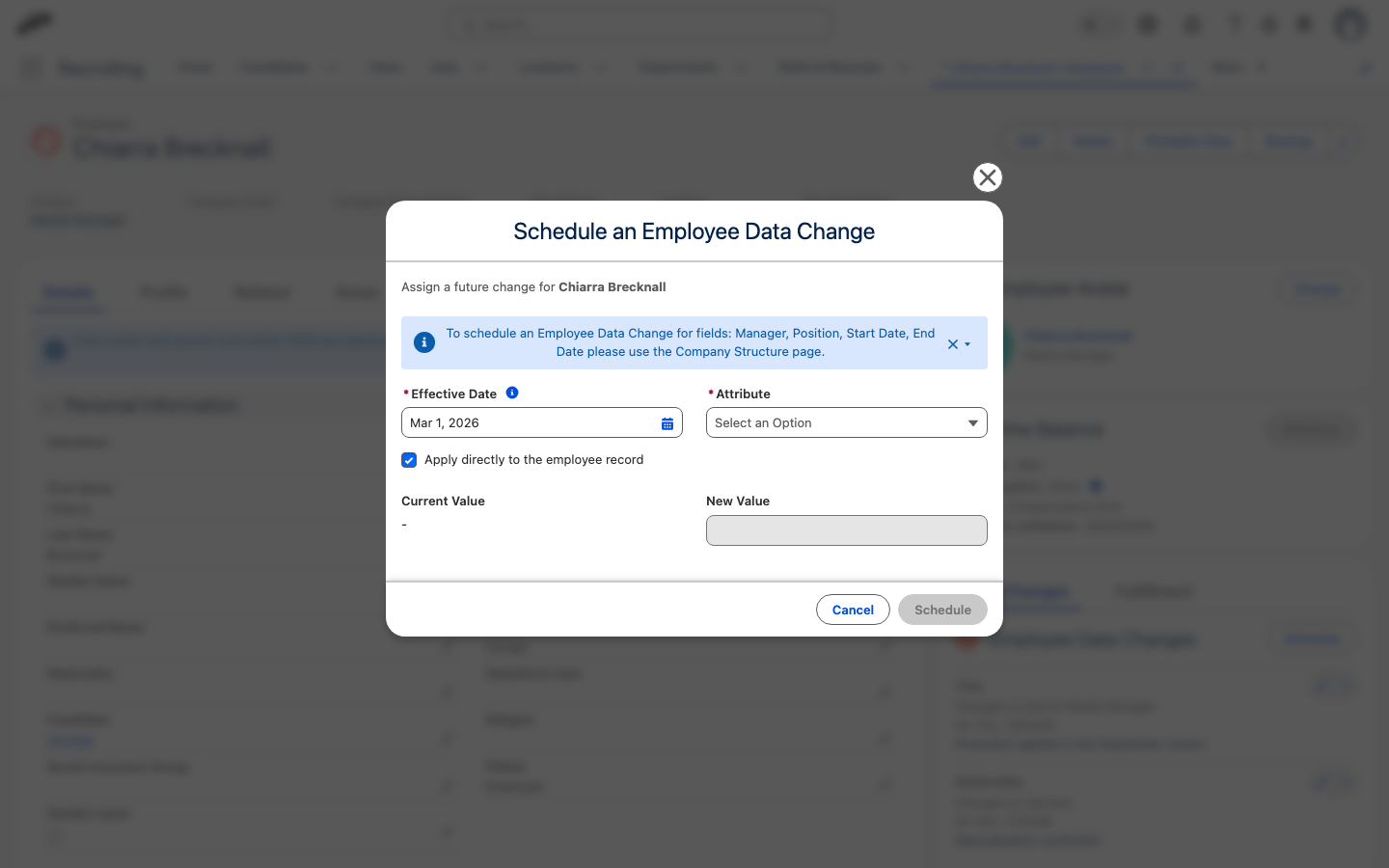
- Click Schedule. The Schedule an Employee Data Change dialog opens.
- Set the Effective Date — the day the change takes effect.
- Pick the Attribute you want to change. flair shows you the Current Value so you can see what you are replacing.
- Enter the New Value, and optionally a Comment explaining the reason.
Manager, Position, Start Date and End Date are not scheduled here. The dialog points you to the Company Structure page for those, because they belong to the employee's position rather than their personal data.
flair records the change in the employee's history with that effective date. When the day arrives, nothing has to be remembered or re-entered — the history already carries the change.
Backdating a Change
You can also give an effective date in the past. This is what makes corrections possible after the fact.
Imagine a raise that was agreed in March but only entered in May. The raise should count from March, and historical payroll runs should reflect it. Scheduling the change with the March effective date writes it into the employee's history from when it actually took effect — not from when you got around to entering it.
Backdating keeps the original effective date intact. If a change should count from an earlier date, schedule it with that date instead of editing the record today.
The Apply Directly to the Employee Record Option
When the effective date is in the past, the form shows an Apply directly to the employee record option, which is on by default. It decides what happens to the employee record itself:
- Left on — the employee record is updated immediately and the change is written into employee history with its original effective date.
- This is what you normally want: the record is correct now, and the history explains since when.
- Turned off — only the history record is written; the employee record itself is left alone.
- Use this when the current value is already right and you are correcting the record of when it changed.
Effective Dates at a Glance
The effective date may be in the past or the future, but not today — a change taking effect today is an ordinary edit to the record.
| Effective date | What it means |
|---|---|
| In the future | The change is recorded in the employee's history and takes effect on that date. |
| In the past | The change is recorded with its original effective date, and the Apply directly to the employee record option appears (on by default). |
| Today | Not an option — a change taking effect today is an ordinary edit to the record. |
In short: schedule changes that take effect on another day, and edit the record directly when the change applies today.
Add an employee salary
An employee's base pay is stored as an Employee Salary record on the employee's Salary tab. Payroll Runs calculate the salary line for each employee from these records. The lists on the Salary tab are visible only to users with the HR Manager, Payroll Manager, or Salary Manager custom permission, for example through the Flair Manager, Flair Payroll Manager, or Flair Salary Manager permission set.
- Open the employee record in Salesforce, then select the Salary tab.
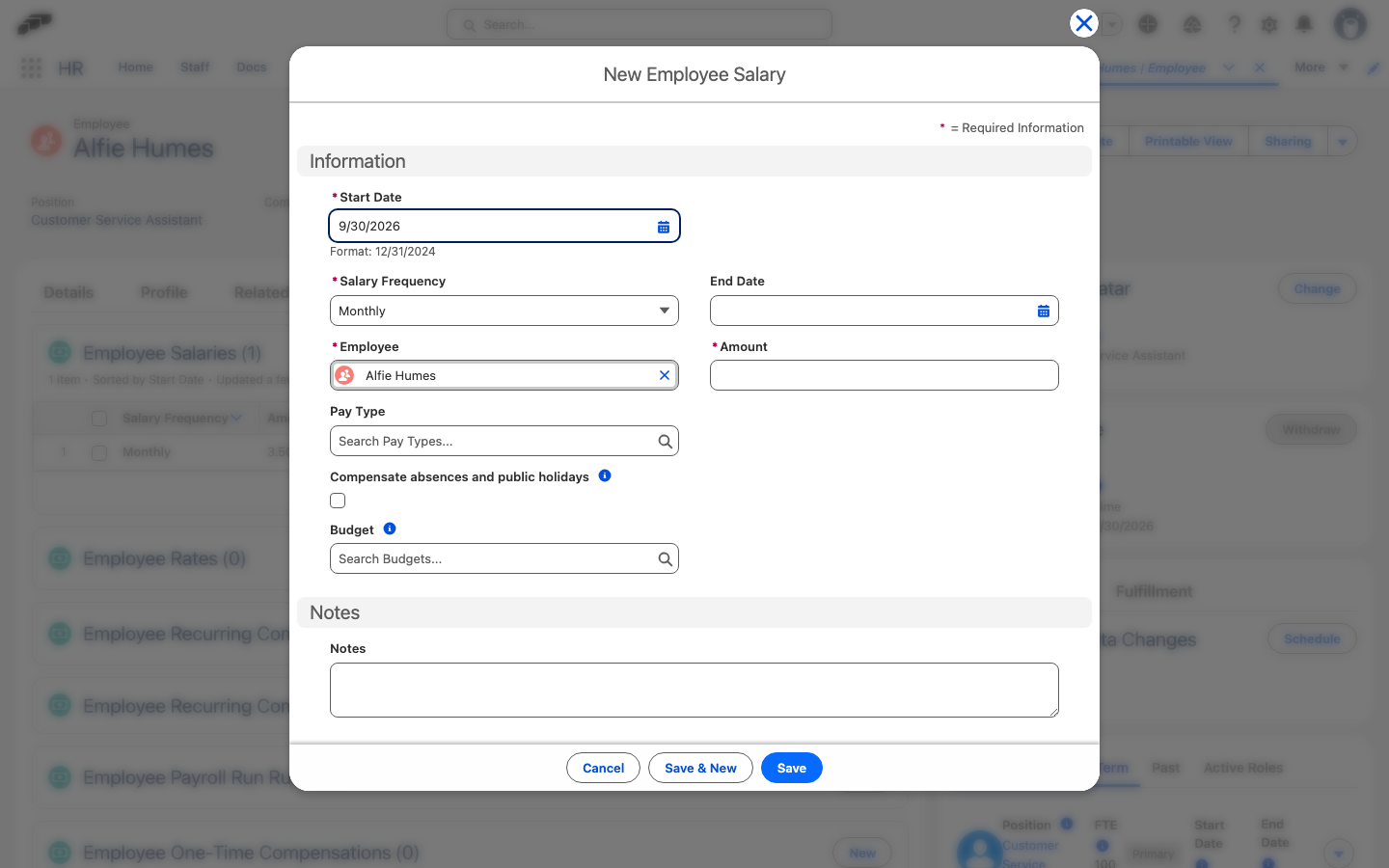
- In Employee Salaries, click New.
- In Salary Frequency, select Monthly, Hourly, Weekly, Bi-weekly, or Annual.
- In Amount, enter the pay for one unit of that frequency, such as the monthly amount or the hourly rate.
- Set Start Date. Optional: Set End Date if the salary is temporary or already known to change.
- Optional: In Pay Type, select the Pay Type the salary line carries into Payroll Runs. Pay Types are listed in Compensations → Pay Types.
- Optional: For an hourly salary, select Compensate absences and public holidays.
- Click Save. The salary's Status shows Upcoming, Active, or Expired depending on its dates.
A Payroll Run includes every salary whose dates overlap the run period:
| Salary Frequency | How the Payroll Run calculates it |
|---|---|
| Hourly | Amount multiplied by the hours of the employee's time entries linked to the run. |
| Monthly | Amount for a full month, prorated by day when the salary starts or ends inside the run. Proration divides by the days in the month, or by 30 when the Prorate salary based on 30 days payroll setting is on. |
| Annual | One twelfth of Amount for a full month, prorated the same way. With a 13th or 14th salary or Payment Months, the year is divided by the number of payments instead. |
| Weekly, Bi-weekly | Amount multiplied by the number of days the salary covers in the run, divided by 7 or 14. |
To pay a 13th or 14th salary, or to pay a salary only in some months, see Pay a 13th or 14th salary.
Compensate absences and public holidays applies only to Hourly salaries. When it's selected, the Payroll Run adds paid lines at the hourly Amount based on the Payroll Territory's Absence Configuration tab: one line for public-holiday hours when Public Holidays has a Pay Type, and one line for the absence hours of each absence category that has a Pay Type there, carrying that category's Pay Type. If the tab has no configuration, no lines are added.
In orgs with multiple currencies, a Payroll Run only includes salaries and compensations in the run's currency.
The Salary tab also holds Employee Recurring Compensations - Manual for pay that repeats on a schedule, such as a monthly allowance, and Employee One-Time Compensations for a single payment. Add either with New in its related list. Payroll Runs include them next to the salary line. A negative amount turns either into a deduction; see Add a deduction.
To see salaries across employees, open Compensations → Salaries (requires the Payroll Manager or Salary Manager custom permission). Filter the list by entity and location.
Create and review Payroll Runs
Creating, reviewing, automating, and reversing Payroll Runs is covered in Create and review Payroll Runs.
Configure documents for data export
Each Payroll Territory defines the files flair generates for its Payroll Runs, such as a salary list or a data changes report for your payroll provider.
- In the flair HR app, open HR Admin → Payroll Territories.
- Open the territory. The Data Export card lists the territory's export files.
- Click Add, then select a file type. flair adds the file with a default name and format. If your org has export file templates, you can instead click Add from template and select a template.
- To configure the file, click Open Details in its row.
- Optional: Click the edit icon next to the file name and enter a new name.
- On the File Settings tab, select the file format and adjust the file's settings.
- Click Save.
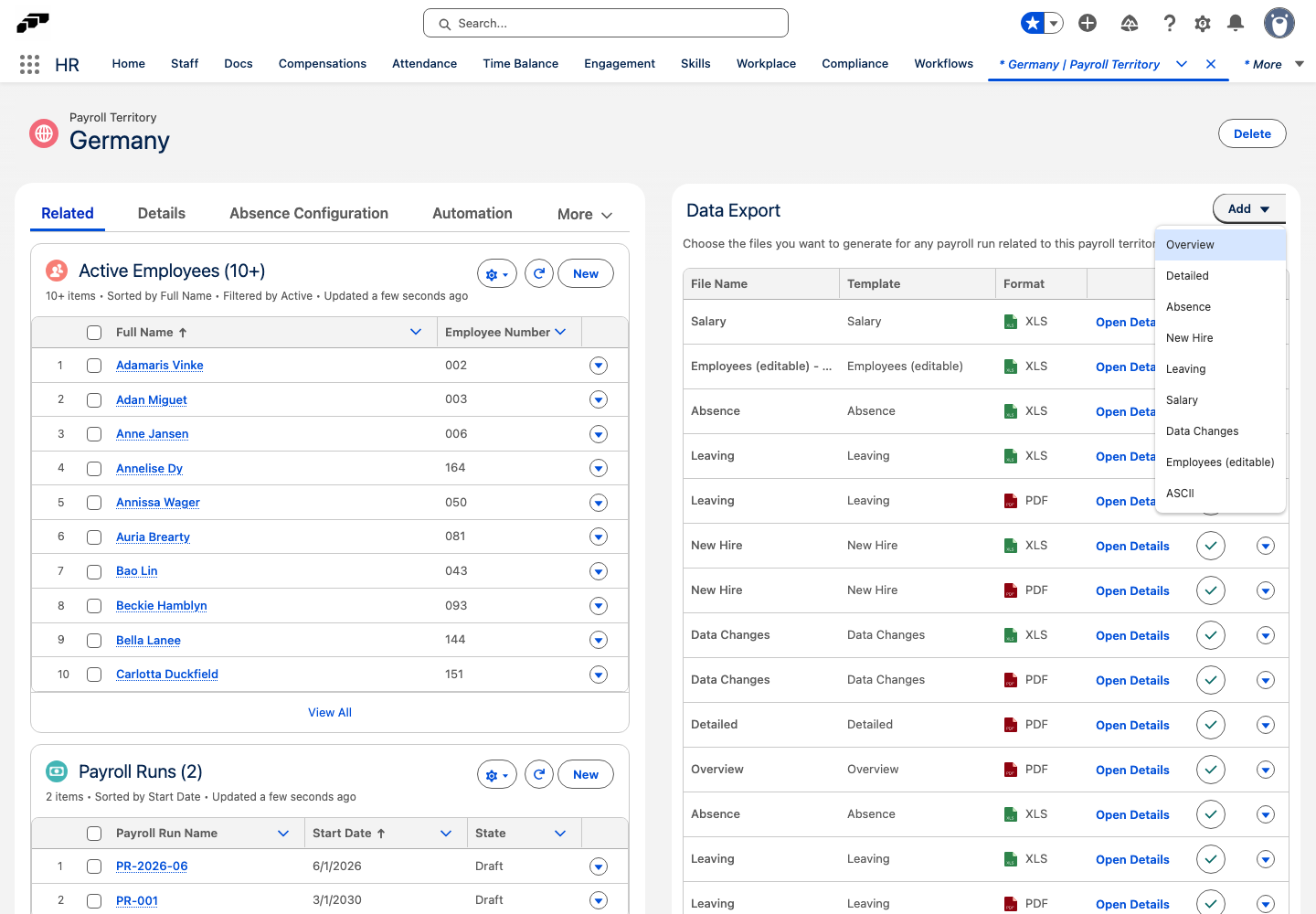
flair generates only files that are active. Click the icon in a file's Active column to switch it on or off. Use the row menu to Clone or Delete a file.
The file types and their formats:
| File type | Formats |
|---|---|
| Overview, Detailed | |
| Absence, Salary | CSV, XLS |
| New Hire, Leaving, Data Changes | PDF, XLS |
| Employees (editable) | CSV, XLS |
| ASCII | TXT |
Employees (editable) is the only type whose columns you choose: on File Settings, click Add field or Add empty field to add columns. ASCII files open a section-based editor instead of a field list, where Add Section adds a section and Import from JSON edits the whole file definition as JSON. For an ASCII file, the Testing tab lets you select a Payroll Run and one of its employees, then click Generate Test Ascii File to preview the result.
Use the Mapping tab to translate values into the codes your payroll provider expects. Click Add New Mapping, enter the Object API Name and Field API Name of the value to translate, then click Add New Value to add each pair of Original Value and External Value. Default Value is used when a value has no mapping; leave it empty to export the original value. Import from JSON lets you edit the mapping as JSON.
File names can include placeholders that flair fills in when it generates the file: {payrollStartDate}, {payrollEndDate}, {dataChangesStartDate}, and {dataChangesEndDate}. For example, Salary {payrollStartDate} - {payrollEndDate}.
Generate payroll documents
- In Payroll Runs, open the run.
- In the Documents card in the right sidebar, click Generate. flair generates every active export file configured on the Payroll Territory and replaces files it generated earlier under the same name.
- Optional: To generate a single file, open the menu next to Generate and select the file.
- Click a file name to preview it, or click Download all to download every file on the run.
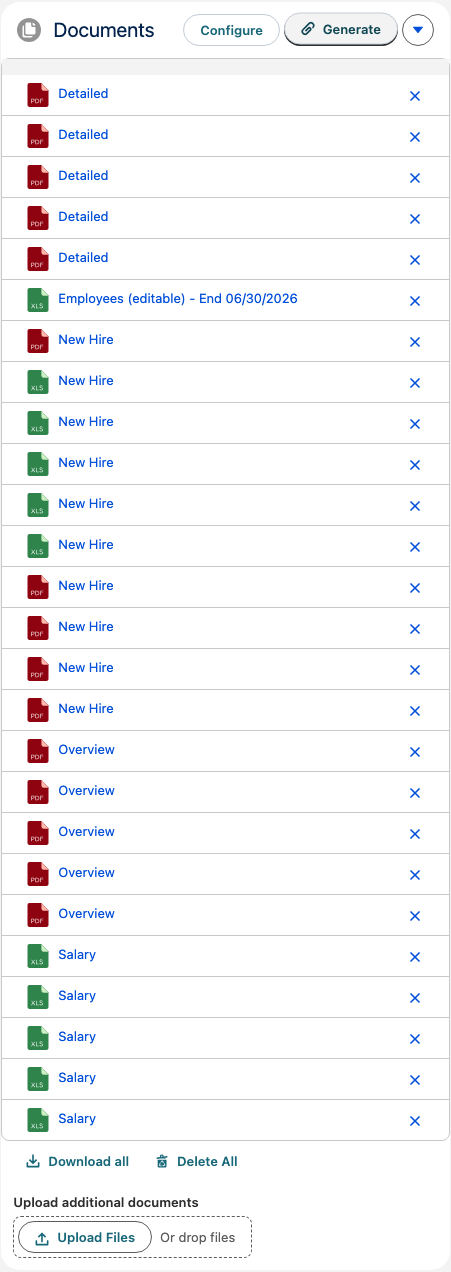
To add files that flair doesn't generate, such as a document from your payroll provider, use Upload additional documents in the same card. Configure opens the Payroll Territory, where you manage the export files. flair skips a PDF New Hire, Leaving, or Data Changes file when the run has no employees or changes to report.
Once the run is Completed, Generate, file deletion, and uploads are no longer available, but you can still preview and download the files.
To generate the files for one employee only, open the employee's panel in the run and select the Files tab, which has the same Generate controls until the run is locked or completed.
flair doesn't create payslips itself. To bring payslips from your payroll provider into flair, use the DATEV integration or the SwissSalary integration, or split a combined payslip file into Employee Documents with Mass Employee Documents Upload.
Split a payslip file into Employee Documents
If your payroll provider sends one combined PDF with every employee's payslip, a Mass Employee Documents Upload with the Split uploader type cuts it into one Employee Document per employee. Set the upload's Default Document Category to a category such as Payroll. For the full procedure, see Split one PDF into Employee Documents.