Connect and use DATEV
Connect a German Payroll Territory to DATEV to exchange employee and payroll data and retrieve supported payroll documents. During setup, choose the target payroll system and the DATEV use cases to enable. HR Files uses the configuration on each Payroll Export File.
HR Admins and payroll teams in Salesforce with a DATEV account and access to HR Admin integrations. The available use cases depend on the target payroll system and the options you enable during connection.
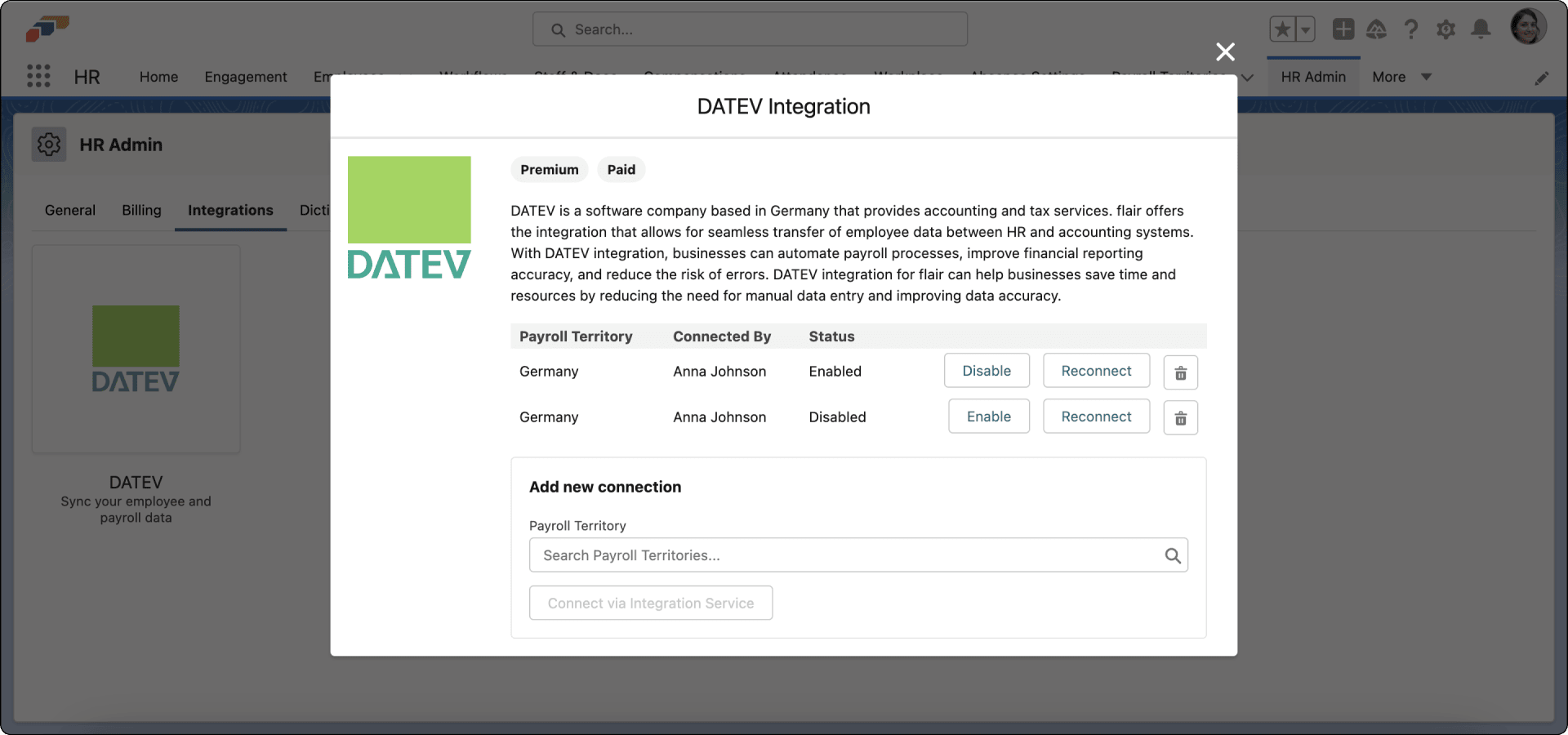
Connect DATEV
- In the flair HR app, open HR Admin → Integrations.
- Select DATEV.
- Select the Payroll Territory.
- Enter Consultant Number and Client Number.
- In Target System, select LODAS or Lohn und Gehalt.
- Enable at least one use case, such as Enable HR Payroll Reports, Enable eAU, or Enable HR Files. Enable HR Exchange is available only in a sandbox.
- Click Connect Via Integration Service.
- Grant flair access to the DATEV account.
- Sign in to DATEV.
- Click Enable.
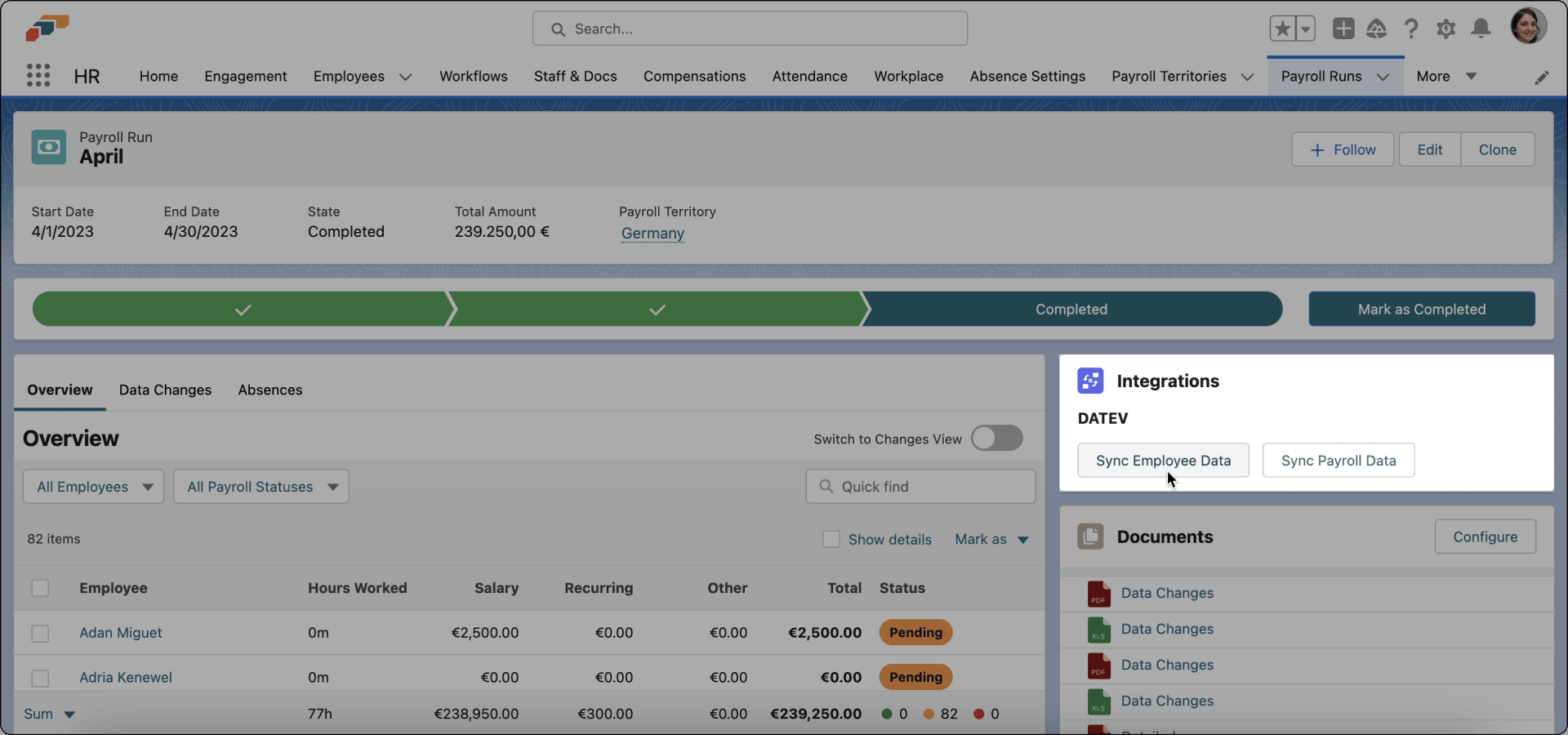
Sync employee and payroll data
- In the flair HR app, open the Payroll Run.
- In Integrations, click Sync Employee Data after an address, IBAN, salary, or other employee value changes.
- Click Sync Payroll Data after you manually add compensation or include employees paid for time worked.
The connection's Target System controls HR Exchange and eAU behavior. For HR Files, the relevant Payroll Export File's external configuration selects LODAS or Lohn und Gehalt instead.
Enable DATEV document types
- In HR Admin, open Integrations → DATEV.
- Review the available HR files, Payroll Reports, and document types.
- Enable the file types to download, such as payslips.
- Configure notifications for available files.
flair shows the cards and document types for the use cases enabled on the DATEV connection. If a use case is disabled, its related cards and status checks do not appear.
Copy the accountant connection link
If your tax accountant manages the DATEV login, send them a link so they can authorize flair's DATEV access with their own DATEV account. The action is available only while the connection to DATEV is active.
- In HR Admin, open Integrations → DATEV.
- Click the connection name to open the connection record.
- On the DATEV Connection Status card, open the actions menu.
- Click Copy accountant connection link. flair copies the link to your clipboard and confirms with Accountant connection link copied to clipboard.
- Send the link to your accountant. When they open it, they sign in to DATEV and grant access for the connection.
The link works once and expires after one week. If it expires or has been used, copy a new link.
Download DATEV files
- In the flair HR app, open the Payroll Run for the correct period and territory.
- Review the available DATEV document types.
- Click Download files. flair retrieves all available files for employees in the run and combines multiple employee files.
You can download files before payroll processing is complete. flair matches the files to employees using Payroll Run data.
Create Employee Documents from DATEV files
- After downloading the files, open Mass Employee Documents Upload.
- Review the combined file.
- Configure document visibility and other properties.
- Click Create Employee Documents. flair adds the files to Employee Documents like standard document uploads.
- Return to Payroll Runs and open the run to review the created payslips.