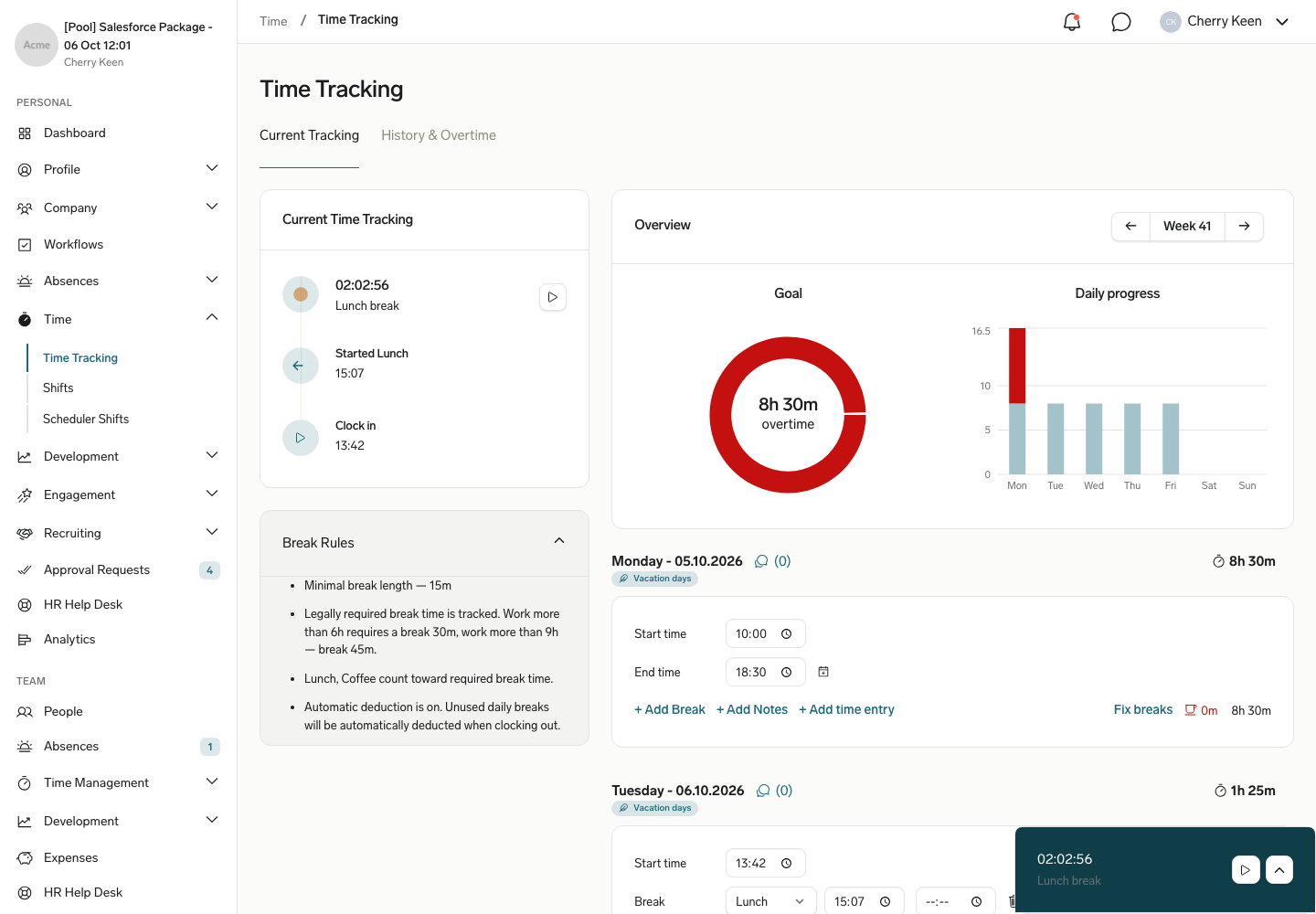
Time Tracking

The Time Tracking feature in the flair Employee Hub is an easy way to keep a record of the hours that employees have spent at work.

Introduction to Time Tracking

Time tracking allows employees to log their working hours, breaks, and overtime. This feature helps organizations maintain accurate records of employee attendance and working hours, which is essential for payroll processing, compliance, and workforce management.

What Is Time Tracking Used For?

Time tracking in flair serves multiple purposes:

  • Payroll Accuracy: Ensure employees are compensated correctly for their working hours
  • Compliance: Meet legal requirements for tracking employee working time
  • Project Management: Monitor time spent on specific projects and tasks
  • Productivity Analysis: Understand how time is being utilized across the organization
  • Overtime Management: Track and manage employee overtime hours
  • Resource Planning: Make informed decisions about staffing and workload distribution

Types of Time Tracking

flair supports three common types of time tracking:

Digital Clock In / Clock Out

Employees can clock in, record breaks, and clock out using the flair Employee Hub or mobile app. This offers a more modern and efficient alternative to paper or spreadsheet-based tracking.

Project-Based Tracking

With time tracking in flair, you can track time spent on specific projects alongside ordinary working hours. This helps you keep track of billable hours for a particular project, so that you don't run over time or budget.

Tracking With Physical Devices

flair also supports time tracking with physical devices. For example, employees can clock in with a card, badge, or chip when they arrive at work. Their time is then synched with the flair time tracking app.

Time Tracking With flair

flair offers a comprehensive time tracking solution that integrates seamlessly with Salesforce. Employees can track their time through multiple channels:

  • Employee Hub (web-based)
  • Mobile app
  • Slack integration
  • Physical kiosk devices
  • RFID tags and fingerprint scanners

How To Set Up Time Tracking

Before employees can start tracking time, administrators need to configure the time tracking system in Salesforce.

Defining employee hours in workflow templates Salesforce

Click on New Workload Template to add a new set of working hours for specific employees. Here you can define how many hours employees are required to work on a weekly or monthly basis. You also have the option to schedule break times.

Defining weekly hours, shift lengths, and break times in a workload template in Salesforce

Setting Up a Time Framework

Time frameworks define the rules and parameters for time tracking in your organization.

A time framework in Salesforce lets you define break time rules to comply with local labor regulations

To create a time framework:

  1. Navigate to the Time Frameworks tab in Salesforce
  2. Click New to create a new framework
  3. Configure the following settings:
    • Name: Give your framework a descriptive name
    • Working Hours: Define standard working hours per day/week
    • Break Rules: Set rules for mandatory and optional breaks
    • Overtime Calculation: Define how overtime is calculated
    • Rounding Rules: Set time rounding preferences (e.g., round to nearest 15 minutes)

Assigning Approval Responsibilities

At the end of a week, timesheets are automatically sent to an employee's manager for approval. The manager of an employee is defined by who holds the Parent Position in the company hierarchy. You can find and edit this hierarchy on the Company Structure page of the flair HR app.

You can also view an employee's main manager and any additional managers in the Contract section of an employee's record in the flair HR app.

View an employee's manager and additional managers in flair

Assigning Additional Managers for Timesheet Approval

You can easily assign additional managers to an employee on the Staff & Docs page:

  1. Open Staff & Docs from the App Launcher or navigation bar
  2. Select the Additional Managers tab
  3. You'll see a list of managers and the employees they are managing
  4. Along the top row, you'll see different kinds of manager responsibilities, such as:
    • Absence Approval
    • Time Entries Approval
  5. To assign additional managers, click the Assign button
  6. Select a manager and an employee
  7. Choose which permissions the manager should receive

Managers with Time Entries Approval will also receive the employee's timesheet for approval at the end of each week.

View and assign additional managers with timesheet approval responsibility

Time Limits for Time Tracking

You can configure limits to prevent errors and ensure compliance. To set time limits, go to any Time Framework and click on the Time Limits tab.

Time Framework

Time Limits Tab

You can configure:

  • Don't restrict: Allows employees to track time without limitations
  • Restrict daily hours based on workload: Employees can only track during agreed working hours
  • Restrict daily hours with custom duration: Set a custom maximum (e.g., 480 minutes for 8 hours)
  • Maximum Daily Hours: Set a cap on hours that can be logged per day
  • Minimum Break Duration: Ensure employees take required breaks
  • Retroactive Time Entry: Control how far back employees can log time

How It Works

Time Tracking Overview

The time tracking process follows these steps:

  1. Clock In: Employee starts their working day
  2. Track Work: Time is automatically recorded
  3. Breaks: Employee can start and end breaks
  4. Clock Out: Employee ends their working day
  5. Review: Employee reviews their tracked time
  6. Approval: Manager or HR approves the timesheet

Change Requests

If employees need to modify their time entries after submission, they can submit a change request:

How to make changes to time tracking entries in flair

  1. Navigate to the time entry that needs correction
  2. Click Request Change
  3. Enter the corrected information
  4. Add a reason for the change (note field)
  5. Submit for approval

Change requests go through an approval workflow before the time entry is updated.

Start Time Tracking in the Employee Hub

Employees can easily track their time through the Employee Hub:

Start tracking time in the flair Employee Hub

  1. Log in to the Employee Hub
  2. Navigate to the Time Tracking section
  3. Click Start Tracking to begin tracking time
  4. The system automatically records your working time
  5. Use Start Break when taking a break
  6. Use End Break when returning from a break
  7. Click Clock Out when finished for the day

The interface displays:

  • Current status (clocked in/out, on break)
  • Total working time for the current session
  • Total break time
  • Expected end time based on scheduled hours

What if I Forget To Track My Time?

If you forget to clock in or out, you can manually add time entries:

  1. Go to the Time Tracking section in the Employee Hub
  2. Click Add Time Entry
  3. Enter the date and time details
  4. Add a note explaining why you're adding it manually
  5. Submit for approval

Manual time entries follow the same approval process as regular time tracking.

Mobile Time Tracking

The flair mobile app allows employees to track time on the go. This is ideal for remote workers, traveling workers, and people in jobs that spend little or no time at a computer.

You can start tracking time from the home screen of the mobile app by clicking the play button ▶️. Press pause ⏸️ to take a break or stop ⏹️ to clock out for the day.

By opening the Time Tracking tab at the bottom of the screen, you can view your tracked hours for the current week, as well as previous time entries. Tapping the question mark icon at the top right of the screen will show you the break-time rules set by your organization.

Tap on a specific day to see what time you clocked in, took your break, and clocked out on that day. If you forgot to log your working hours, you can tap on Edit in the top-right corner to submit a change request to your manager. You can also leave a comment to explain the reasons for the change.

iOS Live Activities

If you are using iOS 16 or later, our time tracker is also compatible with Apple's Live Activities feature. This means that you can view and control your time tracker from your phone's lock screen.

The mobile app syncs automatically with the web-based Employee Hub.

Download our free mobile app for iOS and Android.

Slack Time Tracking

For organizations using Slack, flair offers time tracking directly within Slack:

  1. Install the flair Slack integration
  2. Use slash commands to track time:
    • /flair clock-in - Start your working day
    • /flair break - Start or end a break
    • /flair clock-out - End your working day
    • /flair status - Check your current time tracking status

Slack-tracked time syncs automatically with your flair account.

Time Entry Cost Center Assignment

Organizations can track time against specific cost centers or departments:

Cost Center image

  1. When adding a time entry in the Employee Hub, use the Assign Cost Center button
  2. Select the appropriate cost center
  3. Click Save to finalize your entry

This feature helps with:

  • Budget tracking
  • Project costing
  • Department-level time analysis
  • Internal reporting

Block Time Tracking During Absence

To prevent conflicts, time tracking can be blocked when an employee has an approved absence. When creating a new absence category or editing an existing one in Absence Settings, check the box labeled "Time Tracking Restricted".

Check "Time Tracking Restricted" when creating an absence category to prevent time tracking

This will disable time tracking during:

  • Vacation days
  • Sick leave
  • Other specified absence types

If an employee tries to clock in during a restricted absence period, they'll receive a notification explaining why time tracking is unavailable.

Auto-Tracking Flow and Absences

If you have an auto-tracking flow enabled, time entries are automatically skipped for any day when an absence is added (including part-time absences). When this happens, the time entry needs to be added manually if the employee actually worked that day.

Restrict Time Entry Creation Outside Workload Date Range

To ensure time entries are only created during active workload periods, flair restricts time entry creation to dates within the employee's workload date range.

How It Works

When an employee attempts to create a time entry for a date that falls outside their active workload period, they will see a warning notification explaining that time entry creation is not available for that date.

For example, if an employee's workload starts on September 19th:

  • On September 19th and later dates (within the workload period), employees can add time entries, add breaks, and save changes normally
  • On dates before September 19th (outside the workload period), employees cannot create new time entries and will see a warning message

This restriction helps maintain data accuracy by ensuring time entries align with the employee's assigned workload period.

Mass-Assigning Time Frameworks

You can assign time frameworks to multiple employees at once to save time when setting up or updating time tracking configurations.

Steps to Mass-Assign Time Frameworks

  1. Click on App Launcher 𓃑
Click on App Launcher
  1. Type "employee workloads"
Type "employee workloads"
  1. Click on Employee Workloads
Click on Employee Workloads
  1. Click on Select a List View: Employee Workloads
Click on Select a List View: Employee Workloads
  1. Click on All
Click on All
  1. Select employees
Select employees
  1. Click on Edit Time Framework: Item
Click on Edit Time Framework: Item
  1. Click into the field
Click into the field
  1. Click on any Location
Click on any Location
  1. Check Update selected items
Check Update selected items
  1. Click on Apply
Click on Apply
  1. Click on Save
Click on Save