Build documents with Document Builder Templates
Use Document Builder Templates to assemble documents from reusable sections and text options. You can add employee data, choose content for each section, and apply a Document Template for branding and layout.
HR Admins who create and generate documents in Salesforce.
Create a Document Builder Template
-
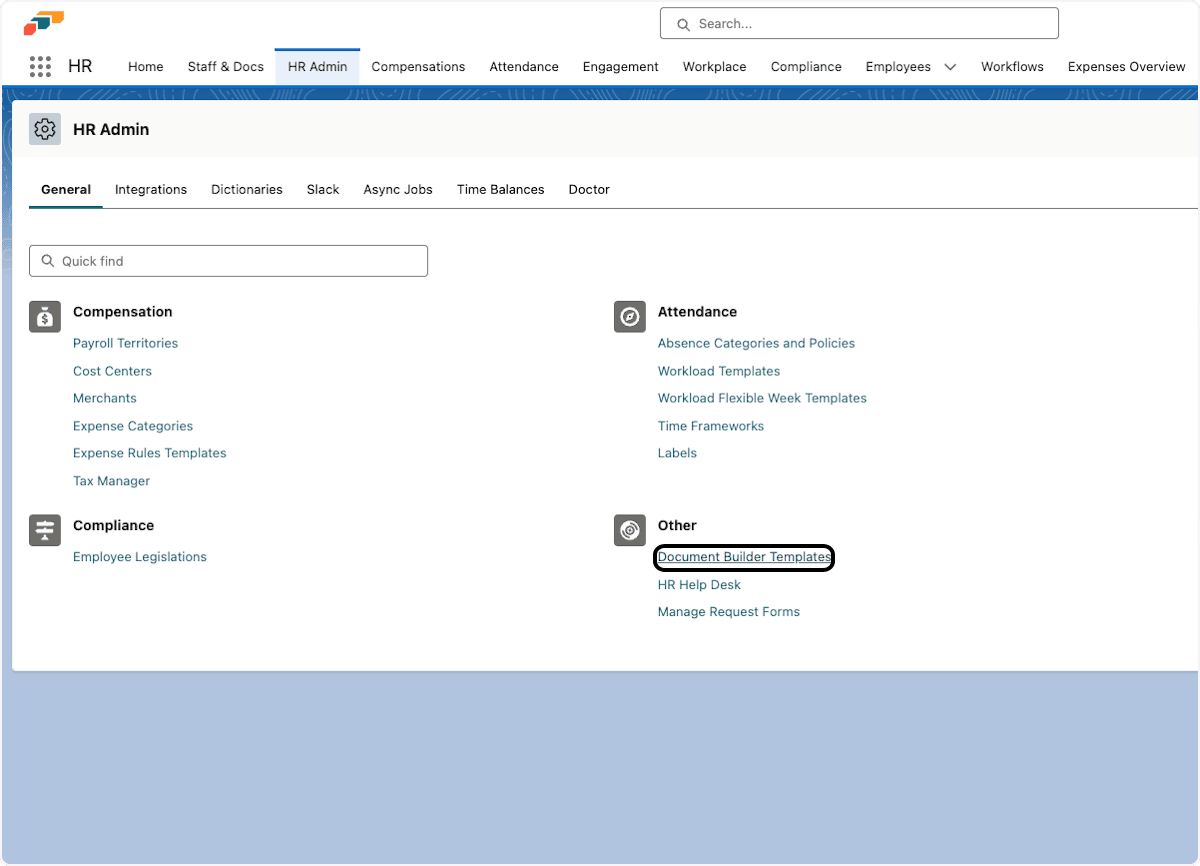
In HR Admin, find Document Builder Templates under Other.
-
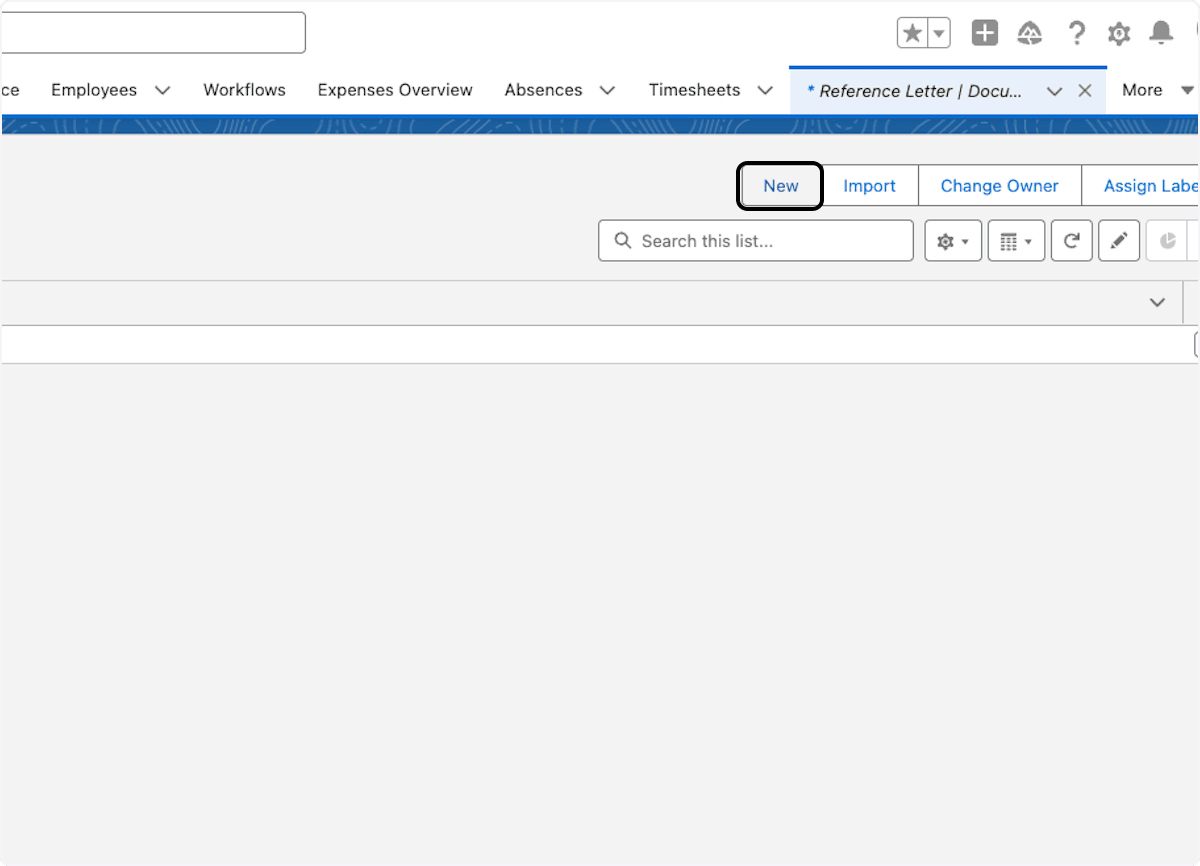
Click New.
-
Enter a name, such as
Reference Letter DEorPerformance Review Template.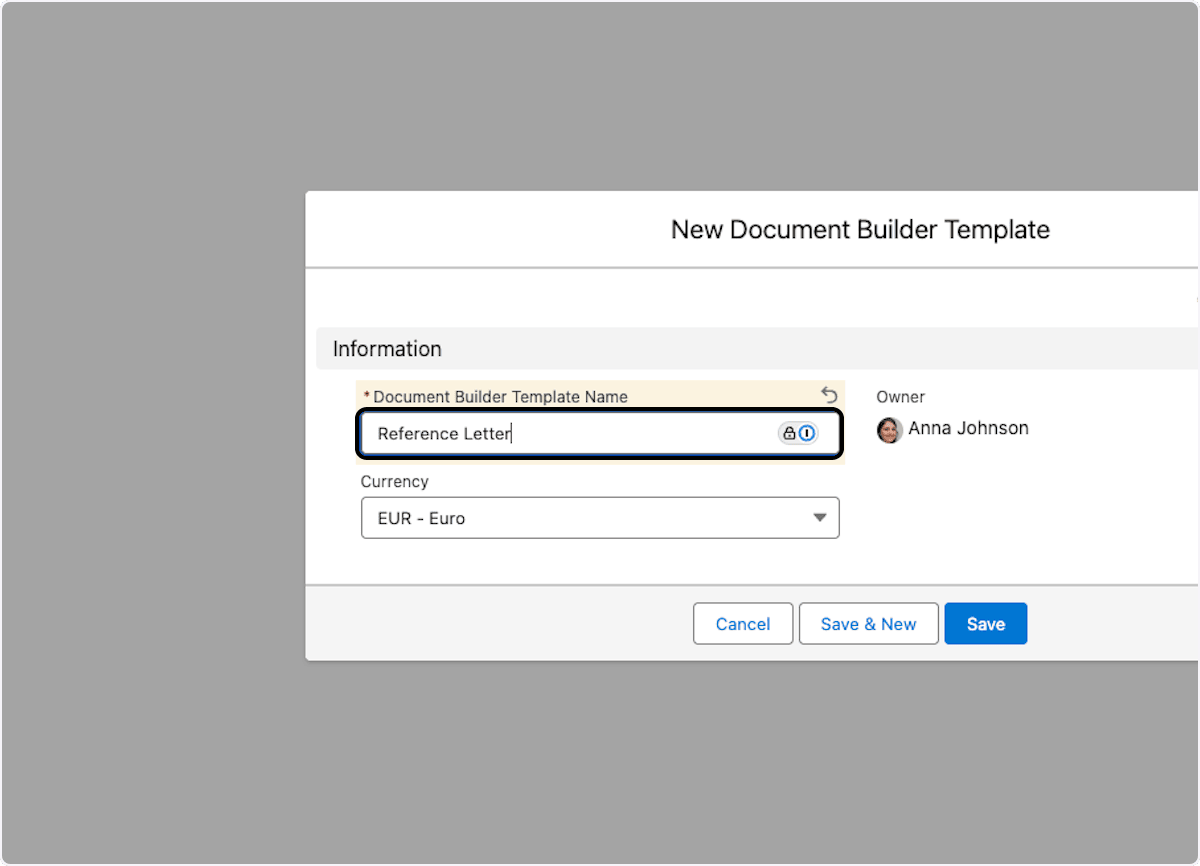
-
Click New to create a section.
-
Give each section a numerical position, such as
1for an introduction,2for the main content, and3for the closing.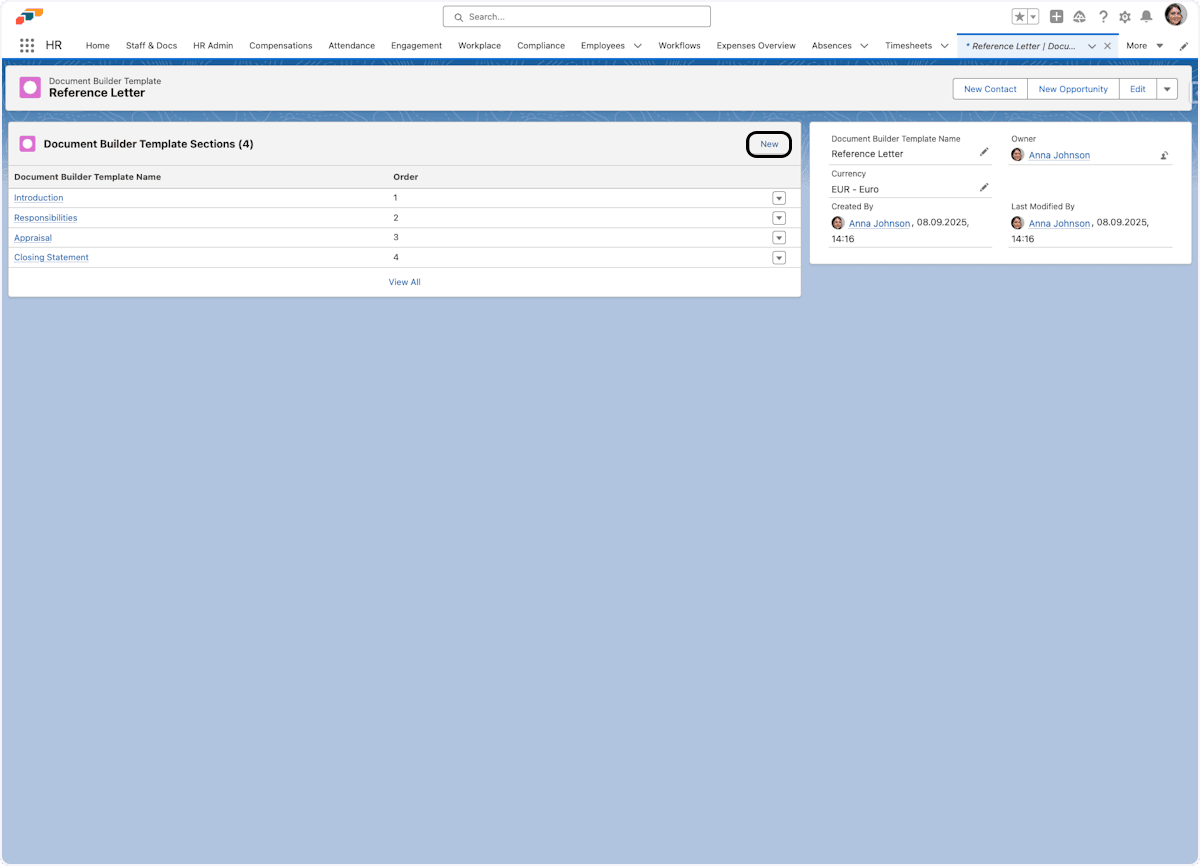
-
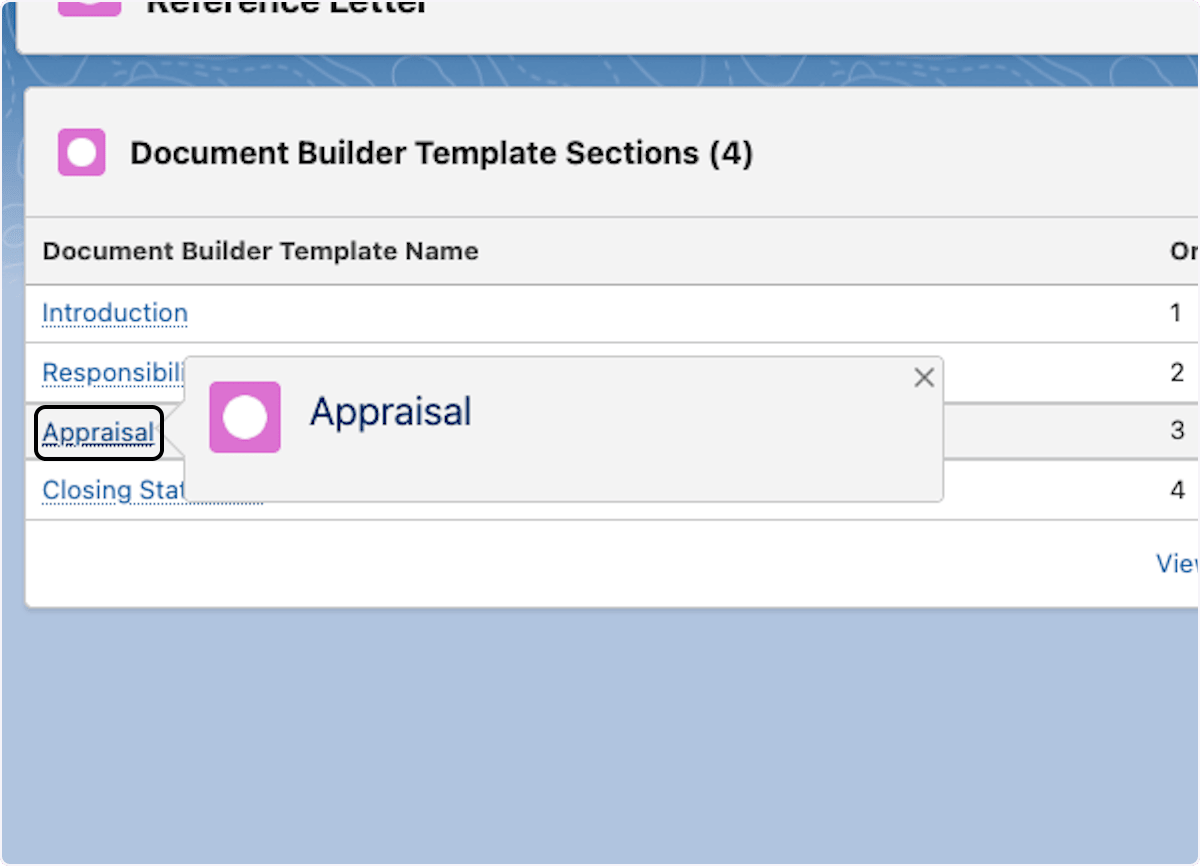
Select a section.
-
Click New to add a text template.
-
Enter an option name, such as
Appraisal.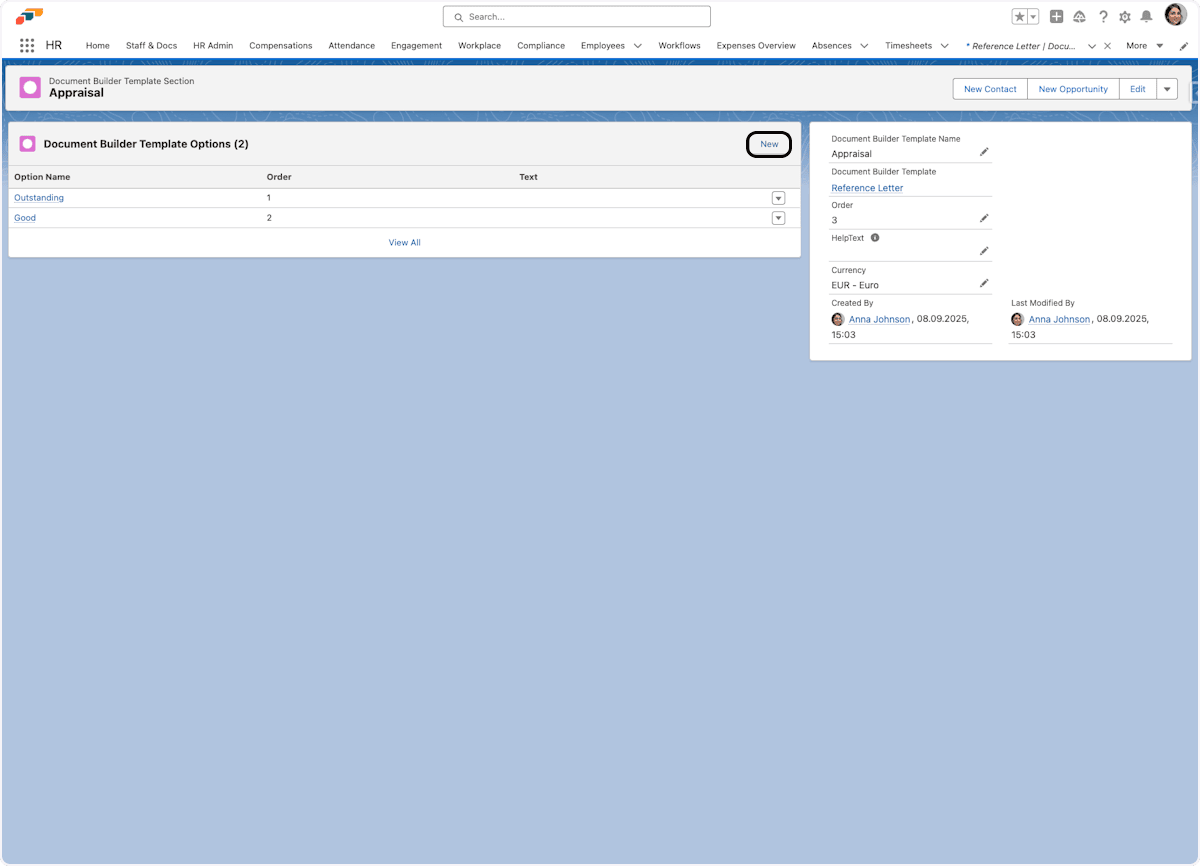
-
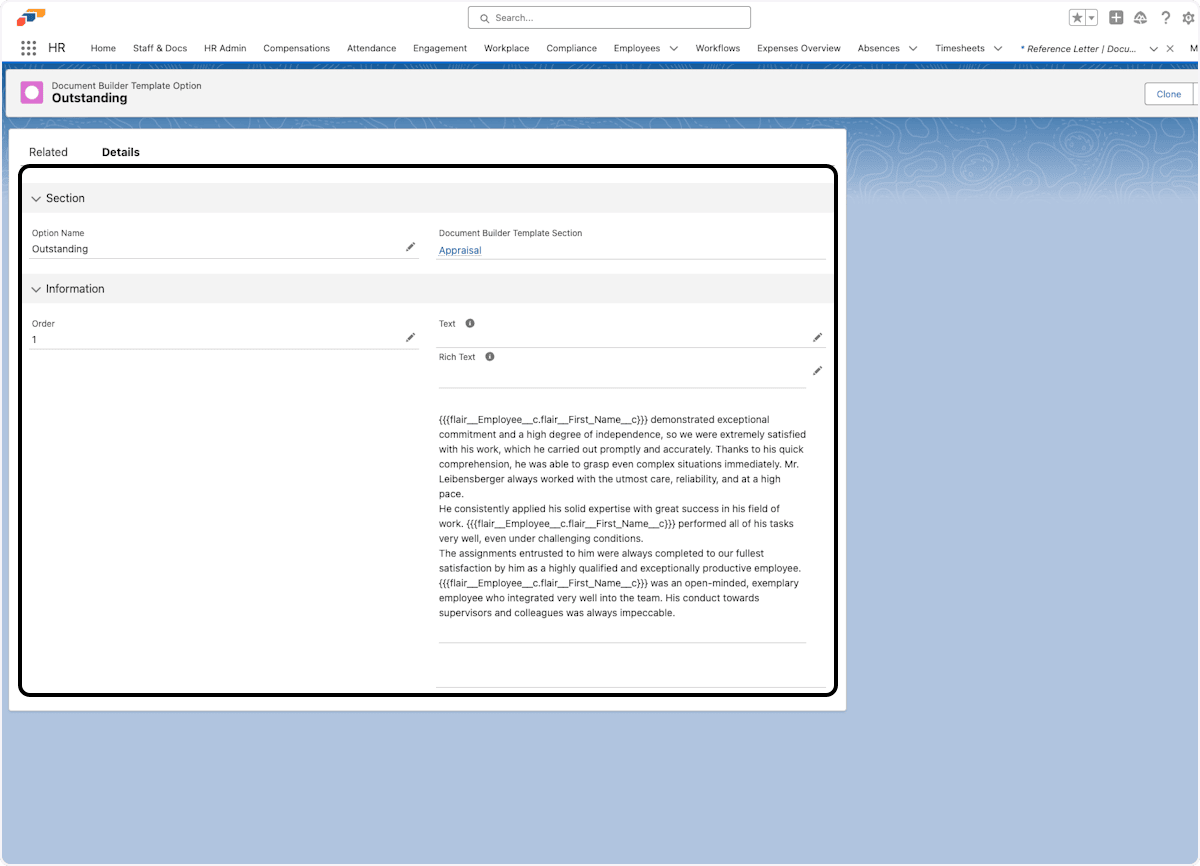
Add plain text, or use Rich Text for formatted content. See Add merge fields for how to insert employee data into each field type.
-
Click Save. Add more options when a section needs selectable variants, such as Outstanding, Good, or Satisfactory review text.
Add merge fields
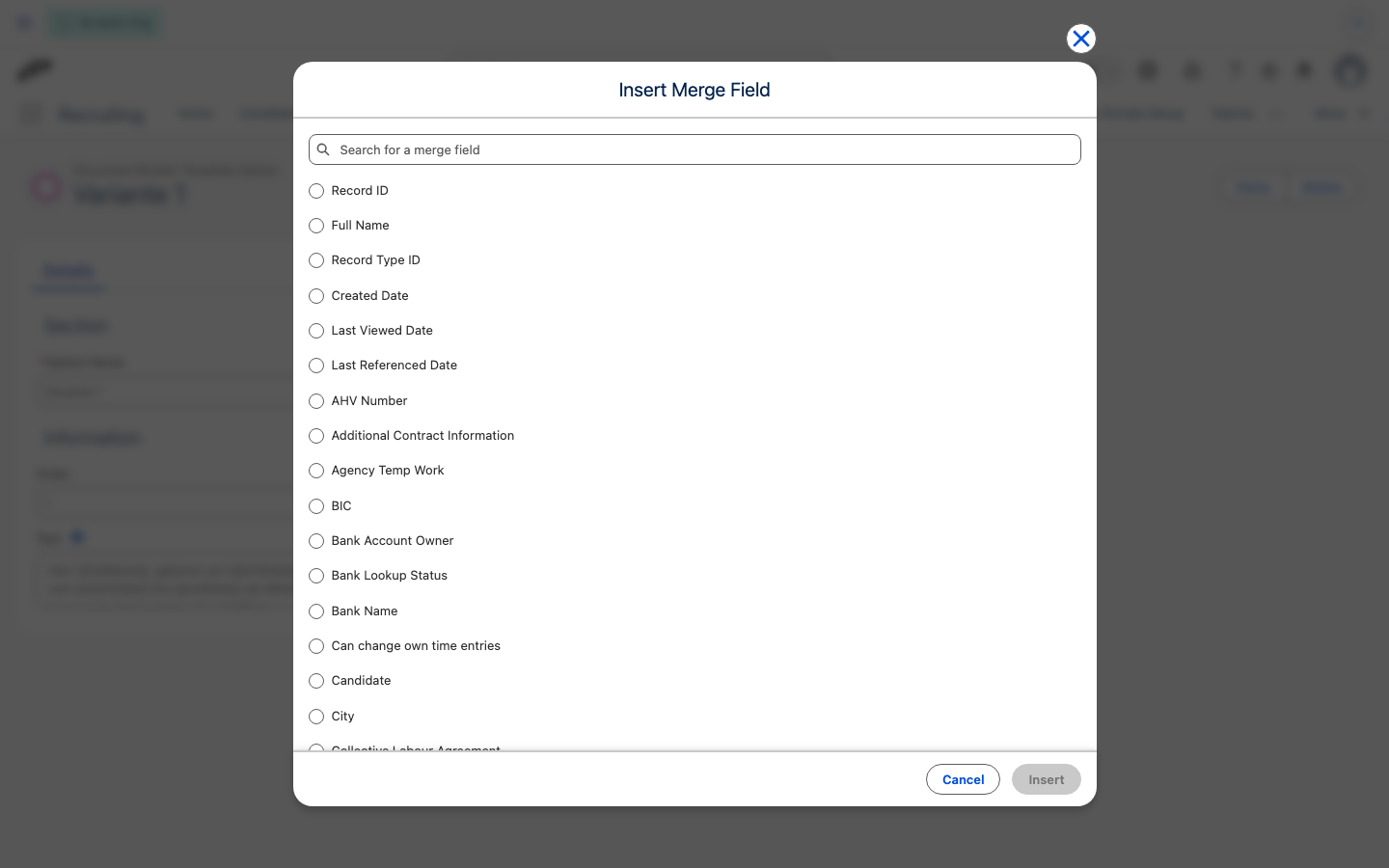
For Rich Text content, click the merge field icon next to Rich Text to open Insert Merge Field. Search for a field, select it, and click Insert. This is the recommended way to add merge fields to rich text — it avoids typos in the field name.
For text content, use these built-in employee placeholders:
| Placeholder | Value |
|---|---|
{{gender}} | Gender. |
{{fullName}} | Full name. |
{{firstName}} | First name. |
{{lastName}} | Last name. |
{{birthDate}} | Date of birth. |
{{birthPlace}} | Place of birth. |
{{startDate}} | Employment start date. |
{{endDate}} | Employment end date. |
{{position}} | Current position. |
{{department}} | Department name. |
{$Label.flair__Afternoon} | A custom label for multilingual content. |
For any other Employee field, use triple braces with the object and field API names, such as {{{flair__Employee__c.flair__End_Date__c}}}. Custom labels use the {$Label.flair__Afternoon} syntax.
To format a date or datetime placeholder, add a mask after a pipe. Each placeholder can use its own mask:
| Placeholder | Result |
|---|---|
{{birthDate|d MMMM yyyy}} | Date of birth with the day, month name, and year. |
{{startDate}} | Employment start date in yyyy-MM-dd format. |
{{{flair__Employee__c.flair__End_Date__c|MM/dd/yyyy}}} | Employee end date in month/day/year format. |
If you omit the mask, date fields keep the yyyy-MM-dd format, and datetime fields also include the time. If a mask cannot be used, the date falls back to its unformatted value. The old single-brace, snake-case tokens are not supported.
Use the placeholder syntax that matches the field type. Rich-text and text content can include the built-in placeholders, formatted dates, employee merge fields, and custom labels described above.
Generate a document
Choose a template and employee
-
In the App Launcher (⋮⋮ grid icon), search for
Document Builder Documents. -
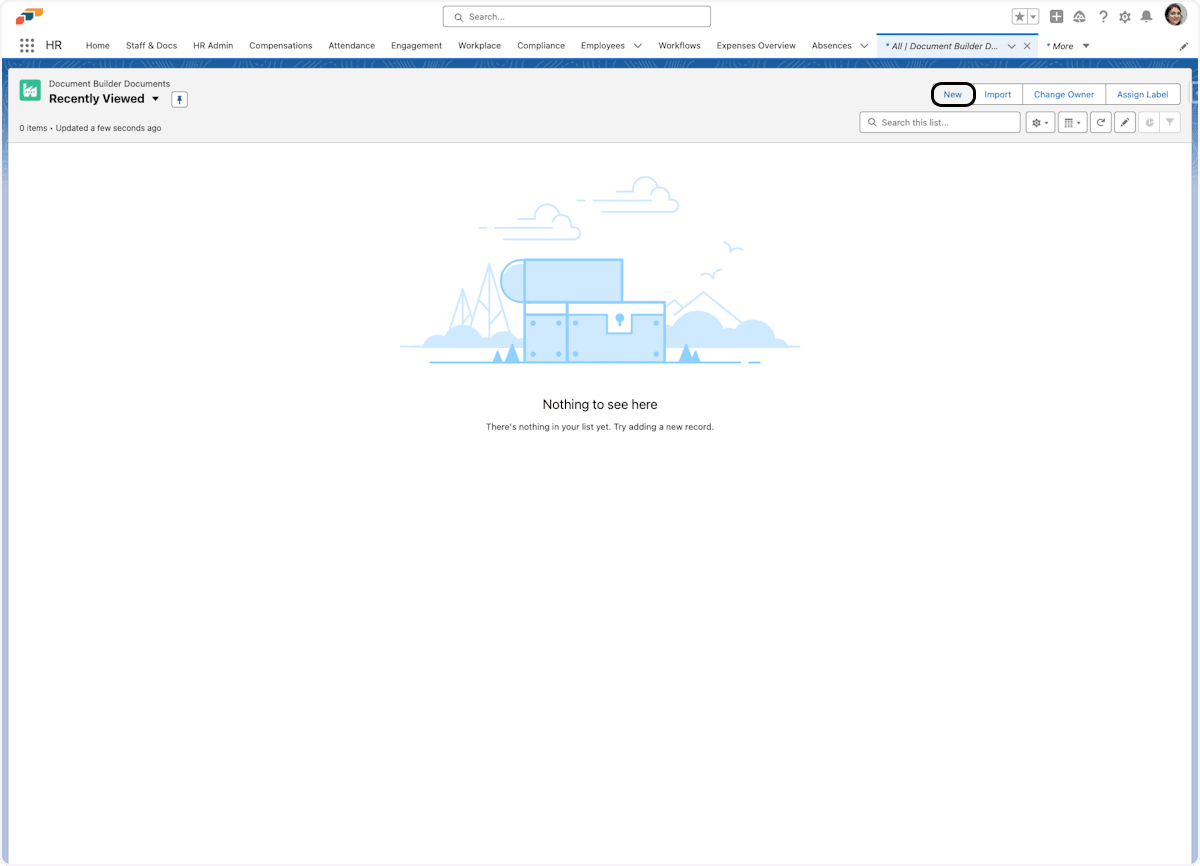
Open Document Builder Documents.
-
Click New.
-
Under Select an Option, search for and select a Document Builder Template.
-
Select the employee or employees who will receive the document.
-
Save the record. The template sections appear in Document Builder.
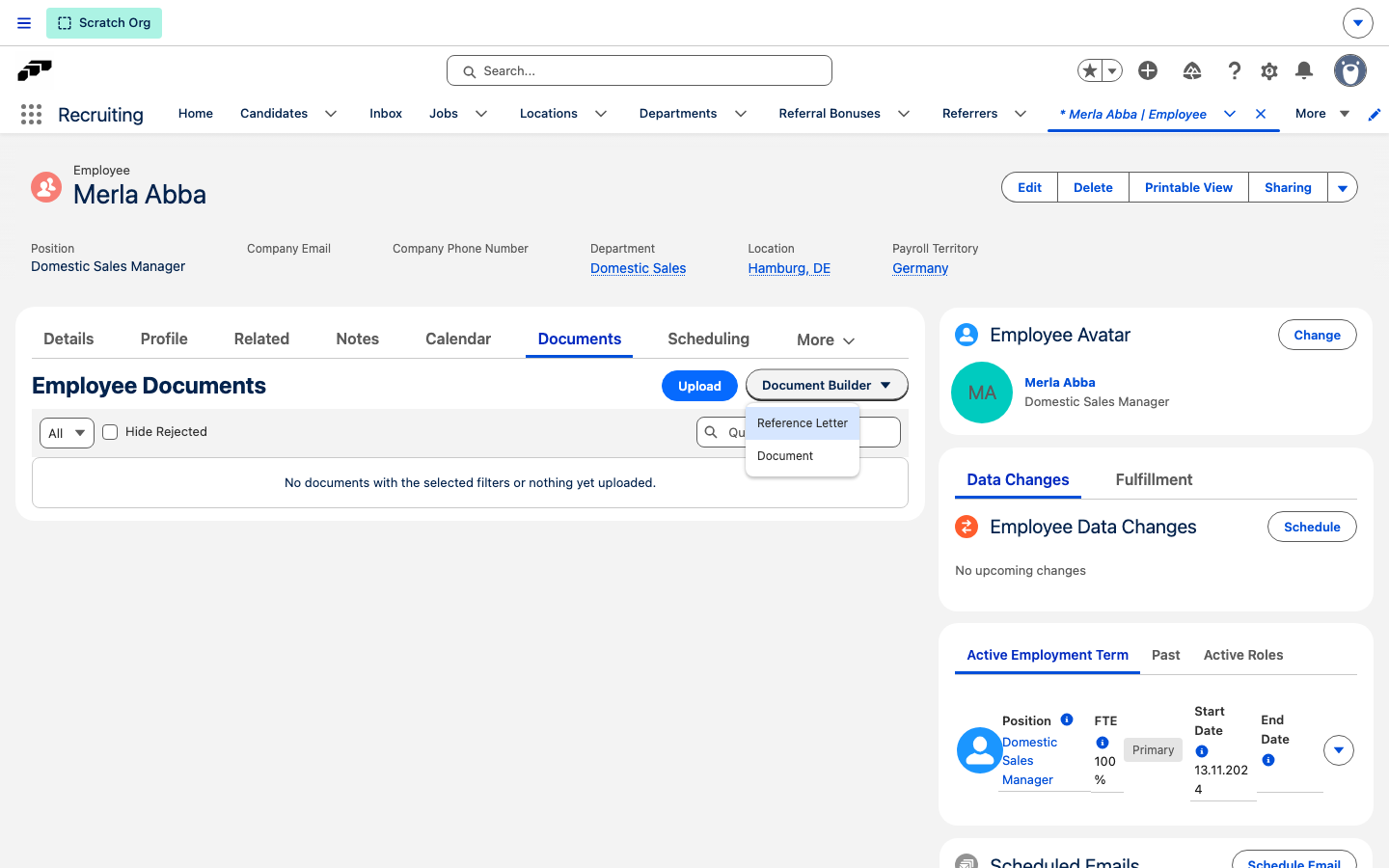
Alternatively, start from the employee record: open the Documents tab, click Document Builder, and select a template. This creates the Document Builder Document for that employee and opens it in a new tab, skipping steps 1-6.
Assemble and export the document
-
For a section, click the information icon to review its HelpText or content instructions.
-
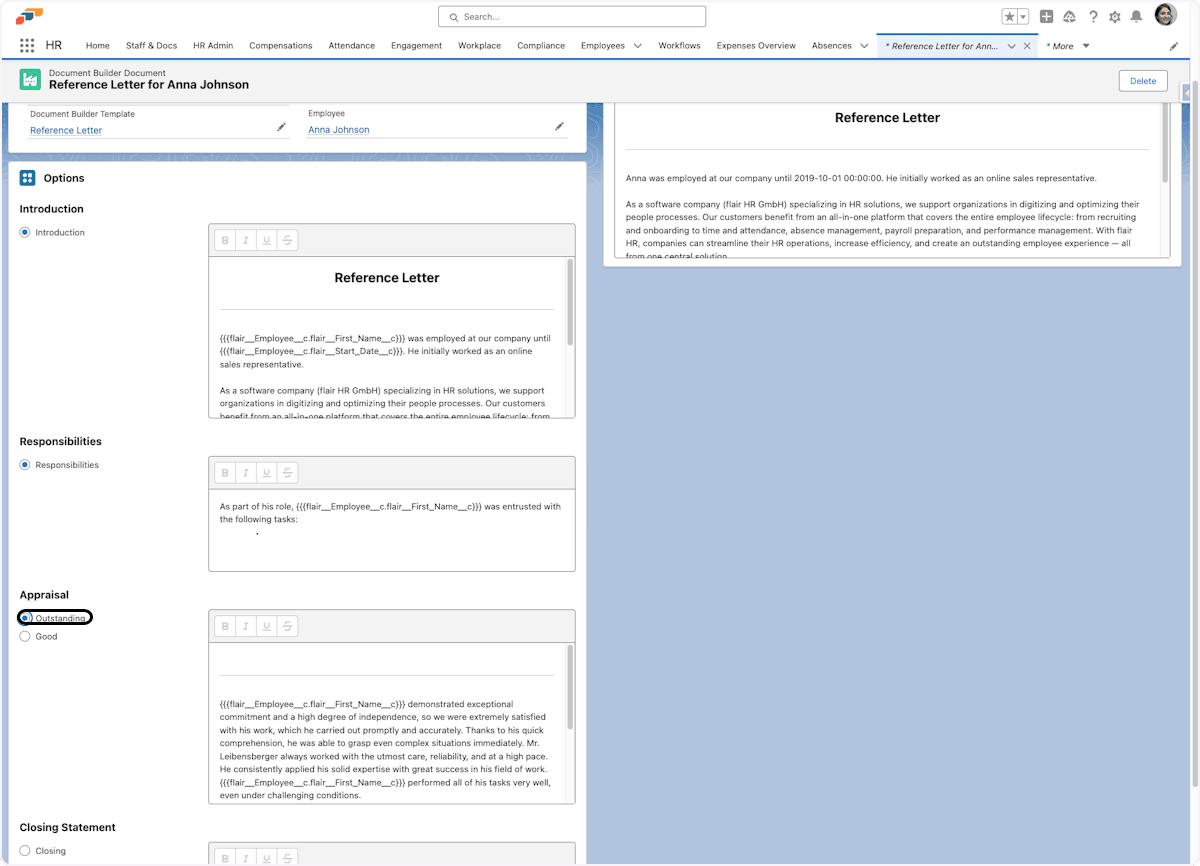
In the left sidebar, select a text option for each section. The selected content appears in the preview on the right.
-
Optional: Edit the selected content. Switching to another option discards these manual edits.
-
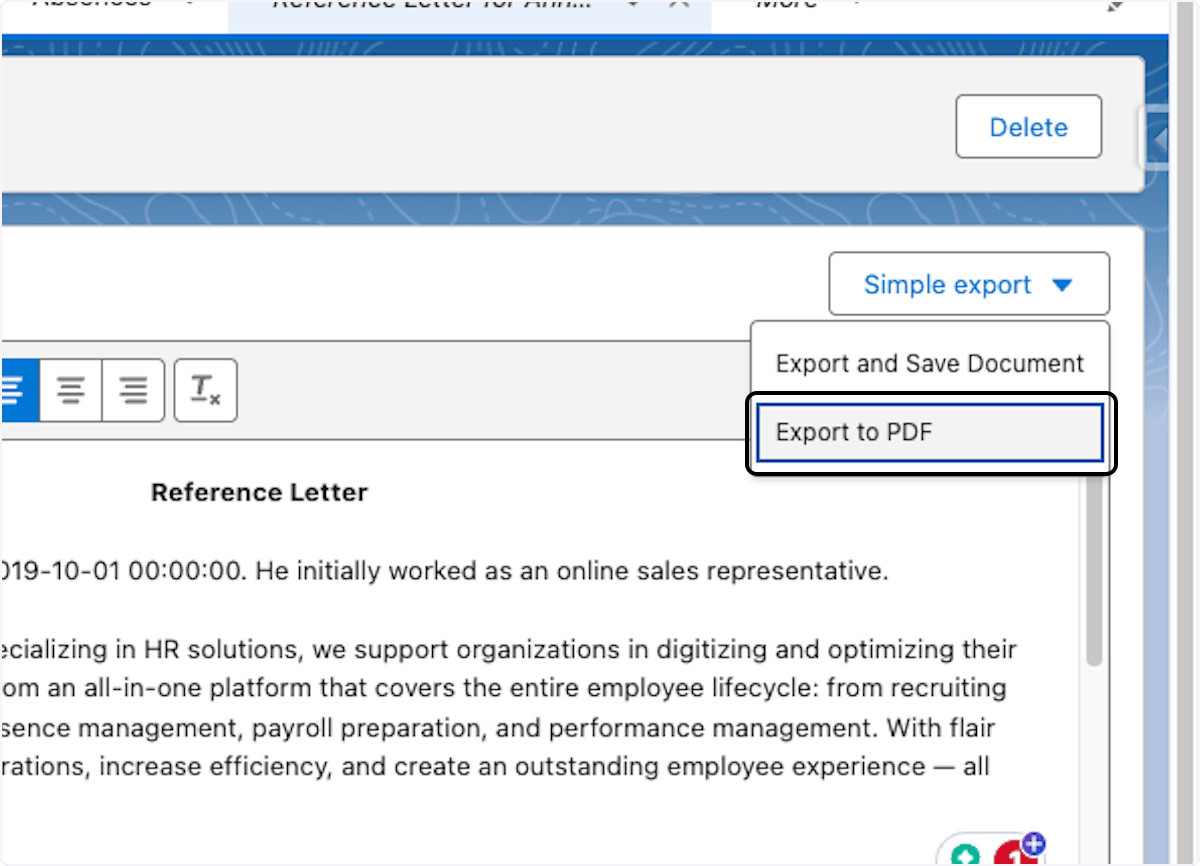
Click Export and Save Document. The file is saved under Documents for the employee in the Employee Hub.
-
Optional: Download a PDF for printing.
Apply a Document Template layout
Use a Document Template when the generated content needs a branded layout.
-
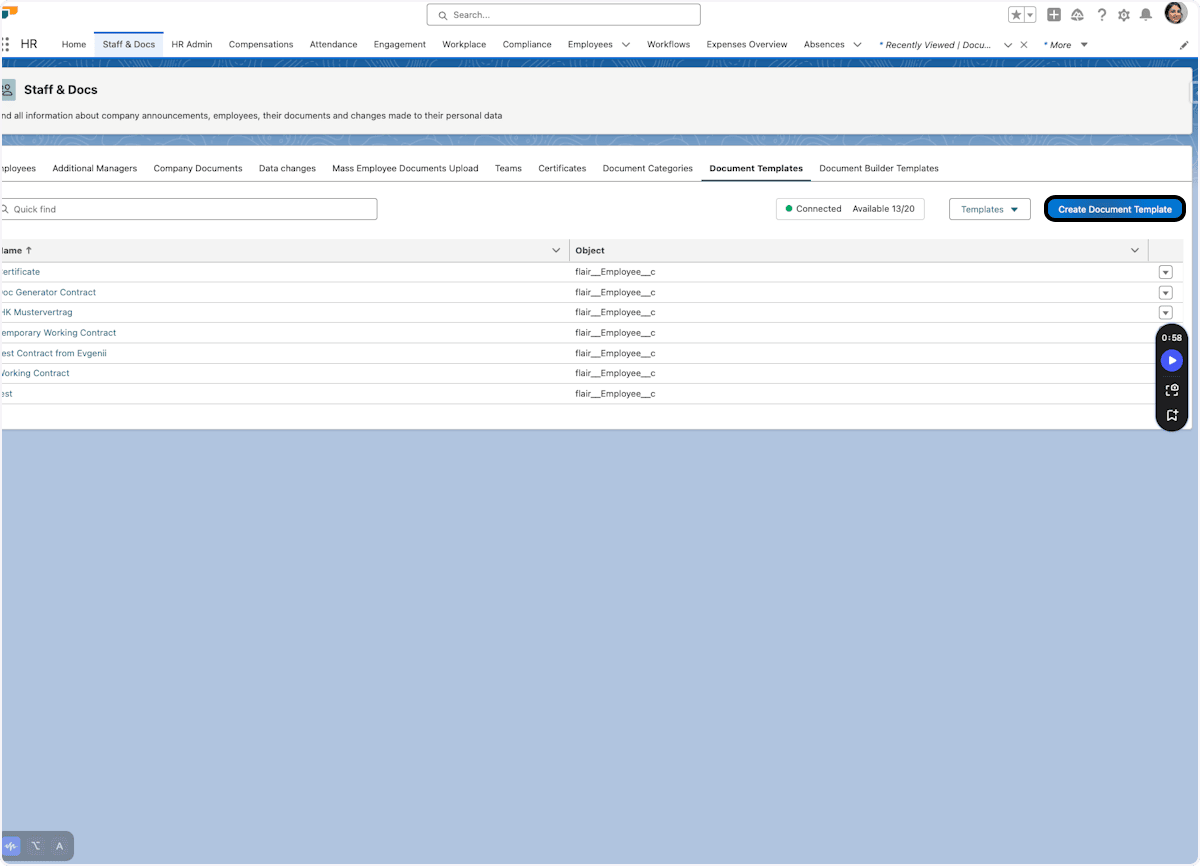
Go to Staff and Docs → Document Templates.
-
Click Create Document Templates.
-
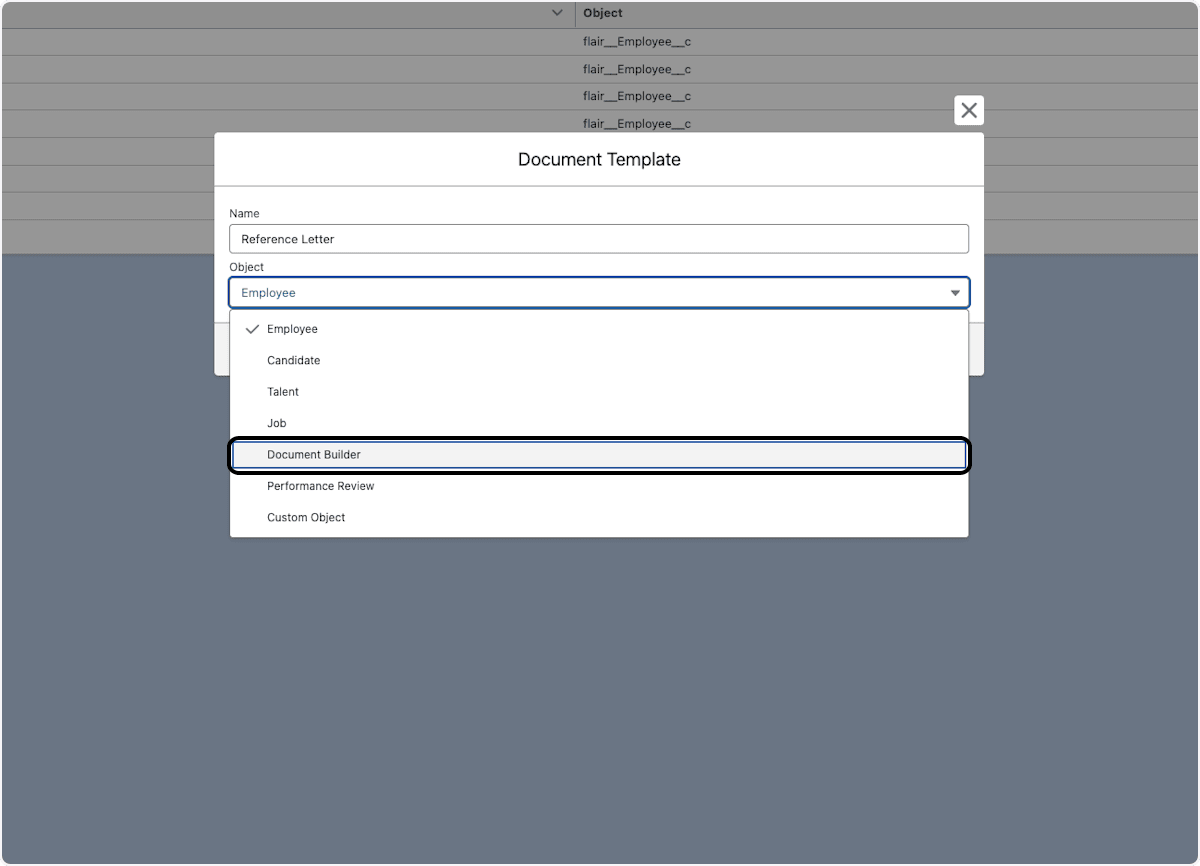
For the template object, select Document Builder.
-
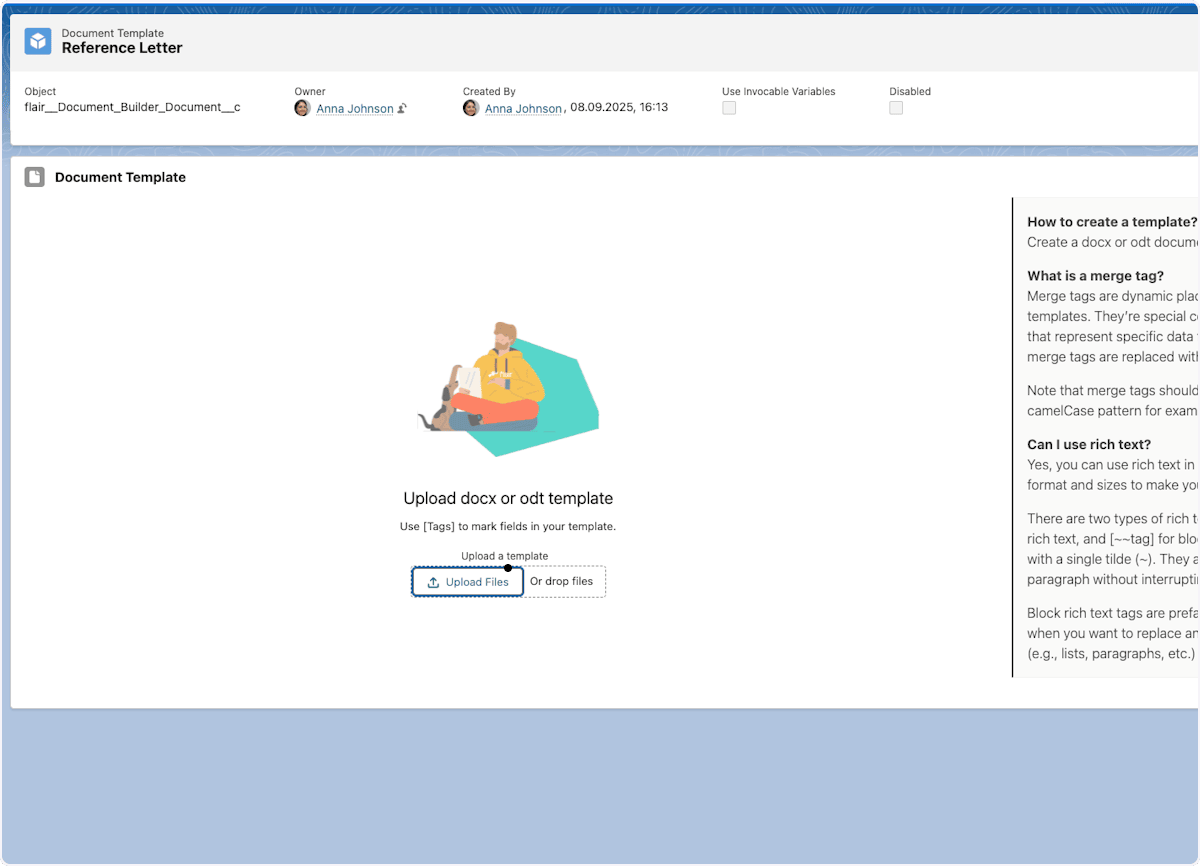
In the source file, add
[result]for plain text or[~~result]to preserve formatting.
-
Upload the source file with its branding and layout.
-
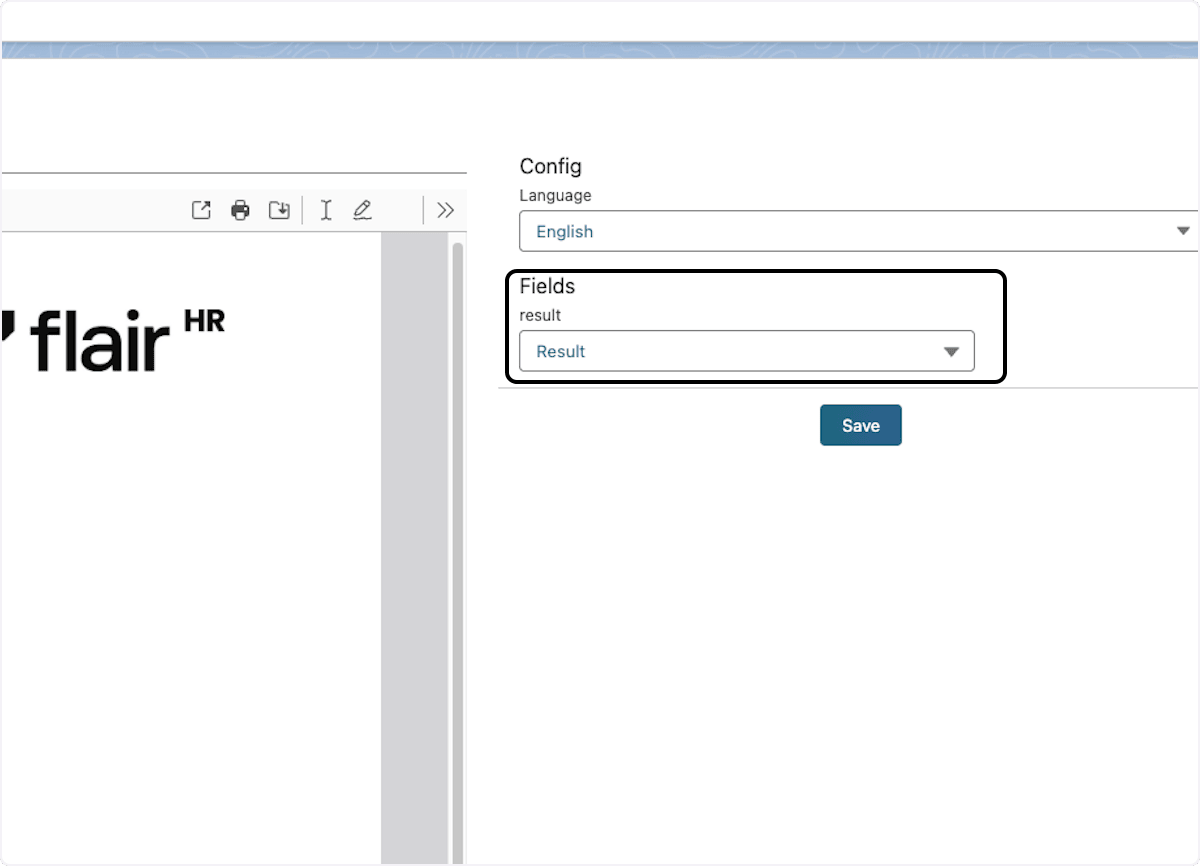
Map the placeholder to Result.
-
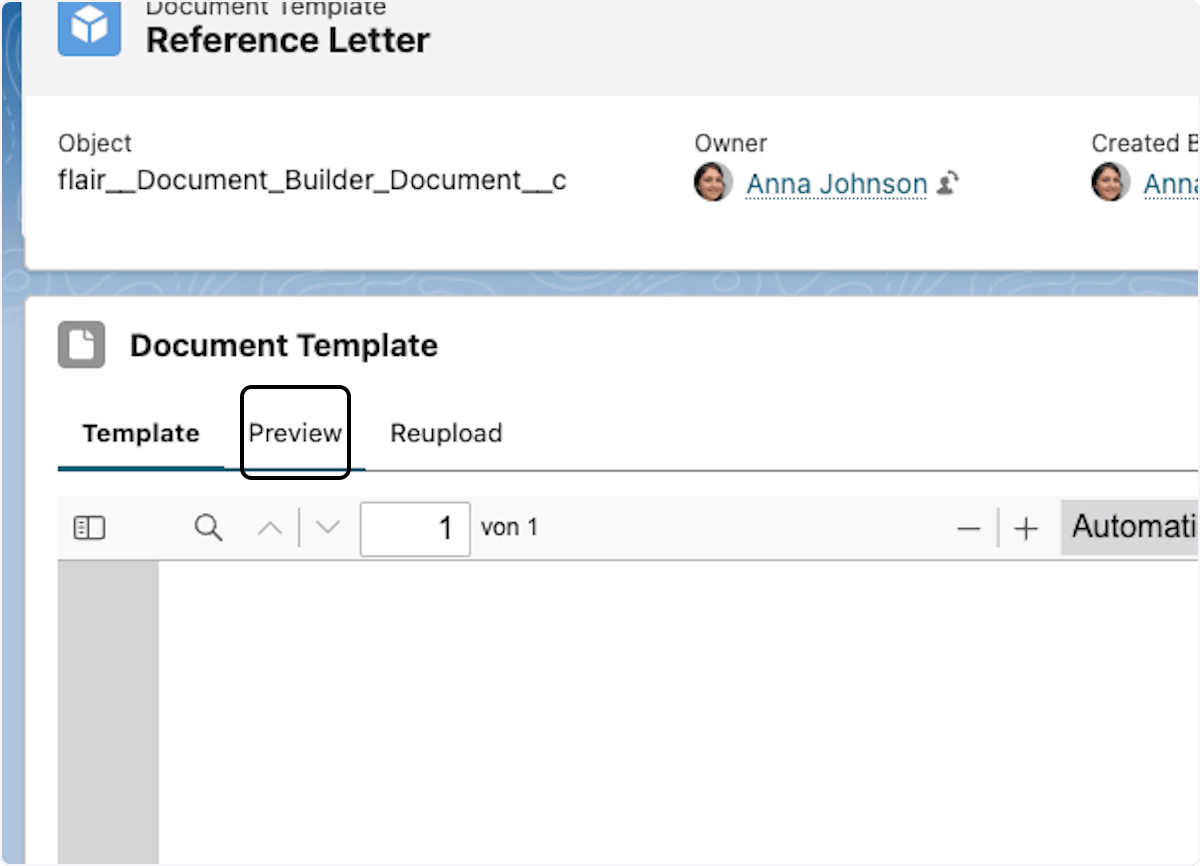
Click Preview.
-
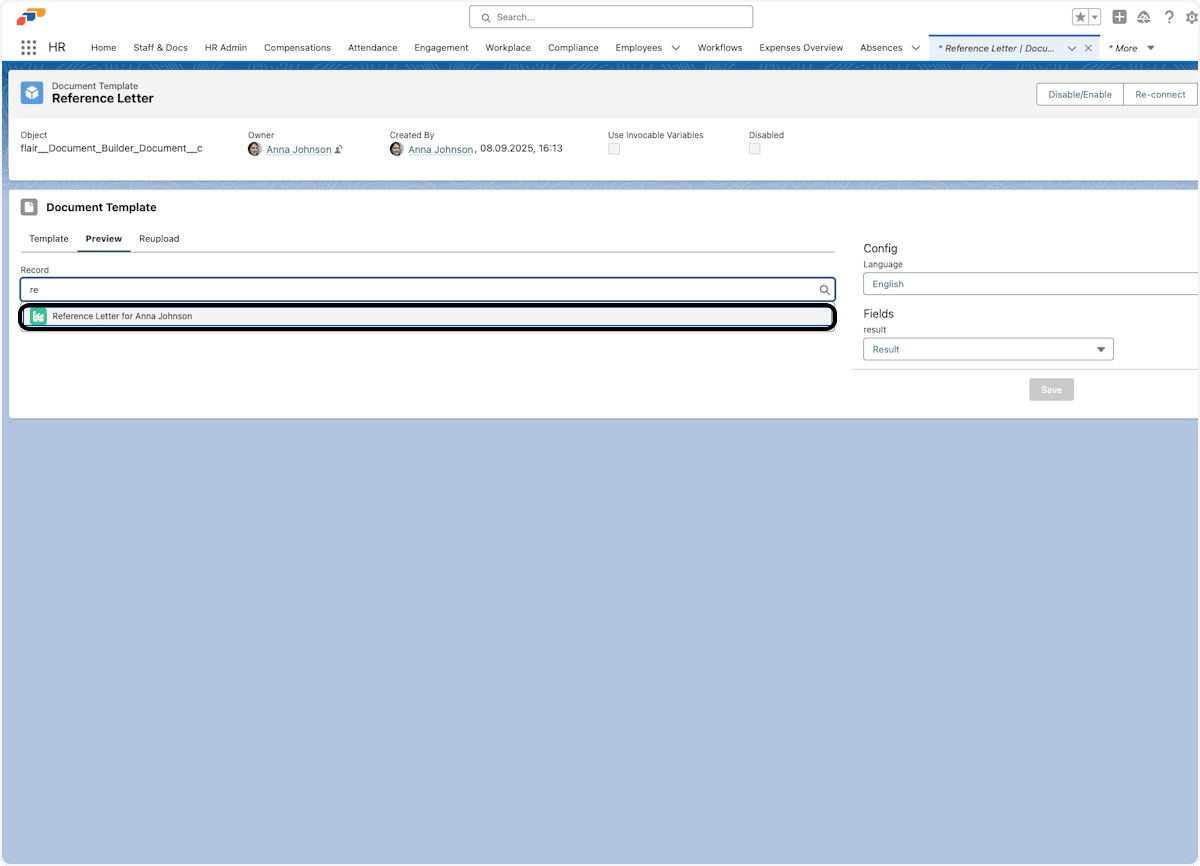
Select the Document Builder Document to use.
-
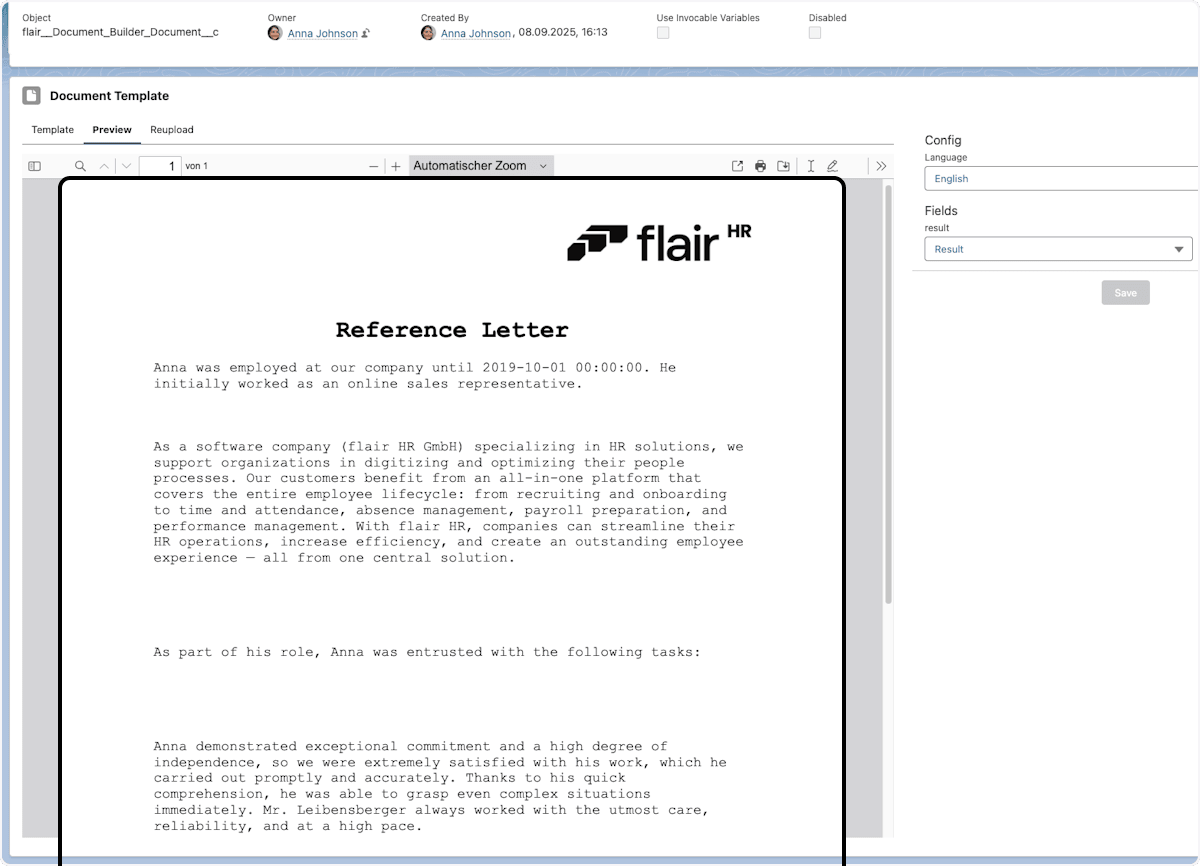
Generate the document. The result uses the uploaded branding and the selected modular content.
Connect Document Builder to other processes
- Use a workflow to trigger document generation.
- Combine the generated document with an e-signature process.
- Use an approval flow to review the document.
Troubleshooting
A template does not appear in Document Builder
- Confirm that the template is saved.
- Confirm that each section has at least one text option.
- Remove special characters from the template name.
Merge fields do not populate
- Match the field name exactly, including capitalization.
- Confirm that the employee record contains the value.
- Confirm that you have permission to view the field.
Formatting changes in the result
- Use rich-text fields for complex formatting.
- Test the output in another browser.
- Apply a Document Template when the document needs a consistent layout.