Upload and manage documents
Use flair to publish Company Documents and store Employee Documents, including payslips and certificates. This guide covers bulk and SFTP uploads, folder organization, file matching, access restrictions, recovery, parsing, and mobile access.
HR Admins manage documents in Salesforce. Employees and Managers view permitted documents in the Employee Hub or mobile app.
Publish a Company Document
- In flair HR, open Company Documents from the navigation bar. If it is not visible, find it through the App Launcher (⋮⋮ grid icon).
- Click New.
- Enter a name that employees can use to identify the document.
- To keep the document unpublished, select the draft checkbox. Clear it when the document is ready for employees.
- Upload the files.
- Click Save. A published document appears under Company → Documents in the Employee Hub for all employees. To share it with only some employees, choose who can see it.
Choose who can see a company document
A new company document is shared with all employees. Use segments to limit it to specific departments, locations, teams, entities, or employees. An employee sees the document if they match at least one of its segments. If the document has an entity set, only employees of that entity see it.
- In flair HR, open Company Documents, and click the document name.
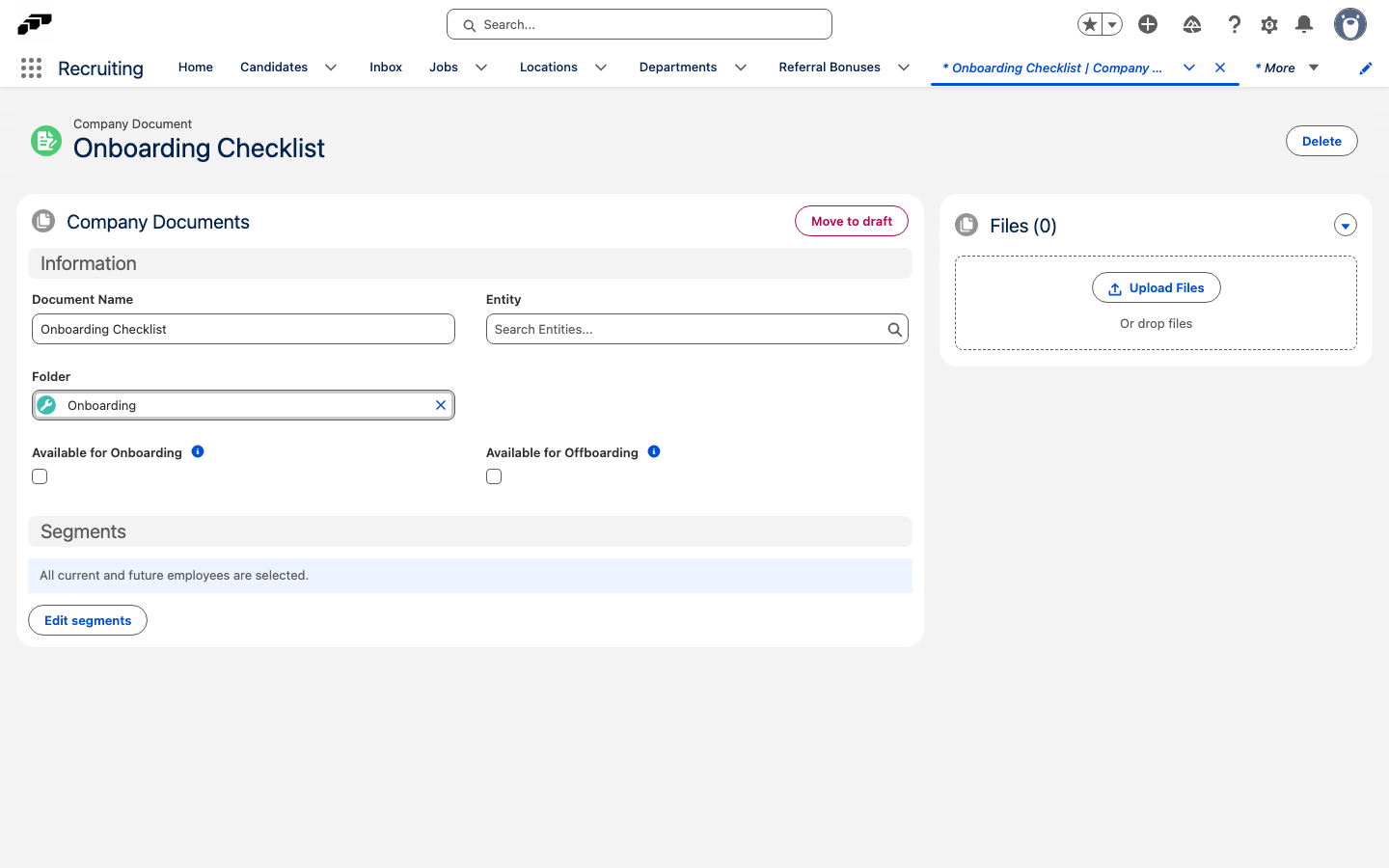
- In the Segments section, click Edit segments.
- Select the employees who should see the document, and click Save. The Segments section lists the updated segments.
Share a document before the start date or after exit
Employees whose start date is in the future, and employees whose end date is today or earlier, see only the company documents you mark for them. Segments still apply.
- In flair HR, open Company Documents, and click the document name.
- To show the document to employees before their start date, select Available for Onboarding.
- To keep showing the document to employees after their end date, select Available for Offboarding.
- Click Save.
Organize company documents into folders
Group company documents into multi-level nested folders, such as by department or document type. Documents without a folder continue to appear at the root, so existing documents need no changes.
-
In flair HR, open Docs.
-
Open the Company Documents tab.
-
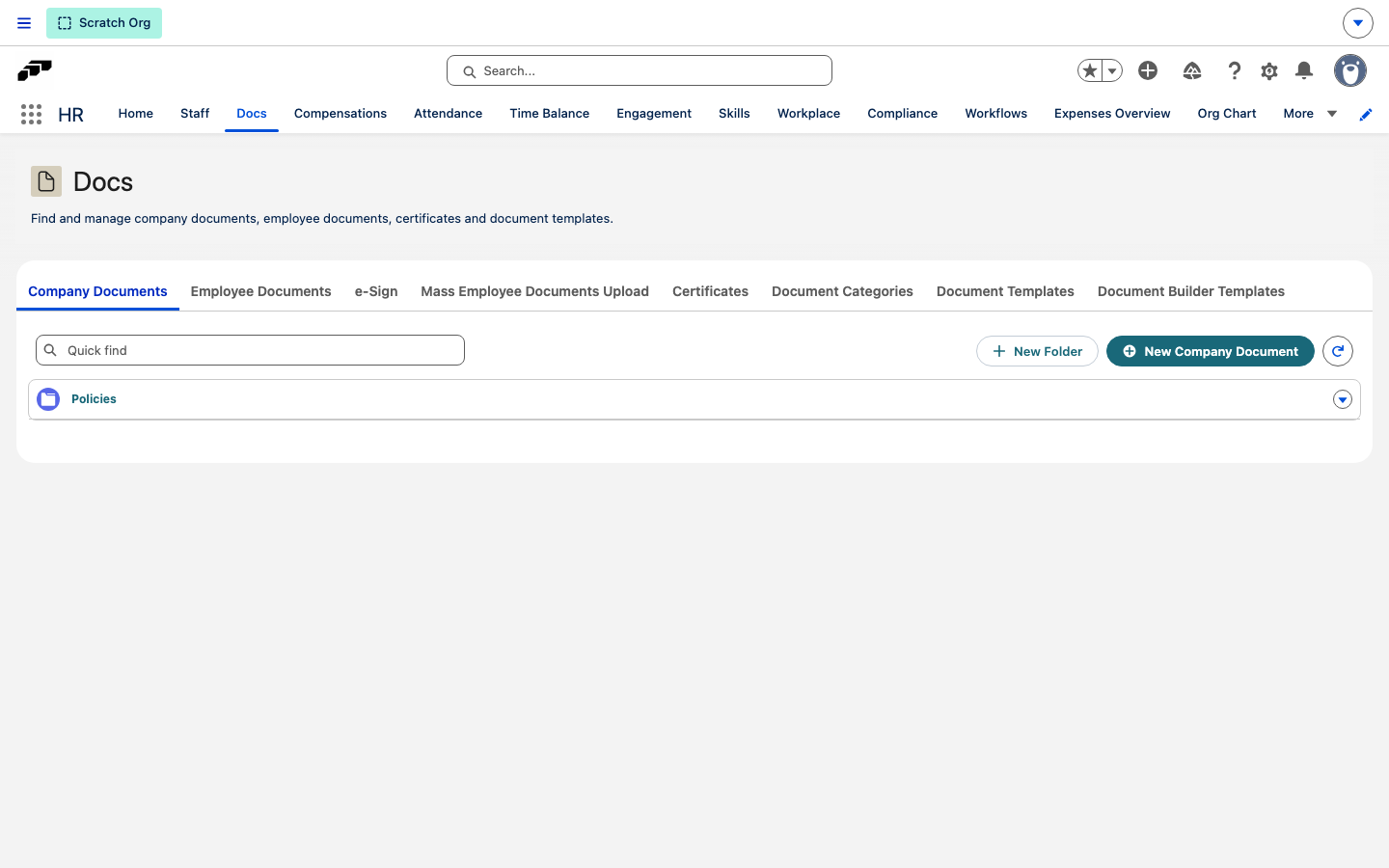
Click New Folder.
-
Enter a name, and click Save. The folder appears at the level you were browsing when you clicked New Folder.
-
Click a folder to open it. Click New Folder again to nest another folder inside it, or use the breadcrumb trail above the list to navigate back up.
-
To publish a document directly into a folder, open the folder, and click New Company Document. To move an existing document into a folder, click Edit next to it, and set Folder.
Use Quick find to search company document names across every folder. In the Employee Hub, a folder appears for an employee only if it contains at least one document that employee has permission to see; empty or fully restricted folders stay hidden.
A folder must be empty of sub-folders and documents before you can delete it.
Upload Employee Documents in bulk
Use a Mass Employee Documents Upload when file names identify the employees who should receive them, such as for payroll files.
Create the upload template
-
In the App Launcher (⋮⋮ grid icon), search for
Mass Employee Documents Uploads.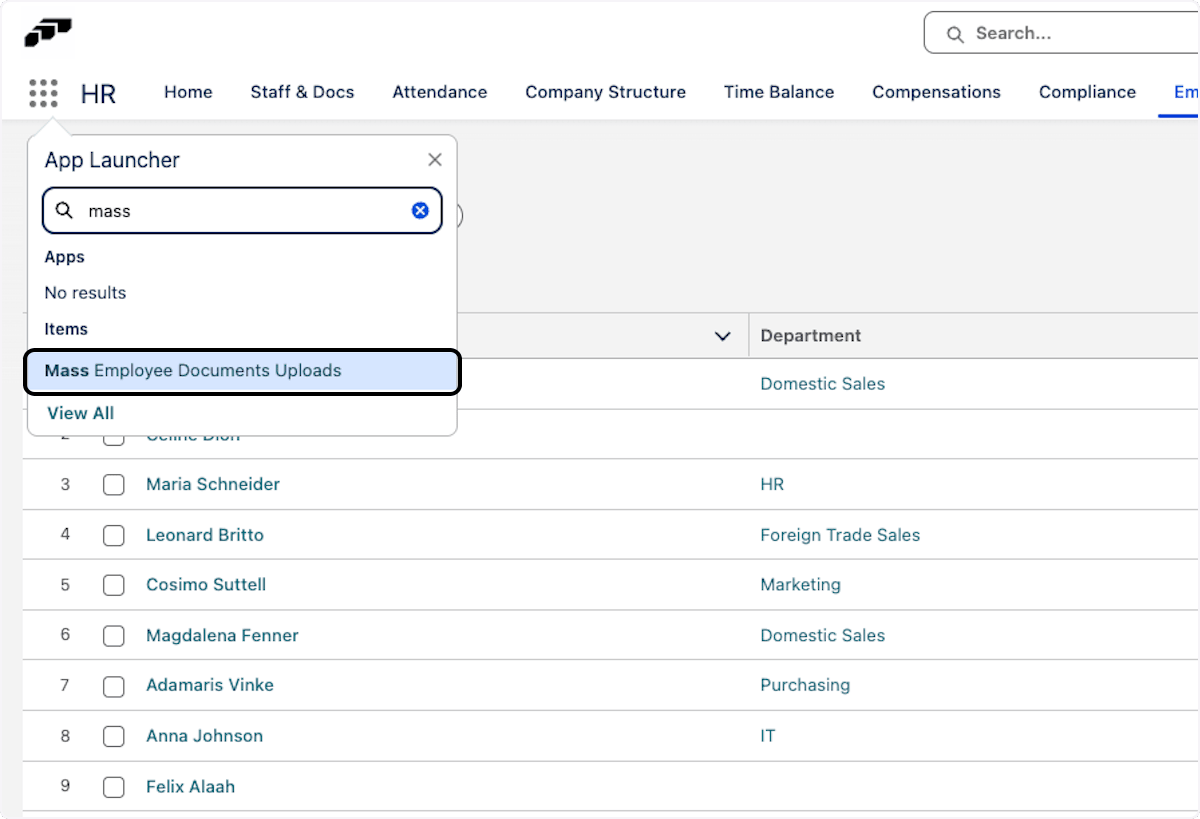
-
Open Mass Employee Documents Uploads.
-
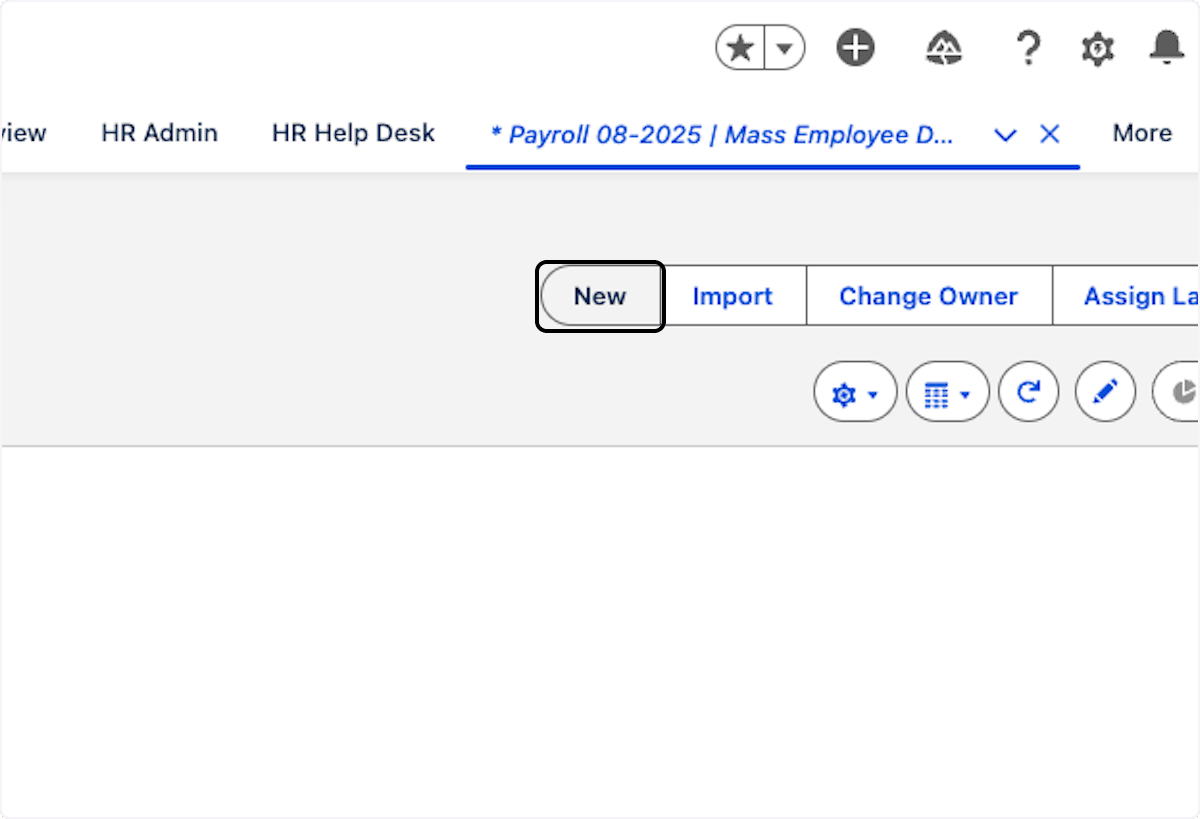
Click New.
-
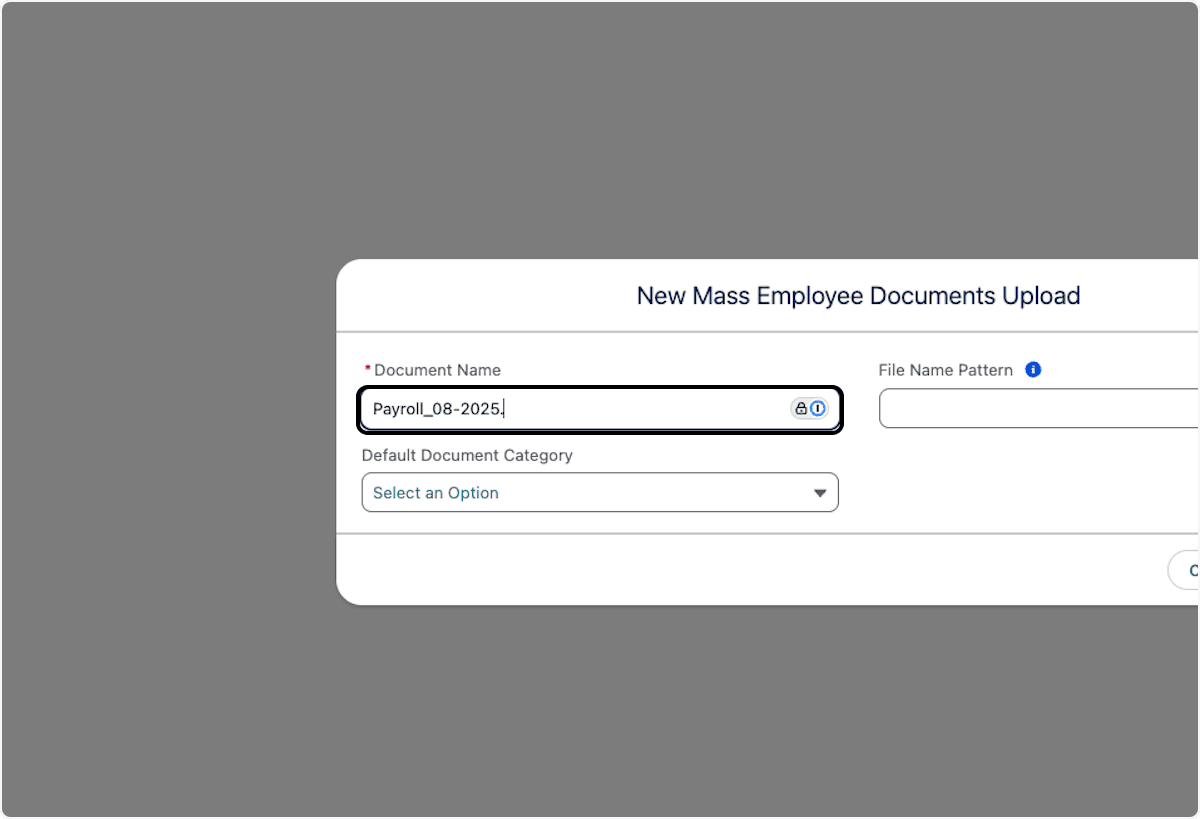
Enter a name.
-
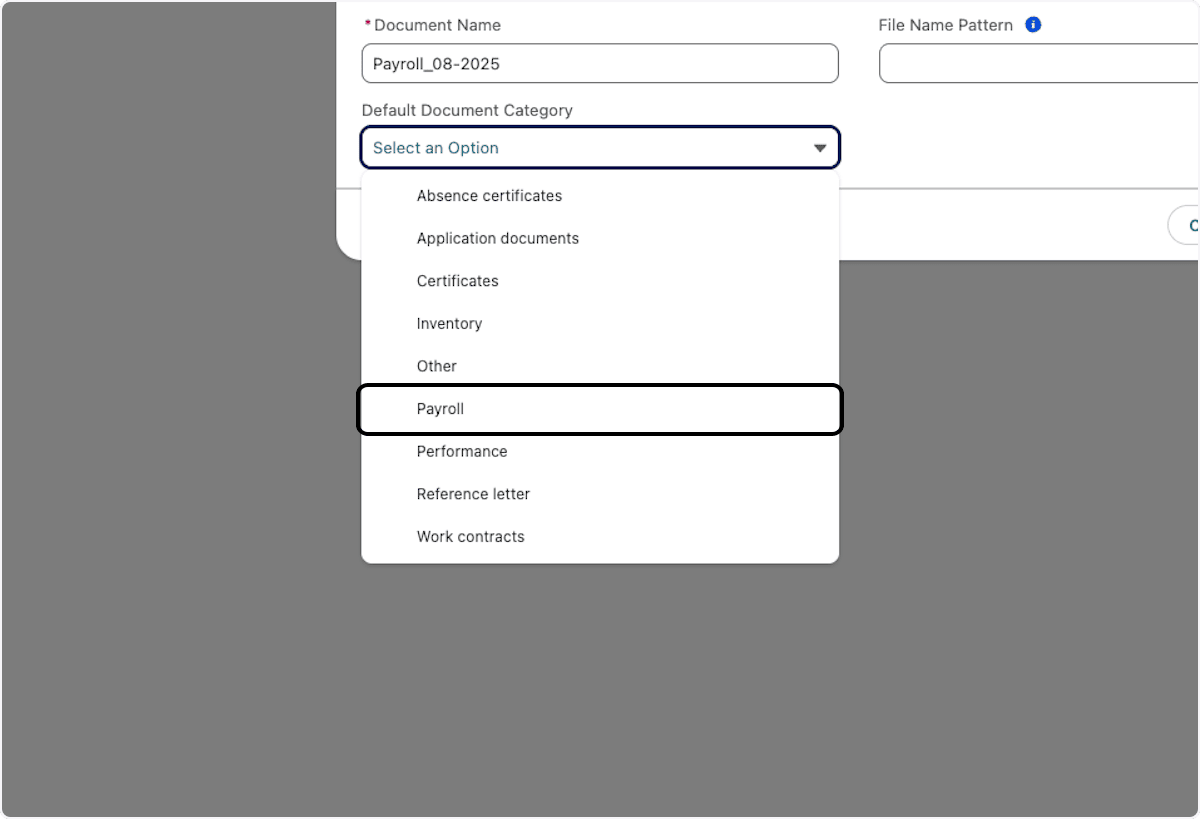
Under Default Document Category, select the document type, such as Payroll.
-
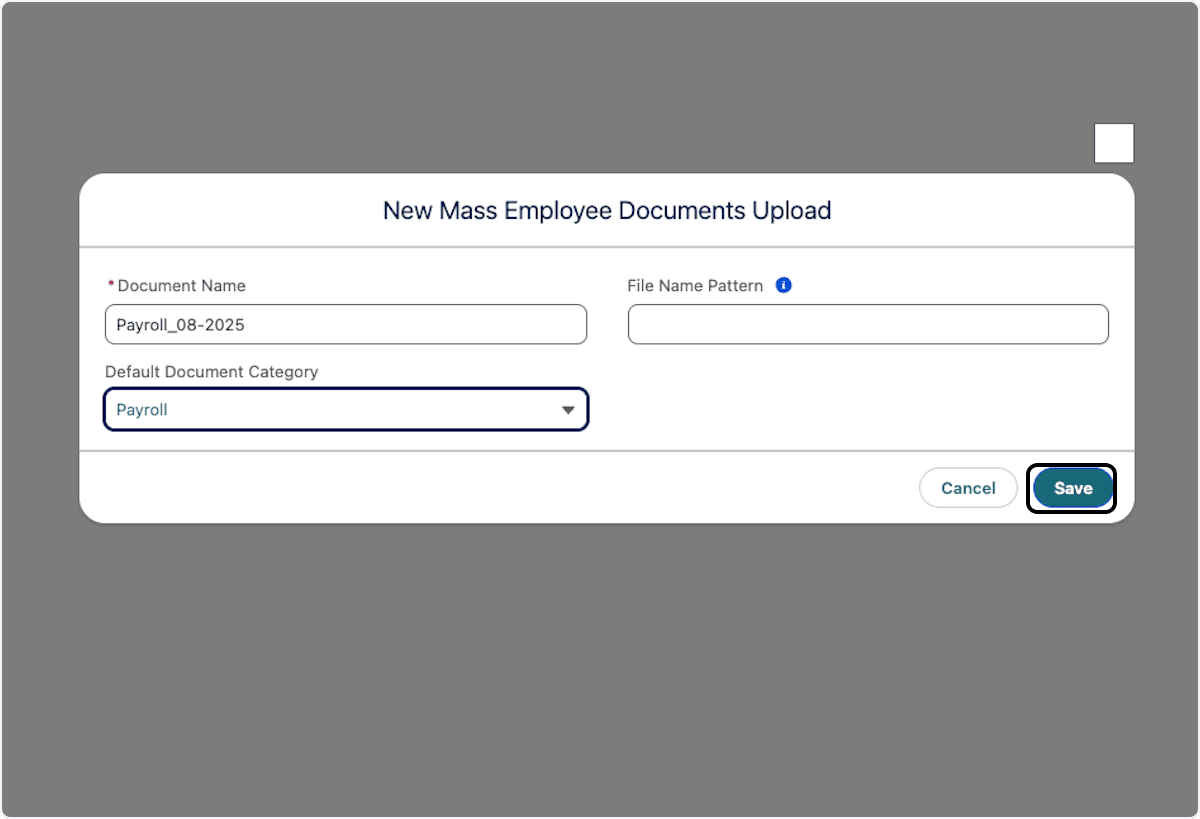
Click Save. Salesforce opens the upload template.
Configure visibility and file matching
-
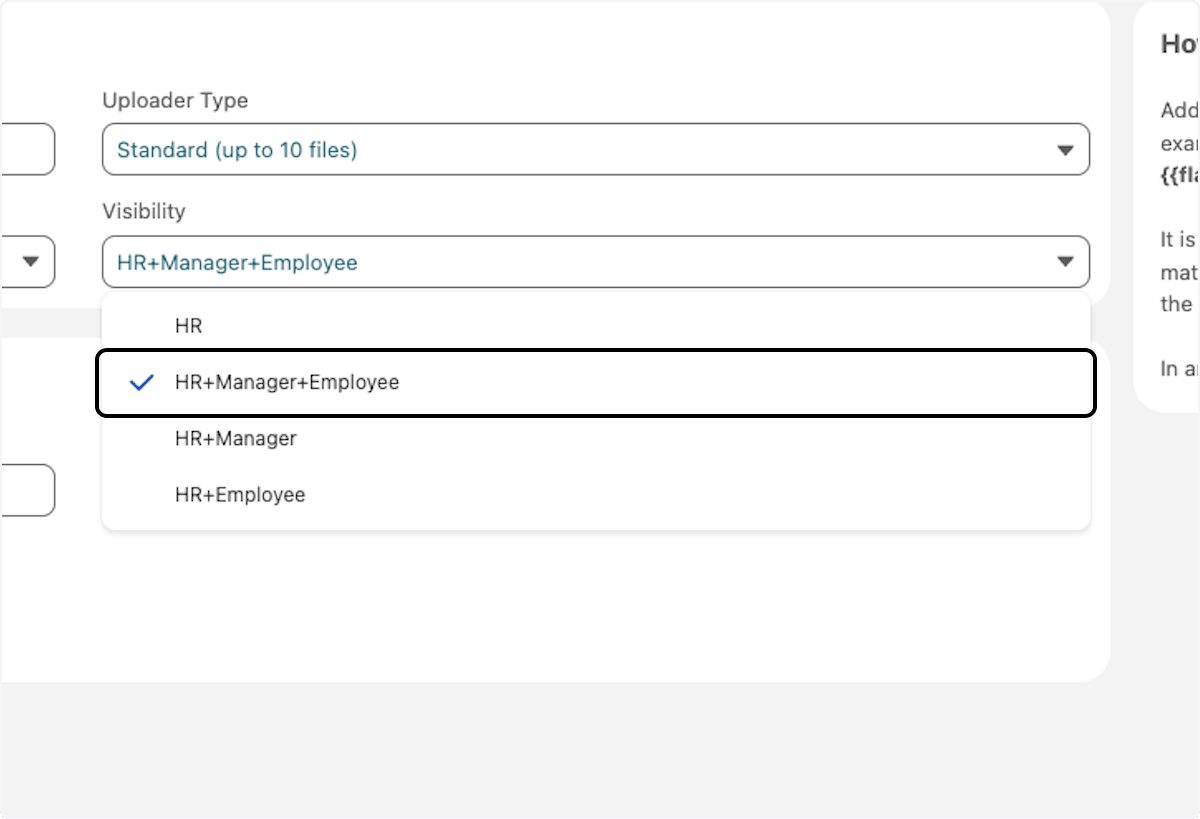
Under Visibility, select who can receive and view the documents, such as HR+Manager+Employee or HR.
-
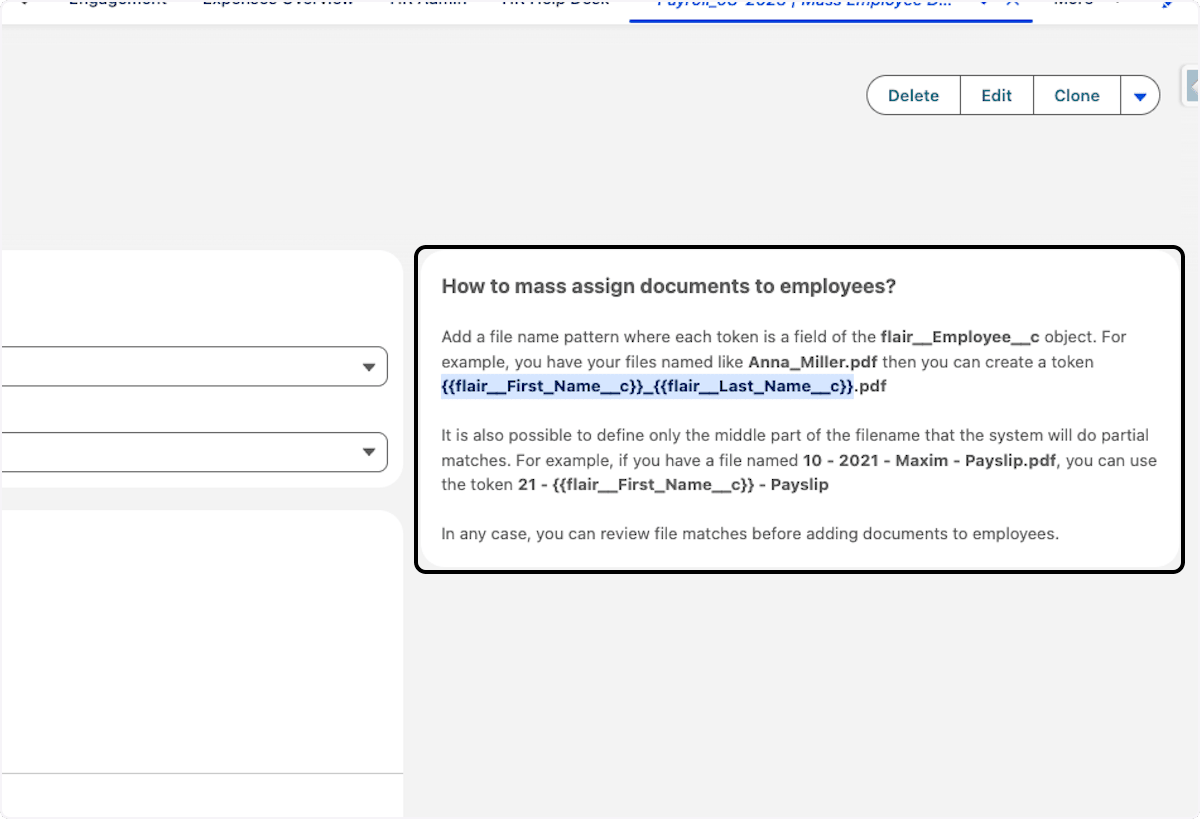
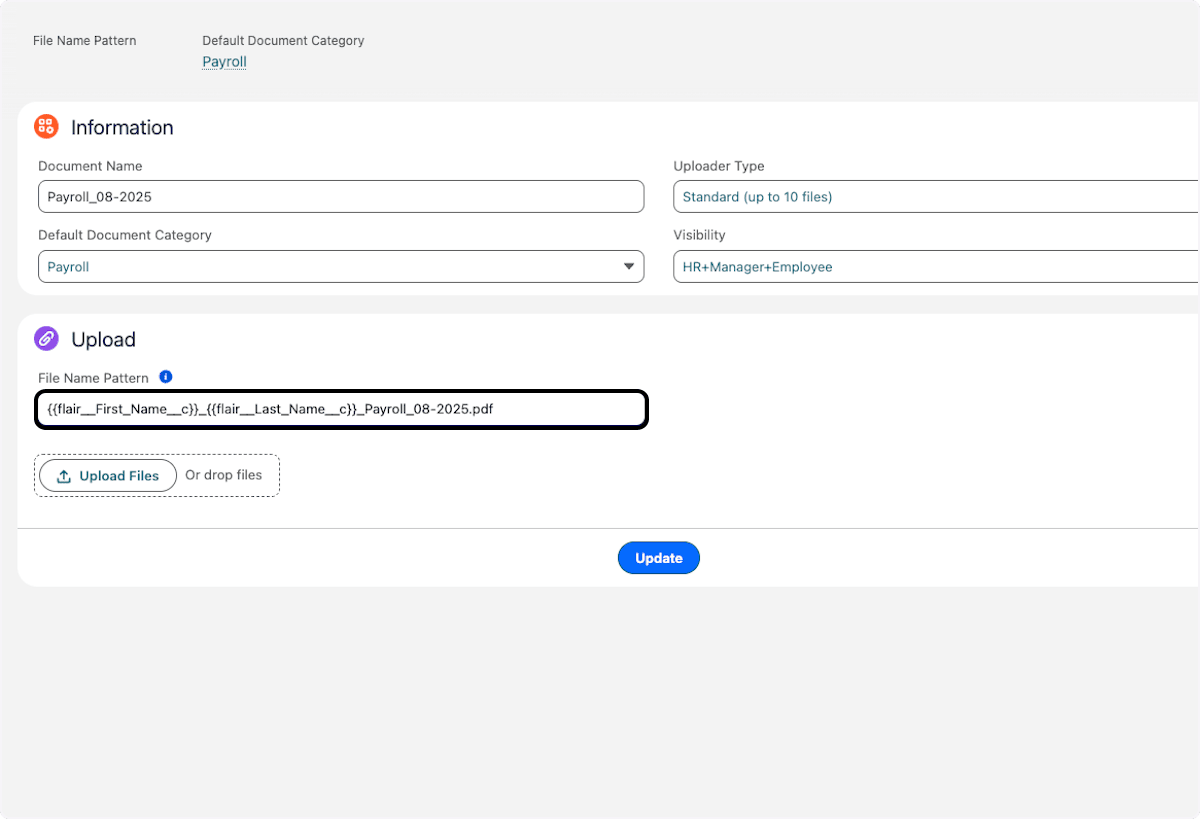
In File Name Pattern, enter a pattern with employee merge fields, such as
{{flair__First_Name__c}}_{{flair__Last_Name__c}}.pdf.A file named
Adamaris_Vinke_Payroll_08-2025.pdfcan use the employee's first and last name for matching. File Name Pattern only matches files to employees. It does not rename the files.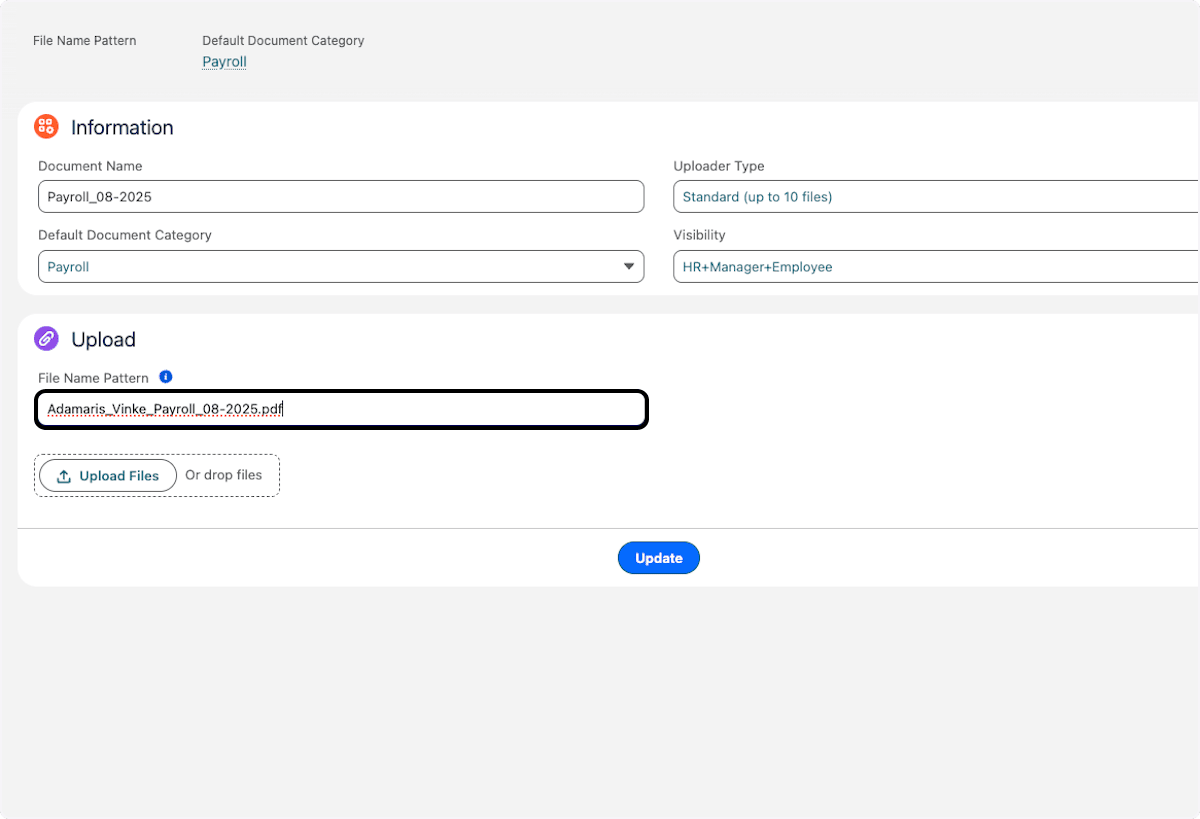
-
Copy required merge fields from the information box next to the template.
-
Confirm that File Name Pattern matches the uploaded file names.
-
Optional: To rename each stored file from the employee's data, enter a formula in File Naming Formula, such as
{{flair__First_Name__c}}_{{flair__Last_Name__c}}_Payslip_07_2026. Leave it empty to keep the original file names. -
Click Update. The template saves the pattern for matching and the formula for renaming.
File Naming Formula accepts only fields on the Employee record, written as exact API names with the flair__ prefix for flair fields. Type dates such as the payroll month as plain text. If any field in the formula can't be resolved, flair keeps the original names of all files in the upload.
Upload and create the Employee Documents
-
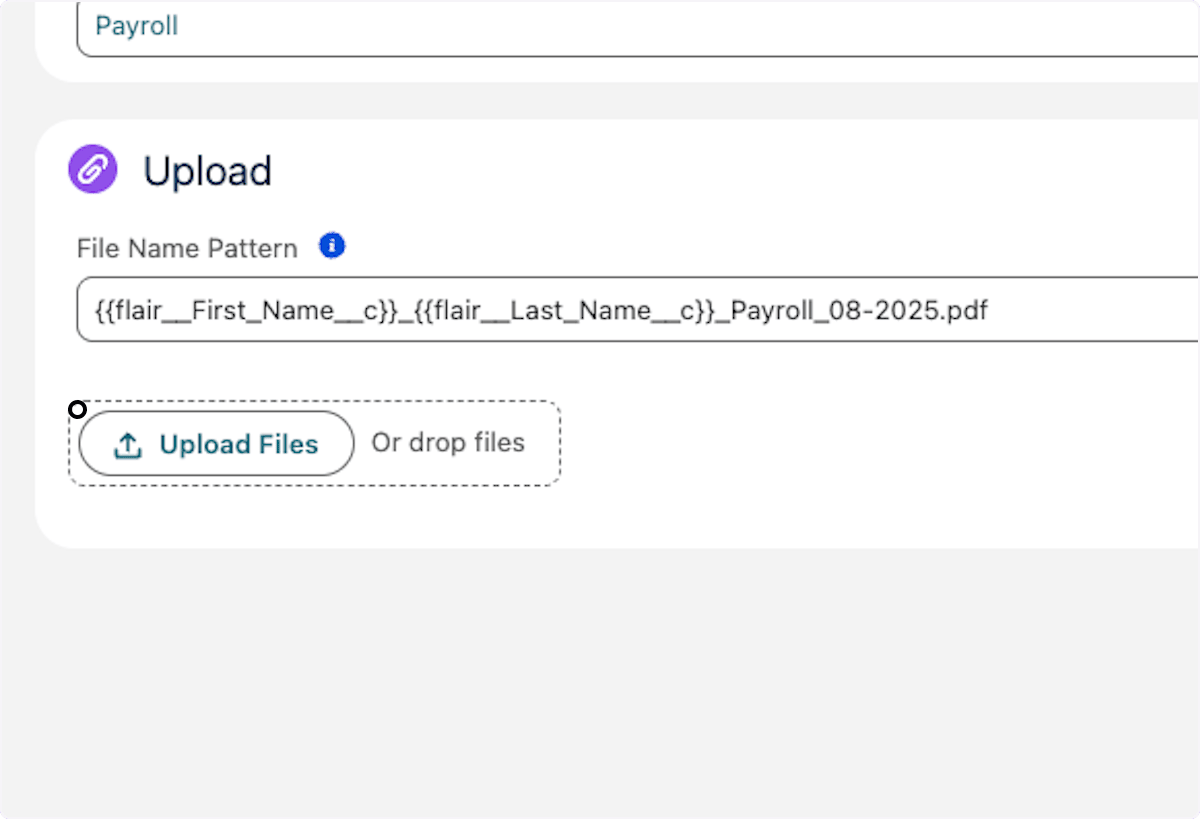
Click Upload Files.
-
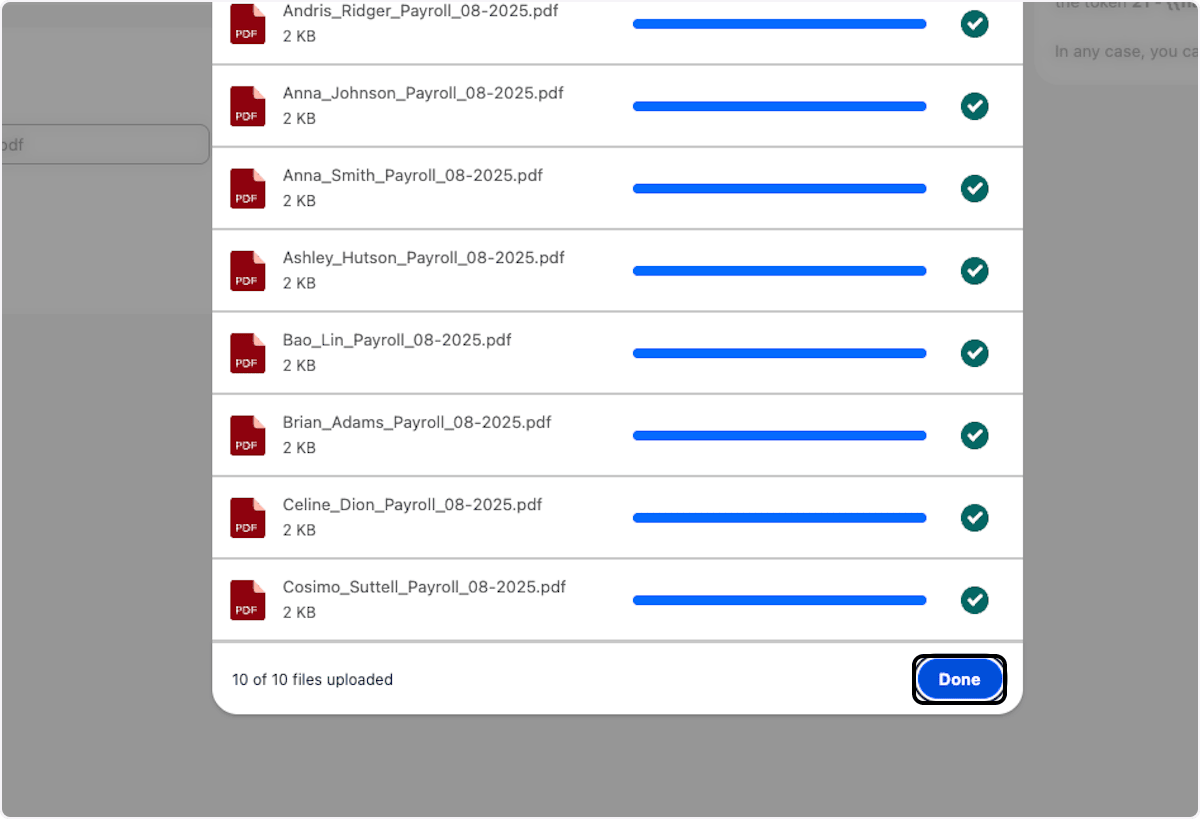
Select the files.
-
When the upload finishes, click Done.
-
Click Create Employee Documents. flair assigns files from the pattern where possible.
-
Manually assign any unmatched files.
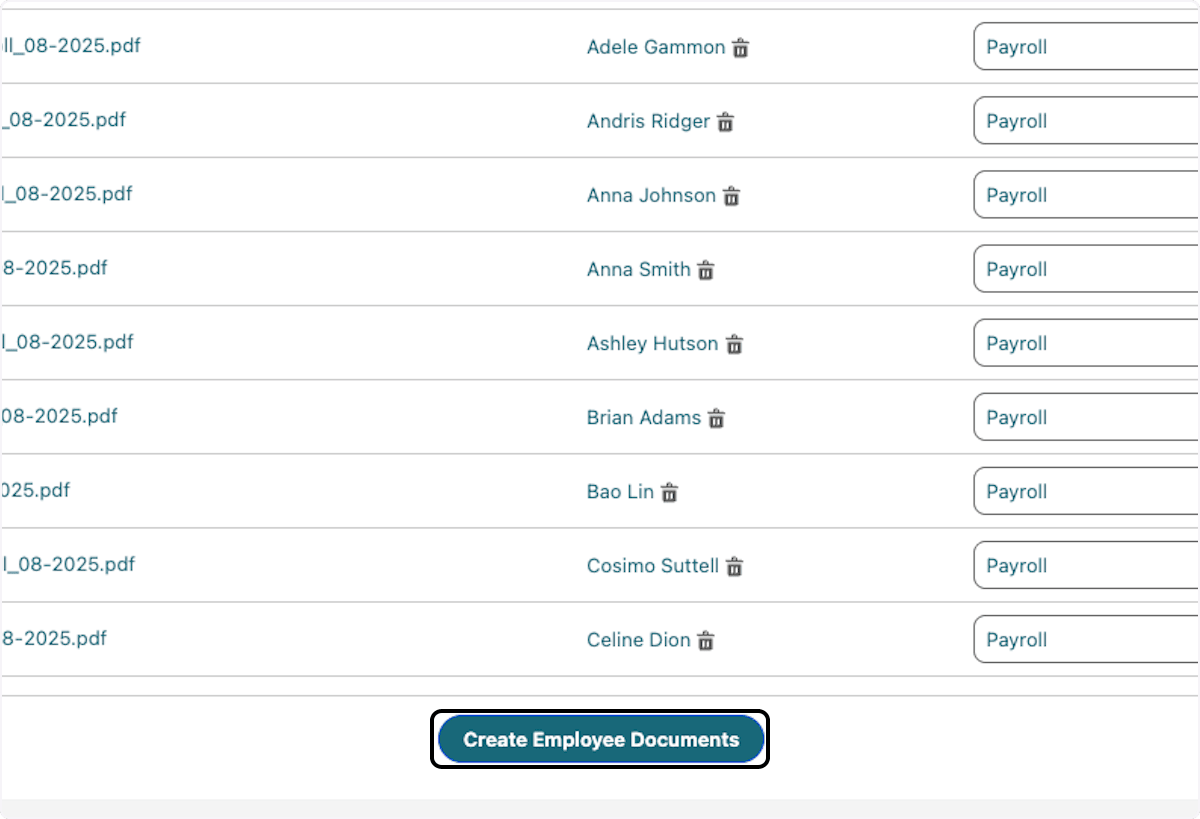
The documents appear for permitted Employees and Managers under Documents in the Employee Hub.
Split one PDF into Employee Documents
Use the Split uploader type when one PDF holds documents for many employees, such as a monthly payslip file from your payroll provider. flair cuts the file into one document per employee and assigns each document to the employee it names.
Enable the Document Splitter integration
Split uses the Document Splitter integration, which connects your org to the flair integration service. You enable it once for your organization.
- Create a Mass Employee Documents Upload, and open it.
- In Uploader Type, select Split, and click Update.
- In Upload, click Enable Splitter Integration. flair opens the Salesforce sign-in page.
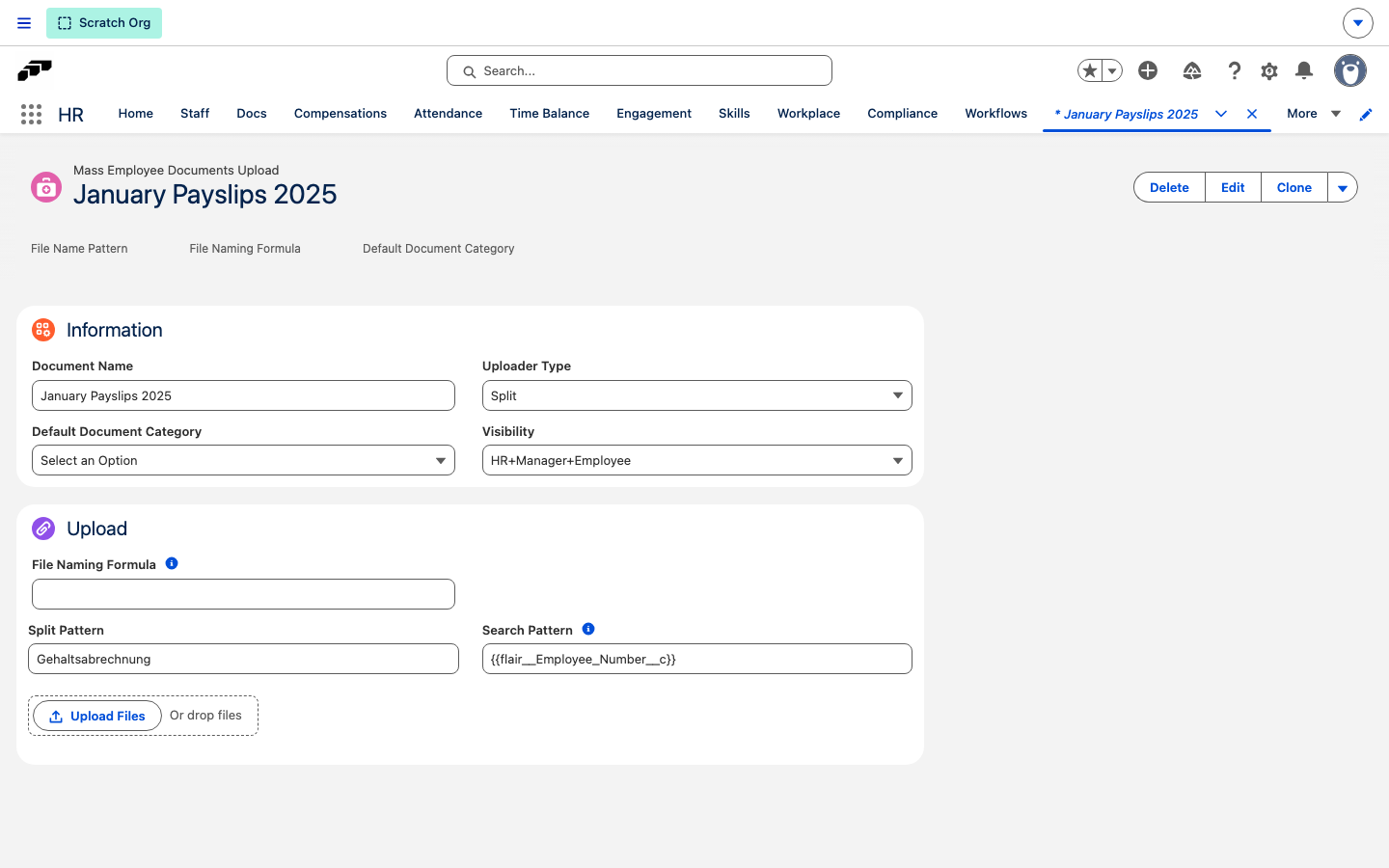
- Sign in, and allow access. When you return to the upload, Split Pattern and Search Pattern appear in Upload.
Split the file
- In Split Pattern, enter text that appears only on the first page of each employee's document, such as
Gehaltsabrechnung. - In Search Pattern, enter how each employee is identified in the file, using Employee fields in double curly brackets, such as
{{flair__Employee_Number__c}}. - Click Update.
- Click Upload Files, select the PDF, and click Done. flair splits the file in the background.
- Refresh the page. The files list shows one PDF per split document and how many are matched to an employee.
- For each unmatched file, search for and select the employee in its Employee column.
- Click Create Employee Documents. It's available once every file has an employee and a category. flair creates the Employee Documents.
flair splits and matches the file by its text:
- A new document starts at every page that contains the Split Pattern text and runs until the next such page. The first page of the file must contain the split pattern.
- For each employee, flair replaces the fields in Search Pattern with that employee's values, for example
1042for an employee number, and looks for the result as a whole word in the document's text. The match is exact, including capitalization and separators. - A matched document is assigned to the employee and listed under the matched text. A document with no match stays unassigned until you assign it.
- Each split document gets the upload's Default Document Category.
- flair reads the text layer of the PDF, so the file must contain selectable text, not only scanned images.
Verify document assignment
-
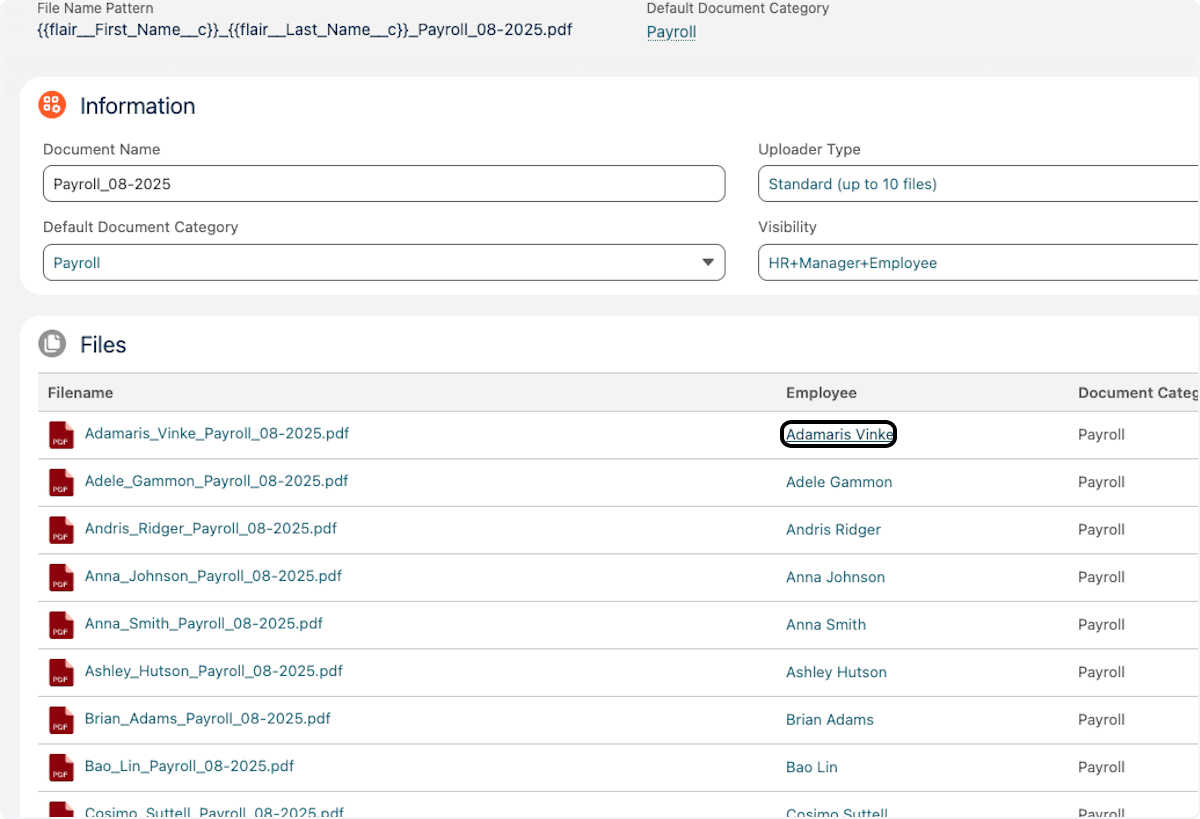
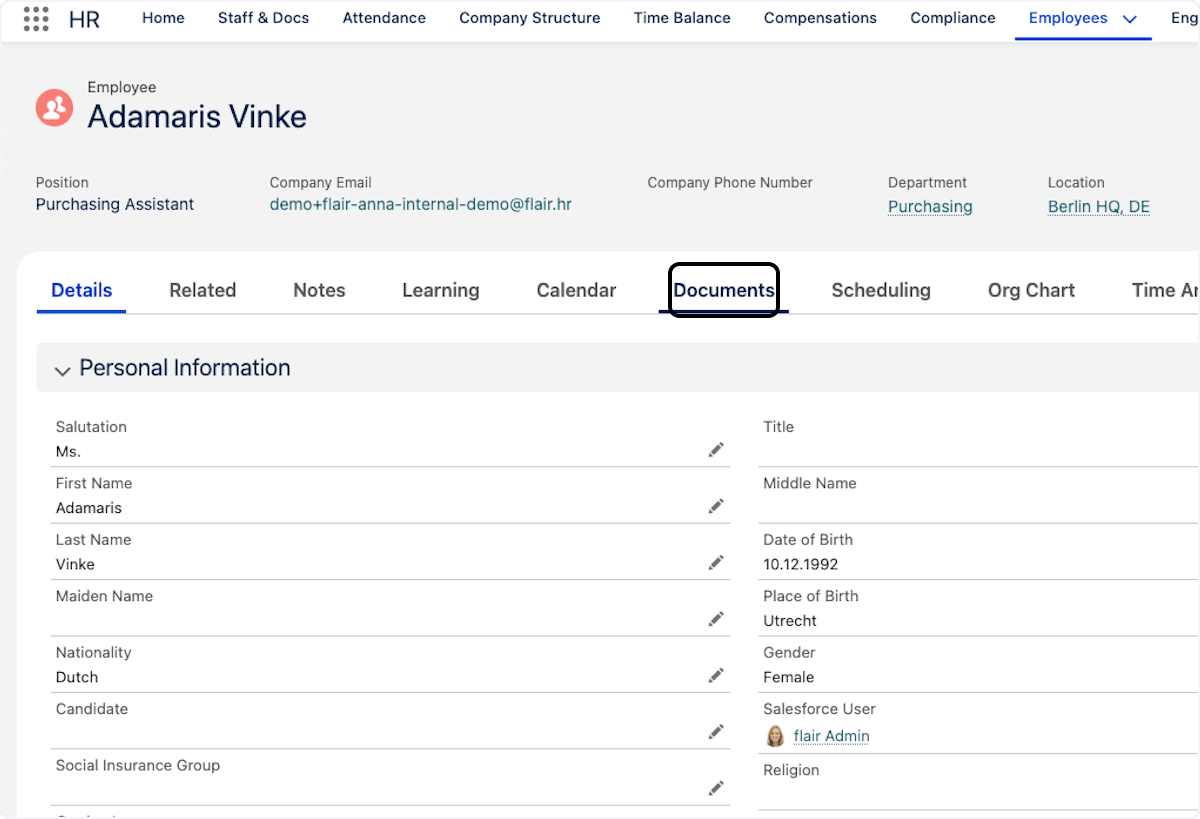
From the employee list, select an employee.
-
Open Documents.
-
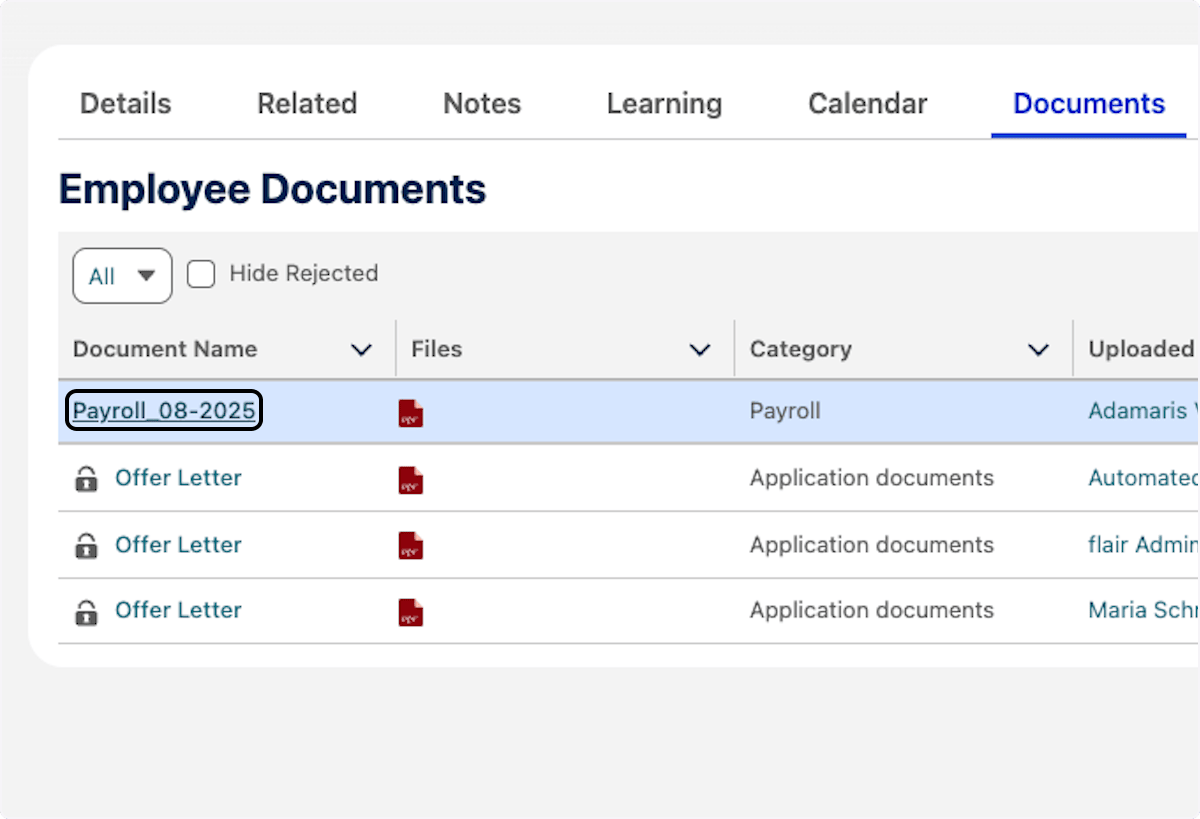
Confirm that the uploaded file is associated with the employee.
-
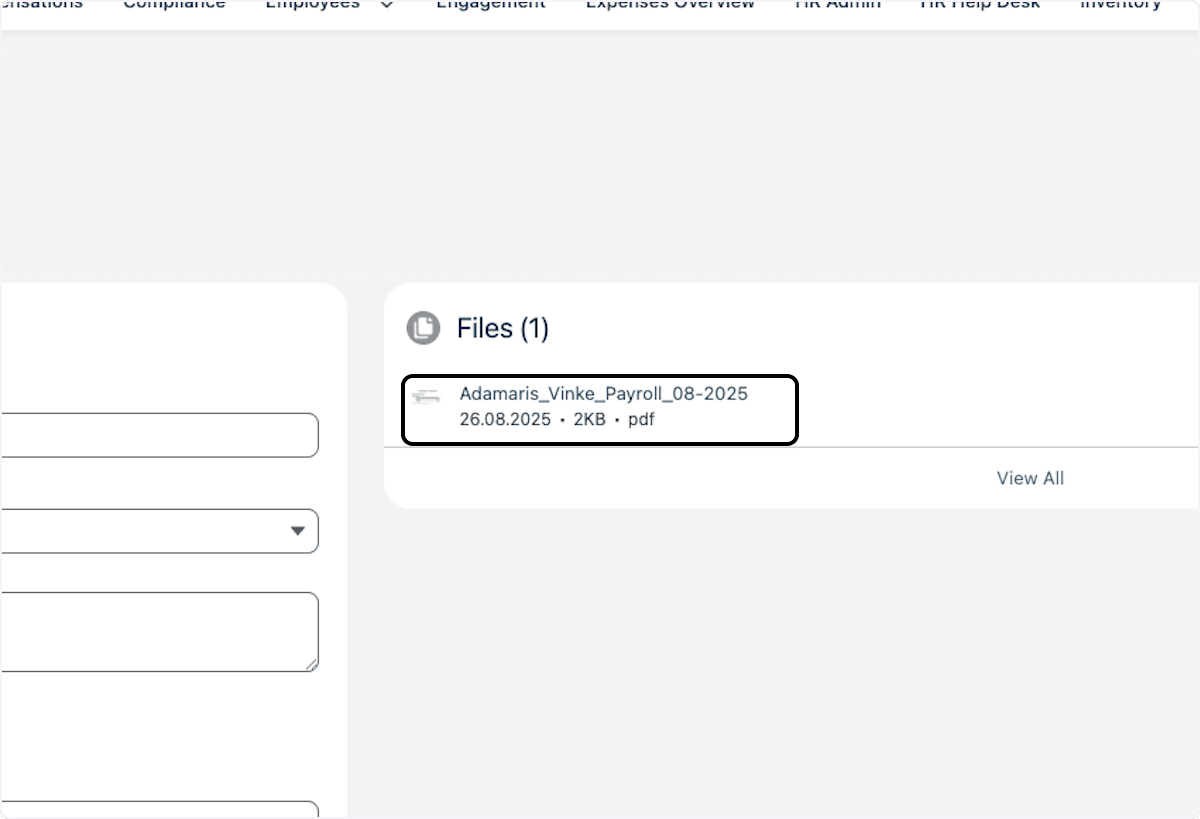
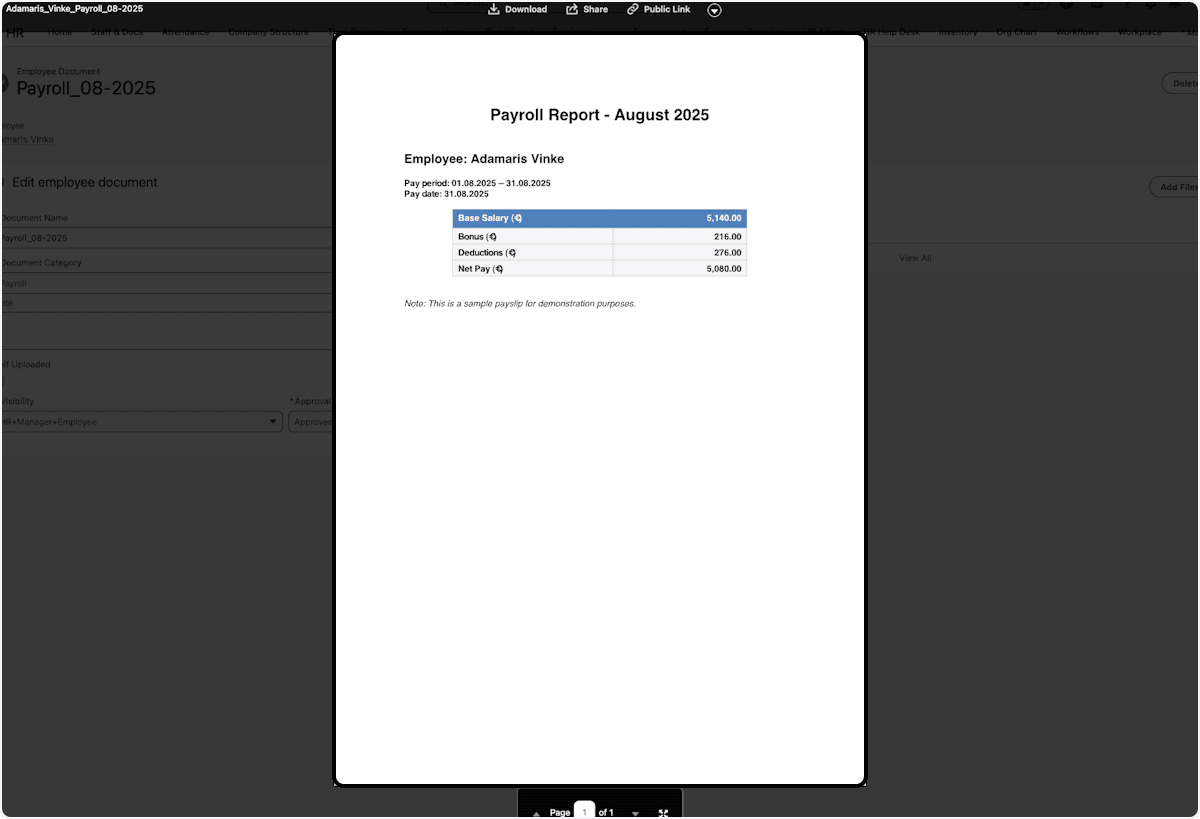
Open the file, and verify its contents.
Upload Employee Documents from SFTP
Use SFTP for files delivered by an external payroll system or another service.
Create the upload
-
In flair HR, open Docs → Mass Employee Documents Upload.
-
Click New record.
-
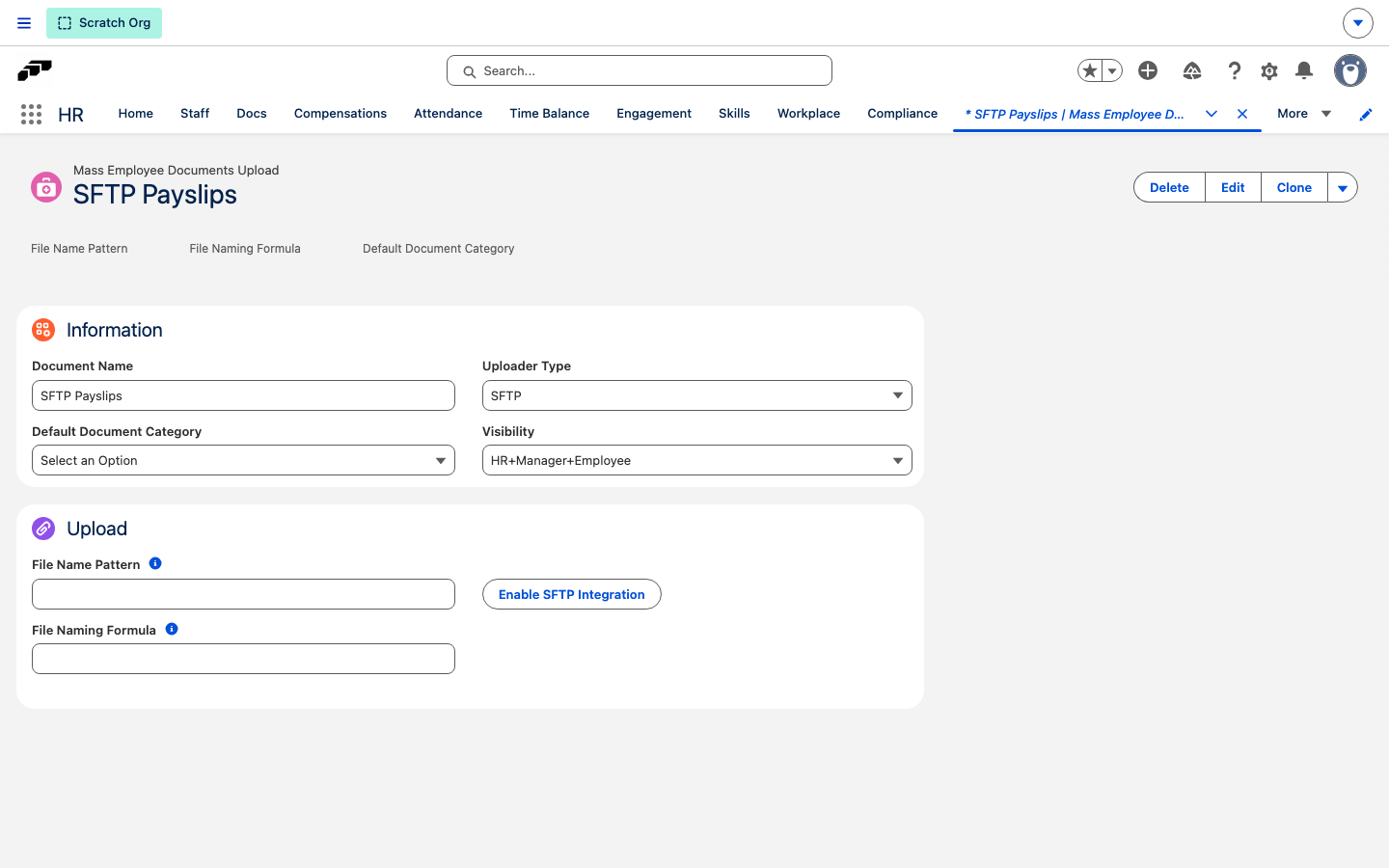
Enter a name, such as
January Payslips 2025. -
Click Save. The upload opens.
-
In Uploader Type, you can select:
Type Capacity or source Standard (up to 10 files) Up to 10 uploaded files. Custom Up to 1,000 uploaded files. Split One PDF split into separate files for different employees. See Split one PDF into Employee Documents. SFTP Files imported from an SFTP server. -
Select SFTP.
-
Click Update.
Configure and import from SFTP
- If the integration is disabled, click Enable SFTP Integration.
- Enter the SFTP host details.
- Click Save.
- Click Add from SFTP.
- Browse the server, and select individual files or folders.
- Click Download. flair transfers the selected files.
- Under File Name Pattern, define a pattern with employee names, employee numbers, or other Employee fields.
- Confirm that each file matches the correct employee.
Create and verify the documents
- Click Create Employee Documents.
- Open each employee's Documents tab.
- Open the imported file, and verify its contents.
After SFTP is enabled, you can also select a specific employee and upload files directly. The same direct upload is available in Recruiting.
Restore a deleted document
- In Salesforce, open the App Launcher (⋮⋮ grid icon).
- Search for and open Recycle Bin.
- Select My Recycle Bin, or select All Recycle Bin if your permissions allow it.
- Select the deleted document or record.
- Click Restore. Salesforce returns it to its original location.
Search parsed document text
flair automatically extracts text from every uploaded Employee Document and stores it for search. This uses the same parsing behavior as Recruiting and makes information inside Employee Documents searchable immediately after processing.
Restrict Employee Document uploads
By default, Employees can upload documents in the Employee Hub. This setting hides Upload on the personal Documents page and dashboard profile widget. Attachments submitted through Request Forms remain available.
- In the flair HR app, open Employee Hub Features from the App Launcher (⬚⬚ grid icon).
- Open an existing record, or click New to create one.
- Select the employees, departments, entities, or locations the restriction applies to. Leave the audience empty to apply it to every employee.
- Under Features, select Hide Self-Upload of Documents.
- Save the record. The selected employees can no longer upload directly.
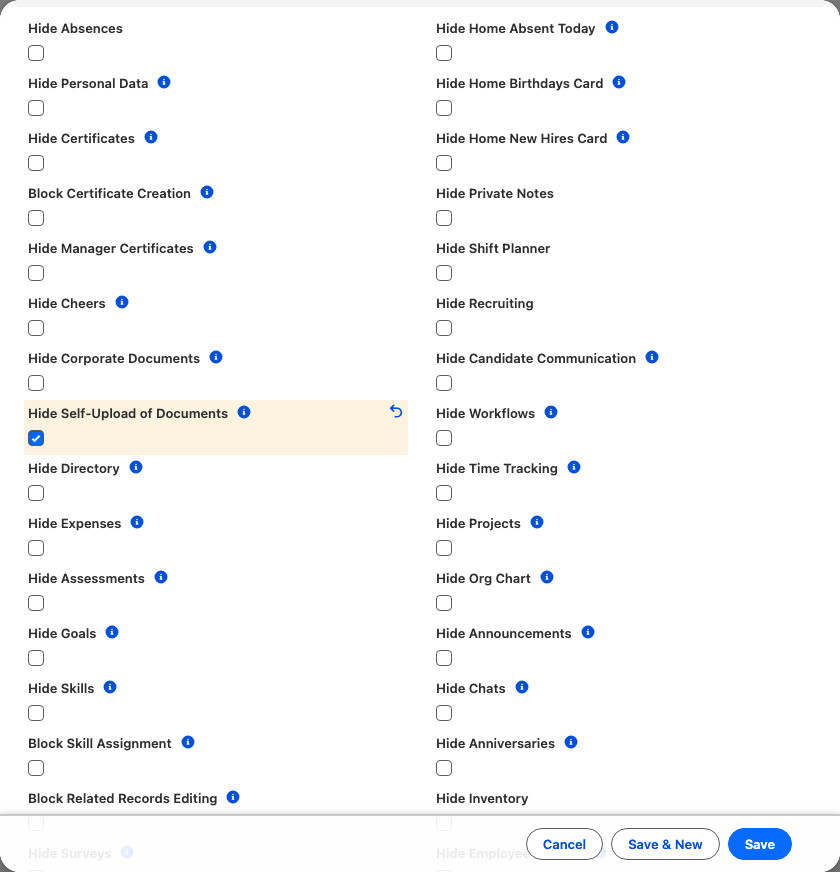
This setting is global. For exceptions, create a Request Form that accepts an attachment because the restriction does not apply to Request Form submissions.
Manage documents in the mobile app
Upload a document
- In the bottom navigation of the flair mobile app, tap Add. You can also tap the plus icon on the Documents list to upload into the folder you have open.
- In the menu, tap Upload document.
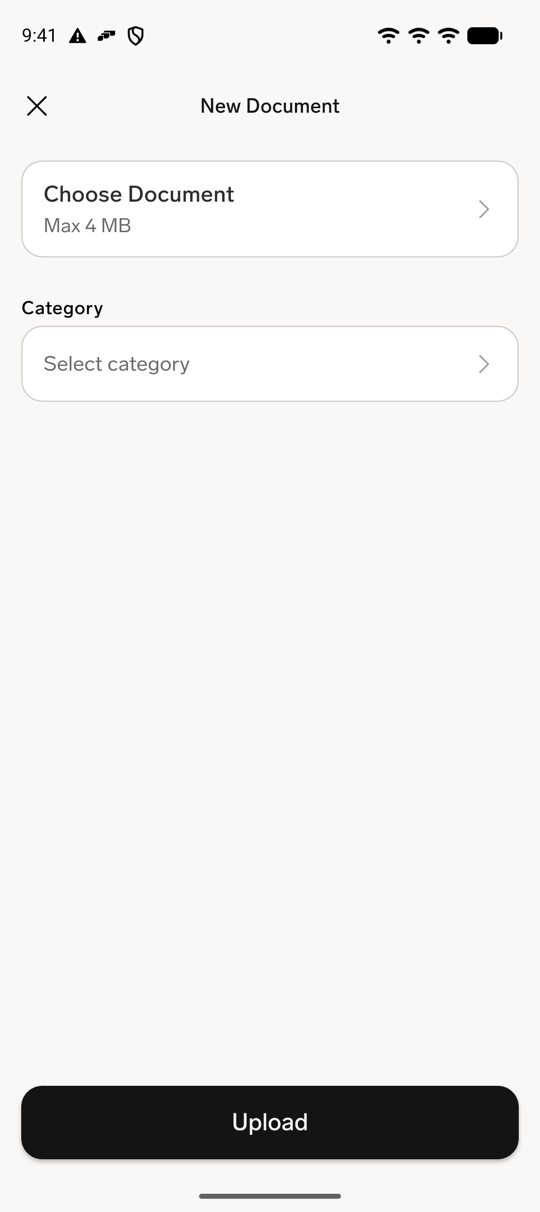
- In the upload screen, tap Choose Document.
- Select Upload file, Select from library, or Take photo.
- To assign a category, tap Select category, select a category, and tap Save.
- Tap Upload. The document appears with status Pending until it's approved. See Approve documents your team uploads.
Browse, search, sort, and filter documents
- On the mobile app, tap More, then tap My Documents. The list shows your documents and folders.
- To search, enter text in the search field. The list updates to matching document names.
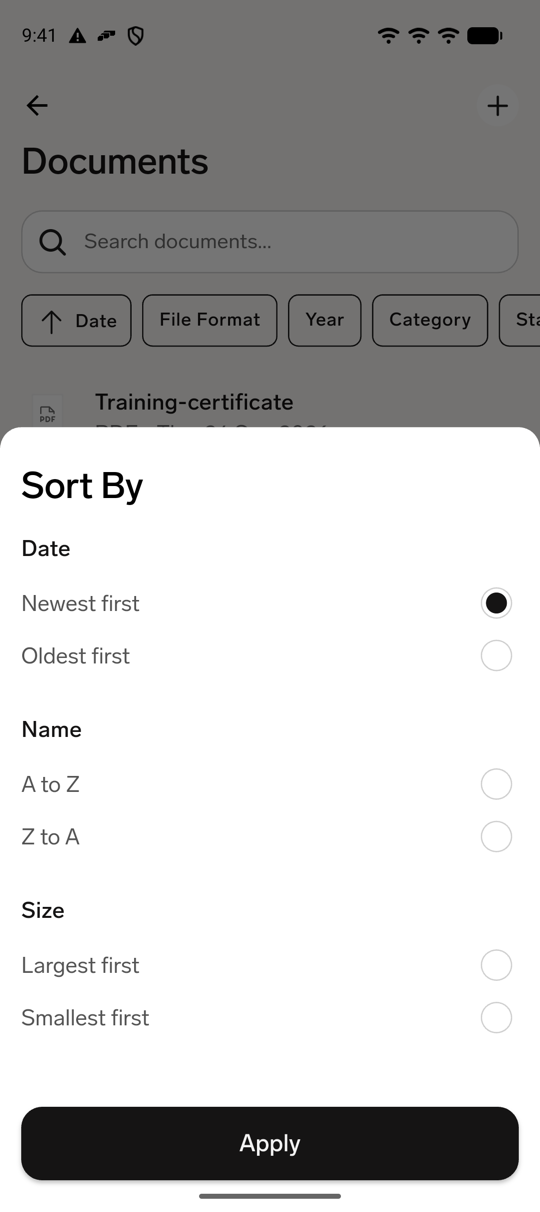
- To change the order, tap Sort By, and select Newest first, Oldest first, A to Z, Z to A, Largest first, or Smallest first.
- To narrow the list, open the filter control. On the Filters screen, select values for File Format, Year, Category, or Status.
- Tap a folder to open it. Tap a document to open its file information.
Create folders
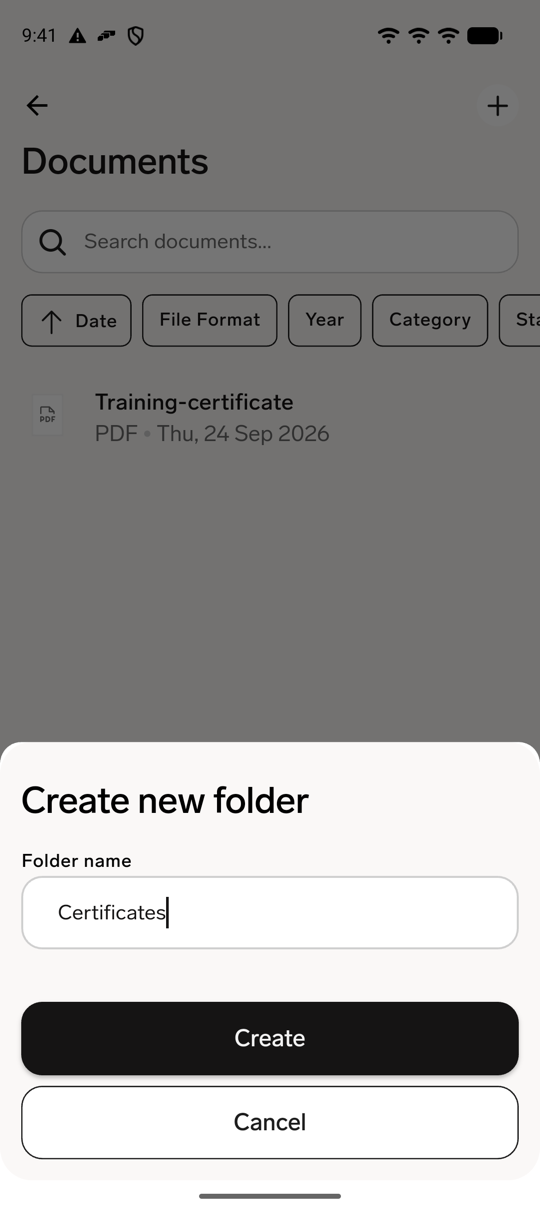
- On the Documents list, tap the plus icon.
- Tap Create new folder.
- In Create new folder, enter a name in Folder name.
- Tap Create. The new folder opens.
- To create a nested folder or upload a document inside it, tap the plus icon, and choose Create new folder or Upload document.
Your organization can block creating, renaming, moving, or deleting folders.
Manage a document
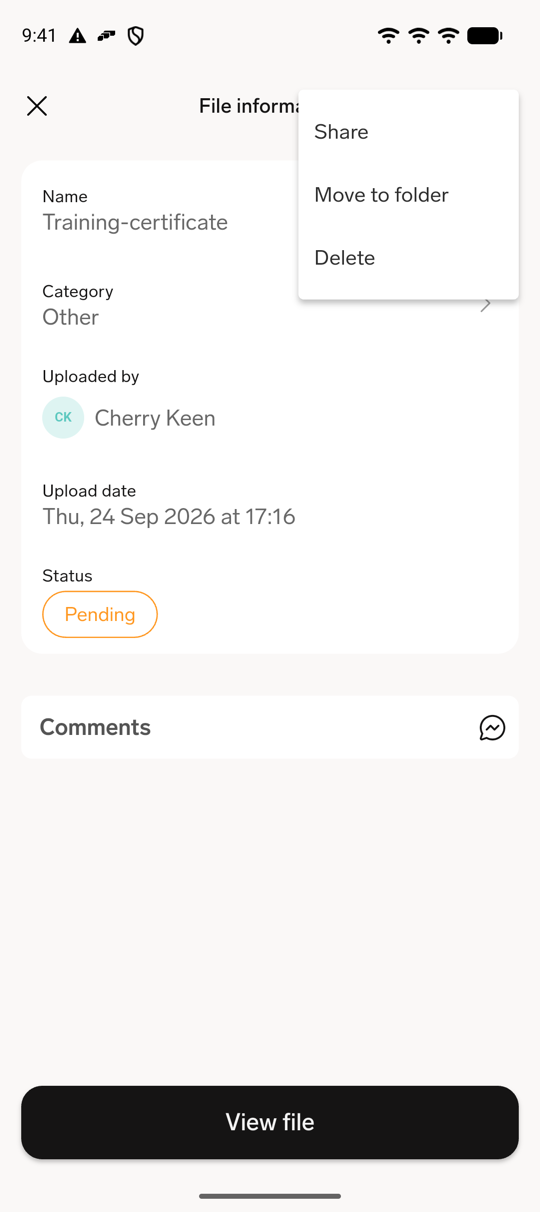
- Open a document from the Documents list.
- To rename it, tap Name, enter the new value in Document name, and tap Save.
- To change its category, tap Category, select a category on the Select category screen, and tap Save.
- To move it, open the document actions menu, tap Move to folder, select a folder, and tap Move.
- To share it, open the document actions menu, and tap Share.
- To delete it, open the document actions menu, tap Delete, and confirm by tapping Delete.
The file information screen shows View file for images and PDFs, and Download for other file types.
You can delete only documents you uploaded yourself that are not yet approved. Your organization can also block renaming or moving approved documents.
View your documents
In the mobile app, tap More, then tap My Documents to see your personal documents. Tap Company Documents to browse documents shared by your organization. Your organization can hide either tile.
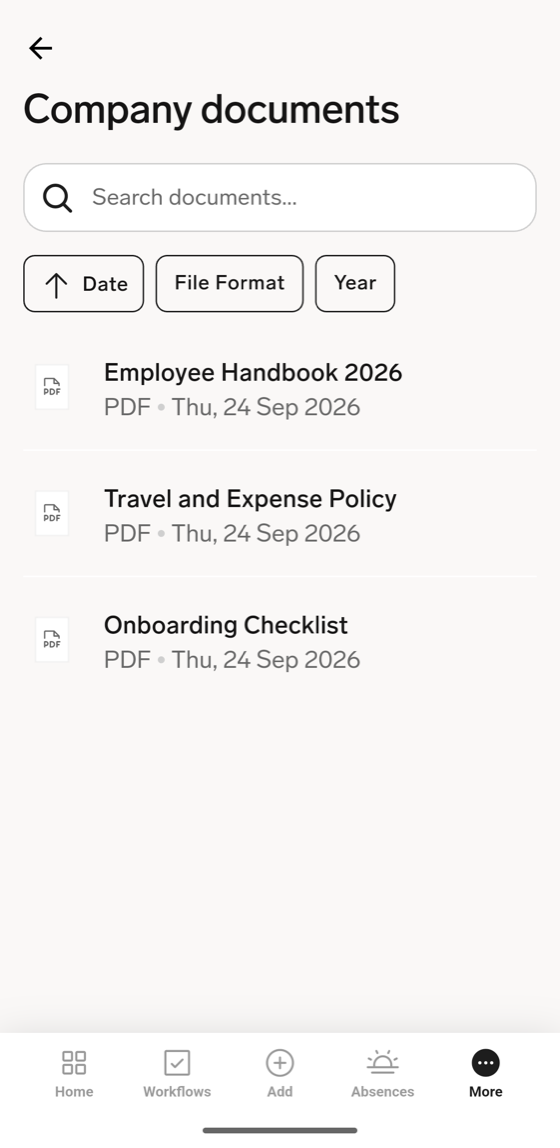
View company documents
- In the mobile app, tap More.
- Tap Company Documents.
- Search, sort by Date, or filter by File Format or Year, then tap a document to open it.
Download the flair mobile app for iOS or Android.