Create documents with Document Generator
Use Document Generator to populate offer letters, contracts, onboarding documents, and other files with Salesforce data. This guide covers template syntax, field mapping, document generation, and performance-review exports.
HR Admins create templates and generate documents in Salesforce. Available objects and fields depend on Salesforce permissions.
Create a Document Template
Configure the template record
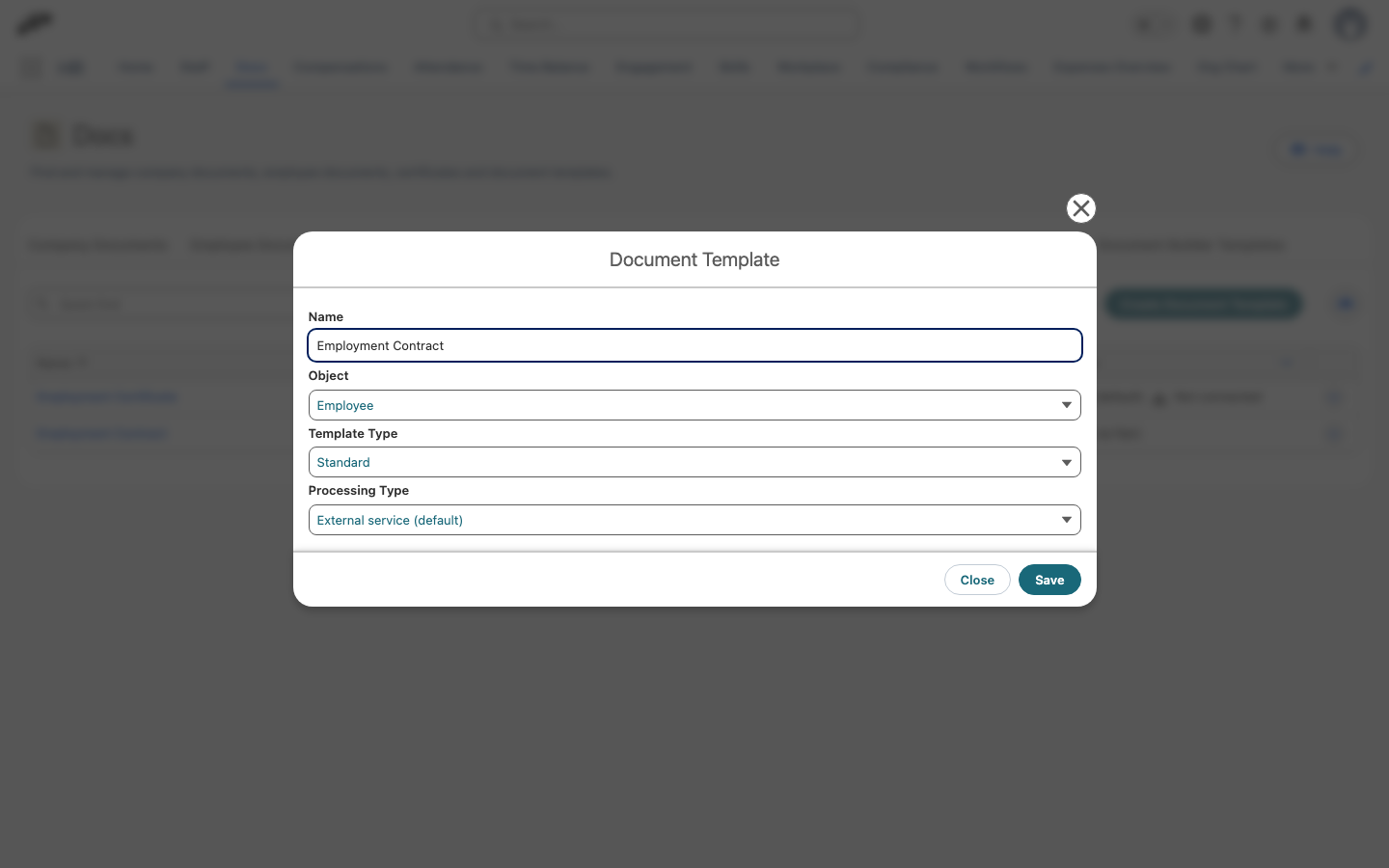
- In flair HR, open Docs → Document Templates.
- Click Create Document Template.
- Enter a Name, such as
Employment ContractorOffer Letter. - Under Object, select Employee, Candidate, Position, or another supported Salesforce object. The selected object determines which fields you can map.
Prepare the source file
Create the template as a .docx or .odt file. Use square brackets for merge tags:
[employeeName]
[startDate]
[jobTitle]
Use camelCase without spaces, and match the exact Salesforce field API name when you want automatic mapping.
Dear [firstName] [lastName],

We are pleased to offer you the position of [jobTitle] starting on [startDate].
Your annual salary is [salary].

Best regards,
[managerName]
For rich-text fields, use these forms:
| Syntax | Use |
|---|---|
[~tag] | Replaces part of a paragraph while preserving inline formatting. |
[~~tag] | Replaces a complete block that can contain paragraphs, lists, tables, or other formatted elements. |
For a dynamic image, prefix the tag with %:
[%logoUrl]
[%employeePhoto]
[%companyLogo | size:200:100]
[%signature | size:300:150]
The size:width:height values are pixels. The image must use a public URL. Authenticated Salesforce Files and public Salesforce URLs that redirect to preview pages may not render reliably, so use external hosting or a Salesforce resource with a direct public URL.
QR codes use the same image field pattern:
[%yourUrl | qrcode:['width']:['height']]
Upload and map the source file
- Click Upload, or drop the
.docxor.odtfile into the upload area. - Wait for Document Generator to process the file.
- Review the detected merge tags.
- For each tag, select the corresponding Salesforce field.
- Optional: For a date, enter a Date Format, such as
dd/MM/yyyyorMMMM dd, yyyy. - Map rich-text tags to rich-text Salesforce fields.
- Map image tags to URL fields.
- Click Save.
- Generate a sample document.
- Confirm that tags, image sizes, and formatting render correctly.
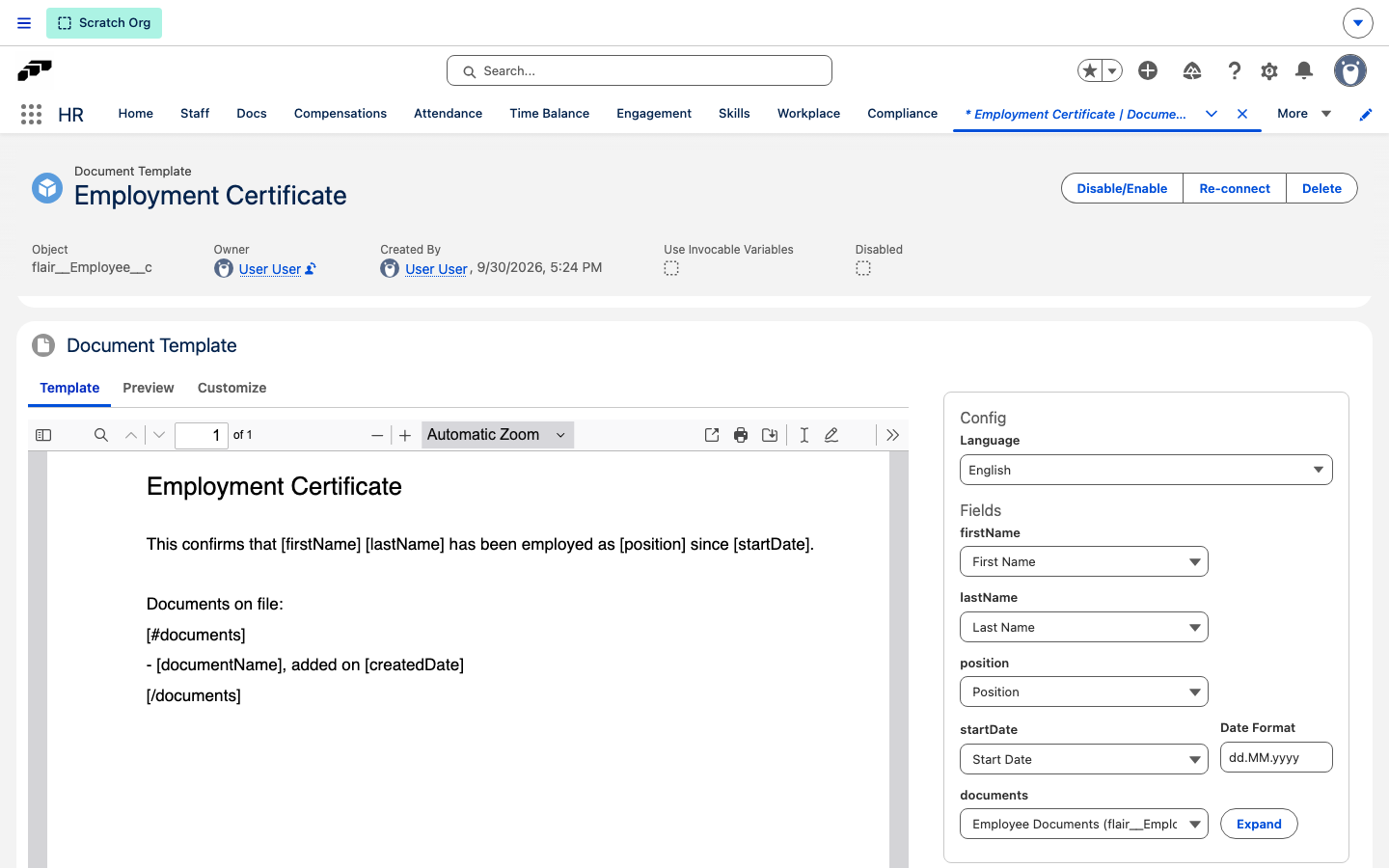
Example mappings include:
| Merge tag | Salesforce value |
|---|---|
[firstName] | Employee: First Name |
[startDate] | Employment: Start Date with MMMM dd, yyyy |
[%companyLogo] | Company Settings: Logo URL |
[~~jobDescription] | Position: Description, a rich-text field |
Include child records
To repeat content for every related record, such as each document or contract attached to an employee, wrap the content in a loop. The loop opens with [#name] and closes with [/name]. Tags inside the loop refer to fields on the related record.
[#documents]
- [documentName], added on [createdDate]
[/documents]
This syntax applies to templates with Processing Type set to External service (default).
After you upload the file, map the loop in the Fields list:
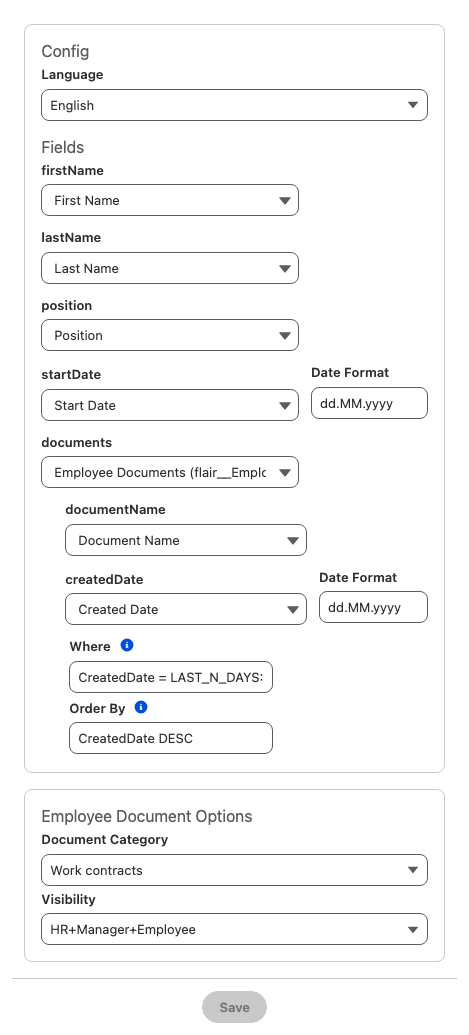
- For the loop tag, select a child relationship of the template's object. Each option shows the relationship label followed by its API name in parentheses.
- Click Expand. The tags inside the loop appear below it.
- For each tag inside the loop, select a field on the related object. Date fields also accept a Date Format.
- Optional: In Where, enter a filter condition for the related records, such as
CreatedDate = LAST_N_DAYS:365. - Optional: In Order By, enter the sort order, such as
Name DESC, CreatedDate ASC. - Click Save.
Where and Order By don't appear on templates with Use Invocable Variables selected.
Loops can be nested. A loop inside another loop maps to a child relationship of the outer loop's object, and you expand it the same way.
Set the options for generated documents
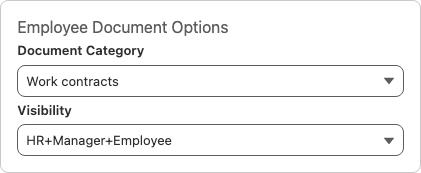
The right-hand panel of the Document Template sets how documents generated from it are stored. The options depend on the template's object:
| Object | Options |
|---|---|
| Employee | Employee Document Options: Document Category and Visibility (HR, HR+Manager+Employee, HR+Manager, or HR+Employee) |
| Candidate, Talent, or Job | Recruiting Document Options: File Type and Visibility (Hiring Manager(s) only or Hiring Manager(s) and Evaluator(s)) |
| Any object other than Employee | Select Show Employee Document Options to set a Document Category and Visibility for documents that are saved as Employee Documents |
- Open the Document Template.
- In the options section for the template's object, select the values.
- Click Save. Documents you save from this template use these values.
Update the template file
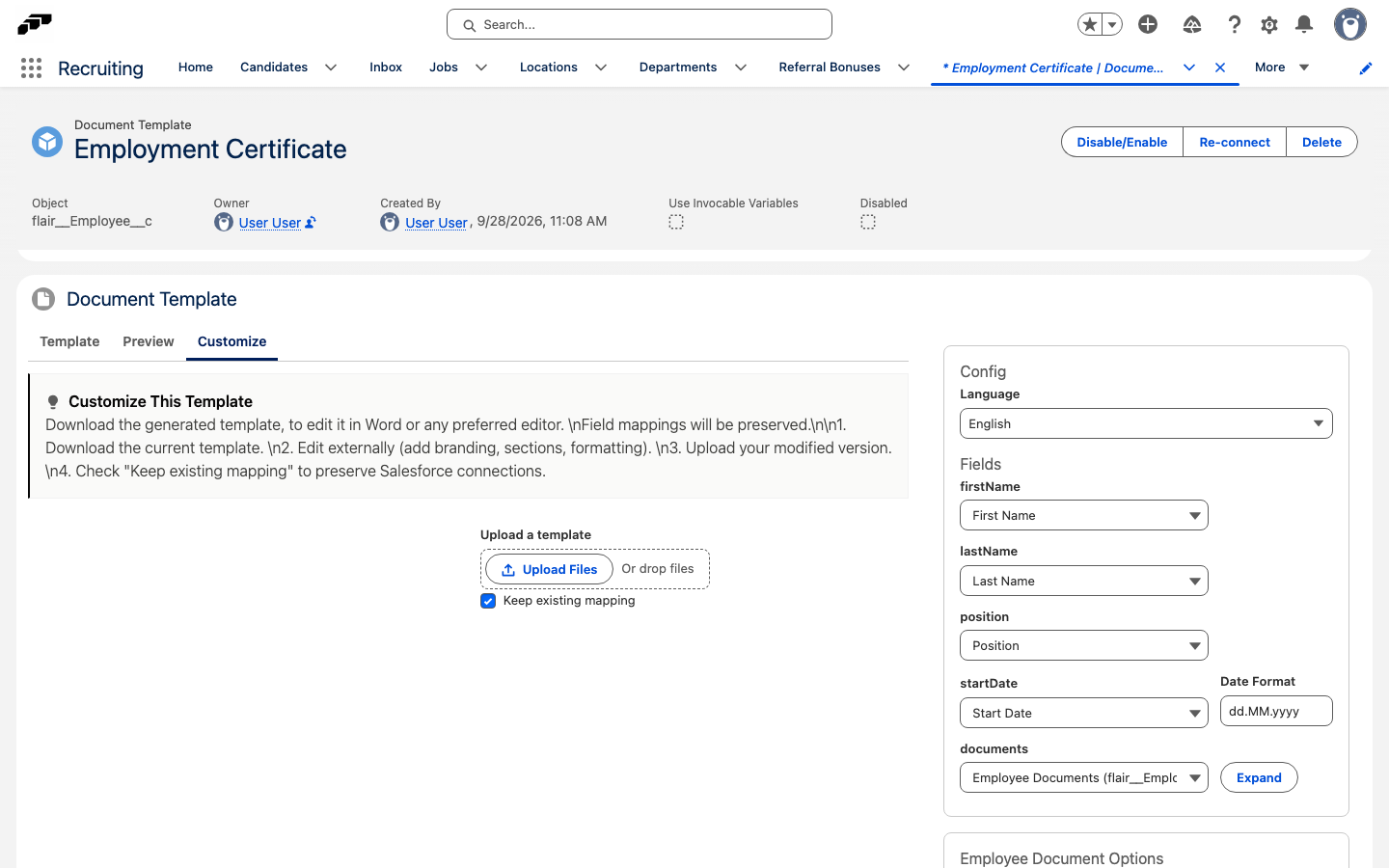
To change the layout or wording of a template, replace its file on the Customize tab. The tab appears after the template has been processed.
- Open the Document Template.
- Open the Customize tab.
- Download the current template file shown on the tab.
- Edit the file in Word or another editor, for example to add branding, sections, or formatting.
- Leave Keep existing mapping selected to keep your current field mappings.
- Under Upload a template, upload the edited file. Document Generator processes the file, which takes about 30 to 50 seconds.
With Keep existing mapping selected, merge tags you added or renamed in the file are not added to the Fields list. To pick them up, clear Keep existing mapping before you upload. Document Generator then detects all tags again, and you map every tag from the start.
Generate a document from a template
Generate from an employee record
- In Staff, open an employee record.
- Open Documents.
- Click Add from template.
- Select the Document Template.
- Review the generated preview and populated data.
- Click Save to record. The file is saved as an Employee Document with the Document Category and Visibility set on the template.
Generate from another object
- Open the Candidate, Position, or other record for the object used by the template.
- Open its Documents section.
- Click Add from Template.
- Select the template.
- Generate and save the document.
Edit documents in the browser with Editable DOCX templates
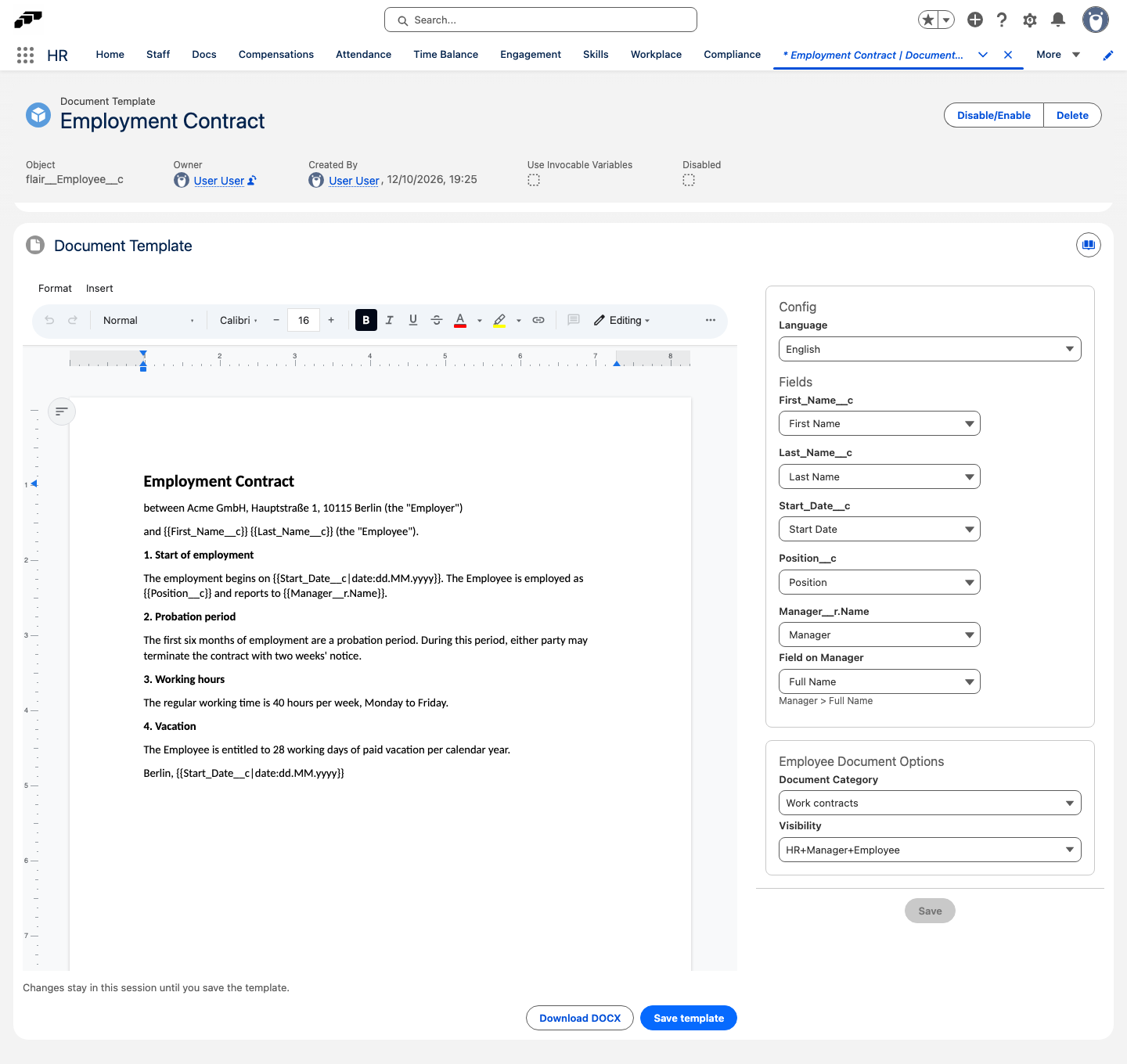
With an Editable DOCX template, you edit the complete merged document in flair before you save it, for example to change a clause in one employee's contract. You also write the template itself in the browser, starting from an uploaded .docx file or from a blank document.
Editable DOCX templates count toward the number of document templates in your flair subscription. You don't need the Document Generation integration to use them. PDF preview and saving work for documents up to 512 KB, or up to 1 MB with a connected Document Generation integration.
Create an Editable DOCX template
- In flair HR, open Docs → Document Templates.
- Click Create Document Template.
- Enter a Name, and select the Object.
- Under Template Type, select Editable DOCX. Processing Type changes to Salesforce (PDF via flair) and can't be changed.
- Click Save. The new template opens.
- Click Upload a template to upload a
.docxfile, or click Start with a blank document. The template opens in the editor. - In the editor, type a merge tag in double braces wherever a value from the record goes. Use the field's API name, such as
{{First_Name__c}}. For a field on a related record, use a dotted path, such as{{Manager__r.Name}}. - Click Save template. Each new merge tag appears in the Fields list on the right.
- In the Fields list, check that each tag maps to the right Salesforce field.
Editable DOCX templates don't support loops, conditions, rich-text tags ([~tag], [~~tag]), or dynamic images. Filters such as {{Hire_Date__c|date:yyyy-MM-dd}} work. The editor offers Arial, Calibri, Times New Roman, Cambria, and Courier New, the fonts the PDF shows faithfully. If an uploaded template uses another font that isn't embedded in the file, a warning appears above the editor, and the font is replaced in the PDF.
To keep a copy of the template file, click Download DOCX.
Edit and save a document
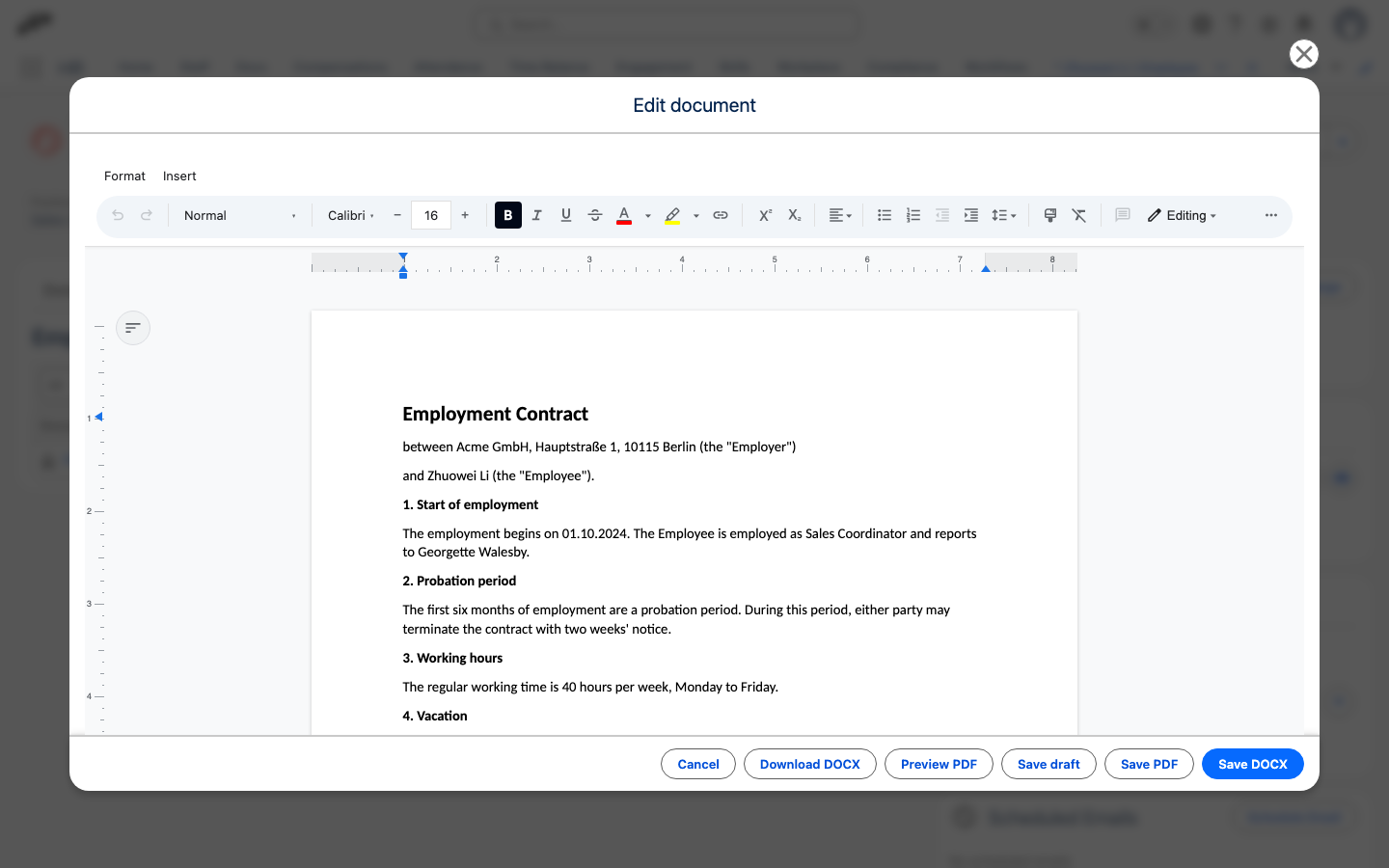
- In Staff, open an employee record.
- Open Documents.
- Click Add from template, and select the Editable DOCX template. The Edit document window opens with the merged document.
- Edit the document. Your changes stay in the window until you save or close it.
- Optional: To check the PDF version, click Preview PDF.
- Click Save DOCX or Save PDF. The document is saved as an Employee Document with the Document Category and Visibility set on the template.
To download the edited file without saving it to the record, click Download DOCX.
The Edit document window also opens when you generate a document from an Editable DOCX template on another object, such as a candidate.
If the document is larger than the PDF limit, a message appears above the editor, and Preview PDF and Save PDF are unavailable. You can still save or download the document as DOCX.
Save a draft and finish it later
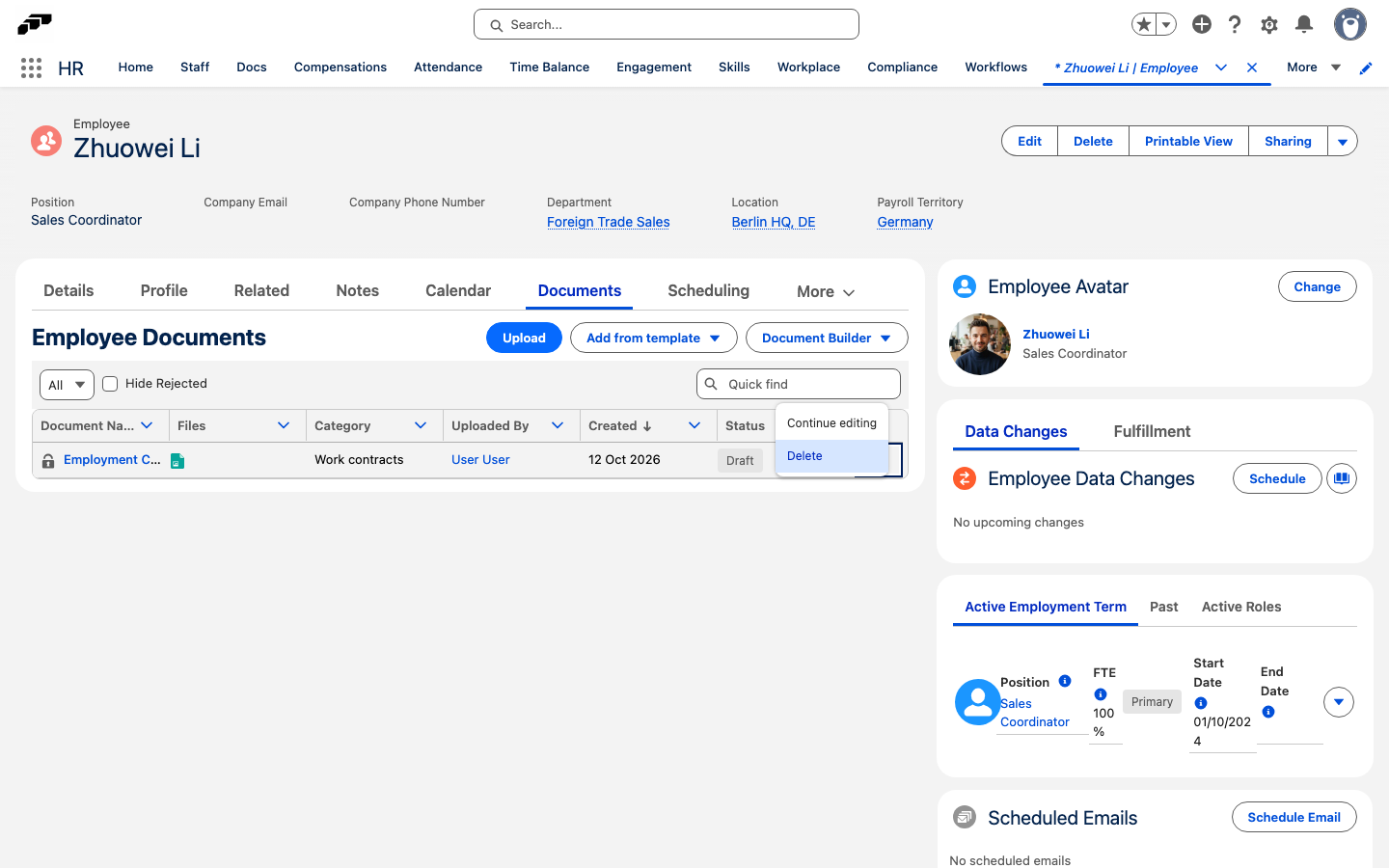
On an employee's Documents tab, you can save the edited document as a draft and finish it later.
- In the Edit document window, click Save draft. The document appears in the employee's documents list with a Draft badge. Only HR can see it, and the employee is not notified.
- To continue, open the draft's row menu, and click Continue editing. The window opens with the last saved version.
- Click Save DOCX or Save PDF to finish the document.
When you finish a draft, it gets the Document Category and Visibility set on the template, and the employee is notified the same way as for other new documents. If an approval policy applies to the document, the approval request starts at this point, not when you save the draft.
To discard a draft, open its row menu, click Delete, and confirm. This removes the draft and its file.
Use template syntax examples
Employment contract
EMPLOYMENT CONTRACT

This Employment Contract ("Contract") is entered into on [contractDate]
between [companyName] ("Company") and [firstName] [lastName] ("Employee").

POSITION AND DUTIES
The Employee is hired for the position of [jobTitle] in the [department]
department, reporting to [managerName].

START DATE
The employment commences on [startDate].

COMPENSATION
The Employee receives an annual salary of [salary], paid [paymentFrequency].

COMPANY LOGO
[%companyLogo | size:200:80]

AUTHORIZED SIGNATURE
[%authorizedSignature | size:250:100]

Date: [signatureDate]
Offer letter with rich text
[%companyLogo | size:180:60]

Dear [firstName] [lastName],

We are delighted to offer you the position of [jobTitle] at [companyName].

[~~offerDetails]

Your start date is [startDate].

Best regards,
[~hiringManagerName]
[~hiringManagerTitle]
Export a performance review
Create the review template
-
Open Docs → Document Templates.
-
Select the review type:
- 360 Review includes peer, employee, and Manager input.
- Standard Review includes employee and Manager feedback without peer input.
- Self-Review includes employee responses only.
-
Map employee answers, reviewer comments, peer responses, and other required fields.
-
Configure visibility. Semi-Visible limits selected fields to HR, and Optional Answers displays not required for unanswered optional fields.
-
Save the template. You can reuse it for later reviews of the same type.
Templates can map employee and reviewer details, peer input, and answers. They also support nested sections, multiple-choice questions, and conditional formatting.
Download or store the review
- In flair HR, open the performance review.
- Click Download PDF.
- Select the Document Template.
- Preview the document.
- Download it as PDF or DOCX, or save it to the employee record.
Format dates
Use a supported format code in the field mapping:
| Format code | Example output |
|---|---|
dd/MM/yyyy | 15/03/2025 |
MMMM dd, yyyy | March 15, 2025 |
EEEE, MMMM dd, yyyy | Saturday, March 15, 2025 |
MM-dd-yy | 03-15-25 |
See Salesforce date formats for the complete syntax.
Change your Salesforce locale
If dates or day names use the wrong language:
- Click your Salesforce avatar.
- Go to Settings → Language & Time Zone → Locale.
- Select the required locale.
- Save the setting, and generate the document again.
Add conditional content
Merge tags do not support conditional logic directly. Put the logic in a Salesforce formula field and map that field.
-
In Salesforce, create a formula field such as
Contract_Greeting__c. -
Add the conditional expression.
IF(Department__c = "Sales",
   "Welcome to our dynamic Sales team!",
"Welcome to " & Department__c & "!") -
Add
[contractGreeting]to the source file. -
Map the tag to the formula field.
-
Save and test the Document Template.
Create templates for multiple languages
- Create a separate Document Template for each language.
- Name the templates consistently, such as
Contract_ENandContract_DE. - Store each employee's language preference on the employee record.
- Select the corresponding template when generating a document.
Troubleshooting
Merge tags remain in the generated document
- Confirm that each merge tag maps to a Salesforce field.
- Confirm that the source record contains a value.
- Confirm that your permissions allow access to the field.
- Use square brackets around the tag.
Images do not render
- Open the URL in a browser to confirm it is publicly accessible and starts with
https://. - Use a supported JPG, PNG, or GIF file.
- Avoid authenticated Salesforce file URLs.
Rich-text formatting changes
- Use
[~tag]for inline rich text. - Use
[~~tag]for a formatted block. - Map the tag to a rich-text field.
- Check the formatting in the original
.docxor.odtfile.
Dates use the wrong format or language
- Set the format explicitly in the field mapping.
- Check the Salesforce locale.
- Confirm that the source field is a Date or DateTime field.