Send and sign documents with flair eSign
Use flair eSign to send an Employee Document to one or more signers and store the completed file. You can also require a one-time password by SMS before a signer opens the document.
HR Admins send documents from Salesforce. Employees and candidates sign from an email link. flair eSign is a paid add-on.
Before you begin
- Contact flair Sales if flair eSign is not included in your subscription.
- Upload the document to the employee or candidate record in flair HR.
- For SMS authentication, add Company Phone Number to an employee record or Phone to a candidate record.
Send a document for signing
-
In flair HR, open Employees.
-
Select the employee who will be the primary signer.
-
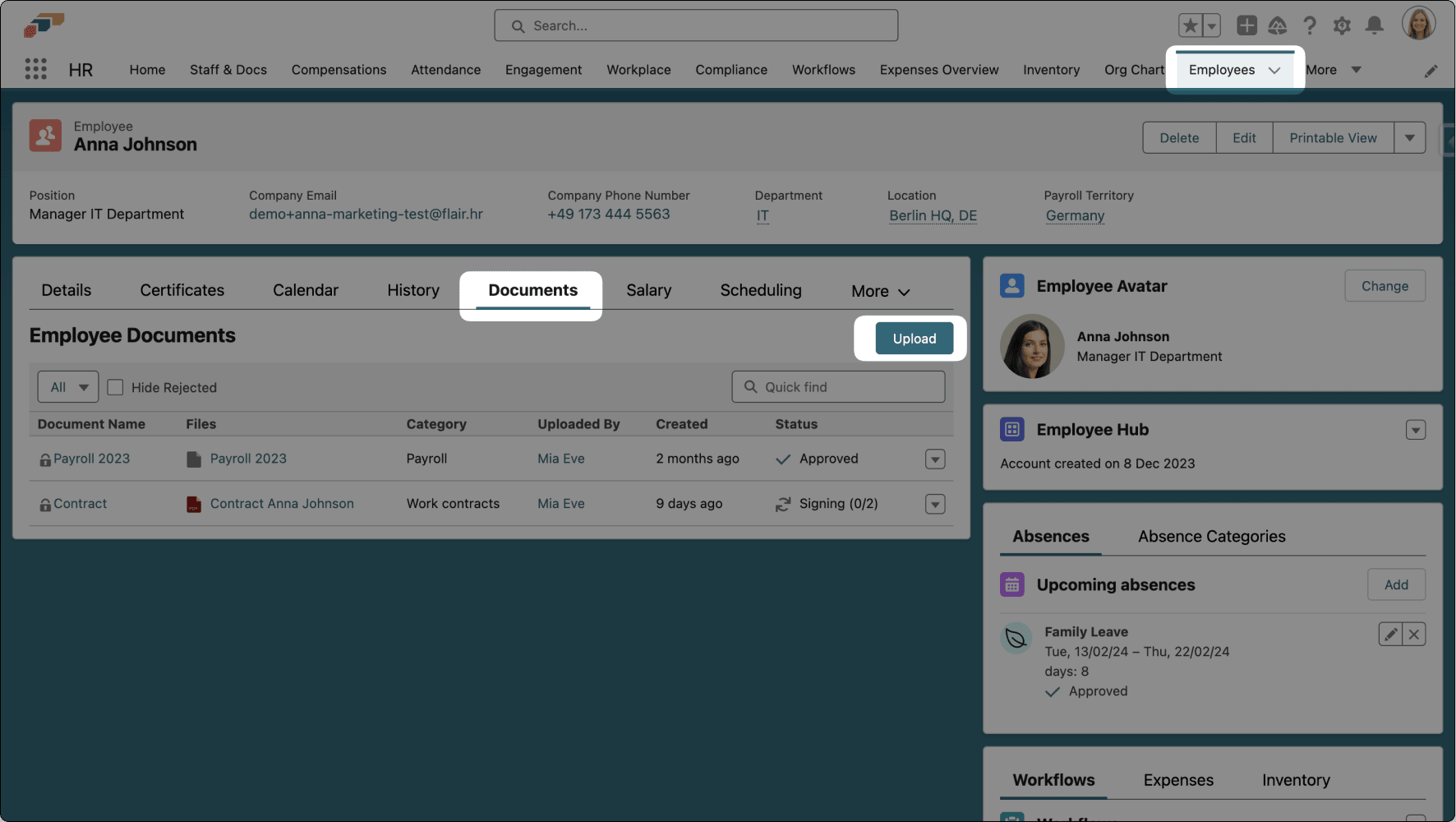
On the employee record, open Documents.
-
Upload the document.
-
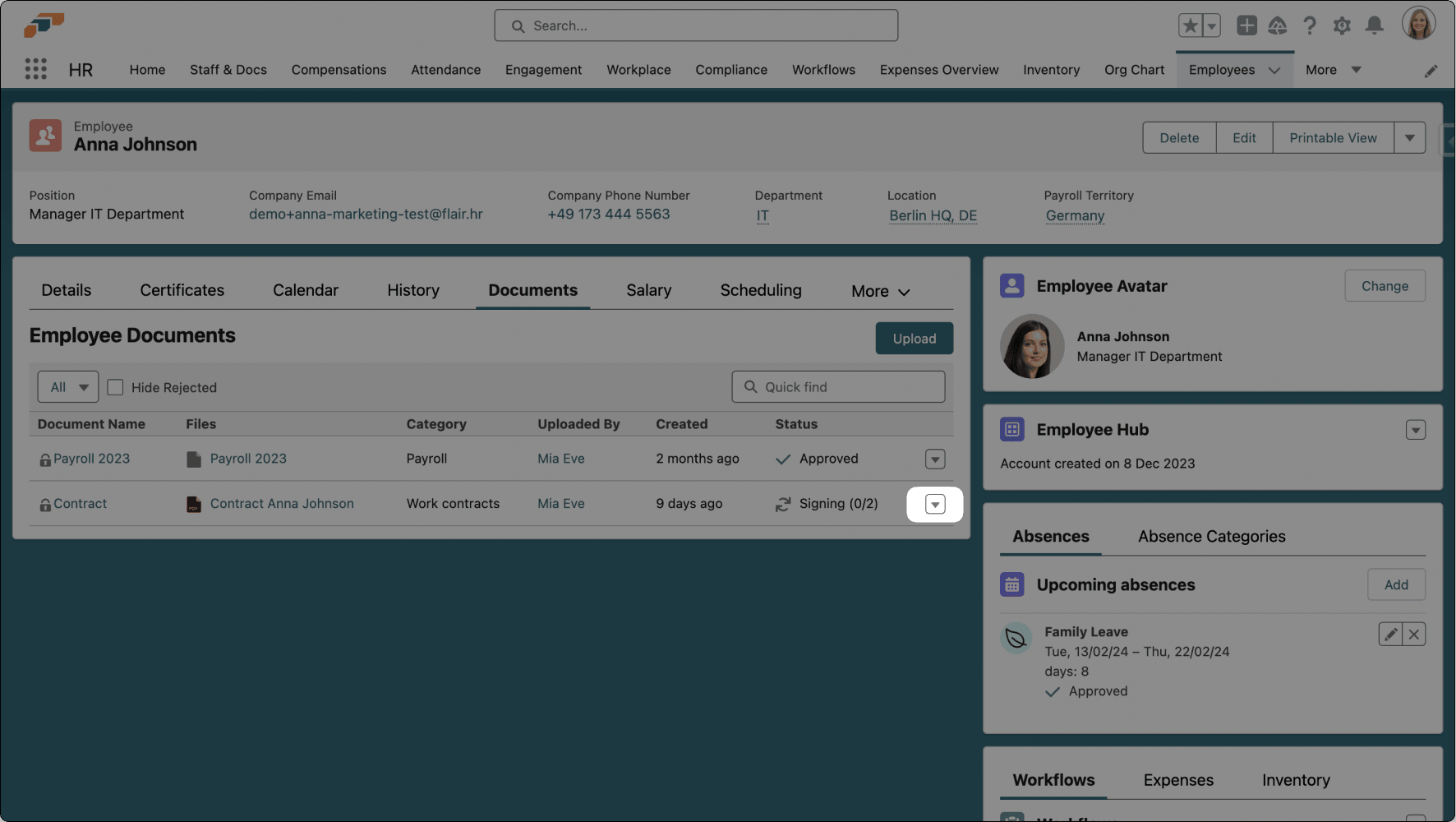
Next to Status, click the down arrow.
-
Click Sign.
-
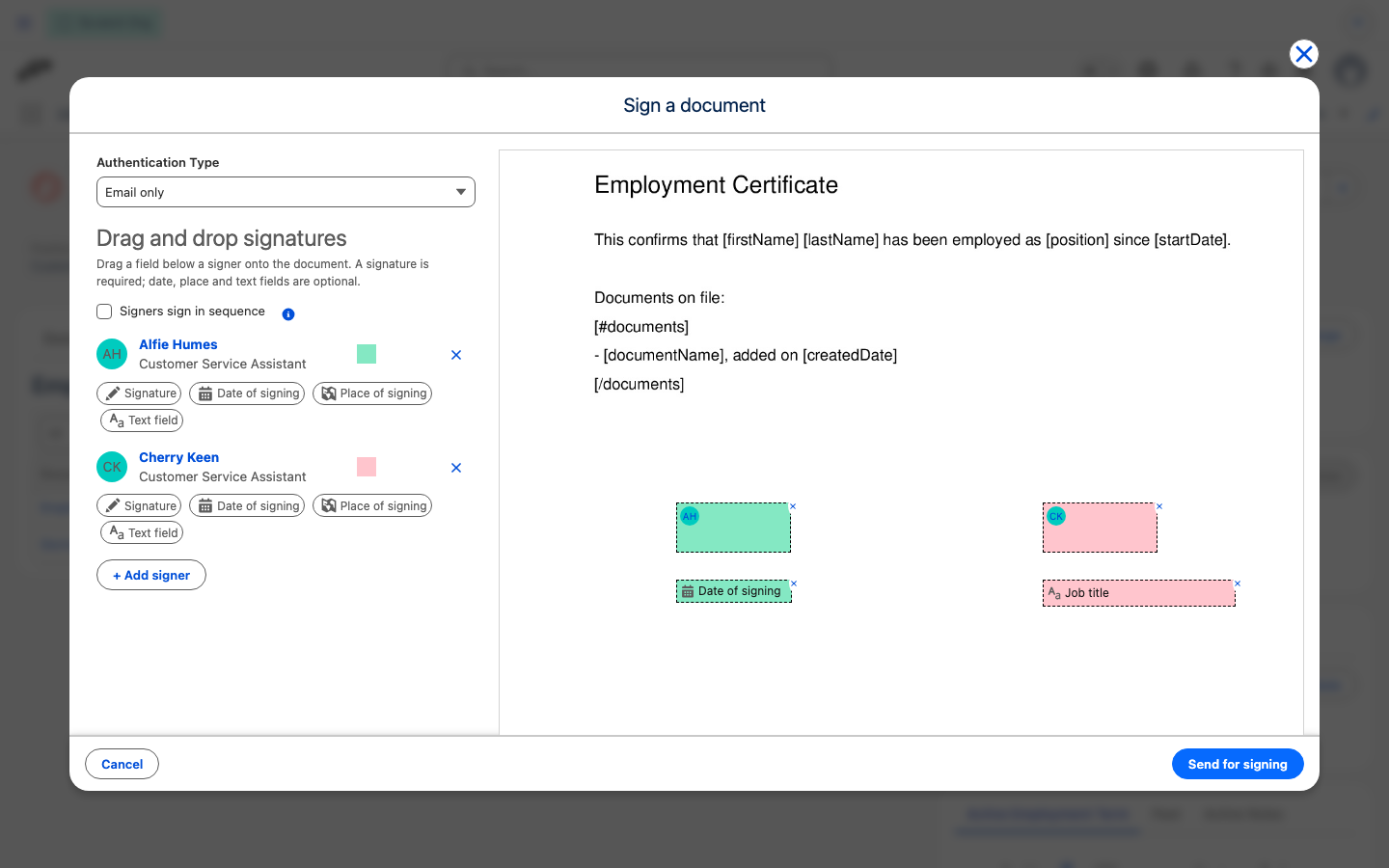
In the signing window, click + Add signer for each person who must sign.
-
Under each signer, drag Signature to the place in the document where that person signs. Every signer needs at least one signature.
-
Optional: Drag more fields under a signer onto the document. Each field belongs to that signer:
- Date of signing — the date is filled in automatically when the signer signs.
- Place of signing — the signer enters where they signed.
- Text field — the signer enters text. Type a label on the field in the document so the signer knows what to enter. Send for signing stays unavailable until every text field has a label.
-
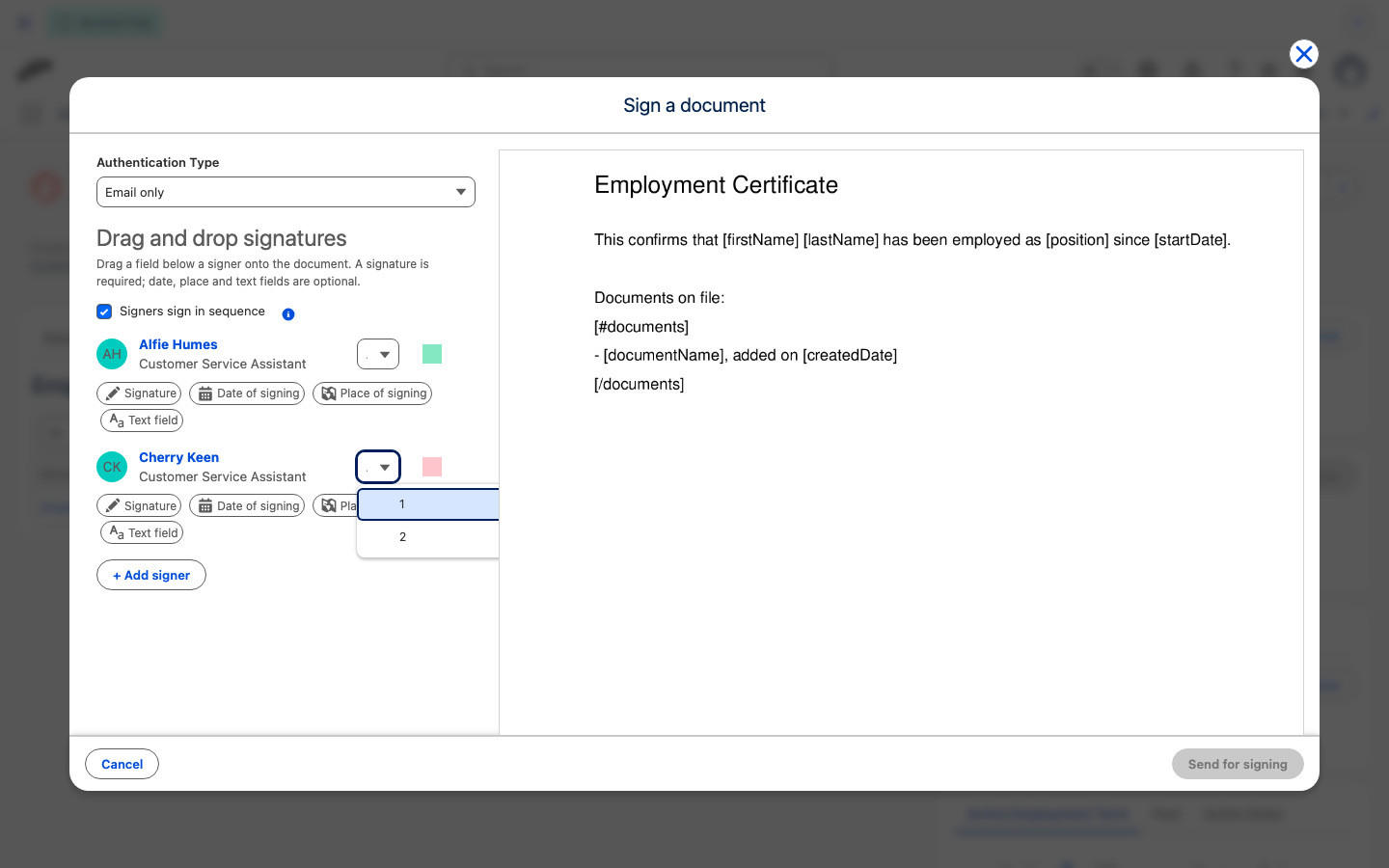
To have signers sign one after another instead of all at once, select Signers sign in sequence.
-
For each signer, select their position (1, 2, 3, and so on) from the menu that appears next to their name. Every signer needs a different position; flair disables Send for signing until each one is unique.
-
Click Send for signing.
With Signers sign in sequence off, every signer receives the signing email at the same time. With it on, flair emails each signer only after the signer with the position before them has finished signing.
You can track documents that still need signatures and review a document's version history.
Send a candidate document for signing
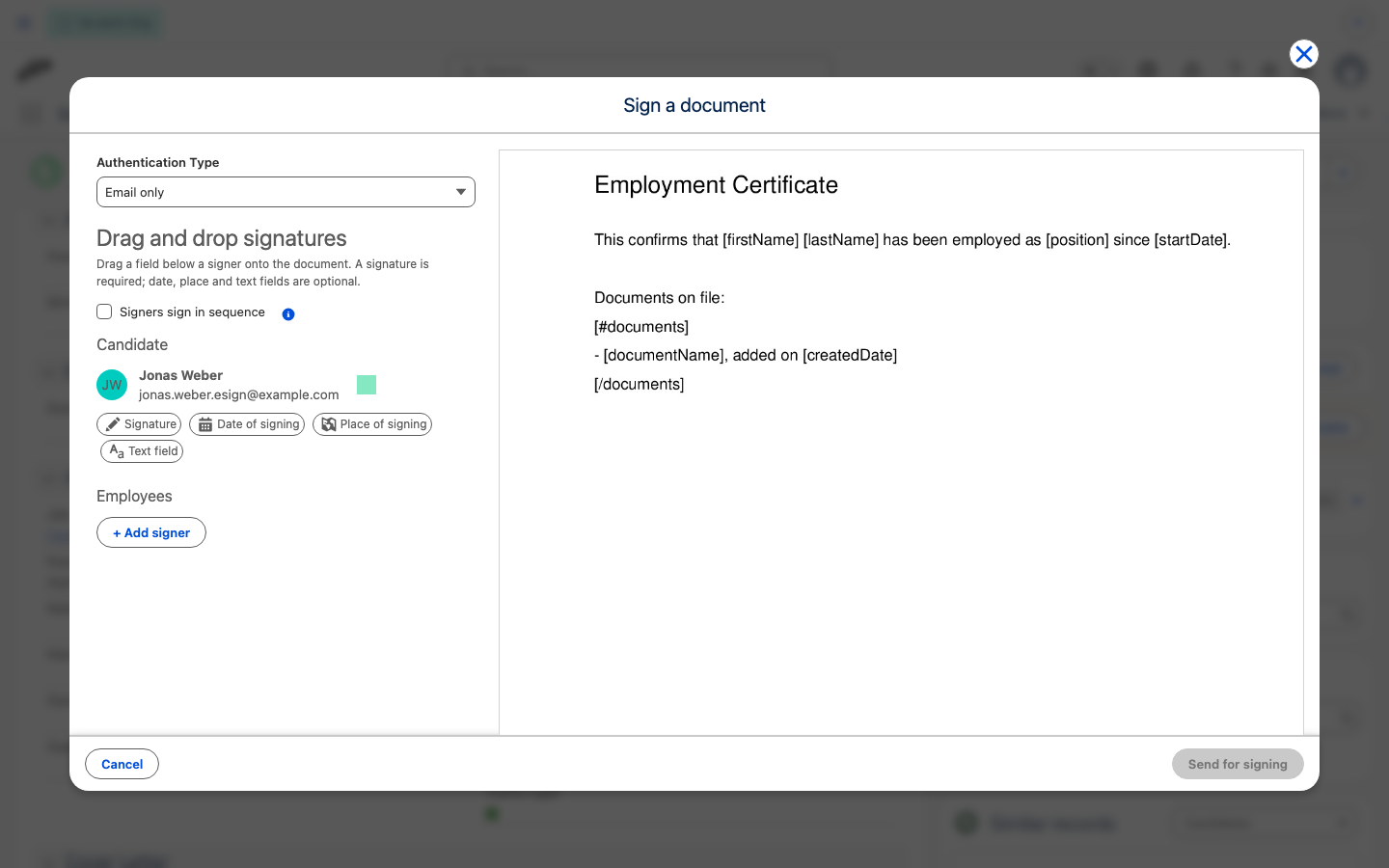
Send a document from a candidate's files, such as an employment contract. flair adds the candidate as the signer, and you can add employees who sign as well.
- From the App Launcher (⋮⋮ grid icon), open Recruiting → Candidates, and open the candidate.
- If the document isn't uploaded yet, click Add in Files, and upload it.
- Next to the document in Files, click the down arrow, and click Sign. The Sign a document window opens with the candidate's name and email address under Candidate.
- Under the candidate, drag Signature to the place in the document where the candidate signs.
- Optional: To have employees sign too, click + Add signer, search for each employee, and drag their fields onto the document. They appear under Employees.
- Optional: Select Signers sign in sequence, or set Authentication Type, the same way as for employee documents.
- Click Send for signing. The file in Files shows Signing with the number of signers who have signed so far, and then Signed.
Sign is also in the file menu of the Attachments section in the candidate panel of a job. Once a file has a sign request, Sign no longer appears for it. Talent records don't offer Sign.
Track sign requests
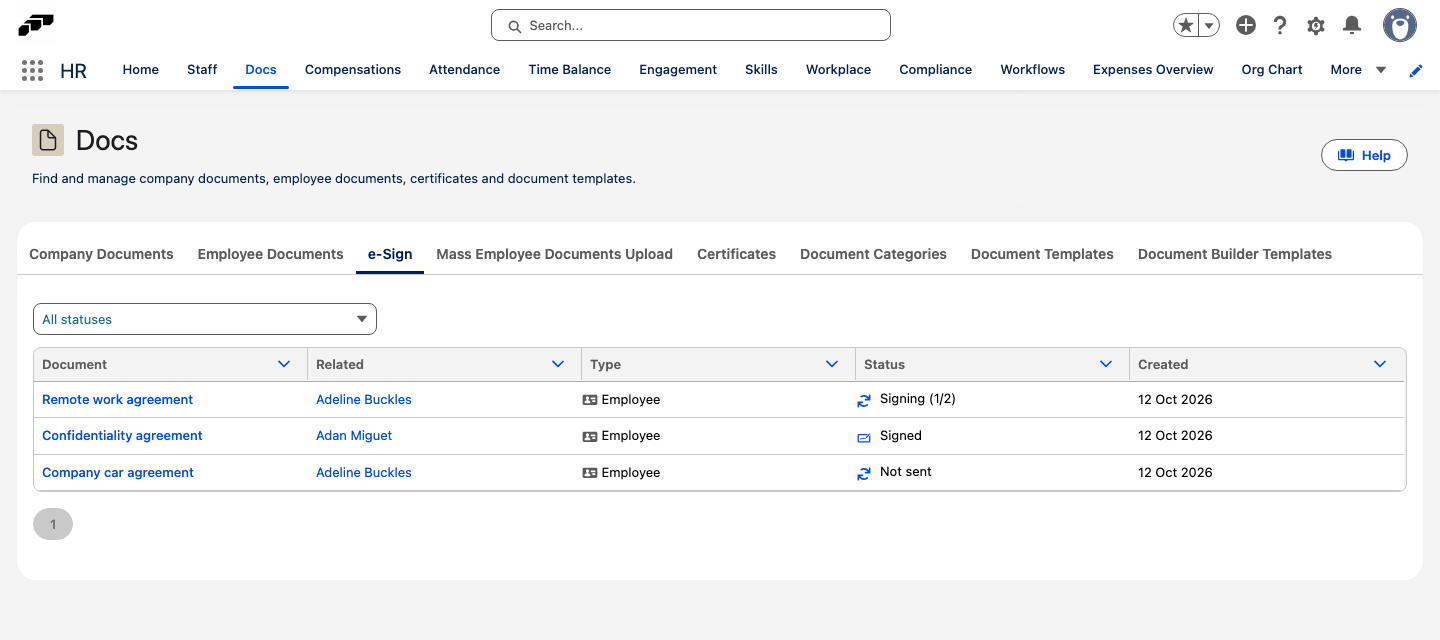
The e-Sign tab lists the sign requests you have access to, for both employee and candidate documents.
- In flair HR, open Docs.
- Open the e-Sign tab.
- Optional: To show only some requests, select a status in the status menu above the list. The menu shows All statuses until you select one.
- Review the list. Document and Related link to the document and to the employee or candidate. Type shows whether the document belongs to an employee or a candidate. Created shows the date the sign request was created.
- To see who has signed, hover over the icon next to a request's status. It lists each signer with ☑️ if they have signed or ⏳ if they were notified but haven't signed yet.
Status shows the current state of each sign request. You can filter the list by the same statuses:
| Status | Meaning |
|---|---|
| Not sent | The request was created but not sent to the signers. |
| Signing | The request was sent and is waiting for signatures. The status shows how many signers have signed so far, for example Signing (1/2). In the status menu, this filter is called Awaiting signatures. |
| Signed | Every signer has signed. |
| Rejected | A signer rejected the request. |
| Canceled | The request was canceled. |
| Expired | The request expired before every signer signed. |
| Sending failed | The request could not be sent. |
To find employees who still need a document, such as an employment contract, select Never asked to sign. The list then shows current employees and future hires who have never been a signer on any sign request. Each row links to the employee and has no document. An employee who has only signed someone else's document, for example as a manager, does not appear.
If your subscription has an eSign allowance, a badge above the list shows how many eSigns your organization has sent since the current period started, out of your allowance. The badge turns into a warning once you reach the allowance. The same badge appears in the signing window.
Require SMS authentication
- Open the signing window for the document.
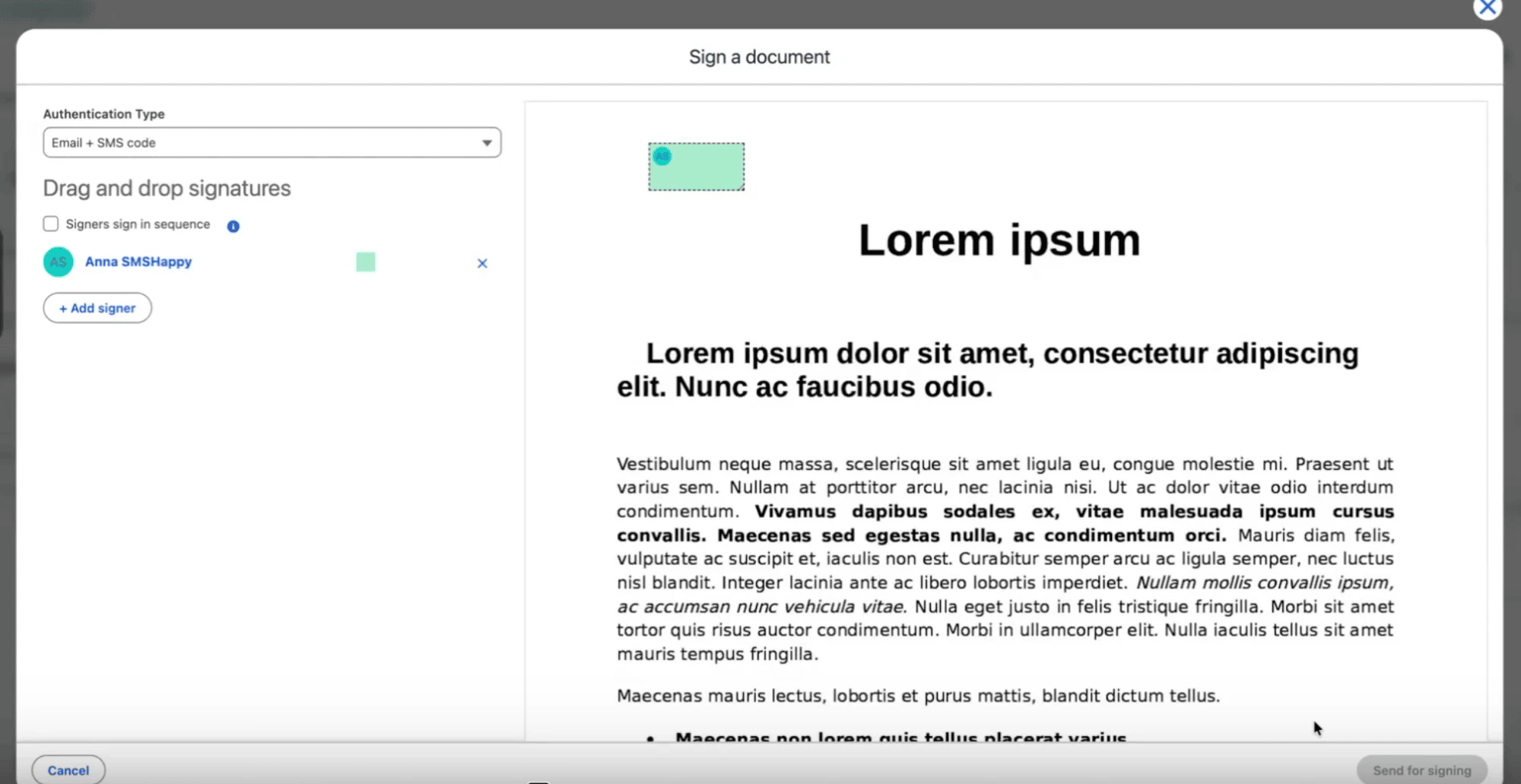
- In Authentication Type, select Email + SMS code. The setting applies to every signer on the request.
- If an error under a signer reports a missing phone number, add Company Phone Number to the employee record or Phone to the candidate record, and reopen the signing window.
- Click Send for signing. Each signer must enter the SMS code before signing.
The phone number comes from the Salesforce record and cannot be entered in the signing window.
Sign a document
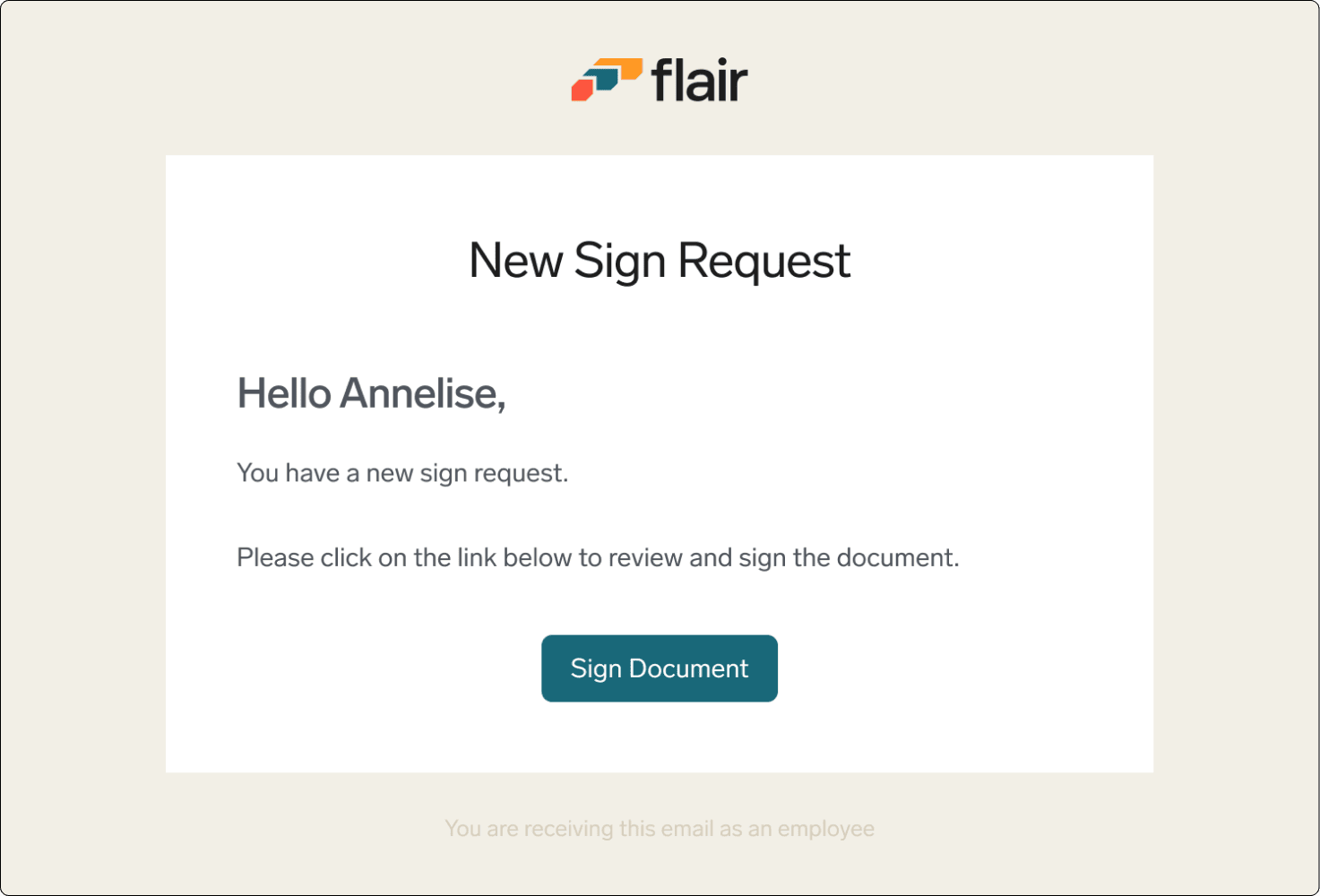
- Open the signature-request email.
- Click Sign Document.
- If SMS authentication is required, enter the one-time password.
- Review the complete document.
- Add your signature, and finish the signing flow. flair stores the completed document.