Create and manage employee certificates
Record employee certificates with their issuer, issue and expiration dates, file, or URL. Employees, Managers, and HR Admins can add certificates from their respective flair surfaces.
Employees and Managers use Certificates in the Employee Hub. HR Admins manage certificates and approval policies in Salesforce.
Add your certificate in the Employee Hub
-
In the Employee Hub, open My Data → Certificates.
-
Click New Certificate.
-
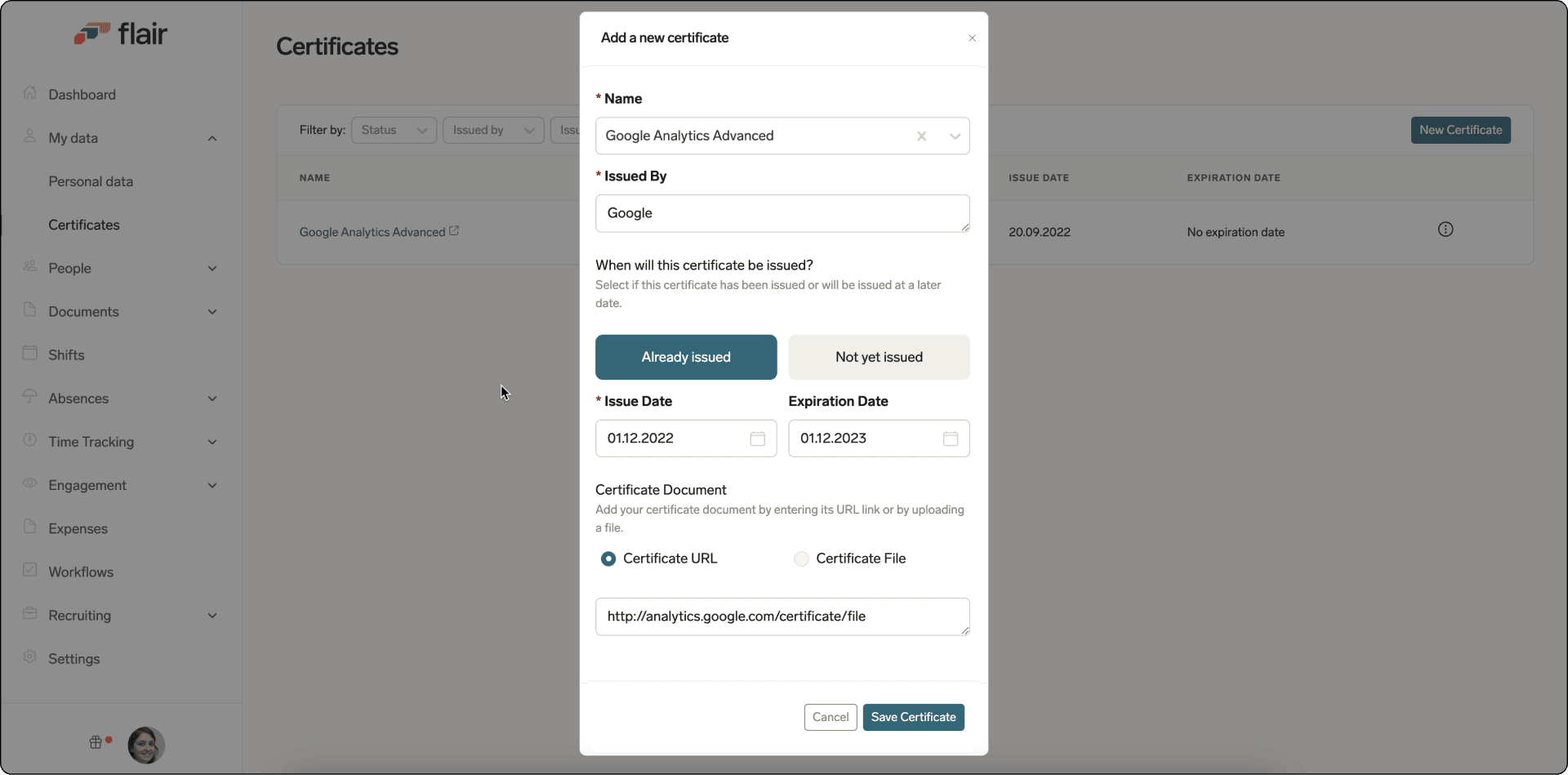
Enter a new certificate name or select an existing name. If skills are linked to that certificate, Adds to your profile: names the skills approval will grant you.
-
Select Earned if you hold the certificate, or Planned if you expect it later.
-
Enter the issuer and issue date. A status line reads the dates back to you, such as Earned on 1 Aug 2026, valid until 1 Aug 2028. It turns red if the certificate has already expired or the expiration date precedes the issue date.
-
Optional: Enter the expiration date.
-
For an earned certificate, attach your proof: upload the file or enter its URL.
-
Click Send for approval. The certificate appears in the Employee Hub as Pending.
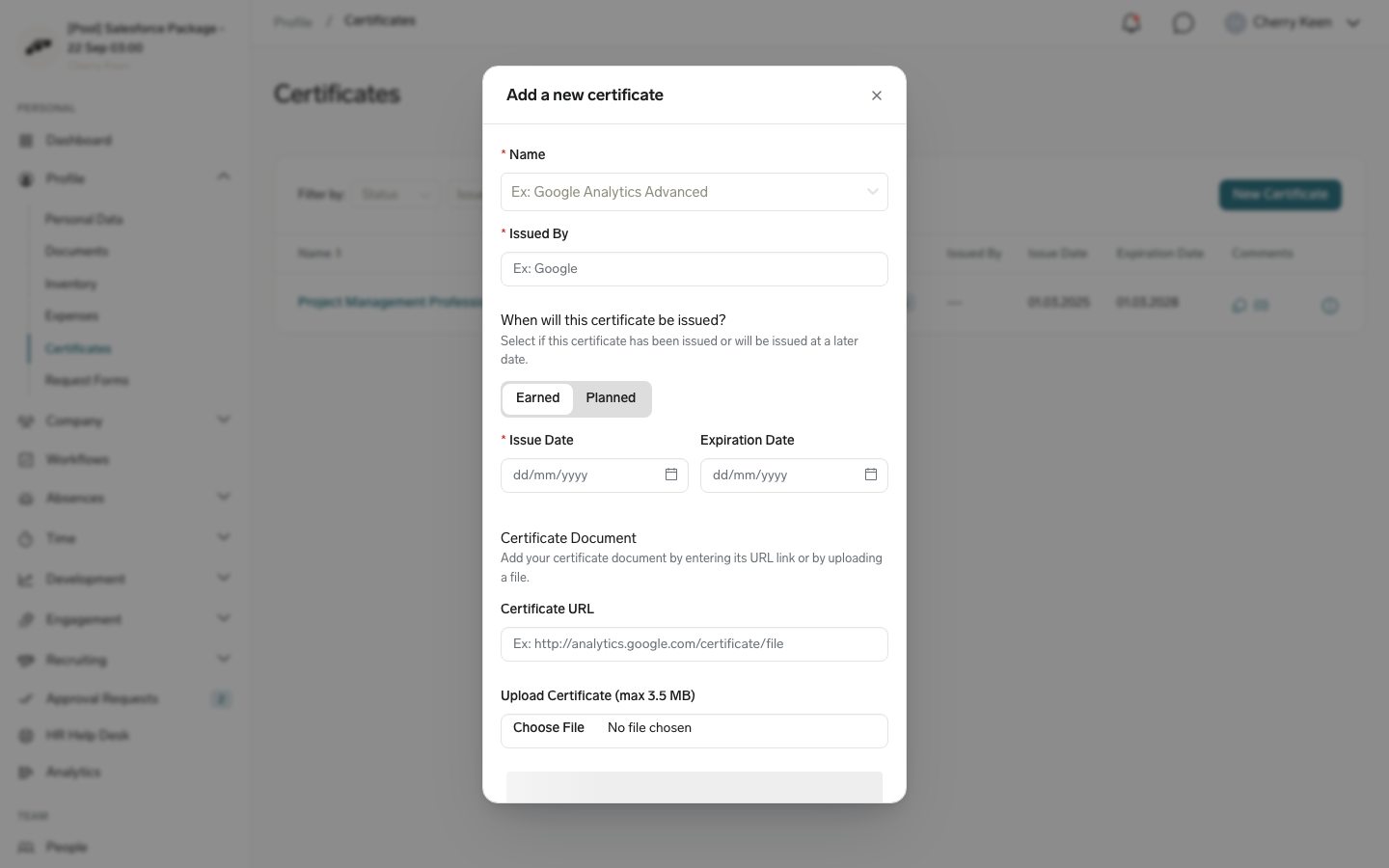
A Planned certificate has no place to attach proof, because there is nothing to attach yet. Switching from Earned to Planned drops a file you already picked. Editing a certificate you saved earlier ends with Save Certificate instead of Send for approval.
Add a certificate as a Manager
-
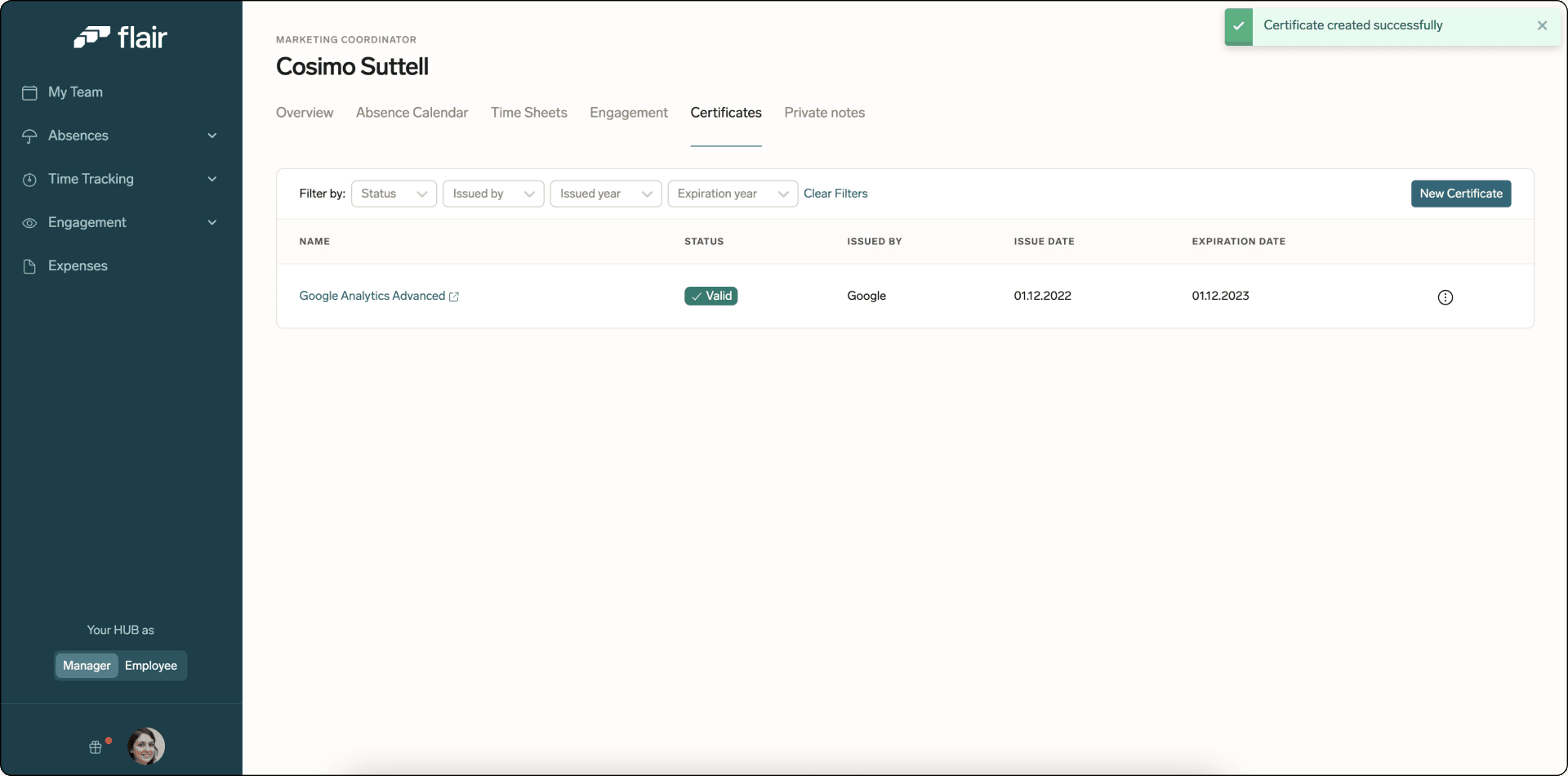
In the Employee Hub Manager view, open My Team.
-
Select the employee.
-
In the top navigation, open Certificates.
-
Click New Certificate.
-
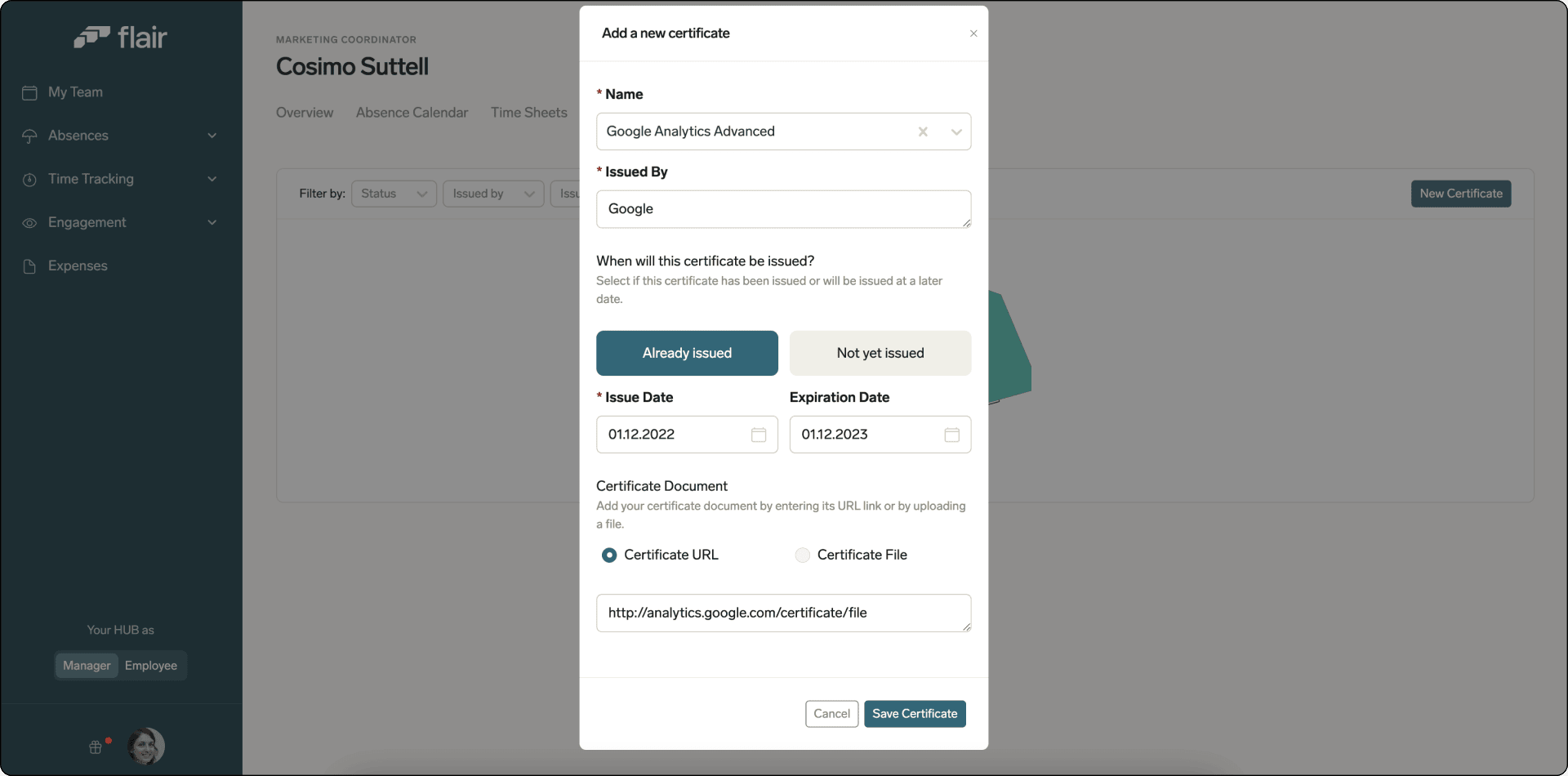
Enter a new certificate name or select an existing name.
-
Enter the issuer, issue date, and optional expiration date.
-
Upload the certificate file or enter its URL.
-
Click Save Certificate. The certificate appears on the employee's profile.
Add a certificate in Salesforce
-
In flair HR, find the employee through search or Employees.
-
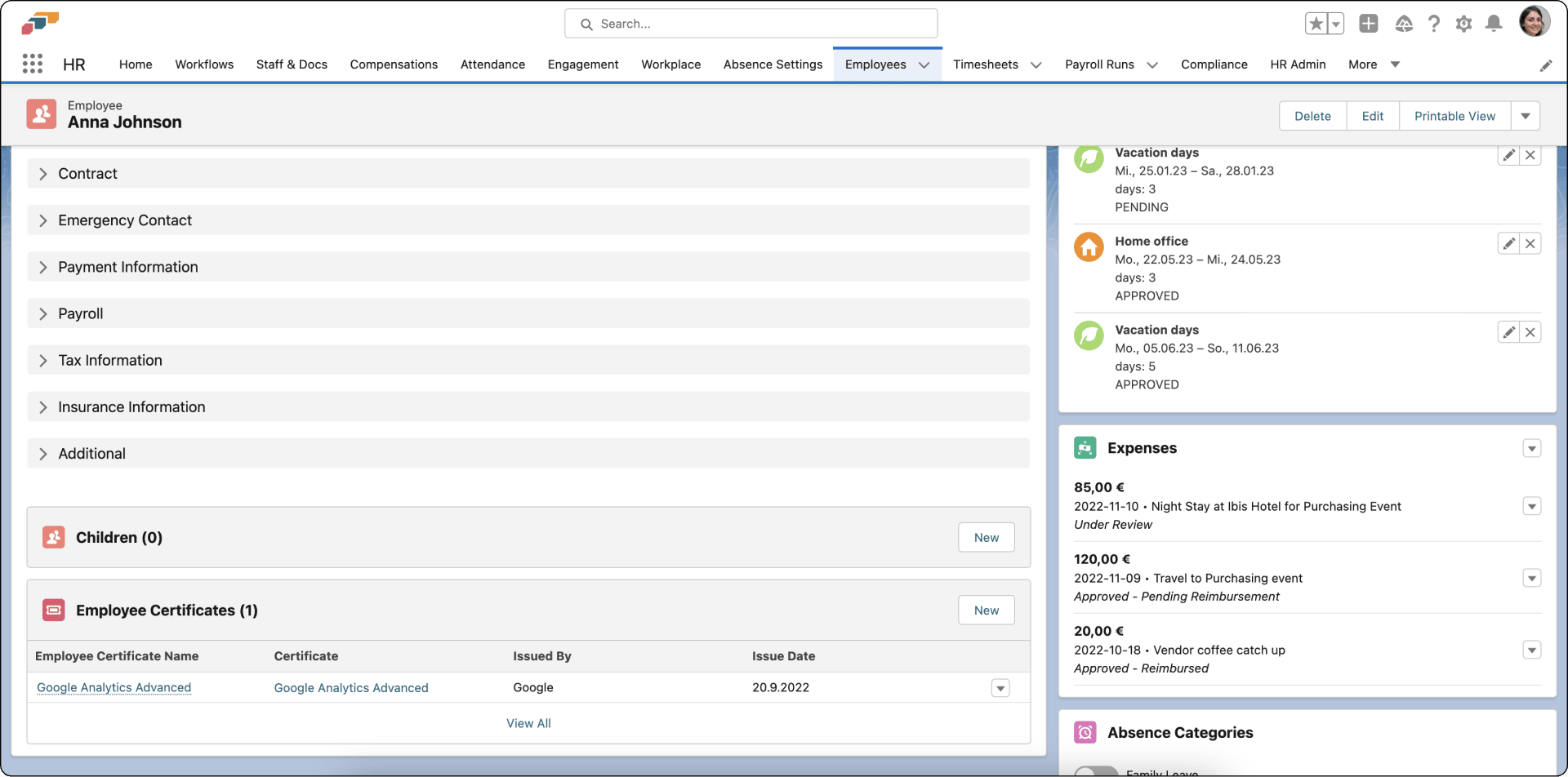
On the employee record, scroll to Employee Certificates.
-
Click New.
-
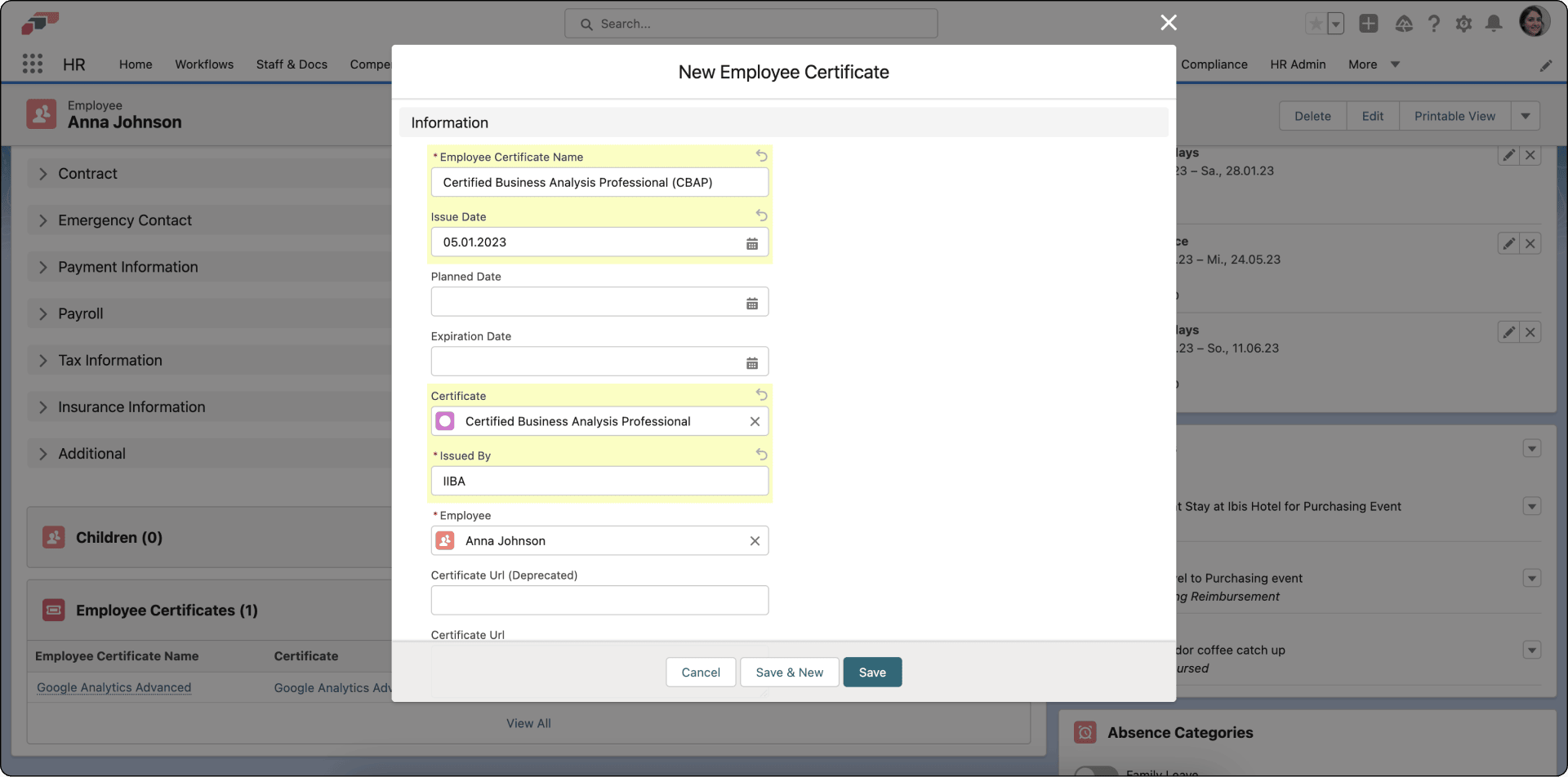
Enter the certificate details and optional URL.
-
Click Save. The certificate is associated with the employee.
HR Admins can also review employee or candidate certificates in the Certificate Associations card on the record page. It shows planned, valid, or expired status with issue and expiration dates.
Control certificate visibility
Use Visibility to restrict a certificate, including sensitive medical certificates.
-
In Salesforce, open the certificate record.
-
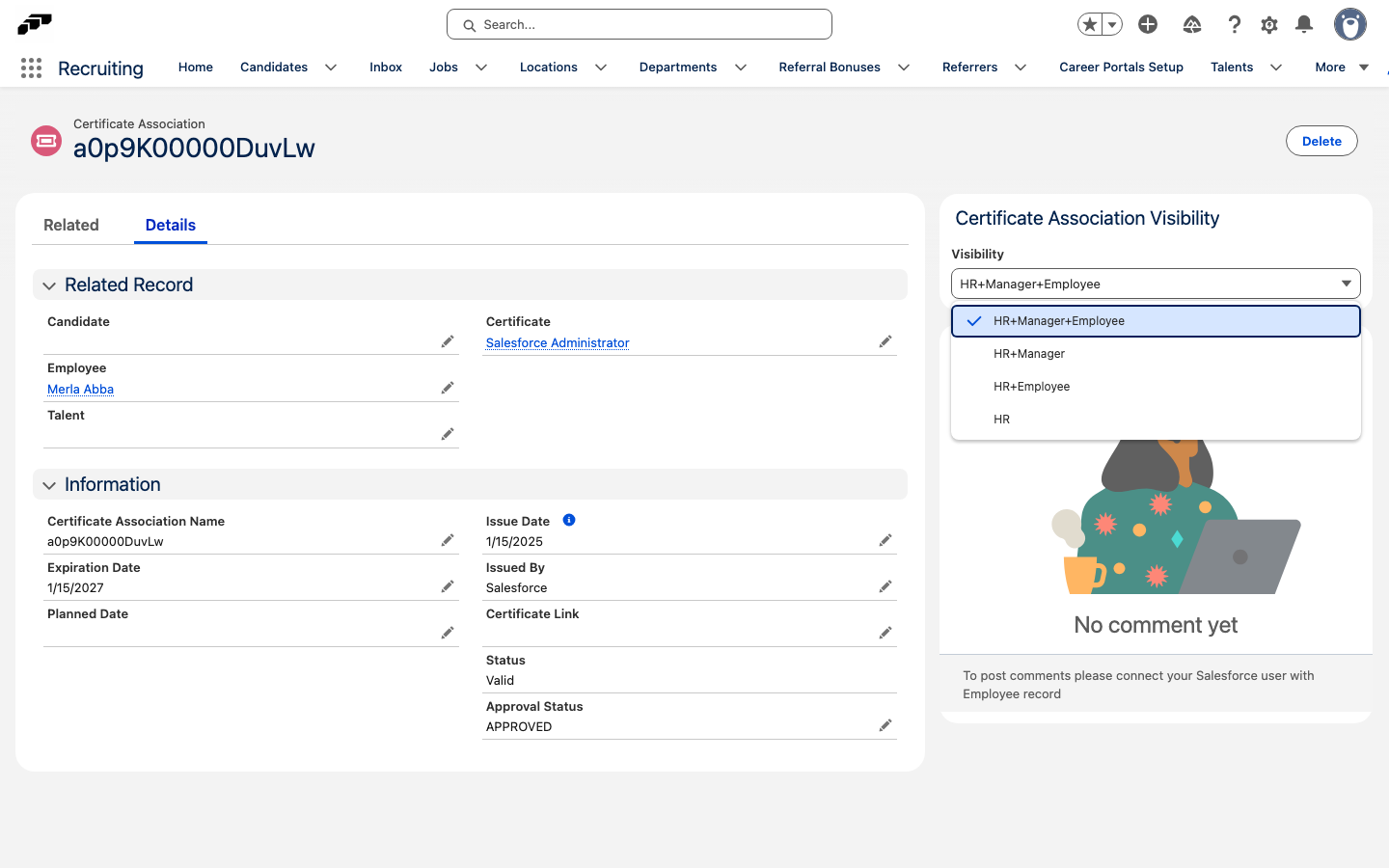
On Certificate Association Visibility, select Visibility.
-
Choose an access level:
Option Who can see the certificate HR+Manager+Employee HR, the employee's manager, and the employee. This is the default. HR+Manager HR and the employee's manager. HR+Employee HR and the employee. Use this for a medical certificate that a Manager should not see. HR HR only. -
Save the certificate. The message Visibility saved successfully appears.
The employee's certificate list also shows Visibility as a column.
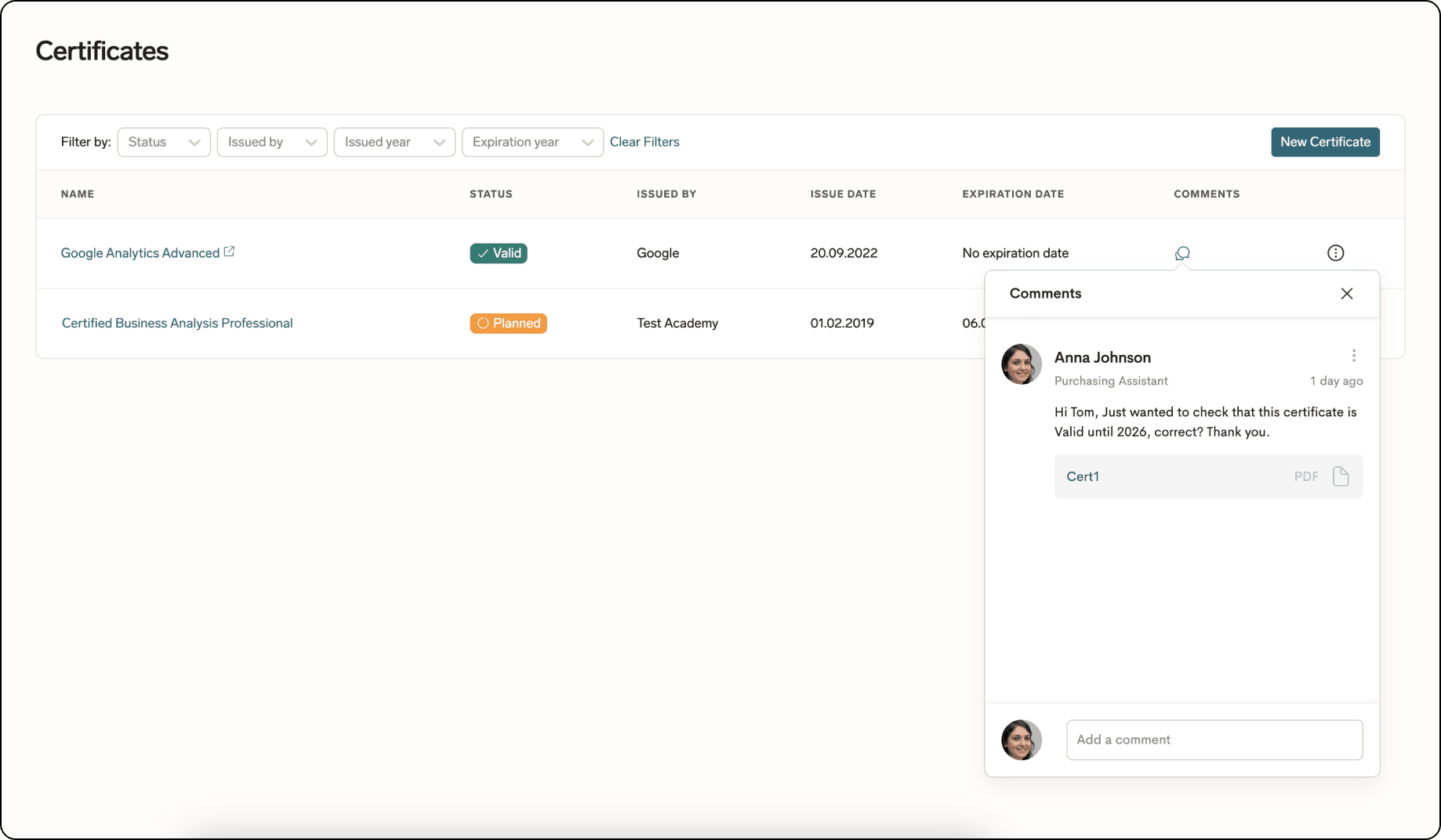
Comment on a certificate
- In the Employee Hub, open My Data → Certificates.
- Find the certificate.
- Click the speech-bubble icon next to Name.
- Enter a comment. You can include a document, web link, or emoji.
- Post the comment. The message appears with the certificate.
Configure certificate approvals
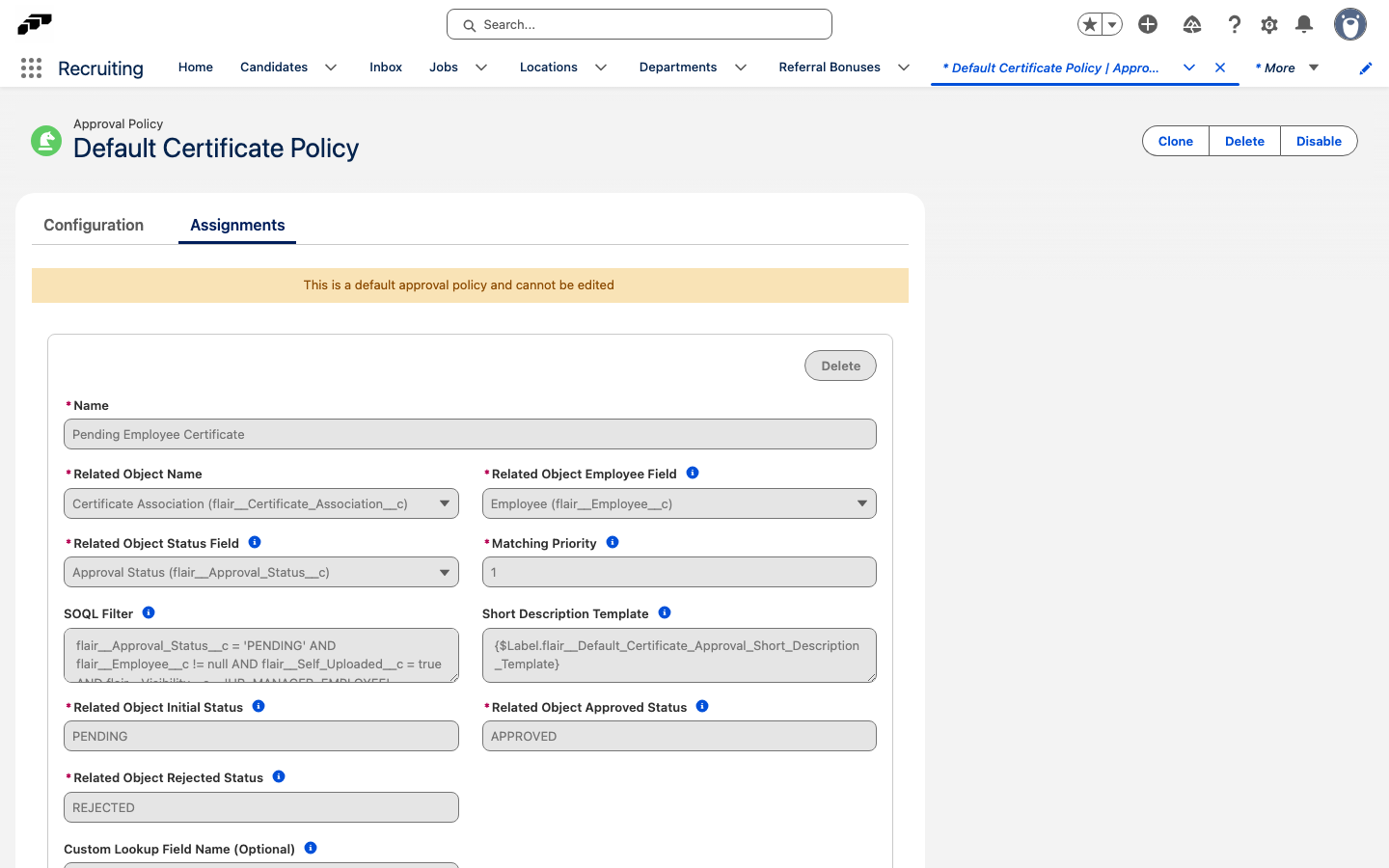
- In Salesforce, open flair HR → Approval Policies.
- Create an approval policy for the Certificate object.
- Set the approval type to Manager-based.
- Assign the policy to the relevant employee segments.
- Save the policy. New employee certificate uploads are routed to their direct Manager.
Review a certificate as a Manager
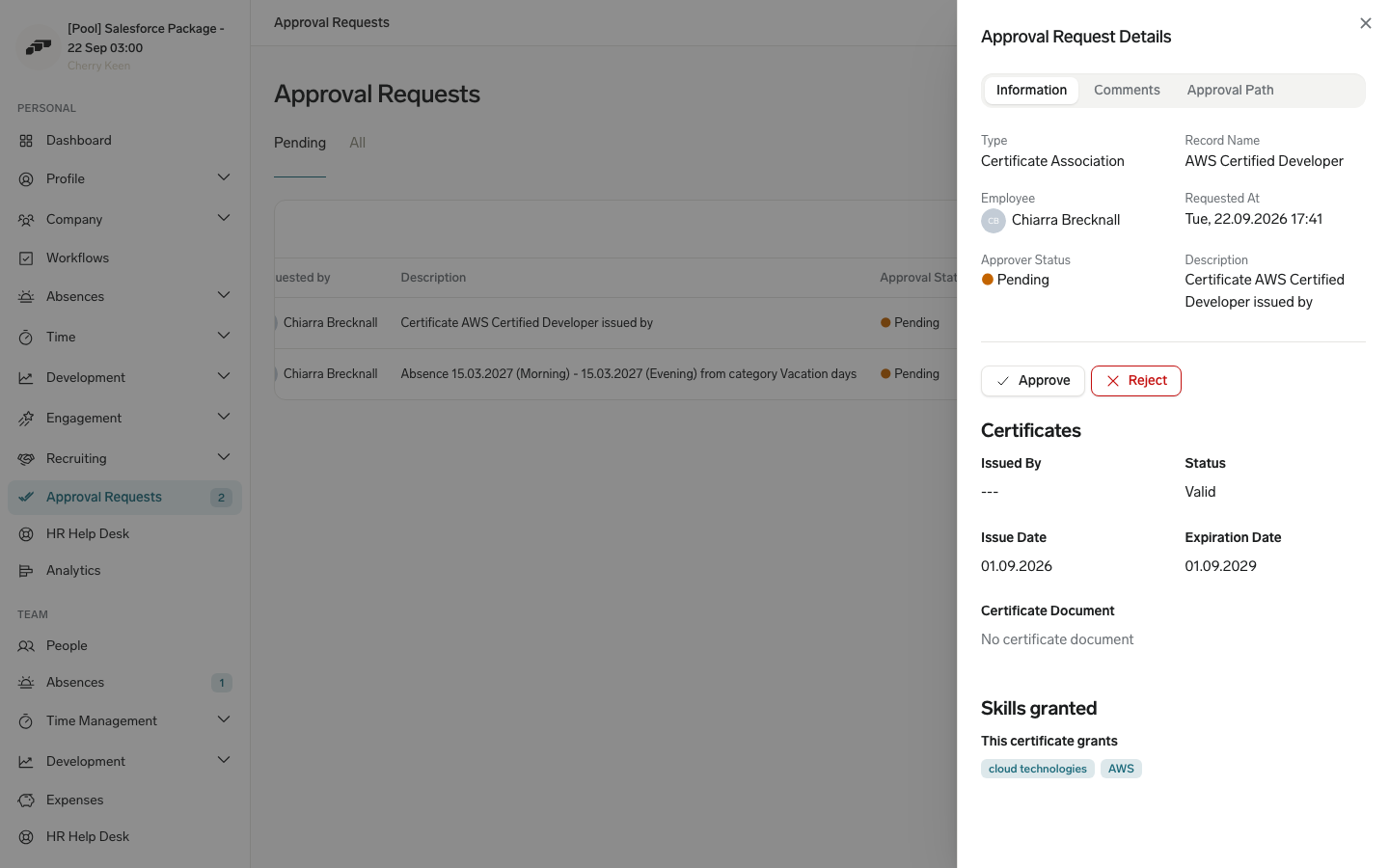
Approving a certificate is what puts its skills on the employee's profile, so the review sidebar shows what approval will grant before you decide.
- Open the certificate notification, or the pending approval request in the Employee Hub.
- In the certificate's row, click Review. The certificate opens in the details sidebar. A certificate has no inline approve and reject actions in the table, because the decision depends on what the sidebar shows.
- Under Skills granted, read the skills this certificate grants. No skills linked to this certificate yet means approving grants nothing.
- Review the proof — the certificate link and any attached files. No certificate document means neither was provided.
- Click Approve or Reject. Approving adds the listed skills to the employee's profile; a rejected upload returns to the employee for resubmission.
Approve is unavailable while the skills are still loading or if they could not be read, and the sidebar says which. Reject stays available throughout, because rejecting grants nothing.
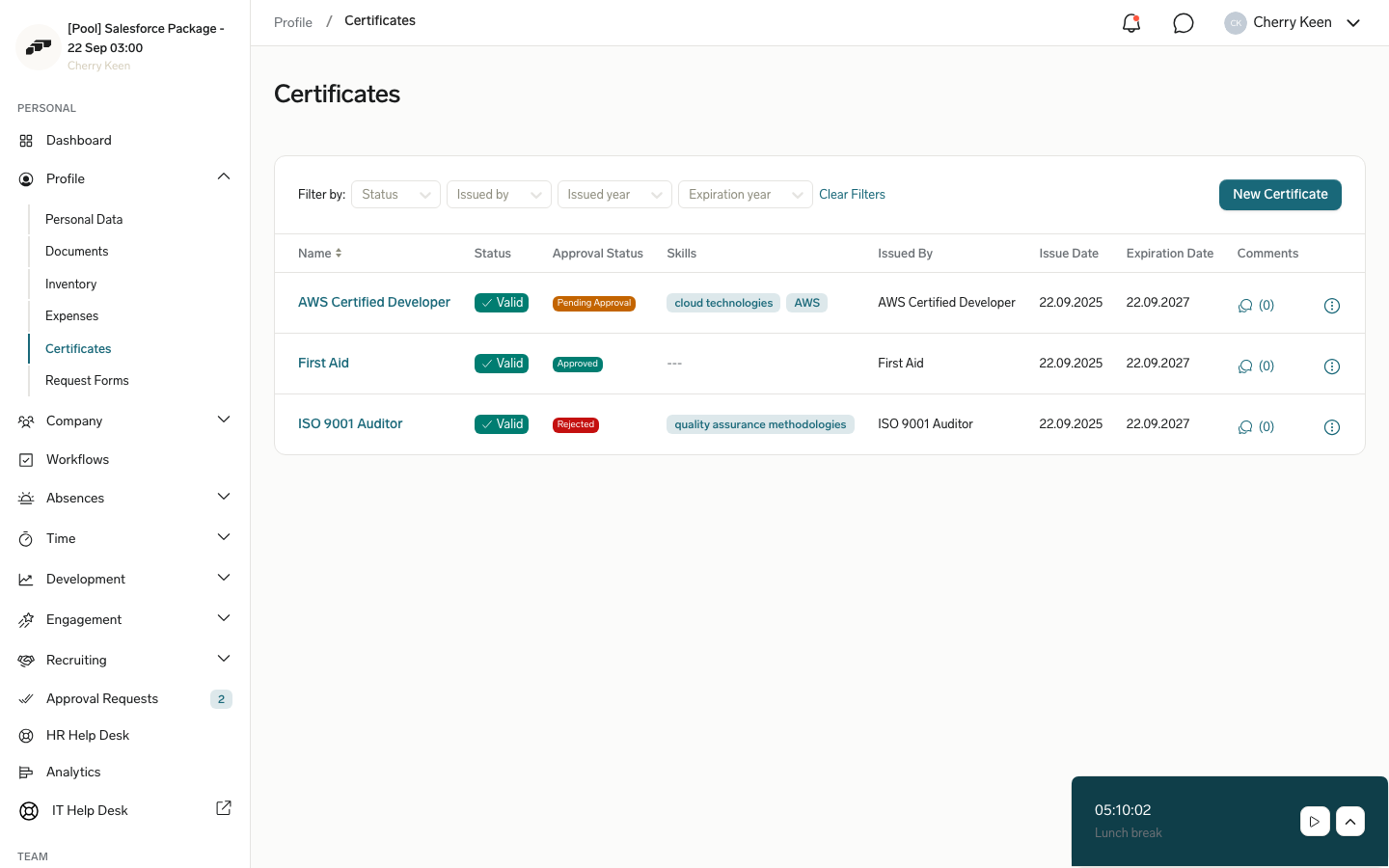
Employees see one of these values in Certificates:
- Pending Approval — the certificate is waiting for Manager review.
- Approved — the certificate has been accepted.
- Rejected — the certificate was not accepted, and the employee can review feedback and resubmit it.