Create and manage employee skills
Create yes/no or rated skills, assign them to employees, and control employee self-service. Managers can compare team skills and use skill requirements when staffing projects.
HR Admins create and edit skills in Salesforce. Employees, Managers, and project leads assign, rate, and search skills in the Employee Hub.
Define a skill
The skill catalog lives in Salesforce. You can't create, rename, or delete a skill from the Employee Hub.
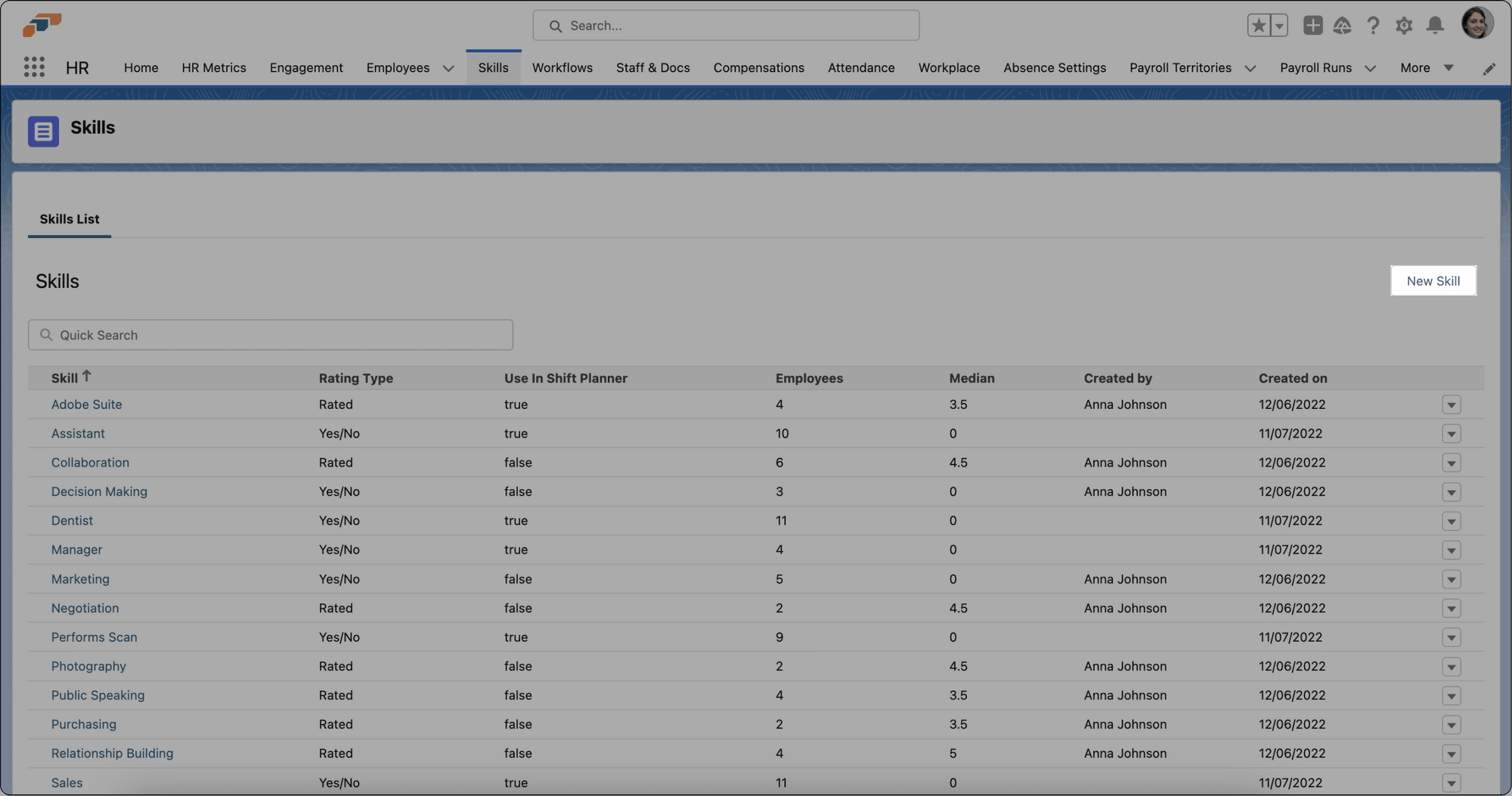
- In the flair HR app in Salesforce, open Skills.
- In the skills list, click Add Skill.
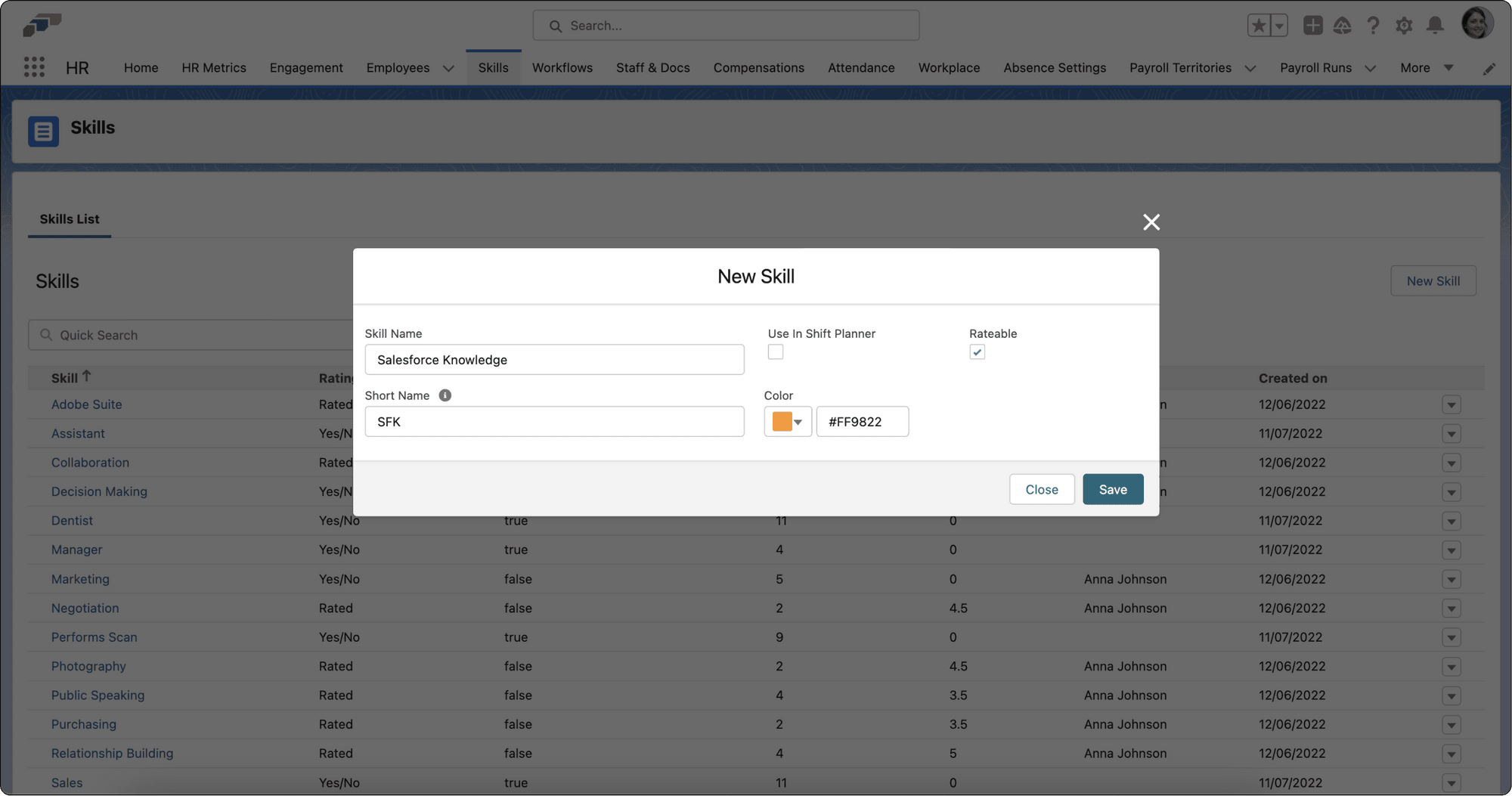
- Enter a name and, if needed, a shorter name or abbreviation for lists and picklists.
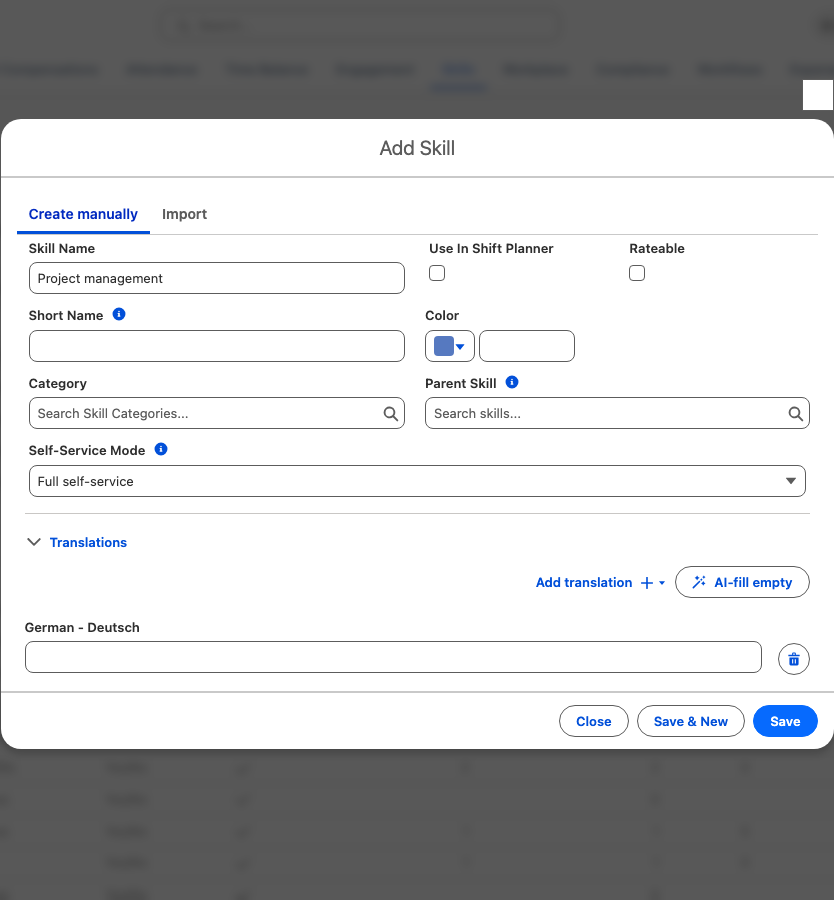
- Optional: To place the skill under another skill, search for and select a Parent Skill. Leave it empty for a top-level skill.
- If the skill applies to shift planning, select Use in Shift Planner, and choose a color.
- To rate the skill from 1 for beginner to 5 for mastery, select Rateable. Leave it cleared for a yes/no skill.
- Click Save. The skill appears in the skills list.
A skill whose name already exists is rejected. If another skill has a similar — but not identical — name, Possible duplicate skill opens and names the match. Click Proceed and create anyway to keep your skill, or Discard to drop it. The same check runs when you rename a skill.
Translate a skill name
A skill's name is its English base name. Add translated names so employees see the skill in their own language. You can translate a name into German, French, Italian, Spanish, Portuguese, Norwegian, and Russian.
- In the skills list, click Add Skill, or edit an existing skill.
- Expand Translations.
- Click Add translation, and select a language. A field for that language appears.
- Enter the skill name in that language.
- Optional: To have flair AI translate the name into every language that is still empty, click AI-fill empty. Existing translations are never overwritten. The button appears once the skill has a name, and only if your subscription includes flair AI for HR or flair AI for Recruiting.
- To remove a translation, click the delete icon next to it.
- Click Save.
On the skill record page, the Translations card shows the English name, marked base, followed by one chip per translated language. Click Edit on the card to open the same form.
In the Employee Hub, skill names appear in each employee's language. If a skill has no translation for that language, the English name appears instead.
Skills imported from ESCO get their translations from the catalog. For these skills, Translations is read-only and shows Imported from an external catalog — translations are read-only.
Build the skill hierarchy
Use parent skills to organize the catalog into up to six levels. flair checks each new or changed parent relationship for cycles before saving it.
- In the skills list, open the row action menu for the skill that should contain the new skill.
- Click Add sub-skill. The new skill form opens with that skill selected as Parent Skill.
- Define the sub-skill, and click Save. The sub-skill appears under its parent in the expandable tree.
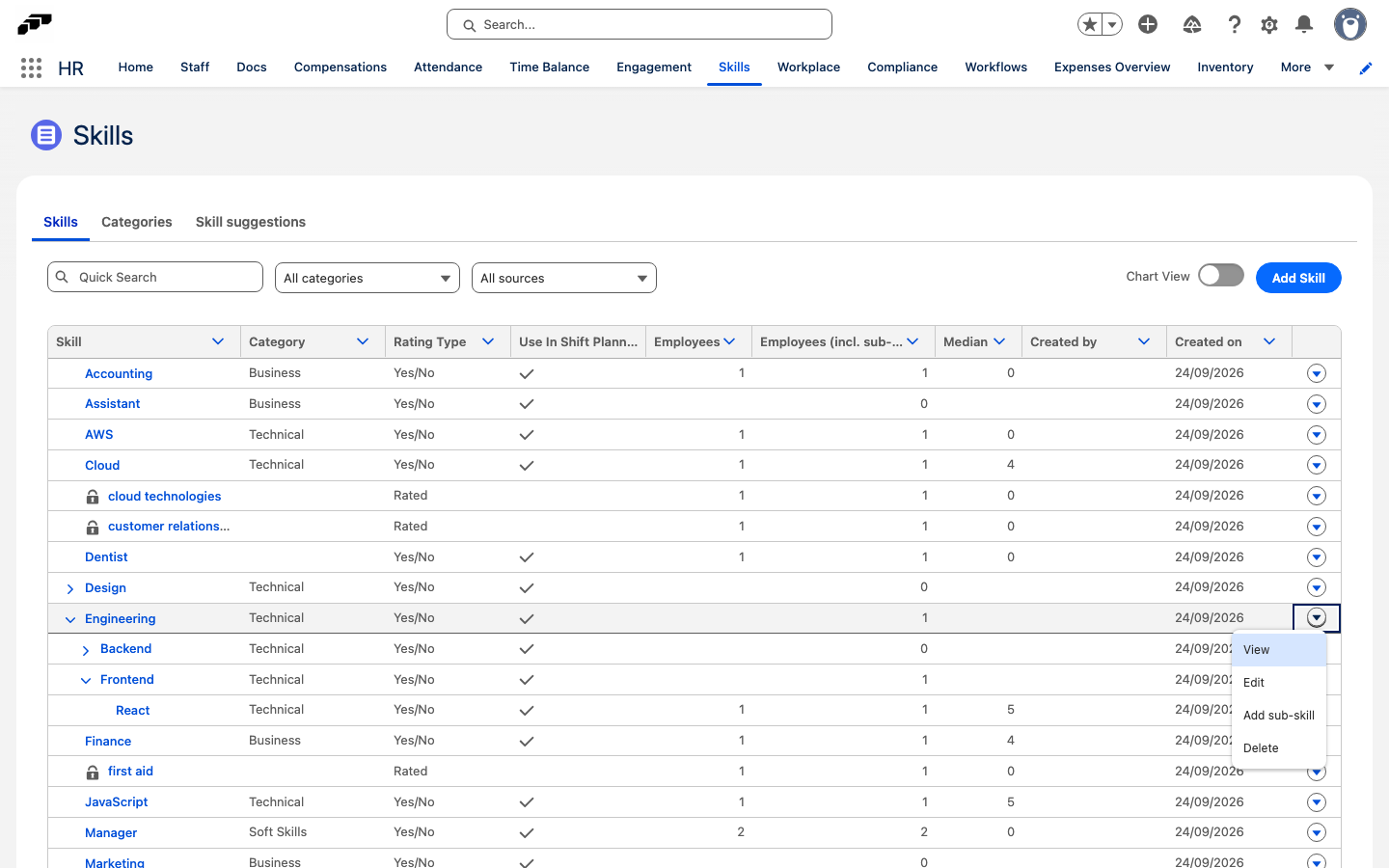
You can also choose Parent Skill while creating or editing a skill. The list uses an indented tree with expand and collapse controls. Employees (incl. sub-skills) counts distinct employees assigned to the skill or any of its descendants.
When you delete a skill that has sub-skills, flair moves those sub-skills to the deleted skill's parent. If the deleted skill was a top-level skill, its sub-skills become top-level skills; the sub-skills themselves are not deleted.
Import skills from ESCO
The Salesforce Skills page can search the external ESCO catalog. The Import tab isn't offered when you add a sub-skill. Importing a skill adds it to your organization's local catalog and can also build its parent chain.
- In the skills list, click Add Skill.
- Open the Import tab.
- In the search field, enter a skill name. The results load from the ESCO catalog after you stop typing.
- On a result, click Add, then choose Add skill only or Add with parents.
- Confirm the result shows In catalog. The imported skill is now available in your local Skills catalog.
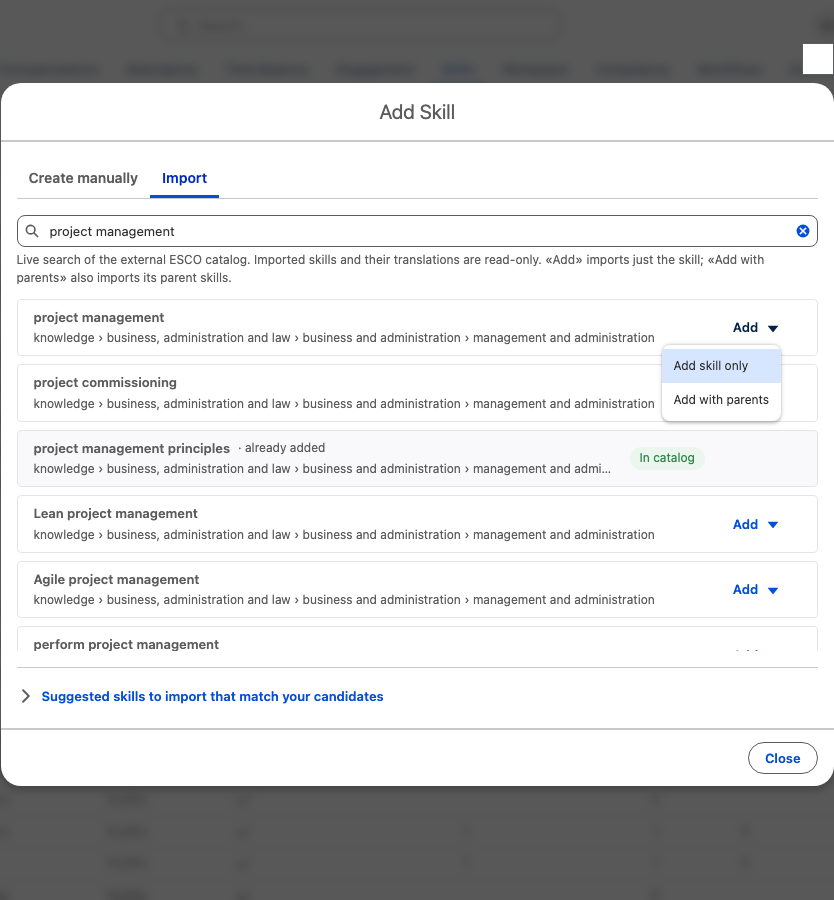
Imported skills keep their catalog-managed name, parent, and translations read-only. You can still edit organization-owned settings, such as category, color, rating, shift-planner use, and self-service behavior. The skills table marks imported rows with a lock icon.
To filter the catalog by origin, open Source, and choose All sources, Imported (ESCO), or Custom.
Review skill suggestions from CVs
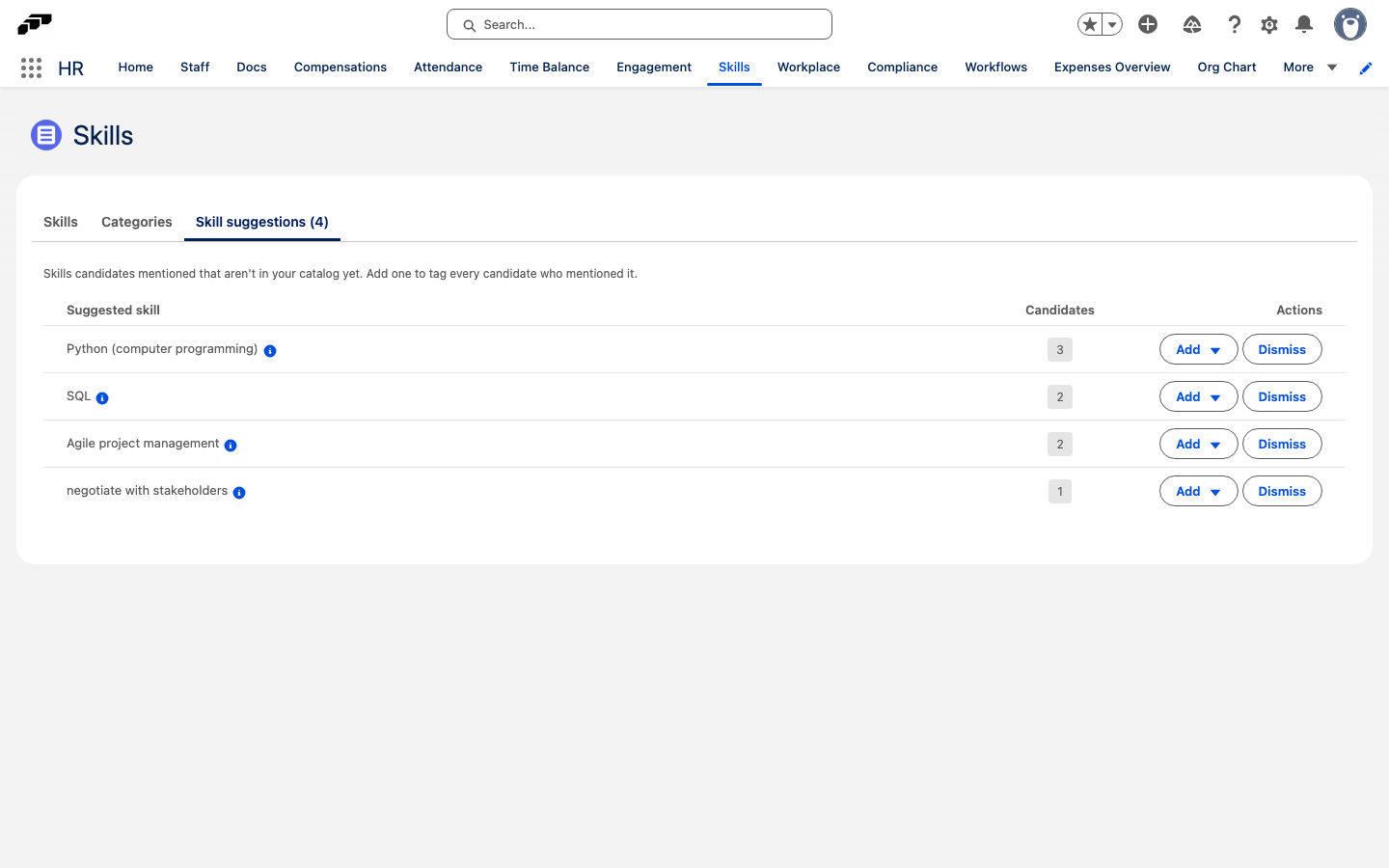
When CV Parsing reads a candidate's CV, skills already in your catalog are linked to the candidate. A skill that isn't in your catalog but matches an ESCO skill becomes a suggestion instead. Each skill appears once, with the number of candidates who mentioned it.
- In the flair HR app in Salesforce, open Skills.
- Open the Skill suggestions tab. The number in brackets on the tab counts the suggestions waiting for review.
- Optional: To see who mentioned a skill, click the number in the Candidates column. The list shows up to five candidates and how many more there are.
- To add a suggestion to your catalog, click Add, and choose Add skill only or Add with parents. flair imports the skill from ESCO and tags every candidate who mentioned it.
- To remove a suggestion you don't want in your catalog, click Dismiss.
If many candidates mentioned the skill, tagging them runs in the background, so the skill may not appear on every candidate right away.
You can act on the same suggestions in two other places:
- In Add Skill → Import, expand Suggested skills to import that match your candidates below the search results.
- On a candidate record, the skills card lists that candidate's pending suggestions under Suggested skills for your skill catalog.
Re-index skills for search
Skill search in the Employee Hub also matches synonyms, abbreviations, and other languages, so typing k8s finds Kubernetes. That works from a search index that flair keeps in step with the catalog.
- If a skill is missing from the index, the Skills page in Salesforce shows a warning — for example, 3 skills aren't searchable yet — next to a Re-index action. Click Re-index. The job runs in the background and can take a few minutes.
When every skill is indexed, no warning appears. Re-indexing reads your skills through a connected integration; if none is connected, This org isn't connected opens instead.
Assign a skill to an employee
- In the flair HR app, open the employee record.
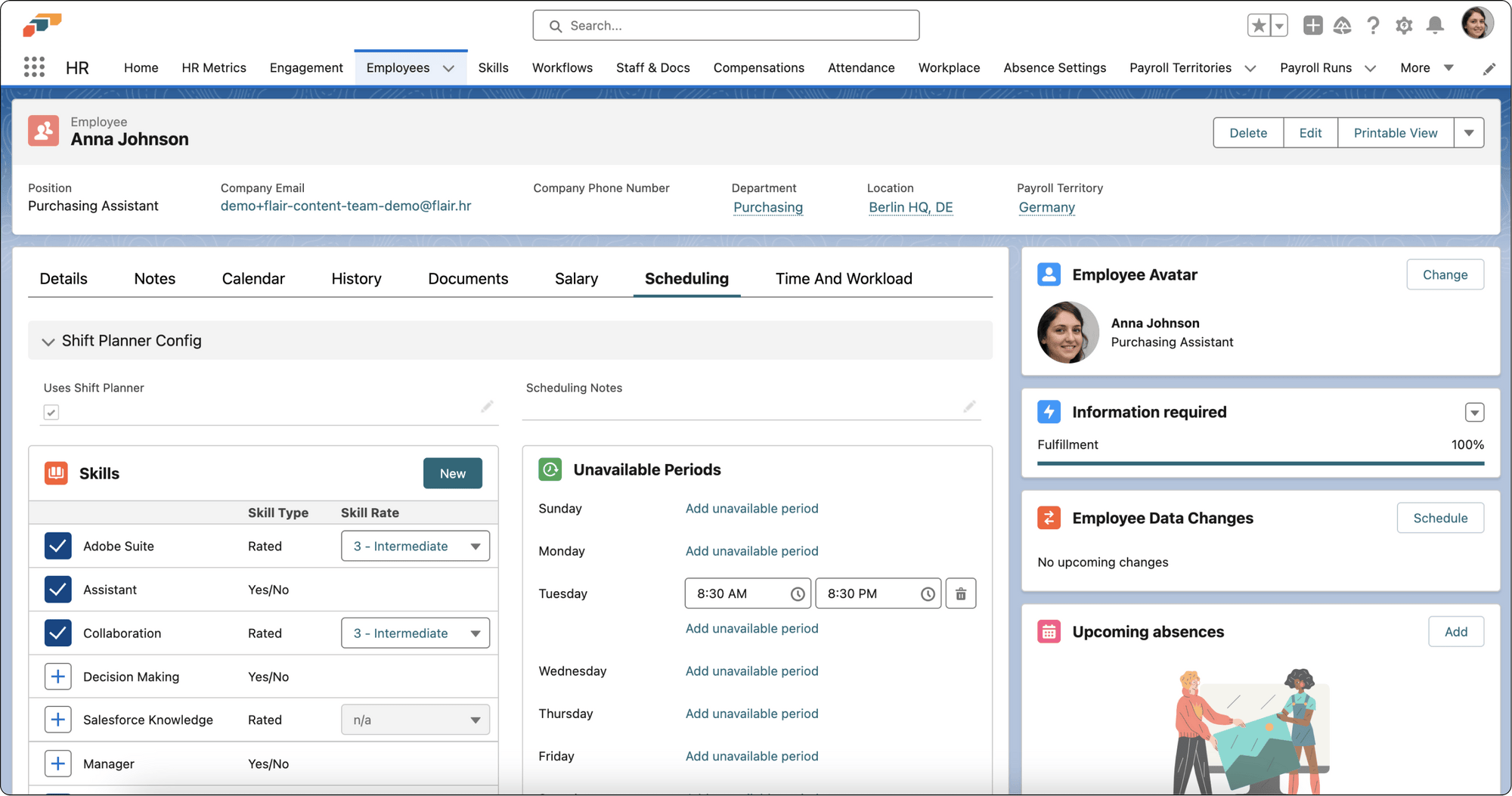
- On Scheduling, find the skill.
- Click + to assign it.
- For a rateable skill, select a rating. The skill appears on the employee's record.
- If the skill does not exist, click New to define it.
Manage your skills
- In the Employee Hub, open Development → Skills. Your skills groups your skills by category, and the line under the title names the position they are measured against.
- To set a level, click a segment of the skill's five-segment ramp, and confirm in Change level. The mark on the ramp is the level your position asks for.
- To record how long you have worked with a skill, click + exp. on the skill, and enter Years and Months. The value saves as you type.
- To add skills, click Add skills. Select everything that applies, click Next — set levels, set a level and experience for each pick, and click Add n skills.
- To remove a skill, open its More actions menu, and click Remove skill.
The summary at the top counts how many of your position's requirements you meet. Click one of its segments — At target, Below, Not assessed, or Expired — to filter the list to that state, and Clear the filter to show everything again. Filter skills narrows the list by name, and the sort control orders it By status, By level, or A–Z.
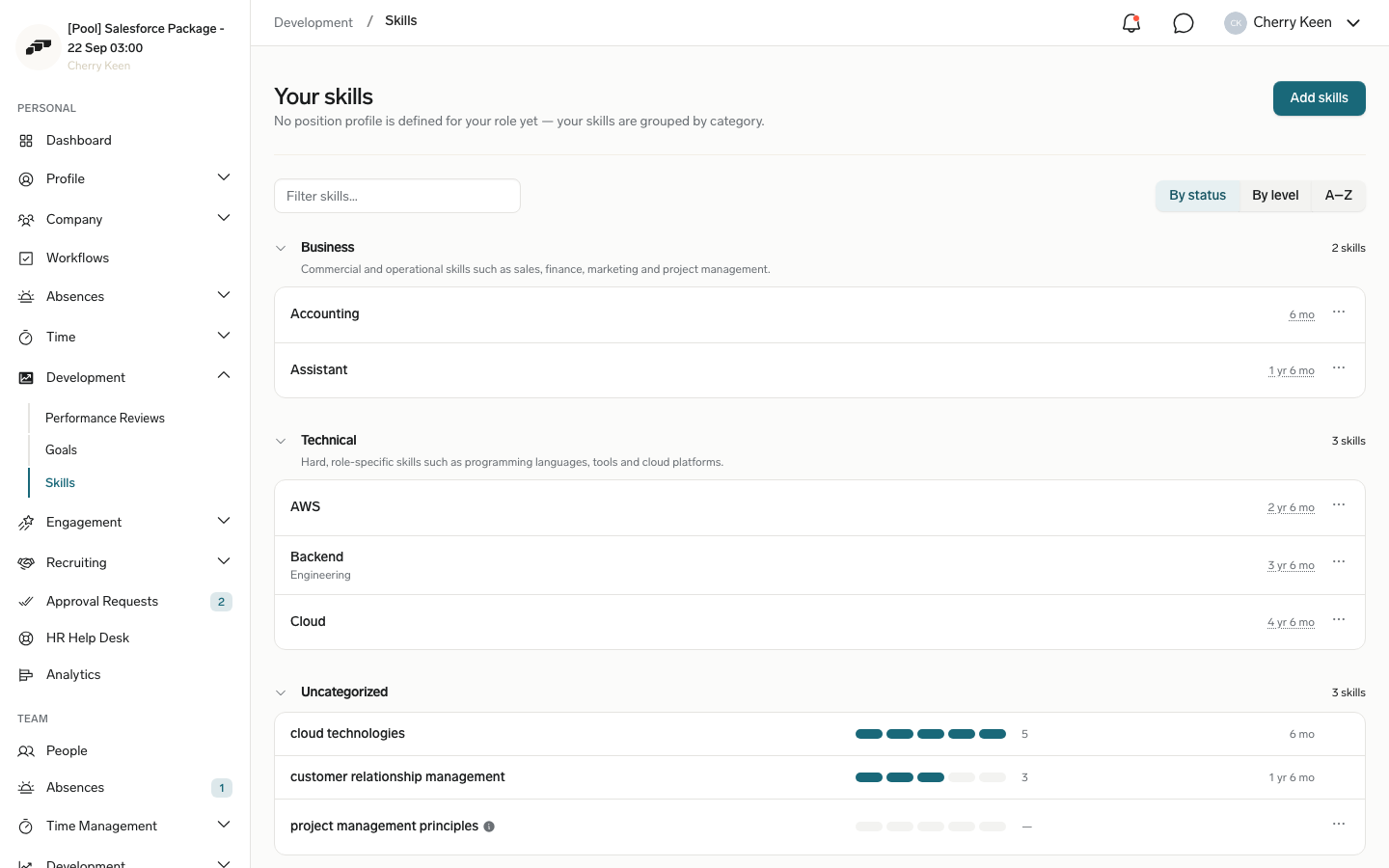
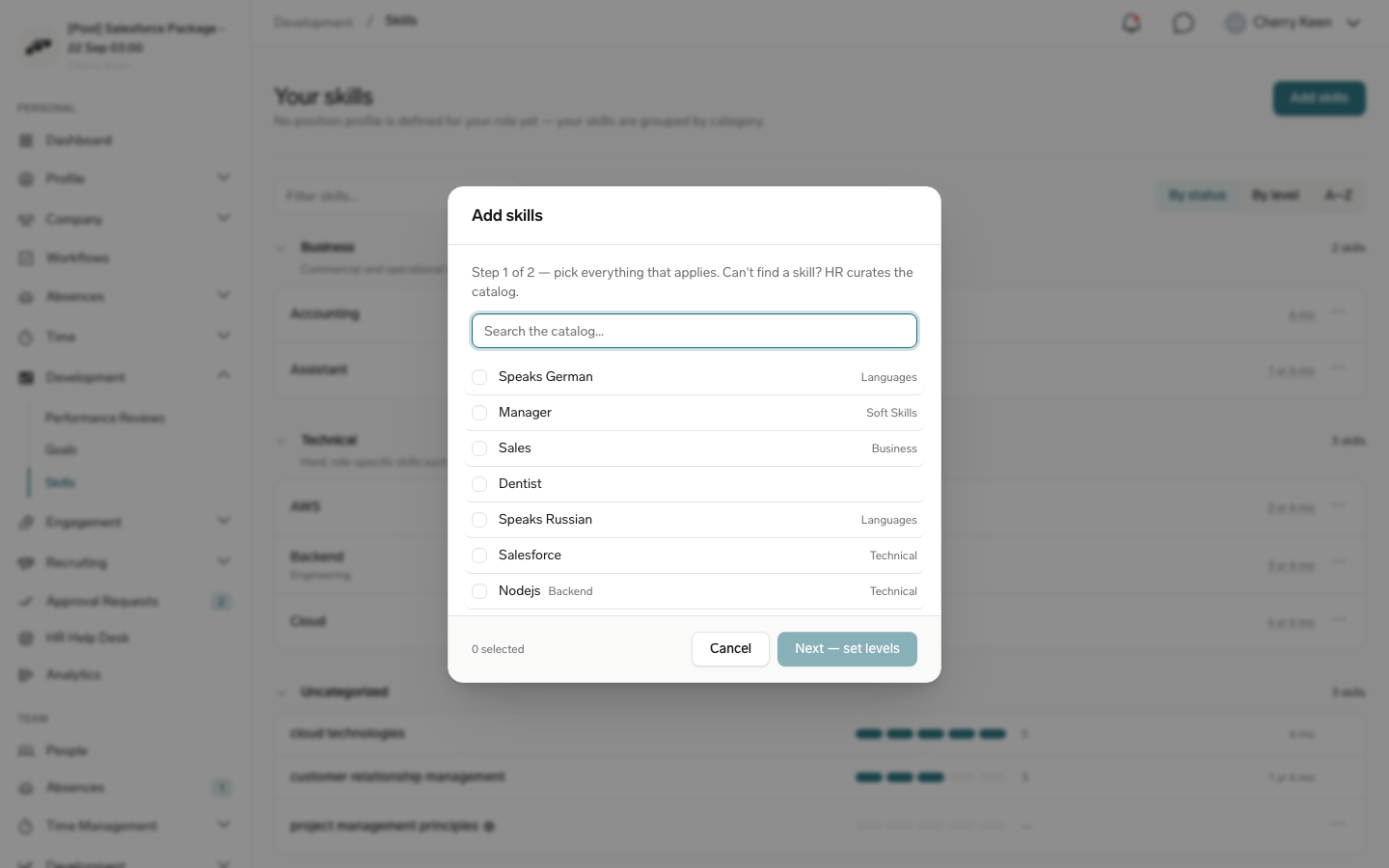
The available actions depend on the skill's Self-Service Mode:
| Setting | What it does |
|---|---|
| Full self-service | Lets employees add, remove, and rate the skill, and record experience. This is the default. |
| Add or remove only | Lets employees add or remove the skill. The level ramp and the experience editor are read-only. |
| Off — HR/Manager managed | Limits assignment, removal, rating, and experience to HR and managers. |
To change the setting, in Salesforce open Skills, edit the skill, and select its Self-Service Mode.

Work with a skill granted by a certificate
A skill that came from a certificate follows that certificate rather than the ramp: you can't set its level or remove it here, and its More actions menu offers Manage in Certificates instead. When the certificate expires, the skill stays on the list marked Expired and no longer counts, with a Renew link beside it. Expired skills are left out of coverage counts, gap analysis, the team grid, the radar, and matching, in both the Employee Hub and Salesforce. For the full flow, see Grant skills from certificates.
See your team's skills
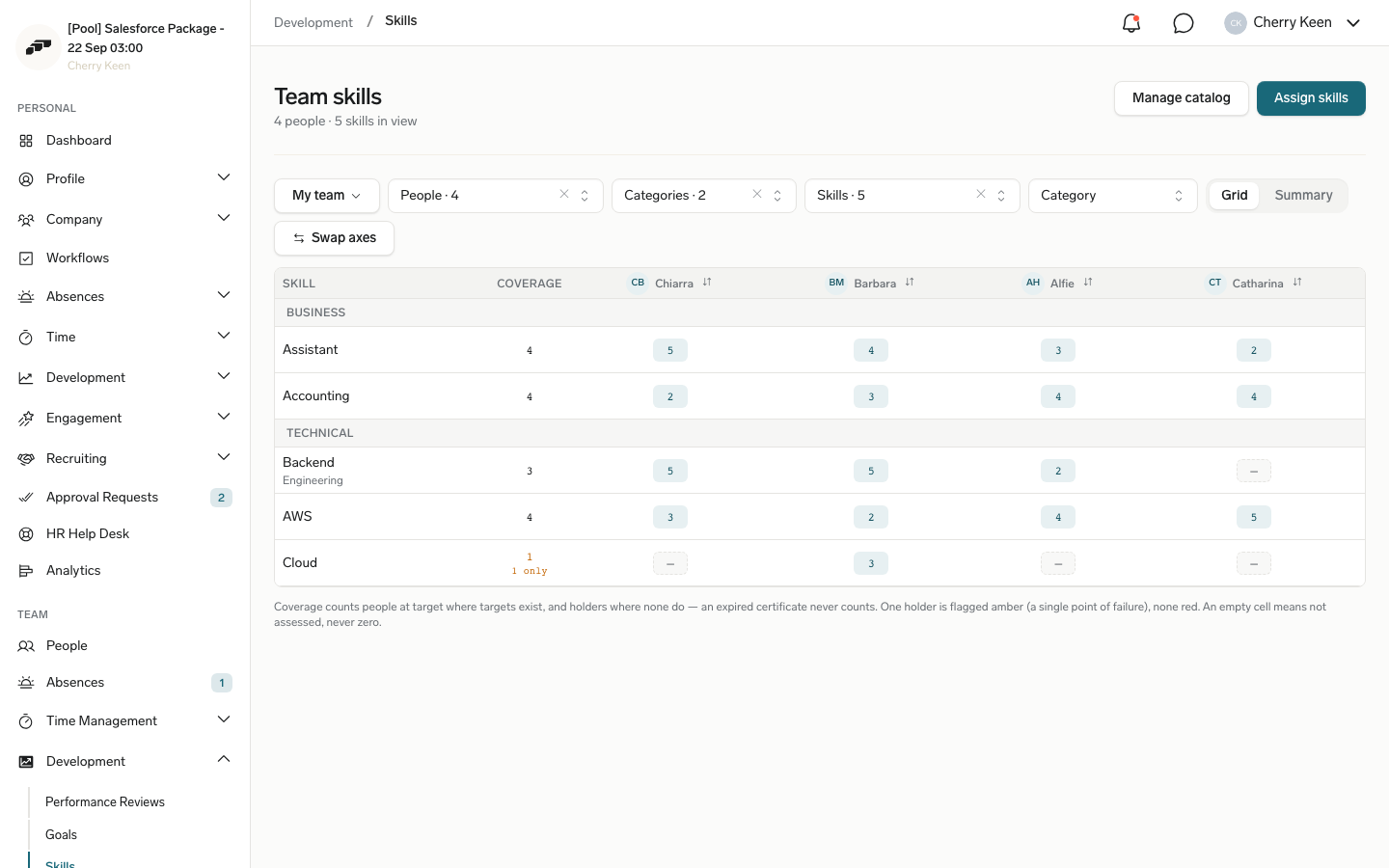
In the Employee Hub, open Team → Development → Skills. Team skills compares everyone who reports to you against the skills in view, and the line under the title counts the people and skills currently in it.
- Switch between Grid and Summary. Grid puts one skill per row and one person per column; Summary puts one skill per row with its coverage, level distribution, and flags.
- To choose what is in view, use the People, Categories, and Skills pickers in the toolbar.
- To change how rows are grouped, open Group by, and choose Category, Skill hierarchy, or No grouping.
- To read people as rows and skills as columns, click Swap axes.
- To open one person, click Open panel on their column. The panel has a Skills tab and a Radar tab.
- To assign a skill to several people at once, click Assign skills, pick the people and the skills, and confirm. No level is set — each person is rated afterwards.
- To keep the current people, skills, and axes, click Save view, name it, and save. Saved views are stored on your account, so they follow you to any browser.
Coverage counts people at target where a position sets a target, and holders where none does. A skill only one person holds is flagged as a single point of failure, and a skill nobody holds is flagged more strongly. An empty cell means the skill has not been assessed, not that the level is zero. An expired certificate never counts as held.
The Radar tab plots the person against their position profile, with the target drawn as a dashed outline. Click Choose skills to pick your own axes, or Reset to the position profile to go back to the shared ones. A radar needs at least three axes.
Review one person's skills
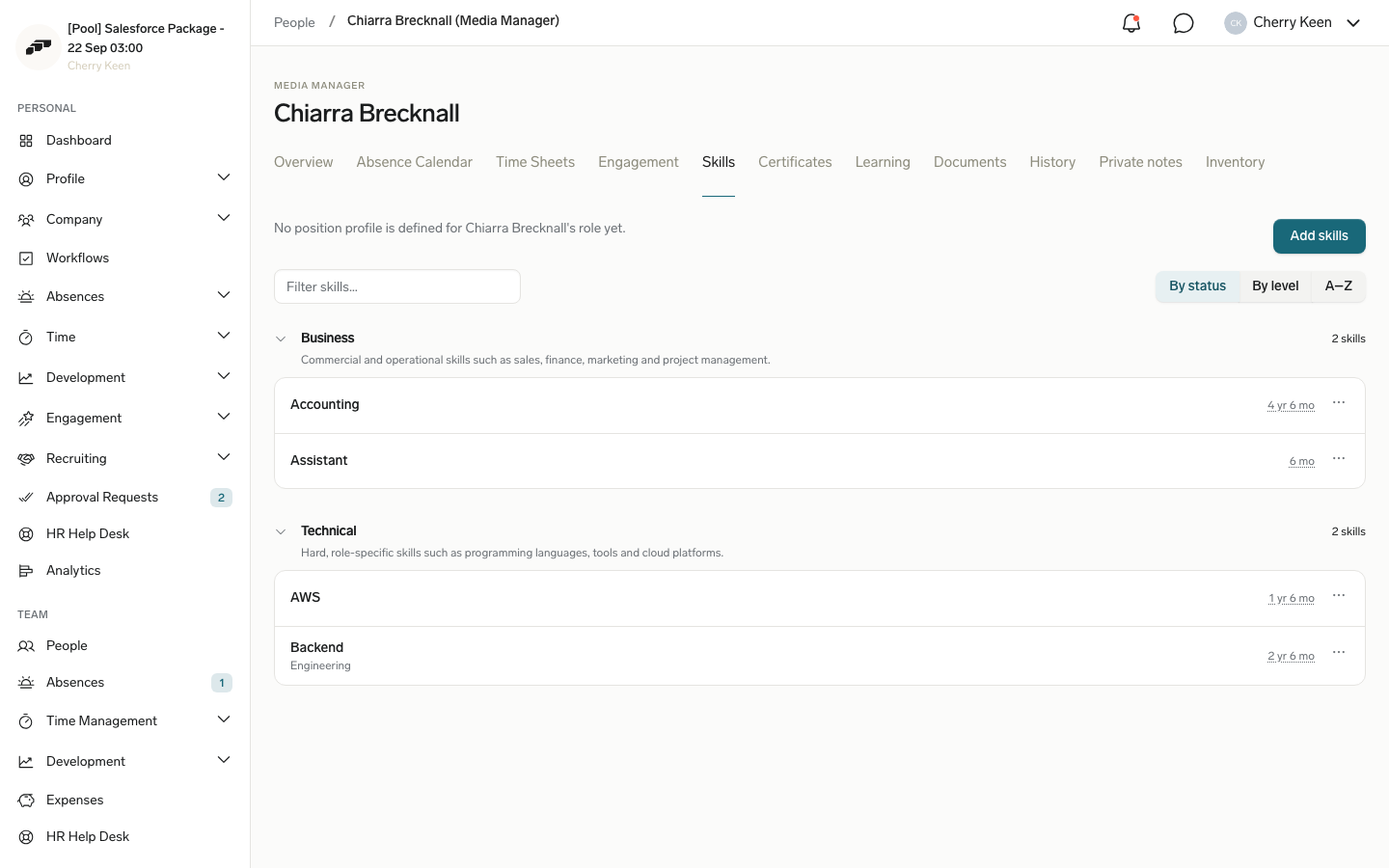
Open Team → People, select the person, and open their Skills tab. It shows the same grouped list, ramps, and summary the person sees on their own page, so a level and a target mean the same thing on both. Required skills and target levels inherited from the person's role appear here even when none are set directly on their position.
Browse the skill catalog
Click Manage catalog on Team skills to open All Skills: every skill in the catalog with its category, how many employees hold it, its median level, and who created it. The list is read-only — creating, renaming, and deleting skills happens in Salesforce.
Searching this list matches synonyms, abbreviations, and other languages as well as the literal text, and exact matches rank first.
Find who has a skill
- Open Team → People, and use the Skills filter on the roster to list everyone who holds a given skill.
From a skill row on a person's Skills tab or in the grid, More actions → Who else has this skill? opens the roster with that filter already applied.
See a person's gaps during a review
- In a performance review, find Target Profile in the sidebar. The card meters how many of the position's required skills the person is at, lists the gaps first, and links to Full skills for the whole picture.
Find people with similar skills
- In the Employee Hub, open an employee profile, and find Similar People. The card shows colleagues with matching skills, their match percentage, and their shared skills.
Managers and HR can use these results for pairing, rotation, and internal mobility.
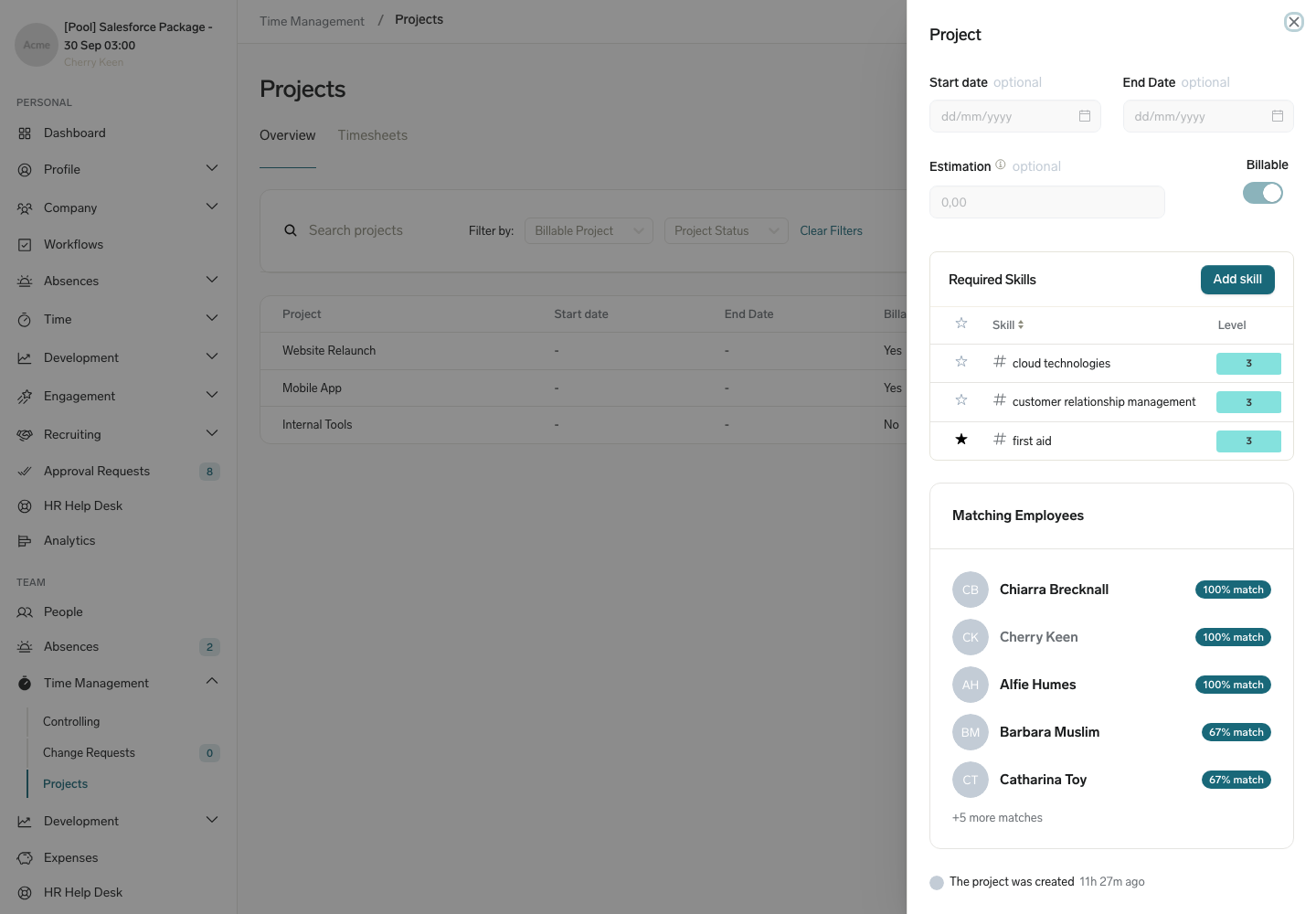
Add required skills to a project
- In the Employee Hub, open the project.
- In the project detail sidebar, find Required Skills.
- Add a skill.
- Optional: Set a proficiency level or mark the skill as a top requirement.
The Salesforce project record also keeps the matching panel for employees whose skills resemble the project requirements.
View matching employees for a project
Once a project has required skills, the Employee Hub ranks employees against those requirements so you can see who fits best.
- In the Employee Hub, switch to the Manager view, and open the project.
- In the project detail sidebar, find Matching Employees.
- Hover over an employee's match badge to see the Matching Skills they share with the project, along with the employee's level for each rated skill.
- Optional: Select an employee to open their profile. Employees you can see but cannot manage are listed for context without a link.
Each entry shows the employee's name and a match percentage badge scoring their skills against the project's required skills. An expired skill doesn't count towards the score, so an employee whose certificate has lapsed drops down the ranking until it is renewed. The five closest matches appear first; if more employees match, a line at the bottom shows how many others are not listed. The list refreshes when you change the project's required skills, so the ranking always reflects the current requirements.