Create and target Company Announcements
Create Company Announcements for all employees or a selected Employee Segment. Announcements appear in the Employee Hub and the flair mobile app, and can include files or require acknowledgment.
HR Admins create Company Announcements in Salesforce. Employees read them in the Employee Hub and the flair mobile app, and acknowledge them in the Employee Hub.
Create an announcement
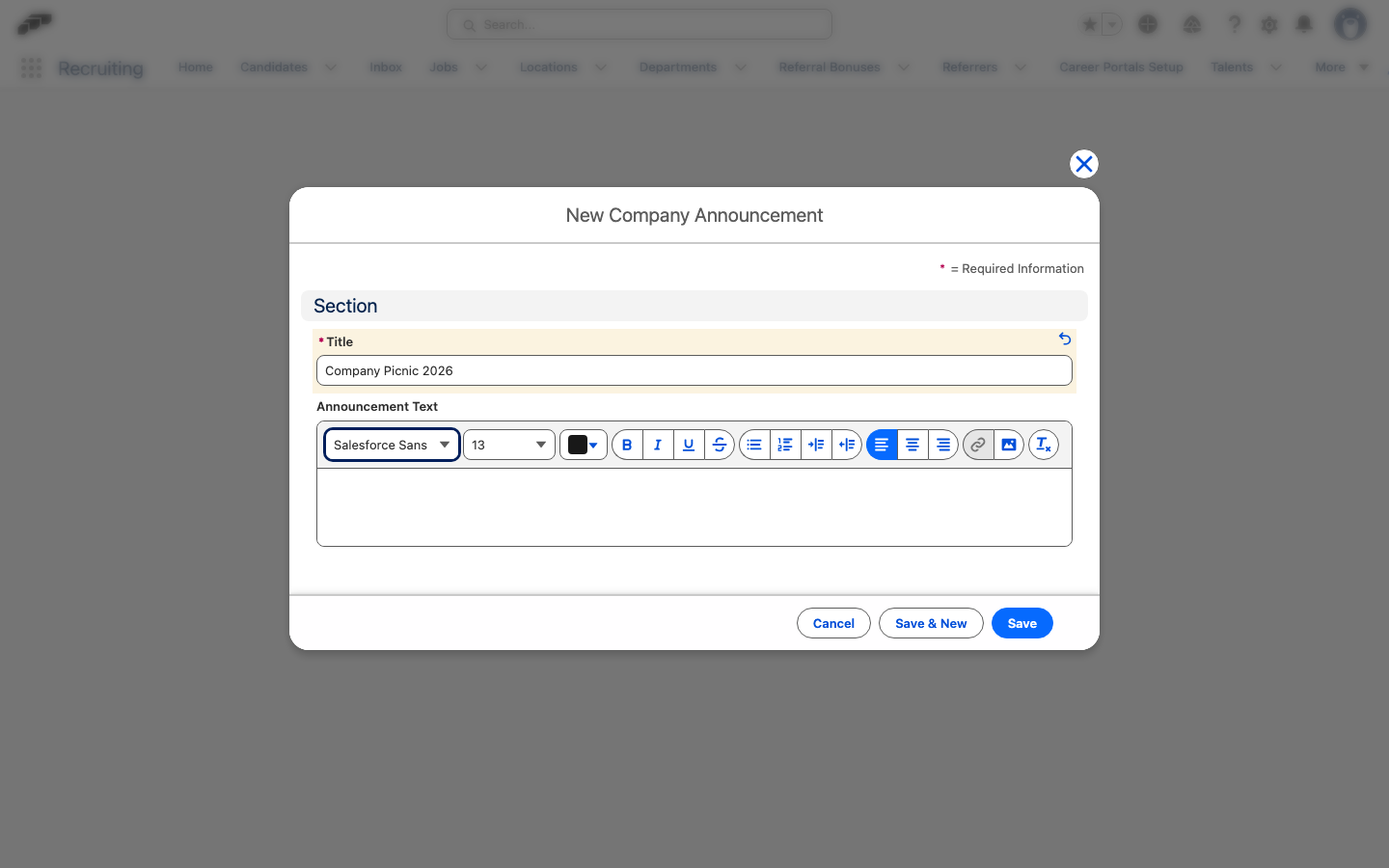
- In Salesforce, open the App Launcher (⋮⋮ grid icon), and select Company Announcements.
- Click New.
- In Title and Content, enter the announcement details.
- To target a group, select an Employee Segment. Leave the field empty to include all employees.
- Optional: In Publish Date, select a future date. Leave the field empty to publish immediately.
- Click Save. The announcement is available to its audience on the selected date.
When flair publishes the announcement, employees receive notifications through every enabled channel: email, mobile push, web push, and Slack. No additional announcement-level setup is required.
Pin an announcement
Pinned announcements appear first in reverse chronological order, followed by non-pinned announcements. This order applies to the Employee Hub Latest Updates dashboard widget and the Employee Hub Announcements page.
- In Salesforce, open the announcement record.
- Select Pinned.
- Click Save. The announcement moves to the pinned group.
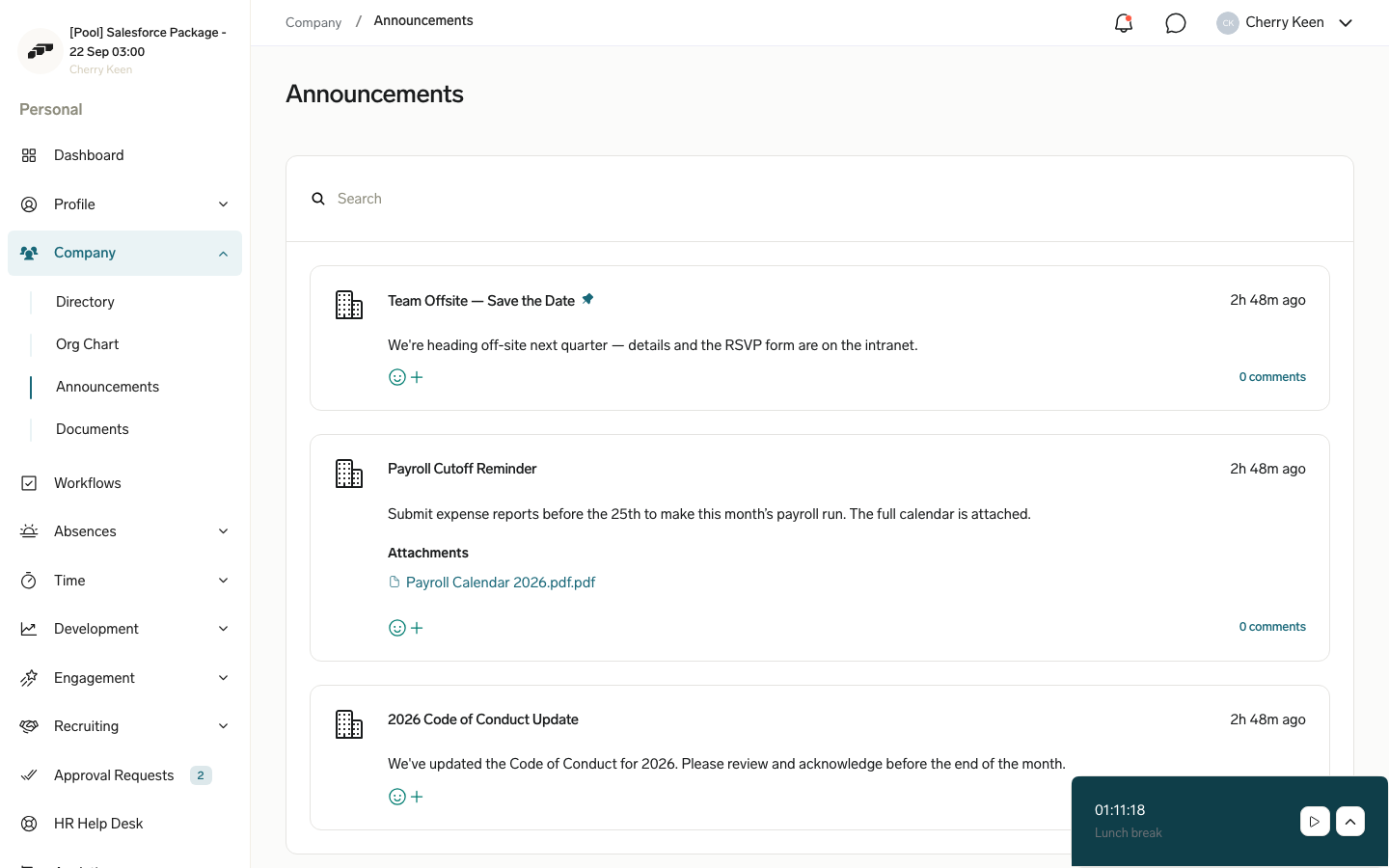
Pin time-sensitive communications, such as policy changes, office closures, or critical reminders.
Require acknowledgment
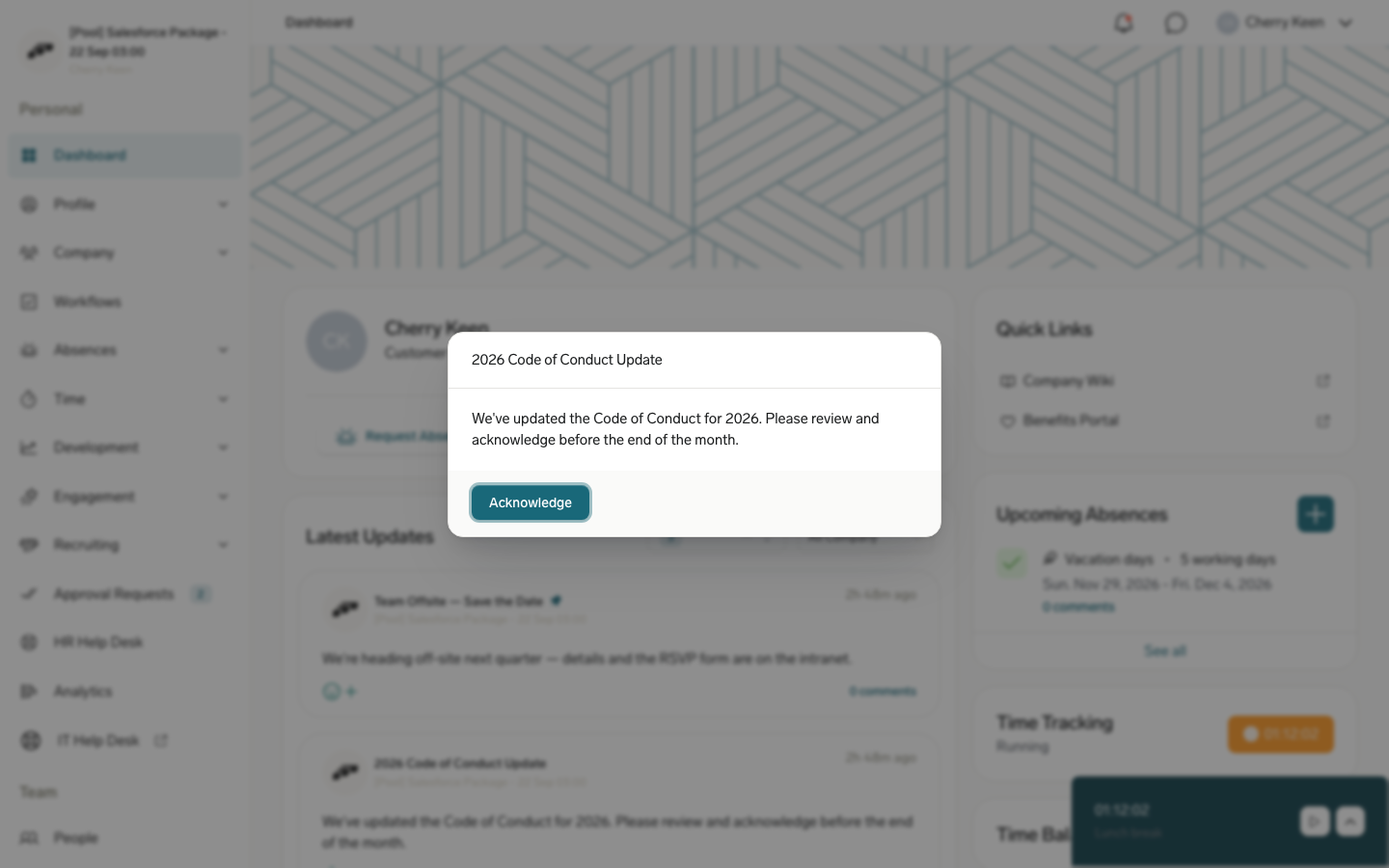
- On the announcement record, enable Require Acknowledgement.
- Click Save. Employees see an acknowledgment prompt in the Employee Hub.
- On the announcement record, use the acknowledgment related list to track responses.
Attach files
- In Salesforce, open the announcement record.
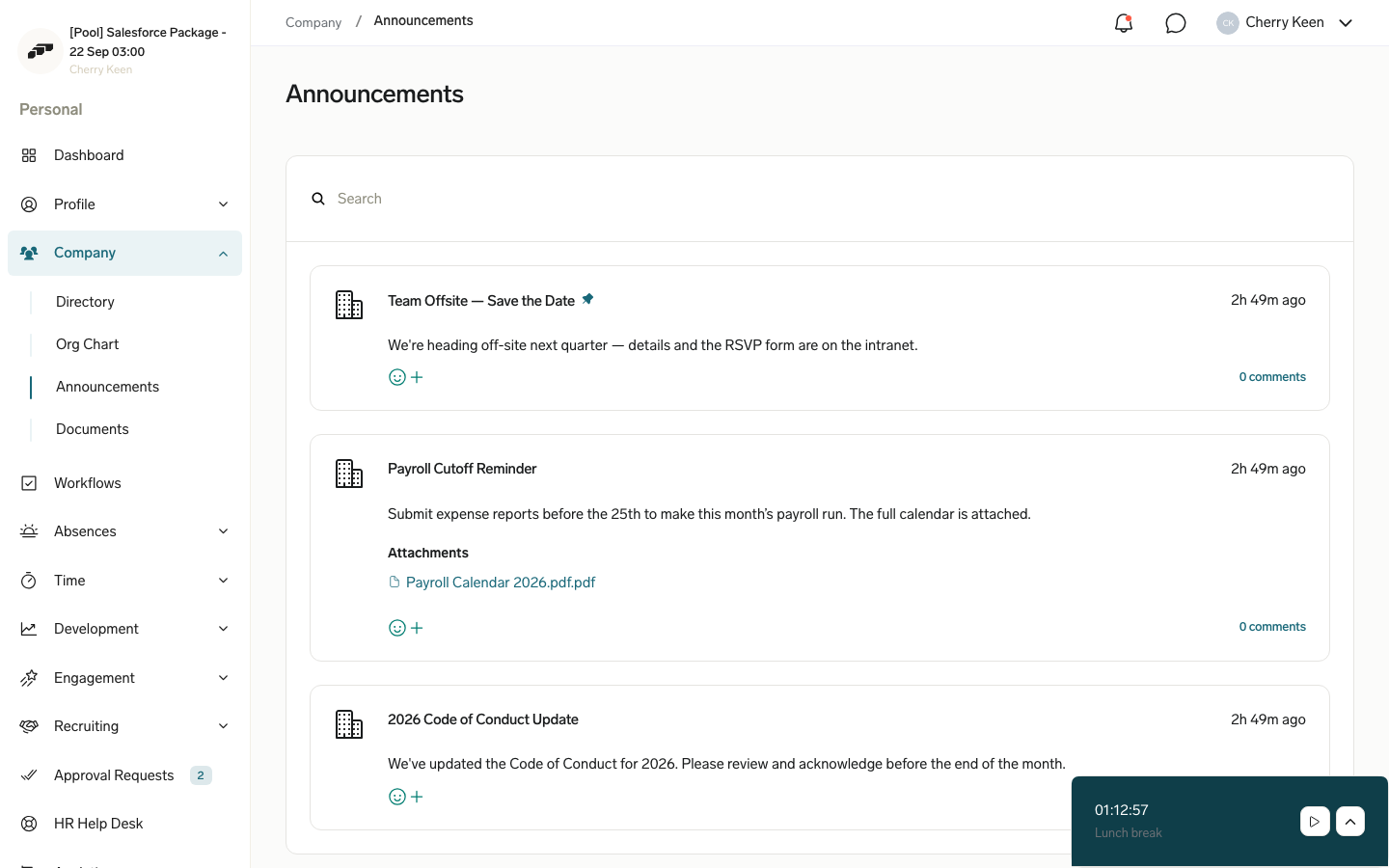
- In the Attachments related list, add the documents, PDFs, or images.
- Click Save. Employees can download the files from the Latest Updates card and People → Announcements.
Read announcements in the mobile app
The Latest updates card on the dashboard of the flair mobile app shows the first announcement in the list: the newest pinned announcement, or the newest announcement when none is pinned. The card doesn't appear when Hide Announcements is enabled. See Configure the Employee Hub.
- In the flair mobile app, on the dashboard, tap Latest updates.
- Scroll the list. Pinned announcements come first, then the others, each group newest first. Each announcement shows how long ago it was posted, its title, and its full content. Tap a link in the content to open it.
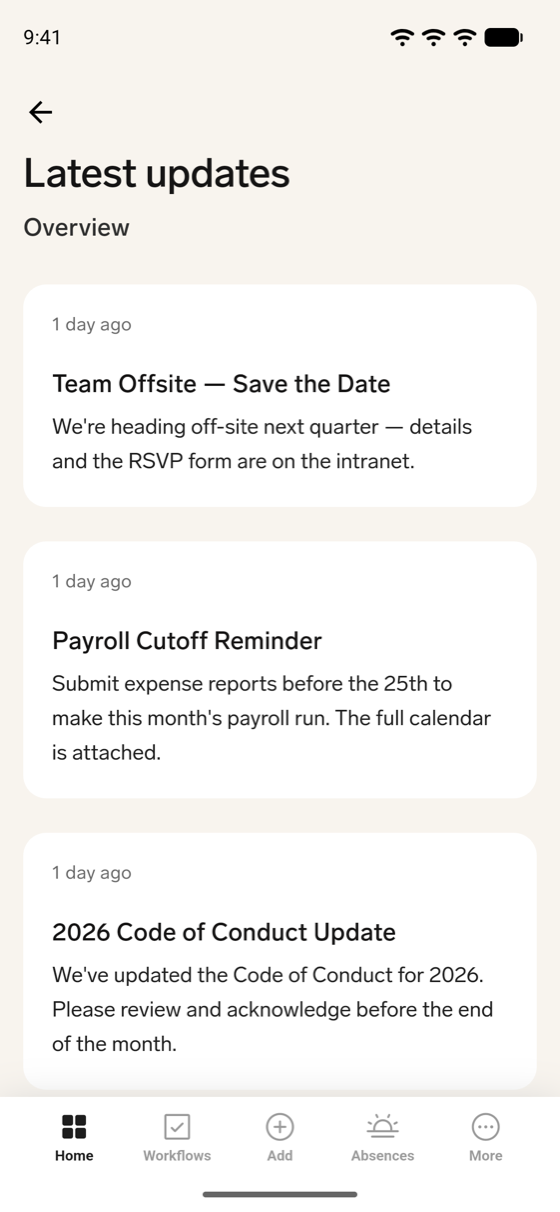
The mobile app shows announcements as text only. Attachments and the acknowledgment prompt aren't available in the app, so employees download files and acknowledge announcements in the Employee Hub.
Target an Employee Segment
Use an Employee Segment to include employees by department, location, role, or another configured condition. Employees outside the segment do not see the announcement.
Target managers
The Is Manager condition includes anyone who meets either criterion:
- The employee is the direct manager of at least one other employee.
- The employee is an active additional manager with the HR Manager responsibility.
- In Salesforce, create or edit a Company Announcement.
- In the Employee Segment configuration, add Is Manager = Yes.
- Optional: Add another condition, such as location, department, team, or entity.
- Click Save. Only employees who match all segment conditions receive the announcement.
To exclude managers, set Is Manager = No.
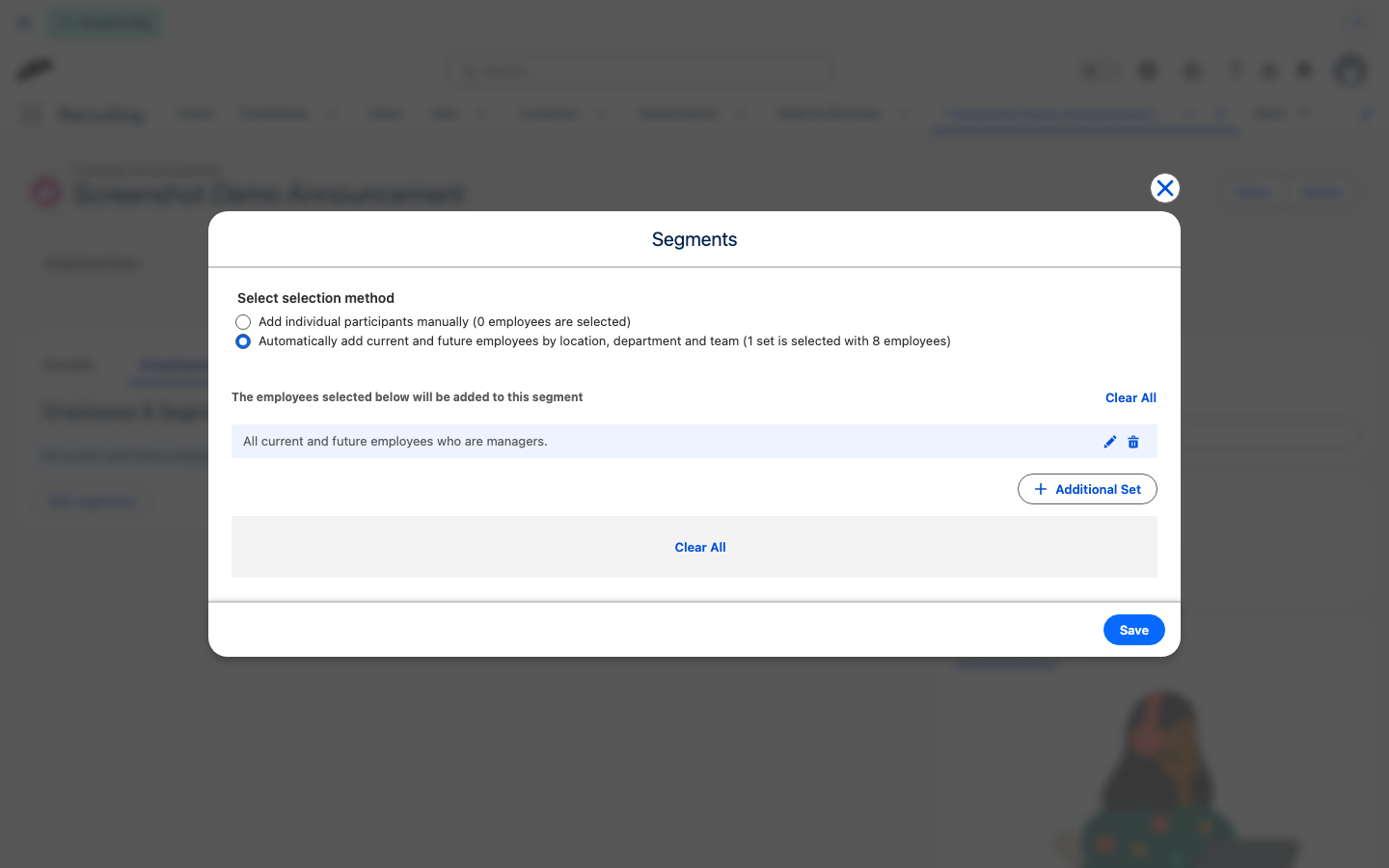
Combine Is Manager = Yes with Location = Berlin to target managers based in Berlin.