Track time and allocate employees to projects
Set up projects and record working time against them in Salesforce, the Employee Hub, or the mobile app. Managers can review Project Time Entries, reports, and employee allocation.
HR Admins and project managers set up projects in Salesforce. Employees and Managers track or review project time in the Employee Hub, the mobile app, or Salesforce.
Before you begin
- Time tracking is enabled for your organization.
- Employees have time-tracking permissions and an active workload.
- Users have at least read access to the Project object and create, read, and edit access to the Project Time Entry object.
Enable Project Time Tracking
-
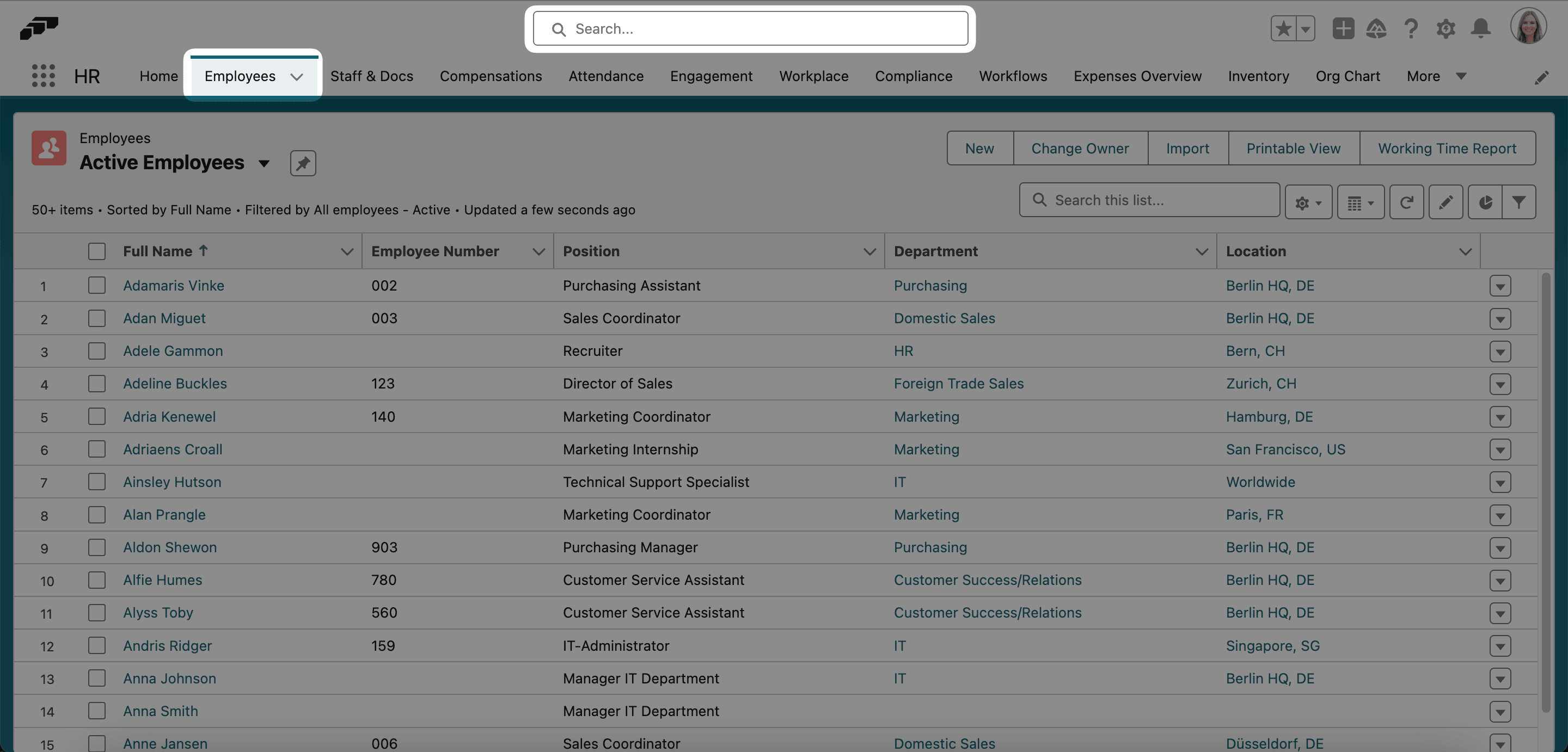
In the flair HR app in Salesforce, open Employees, and select the employee.
-
Open More → Time And Workload.
-
If the employee has an active workload, end it before creating the replacement.
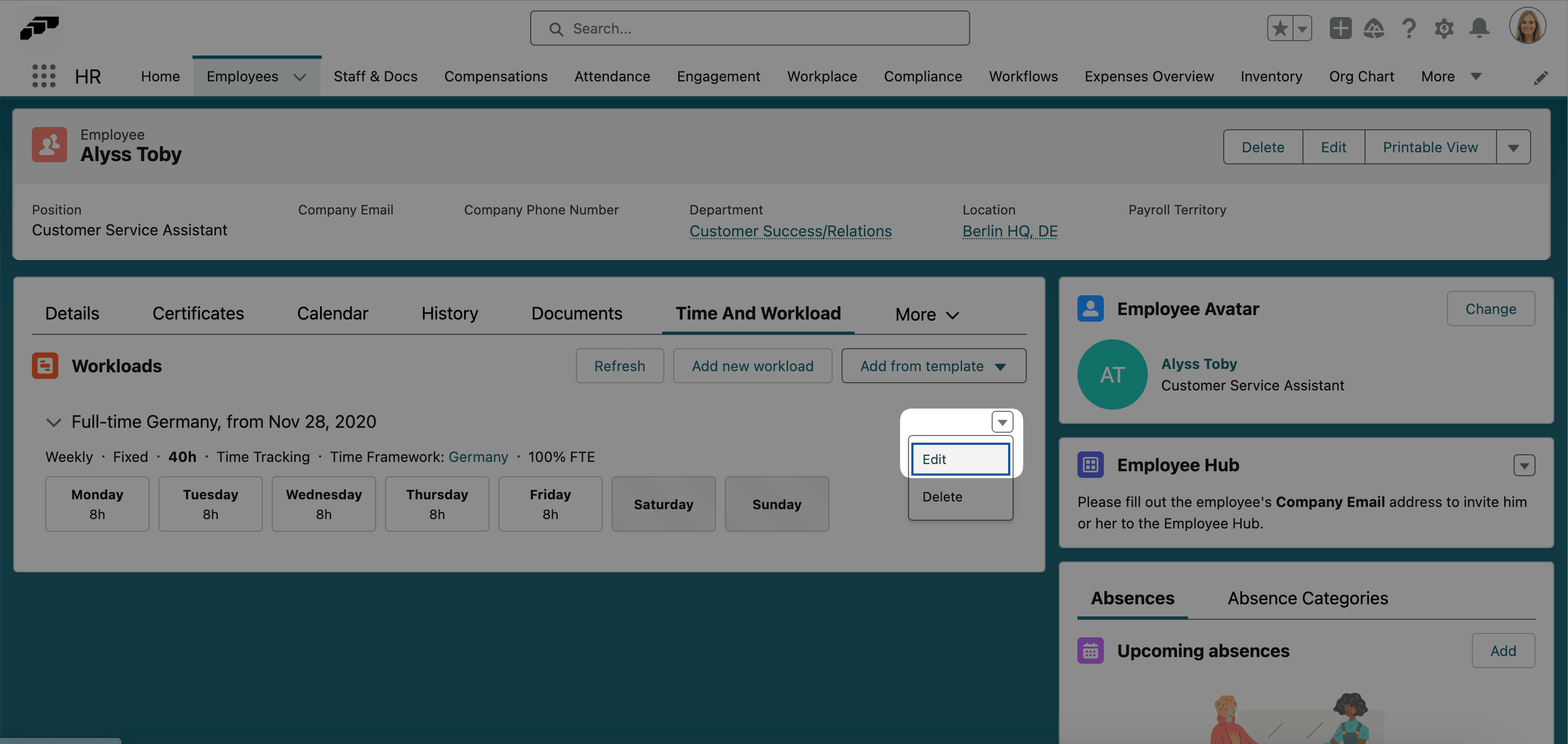
-
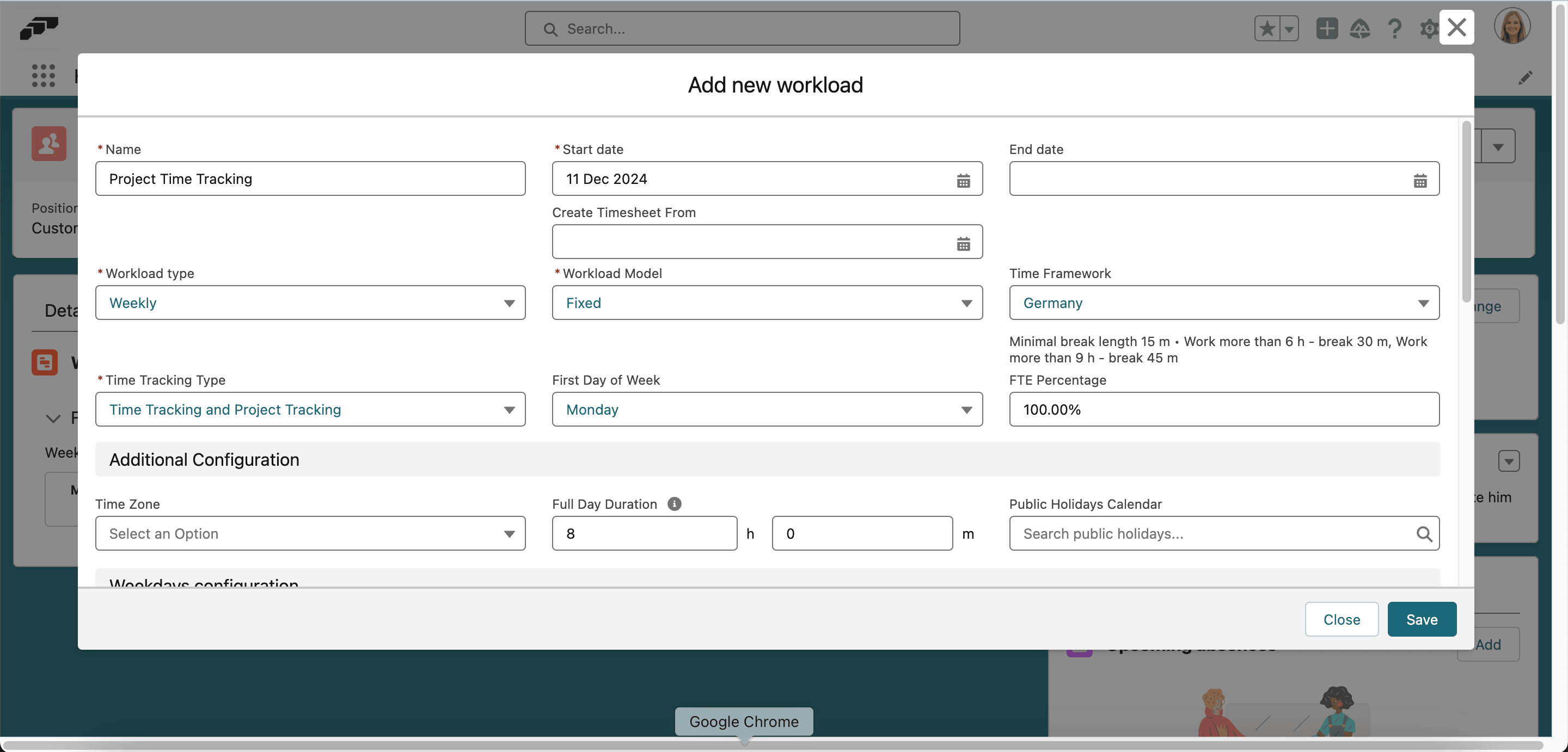
Click Add New Workload.
-
Start the new workload immediately after the previous workload ends.
-
In Time Tracking Type, select Time Tracking and Project Tracking or Time Tracking with Projects. See Choose a Time Tracking Type.
-
Configure whether project selection is required and whether employees can track tasks, clients, or billable hours.
-
Save the workload.
Choose a Time Tracking Type
The workload's Time Tracking Type decides how working time and project time relate:
| Time Tracking Type | What it does |
|---|---|
| Time Tracking | Tracks working time with time entries only. |
| Time Tracking with Projects | Assigns time entries to projects. Each Project Time Entry links to the time entry it belongs to. |
| Time Tracking and Project Tracking | Tracks working time and project time separately. Project time is recorded for the day, not for a specific time entry. |
| Project Tracking | Calculates worked time from project entries only. |
| No Tracking | Turns off working-time and project-time tracking. |
To make employees on Time Tracking with Projects workloads select a project before they clock out, turn on Require Project on Clock Out in their Time Framework. The setting has no effect on other Time Tracking Types.
Create a project
-
In Salesforce, open the App Launcher (⋮⋮ grid icon), and select Projects.
-
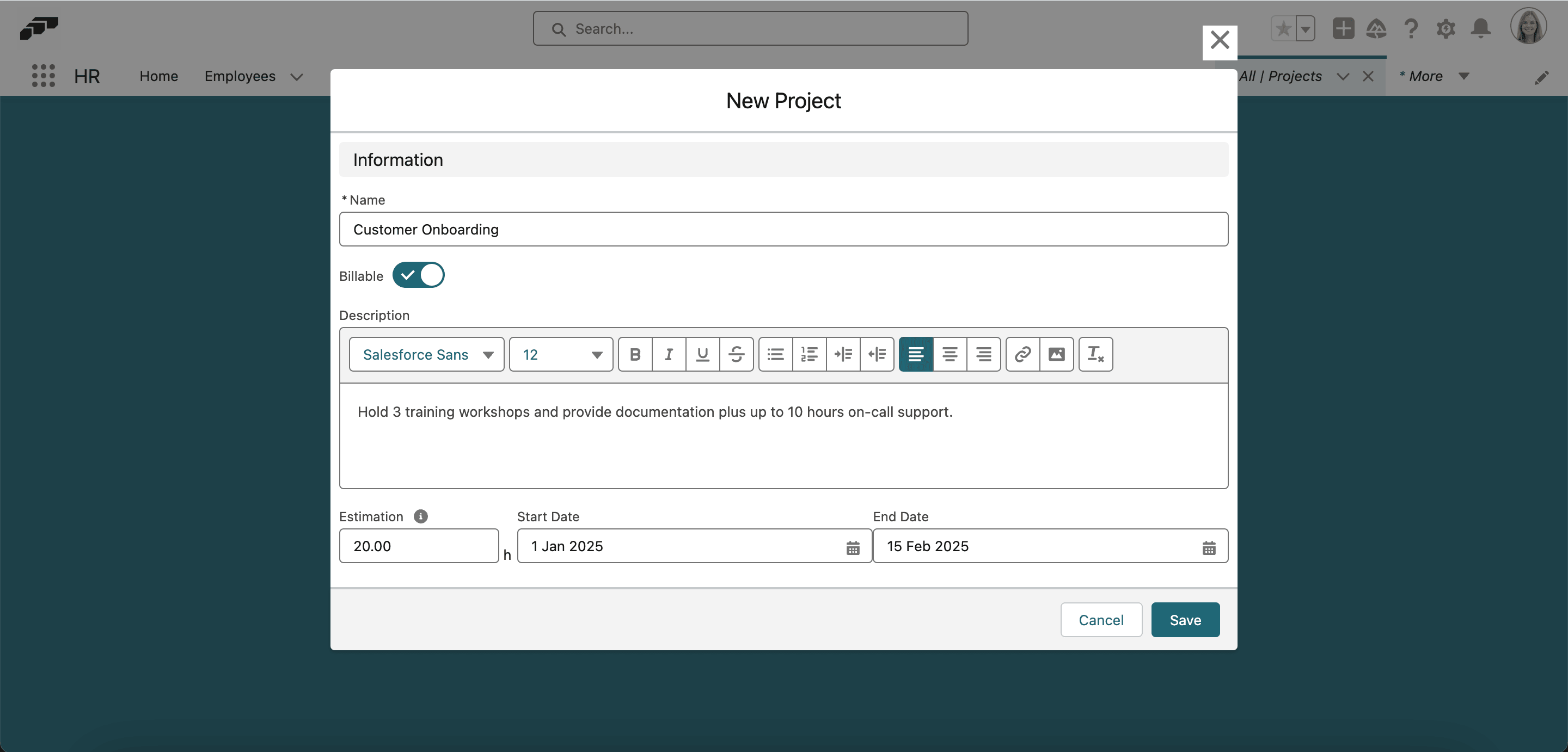
Click New.
-
Complete the project fields:
Setting What it does Name Identifies the project. Required. Description Describes the project. Estimation Records the estimated total hours. Billable Marks the project as billable. Start Date Sets the first project date. End Date Sets the optional expected completion date. Both dates are required for Project Allocation. -
Save the project.
Configure the project team and billing
Use Employee Segments or individual assignments to define who can track time to the project.
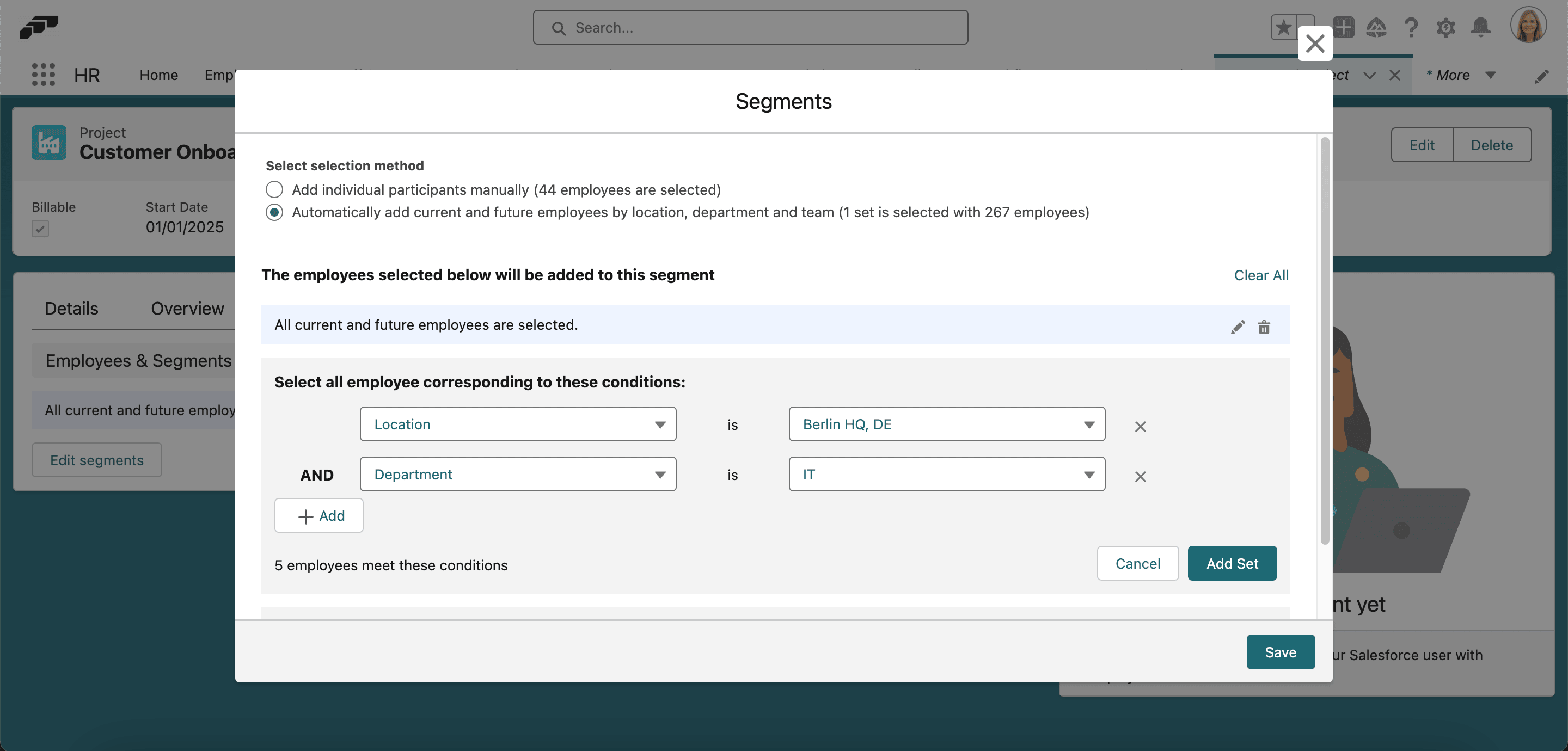
Project configuration supports these details:
| Group | Available details |
|---|---|
| Cost center | Project cost center, costs against budget, and financial reporting. |
| Project team | Team members, lead/member/contributor roles, and hourly billing rates. |
| Billing | Billable rate, Internal cost, Billing type, and invoice integration settings. |
Archive, restore, or clone a project
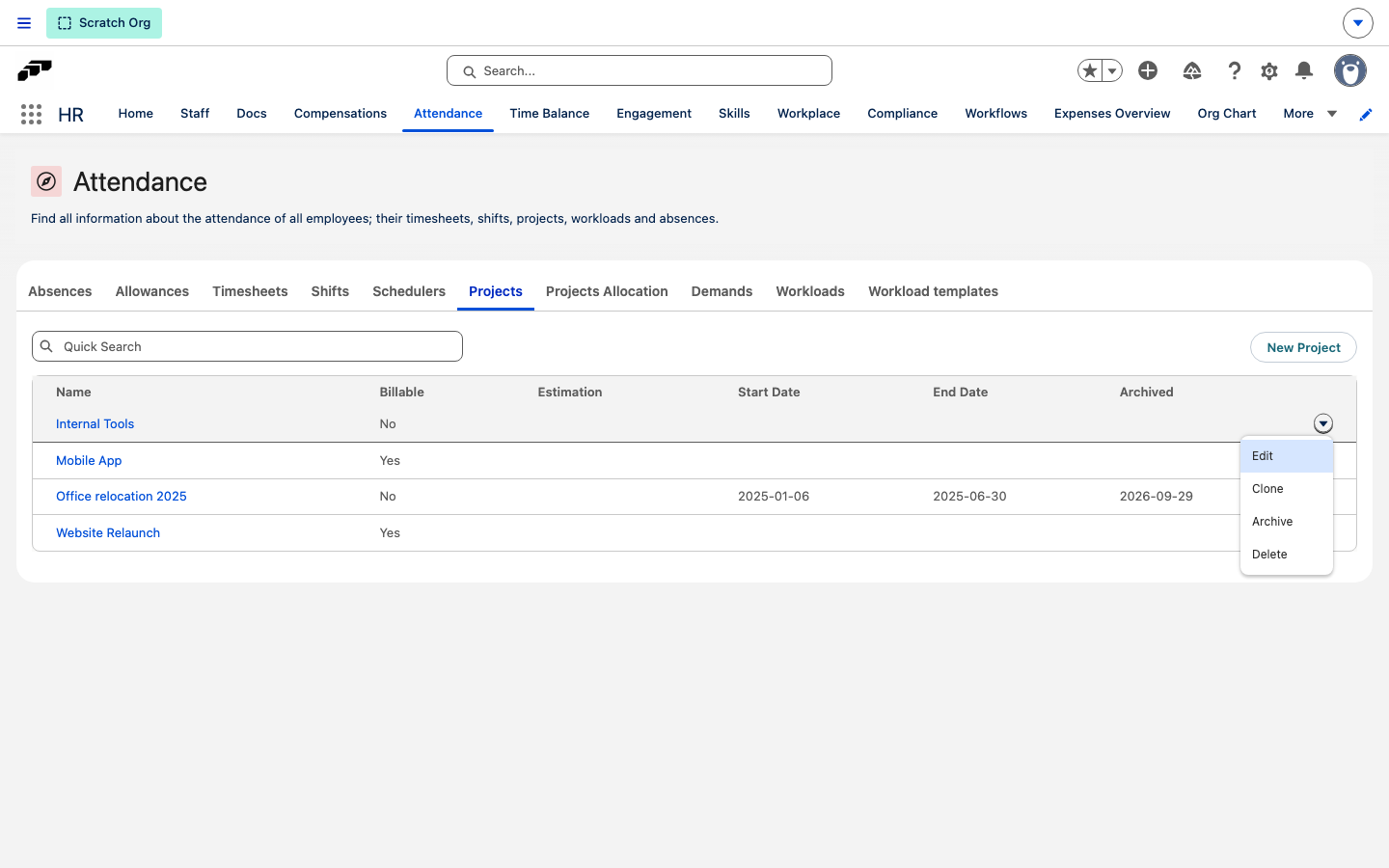
Archive a project when work on it has ended, so employees stop booking new time to it. The Projects tab in Attendance appears only if your permission sets include the HR Manager or Attendance Manager custom permission.
Archive or restore a project
- In the flair HR app, open Attendance → Projects.
- In the project's row, open the row actions menu.
- To archive the project, click Archive. flair shows Project archived, and the Archived column shows the archive date.
- To bring an archived project back, click Unarchive in its row actions menu instead. flair shows Project restored and clears the archive date.
You can also click Archive or Unarchive at the top of the project's record page.
Archiving hides the project wherever employees pick a project for new time or expenses in the Employee Hub. Time and expenses already booked to the project keep it. On the Employee Hub Projects view, the archived project's days are read-only and show This project is archived, so no new time can be booked to it. In Manager view, you can list archived projects by selecting Archived in the Project Status filter.
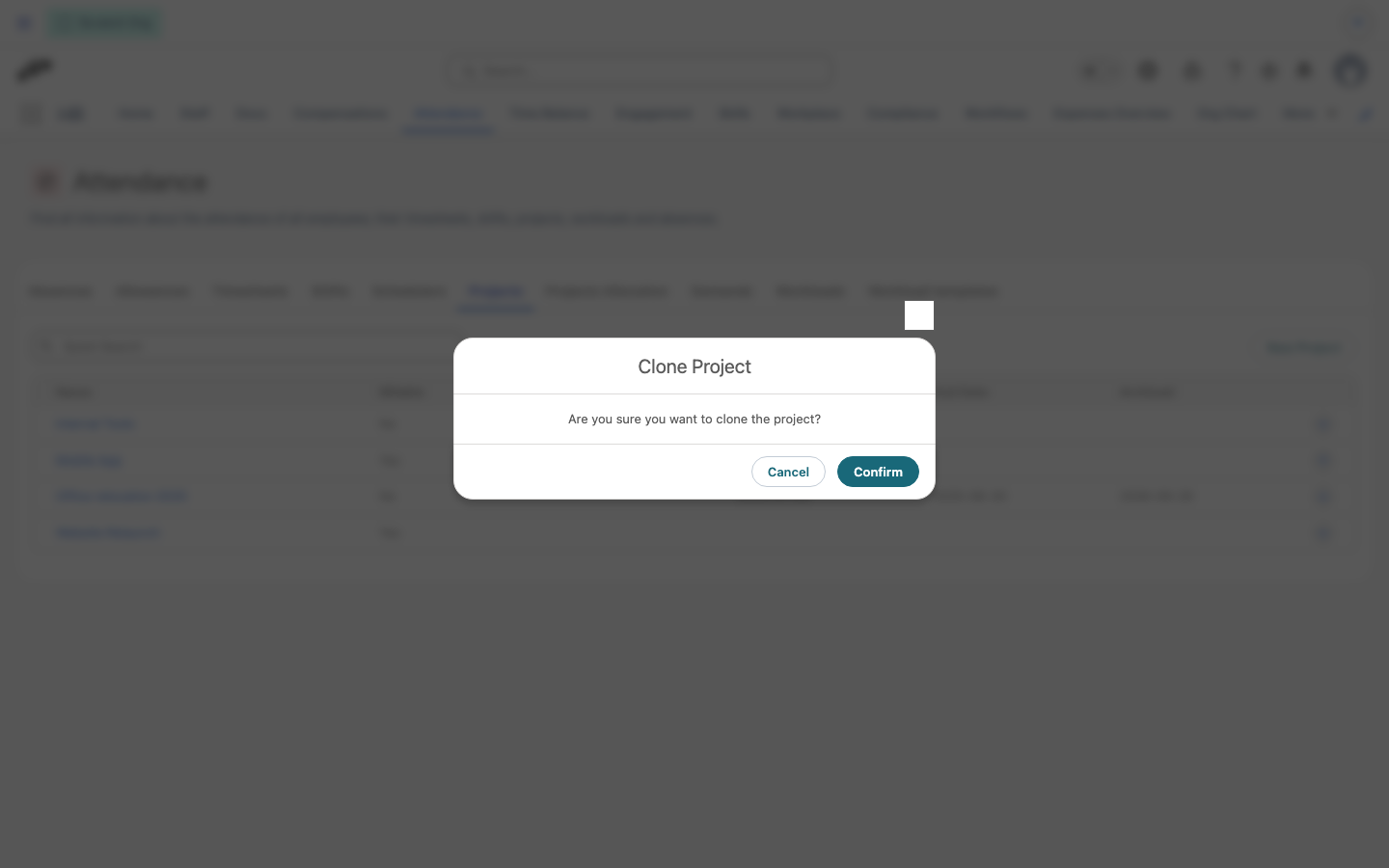
Clone a project
Cloning creates a new project from an existing one's basic details.
- In the flair HR app, open Attendance → Projects.
- In the project's row, open the row actions menu, and click Clone.
- In Clone Project, click Confirm. flair creates a project named after the original with
- cloneappended.
The clone copies only the Name, Description, Billable, Estimation, Start Date, and End Date. It doesn't copy the project's employees and segments, skills, cost centers, or time entries, and it is never archived, even when the original is. Assign employees on the clone's Employees & Segments tab.
Track project time in the Employee Hub
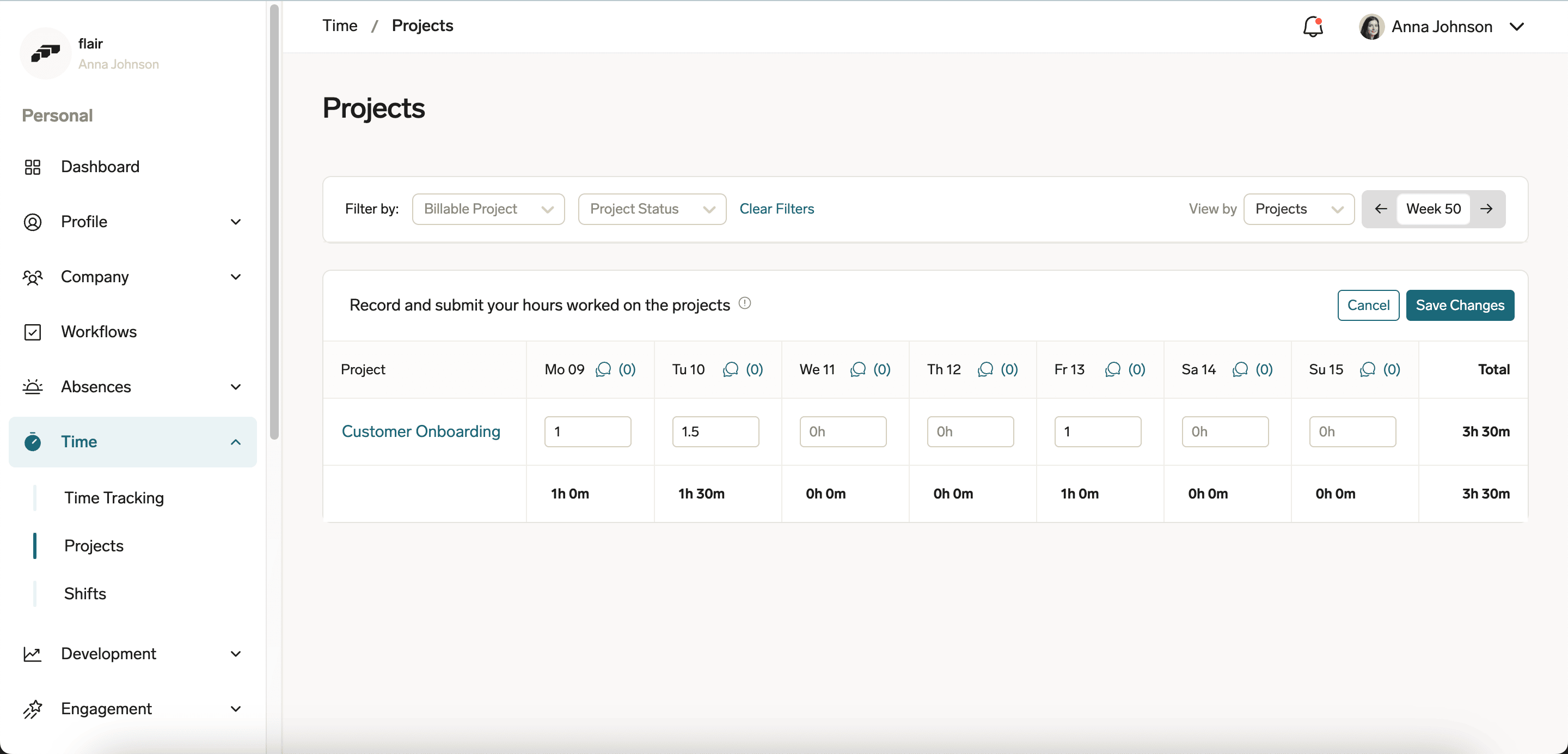
Track from the Projects view
-
In the Employee Hub, open Time → Projects.
-
Select the project.
-
Optional: Select a Task.
-
Click Clock In. flair associates the tracked time with the project.
-
Before switching projects, clock out.
-
Select the next project, and clock in again.
On the Projects view, Show tracked time adds a Tracked time row with the time from your time entries and a Difference row with the tracked time not yet assigned to a project, for each day. On a Time Tracking with Projects workload, Show tracked time is always on and can't be turned off. On a Time Tracking and Project Tracking workload, you can turn it on or off.
Track from the time-tracking widget
When project selection is optional, select a project from the time-tracking widget before or during the shift. When you clock out, flair records the time against that project.
Link a time entry to projects
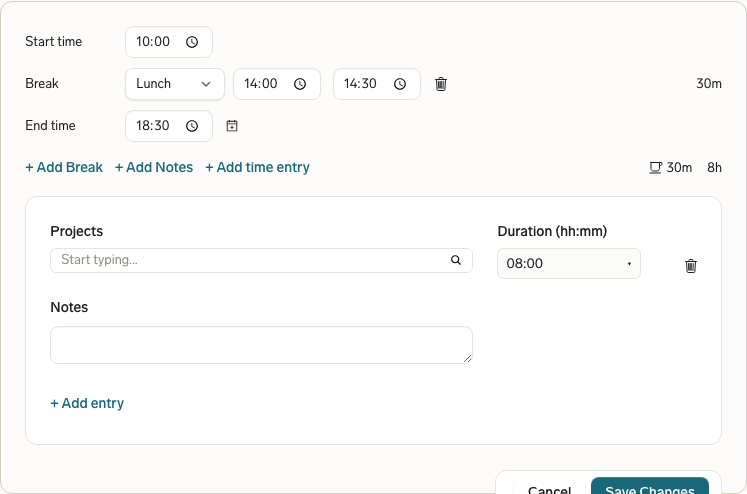
On a Time Tracking with Projects workload, you assign each time entry's working time to projects.
- In the Employee Hub, open Time Tracking.
- Optional: While the timer runs, select a project in Project. flair tracks the running entry against that project.
- On a saved time entry, click + Link to projects.
- In the project row, select a project.
- Enter the time spent on the project, in hours and minutes.
- Optional: To split the entry across projects, click + Add entry, and repeat for each project.
- Click Save Changes. flair saves the project time with the time entry, following your organization's approval process.
Add details from the Days view
- In the Employee Hub's Days view, add notes or a cost center to a Project Time Entry.
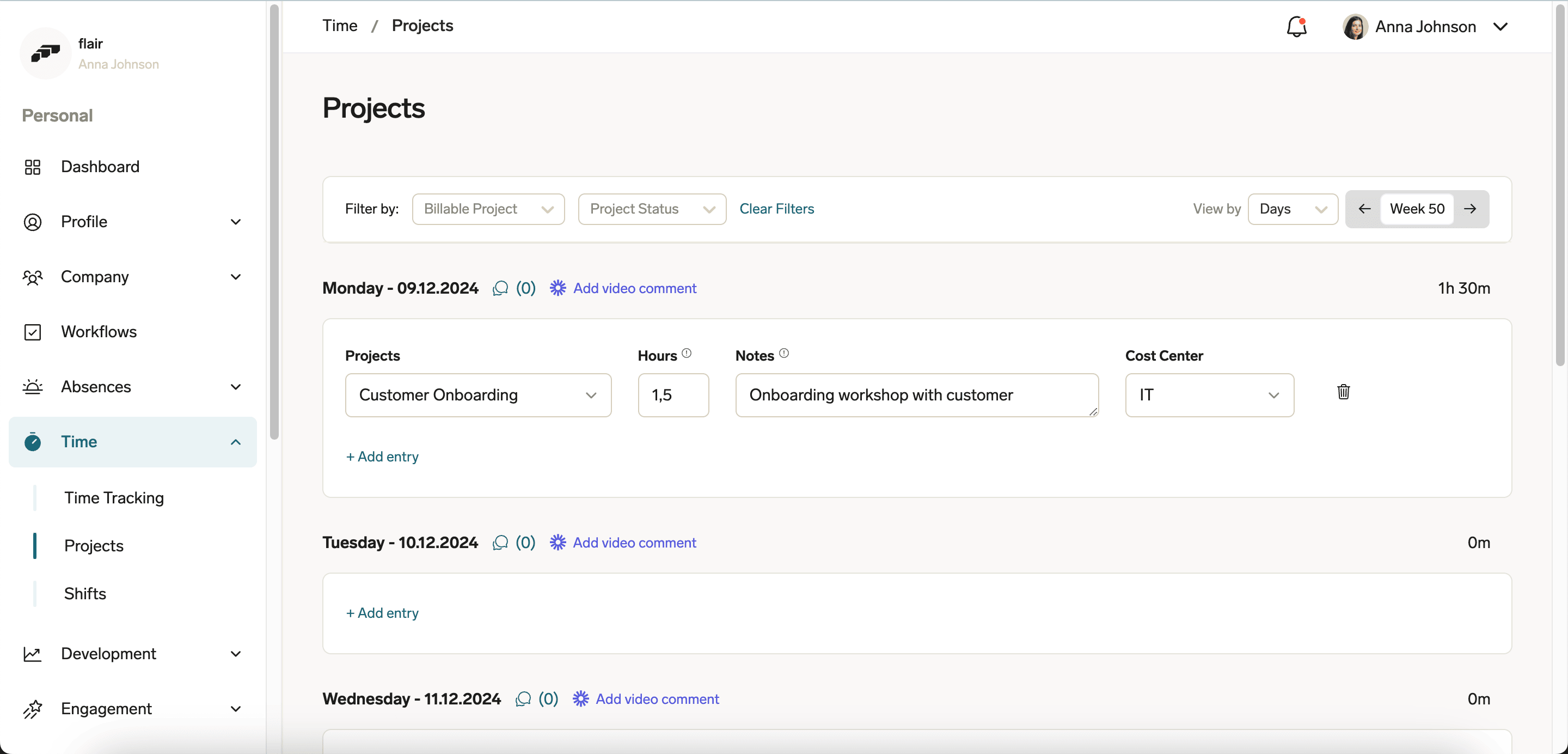
Add a description of the work, progress, blockers, or next steps when that context supports project reporting, billing, team communication, or performance reviews.
When a Project Time Entry is created as part of a Change Request, flair hides the Time Entry column for that entry until the Change Request is approved. Once approved, flair links the entry to the resulting time entry, and the Time Entry column shows again.
Track project time in the mobile app
The mobile project-time flow depends on the workload's Time Tracking Type. Time Tracking with Projects links project time to individual time entries. Project Tracking and Time Tracking and Project Tracking record project time for the day.
When project tracking is available, the mobile home screen shows a Projects dashboard widget with the project you are tracking now or your top active projects. Tap the widget to open the Projects list, which is grouped into Active, Not started, and Finished tabs and can be searched. Tap a project to see its progress against its estimate, billable and non-billable tracked time, and recent entries.
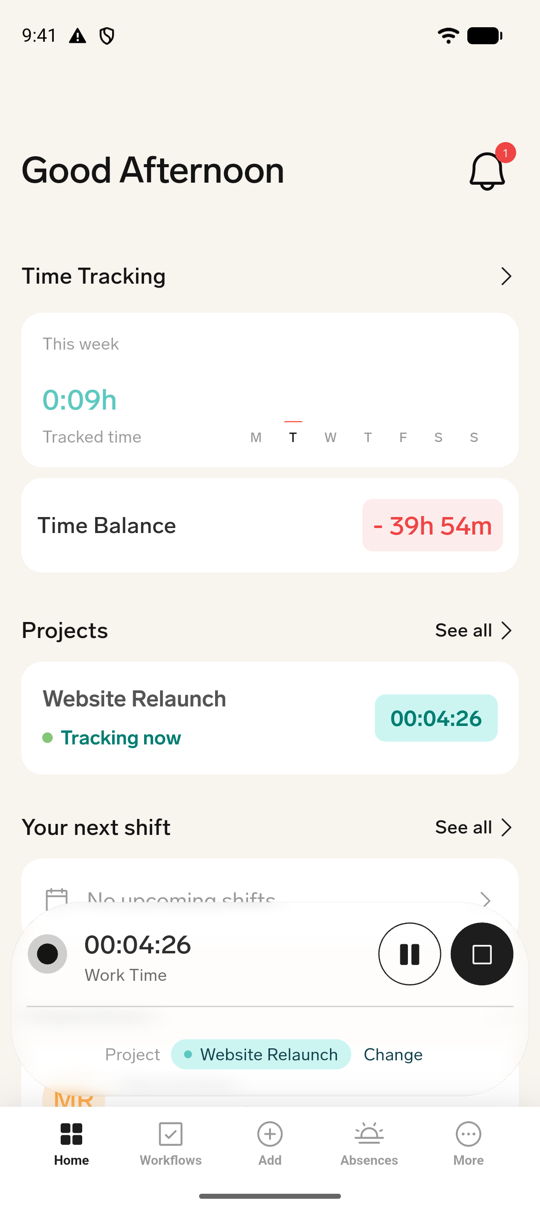
Track project time from a running timer
This flow is available for Time Tracking with Projects workloads.
-
On the mobile home screen, start tracking your time.
-
On the running timer, tap Add project.
-
In the Track to a project picker, select the project.
-
Tap Track to this project. flair associates the running time entry with the selected project.
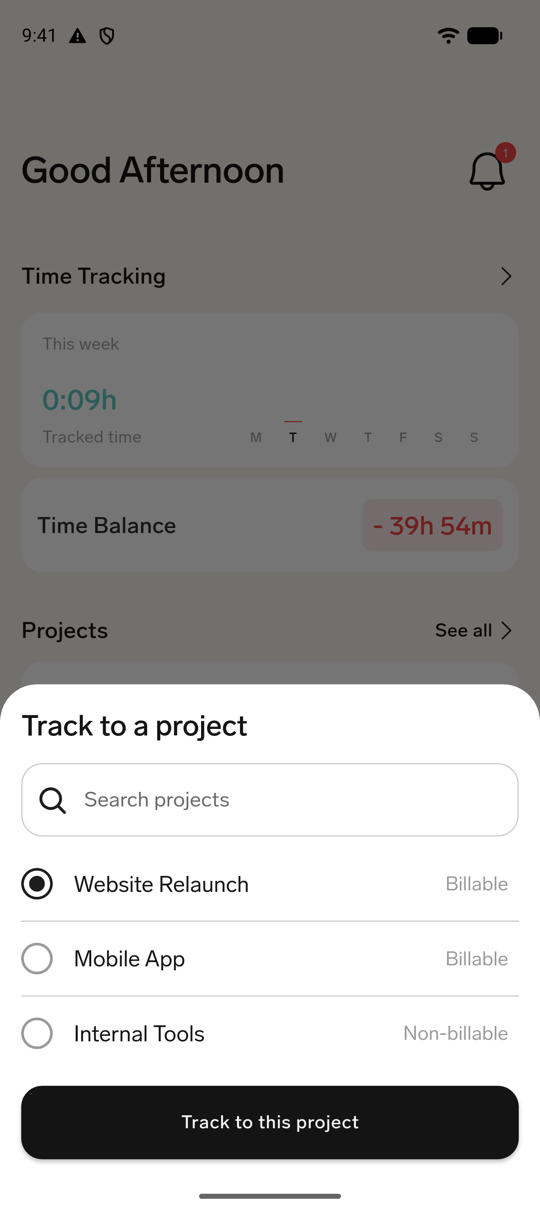
flair shows the selected project next to the timer and records the session against it when you clock out. To change the project without clocking out, tap Change, and select another project. Changing the project reassigns the whole running session; it does not split the session.
Link a time entry to projects
On a Time Tracking with Projects workload, each saved time entry has its own Link to projects block. Use it to split that entry across projects and add a note to each project row.
- In the mobile app, open a day with a saved time entry.
- On the time entry card, tap Link to projects.
- In the project row, select a project.
- Enter the time assigned to the project.
- Optional: Add a note in the row's Notes field.
- Optional: Tap Add project to add another project row.
- Tap Save. flair saves the project allocations for that time entry.
If your Time Framework requires a project before clock-out and the running entry has none, flair opens the Select a project to clock out picker before the clock-out confirmation. Select a project to continue. The separate Assign time to projects clock-out sheet is no longer used.
Log project time for a day
Use day-wide project time for Project Tracking and Time Tracking and Project Tracking workloads. On a Time Tracking with Projects workload, the day-wide editor is available only when the day has no linkable time-entry card.
- In the mobile app, open Time Tracking, and select a day.
- In the Project time section, tap Log project time when no project time exists, or tap Edit project time to change existing project time.
- In Log project time, tap Add project, and select a project.
- Enter the time for the project. Repeat to add more project rows for that day.
- Optional: Add a note in the project's Notes field.
- Tap Save. flair records the project time against that day's timesheet.
A day without a resolved timesheet shows No timesheet for this date, and Save stays disabled until you select a date that has one.
Create a Project Time Entry in Salesforce
- In Salesforce, open Time Entries.
- Click New.
- Complete Employee, Date, Hours, and Project.
- Optional: Complete Task, Description, and Billable.
- Click Save. The Project Time Entry appears against the selected project.
Review project time
Review the Manager view
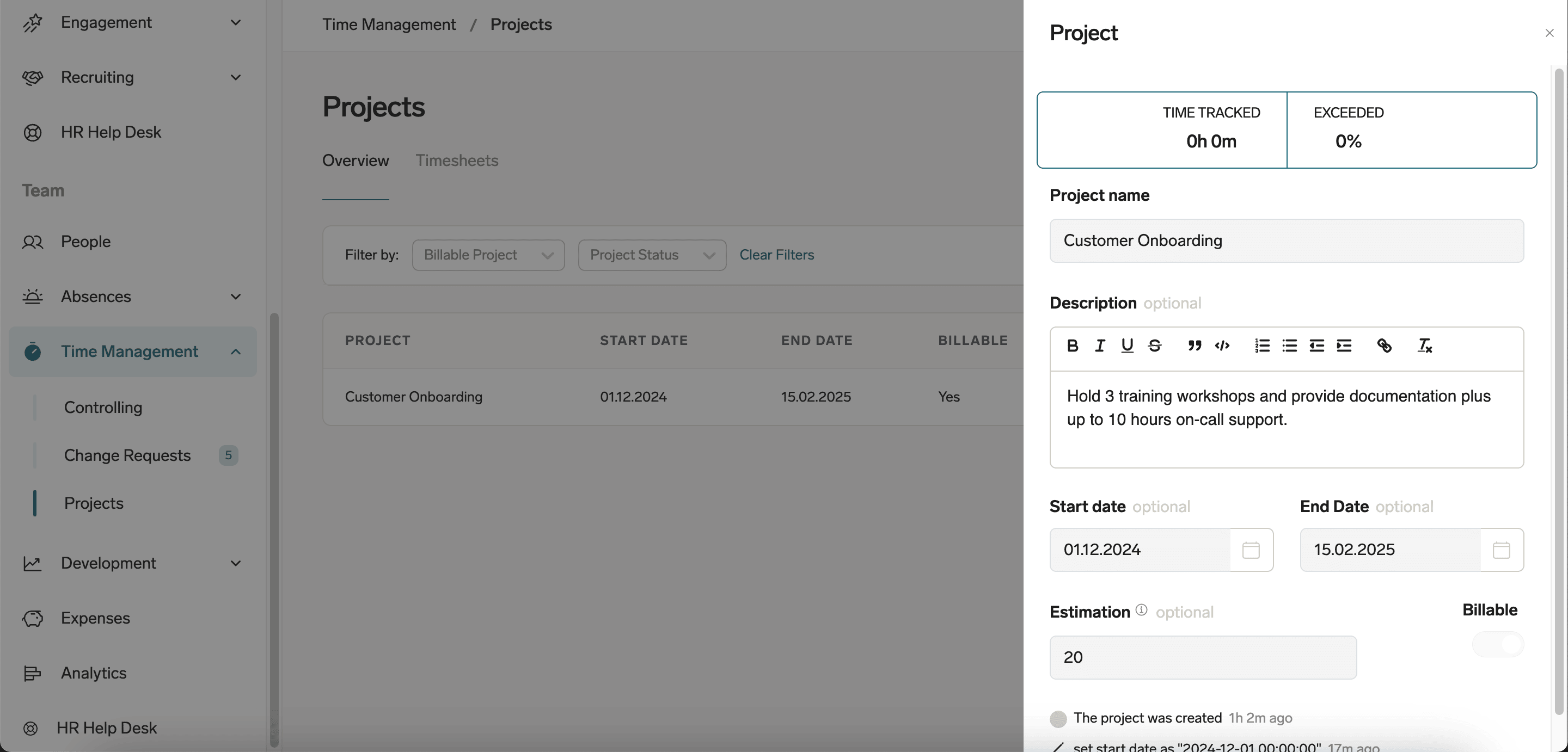
- In the Employee Hub, open Team → Time Management → Projects to review overall project progress.
Review a project's activity
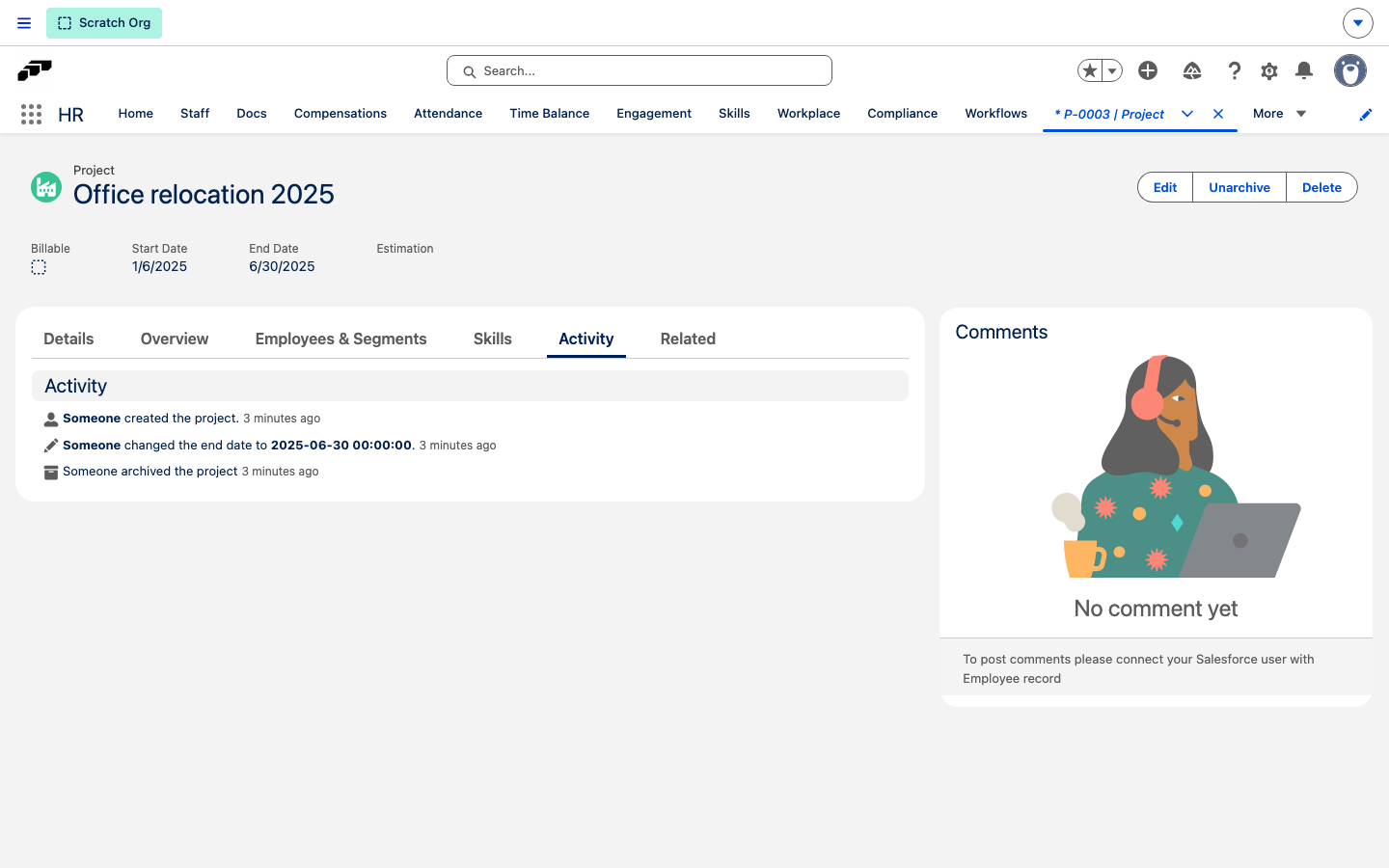
A project's activity feed lists who created the project and who changed its name, description, billable setting, estimation, start or end date, or archived or restored it.
- In Salesforce, open the project record, and click the Activity tab.
- In the Employee Hub Manager view, open Team → Time Management → Projects, and click the project. The activity feed is at the bottom of the Project panel.
When a change was made directly in Salesforce without a recorded employee, both feeds attribute it to Someone.
Review reports
Project reports can show the following data:
| Report group | Available data |
|---|---|
| Time by project | Total hours, team-member breakdown, task detail, and timeline views. |
| Billable and non-billable time | Client-billable time, internal time, and overhead allocation. |
Project-time approvals can route from the employee to the project manager, then optionally to the client for billable hours and Finance for billing.
Plan Project Allocation
Project Allocation displays each employee as a row and projects as blocks on a timeline. Overlapping blocks reveal simultaneous assignments.
- In flair, open Attendance → Projects Allocation.
- Select weeks, months, a year, or a custom date range. Public holidays appear on the timeline.
- Optional: Filter by Department, Location, Entity, or employee name.
- Confirm that each project has a Start Date and End Date.
- To limit the people shown for a project, remove All Employees, and add Employee Segments or individuals.
- Review the timeline for over-allocation, underutilization, scheduling conflicts, continuity, handoffs, and capacity.
Troubleshooting
A project does not appear in the selector
- Confirm that the project isn't archived.
- Confirm that the user can access the project.
- Confirm that the Start Date is not in the future.
- Refresh the page or app.
You cannot track time to a project
- Confirm that Project Time Tracking is enabled on your workload.
- Confirm that you are assigned to the project team.
- Confirm that the project has not ended.
- Contact your project manager.
Project time does not appear in a report
- Confirm that the Project Time Entry is approved.
- Confirm that the report date range includes the entry.
- Confirm that the correct project filter is applied.
- Refresh the report.