Create and submit expenses
Create an expense for an employee in Salesforce, or submit your own claim in the Employee Hub or the flair mobile app. This guide covers the enhanced Expense Groups and Expense Items workflow and the legacy single-expense workflow.
Employees in the Employee Hub or the flair mobile app, and HR Admins and Managers in the flair HR app in Salesforce.
Before you begin
- Set up the merchants and expense categories that employees can select.
- For automatic mileage or per diem amounts, configure and enable an Expense Rules Template.
Create an expense in Salesforce
HR Admins and Managers can enter a claim for an employee, including claims submitted with paper receipts.
-
In the flair HR app, open Expenses Overview.
-
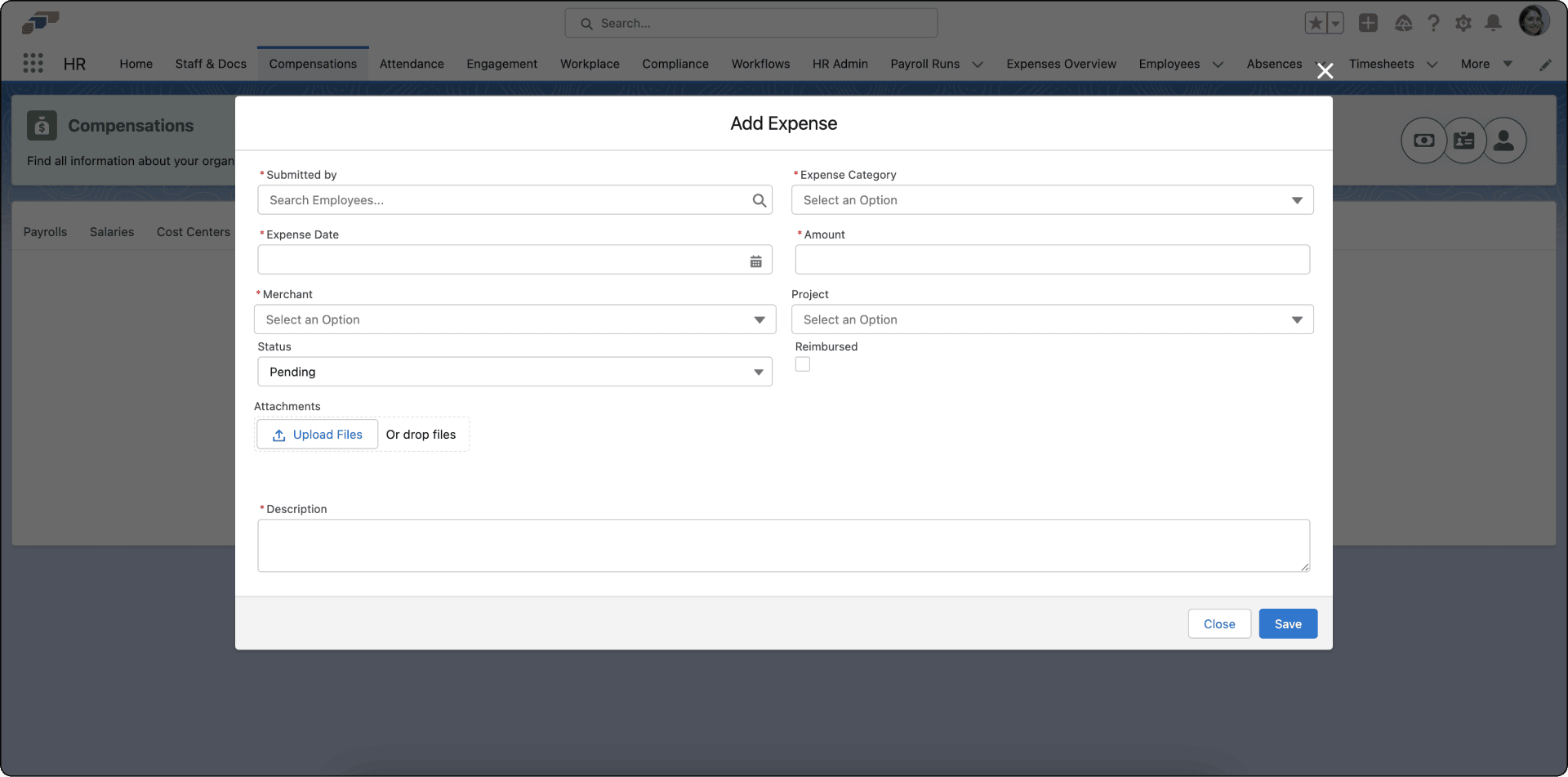
Click Add Expense.
-
Complete the expense fields:
Field What to enter Submitted By The employee who made the purchase. Expense Date The date on which the employee incurred the expense. Amount The exact amount from the receipt. Merchant A merchant from the list. Add one when needed. Category The category used for reporting. Project Optional: A related pending project. Description What the employee purchased and why. -
Attach the receipt or invoice.
-
Click Save. The expense appears in Expenses Overview.
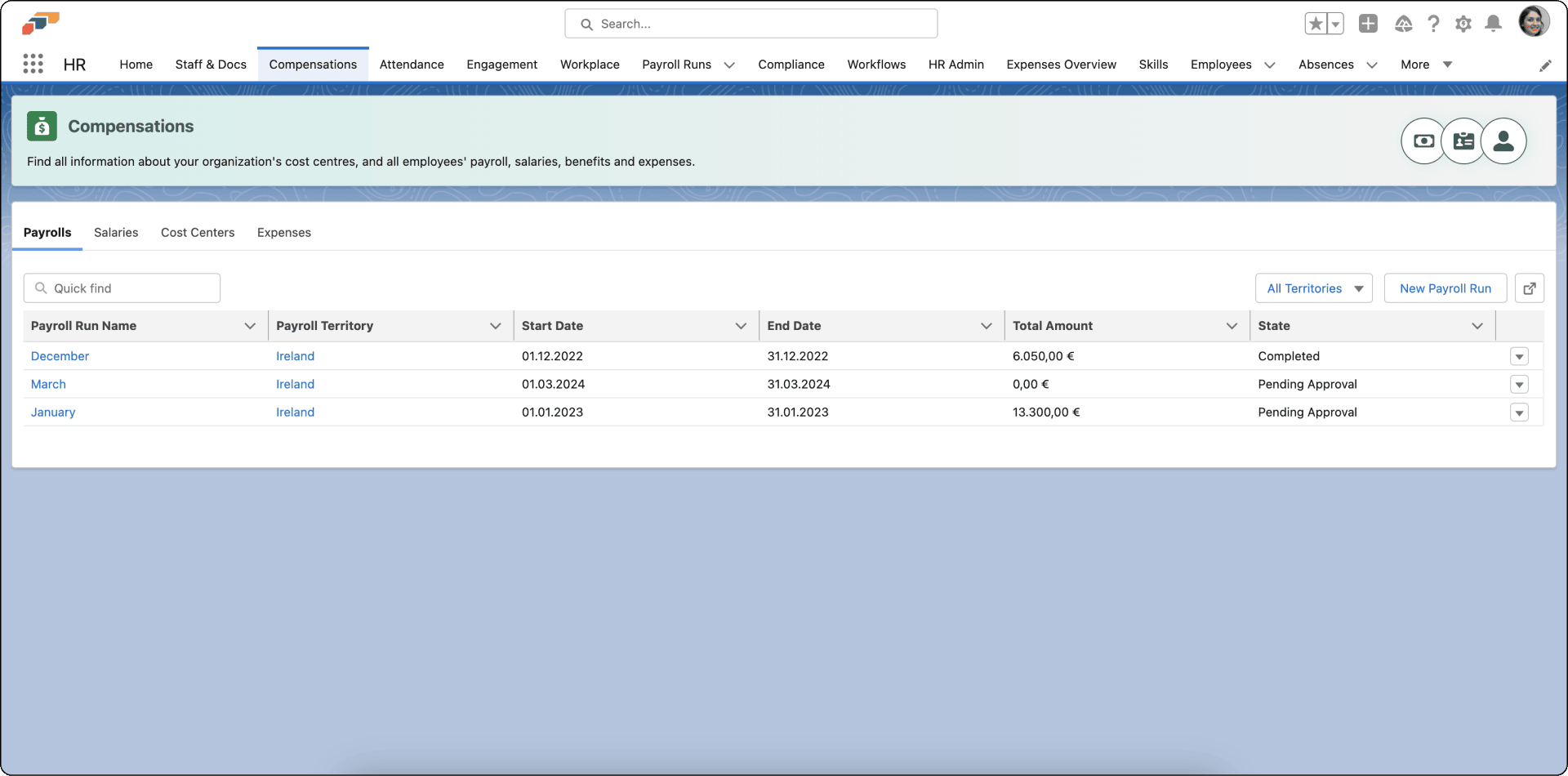
You can also manage expenses from Compensations, alongside payroll and other compensation items.
Create an Expense Group
Use an Expense Group to collect related expenses for a trip or event.
- In the Employee Hub, open Expenses.
- Click New Expense Group.
- Select Trip for business travel with a specific location, or select Group for another collection of related expenses.
- For a trip, enter the Trip Location. A trip icon identifies the group.
- For another group, enter a descriptive name.
- Click Save. The group starts in Draft status.
While the group is a draft, you can add, edit, or remove expenses. After submission, you cannot add another expense to the group.
Add an expense to a group
- In the Expense Group, click Add Expense. You can also click Add Expense beneath the group to fill the group field automatically.
- Create the expense and its required Expense Items.
- Save the expense. It appears under the selected group.
Create an expense with Expense Items
In the enhanced framework, an expense is an envelope for one or more detailed Expense Items. You cannot submit an expense without an Expense Item.
Enter the expense details
-
In the Employee Hub, open Expenses.
-
Click New Expense, or add an expense to an existing Expense Group.
-
Complete the expense fields:
Field What to enter Start Date and End Date The date range for a multi-day expense. Dates are required; times are optional. Start Time and End Time Optional: Times used for detailed tracking and per diem calculations. Category The expense category. Project Optional: A related project. Description The overall purpose of the expense. Expense Group The related group. flair fills this field when you start from a group.
Add an Expense Item
-
In the expense, click Add Item.
-
Select a Record Type:
Record type Use it for Travel Mileage, flights, trains, and other transportation. Meal Food expenses. Per Diem Daily meal allowances. Other Other reimbursable items. -
In Manual Amount, enter the exact amount from the receipt or invoice.
-
Enter a Description and select or create the merchant.
-
Upload the receipt under Attachments.
-
Save the item. flair assigns Tax from its record type when an admin has configured the association.
Your organization can add required or optional custom fields to expenses and Expense Items. These fields appear in the creation form.
Let flair fill items from a receipt
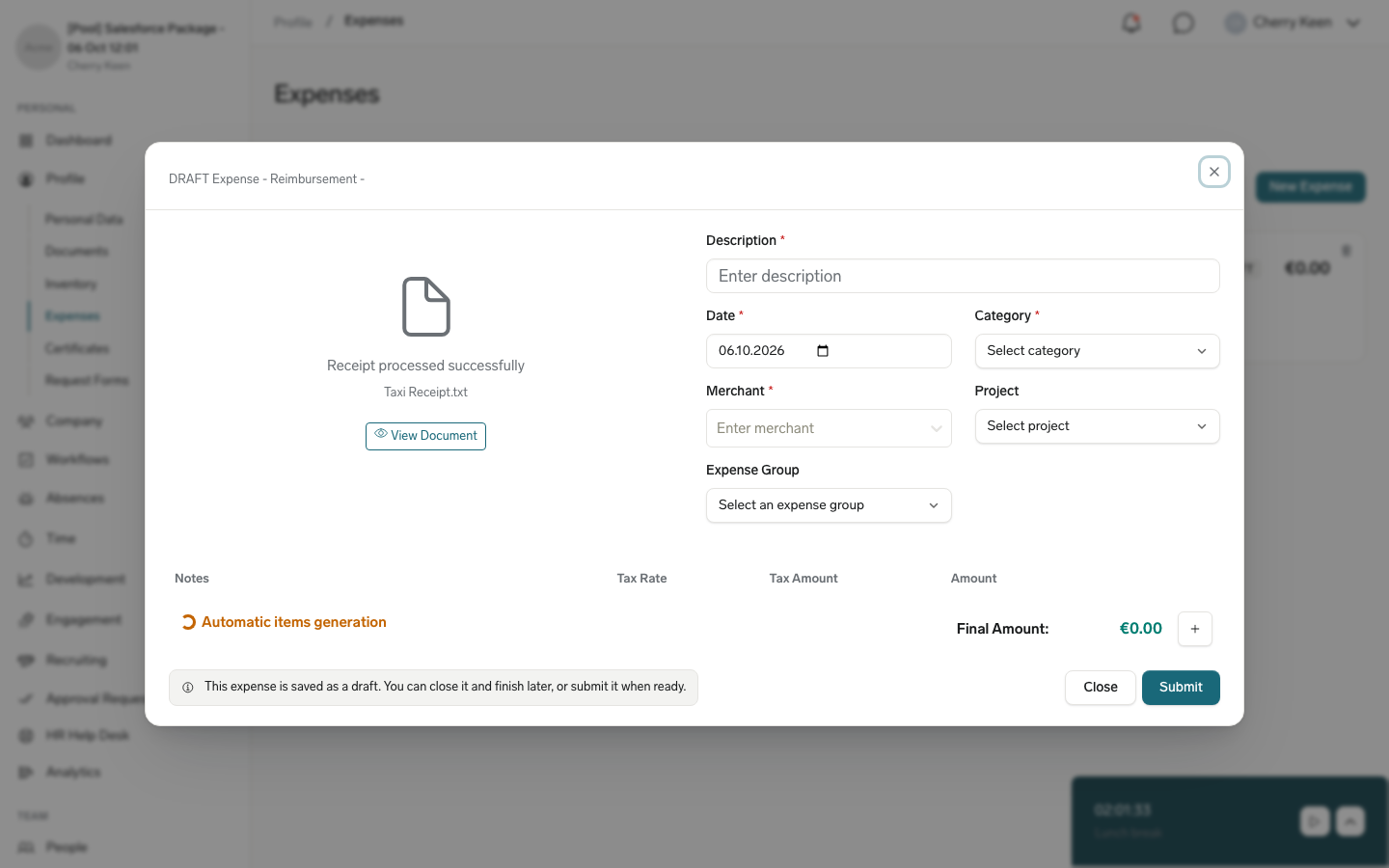
If your organization has the Expenses integration enabled, flair reads an uploaded receipt with OCR (optical character recognition) and creates the resulting Expense Items automatically, instead of you adding them one by one.
- While flair reads the receipt, it shows Automatic items generation in place of the empty items list.
- flair fills any empty Description, Category, and Merchant fields on the expense from the receipt. Fields you already filled in stay as you left them.
- The Expense Items are created by a background service, so they can appear a moment after the form stops waiting. The form stops waiting after 30 seconds and asks you to set up the Expense Items manually. If no items have appeared by then, add them with the steps in Add an Expense Item.
An HR Admin enables OCR by activating the Expenses integration in Salesforce. Without it, flair creates one Expense Item automatically from the upload, which you complete manually.
Complete a Travel item
- In Distance (Kilometers), enter or verify the travel distance.
- In Means of Transport, select Own Car, Company Car, or another available method.
- Enter the From Location and To Location. The Google Maps API calculates the distance, which you can adjust.
- Under Provided Meals, select any meals that an employer or hotel provided. flair uses them in per diem calculations.
Complete a Per Diem item
- Enter the Start Date/Time and End Date/Time of the stay.
- Under Meal Allowances, select Breakfast, Lunch, and Dinner as applicable.
- Save the item. flair calculates the amount from the number of days, provided meals, and company expense rules.
When Expense Rules Templates are enabled, flair calculates mileage as distance multiplied by the configured rate and per diem from the configured day and meal rules. Amount combines Manual Amount with calculated allowances.
Split an invoice into multiple items
Use multiple Expense Items when one invoice contains different purchases, such as meals, supplies, and entertainment.
- Create an expense and upload the full invoice or receipt.
- Use the first Expense Item that flair creates automatically, or the items flair's OCR generates from the receipt if your organization has the Expenses integration enabled. See Let flair fill items from a receipt.
- Add an Expense Item for each remaining line item.
- For each item, enter its amount, record type, merchant, and description.
- Confirm that all item amounts equal the invoice total.
- Remove any unneeded items, and save the expense. You can add as many items as required.
Submit an expense or Expense Group
Expenses and groups start in Draft status, so you can save incomplete work and return later.
Submit an Expense Group
- Confirm that the group contains at least one expense.
- Confirm that every expense has its required information and at least one Expense Item.
- Click Submit. The group and all its expenses move to Pending together.
Submit a single expense
- Complete all required fields.
- Add at least one Expense Item.
- Click Submit. The expense moves to Pending for approval.
Submit a legacy expense
Organizations that have not migrated to Expense Items may still use the legacy single-expense workflow.
- In the Employee Hub, open Expenses.
- In the upper-right corner, click New Expense.
- Enter the Date, Amount, Category, Merchant, and required Description.
- Under Upload, attach the invoice or receipt.
- Click Submit. The expense moves to Pending for approval.
Use the date on which you incurred the expense and the exact amount from the receipt, including applicable taxes. Select an existing merchant or add one from the Employee Hub.
Create an expense in the mobile app
Create and submit an individual expense or an Expense Group directly from the flair mobile app. An expense you create with Add Expense is not attached to an Expense Group; it is its own Expense record, built from the same Expense and Expense Item structure as the enhanced framework.
-
In the flair mobile app, tap Expenses on the home screen, or open your profile and tap My Expenses.
-
Tap the plus icon, then tap Add Expense. The same menu also has New Group, which starts an Expense Group instead. See Create an Expense Group in the mobile app.
-
Select Mileage, Per Diem, or Reimbursement.
-
For a Reimbursement, tap Upload file, Select from library, or Take photo to attach the receipt.
-
Enter the Expense Name.
-
Set the date. For Mileage and Reimbursement, select the Date. For Per Diem, select the Start Date & Time and End Date & Time.
-
Select the Category. For a Reimbursement, also select the Merchant; for Mileage and Per Diem, the merchant is optional. Optional: Select a Project.
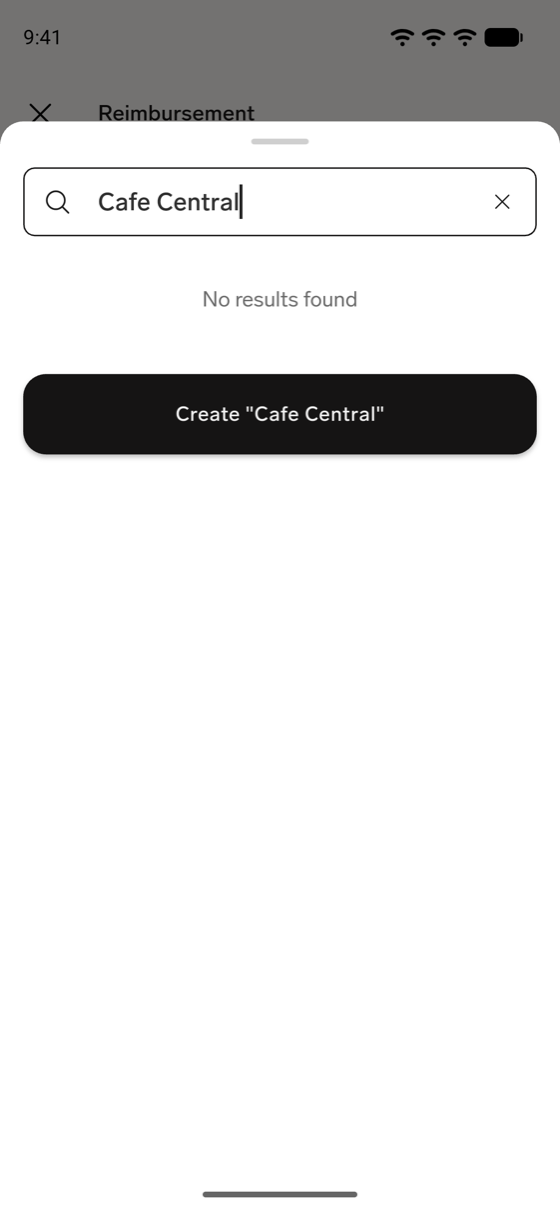
If the merchant isn't in the list, type its name in the merchant search, and tap Create followed by the name you typed. flair adds the merchant and selects it.
-
Complete any additional fields your organization added to the form.
-
Complete the fields for the selected type:
- For Mileage, enter the From Address and To Address. flair calculates the distance in kilometers.
- For Per Diem, leave the Breakfast, Lunch, and Dinner switches on for the meals you claim, and turn off any meal that was provided. See Claim per diem meals in the mobile app.
- For Reimbursement, next to Line Item, tap the plus icon. In Add Line Item, enter the Amount and an optional Note, and tap Save. Add a line item for each item on the receipt. See Fill in Reimbursement line items in the mobile app.
-
Tap Create followed by the expense type, for example Create Mileage. Once the expense has an amount, the button also shows the total. The expense moves to Pending for approval.
The Expense Name, the date, and the Category are always required, and a Reimbursement also needs a Merchant and at least one line item. If you tap Create with a required field empty, the form marks it with Field must not be empty.
If you close the form before finishing, the Unsaved Changes dialog opens. Tap Delete to discard the unfinished expense, or tap Save as Draft to keep it as a Draft. A saved draft appears in Expenses, where you can reopen and submit it later. See Edit, submit, or delete a draft in the mobile app.
In Expenses, a standalone expense appears as its own entry labeled Individual expense, separate from any Group entries. It uses the same Draft, Pending, Approved, Declined, and Reimbursed statuses as expenses created in Salesforce or the Employee Hub.
In the bottom navigation bar, tap Add, and then tap Add Reimbursement to jump straight to the receipt-capture step for a Reimbursement expense, without opening Expenses first.
Fill in Reimbursement line items in the mobile app
If your organization has the Expenses integration enabled, flair reads the receipt you attach and creates the line items for you:
- While flair reads the receipt, the form shows Automatic items generation in place of the line items.
- When flair finishes, the generated line items appear in the form. Check them against the receipt.
- If flair hasn't finished after 30 seconds, the app shows Automatic items generation wasn't successful, please set them up manually. Add the line items yourself.
If the integration isn't enabled, the form shows Automatic items generation wasn't setup into project, please set them up manually above the line items, and you add every line item yourself. For how an HR Admin enables it, see Let flair fill items from a receipt.
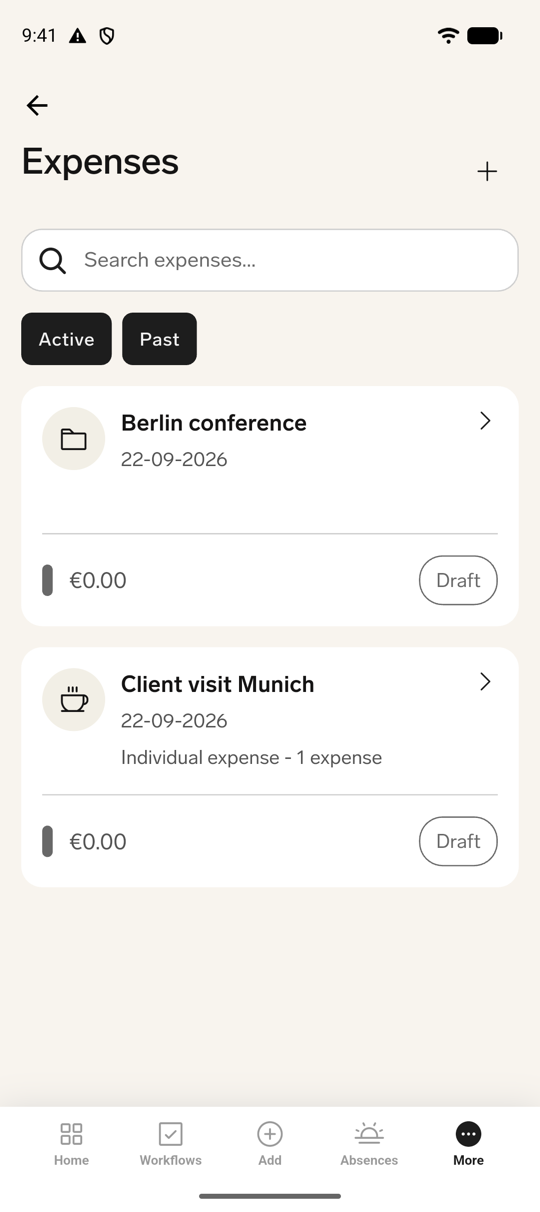
Each line item shows its Amount, Type, VAT Rate, VAT Amount, and Note. To change a line item, tap it, update the Amount or Note in Edit Line Item, and tap Save. To remove it, tap Delete below the line item.
The line items must add up to more than zero. Otherwise, the form shows Total amount must be greater than zero when you try to create the expense.
Claim per diem meals in the mobile app
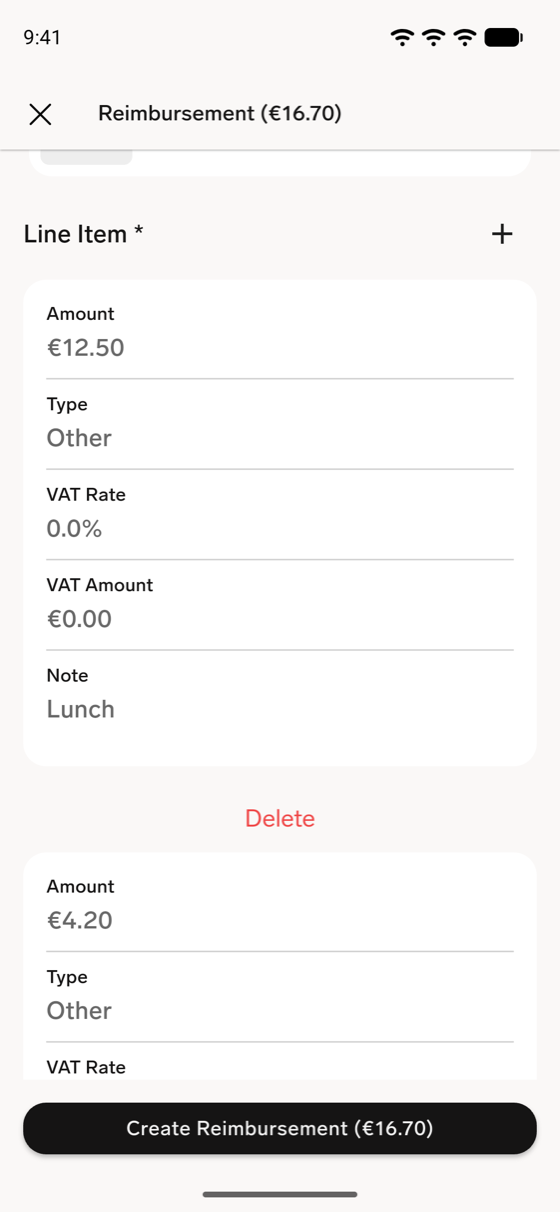
A Per Diem expense has a switch for Breakfast, Lunch, and Dinner. Each switch is on by default, which means you claim the allowance for that meal:
- Turn a switch off when the meal was provided, for example by a hotel or your employer. flair records the meal as provided and grays out its label.
- When your organization has expense rules for provided meals and flair has calculated the per diem amount, each label shows that meal's share of the allowance, for example Breakfast (€4.67). The amounts appear after you save the expense and reopen it, not while you create it.
- At least one meal must stay on. If you turn off all three, the form shows Breakfast, Lunch, Dinner: Field must not be empty.
flair calculates the per diem amount from the dates, the meals you claim, and your organization's expense rules. See Configure expense rules and tax management.
Edit, submit, or delete a draft in the mobile app
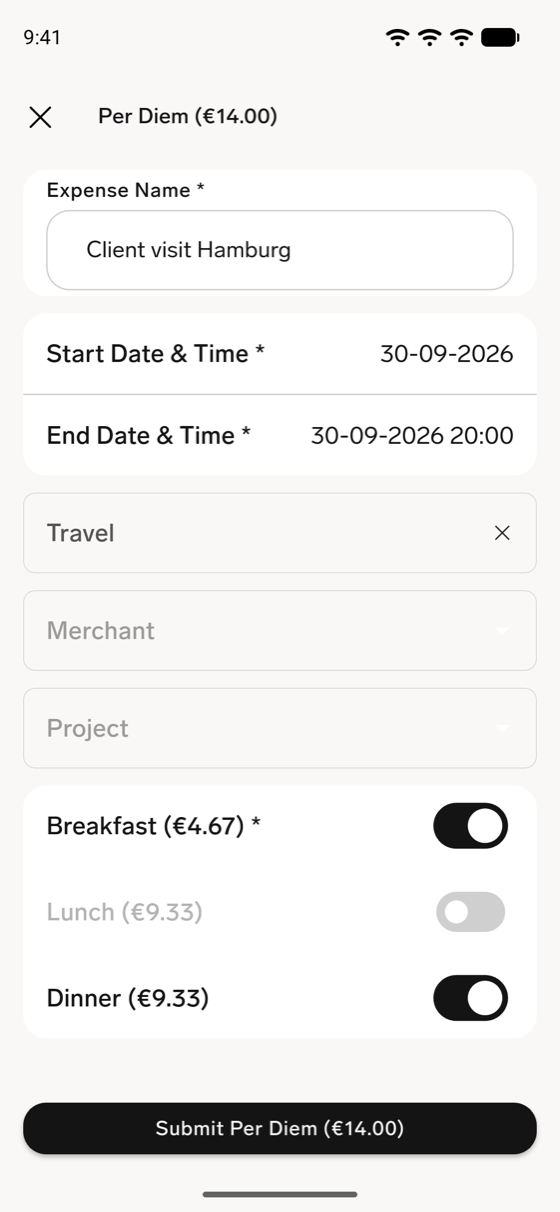
Tap an expense in Expenses to open it. The expense shows its Dates, Category, Merchant, total, receipts, and Line items.
To finish a draft and submit it:
- In Expenses, tap the Draft expense.
- Tap the three-dot menu, and then tap Edit.
- Complete or change the fields.
- Tap Submit followed by the expense type, for example Submit Reimbursement. The expense moves to Pending for approval.
To delete a draft, tap the three-dot menu, tap Delete, and then tap Delete again to confirm.
The three-dot menu appears only on Draft expenses. In the mobile app, you can't edit or delete an expense after you submit it.
Find an expense in the mobile app
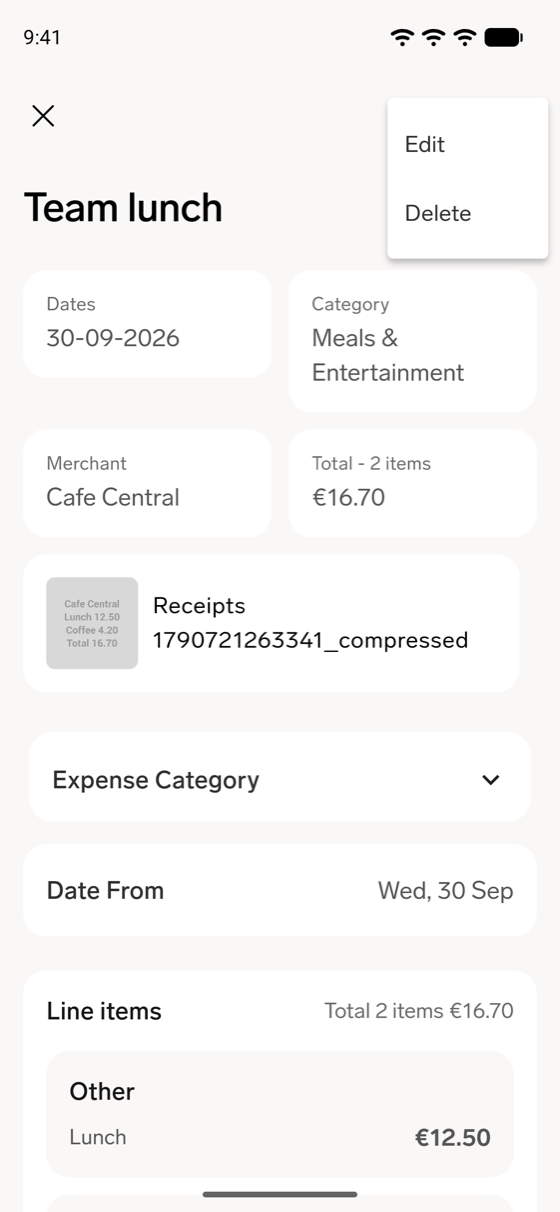
Expenses lists your expenses and Expense Groups, newest first. To narrow the list:
- To find an expense or group by name, type in the search field.
- To show or hide expenses by status, tap Active (Draft and Pending) or Past (Approved, Declined, and Reimbursed). Both are on by default.
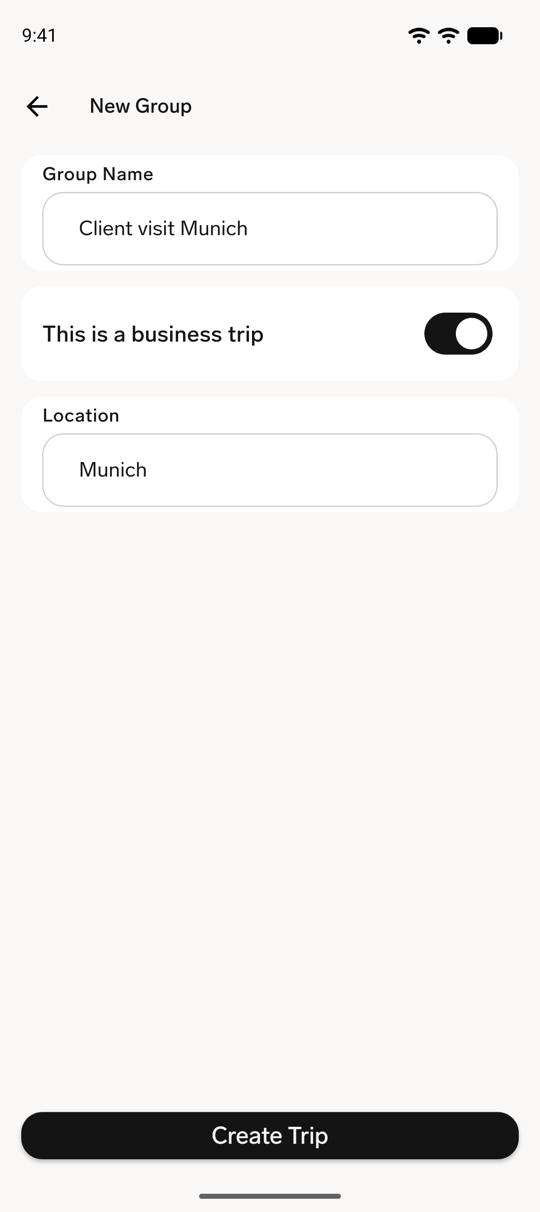
Create an Expense Group in the mobile app
- In Expenses, tap the plus icon, then tap New Group.
- Enter the Group Name.
- For business travel, turn on This is a business trip, and enter the Location.
- Tap Create Group, or Create Trip for a business trip. The group opens.
- To add an expense, tap the plus icon next to Expenses, and create the expense as described in Create an expense in the mobile app. The expense appears in the group.
Until the group contains an expense, it shows Tap on "+" to add new expense to this group. The group shows its Start Date, End Date, and, for a trip, its Location. Each expense in the group is submitted on its own when you tap Create followed by the expense type.
To delete the group, tap the three-dot menu, tap Delete, and then tap Delete again to confirm.
Track an expense
The Expenses section displays these statuses:
| Status | Meaning |
|---|---|
| Draft | You can still edit the expense and add items. |
| Pending | The expense awaits manager review. |
| Approved | The expense awaits reimbursement. |
| Declined | The claim was rejected; comments can explain why. |
| Reimbursed | Payment has been processed. |
An Expense Group reflects the status of its expenses. Submitting, approving, or declining a group changes its expenses together.
In the Employee Hub, you can filter your expenses by year, category, or status. In the mobile app, search and filter as described in Find an expense in the mobile app. Open an expense to review its details, approval or reimbursement date, and comments.
Comment on an expense
Comment in the Employee Hub
- In the Employee Hub, open Expenses.
- Open an existing expense.
- Select Comments.
- Enter your comment, and press Enter. Colleagues with access to the expense can see it.
Comment in the mobile app
You can comment on an expense in any status.
- In Expenses, tap the expense.
- Next to Comments, tap the comment icon.
- In Add a comment, enter your comment, and tap the arrow icon to send it. Colleagues with access to the expense can see it.
Delete an expense or Expense Group
What you can delete depends on where you work:
- Employee Hub — You can delete only a Draft expense or Expense Group. The delete icon doesn't appear on a Pending, Approved, Declined, or Reimbursed claim.
- Mobile app, individual expense — You can delete only a Draft. See Edit, submit, or delete a draft in the mobile app.
- Mobile app, Expense Group — The three-dot menu with Delete appears on every group. Deleting works for a Draft, Pending, or Declined group. flair doesn't delete an Approved or Reimbursed group, or a group that contains an approved expense: the app closes the group without an error message, and the group stays in the list.
When a claim you can't delete needs a change, contact your Manager or HR Admin.
Deleting an Expense Group also deletes every expense in it. From a draft group, you can delete an individual expense without deleting the group.
- In the claim or group actions, select the delete option, and confirm the deletion.