Configure expense rules and tax management
Configure automatic expense calculations from company policies or legal requirements, then associate Expense Item record types with taxes. Rules can calculate mileage, per diem, accommodation, and other compensation.
HR Admins in the flair HR app in Salesforce.
Open Expense Rules Template
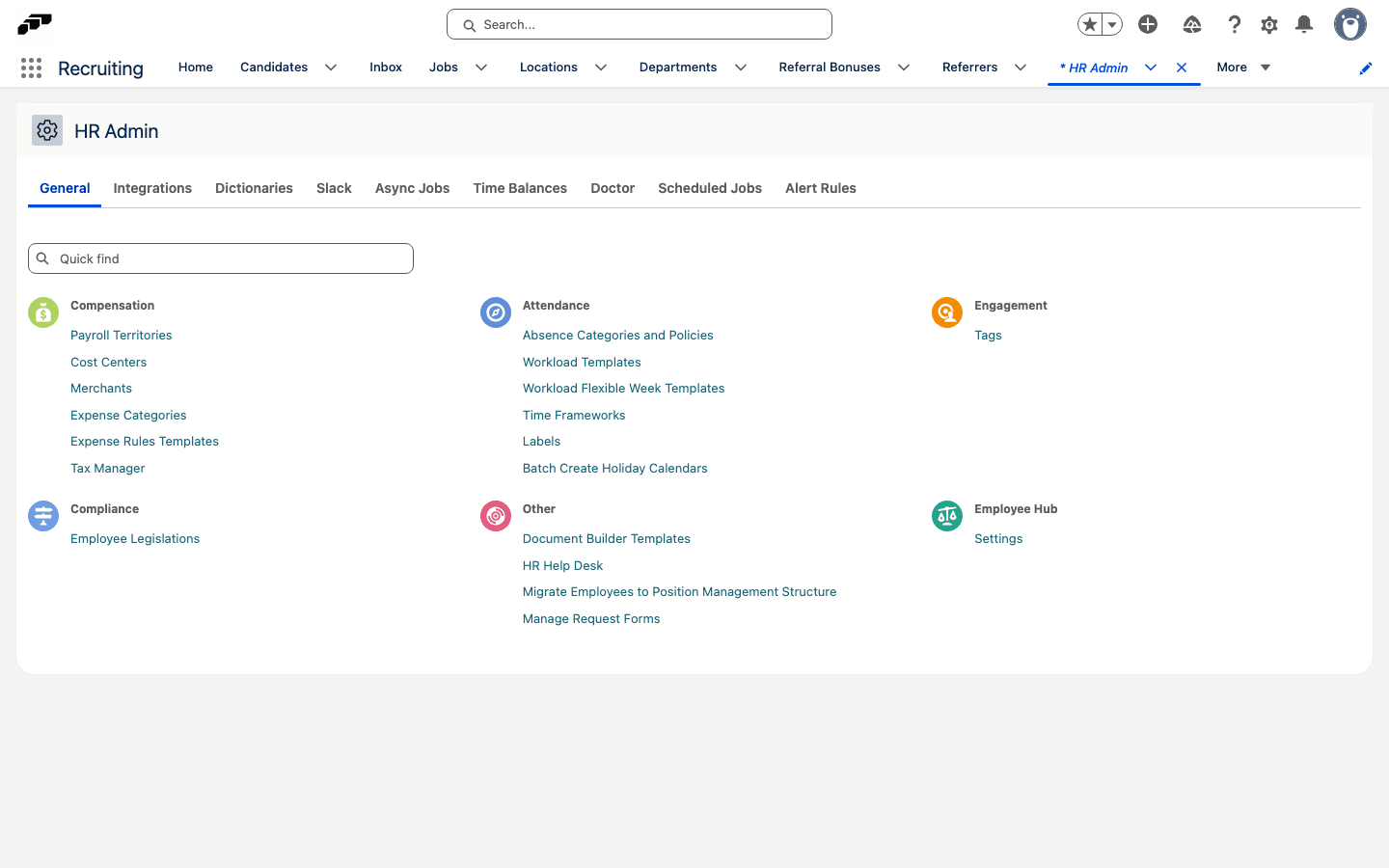
- In the flair HR app, open HR Admin.
- Click Expense Rules Template. The template management page opens.
A default Expense Rules Template is migrated to every customer Salesforce org, but it is disabled by default.
Create an expense rule
-
On Expense Rules Template, click New.
-
Configure the rule fields:
Field What it does Name Identifies the rule, such as Mileage - Own Car.Record Types Sets the applicable Expense Item record types, separated by semicolons. Common values are Travel,Meal,Per Diem, andOther.Condition Field Identifies a field on the Expense Item or parent expense to evaluate. Operator Sets the comparison, such as equals or greater than. Condition Value Sets the value to compare with the condition field. Compensation Amount Sets the base compensation. Calculation Field Multiplies its value, such as kilometers or nights, by Compensation Amount. Percentage Addition Optionally adds or subtracts a percentage of the item amount. -
Save the rule. It becomes part of the template.
Configure a mileage rule
For a reimbursement of €0.30 per kilometer with an employee's own car, use these values:
| Field | Value |
|---|---|
| Name | Mileage - Own Car |
| Record Types | Travel |
| Condition Field | Means of Transport |
| Operator | Equals |
| Condition Value | Own Car |
| Compensation Amount | 0.30 |
| Calculation Field | Kilometers |
The rule calculates 0.30 × Kilometers when the employee selects Own Car.
Configure a per diem rule
For a daily meal allowance, use these values:
| Field | Value |
|---|---|
| Name | Per Diem - Meals |
| Record Types | Per Diem |
| Condition Field | Leave empty to apply the rule to every per diem item. |
| Compensation Amount | Enter the amount for the relevant meal type. |
| Calculation Field | Number of Days |
flair calculates the allowance from the expense start and end date and time, provided meals, and number of covered days.
Configure expense limits
You can set daily, weekly, monthly, or annual compensation limits for each record type.
- In Expense Rules Template, enter the Limit Amount.
- In Limit Interval, select Daily, Weekly, Monthly, or Annual.
- In Record Type, select the Expense Item types to which the limit applies.
- Save the limit. When an item reaches it, flair sets
Limit Reachedtotruefor use in custom validations or workflows.
Scope a rule by department or country
- In the rule, set Department to apply it only to employees in that department, or set Country to apply it only to employees in that country.
Enable expense rules
- Confirm that Default Expense Policy is enabled. A migrated policy is disabled by default.
- In the upper-right corner of Expense Rules Template, click Enable. The rules apply automatically when users create Expense Items.
Open Tax Manager
- In the flair HR app, open HR Admin.
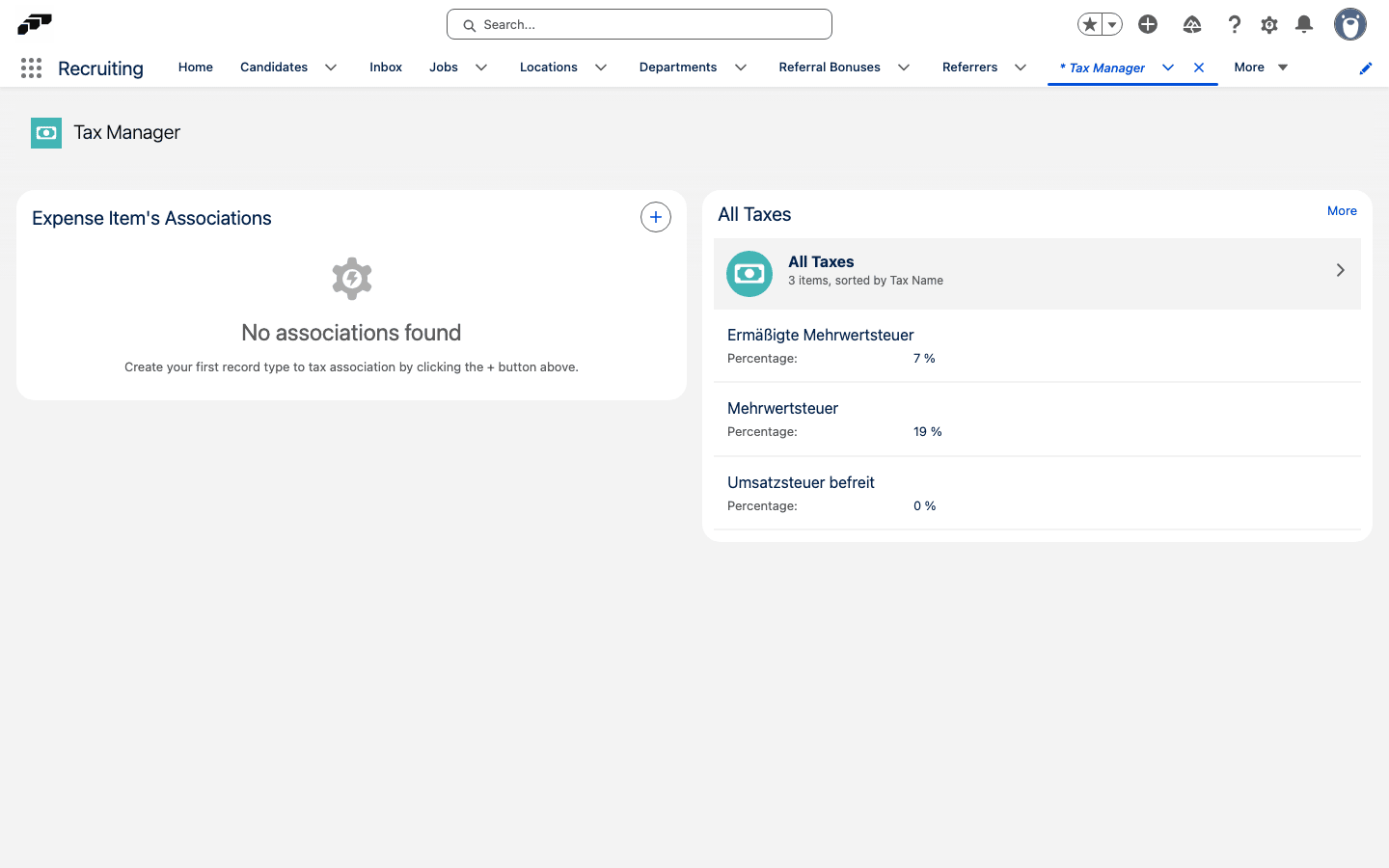
- Click Tax Manager. The tax management page opens.
Create a tax type
Tax types can represent tax-exempt items, standard or reduced VAT, and organization-specific rates.
- In Tax Manager, find Tax Overview on the right.
- Click New.
- In Tax Name, enter a name such as
Standard VATorTax Exempt. - In Percentage, enter the tax rate.
- Click Save. The tax type becomes available for record-type associations.
Associate taxes with record types
- In Tax Manager, find Record Type Tax Association on the left.
- Select the object. The default is Expense Items.
- For each record type, select its tax type. For example, associate Travel with Tax Exempt, and Meal and Other with Standard VAT.
- Click Save. New Expense Items receive tax from their record type.
If an item's record type changes, flair recalculates its tax. You can set tax manually, but a later record-type change recalculates it again.
Use Tax Manager with another object
Tax Manager can associate taxes with record types on another object.
- Edit the Tax Manager page.
- In the component configuration, change the object name.
- Save the page. The component displays record types for the selected object.