Review and approve expenses
Review expense claims and Expense Groups, make approval decisions, and record reimbursements. You can manage claims in Salesforce or review your team's pending claims in the Employee Hub.
Managers in the Employee Hub and in Slack, and Managers, HR Admins, and finance teams in the flair HR app in Salesforce.
Review expenses in Salesforce
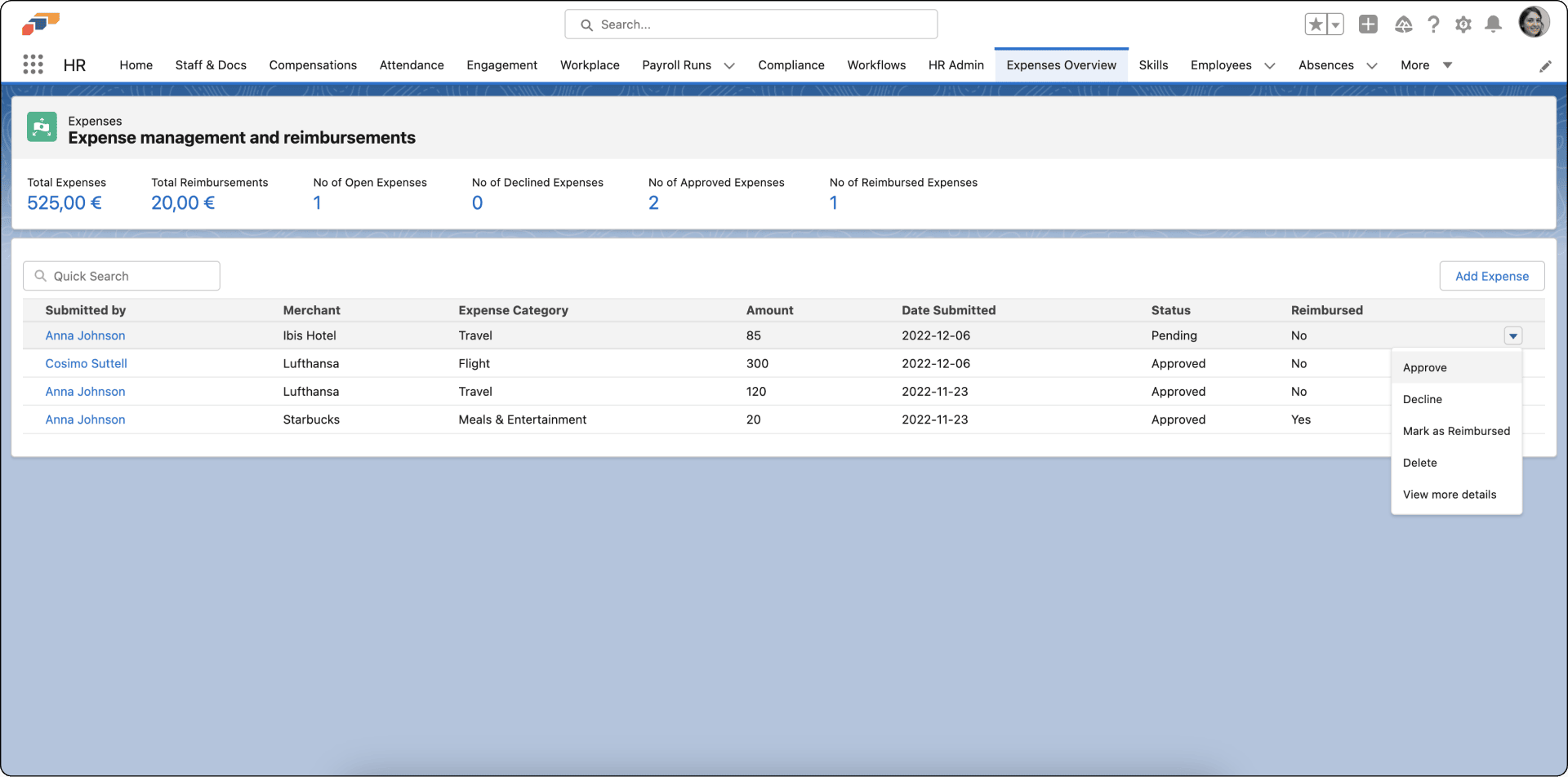
Expenses Overview shows claims and Expense Groups with their current status. Child expenses appear beneath their group.
-
In the flair HR app, open Expenses Overview.
-
Find the expense or Expense Group.
-
Click the downward arrow beside the record.
-
Select an action:
Action Result Approve Approves the expense for reimbursement. For a group, it approves all child expenses. Decline Rejects the expense. For a group, it declines all child expenses. Delete Permanently removes the expense record. Mark as Reimbursed Records that finance has processed the payment. View More Details Opens the complete expense information.
Open an Expense Group to review every child expense and its Expense Items. You can manage an individual expense within a group when needed.
Approve an expense in Salesforce
- In Expenses Overview, open the expense or Expense Group.
- Review its Expense Items, receipts, descriptions, and policy compliance. For a group, review every child expense.
- In the record actions, select Approve. The status changes to Approved, the employee receives a notification, and the expense enters the reimbursement queue.
Decline an expense in Salesforce
- In the record actions, select Decline.
- Enter a description that explains the decision. For a group, identify any specific expense or item that needs correction.
- Confirm the decline. The employee receives the explanation.
Declining an Expense Group declines every expense in it. If only part of a group can be approved, decline the group and ask the employee to resubmit the corrected claims.
Mark an expense as reimbursed
- After finance processes the payment, find the approved expense in Expenses Overview.
- In the record actions, select Mark as Reimbursed. The status changes to Reimbursed, which the employee can see in the Employee Hub.
Delete an expense in Salesforce
Deleting an expense permanently removes its record. Decline it instead when you need to retain an audit trail.
- For a duplicate or test record, open the record actions, select Delete, and confirm the deletion.
Review team expenses in the Employee Hub
- In the Employee Hub, open Manager.
- On My Team, find Pending Approval on the right side.
- Click Review All to open the complete expense list.
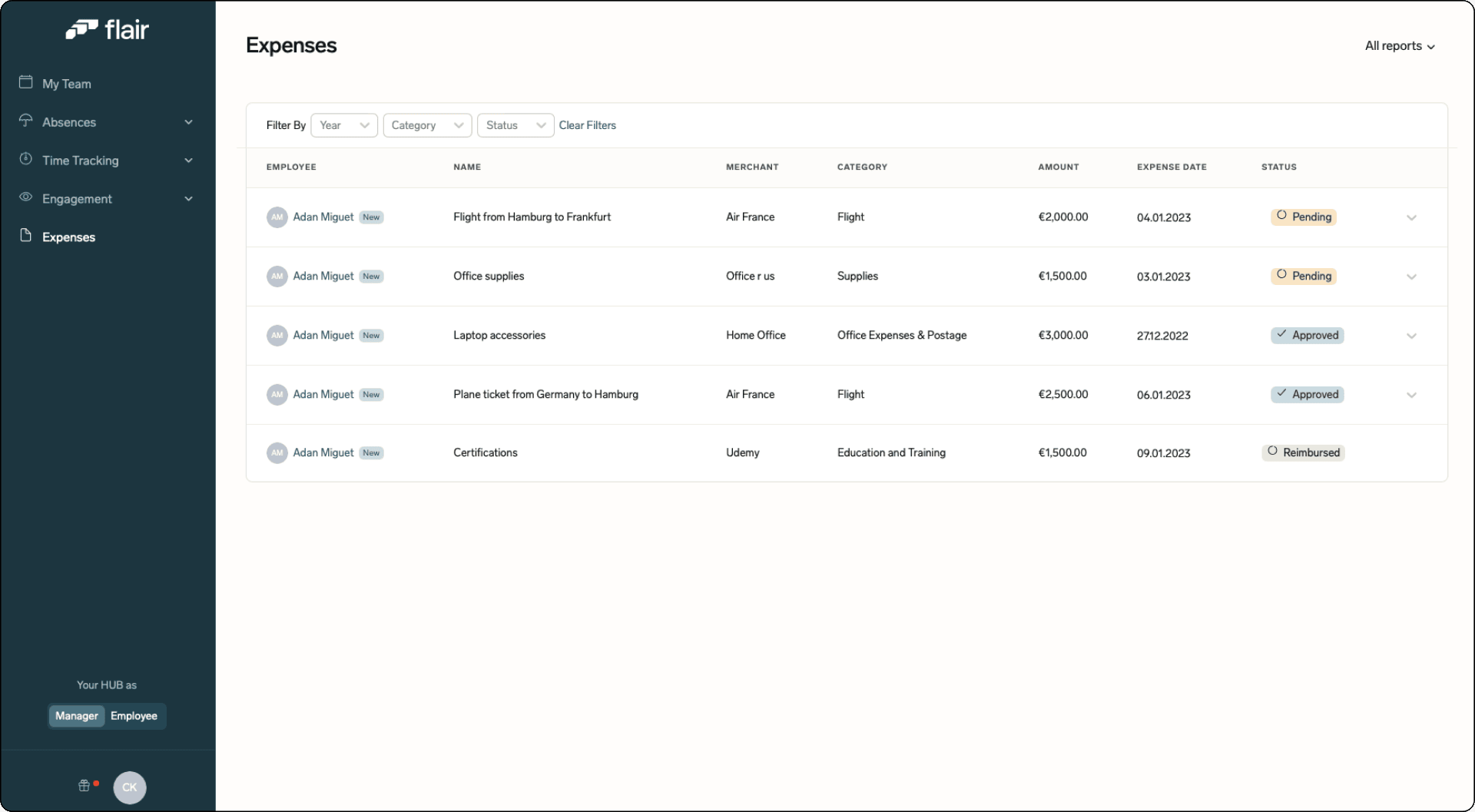
The list includes the employee, date or date range, amount, category, status, and any group indicator. You can filter or sort it. Open a group to review its child expenses and Expense Items.
Approve an expense in the Employee Hub
- In the expense list, open the expense or Expense Group.
- Review the details and documentation. For a group, review every child expense and Expense Item.
- Click the dropdown icon beside the record.
- Select Approve. The employee receives a notification, and the expense enters the reimbursement queue.
An Expense Group approval request links directly to the Manager view of the group, where you can approve or decline it.
Approve or decline an expense in Slack
When the flair Slack integration is connected, approvers receive a direct message when an employee submits an expense claim that requires approval. The notification displays the employee name, expense period, amount, description, and approval status.
- In Slack, find the direct message notification from flair for the pending expense claim.
- Review the expense details in the message card.
- Click Approve to approve the expense request, or click Reject to decline it.
- If you clicked Reject, optionally enter a Reason and click Reject. The employee receives a notification with the decline reason.
Employees also receive notifications in Slack, the Employee Hub notification feed, and via mobile push notifications when their expense claim is approved, declined, or marked as reimbursed.
Comment on an expense
- In the Employee Hub, open Expenses.
- Open an existing expense.
- Select Comments beside Information.
- Enter your message.
- Post the comment. The submitter and relevant Managers or HR Admins receive a notification.
Check expense status
| Status | Meaning |
|---|---|
| Draft | The employee can still edit the expense. |
| Pending | The expense awaits review. |
| Approved | The expense awaits reimbursement. |
| Declined | The expense was rejected with feedback. |
| Reimbursed | Finance has processed payment. |
An Expense Group reflects the status of its expenses. Submitting, approving, or declining a group changes all child expenses together.