Ask Salesforce questions with the AI chatbot
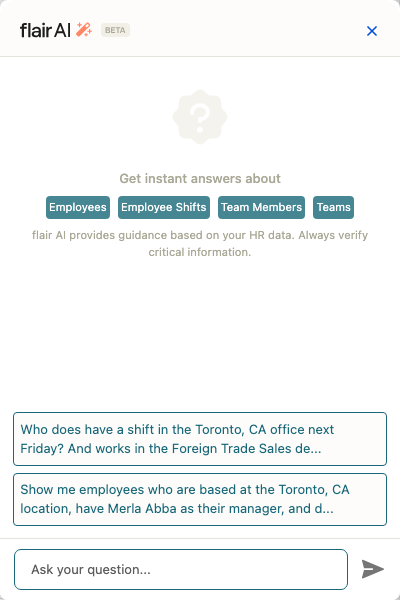
Use the AI chatbot to query supported flair data in natural language. It can answer questions about employees, shifts, jobs, and candidates from the Salesforce page where you open it.
HR teams, Managers, and Recruiters on supported pages in flair apps in Salesforce. Questions on the Shift Planner and Employee pages require flair AI for HR; questions on the Jobs and Candidates pages require flair AI for Recruiting. On every page, the flair AI integration must be connected.
Ask a question
- On a supported page, click the floating magic icon. The chatbot shows its current areas and suggested questions.
- Select a suggested question, or enter your own natural-language query.
- Review the first sentence to see what flair AI searched.
- Review the response and open any linked records.
- To ask something else, click Ask a new question. The chatbot answers one question at a time and clears the previous answer, so include any presentation details, such as a table or a highlight color, in the question itself.
AI-generated responses can contain errors. Verify important information in the linked records before you act on it.
Choose a supported area
The chatbot is available in these Salesforce areas:
| Area | Supported questions |
|---|---|
| Shift Planner | Employee shifts, schedules, availability, and assignments. Absences and workloads are planned for a later release. |
| Jobs | Job positions and requirements. |
| Candidates | Candidate profiles, applications, statuses, experience, and qualifications. |
| Employee | Employee details and absence history. |
Refine a response
In your question, you can ask flair AI for colors, bullets, tables, or another presentation detail. You can also limit results, for example by asking for only 10 candidates.
flair AI converts dates and shift times to your local time zone. It responds in the language of your question, including German and English.
You can query custom text fields and other customer-created fields across supported objects.
Try example questions
Examples include:
Show me employees who have shifts in Berlin office next Friday and work in domestic sales.Who is scheduled to work tomorrow but doesn't have a manager assigned?Find candidates for project manager job with salary expectation of 90,000 or lower.Show candidates with experience in sales, highlight those with 5+ years in green.Who was out recently?Show me employees based in Berlin with John as their manager.
For a phrase such as recently, review the first sentence to see the time frame that flair AI used.