Generate Smart Search filters with AI
Smart Search finds employees, candidates, and talents that match a set of filters, such as skills, certificates, or location. Instead of adding each filter by hand, describe the search in plain language and flair AI builds the filters for you.
HR teams, Recruiters, and Managers with access to Smart Search in Salesforce. Generating filters requires flair AI for HR or flair AI for Recruiting in your subscription and a connected flair AI integration.
Before you begin
- An HR Admin has enabled flair AI.
- You have access to Smart Search records, for example through the Flair Recruiter, Flair Hiring Manager, or Flair Manager permission set.
Generate filters from a description
- From the App Launcher (⋮⋮ grid icon), search for
Smart Searchesand open it. - Open an existing Smart Search, or click New, enter a Smart Search Name, and click Save.
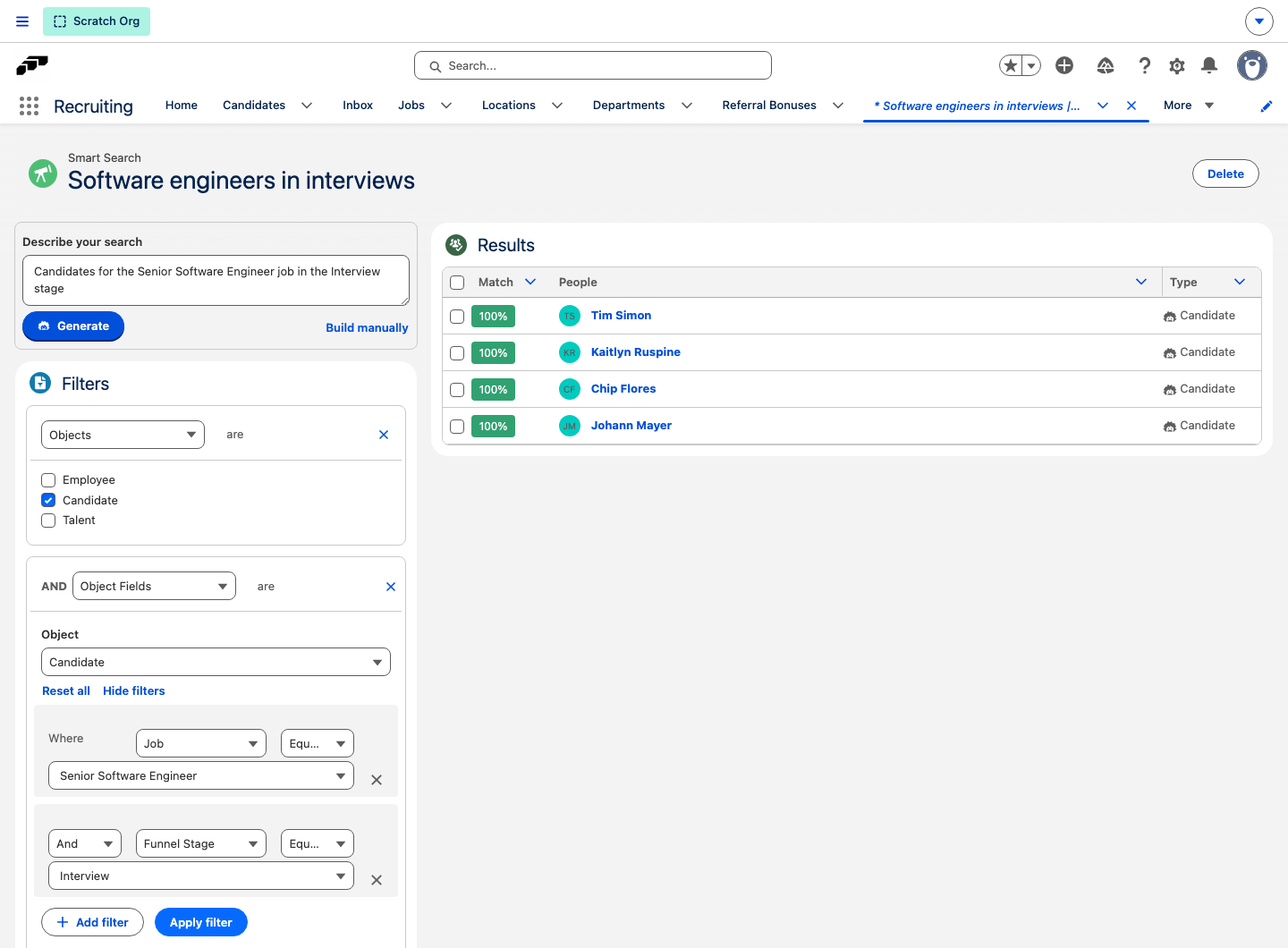
- In Describe your search, enter the people you are looking for, for example
Candidates for the Sales Manager job in screening. - Click Generate. flair AI saves the generated filters to the Smart Search, shows them in Filters, and refreshes Results.
Generating replaces all filters already on the Smart Search. To keep a filter set, create a new Smart Search before you generate.
Describe your search
flair AI turns your description into the same filters you can add manually. You can describe:
| Filter | What you can ask for |
|---|---|
| Skills | Skills from your skill catalog, and how important each skill is relative to the others |
| Certificates | Certificates from your certificate catalog |
| Object Fields | Employee department, location, or language; candidate job, application source, funnel stage, language, or salary expectation |
| Unified Fields | First name, last name, street, postal code, city, or country across all people |
| Distance | People near a place, within a radius in kilometers |
| Objects | Only employees, candidates, or talents |
flair AI matches departments, locations, jobs, application sources, certificates, and funnel stages by name against the records in your organization. For skills, you can also use a synonym or another language — flair AI picks the closest skill from your catalog.
flair AI receives your description and your time zone. To match your wording, it reads the names of the skills, certificates, departments, locations, jobs, candidate application sources, and candidate funnel stages in your organization.
Adjust the generated filters
The generated filters are regular Smart Search filters, so you can change them before or after you review the results.
- In Filters, change a filter's type or values, or click the close icon to remove it.
- Optional: To add another filter, click Add filter.
- If the search has more than one filter, click AND or OR to set how the filters combine. flair saves each change and refreshes Results.
To hide the AI assistant, click Build manually. To show it again, click Create with AI. flair remembers this choice in your browser.
Troubleshooting
Generate is unavailable
Generate stays disabled until you enter a description and the flair AI integration is connected. If your subscription includes neither flair AI for HR nor flair AI for Recruiting, or the integration is not connected, the assistant shows a notice above Describe your search. Ask an HR Admin to enable flair AI.
An error says the search could not be generated
flair AI could not turn your description into supported filters. Rephrase the description with names that exist in your organization, such as a job title or skill from your catalog, and click Generate again.