AI Text Assistant
info
Note: flair AI is a paid feature. If you don't see the AI chatbot in your organization, please contact our sales team to learn more about adding this capability to your flair subscription.
warning
Disclaimer: AI-generated content may contain inaccuracies or errors. Always verify important information and use AI assistance as a supportive tool rather than a definitive source. Review AI responses carefully before making decisions based on the provided information.
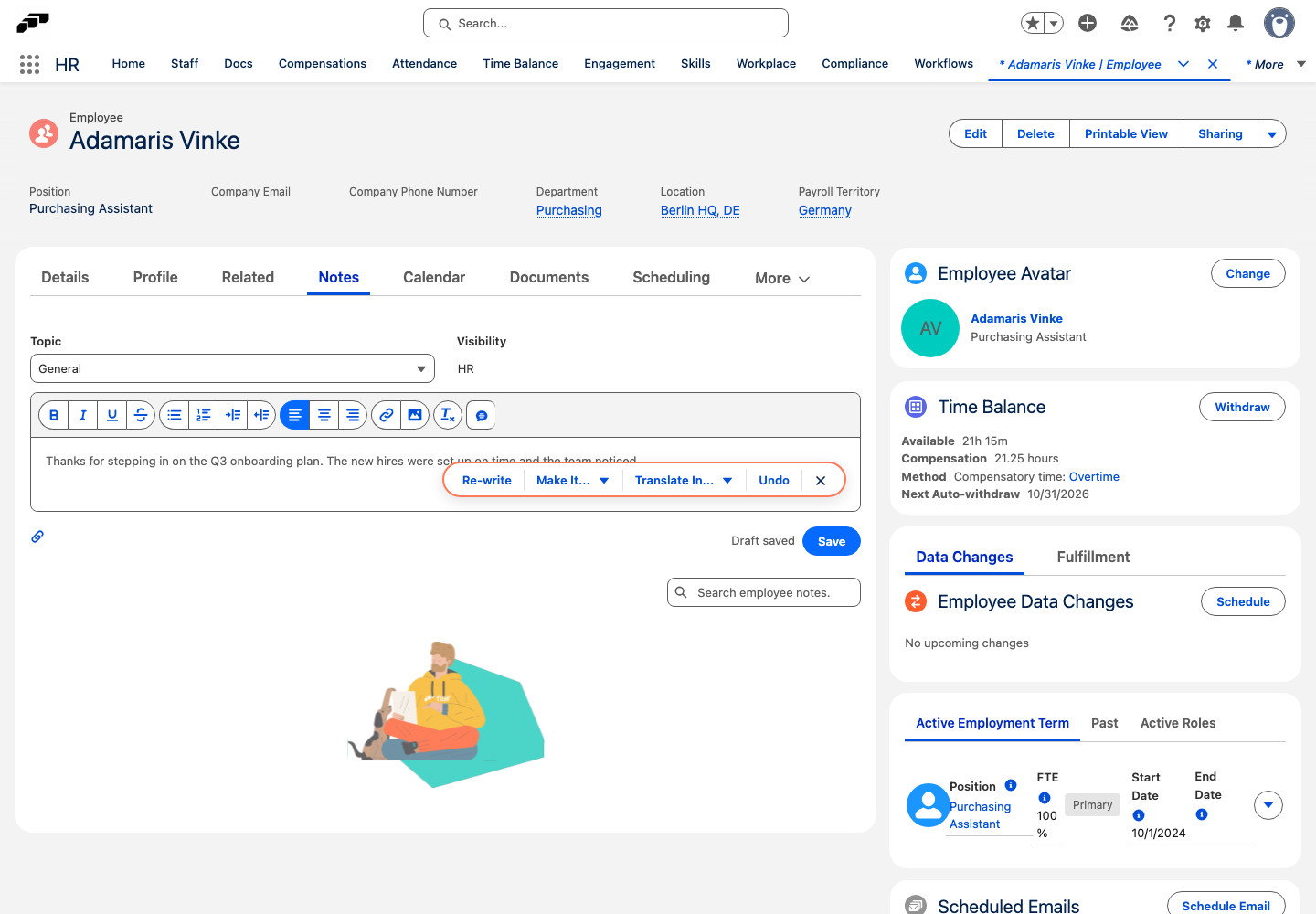
flair AI text assistant helps you improve written content throughout flair by offering rewriting, formatting, and translation capabilities directly within text fields.
Where to Find the AI Text Assistant
flair AI text assistant is integrated in multiple locations across Salesforce:
- Candidates page: In scheduled emails and communication
- Performance reviews: In text areas and feedback sections
- Email templates: When composing messages
- Any text area: Look for the magic icon in various text fields
Accessing the AI Text Assistant
- Locate the Magic Icon: Look for the magic wand icon in text areas
- Start Typing: The assistant becomes enabled once you begin writing text
- Click the Icon: The assistant will expand to show available actions
Core Functionalities
Rewrite Text
- Complete Rewrite: Click "Rewrite" to get a fresh version of your text
- Undo Option: Revert to your previous version at any time
- Multiple Attempts: Generate different versions until you find the right tone
Text Adjustments
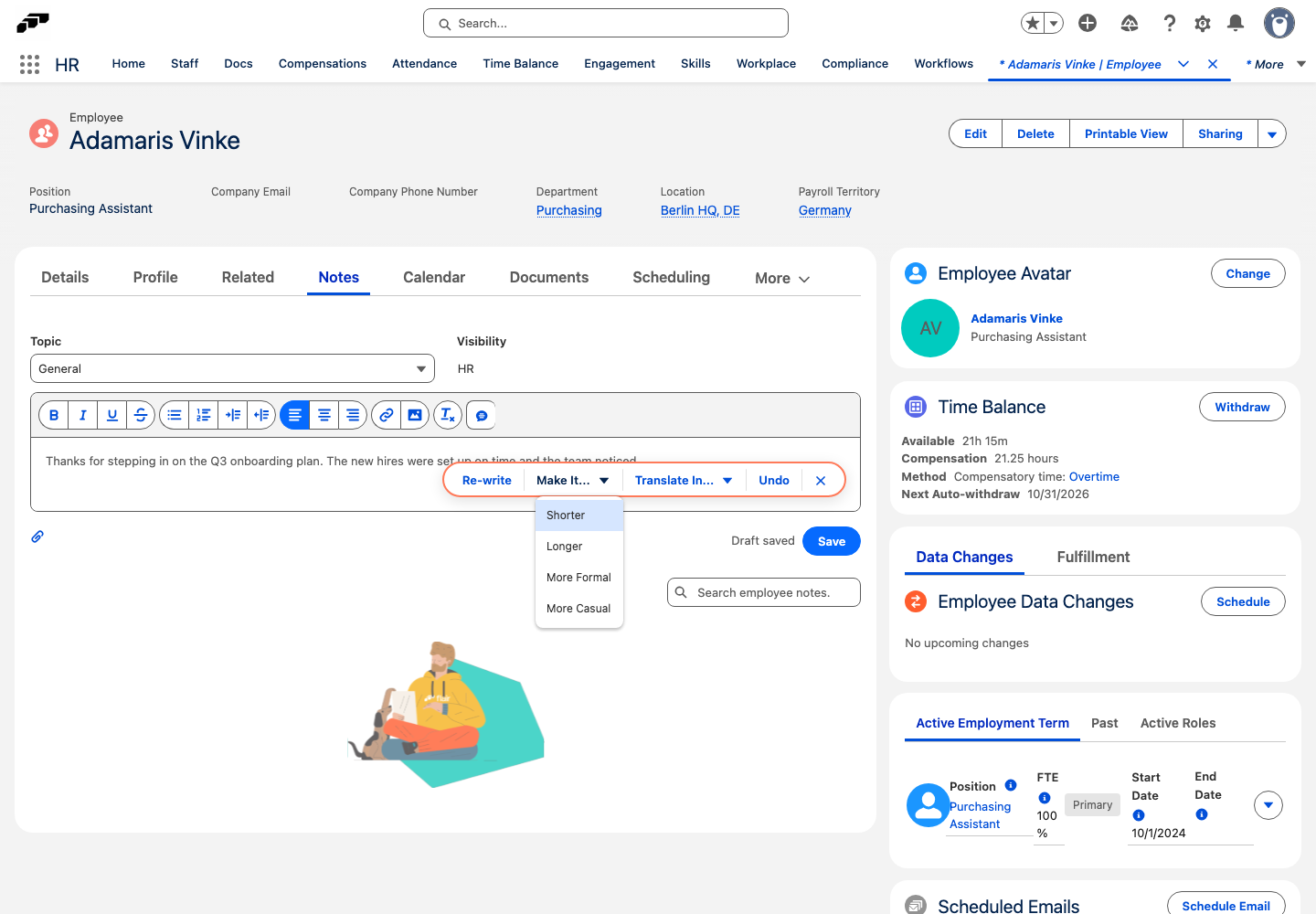
- Make it Shorter: Condense your text while maintaining key points
- Make it Longer: Expand your text with additional detail and context
- More Formal: Convert casual text to professional language
- More Casual: Make formal text more conversational and approachable
Translation Support
Currently supported languages:
- English to German: Translate English content to German
- German to English: Translate German content to English
- Undo Translation: Revert to the original language version
How to Use Each Feature
1. Rewriting Content
- Write your initial text
- Click the magic icon
- Select "Rewrite"
- Review the AI-generated version
- Use "Undo" if you prefer the original
2. Adjusting Tone and Length
- Enter your text
- Click the magic icon
- Shorter: For concise communication
- Longer: For detailed explanations
- More Formal: For professional contexts
- More Casual: For friendly communication
3. Translating Text
- Write your content in either English or German
- Click the magic icon
- Select "Translate to [Language]"
- Review the translation
- Use "Undo" to return to original language
Best Practices
When to Use Each Function
- Rewrite: When your text needs improvement but you're unsure how
- Shorter: For emails, quick updates, or concise communication
- Longer: For detailed explanations, documentation, or comprehensive feedback
- More Formal: For official communications, performance reviews, client correspondence
- More Casual: For team communications, informal updates, friendly messages
- Translate: For multi-language teams or international communications
Tips for Better Results
- Start with Clear Intent: Write your basic message first
- Review AI Suggestions: Always check that the rewritten text maintains your intended meaning
- Use Multiple Functions: Combine features (e.g., translate then make more formal)
- Keep Context in Mind: Ensure the tone matches your audience and purpose
Common Use Cases
Performance Reviews
- Make feedback more constructive and professional
- Translate reviews for international team members
- Adjust tone to be more supportive or direct as needed
Email Communication
- Formalize quick messages for external stakeholders
- Make formal announcements more approachable
- Shorten lengthy explanations for busy recipients
Candidate Communication
- Ensure professional tone in rejection letters
- Translate job descriptions for diverse candidates
- Make communication more welcoming and inclusive