Create and use Request Forms
A Request Form is an admin-defined form that employees, and optionally managers, open in the Employee Hub to request something — most often a change to their own record. Each form decides which fields can be requested, whether the change needs approval, and what the requester must supply before they can send it. This guide covers how admins configure forms and how employees, managers, and HR Admins handle the resulting Employee Data Change Requests.
Employees and Managers submit and track requests in the Employee Hub. HR Admins configure Request Forms and review Employee Data Change Requests in Salesforce.
Find Request Forms in the Employee Hub
Employees open Request Forms from Personal → Profile in the Hub sidebar. Managers also see a Request Forms tab under People, where they submit and track requests for their team. See Submit and track requests for your team.
The page lists your submitted requests. Click New Request to open New Change Request and select a form.

The picker has a search field and category filters: All, one option for each category in use, and Uncategorized for forms without a category. A category and the search field can filter the list together. After you select a form, the Hub shows the admin's guidance in Selected Form Information.
Admins can remove the entry from the sidebar entirely with the Hide Request Forms checkbox on the Employee Hub Feature record, which hides the Request Forms item under Personal → Profile for employees.
Create or edit a Request Form
- In Salesforce, open HR Admin.
- Open the Request Forms tab. The list shows each form's request type, visibility, active status, and creation date.
- Open an existing form to edit it, or click New request form to create one from scratch.
- On the Details tab, configure Basic Information, the section for the selected request type, and More Options.
- Click Save. Active forms become available to the roles selected in Visibility.
Create a Request Form from a template
Start with a ready-made form when you want standard fields and settings for a common employee request.
- In Salesforce, open HR Admin → Request Forms.
- Click Templates. This dropdown lists available templates by name and appears only when templates exist for your Salesforce language.
- Select a template. flair creates the Request Form and adds it to the list.
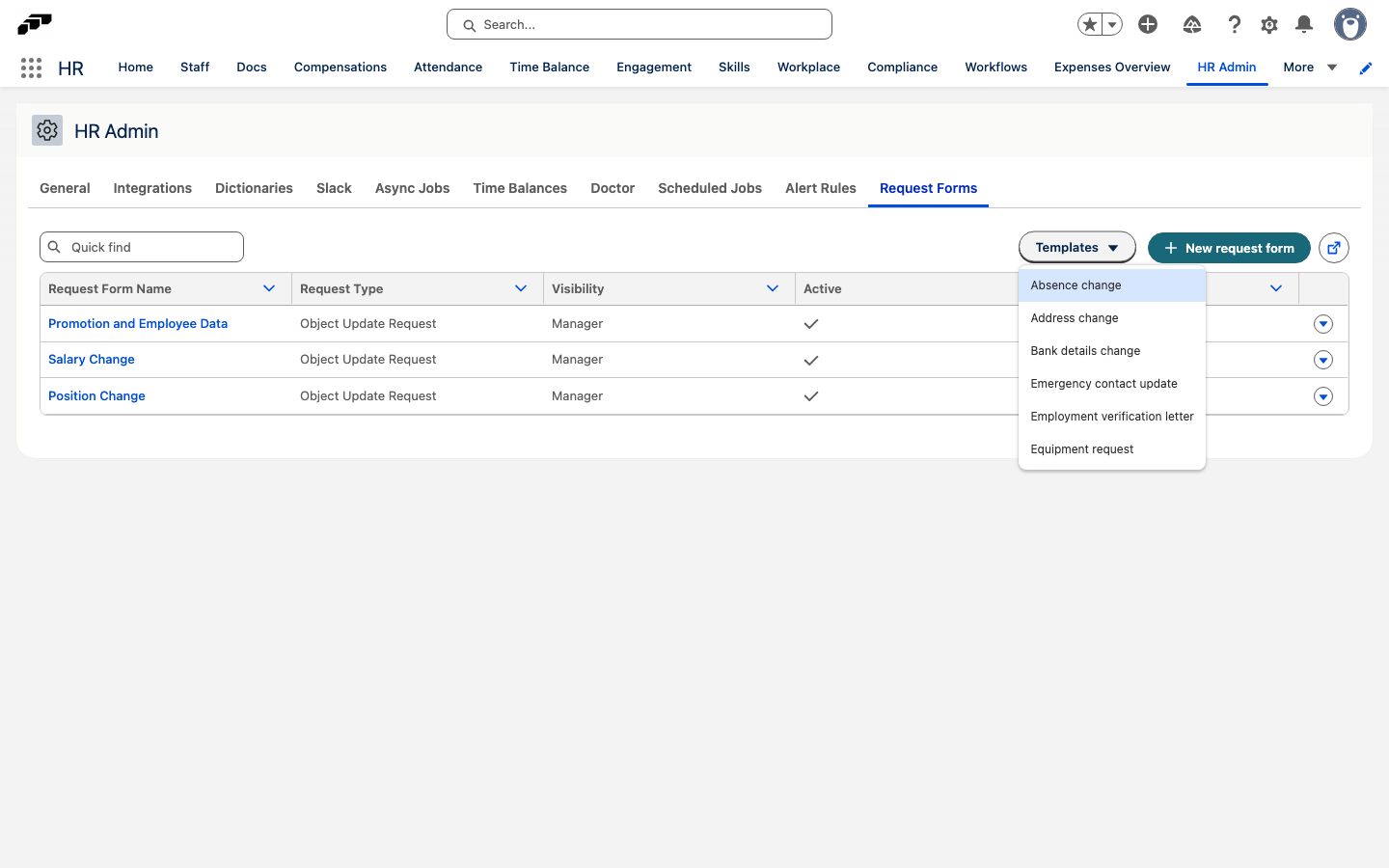
The available templates depend on your Salesforce language. The English templates are:
| Template | Use it for |
|---|---|
| Absence change | Requesting a change to an existing absence, such as different dates; the existing dates remain until the change is approved. |
| Equipment request | Requesting a device or other equipment. |
| Address change | Requesting changes to an employee's address. |
| Bank details change | Requesting changes to salary payment details, with a document upload. |
| Emergency contact update | Updating an employee's emergency contact without approval. |
| Employment verification letter | Requesting an employment verification letter. |
Each form opens on a Details tab, laid out in three parts: Basic Information, a section named after the request type you chose, and More Options.
Configure Basic Information

| Setting | What it does |
|---|---|
| Form Name | The name requesters use to identify the form. |
| Request Type | Choose Object Update Request, Object Creation Request, or Without Object Creation. |
| Visibility | Choose Employee, Manager, or Manager and Employee to decide who can open the form. |
| Information | Guidance that helps the requester complete the form successfully. Shown to them as Selected Form Information. |
| Active | Determines whether the form can be used. While it is off, the form is not visible in the Hub. |
Choose the fields
The section directly below is named after the request type — on an Object Update Request form it is headed Object Update Request and starts with Object to Update. Underneath it you pick what the requester can act on: fields move between Available fields and Fields added to this form.
Configure More Options
More Options controls what the requester must provide and which extra steps the form includes. Each toggle reads Active or Inactive.
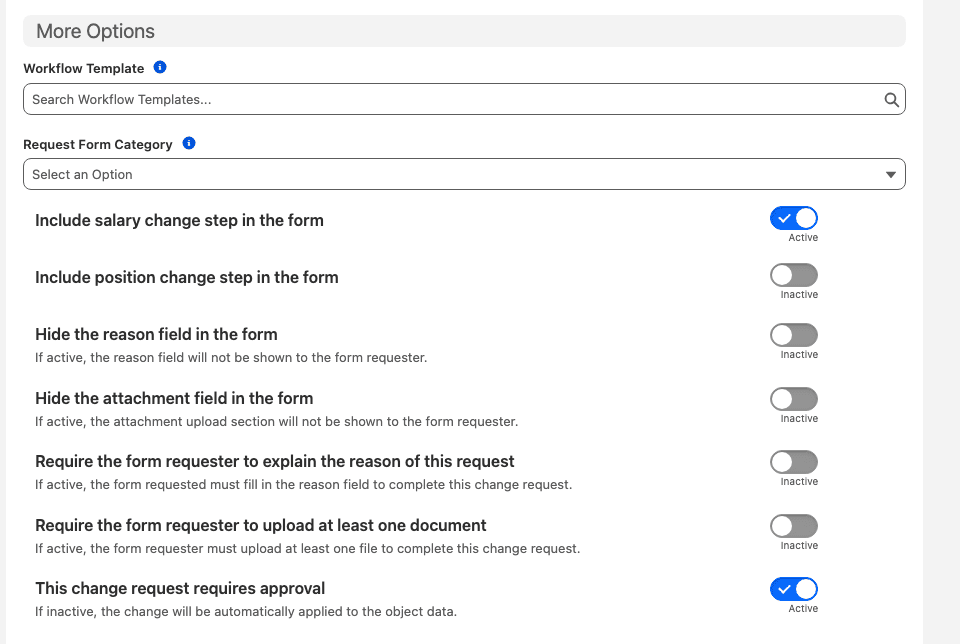
| Setting | What it does |
|---|---|
| Workflow Template | Workflow template to start automatically once the resulting change request is approved. |
| Request Form Category | Groups related request forms so they are easier to find in the Hub. This drives the Hub filter chips. |
| Include salary change step in the form | Adds a Salary Change step to the form. See Change a salary. |
| Include position change step in the form | Adds a Position Change step to the form. See Move an employee to a new position. |
| Hide the reason field in the form | The reason field is not shown to the requester at all. |
| Hide the attachment field in the form | The attachment upload section is not shown to the requester at all. |
| Require the form requester to explain the reason of this request | The requester must fill in the reason field before they can submit. |
| Require the form requester to upload at least one document | The requester must upload at least one file before they can submit. |
| This change request requires approval | When it is inactive, the change is applied to the record automatically instead of going for approval. |
Depending on the request type, More Options can also offer a Document Template, used to generate an Employee Document once the resulting change request is approved.
A field cannot end up both hidden and required. Turning on Hide the reason field in the form removes the matching Require the form requester to explain the reason of this request toggle from the editor and switches it off when the form is saved. Hide the attachment field in the form does the same to Require the form requester to upload at least one document.
When Require the form requester to upload at least one document is active, the upload is enforced before the request can be submitted — the requester cannot send the form without attaching a file.
Organize Request Forms with categories
Categories help employees find the right form through the Hub filters. Each company defines its own categories in HR Admin → Dictionaries → Request Form Category.
- In Request Form Category, click Add item.
- Add a name for each supported language. Employees see the category in their Hub language.
- On a Request Form, open More Options.
- In Request Form Category, select the category.
- Click Save. Employees can use the category to filter Request Forms.
Submit a data change request
Employees can propose changes to their own profile data, such as their personal phone number, private email address, or bank details. Managers can submit requests when a Request Form's visibility includes them.
- In the Employee Hub, open Personal → Profile → Request Forms.
- Click New Request.
- Select the Request Form for the data you want to change.
- Enter the new values and any required reason or attachments.
- Click the form's submit action. Depending on the form settings, flair applies the change immediately or sends it for approval.
Submit and track requests for your team
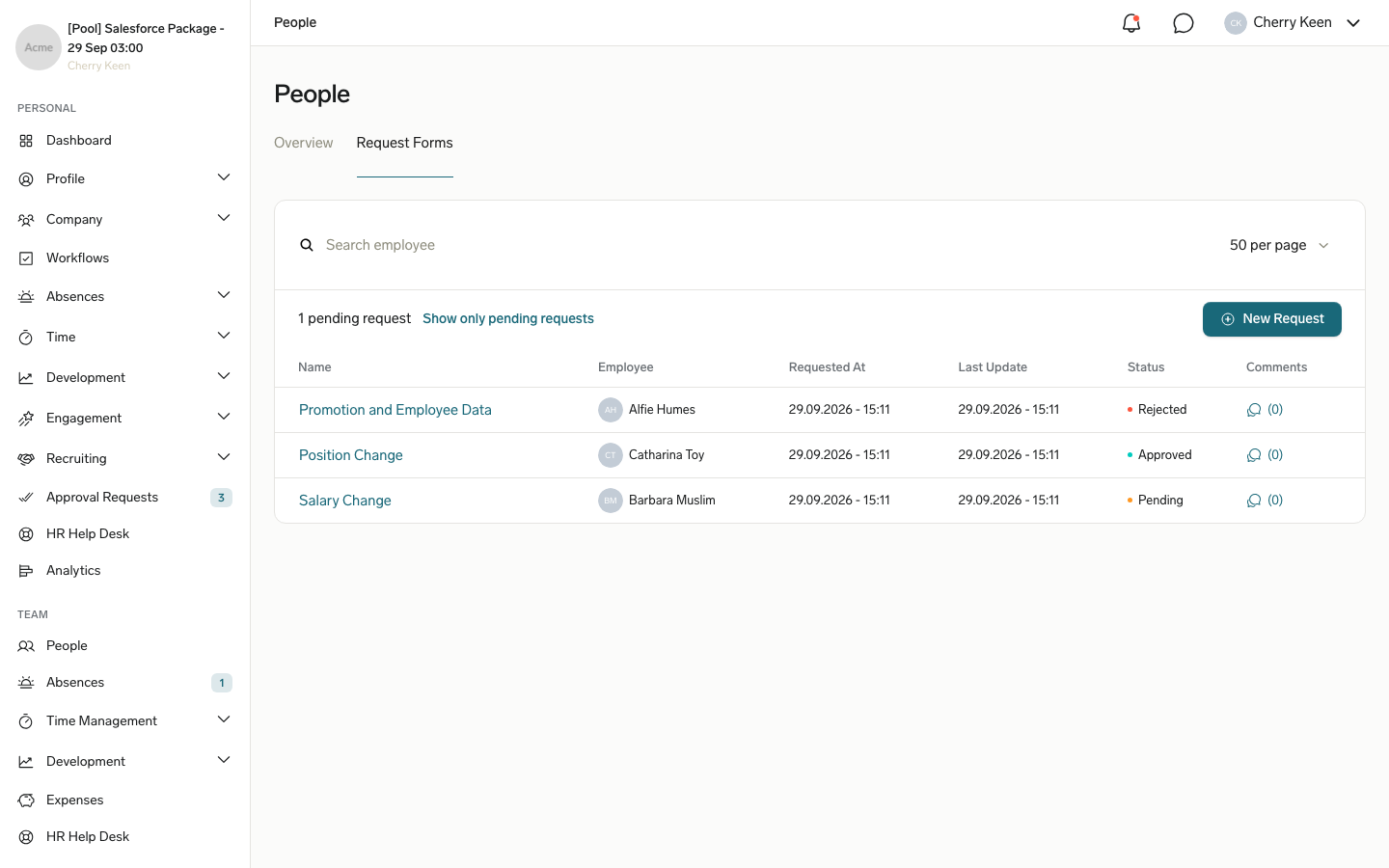
Managers submit change requests for an employee on their team from People → Request Forms. Only forms whose Visibility includes managers appear in the picker. The tab lists the change requests you submitted for your team, with their status and comment count.
- In the Employee Hub, open People and select the Request Forms tab.
- Click New Request. New Change Request opens.
- Select a Request Form.
- In Select Employee, search for and select the employee. Click Next.
- Complete the steps the form includes, such as the reason and attachments, Position Change, Salary Change, or the employee fields to change. Click Next after each step.
- Review the details and click Confirm. Depending on the form settings, flair applies the change immediately or sends it for approval.
Change a salary
The Salary Change step appears when the form has Include salary change step in the form active. You need compensation manager permissions for the employee to see their salary data, and salaries must not be hidden for you by an Employee Hub Feature. Otherwise, the step shows Permission Issue instead.
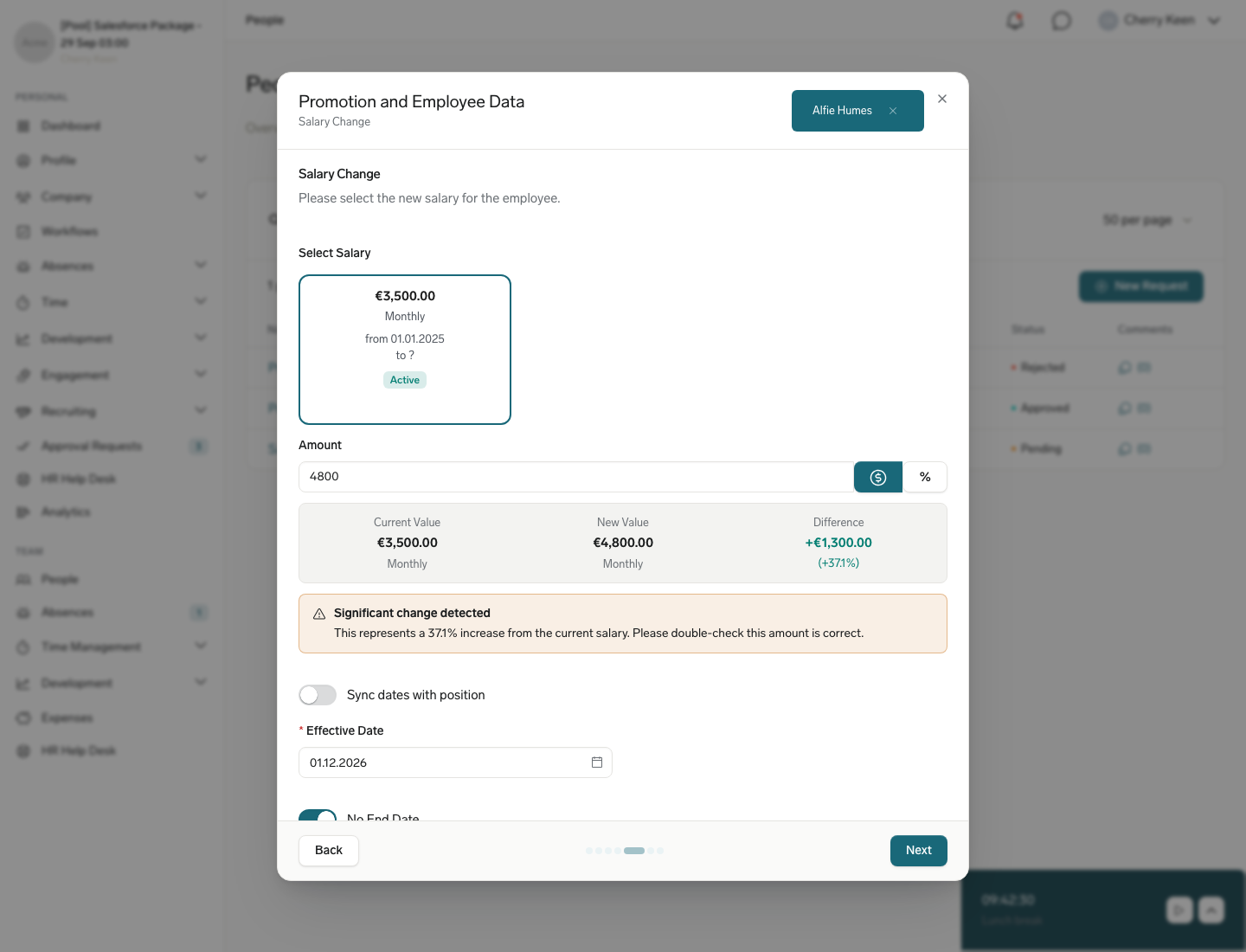
- Select how to change the salary:
- Quick Update creates a new salary change with data from an existing salary. Under Select Salary, select the salary to update.
- Create New creates a new salary change from scratch, including its Frequency and optional Notes.
- Enter the new amount. With Quick Update, you can click the % button to enter the change as a Percentage instead. The comparison box below shows the New Value; with Quick Update, it also shows the Current Value and the Difference.
- Set the Effective Date. It can't be in the past. Optional: Set an End Date, or select No End Date.
If the employee's primary employment has a pay band in its position configuration, a pay band bar next to the amount shows where the new salary falls. With Quick Update, a change of more than 33% shows Significant change detected, so you can double-check the amount before you continue. When the form also includes a Position Change step, turn on Sync dates with position to reuse the position change's dates for the salary change.
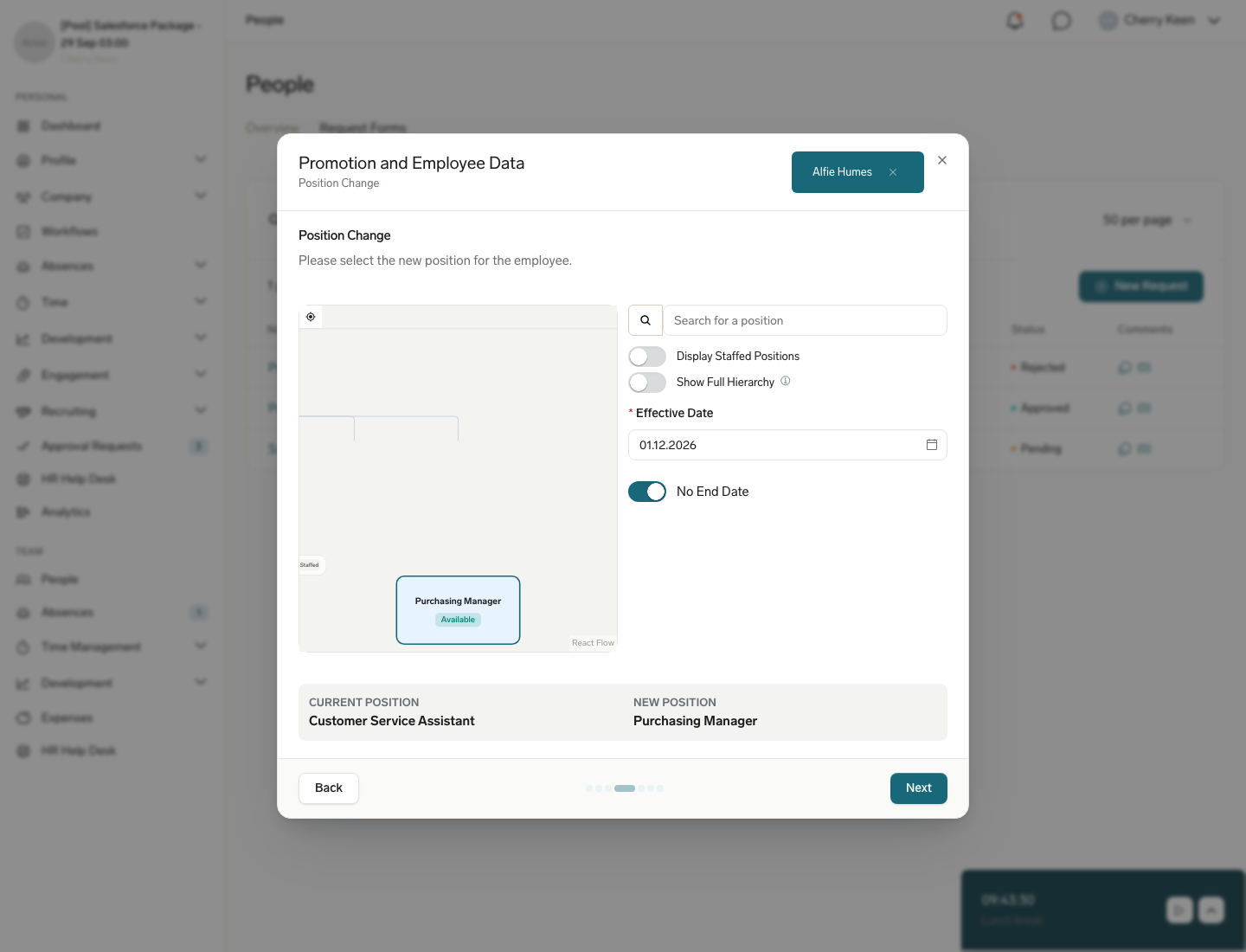
Move an employee to a new position
The Position Change step appears when the form has Include position change step in the form active. It shows the position hierarchy around the employee's current position. The employee needs a main employment for a position change.
- Search for a position, or select it in the hierarchy. Each position shows a Current, Available, or Staffed badge. Staffed positions can't be selected.
- Optional: Turn on Display Staffed Positions to also show staffed positions in the hierarchy.
- Optional: Turn on Show Full Hierarchy to see the whole position tree. When it is off, only the employee's main position tree and the chosen position's tree appear.
- Set the Effective Date. Optional: Set an End Date, or select No End Date.
Review or cancel a request for your team
- On the Request Forms tab under People, click the request name. Change Request Details opens.
- On the Information tab, check the status, reason, attachments, and requested changes. A position change shows its Effective Date, and a rejected request shows the Rejection Reason and who rejected it.
- Optional: Open the Comments tab to read or add comments.
- To withdraw a pending request, click Cancel Request and confirm. You can't undo the cancellation.
To show only open requests, click Show only pending requests above the table.
Let employees edit their own children's records
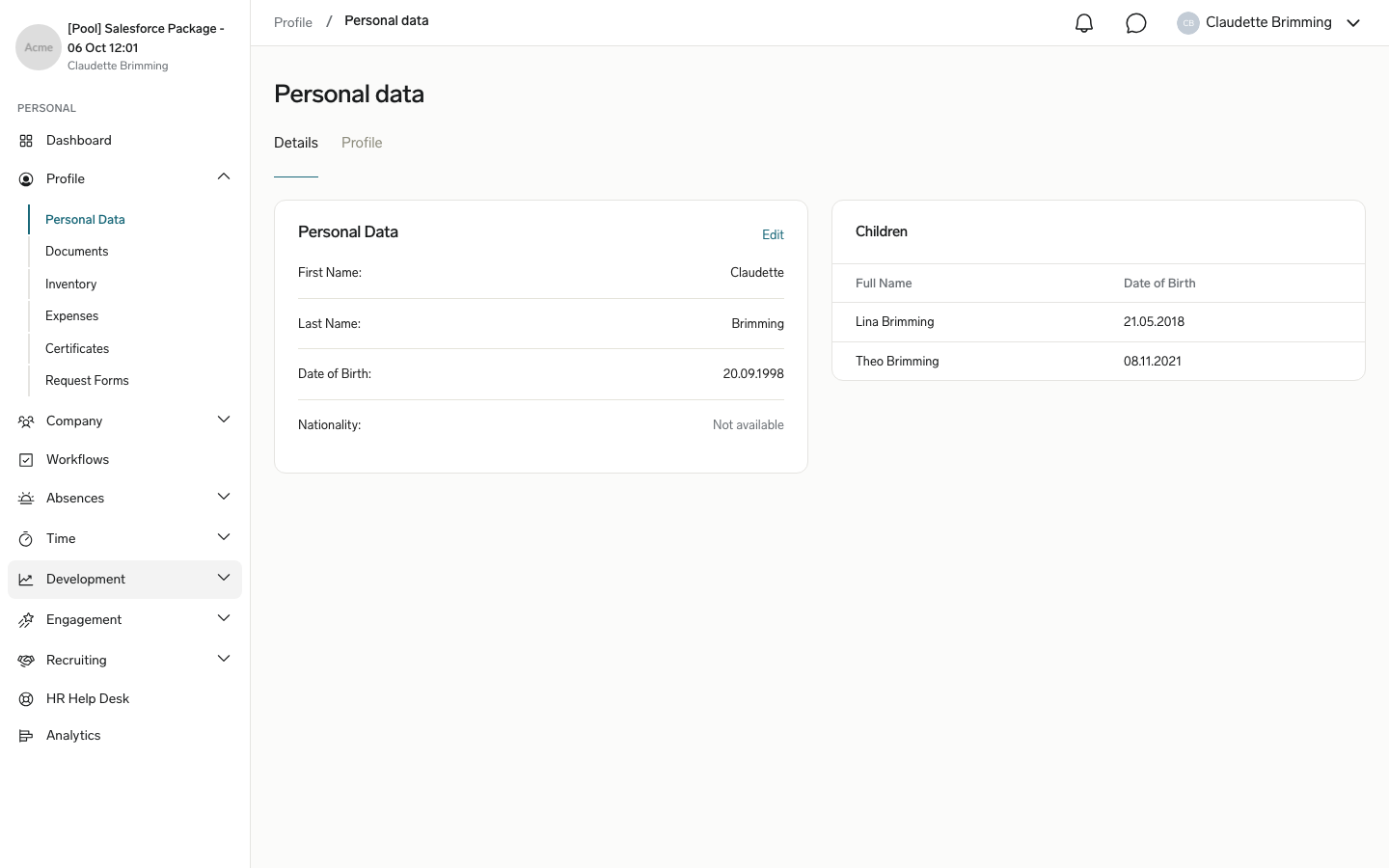
The Children card on an employee's Hub profile lists their existing child records. The card appears only when the Children related list is on the Employee page layout the Hub reads (Employee HUB, or a record-type variant such as Employee HUB: Switzerland). By default the card is read-only: it shows no Edit or add action, so employees cannot change the entries themselves. This is a configuration gap, not a defect. To let employees update their existing child records, create an Object Update Request form that targets the Children object. Once the form is active, an Edit action appears on each existing child row on the card.
- In Salesforce, open HR Admin.
- Open the Request Forms tab.
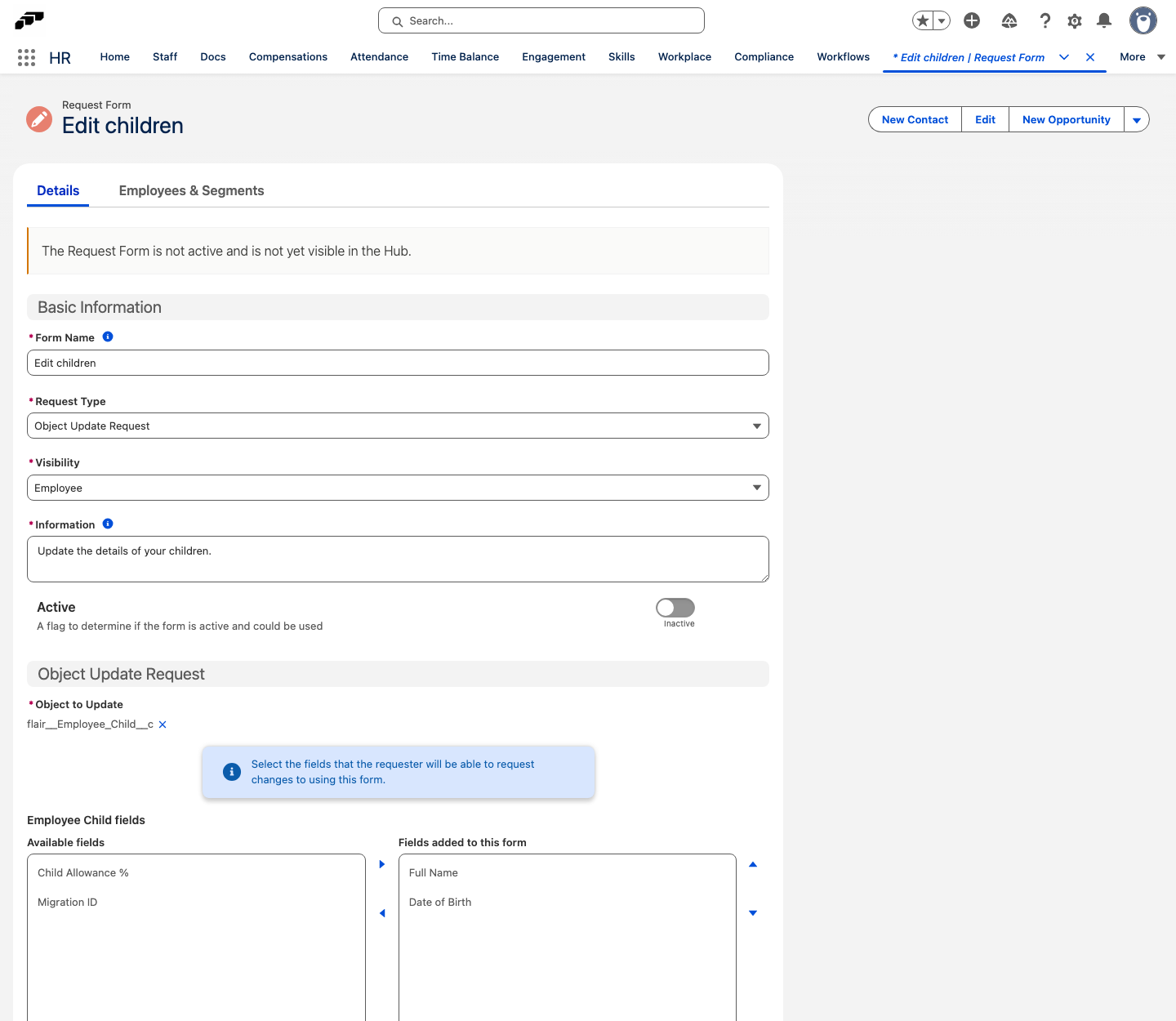
- Click New request form. In the New Request Form window, enter a Request Form Name such as
Edit children, and click Save. - On the form's Details tab, check the Form Name in Basic Information.
- In Request Type, select Object Update Request.
- In Visibility, select Employee so employees can open the form.
- In the Object Update Request section, set Object to Update to the Children object.
- Move the fields employees may change from Available fields to Fields added to this form.
- Optional: In More Options, set This change request requires approval to control whether edits apply immediately or route for approval.
- Set Active on. Click Save. The form becomes available to the roles selected in Visibility.
After the form is active, employees see an Edit action on each existing child row on the Children card in the Hub. They open the row, change the values, and submit — flair applies the change immediately or sends it for approval, depending on the form settings.
Adding a child entry always flows through a Request Form and its workflow, not an inline Add button on the card. This matches how every related list behaves in the Hub and is not specific to children. To let employees add children, create an Object Creation Request form targeting the Children object.
Delete a related-list record
Where editing a related list, such as dependents or emergency contacts, is allowed, you can also request that a record be deleted.
- In the Employee Hub, open the related list on your profile.
- Open the record you want to remove.
- Select the delete action. Depending on the form settings, flair deletes the record immediately or sends the request for approval.
Track a request
- Open Request Forms to see whether a request is pending, approved, or rejected. flair also notifies you when the status changes or a Manager or HR Admin adds a comment. Your settings can also enable email or mobile notifications.
Review a data change request as an HR Admin
- In the flair HR app, open Employee Data Change Requests on the employee record to approve, reject, or comment on the request.