Manage candidates and talent pools
Use flair Recruiting to organize candidate and talent records, manage Talent Pool memberships, collect evaluations, update records, and import details from LinkedIn profiles or CVs.
Recruiters and HR Admins in Salesforce. Hiring managers and assigned evaluators complete evaluations in the Employee Hub. CV Parsing must be enabled before you can extract CV data.
Choose a candidate view
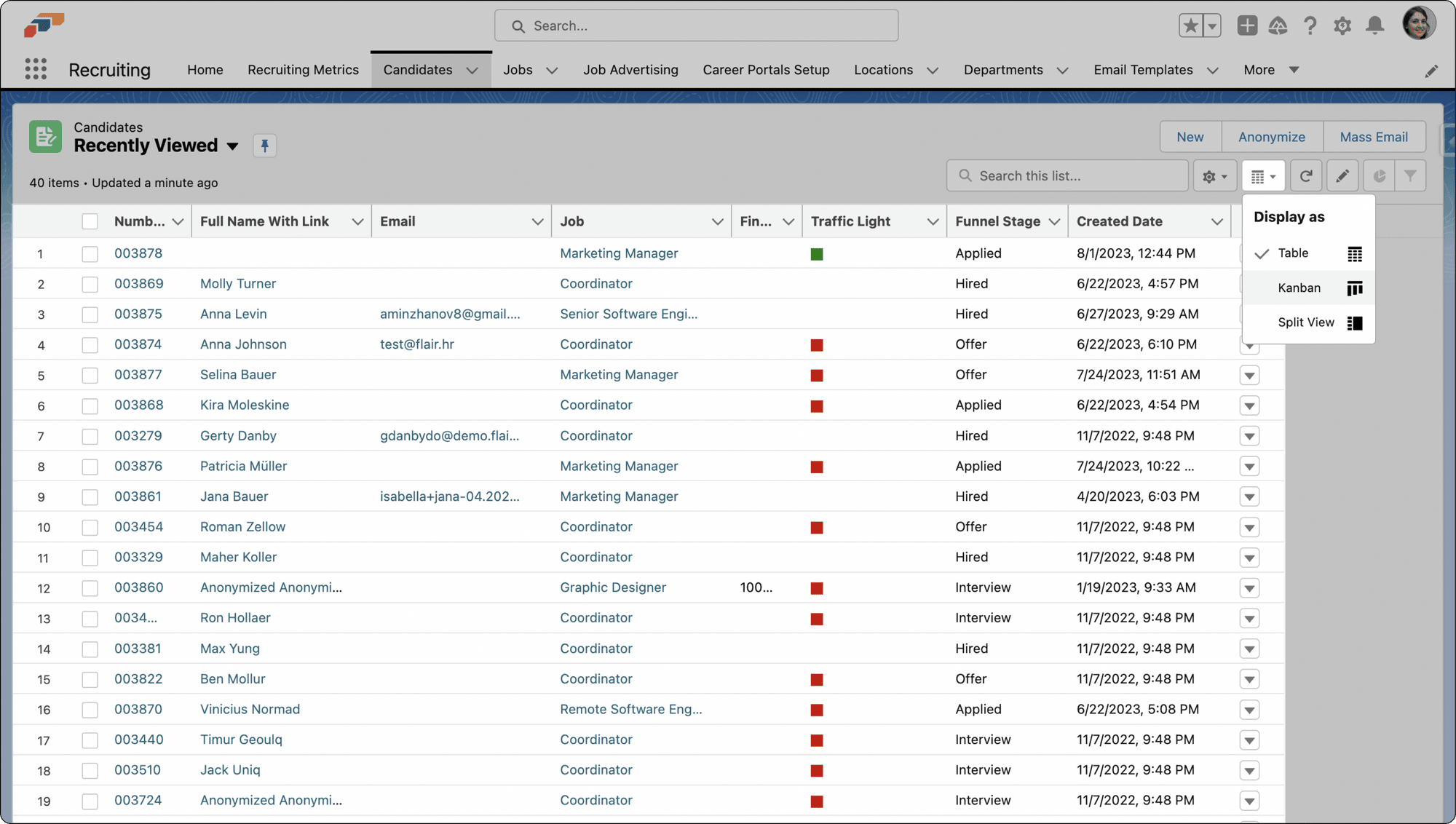
In the Candidates list, open List View Controls → Display As, then select a view.
Use Table View
- Select Table View to display candidate records in rows and columns. This is the default view.
Use Kanban View
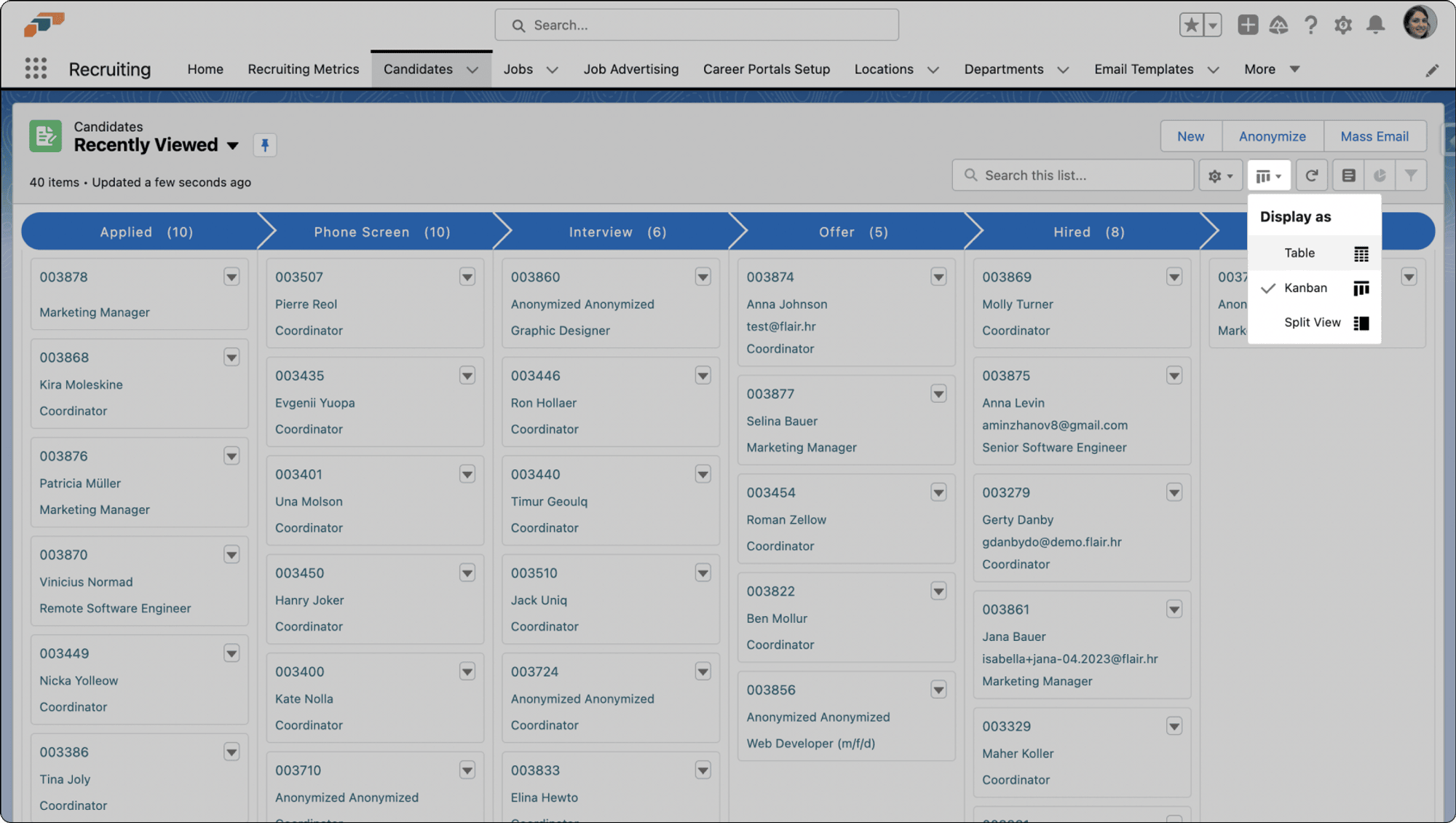
- Select Kanban to group candidates by application stage.
- To change a candidate's stage, drag the candidate card to another column. flair updates the application stage.
- To prioritize candidates within a stage, drag the cards into the required order. flair stores the order on your computer.
Use the Kanban controls to choose the card fields, hide fields, filter candidates, or search. These preferences are also stored on your computer.
Use Split View
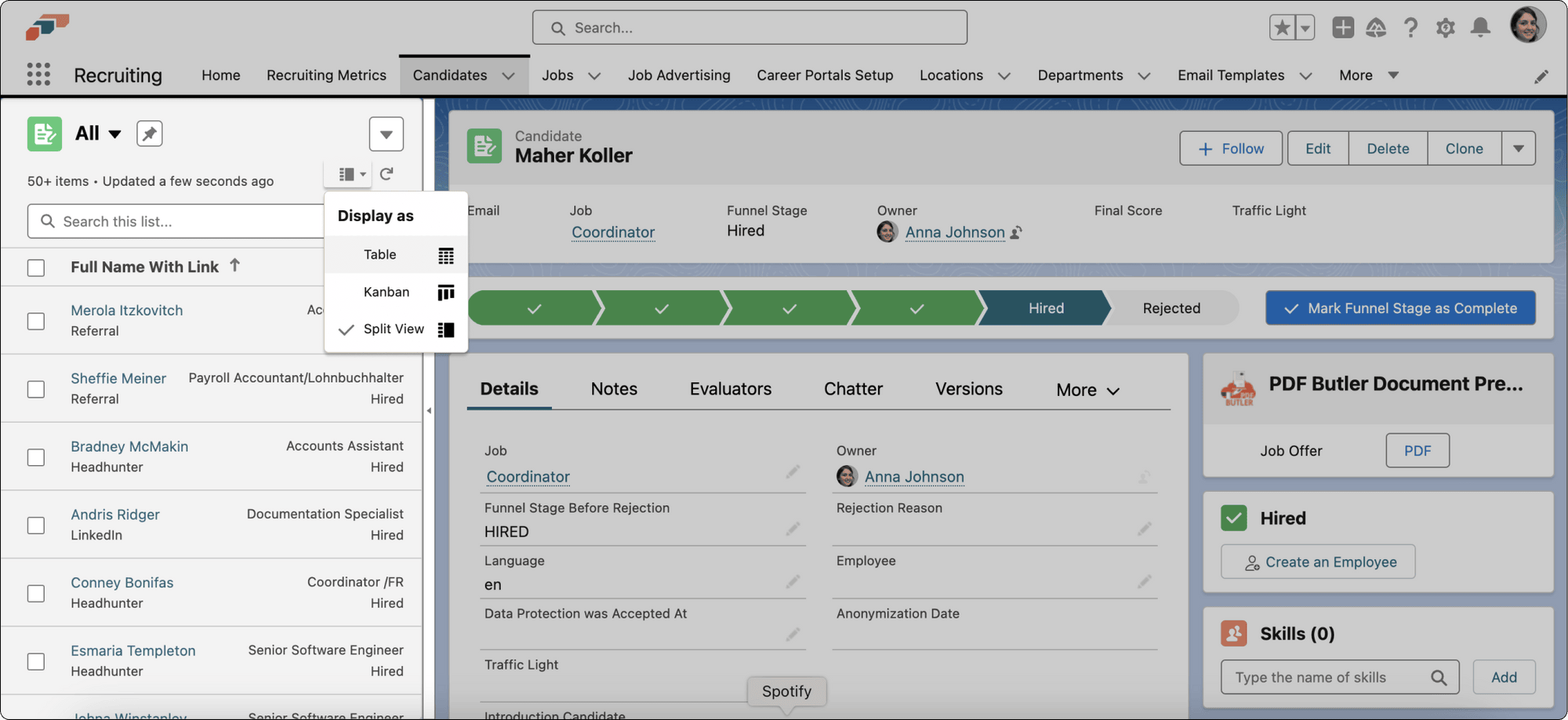
- Select Split View to keep the candidate list in the left pane while you review a record in the right pane.
Create an evaluation template
Create evaluation templates and configure or review candidate evaluations in Create and manage candidate evaluations.
Assign an evaluation
- In the flair Recruiting app, open Jobs.
- Open the job and select the candidate.
- Open Evaluators, then click Add New Evaluator.
- Select an evaluator and an Evaluation Template.
- Optional: Set a Due Date.
- Save the assignment. flair emails the evaluator an invitation.
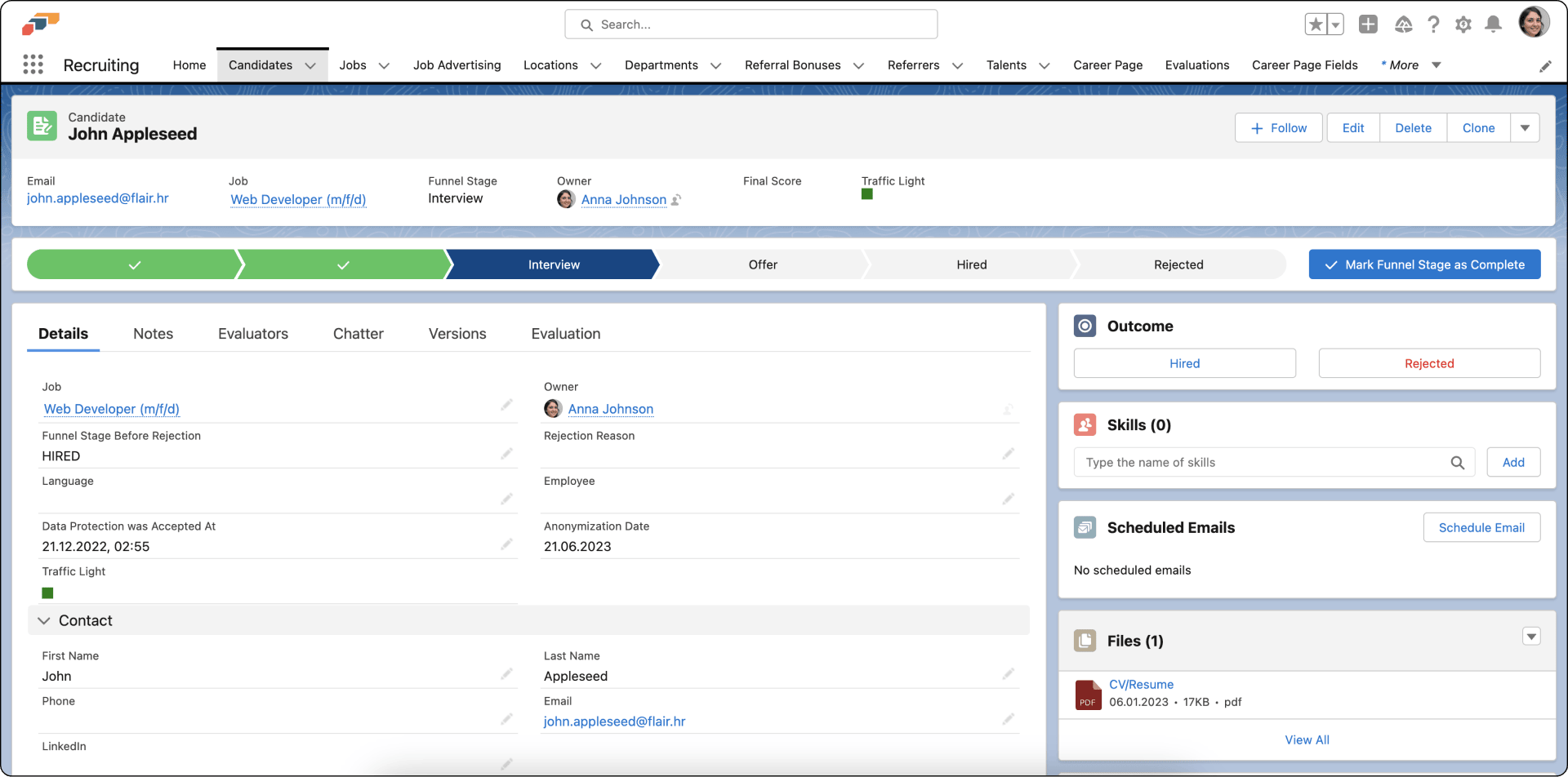
You can also start from Candidates and open the candidate directly.
Evaluate a candidate
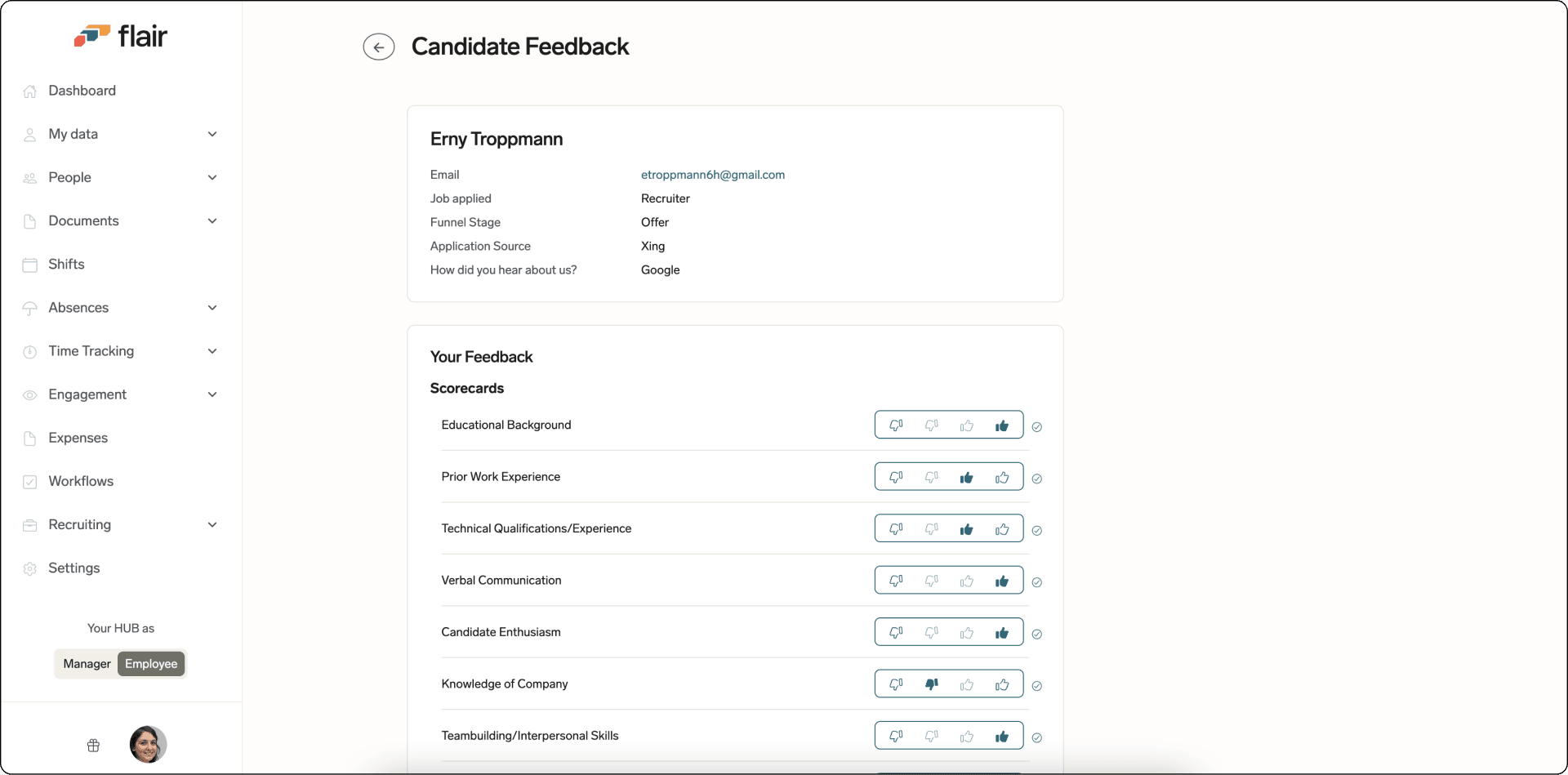
- In the evaluation invitation, click Evaluate. The candidate evaluation opens in the Employee Hub.
- Select the candidate from the evaluation list. The list shows the application stage, job, due date, score, comments, and status.
- Complete the evaluation questions.
- Add your Overall Recommendation and final comments.
- Click Submit. Your feedback becomes read-only.
Review completed evaluation comments
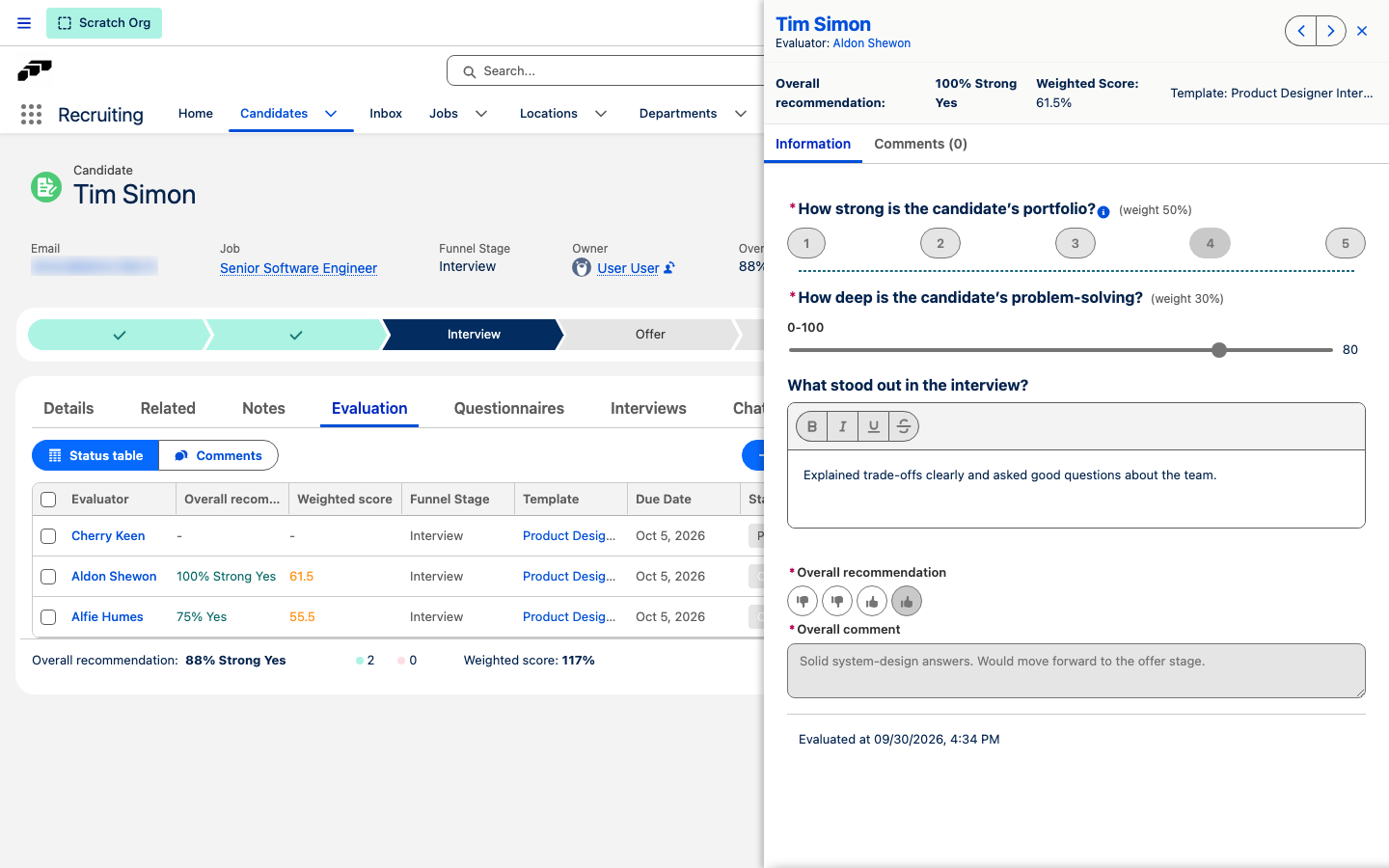
After an evaluation is complete, the hiring manager and requester can read the evaluator's Overall Recommendation and Overall Comment in the evaluation details panel.
| Viewer and status | Access |
|---|---|
| Assigned evaluator, incomplete | The section is editable and includes Submit. |
| Assigned evaluator, complete | The section is read-only. |
| Hiring manager or requester, incomplete | The section is hidden because no feedback is available. |
| Hiring manager or requester, complete | The section is read-only and does not include Submit. |
This visibility does not change access to candidates. A person can open only evaluation details they already have permission to access.
Create a candidate or talent with the browser extension
- Install the flair Recruiting extension from the Chrome Web Store.
- In Chrome, open the flair logo from the extensions menu.
- Sign in with your Employee Hub credentials.
- Enter the person's full name, email address, phone number, and LinkedIn profile URL.
- Optional: Add notes and select skills from flair Recruiting.
- Select Talent or Candidate.
- For a candidate, select the job and funnel stage.
- Click Create Candidate or Create Talent. The extension creates the record in flair Recruiting.
Review a candidate's activity timeline
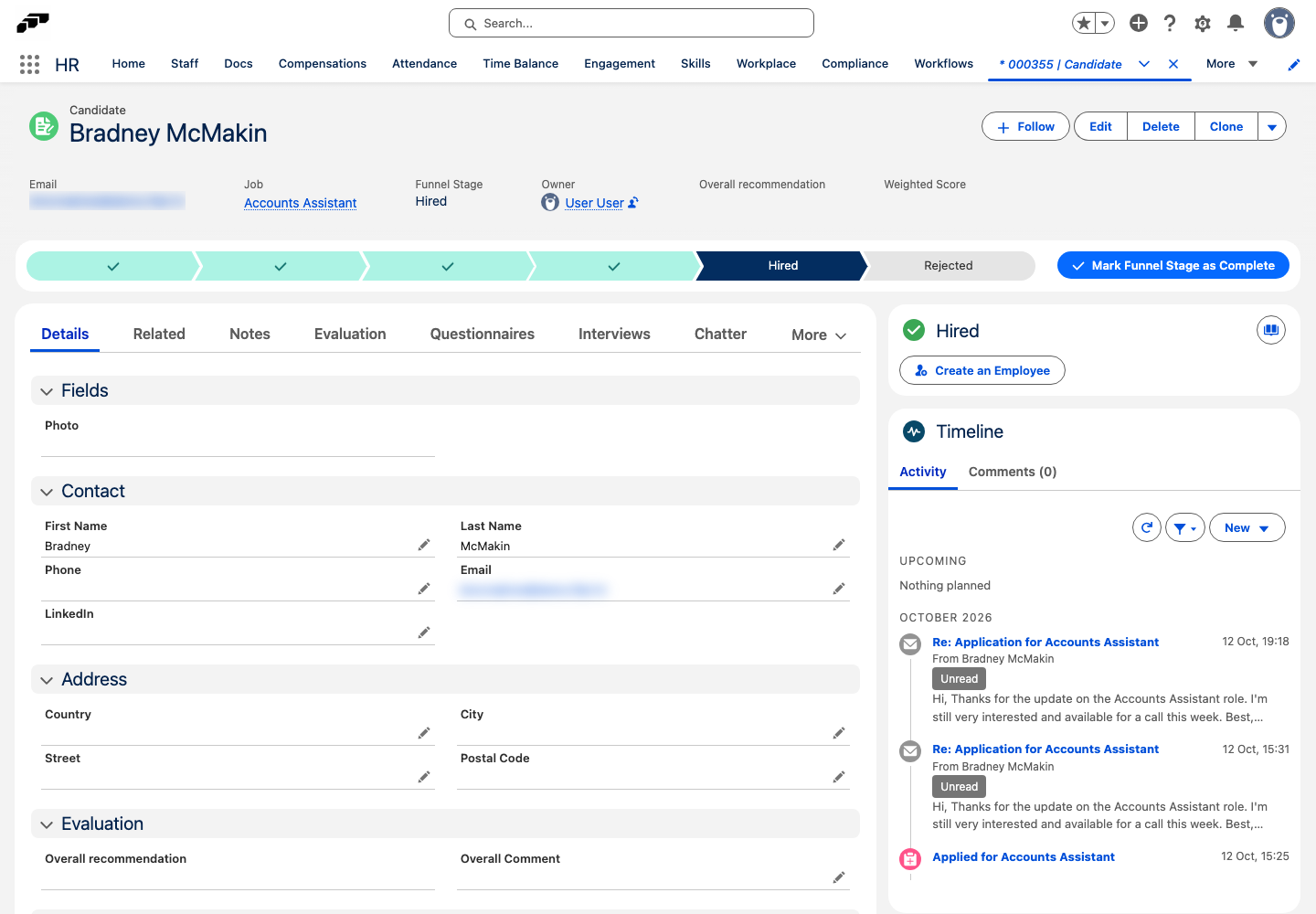
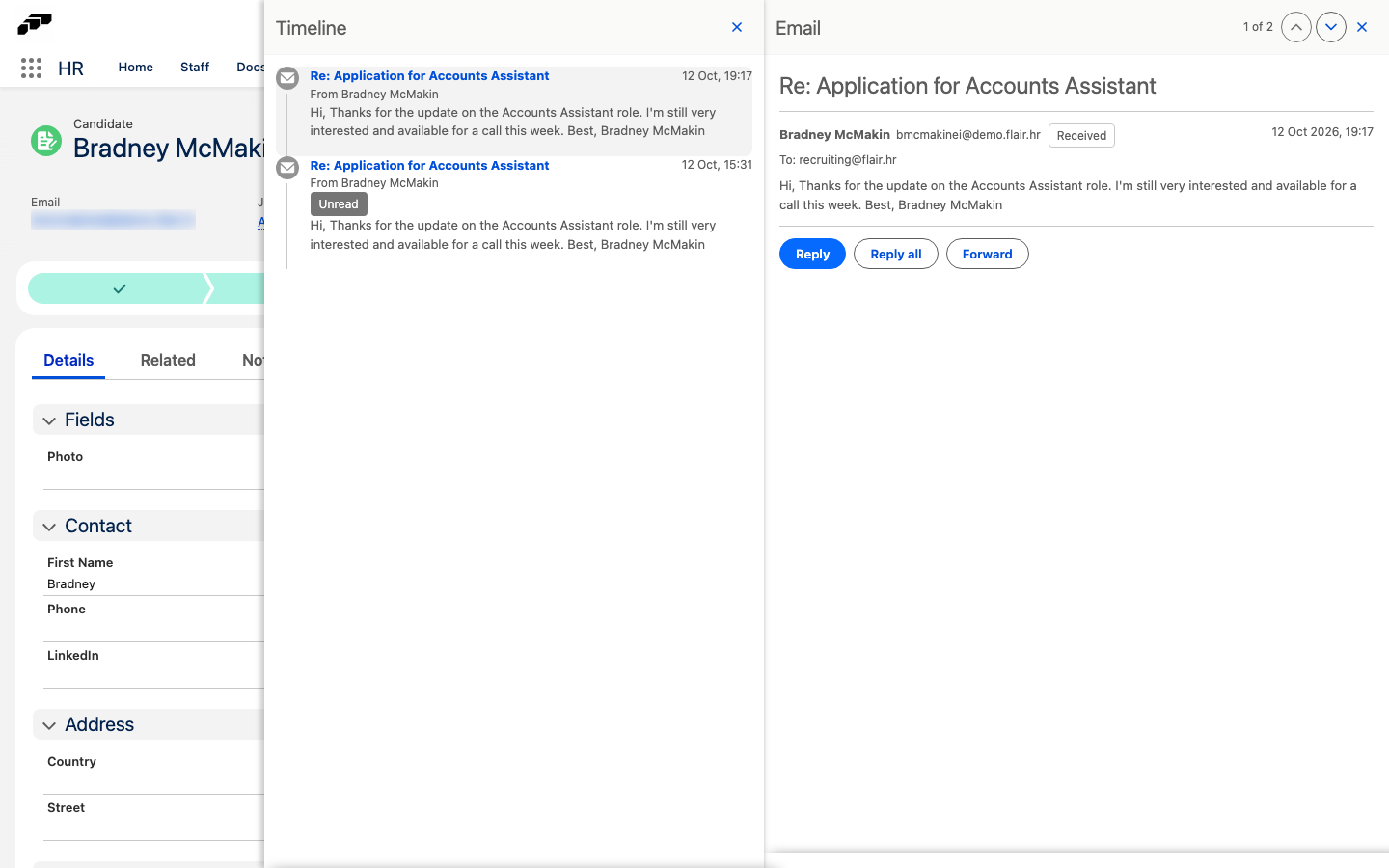
The Timeline card on candidate and talent records shows everything that happened with a person in one place: emails, scheduled emails, interviews, tasks, events, notes, evaluations, stage changes, and applications. It covers all applications of the same talent or email address. Items from another application show a badge with that job's name, which opens that application.
- Open the candidate or talent record. The Timeline card opens on the Activity tab.
- Review Upcoming at the top. It lists scheduled emails, open tasks, future events, and open interviews, including interviews that aren't scheduled yet. Below it, past activity is grouped by month, newest first. To load older items, click Show more.
- Optional: To show one type of activity, click the filter icon, then select Emails, Interviews, Tasks & events, Notes & evaluations, or Applications & stages. A pill above the timeline names the active filter. To show everything again, click the × on the pill or select All activity. flair remembers your filter in this browser.
- Click an item's title to open it in a side panel. The candidate record stays open behind it.
- To move to the previous or next item, click the up and down arrows in the panel header or press the arrow keys. The Timeline list next to the panel shows all items and highlights the open one. To close the panel, press Escape.
The side panel shows each type of item as follows:
| Item | What the side panel shows |
|---|---|
| The whole conversation, with Reply, Reply all, and Forward. Opening an email marks it as read. | |
| Note | The full note, its author, and its funnel stage. Click Edit to change the note in place, then click Save. You can also click the pencil icon on a note in the timeline. |
| Evaluation | The evaluator, the comment, and the score. |
| Scheduled email | A preview with merge fields filled in, with Edit and Delete. See Preview or edit a scheduled email. |
| Interview, task, or event | A short summary and Open record. |
Applications open the application's record page instead of the side panel. The Comments tab next to Activity shows the record's comments, and its title shows how many there are.
If your record page doesn't show the Timeline card, ask your Salesforce admin to add the flair - Activity and Comments component to the page in Lightning App Builder. This applies to organizations that use their own copy of the candidate or talent record page.
Create activity from the timeline
- In the Timeline card, click New.
- Select what to create:
- Email: opens the New email panel. See Add a candidate email merge field.
- Schedule email: opens New Scheduled Email. See Send a scheduled email to a candidate.
- Task: opens a form to create a task for the candidate.
- Interview: opens the interview form. See Create an interview.
On talent records, New offers only Schedule email. The new item appears in the timeline after you save or send it.
Add notes to a candidate
Use candidate notes to record feedback on a candidate during the hiring process. Each note is stamped with the candidate's funnel stage at the time you write it.
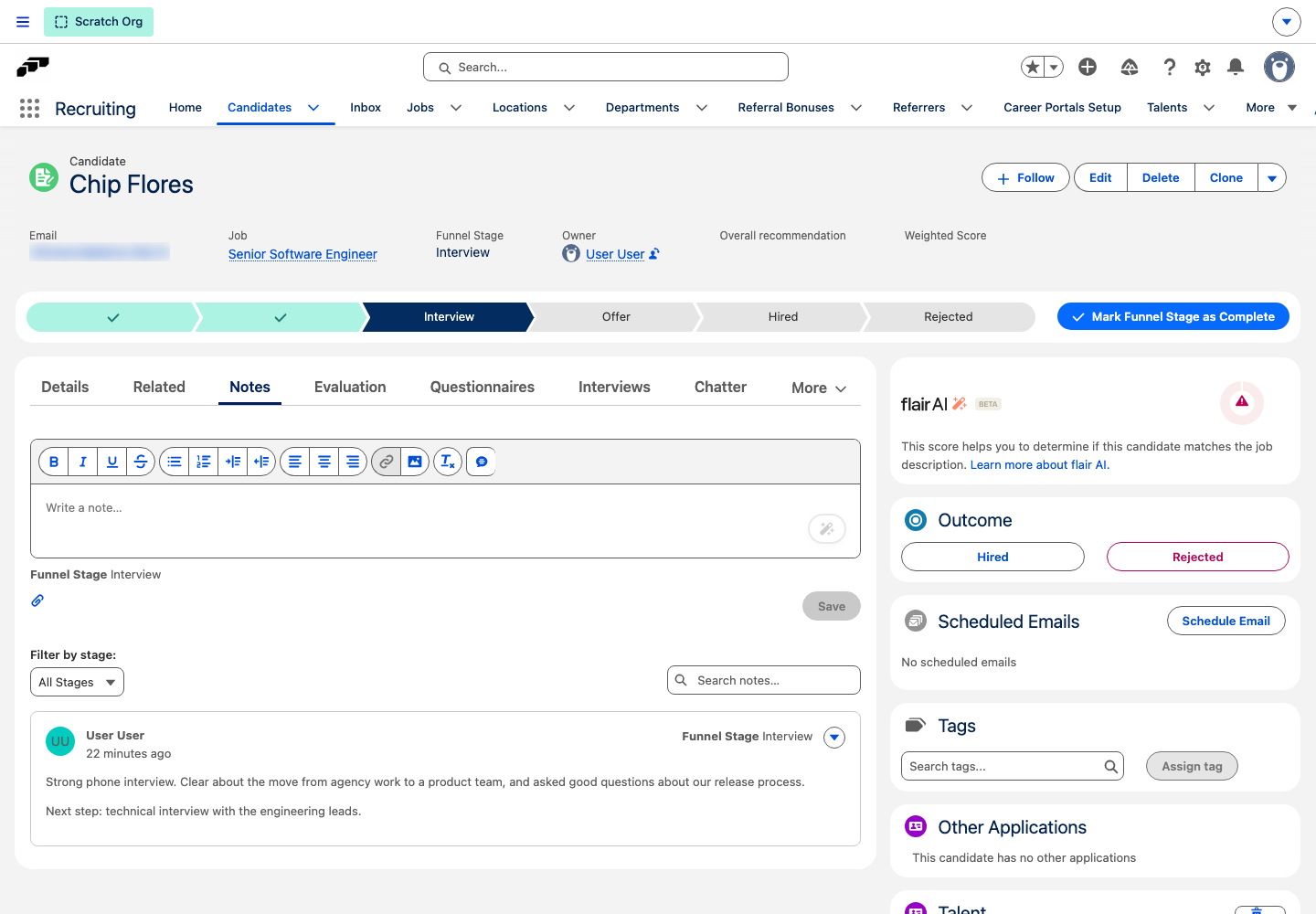
- Open the candidate record, then click the Notes tab.
- Click in Write a note and enter your note. flair saves a draft while you type. The draft isn't listed on the Notes tab until you save it, and the editor reopens it for you only.
- Optional: To attach files, click the paper clip icon. In Attach files to the note, upload the files under Attach files, then click OK.
- Click Save. The note appears in the list with your name, the time you saved it, and its Funnel Stage.
To find a note, select a stage in Filter by stage or search in Search notes. To change or remove a note, open the menu on the note, then click Edit or Delete.
Saved notes are shared with everyone in your organization who has access to candidate notes, not only with their author. The notes also appear on the linked talent record. Notes created by the flair AI meeting recorder are listed here too.
Use note templates
Note templates insert recurring text, such as an interview question list, into the note editor. Templates are shared with everyone in your organization who uses candidate notes.
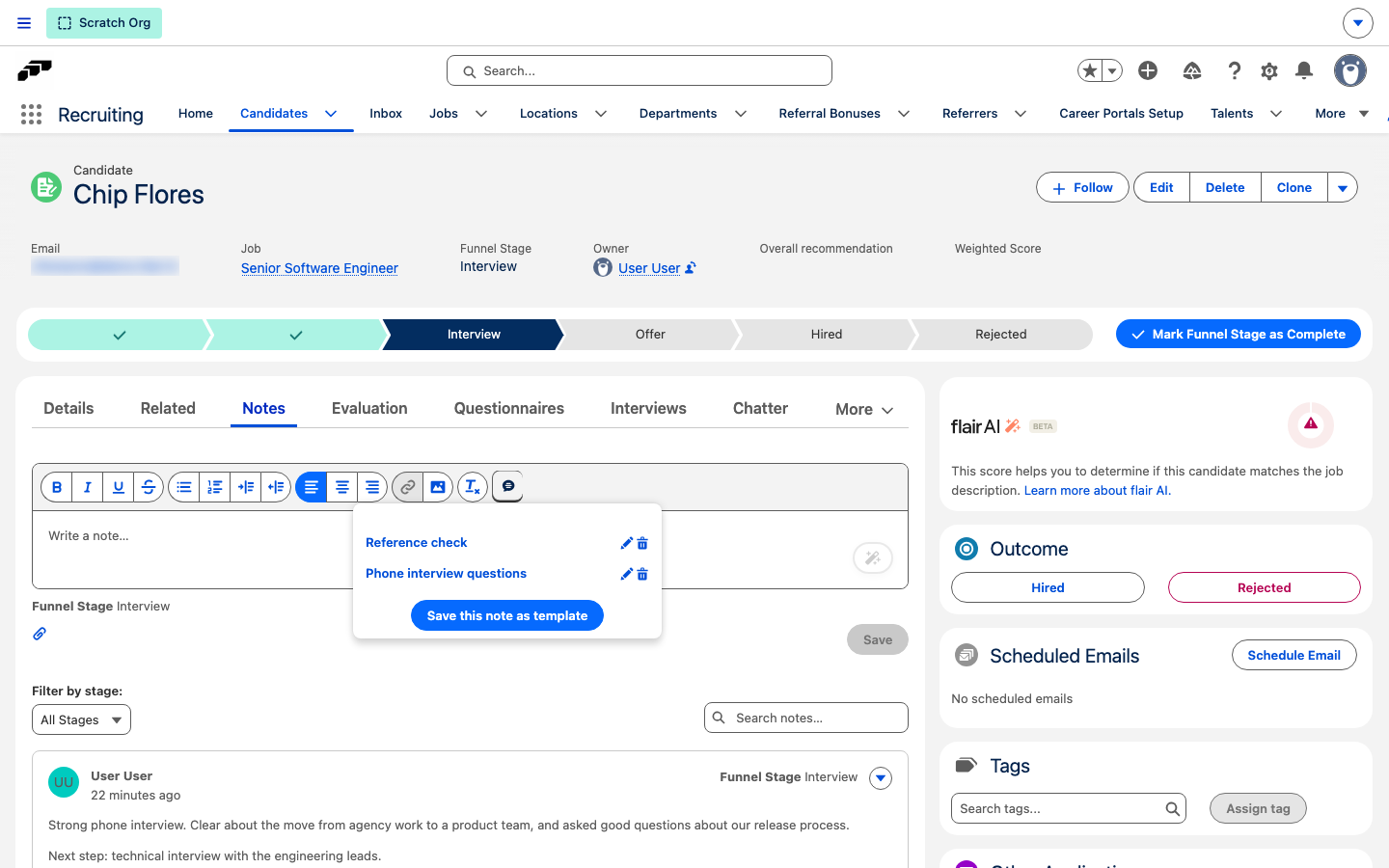
- On the Notes tab, click the templates icon in the editor toolbar. The list of templates opens.
- Click a template name. flair adds its text to your note.
To create a template from the note you are writing:
- Open the templates list, then click Save this note as template.
- In Manage Candidate Notes Templates, enter the Candidate Note Template Name.
- Optional: Adjust the Note text.
- Click Save. The template appears in the templates list.
To change or remove a template, click the pencil or trash icon next to it in the templates list. Users with the Flair Hiring Manager permission set can use templates but can't create, change, or delete them.
Hire or reject a candidate
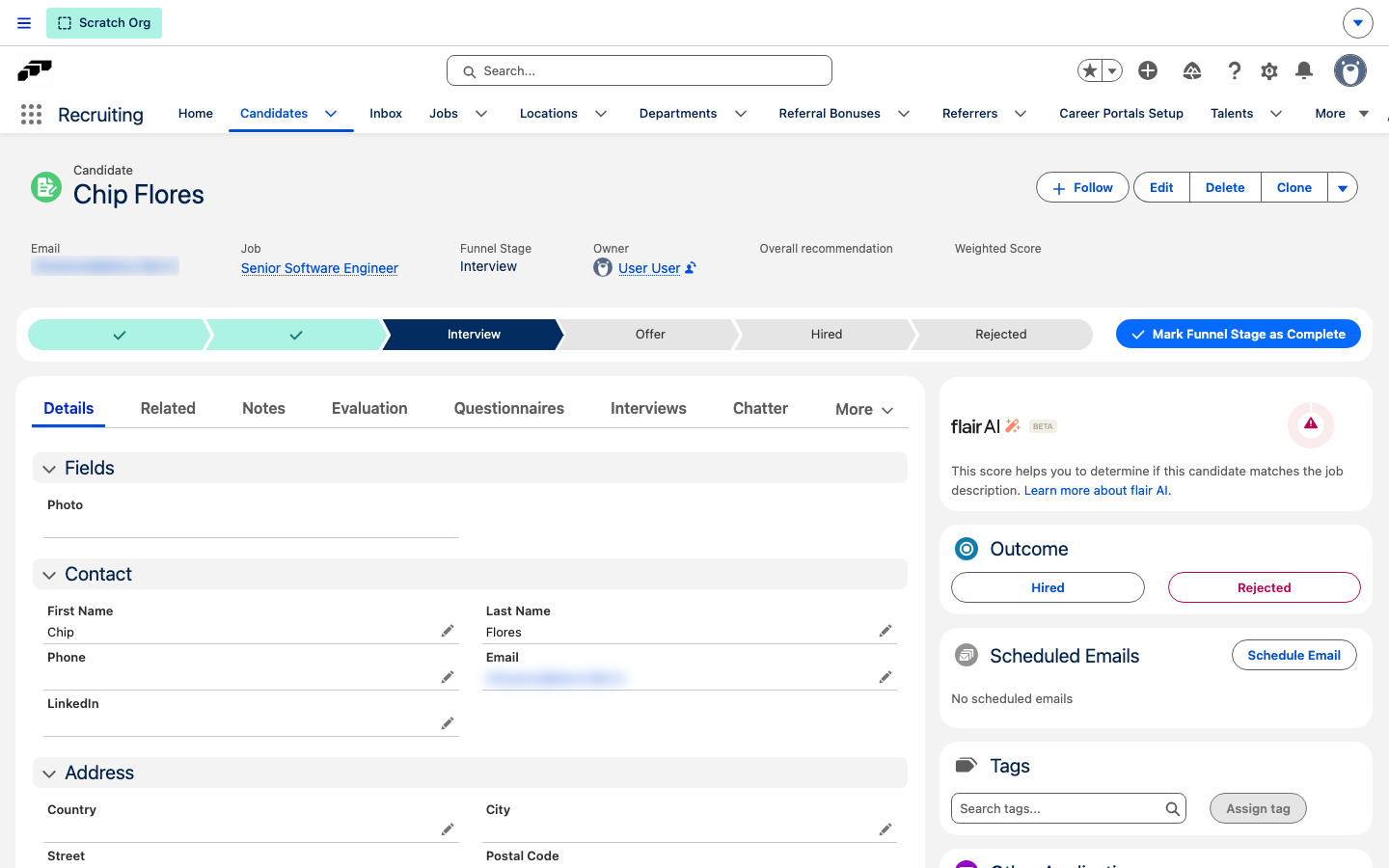
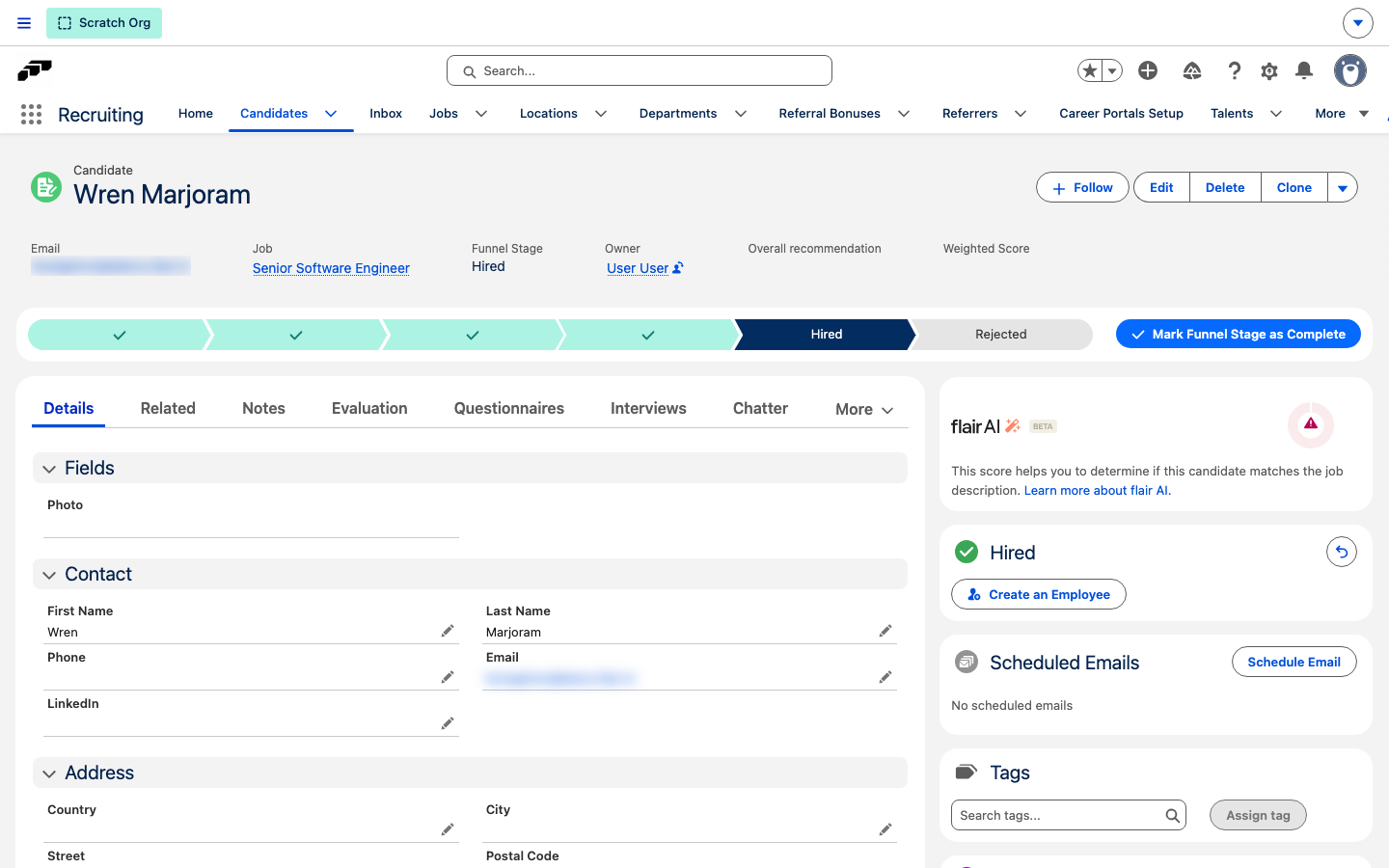
Record the final result of an application in the outcome card on the right side of the candidate record.
- Open the candidate record.
- In the Outcome card, click Hired or Rejected. The card title changes to the outcome you selected.
When you set the outcome, flair also moves the candidate to the Hired or Rejected funnel stage. It works the other way around too: moving a candidate to one of these stages sets the outcome. When a candidate is rejected, flair keeps the stage they were in before in Funnel Stage Before Rejection.
flair doesn't email the candidate when you set the outcome. To inform the candidate, send an email from a template.
If you set the outcome in the card, the card header shows an Undo icon. Click it to reverse the outcome. flair clears the outcome, but the candidate stays in the Hired or Rejected stage until you move them to another stage.
Record a rejection reason
- After you click Rejected, select a reason in Rejection Reason in the card, for example Salary expectation too high. flair saves the reason immediately and confirms with Rejection Reason was updated.
Create an employee from a hired candidate
After you hire a candidate, the card offers Create an Employee if you have permission to create employee records and the candidate is not yet linked to an employee.
- In the Hired card, click Create an Employee. The New Employee form opens with the candidate's first name, last name, email address, and phone number. flair also fills in the department and location from the candidate's job.
- Complete the remaining steps as when you create an employee.
- If the candidate has notes, documents, certificates, or skills, choose which of them to copy over to the employee record.
- Finish the form. flair links the new employee to the candidate, and the Hired card shows the employee's name, start date, position, and location.
Update candidate records in bulk
- In Candidates, select Table View.
- Select the candidates you want to update. You can select candidates from different stages.
- Open the mass edit action.
- Update the available fields, such as Stage or Rejection Reason.
- Click Save. flair applies the changes to all selected records at the same time.
Bulk updates do not require individual emails.
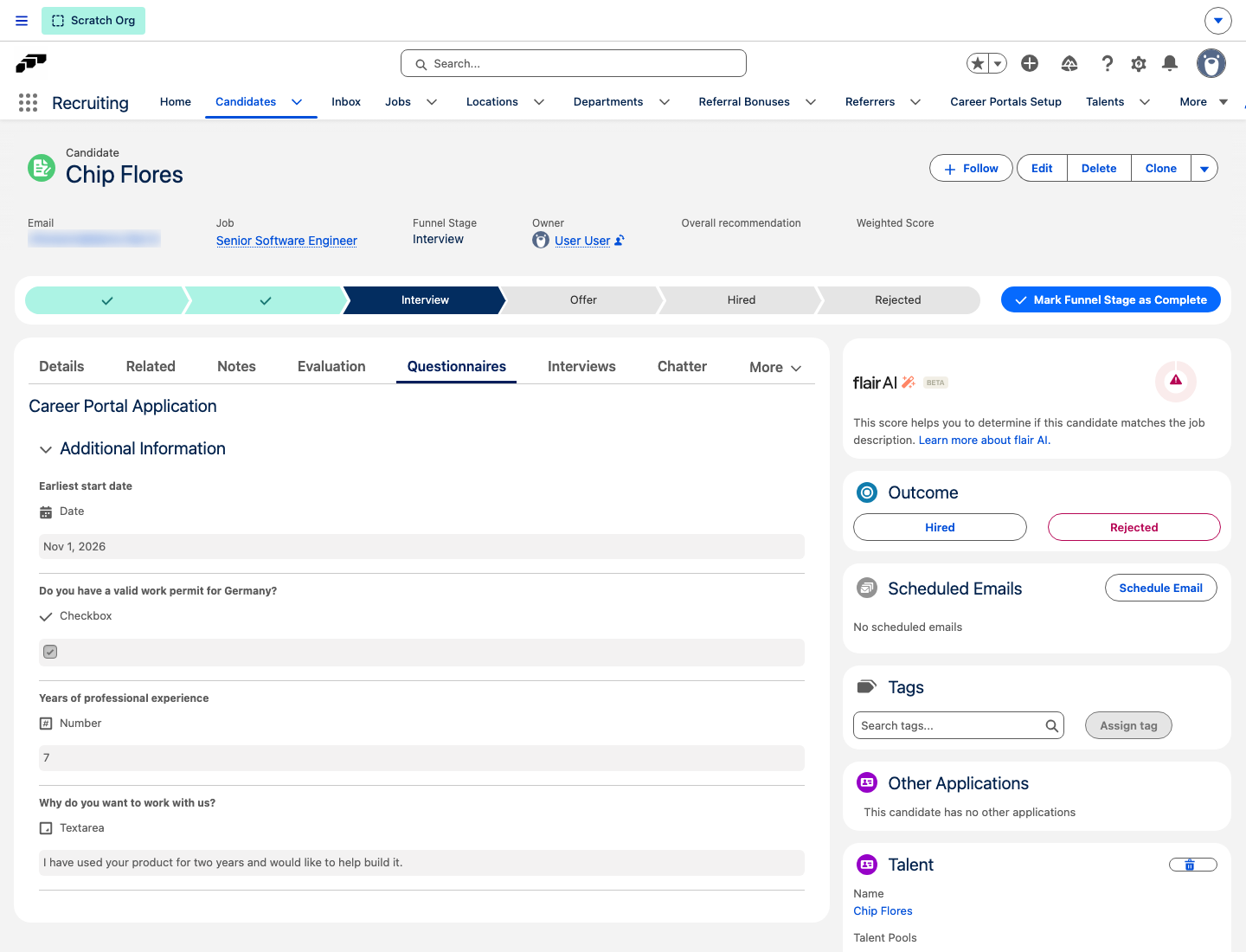
Find candidate questionnaire data
- On the candidate record, open Questionnaires to view data from fields that are not stored as Salesforce fields.
Disable automatic candidate anonymization
When anonymization is enabled, a scheduled job anonymizes candidates after six months unless they opt in to data retention.
- In Salesforce Setup, open Custom Settings.
- Open Candidate Setting.
- Click Manage.
- Click Edit.
- Select Disable Anonymization.
- Click Save. Scheduled anonymization no longer runs, but you can still trigger anonymization manually.
Match candidates to reference skills
Define job skill requirements
- In the flair Recruiting app, open Jobs.
- Open the job record, then select Skills.
- Add the required skills for the position.
Review a candidate's skill match
On the candidate record, the skill match uses these groups:
| Group | What it shows |
|---|---|
| Matching Skills | Candidate skills that match the job requirements. |
| Missing Skills | Required job skills that the candidate does not have. |
| Other Skills | Candidate skills that are not listed as job requirements. |
You can also add skills directly to the candidate record.
Add custom columns to the candidate table
- In Salesforce Setup, enter
Custom Metadata Typesin Quick Find. - Open the metadata type for candidate table columns.
- Click Manage Records, then click New.
- Enter the field API name, such as
flair__LinkedIn__c. - Set the position to control the column order.
- Click Save. The column appears in the candidates table.
Enrich a record from LinkedIn
LinkedIn enrichment can add experiences, education, links, basic information, and a photo to Talent, Candidate, and Employee records.
- On the record, click Enrich Data.
- If the record has no profile URL, enter one in LinkedIn URL, then click Enrich. flair rejects URLs that are not LinkedIn profiles.
- Wait while the record shows Enriching.... Processing can take up to one minute and continues in the background.
- When Enrichment data is ready for review. appears, open Review Enrichment Data.
- For Experiences, Educations, Links, Basic Info, and Photo, select Replace with enriched data or Keep existing. Each group shows the new and existing entry counts.
- Click Apply Selected. flair writes only the selected groups to the record.
Groups without incoming information show No new data available. If enrichment fails, click Restart enrichment to run it again.

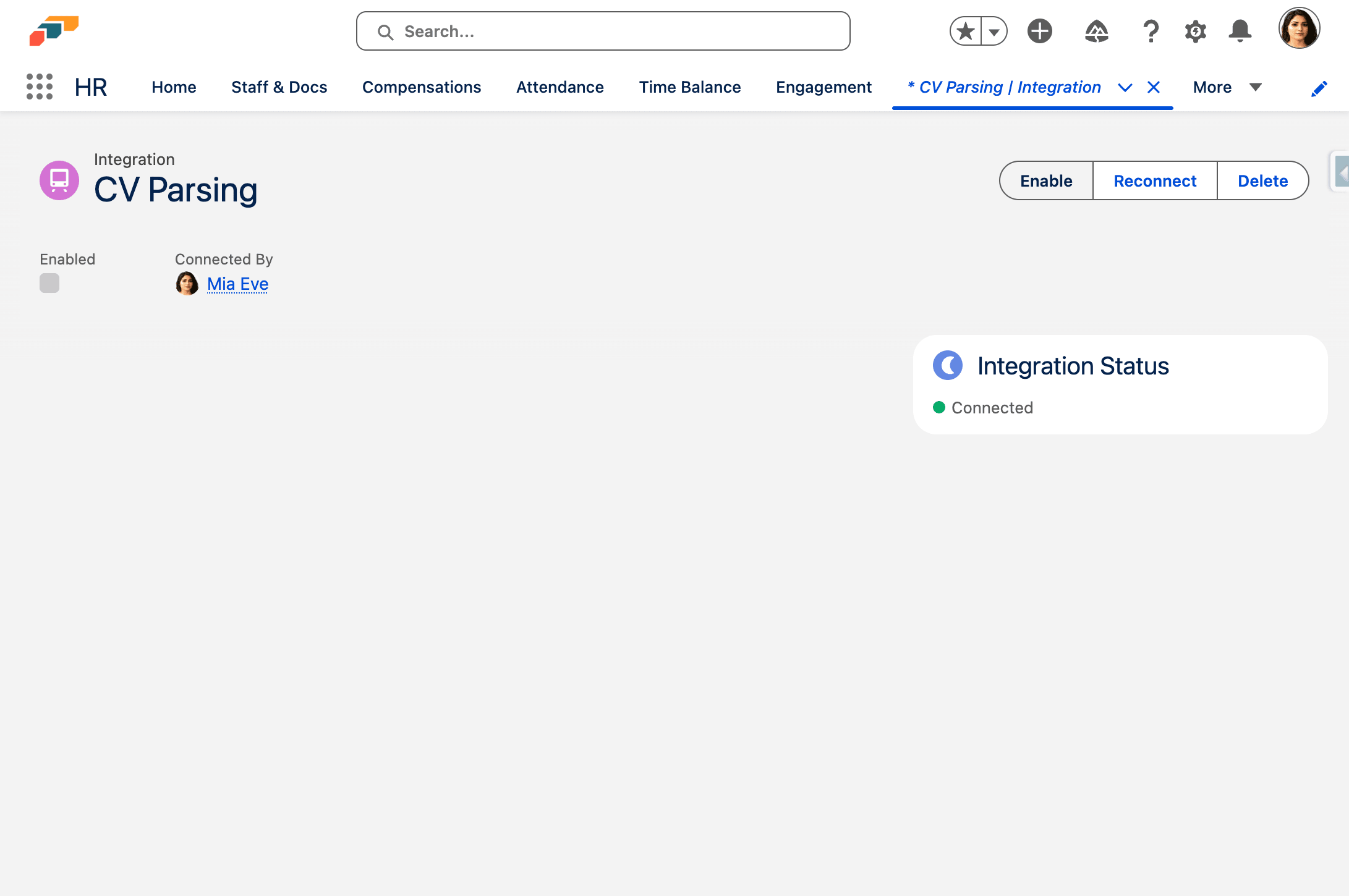
Enable CV Parsing
- In the flair HR app navigation bar, open More… → HR Admin.
- Open Integrations → CV Parsing.
- Click Connect via Integration Service.
- Click Enable. You can now parse CVs on candidate records and jobs.
Parse a CV on a candidate record
- From the App Launcher (⋮⋮ grid icon), open Recruiting → Candidates.
- Click New.
- Enter First Name and Last Name, then click Save.
- In Files, click Add.
- Upload the CV, then click Done.
- In File Type, select CV.
- Click Save. The Files card shows the text-parsing status.
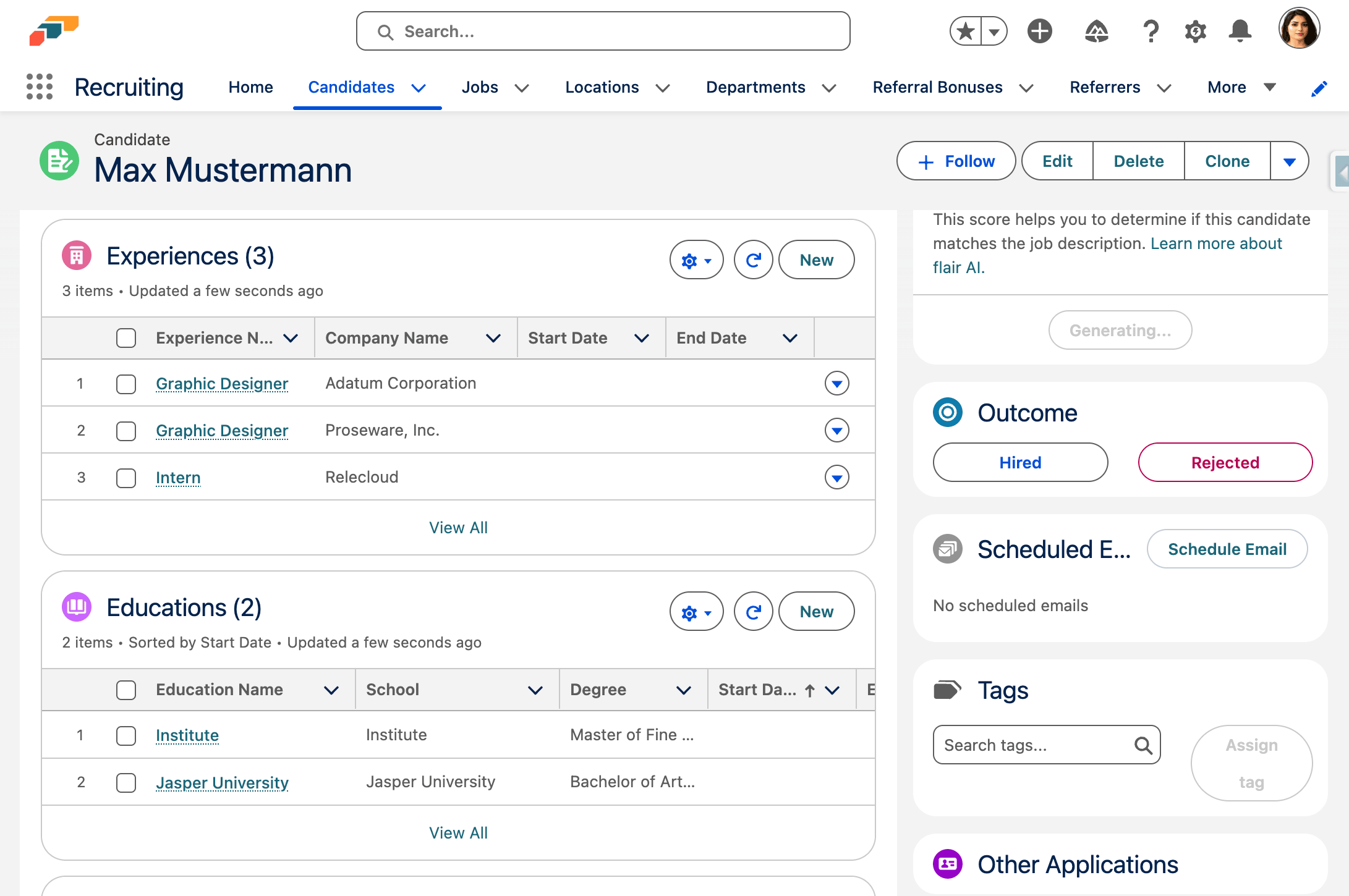
- When parsing is complete, open Related. The candidate's experiences, education history, certificates, and skills appear there.
CV Parsing does not support Other as the file type.
Create candidates from CVs
CV Parsing uses Mistral AI and proprietary algorithms to create candidate records from uploaded CVs.
Upload one CV
- In the flair Recruiting app, open Jobs.
- Select the job for the new candidate.
- Next to New Candidate, open Show menu.
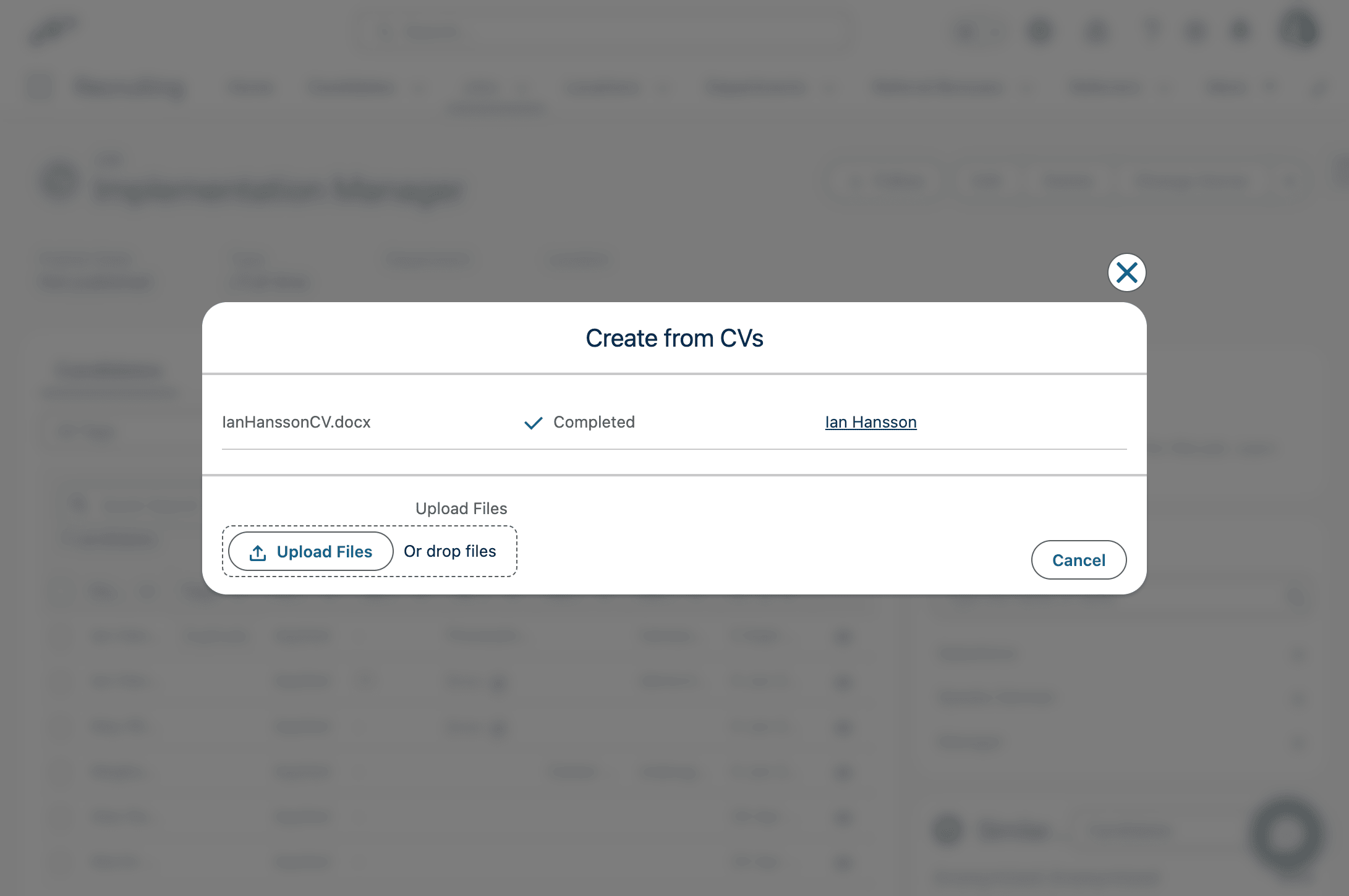
- Click Create from CVs.
- Select a CV, then click Done.
- When processing finishes, open the new candidate.
- Open Related to review the parsed experiences, education history, certificates, and skills.
Upload several CVs
- In the flair Recruiting app, open Jobs.
- Select the job for the new candidates.
- Next to New Candidate, open Show menu.
- Click Create from CVs.
- Select up to 10 CVs, then click Done. Salesforce processes each file separately and creates the candidate records.
- Open each new candidate's Related tab to review basic information, experiences, education history, and technical and soft skills.
The 10-document limit comes from Salesforce.
Tag candidates
Use tags to label candidates so you can find and filter them later. You can assign only active tags that your admin has enabled for recruiting. To create tags, see Configure candidates in flair Recruiting.
Tag a single candidate
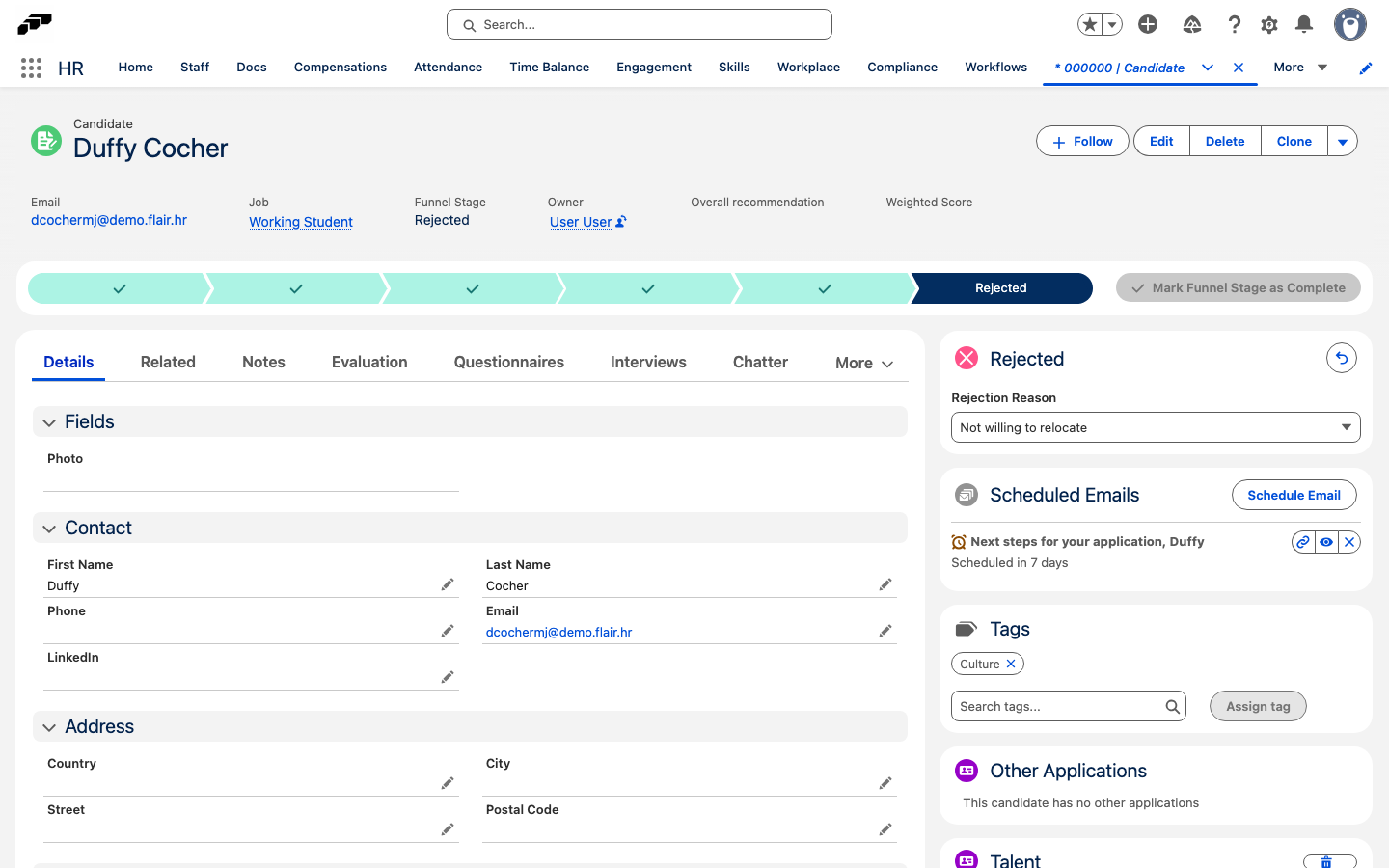
- Open the candidate record.
- In the Tags card, search for a tag in Search tags... and select it.
- Click Assign tag. The tag appears in the card.
To remove a tag, click the × on its pill in the Tags card.
Tag several candidates on a job
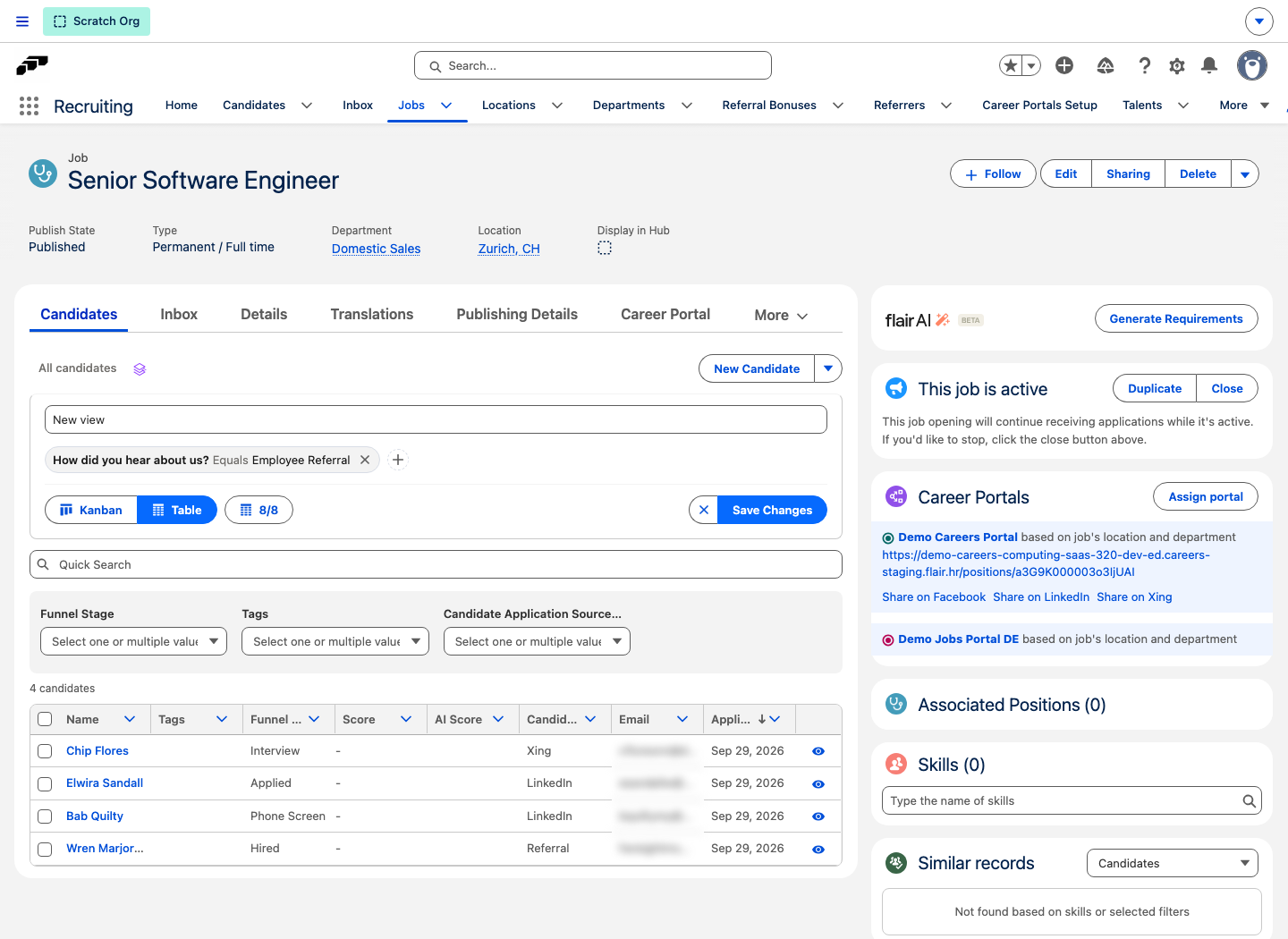
- In the flair Recruiting app, open Jobs, then open the job.
- In the candidate table, select the candidates you want to tag.
- Next to New Candidate, open Show menu.
- Click Assign tags.
- Search for a tag and select it. Repeat for each tag you want to add.
- Click Assign tags. flair adds the tags to every selected candidate that doesn't already have them.
To remove tags from several candidates, select the candidates, open Show menu, then click Unassign tags. Select the tags to remove, then click Unassign tags.
The job's candidate table shows a candidate's tags in the Tags column. To show only candidates with specific tags, use the Tags filter.
Filter the candidates list
Filter the Candidates list to narrow it to specific candidates. Filters apply in Table View, Kanban View, and Split View.
- In the Candidates list, use the Funnel Stage, Tags, or Candidate Application Source Name dropdown to filter by that field. Select one or more values.
- To filter by another candidate detail, click the Save View icon next to the view name to open the view configuration, then click the Add filter icon (+).
- In Select field, search for or choose a field.
- In Select operation, choose a condition, then enter a value in Enter value. flair adjusts the value input to the field's type, such as a date picker for a date field or a list of options for a picklist field.
- Click Add filter to confirm. flair adds the filter as a pill above the list and narrows the candidates to those that match every active filter.
To remove a filter, select the × on its pill. To change a filter, select the pill, update the field, condition, or value, then confirm.
The field list includes a candidate's standard details, custom fields you've added to the candidates table, and other fields on the candidate record, including fields on directly related records such as the job. It excludes a small set of system fields, such as the record ID and last-modified date. Configure flair table columns controls which custom fields appear as candidate table columns.
Your filters apply to the current job only and are saved on your computer, so they carry over the next time you open the same job in this browser.
Add a candidate to a talent pool
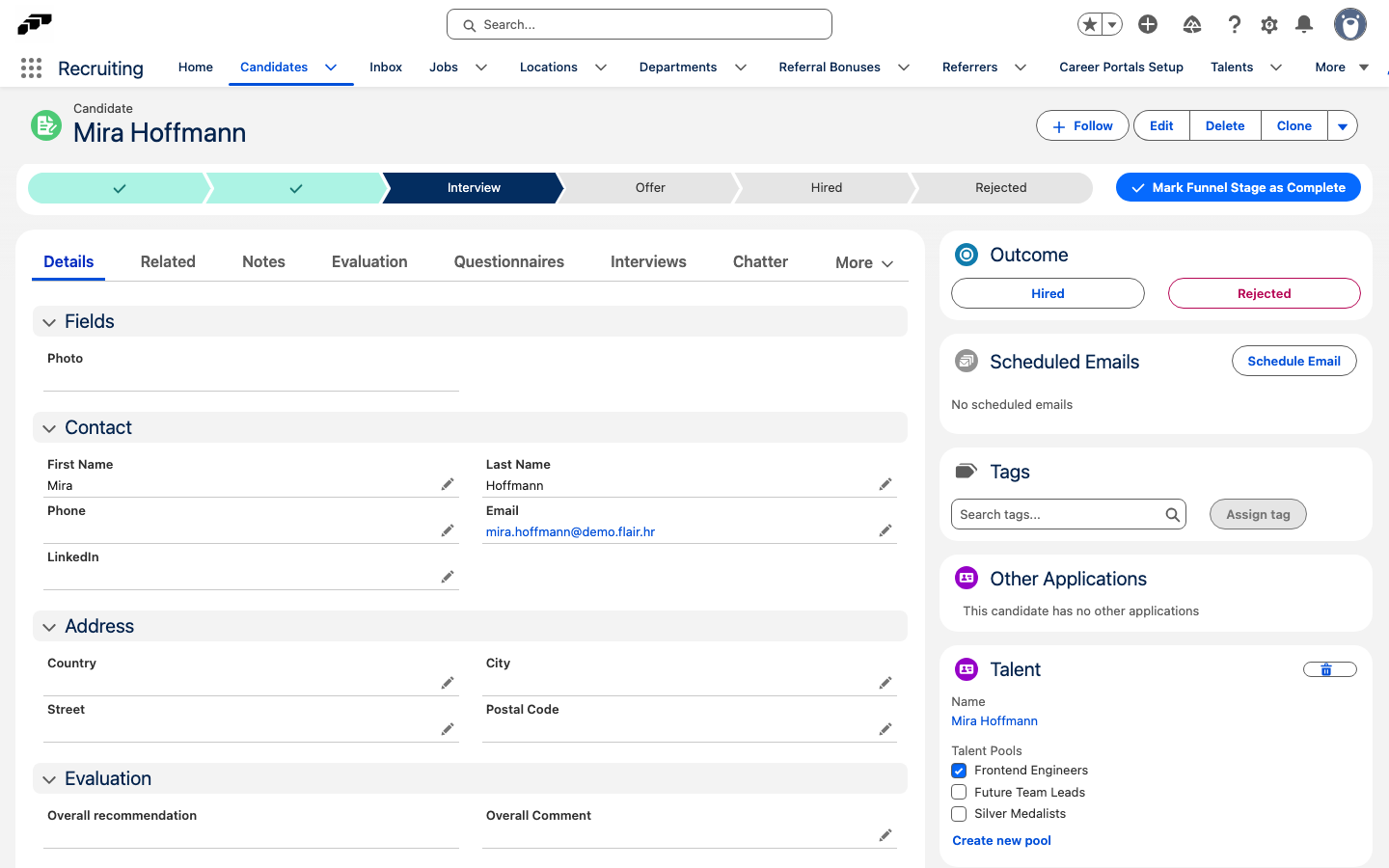
- In the flair Recruiting app, open the candidate record.
- In the Talent card, click Add to Talent Pool. flair creates a Talent record and copies the candidate's matching details, skills, certificates, and recruiting files.
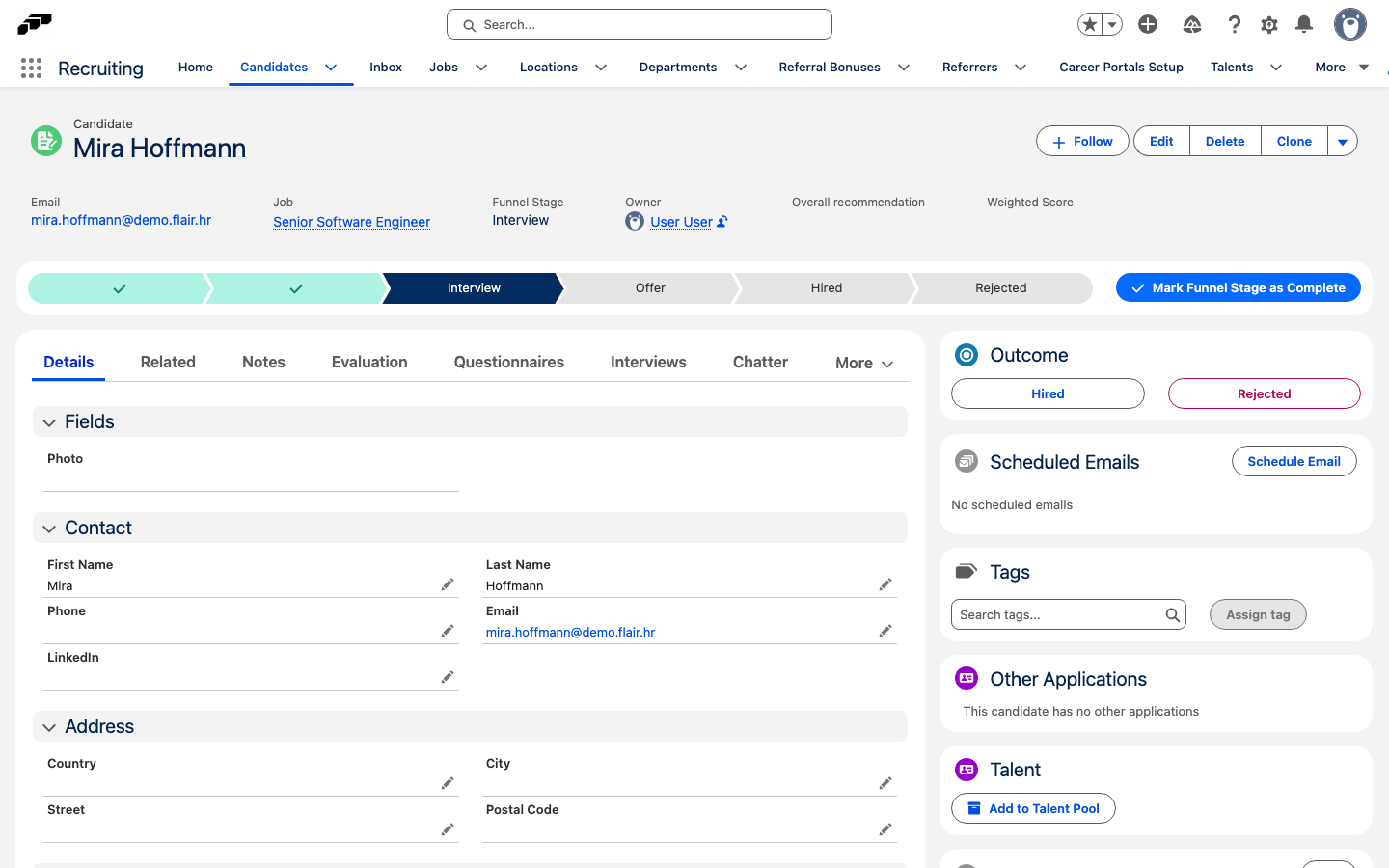
- In Talent Pools, select the checkbox for each pool that should include the talent. The membership is saved immediately.
- Optional: To create a pool while adding the talent, click Create new pool.
- In the Create Talent Pool modal, enter the pool name, then click Save. flair creates the pool and adds the talent to it.
Update a talent's pool memberships
You can change a talent's pools from the linked candidate record or from the talent record.
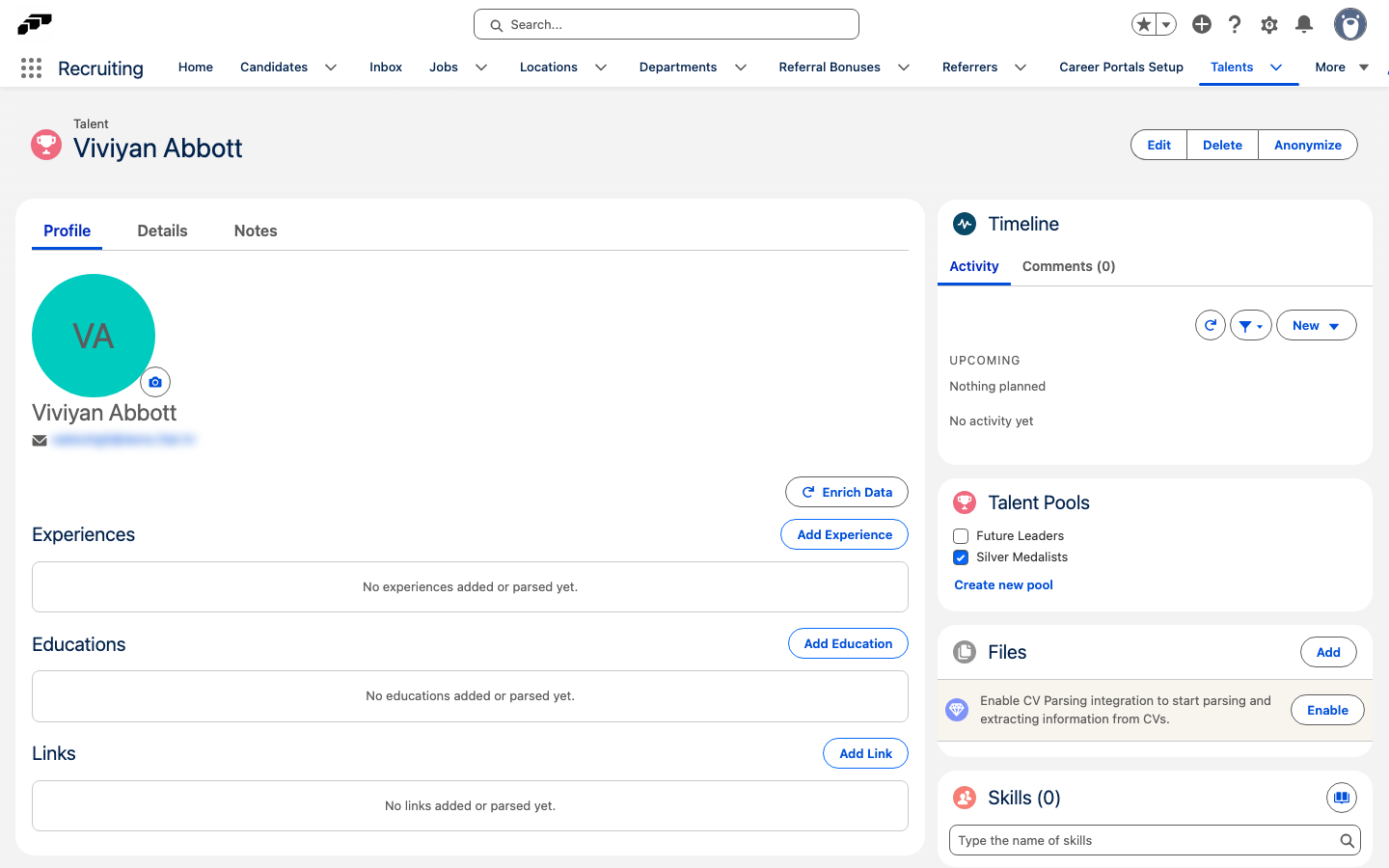
- Open the candidate record that is linked to the talent, or open the talent record.
- In the Talent card on the candidate record, or the Talent Pools card on the talent record, select a checked pool to remove the talent from it, or select an unchecked pool to add the talent. flair saves each change immediately.
- Optional: To create a pool, click Create new pool. In the Create Talent Pool modal, enter the pool name, then click Save. flair creates the pool and adds the talent to it.
- To review the talent's details from a candidate record, click the talent's name in the Talent card. The talent record includes its skills, recruiting files, and the Talent Pools card.
Review talent pool members
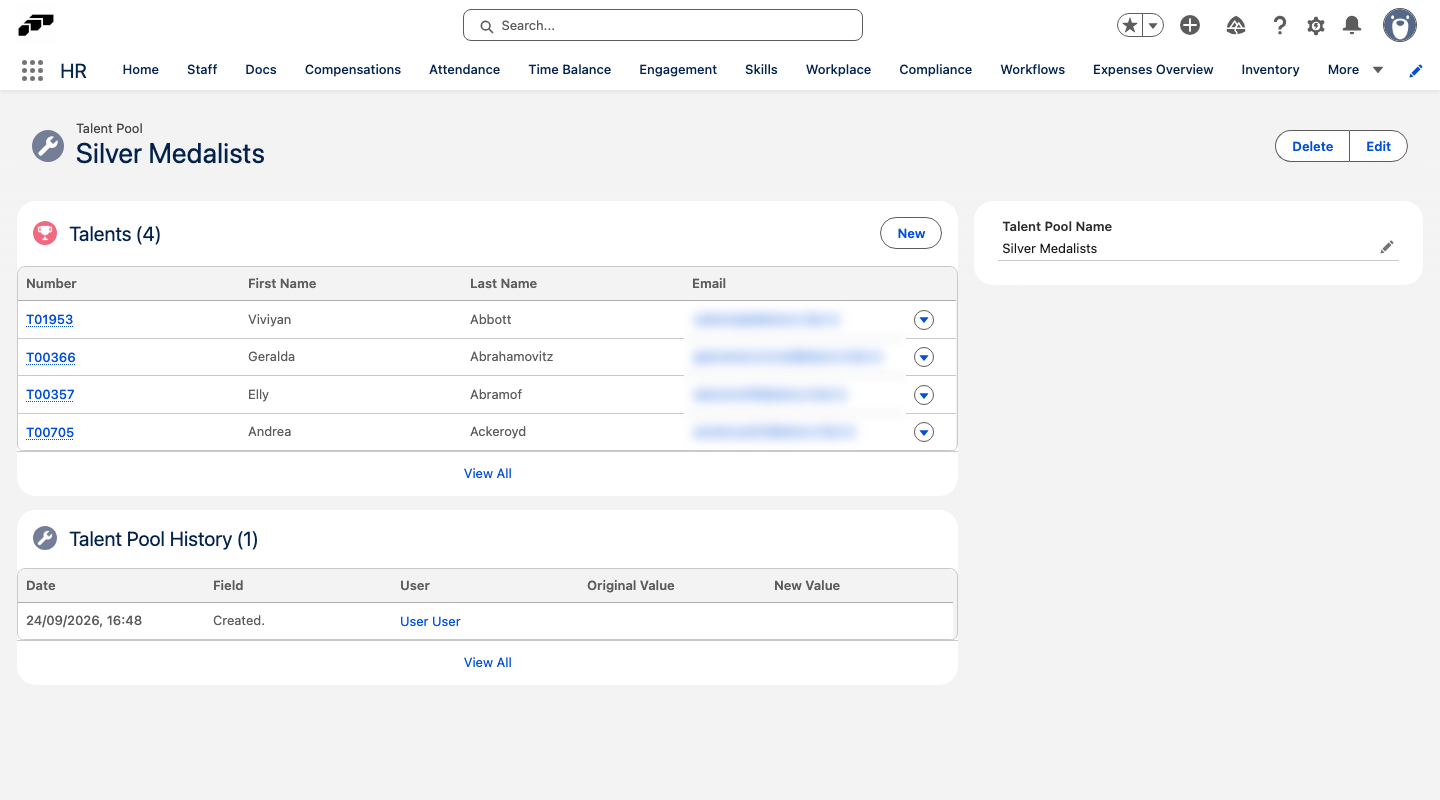
Open a Talent Pool record to review the talents associated with that pool. The record page displays the associated talent records in a related list.
Adding a candidate to a talent pool creates a linked Talent record. The candidate remains available in Recruiting, and candidates with the same email address are linked to the same talent when flair connects them.
Review the Time between Stages report
The Time between Stages report shows the average number of days candidates take to move between funnel stages, so you can find where your hiring process slows down. HR and executives open it among the Recruiting reports in Salesforce; hiring managers open it in the Employee Hub.
- Open the Time between Stages report from the Recruiting reports.
- Set From Stage and To Stage to the two funnel stages you want to compare. The report shows the average days candidates took to move between them.
- Optional: Narrow the results with the Job, Department, and Location filters.
- Read the bar chart to compare the average time across stages.
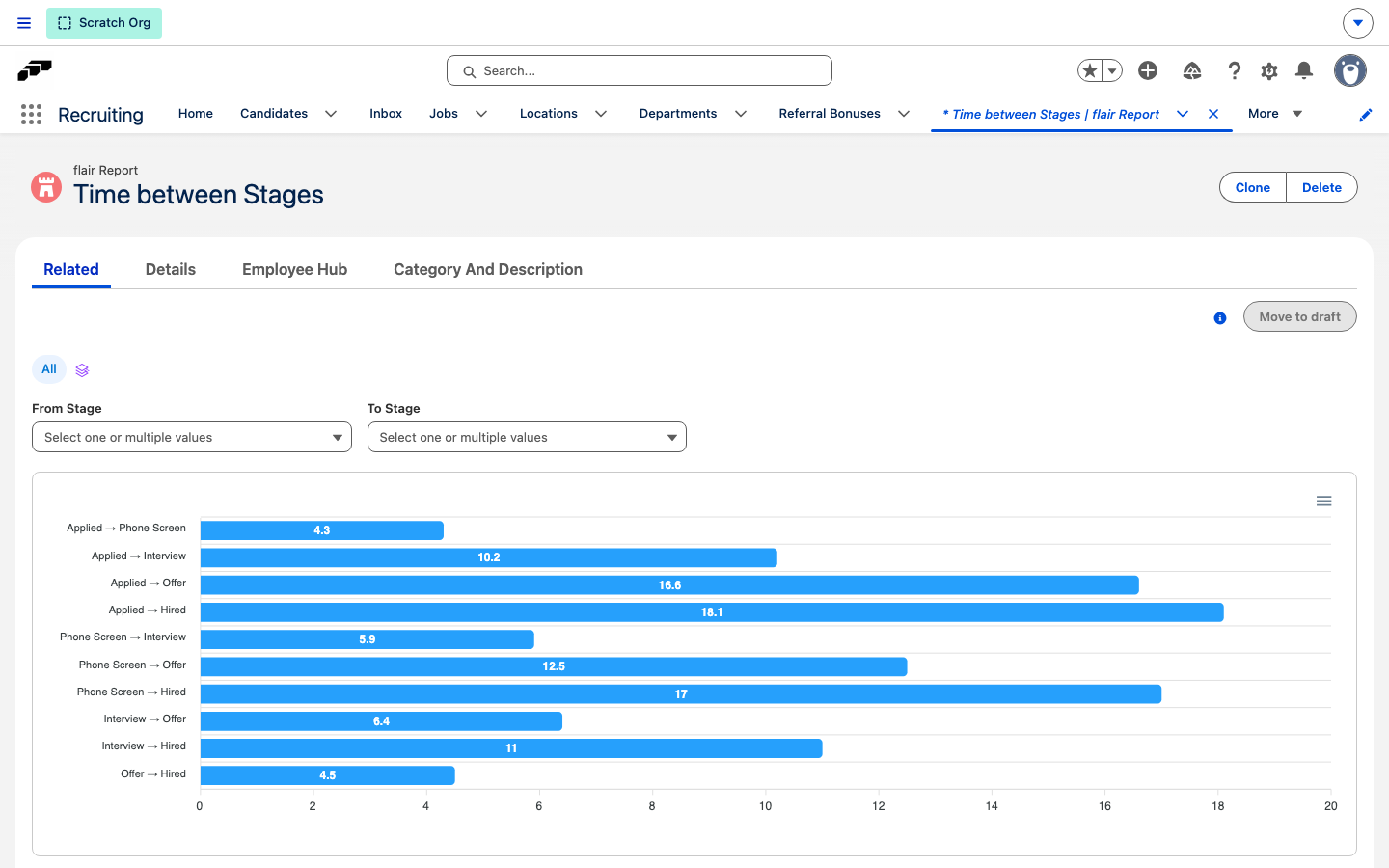
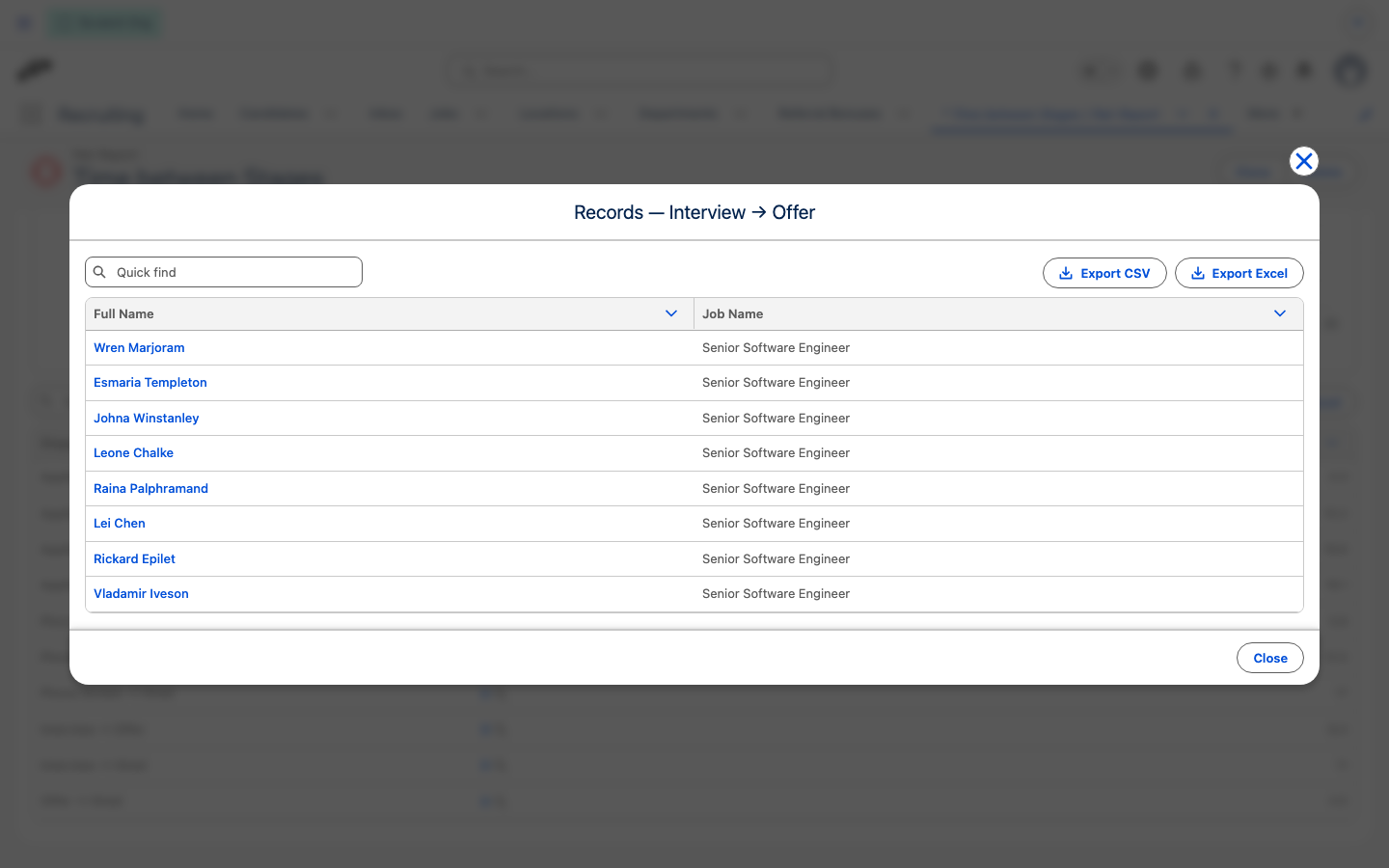
To see who an average is based on, click the number in the Candidates column of the table below the chart. The Records window lists the underlying candidates with their Full Name and Job Name so you can review individual cases.