Create and run Performance Reviews
Create a Performance Review or self-assessment, add its questions and participants, and publish it to the Employee Hub. This guide also covers peer feedback, meetings, question changes, and exports.
HR Admins create and publish Performance Reviews in Salesforce. Employees and Managers complete reviews in the Employee Hub. AI creation requires AI to be enabled for your organization.
Create a Performance Review
Start a review manually
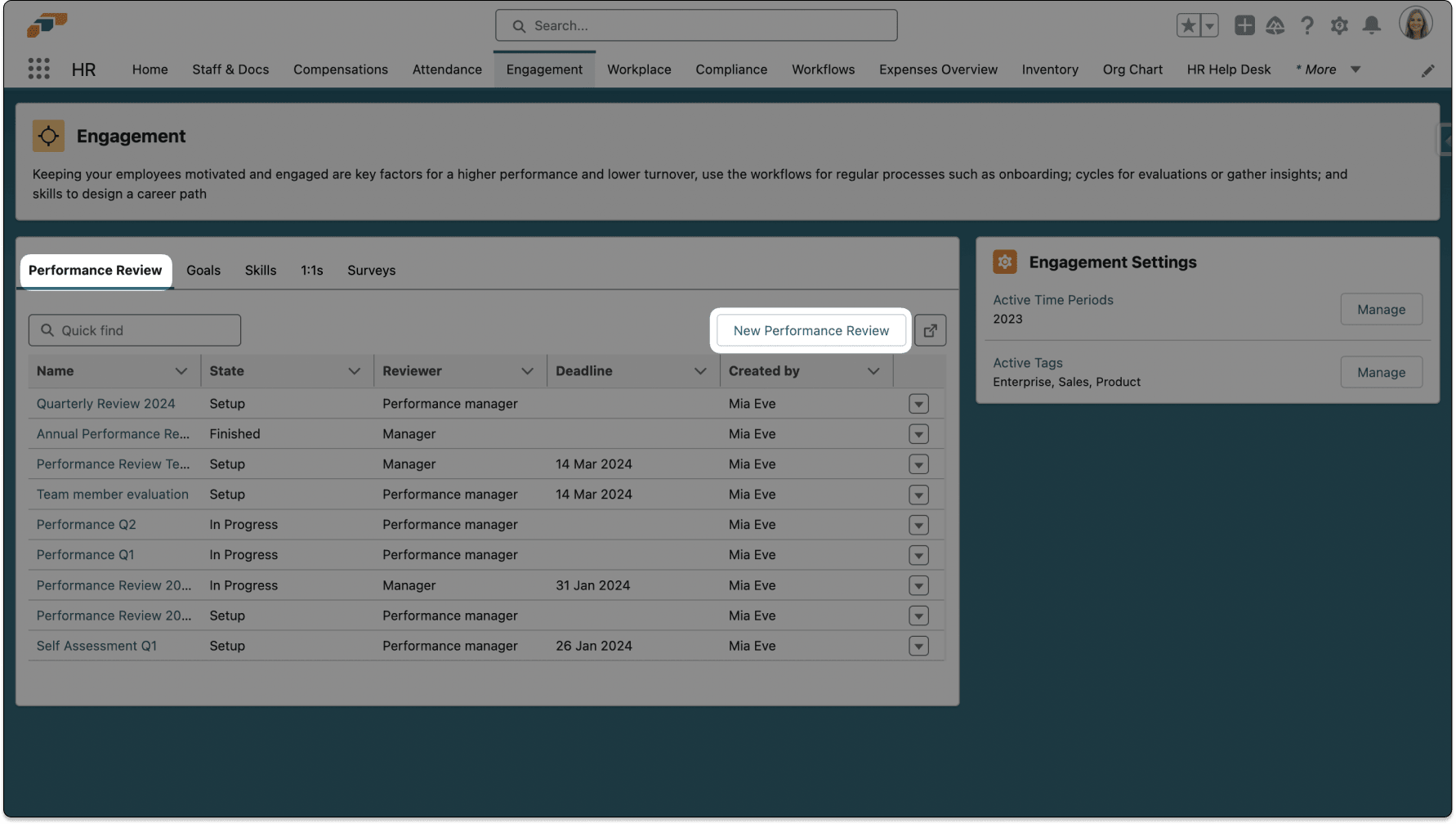
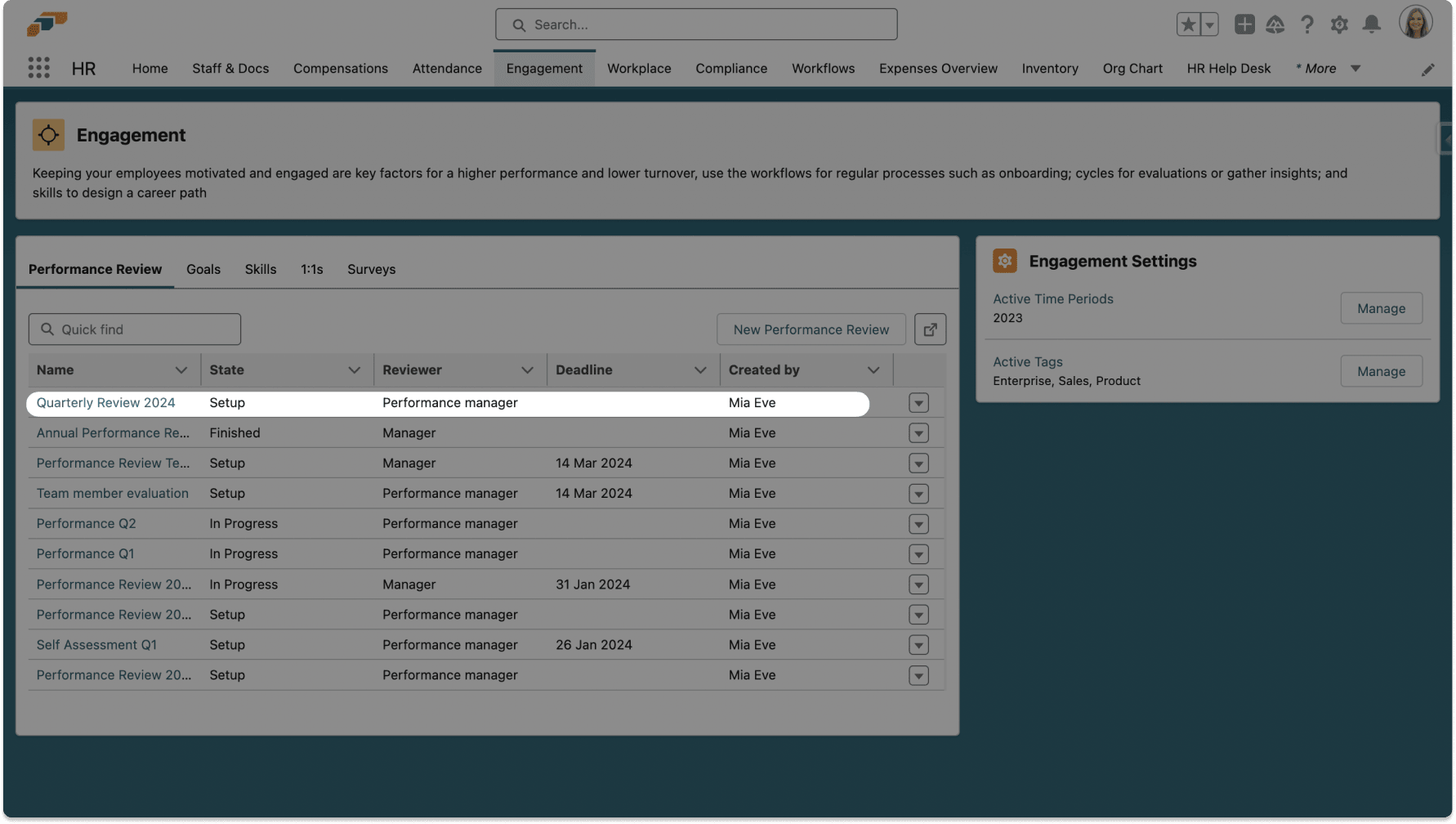
- In flair HR, open Engagement → Performance Review.
- Click New Performance Review. The review setup opens.
Start a review with AI
When you use Create with AI, flair sends the review language, department, and requested size to Anthropic's Claude 3 Haiku model through the OpenRouter API to generate the questions. No employee data or review answers are sent.
-
In flair HR, go to Engagement → Performance Reviews.
-
Click Create with AI.
-
Configure the generation fields:
Field What to enter Team Type The relevant team, such as Operations Team.Language The language for the review. Department The department, such as Operations.Size The required review length. -
Click Generate. flair creates review content from the selected parameters.
-
Edit the generated sections, delete individual sections, or click Discard to start again.
-
Click Save to keep the generated content.
Configure the review
-
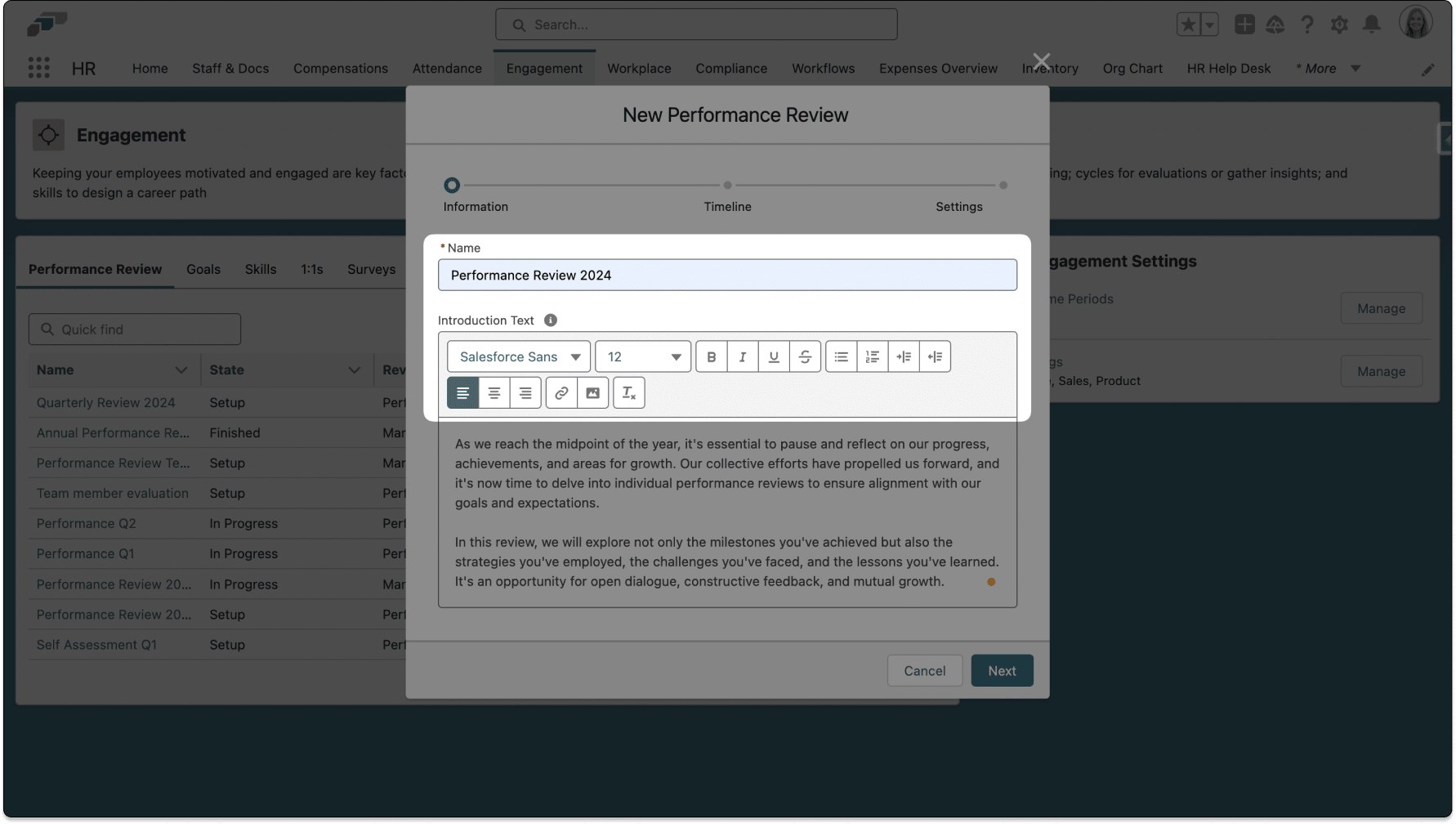
Enter a Name and optional Introduction Text.
-
Click Next.
-
Under Timeline, select a review order:
Timeline What happens Simultaneous Employee and Manager complete their reviews at the same time. The Manager sees Employee answers after both submit. Sequential The Employee submits first, and then the Manager completes the review. -
Enter the Employee and Manager deadlines.
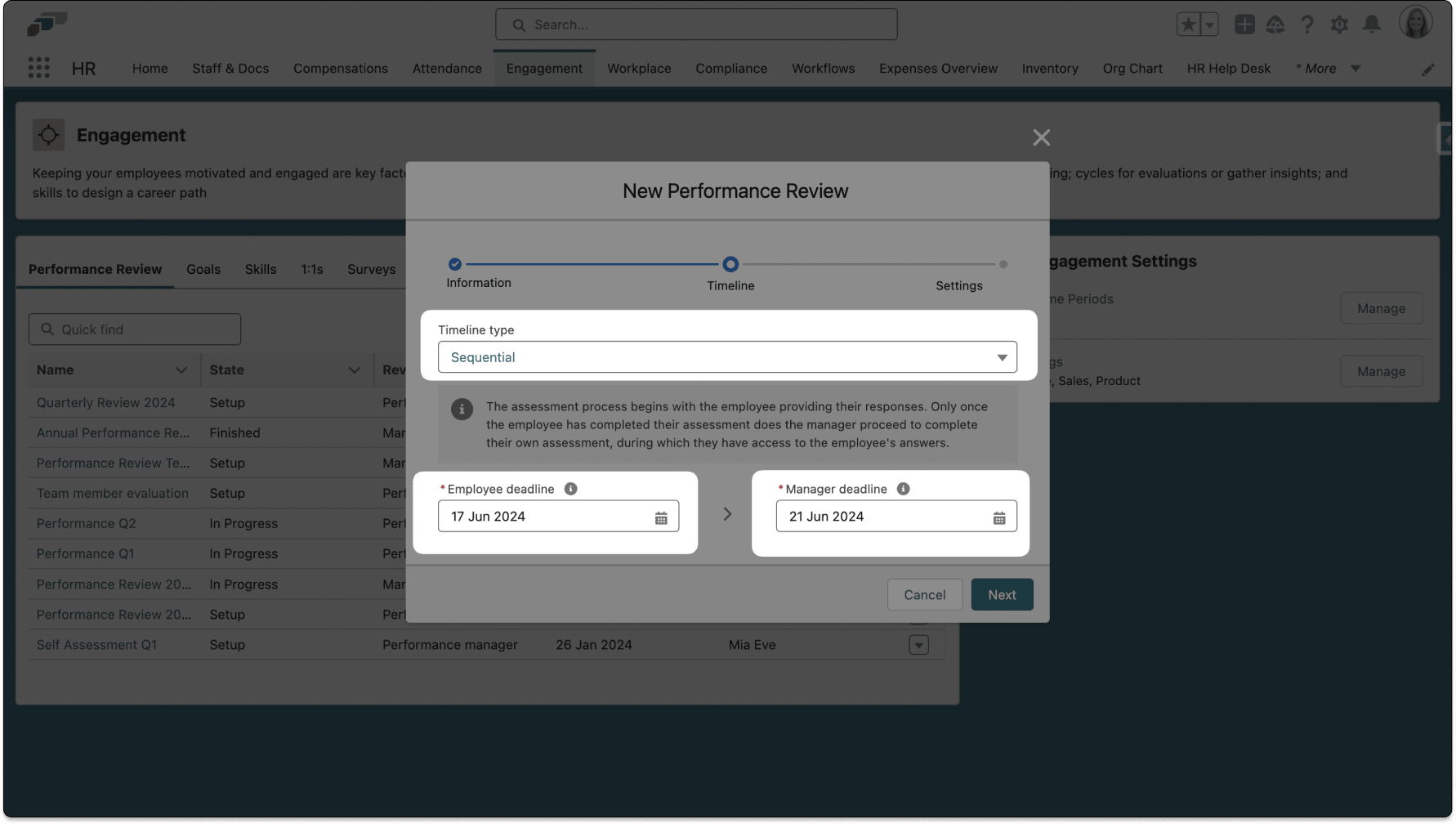
For a Sequential review, set the Manager deadline after the Employee deadline.
-
Configure the review settings:
Setting What it does Self-Assessment Makes the evaluation a self-assessment. Peer Reviewers Adds anonymous colleague feedback. It is available only for a Sequential review. Show employee self-assessment to peer reviewers Shows each peer reviewer the Employee's self-assessment once the Employee submits it. Appears only when Peer Reviewers is enabled. Off by default. Show manager review to peer reviewers Shows each peer reviewer the Manager's review once the Manager submits it. Appears only when Peer Reviewers is enabled. Off by default. Required question visibility Allows Managers to see answers only for required questions. Goals management Allows Employees and Managers to create, track, and update Goals. Mandatory meeting Requires the Manager and Employee to schedule a review meeting. Signature Requires Employee and Manager signatures before completion. Employee satisfaction survey Sends confidential review-process feedback to HR without Manager visibility. 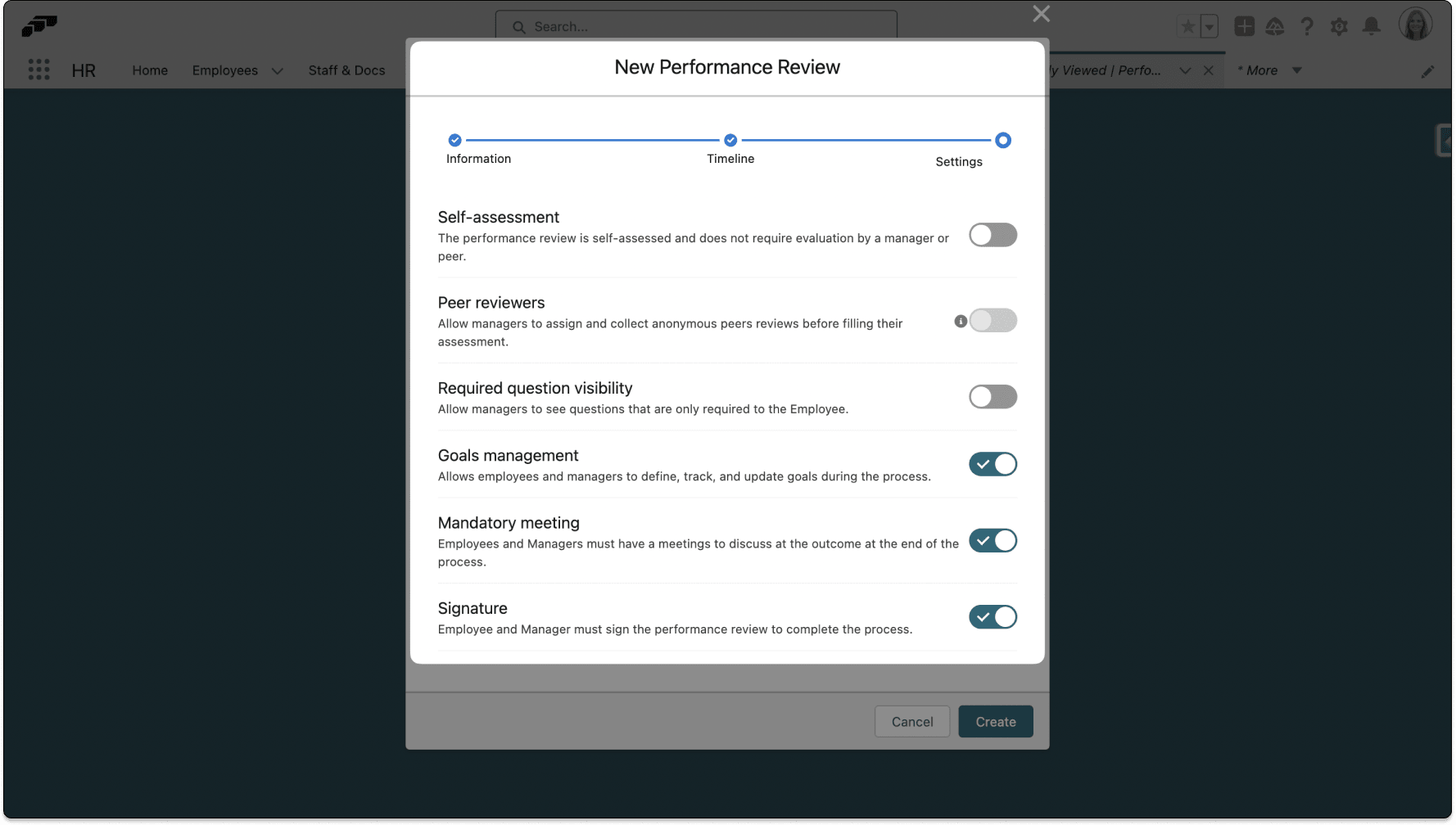
-
Click Create. The Performance Review remains in Setup.
Add sections and questions
-
In flair HR, open the Performance Review from Engagement.
-
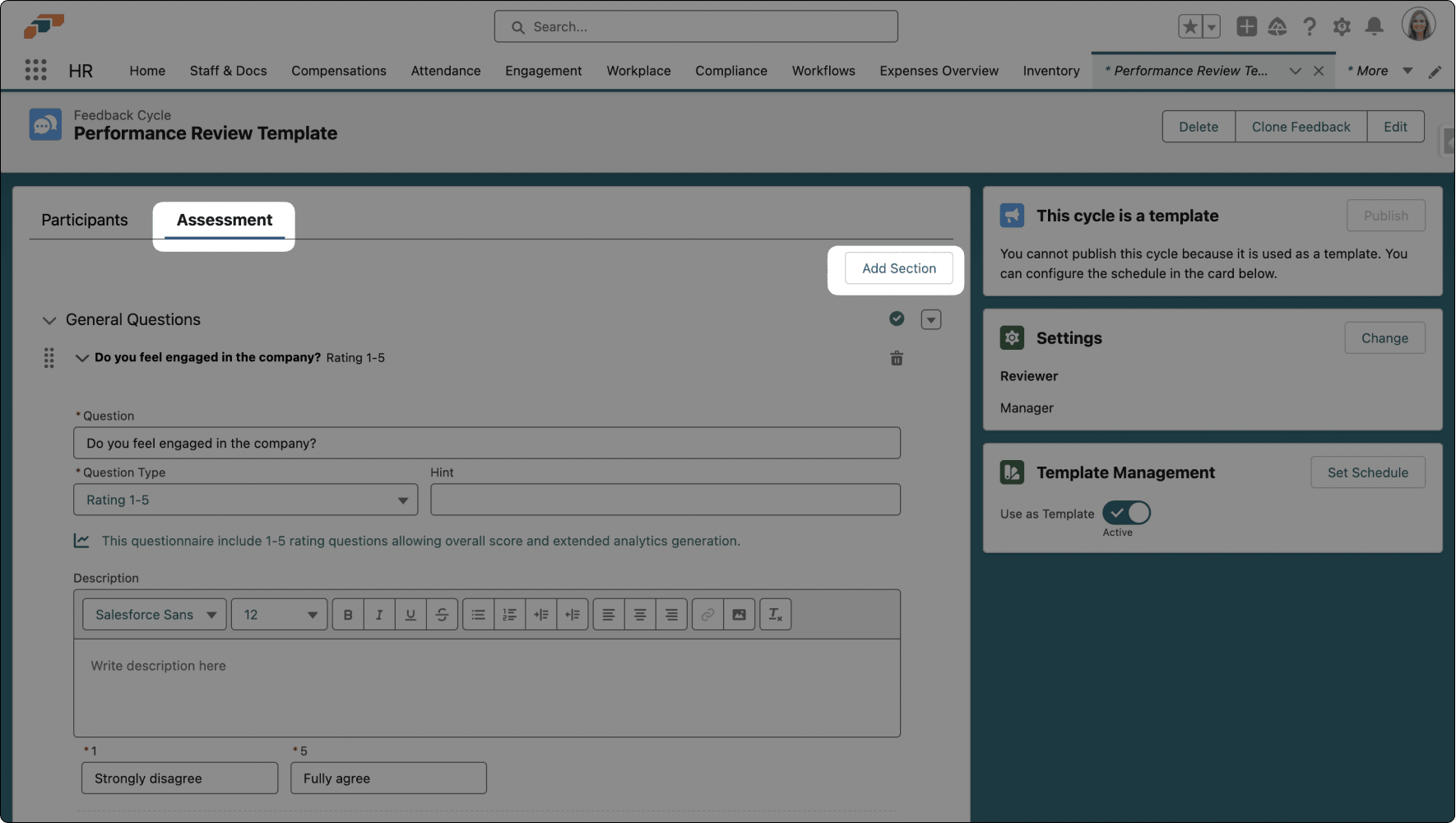
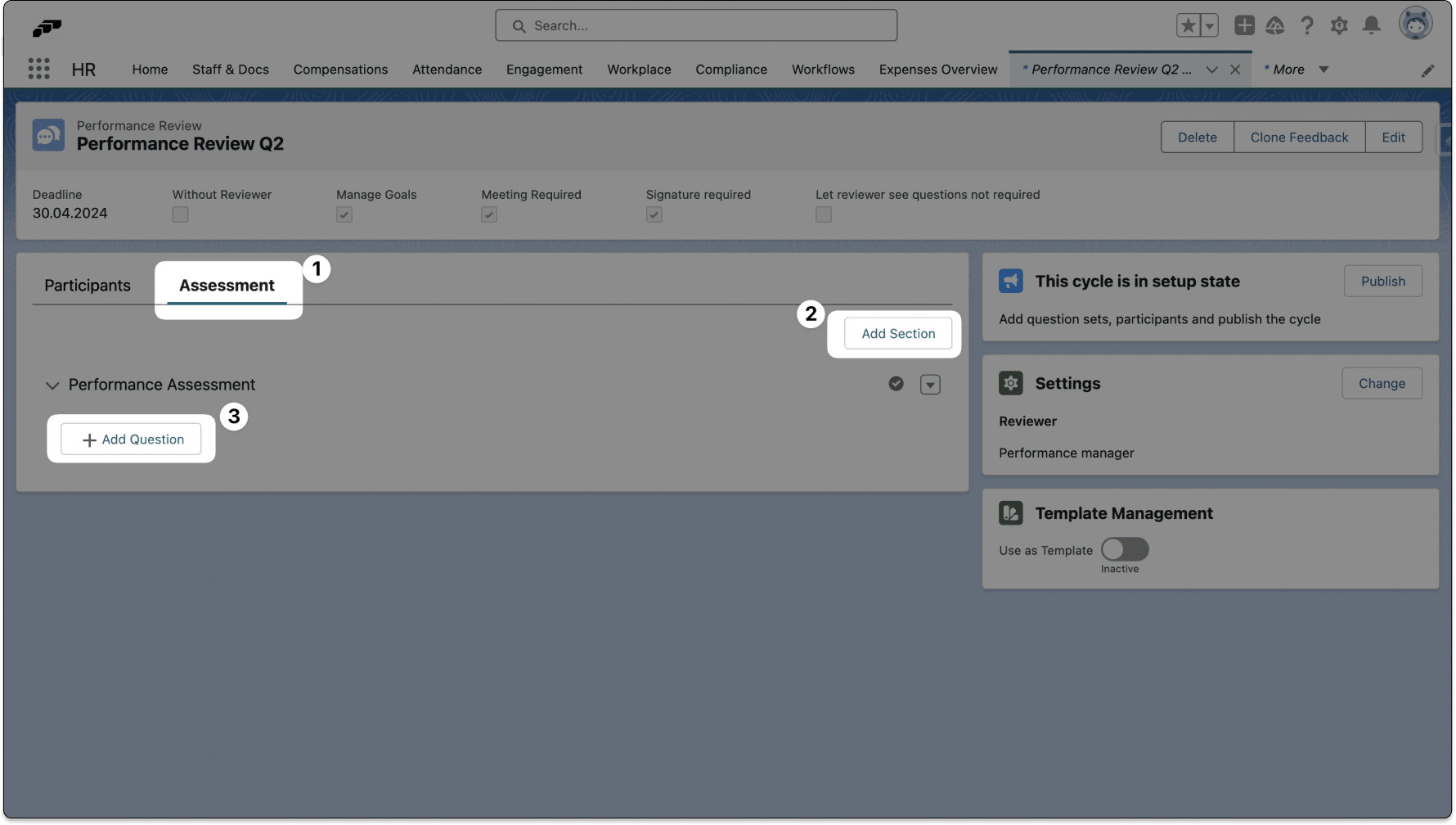
Open Assessment.
-
Click Add Section.
-
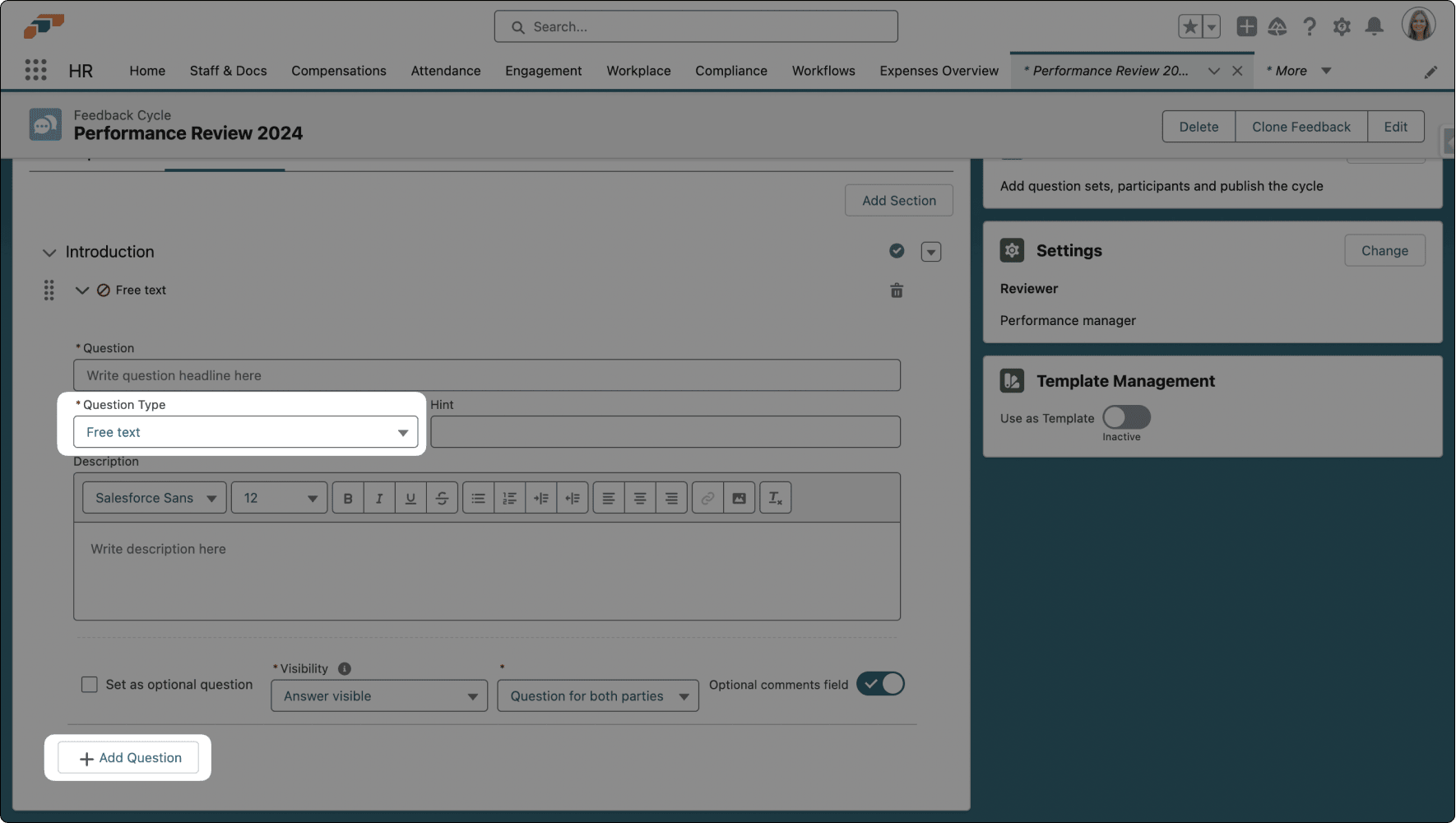
Enter a section name.
-
Click Add Question.
-
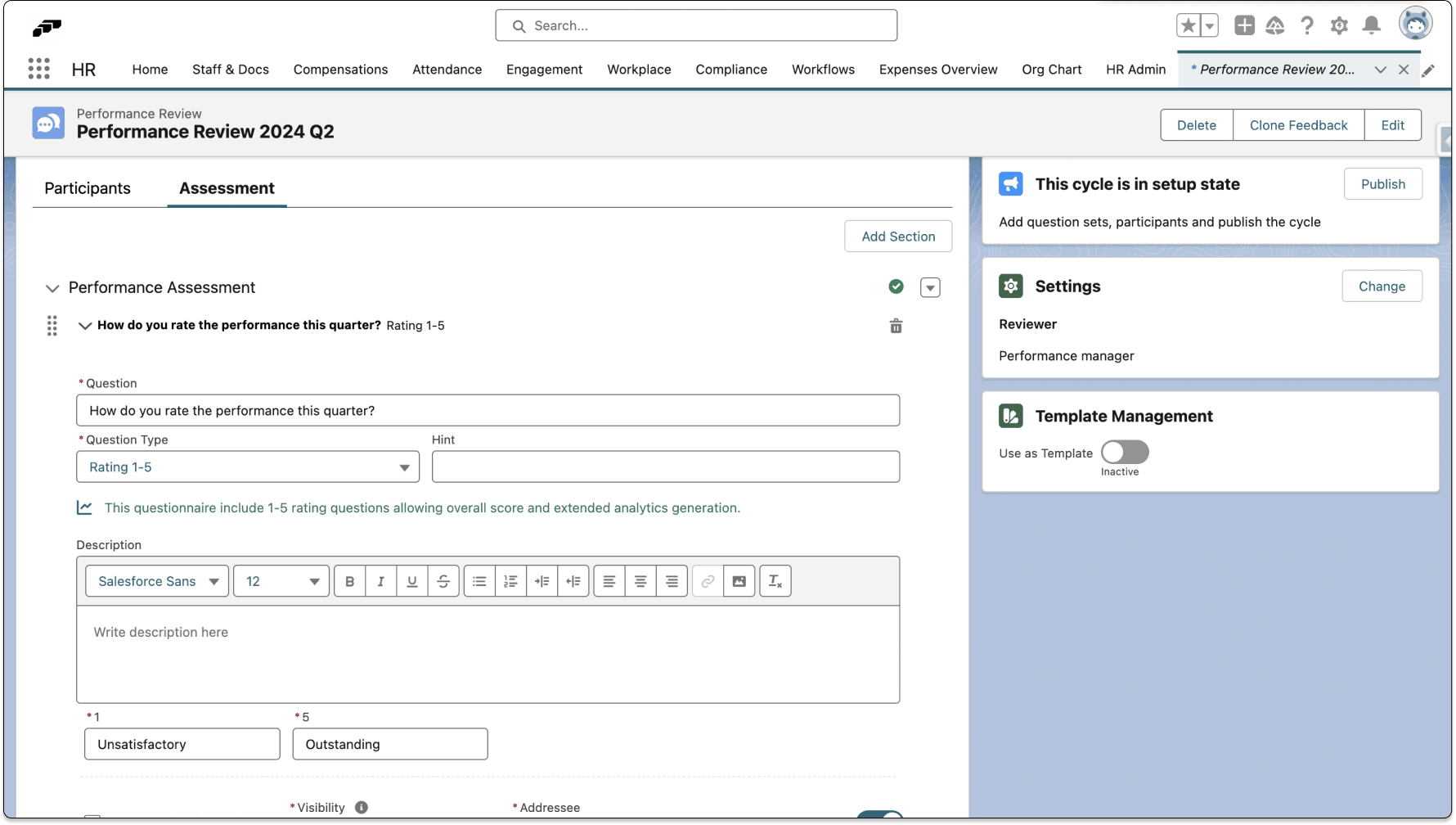
Select a question type:
Type Response Scoreboard A thumbs-up rating. Single Choice One option from a list. Multiple Choice Multiple options from a list. Rating A value from the configured lower end through the configured higher end. Free Text An unrestricted written answer. Free Slider A value selected on a range. -
If you selected Rating, use the default scale of 1–5, or select a value from
0or1for Lower End, and select a value from2through10for Higher End. -
Each time you change Lower End or Higher End, confirm in the Change Rating Scale dialog by clicking OK. The selected range applies to every Rating question in the Questionnaire.
-
Enter the question and its options when required.
-
Save the question.
-
Repeat the steps for every required section and question.
You can add any number of sections and questions.
Employees see the configured rating range in the Employee Hub when they answer the Performance Review.
Add participants and publish the review
-
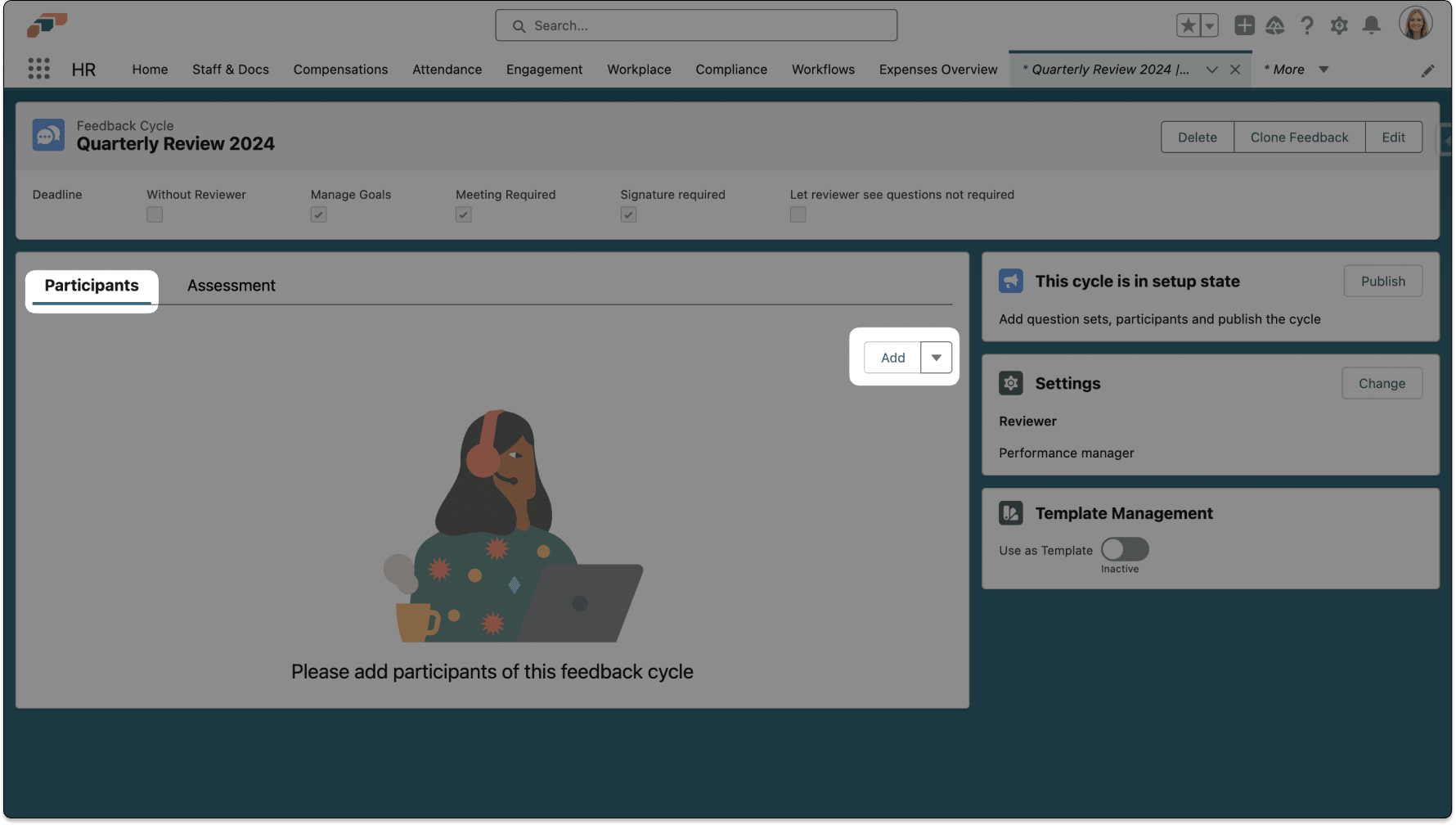
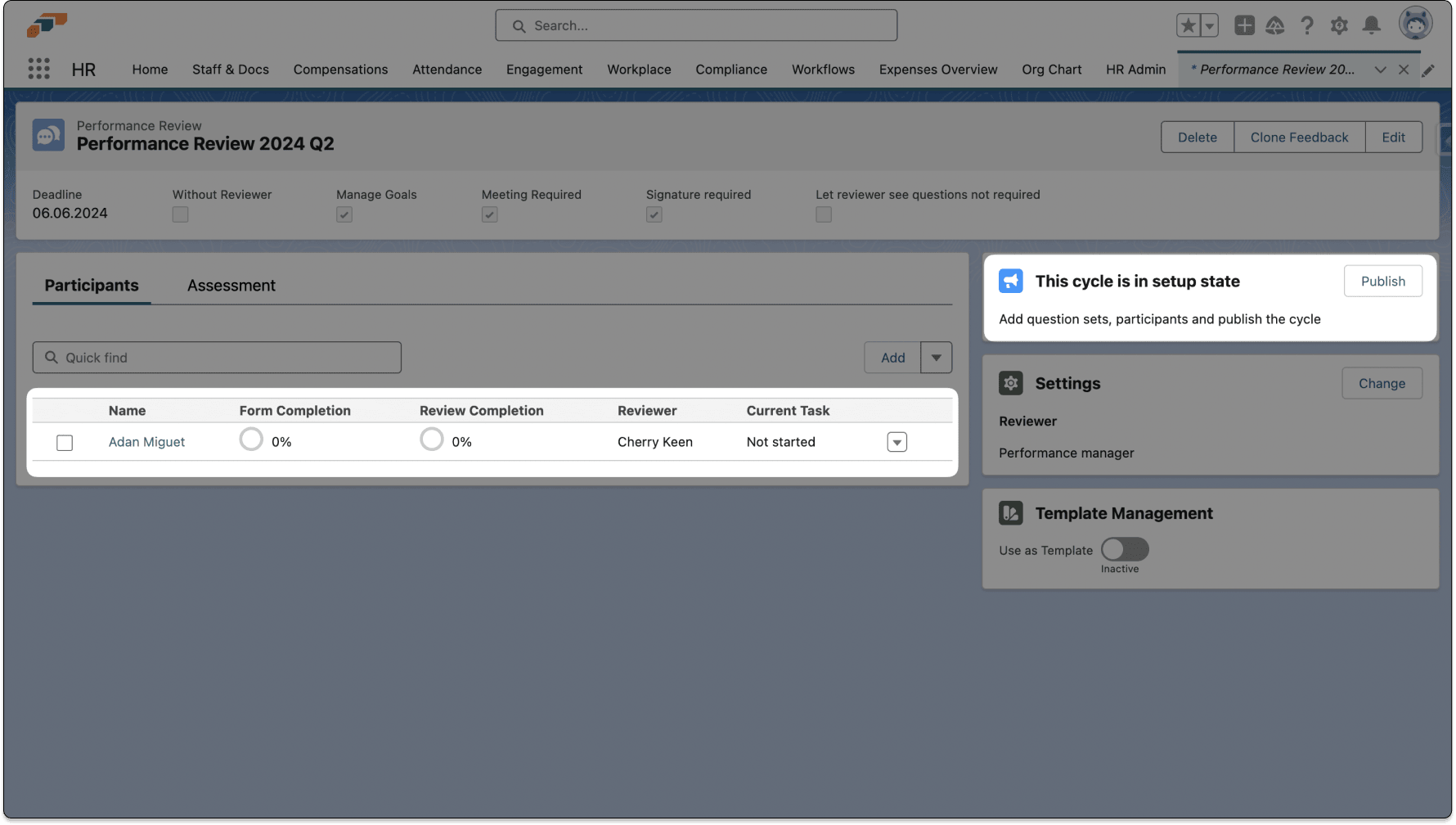
On the Performance Review, open Participants.
-
Click Add.
-
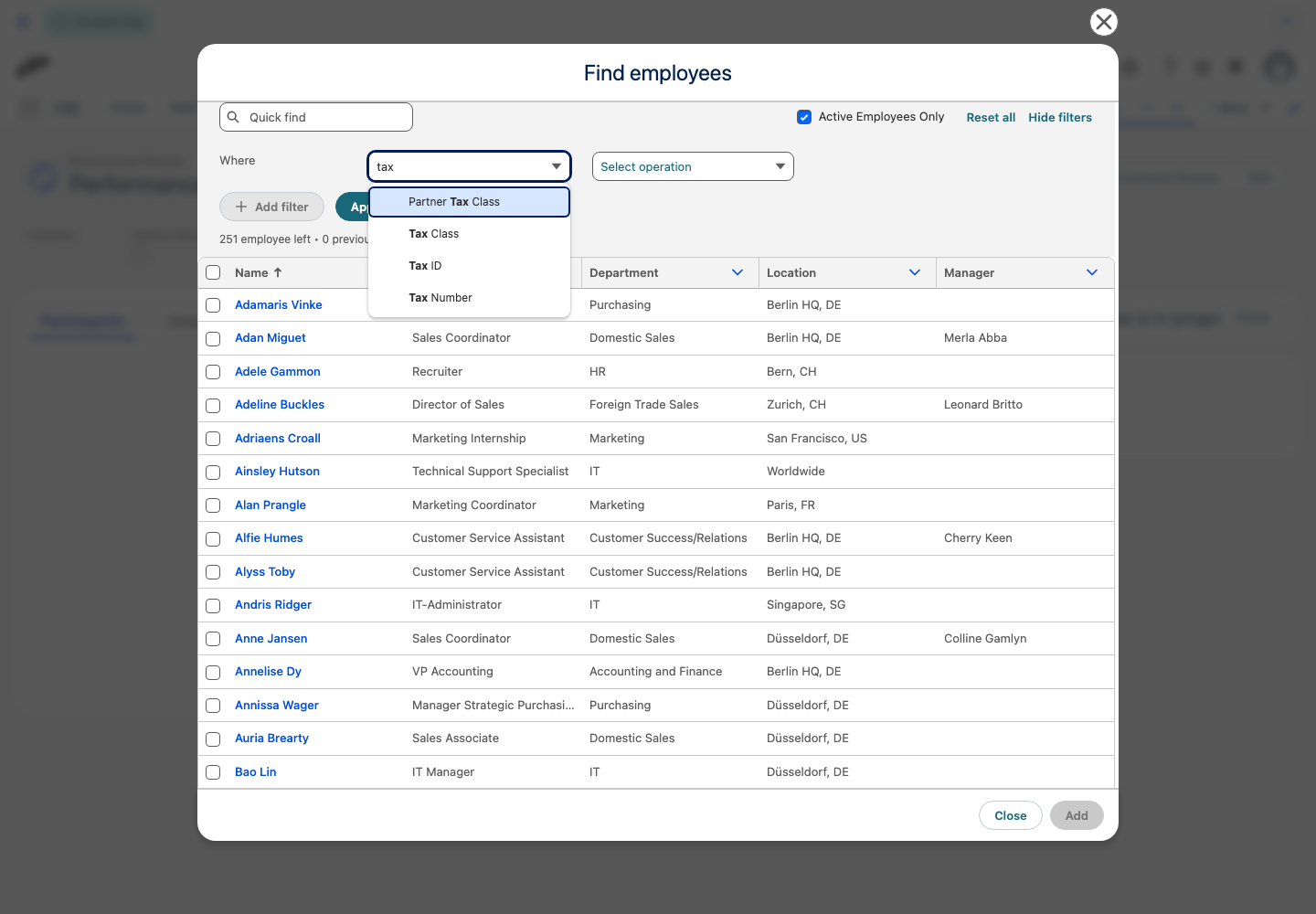
Optional: To narrow the list, click Show filters.
-
In the filter row, search for and select an Employee field.
-
Select an operation, and enter a value.
-
Optional: Click Add filter to combine another condition.
-
Click Apply filter.
-
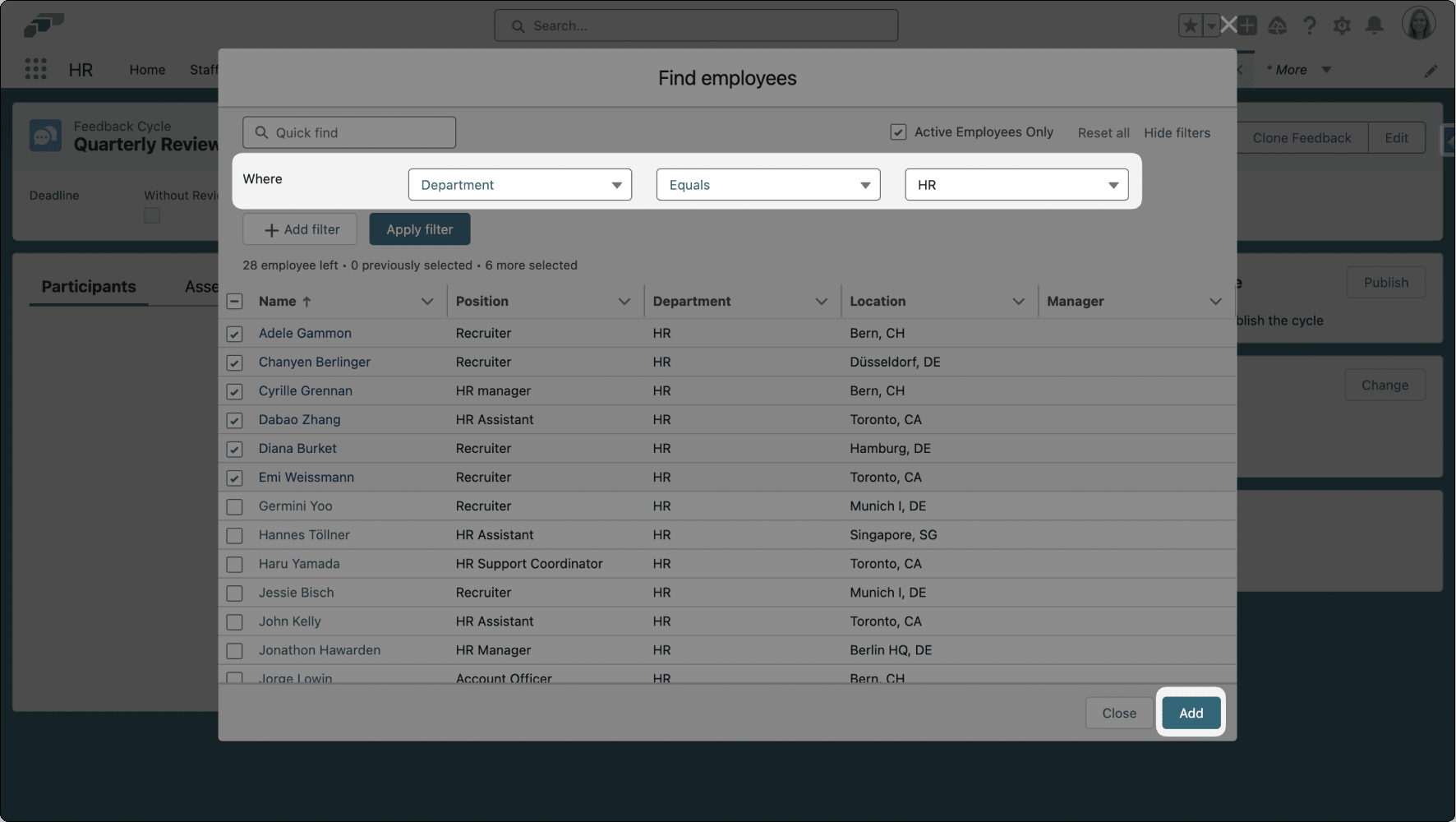
Select the Employees.
-
Click Add.
-
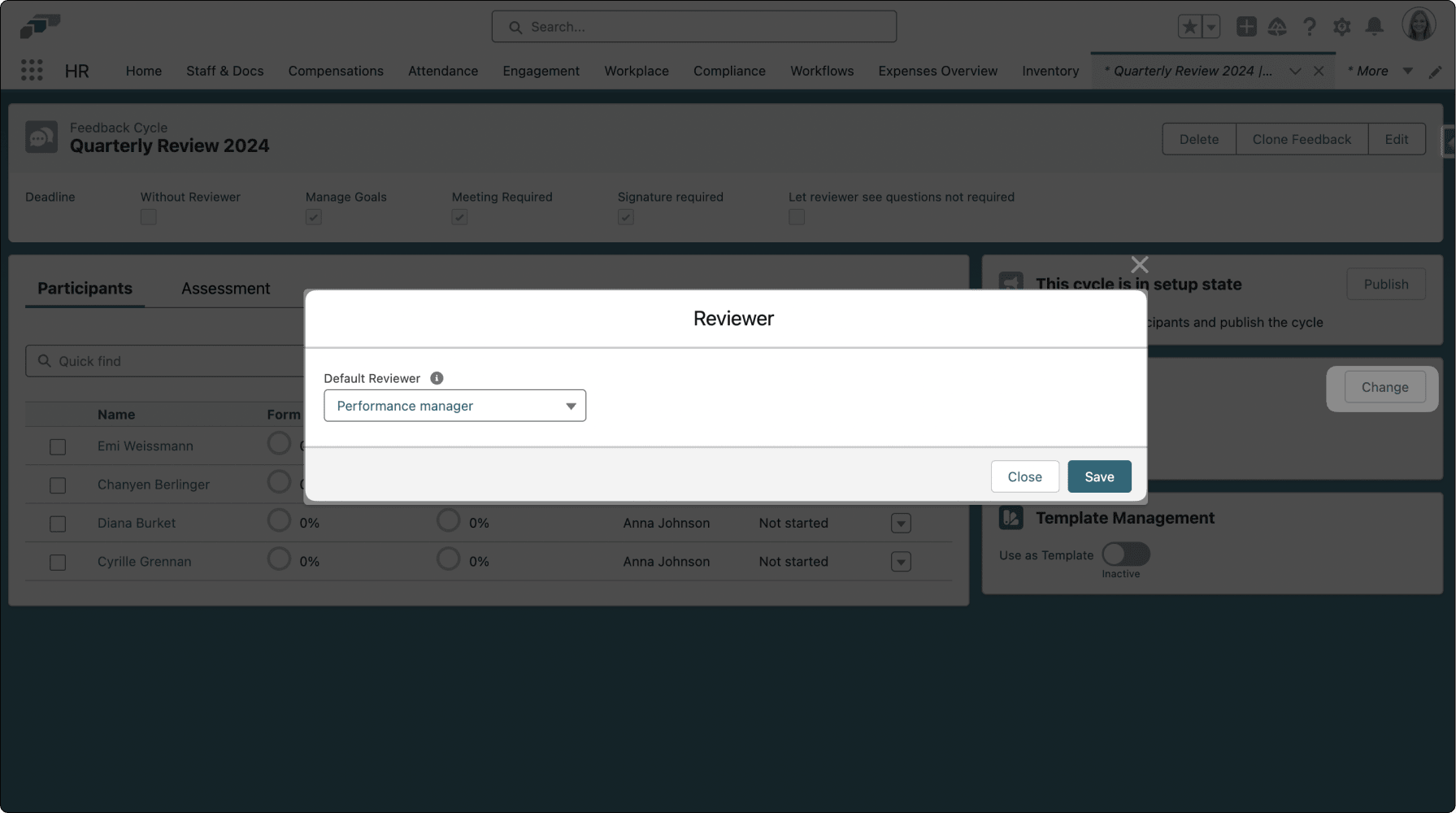
On the Settings card, click Change.
-
Select the Default Reviewer.
-
In the status card labeled This cycle is in setup state, click Publish.
-
Confirm publication. Employees receive email and Employee Hub notifications.
The filter offers Employee fields that you can read and that Salesforce can filter on, sorted by label, including custom fields your admin added. Fields hidden from you by field-level security don't appear, and neither do system fields such as the created and last-modified fields, or the Employee Pin field. A lookup field appears only when you can read its target object and that object holds 2,000 records or fewer. The same filter is available wherever you add employees this way, such as the participants of an Engagement Survey or a calibration, a location's employees, and team members.
After publication, you cannot change the Performance Review settings.
Complete a self-evaluation
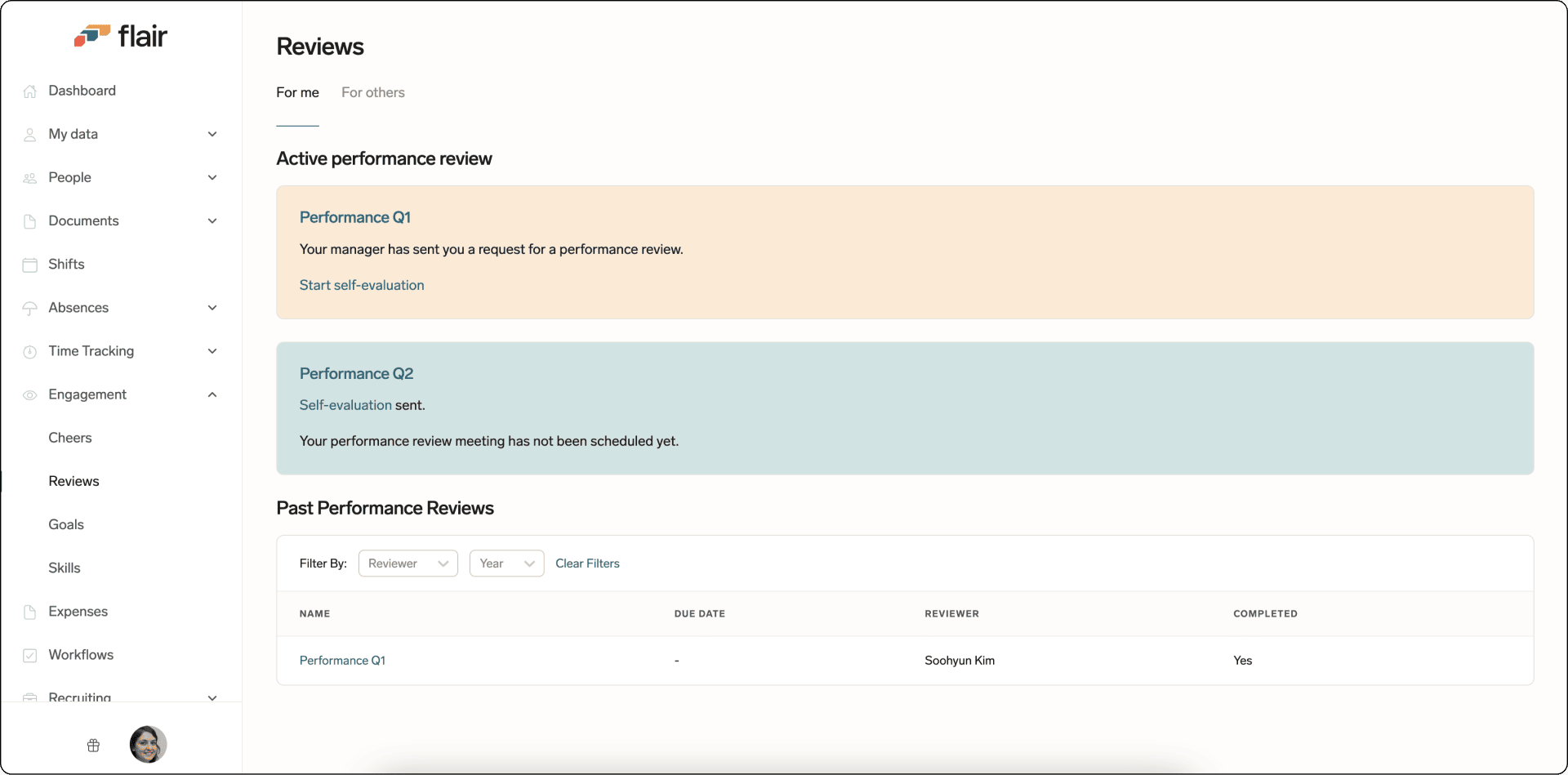
- In the Employee Hub, open the Performance Review notification or the Reviews page.
- Select the assigned review.
- Click Start Self-evaluation.
- Answer the questions.
- Click Submit. You can change answers until the meeting with your Manager occurs. If the review includes an employee satisfaction question and doesn't require a signature, a dialog opens instead: answer the question and click Sign & Submit.
If the review requires a signature, sign it after you submit. If the review also requires a meeting, you can sign it once your Manager has submitted their review.
- On the review, click Sign & Complete Performance Review.
- If prompted, confirm that you want to finish the review.
- If the review includes an employee satisfaction question, answer it in the dialog and click Sign & Submit.
Edit or delete a question
Performance Reviews use these states:
| State | What happens |
|---|---|
| Setup | HR Admins can change questions. |
| In Progress | Employees and Managers answer questions. |
| Finished | The Feedback Cycle is closed, and changes are restricted. |
-
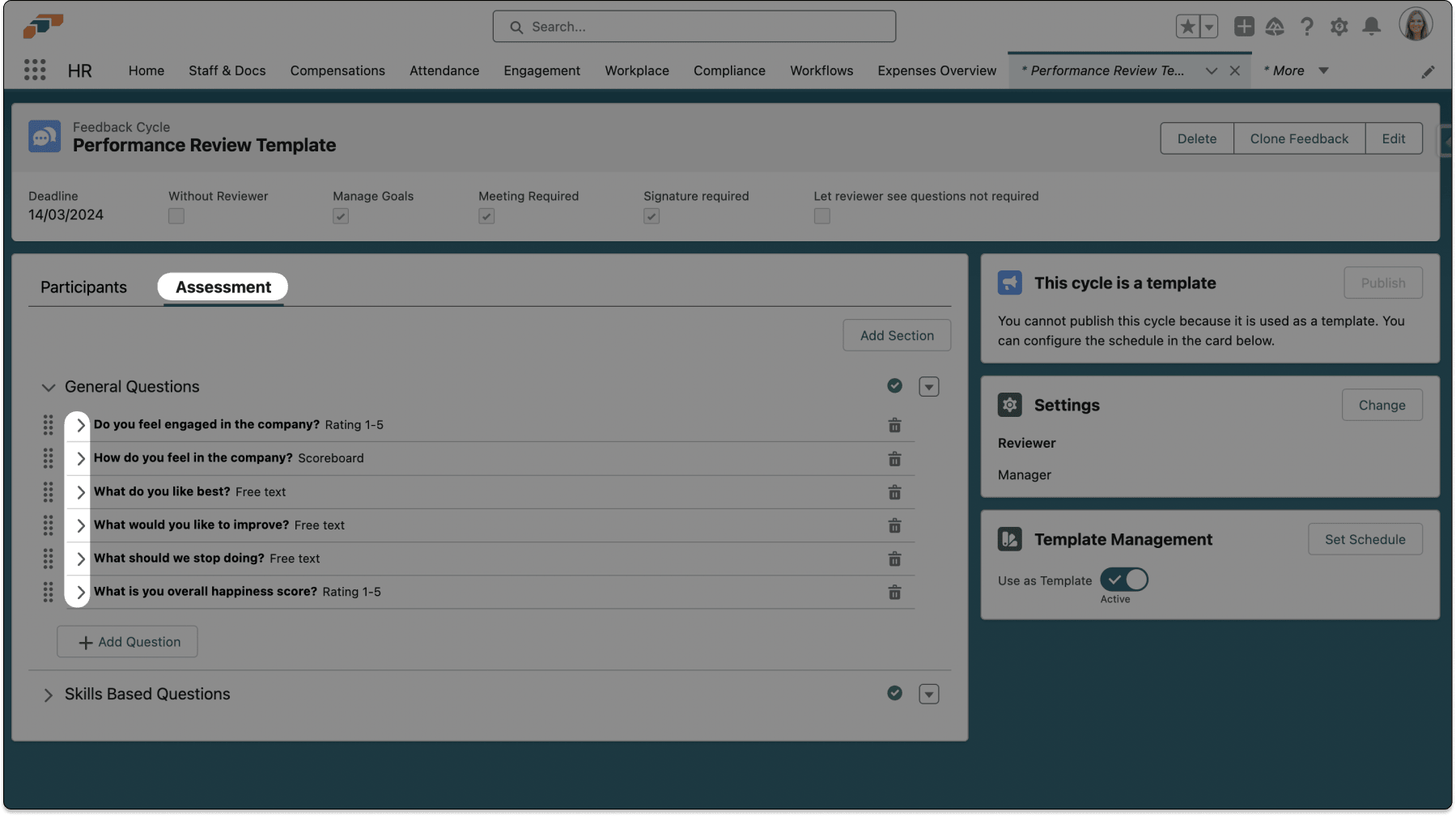
While the review is in Setup, open Assessment.
-
Next to the question, click the down arrow.
-
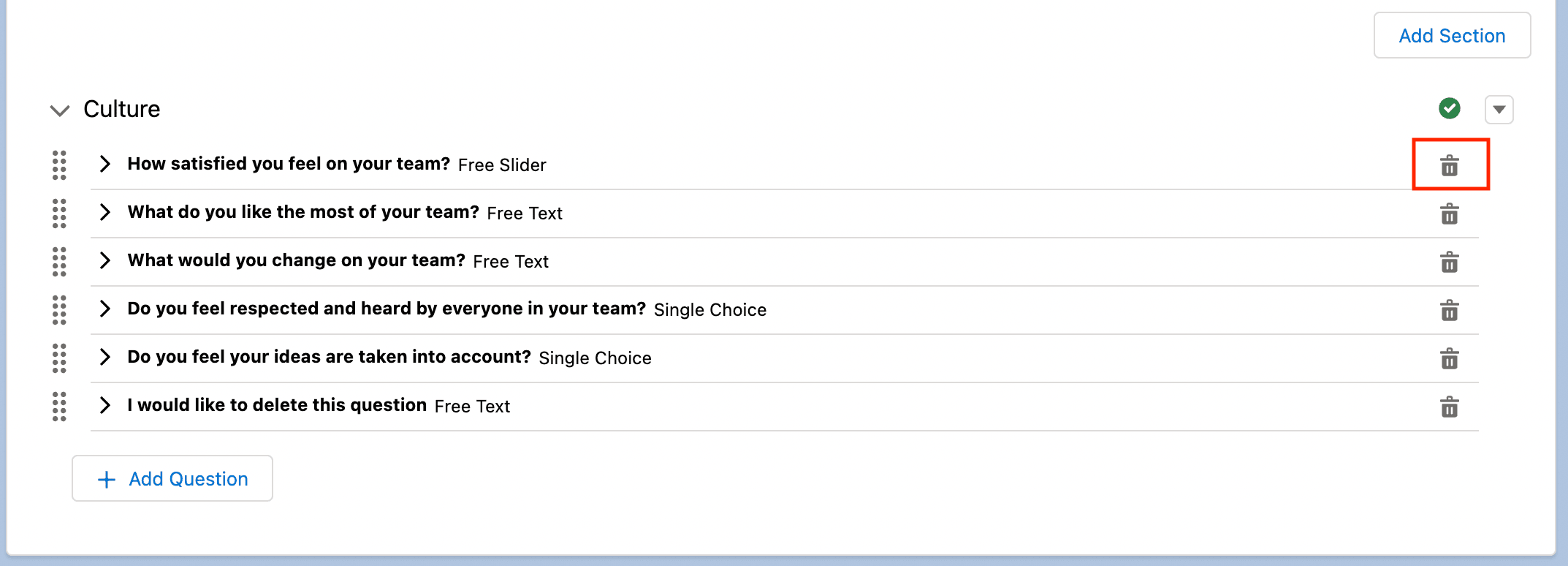
Edit the question, or click the trash-can icon to delete it. Deletion happens without a confirmation prompt.
When review forms already exist in Publishing, In Progress, or Finished, question changes do not update those forms. Employees added later receive the updated questions.
Configure a peer review
Peer reviewers can be added only to a Sequential Performance Review. A review supports up to five peer reviewers.
Enable peer feedback
-
Create a Sequential Performance Review.
-
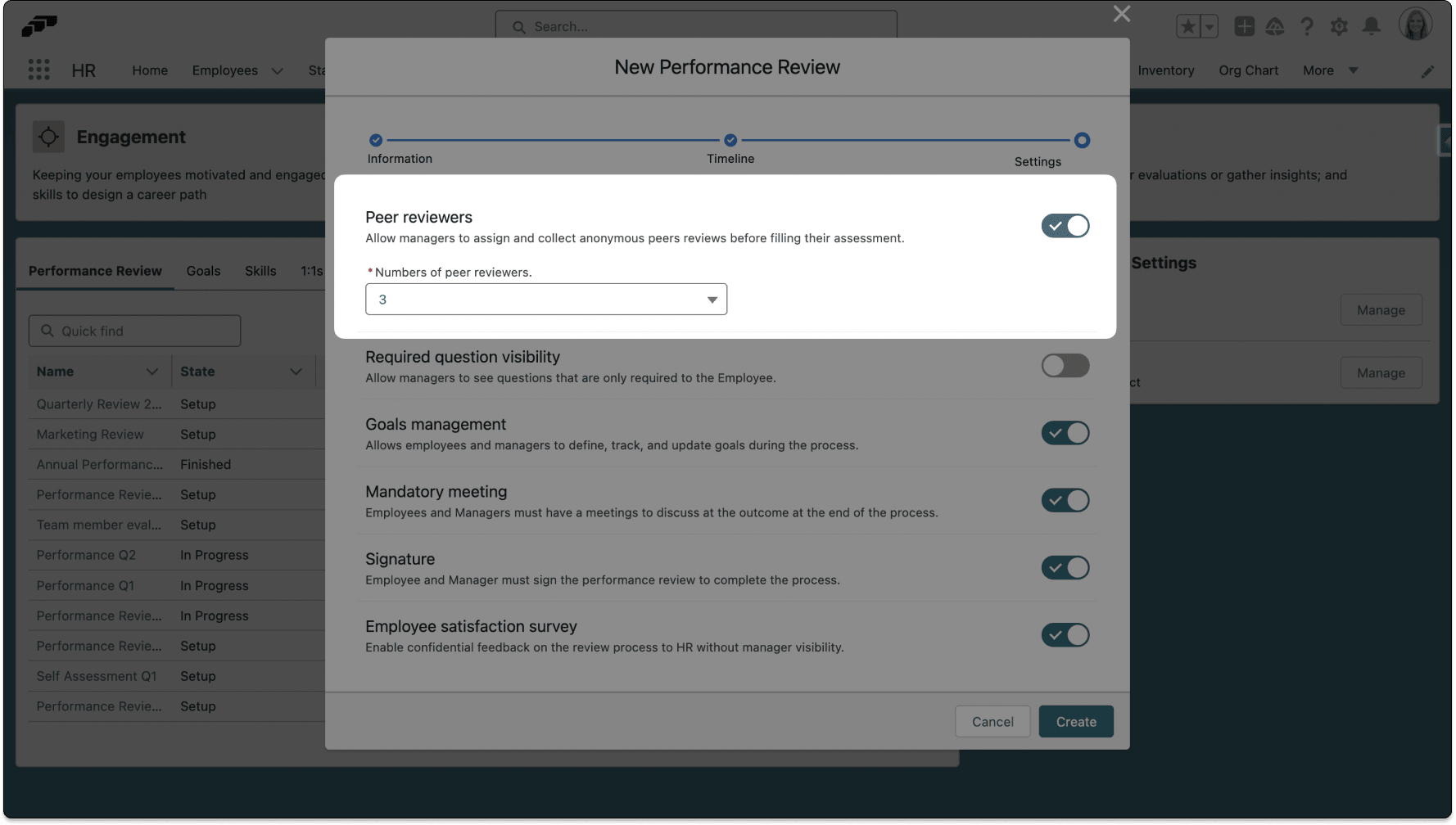
Enable Peer Reviewers.
-
Select the number of peer reviewers.
-
Optional: Configure what each peer reviewer can see, below the peer reviewer count:
Setting What it does Show employee self-assessment to peer reviewers Shows the Employee's self-assessment to peer reviewers once the Employee submits it. Off by default. Show manager review to peer reviewers Shows the Manager's review to peer reviewers once the Manager submits it. Off by default.
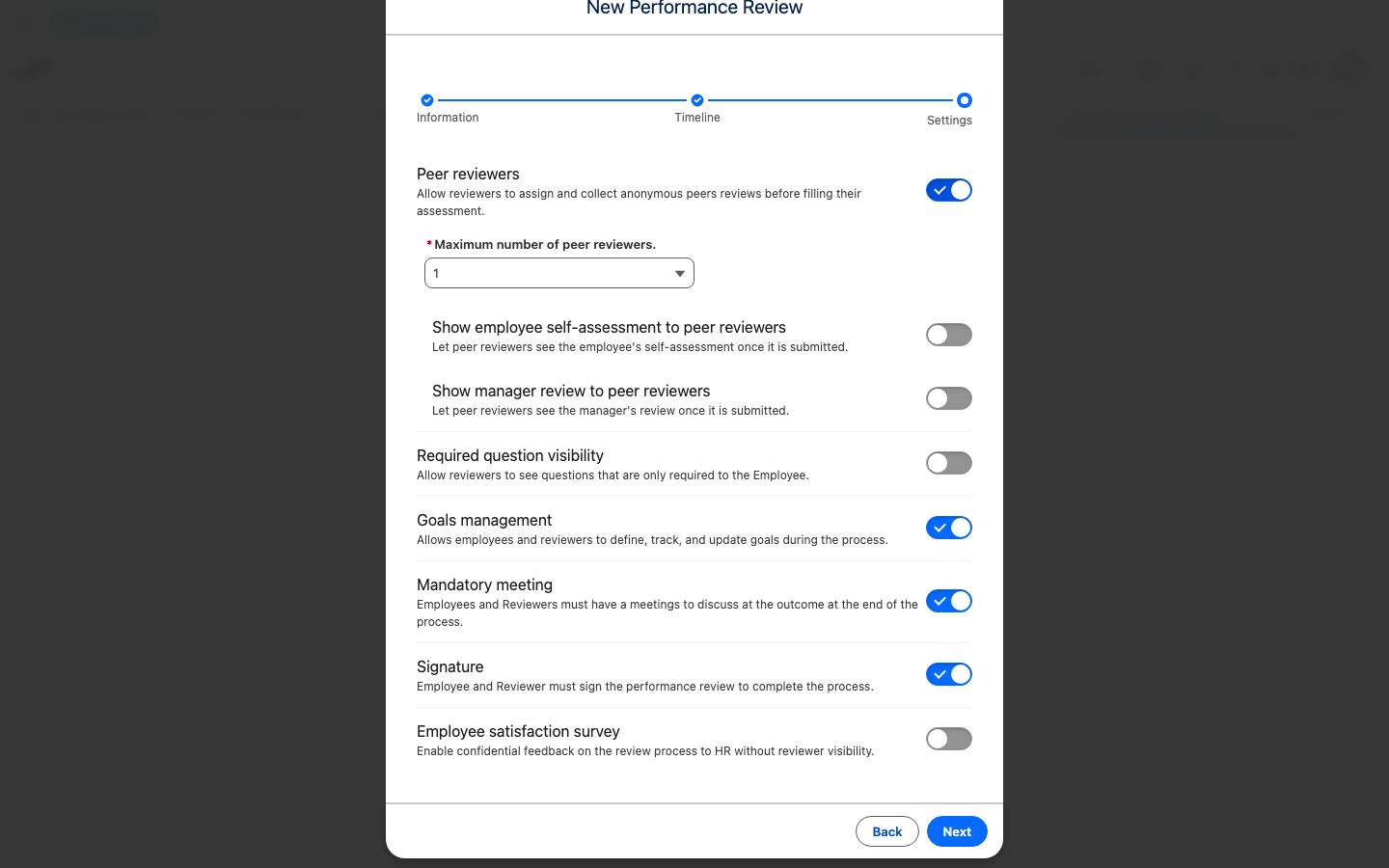
A peer reviewer sees the toggled-on review after it is submitted. Before submission, the Employee Hub shows a Not submitted yet placeholder instead. These settings control only the Employee's self-assessment and the Manager's review; they don't change whether peer reviewers see other peer reviewers' responses.
-
Under Assessment, add the sections and questions.
-
Under Participants, add the Employee being assessed.
-
Click Publish. The Employee and assigned Manager receive notifications.
Assign peer reviewers
-
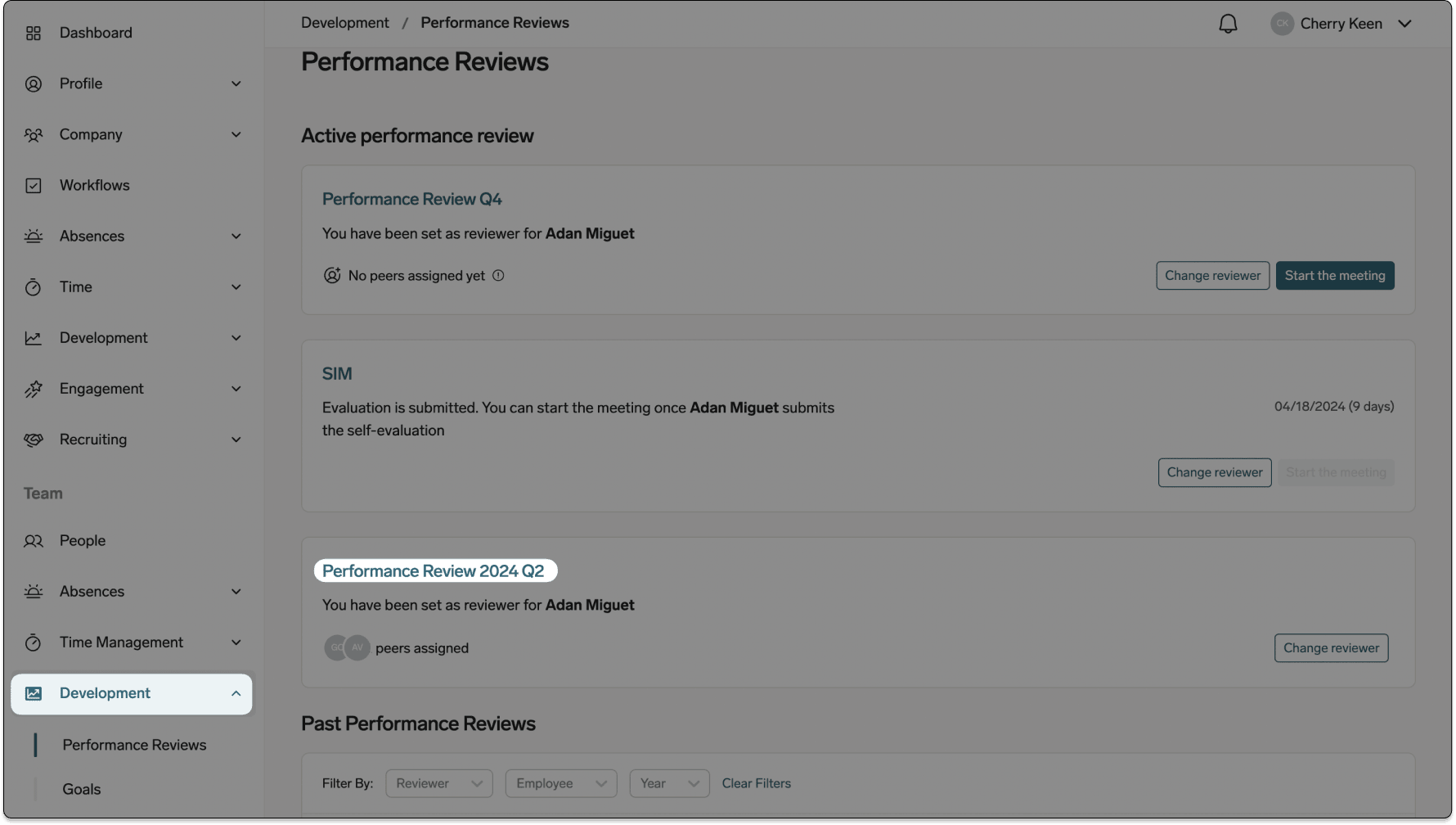
As the Manager, go to Team → Development in the Employee Hub.
-
Open the assigned Performance Review.
-
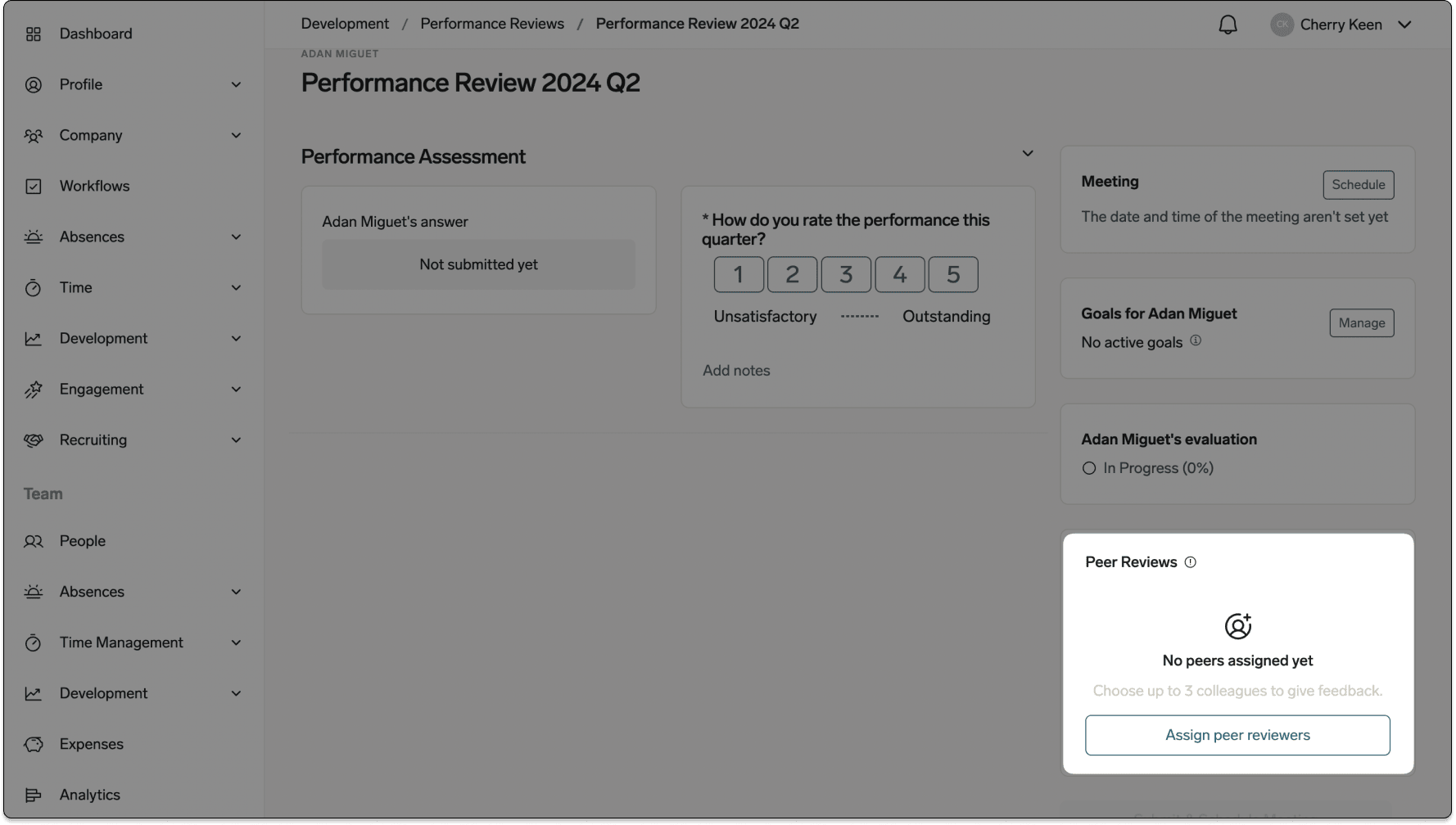
Click Assign peer reviewers.
-
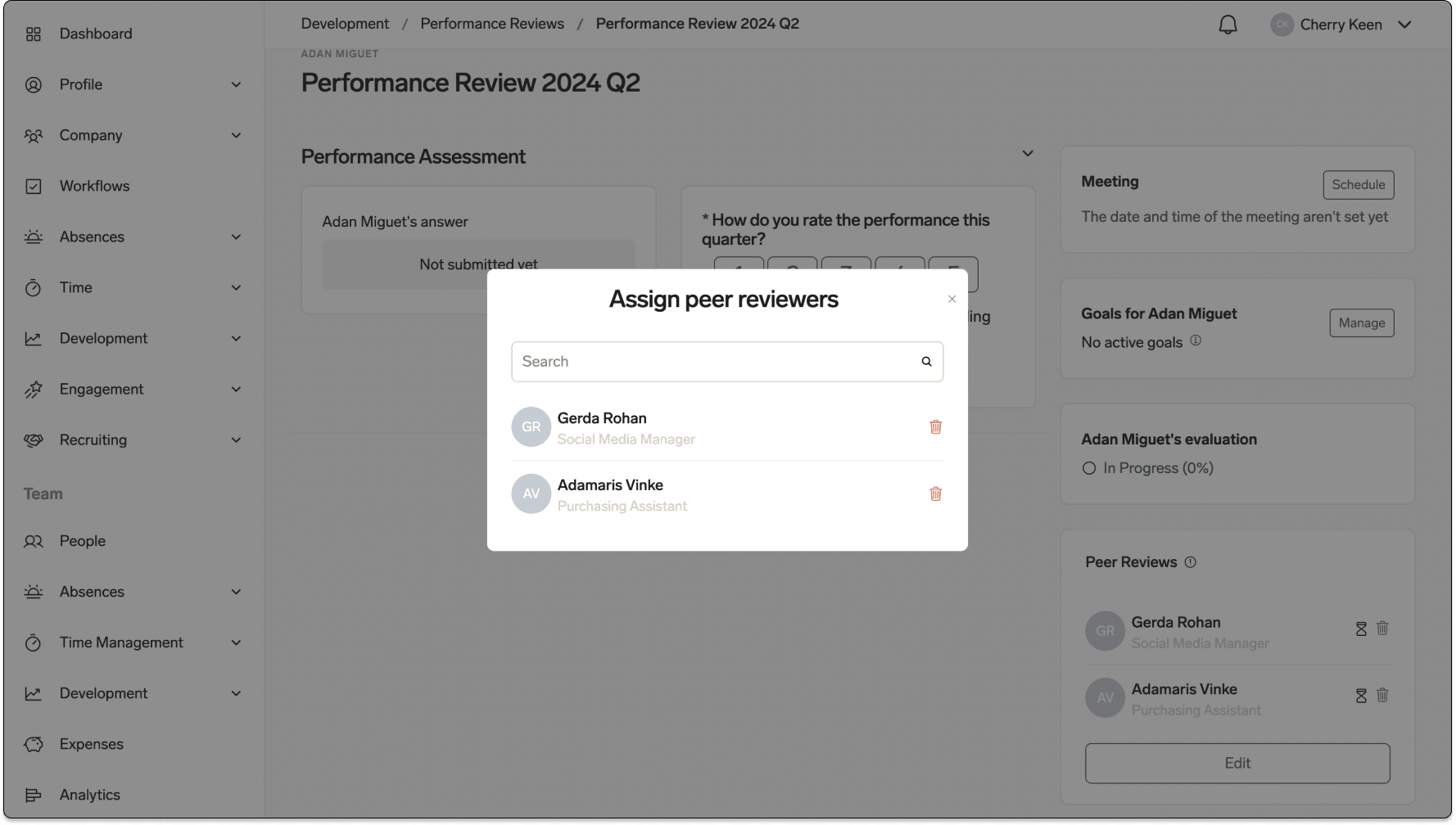
Search for and select the Employees who will provide feedback.
-
Save the peer reviewer assignments. The selected Employees can complete their feedback in the Hub, as described in Complete a peer review.
-
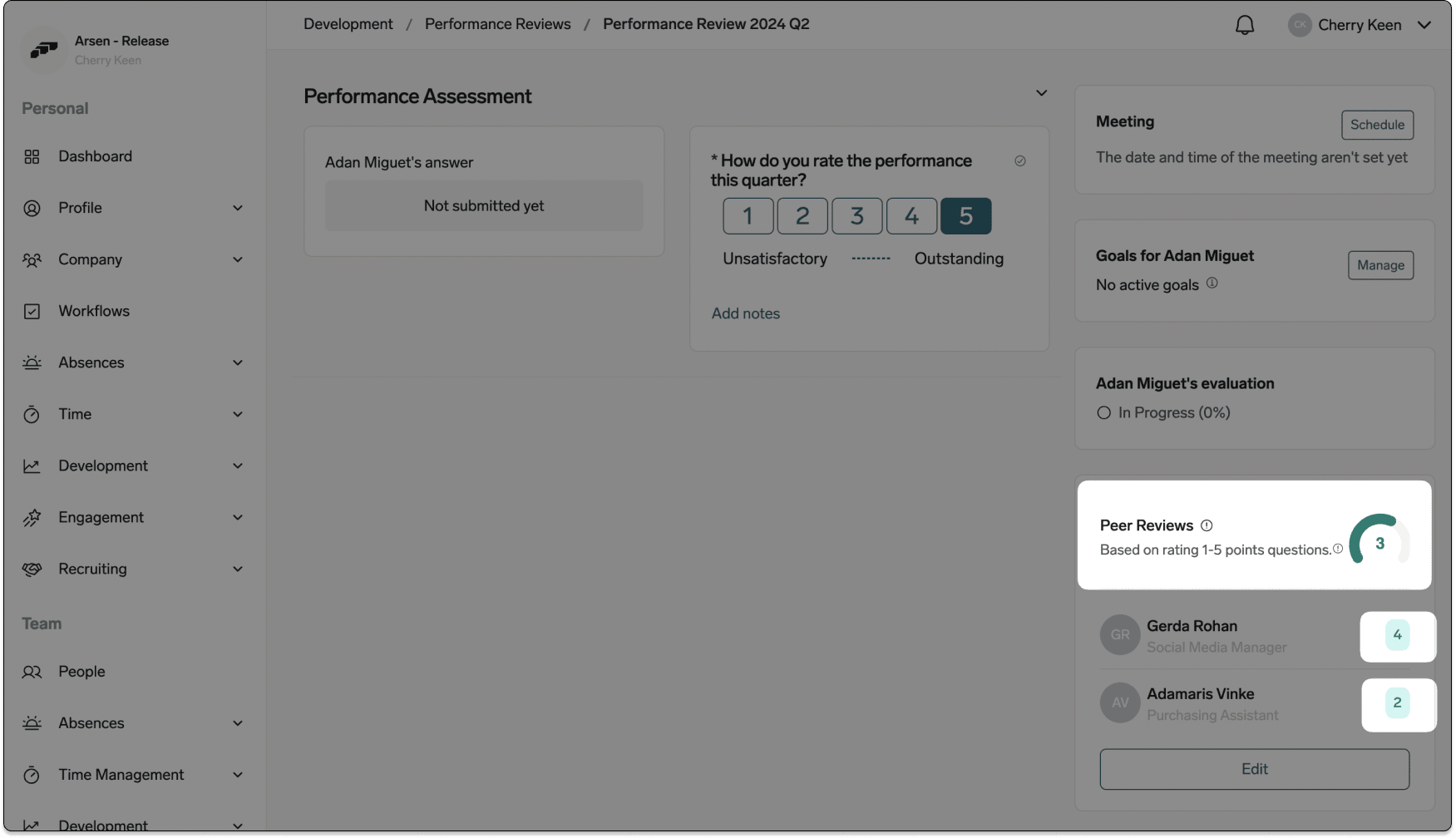
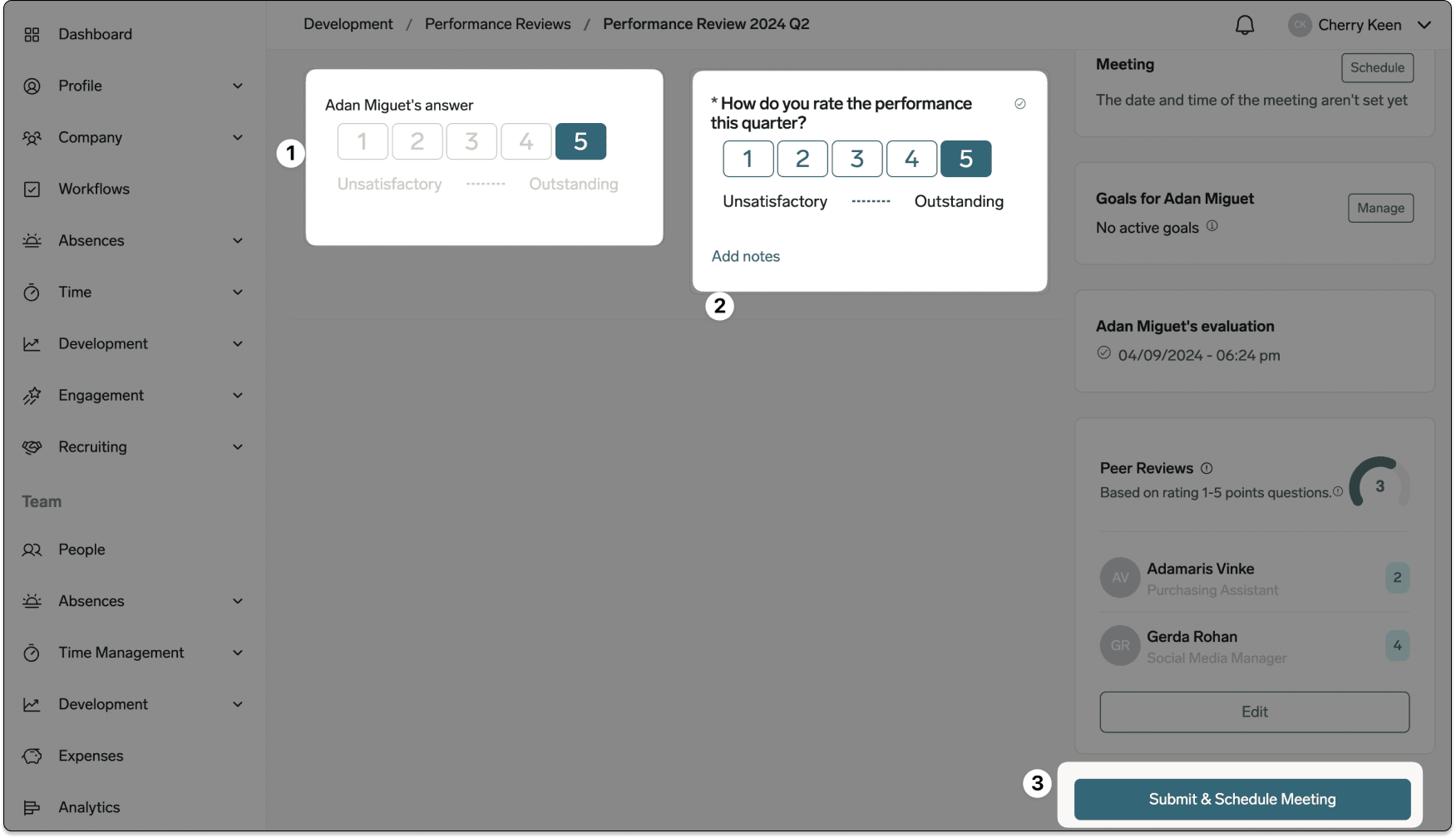
After peer feedback is complete, review it in the lower-right area of the Performance Review.
-
For rating questions, review the average of the peer responses.
Complete a peer review
Reviews you give as a peer reviewer are listed separately from reviews you give as a Manager.
-
In the Employee Hub, open Performance Reviews.
-
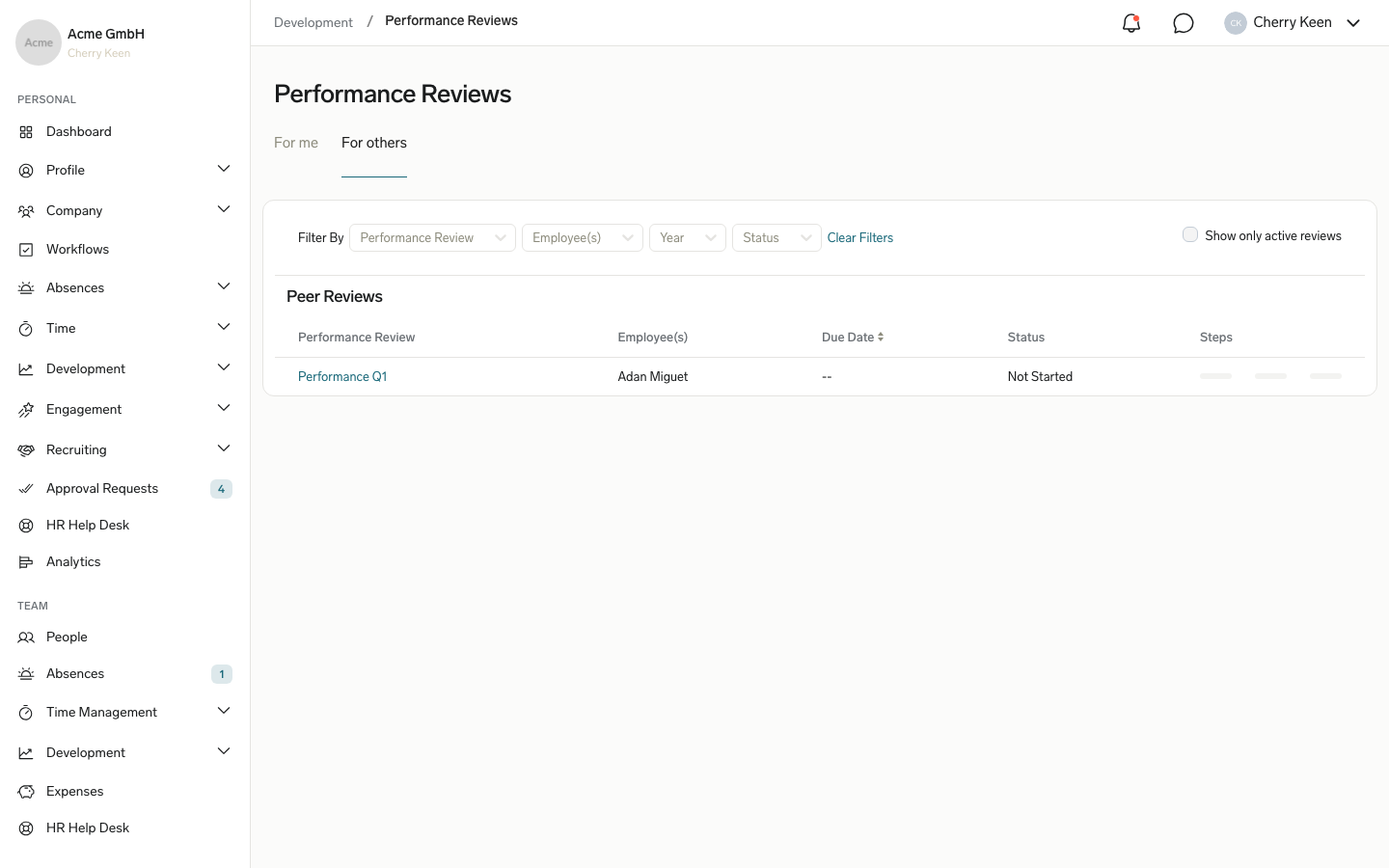
Select the For others tab. Reviews you give as a peer reviewer appear in the Peer Reviews table, below the reviews you give as a Manager.
-
Select the review in the Peer Reviews table.
-
Answer the questions.
-
Click Submit.
Complete a Manager review
- On the Employee Hub Manager dashboard, find a pending review.
- Click Go there.
- On Reviews, choose the Employee review or your own self-review.
- For an Employee review, click Start review.
- Answer the review questions.
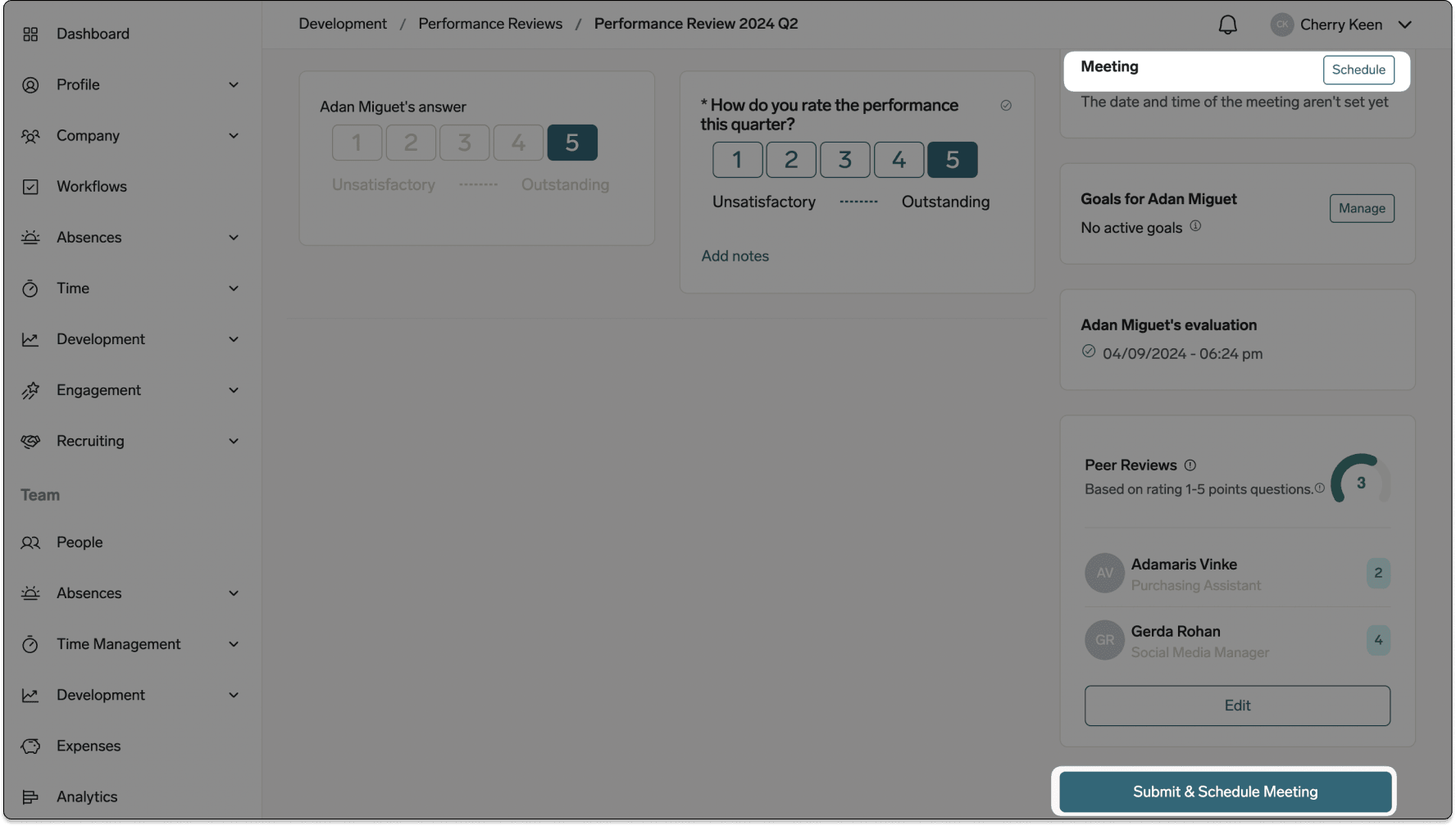
- Optional: Use Meeting to schedule the review discussion.
- Optional: Use Goals to manage the Employee's Goals.
- Click Submit, or Submit & Schedule Meeting if the review requires a meeting that isn't scheduled yet. In a Sequential review, Submit is disabled until the Employee submits their self-assessment.
- To finish the review, click Sign & Complete Performance Review, or Complete Performance Review when no signature is required. If the review requires a meeting, this button is on the review meeting page.
- Confirm that you want to finish the review. The Manager review is complete.
If peer reviewers are assigned, the button in step 9 stays disabled until all peers submit their reviews. To enable it earlier, remove the nominated peers.
For feedback comparisons and HR outcomes, see Review Employee Performance Reviews.
Schedule a mandatory review meeting
After all required people submit their feedback:
-
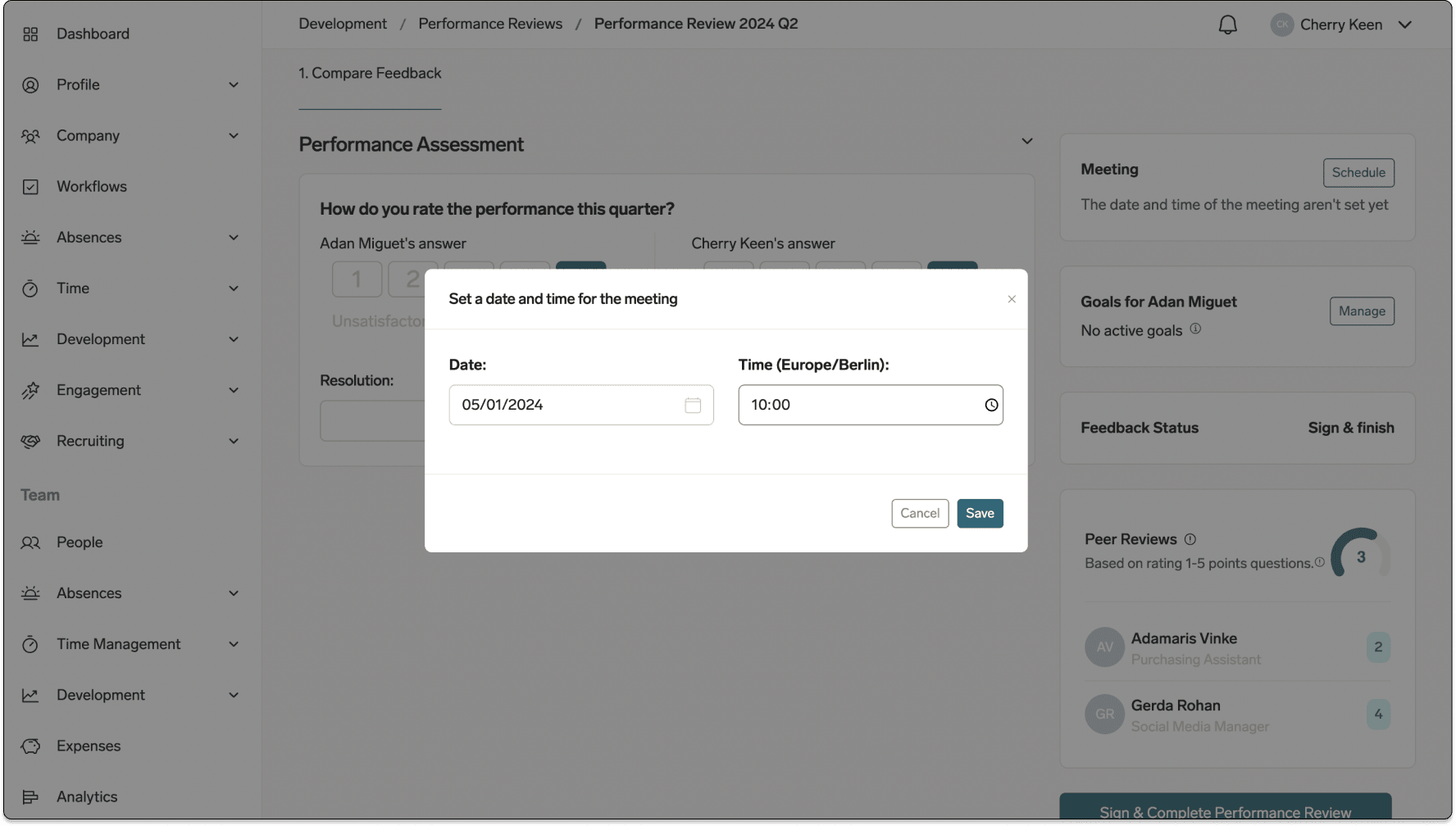
Under Meeting, click Schedule, or click Submit & Schedule Meeting while submitting the review.
-
Select the meeting date and time.
-
Save the meeting. The Performance Review records the scheduled discussion.
Export a Performance Review
Document Generator can export a review as PDF or DOCX or save it to the Employee record. Templates can include nested sections, multiple-choice answers, peer responses, conditional formatting, ordering, and visibility rules.
- Create a reusable Document Template for 360 Review, For Review without peer input, or Self-Review.
- Map Employee information, reviewer details, peer input, answers, and any nested child records.
- Configure Semi-Visible for HR-only fields and Optional Answers to show not required when an optional field is empty.
- In flair HR, open the Performance Review.
- Click Download PDF.
- Select the Document Template.
- Preview the output.
- Download the PDF or DOCX, or save the document to the Employee record.
Use camelCase without spaces for merge text, such as employeeName. For full template syntax, see Create documents with Document Generator.