Create and manage positions
Use Company Structure to create positions, build reporting lines, and see whether each position is staffed, vacant, or part of active recruiting.
HR Admins and managers with access to Company Structure in Salesforce. Editing and deletion depend on Position Management permissions.
Open Company Structure
- From the App Launcher (⋮⋮ grid icon), search for
Company Structure. - Open Company Structure. The left pane shows active positions.
- Optional: Use Quick Search to find a position.
- To show positions with future start dates, open the funnel filter and select Show Future Positions.
- To view the positions managed by a role, click the down arrow next to it.
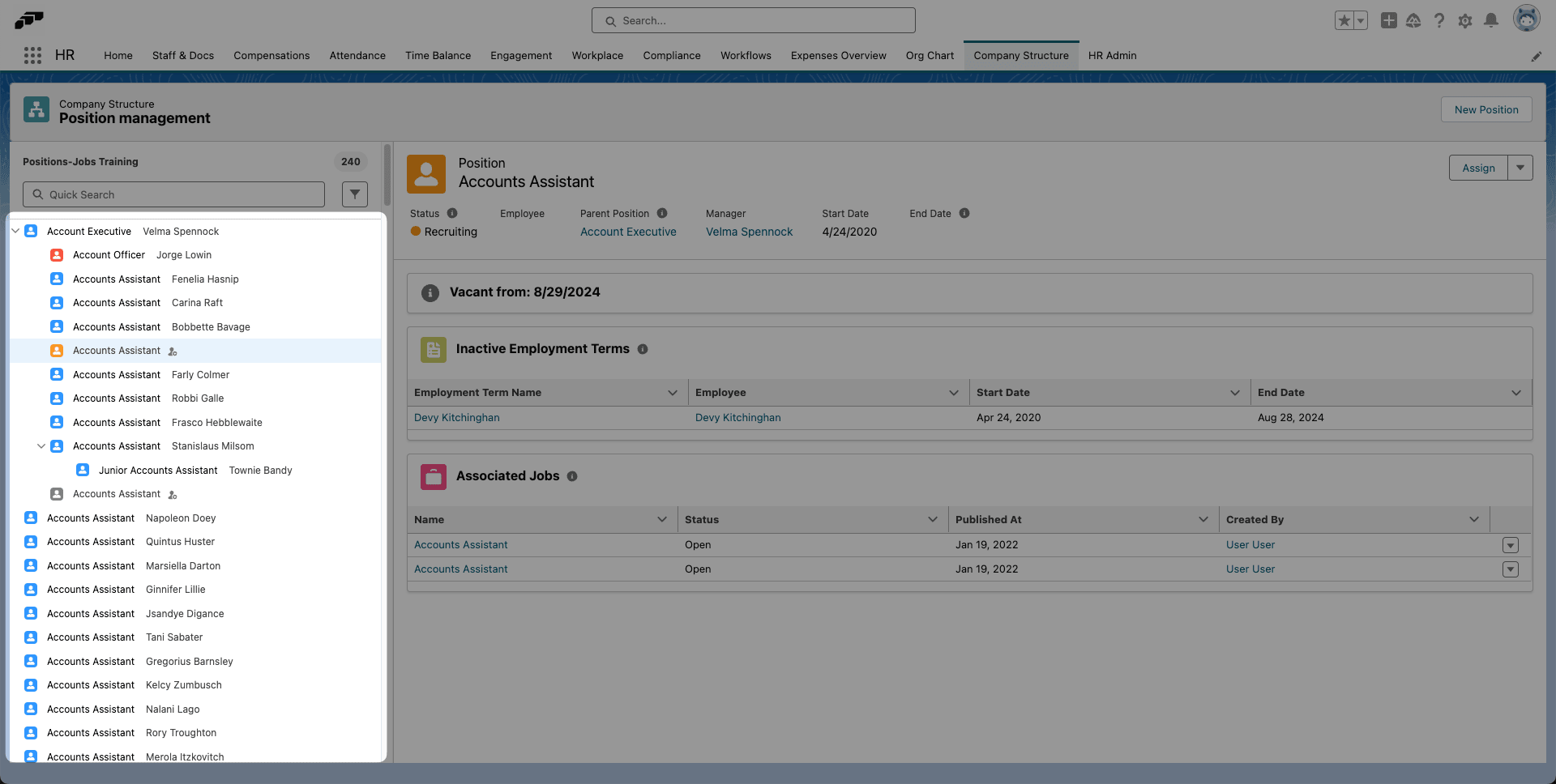
The icon color summarizes the current status:
| Color | Position status |
|---|---|
| Blue | Staffed. |
| Orange | Recruiting or Scheduled. |
| Red | Upcoming Vacancy. |
| Gray | Vacant or Disabled. |
Review position details
The position detail pane contains these fields and actions:
| Setting | What it shows or does |
|---|---|
| Position Title | The position name. |
| Description | The position's responsibilities. |
| Status | The current position status. |
| Employee | The employee who holds the position. |
| Parent Position | The next higher position in the hierarchy. |
| Manager | The employee who holds the Parent Position. |
| Start Date | The date the position first becomes active. |
| End Date | The date the position becomes inactive. Leave it empty when unknown. |
| Assign | Assigns an employee to the position. |
| Down-arrow menu | Lists the position actions described below. |
| Vacant From | The date the position becomes vacant when the active Employment Term has an end date. |
| Active Employment Term | The current holder and the dates they hold the position. |
In the same pane, Inactive Employment Terms lists previous and future holders. Associated Jobs lists linked flair Recruiting jobs.
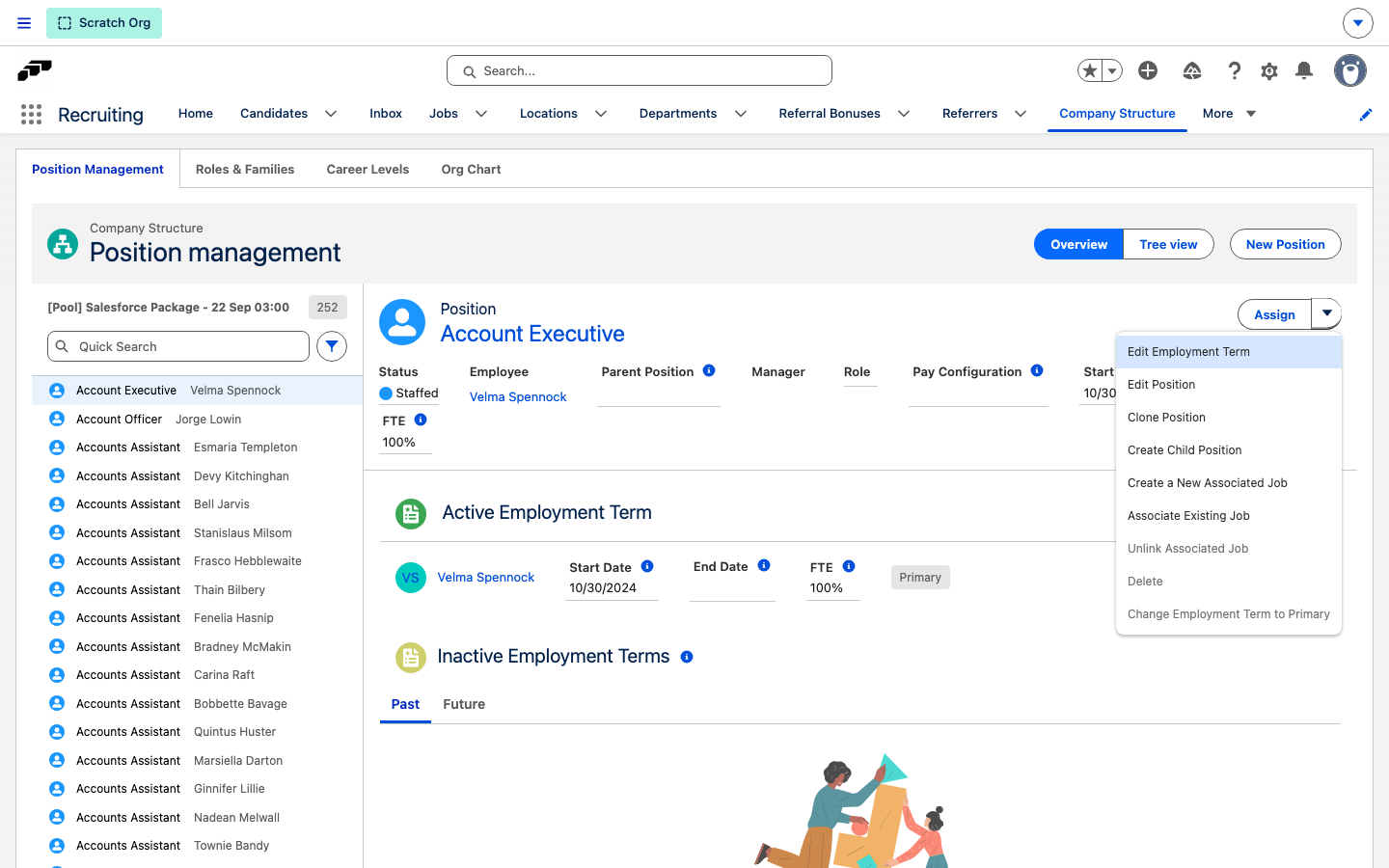
The down-arrow menu beside Assign contains these actions:
| Action | What it does |
|---|---|
| Edit Employment Term | Edits the active Employment Term, for example to end it. |
| Edit Position | Opens the position for editing. |
| Clone Position | Opens a new position form pre-filled from this one. See Clone a position. |
| Create Employee | Opens the new employee form with this position and its start date pre-filled. Shown only when the position has no active, past, or future Employment Term and you can edit Employment Terms. |
| Create Child Position | Opens the new position form with this position set as Parent Position. |
| Create a New Associated Job | Creates a flair Recruiting job linked to this position. |
| Associate Existing Job | Links an existing flair Recruiting job to this position. |
| Unlink Associated Job | Removes the link to an associated job. |
| Delete | Deletes a position that has no Employment Term. |
| Change Employment Term to Primary | Makes the active Employment Term the holder's primary one. |
An action is grayed out when you lack the access it needs, such as create access to employees for Create Employee or edit access to the position for Create Child Position.
Create a position
- On Company Structure, click New.
- Enter Position Title.
- Optional: Enter a Description.
- Select a Parent Position to place the position in the reporting hierarchy.
- Set Start Date.
- Optional: Set End Date for a temporary position.
- Click Save. The position appears when its start date is reached.
To place the new position directly under an existing one, select that position, open the down-arrow menu beside Assign, and click Create Child Position instead of New. Parent Position is already filled in.
To find a future position before its start date, enable Show Future Positions in the filters.
Clone a position
Cloning creates a new position pre-filled with the source position's details, so you can set up a similar role without re-entering every field.
- On Company Structure, select the position.
- Open the down-arrow menu beside Assign.
- Click Clone Position.
- Salesforce opens a new position form pre-filled with the source position's Position Title, Description, Parent Position, Start Date, and End Date.
- Update the fields that should differ, such as Position Title.
- Click Save.
The clone does not carry over the source position's Employee or Active Employment Term — the new position starts vacant, so you can assign someone separately.
Clone Position is disabled if you lack create access to positions.
Edit a position
- On Company Structure, select the position.
- Open the down-arrow menu.
- Click Edit Position.
- Update the description, Parent Position, dates, or other details.
- Click Save.
End or delete a position
End a position with Employment Terms
- On Company Structure, select the position.
- Open the down-arrow menu, then click Edit Position.
- Set End Date.
- Click Save. The position becomes inactive after that date.
Delete an unused position
- On Company Structure, select the position.
- Open the down-arrow menu.
- Click Delete.
- Confirm the deletion.
You cannot delete a position that has an Employment Term. End it instead.
Interpret position status
The status updates in real time and appears in the Status field:
| Status | What it means |
|---|---|
| Staffed | The position is filled and does not become vacant within three months. |
| Recruiting | The position is vacant and linked to an open flair Recruiting job. |
| Scheduled | The position is vacant but has a future employee assignment. |
| Upcoming Vacancy | The position becomes vacant within three months and has no scheduled replacement. |
| Vacant | The position is empty and is not linked to an open recruiting job. |
| Disabled | The position is no longer active. |
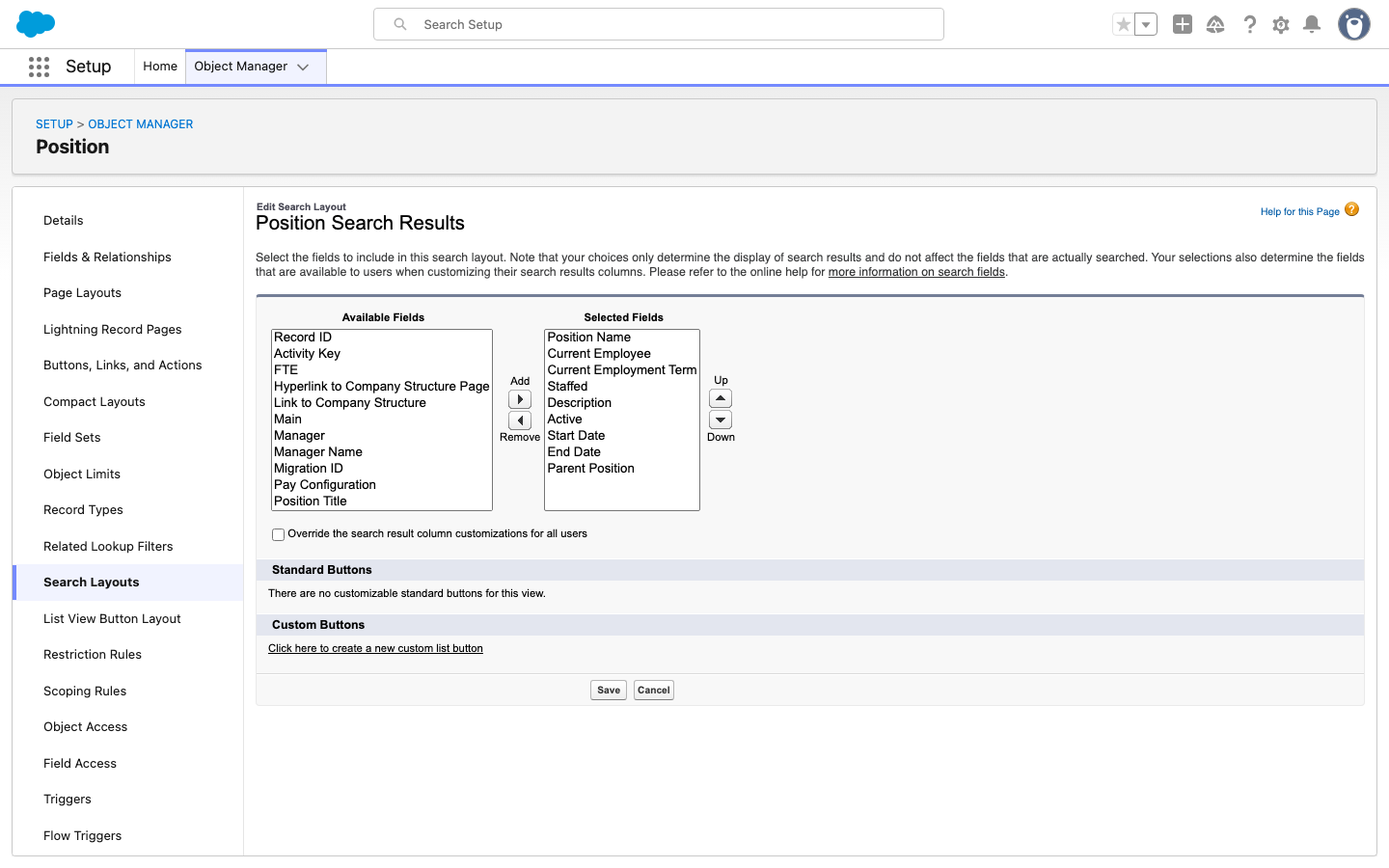
Configure the position search layout
- In Salesforce Setup, open Object Manager.
- Search for
position, then open Position. - Open Details, then click Edit.
- Select Allow Search.
- Click Save.
- Open Search Layouts.
- Click Edit next to the search layout.
- Add the required fields to the selected fields.
- Click Save.
Recommended fields are Position Name, Description, Current Employee, Current Employment Term, Parent Position, Start Date, and End Date.