Assign employees and recruiting jobs
Fill positions with employees, track multiple assignments, and connect vacancies to recruiting jobs from Company Structure.
HR Admins and managers in Salesforce. Creating associated jobs requires the flair Position-Job Management permission set and visibility of Job and Position records.
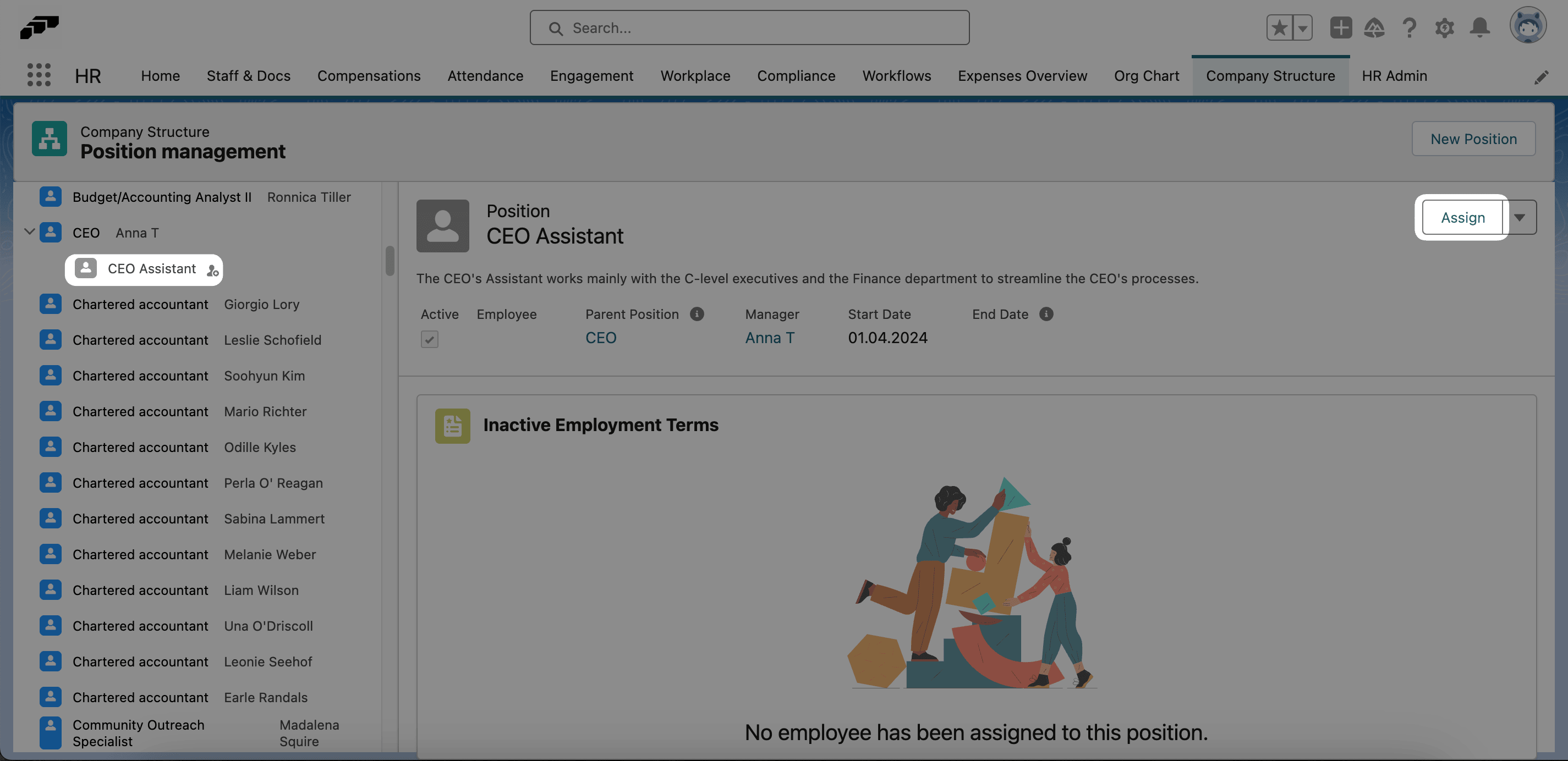
Assign a position to an employee
- Open Company Structure.
- Find a vacant position.
- Click the add icon next to the position, or select it and click Assign.
- Select the employee.
- Select a Primary or Secondary Employment Term.
- Set the start date.
- Optional: Set an end date for a temporary assignment.
- Click Save. The position becomes Staffed, and the Employment Term appears on the employee record.
For a Primary Employment Term, flair also updates the employee's Position and sets Manager from the Parent Position.
Assign an employee to several positions
An employee can hold several positions, but each position can have only one employee. Exactly one Employment Term must be Primary during any date range. Existing Employment Terms are Primary by default.
Assign from Company Structure
- On Company Structure, select the additional position.
- Click Assign.
- Select the employee.
- Select Primary or Secondary.
- Set the start date and, if needed, the end date.
- Click Save.
Assign from the employee record
- Open the employee record.
- In Employment Terms, click New.
- Select the position.
- Select Primary or Secondary.
- Set the effective dates.
- Click Save.
Only the Primary Employment Term synchronizes the position name and manager to the employee record. Secondary terms remain separate tracking records.
Change the Primary Employment Term
- On Company Structure or the employee's Employment Terms section, open the Employment Term.
- Change its Primary or Secondary designation.
- Confirm that exactly one term is Primary for each affected date range.
- Click Save. The employee's position and manager synchronize from the new Primary term.
Track full-time equivalent values
Employment Terms and Positions include optional full-time equivalent (FTE) fields. Use them for part-time arrangements, reduced workloads across several positions, and total employee capacity.
- Enter the workload on the assignment. flair automatically populates the related FTE values.
Existing single-position assignments continue to work without FTE changes.
Associate a new recruiting job
- On Company Structure, open the position.
- Open the down-arrow menu.
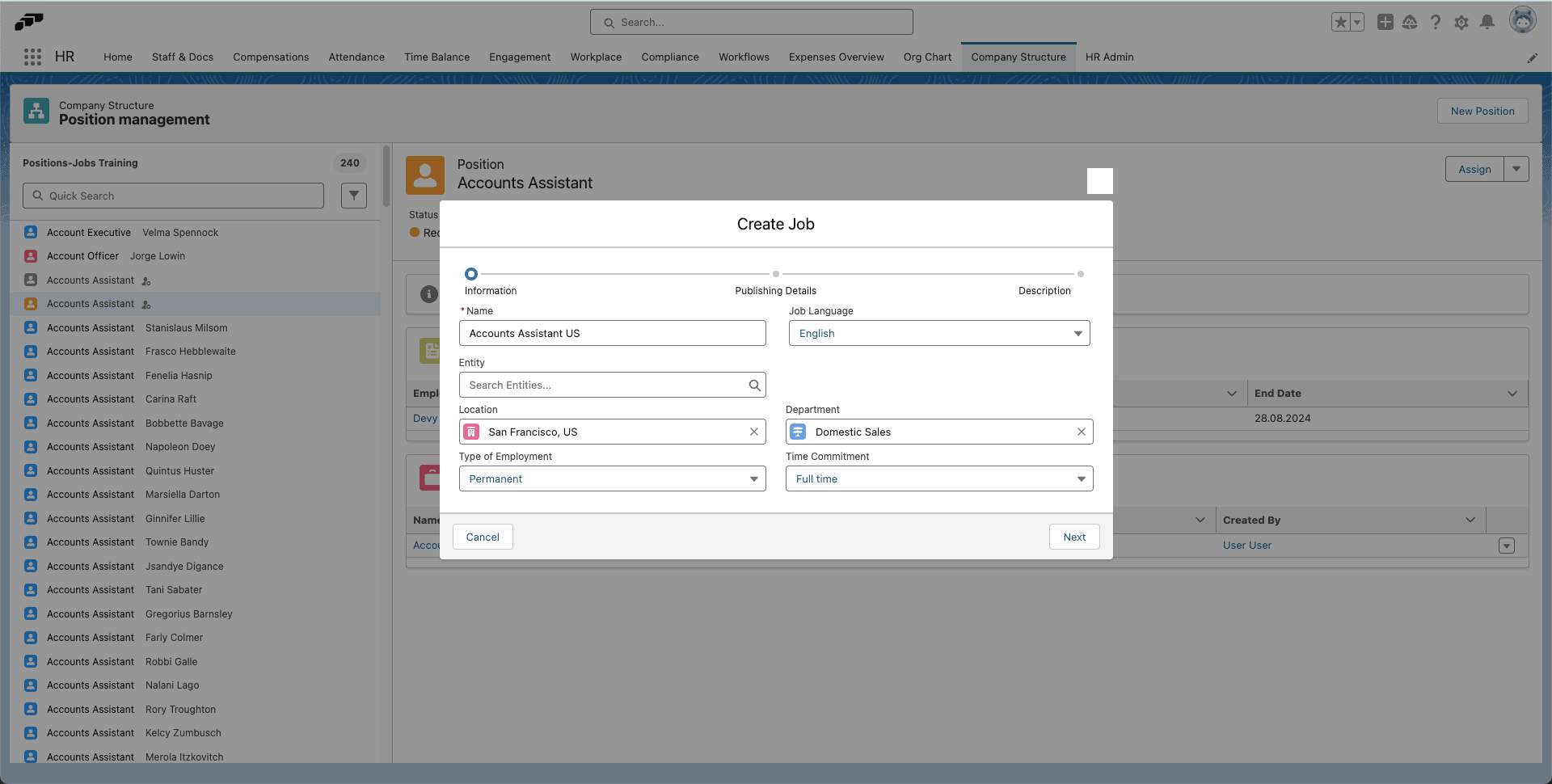
- Click Create a New Associated Job.
- Enter the job name, location, department, time commitment, and other job details.
- Click Save. flair creates the job in Recruiting and lists it under Associated Jobs for the position.
Associate an existing recruiting job
- On Company Structure, open the position.
- Open the down-arrow menu.
- Click Associate Existing Job.
- Select the flair Recruiting job.
- Confirm the association. The job appears under Associated Jobs with its name, status, publish date, and creator.
For a vacant position, a linked open job can change the position status to Recruiting. After hiring a candidate, assign that person to the position.