Org Chart
The Org Chart is a visual tree of your company, built from the position hierarchy. It is an alternative to the list-style structure view: the same structure, presented as a picture instead of a nested list.
Where to Find the Org Chart
In the flair HR app, open the Company Structure tab and switch to Org Chart. It sits alongside Position Management, Roles & Families and Career Levels.
Reading the Tree
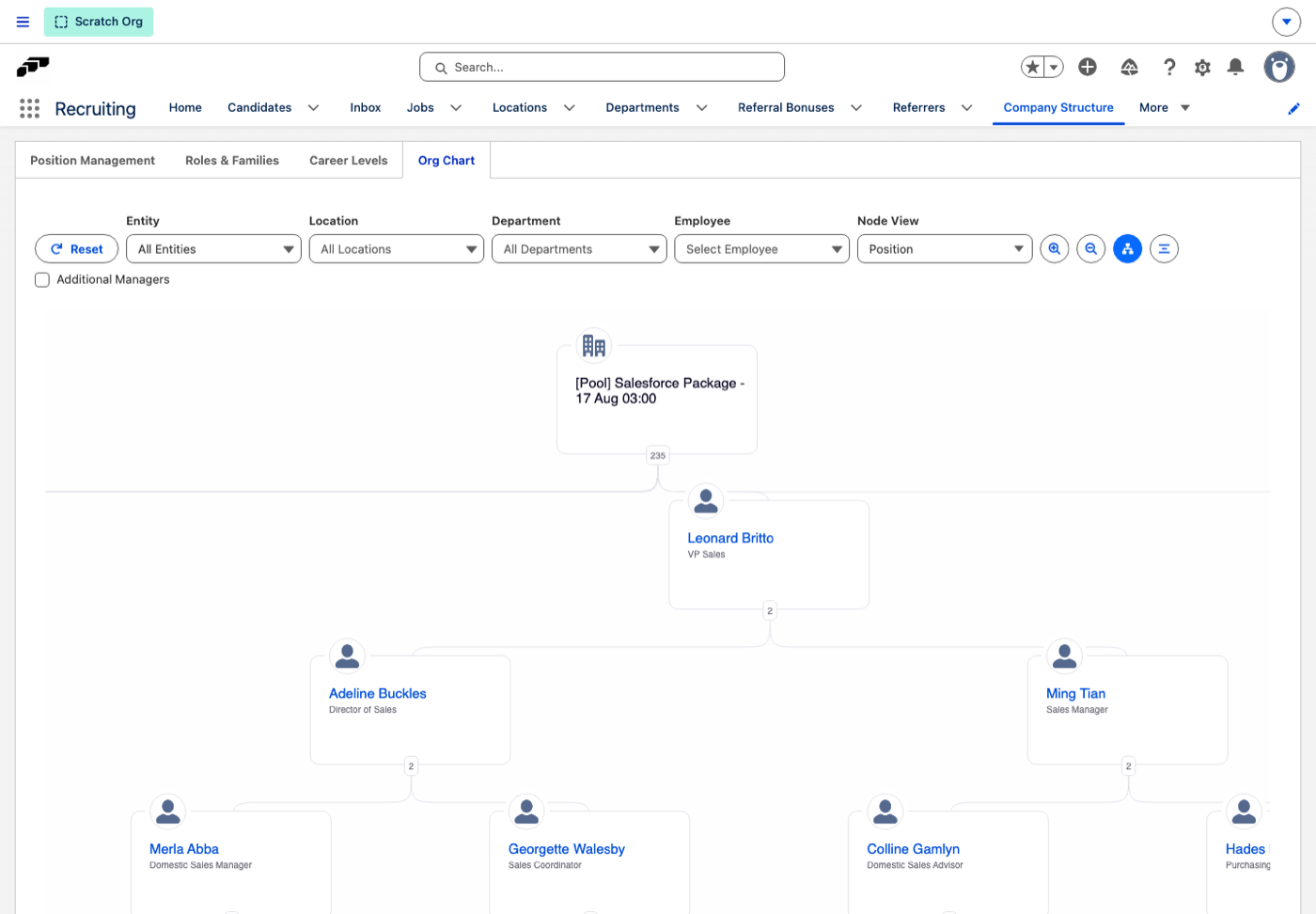
The chart starts from your company at the top and branches down through the reporting line. Each node names the employee and the position they hold, with their avatar, and the connector below a node carries a number — how many people sit beneath it.
Positions with nobody in them still appear, so the chart doubles as a view of where your gaps are.
Filtering the View
A filter bar sits above the chart:
| Filter | What it does |
|---|---|
| Entity | Narrow the chart to one legal entity, or leave it on All Entities. |
| Location | Narrow to a single location, or All Locations. |
| Department | Narrow to a single department, or All Departments. |
| Employee | Select Employee jumps the chart to that person, which is the quickest way to orient yourself in a large company. |
| Node View | Choose what each node is built around — Position by default. |
Tick Additional Managers to include reporting lines beyond the direct manager, and use Reset to clear every filter at once.
Navigating a Large Tree
Large organizations get wide fast. Alongside the filters you can zoom in and out, fit the whole tree to the screen, and switch to a more compact layout so more of it fits at once. Branches expand and collapse, so you can open only the part of the organization you are looking at.
In a big company, pick someone in Employee rather than scrolling the whole tree — the chart centres on them and you can expand outwards from there.
Next Steps
The Org Chart reflects your position hierarchy — it is for exploring the structure, not editing it. To change the structure itself, see Creating & Managing Positions. To set up the roles your positions are generated from, see Roles & Career Levels.