Manage roles, career levels, and skill requirements
A Role describes a job in the abstract — "Backend Engineer" — separately from the individual positions that people are hired into. The role's definition stays the same no matter how many positions based on it exist or who currently holds them. You can also define required skills on a Role, inherit them to linked Positions, and review skill gaps for assigned employees.
On its own, a list of roles is only job titles. Grouping roles into Role Families and placing them on Career Levels turns that list into a career framework: related roles sit together, the progression from one level to the next is explicit, and compensation bands hang off it. To connect pay to this framework, see Compensation Management.
Where to Find Roles, Families, and Career Levels
In the flair HR app, open the Company Structure tab. Alongside Position Management you will find three more tabs:
- Roles & Families — manage your roles and the families they are grouped under
- Career Levels — manage the ordered levels that roles sit at
- Org Chart — explore your company as a visual tree
This article covers the first two tabs. For the third, see Org Chart.
Working in the Roles & Families View
The Roles & Families tab is the Roles Builder. A sidebar on the left lists your role families with the number of roles in each; Expand all opens them, and a search box narrows the list when you have many.
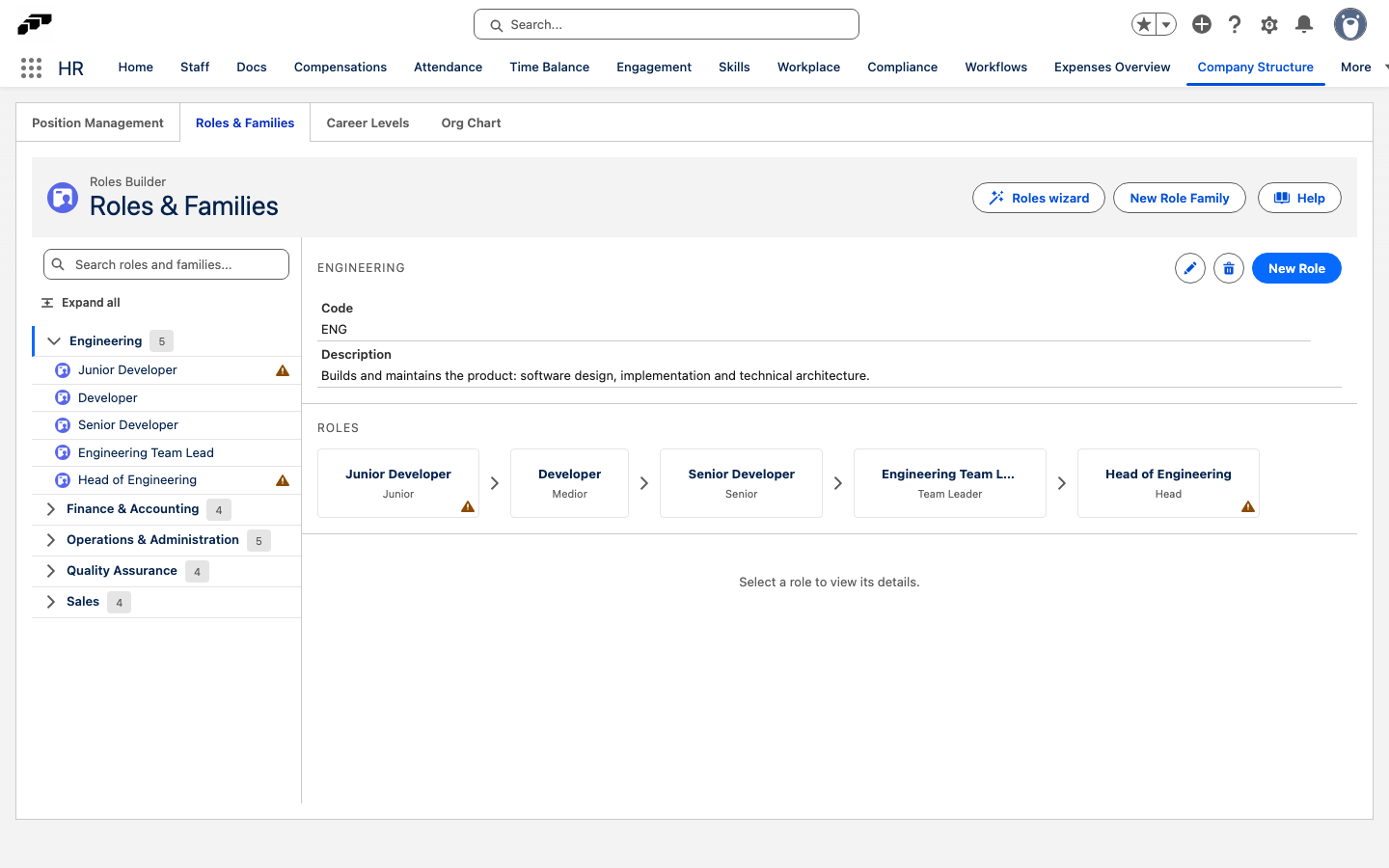
Select a family and the main area shows its Code and Description, then its ROLES laid out as a career path — the roles in order, each with the career level it sits at underneath. Reading left to right gives you the progression through that family at a glance.
Until you pick something, flair prompts you with "Select a role family from the sidebar to view its roles." and, once a family is open, "Select a role to view its details."
Use New Role Family to add a family, and New Role to add a role to the family you have open. Each family also has edit and delete actions.
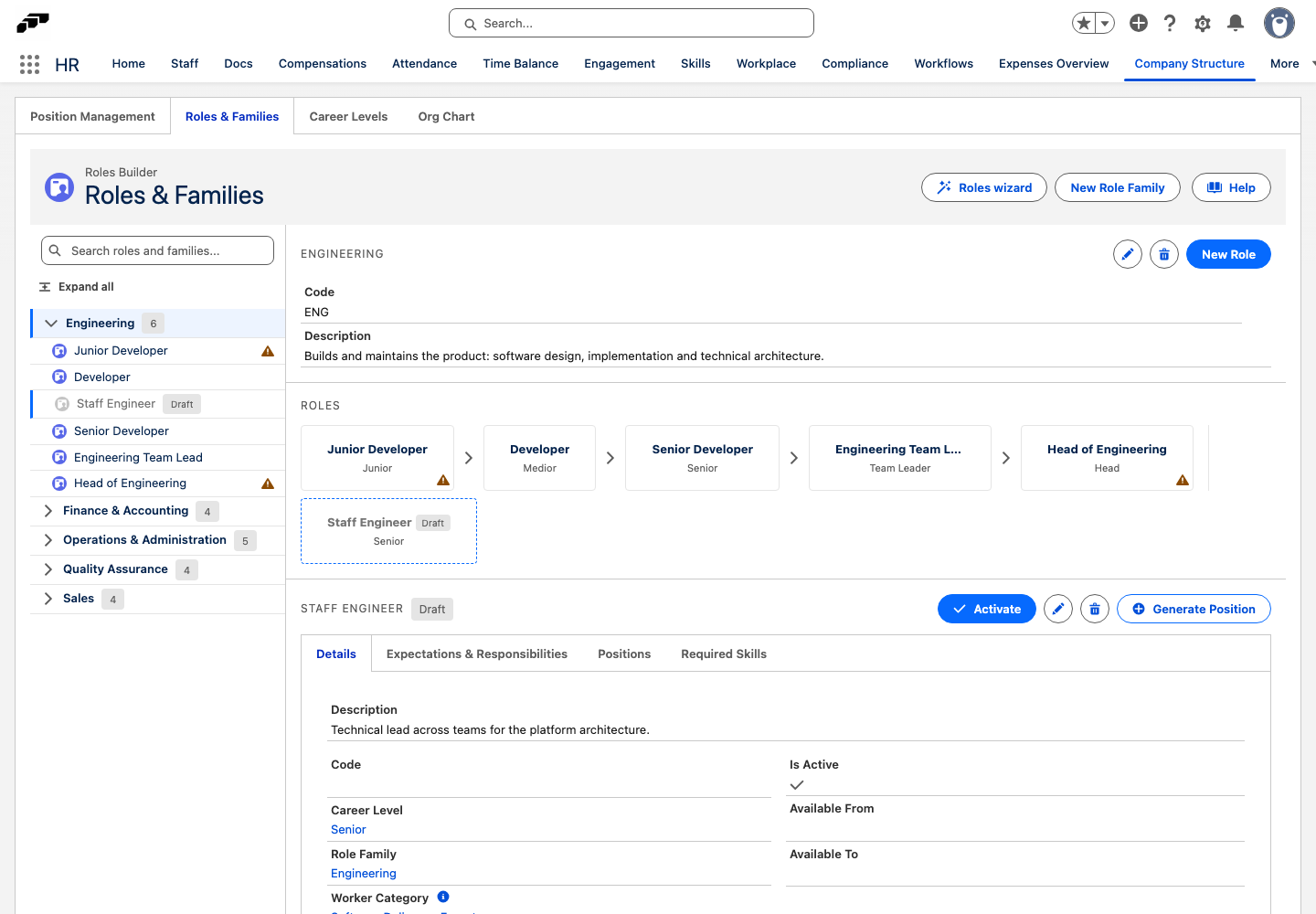
A role you create with New Role starts as a draft. Draft roles are grayed out with a Draft badge and sit after the career path, without arrows, until you activate them. See Activate a draft role.
What a Role Holds
| Field | What it is |
|---|---|
| Role Code | A unique identifier for the role. |
| Career Level | Required. The level this role sits at. |
| Role Family | Optional. The family it is grouped under. |
| Available From / Available To | The window during which the role can be used; flair works out whether the role is currently active from these dates. |
| Worker Category | Optional. The group of roles doing the same work or work of equal value, used for pay transparency reporting. See Group roles into Worker Categories. |
| Description, Responsibilities, Expectations | Rich text describing the role. |
You don't need to maintain a separate "active" flag. Set Available From and Available To to the window during which the role can be used, and flair works out from those dates whether it is currently active. A draft role is separate from this: you activate it once, after it has a worker category.
Activate a draft role
A draft role needs a worker category before you can activate it. Roles that reach flair through imports or the API are not drafts.
- In the Roles & Families view, select the draft role.
- If the role has no worker category, assign one first. See Assign a worker category to a role.
- Click Activate. The Draft badge disappears, and the role joins the career path of its family.
Assign a worker category to a role
While a role has no worker category, its details show Assign worker category. The button appears on draft and active roles alike.
- In the Roles & Families view, select the role.
- Click Assign worker category.
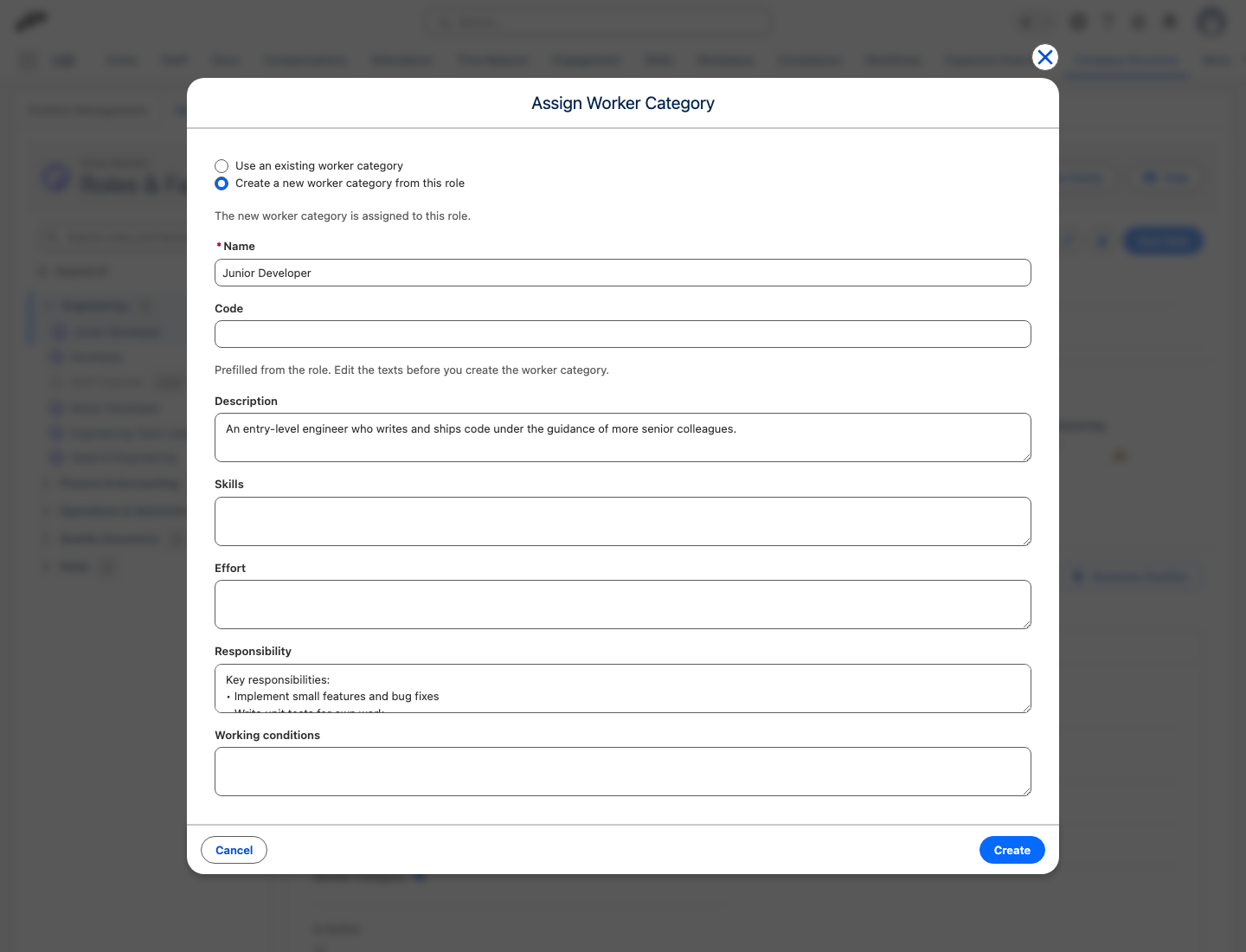
- Choose how to assign the category:
- To reuse a category, select Use an existing worker category, select the category in Worker Category, and click Save.
- To create a category, select Create a new worker category from this role, and continue with the next step.
- Enter a Name for the category. flair prefills it with the role name. Optional: Enter a Code.
- Review the category texts. flair prefills the description from the role's description, the responsibility criteria from its responsibilities, and the skills criteria from its required skills, one per line. The effort and working conditions criteria stay empty. Edit the texts as needed.
- Click Create. flair creates the category and assigns it to the role.
Draft the category texts with AI
If your organization has flair AI for HR, the Create a new worker category from this role option also shows a Generate with AI toggle. With the toggle on, flair drafts the description and criteria from the role instead of prefilling them.
- In the Assign Worker Category modal, select Create a new worker category from this role, and enter a Name.
- Turn on Generate with AI.
- Click Create. flair creates the category, assigns it to the role, and opens the Draft description and criteria panel, which starts drafting straight away.
- Review the drafted texts and save the ones you accept. Nothing is written to the category until you save. For the review steps, see Draft worker category criteria with AI.
The Generate with AI toggle requires the HR AI subscription and an active flair AI integration. Without them, the toggle is hidden and you fill in the category texts yourself.
Review role warnings
A warning triangle on a role card, and on the role's row in the sidebar, marks a role that is incomplete for pay transparency reporting. The role details list what is missing:
- No worker category — the role has no worker category. Assign one.
- Career level has no pay band — the role's career level has no pay configuration. See Compensation Management.
The warnings don't block anything. You can still use, edit, and generate positions from the role.
Generating a Position from a Role
The important action in this view is Generate Position. It creates a position from the role so you don't re-enter the same details by hand — the description, responsibilities, and expectations you already wrote for the role carry over.
To generate a position:
- In the Roles & Families view, select the role you want to hire into.
- Click Generate Position.
The generated position then behaves like any other: see Creating & Managing Positions for the full position lifecycle.
Editing and Deleting
The remaining actions in this view work as their names suggest:
- Edit Role — change the selected role's fields
- Delete Role — remove the selected role
- Edit Role Family — change the selected family
- Delete Role Family — remove the selected family
Where employees and managers see a role
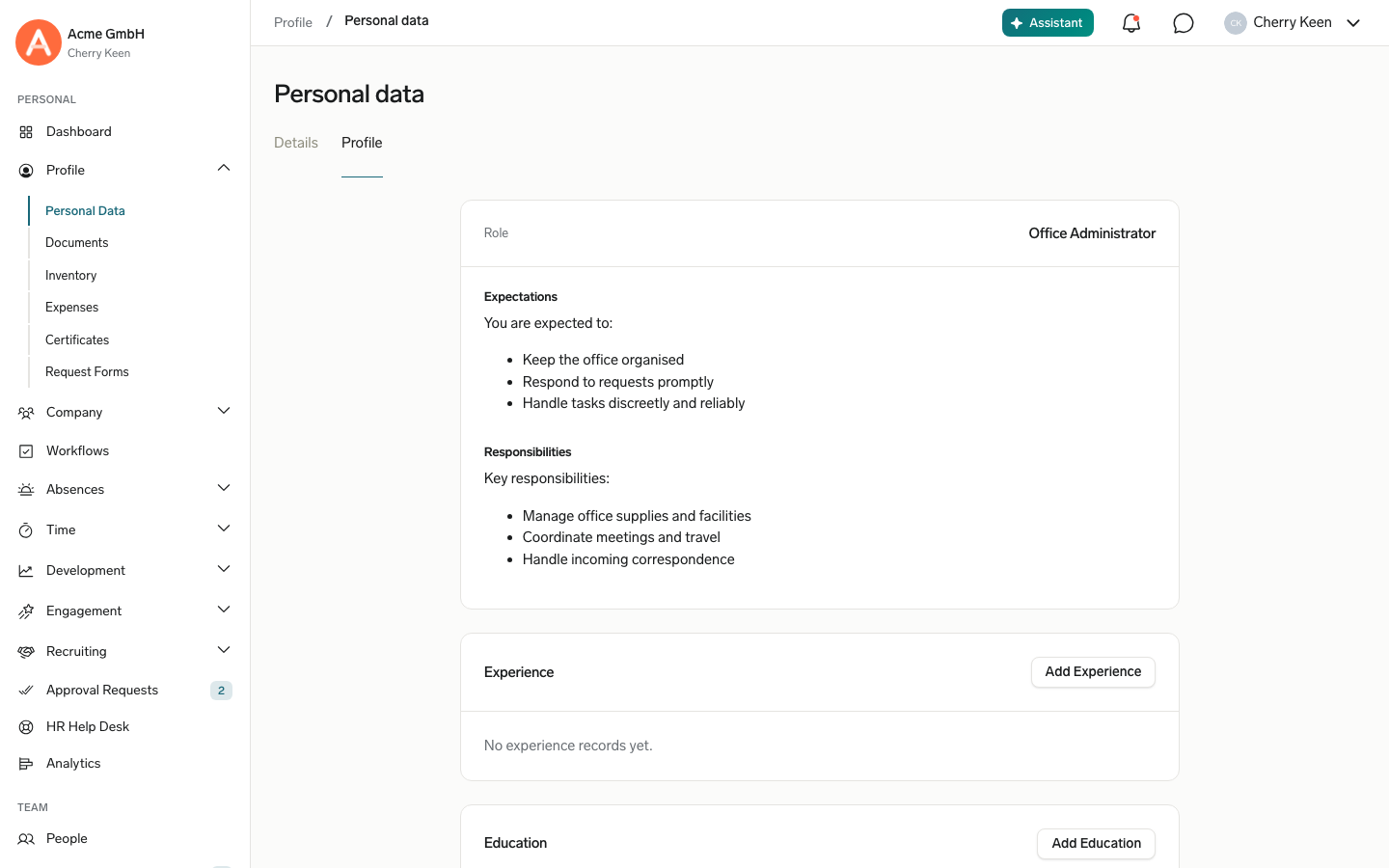
The role's Expectations and Responsibilities also appear in the Employee Hub, in a Role card:
- Employees see the card for their own role under Personal Data → Profile, above their experience.
- Managers see it on a team member's Overview tab under Team → People.
The card shows only when the employee's main position is linked to a role and at least one of the two fields has text. Employees see the card only if their Profile tab is available. HR Admins can hide that tab for some employees. See Configure the Employee Hub menu.
Role Families
A Role Family keeps related roles together so a growing framework stays navigable. One short illustration: an engineering family with "Backend Engineer" as one of its roles.
A family carries:
- Code
- Description
Grouping a role under a family is optional — the Role Family field on the role decides where it appears.
Career Levels
Career Levels are ordered, so the progression from one level to the next is explicit rather than implied by naming conventions. Every role must sit at a level — Career Level is a required field on the role — which is what turns your roles into a ladder rather than a list.
Build roles from your positions with the roles wizard
If your positions have job titles but no roles yet, the roles wizard builds a career ladder, role families, and roles from those titles. It reads seniority words such as Junior, Senior, or Leiter from each title to find the career levels, and groups the remaining titles into roles. It proposes a family for each role from the department of the people on its positions, from the role family of their manager's position, or from a word in the title. Roles it cannot place go to the Unclassified family.
HR Admins with the Flair Manager permission set in Salesforce. Without it, the roles wizard isn't shown.
The wizard works in three steps: Career ladder, Families & roles, and Review & publish. Your work is saved as you go and stays hidden from Roles & Families until you publish it, so you can exit the wizard and continue later. Only the career levels are created earlier, when you confirm the ladder.
The wizard proposes roles only for positions that have no role. Positions that already have a role keep it, and the wizard can't rename, merge, or delete your existing roles, role families, or career levels.
Start the roles wizard
- In the flair HR app, open Company Structure.
- Open Roles & Families.
- Click Roles wizard. The wizard opens on the Career ladder step.
Until you select a role family, Roles & Families also offers the wizard in the main area. If your company has no roles yet, it shows Start roles wizard. If some positions have no role, it shows how many and an Assign them in the roles wizard button. Both open the same wizard.
While a wizard draft exists, the header button reads Continue roles wizard and shows the number of draft roles. The wizard then opens on the Families & roles step. The button is grayed out when every position already has a role and there is no draft and no earlier publish.
Confirm the career ladder
The Career ladder step shows the levels found in your position titles, in order. Levels that don't exist in your org yet are marked New.
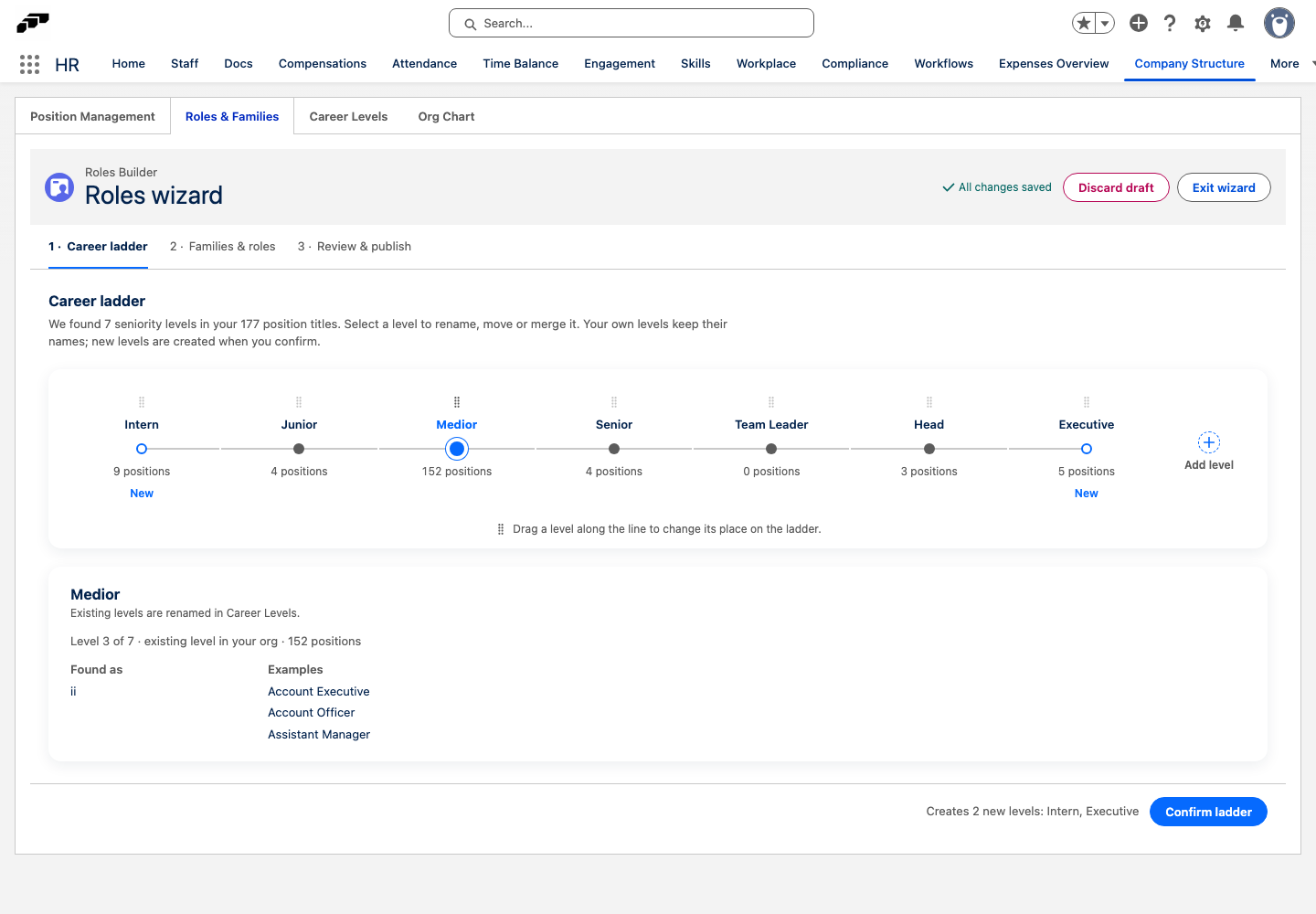
- Select a level. Its details show how many positions it covers, the seniority words it comes from under Found as, and sample titles under Examples.
- To rename a new level, edit its Level name. Existing levels keep their names. You rename them under Career Levels.
- To change the order, drag a level along the line. With the keyboard, use Alt and the arrow keys.
- To merge a new level into the level to its left, click the merge icon.
- Optional: Click Add level at the end of the line to add a level.
- To remove a new level that covers no positions, click Remove level.
- Click Confirm ladder. flair creates the new career levels and opens the Families & roles step.
If you leave the step before you click Confirm ladder, your changes to the ladder are lost.
Arrange families and roles
The Families & roles step shows a board with role families as rows and career levels as columns. Each cell holds the draft roles of that family at that level. The Unassigned titles list on the left holds the position titles that are not in a role yet, and the progress bar above the board shows how many positions are assigned.
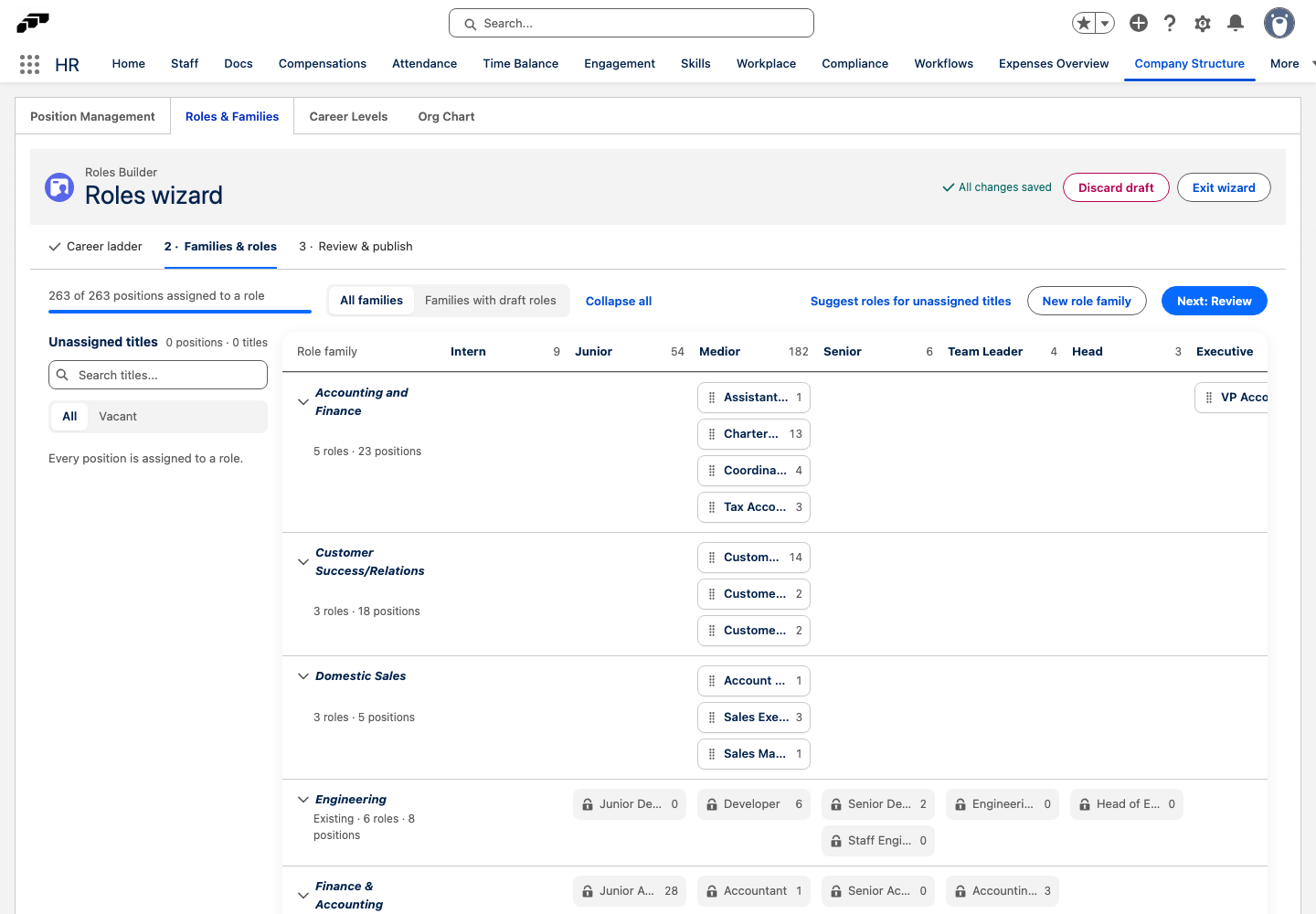
- To put a title into a role, drag it from Unassigned titles onto a cell. Dropping it on an empty spot creates a draft role there. Dropping it on a role adds its positions to that role.
- To do the same without dragging, click the add icon (Add to role…) next to the title. In Add to role, select a role in Add to an existing role, or enter a Role name, Role family, and Career level for a new role, and click Save.
- To change a draft role, select it. In the details on the right, edit its Role name, Role family, or Career level, merge it with Merge into another role, or click Delete draft role. Why this role lists the reasons for the proposal.
- Optional: Click Suggest roles for unassigned titles to let the wizard propose roles for the titles that are still unassigned.
- Optional: Click New role family to add a family.
- Click Next: Review.
Gray roles with a lock are roles your company already has. You can't edit them in the wizard, but you can drop titles on them to link positions to them. A warning mark on a draft role shows that the wizard was unsure about it. Check its family and level before you publish.
Review and publish
The Review & publish step lists your role families with their new roles, positions, and employees. You publish one family at a time or several at once.
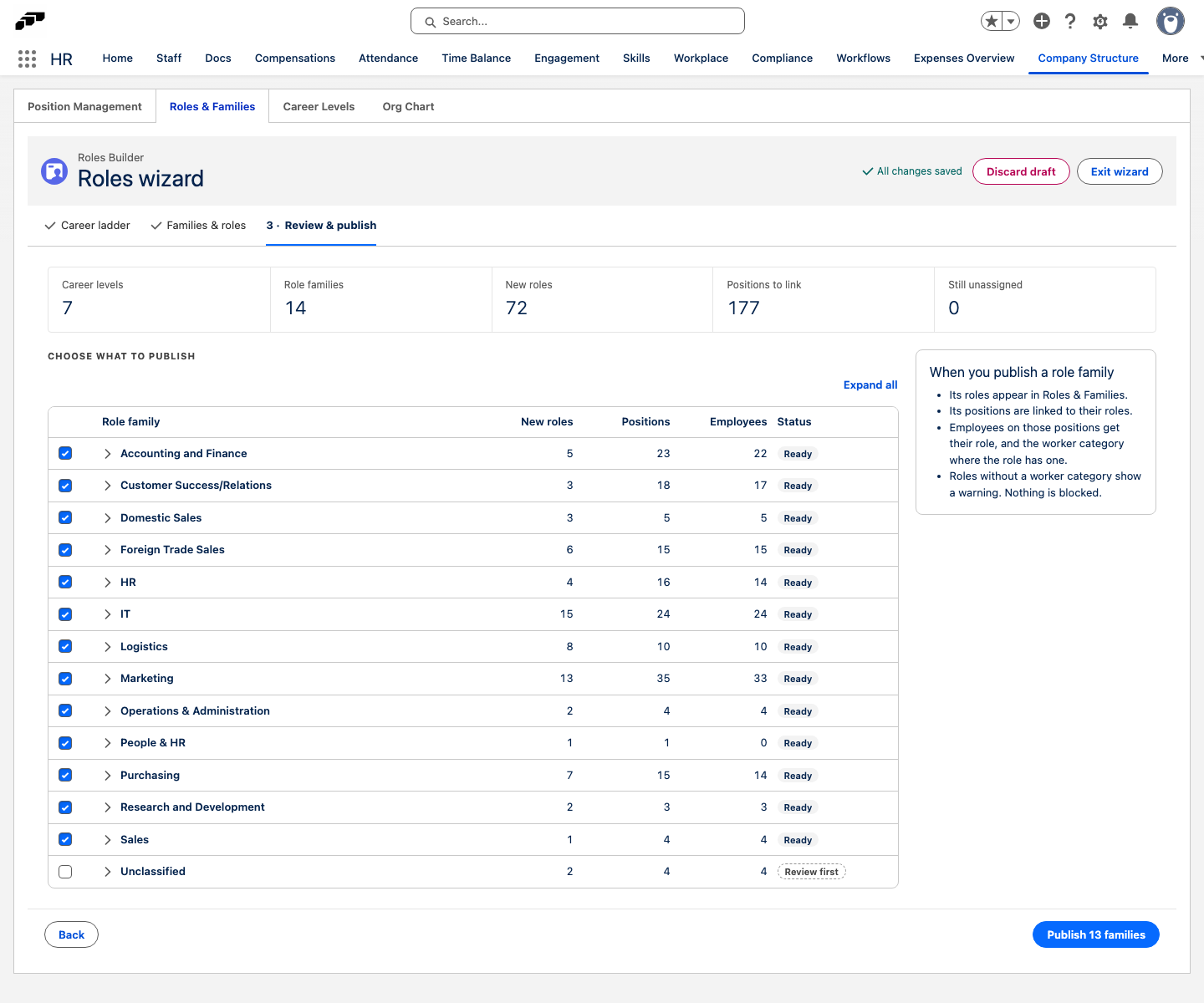
- Under Choose what to publish, select the families you want to publish. Families with the status Ready are selected already. Unclassified has the status Review first and is selected only if you select it.
- Click the publish button, for example Publish 2 families.
When you publish a role family, its roles appear in Roles & Families as active roles, and its positions are linked to their roles in the background. Employees on those positions get their role, and the worker category where the role has one. A new role takes its description from the oldest of its positions that has one. Roles without a worker category show a warning, which blocks nothing. See Review role warnings.
Positions you left unassigned keep working as they are. To publish other families later, open the wizard again.
Discard the wizard draft
- In the wizard, click Discard draft.
- Confirm. flair deletes the draft roles and families from the wizard, and their positions are unassigned again. Roles you already published stay as they are.
Add required skills to a Role
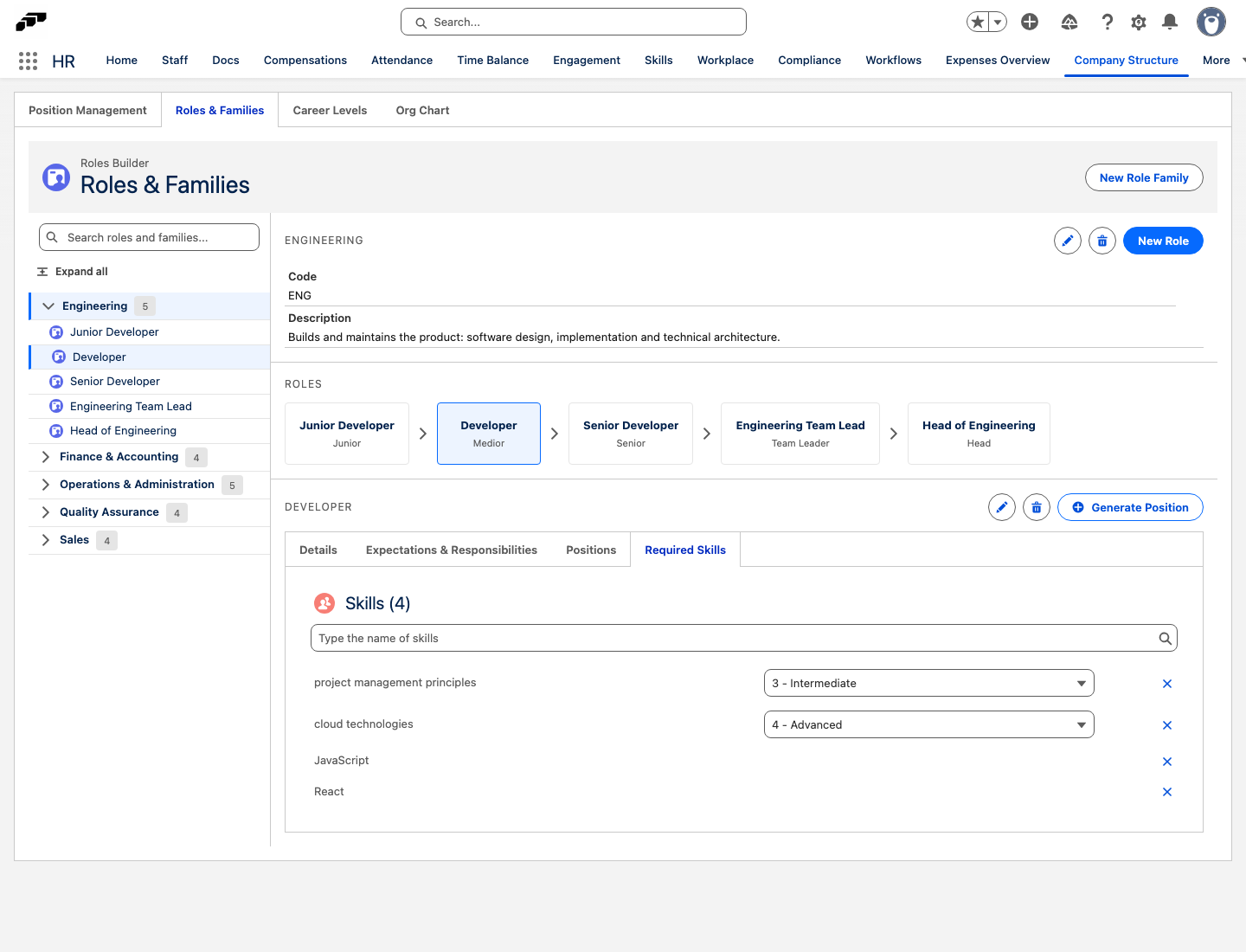
- In the flair HR app, open Company Structure.
- Open Roles & Families, and select a role.
- Open the Required Skills tab.
- In the Skills card, search for and select a skill. The skill is added to the role's required-skills profile.
- For a rateable skill, set its target level from 0 (N/A) to 5. The target is the level a linked Position expects.
The Role stores one requirement for each selected skill. Every Position linked to the Role inherits those requirements automatically, so a change to the Role updates non-overridden requirements on its Positions.
Customize required skills on a Position
-
Open the Position record in Salesforce.
-
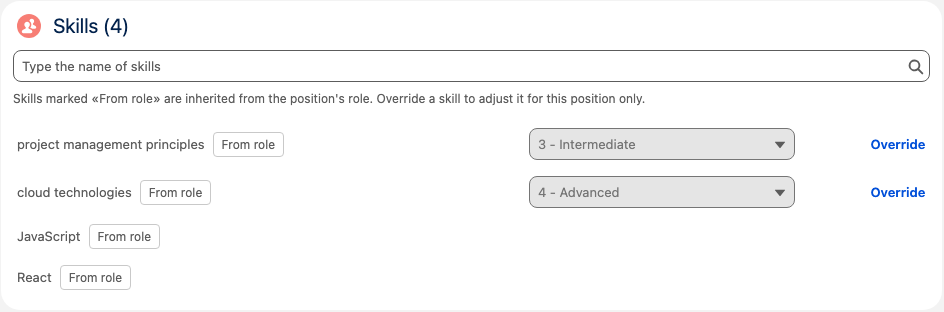
In the Skills card, review the inherited rows marked From role.
-
To set a different target for one inherited skill, click Override, and choose the target level.
-
To return an overridden skill to the Role target, click the undo icon (Reset to role). The Position uses the current Role requirement again.
-
To add a requirement that applies only to this Position, search for another skill in the Skills card, and select it.
Inherited requirements are read-only until you override them. Overridden rows show a Customized badge. Position-only requirements remain editable and can be removed from the Position without changing the Role.
Review required skills and gaps in Salesforce
- In Company Structure, open the Position Management detail view for a Position.
- Find the Required Skills card. It lists each required Skill, its Target, the employee's Current level, and its Status.
- Review the status for each requirement. A staffed Position can show Met, Below target, Not rated, Not on profile, or Expired.
The card identifies the employee whose current levels are being compared. Role-inherited requirements carry the From role label, so you can distinguish them from Position-specific requirements.
For Hub gap views in Performance Reviews and on the employee Skills tab, see Create and manage employee skills.