Create, advertise, and refer jobs
Create and advertise job listings in flair Recruiting, connect them to hiring teams, positions, Career Portals, and advertising channels, and let employees share published jobs through referral links.
Recruiters and HR Admins in Salesforce. Employees browse jobs and get referral links in the Employee Hub. flair Advertising, VONQ, and LinkedIn features require the corresponding account setup and permissions. To use Advertise (own contract), you need the same access as Advertise, the Job_Advertising custom permission, an advertising logo on every Career Portal, and the Bring Your Own Contract add-on. Without the add-on, the dialog shows a paywall with an option to request the feature.
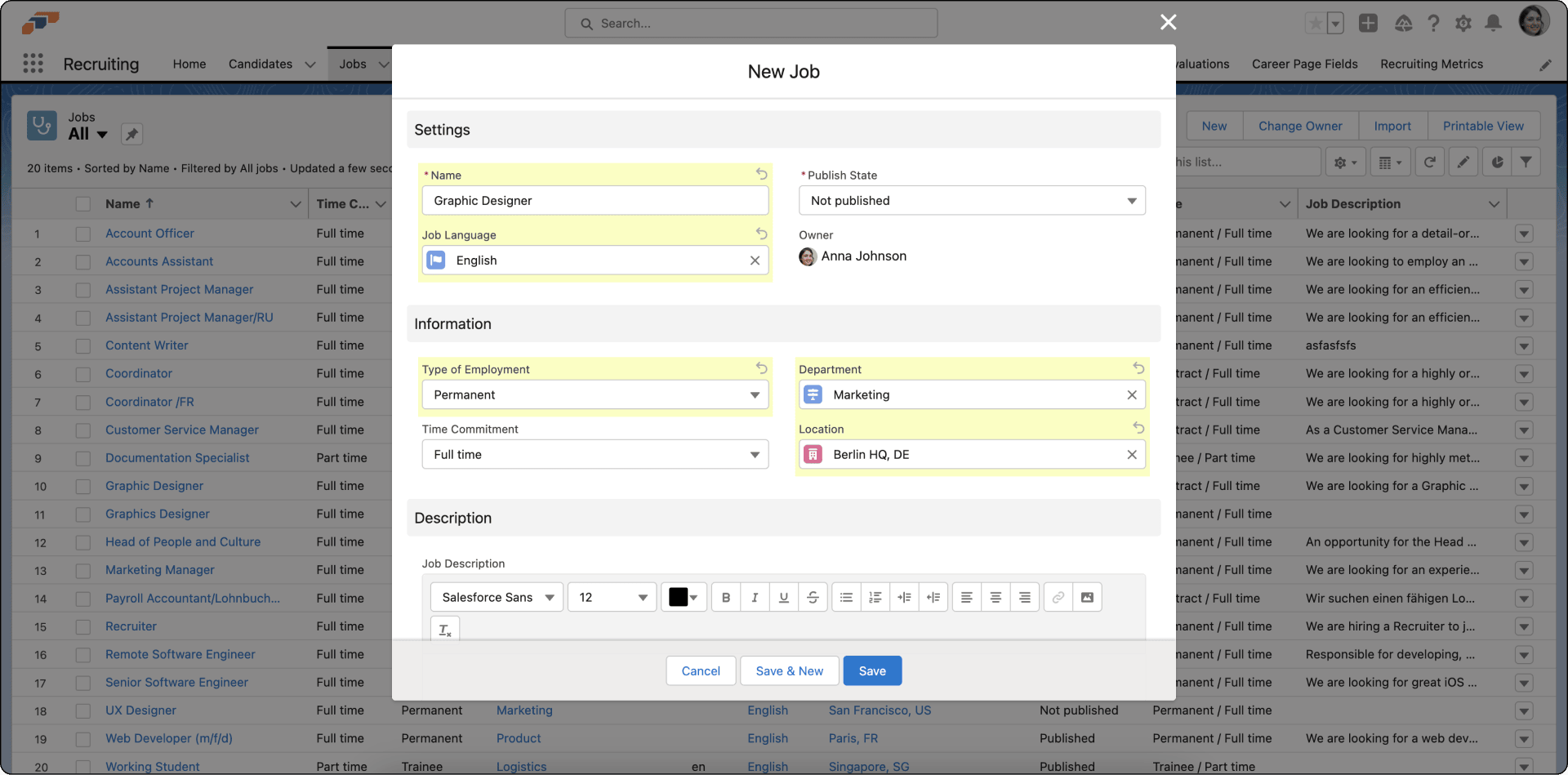
Create a job
- In the flair Recruiting app, open Jobs.
- Click New.
- Enter the job name.
- Select a Publish State to publish the job or keep it as a draft.
- Enter the employment type, time commitment, department, and location.
- Add the description, requirements, responsibilities, and benefits.
- Click Save. The job appears on the Jobs page.
Assign a Hiring Manager
- In the flair Recruiting app, open Jobs.
- Select the job.
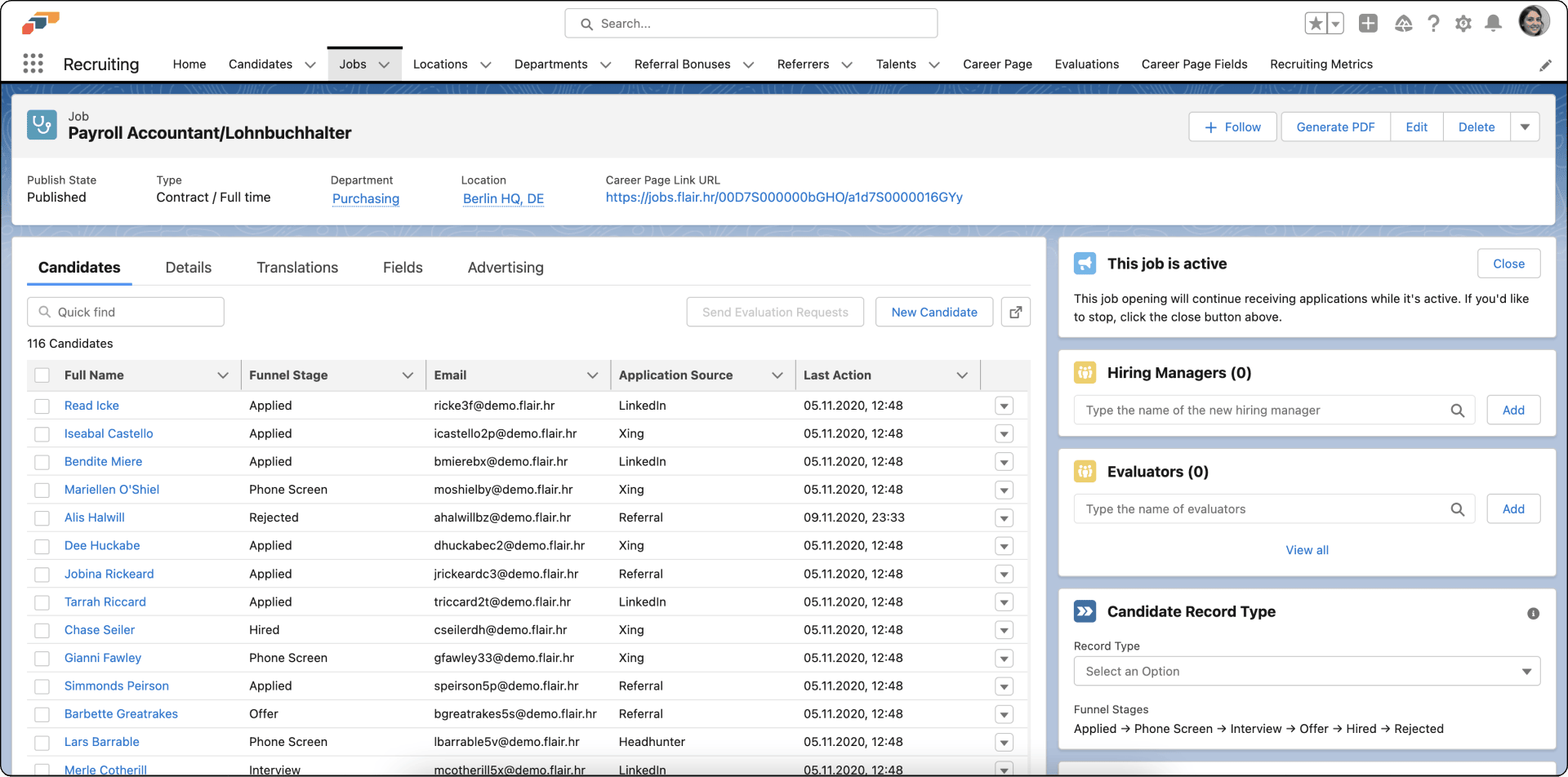
- In Hiring Managers, enter the manager's name.
- Click Add. The manager is assigned to the job.
Translate a job
- In the flair Recruiting app, open Jobs.
- Select the job.
- Open Translations.
- Click Add Translation.
- Select the language.
- Enter the translated content in each field. The original language appears beneath it.
- Click Save. The language version appears on Translations.
Repeat the procedure for each additional language.
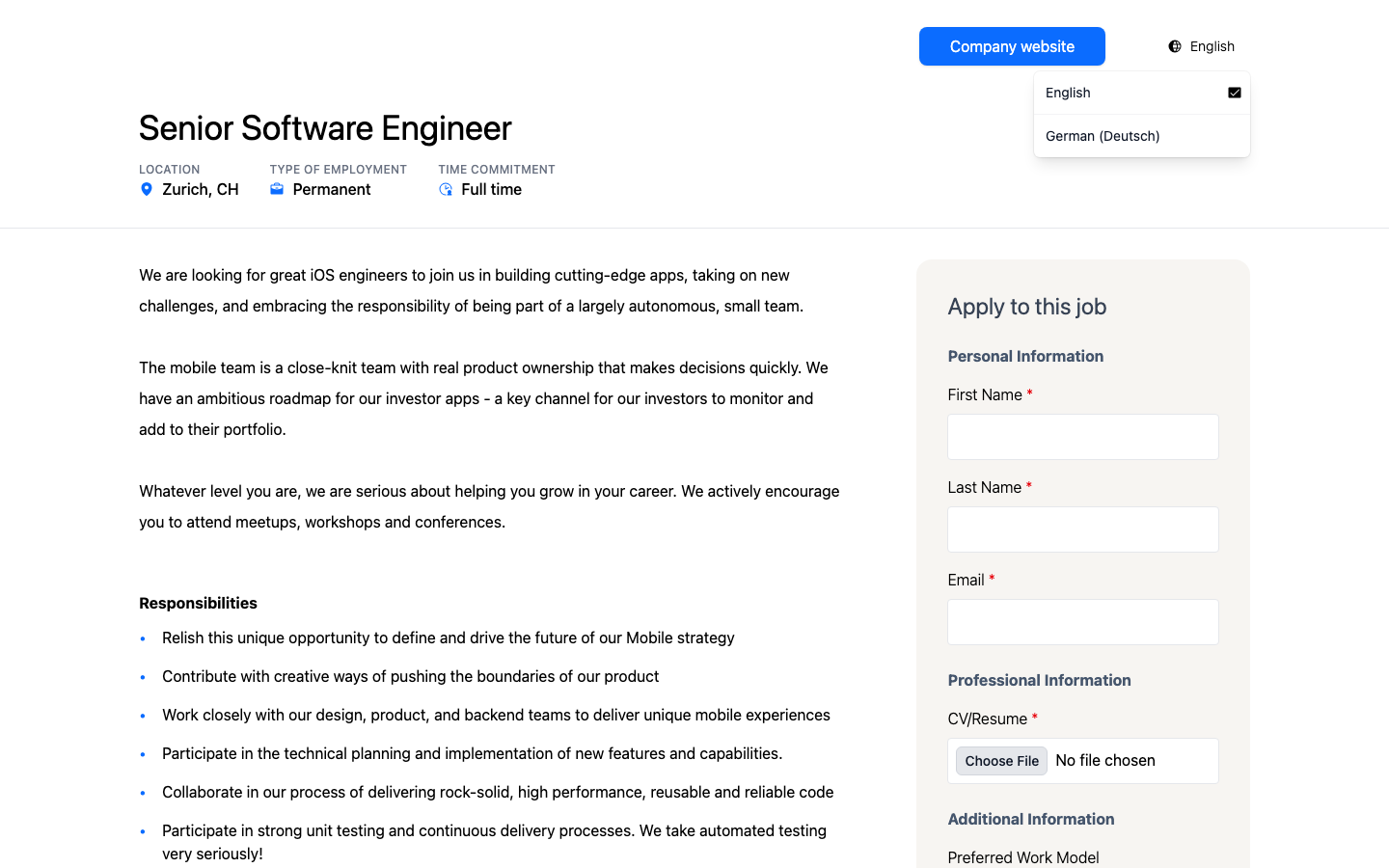
Once you save a translation, candidates on the Career Portal can switch to it. A language selector in the job page header lists the job's published languages; choosing one loads that language's title, description, requirements, responsibilities, and benefits without leaving the page.
Close or reopen a job
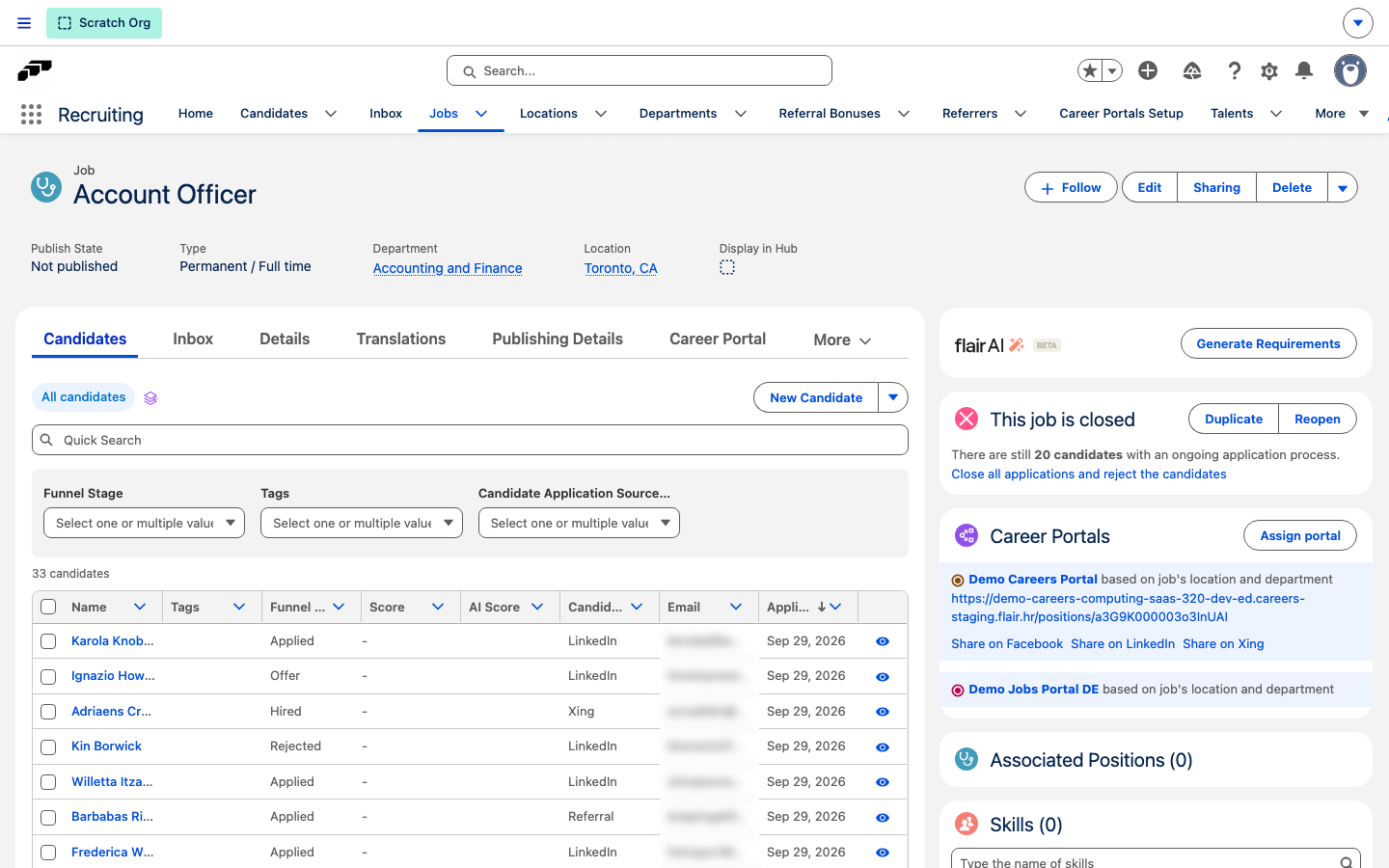
An open job shows the This job is active card on its record page and keeps receiving applications. Closing the job sets its Status to Closed and its Publish State to Not published, so the job disappears from your Career Portals.
- In the flair Recruiting app, open Jobs.
- Select the job.
- In the This job is active card, click Close. The card changes to This job is closed.
To open the job again, click Reopen in the This job is closed card. Reopening sets Status back to Open but leaves Publish State at Not published. To show the job on your Career Portals again, set Publish State to Published.
Reject the remaining candidates of a closed job
When a closed job still has candidates who are neither hired nor rejected, the This job is closed card shows how many and offers to reject them all at once.
- In the This job is closed card, click Close all applications and reject the candidates.
- In Close all applications?, click Yes. The Compose Rejection Message dialog opens with a default Subject and Message.
- Optional: Edit the Subject and Message.
- Click Send. flair moves every remaining candidate to the Rejected funnel stage and sends them the email with your subject and message.
To reject the candidates without emailing them, click Skip instead of Send. flair moves them to the Rejected funnel stage and sends no email.
You can't undo this action. Every candidate of the job who isn't hired or already rejected is rejected.
Connect flair Advertising
- Open the job, then select Publishing Details.
- Enter the required advertising information, including industry, workplace, employment type, experience, and salary range.
- Click Save.
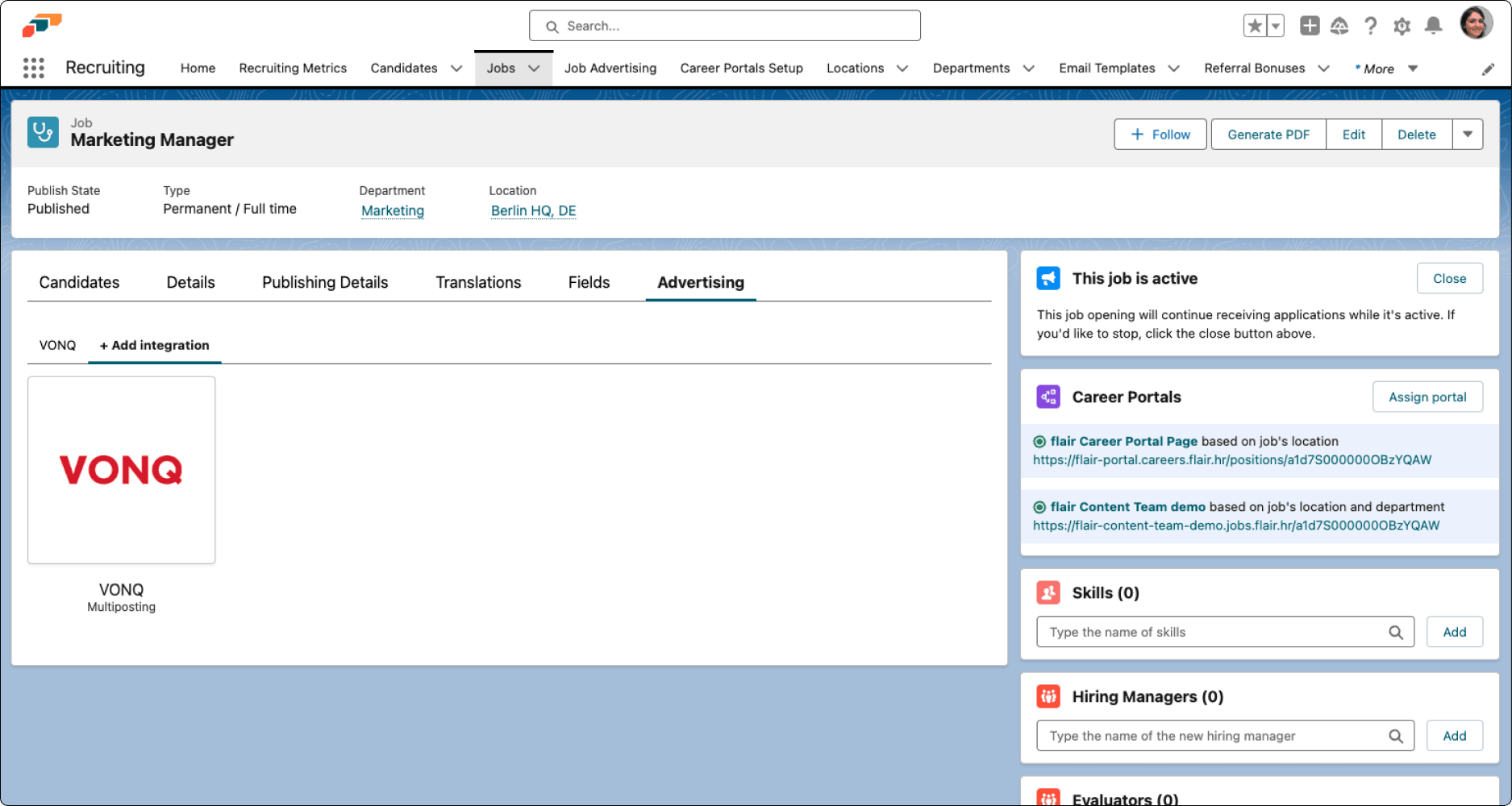
- Open Advertising.
- Under Add Integration, select flair Advertising.
- Click Connect Via Integration Service.
- Click Enable. The job gains a Campaigns tab.
Order a multiposting campaign
- On the job's Campaigns tab, click Advertise.
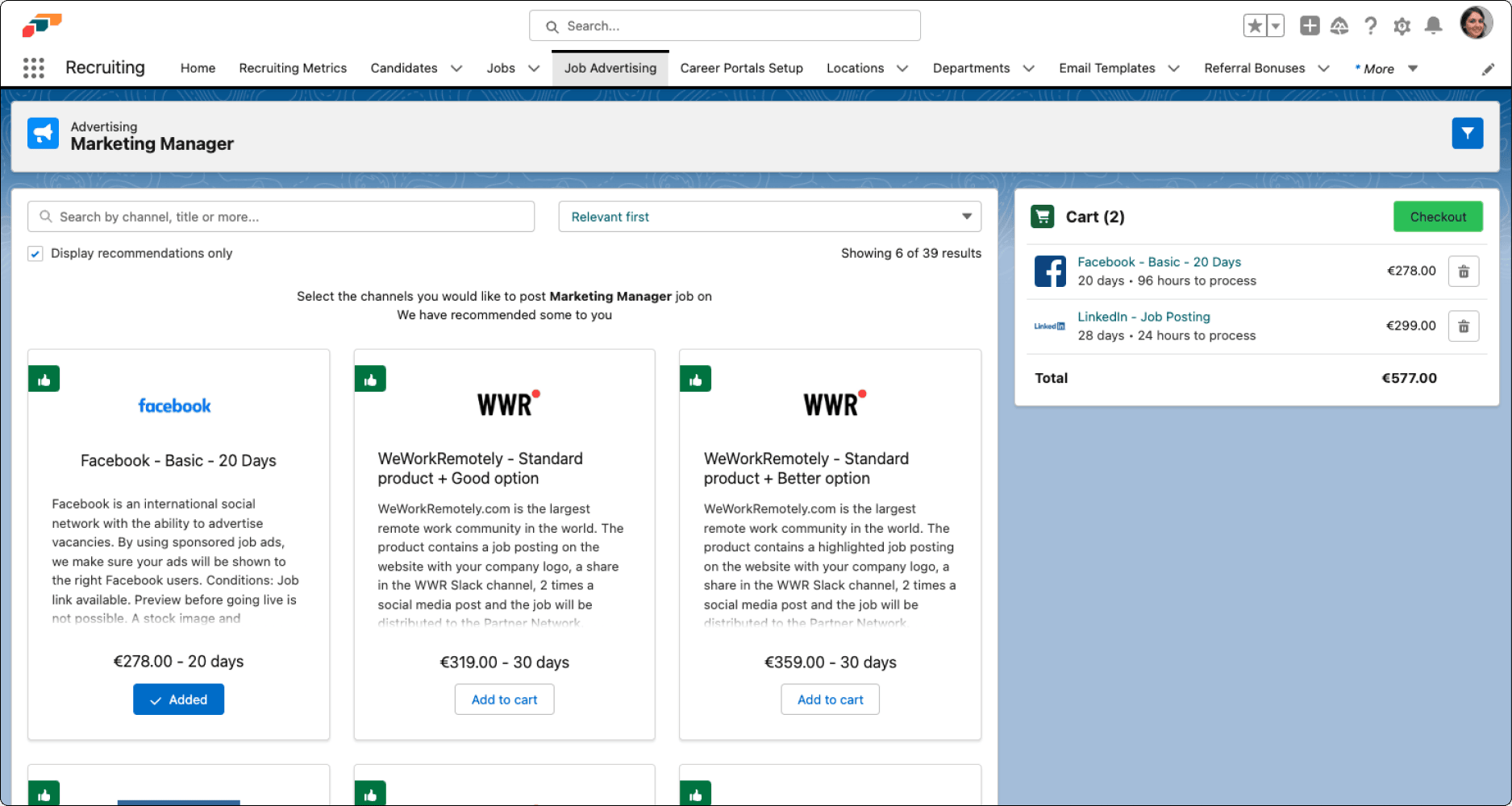
- Review the recommended job boards. Recommendations use the job category, industry, and location.
- Optional: Use the filter icon or clear Display Recommendations Only to view other supported boards.
- Review each board's description, price, placement duration, and recommendation status.
- Click Add to Cart for each board.
- Review the total in Cart, then click Checkout.
- Complete any job details required by the selected boards.
- Choose the application method for each board, then click Proceed to Checkout.
- Enter a campaign name, select the Career Portal, and review the order.
- Click Submit Order. flair charges the payment method used for your flair subscription and starts the campaign.
Use flair Advertising to review each campaign's status, cost, clicks, and Direct Apply badge.
If you stop a campaign, you cannot restore it, and you are still charged. To stop one, open its down-arrow menu and select Stop Campaign.
Advertise with your own contract
Post a job through a job-board contract that your organization owns. Add the contract once, then reuse it for campaigns from the job's Campaigns tab.
Add or select a contract
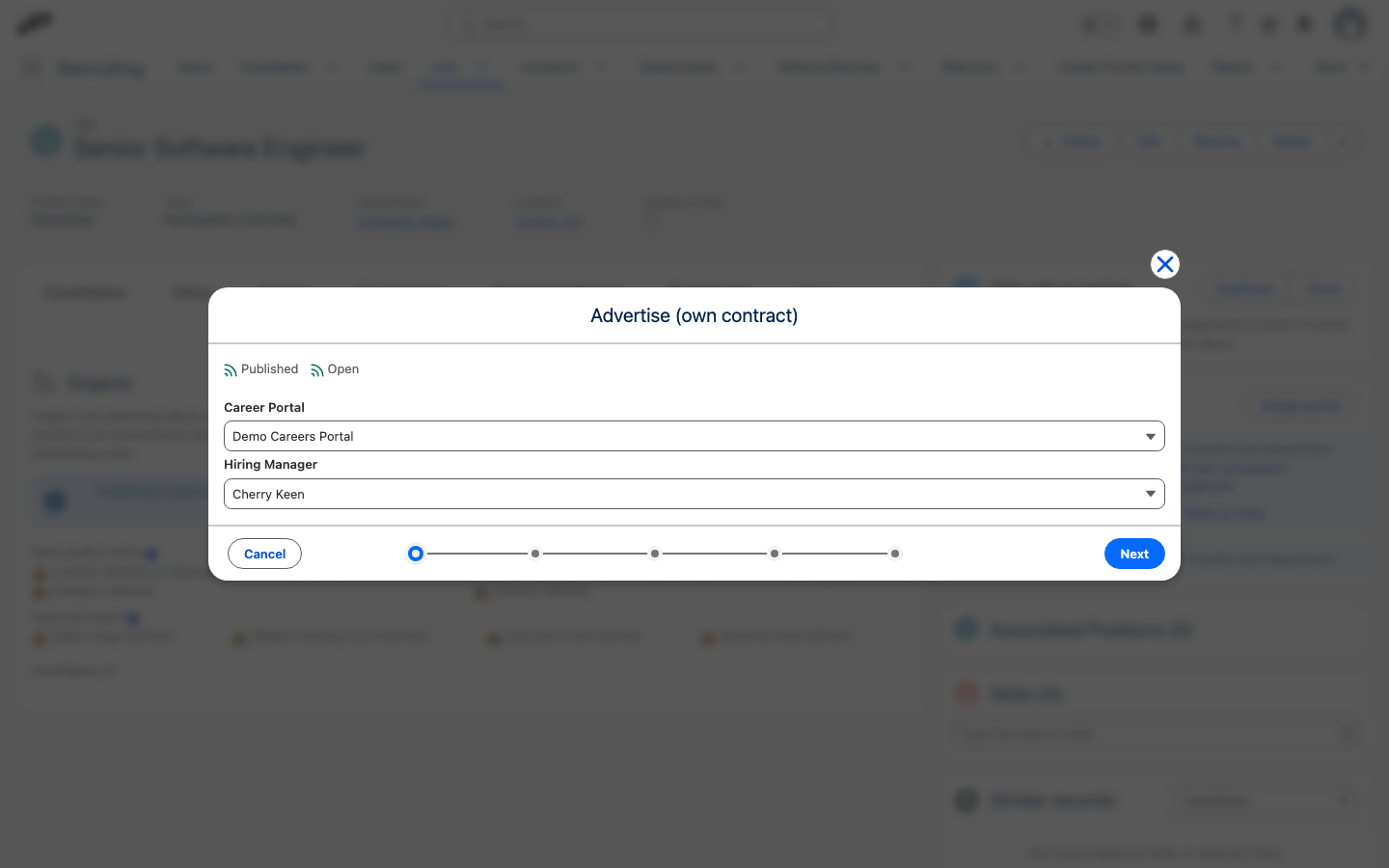
- On the job's Campaigns tab (under More when the tab bar is full), click Advertise (own contract).
- On Prerequisites, confirm that the job is published and open, then select a Career Portal and Hiring Manager.
- Click Next.
- On Choose contract, select a contract under Active contracts. If the contract is not listed, add it as described in the next section.
Add a contract
- On Choose contract, click + Add new contract.
- In the channel search field, enter a search term.
- Click Search channels, then select the channel you use.
- Under Credentials, complete the channel's required fields. If the channel opens an authentication flow, click Initialize authentication, complete the flow, and wait for Authentication successful.
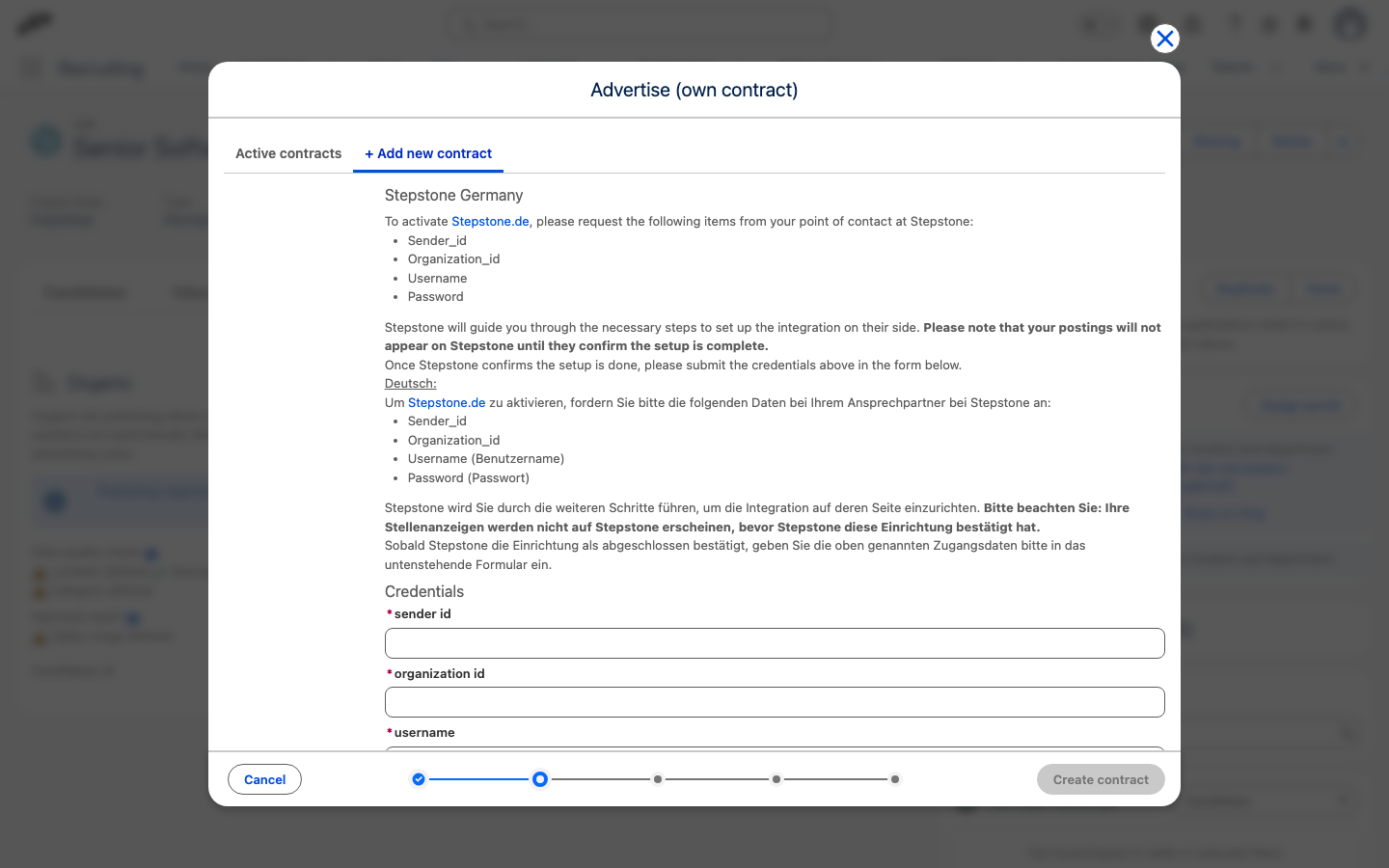
- If the channel requires manual setup, select I understand that my contract can only be activated if I follow the instructions above.
- Under Optional fields, select a Contract group. To create one, select Add new contract group, enter its name, and click Create new group.
- Enter a Contract alias. Optional: Set Posting duration (days), Contract Expiry, Purchase price, Currency, or How many credits?.
- Click Create contract. The new contract is selected, and the wizard opens Common details.
Complete the campaign
- On Common details, review the job information. To populate publishing fields from the job, click Fill publishing details with Smart Fill.
- Click Next. The wizard opens Channel details after the common details pass validation.
- Complete the required posting fields for the selected channel. Optional: Select Show only required fields or click Prefill with Smart Fill.
- Click Next. The wizard opens Review.
- In Review, review the prefilled Campaign Name, set Posting duration (days) to a value from 7 to 365, and optionally enter Cost.
- Click Next. flair creates the campaign through the selected contract.
Configure Direct Apply
By default, a job-board ad sends candidates to your Career Portal. Direct Apply keeps the application on the board and sends the submitted record to flair.
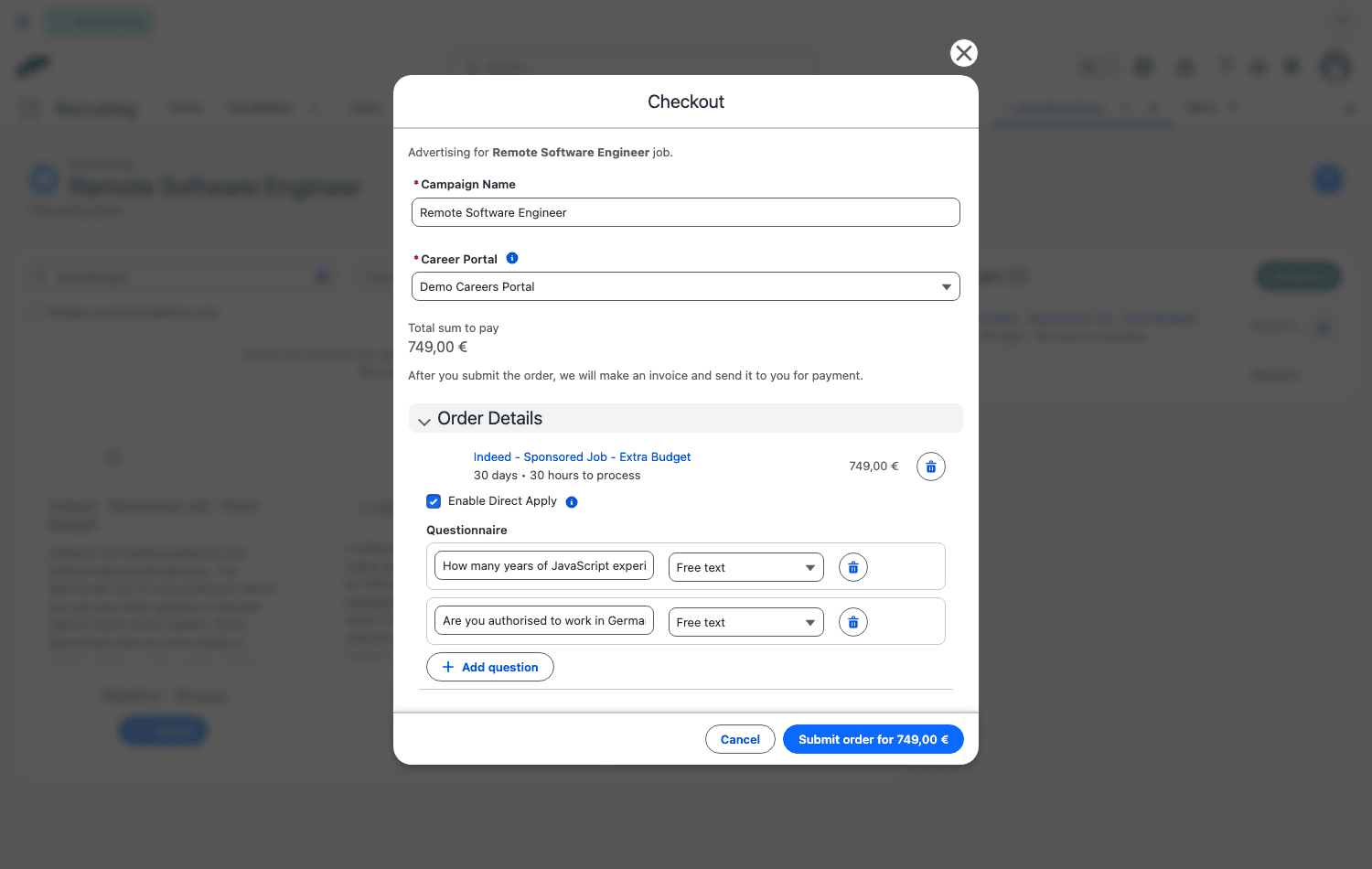
- During checkout, review each board in the order details.
- If Application method appears, select the direct-apply method. Select the link-out method to keep using the Career Portal.
- If Enable Direct Apply appears, select it. Indeed needs only this setting; LinkedIn also requires at least one screening question.
- In Screening questions, add the required questions.
- Use only question types and limits provided by the board. Supported types can include Free text, Single select, and Multiple select.
- Correct any validation errors shown on a question.
- Submit the order.
Every board controls its question length, answer-option limit, and total question count. For bring-your-own-contract campaigns, the same builder appears when the contract's posting requirements include a questionnaire.
Direct Apply must also be active for your provider account. Your VONQ account manager enables it per channel or product; until then, its controls do not appear.
When a candidate applies, flair creates the candidate on the job, attaches the CV, and stores answers in Screening questions (Direct Apply). flair reports these pipeline changes to the board:
- Moving from Applied to another stage except Hired or Rejected reports the candidate as qualified.
- Moving to Hired or Rejected reports the final outcome.
- Deleting the candidate reports the deletion.
From the end of August 2026, LinkedIn, Indeed, SEEK, Naukri, InfoJobs, and some other boards require Direct Apply at the platform level. You still choose the application method at checkout when the board offers that choice.
Link a job to a position
Create a job from a position
- In the flair HR app, open the Position record.
- Click Create a New Associated Job.
- Enter the job details, then click Save. flair links the new job to the position.
Review the salary range from the position's pay band
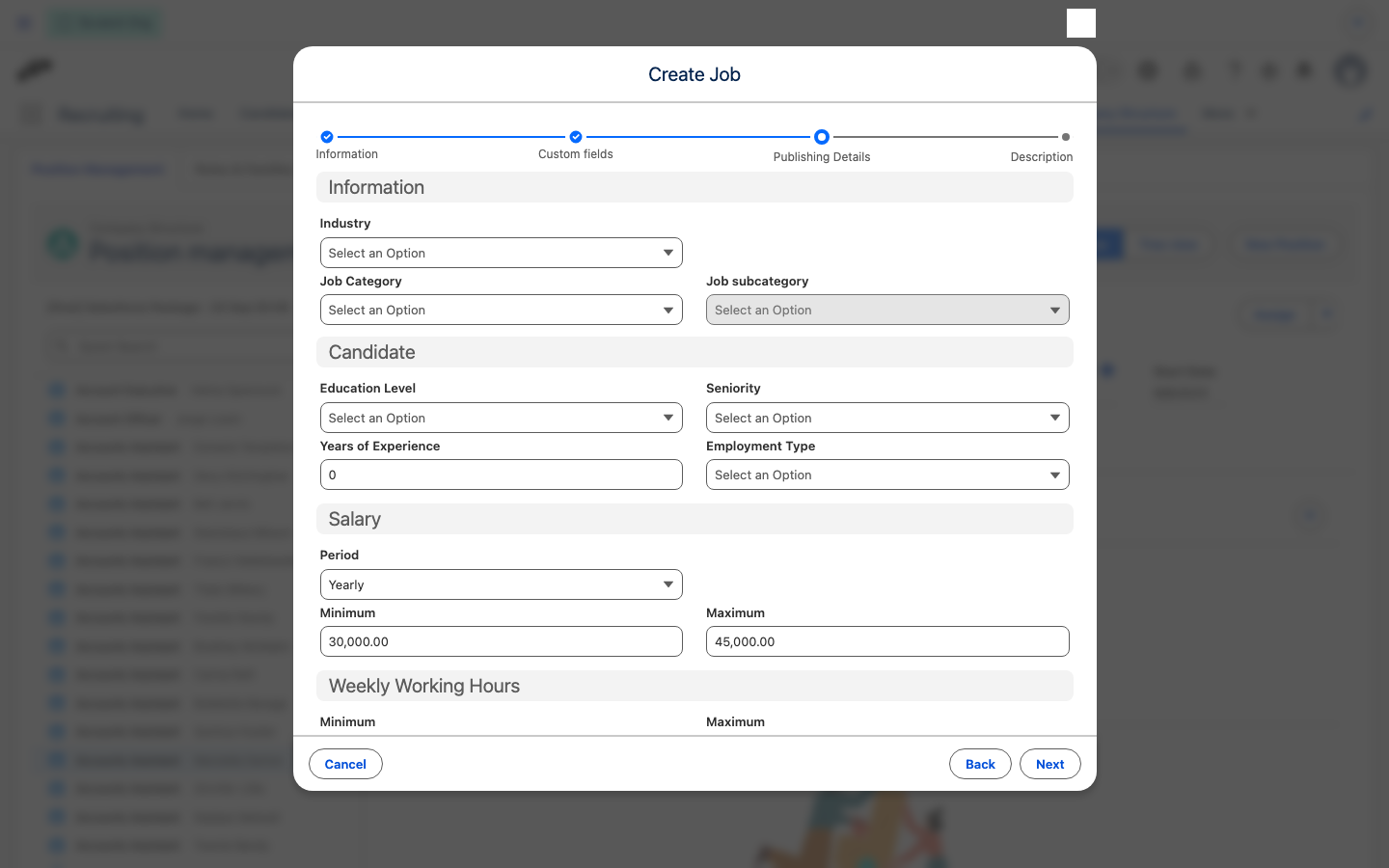
When you create a job from a position, flair fills the salary range on the job form from the position's linked pay configuration (Pay Group, Pay Grade, or Pay Level), so you don't retype what the band already sets. flair fills Period, Minimum, and Maximum in the Salary section of Publishing Details, along with the band's currency in multi-currency organizations.
The range is a starting point, not a lock:
- Open the job form from the position, as in Create a job from a position.
- Go to the Publishing Details step and review the salary range flair filled in.
- Under Salary, edit Minimum, Maximum, or Period if the advertised range should differ from the band.
- Complete the remaining job details, then click Save.
flair converts the band to the period it shows: a monthly band stays monthly, a yearly band stays yearly, and an hourly, daily, or weekly band is restated as a monthly range based on a full-time schedule. A fixed-rate band fills both the minimum and maximum with its single amount.
flair leaves the salary range blank for you to enter manually when the position has no pay configuration, or when the band is missing a minimum, maximum, or pay frequency, or falls outside its start and end dates. This keeps an unverified figure off a published job ad.
Link an existing job
- Open the Job record.
- In Position, select the position.
- Click Save.
Unlink a job
- On the job record, clear Position, then click Save.
You need permissions for both the Job and Position objects to create or link associated records.
Meet VONQ requirements
You do not need a separate VONQ contract; you pay flair the catalog price. You cannot use an existing LinkedIn contract through this catalog.
Complete the data quality check
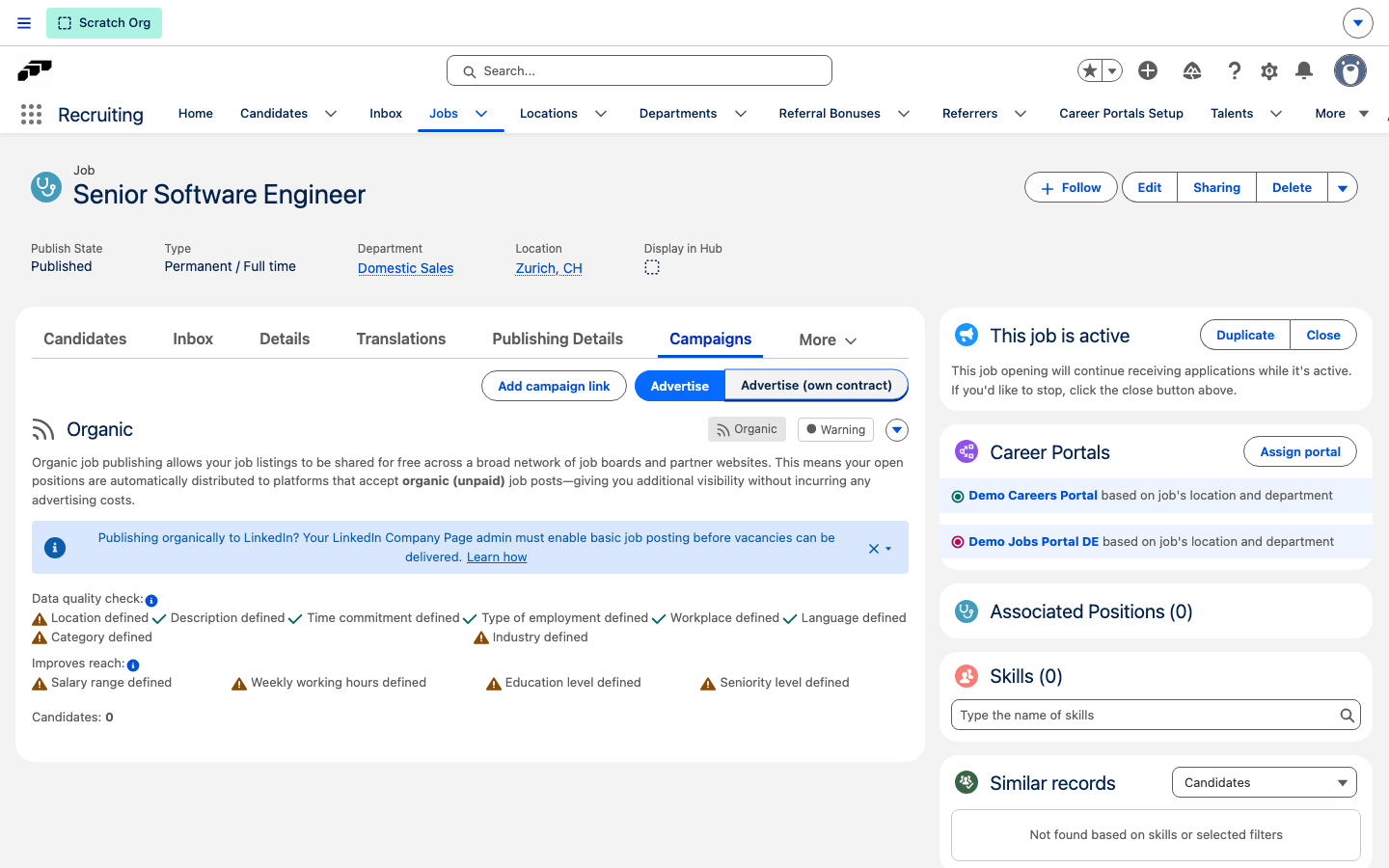
A job's Organic card, on the job's Campaigns tab, runs a Data quality check over the fields job boards read. The check lists the required fields first. While any of them is empty, the card warns Some required data is missing and job boards don't accept the job:
- Location
- Description
- Language
- Category
- Industry
- Time commitment
- Type of employment
- Workplace
The fields grouped under Improves reach are optional. The card flags an empty one so you can widen the job's audience, but it never holds the job back:
- Salary range
- Weekly working hours
- Education level
- Seniority level
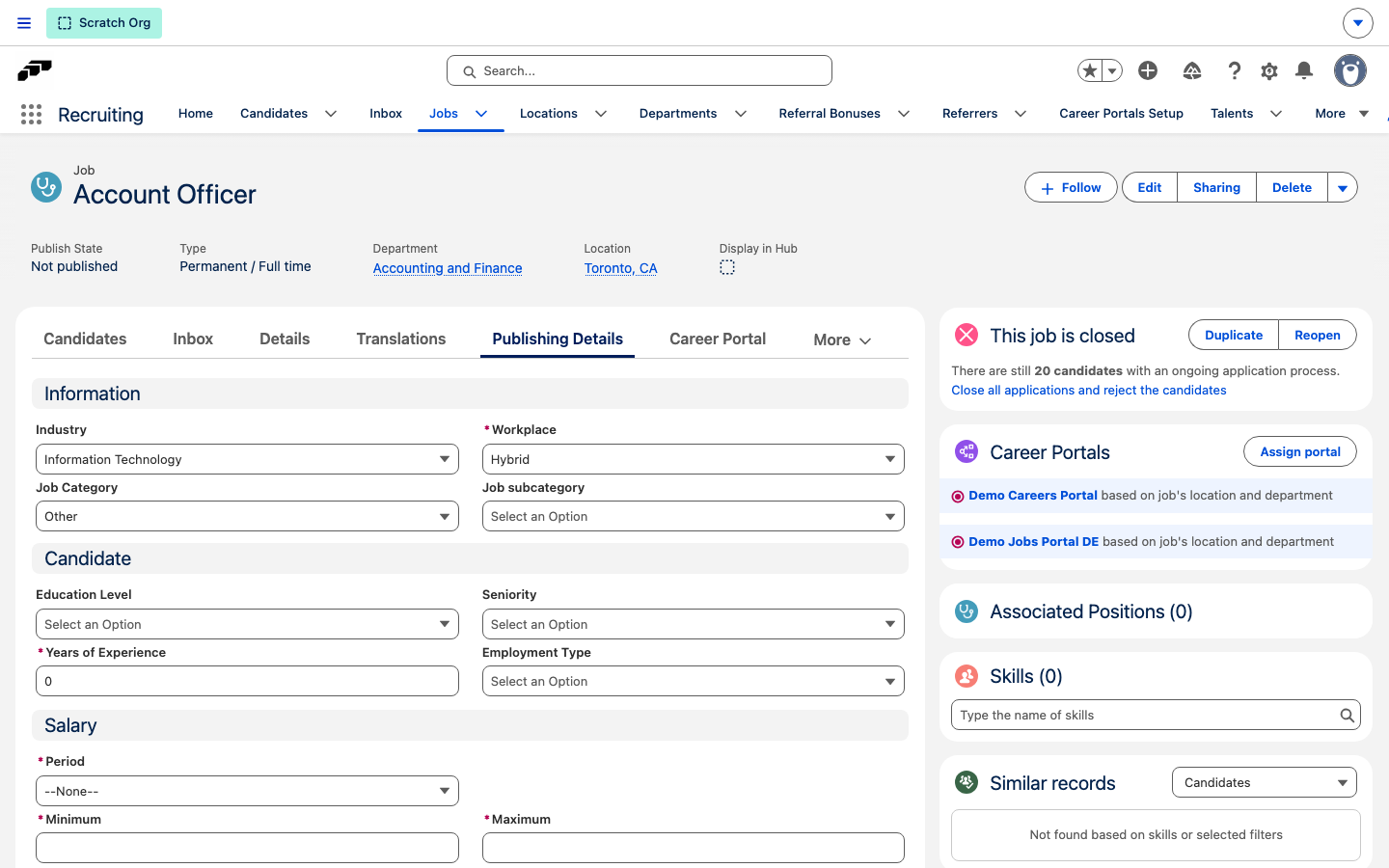
Set the workplace model
Workplace tells job boards whether the role is on-site, hybrid, or remote. LinkedIn requires it, so an empty Workplace holds the whole job back.
- In the flair Recruiting app, open Jobs and select the job.
- Open Publishing Details.
- In Information, set Workplace to On-site, Hybrid, or Remote.
- Click Save. The job's Organic card now shows Workplace defined as complete.
Map customized values
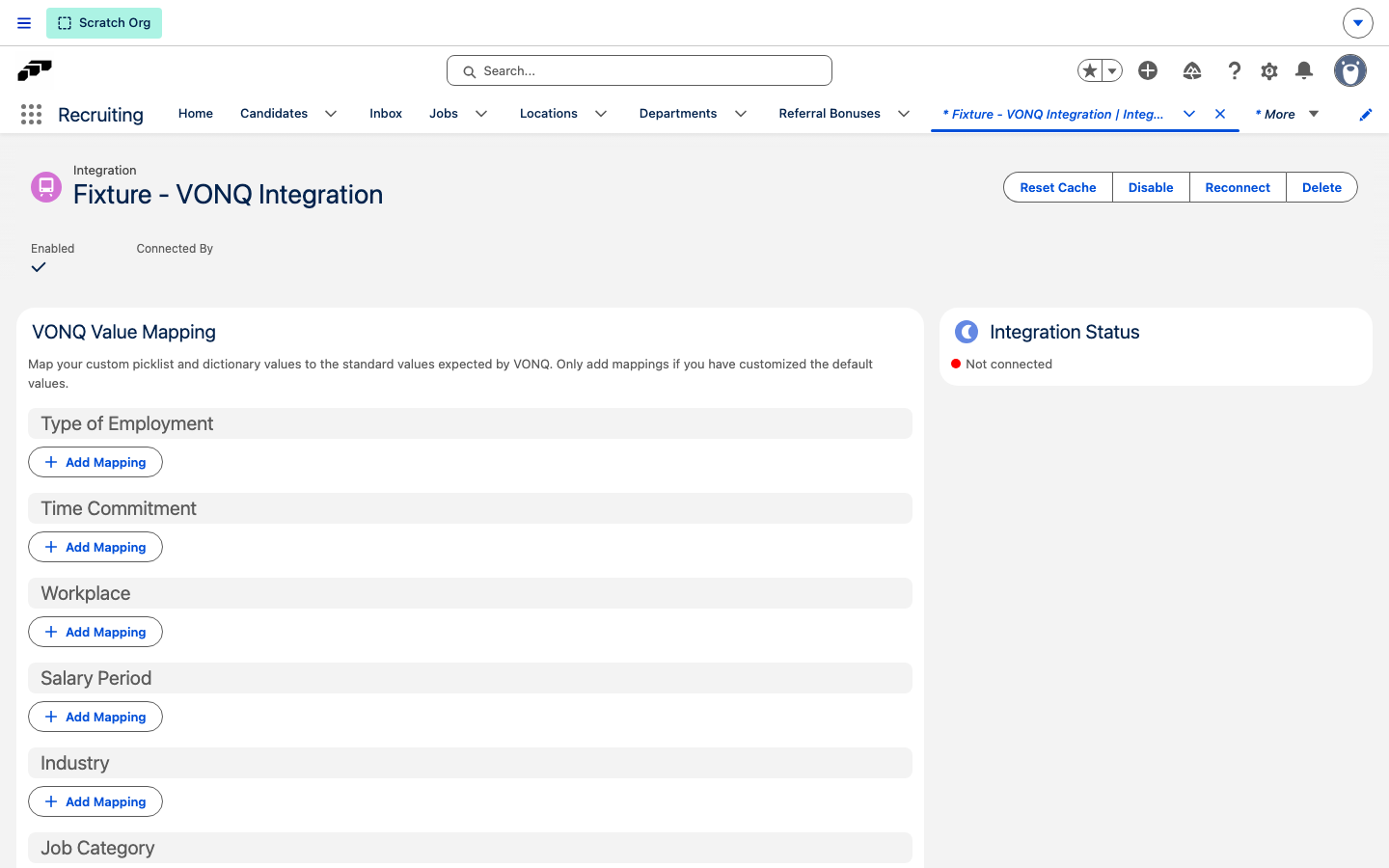
If your organization replaced the packaged picklist or dictionary values, map them to the standard values VONQ expects. Add a mapping only for values you customized.
- In the flair HR app, open HR Admin → Integrations, then select VONQ.
- In VONQ Value Mapping, click Add Mapping under the field you customized: Type of Employment, Time Commitment, Workplace, Salary Period, Industry, Job Category, Seniority Level, or Education.
- Select your Customer Value and the matching Standard Value.
- Repeat for each customized value, then click Save.
An unmapped Job Category or Industry withholds the job from the organic feed altogether. See Publish only mapped values.
Enable LinkedIn basic job posting
A LinkedIn Company Page admin must allow organic vacancies before flair Advertising can deliver jobs through the LinkedIn Basic Jobs API.
- Sign in to the LinkedIn account that administers the Company Page.
- From the home feed, open Me or select the company under Manage.
- On the Company Page in Admin view, open Settings → Job postings.
- Turn on Enable basic job posting.
If the setting does not work, the LinkedIn admin can email LinkedIn integrations support and request permission for job postings. The request must come from the LinkedIn account admin.
Enable LinkedIn Job Wrapping
LinkedIn Job Wrapping imports open flair jobs into LinkedIn Recruiter about every six hours. It is separate from organic LinkedIn posting and requires a LinkedIn Recruiter contract.
Connect the feed
LinkedIn Job Wrapping Company ID takes the same numeric LinkedIn Company ID as LinkedIn Company ID. LinkedIn issues no separate Job Wrapping or Recruiter ID. The two fields differ only in which feature they turn on, so they hold different values only when the jobs belong to a different Company Page, such as a group page instead of a brand page.
LinkedIn keeps the first Company ID it imports from the feed. Confirm the ID belongs to the Company Page linked to your LinkedIn Recruiter contract before you add the feed in LinkedIn.
- As a LinkedIn Page admin, open the Company Page in Admin view. The Company ID is the number in the URL, for example
8681905inlinkedin.com/company/8681905/admin/. - In Salesforce Career Portal settings, enter the number in LinkedIn Job Wrapping Company ID.
- If LinkedIn Company ID contains a value, clear it to prevent duplicate listings. This turns off organic LinkedIn posting for the Career Portal.
- Open
https://<your-career-portal>.careers.flair.hr/api/publishing/linkedin. The page shows an XML feed with your open jobs. - In LinkedIn Recruiter, open Product settings → Job posting → Job sources for automated job postings and click View/Edit.
- Open Job source requests, click Add new job source, select LinkedIn Jobs XML, and enter the feed URL.
- If the contract uses Job Slots, send the feed URL to LinkedIn Recruiter support and request XML job posting instead.
- Wait for LinkedIn to confirm that it is importing the feed.
The feed includes a job only when it is open, has a description of at least 100 characters, has a location, and has a Hiring Manager with an email address. Missing details exclude the job until you add them.
The public feed includes the Hiring Manager's email as the job-poster contact because LinkedIn uses it to verify the company. Applications from these postings use linkedin_wrapping as Career Page Origin.
How Employee Referrals Work
A referral link points at the job on your career portal and carries the referring employee's identity. When the candidate applies through the link, the referral is attributed automatically — flair records who referred them.
Neither side has to do anything extra. The employee does not have to fill in a form, and the candidate applies exactly as any other applicant would.
The whole flow looks like this:
- The employee generates a personal referral link for the job in the Employee Hub.
- They paste the link into a message and send it to someone they know.
- The candidate applies through the link, exactly as any other applicant.
- flair links the candidate back to the employee's referrer record, so you can see who referred whom.
Before You Start
The job must be published on a connected career portal. The referral link is a career portal URL, so a job that is not live on a portal cannot be referred.
Before sharing a referral link, check that the job is live on one of your career portals.
Show a job in the Employee Hub
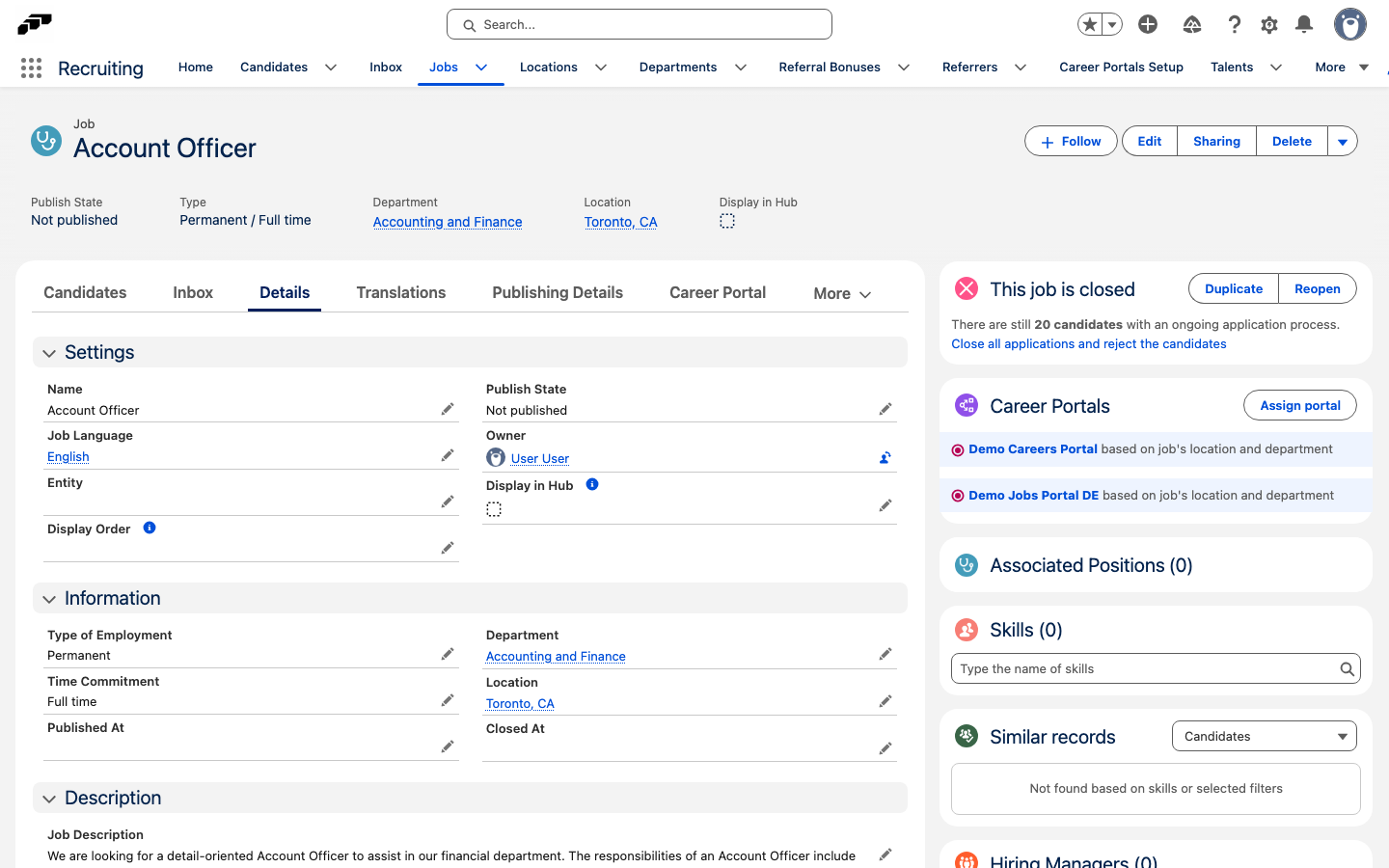
Employees see only jobs with Display in Hub selected. The jobs appear on the Career Opportunities page under Recruiting in the Employee Hub, whether they are open or closed.
- In the flair Recruiting app, open Jobs.
- Select the job.
- On the Details tab, in the Settings section, edit Display in Hub.
- Select the Display in Hub checkbox.
- Click Save. The job appears on the Career Opportunities page for employees.
To remove the job from the Employee Hub, clear the checkbox and save.
Find a job on the Career Opportunities page
Employees see the Recruiting menu in the Employee Hub when Recruiting is enabled for your organization.
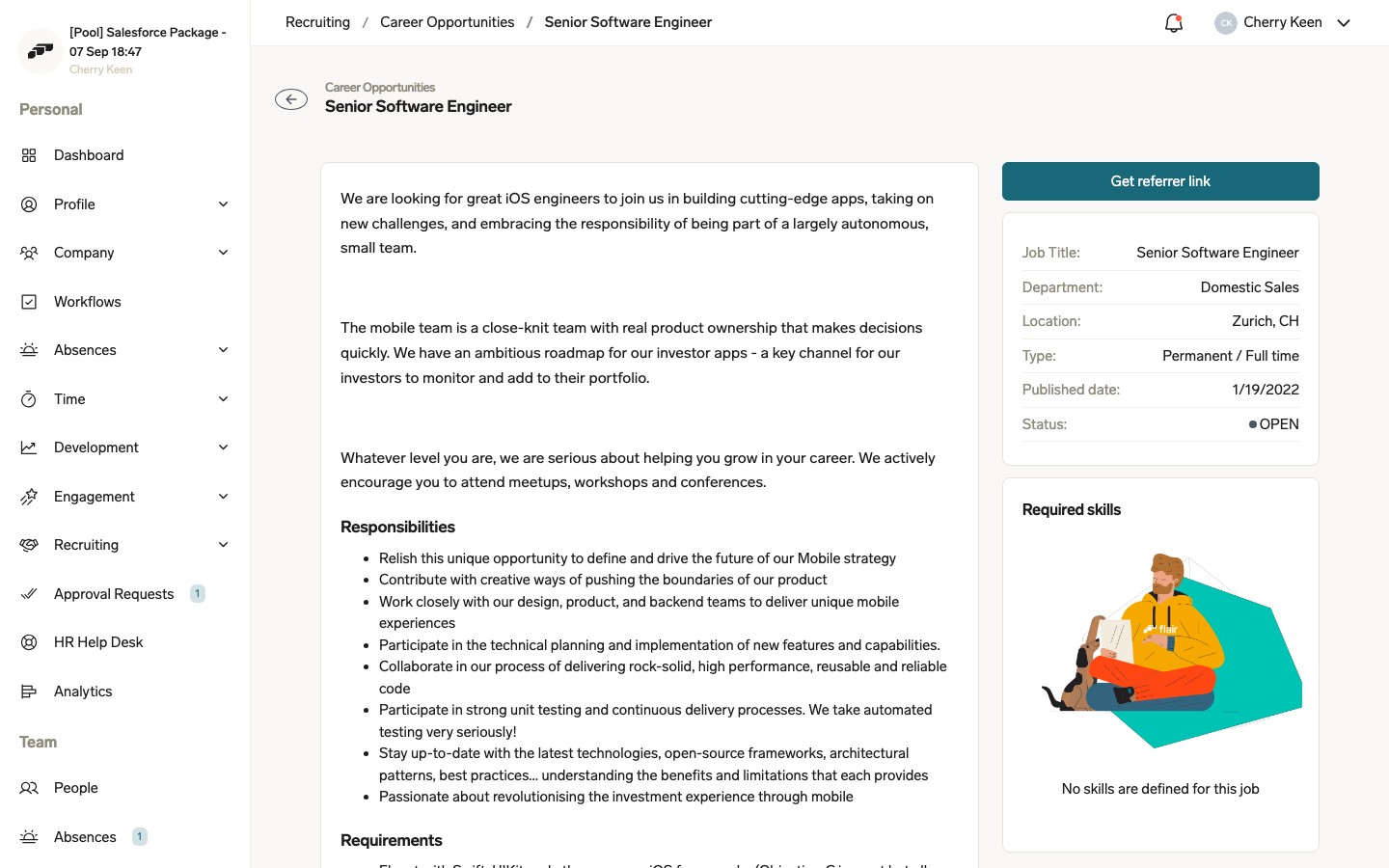
- In the Employee Hub, go to Recruiting → Career Opportunities. The page lists each job's name, department, location, and status.
- Optional: To narrow the list, enter a term in Search, or pick a department, location, or status in the filters above the list.
- Select a job. The job page shows the description, Responsibilities, Requirements, and the job's department, location, type, published date, and status.
Under Required skills, the job page lists the skills set on the job and shows how many of them match the skills in the employee's profile, for example "3 of 5 skills match your profile". Matching skills are highlighted. If the job has no skills, the card shows No skills are defined for this job.
Sharing a Job with a Referral Link
Employees refer someone from the job in the Employee Hub:
- Open the job on the Career Opportunities page.
- Select Get referrer link.
- The button shows Copying... while flair prepares the link.
- When the link is ready, flair confirms Referrer link copied to clipboard — the link is on the clipboard, ready to paste into a message.
If something goes wrong, the Hub reports Failed to get referrer link.
What the Candidate Experiences
From the candidate's point of view, a referral link is a link to the job on your career portal. They apply exactly as any other applicant would — there is no extra step and no separate referral form.
The link carries the referring employee's identity, so the referral is attributed automatically when the candidate applies. Nobody has to report the referral manually.
What HR Sees
The first time an employee generates a link, flair creates a referrer record for them, named after the employee.
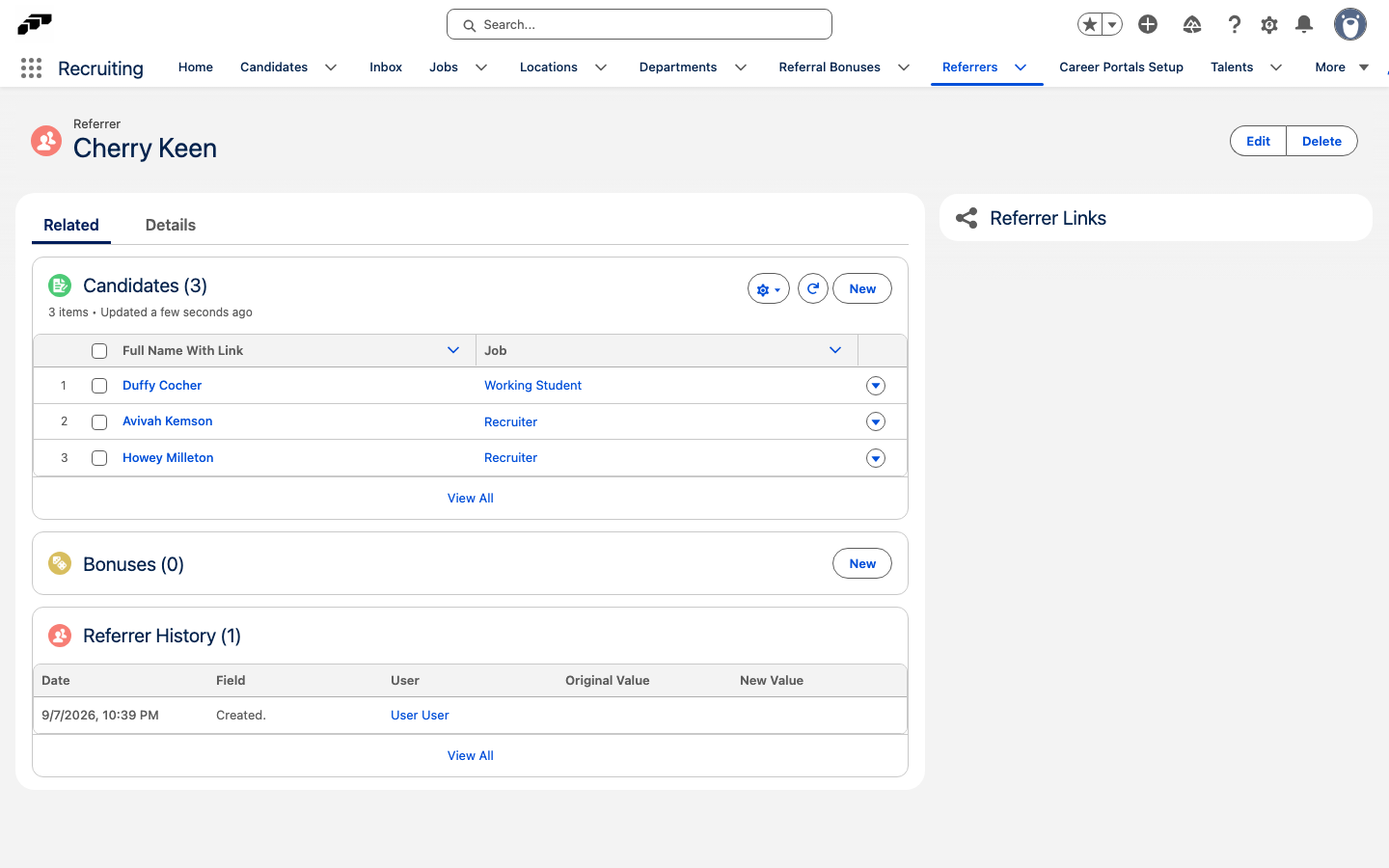
Candidates who arrive through the link are linked back to that referrer, so you can see who referred whom.
Track referral bonuses
Enter a bonus amount on a referred candidate, and flair creates a referral bonus for the referrer when you hire the candidate. Bonuses are tracked in Salesforce only; employees don't see them in the Employee Hub.
Set the bonus on a candidate
Fill in both fields before you set the candidate's outcome to Hired. flair creates the bonus only at that moment.
- In the flair Recruiting app, open Candidates and select the candidate.
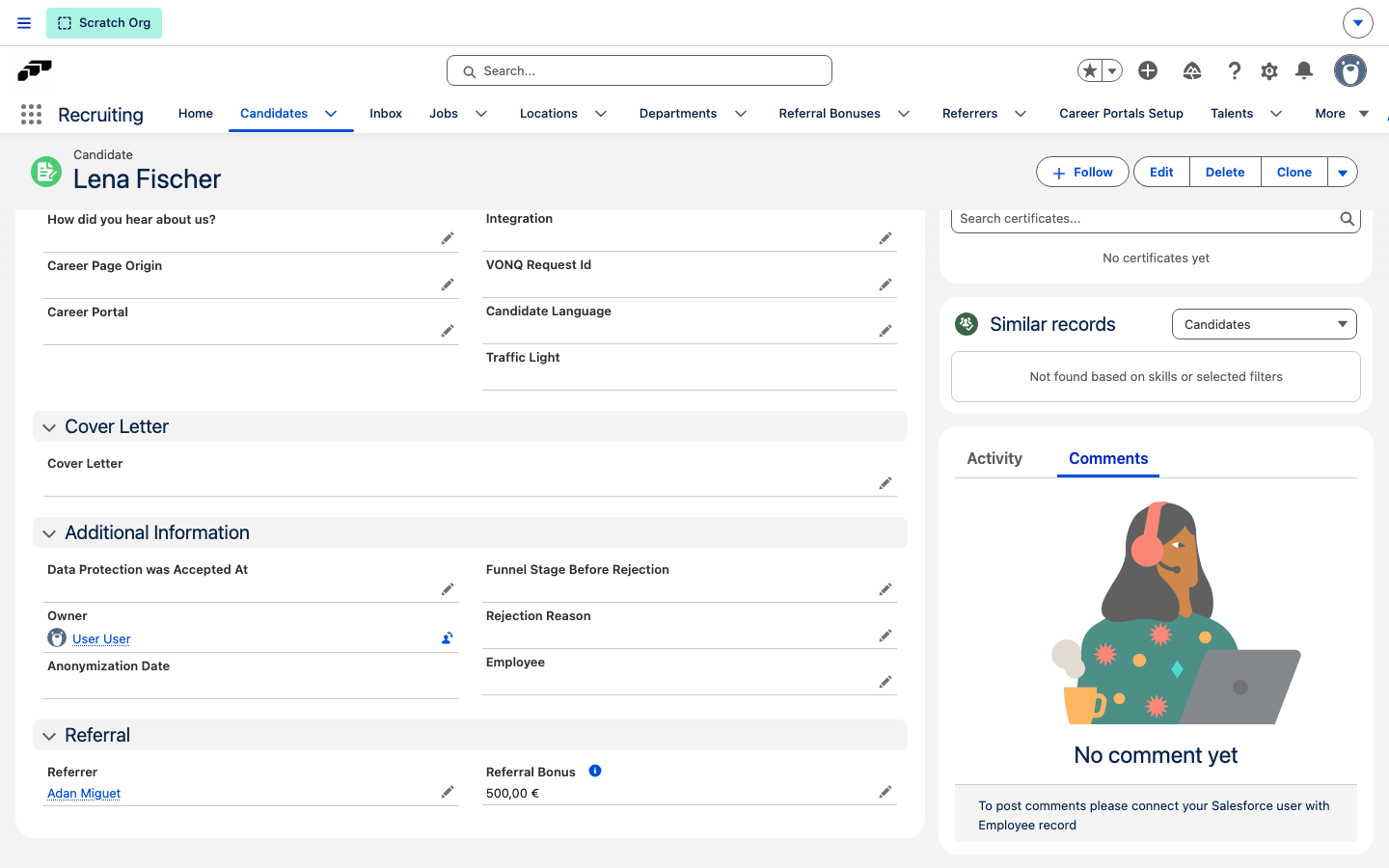
- On the Details tab, in the Referral section, check that Referrer shows the referring employee's referrer record. Select it if it's empty.
- In Referral Bonus, enter the amount and click Save.
When the candidate's Outcome changes to Hired, flair creates a referral bonus with that amount. Its Paid To field is the referrer, and Regarding is the candidate. If Referrer or Referral Bonus is empty at that point, flair creates no bonus.
If the candidate's Outcome changes from Hired to anything else, flair deletes the candidate's referral bonuses, including bonuses marked Paid.
Track bonus payouts
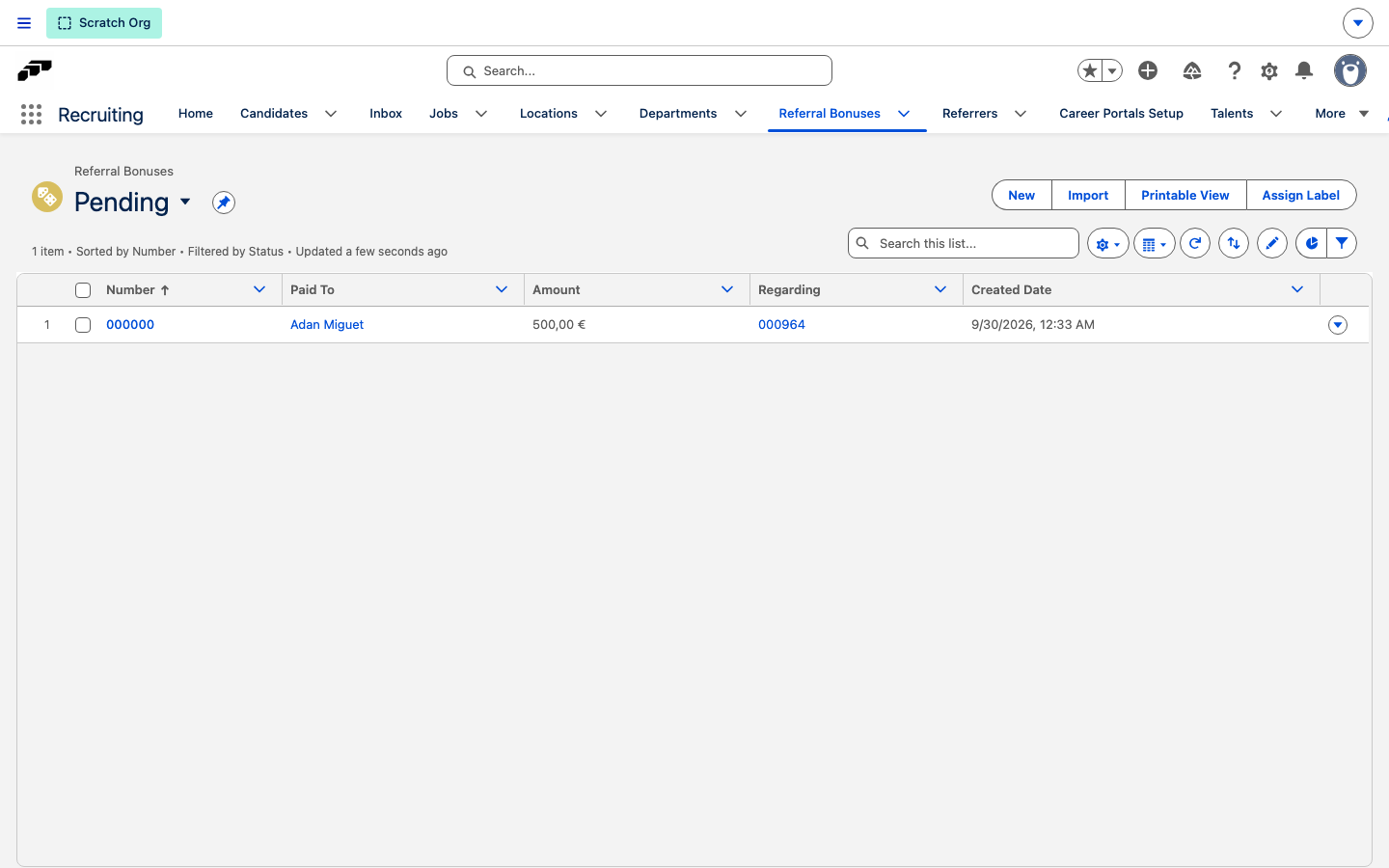
New bonuses start with the Pending status. flair doesn't change the status, so update it as you pay.
- In the flair Recruiting app, open Referral Bonuses.
- To see open bonuses, select the Pending or Waiting for Probation Period list view.
- Open a bonus and set Status to Waiting for probation period, Pending, or Paid.
- Click Save.
Each referrer record also lists its bonuses in the Bonuses related list.
Who Does What
| Who | What they do |
|---|---|
| Employee | Generates a personal referral link with Get referrer link and pastes it into a message. |
| Candidate | Opens the link and applies for the job, exactly as any other applicant. |
| flair | Attributes the referral automatically and links the candidate to the employee's referrer record. |
| HR | Sees who referred whom, based on the candidates linked to each referrer record. |
Troubleshooting
The LinkedIn Job Wrapping feed URL shows "Not found"
LinkedIn Job Wrapping Company ID is empty on the Career Portal the URL points to. Enter the Company ID on that Career Portal record and click Save.
The LinkedIn Job Wrapping feed shows jobs, but LinkedIn doesn't import them
The feed repeats whatever LinkedIn Job Wrapping Company ID contains and doesn't check it against LinkedIn, so a feed with jobs doesn't confirm the ID. Compare the companyId value in the feed with the number in your Company Page's Admin view URL, and wait for LinkedIn's import confirmation.