Build and manage a Career Portal
Create a branded Career Portal for your open jobs and application forms. This guide covers its layout, fields, job selection, source tracking, and website embed.
Recruiters and HR Admins in the flair Recruiting app in Salesforce. Website administrators use the embed code on the company website.
Create a Career Portal
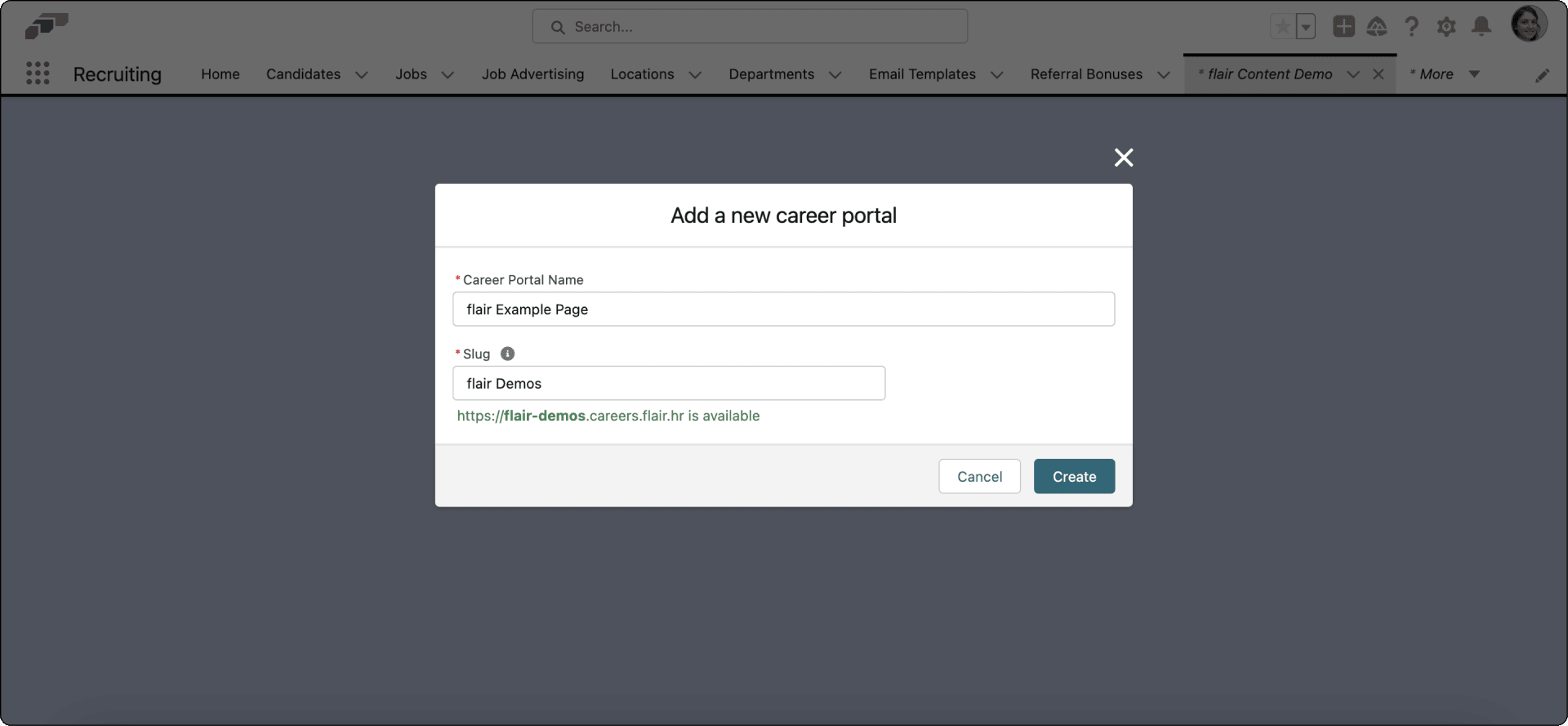
- In the flair Recruiting app, open Career Portals Setup from the navigation bar, App Launcher, or Setup Assistant → Go to settings.
- If no portal exists, click Create. Otherwise, click New.
- Enter a name.
- Enter a unique slug. Use lowercase characters without spaces or special characters; flair replaces spaces with hyphens.
- Confirm that the generated URL is available. For example, the slug
flair demosproduceshttps://flair-demos.careers.flair.hr. - Click Create. flair reserves the URL and opens the builder.
To keep a legacy Career Portal URL, finish the new portal and ask your flair Customer Success Manager or flair Support to activate the old URL.
Design the portal layout
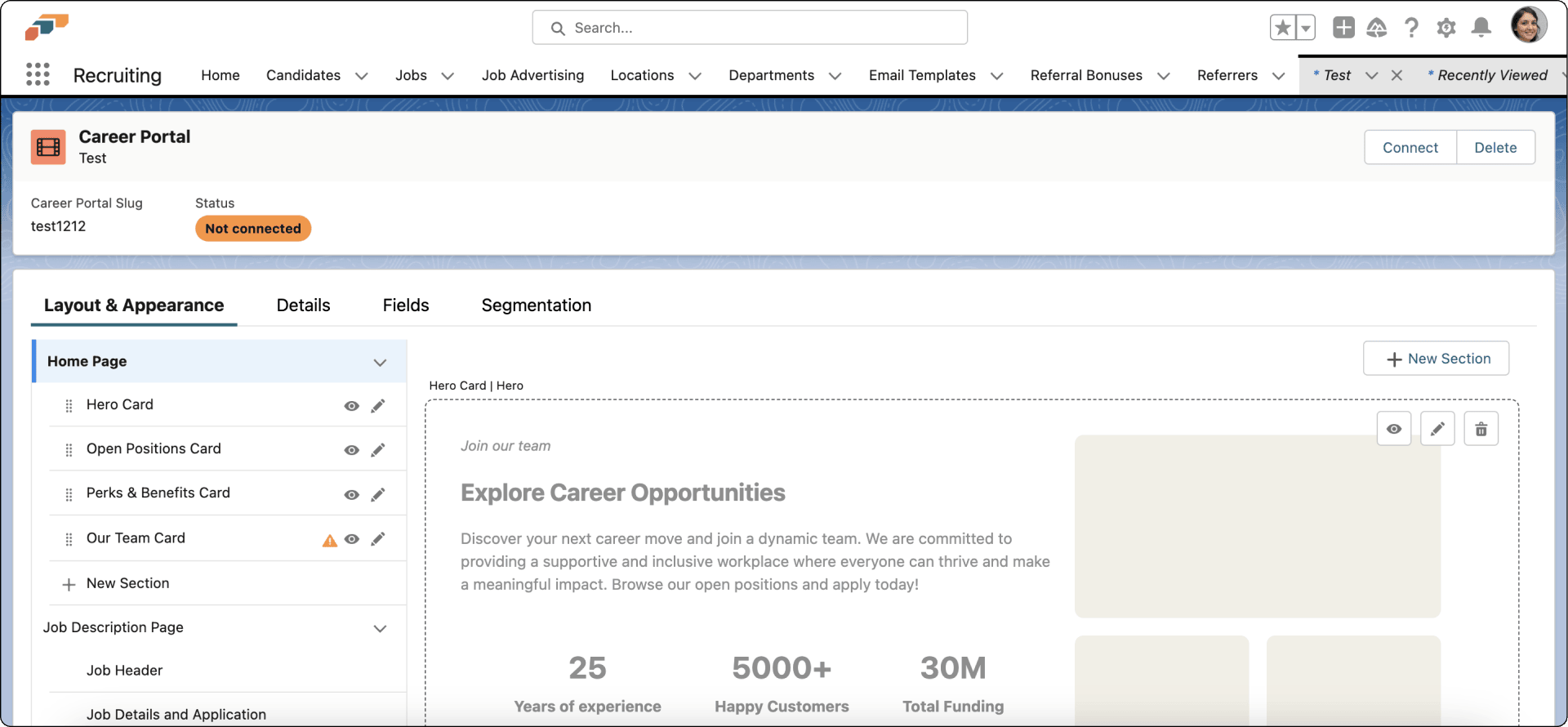
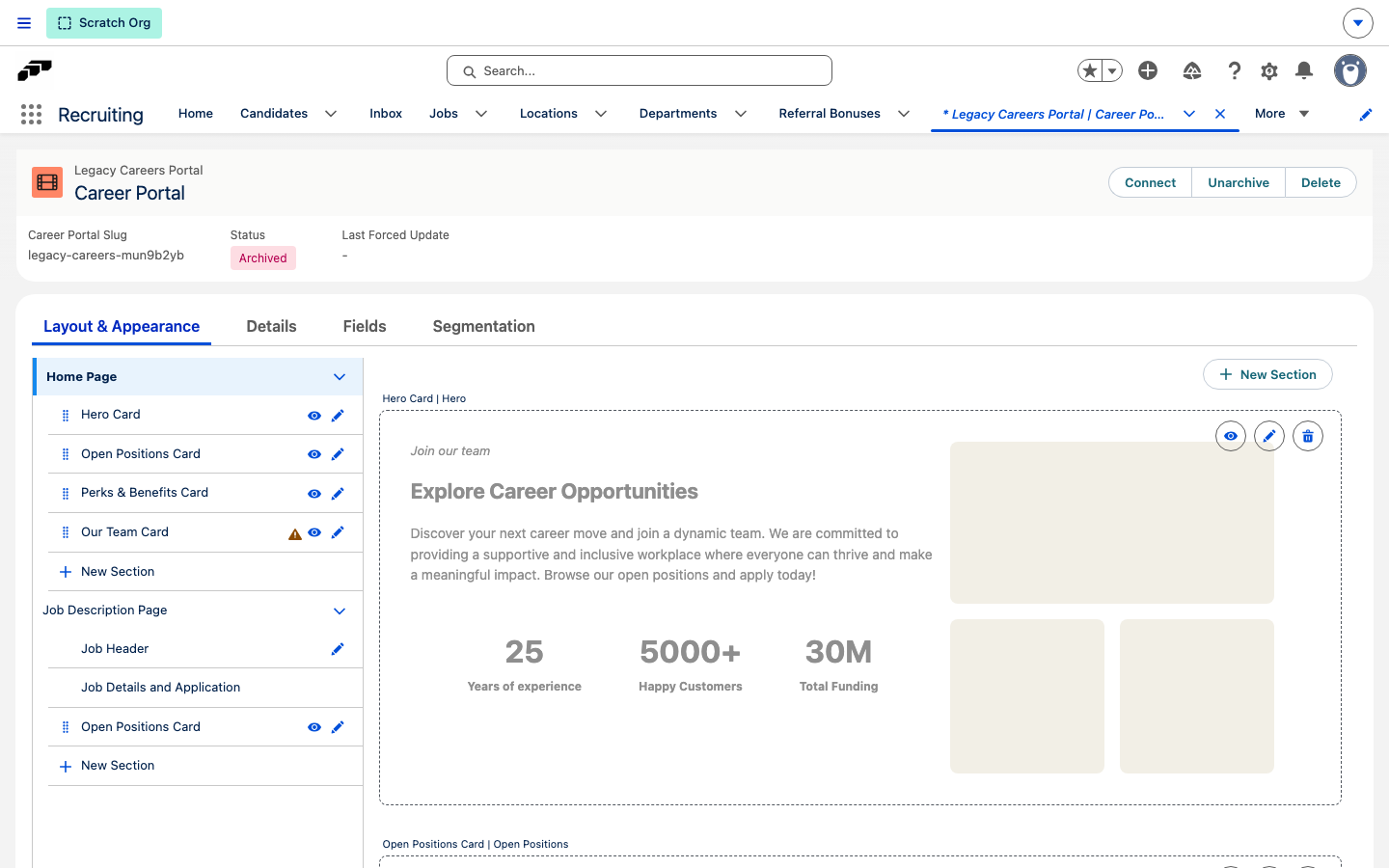
- In Career Portals Setup, open Layout & Appearance.
- Select a card in the left menu to edit it while reviewing the preview.
- Use the eye icon to hide a card or the pencil icon to edit it.
- Use the trash icon to remove a card.
- Drag the handle next to a card name to change its position.
- Click New Section to add another card.
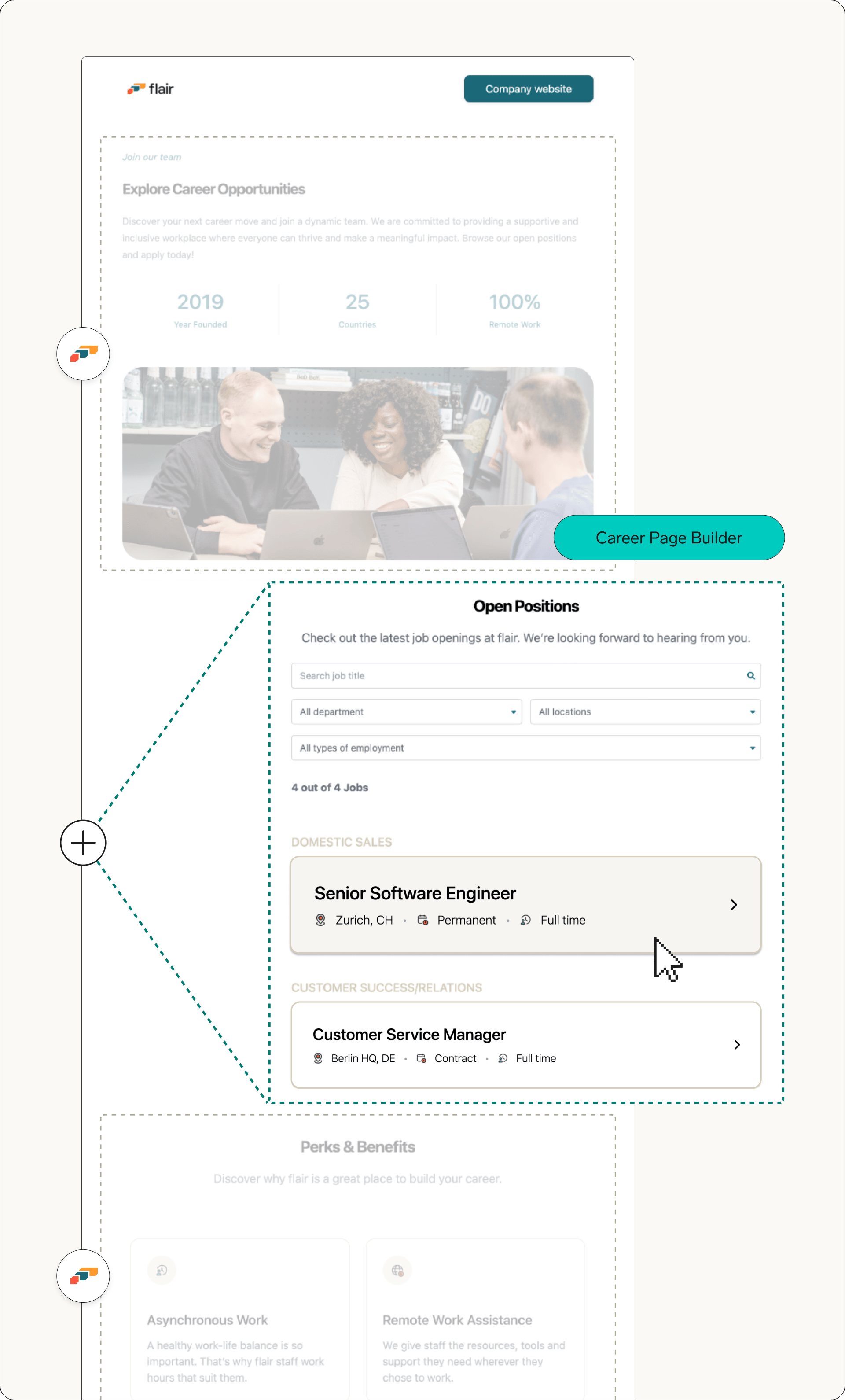
The default layout provides these cards:
| Card | What it displays |
|---|---|
| Hero Card | A title, subheading, description, three images, and Company Highlights. |
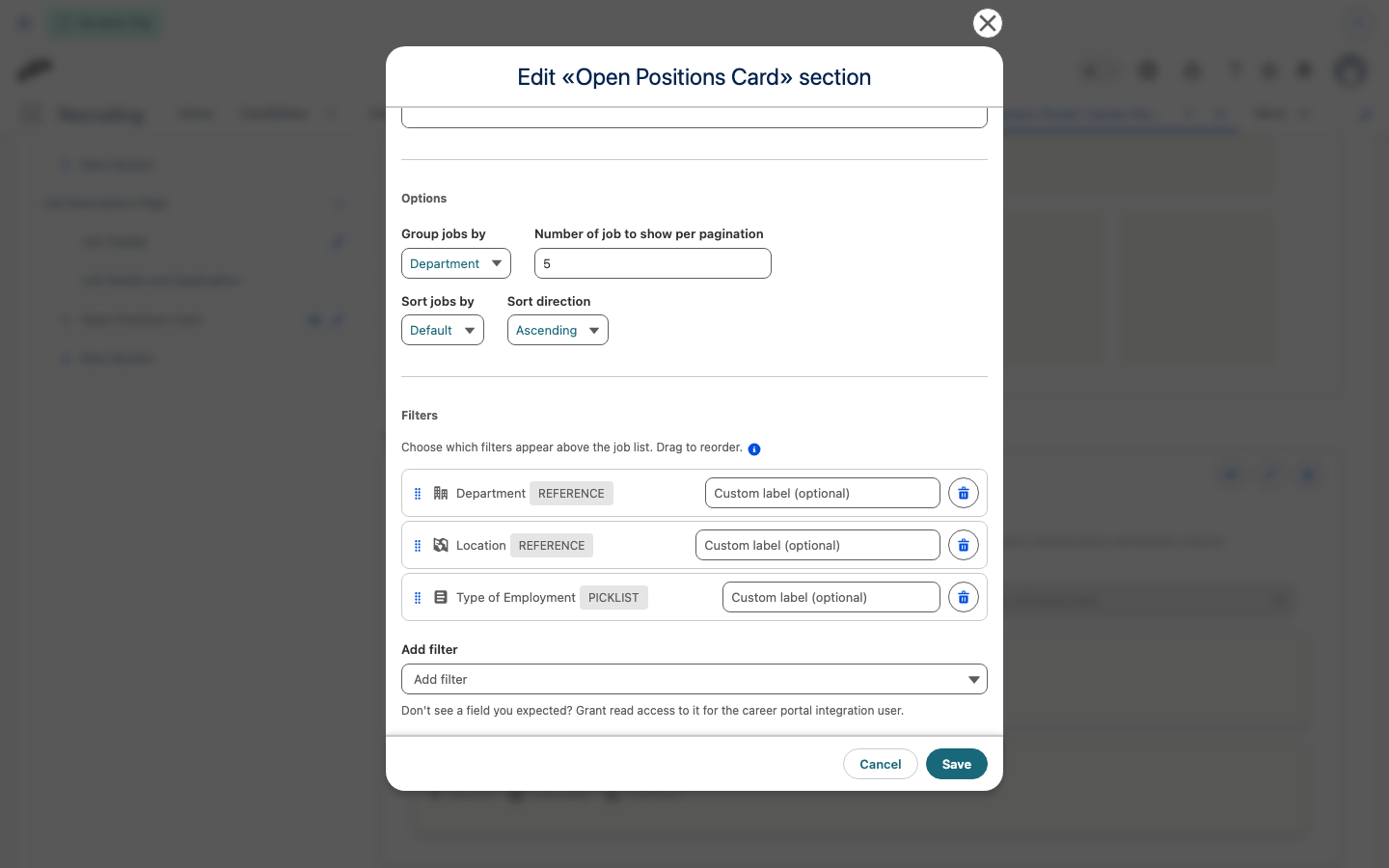
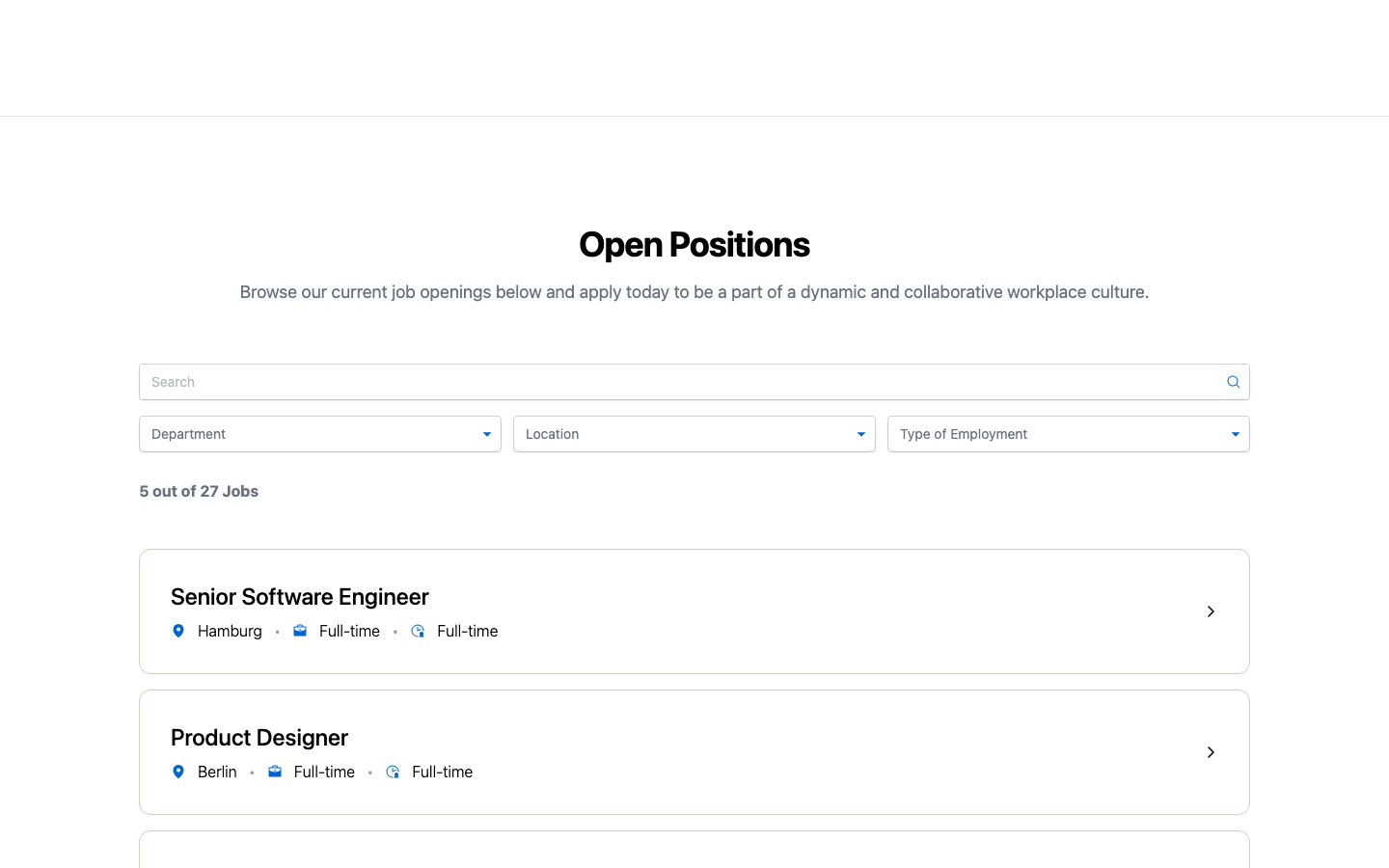
| Open Positions Card | Published jobs, search, optional grouping and sorting, pagination, and configurable job-field filters. The default filters are Department, Location, and Type of Employment. |
| Perks & Benefits Card | Benefits with an icon, name, and short description. Three appear at a time, with arrows for more. |
| Our Team Card | Team-member photos and captions. |
Design job description pages
- In the left menu of Layout & Appearance, open Job Description Page.
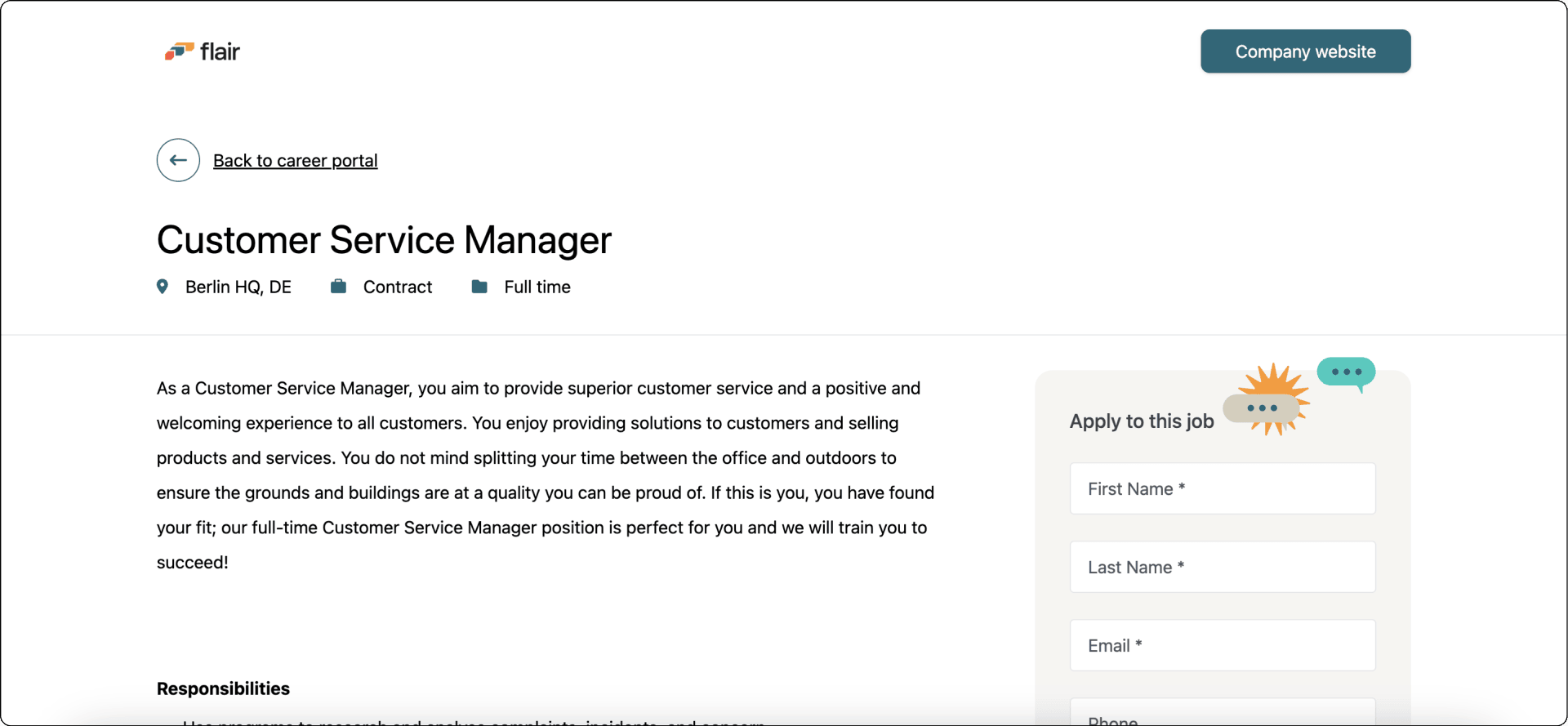
- Keep the mandatory Job Header and Job Details and Application cards at the top.
- Add any other sections beneath the mandatory cards.
Show header fields on job listings
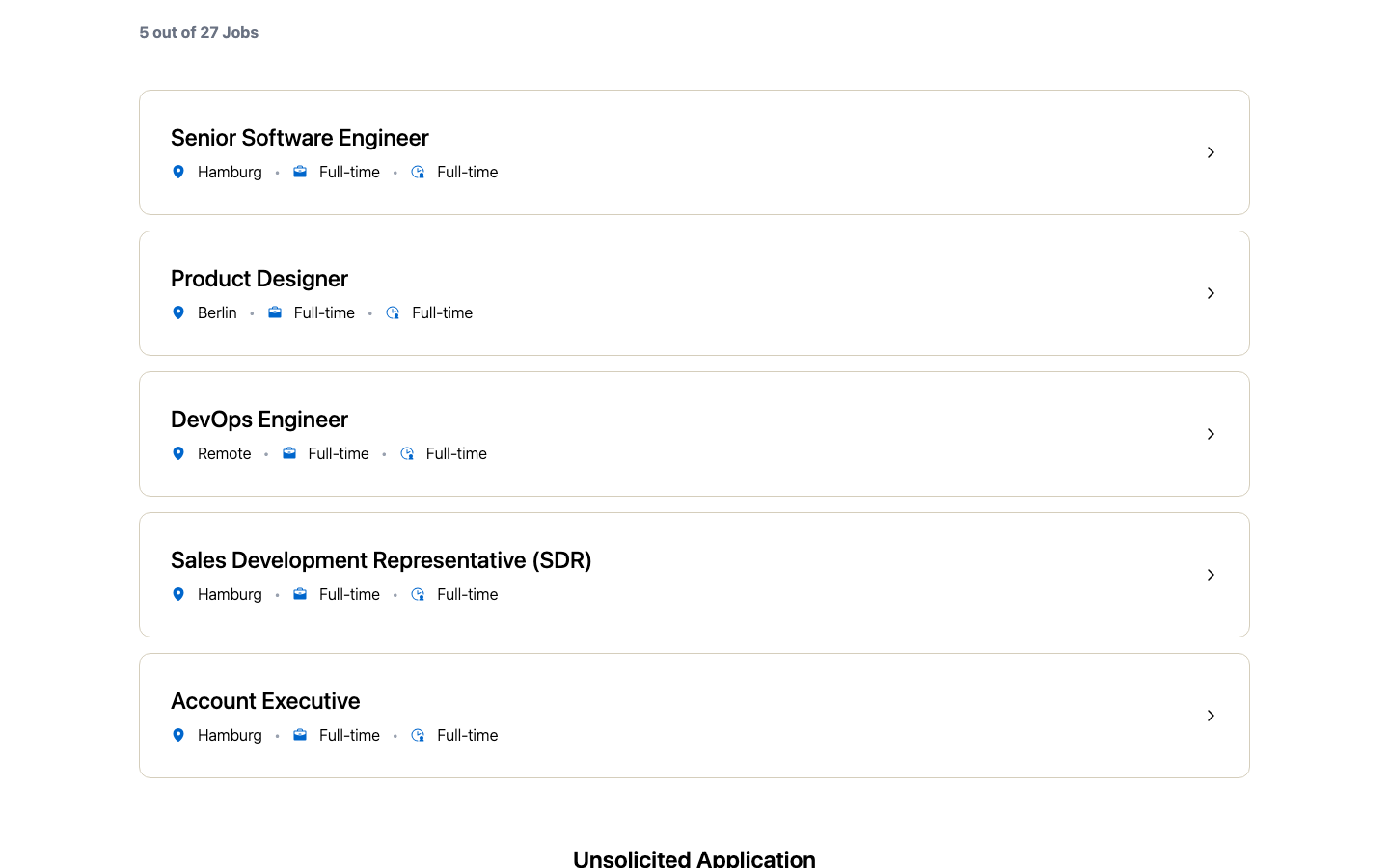
The Open Positions Card shows the fields configured for a job's Job Header card as icon chips beneath the job title, matching what applicants see on the job's own page. Previously, every card always showed Location, Type of Employment, and Time Commitment, regardless of the Job Header configuration.
The listing search box also matches these values. An applicant can find a job by any header field shown on its card, such as a location or a custom field, not only by the job title.
Configure job header fields
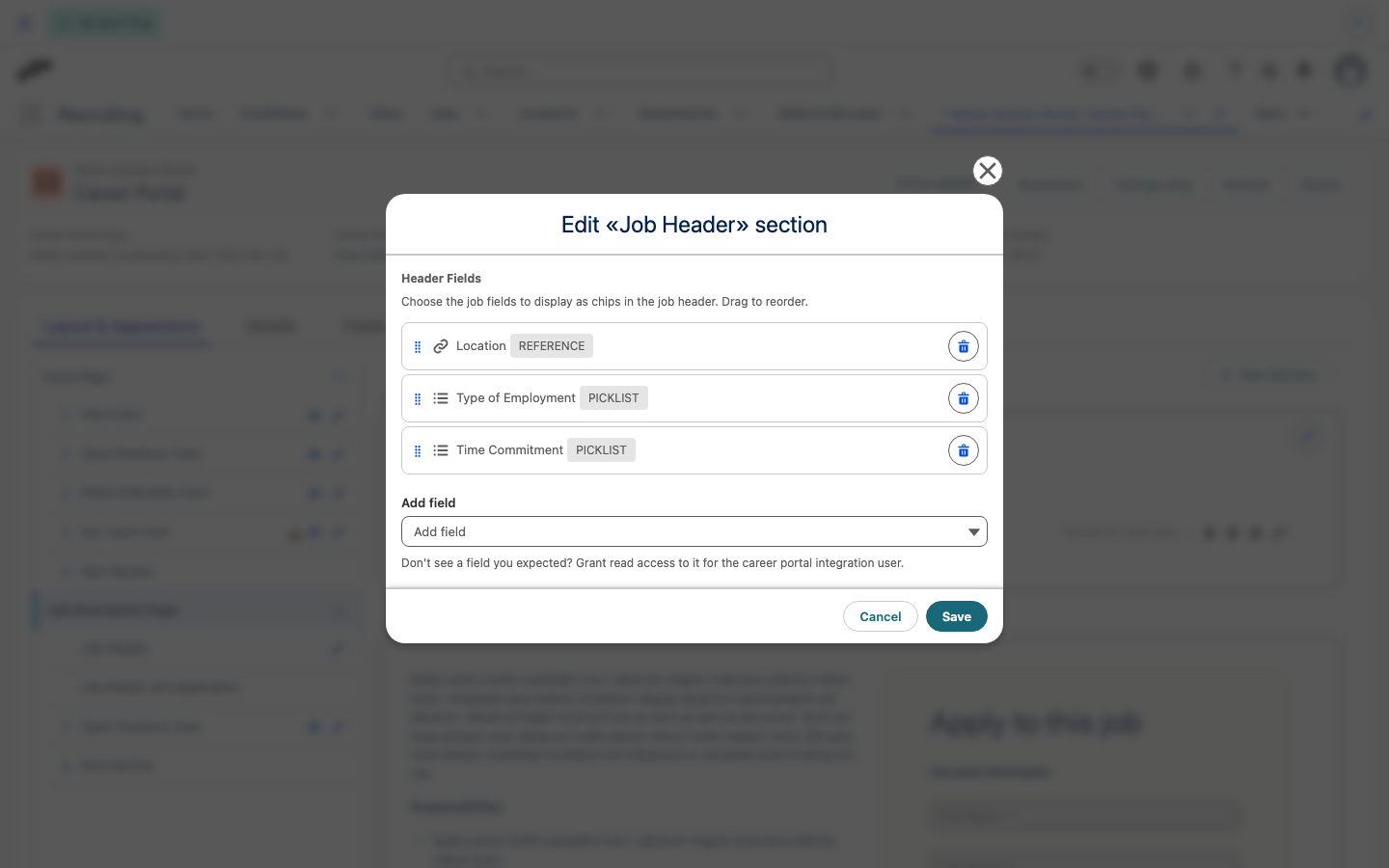
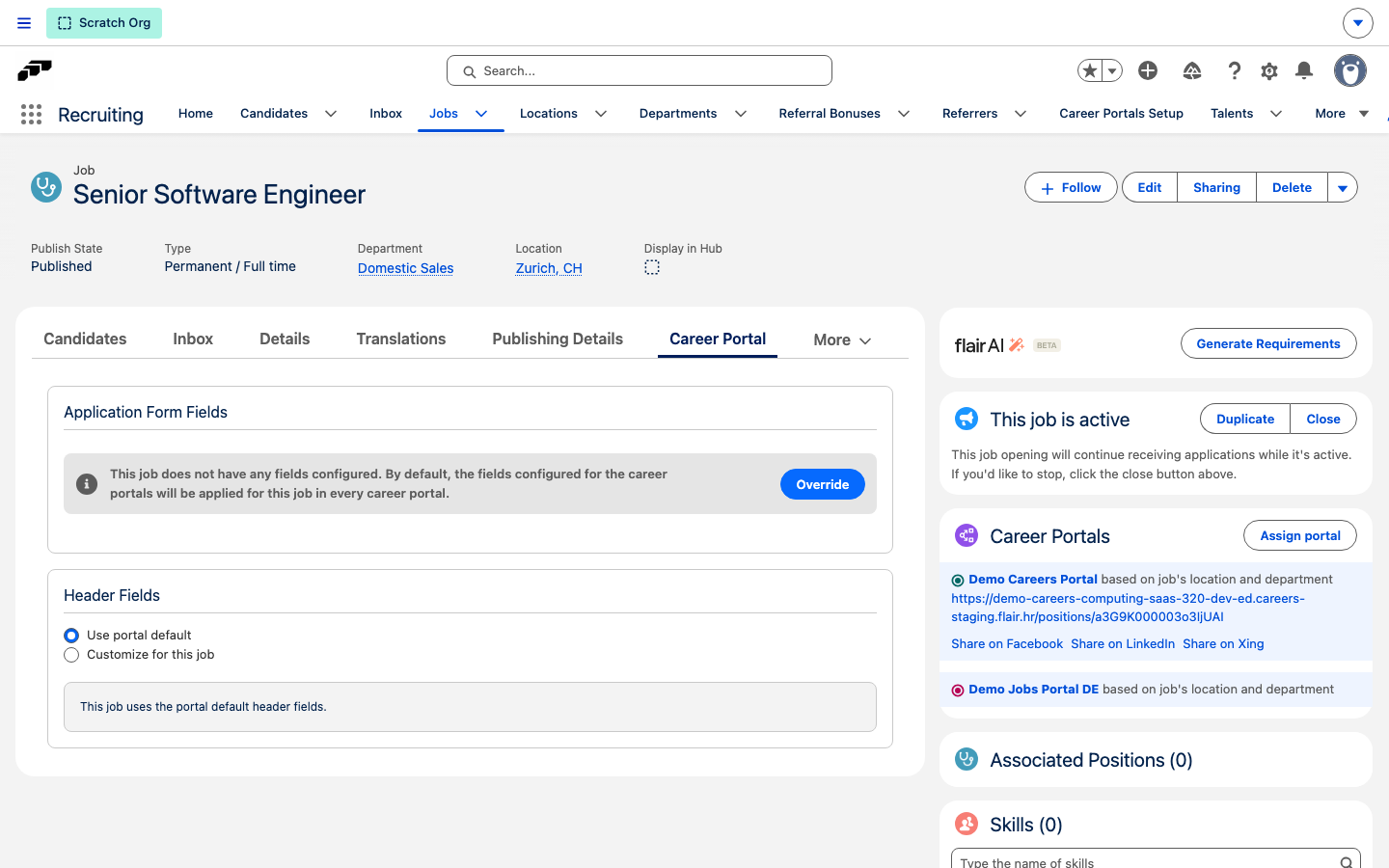
The Job Header card shows a portal-wide default set of fields as chips. Configure the default set, then override it for individual jobs where needed.
- In Layout & Appearance, open Job Description Page.
- Select the Job Header card and click the pencil icon to edit it.
- Click Add field, choose a job field, and repeat for up to 8 fields.
- Drag fields to reorder them.
- Save the card.
Override header fields for one job
- In the flair Recruiting app, open Jobs and select the job.
- Open Career Portal.
- On the Header Fields card, select Customize for this job.
- Add, remove, or reorder fields the same way as the portal default.
- Save your changes.
Select Use portal default to remove the override and follow the portal's default fields again.
Sort jobs on listings
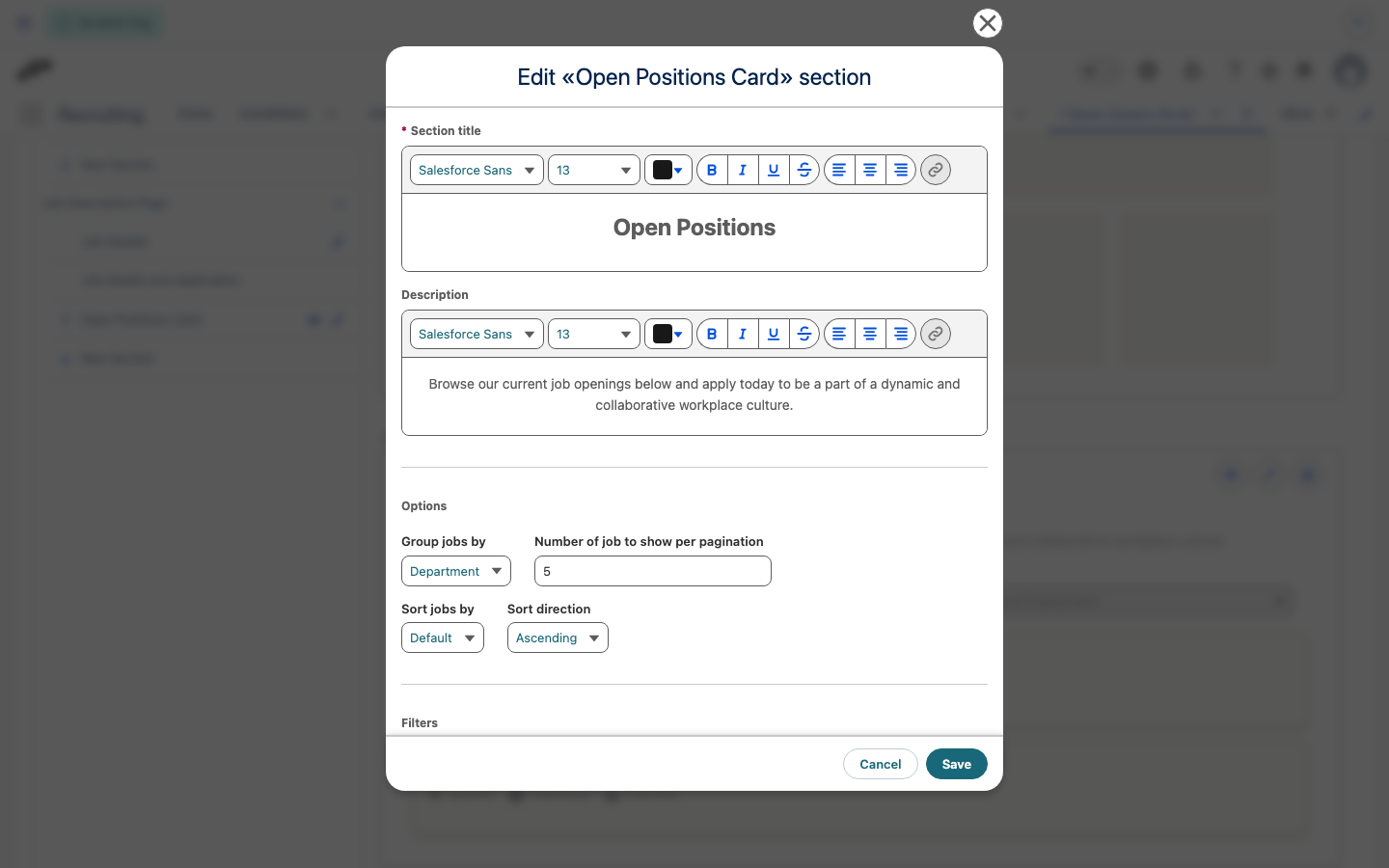
- In Layout & Appearance, select the Open Positions Card and click the pencil icon to edit it.
- Set Sort jobs by to Default, Name, Created Date, or Display Order.
- Set Sort direction to Ascending or Descending.
- Save the card.
Each Open Positions Card on the portal can use its own sort configuration. To rank jobs manually, choose Display Order sorting and set a job's Display Order field; flair lists lower numbers first.
Configure Career Portal details
In Career Portals Setup, open Details and configure the portal information:
| Setting | What it controls |
|---|---|
| Basic company information | The company details displayed on the portal. |
| Company logo | The logo displayed with your brand. |
| Brand color | The portal's brand color. |
| Default language | The initial portal language. |
| About Us | The company introduction. |
| Website, social media, and privacy policy links | The external links available to applicants. |
| Application confirmation message | The message shown after an applicant submits the form. |
| Default Allowed File Extensions | The file extensions accepted for uploads when a field doesn't set its own list. |
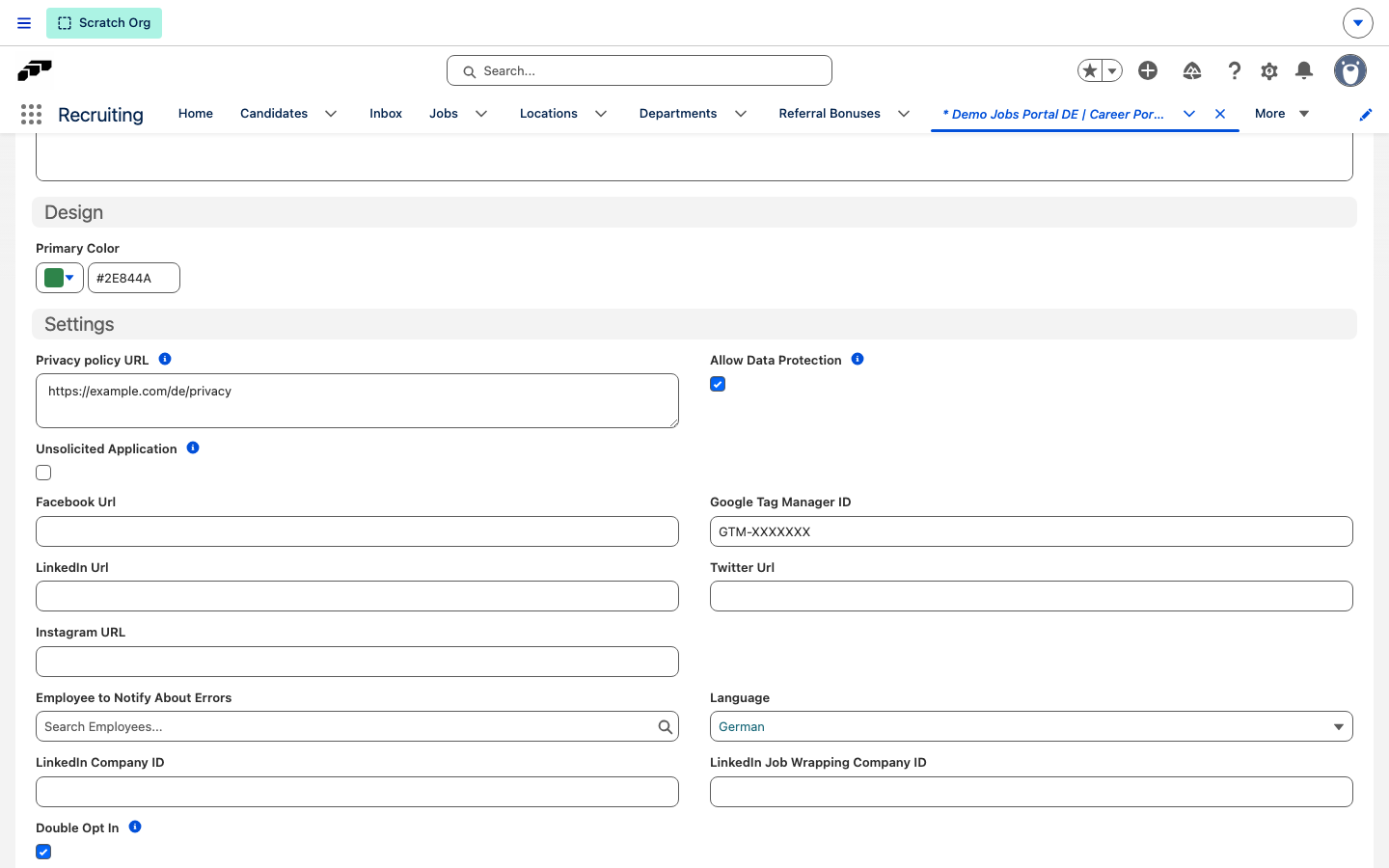
| Allow Data Protection | Adds a required I accept the Data Privacy Policy checkbox to the Confirmation section of the application form. |
| Google Tag Manager ID | Loads your Google Tag Manager container on the portal's pages. |
| Custom CSS | Adds your own CSS to every page of the portal. See Style a career portal with custom CSS. |
When Allow Data Protection is selected, Data Privacy Policy in the checkbox label links to your privacy policy URL, if one is set. Candidates can't submit the form without selecting the checkbox. flair records when they accepted in the candidate's Data Protection was Accepted At field.
For Google Tag Manager ID, enter the container ID from your Google Tag Manager account, for example GTM-XXXXXXX. Leave it empty to load no tag manager.
Allow unsolicited applications
Allow candidates to submit an application without selecting an open job. The form and success page use the portal's resolved locale, while the confirmation email uses the candidate's notification language.
- In Career Portals Setup, open Details for the portal.
- Under Settings, select Unsolicited Application.
- In Unsolicited Applications Responsible, select the employee responsible for unsolicited applications.
- Click Save.
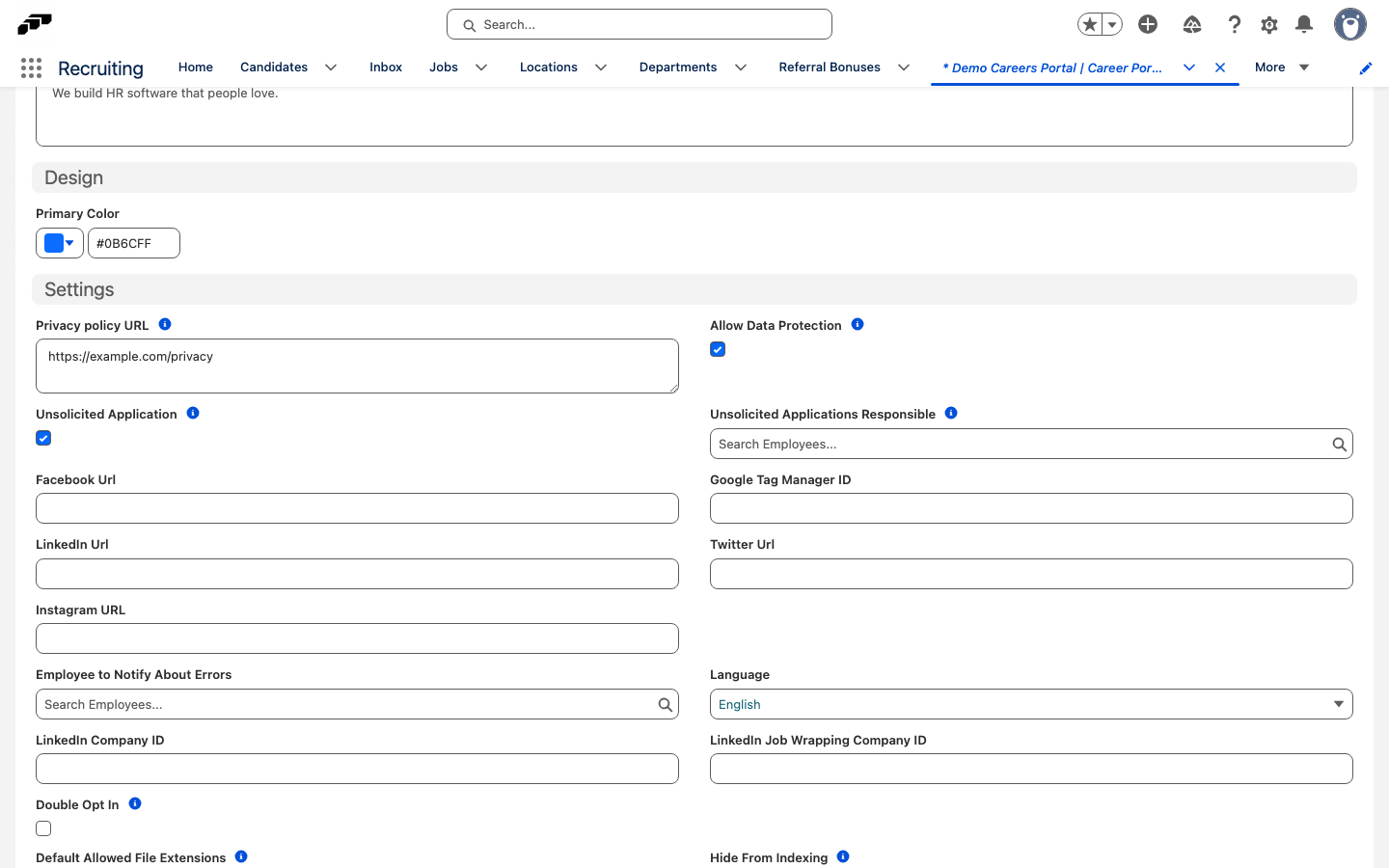
The packaged notification flow does not notify the selected employee. Add a custom flow if the responsible employee should receive a notification.
When Unsolicited Application is selected, candidates can open the portal's /apply form. When it is cleared, /apply redirects to the portal home page. Clearing the setting also clears Unsolicited Applications Responsible when you save the portal.
Require double opt-in
Double opt-in asks applicants to verify their email address and consent to extended data retention.
- From the App Launcher (⋮⋮ grid icon), search for
career. - Open Career Portals and select the portal.
- Open Details.
- Select Double Opt In.
- In Privacy policy URL, enter the privacy-policy link.
- Click Save. The application form shows the data-retention consent checkbox and flair sends a verification email after submission.
Verify double opt-in
- Open a job on the Career Portal.
- Complete the application form.
- Select the data-retention consent checkbox.
- Submit the application.
- Confirm that the applicant receives the verification email.
Control organic job posting
Organic job posting distributes your published jobs for free across a network of job boards and partner websites, separate from paid flair Advertising campaigns. It requires a subscription that includes organic job posting; if it is unavailable, a job's Organic card shows Request feature instead of a campaign status.
Disable organic posting for a portal
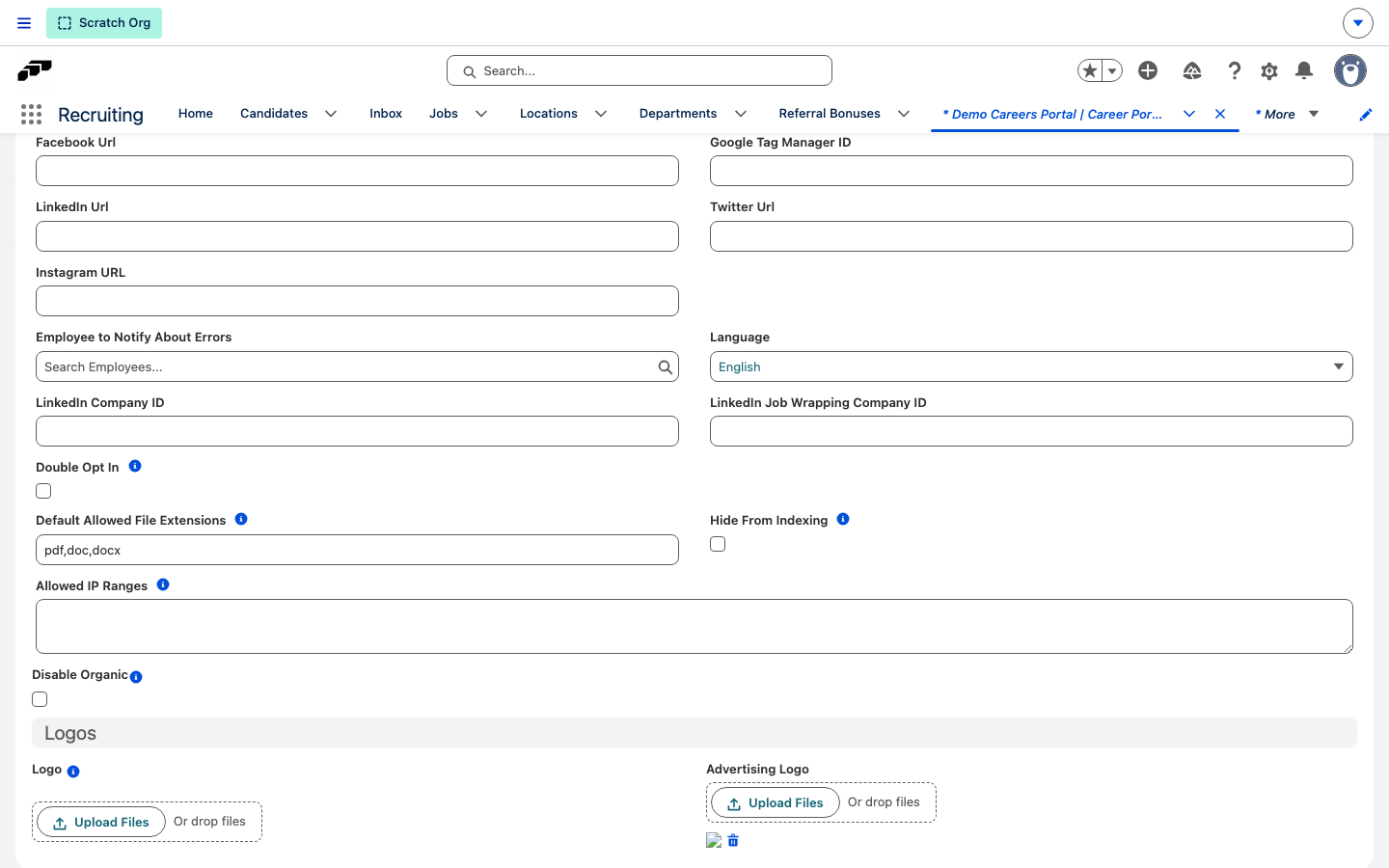
- In Career Portals Setup, open Details for the portal (see Configure Career Portal details).
- Select Disable Organic.
- Click Save. flair stops distributing this portal's jobs through the organic feed.
Exclude a job from organic posting
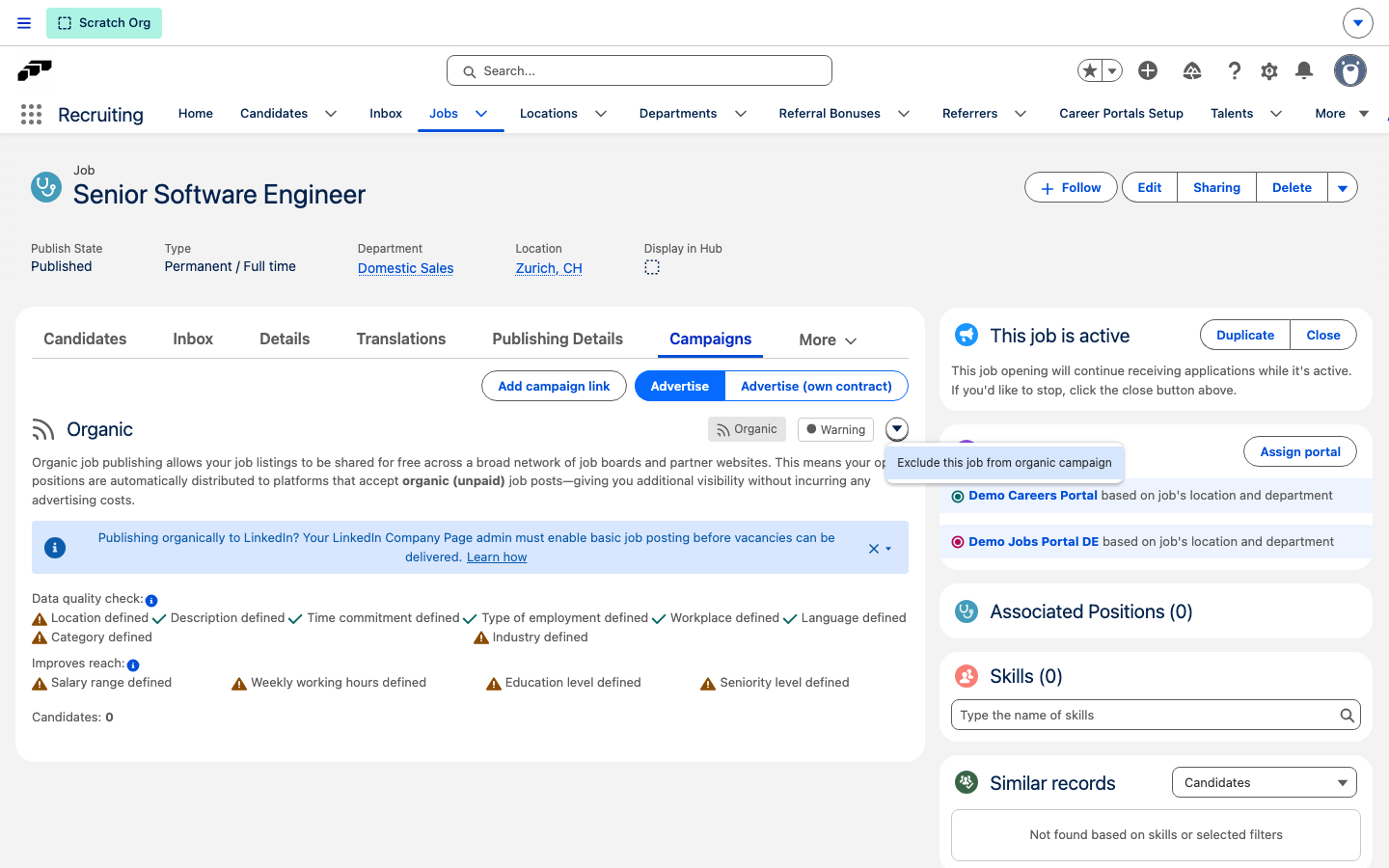
- In the flair Recruiting app, open Jobs and select the job.
- Open Campaigns.
- On the Organic card, open the menu and select Exclude this job from organic campaign.
To include the job again, open the same menu and select Include this job in organic campaign.
flair also removes a job from the organic feed automatically when you close it, so you do not need to exclude jobs you close.
Publish only mapped values
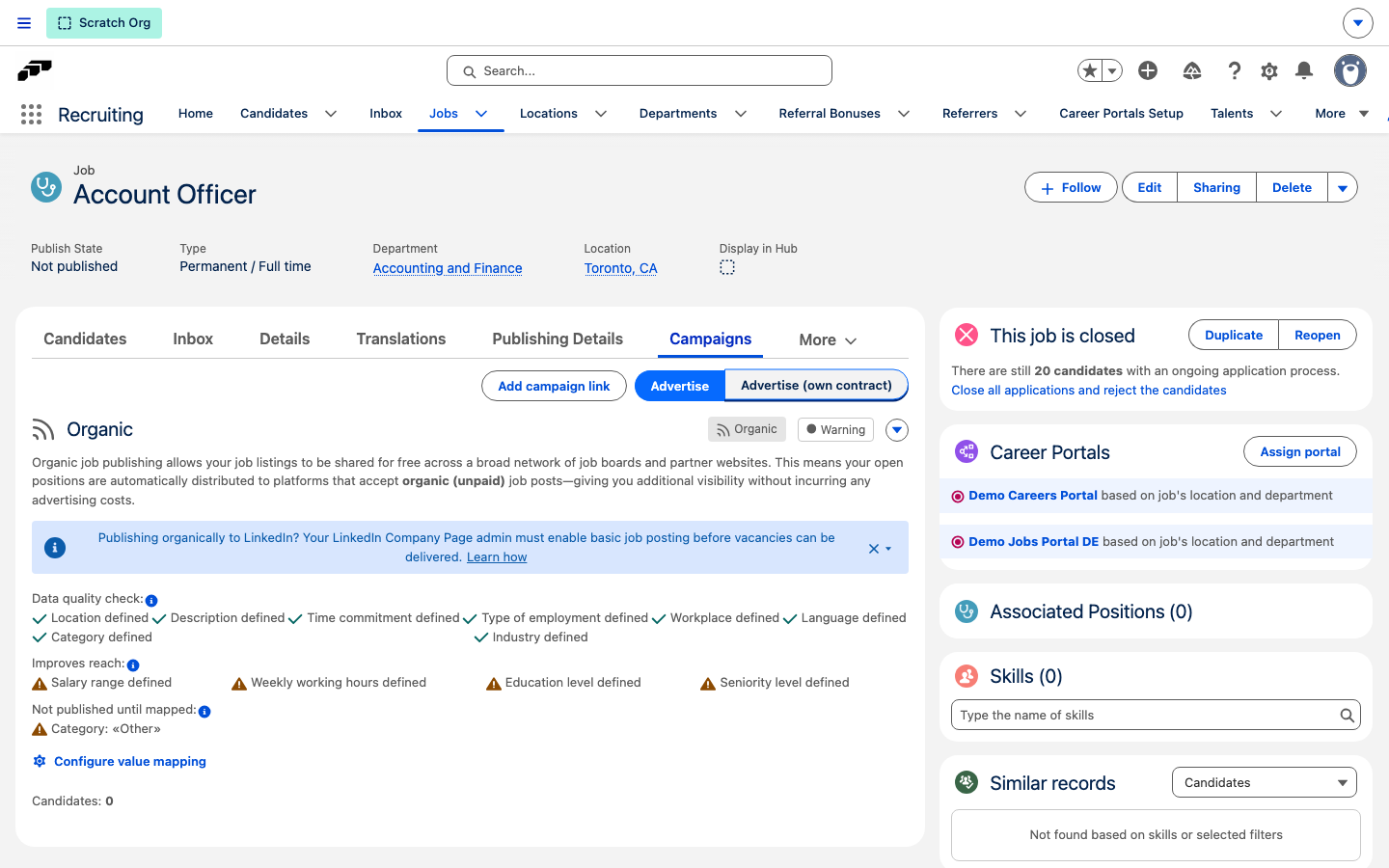
The organic feed sends a job board only values that map to a standard value, never your raw picklist or dictionary value. What an unmapped value costs depends on the field, and the job's Organic card names both cases:
| Heading on the card | What it means |
|---|---|
| Not published until mapped | The job's Category or Industry has no standard equivalent. The job is not sent to any job board at all. |
| Values not mapped | Another value, such as Time Commitment or Workplace, has no standard equivalent. The job still publishes, but boards that require that field may skip it. |
Both are self-service. On the Organic card, click Configure value mapping to open the VONQ integration, then either map your value to a standard value or change the value on the job. If the card shows a hint to add the Multiposting integration instead of the button, the integration isn't set up yet.
Other is the common cause: it is a packaged job category with no equivalent in the standard taxonomy, so every job in it stays withheld. Map Other to a real category once on the integration, or pick a different category on each job. For the mapping procedure itself, see Map customized values.
Configure application fields
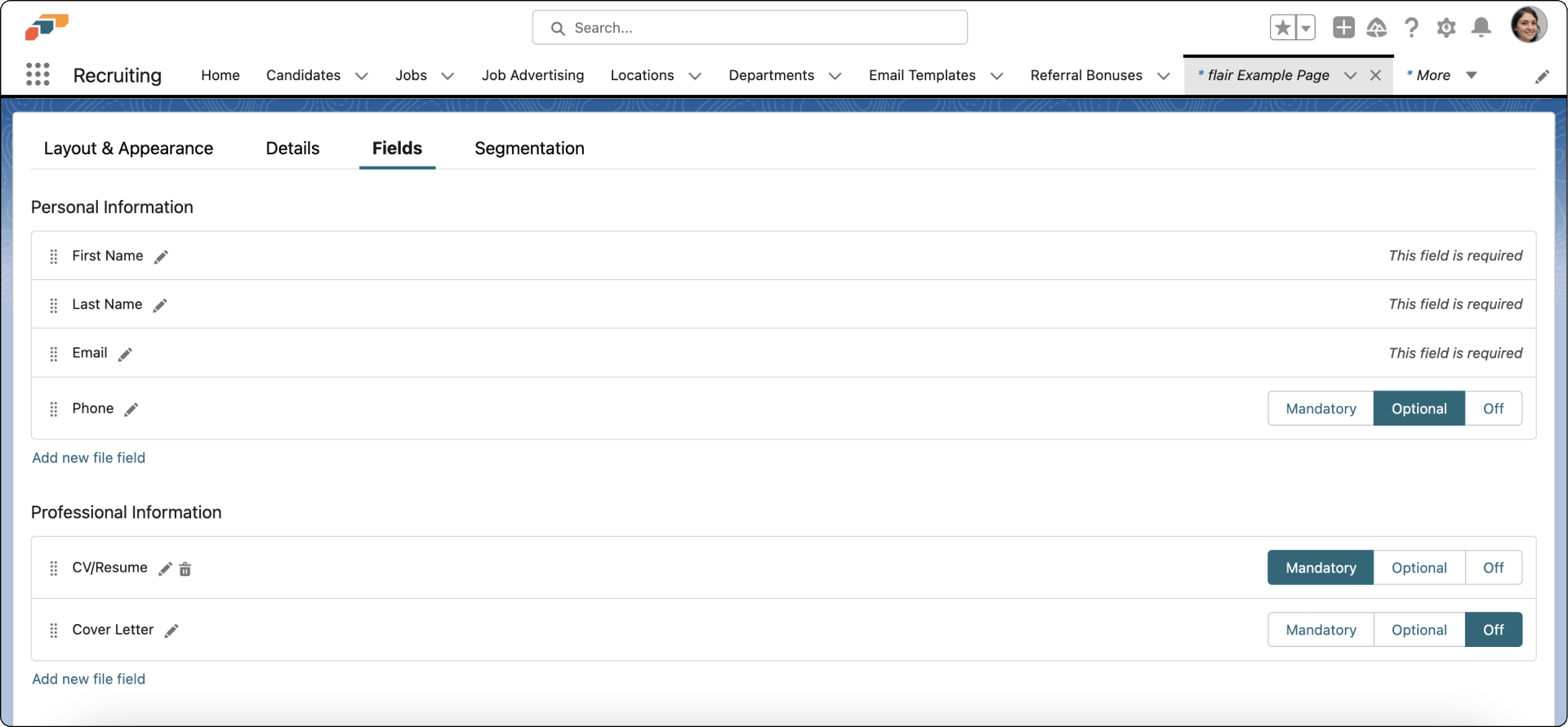
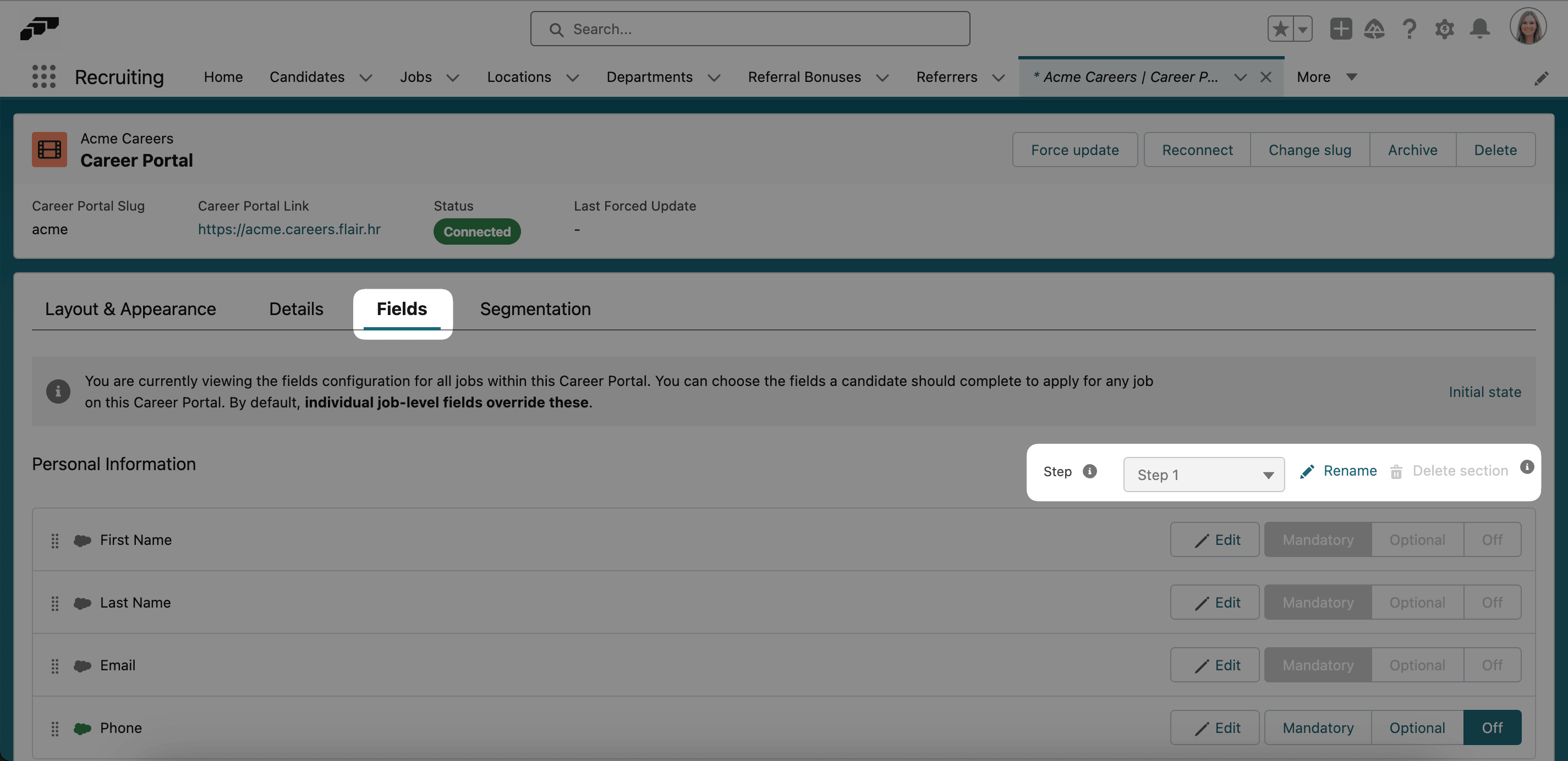
- In Career Portals Setup, open Fields.
- Enable the fields applicants should complete, such as a cover letter, earliest start date, or salary expectations.
- Set each field as mandatory or optional.
- Drag fields to change their order.
- To collect another file, click Add New File Field.
- Enter the label and description, then choose whether the field is mandatory.
- Optional: In Allowed File Extensions, enter a comma-separated list of extensions without dots, such as
pdf,doc,docx, to override the portal's Default Allowed File Extensions for this field.
Salesforce limits every uploaded file to 4 MB. The limit applies separately to each file when an applicant uploads several files. flair also rejects an uploaded file whose extension isn't in the portal's Default Allowed File Extensions, checking the file's actual content so a renamed file can't bypass the restriction.
For other information, an admin can add custom fields and picklists in Salesforce Setup.
Create a multi-step application
- In Career Portals Setup, open Fields.
- Add a second application step.
- Put the basic required information, such as name, contact details, and CV, in the first step.
- Put the additional information in the second step.
flair submits the first step before prompting the applicant to continue, so the applicant can return to the additional fields later.
Override fields for one job
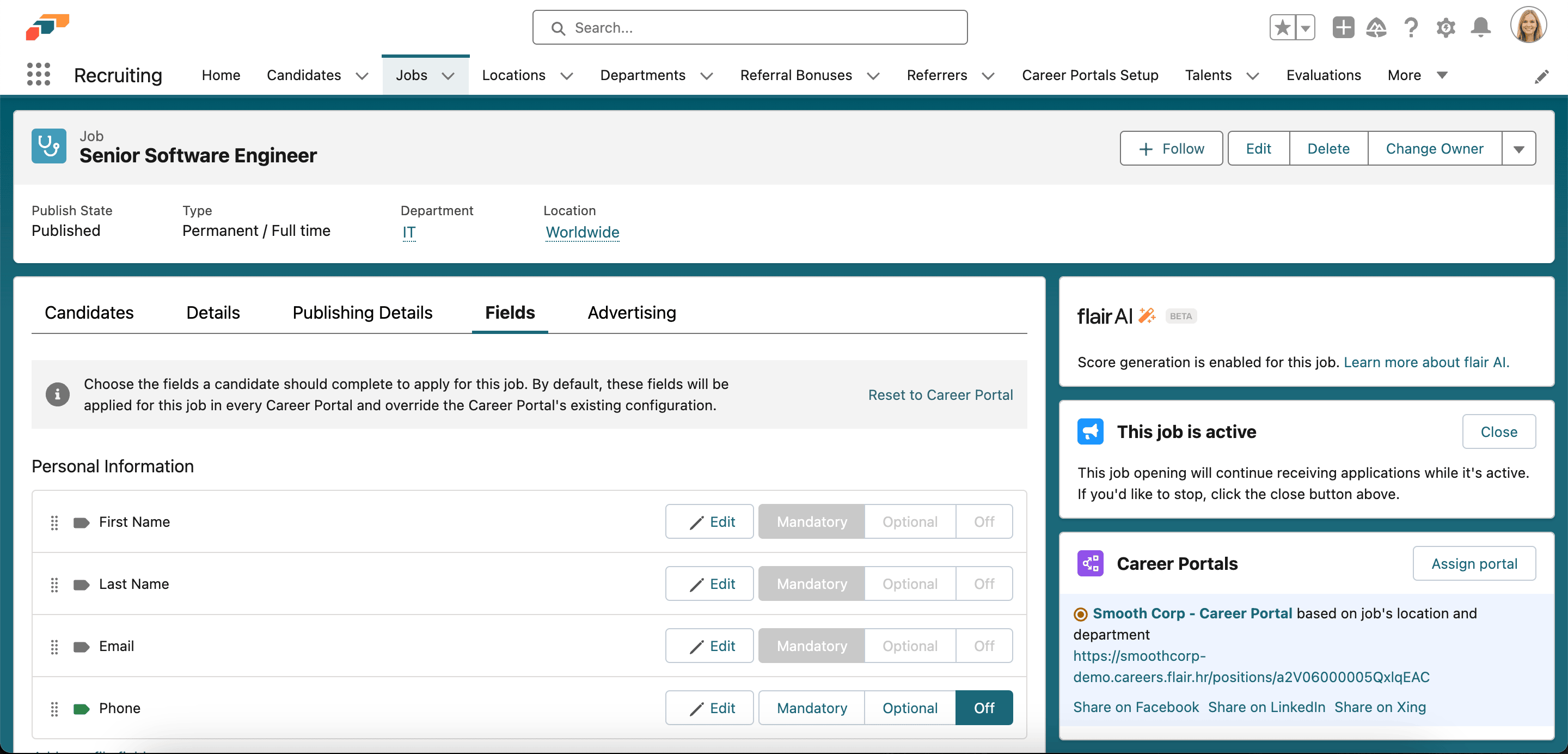
- In the flair Recruiting app, open Jobs and select the job.
- Open Fields.
- Click Override. The Career Portal's default fields appear.
- Add, remove, or update fields for this job.
- In Career Portal Setup, click Force update to publish the changes.
- Refresh the job page.
To restore the portal defaults, click Reset To Career Portal on the job's Fields tab.
Configure knock-out criteria
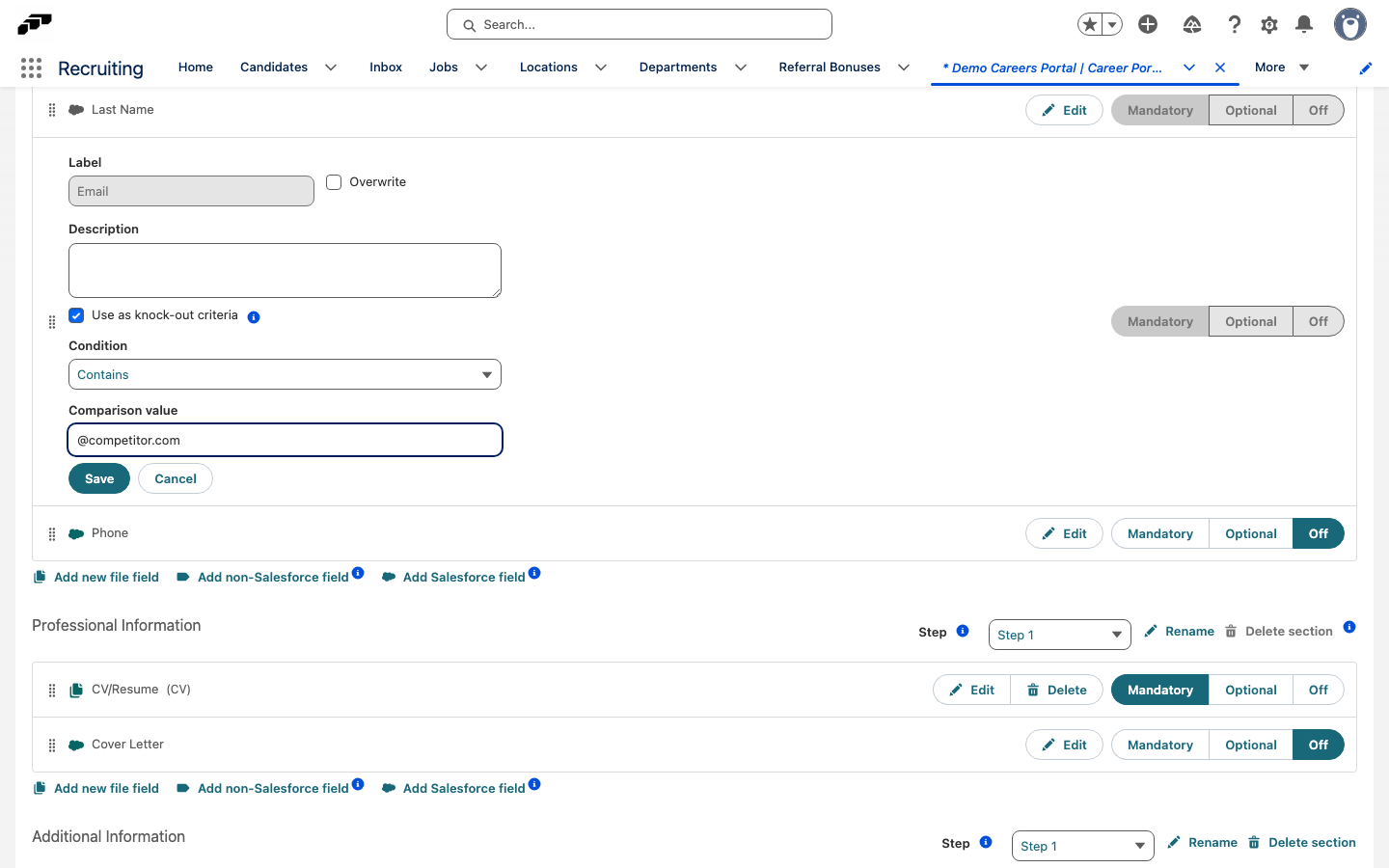
Use knock-out criteria to automatically reject an application when an answer matches a configured condition. You can configure criteria for the portal's fields or for fields added to one job. The packaged automation evaluates the criteria about 10 minutes after the application is submitted.
- In the portal's field settings, select a supported Salesforce field or custom question, then click Edit.
- Select Use as knock-out criteria.
- Under Condition, select the comparison to apply to the answer.
- Under Comparison value, enter or select the value that triggers the criterion.
- Click Save.
The available conditions depend on the field type:
| Field type | Available conditions |
|---|---|
| Number | Equals, Does not equal, Less than, Less than or equal to, Greater than, or Greater than or equal to |
| Text | Equals, Does not equal, Contains, or Does not contain |
| Checkbox | Equals |
| Picklist | Equals or Does not equal |
| Multi-picklist | Includes or Does not include |
| Date | Is before, Is after, or Equals |
To configure a different criterion for one job, open the job's Fields tab, click Override, and configure the field there. Click Force update in Career Portal Setup to publish the job-specific settings.
When any configured criterion matches, flair moves the candidate to the rejected funnel stage. Missing answers do not match a criterion. Only the field types in the table can use knock-out criteria. Fields set to Off are skipped. File, time, date/time, and lookup fields can't use knock-out criteria.
Force a portal update
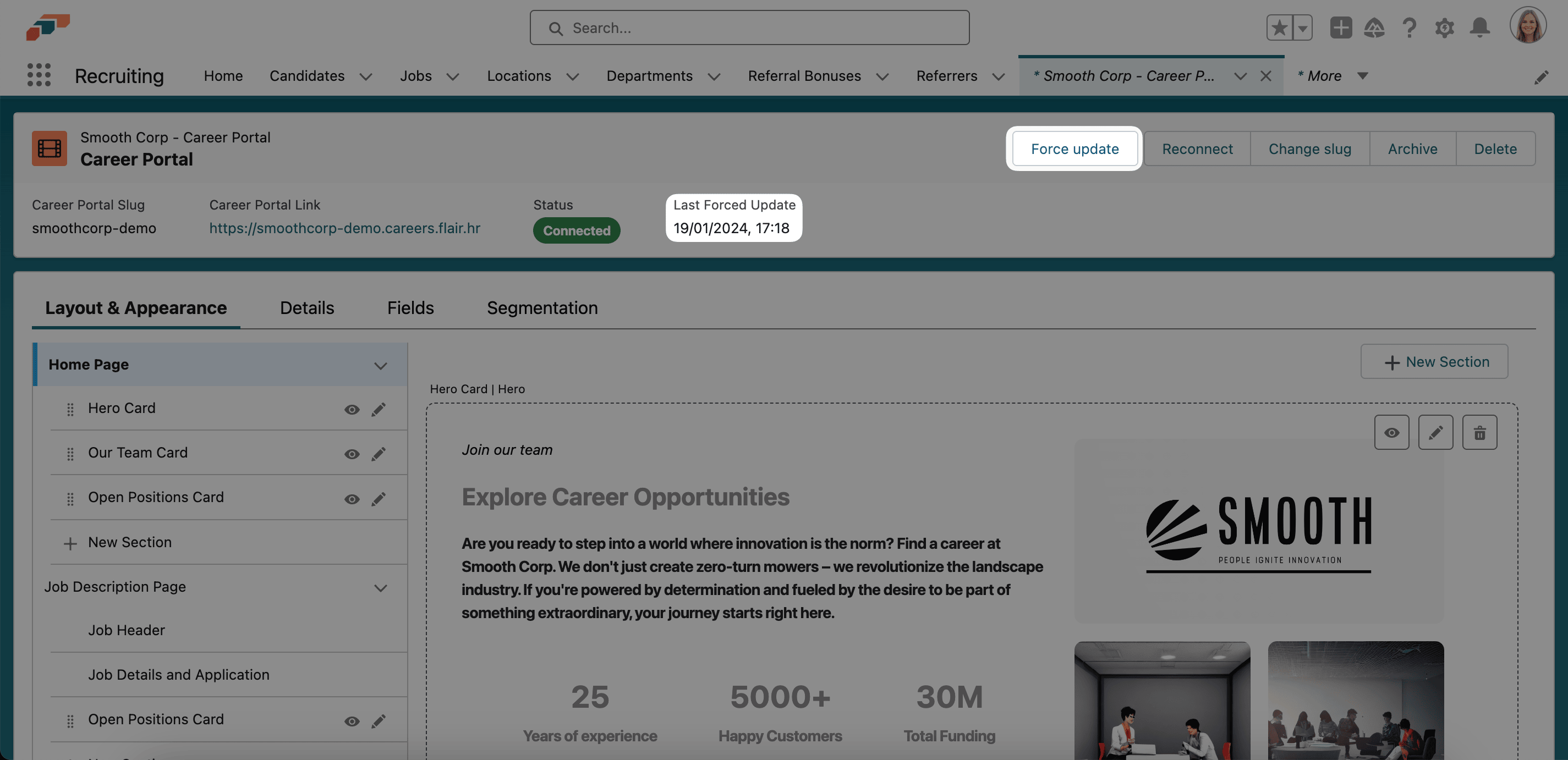
- In the Career Portal Setup header, click Force update. flair clears the portal cache and publishes pending design or field changes.
Last Forced Update shows when the cache was last cleared.
Archive a Career Portal
Archive a portal you no longer advertise through, so it stops appearing on your jobs' Campaigns tabs.
- In Career Portals Setup, open the portal.
- In the header, click Archive. The header status shows an Archived badge.
To restore the portal, click Unarchive in the same place.
Archiving only hides the portal in Salesforce. It doesn't take the public portal offline.
Choose jobs for the portal
Include jobs by location, department, and entity
- In the flair Recruiting app, open Career Portals.
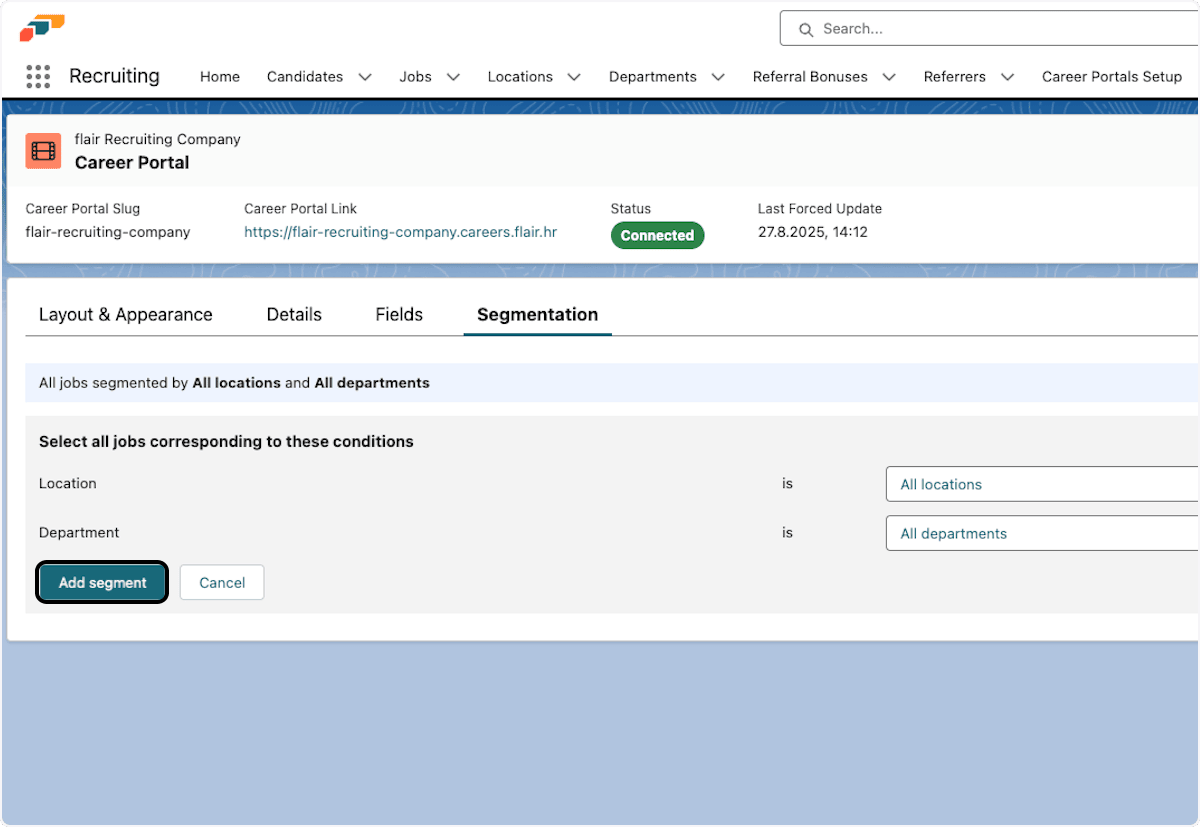
- Select the portal, then open Segmentation.
- Click Add segment.
- Select a location, a department, and an entity.
- To include current and future jobs from every location, department, or entity, select All Locations, All Departments, or All Entities.
- Click Add segment.
Include a specific job
- In Career Portals, open the portal.
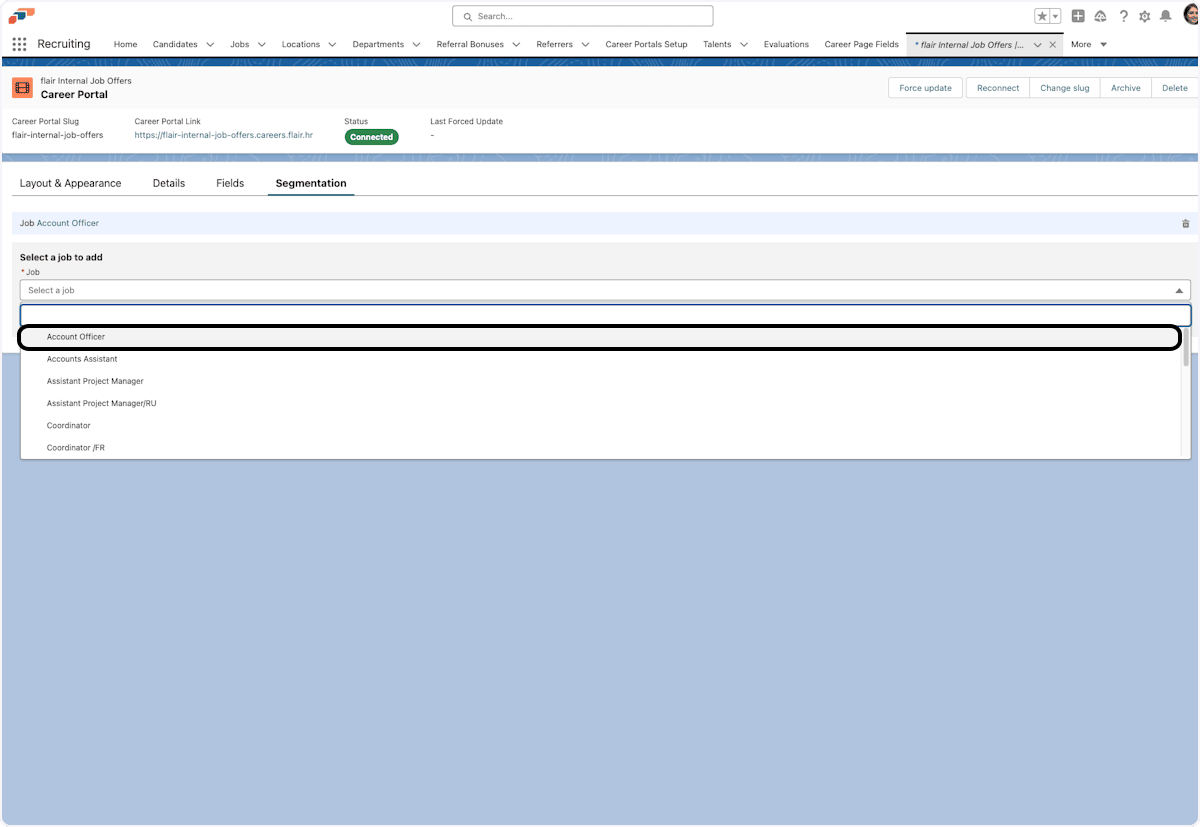
- Open Segmentation.
- Click Add a specific job.
- Select the job.
- Click Add job.
- Open Jobs, then verify that the job is connected to the portal.
Remove a job
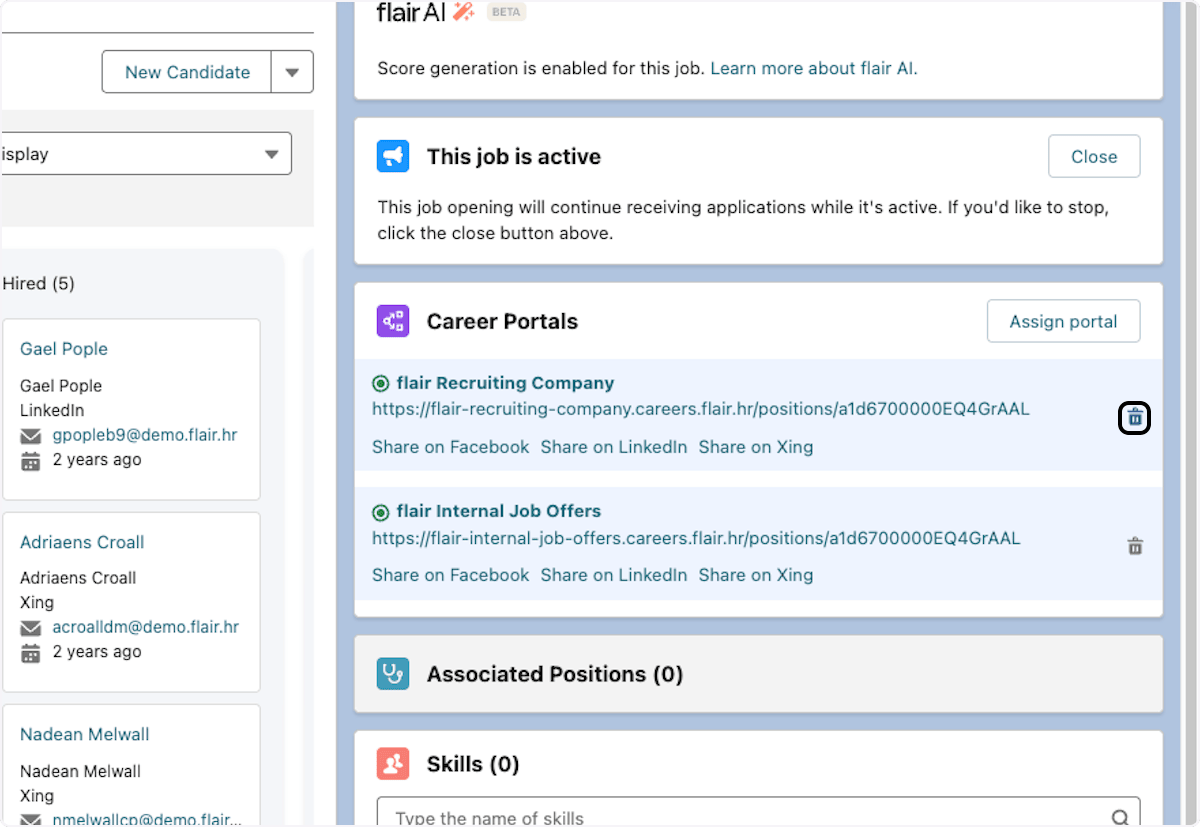
- In the portal's Career Portal component, remove the job.
You can remove individual jobs only when the portal's segmentation does not use both All Departments and All Locations.
Track candidate sources
- Copy the Career Portal URL or a specific job URL.
- Add
?origin=to the end. - Add the source name, such as
?origin=linkedin. - Keep the source spelling and capitalization consistent because the value is case-sensitive.
- From the App Launcher (⋮⋮ grid icon), open Career Portal Applications.
- Open the candidate and review Career Page Origin.
- Use Career Page Origin in reports to compare recruiting channels.
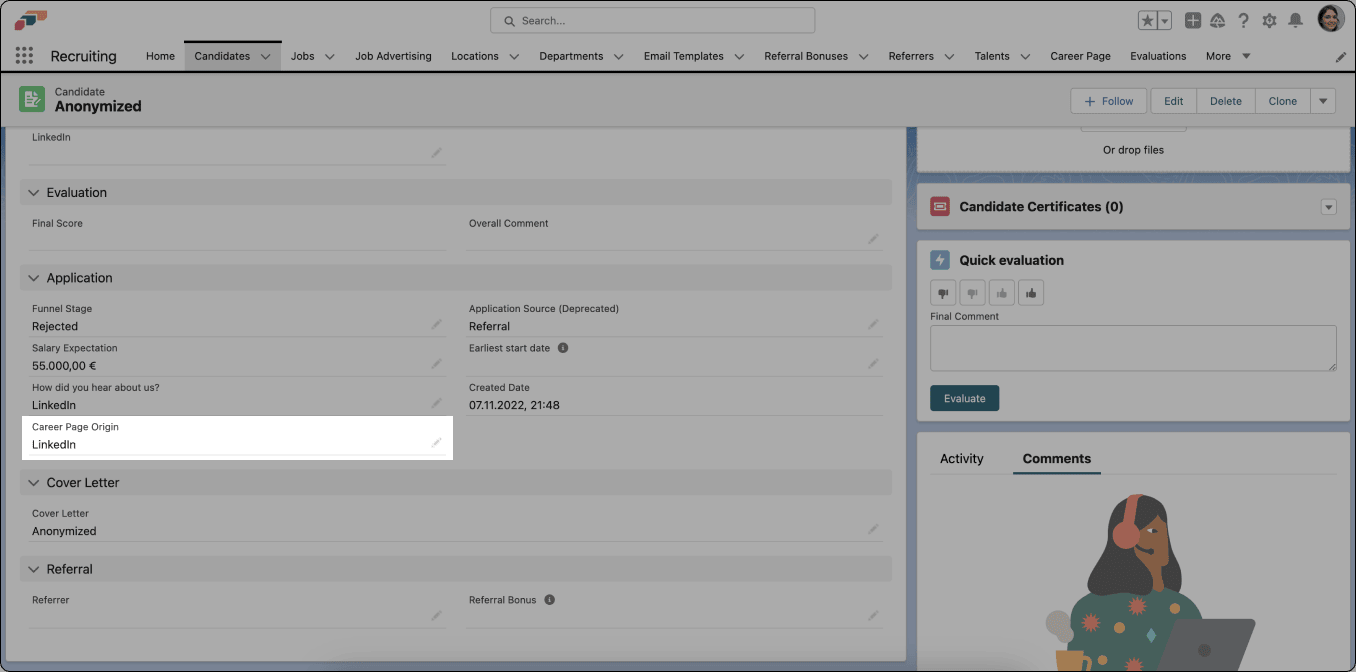
organic is reserved and can't be used as a custom source name. flair tags an application as organic automatically when a candidate applies from a job posting distributed through organic job posting, so those applications don't need a manual ?origin= link. The job's Organic card on its Campaigns tab shows the resulting candidate count.
Link an external job ad to flair
- Create a flair Career Portal.
- In the flair Recruiting app, create the job.
- Confirm that the job matches the portal's location and department segmentation.
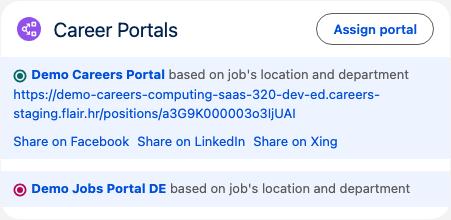
- On the job record, find Career Portals and copy the portal link.
- Use the link as the destination for the external ad's application action. Applicants open the flair form, and submitted details appear in Candidates.
Embed the portal on a website
-
Copy the Career Portal home-page URL, such as
https://companyname.careers.flair.hr. -
Add
/?embed=trueto hide the portal header and footer. -
In the website code, add the iframe and replace the example URL:
<iframe src="https://companyname.careers.flair.hr/?embed=true" style="height:40rem" title="Embed career portal"></iframe> -
Optional: Change the
widthandheightstyles to fit the website. -
Publish the website.
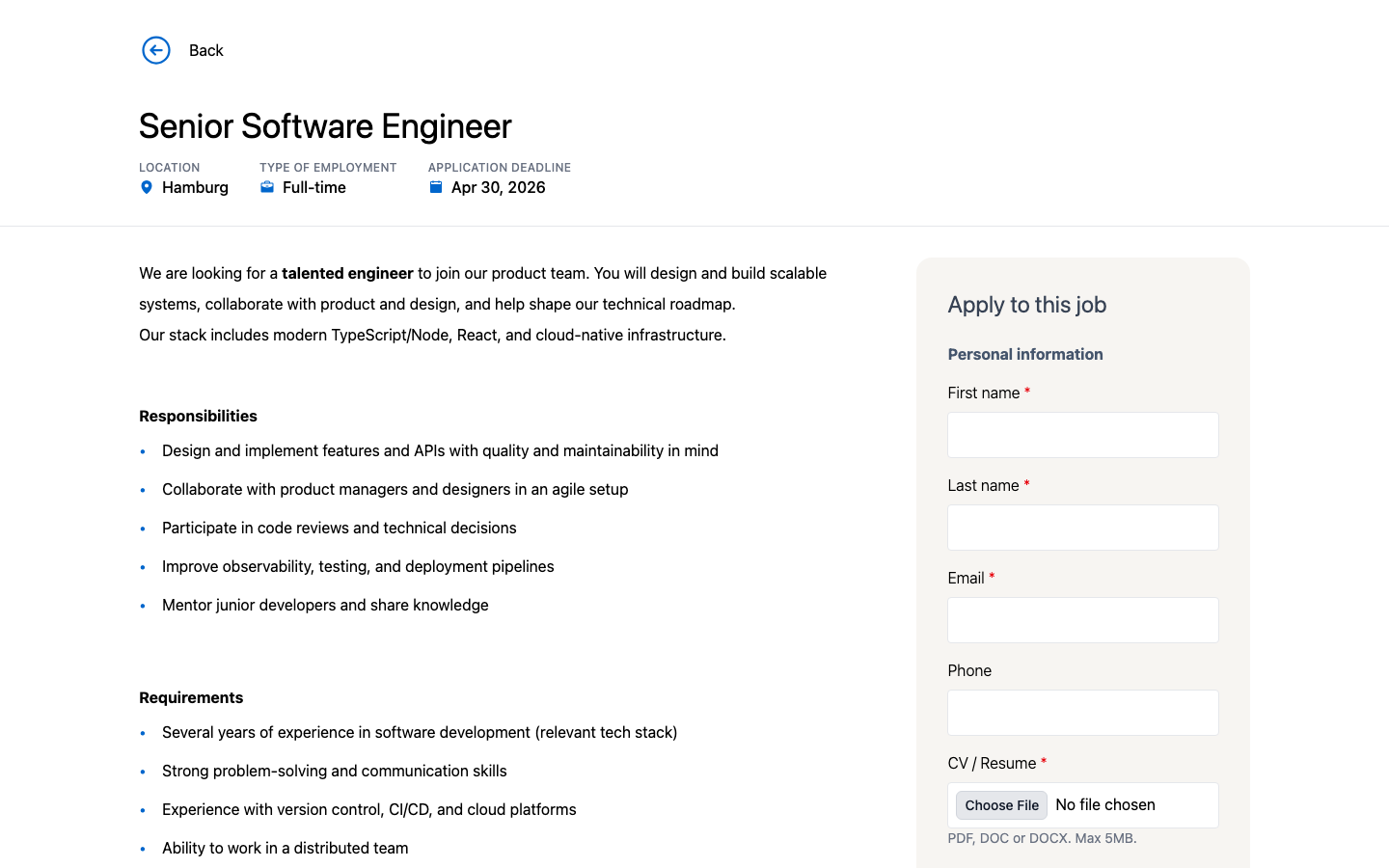
In an embedded portal, job pages, application forms, the unsolicited application form, and the confirmation page after an application show a Back button above the content. It opens the portal's job list, so visitors can return to all jobs without the hidden portal header. The portal shows the button only when the URL contains embed=true.
Hide the Back button
Hide the button when the iframe shouldn't lead visitors to the full job list.
-
Add
&allowNavigation=falseto the embed URL. -
In the website code, use the combined URL in the iframe:
<iframe src="https://companyname.careers.flair.hr/?embed=true&allowNavigation=false" style="height:40rem" title="Embed career portal"></iframe> -
Publish the website.
The portal keeps embed=true and allowNavigation=false in the URL when visitors open a job, apply, and reach the confirmation page, so the button stays hidden. Any other allowNavigation value, or no value, shows the button in an embedded portal.