Create and manage candidate evaluations
Create consistent candidate evaluations with reusable templates, automatic evaluator assignments, and weighted scores. Evaluations are configured in Salesforce, while assigned evaluators complete them in the Employee Hub.
Recruiters and HR Admins in Salesforce. Assigned evaluators complete candidate evaluations in the Employee Hub.
Create an evaluation template
-
In the flair Recruiting app, open Evaluations → Evaluation Templates.
-
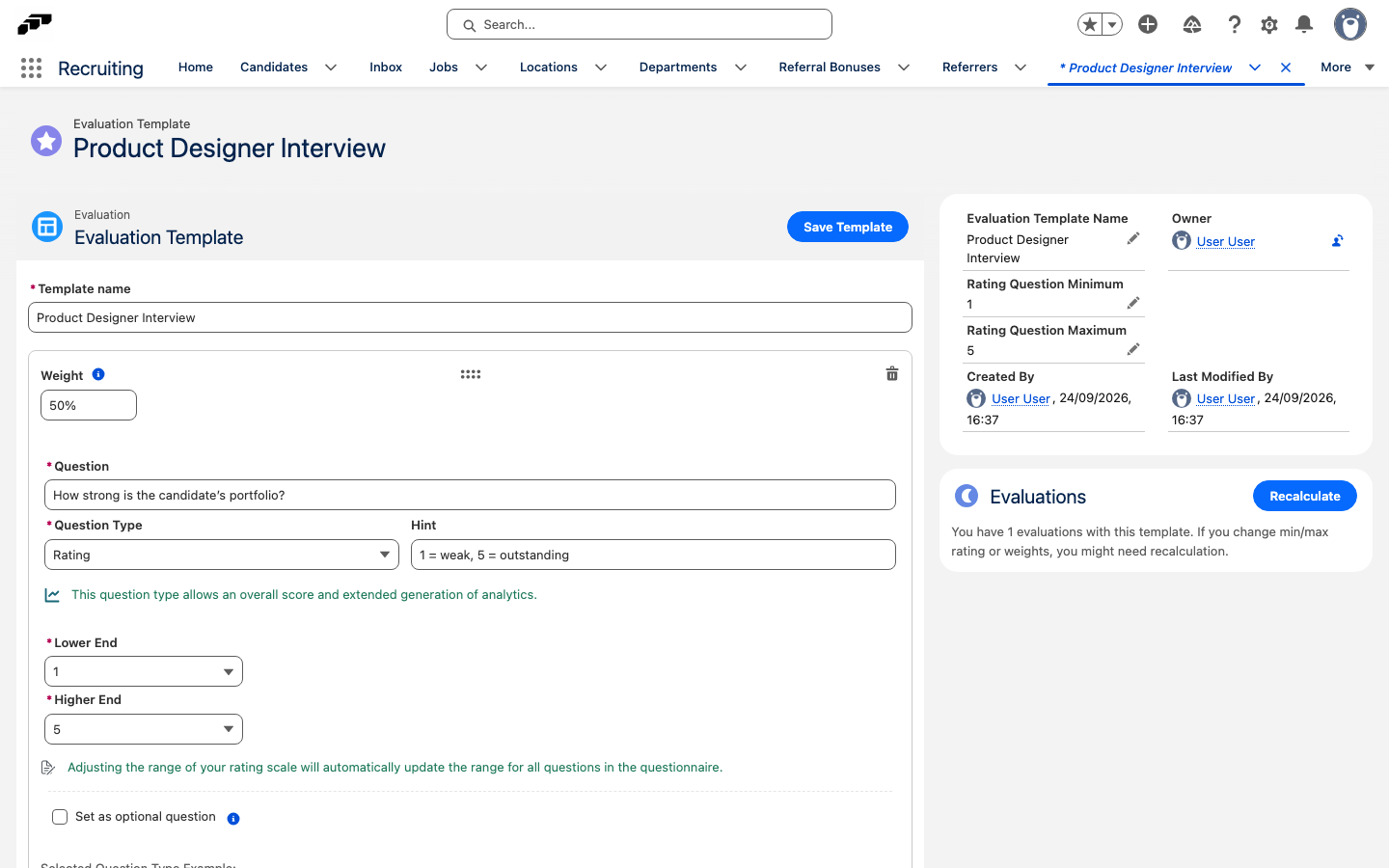
Create a new evaluation template and enter its name in Template name.
-
Click Add Question.
-
Enter the question in Question, then select a Question Type.
-
Choose from these evaluation question types:
Question type What it does Scoreboard Lets the evaluator score criteria using a scorecard. Single Choice Lets the evaluator select one answer. Multiple Choice Lets the evaluator select several answers. Rating Lets the evaluator give a rating. Free text Lets the evaluator enter a written answer. Free Slider Lets the evaluator provide a value on a slider. -
For choice-based questions, define the answers with Add Option. For Scoreboard questions, define the criteria with Add Item. For a Rating, configure the rating scale shown to evaluators.
-
Optional: Enter a Hint and select Set as optional question.
-
For a Rating, Free Slider, or Scoreboard question, set Weight. A higher weight gives that question more impact on the overall evaluation score.
-
Add any remaining questions, then click Save Template. The template is available for manual or automatic assignments.
If the weights of scored questions exceed 100%, the template shows Sum of the weights is more than 100%. If you change rating limits or weights after evaluations already exist, recalculate the template's weighted scores.
Configure default evaluators for a job
Default evaluators let you map a job's funnel stages to evaluation templates. When a candidate reaches a mapped stage, flair creates the candidate evaluation for the configured evaluator and template.
- In the flair Recruiting app, open the job record.
- In the Evaluators card, search for an employee and click Add. The employee appears in the evaluator list.
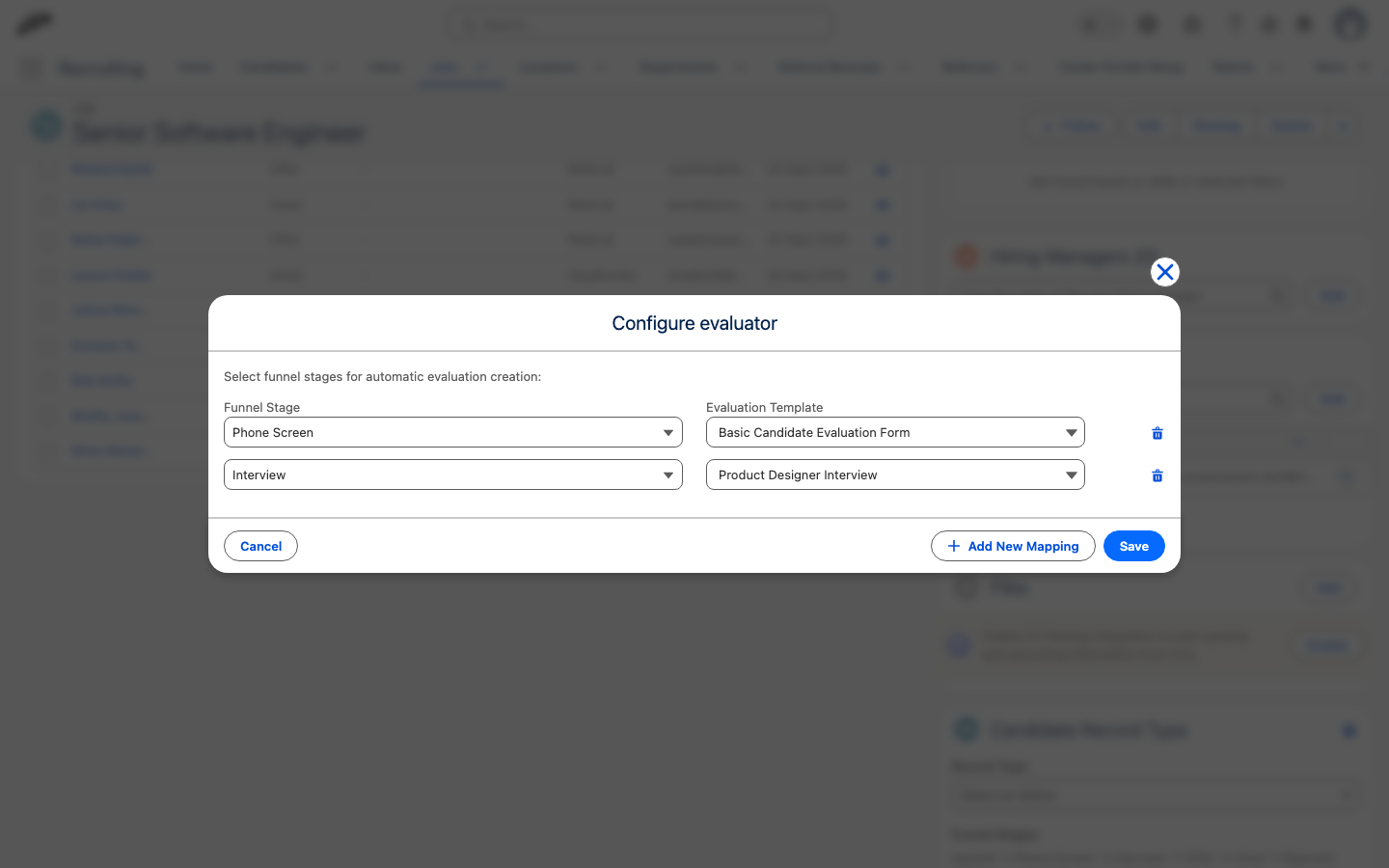
- In the evaluator's row actions, select Edit. The Configure evaluator modal opens.
- Click Add New Mapping.
- In the new mapping, select a Funnel Stage and an Evaluation Template.
- Add a mapping for each funnel stage and template combination you want to automate.
- Click Save. flair saves the configuration.
Automatic creation applies when a candidate is created or when the candidate's funnel stage changes. A mapping is ignored until both its funnel stage and evaluation template are selected.
Review candidate evaluation scores
- Open a candidate record with one or more evaluations.
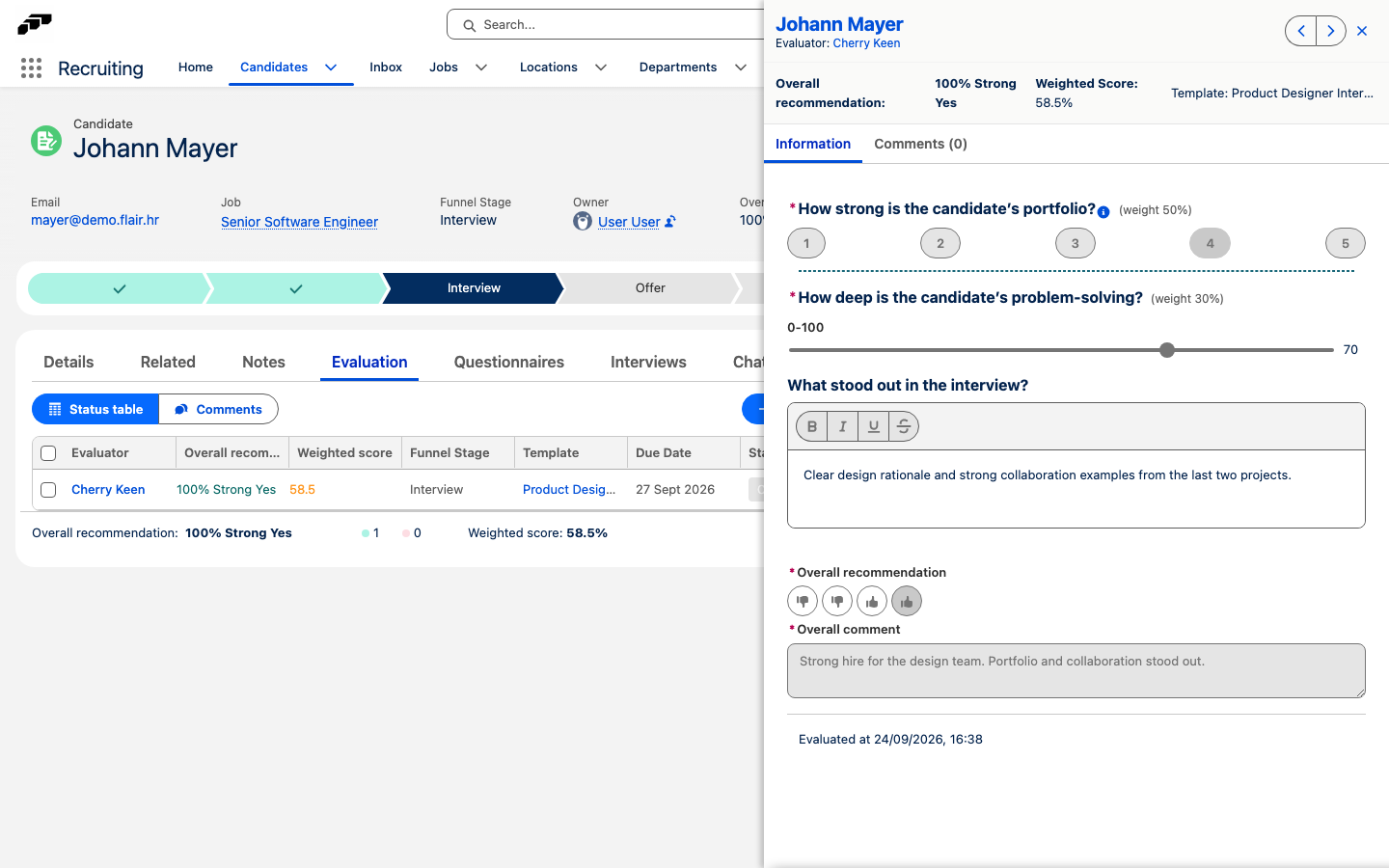
- In the evaluations table, review the evaluator, overall recommendation, evaluation template, due date, status, and Weighted score.
- Open an evaluation to read its answers and comments. The weighted score is calculated from weighted Rating, Free Slider, and Scoreboard answers.
- Use the status and comments views to review evaluation progress and written feedback.
The candidate's weighted score summarizes the completed evaluations that have a weighted score. A candidate evaluation also stores its own Weighted Score.