Schedule and record candidate interviews
Create candidate interviews, choose the participants, let candidates select a suitable time, and record online meetings. flair creates the calendar event, sends the required notifications, and saves AI-generated summaries and transcripts.
Recruiters and HR Admins in Salesforce with the flair AI and Recruiting Communication integrations. Recruiting Communication is a paid add-on, at least one participant needs a connected Microsoft Outlook calendar, and a Career Portal must be available for interview recording.
Before you begin
- Enable Recruiting Communication for your organization.
- Connect at least one participant's Microsoft Outlook calendar. Google Calendar is not supported yet.
- In HR Admin → Integrations, connect flair AI.
- Schedule the interview as an online meeting with a meeting URL.
Connect Recruiting Communication
- In Salesforce, open HR Admin → Integrations.
- Add a Recruiting Communication Integration.
- Click Connect to view connected accounts and hiring managers.
Create an interview
- In the flair Recruiting app, open Candidates.
- Select the candidate.
- Open Interviews.
- Click New.
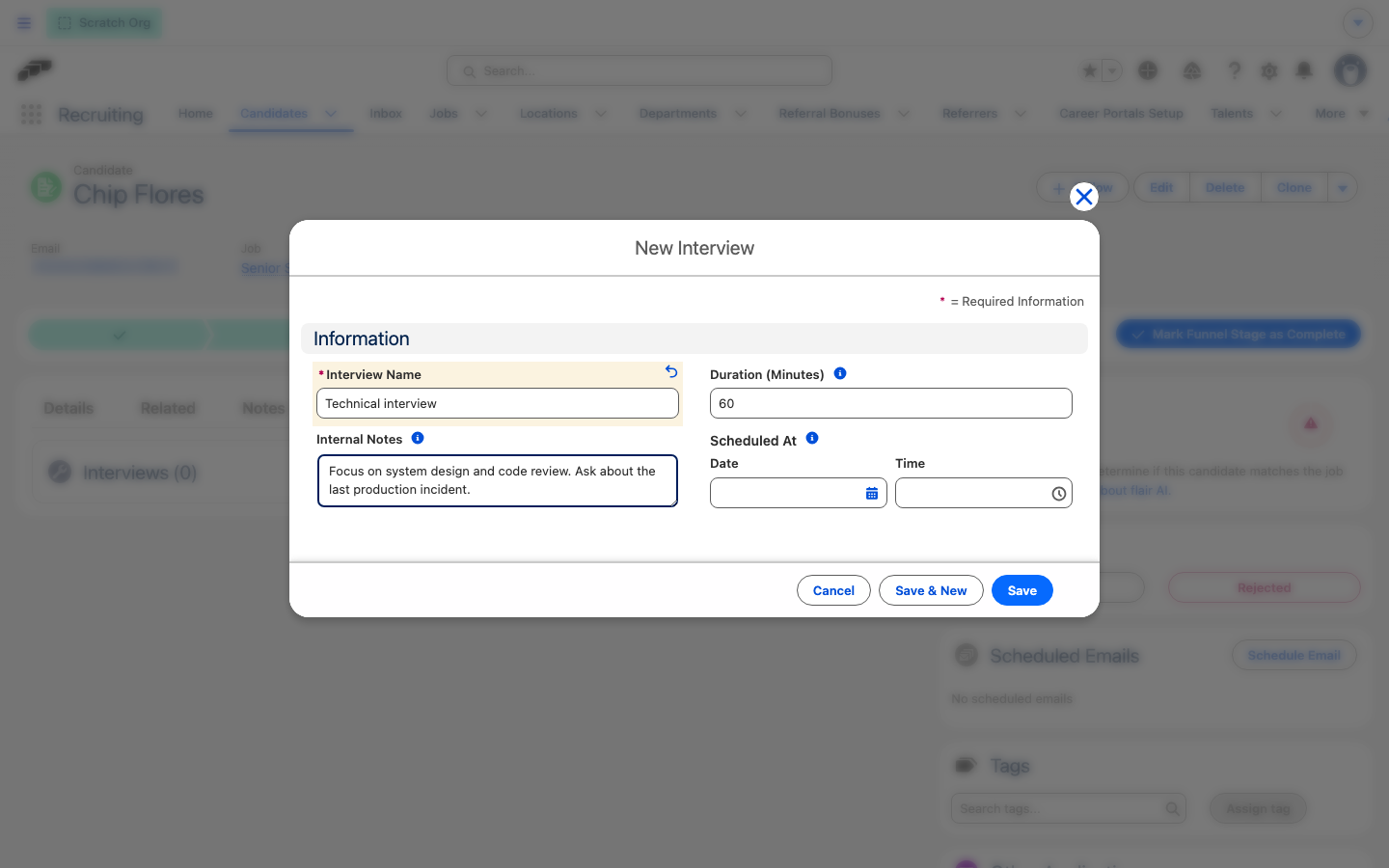
- In New Interview, enter the Interview Name, Duration (Minutes), and Internal Notes. Candidates cannot see the internal notes.
- Click Save, then open the interview and review Interview Participants. flair adds the candidate and all Hiring Managers for the job by default.
- Optional: Add employees or external participants by email.
- Select the participant with the connected calendar as the event organizer.
Connect a participant's calendar
- In the interview, click Quick Actions.
- Select Copy Employee Calendar Connection.
- Send the copied link to the participant.
- Ask the participant to use the link to connect Microsoft Outlook.
- In the interview, select that participant as the event organizer.
Choose a scheduling method
Schedule a specific time
- Set the interview date and time.
- Send the invitation. flair creates the calendar event and emails all participants.
Offer predefined time slots
- Add the available time options.
- Send the invitation link to the candidate.
- Wait for the candidate to select a slot. flair schedules the interview and sends calendar invitations.
Offer an open calendar
- Select the open-calendar option.
- Send the calendar link to the candidate.
- Wait for the candidate to choose an available slot. flair blocks times that conflict with participant calendars.
Manage a scheduled interview
- Review the scheduled date, status, and Microsoft Teams join link on the interview.
- To create more available slots, mark an absent participant as optional.
- Cancel the interview from the candidate side or from Salesforce. All participants receive calendar invitations and email notifications about scheduling changes.
Candidates receive a dedicated interview link with meeting details and join options. flair also warns you when a participant is absent, but it does not prevent scheduling.
Enable interview recording
- On the candidate record, open Interviews.
- Open an interview in the Scheduled or Candidate Invited state.
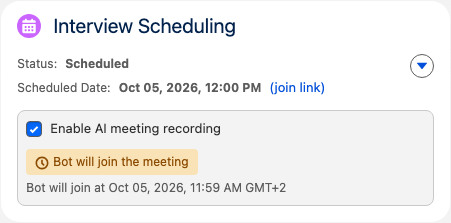
- Select Enable AI meeting recording. The box shows Bot will join at and the scheduled time.
The recorder joins one minute before the scheduled start. The checkbox is hidden for completed or canceled interviews, and flair refuses recording if the interview has no meeting URL.
To cancel the recorder before the meeting, clear Enable AI meeting recording.

Monitor the recording status
The status badge updates without reloading the page:
| Badge | What it means |
|---|---|
| Bot will join the meeting | The recorder is booked and waiting for the meeting. |
| Recording in progress | The recorder is in the meeting, or flair is processing the transcript and summary. |
| Transcript summary saved as candidate note | The summary and transcript are available on the candidate. |
| Recording failed | flair did not produce a summary. |
Review the summary and transcript
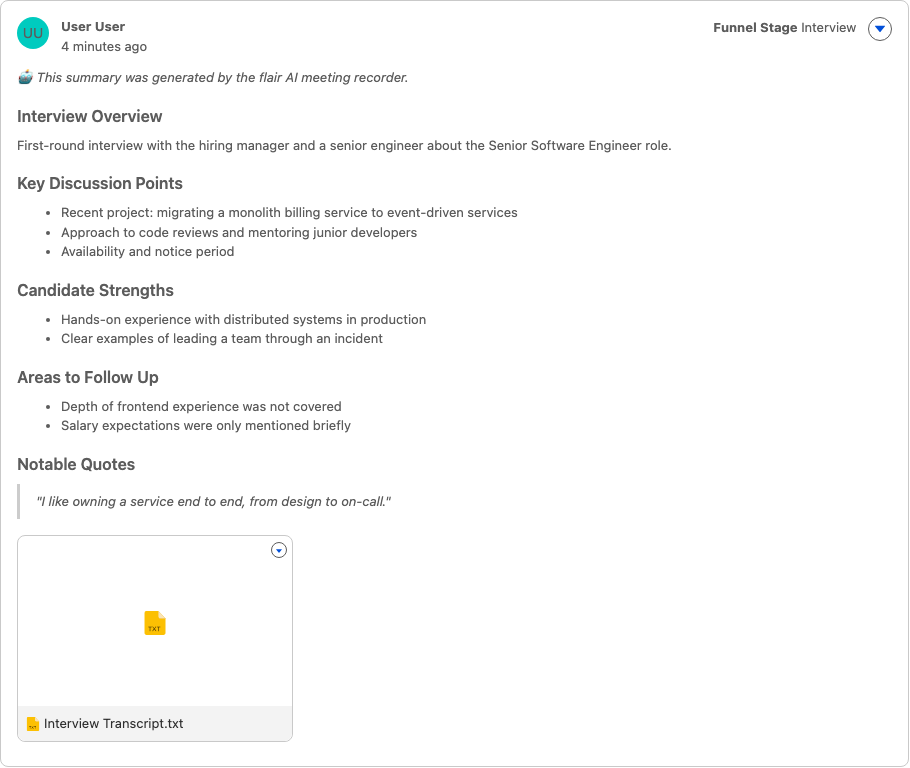
When processing finishes, flair creates a Candidate Note for the candidate's current funnel stage. If no stage is available, flair uses the Interview stage.
The note summarizes:
- The interview overview.
- The key points discussed.
- The candidate's strengths.
- Areas to follow up.
- Notable quotes.
The summary identifies itself as generated by the flair AI meeting recorder. The note also includes the full transcript as a text file named Interview Transcript.
Reschedule or cancel a recorded interview
- Cancel the interview to cancel the recorder automatically.
- Reschedule the interview to cancel the existing recorder and book a new one for the new time. Recording stays enabled.