Create and send recruiting emails
Create reusable email templates and send personalized messages to candidates, employees, or talents. This section also covers candidate email threads in the Employee Hub.
Recruiters and HR Admins in Salesforce. Hiring managers of a job can read and send emails to its candidates in the Employee Hub.
Before you begin
- Add your company name to your Salesforce user profile if recruiting emails should name your company.
- Create an email template before assigning it to an automatic candidate notification.
- To let hiring managers send candidate emails from the Employee Hub, a Salesforce Admin must set up a verified organization-wide email address.
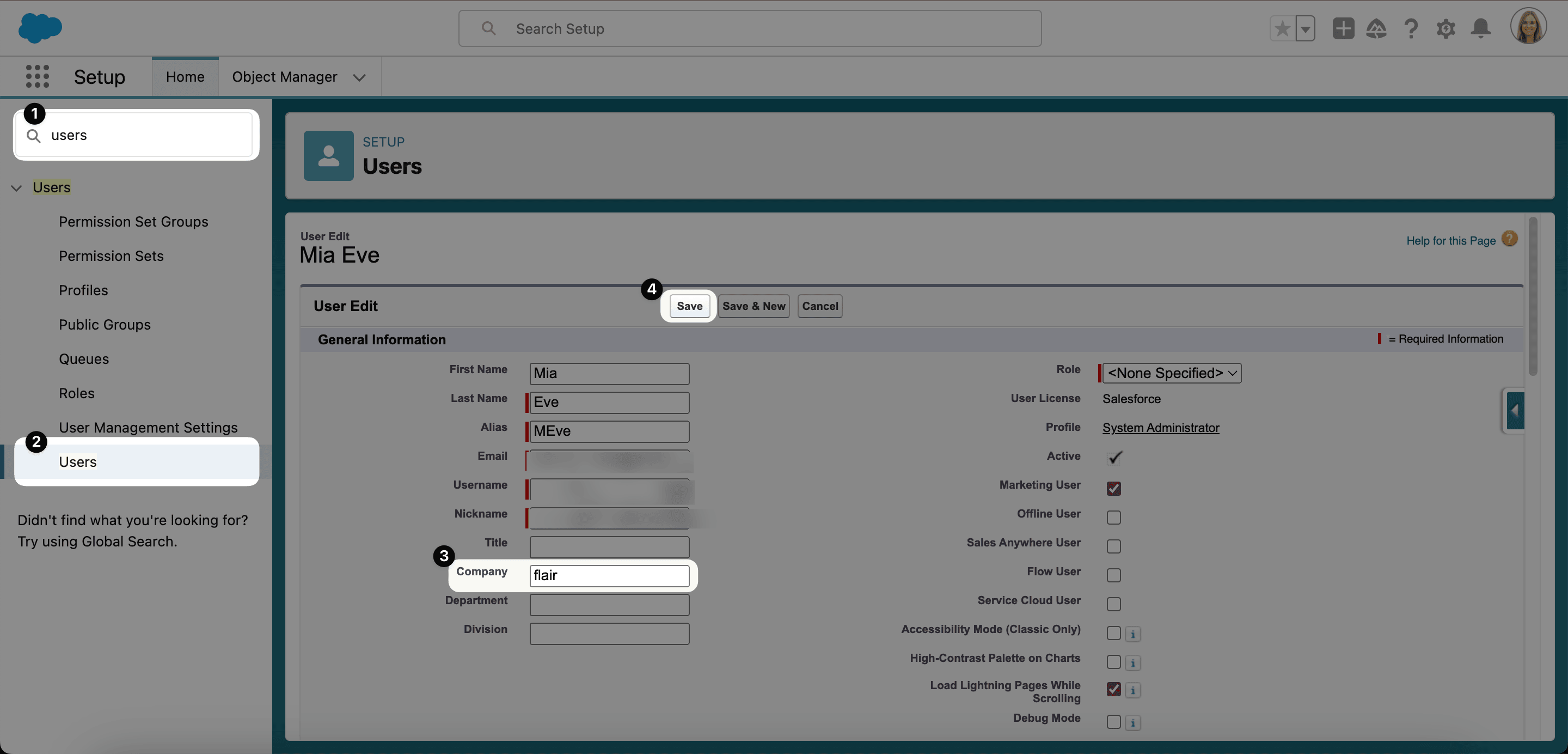
Add your company name to recruiting emails
- In Salesforce Setup, enter
Usersin Quick Find. - Open Users, then click Edit next to your profile.
- Complete Company.
- Click Save. Recruiting messages can now include the company name, as in
Thank you for your application at flair.
Create a flair email template
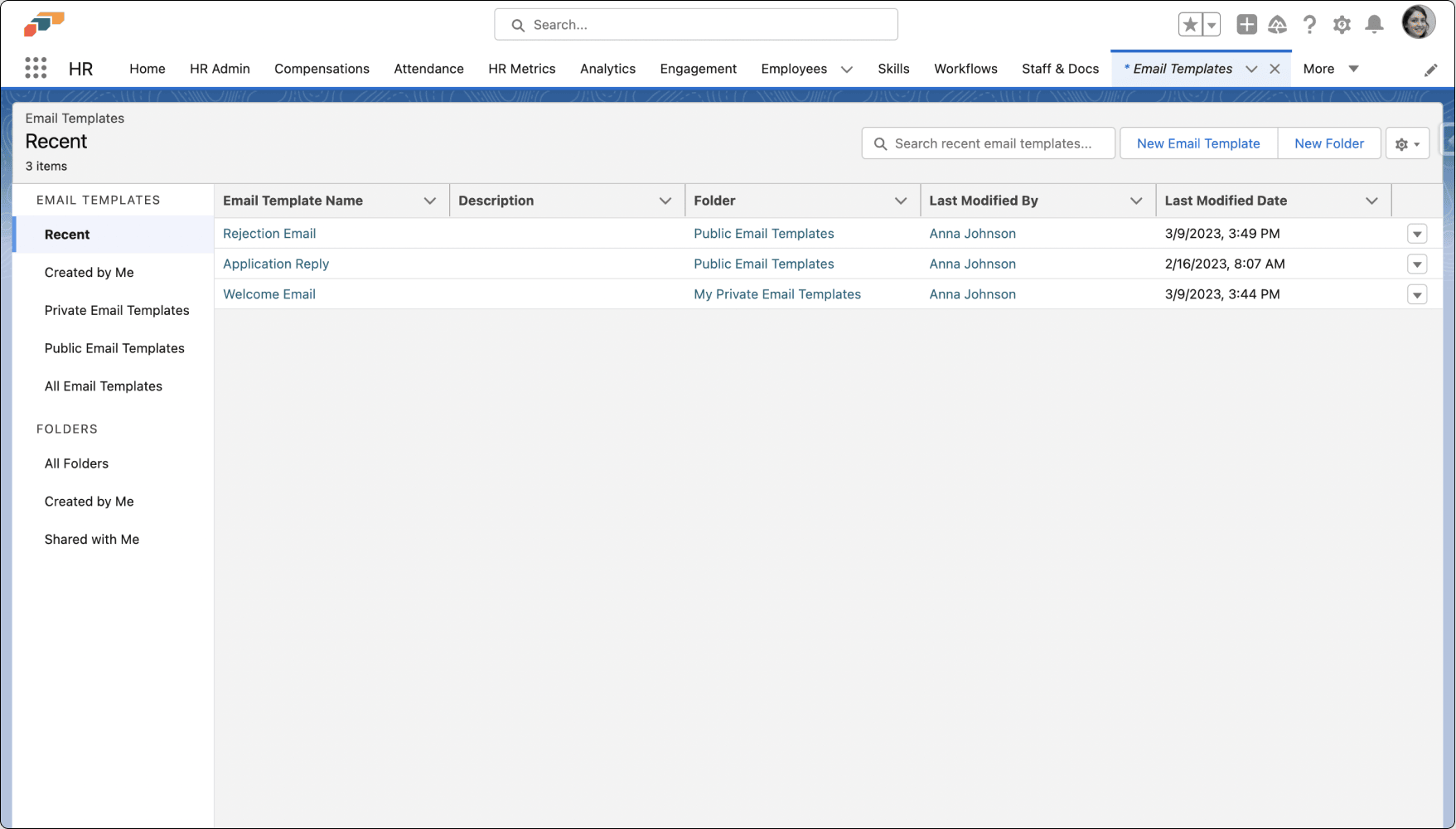
- In the flair HR app, open the App Launcher (⋮⋮ grid icon).
- Enter
Email Templatesin the search field. - Open Email Templates.
- Click New Email Template.
- Enter a name, such as
Successful Candidate Interview. - Select a Related Entity Type, such as Candidate. It decides where the template is offered; see Choose the Related Entity Type.
- In Folder, keep the template private or select a shared folder such as flair Recruiting.
- Add a description, subject, and message.
- Click Save. The template is available for emails related to the selected entity type.
Choose the Related Entity Type
The Related Entity Type decides where flair offers the template, and which record's merge fields it fills in. Pick the type of record the email is about:
| Related Entity Type | Where the template is offered |
|---|---|
| Candidate | Recruiting emails: the candidate templates and Scheduled Email Defaults in Recruiting Config, the Schedule Email and mass email forms for candidates, emails you write in the Recruiting Inbox, and candidate emails in the Employee Hub |
| Employee | Employee notification emails on the Email delivery sub-tab in HR Admin, and the Schedule Email and mass email forms for employees |
| Talent | The Schedule Email and mass email forms for talents |
- In the Schedule Email, mass email, and Recruiting Inbox forms, clear Only related templates to list templates of every Related Entity Type.
- The Employee Hub offers only active Candidate templates. Templates in a private folder never appear there, so save Hub templates in a shared folder.
- Templates in another user's private folder never appear in Salesforce either.
For employee notification emails, see Set the email sender and template per entity.
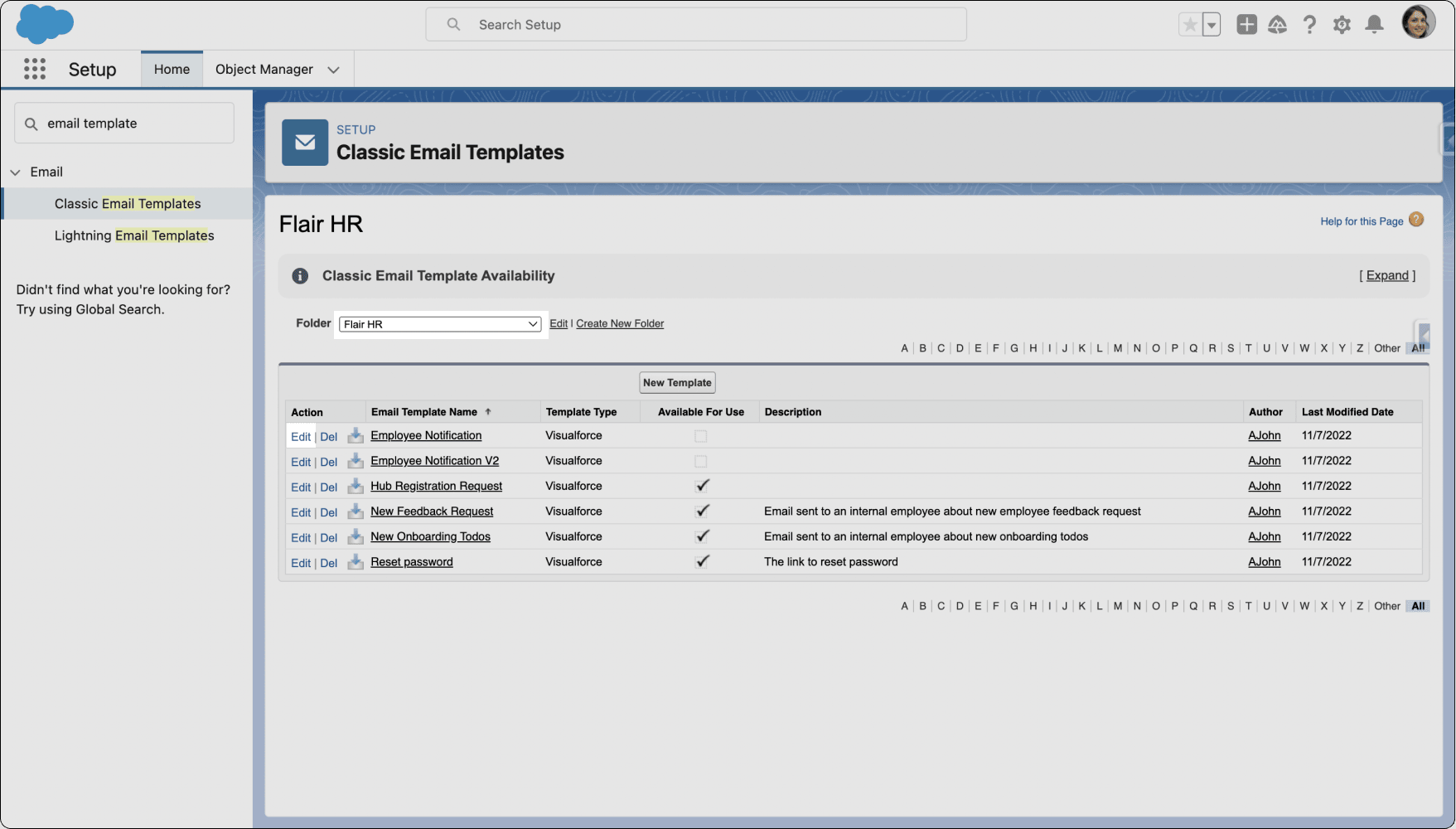
Create a Classic Email Template
Classic Email Templates support Text, HTML with Classic Letterhead, Custom, and Visualforce formats.
- In Salesforce Setup, enter
Email Templatein Quick Find. - Open Classic Email Templates.
- Select a folder.
- To update a template, click Edit next to it.
- To create a template, click New Template.
- Select the template type, then complete its content.
- Click Save.
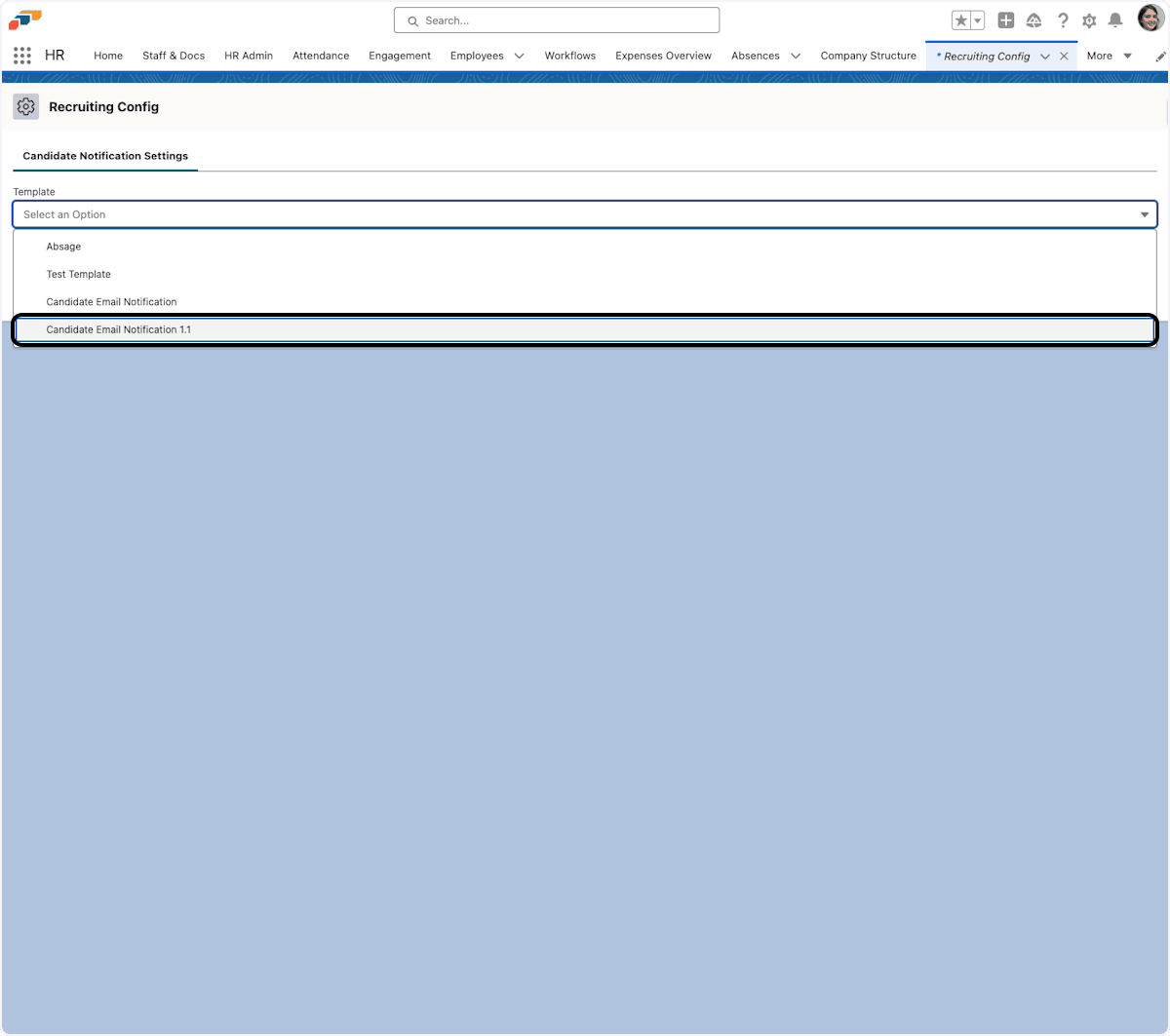
Configure the candidate application notification
- From the App Launcher (⋮⋮ grid icon), search for
Recruiting Config. - Open Recruiting Config.
- In the candidate application email template field, select the template.
- Click Save. New candidate applications use the selected notification template.
To test the notification, apply to one of your published jobs and review the email you receive.
Add merge fields to a template
A merge field is a placeholder that flair replaces with record data when it sends the email. More than 100 merge-field categories cover recruiting, employees, jobs, departments, talents, skills, evaluations, timesheets, and other records.
Add a Classic Email merge field
- In the Classic Email Template editor, find Available Merge Fields.
- In Select Field Type, select a group such as Candidate Fields or Payroll Fields.
- Select a field such as First Name. Salesforce displays its merge-field value.
- Copy the value into the template.
- Click Save.
The selected field types determine which record values flair inserts, such as a first name or contact ID.
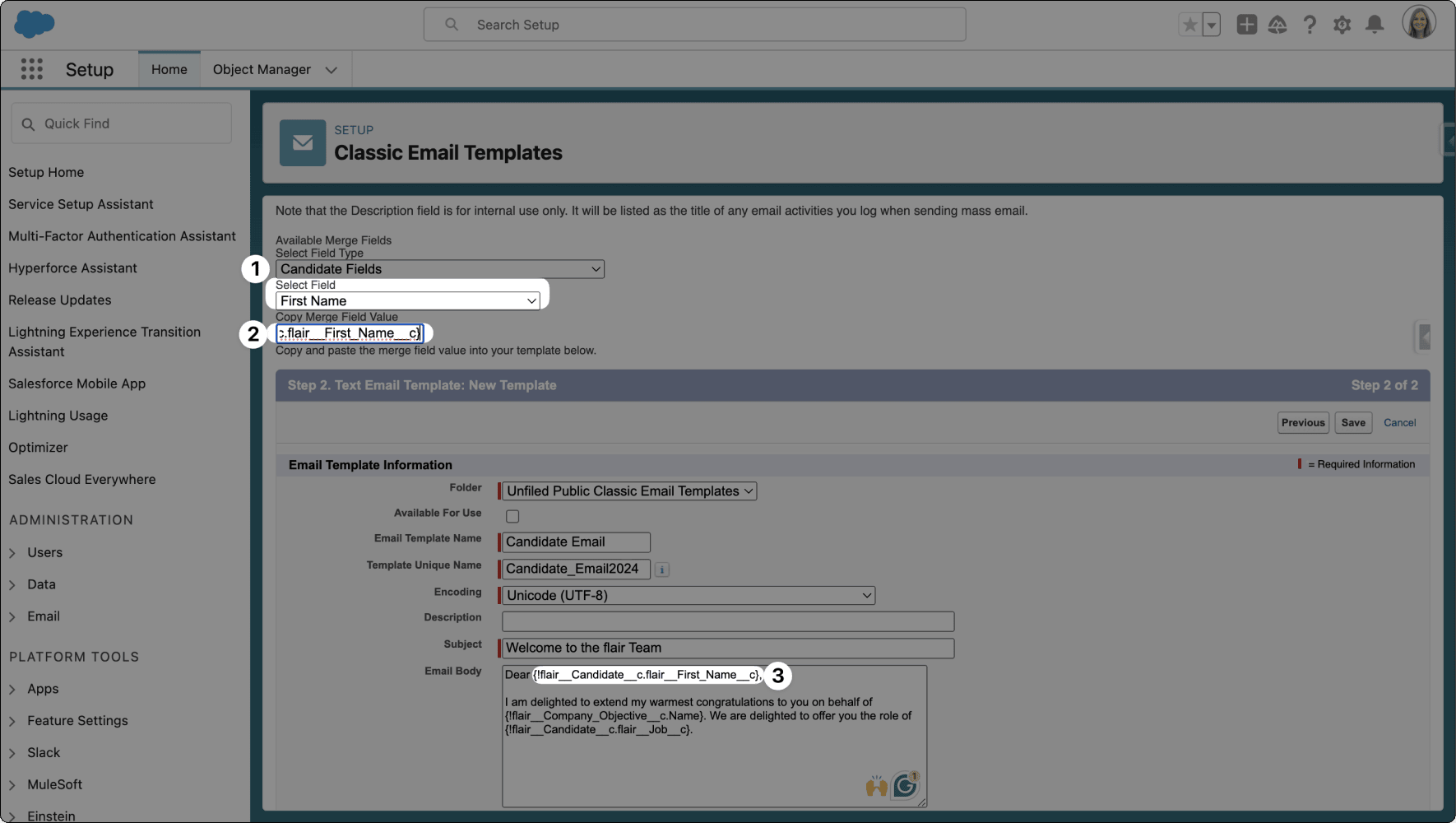
Add a candidate email merge field
- In the flair Recruiting app, open Candidates, then select a candidate.
- In the Timeline card, click New, then click Email. The New email panel opens with the candidate's email address in To.
- Optional: In Template, select an email template. To change the template text for this email, select Overwrite.
- Enter the Subject, then select the Sender.
- In the message, place the cursor where the field should go, then click the merge field icon (Insert Merge Field) below the editor.
- Search for a merge field, select it, and click Insert.
- Optional: Click Preview to see the email with the candidate's details filled in. To continue writing, click Edit content.
- Click Send. If the email uses merge fields that don't exist for the candidate, flair asks you to confirm, because those fields are sent blank. The email appears in the candidate's timeline.
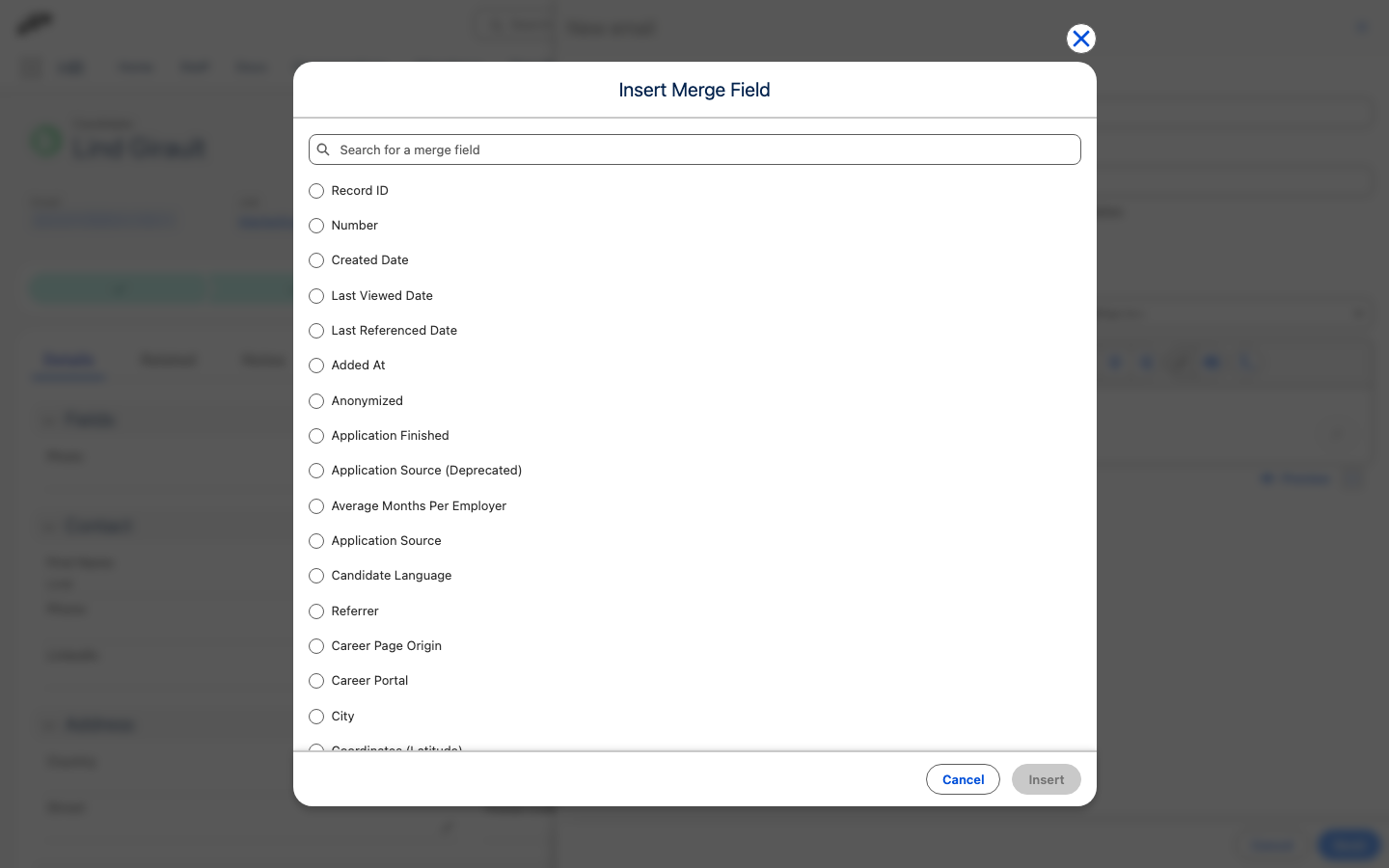
Candidate Email Greetings supports the candidate's first name, last name, and other candidate fields, including a custom salutation. Existing greetings that use only the first name continue to work.
Send a scheduled email to a candidate
- In the flair Recruiting app, open Candidates.
- Select the candidate.
- In the Timeline card, click New, then click Schedule email. New Scheduled Email opens.
- In Template, select the email template.
- Optional: Select Overwrite to change this message without changing the saved template.
- Select Hours, then choose when to send the email.
- Optional: In Change status, select the funnel stage to move the candidate to. The list offers the stages of the candidate's job, and -- Do not change -- keeps the current stage.
- Click Schedule. flair schedules the message for the selected time and lists it under Upcoming in the timeline. If you selected a stage in Change status, flair moves the candidate to it right away, not when the email is sent.
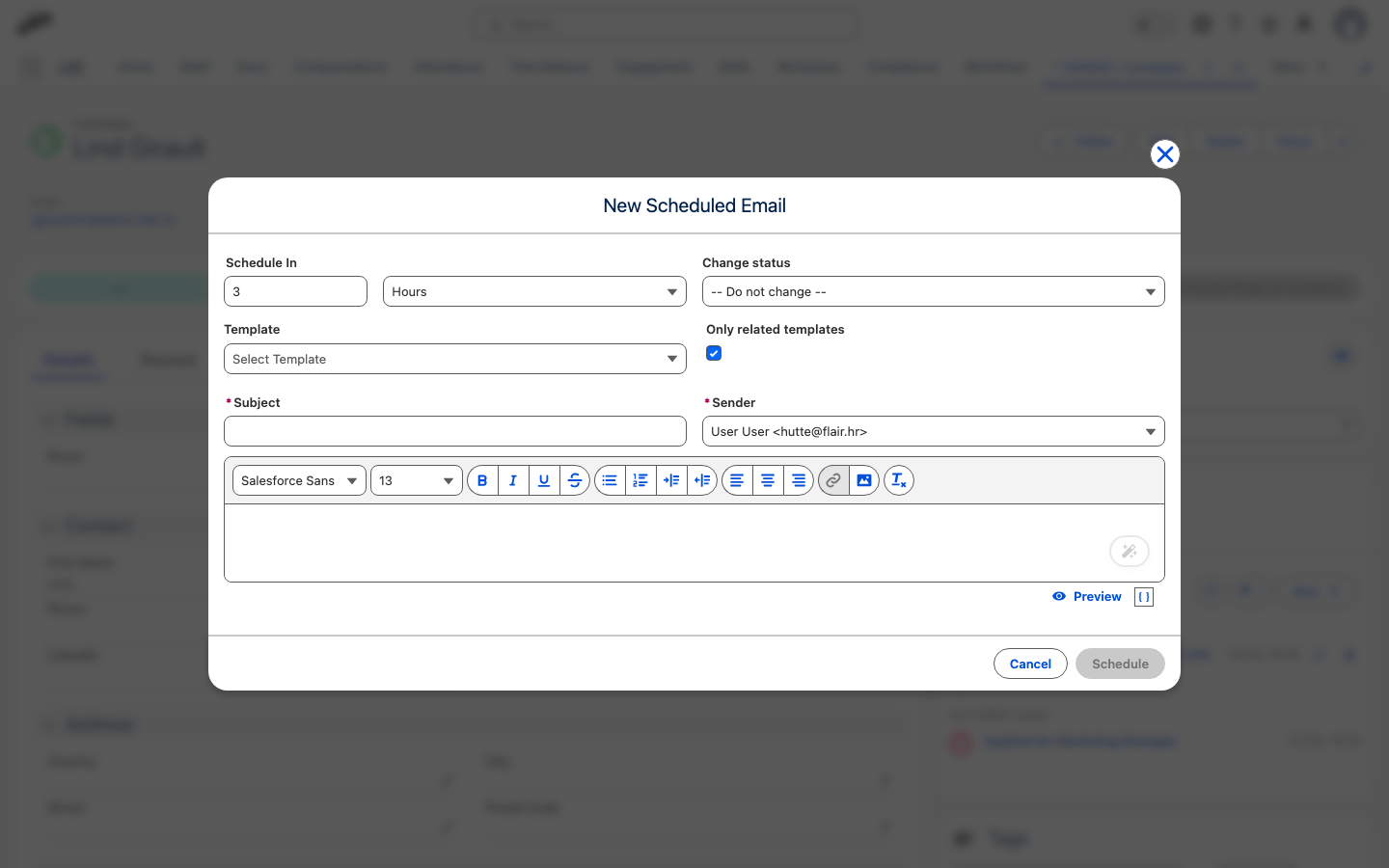
When an email moves the candidate to another stage, the timeline lists the stage change as its own entry. A candidate who is already in the selected stage isn't moved. You can only change the stage while scheduling a new email, not by editing a scheduled one.
Preview or edit a scheduled email
You can preview a scheduled email as the recipient receives it, with merge fields filled in, and change the subject and content of an email that hasn't been sent yet. On candidate and talent records, scheduled emails are listed under Upcoming in the Timeline card. On employee records, they are listed in the Scheduled Emails card.
Preview or edit on a candidate or talent record
- On the candidate or talent record, in the Timeline card, click the scheduled email under Upcoming. A side panel shows the subject and content with merge fields filled in.
- Optional: To change an email that hasn't been sent yet, click Edit. The Preview window opens. Click Edit again to open Edit Scheduled Email. Edit isn't available once the send time has passed.
- Change the subject or content.
- Click Save. flair confirms Scheduled email updated.
To remove a scheduled email, click Delete in the side panel or the trash icon on its row in the timeline.
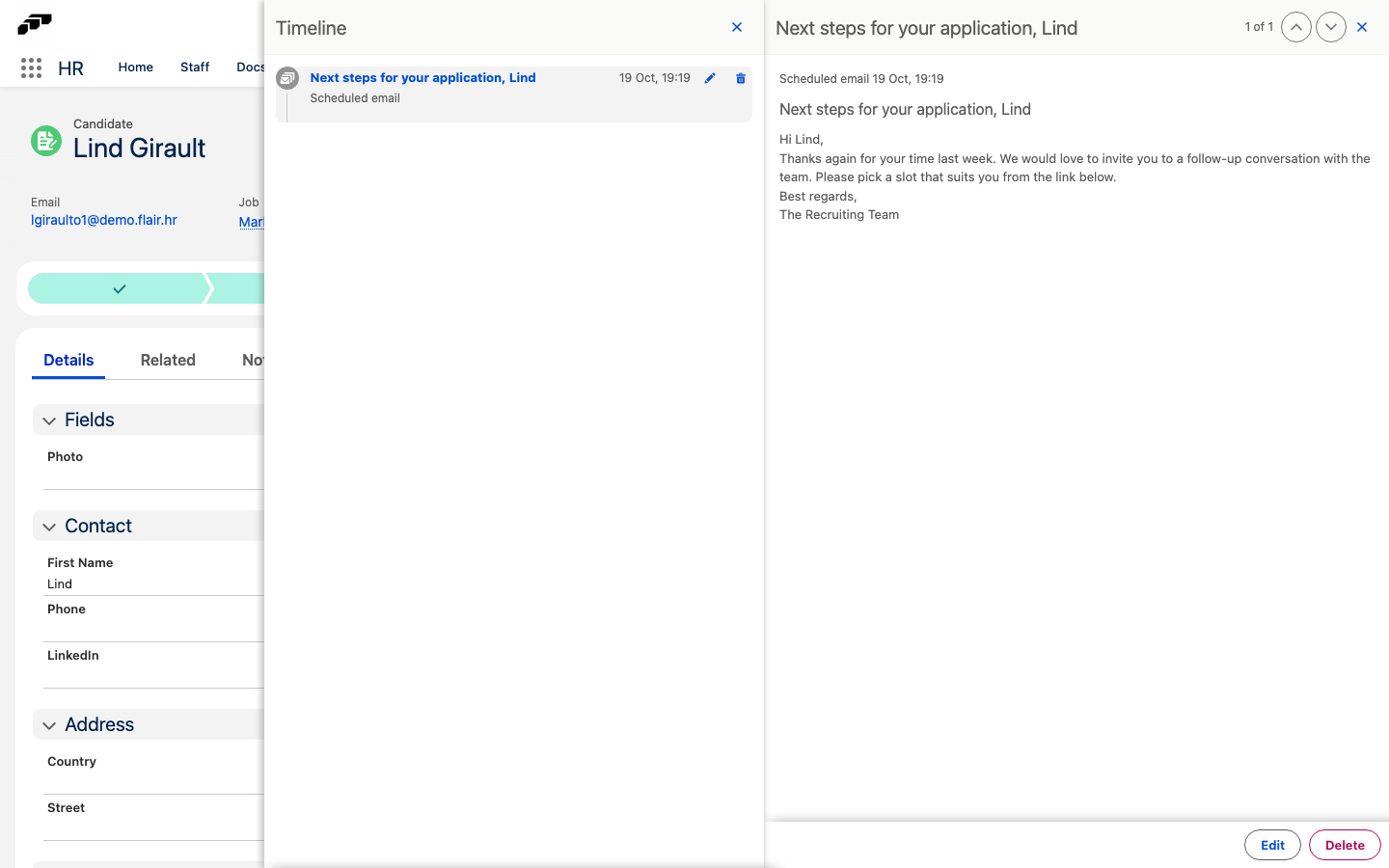
Preview or edit on an employee record
- On the employee record, find Scheduled Emails.
- On the email's row, click Preview (eye icon). The Preview window shows the subject and content with merge fields filled in.
- Optional: To change an email that hasn't been sent yet, click Edit. Edit isn't available once the send time has passed.
- Change the subject or content.
- Click Save. flair confirms Scheduled email updated.
The send time is fixed once an email is scheduled. To send it at another time, delete the email and schedule a new one. If the email follows a template, Edit copies the previewed content, with merge fields already filled in, into the email and selects Overwrite, so later changes to the template no longer reach this email.
Set Schedule Email defaults
Admins and recruiters with access to Recruiting Config can set per-entity defaults for the Schedule Email component. When a new email is scheduled for a candidate or employee in that entity, flair can preselect the template, sender, and timing.
- From the App Launcher, search for
Recruiting Configand open it. - Open Scheduled Email Defaults.
- Click New. A new settings row appears.
- In Name, enter a name for the settings row.
- In Template, select the email template to preselect.
- In Email, enter an organization-wide email address to use as the sender.
- In Schedule, select Now, Hours, or Days. If you select Hours or Days, enter a positive number in Schedule offset.
- In Entity, select the entity whose candidate and employee emails should use these defaults.
- Click Save. The defaults apply when a new Schedule Email form opens for a matching record.
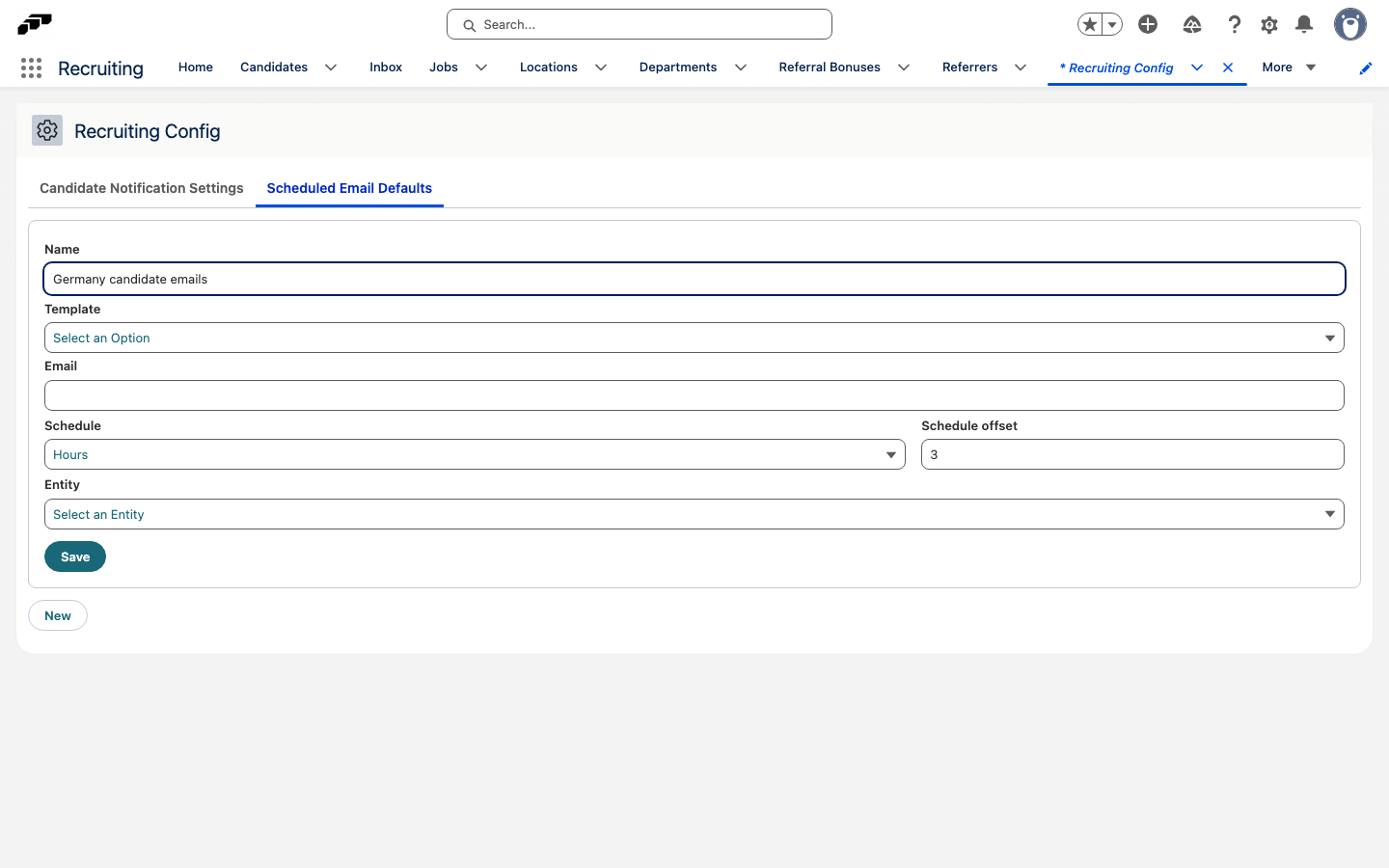
To change a saved default, update its row and click Save. To remove it, click Delete.
The Schedule offset is ignored when Schedule is Now. A template is preselected only when it is available for the record being emailed. Leave Template or Email empty to keep the standard template or current-user sender behavior.
Send a mass email to candidates
- In the flair Recruiting app, open Jobs.
- Select the job.
- Select the candidates you want to email.
- Open Show menu (three dots).
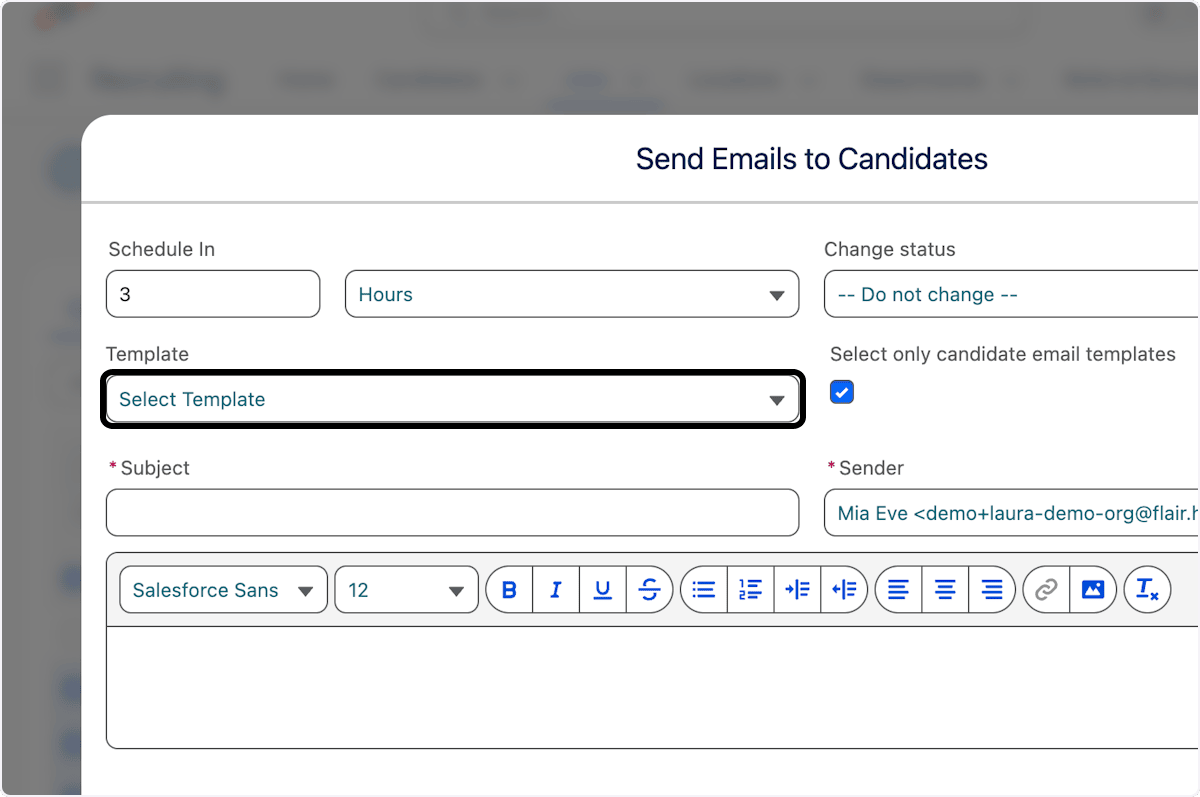
- Click Send Emails to Candidates.
- Click Select Template, then select the template.
- In Hours, select Now or a scheduled time.
- Optional: Select Overwrite to change text, images, or links without updating the saved template.
- Optional: Click
{ }, search for a merge field, select it, and click Insert. For example, the Job Name field adds{{{flair__Candidate__c.flair__Job_Name__c}}}. - Click Schedule. flair creates an email for every selected candidate.
Send a mass email to employees or talents
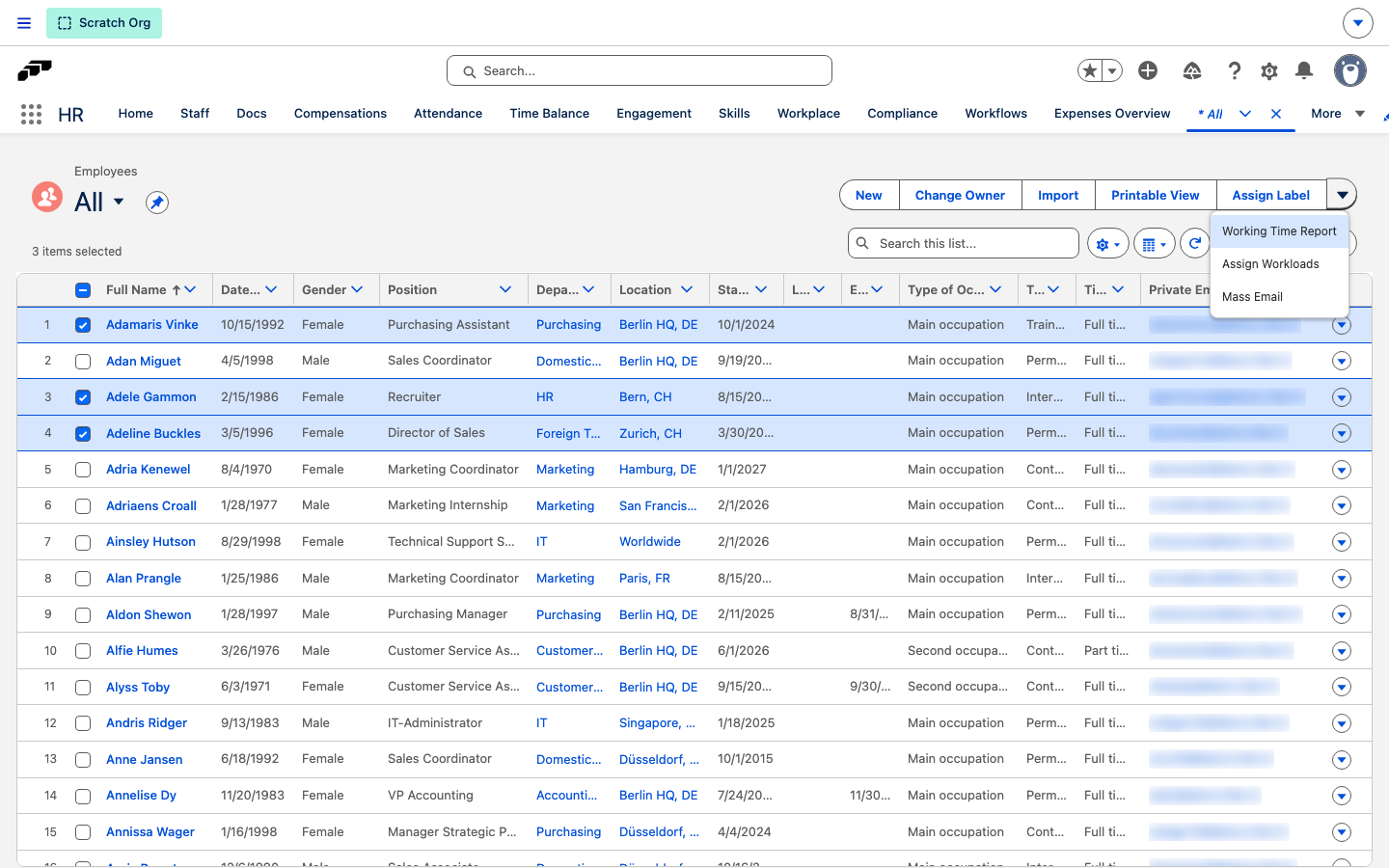
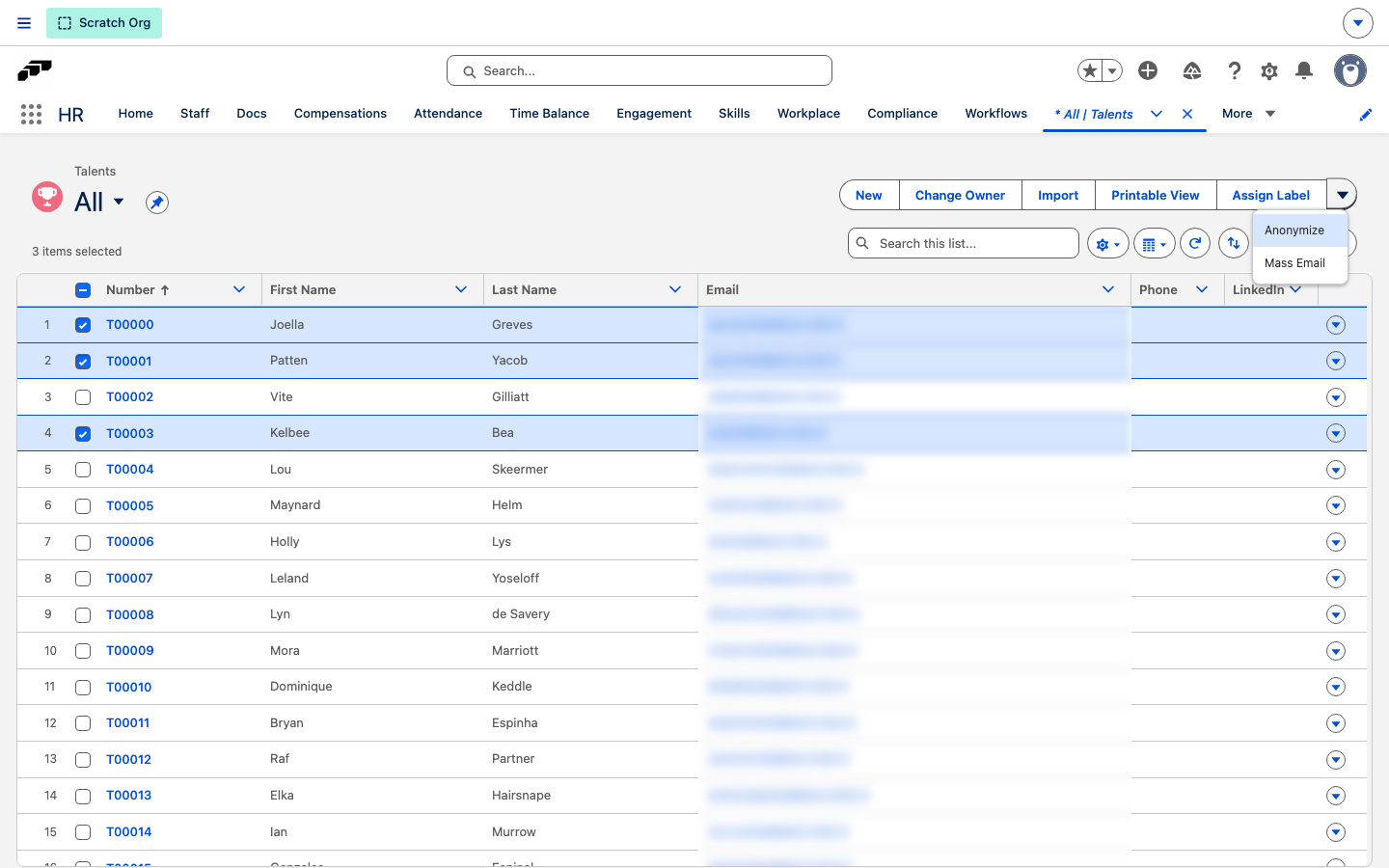
Employees and talents are emailed with the Mass Email list view button. If the button is missing from a list view, ask your Salesforce admin to add Mass Email to the List View button layout of the Employee or Talent object in the Object Manager.
Email employees
- In the flair HR app, open the Employees list view.
- Select the employees.
- Click Mass Email. If the button isn't shown next to the other list view buttons, open the menu at the end of the button row. Send Emails to Employees opens.
- Select a template in Template.
- Optional: Select Overwrite and update this message.
- Select Now or a scheduled time.
- Click Schedule.
Email talents
- In the flair HR app, open the Talents list view.
- Select the talent records.
- Click Mass Email.
- Configure the template, timing, overrides, and merge fields.
- Click Schedule.
Read and reply to candidate emails from the Recruiting Inbox
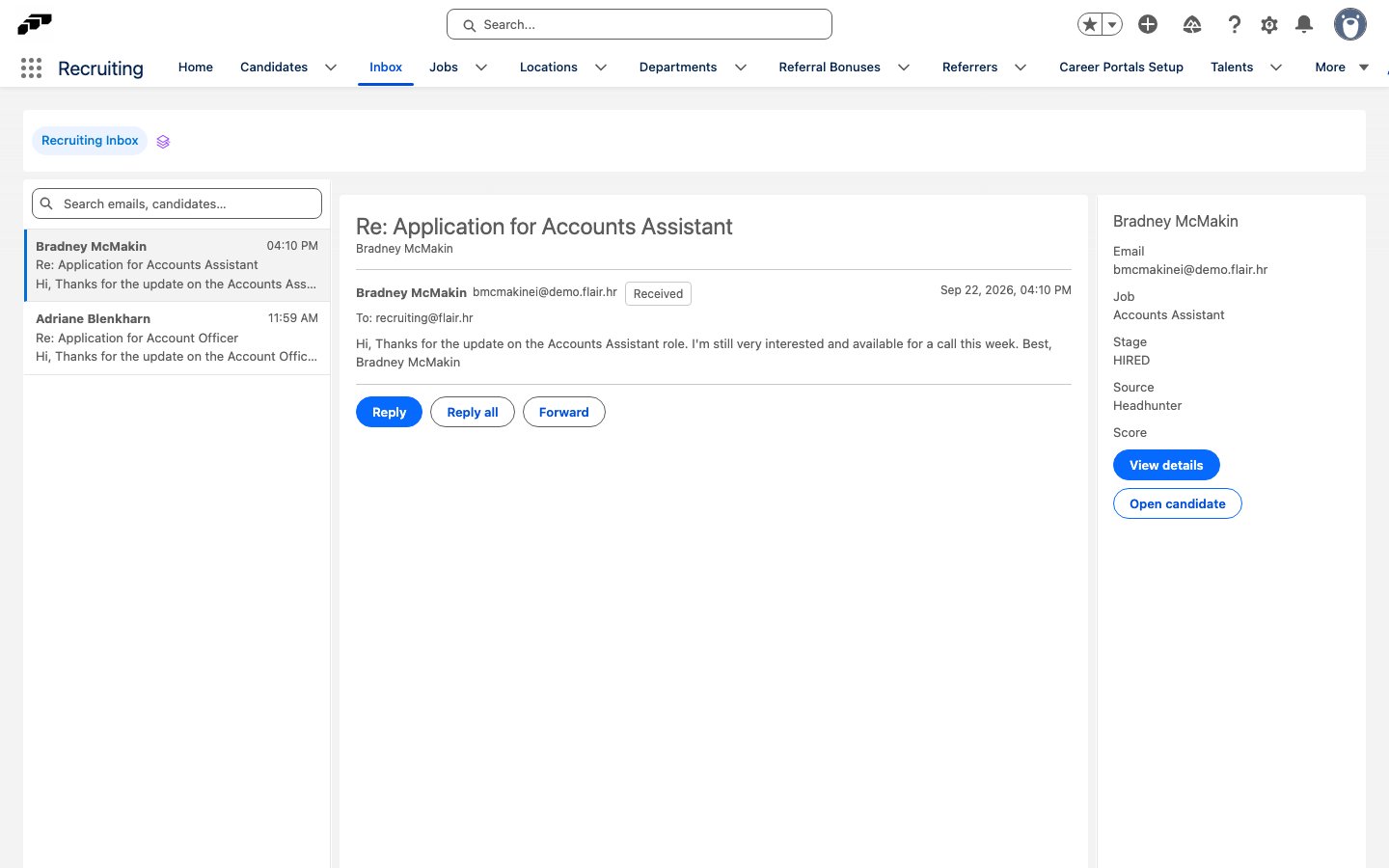
The Recruiting Inbox brings every candidate email into one view in the flair Recruiting app, so recruiters can read and reply without opening individual candidate records.
- In the flair Recruiting app, click the Inbox tab.
- Click a thread in the list. The reader shows every message in the thread, and the candidate rail on the right shows their stage, source, and score.
- Click Reply, Reply all, or Forward. flair opens a composer inside the reader pane, prefilled with the recipient and quoted message.
- Complete To, Cc, Subject, and Body, then click Send.
View a job's candidate emails from its Inbox tab
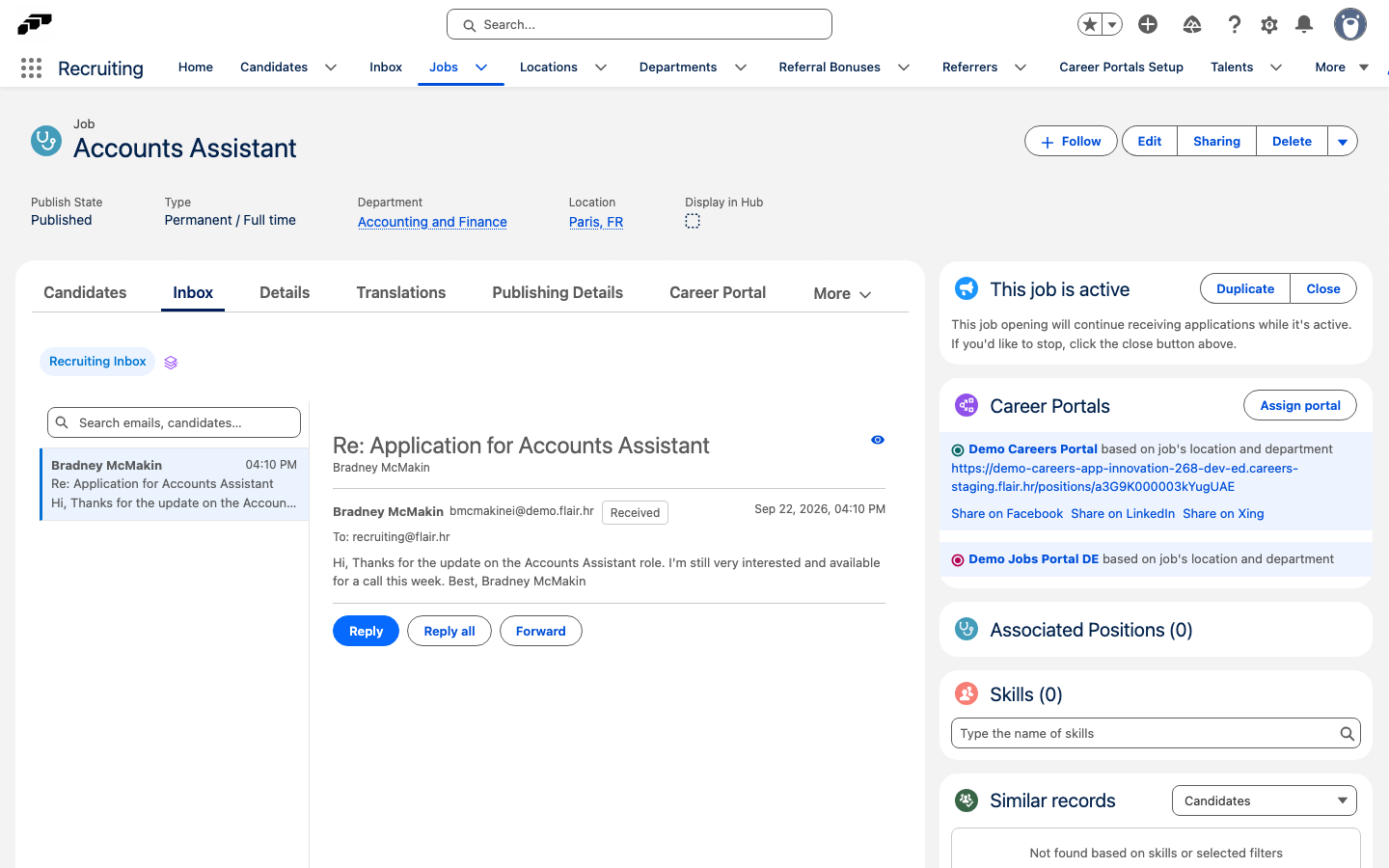
- In the flair Recruiting app, open Jobs, then select the job.
- Click the Inbox tab. It's scoped to that job's candidates and shares filters with the Candidates tab.
Check unread candidate emails from the Recruiting home page
The Recruiting home page shows a Recruiting Inbox card with your unread count and the most recent unread emails.
- In the flair Recruiting app, click Home.
- In the Recruiting Inbox card, review the unread badge and the most recent messages.
- Click Open inbox → to go to the Inbox tab.

Send candidate emails from the Employee Hub
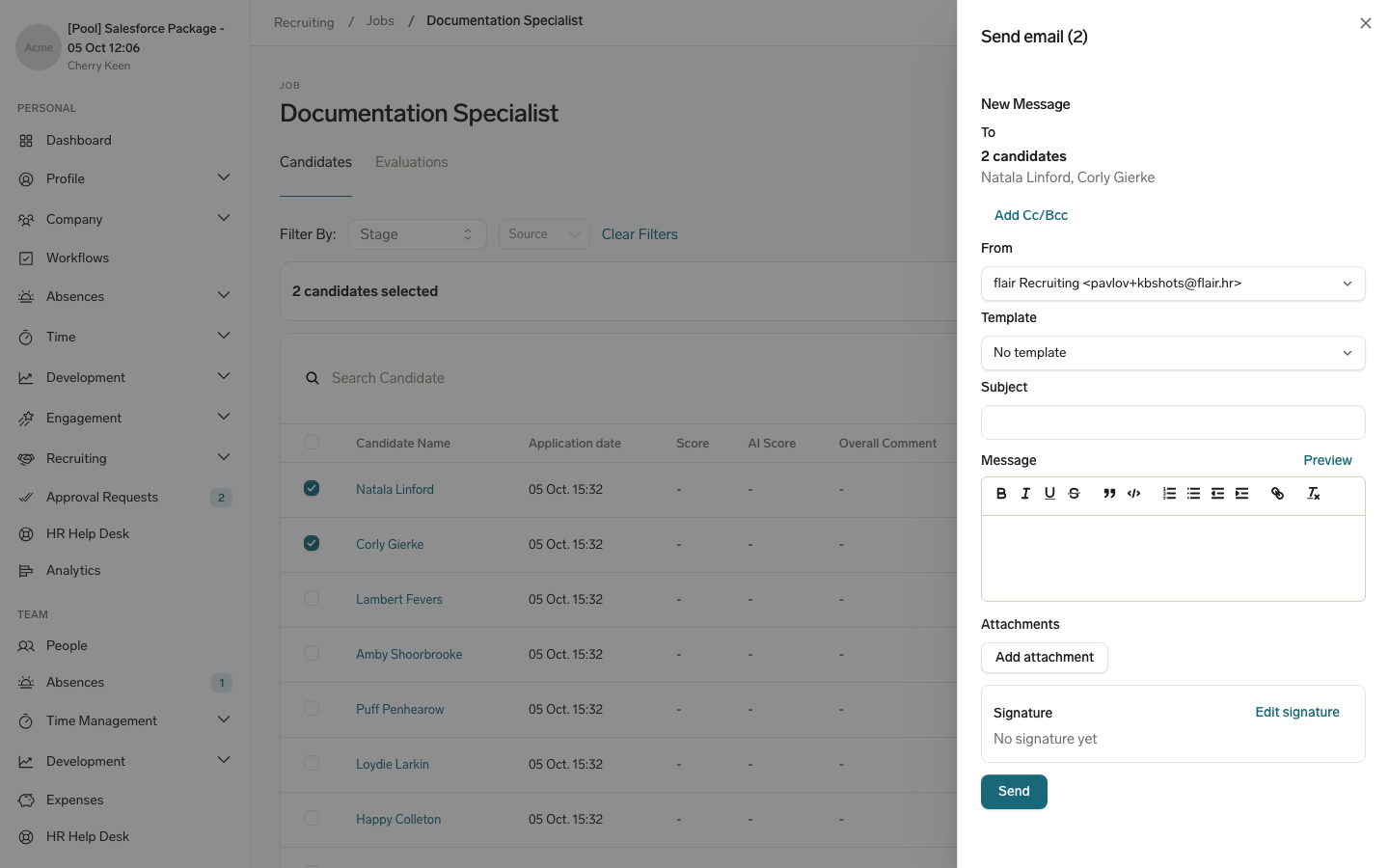
Hiring managers of a job can email one candidate or up to 50 candidates at once from the Employee Hub. Evaluators who aren't hiring managers of the job don't see candidate communication.
Sending requires at least one verified organization-wide email address whose purpose isn't Default No-Reply Address and that the Employee Hub integration user is allowed to use, for example because Allow All Profiles to Use this From Address is selected. Without one, the composer shows Sending isn't set up yet, Send stays unavailable, and you can still read the conversation. Ask your Salesforce Admin to set up an organization-wide email address.
Email an individual candidate
- In the Employee Hub, go to Recruiting → Jobs.
- Click the job. The job's candidates appear.
- Click the candidate's name.
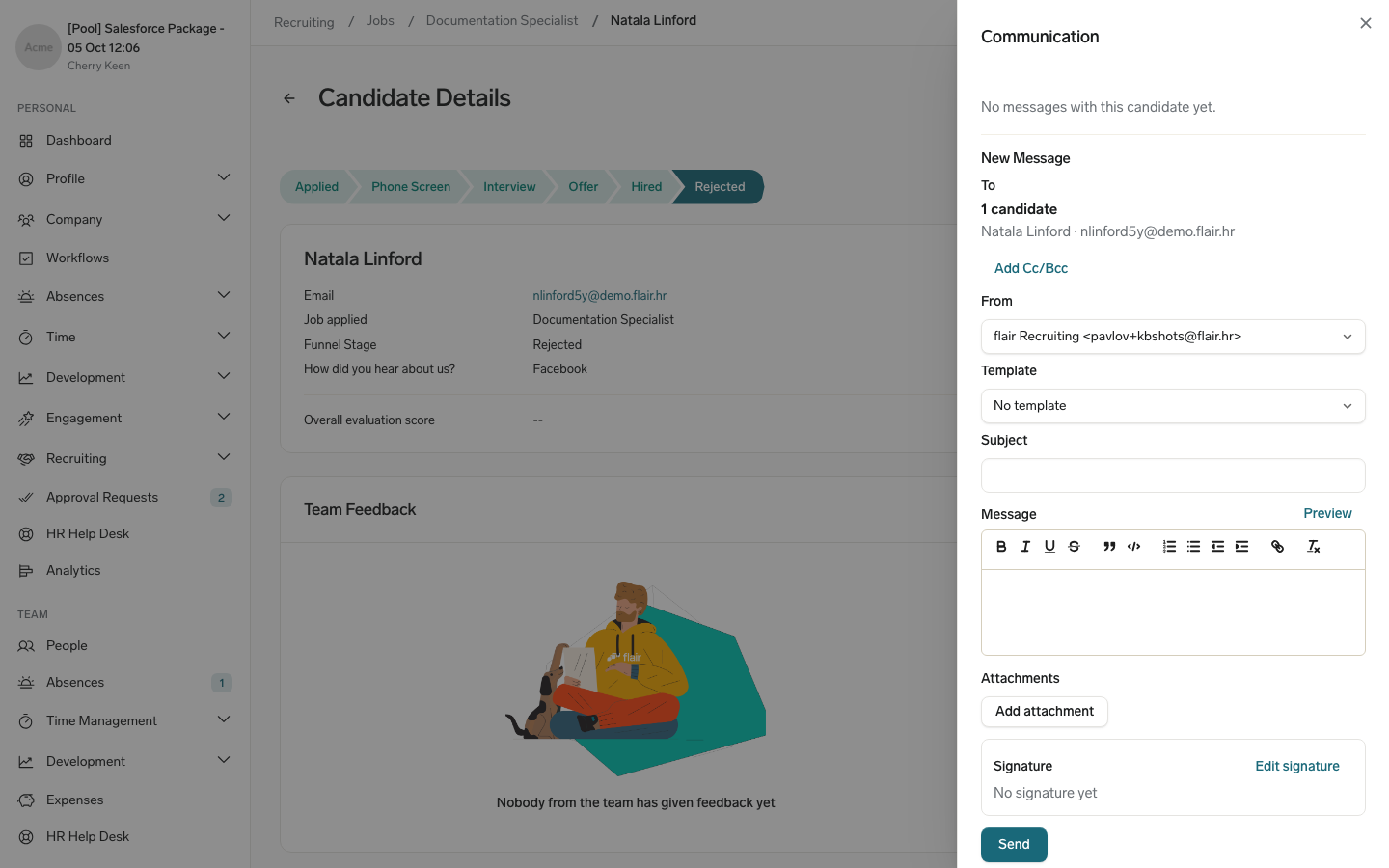
- In Communication, click Open conversation. The panel shows the email composer above the conversation. The conversation lists the emails received from and sent to the candidate, newest first and grouped by month. Earlier messages quoted inside a reply are hidden; click Show quoted text to see them. Files attached to an email are listed under it.
- Under To, check the candidate's name and email address.
- Optional: To copy other recipients, click Add Cc/Bcc, then complete Cc or Bcc.
- In From, select the organization-wide email address to send from.
- Optional: In Template, select an email template. The template is shown as a preview and sent unchanged. To edit its text, click Customize message.
- In Subject, enter a subject. If the conversation already has emails, the subject is prefilled from the latest one, and your email is sent as a reply to it.
- Enter the Message. Optional: Click Preview to see the email with the candidate's details filled in.
- Optional: Under Attachments, click Add attachment. You can attach up to 5 files with a total size of 3.5 MB.
- Optional: Under Signature, click Edit signature, paste or enter your signature, then click Save signature. Your signature is added to the emails you send.
- Click Send. The Employee Hub confirms Email sent to the candidate. and adds the email to the conversation.
Send an email to multiple candidates
-
In the Employee Hub, go to Recruiting → Jobs.
-
Click the job.
-
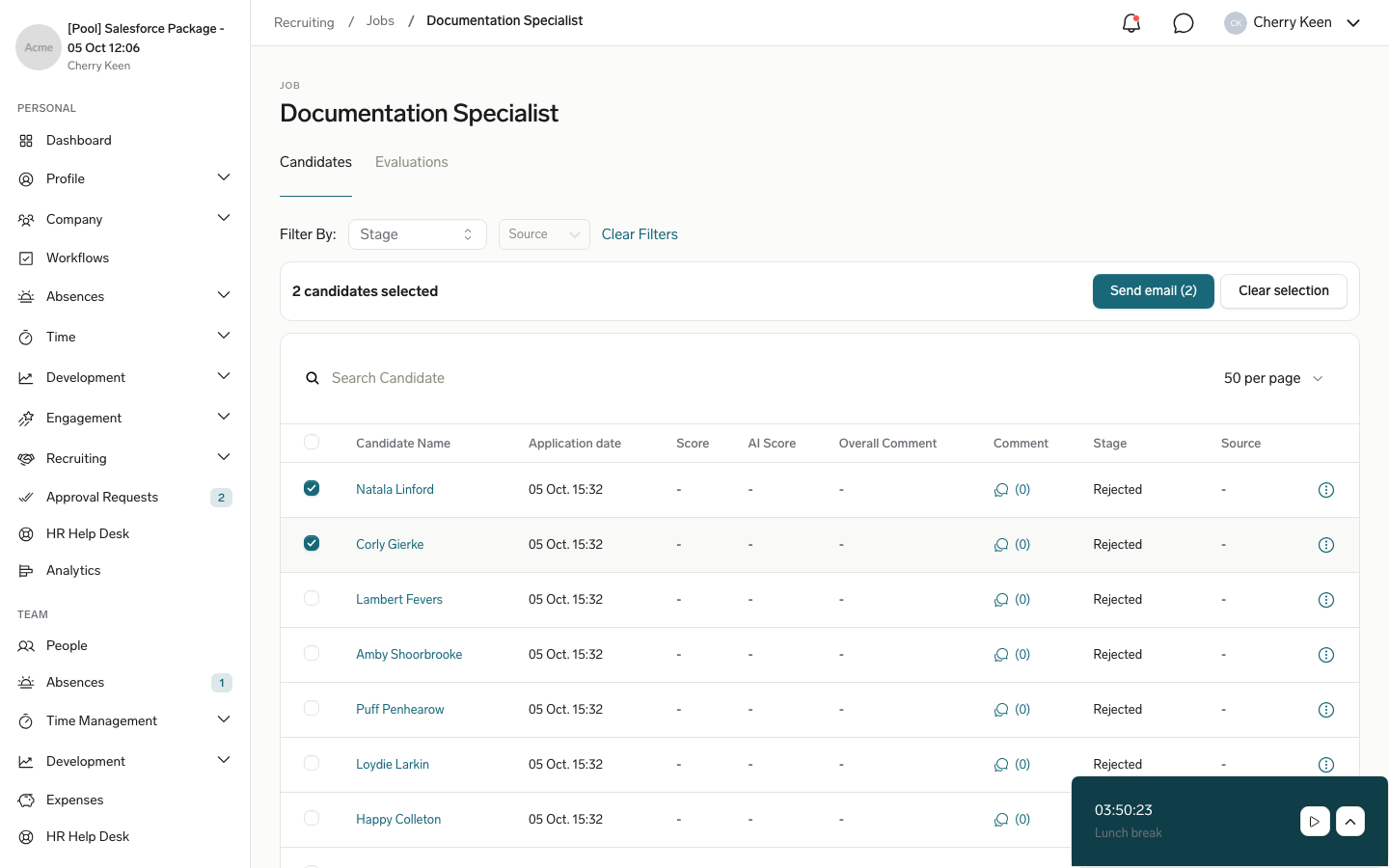
In the candidate list, select the checkboxes next to the candidates you want to email, up to 50. To select all candidates on the page, select the checkbox in the header row.
-
In the bar above the candidate list, click Send email. The button shows the number of selected candidates.
-
Under To, check the selected candidates.
-
Complete the email as for an individual candidate: From, optionally a Template, Subject, Message, attachments, and your signature. Merge fields in the template are filled in for each candidate, and Preview shows the email for the first selected candidate.
-
Click Send. Each candidate receives a separate email, and the Employee Hub confirms how many emails were sent. If some emails can't be sent, the Employee Hub lists the candidates who didn't receive them.
Hide Candidate Communication in the Employee Hub
Admins can hide Communication for all employees or for selected employees, departments, entities, or locations with an Employee HUB Features feature set. For the steps, see Configure the Employee Hub menu.
- In the feature set, select Hide Candidate Communication, then click Save. Hiring managers the feature set applies to no longer see Communication on candidate pages and can't read or send candidate emails in the Employee Hub.